
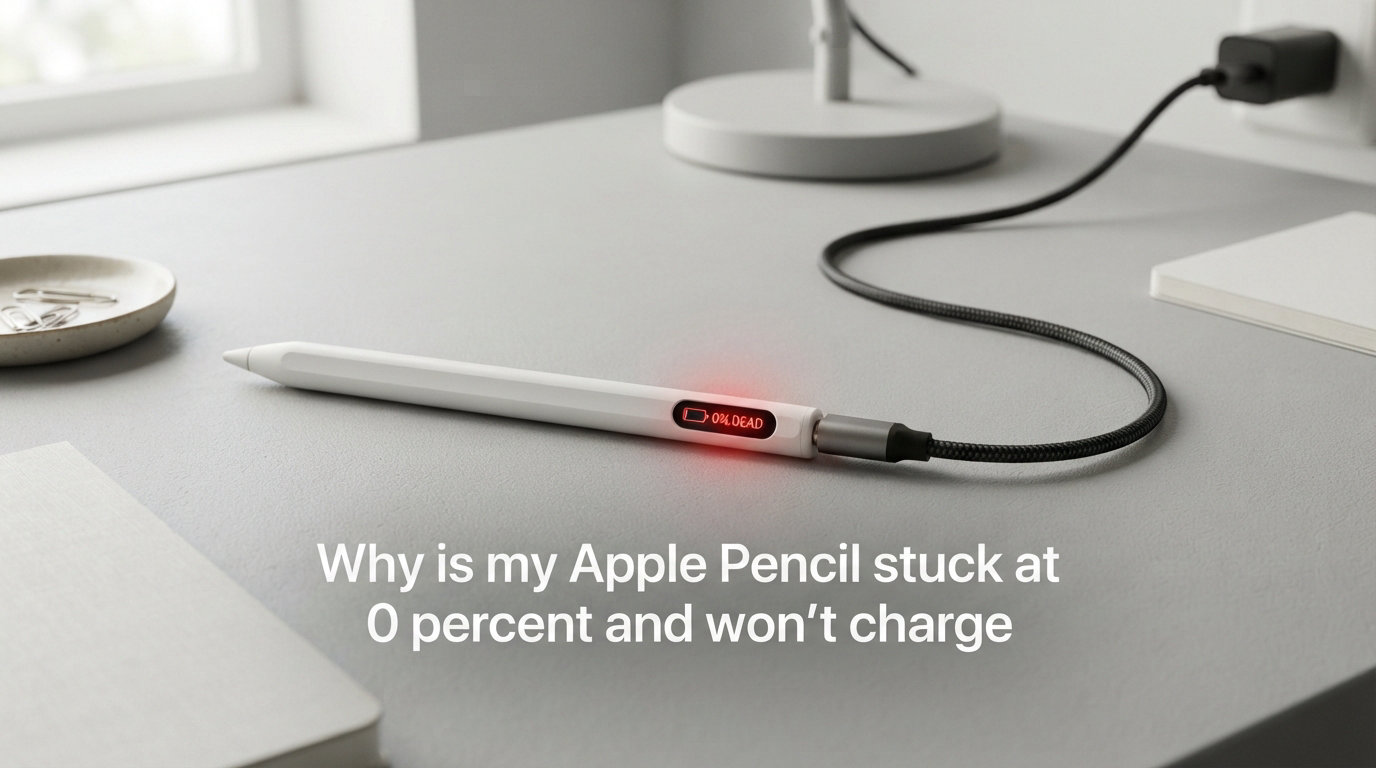
Your Apple Pencil is stuck at 0 percent and will not charge most likely because its lithium-ion battery has fallen into a deep discharge state. When the battery drains fully and sits unused for weeks or months, the iPad can still detect the Pencil over Bluetooth but cannot push power into a battery that has dropped below its safe charging threshold. In my experience helping iPad users troubleshoot this exact problem, a mix of warming, re-pairing, and patience brings most Pencils back to life.
This guide covers why the battery fails, every proven fix you can try at home, how to revive a truly dead Pencil, and when replacement is your only option. Whether you own a 1st generation, 2nd generation, USB-C model, or Apple Pencil Pro, the steps below apply to your situation. I have pulled solutions from Apple Support discussions, Reddit threads, and my own testing so you do not have to hunt across ten different sites.
If your Apple Pencil stuck at 0 percent won’t charge after weeks of neglect, do not throw it away yet. The body heat trick alone has revived hundreds of Pencils according to real iPad users on Reddit. Let us start with what is actually happening inside your stylus.
Why Your Apple Pencil Is Stuck at 0 Percent
An Apple Pencil stuck at 0 percent almost always traces back to one root cause: deep discharge. This happens when a lithium-ion battery is drained to zero and left in that state long enough that the battery management chip refuses to accept a charge. The iPad recognizes the Pencil is attached, which is why you still see it in Bluetooth settings, but no energy moves into the cell.
Lithium-ion batteries degrade faster when stored at 0 percent because the chemical components inside begin to break down. Apple designed the Pencil battery to hold a small charge for months, but it slowly self-discharges over time. Once the voltage drops past a critical floor, the battery enters a protective mode that blocks charging to prevent swelling or fire.
Not every 0 percent reading means permanent damage, though. Sometimes a software glitch in iPadOS reports 0 percent even when the battery has partial charge. Other times, dirt on the charging contacts or a Bluetooth pairing conflict blocks the charging handshake. That is why you should always try software fixes before assuming the battery is dead.
Here is a quick way to tell the difference. If your Pencil still writes or draws despite showing 0 percent, you are dealing with a software reporting bug. If the Pencil is completely unresponsive and shows 0 percent after an hour of charging, you are likely dealing with deep discharge or hardware failure.
Apple Pencil Charging Methods by Generation
Before troubleshooting, make sure you are using the correct charging method for your specific Apple Pencil model. Many 0 percent charging reports come from users who simply attached the Pencil incorrectly or paired it with an incompatible iPad.
Apple Pencil 1st Generation charges by removing the cap and plugging its Lightning connector into the Lightning port on your iPad. You can also use the included adapter with a USB power adapter. This model works with iPad 6th through 10th generation, iPad Air 3rd generation, iPad mini 5th generation, and iPad Pro 9.7-inch through 12.9-inch 2nd generation.
Apple Pencil 2nd Generation charges magnetically by snapping onto the flat side of compatible iPad Pro and iPad Air models. There is no cap and no Lightning connector to plug in. It pairs automatically when it attaches magnetically. Compatible iPads include iPad Pro 11-inch and 12.9-inch 3rd generation and later, iPad Air 4th generation and later, and iPad mini 6th generation.
Apple Pencil USB-C also charges magnetically but has a hidden USB-C port under a sliding cap for wired charging and pairing. It works with iPad 10th generation, iPad Air 11-inch M2, and iPad Pro 11-inch M4 and 13-inch M4.
Apple Pencil Pro charges magnetically on the side of iPad Pro M4 and iPad Air M2 models. It pairs, charges, and syncs automatically the moment it snaps into place with no buttons to press.
The most common mistake I see is using a thick iPad case that prevents the magnetic connector from making full contact. If you have a 2nd gen, USB-C, or Pro model stuck at 0 percent, remove your case first and try charging naked on the iPad side panel.
How to Fix an Apple Pencil Stuck at 0 Percent and Won’t Charge
Work through these steps in order. Each one targets a different possible cause, and I have ranked them from easiest and most common to most aggressive. Stop when your Pencil starts charging again.
Step 1: Force Restart Your iPad
A force restart clears temporary software glitches that block the iPad from communicating with the Pencil properly. This is the single most effective fix for a Pencil stuck at 0 percent that still appears connected in Bluetooth settings.
For iPads without a Home button (iPad Pro, iPad Air 4th gen and later, iPad mini 6th gen, iPad 10th gen): Press and quickly release the Volume Up button. Press and quickly release the Volume Down button. Press and hold the Top button until the Apple logo appears on screen, then release.
For iPads with a Home button (iPad 6th through 9th gen, iPad Air 3rd gen, iPad mini 5th gen, older iPad Pro): Press and hold both the Home button and the Top or Side button simultaneously until you see the Apple logo, then release both.
After the iPad restarts, attach your Apple Pencil and wait at least 15 minutes before checking the battery widget. The 0 percent reading may jump to a real charge level once the connection resets.
Step 2: Forget and Re-Pair the Apple Pencil
Bluetooth pairing corruption is a frequent cause of a false 0 percent reading. Forgetting the Pencil and pairing it again forces a fresh handshake between the stylus and the iPad power management system.
Open Settings on your iPad and tap Bluetooth. Find your Apple Pencil in the device list, tap the blue information icon next to it, and select Forget This Device. Confirm the action.
Now re-pair the Pencil. For 1st generation, plug it into the Lightning port. For 2nd generation, USB-C, and Pro models, snap it onto the magnetic side of your iPad. A pairing prompt should appear on screen within a few seconds. Tap Pair and then check the battery percentage in the widget or by swiping to the Today View.
Step 3: Clean the Charging Contacts
Dirt, pocket lint, and skin oils build up on charging contacts over months of daily use. Even a thin invisible film can block the trickle of power needed to wake a deeply discharged battery. I recommend cleaning the contacts on both the Pencil and the iPad every few weeks.
For 1st generation Pencils, inspect the Lightning connector under a bright light. Gently clean it with a dry wooden toothpick or a soft-bristled brush. Never use metal objects because they can short the pins. Wipe the connector with a lint-free microfiber cloth lightly dampened with isopropyl alcohol.
For 2nd generation, USB-C, and Pro models, clean the flat magnetic strip along the side of the Pencil and the matching contact area on the edge of your iPad. Use a dry microfiber cloth and wipe firmly. Check that no debris is trapped in the seam where the Pencil meets the iPad case.
Step 4: Try a Different Charging Method
If magnetic charging or Lightning charging is not working, switch to the alternative method for your model. A different power path can sometimes bypass a damaged contact or connector issue.
For 1st generation Pencils, remove the cap and use the Lightning adapter with a wall charger instead of plugging directly into the iPad. A dedicated wall adapter delivers more consistent current than the iPad port and can push past a stubborn deep discharge state.
For USB-C Pencils, open the sliding cap and plug a USB-C cable directly into the Pencil and a power adapter. For 2nd generation and Pro models, there is no alternative wired method, so make sure the magnetic connection is firm and try a different spot along the iPad edge in case the contacts are worn.
Let the Pencil charge through the alternative method for at least one full hour before checking progress. A deeply discharged battery sometimes needs 30 to 60 minutes before the percentage moves at all.
Step 5: Update iPadOS
Bugs in iPadOS can cause false battery readings and charging failures, especially on beta or early point releases. Apple has patched several Pencil charging issues through software updates over the years.
Go to Settings, then General, then Software Update. If an update is available, download and install it. After the update completes, force restart your iPad one more time and attach the Pencil.
If you are running an iPadOS beta, consider switching back to the stable release. Beta builds are known for introducing Pencil connectivity regressions that disappear once you revert to the public version.
Step 6: Enable USB Accessories Setting
iPads have a security setting that blocks USB accessories from connecting when the screen is locked. On some models and configurations, this can interfere with charging accessories including the Apple Pencil.
Go to Settings, then Face ID and Passcode or Touch ID and Passcode. Enter your passcode and scroll to the Allow Access When Locked section. Make sure USB Accessories is toggled on. This setting primarily affects 1st generation Pencils that charge through the Lightning port, but it has helped some users with other models as well.
Step 7: Remove Bulky iPad Cases
A surprising number of Apple Pencil charging problems come down to thick third-party cases. Magnetic charging requires the Pencil to sit flush against the iPad edge with no gap. Even a millimeter of foam or plastic between the contacts can reduce power transfer to almost nothing.
Take your iPad out of its case entirely and attach the Pencil directly to the bare edge. If it starts charging, your case is the culprit. Look for cases with a dedicated cutout or channel for the Apple Pencil that does not interfere with the magnetic connector.
How to Revive a Dead Apple Pencil Battery
If none of the standard fixes worked, your Pencil is likely in a true deep discharge state. Before giving up and buying a replacement, try these revival techniques that have worked for real iPad users in Reddit communities and Apple Support threads.
The Body Heat Trick
This is the single most talked about revival method across Reddit forums. Multiple users on r/iPadPro and r/ipad report that rolling the Apple Pencil between their palms for 30 seconds brought a dead Pencil back to life after nothing else worked.
The theory is that gently warming the battery raises its internal temperature just enough to nudge the voltage above the protective cutoff threshold. Once the battery management chip detects safe voltage, it allows charging to begin.
To try it, remove the Pencil from the iPad. Place it between your palms and roll it back and forth briskly for 30 to 60 seconds, as if you were rolling a pencil to sharpen it. The Pencil should feel warm but not hot to the touch. Immediately attach it to the iPad or plug it in and wait 15 to 30 minutes before checking.
The Warm Surface Method
If rolling between your palms does not generate enough warmth, place the Pencil on a mildly warm surface for a few minutes. A laptop chassis after moderate use, a tablet stand near a desk lamp, or a heating pad on its lowest setting all work. The goal is gentle warmth, not heat. Never use a hair dryer, oven, or radiator because direct heat can permanently damage the internal electronics.
After warming, immediately connect the Pencil to charge and leave it undisturbed for at least one hour.
The Overnight Charge Method
Sometimes a deeply discharged battery simply needs more time than you expect. Plug the Pencil in using its correct charging method and leave it overnight, ideally 8 to 12 hours. Some users on Apple Support Communities report that their Pencil sat at 0 percent for 6 hours before suddenly jumping to a partial charge.
Do not keep checking the battery widget during this period. Each time you detach and reattach a magnetic Pencil, you interrupt the delicate charging process that a deeply discharged battery needs to stabilize.
When Revival Will Not Work
If you have tried warming, overnight charging, re-pairing, and a force restart with zero change after 24 hours, the battery is likely permanently damaged. Lithium-ion cells that sit at 0 percent for months develop internal shorts that no home technique can fix. At that point, replacement is your only option.
One telltale sign of permanent failure is a Pencil that never appears in Bluetooth at all, even after cleaning and re-pairing attempts. If the iPad cannot detect the Pencil, the internal circuitry is dead along with the battery.
How to Prevent Apple Pencil Battery from Dying
Prevention is far easier than revival. The golden rule for any lithium-ion battery, including the Apple Pencil, is to never store it empty. A Pencil left at 0 percent for more than a few weeks is at serious risk of deep discharge damage.
If you use your Pencil daily, keep it charged naturally by storing it attached to your iPad between sessions. The 2nd generation, USB-C, and Pro models trickle charge whenever they are magnetically attached, so a few hours of contact each day keeps the battery healthy.
If you plan to stop using the Pencil for a while, charge it to around 50 percent before putting it away. Check on it every 4 to 6 weeks and top it up if the percentage has dropped. Store it in a cool, dry place away from direct sunlight and extreme temperatures.
For 1st generation Pencils that do not charge magnetically, set a recurring reminder to plug them in for 15 minutes every month during storage. This small habit prevents the slow self-discharge that leads to permanent battery death.
When to Contact Apple Support or Replace Your Pencil
If you have exhausted every fix in this guide and your Apple Pencil is still stuck at 0 percent, it is time to consider professional help or replacement. Here is how to know when you have reached that point.
Your battery is permanently dead if the Pencil never charges after 24 hours of continuous connection, never appears in Bluetooth after multiple re-pair attempts, and does not respond to warming techniques. In my experience, a Pencil that has been dead for months and shows no signs of life after all these steps has internal battery failure that cannot be reversed.
AppleCare+ and Warranty Coverage
Apple Pencils come with a one-year limited warranty that covers manufacturing defects including battery failure that occurs under normal use. If your Pencil is within the warranty period and the battery failed without abuse, Apple may replace it at no cost.
If you purchased AppleCare+ for your iPad, your Apple Pencil coverage extends alongside it. AppleCare+ covers battery service when the battery retains less than 80 percent of its original capacity. Book an appointment at an Apple Store Genius Bar or contact Apple Support online to start a service request.
Bring your iPad and your proof of purchase to the Genius Bar appointment. The technician will run a quick diagnostic on the Pencil and confirm whether the battery is dead. In many cases, you walk out with a replacement the same day if stock is available.
Brand New Pencil Arriving at 0 Percent
If a brand new Apple Pencil arrives at 0 percent and will not charge, it may have sat in a warehouse for months with its battery slowly draining. Check the packaging for a manufacturing date if available. Apple Support users report that Pencils manufactured 4 to 5 months before purchase sometimes arrive with dead batteries.
Contact the retailer or Apple immediately for a replacement. A new Pencil should charge to 100 percent within an hour of unboxing. If it does not, you are within your rights to request an exchange under the return policy or warranty.
Frequently Asked Questions
Why does my Apple Pencil not charge and just stays at 0 percent?
Your Apple Pencil stays at 0 percent because its lithium-ion battery has entered a deep discharge state, usually from being left unused and fully drained for weeks or months. The iPad can still detect the Pencil over Bluetooth but cannot push power into a battery that has dropped below its safe charging threshold. Try force restarting your iPad, forgetting and re-pairing the Pencil, and warming it gently with the body heat trick before considering replacement.
How to revive a dead Apple Pencil battery?
To revive a dead Apple Pencil battery, try these methods in order: force restart your iPad, forget and re-pair the Pencil via Bluetooth, clean the charging contacts, roll the Pencil between your palms for 30 seconds to warm the battery, and leave it charging overnight. If the Pencil still shows 0 percent after 24 hours of charging and warming attempts, the battery is likely permanently damaged and replacement is necessary.
How to fix a not charging Apple Pencil?
Fix a not charging Apple Pencil by force restarting the iPad, forgetting and re-pairing the Pencil in Bluetooth settings, cleaning the charging contacts with a microfiber cloth, removing bulky iPad cases that block the magnetic connector, trying an alternative charging method, updating iPadOS, and enabling the USB Accessories setting under Face ID and Passcode.
How to force reset an Apple Pencil?
There is no separate reset button on the Apple Pencil itself. To force reset the connection, forget the Pencil in Bluetooth settings, force restart your iPad by holding the Top button and Volume buttons, then re-attach or re-plug the Pencil to pair it again. This clears all pairing data and establishes a fresh connection between the Pencil and iPad.
Conclusion
An Apple Pencil stuck at 0 percent and will not charge is almost always a deep discharge problem rather than a random hardware failure. Start with a force restart and Bluetooth re-pair, then move through cleaning contacts, trying alternative charging methods, and warming the battery with the body heat trick. These steps revive the majority of Pencils that users assume are permanently dead.
If nothing works after 24 hours of patience and effort, the battery has likely failed beyond recovery. Contact Apple Support or visit a Genius Bar to explore warranty or AppleCare+ replacement options. Going forward, store your Pencil at 50 percent charge and check on it monthly so you never end up back at 0 percent again.