
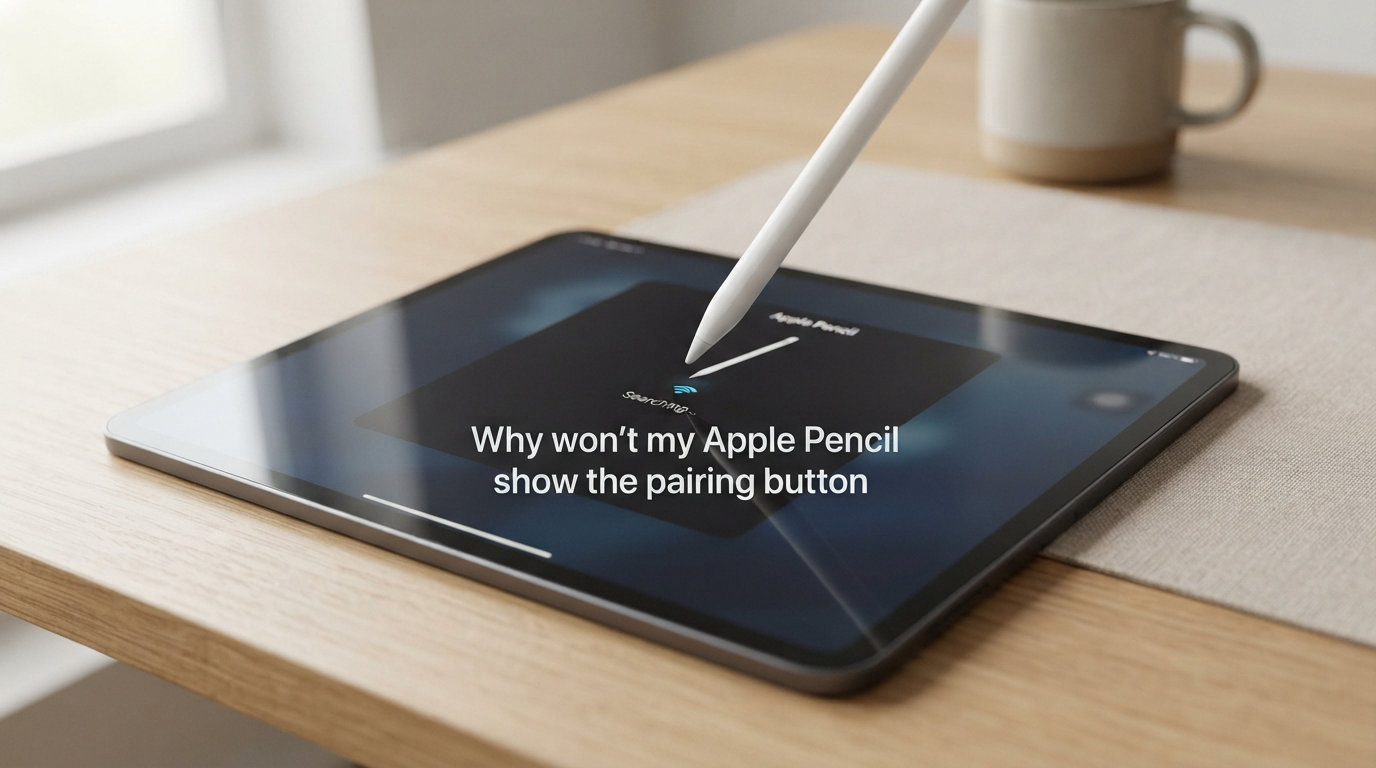
You plug in or snap on your Apple Pencil, open Bluetooth settings, and stare at the screen. The pairing button that should appear is nowhere to be found. If you are asking yourself why your Apple Pencil pairing button is not showing, you are dealing with one of the most common Apple Pencil issues reported across Reddit, Apple Support Communities, and Stack Exchange.
The short answer is almost always the same: your Apple Pencil battery is too drained to power its Bluetooth radio. When the battery voltage drops below a certain threshold, the Pencil cannot broadcast a pairing signal, and the iPad never sees it.
That means no Pair button appears on your screen. The good news is that this problem is fixable in most cases with a few simple steps. In this guide, we walk through every fix in order of effectiveness.
We also cover the differences between Apple Pencil generations, what to do if your Pencil has been dead for weeks, and when it is time to contact Apple Support.
Quick Fix: The 60-Second Solution
If the Pair button doesn’t appear, wait for one minute while your Apple Pencil charges. Then try connecting your Apple Pencil again and wait until the Pair button appears.
This is the exact guidance from Apple’s own support document, and it works for the majority of users. Here is what to do:
Connect your Apple Pencil to your iPad (or plug it into power using the appropriate method for your model).
Wait a full 60 seconds without disconnecting it.
Open Settings > Bluetooth on your iPad.
Look for your Apple Pencil under Other Devices or My Devices.
If the Pair button has appeared, tap it to connect.
If the button still has not appeared after a minute of charging, continue to the detailed troubleshooting steps below.
Why the Pairing Button Won’t Appear
Understanding the root cause helps you pick the right fix. There are three main reasons the Apple Pencil pairing button stays hidden.
1. Battery Voltage Is Too Low
Your Apple Pencil relies on a tiny internal battery to power its Bluetooth radio. When that battery drains completely, the voltage drops below the minimum level needed to transmit a Bluetooth signal. The iPad literally cannot detect the Pencil because the Pencil is not broadcasting anything.
This is why the pairing button disappears. It is not a software bug in most cases. It is a hardware limitation. The Pencil needs to charge for at least 30 to 60 seconds before it has enough power to communicate with your iPad.
2. Software Glitches After iPadOS Updates
Multiple users on Apple Stack Exchange and Reddit report that iPadOS updates can break existing Bluetooth pairings. Your Apple Pencil may have been connected fine before an update, and suddenly it no longer shows up. The pairing record gets corrupted, and the iPad refuses to show the Pair button until you forget the old connection and start fresh.
3. Hardware or Connection Issues
If the magnetic connector on the back of your iPad is dirty, or if a thick case is blocking contact between the Pencil and the iPad, the Pencil may not charge properly. Without charge, you are back to problem number one. Physical damage to the Pencil’s internal components can also prevent pairing entirely.
Step-by-Step Fixes for Apple Pencil Pairing Issues
Work through these fixes in order. Each one addresses a specific cause, and most users resolve the problem within the first two or three steps.
Step 1: Charge Your Apple Pencil for at Least One Minute
This is the single most effective fix. A dead or nearly dead battery is the reason the pairing button is not showing in roughly 80 percent of cases based on what users report across forums.
For Apple Pencil 1st Generation: Remove the cap on the back of the Pencil and plug the Lightning connector into the Lightning port on your iPad. If you have an iPad 10th Generation, you will need the USB-C to Apple Pencil Adapter that came in the box. Plug the Pencil into one end and the USB-C end into your iPad.
For Apple Pencil 2nd Generation, USB-C, and Pro: Attach the Pencil to the magnetic connector on the side of your iPad. Make sure it snaps into place and you see a charging indicator on the screen.
Leave it connected for at least 60 seconds. Then check Settings > Bluetooth for the Pair button.
Step 2: Check That Bluetooth Is Enabled
It sounds obvious, but Bluetooth gets turned off accidentally more often than you might think. Swipe down from the top right of your iPad screen to open Control Center. Confirm the Bluetooth icon is highlighted blue. If it is not, tap it to turn Bluetooth on.
You can also check by going to Settings > Bluetooth. The toggle at the top should be green and in the on position. If it is off, turn it on and wait a few seconds for your iPad to start scanning for nearby devices.
One quick trick that sometimes works: toggle Bluetooth off, wait 10 seconds, then turn it back on. This forces the iPad to refresh its Bluetooth scanner and can nudge a stubborn Pencil into appearing.
Step 3: Restart Your iPad
A standard restart clears temporary software glitches that may be blocking the Bluetooth system from recognizing your Pencil.
Go to Settings > General > Shut Down. Slide the power icon to turn off your iPad. Wait about 10 seconds after the screen goes fully dark. Press and hold the top power button until you see the Apple logo. Once your iPad boots back up, attach your charged Apple Pencil and check for the Pair button again.
Step 4: Force Restart Your iPad
If a normal restart did not work, a force restart goes deeper. This is one of the most underused fixes, and Reddit users in r/ipad consistently report it solving pairing problems that nothing else could.
The method depends on your iPad model:
For iPads without a Home button (Face ID models):
Press and quickly release the Volume Up button.
Press and quickly release the Volume Down button.
Press and hold the Top (Power) button.
Keep holding until the screen goes black and the Apple logo appears.
Release the button.
For iPads with a Home button:
Press and hold both the Home button and the Top (Power) button at the same time.
Keep holding both buttons until you see the Apple logo.
Release both buttons.
After the force restart, connect your Apple Pencil again and check Settings > Bluetooth.
Step 5: Forget the Device and Re-Pair
If your Apple Pencil shows up in Bluetooth settings but will not connect, or if it shows up under My Devices with a status of Not Connected, the existing pairing record may be corrupted.
Open Settings > Bluetooth.
Find your Apple Pencil under My Devices.
Tap the blue (i) icon next to it.
Tap Forget This Device.
Confirm by tapping Forget Device.
Restart your iPad.
After the restart, connect your Apple Pencil and look for the Pair button under Other Devices.
This clears the old connection and forces a fresh handshake between your iPad and the Pencil. It is especially effective after an iPadOS update that broke a previously working connection.
Step 6: Check for iPadOS Updates
Sometimes the pairing problem is a known bug that Apple has already patched. Go to Settings > General > Software Update. If an update is available, install it.
After the update completes, restart your iPad and attempt to pair your Apple Pencil again. This fixes cases where a specific iPadOS version introduced a Bluetooth regression that Apple later corrected.
Pairing Differences Across Apple Pencil Generations
The pairing method varies significantly depending on which Apple Pencil you own. Using the wrong method for your model is a common reason the pairing button never shows up.
Apple Pencil 1st Generation
The original Apple Pencil pairs through a physical Lightning connection. You remove the cap at the end of the Pencil and insert the Lightning plug directly into your iPad’s Lightning port. A pairing prompt should appear on screen within a few seconds.
If you are using a 1st Generation Pencil with the iPad 10th Generation, you cannot plug directly in. That iPad has a USB-C port instead of Lightning. You must use the USB-C to Apple Pencil Adapter that Apple includes in the Pencil box. Without this adapter, pairing is physically impossible.
Apple Pencil 2nd Generation
The 2nd Generation Pencil pairs wirelessly through the magnetic flat edge on compatible iPad Pro and iPad Air models. You place the Pencil flat against the side of the iPad where the magnetic connector is located. A pairing animation slides in from the side of the screen with a Pair button.
If this animation does not appear, remove any case or cover that might be preventing full magnetic contact. The connection point needs to be clean and unobstructed.
Apple Pencil USB-C
The Apple Pencil USB-C pairs magnetically like the 2nd Generation but also has a USB-C port hidden under a sliding cap for charging. To pair, attach it to the magnetic connector on the side of a compatible iPad and wait for the pairing prompt.
Apple Pencil Pro
The Apple Pencil Pro works exclusively with iPad Pro models that use the M4 chip. It pairs magnetically just like the 2nd Generation and USB-C models. Attach it to the side connector and wait for the pairing animation. If it does not appear, make sure your iPad Pro is updated to the latest iPadOS version that supports the Pencil Pro.
Advanced Troubleshooting: When Nothing Works
If you have tried every step above and the pairing button still will not show, these less common issues may be the culprit.
Check the Pencil Tip
A loose or damaged tip can cause connection problems even though the Pencil is technically paired. Grip the tip and turn it clockwise to tighten it. If the tip is visibly worn down, cracked, or bent, replace it with a spare. Apple includes a spare tip in the Pencil box, and replacements are available separately.
Remove Cases and Screen Protectors
Thick cases, particularly rugged cases with reinforced corners, can create a small gap between the Apple Pencil and the magnetic connector on the iPad. This prevents both charging and pairing. Remove the case entirely and try pairing with a bare iPad.
Some glass screen protectors can also interfere with the Pencil’s ability to register properly, though this is rare. If you recently installed a new screen protector and pairing stopped working, try removing it to test.
Recovering a Pencil Left Dead for Too Long
This is a problem that forum users report frequently. If you left your Apple Pencil uncharged for weeks or months, the lithium-ion battery can fall into a deep discharge state where the voltage drops so low that the Pencil refuses to accept a charge at all.
To attempt recovery, plug the Pencil in and leave it connected for at least 30 minutes. Some users report that it takes several hours before the Pencil begins accepting a charge again. If after 24 hours of continuous charging the Pencil still shows no signs of life, the battery is likely permanently damaged and needs replacement.
This is why Apple recommends never storing your Apple Pencil fully discharged. If you will not use it for a while, charge it to about 50 percent first.
USB-C Adapter for 1st Gen Pencil on iPad 10th Gen
If you bought a 1st Generation Apple Pencil to use with an iPad 10th Generation and the pairing button never appears, double-check that you are using the USB-C to Apple Pencil Adapter. The Pencil cannot plug directly into the USB-C port. The adapter is a small white dongle that accepts the Pencil’s Lightning plug on one end and connects to the iPad’s USB-C port on the other.
Apple includes this adapter in the box when you buy a new 1st Generation Pencil. If you bought a used Pencil without the adapter, you can purchase it separately from Apple.
Frequently Asked Questions
Why is my Apple Pencil not pairing?
The most common reason is a dead or nearly dead battery. When the battery voltage drops too low, the Apple Pencil cannot power its Bluetooth radio, so the iPad cannot detect it. Charge your Pencil for at least one minute, then check Settings u0026gt; Bluetooth for the Pair button. Other causes include Bluetooth being turned off, a corrupted pairing record after an iPadOS update, or a dirty magnetic connector.
How do I put my Apple Pencil in pairing mode?
For the 1st Generation Pencil, remove the cap and plug the Lightning connector into your iPad (use the USB-C adapter for iPad 10th Gen). For the 2nd Generation, USB-C, and Pro models, attach the Pencil to the magnetic connector on the side of your iPad. A pairing prompt should appear automatically within a few seconds.
How to fix an unresponsive Apple Pencil?
Charge it for at least 30 seconds, toggle Bluetooth off and on in Settings, restart your iPad, and if needed forget the device under Settings u0026gt; Bluetooth and re-pair it. Also check that the tip is screwed on tightly and replace it if it is worn or damaged.
How to pair a dead Apple Pencil?
Connect the Apple Pencil to your iPad or a power source and leave it charging for at least one minute before checking for the Pair button. If the Pencil has been dead for weeks or months, it may need 30 minutes or more of charging before the battery voltage recovers enough to power the Bluetooth radio.
How to force reset an Apple Pencil?
The Apple Pencil does not have a dedicated reset button. To effectively reset it, go to Settings u0026gt; Bluetooth, tap the (i) icon next to your Apple Pencil, tap Forget This Device, then restart your iPad. After the restart, reconnect the Pencil and pair it again as a new device.
What are common Apple Pencil problems?
Common issues include the Pencil not pairing, intermittent disconnections, unresponsiveness while drawing, lag or skipping, a loose or worn tip, and battery drain after long periods of disuse. Most of these are fixable through charging, re-pairing, restarting the iPad, or replacing the tip.
Conclusion
The Apple Pencil pairing button not showing is almost always a battery issue. Charge your Pencil for at least 60 seconds, make sure Bluetooth is on, and the button should appear. If it does not, work through the restart, force restart, forget device, and iPadOS update steps in order.
We have seen across forums that force restarting the iPad using the volume up, volume down, hold power method resolves many stubborn cases that standard restarts cannot fix. If none of these steps work and your Pencil has been dead for an extended period, the internal battery may be permanently damaged.
In that case, contact Apple Support or visit an Apple Store. If your Pencil is still under warranty or covered by AppleCare, Apple will typically replace it at no cost for a battery failure.