
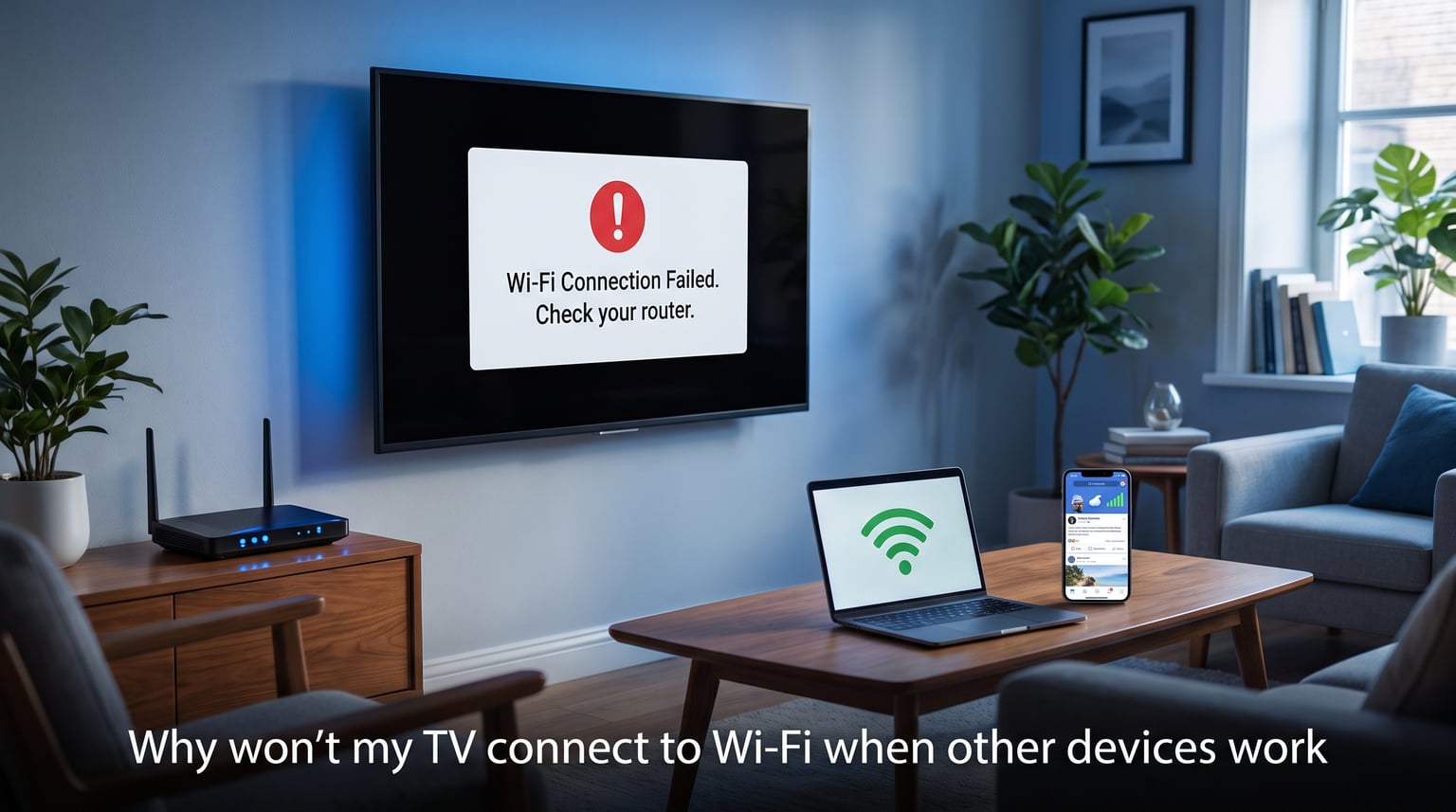
Picture this: your phone streams YouTube without a hitch, your laptop downloads files at full speed, and your tablet hops onto the network instantly. But your TV? It refuses to connect, throws a vague error, or connects but shows “no internet.” If you are asking yourself why won’t my TV connect to Wi-Fi when other devices work, you are far from alone. This is one of the most common smart TV complaints, and the good news is that most causes are fixable without buying new equipment.
I have spent years troubleshooting home network issues across dozens of TV brands and router setups. The pattern is always the same: phones and laptops have forgiving, powerful Wi-Fi hardware, while TVs are surprisingly picky about network conditions. Below I walk through every fix I know, starting with the quick wins and moving into advanced troubleshooting.
Quick Fix Checklist: Try These First
Before diving into complex settings, run through this 5-minute checklist. These simple steps solve roughly 60% of TV Wi-Fi connection problems based on what I have seen across forums and support threads.
Restart your TV: Unplug it from the wall outlet, wait 60 seconds, and plug it back in. A true power cycle clears temporary network glitches that a soft restart misses.
Restart your router: Unplug the router, wait a full minute, and reconnect. Give it 3 to 5 minutes to fully boot before testing your TV again.
Move closer to the router: TVs often have internal antennas tucked behind metal components. Temporarily testing with a shorter distance rules out a signal strength problem.
Double-check your Wi-Fi password: Re-enter it carefully. TVs are case-sensitive and give unhelpful error messages when the password is slightly off.
Check for a firmware update: If your TV connects briefly or has a wired option, check for system updates. Outdated firmware is a leading cause of sudden Wi-Fi failures.
If none of those worked, do not worry. The detailed steps below cover every scenario I have encountered, from router configuration conflicts to obscure clock-setting bugs.
Why Your TV Has Trouble When Other Devices Don’t
This is a question I see constantly in forum threads, and understanding the answer helps you troubleshoot smarter. Your phone and laptop have small, finely tuned Wi-Fi radios with advanced antennas designed to handle weak or noisy signals. They also run operating systems that aggressively manage connections, automatically retrying and switching between frequency bands.
Your TV, on the other hand, typically has a budget Wi-Fi module buried behind a large metal chassis. The TV body itself can block or reflect Wi-Fi signals. Smart TV operating systems are also much less sophisticated at handling network edge cases than iOS, Android, Windows, or macOS.
TVs also tend to be stricter about security protocols and certificate validation. If your router uses a configuration that phones tolerate but TVs reject, you get exactly this scenario: everything works except the TV. Knowing this helps you focus on the fixes most likely to matter.
How to Fix TV Wi-Fi Connection Issues: Step-by-Step Guide
Work through these steps in order. Each one addresses a specific, documented cause of TV Wi-Fi problems, and I have ordered them from most common to least common.
Step 1: Verify Your TV Sees the Wi-Fi Network
Go to your TV’s network settings and scan for available networks. If your network name (SSID) does not appear at all, the problem is signal-related, not password-related. Try repositioning the router or removing obstacles between it and the TV.
If other networks show up but yours does not, your router may be hiding the SSID or broadcasting on a band your TV cannot see. Many older and budget TVs only support 2.4GHz networks and literally cannot detect a 5GHz-only signal. Check whether your router is set to broadcast on both bands.
Step 2: Forget and Reconnect to the Network
This is the TV equivalent of toggling airplane mode on a phone. Go to your TV’s network settings, find your saved Wi-Fi network, and select “Forget” or “Remove.” Then search for networks again and enter your password fresh.
This clears corrupted saved credentials and forces the TV to negotiate a new connection from scratch. I have seen this single step fix Vizio, Samsung, and LG TVs that suddenly stopped connecting after months of working fine.
Step 3: Check Your Router’s Frequency Band
Most modern routers broadcast on two bands: 2.4GHz and 5GHz. The 5GHz band is faster but has shorter range and weaker wall penetration. The 2.4GHz band is slower but reaches farther and passes through obstacles more effectively.
Many TVs struggle specifically with 5GHz connections. If your router uses a combined SSID (one network name for both bands), try separating them into two distinct names. Then connect your TV specifically to the 2.4GHz network. This is one of the most effective fixes I recommend for persistent TV Wi-Fi issues.
If your router offers a “smart connect” feature that auto-switches devices between bands, try disabling it temporarily. Some TVs handle the switching poorly and drop the connection each time a band change occurs.
Step 4: Review Router Security Settings (MAC Filtering and Parental Controls)
This is where things get interesting. Your router may be actively blocking your TV without you realizing it. Two settings commonly cause this.
MAC address filtering lets you create a whitelist of approved devices. If this is enabled and your TV is not on the list, the router will refuse the connection even with the correct password. Check your router’s admin panel under security or access control settings. Either add your TV’s MAC address or disable filtering temporarily to test.
Parental controls can also block specific devices from accessing the internet. Some routers apply schedules or content filters that silently prevent TVs from connecting at certain times. Review any parental control rules and temporarily disable them to rule this out.
To find your TV’s MAC address, look in the network settings menu, usually under “Network Status” or “About.” Write it down because you may need it for several troubleshooting steps.
Step 5: Fix DNS and IP Configuration
Sometimes your TV connects to the router successfully but cannot reach the internet. This manifests as “connected, no internet” or apps that refuse to load content. The culprit is often DNS or IP configuration.
Go to your TV’s network settings and change the DNS server from automatic to a public DNS like Google’s (8.8.8.8 and 8.8.4.4) or Cloudflare’s (1.1.1.1). This bypasses any ISP DNS issues that might affect your TV more than other devices.
Also check whether your TV is getting a valid IP address. If the IP starts with 169.254, it means the TV is not receiving an address from your router’s DHCP server. Try assigning a static IP manually within your router’s subnet range, or reboot the router to refresh its DHCP lease table.
Step 6: Correct TV Clock and Date Settings
This is the most overlooked fix I know, and it was a standout finding from Tom’s Guide forum threads. Smart TVs use digital certificates to establish secure connections to streaming servers. If your TV’s internal clock is significantly wrong, those certificates appear expired or invalid, and the connection fails silently.
Go to your TV’s general settings and check the date and time. If it is off by more than a few hours, correct it manually or set it to update automatically from the internet (if a wired connection is available). I have seen cases where the TV was set to the wrong year, and fixing the clock immediately resolved Wi-Fi connectivity that had been broken for weeks.
Step 7: Update TV Firmware and Software
TV manufacturers release firmware updates that fix bugs, including Wi-Fi connectivity problems. If your TV has been disconnected for a while, it may have missed a critical update that resolves a known Wi-Fi issue.
Check for updates in your TV’s settings menu under “Software Update” or “System Update.” If your TV cannot connect to Wi-Fi at all, look for a USB update option on the manufacturer’s support website. You download the update to a USB drive from your computer, plug it into the TV, and install it manually.
Samsung, LG, and Sony all offer USB firmware update files for their smart TVs. This is worth trying even if you do not think a software update is the issue, because it refreshes the entire network stack.
Brand-Specific TV Wi-Fi Troubleshooting
Different TV brands have their own quirks when it comes to Wi-Fi. Here is what I have learned from troubleshooting each major brand.
Samsung TV Won’t Connect to Wi-Fi
Samsung TVs are the most common smart TVs, and also generate the most Wi-Fi complaints. The most effective Samsung-specific fix is to reset the Smart Hub. Go to Settings, navigate to Support, then Device Care, then Self Diagnosis, and select Reset Smart Hub. This clears all app data and network settings without touching your personal files.
If that does not work, try a network settings reset separately: Settings, General, Network, Reset Network. Samsung also recommends power cycling for exactly 30 seconds before reconnecting.
LG TV Won’t Connect to Wi-Fi
LG webOS TVs sometimes fail to connect after router changes. The fix is to go to Settings, Network, Advanced Wi-Fi Settings, and select “Disconnect.” Then reconnect from scratch. LG TVs are particularly sensitive to 5GHz-only networks, so switching to 2.4GHz or a combined SSID often resolves the issue.
If your LG TV shows error codes like 105 or 106, the problem is DNS-related. Switch to Google DNS (8.8.8.8) in the manual network setup.
Vizio TV Won’t Connect to Wi-Fi
Vizio TVs have a well-documented issue with connection persistence. The recommended fix from the Reddit community is a hard power cycle: unplug the TV, hold the power button on the back for 30 seconds, then plug it back in and wait another 60 seconds before turning it on.
Vizio also recommends forgetting the network and reconnecting. If your Vizio TV connects but cannot reach the internet, check for a firmware update via USB from Vizio’s support site.
Roku TV Won’t Connect to Wi-Fi
Roku TVs have a built-in network reset that fixes most issues. Go to Settings, System, Advanced System Settings, and select Network Connection Reset. After the reset, set up your connection again from scratch.
Roku TVs also support a “secret” network screen. Press Home five times, then Up, Down, Unplug, Plug back in (in that sequence on the remote) to access additional network diagnostics. Error codes starting with 014 typically indicate a password or band mismatch.
Hisense or Google TV Won’t Connect to Wi-Fi
Hisense TVs running Google TV sometimes fail after router replacements or password changes. Go to Settings, Network and Internet, select your network, and tap “Forget.” Then reconnect. If the TV cannot find any networks, a factory reset is often the only reliable fix for Hisense models.
Google TV support threads also suggest checking that your router is not using WPA3-only encryption. Some Hisense models only support WPA2, and the mismatch prevents connection even with the correct password.
When to Use Ethernet Instead of Wi-Fi
If you have tried every step above and your TV still will not maintain a stable Wi-Fi connection, a wired Ethernet connection is the most reliable alternative. Running a cable from your router to your TV eliminates all wireless variables: signal strength, interference, band compatibility, and antenna issues.
If your router is too far away, consider a powerline adapter. These devices send network data through your home’s electrical wiring and give you an Ethernet port near the TV without running long cables. Most TVs have an Ethernet port, and once connected, streaming performance is typically more stable than Wi-Fi ever was.
Signs Your TV’s Wi-Fi Hardware Is Failing
Sometimes the problem is not software at all. TV Wi-Fi modules can fail, and the symptoms are fairly distinctive. If your TV cannot detect any Wi-Fi networks at all (not just yours), loses connection every few minutes despite a strong signal, or shows a valid IP address but cannot transfer any data, the hardware may be the issue.
One test I recommend: bring your phone or laptop next to the TV and check signal strength. If your phone shows full bars but the TV sees zero networks, the TV’s Wi-Fi radio is likely failing. At that point, a wired connection or an external USB Wi-Fi adapter (if your TV supports one) are your best options short of repair or replacement.
Frequently Asked Questions
Why is my smart TV not connecting to Wi-Fi but my phone is?
Smart TVs have weaker Wi-Fi hardware than phones, with internal antennas blocked by the TV chassis. They are also stricter about security protocols and DNS settings. The most common fixes are forgetting and reconnecting to the network, switching to the 2.4GHz band, correcting the TV’s clock settings, and checking for firmware updates.
Why won’t my TV connect to my Wi-Fi but everything else will?
Your router may be blocking the TV through MAC address filtering or parental controls, or your TV may only support 2.4GHz while the router prioritizes 5GHz. Try separating the frequency bands into two network names, disabling MAC filtering temporarily, and connecting the TV to the 2.4GHz network specifically.
Why do I have Wi-Fi on my phone but not on my TV?
Phones have advanced Wi-Fi radios with multiple antennas and sophisticated connection management. TVs use budget Wi-Fi modules that struggle with weak signals, band incompatibility, and strict security requirements. Positioning the router closer to the TV or switching to a wired Ethernet connection are the most reliable long-term fixes.
Why is my Samsung TV not allowing me to connect to Wi-Fi?
Samsung TVs often develop Wi-Fi issues after firmware updates or router changes. Reset the Smart Hub (Settings, Support, Device Care, Self Diagnosis, Reset Smart Hub), then reset network settings separately. If that fails, try a USB firmware update from Samsung’s support website, which refreshes the entire network stack.
What should I do when my TV connects to Wi-Fi but has no internet?
This usually means a DNS or IP configuration problem. Change your TV’s DNS server to Google (8.8.8.8 and 8.8.4.4) or Cloudflare (1.1.1.1) in the manual network settings. Also check for a 169.254.x.x IP address, which indicates a DHCP failure and requires a router reboot or manual static IP assignment.
Conclusion
Dealing with a TV that refuses to connect to Wi-Fi while every other device in your home works fine is genuinely frustrating, but the cause almost always comes down to one of the issues I covered above. Start with the quick fix checklist, then work through the step-by-step guide. The most common culprits are frequency band mismatches, router security settings blocking the TV, corrupted saved credentials, and outdated firmware.
If you are still stuck after trying everything, a wired Ethernet connection or powerline adapter is the most reliable fallback. It eliminates all wireless variables and gives your TV a rock-solid connection for streaming. And if your TV cannot detect any networks at all despite strong signals on other devices, the Wi-Fi module itself may need repair or replacement.
I update this guide regularly as new TV models and firmware versions emerge. If you found a fix that worked for your specific TV and it is not listed here, the underlying issue is likely worth knowing about for other readers facing the same problem.