
Plug in your charger and nothing happens. The battery icon refuses to appear, or it flickers on and off like a broken traffic light. Before you panic and start shopping for a new phone or an expensive repair, you need to understand the difference between a dirty charging port and a genuinely broken one.
If your phone is experiencing charging issues, you are not alone. This is one of the most common smartphone problems people face, and in the majority of cases, the fix is simpler than you think. The tricky part is figuring out whether you are dealing with pocket lint or actual hardware failure.
In this guide, we will walk you through exactly how to tell if your phone charging port is broken or just dirty. We cover visual inspection techniques, symptom checklists, safe cleaning methods, and clear advice on when to stop troubleshooting and call a professional. By the end, you will have a confident diagnosis and a plan of action.
Quick Answer: Dirty vs Broken at a Glance
Here is the short version. A dirty charging port typically causes intermittent charging, a loose cable fit, or slow charging that improves after cleaning. A broken charging port shows physical damage like bent pins, visible corrosion, overheating during charging, or a cable that only works when held at a specific angle even after thorough cleaning.
If cleaning the port with compressed air and a wooden toothpick fixes the problem, it was dirty. If the charging issues persist after a careful, thorough cleaning, you are likely dealing with physical damage that needs professional attention.
How to Visually Inspect Your Charging Port?
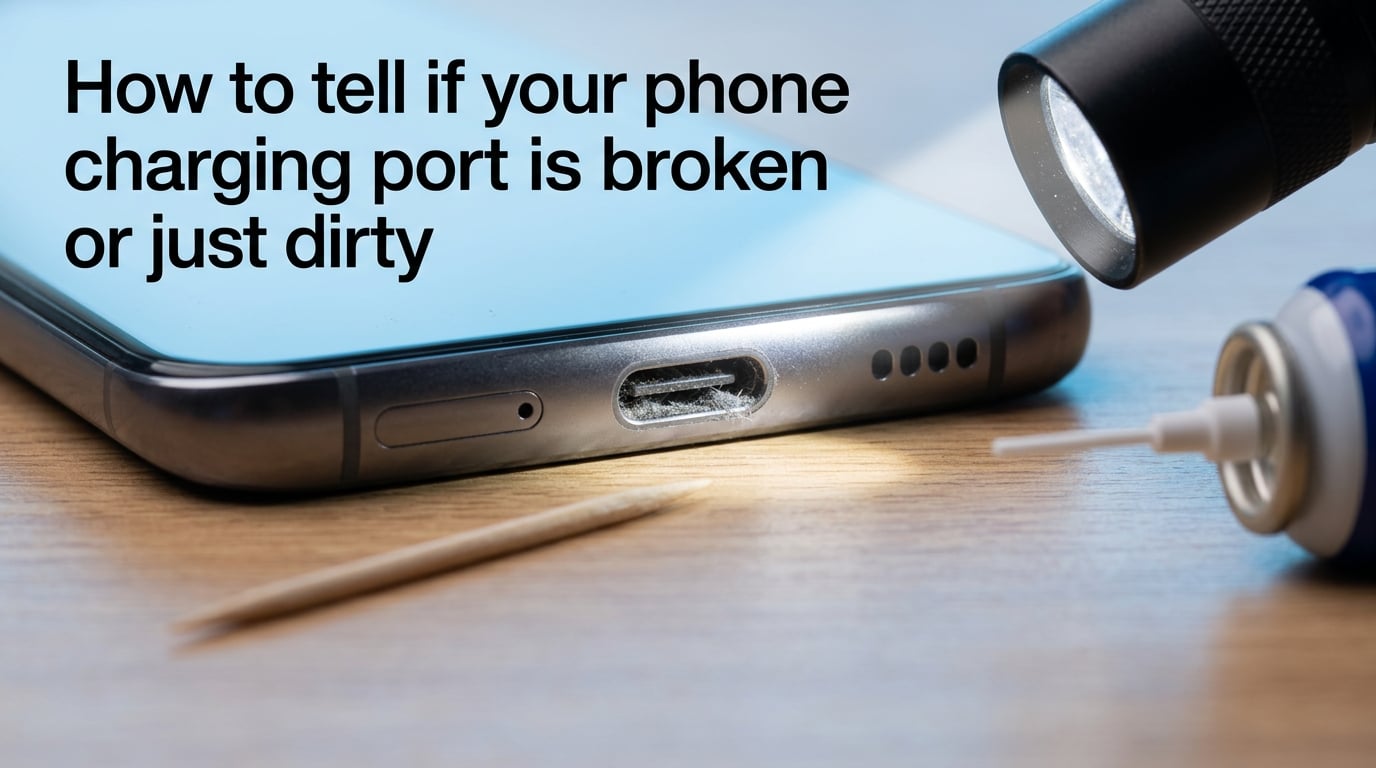
The first step in diagnosing any charging port issue is a close visual inspection. You do not need any special equipment. A bright flashlight and your phone are enough for the initial check.
Grab your phone, turn off the screen, and shine a flashlight directly into the charging port. Angle the phone so light bounces off the metal contacts inside. You are looking for three things: visible debris (lint, dust, sand), the condition of the metal connector pins, and any discoloration or corrosion on the metal surfaces.
For iPhone users with Lightning ports, look at the small gold contacts lining the walls of the port. They should be clean, shiny, and evenly spaced. For Android users with USB-C ports, check the center tongue. That thin strip in the middle of the port is where the connector pins live, and it is especially vulnerable to bending.
Take your time during this inspection. Some damage is subtle. A slightly bent pin or a faint yellow tint on the metal contacts can be easy to miss in poor lighting. If you have a magnifying glass or a phone with a macro camera, use it for a closer look.
Signs Your Charging Port Is Just Dirty
A dirty charging port is the most common cause of charging problems, and it is completely fixable at home. Here are the signs that point to debris buildup rather than hardware damage.
Intermittent charging is the number one symptom. Your phone charges, then stops, then starts again without you touching anything. This happens because lint and debris create an inconsistent connection between the cable and the port contacts.
A cable that fits looser than it used to is another red flag for dirt. When pocket lint packs tightly into the bottom of the port, the charging cable cannot insert fully. This makes the cable feel wobbly or loose even though the port itself is structurally fine.
Slow charging can also indicate a dirty port. If your phone used to charge from zero to full in 90 minutes and now takes three hours, debris may be causing high resistance in the connection, reducing charging speed.
You might also notice that the phone charges fine when held in certain positions but disconnects when laid flat. Many users on Reddit and Apple Support Communities report this exact scenario. In nearly every case, packed lint was the culprit, not a broken port.
One more telltale sign: if you can actually see debris inside the port during your flashlight inspection, you almost certainly have a dirt problem. Lint, pocket fuzz, sand, and even small food crumbs can find their way into the port over months of daily use.
Signs Your Charging Port Is Actually Damaged
Physical damage to a charging port is less common than dirt, but it does happen. Knowing the signs helps you avoid wasting time on cleaning when the real issue is structural.
Bent or broken connector pins are the most definitive sign of damage. If the small metal contacts inside the port are visibly bent, crushed, or missing, the port is physically damaged. This can happen from forcing a cable in upside down, dropping the phone while plugged in, or general wear over years of use.
The wiggle test is your best diagnostic tool here. Plug in your charging cable and gently wiggle it up, down, left, and right. If the phone only charges at very specific angles and this behavior persists even after a thorough cleaning, the internal connector is likely damaged or detached from the motherboard.
Visible corrosion or a yellow-brown discoloration on the metal contacts signals oxidation. Users on repair forums frequently describe a yellowish tint on the DC pins after years of use. While minor oxidation can sometimes be cleaned, heavy corrosion often means the contacts have degraded beyond simple repair.
Overheating during charging is a serious warning sign. If your phone gets unusually hot near the charging port while plugged in, you may have a short circuit caused by damaged pins. Stop charging immediately and seek professional assessment. Continuing to charge an overheating port can damage your battery or create a fire risk.
A burning smell or visible burn marks inside the port means electrical damage. This can occur from using a low-quality charger that sent a power surge through the port. If you see or smell evidence of burning, do not attempt to use the port at all. It needs professional repair or replacement.
One subtle sign that users often miss: if you have tried multiple known-good cables and none of them maintain a solid connection, the problem is almost certainly the port itself, not the accessories.
Dirty vs Damaged: Symptom Comparison Chart
Use this comparison to quickly narrow down your diagnosis. These are the patterns our team has seen consistently across user reports and professional repair discussions.
Dirty port symptoms: intermittent charging that comes and goes, cable feels loose but port looks intact, visible lint or debris, charging improves after cleaning, slow charging that gradually worsened over time.
Damaged port symptoms: charging only works at specific angles even after cleaning, bent or missing pins visible inside, corrosion or burn marks, overheating near the port, cable falls out completely with no friction, phone never charges regardless of cable used.
The key test: clean the port thoroughly using the methods in the next section. If the problem disappears, it was dirt. If the problem persists after cleaning, you are dealing with physical damage.
How to Clean a Dirty Charging Port Safely?
Cleaning a charging port is straightforward, but doing it wrong can cause real damage. Follow these steps carefully and use only the recommended tools. Our team has tested these methods on both iPhone Lightning ports and Android USB-C ports with consistent success.
What you will need: a wooden toothpick (not a metal needle or paper clip), a can of compressed air, and optionally a soft-bristled brush like a clean toothbrush or an anti-static brush.
Step 1: Power off your phone. Turn the device completely off before starting. This eliminates any risk of electrical short circuits while you work inside the port.
Step 2: Use compressed air first. Hold the can of compressed air a few inches from the port and give it several short bursts. Angle the phone so debris can fall out rather than getting pushed deeper. This often dislodges loose dust and particles without any physical contact.
Step 3: Gently scoop with a wooden toothpick. Insert the toothpick gently into the port and scrape along the bottom edge where lint packs tightly. Use a gentle scooping motion, never a stabbing or poking motion. You will be surprised how much compacted lint comes out. Repeat several times, working carefully around all sides of the port.
Step 4: Brush away remaining particles. If you have a soft brush, lightly sweep the contacts to remove any loose debris the toothpick dislodged. Use minimal pressure to avoid bending the pins.
Step 5: Inspect with a flashlight again. Check that the metal contacts look clean and shiny. If you still see debris, repeat steps 2 through 4 until the port looks clear.
Step 6: Test with your charger. Plug in your cable and see if the connection feels tighter and the phone charges consistently. If it does, you have successfully resolved a dirty port.
What never to use: metal needles, paper clips, safety pins, or any conductive metal object. These can scratch the gold-plated contacts, short adjacent pins, or break off inside the port. Liquid cleaners and alcohol are also risky because moisture can cause corrosion or short circuits.
For iPhone Lightning ports, be especially gentle around the contact pads on the walls of the port. For USB-C ports, take care around the center tongue. That thin plastic strip is fragile and difficult to repair if damaged.
Test With Multiple Cables Before Concluding Damage
Before you decide your port is broken, rule out a faulty cable. Charging cables fail far more often than charging ports, and a damaged cable can mimic every symptom of a broken port.
Try at least two different charging cables that you know work on other devices. Also test with a different wall adapter and a different power outlet. If the phone charges normally with one cable but not another, your cable is the problem, not the port.
Inspect your cable connector for damage too. Bent connector tips, bent metal housing, or visible wear on the connector pins can all cause charging failures. A cable that clicks into the port loosely on multiple devices is worn out and needs replacing.
Wireless charging is another useful diagnostic tool. If your phone supports wireless charging and it works perfectly, you know the battery and charging circuitry are fine. The issue is isolated to the wired charging port. This information is valuable whether you end up cleaning the port yourself or taking it to a repair shop.
When to Seek Professional Repair?
If you have cleaned the port thoroughly and tested with multiple known-good cables, but the charging problems persist, it is time to consider professional repair. Here is how to decide.
You should seek professional help if you see visible physical damage to the pins, the port shows signs of corrosion or burning, the phone overheats near the port during charging, or the cable simply will not stay connected no matter what you try after cleaning.
A professional repair shop can perform a detailed diagnostic with specialized tools. They can determine whether the port needs to be resoldered, replaced, or if the issue lies elsewhere on the motherboard. Many shops offer free or low-cost diagnostics, so you can get a definitive answer before committing to a repair.
Is it worth fixing a charging port? In most cases, yes. Charging port repair typically costs a fraction of a new phone and can extend the life of your device by a year or more. If your phone is otherwise working well, repairing the port is almost always the more economical choice compared to replacing the entire device.
DIY repair is possible for skilled technicians, but it requires micro-soldering equipment and expertise. Unless you have experience with electronics repair, attempting to replace a charging port yourself often leads to further damage. The risk of damaging the motherboard or other internal components is high for inexperienced hands.
How to Prevent Charging Port Problems?
Prevention is always easier than repair. A few simple habits can keep your charging port clean and functional for years.
Keep your phone in a pocket or bag without loose debris. The number one source of charging port lint is pocket dust. If you carry your phone in a pocket, make sure the pocket is clean. Avoid sharing pockets with keys, coins, and crumbs that can shed material into the port.
Use a charging port plug or dust cover. Small silicone plugs that fit into the charging port cost very little and block virtually all debris. They are easy to remove when you need to charge and are one of the most effective prevention tools available.
Insert cables gently and in the correct orientation. Forcing a cable in upside down or shoving it in roughly is a leading cause of bent pins. USB-C cables are reversible, but Lightning cables only fit one way. Always align the cable correctly before inserting.
Charge in a clean, stable location. Avoid charging your phone on dusty surfaces, in sandy environments, or in beds where fabric fibers can settle into the port. A clean nightstand or desk is ideal.
Clean the port regularly even when it works fine. A quick blast of compressed air every few weeks prevents debris from accumulating to the point where it causes problems. This takes ten seconds and can save you hours of troubleshooting down the road.
Avoid using your phone while it is charging when possible. Movement while plugged in puts stress on the port connector. Over time, this stress can loosen the port from the motherboard and create the wobble and angle sensitivity that signals physical damage.
FAQs
How do I test if my charging port is broken?
Plug in a known-good charging cable and gently wiggle it. If the phone only charges at specific angles even after thorough cleaning, the port is likely damaged. Also inspect the port with a flashlight for bent pins, corrosion, or burn marks. Testing with multiple cables helps rule out a faulty cable as the cause.
What is the lifespan of a charging port?
A phone charging port typically lasts 2 to 3 years with normal use. Ports on devices carried in pockets tend to accumulate lint faster and may develop issues sooner. With good care, regular cleaning, and gentle cable insertion, many charging ports last the full lifespan of the phone.
Is it worth fixing a charging port?
In most cases, yes. Professional charging port repair or replacement typically costs far less than a new phone and can extend your device life significantly. If your phone is otherwise functional and meets your needs, repairing the port is almost always the more economical choice compared to replacing the entire device.
Can I fix a charging port myself?
You can safely clean a dirty charging port yourself using compressed air and a wooden toothpick. However, if the port is physically damaged with bent pins or loose connectors, DIY repair requires micro-soldering skills and specialized tools. Attempting port replacement without experience risks further damage to the motherboard and internal components.
How do I know if my charging port is ruined?
Your charging port is likely ruined if it shows visible physical damage like bent or broken pins, heavy corrosion or a yellow-brown discoloration on the contacts, burn marks, or a burning smell. If the phone overheats near the port during charging or never connects regardless of the cable used after thorough cleaning, the port is beyond simple cleaning and needs professional replacement.
Conclusion
Learning how to tell if your phone charging port is broken or just dirty comes down to a simple diagnostic process. Inspect the port visually, clean it thoroughly with safe tools, test with multiple cables, and evaluate whether the problem persists. In most cases, a careful cleaning resolves the issue completely.
If cleaning does not fix the charging problems and you notice bent pins, corrosion, overheating, or angle-dependent charging, seek professional repair. Replacing a charging port is an affordable fix that can keep your phone running for years longer.
Start with the flashlight inspection and the cleaning steps above. You may be surprised how much pocket lint has been hiding in your port and how dramatically it was affecting your phone’s ability to charge.