
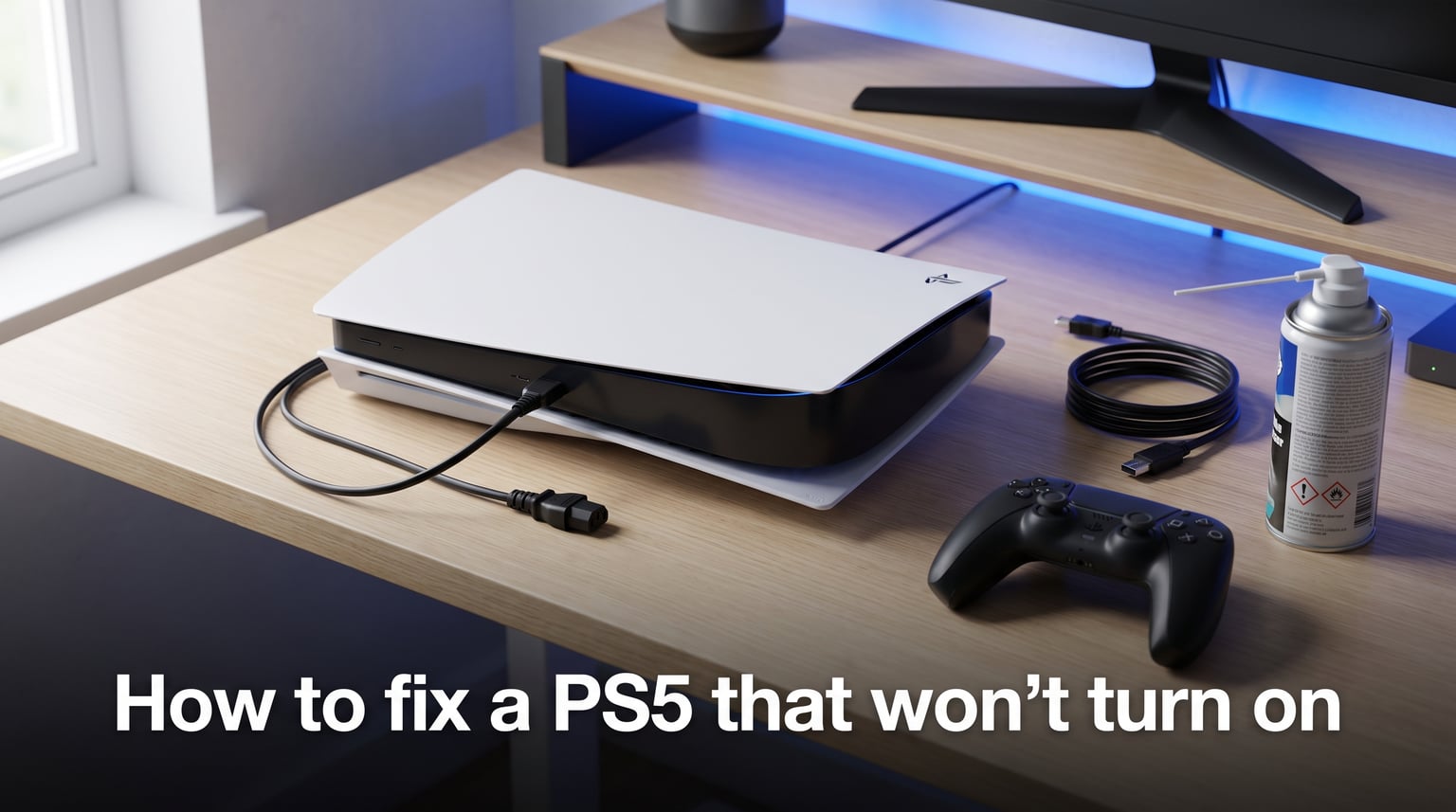
You press the power button on your PS5 and nothing happens. No blue light, no beep, no fan spin. Or maybe your console shut off mid-game and now it refuses to come back to life. If you are dealing with this nightmare scenario, you are not alone. Thousands of PS5 owners have faced this exact issue, and the good news is that most cases are fixable at home without any special tools or technical expertise.
Learning how to fix a PS5 that won’t turn on can save you weeks of waiting for a repair and the cost of professional service. In most situations, the problem comes down to residual power buildup, a faulty power cable connection, or a firmware glitch that put your console into a protective state. I have walked many frustrated gamers through these exact troubleshooting steps, and the success rate is remarkably high when you follow the process in order.
This guide covers every fix from the simplest 30-second solution to advanced Safe Mode options and warranty claims. I will walk you through each step with exact timings, specific button combinations, and clear instructions so you can get back to gaming as fast as possible.
Quick Fixes: How to Fix a PS5 That Won’t Turn On (Fast Version)
If you want the short version, here are the five most effective fixes ranked by success rate. Try them in this exact order before moving on to the detailed steps below.
Hard power cycle: Unplug the power cable from the wall AND the console, wait 30 to 60 minutes, then reconnect and try turning it on. This single fix resolves the majority of PS5 power issues.
Try a different power outlet: Plug your PS5 directly into a wall outlet, bypassing any power strips or surge protectors that may have tripped.
Reinsert the power cable firmly: Remove the IEC C7 power cable from the back of the console and push it back in until you feel it click securely.
Press the disc eject button: Some users report that pressing and holding the disc eject button (not the power button) can trigger a response from a completely dead console.
Boot into Safe Mode: Hold the power button for 7 to 8 seconds until you hear a second beep, then connect your DualSense controller via USB-C to access recovery options.
Try each fix before moving to the next one. If the quick fixes do not work, the detailed sections below will help you dig deeper.
Step 1: Perform a Hard Power Cycle
The hard power cycle is the single most effective fix for a PS5 that will not turn on. This process drains all residual electricity from the console’s internal capacitors, which can reset the power management system after a surge, glitch, or improper shutdown.
I have seen this fix work on consoles that appeared completely dead with no lights and no sounds. The key is patience. You need to wait the full time for the capacitors to fully discharge.
Follow these exact steps:
Turn off your PS5 if it has any signs of power. If it is already dead, skip to the next step.
Unplug the power cable from the wall outlet. Do not just switch off a power strip. Physically remove the plug from the wall.
Unplug the power cable from the back of the PS5. This is the IEC C7 connector that fits into the console. Pull it straight out.
Disconnect all other cables. Remove the HDMI cable, any USB devices, and the DualSense controller charging cable.
Wait 30 to 60 minutes. Some users report success with shorter waits, but 60 minutes gives the best results. Do not rush this step.
Reconnect only the power cable to the console first, then plug it directly into a wall outlet. Try turning the PS5 on using the front power button.
If your PS5 powers on after this, the issue was likely residual charge buildup or a minor firmware hiccup. If nothing happened, move on to checking your power source.
Step 2: Check the Power Cable and Outlet
Before assuming your PS5 has an internal failure, verify that power is actually reaching the console. This sounds obvious, but power strips, surge protectors, and even wall outlets fail more often than you might expect.
Forum data from communities like r/PS5HelpSupport and r/consoles shows that power strips and surge protectors are frequently the hidden culprit behind a seemingly dead PS5. A tripped surge protector can silently cut power to your console without any visible indication.
Here is how to systematically eliminate external power issues:
Inspect the IEC C7 power cable for any visible damage, fraying, or bent connectors. If you see damage, replace the cable before proceeding.
Plug the PS5 directly into a wall outlet. Remove any power strips, surge protectors, extension cords, or UPS battery backups from the equation entirely.
Test the outlet with another device. Plug a lamp or phone charger into the same outlet to confirm it is delivering power.
Try a different power cable if you have a spare IEC C7 cable. These are the same figure-eight cables used by the PS3, PS4, and many other electronics.
Check for a tripped circuit breaker in your home’s electrical panel if the outlet test fails.
One Reddit user shared that their PS5 appeared completely dead until they swapped the power cable from their PS3. The original cable had developed an internal break that was invisible from the outside. Sometimes the simplest explanation is the right one.
Step 3: Try the Disc Eject Button Workaround
This is a community-discovered fix that originated on Reddit and has since helped countless PS5 owners recover consoles that appeared totally unresponsive. It sounds strange, but pressing the disc eject button instead of the power button can sometimes wake up a dead PS5.
The theory is that the PS5’s power management system can enter a locked state where the main power button stops responding, but the disc eject circuit remains active. Triggering the eject function forces the console to draw power and can reset the stuck state.
Here is how to try it:
Make sure your PS5 is plugged in and connected to a working wall outlet.
Press and hold the disc eject button on the front of the console for 5 to 10 seconds. This is the button on the left side if your console is standing vertically.
Listen for any response: a beep, fan noise, or disc drive movement.
If you hear a response, immediately press the power button to complete the boot process.
This fix does not work for everyone, but it costs nothing to try and has a solid track record in community forums. Multiple upvoted posts on r/consoles credit this method with saving their consoles from professional repair.
Step 4: Access PS5 Safe Mode to Fix a PS5 That Won’t Turn On
If your PS5 shows signs of life (lights, beeps, or fan noise) but does not fully boot, Safe Mode is your next weapon. Safe Mode is a diagnostic startup environment that loads only essential system functions, bypassing potentially corrupted firmware or software that may be blocking normal startup.
Safe Mode gives you access to several recovery options including database rebuilding, firmware updates from a USB drive, and a full factory reset. These tools can resolve software-related power issues that physical troubleshooting cannot address.
Follow these steps to enter Safe Mode:
Turn off your PS5 completely by holding the power button until the light stops flashing.
Press and hold the power button again. You will hear one beep immediately when you first press it.
Keep holding for 7 to 8 seconds until you hear a second beep. Release the button immediately after the second beep.
Connect your DualSense controller to the PS5 using a USB-C cable. Bluetooth does not work in Safe Mode.
Press the PS button on your controller to enter the Safe Mode menu.
Once in Safe Mode, try these options in order of least destructive to most:
Option 1: Rebuild Database. This is the most popular Safe Mode fix and should be your first choice. It reorganizes the PS5’s internal storage, fixes corrupted data, and often resolves boot issues without deleting your games or save files.
Option 2: Update System Software. If a failed firmware update caused the problem, this option lets you reinstall the latest firmware from a USB drive. Download the update file from PlayStation.com and place it on a FAT32-formatted USB drive in the correct folder structure.
Option 3: Reset PS5. This factory reset wipes your console back to its original state. You will lose all downloaded games and save data that is not backed up to PS Plus cloud storage, so only use this as a last resort.
Step 5: HDMI and Display Troubleshooting
Sometimes your PS5 is actually turning on, but a display issue makes it look like it is dead. A faulty HDMI connection can cause a black screen that mimics a power failure, especially if there is no power light visible from your seating position.
The HDMI handshake between your PS5 and TV can fail after software updates, input source changes, or cable movement. When this happens, the console powers on internally but sends no signal to your display.
To rule out HDMI as the culprit:
Unplug the HDMI cable from both the PS5 and your TV.
Inspect both ends of the cable for bent pins, damage, or debris inside the connector.
Reconnect firmly to the HDMI OUT port on the PS5 and a different HDMI port on your TV.
Make sure your TV is set to the correct HDMI input. This is embarrassingly common.
Try a different HDMI cable if available, preferably a certified Premium High Speed or Ultra High Speed HDMI cable.
If your PS5 powers on with a white light but shows a black screen, the issue is almost certainly HDMI-related rather than a power problem.
Step 6: Address Overheating and Rest Mode Issues
Two of the most common triggers for PS5 power failures are overheating shutdowns and the notorious rest mode bug. Both can leave your console in a state where it refuses to wake up normally.
Overheating shutdown happens when the PS5’s internal temperature exceeds safe limits. The console forcefully powers off to protect its components, and in some cases it will not turn back on until it has cooled down sufficiently. If your PS5 was hot to the touch before it died, overheating is likely the cause.
To address overheating:
Move your PS5 to an open, well-ventilated area with at least 4 inches of clearance on all sides.
Do not place the console inside an enclosed cabinet or on thick carpet.
Check the rear vents for dust buildup and clean gently with compressed air if needed.
Wait at least 60 minutes for the console to cool completely before attempting to power it on.
The rest mode bug is a firmware issue where the PS5 enters rest mode and then fails to wake up properly. The console may show an orange or blue light but remain unresponsive. If your PS5 died after being put to sleep, this is probably what happened.
The hard power cycle from Step 1 is the most reliable fix for rest mode lockup. Going forward, you may want to disable rest mode or adjust your power save settings until Sony releases a permanent firmware patch.
What the Power LED Colors Mean
Your PS5 communicates its status through a small LED indicator on the front of the console. Understanding what each color means can help you diagnose the problem quickly and determine which fix to try.
No light at all: The PS5 is receiving no power or the internal power supply has failed. Focus on Steps 1 and 2 (power cycle and cable check). If those fail, you likely have a hardware issue requiring professional repair.
Solid blue light: The console is powered on and functioning. If you see blue light but have no image on your TV, the issue is HDMI-related, not a power problem.
Pulsing blue light: The PS5 is turning on or entering rest mode. If it stays pulsing indefinitely, the console is stuck in a boot loop. Try Safe Mode.
Solid white light: The PS5 is fully on and running. Again, if you see white light with no display, check your HDMI connection.
Orange light: The console is in rest mode. If it will not wake from rest mode, perform a hard power cycle.
Flashing red light: This indicates a critical overheating condition or hardware fault. Turn the console off immediately, let it cool, and contact Sony support if it persists.
When to Contact Sony Support
If you have tried every step in this guide and your PS5 still shows no signs of life, it is time to consider professional repair. Before you panic about costs, check whether your console is still under warranty.
PS5 warranty coverage: Sony provides a one-year limited warranty on the PS5 console from the date of purchase. This covers manufacturing defects including power supply failures that are not caused by user damage. If your console is within the warranty period, repairs are free.
How to file a warranty claim:
Visit the PlayStation support website and navigate to the Repairs section.
Enter your PS5’s serial number, found on the bottom of the console or on the original packaging.
Describe the issue and follow the prompts to create a repair ticket.
Sony will send a prepaid shipping label for you to send the console in.
Typical turnaround time is 7 to 14 business days.
Out-of-warranty repair costs: If your warranty has expired, Sony typically charges between $150 and $250 for power supply and motherboard repairs. Third-party repair shops may offer lower rates, typically ranging from $100 to $200 depending on the component that failed. Get a diagnostic quote before committing.
Repair versus replacement: If repair costs approach $300 or more, compare against the price of a new or refurbished PS5. Sometimes paying a bit more for a fresh console with a new warranty is the smarter long-term choice.
Prevention Tips to Avoid Future Power Issues
Once your PS5 is back up and running, a few simple habits can prevent future power failures. Most PS5 power issues are preventable with basic care and smart usage practices.
Use a quality surge protector. Power surges from lightning strikes, grid fluctuations, and appliance cycling can damage your PS5’s internal power supply. Invest in a surge protector with a joule rating of at least 1000. However, remember that surge protectors can trip and cut power, so if your PS5 suddenly stops working, check the surge protector first.
Keep the console ventilated. Dust buildup and poor airflow are leading causes of overheating shutdowns. Position your PS5 in an open area, clean the vents monthly with compressed air, and never block the intake or exhaust ports.
Keep firmware updated. Sony regularly patches firmware bugs that can cause power and rest mode issues. Enable automatic updates or manually check for system software updates at least once a month.
Avoid unplugging during rest mode. Pulling the power cable while the PS5 is in rest mode can corrupt system files and cause boot failures. Always fully power down the console before disconnecting any cables.
Give it rest. Running your PS5 for 12+ hours straight generates significant heat. Powering down completely for 30 minutes between marathon sessions helps the internal components cool and extends the lifespan of the power supply unit.
Frequently Asked Questions
Why isn’t my PS5 turning on at all?
A PS5 that shows no signs of life typically has a power supply issue, a tripped surge protector, residual charge buildup, or a failed internal component. Start with a hard power cycle (unplugging everything for 30 to 60 minutes), then check the power cable and wall outlet. If those steps fail, the internal power supply unit may need professional repair.
How to force PS5 to turn on?
To force your PS5 to turn on, unplug the power cable from both the wall and the console, wait at least 30 to 60 minutes for residual charge to drain, then reconnect the cable directly to a wall outlet and press the power button. You can also try holding the power button for 7 to 8 seconds until you hear a second beep to enter Safe Mode, or press and hold the disc eject button for 5 to 10 seconds.
How much is it to fix a PS5 that won’t turn on?
If your PS5 is under warranty (within one year of purchase), Sony repairs power issues for free. Out-of-warranty repairs through Sony typically cost $150 to $250. Third-party repair shops may charge $100 to $200 depending on the failed component. If the repair estimate exceeds $300, consider purchasing a replacement console instead.
How to fix a dead PS5?
To fix a dead PS5, follow these steps in order: 1) Unplug all cables and wait 30 to 60 minutes. 2) Reconnect only the power cable directly to a wall outlet. 3) Try the disc eject button workaround. 4) Boot into Safe Mode by holding power for 7 to 8 seconds until the second beep. 5) Use Safe Mode to rebuild the database or reinstall firmware. 6) If nothing works, contact Sony support for warranty or paid repair.
PS5 won’t turn on but beeps – what does that mean?
If your PS5 beeps but does not turn on, the console is receiving power but failing to complete the boot process. This usually points to a firmware corruption issue or a stuck boot state rather than a power supply failure. Try entering Safe Mode by holding the power button for 7 to 8 seconds until you hear a second beep, then use the Rebuild Database option.
Can a power outage damage my PS5?
Yes, a sudden power outage can damage your PS5 by corrupting system firmware or, in rare cases, damaging the internal power supply through voltage spikes when power is restored. Using a surge protector significantly reduces this risk. If your PS5 will not turn on after a power outage, perform a hard power cycle by unplugging everything for 30 to 60 minutes before reconnecting.
Conclusion
A PS5 that refuses to turn on is one of the most stressful experiences for any gamer, but the vast majority of these issues are fixable without sending your console away for weeks. The hard power cycle alone resolves most cases. Simply unplugging everything, waiting a full 30 to 60 minutes, and reconnecting to a direct wall outlet can bring a seemingly dead console back to life.
If the power cycle does not work, work through the remaining steps methodically. Check your power cable and outlet, try the disc eject button workaround, boot into Safe Mode for database rebuilding, and rule out HDMI display issues. Each step eliminates a potential cause and moves you closer to the solution.
Knowing how to fix a PS5 that won’t turn on gives you confidence that a dead console is not always a permanently broken one. Most power failures stem from simple causes like residual charge, tripped surge protectors, or firmware glitches that you can resolve in under an hour at home.
If nothing in this guide brings your PS5 back, check your warranty status and contact Sony support or a reputable repair shop. Keep your proof of purchase handy, and do not attempt to open the console yourself if it is still under warranty, as this will void your coverage entirely.