
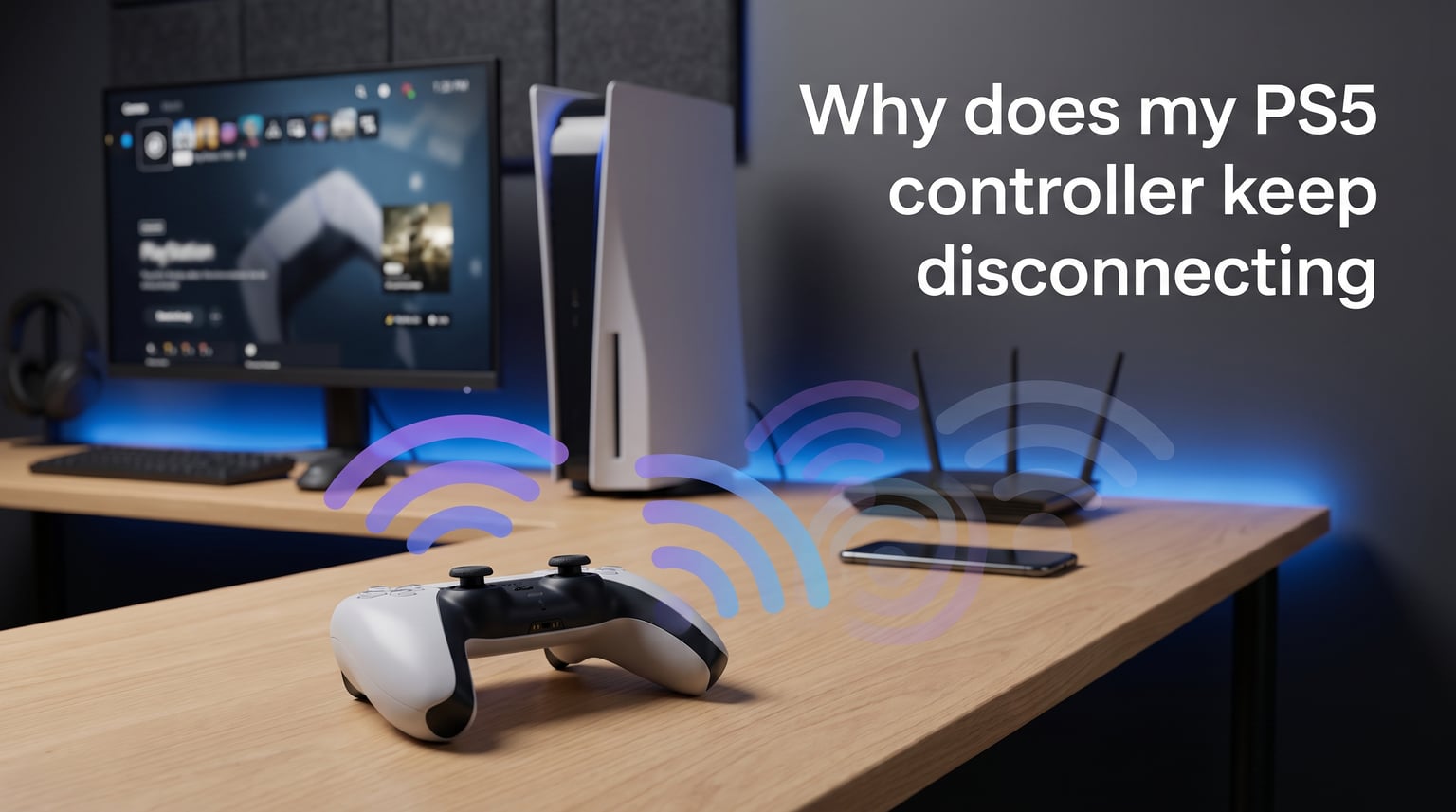
When your PS5 controller keeps disconnecting mid-game, it ruins the experience instantly. The most common cause is Bluetooth interference from your WiFi router operating on the 2.4GHz band. Other culprits include outdated controller firmware, loose USB-C connections, or software glitches on your PS5 console. In most cases, you can fix this problem yourself in under 10 minutes without spending money on replacements.
I’ve helped dozens of gamers troubleshoot this exact issue. The solution often comes down to a simple setting change or a quick hard reset of the DualSense controller. This guide covers every proven fix, starting with the most effective ones first.
Common Causes of PS5 Controller Disconnections
Your PS5 controller can disconnect for several reasons, but some are far more common than others. Understanding the root cause helps you apply the right fix faster.
Bluetooth interference from 2.4GHz WiFi is the number one cause. Both your controller and many WiFi networks operate on the same 2.4GHz frequency, creating signal conflicts that drop your connection randomly.
Outdated firmware on either the controller or PS5 console causes stability issues. Sony regularly releases updates that fix connectivity bugs.
USB-C cable or port problems can make wired connections unreliable. A loose cable or damaged port creates intermittent disconnects even when you think you’re connected.
Low or failing battery may cause the controller to shut off unexpectedly. Even if it shows a charge, aging batteries struggle to hold consistent power.
PS5 overheating affects the internal Bluetooth antenna. Several Reddit users report that their original PS5 models had heat-related controller drops that stopped once they improved ventilation.
Corrupted Bluetooth pairing data sometimes occurs after system updates or power surges. The controller and console lose sync, requiring a fresh pairing.
Bluetooth Interference: The #1 Culprit
The DualSense controller connects to your PS5 using Bluetooth technology. This same wireless frequency is used by many household devices, creating a crowded airwave environment that leads to dropped connections.
Your WiFi router is the biggest offender here. If your PS5 connects to a 2.4GHz WiFi network, it broadcasts on the exact same frequency as your controller’s Bluetooth signal. The two signals compete, and your controller loses.
One Reddit user put it simply: “The easy fix is to change internet setting to 5GHz band from 2.4GHz. The 2.4 band interferes with Bluetooth.” This single change solved the problem for thousands of players.
Other devices can also interfere: microwave ovens, wireless speakers, other Bluetooth devices, baby monitors, and even some smart home gadgets. The more crowded your wireless environment, the worse the disconnects become.
How to check if interference is your problem: Move your PS5 closer to your router temporarily. If disconnects happen more frequently near the router, interference is likely the cause. Alternatively, turn off your router briefly and see if the controller stays connected.
How to Fix PS5 Controller Disconnection Issues
Work through these fixes in order. Each one addresses a specific cause, so you may only need one or two before your controller works perfectly again.
Step 1: Power Cycle Your PS5 and Controller
The simplest fix often works first. Power cycling clears temporary software glitches that can break the Bluetooth connection.
Turn off your PS5 completely. Hold the power button until you hear two beeps, then wait for the system to shut down fully. Unplug the power cable for 30 seconds. While the console is off, press and hold the PS button on your controller for 10 seconds to power it down as well. Plug everything back in and restart.
This soft reset fixes about 30% of controller disconnect issues according to community reports. If the problem persists, move to the next step.
Step 2: Hard Reset the DualSense Controller
A hard reset restores your controller to factory settings, clearing any corrupted pairing data or software bugs. This is the most effective single fix for persistent disconnects.
Locate the small reset button on the back of your DualSense controller. It’s inside a tiny hole near the L2 shoulder button. Use a straightened paperclip or sim card ejector tool to press and hold this button for 5 seconds. The controller lights will flash, indicating the reset worked.
After resetting, connect the controller to your PS5 using a USB-C cable. Press the PS button to pair it fresh. This creates a completely new Bluetooth connection that often solves stubborn disconnect problems.
One Reddit user shared: “I found a fix that has lasted up till now – I switched off the console and hard reset the controller and switched it off. Then turned on the PS5.” This combination approach works because it clears both ends of the connection.
Step 3: Forget and Re-pair the Controller
Sometimes the Bluetooth pairing gets corrupted without requiring a full reset. Forgetting the device and re-pairing can fix this.
Go to Settings on your PS5, then Accessories, then General, then Bluetooth Accessories. Find your DualSense controller in the list and select “Forget Device.” Then connect via USB-C and press the PS button to create a new pairing.
This process removes old connection data that may have errors. It’s faster than a full reset and works well for minor pairing glitches.
Step 4: Update PS5 System Software and Controller Firmware
Sony releases firmware updates that fix known connectivity bugs. Both your PS5 console and DualSense controller need to stay current.
Go to Settings, then System, then System Software, then System Software Update and Settings. Let your PS5 check for updates and install any available. Controllers update automatically when connected via USB while the PS5 is in rest mode, but you can force an update by connecting wired and checking Settings, then Accessories, then Controllers, then Wireless Controller Firmware.
Outdated firmware is a common cause of random disconnects, especially after Sony releases stability patches. Always keep both systems updated.
Step 5: Switch WiFi to 5GHz Band
This is the fix that resolves the issue for most gamers. Switching your PS5’s WiFi connection from 2.4GHz to 5GHz eliminates the frequency conflict with your controller’s Bluetooth.
Go to Settings, then Network, then Settings, then Set Up Internet Connection. Select your WiFi network and choose the 5GHz option if available. Many routers broadcast separate network names for each band, or you can log into your router settings to enable band steering.
The 5GHz band provides faster speeds and doesn’t overlap with Bluetooth frequencies. Your controller will thank you.
PS5 Controller Keeps Disconnecting on PC: Specific Fixes
Using your DualSense on a PC introduces additional variables. Windows handles Bluetooth differently than the PS5, and Steam has its own quirks with controller recognition.
Disable Bluetooth power management in Windows. Windows sometimes turns off Bluetooth to save power, dropping your controller mid-game. Open Device Manager, find Bluetooth, right-click your Bluetooth adapter, go to Power Management, and uncheck “Allow the computer to turn off this device to save power.”
Check Steam controller settings. Steam has specific DualSense support that sometimes conflicts with direct Bluetooth pairing. Open Steam Settings, go to Controller, then General Controller Settings. Try disabling PlayStation Configuration Support if you’re experiencing disconnects, or enable it if you want Steam-specific features.
Use DS4Windows as an alternative. This free software wraps your DualSense input as an Xbox controller, which Windows games recognize more reliably. It also provides better connection stability than native Bluetooth for some setups.
Try a different USB-C cable for wired connections. One Reddit user discovered: “Unless you’re on PS5, your controller if it’s not in Bluetooth mode while connected will disconnect if the USB-C cable isn’t tight.” Cheap cables often have loose connections that cause intermittent drops.
For Bluetooth on PC, remove conflicting devices. Another user suggested: “Go to Bluetooth devices and disconnect ITE Device + Wireless Controller. Then repair.” Ghost devices in your Bluetooth list can interfere with fresh pairings.
When Heat and Hardware Issues Are to Blame
Sometimes the problem isn’t software at all. Physical issues with your PS5 or controller require different solutions.
PS5 fat model heat problems can affect Bluetooth antenna performance. One Reddit user reported: “There’s a heat problem with PS5 fat. When I don’t try the AC trick the controller will disconnect again until you unplug and hard reboot.” If your PS5 runs hot, the internal Bluetooth antenna may malfunction.
Improve ventilation around your PS5. Move it away from walls, clean the dust from vents, and consider a cooling stand. If disconnects happen after extended gaming sessions, heat is likely the culprit.
Signs your controller hardware is failing:
The controller disconnects even when wired via USB-C. The battery drains extremely fast even when not in use. The controller won’t hold a charge at all. Button inputs become erratic or unresponsive. Physical damage is visible on ports or buttons.
If these symptoms appear after trying all software fixes, your controller may need replacement. DualSense controllers typically last 2-4 years with regular use before battery degradation becomes severe.
Check battery health in Settings, then Accessories, then Controllers. This shows your current charge level and can indicate if the battery holds less charge than it should. A battery that drops from 100% to 50% within an hour of gameplay is near end of life.
Frequently Asked Questions
How to fix a PS5 controller that keeps disconnecting?
The most effective fix is switching your WiFi from 2.4GHz to 5GHz to eliminate Bluetooth interference. If that doesn’t work, hard reset your controller by pressing the reset button on the back with a paperclip for 5 seconds, then re-pair it with your PS5 via USB cable. Also update your PS5 system software and controller firmware to the latest versions.
How do I fix my controller constantly disconnecting?
Start with a power cycle: fully shut down your PS5, unplug it for 30 seconds, and power down your controller. If disconnects persist, hard reset the controller using the reset hole on the back, then re-pair it. Check for firmware updates on both the controller and PS5. Finally, switch your WiFi to 5GHz to avoid frequency conflicts with Bluetooth.
Why does my PS5 controller stop working randomly?
Random disconnects usually stem from Bluetooth interference (especially from 2.4GHz WiFi), outdated firmware, corrupted pairing data, or hardware issues like failing batteries or loose USB connections. The controller’s Bluetooth signal competes with other 2.4GHz devices, causing drops. Hard resetting the controller and switching WiFi bands resolves most cases.
What are the signs of a failing PS5 controller?
Key signs include: the controller won’t hold a charge or drains rapidly, disconnects even when connected via USB cable, buttons become unresponsive or register double presses, the light bar behaves erratically, and physical damage to ports or buttons. If software fixes don’t resolve issues, the controller hardware may be failing and require replacement.
Conclusion
PS5 controller disconnections are frustrating but usually fixable. The most common solution is switching your WiFi from 2.4GHz to 5GHz, which eliminates the Bluetooth frequency conflict. Hard resetting your DualSense controller and re-pairing it via USB solves most remaining cases.
If your PS5 controller keeps disconnecting after trying these fixes, check for firmware updates on both your console and controller. For PC users, disable Bluetooth power management in Windows and consider DS4Windows for better compatibility.
Hardware failure is rare but possible. If your controller disconnects even when wired, won’t hold a charge, or shows physical damage, it may be time for a replacement. Most DualSense controllers provide reliable service for several years with proper care.
Start with the simplest fixes first and work through the list. The 5GHz WiFi switch alone has solved this problem for thousands of gamers. Your next gaming session should be disconnect-free.