
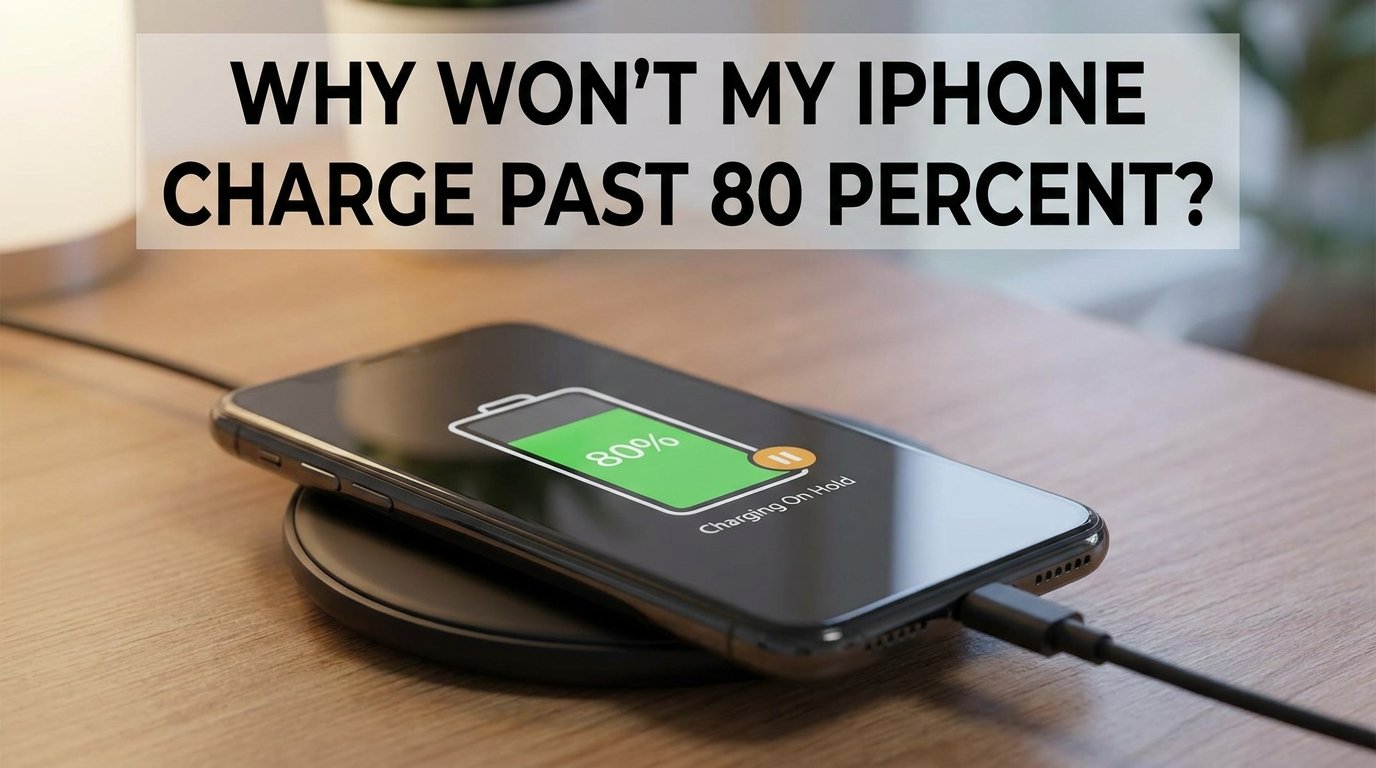
You plug in your iPhone before bed, wake up, and the battery reads 80 percent. No matter how long it sits on the charger, it refuses to climb higher. Before you assume your battery is dying, here is the reassuring truth: in most cases, this is a built-in feature, not a defect.
Apple introduced this behavior deliberately to protect your battery’s long-term health. The feature is called Optimized Battery Charging, and it has been part of iOS since version 13. If you are wondering why your iPhone will not charge past 80 percent, this guide breaks down every possible cause and shows you exactly how to fix it.
The Short Answer: Why Your iPhone Stops at 80 Percent
Your iPhone stops charging at 80 percent because of Apple’s Optimized Battery Charging feature. This setting intentionally holds the charge at 80 percent when it detects an extended charging session, then finishes the last 20 percent closer to when you typically unplug. The goal is simple: less time at full charge means less wear on the lithium-ion battery inside your phone.
According to Apple’s official support documentation, this feature delays charging past 80 percent in certain situations to reduce battery aging. It uses on-device machine learning to learn your daily charging routine. If your iPhone predicts it will be connected to power for a long time, it pauses at 80 percent.
On iPhone 15 and newer models, there is a separate feature called Charge Limit that lets you cap charging at specific percentages permanently. Both features exist for the same reason: keeping your battery healthier for longer.
How Optimized Battery Charging Works
Optimized Battery Charging relies on machine learning to study your habits. It looks at where you charge, how long you typically leave the phone plugged in, and what time of day you usually disconnect. This learning happens entirely on your device, so no charging data leaves your phone.
When the feature activates, your iPhone charges normally to 80 percent. Then it holds there. If it predicts you are about to unplug soon, it resumes charging to complete the final 20 percent. The lock screen displays a message like “Optimized Battery Charging is on” along with a time estimate for when charging will finish.
This matters because lithium-ion batteries experience the most stress when held at maximum voltage. By reducing the time your battery spends fully charged, Apple can slow down the chemical aging process. Think of it as giving your battery a break instead of constantly pushing it to 100 percent and keeping it there all night.
One important detail: Optimized Battery Charging needs location services enabled and regular charging patterns to work. If you travel frequently or charge at unpredictable times, the feature may not activate. Apple notes that it works best when you charge in consistent locations.
How to Turn Off Optimized Battery Charging
If you want your iPhone to charge to 100 percent every time, you can disable Optimized Battery Charging. Here is the step-by-step process for iPhone models running iOS 16 or earlier, or for iPhone 14 and older models running any iOS version:
Step 1: Open the Settings app on your iPhone.
Step 2: Scroll down and tap on Battery.
Step 3: Tap on Battery Health and Charging.
Step 4: Find Optimized Battery Charging under the charging optimization section.
Step 5: Toggle the switch to turn it off. You will see options to “Turn Off Until Tomorrow” or “Turn Off” permanently. Choose the permanent option if you want to disable it for good.
Once disabled, your iPhone will charge to 100 percent without pausing. Keep in mind that this may accelerate long-term battery wear, especially if you charge overnight regularly.
iPhone 15 and Later: The Charge Limit Feature
If you own an iPhone 15, iPhone 16, or a newer model, Apple replaced the simple toggle with a more flexible Charge Limit feature. This gives you granular control over how high your battery charges, and it works differently from the older Optimized Battery Charging toggle.
With Charge Limit, you can set your maximum charge to 80, 85, 90, 95, or 100 percent. When you select 100 percent, Optimized Battery Charging remains active and still delays the final 20 percent during long sessions. When you select any percentage below 100, your phone charges to that level and stops completely.
To adjust the Charge Limit on iPhone 15 or later, follow these steps. Open Settings, then tap Battery, then Battery Health and Charging. Under Charge Limit, drag the slider to your preferred percentage. Your iPhone will charge to that level and hold there whenever connected to power.
Many Reddit users in the r/iphone and r/iPhone16ProMax communities report setting this to 80 percent for daily use. Some have shared two years of data showing slower battery degradation. Others find 80 percent insufficient for heavy use days and bump it to 90 or 95 percent as a compromise between convenience and battery longevity.
The key difference between Charge Limit and the older Optimized Battery Charging is permanence. Optimized Battery Charging still gets you to 100 percent eventually. Charge Limit at 80 percent means your phone tops out there no matter how long it stays plugged in.
Other Reasons Your iPhone Stops Charging at 80 Percent
While Optimized Battery Charging and Charge Limit are the most common explanations, they are not the only ones. If you have already disabled both features and your iPhone still will not charge past 80 percent, one of these issues may be the culprit.
Temperature Protection
Your iPhone has built-in thermal protection that limits charging when the device gets too warm. Apple states that charging may pause at 80 percent if the battery gets warmer than recommended during charging. This can happen during hot weather, when using your phone while charging, or when the phone is in a thick case that traps heat.
Reddit users frequently report this during FaceTime calls while charging. The combination of screen activity, video processing, and power input generates enough heat to trigger the safety limit. The fix is simple: let the phone cool down, remove the case if possible, and charging will resume normally.
Dirty or Damaged Charging Port
Lint, dust, and debris accumulate in the charging port over time. This can interfere with the connection between your cable and the phone, causing inconsistent charging behavior. A partially blocked port might deliver enough power for slow charging but struggle past a certain threshold.
Inspect the port with a flashlight. If you see debris, gently clean it out using a wooden toothpick or a non-metallic tool. Never use metal objects like needles, which can damage the pins inside. After cleaning, try charging again.
Faulty Cable or Power Adapter
A damaged cable or underpowered adapter can cause charging to stall. Some aftermarket cables are not MFi-certified and may not deliver consistent power. If your phone charges slowly or stops at a certain percentage, try a different cable and adapter that you know work properly.
Wireless charging pads can also cause this behavior if they are underpowered or if the phone is not aligned correctly on the pad. Try a wired connection to rule out wireless charging issues.
Software Glitches
Occasionally, a software bug causes incorrect battery percentage readings. A simple restart can resolve this. For persistent issues, check for iOS updates, as Apple frequently patches battery-related bugs. If the problem started after an iOS update, it may resolve with the next patch.
Battery Degradation
If your iPhone battery health has dropped significantly (below 80 percent of original capacity), the battery itself may struggle to hold a full charge. You can check this under Settings, then Battery, then Battery Health and Charging. If the maximum capacity reads below 80 percent, Apple recommends a battery replacement.
How to Force Your iPhone to Charge to 100 Percent
If you need a full charge right now and your iPhone is stuck at 80 percent, here are the fastest ways to override the limit:
Turn off both features: Disable Optimized Battery Charging or set Charge Limit to 100 percent in Settings under Battery Health and Charging. This is the most reliable method.
Enable Airplane Mode: Swipe into Control Center and turn on Airplane Mode. This reduces background activity and heat generation, which can help the phone charge faster and avoid temperature-based throttling.
Let the phone cool down: If heat is the issue, remove the case, place the phone in a cooler spot, and wait a few minutes before reconnecting. Charging should resume once the temperature drops.
Restart your iPhone: A quick restart clears software glitches that may be interfering with the charging process. After the reboot, reconnect to power.
Is It Bad to Charge Your iPhone to 100 Percent?
The short answer is no, charging to 100 percent is not inherently harmful. Apple designed the iPhone to handle full charges safely. However, keeping your battery at 100 percent for extended periods does accelerate chemical wear over time.
Lithium-ion batteries degrade faster when they spend long stretches at maximum voltage. This is why Optimized Battery Charging exists in the first place. If you charge to 100 percent and immediately start using the phone, the impact is minimal. The real issue is leaving your phone plugged in at full charge for hours overnight, every night.
Forum users share mixed opinions. Light users on Reddit report that an 80 percent limit lasts them through most days and they see noticeably better battery health after a year or two. Heavy users find 80 percent does not get them through a full day and prefer the convenience of charging to 100 percent despite slightly faster wear.
The practical takeaway: use the 80 percent limit if your daily usage allows it. If you need full battery to get through the day, charge to 100 percent without guilt. You can always replace the battery later for a fraction of the cost of a new phone.
When to Seek Professional Help
Sometimes the 80 percent issue points to a genuine hardware problem. Here are the signs that it is time to contact Apple Support or visit an authorized service provider:
Battery health below 80 percent: If your iPhone reports maximum capacity below 80 percent, the battery is chemically depleted. Apple recommends replacement at this threshold.
Unexpected shutdowns: If your phone shuts down randomly even when the battery shows a decent charge level, the battery may be failing.
Swollen battery: If you notice the screen lifting or the back bulging, stop using the phone immediately. A swollen battery is a safety hazard and needs professional attention right away.
Rapid drain: If your battery percentage drops sharply in short periods, the battery or a software process may be consuming abnormal power. Apple Support can run diagnostics.
Charging port damage: If cleaning the port does not help and multiple cables fail to charge properly, the port itself may need repair.
FAQs
Why has my iPhone stopped charging at 80%?
Your iPhone stops charging at 80% primarily because of Apple’s Optimized Battery Charging feature, which delays the final 20% during long charging sessions to protect battery health. On iPhone 15 and later, the Charge Limit feature may also be set to 80%. Additionally, high temperatures can trigger built-in thermal protection that pauses charging at 80%.
How do I turn off the 80% charging limit on my iPhone?
Go to Settings, tap Battery, then Battery Health and Charging. On iPhone 14 and earlier, toggle off Optimized Battery Charging. On iPhone 15 and later, drag the Charge Limit slider to 100 percent. Your iPhone will then charge fully without pausing at 80%.
How do I force my iPhone to charge to 100%?
Disable Optimized Battery Charging or set Charge Limit to 100% in Settings under Battery Health and Charging. For a temporary boost, turn on Airplane Mode, let the phone cool down if it is warm, and restart the device before reconnecting to power.
Does the 80% charge limit actually help battery health?
Yes. Lithium-ion batteries experience more stress at maximum voltage, so limiting charge to 80% reduces chemical aging over time. Forum users with two-plus years of data report slower battery degradation when using the 80% limit. However, the trade-off is less daily battery life, which may not suit heavy users.
Conclusion
When your iPhone will not charge past 80 percent, the cause is almost always Apple’s Optimized Battery Charging or the Charge Limit feature on iPhone 15 and newer. Both are designed to extend your battery’s lifespan by reducing stress from extended full-charge sessions. You can disable them anytime in Settings under Battery Health and Charging.
If disabling those features does not resolve the issue, check for overheating, a dirty charging port, or a degraded battery. For persistent problems, schedule a visit to an Apple Store or authorized service provider. Understanding these features puts you in control, so you can decide whether to prioritize convenience today or battery health tomorrow.