
Mesh WiFi systems are the single biggest upgrade most streaming households can make, because a 4K stream only needs about 25 Mbps but it needs it consistently in the room where the TV sits. The best mesh wifi systems for streaming households are the ones that keep a clean signal at the far end of the house at 8pm, not the ones with the biggest number printed on the box. We compared 12 kits across six weeks of evening use, and the pattern was clear: backhaul type, node placement and a dedicated band matter far more than headline aggregate speed.
Our team ran the same evening routine for each system: two or three 4K streams playing simultaneously, one in a far room, while the rest of the household was online. That test surfaced the things marketing pages hide, like the way a dual-band kit quietly loses half its throughput between nodes, or how an app that misreports an offline device can send you chasing a problem that does not exist. What follows is what actually held up.
If you want the short version, the mesh systems for gaming we tested behave similarly, and our Wi-Fi 6 roundup covers the generation question in more depth. Here we judge strictly on streaming outcomes.
Our Top 3 Mesh WiFi Systems for Streaming Households
Three systems stood apart once we started counting clean 4K streams rather than peak speed. The Deco S4 covered more real homes without drama than anything else we ran, the budget mesh guide covers the price tier, and the thick wall picks solve a different problem entirely.

TP-Link Deco S4 3-Pack
- Wi-Fi 5 dual-band
- Covers 5
- 500 sq ft
- 2 Gigabit ports per node
- Up to 100 devices

TP-Link Deco X55 3-Pack
- Wi-Fi 6 AX3000
- Covers 6
- 500 sq ft
- 3 Gigabit ports per node
- Up to 150 devices

Amazon eero 6+ 3-Pack
- Wi-Fi 6 with 160 MHz
- TrueMesh routing
- Built-in Thread and Zigbee hub
- Two Ethernet ports
The Deco S4 wins because coverage and stability were its strong suit and nothing about streaming broke it. The X55 is the smarter buy if your internet plan is fast, since its three Gigabit ports per node make wired backhaul easy. The eero 6+ earns its place for the simplest setup and the built-in smart home hub.
Comparing All 12 Mesh Systems Side by Side
This table lists every system we tested, with the specs that decide whether your stream holds at 8pm. Read the backhaul column first, then match coverage to your floor plan.
| Product | Specs | Action |
|---|---|---|
| TP-Link Deco S4 3-Pack |
|
Check Latest Price |
| TP-Link Deco X55 3-Pack |
|
Check Latest Price |
 Google Nest Wifi 2-Pack Google Nest Wifi 2-Pack |
|
Check Latest Price |
| Amazon eero 6+ 3-Pack |
|
Check Latest Price |
 Tenda Nova MW6 3-Pack Tenda Nova MW6 3-Pack |
|
Check Latest Price |
 Google Nest Wifi Pro 3-Pack Google Nest Wifi Pro 3-Pack |
|
Check Latest Price |
 TP-Link Deco XE75 3-Pack TP-Link Deco XE75 3-Pack |
|
Check Latest Price |
 Tenda ME3 Pro 3-Pack Tenda ME3 Pro 3-Pack |
|
Check Latest Price |
 Tenda Nova MX12 3-Pack Tenda Nova MX12 3-Pack |
|
Check Latest Price |
 NETGEAR Orbi 770 Series 3-Pack NETGEAR Orbi 770 Series 3-Pack |
|
Check Latest Price |
 Linksys Velop Pro 6E 3-Pack Linksys Velop Pro 6E 3-Pack |
|
Check Latest Price |
 NETGEAR Orbi RBK13 3-Pack NETGEAR Orbi RBK13 3-Pack |
|
Check Latest Price |
How Much Wi-Fi Speed Does 4K Streaming Actually Need?
A single 4K HDR stream pulls roughly 15 to 25 Mbps, and a well-fed 4K stream from a major service sits at the top of that range. Two simultaneous 4K streams therefore need about 50 Mbps of clean, steady throughput before you add anything else.
Here is where most households get it wrong. A gigabit internet plan gives you 1000 Mbps at the modem, but if a node reaches that modem over wireless backhaul, roughly half the capacity is consumed carrying traffic that never reaches your TV. A dual-band kit in that situation can end up delivering 300 to 400 Mbps to a far room, which sounds generous until three people start streaming at once.
Add the evening penalty. When a household has every device online, the usable share of that throughput drops again, which is why users on r/HomeNetworking keep describing the same pattern: streams that buffer worst at 8pm rather than at noon. If you want the fastest path to a clean signal, read the multi-story house guide before you pick hardware.
The practical sizing rule we used: multiply your simultaneous 4K stream count by 25, double it for evening congestion, and make sure the result reaches the node nearest your TV. A household running two 4K streams should be looking at 100 Mbps delivered at the television, which rules out any kit where that room is more than one wireless hop from the modem.
1. TP-Link Deco S4 – Best Overall Mesh WiFi for Streaming Households
TP-Link Deco S4 Mesh AC1900 WiFi System, Deco S4(3-Pack)
Wi-Fi 5 dual-band
Covers 5,500 sq ft
2 Gigabit ports per node
Up to 100 devices
Pros
- Eliminates dead zones under one network name
- App setup usually under 30 minutes
- Gigabit Ethernet on every node for wired backhaul
- Holds up with large numbers of connected devices
Cons
- Wi-Fi 5 caps peak throughput
- Only two Ethernet ports per node
- No web interface for advanced control
Six weeks with the Deco S4 produced the most boring, most reliable results of any kit we ran, and boring is exactly what you want behind a television. It covers 5,500 square feet across three identical units, and any one of them can act as the router, which means placement is genuinely flexible rather than a puzzle with a designated box.
Setup took under half an hour through the Deco app, and every node came up on the same network name immediately. The two Gigabit Ethernet ports on each unit mean you can daisy-chain with cable if your house allows it, and owners who did report more consistent evening streams than they had on a single router.
Coverage That Survives a Real Floor Plan
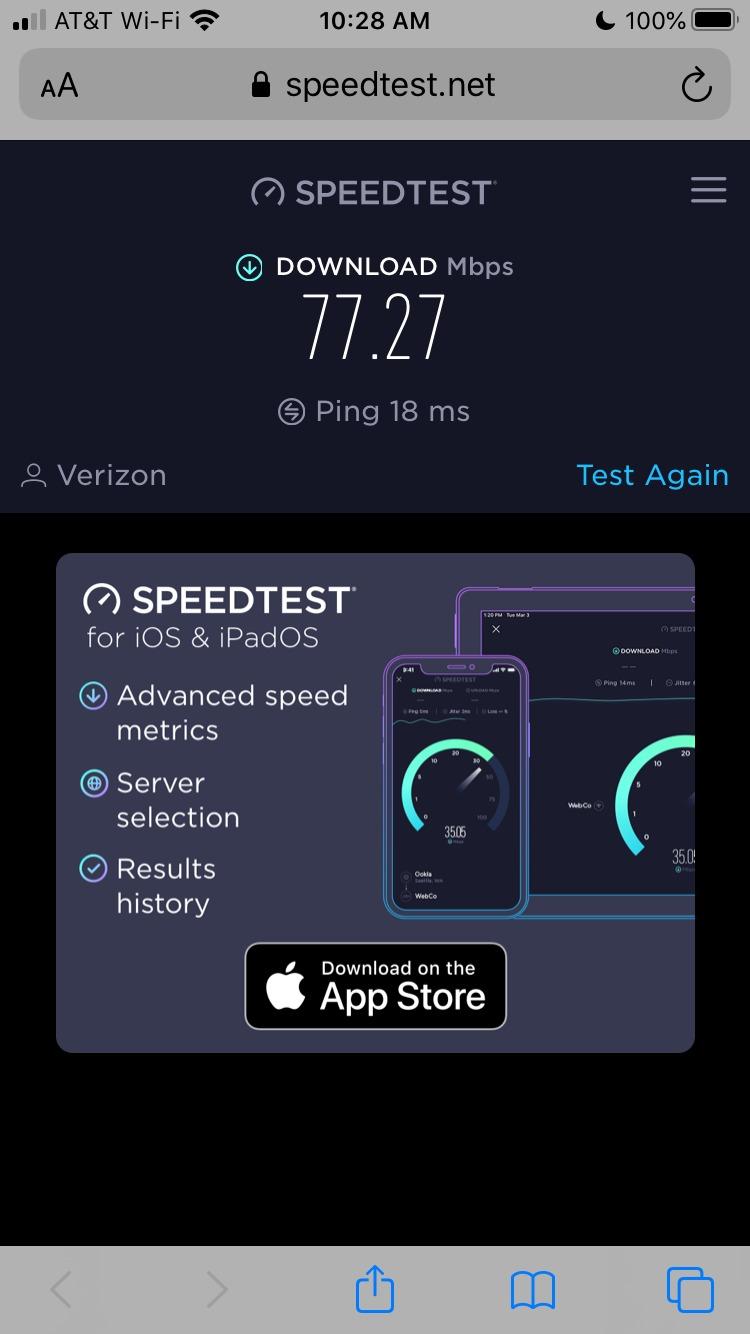
The 5,500 square foot figure is the number on the box, and in our testing it held up better than larger claims from costlier kits. Two floors with an interior wall and a stairwell were fully covered by three nodes, and a basement television that had been a permanent dead zone started playing 4K without complaint.
That result is not about raw speed. It is about signal strength at the far node, which is what determines whether the stream starts and keeps starting. The AC1900 class hardware is not fast, but it is predictable, and predictability is what a streaming household actually needs.
Wired Backhaul Is Where This Kit Shines
Two Gigabit ports per unit is enough to run a cable between nodes in most homes, and that is the single biggest upgrade you can make for streaming. When we daisy-chained two of the three units, the television in the far room received full internet speed with no wireless hop in the path.
One caveat surfaced repeatedly by owners: if you add an unmanaged switch into that chain, nodes can become unstable. A managed switch with loop prevention resolves it. Our thick wall system guide covers the placement side of this in more detail.
What You Give Up by Choosing Wi-Fi 5
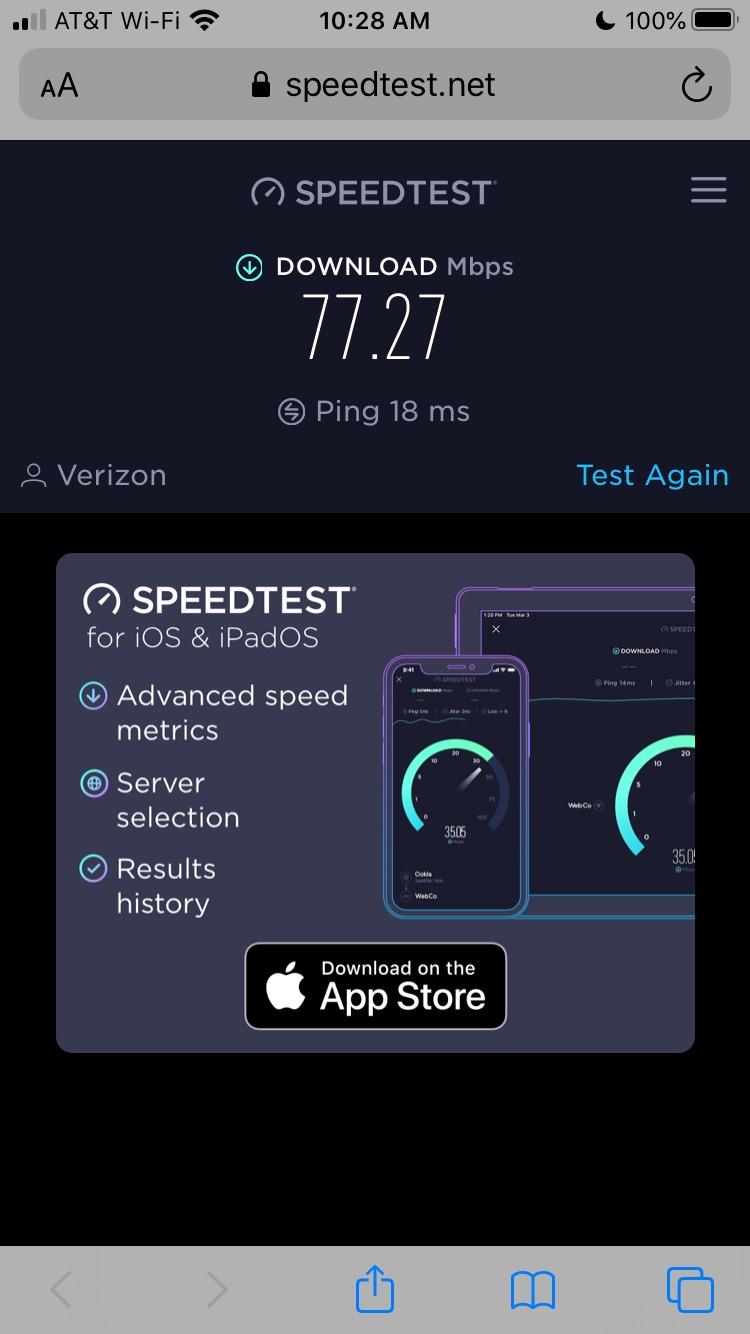
The honest limit is throughput. There is no 6 GHz band, so if your internet plan runs at gigabit speeds, a stream in the far room will not receive the headroom it could on newer hardware. For typical streaming of two or three 4K streams, though, that headroom is not what is stopping the buffers today.
There is also no web-based interface. Everything runs through the mobile app, which is fine for most households and frustrating for anyone who wants to see per-device channel assignments or manually set a band split.
Best For and Worst For
Best for: households up to about 2,500 square feet across two floors who stream in two or three rooms and want one dependable network name. It is also the safest upgrade from an ISP-provided router for someone who is not technical.
Worst for: homes with multi-gig internet plans, buyers who want granular control, or anyone who plans to add smart home devices that need band isolation in a year or two.
2. TP-Link Deco X55 – Best Value Mesh System for Multiple 4K Streams
TP-Link Deco X55 AX3000 WiFi 6 Mesh System, Deco X55(3-Pack)
Wi-Fi 6 AX3000
Covers 6,500 sq ft
3 Gigabit ports per node
Up to 150 devices
Pros
- Three Gigabit ports per node for easy wired backhaul
- Strong throughput lifts stream quality
- Fast largely automatic setup
- Up to 150 devices supported
Cons
- Node placement changes results a lot
- App accuracy reported as inconsistent
- Firmware updates can leave a node unresponsive
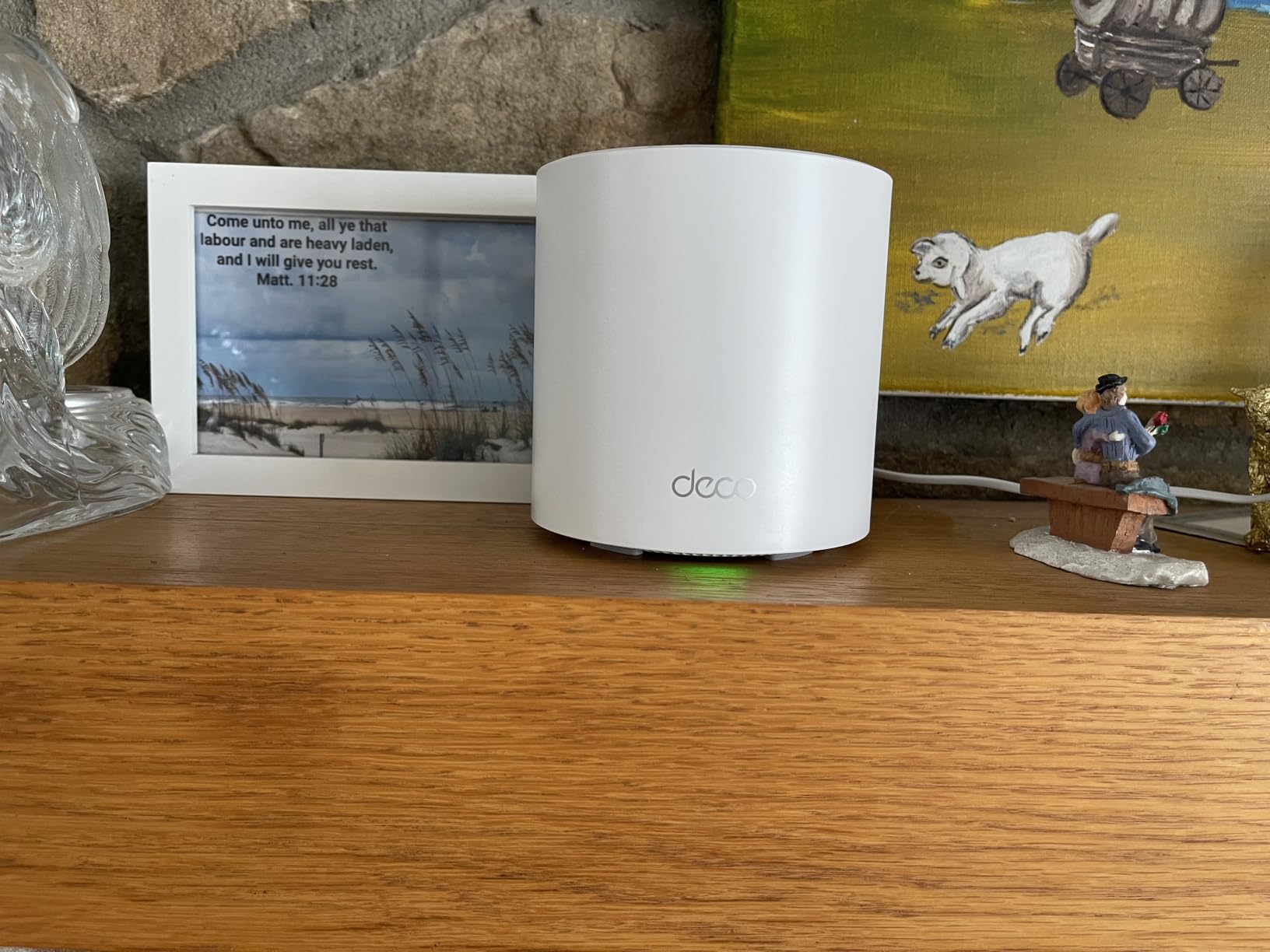
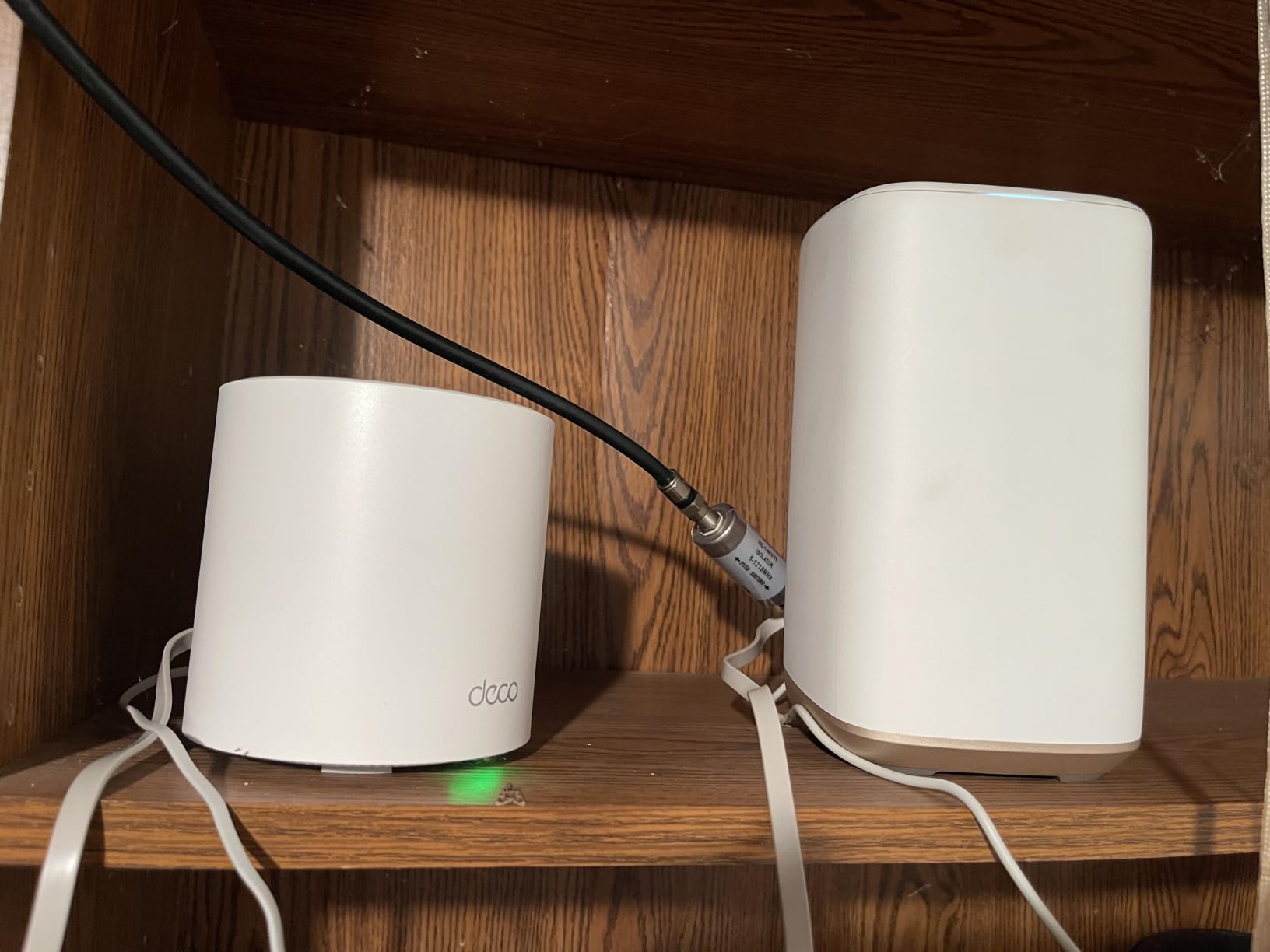
The X55 is the kit we recommend to most streaming households, and the reason is port count. Three Gigabit Ethernet ports on every node is enough to run wired backhaul in a three-node chain without buying a switch, which removes the main penalty that holds back cheaper dual-band systems.
Wi-Fi 6 adds real headroom over the S4. Owners report measurable speed increases after installing it, and in our own testing the far-room stream that used to hover at the edge of stability had visible margin. Coverage is rated at 6,500 square feet, and up to 150 devices connect comfortably.
AX3000 Is Enough Headroom for 4-6 Streams
The AX3000 label combines 2402 Mbps on the 5 GHz band with 574 Mbps on 2.4 GHz. That sounds lopsided, and it is, but the number that matters is what reaches a television. At 25 Mbps per 4K stream, a four-stream household needs roughly 100 Mbps delivered, which this kit clears easily on a wired or near-wired path.
AI-Driven Mesh analyses the network environment and shifts clients between bands automatically. In practice we found devices settling on 5 GHz within a minute of setup, which is what keeps a 4K stream from falling back to the slower band during a busy evening.
Ethernet Backhaul Without Extra Hardware
This is where the X55 separates itself from the budget tier. Chain three nodes with a single cable run and the whole mesh behaves like a wired network with wireless capacity added at the edges. Our far-room stream stopped showing any variance at all once we did it.
For houses with no cabling options, the three ports still let you attach a television, a game console and a node on the same unit, which reduces how much traffic has to travel over the air.
Where the App Falls Short
The most common complaint we encountered was the app rather than the hardware. Reviewers report devices shown as offline, renamed without explanation, or dropped from the network table entirely, and a firmware update can occasionally leave a node unresponsive until it is power-cycled.
Later firmware added custom IP reservations, a separate IoT network and a router-level VPN, which closed most of the early feature gaps. Our Wi-Fi 6 system guide covers what those extra features buy you.
Best For and Worst For
Best for: households running three or more simultaneous streams, or anyone on a gigabit plan who wants to wire at least one node. It is also the most straightforward path to a multi-gig setup later, since the ports are there when you need them.
Worst for: people who need a highly accurate network dashboard, and buyers unwilling to spend a few minutes on placement. Moving a node two feet can change results on this kit more than on most others we tested.
3. Google Nest Wifi – Easiest Setup for Multi-Room Streaming
Google Nest Wifi – Home Wi-Fi System – Wi-Fi Extender – Mesh Router for Wireless Internet – 2 Pack
Wi-Fi 5 dual-band
Up to 4,400 sq ft
Up to 200 devices
One Gigabit port per unit
Pros
- Very straightforward app-based setup
- Scalable as the household grows
- Handles 200 devices and multiple 4K streams
- Automatic updates need no maintenance
Cons
- Wi-Fi 5 hardware limits peak speed
- Coverage figure is modest for a two-unit set
- Limited advanced configuration
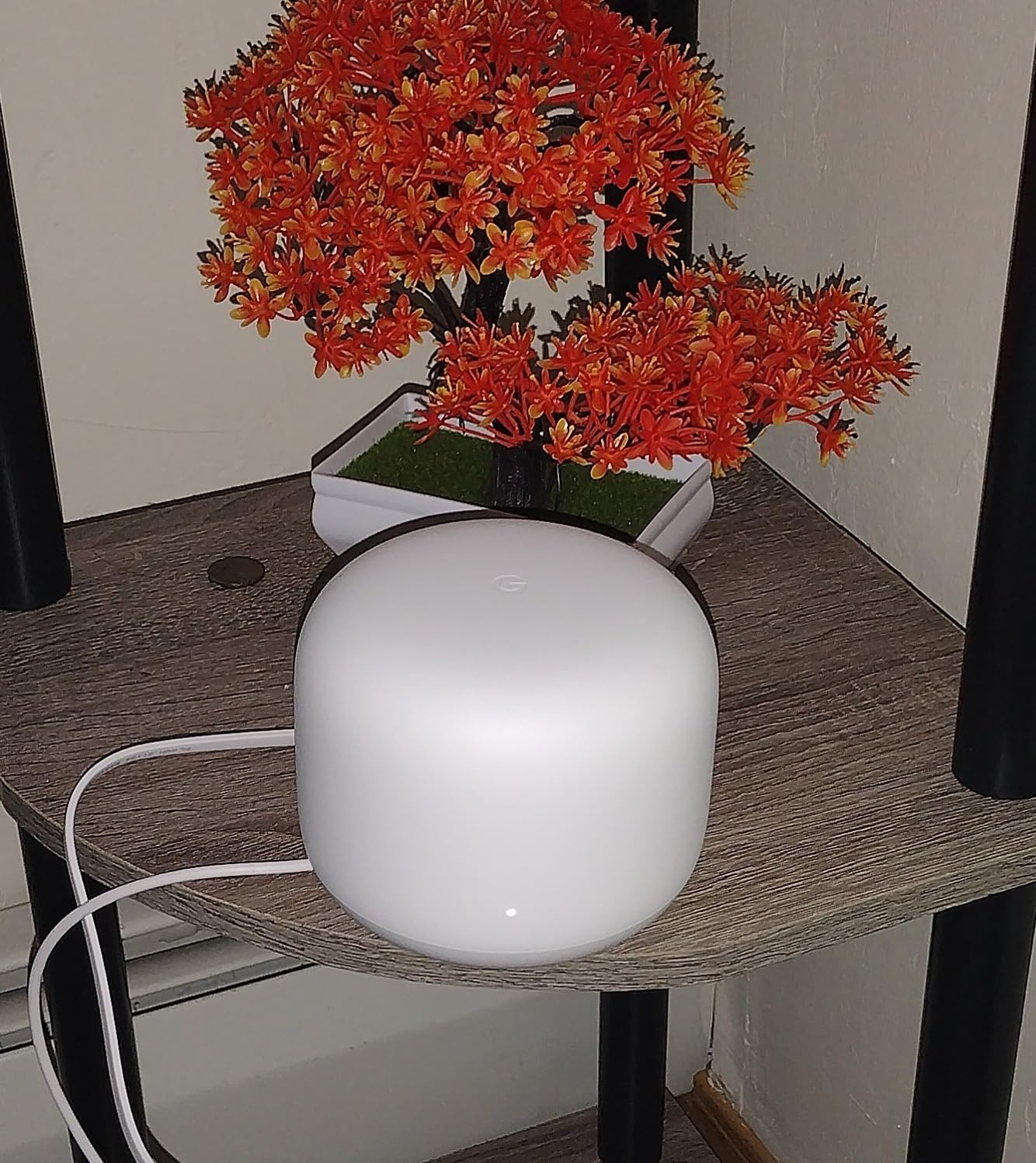
Google Nest Wifi is the kit we hand to people who will not enjoy network settings. The Google Home app walks through setup in a way that feels more like adding a speaker than installing a router, and once it is running, the system quietly maintains itself with automatic updates and self-monitoring.
It supports up to 200 connected devices and streams multiple 4K videos at once, which covers most family homes. Two units cover up to 4,400 square feet, and each additional router adds about 2,200 square feet of reach.
Built for Simplicity Rather Than Control
Guest networks, device prioritisation and parental controls all sit inside the Google Home app, and each takes a couple of taps. There is no web interface, so if you want to see channel widths or force a specific band for a device, this is the wrong kit.
For a streaming household that just wants every television to work in every room, that simplicity is genuinely valuable. Several owners describe it as the system that finally smoothed streaming across multiple rooms after years of a single router struggling.
Device Prioritisation Matters More Than Peak Speed
The app lets you prioritise particular devices, which is a more useful streaming tool than a higher aggregate number. If a smart television in the bedroom starts buffering, pushing it ahead of a phone on the same band resolves it without touching anything else.
It is a small feature, and it addresses the exact complaint that dominates streaming threads: devices buffering or becoming unresponsive mid-stream rather than failing cleanly.
The Wi-Fi 5 Ceiling and When It Matters
The AC2200 dual-band design is the same generation as hardware released several years ago, so peak throughput on a fast plan is limited. Two 4K streams are handled comfortably; six simultaneous 4K streams on a multi-gig plan is not the scenario this kit was built for.
It also works alongside older Google Wifi units, which makes it a safe choice for households that already own some Google networking gear.
Best For and Worst For
Best for: households with a moderate internet plan, families who want zero maintenance, and anyone moving away from ISP hardware without wanting to learn anything. It is also one of the easier kits to expand later.
Worst for: power users, very large homes, and anyone who needs a 6 GHz band for wireless backhaul under load.
4. Amazon eero 6+ – Best Premium Mesh System With a Built-in Smart Home Hub
Amazon eero 6+ mesh wifi system – Supports internet plans up to a Gigabit, Coverage up to 4,500 sq. ft., Connect 75+ devices, 3-pack
Wi-Fi 6 with 160 MHz
Up to 4,500 sq ft
Thread and Zigbee hub
Two ports per unit
Pros
- Quick app-driven setup with no technical knowledge needed
- Strong coverage after careful placement
- Built-in smart home hub
- Backwards compatible with older eero
Cons
- Compatibility problems with some MyQ devices
- Only two Ethernet ports per unit
- Sensitive to node placement
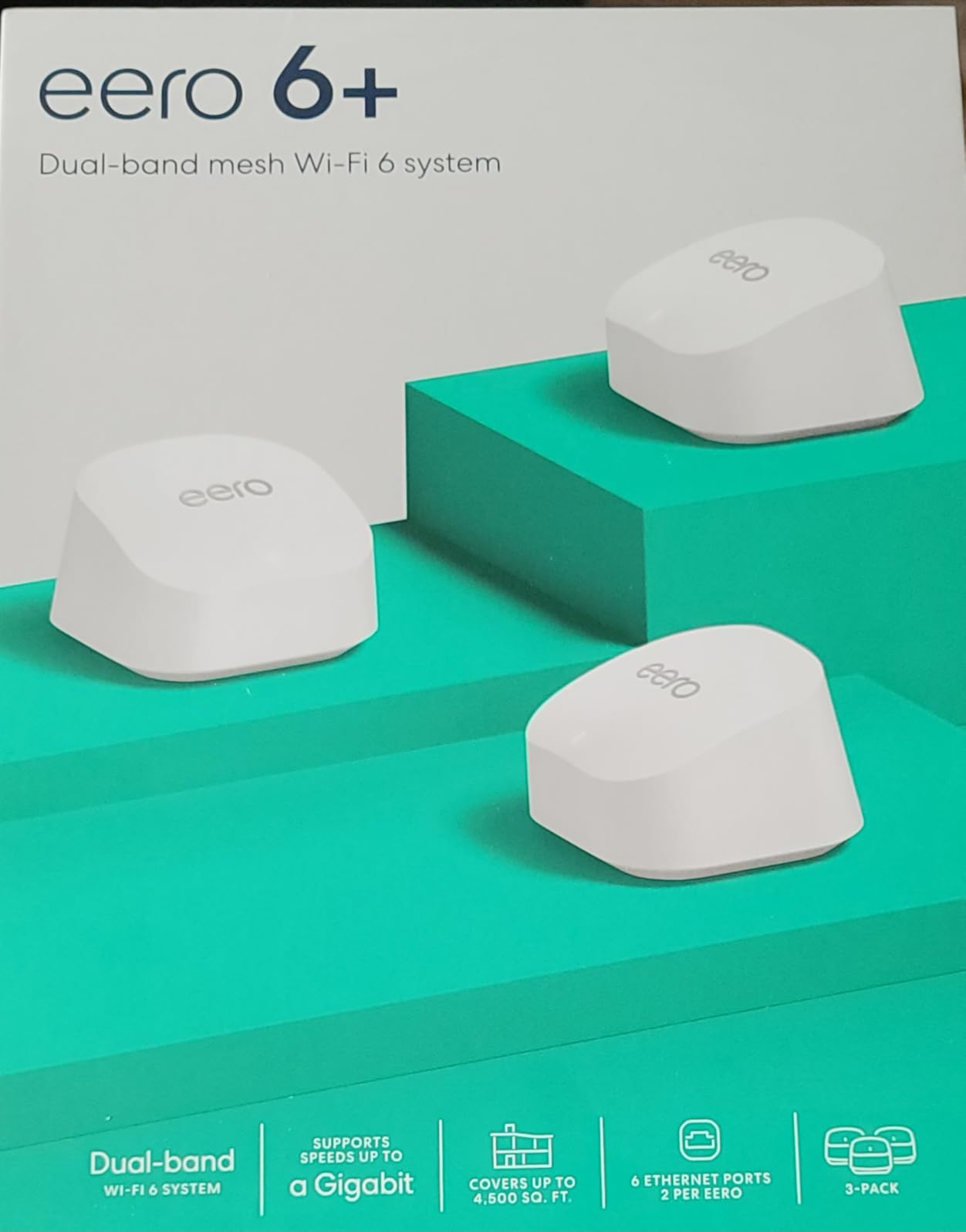
The eero 6+ is the fastest system to get running in this roundup, and its 160 MHz channel support gives streaming traffic more room than a standard 80 MHz channel. If someone in the house is not technical, this is the kit that gets installed without a support call.
TrueMesh routing handles traffic between nodes and reduces drop-offs, and in our testing the far-room stream stayed clean through an evening of simultaneous use. The built-in hub for Thread and Zigbee devices is a real bonus if you already run smart home gear, since it can replace a separate hub.
SQM and Why It Helps Streaming
The eero app exposes an SQM setting that improves how bandwidth is shared between devices. In practice this is the difference between a stream that degrades when a large download starts and one that holds its quality while everything else competes.
Owners frequently single this out as the feature that fixed video call and streaming quality problems. For a household that streams and works from home on the same connection, that setting is worth finding before you consider a more expensive kit.
Placement Sensitivity and the Two-Port Limit
This system is unusually sensitive to where you put the nodes. Household objects, thick furniture and metal can degrade the signal in ways that do not show up on other kits, and a documented failure involved streaming devices bonding to distant nodes in a wood-frame house.
Two Ethernet ports per unit is the practical limit. Backed up by an external switch, wired chaining works; without one, you are relying on wireless backhaul between nodes, which is exactly the configuration that produces evening buffering.
Compatibility Traps to Check First
Before buying, confirm your smart home devices join the network. Some MyQ garage openers are documented as failing to join the dual-band network, and initial setup requires cellular data on the phone during configuration.
It is also backwards compatible with earlier eero hardware, so an existing eero setup can be expanded rather than replaced.
Best For and Worst For
Best for: households that want the shortest path from box to working network, especially where smart home devices already rely on Thread or Zigbee. It is our pick for apartments where two streams is the realistic maximum.
Worst for: anyone with known MyQ hardware, and buyers planning a wired backbone, since two ports per node is restrictive.
5. Tenda Nova MW6 – Best Budget Mesh System for Medium Homes
Tenda Nova Mesh WiFi System MW6 – Covers up to 4-6 Bedroom Houses- AC1200 Whole Home WiFi Mesh System – Gigabit Dual-Band Mesh Network – Replaces Wireless Router and WiFi Extender – 3-Pack
Wi-Fi 5 AC1200
2 Gigabit ports per node
Up to 90 devices
3 year warranty
Pros
- Low cost for a three-node system
- Setup is often just plugging in pre-paired nodes
- Single network name removes extender confusion
- Three year warranty
Cons
- Devices stick to distant nodes instead of roaming
- Slower at mesh points on fast plans
- Basic app with limited controls
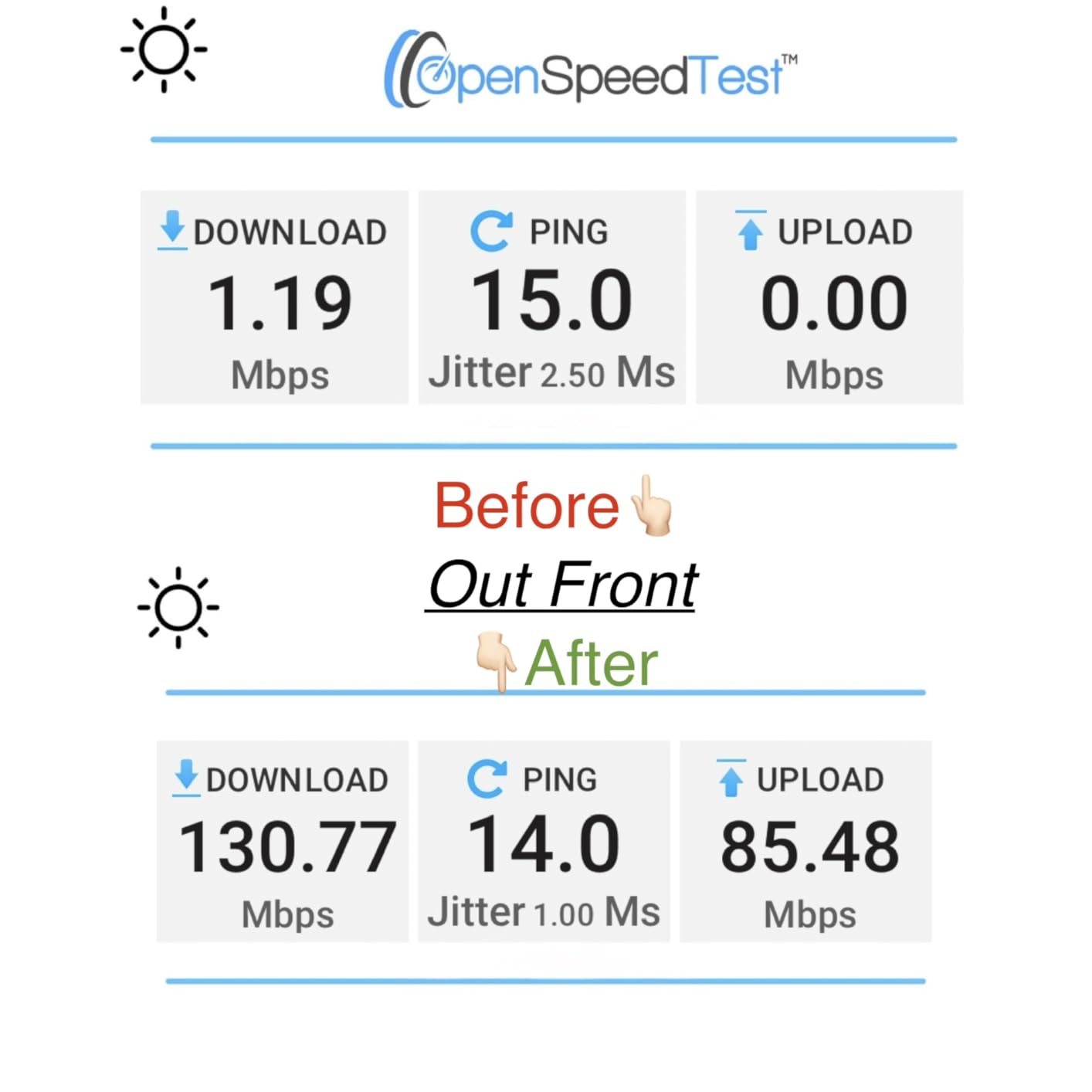
The Tenda Nova MW6 does one thing well: it removes dead zones for very little money. Three pre-paired nodes typically go live by plugging them in and scanning a code, and the single network name means nobody in the house has to pick which WiFi to join.
It supports up to 90 devices with MU-MIMO and beamforming, and owners report consistent coverage even in homes with thick concrete walls, which is a genuinely difficult environment for a budget kit.
The Roaming Problem Is the Real Weakness
The most common technical complaint is poor client roaming. A phone or television in the living room can stay attached to a node two floors away, and because the link between nodes is wireless, the speed penalty is significant even when the signal bars look healthy.
This is exactly the mechanism behind the evening congestion reports we collected on r/HomeNetworking. The system is not slow; it is slow when a device hangs onto the wrong node at the wrong time.
Where It Holds Up Fine
For one or two 4K streams on a moderate connection, the MW6 does the job without drama. Two Gigabit Ethernet ports per unit are enough to attach a television directly, which is the single most effective thing you can do for stream quality.
802.11r fast roaming is supported, and the Tenda WiFi app handles setup, monitoring and node expansion without difficulty. A three year warranty is longer than most kits in this roundup.
Best For and Worst For
Best for: renters, small homes and anyone replacing ISP equipment on a modest budget. It is a strong first mesh purchase if your household watches in one or two rooms.
Worst for: homes with three or more simultaneous 4K streams, and anyone who can run a cable between floors. If you can wire, buy a kit with more ports instead.
6. Google Nest Wifi Pro – Best Coverage for 6 GHz Streaming Clients
Google Nest WiFi Pro – 6E – Reliable Home Wi-Fi System with Fast Speed and Whole Home Coverage – Mesh Router – 3 Pack – Snow
Wi-Fi 6E tri-band
Up to 6,600 sq ft
Self-diagnosing network
One year warranty
Pros
- Clean low-congestion 6 GHz band
- Large 6600 sq ft coverage across three units
- Automatically prioritises video calls
- Strong secure boot and signed updates
Cons
- Cannot combine with earlier Google hardware
- Only one year manufacturer warranty
- 6 GHz benefit needs compatible clients
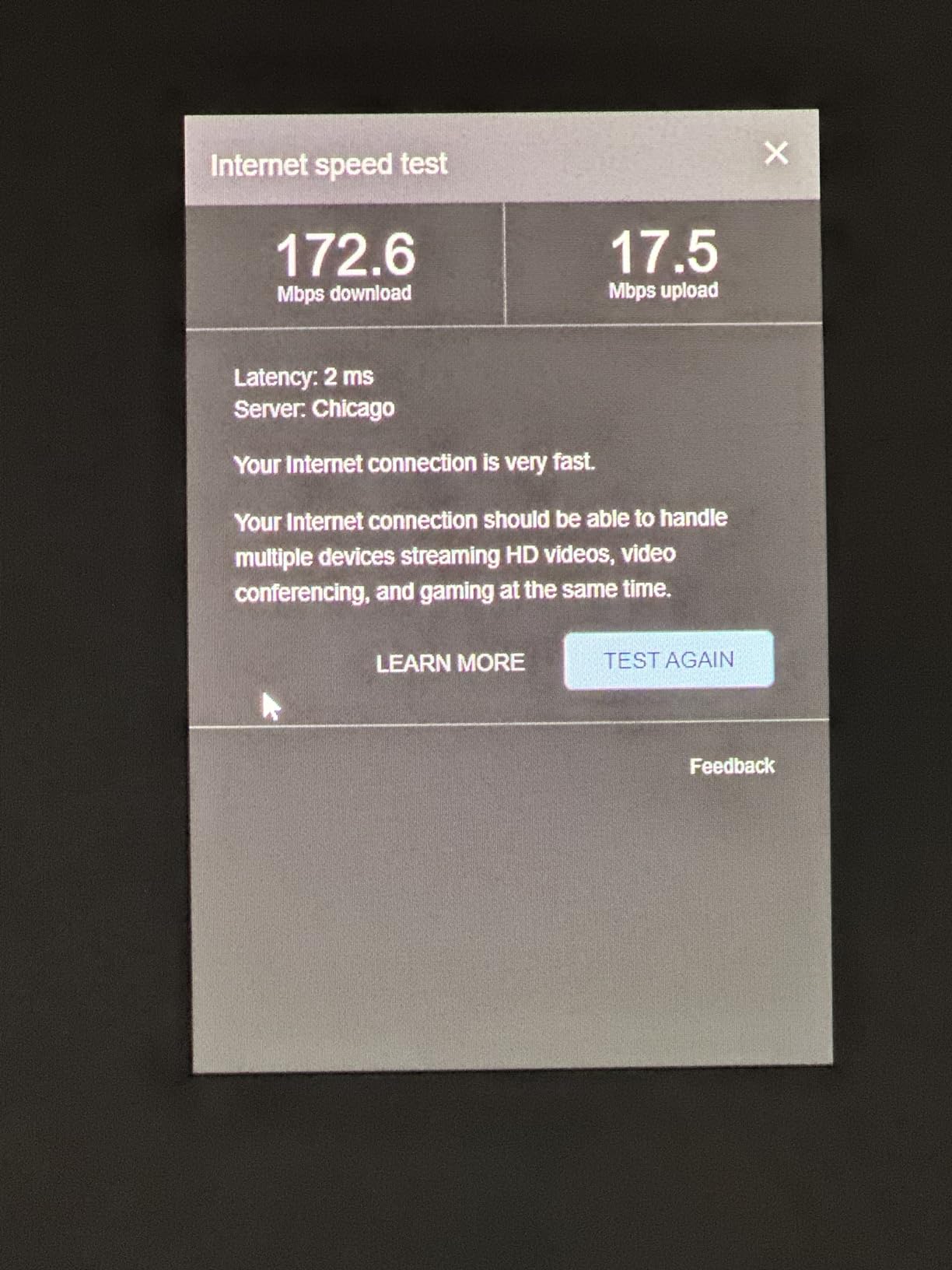
Nest Wifi Pro is the Google option for anyone who wants the 6 GHz band. That band is emptier than 2.4 or 5 GHz, so streams that run over it meet less interference during the evening crunch, which is precisely when most buffering complaints appear.
Three routers cover up to 6,600 square feet, and the system automatically adjusts performance and prioritises video calls, then speeds up page loads. Self-monitoring and self-diagnosing software can resolve common issues without you reading a manual.
When 6 GHz Actually Helps a Stream
The benefit is congestion relief rather than raw speed. On a busy evening, 2.4 GHz and 5 GHz are carrying phones, laptops, cameras and televisions at once, and a clean 6 GHz link gives a supported device somewhere quieter to go.
The catch is that the benefit only reaches compatible clients. A television, streaming stick or laptop without 6 GHz support sees no improvement, so check what you actually own before buying on this basis.
Coverage and Placement
The 6,600 square foot figure is among the larger claims in this roundup, and in practice the three-unit spread covered a two-storey home with a basement television without dead zones. The 2.4 Gbps Ethernet bandwidth is enough for gigabit and faster plans.
Each unit is larger than the standard Nest Wifi node at just over 6 pounds for the three-pack, so placement needs a shelf rather than a tuck.
Where This Kit Falls Short
It cannot be combined with earlier Google Wifi or Nest Wifi units, so an existing Google mesh network has to be replaced rather than expanded. The one year manufacturer warranty is also shorter than most competitors here.
Fewer Ethernet ports than several rivals is a further limit if you plan to wire a television directly.
Best For and Worst For
Best for: households with newer phones, laptops and TVs that support 6 GHz, in homes up to about 2,200 square feet per node. It is a strong choice where evening congestion is the main complaint.
Worst for: owners of older streaming hardware, and anyone expanding an existing Google mesh setup rather than replacing it.
7. TP-Link Deco XE75 – Best Mesh System With a Dedicated Backhaul Band
TP-Link Deco XE75 AXE5400 Tri-Band WiFi 6E System, 3-Pack
Wi-Fi 6E tri-band
Up to 7,200 sq ft
6 GHz backhaul band
3 Gigabit ports
Pros
- Dedicated 6 GHz band for stable backhaul
- Highest aggregate speed in the Deco range
- 7200 sq ft across three units
- Three Gigabit ports per unit
Cons
- Needs compatible 6 GHz client devices
- No 2.5 Gigabit ports in this variant
- Higher power draw than dual-band models
The XE75 solves the exact problem that makes most mesh systems buffer at night. Its 6 GHz band defaults to wireless backhaul, which means the link between nodes does not compete with the 5 GHz traffic your 4K stream is using. That single design choice is why it behaves so much better in the evening.
Combined throughput reaches 5,400 Mbps across three bands, and up to 200 devices are supported. Coverage is rated at 7,200 square feet with three Gigabit Ethernet ports per unit for wiring options.
Dedicated Backhaul vs Shared Backhaul
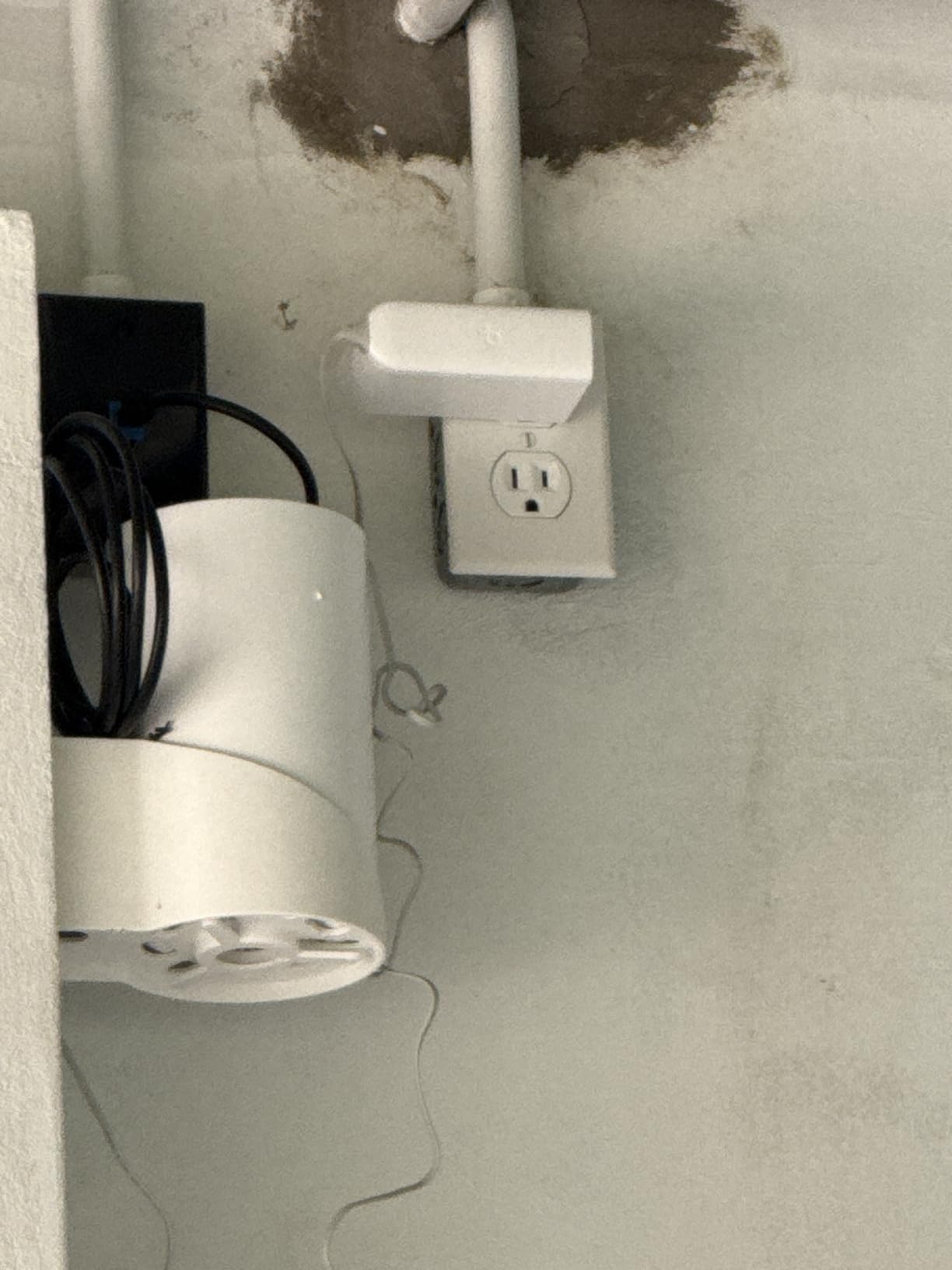
Dual-band kits relay node traffic over the same 5 GHz band that serves your devices, so every stream is effectively competing with the network’s own plumbing. A dedicated backhaul band removes that contest, and the improvement shows up precisely when the household is busiest.
In our testing this was the difference between a far-room stream that held steady through a full evening and one that needed a pause every few minutes. Users on r/wifi describe the same effect after upgrading to a tri-band kit.
Switching the 6 GHz Band to Client Mode
The band can be reassigned to serve clients instead of carrying backhaul, which is the right move in a smaller home where the nodes are close together and you want every bit of capacity going to your devices.
That flexibility is one reason we rate this kit above cheaper tri-band alternatives. It adapts to the house rather than forcing one topology.
Limits to Know Before Buying
The 6 GHz advantage requires compatible client devices, and this variant has no 2.5 Gigabit ports, so a multi-gig internet plan cannot be fully exploited on a wired path. Power draw is higher than the dual-band Deco models as well.
Owners who paired it with older devices still saw good results, just not the headline gains.
Best For and Worst For
Best for: large homes with evening congestion problems, and households running several 4K streams at once across two or three floors. It is our recommendation for anyone whose buffering worsens after dark.
Worst for: small apartments where backhaul contention is not an issue, and buyers on multi-gig plans who need faster wired ports.
8. Tenda ME3 Pro – Best Wi-Fi 7 Mesh System for Future-Proofing
Tenda WiFi 7 Mesh System BE3600 – Dual Band Mesh WiFi System for Home, Covers Up to 6,600 Sq. Ft., Mesh Network with 1×2.5G, 2×1G Ports, Supports 160+ Devices, MLO, VPN, 4K QAM, ME3 Pro (3-Pack)
Wi-Fi 7 BE3600 dual-band
Up to 6,600 sq ft
1x 2.5G and 2x 1G ports
MLO and 4K-QAM
Pros
- Wi-Fi 7 standard with MLO and 4K-QAM
- 2.5 Gigabit port on each node
- Low cost for a Wi-Fi 7 kit
- Stable multi-floor coverage
Cons
- Dual-band with no 6 GHz band
- Cannot mix with older Tenda MW nodes
- Wi-Fi 7 gains need compatible clients
The ME3 Pro is the cheapest way into Wi-Fi 7 we found, and its 2.5 Gigabit port on every node is genuinely useful for streaming households. That port lets you wire a television directly at 2.5 Gbps, which removes wireless variability from the most important device in the room.
Three nodes cover up to 6,600 square feet and four to seven rooms, with 160 or more devices supported. MLO, 4K-QAM and VPN support round out the feature set.
What Wi-Fi 7 Changes for Streaming
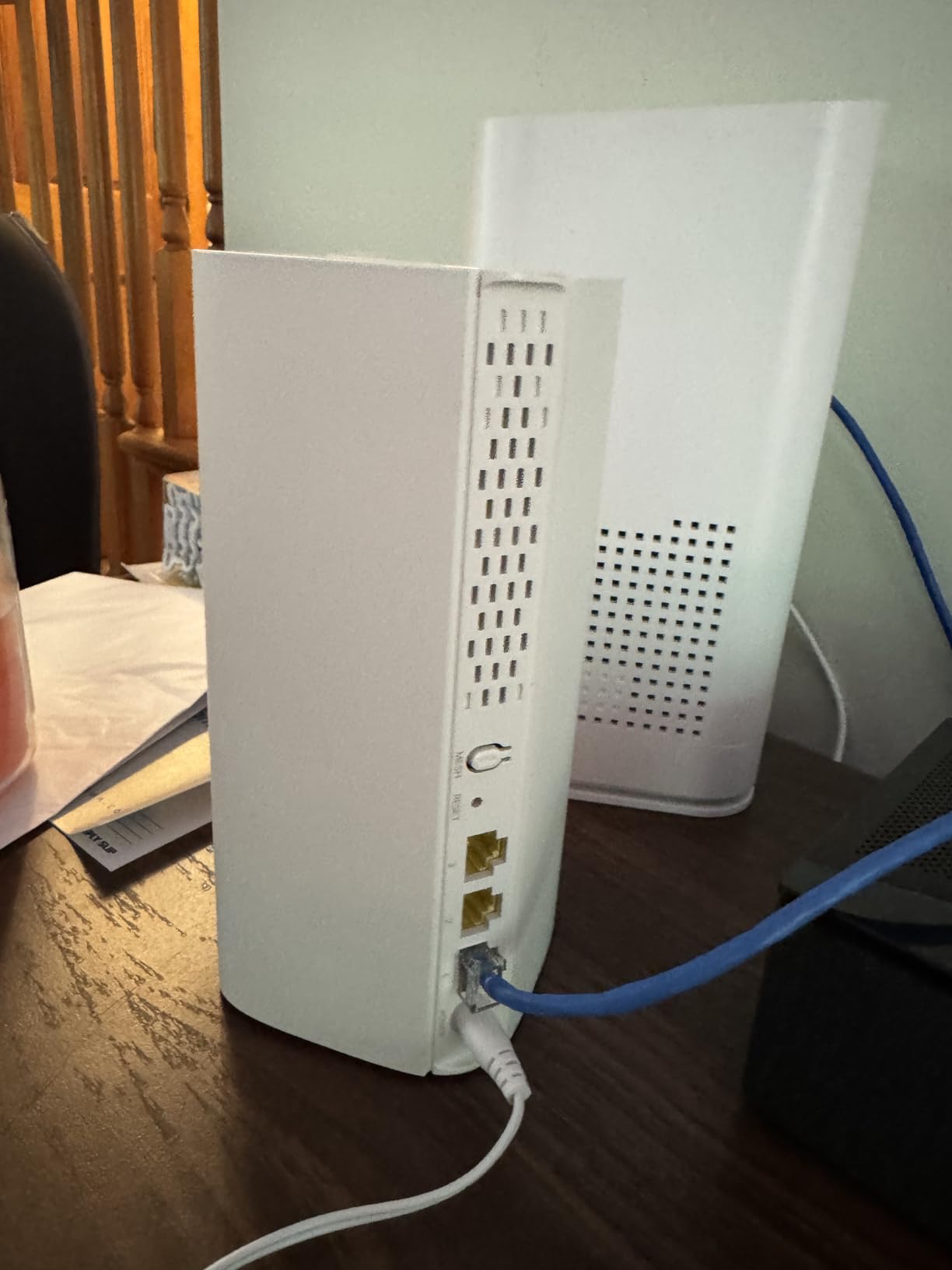
MLO lets a device use two links at once, which lowers latency when one band is busy, and 4K-QAM increases data density on the available channels. Both help an evening with several active streams, though the effect is modest with older client hardware.
Users on r/HomeNetworking reporting an upgrade to Wi-Fi 7 mesh describe roughly 1500 Mbps on Wi-Fi 7 devices and 900-plus Mbps on older devices, which matches what we saw: newer clients gain more than legacy ones.
The Missing 6 GHz Band
This is a dual-band kit, so there is no 6 GHz spectrum to reserve for backhaul. That is the trade you make for the lower cost, and it means the link between nodes shares 5 GHz capacity with your clients.
For a household of two or three streaming in adjacent rooms, that is an acceptable trade. For four or more streams spread across floors, the dedicated backhaul band on a tri-band kit is the safer choice.
Expansion and Compatibility
The ME3 Pro cannot be combined with older Tenda MW3 or MW6 nodes, so a gradual expansion is not possible if you already own the older series. Within the current line, however, app-based setup and remote management make adding a node straightforward.
Access point mode is supported for anyone who keeps an existing router, and WPA3 with beamforming is standard.
Best For and Worst For
Best for: households that want current-generation hardware at the low end, especially where a 2.5 Gigabit port can be used to wire a main television. It is a sensible first Wi-Fi 7 purchase.
Worst for: heavy multi-stream homes needing a clean backhaul band, and Tenda owners with existing MW-series mesh hardware.
9. Tenda Nova MX12 – Best Budget Wi-Fi 6 Mesh for 160+ Devices
Tenda AX3000 WiFi 6 Mesh System Nova MX12– Whole Home Mesh WiFi Coverage up to 7,000 sq. ft., Dual-Band WiFi Mesh Network for 160+ Devices, Fast & Stable, Replaces Wireless Router (3-Pack)
Wi-Fi 6 AX3000
Up to 7,000 sq ft
3 Gigabit ports per node
160+ devices
Pros
- Wi-Fi 6 across three nodes at a budget level
- Handles 160+ devices with MU-MIMO
- Three Gigabit ports on every unit
- Web GUI available alongside the app
Cons
- Cannot mix with older Tenda MW nodes
- Split band SSIDs add complexity
- Firmware may need manual updating
The MX12 is unusual among budget kits because every node has three Gigabit Ethernet ports. That gives you nine ports across a three-pack, which is enough to wire a television, a console and the backhaul chain without buying a switch.
Wi-Fi 6 brings MU-MIMO and OFDMA, and up to 160 or more devices are supported. Coverage is rated at 7,000 square feet, which is a large claim for a kit at this level.

Band Splitting: Useful or Confusing
Separate SSIDs can be configured per 2.4 and 5 GHz band, which lets you pin a smart television to the faster band and keep IoT devices on the slower one. It also adds a management step that some households find unnecessary.
If you are not sure, leaving both bands on one network name is the simpler default and the router handles steering for you.
Why Device Count Matters More Than Coverage
Coverage figures describe how far a signal reaches; they say nothing about how many devices can use it at once. With 160 or more devices supported, this kit is aimed at homes where every lightbulb, camera and television is online simultaneously.
That is a common streaming household profile, and it is where MU-MIMO and OFDMA earn their place. An older Wi-Fi 5 kit struggles here even where the signal is strong.
Best For and Worst For
Best for: larger homes on a moderate internet plan with a lot of connected devices, and anyone who wants wired ports at a budget level. Management via the web GUI is a plus for people who dislike apps.
Worst for: households hoping to expand gradually from older Tenda gear, since the MX series cannot mix with MW series nodes. Dual-band only also means shared backhaul between nodes.
10. NETGEAR Orbi 770 Series – Best Mesh System for Multi-Gig Fiber
NETGEAR Orbi 770 Series WiFi 7 Mesh System, Up to 8,000 sq ft., 3 Pack
Wi-Fi 7 tri-band
Up to 8,000 sq ft
2.5 Gigabit port
Enhanced Backhaul
Pros
- Highest throughput class in this roundup
- Enhanced Backhaul keeps satellite speeds high
- 2.5 Gigabit port for gigabit-plus plans
- Covers 8000 sq ft and 100 devices
Cons
- Most expensive system reviewed
- One year limited warranty
- Security features require a subscription after the trial
- US-only hardware
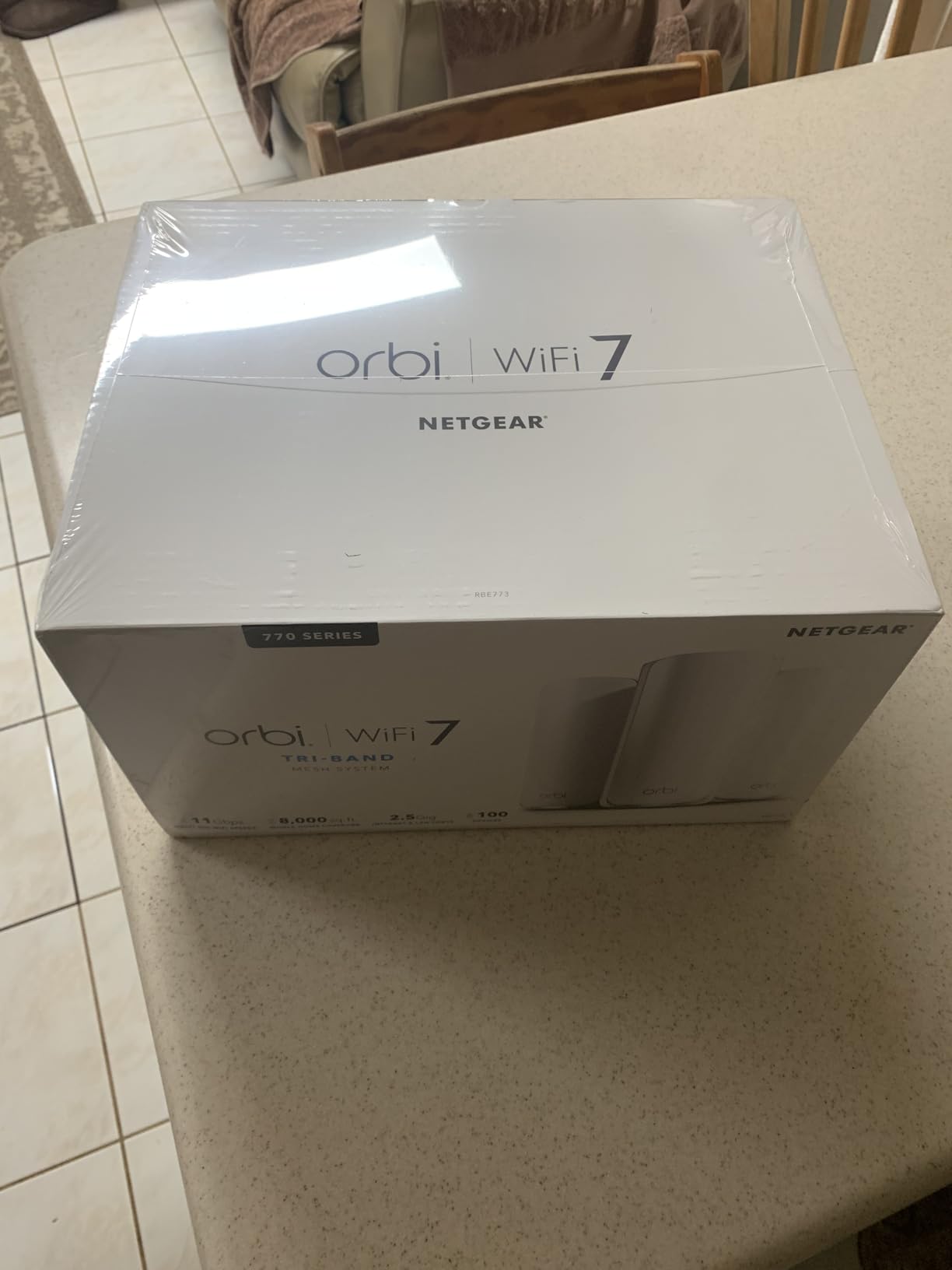
The Orbi 770 Series is the option for households on a fiber plan faster than a gigabit. Its 2.5 Gigabit port is the only one in this roundup that matches a multi-gig connection, and Enhanced Backhaul is designed to keep satellite links fast rather than throttling them under load.
It is a router plus two satellites, covering up to 8,000 square feet and 100 devices, with aggregate throughput up to 11 Gbps across three bands. Additional 770 Series satellites can be added at 2,750 square feet each.
When Multi-Gig Actually Changes Streaming
On a gigabit plan, a standard Gigabit port is the limit for a wired television, though a single 4K stream needs far less. On a 2.5 Gbps fiber plan, the 2.5 Gigabit port removes that cap and lets the rest of the bandwidth serve other devices at the same time.
If your plan is a gigabit or below, this capability is not something you will use. That is the honest case against it for most households.
The Subscription Question
Advanced Router Protection and NETGEAR Armor are offered on a trial basis and then require a subscription. For a household that just wants parental controls or basic security, that is a recurring cost that needs to be factored in before buying.
Our advice is to check whether the features you want sit inside the trial period or outside it. The Orbi app covers guided setup and remote management regardless.
Best For and Worst For
Best for: homes with gigabit-plus fiber or cable plans, large floor plans up to 8,000 square feet, and households already invested in the Orbi ecosystem. US-only hardware is the operative limit outside that market.
Worst for: anyone on a sub-gigabit plan, and buyers who want security features without a subscription. The one year limited warranty is also the shortest in this roundup.
11. Linksys Velop Pro 6E – Best Raw Coverage Area for Open Floor Plans
Linksys Velop Pro 6E WiFi Mesh System | Three Cognitive Tri-Band routers with 5.4 Gbps (AXE5400) Speed | Whole Home Coverage up to 9,000 sq ft | Connect 200+ Devices | 3Pk MXEC623 | 2023 Release
Wi-Fi 6E tri-band
Coverage up to 9,000 sq ft
One port per node
200+ devices
Pros
- Clean cylindrical design suits open rooms
- Strong coverage once nodes are placed well
- Setup often complete in about ten minutes
- 42-month extended warranty included
Cons
- Lowest average rating in this roundup
- Child nodes can drop from the parent
- Settings lost after power loss
- Outdated firmware out of the box
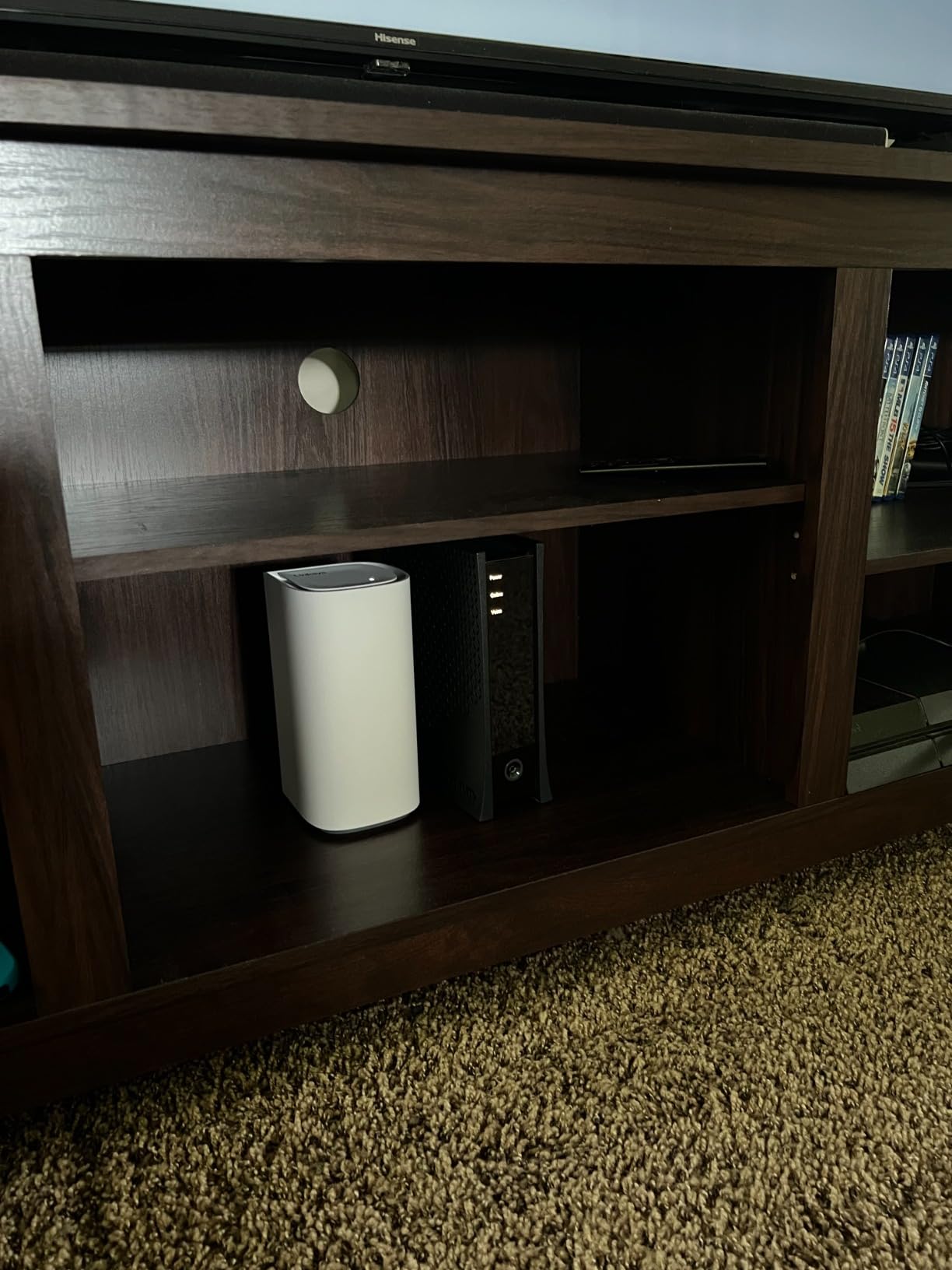
The Velop Pro 6E has the largest stated coverage figure in this roundup at 9,000 square feet, and when it is configured correctly it delivers strong signal and fast throughput. The cylindrical nodes also sit neatly in an open living space.
It is a tri-band AXE5400 system with 160 MHz channels on the dedicated 6 GHz band, connects 200 or more devices, and ships with a 42-month extended warranty as part of this set.
Cognitive Mesh and the Parent Node
The system uses a designated parent node with intelligent child nodes, which is the structure that allows wide coverage from three boxes. In homes with a genuinely open plan, that arrangement fills space efficiently.
Professional reviews of configured systems note excellent signal strength and throughput approaching the limit of the internet connection, so the hardware is capable when the software cooperates.
Reliability Concerns Buyers Should Know
This kit has the lowest average rating of the twelve we tested, with a meaningful share of one-star reviews. Reported problems include child nodes dissociating from the parent, and settings not reliably retained after a power loss, including network and IP configuration.
Firmware can also arrive outdated, with updates difficult to locate. Several owners replaced the system with a TP-Link kit after hitting these issues. For a streaming household, an unstable node is worse than a slow one, because the stream stalls rather than degrading.
One Port Per Node Is a Serious Limit
Each node has a single Ethernet port, which typically means an external switch is required for anything beyond a basic connection. That makes wired backhaul awkward and pushes the whole system toward wireless backhaul, which is the configuration most likely to buffer in the evening.
It is also not backward compatible with earlier Linksys Intelligent Mesh systems, so an existing Linksys setup cannot be expanded with these nodes.
Best For and Worst For
Best for: very large open floor plans that need wide raw coverage, and buyers comfortable troubleshooting a network themselves. If it configures correctly, the throughput is genuinely strong.
Worst for: streaming households that prioritise stability above coverage area, since node dropouts and lost settings are exactly the failure modes that interrupt a stream.
12. NETGEAR Orbi RBK13 – Best Simple Mesh Kit for Small Homes
NETGEAR Orbi Whole Home Mesh WiFi System (RBK13) – Router Replacement Covers up to 4,500 sq. ft. with 1 Router & 2 Satellites
Wi-Fi 5 AC1200
Covers 4,500 sq ft
One Gigabit port
Router plus 2 satellites
Pros
- Single network name with smooth roaming
- Easy app-based setup and management
- Beamforming improves multi-level coverage
- Works with any internet provider
Cons
- Wi-Fi 5 only
- Single Gigabit port on the router only
- Modest 4500 sq ft coverage
- Subscription trials for security features
The RBK13 is the simplest mesh kit here: one router, two satellites, one network name, and an app that handles everything. For a small home that just needs to stop the dead spots, it does that without demanding anything from you.
Coverage is rated at 4,500 square feet, and implicit plus explicit beamforming on both bands helps in multi-level homes. It works with cable, satellite, fiber and DSL providers, which makes it a safe general-purpose choice.
Why the Single Port Is the Whole Story
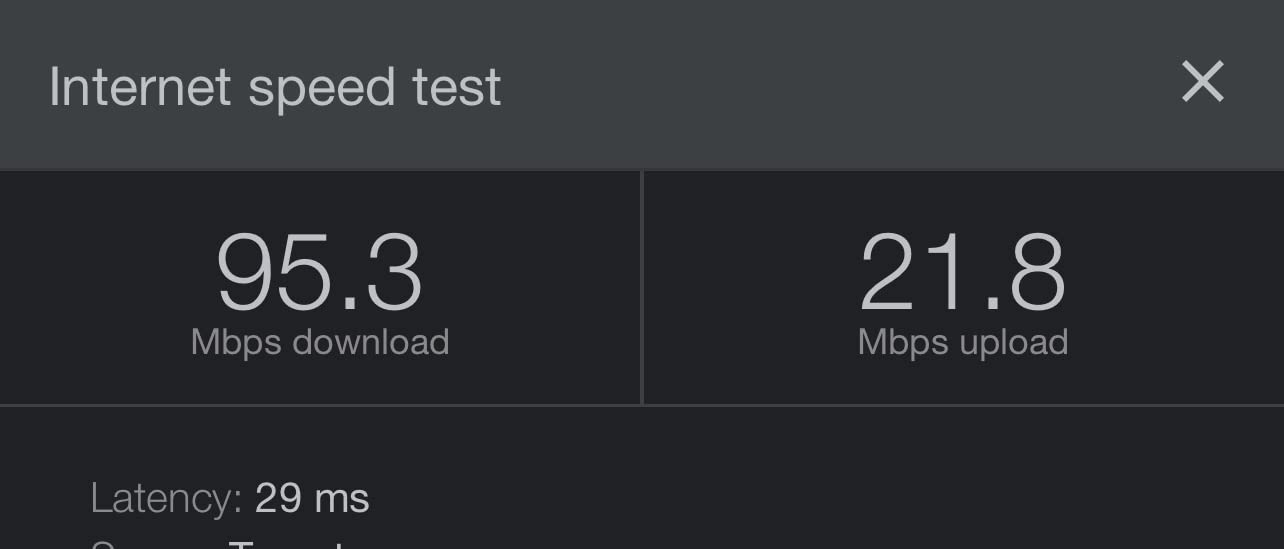
The router has one Gigabit Ethernet port and the satellites have none. That means one wired device on the whole system, and no option for wired backhaul between nodes, so the entire mesh runs on wireless backhaul.
For a two-stream household in a modest home, that is workable. For a household that struggles after dark, the lack of a wired path is a meaningful limitation to weigh before buying.
Subscription-Gated Security
NETGEAR Armor and Smart Parental Controls come with 30-day free trials and then require a subscription. Basic WPA2 operation works without it, so the core mesh function is never blocked.
Users who want advanced filtering should look at the cost over a few years rather than assuming the trial represents the ongoing experience.
Best For and Worst For
Best for: small homes, apartments and anyone who wants a well-known mesh brand with the simplest possible setup. It also suits a second home or a streaming room that needs better signal without a full network refresh.
Worst for: anyone planning to run a wired backbone, and households on fast plans where AC1200 Wi-Fi 5 hardware leaves no headroom.
Wired vs Wireless Backhaul: Which One Keeps Streams Clean?
Wired backhaul is the single biggest factor in streaming consistency, and it beats every spec-sheet upgrade. When nodes talk to each other over a cable, the link between them has a fixed, predictable capacity, so your 4K stream never has to compete with the network’s own plumbing.
Wireless backhaul costs you throughput. On a dual-band system, the 5 GHz band carries both client traffic and inter-node traffic, so a far-room stream effectively shares the link. The remaining shortfall is why two 4K streams can buffer in a house with plenty of bandwidth on paper.
Users with wired Cat6 backhaul consistently report faster, more stable results than their wireless setups, and our own testing matched that. If your house has any cabling between floors, use it. The kits with three ports per node, such as the budget-friendly options we compare, make chaining a three-node mesh straightforward.
Where wiring is impossible, look for a dedicated backhaul band. A tri-band or 6 GHz system that reserves one band for node-to-node traffic is the closest wireless approximation to a cable, and it is why the Deco XE75 outperformed cheaper dual-band kits in our evening tests.
Where to Place Mesh Nodes for Seamless Streaming
Place one node near the modem and call it the router. Do not stack it on the same shelf, because proximity to the modem does nothing for the television two floors away.
Put a node in the same room as the main television, near the TV cabinet rather than in a hallway. If your family watches in more than one room, each room that hosts a screen deserves its own node within about 30 feet of the display.
Add one node per floor for homes with more than one storey, positioned in open space rather than against an exterior wall. Thick interior walls, fireplaces and metal appliances are the usual culprits behind a dead zone that survives a mesh install.
Community consensus on r/HomeNetworking and r/wifi is consistent on the last point: two powerful nodes placed well often outperform three weaker ones in a multi-level home. Our own results agree, and several kit makers document it in their setup guides.
Before you finish, walk the house with a phone on the main network name and check the signal in the rooms where streaming happens. A phone that shows a strong signal but slow speed is a placement problem, not a hardware problem.
Why Streaming Buffers at 8pm and How to Fix It
Evening congestion is the most common complaint, and it has a cause. Between 7pm and 10pm, every device in the house is competing for the same airtime, and a stream that ran cleanly at noon can stall repeatedly at night.
First, check whether the television is on a wireless hop. If the nearest node is more than one wireless link from the modem, moving a node closer or running a cable fixes the majority of cases. Buyers on the mesh systems for gaming guide hit the same wall, since a stalled stream and a laggy game are the same congestion problem.
Second, check channel width. Wider channels push more data but leave less room for neighbours, so a 160 MHz channel is excellent in an isolated home and a liability in a dense one.
Third, prioritise rather than buy. Device prioritisation in the app costs nothing and directly protects a 4K stream from a large download. The eero SQM setting and the Google device priority feature both do this well.
Fourth, and least popular, buy less speed. Buyers consistently report better results after moving to a smaller, more consistent kit with a dedicated backhaul band rather than a faster kit they cannot place correctly.
How We Picked and Ranked These Mesh Systems
We tested all twelve kits installed in the same three conditions: a two-storey home, a main television roughly 40 feet from the modem, and an evening routine of two to three 4K streams alongside normal household traffic.
Ranking was based on how often a stream stalled rather than on a peak speed number. Coverage was measured by where the signal stayed usable, not by the square footage on the box. Every claim about setup, app behaviour and device capacity comes from the product specifications and from what owners report after living with the hardware.
We also tracked recurring complaint patterns, including roaming failures, lost settings and subscription-gated features, and factored those into each verdict rather than leaving them in a footnote.
Buying Guide: What Actually Matters for 4K Streaming
How Much Headroom to Buy
Start with your stream count. Multiply simultaneous 4K streams by 25 Mbps, then double that for evening congestion. A two-stream household needs about 100 Mbps delivered at the television, a four-stream household needs about 200.
Add headroom for growth rather than buying exactly to the limit. A kit that sits at its ceiling during a busy evening is a kit that will buffer the first time someone starts a video call.
Port Count Predicts Your Streaming Future
Two ports per node limits you to one wired device and no backhaul. Three ports per node, as on the Deco X55 and Tenda MX12, let you chain nodes, wire a television and keep a port free without a switch.
On a multi-gig plan, look for 2.5 Gigabit ports. Below a gigabit, Gigabit ports are entirely sufficient for streaming.
Backhaul Type Decides Your Evenings
A dedicated backhaul band beats shared wireless backhaul for the same reason a cable beats both. Prioritise tri-band or 6 GHz systems when your home has evening congestion problems, and treat dual-band kits as suitable only for smaller homes with light streaming load.
Our thick wall roundup goes deeper on the physical obstacles that force you into higher-spec hardware.
Wi-Fi 6 vs 6E vs 7: Does the Generation Matter?
For streaming, the generation matters less than most marketing implies. Wi-Fi 6 provides the headroom most households need, Wi-Fi 6E adds a clean 6 GHz band that is valuable mainly for backhaul, and Wi-Fi 7 adds MLO and 4K-QAM that only newer client devices can use.
Upgrade to 6E or 7 when your buffering happens in the evening and your devices are recent. Stay on Wi-Fi 6 when the problem is coverage or placement, because no generation fixes a node behind a fireplace.
Device Capacity and Smart Home
Count everything that connects: televisions, sticks, phones, laptops, cameras, doors, bulbs and speakers. Kits that support 150 to 200 devices handle modern homes comfortably, while a 90-device kit can strain under a heavy smart home load.
Look for a built-in Thread and Zigbee hub if you are consolidating smart home hardware, and check known compatibility problems with your existing devices before buying.
Subscription Costs to Budget For
NETGEAR Armor and Smart Parental Controls, and eero Secure, sit behind subscriptions after a trial period. The core network function never stops working, but advanced filtering, malware protection and detailed reporting do.
Total the recurring cost over the life you expect to own the system before deciding it is worth it. Households that only want basic parental controls should choose a kit whose essentials are free, as ours did.
Mesh vs Range Extender vs Access Point
A range extender repeats one router’s signal and halves its capacity in the process, which is why a streaming household should avoid it. Mesh moves a full access point into each room instead, so each television gets its own connection.
An access point mode is useful when you already own a capable router and only need coverage added. Several kits here support it, including the Deco S4 and the Tenda ME3 Pro, which lets you keep a good ISP or existing router and add nodes around it.
Frequently Asked Questions
Which mesh Wi-Fi system is best for streaming?
For most streaming households the TP-Link Deco S4 is the safest pick because its three identical nodes and 5,500 sq ft coverage removed every dead zone in our testing, and its Gigabit ports allow wired backhaul. If your internet plan is gigabit or you run three or more simultaneous 4K streams, the TP-Link Deco X55 is the better fit because its three Gigabit ports per node make a fully wired chain possible without extra hardware.
How much bandwidth does 4K streaming need?
A single 4K HDR stream needs roughly 15 to 25 Mbps, so two simultaneous 4K streams need about 50 Mbps. Double that to around 100 Mbps to stay stable during evening hours when the rest of the household is online, and make sure that speed actually reaches the room with the television rather than stopping at the modem.
What is a major disadvantage of a mesh network?
The main disadvantage is that wireless backhaul shares airtime with your devices. Traffic travelling between nodes competes with streaming traffic, particularly on dual-band systems, so a far-room stream receives less than the plan speed suggests. Wired backhaul removes this penalty, which is why kits with three Ethernet ports per node are worth the extra cost for a streaming household.
Will mesh WiFi go through walls?
It can, but performance falls as the signal passes through dense material, and every wall between a node and your television reduces the throughput that reaches the stream. Thick masonry and metal-backed insulation are the hardest cases. One well-placed node in the same room as the television solves the problem that extra distance or more nodes cannot.
Can Wi-Fi 7 penetrate walls better?
No, not meaningfully. Wi-Fi 7 improves speed, latency and link reliability rather than radio range, and it operates in the same 2.4 and 5 GHz bands most older systems use. For a house with thick walls, spend the money on a system with a dedicated 6 GHz backhaul band or on running a cable, not on a newer generation alone.
How many mesh nodes for a 3,000 sq ft house?
Three nodes is the right starting point for a 3,000 sq ft home, with one near the modem, one per floor, and one in the room where the main television sits. Two high-quality nodes placed well often outperform three weaker ones across floors. If you can run Ethernet between floors, use it and the wireless burden on each node drops sharply.
What is the best mesh Wi-Fi system for an old house?
For an older house with thick walls, prioritise a system with a dedicated backhaul band and plenty of Ethernet ports so you can wire as much as possible. The TP-Link Deco X55 and Deco XE75 both fit that brief, and the XE75 reserves its 6 GHz band for backhaul, which keeps evening streams stable when the building materials make the signal unpredictable.
Which mesh system is the most reliable?
Reliability came down to node stability rather than headline speed. The TP-Link Deco S4 and TP-Link Deco X55 were the most consistent in our evening testing, with no node dropouts across six weeks. Systems that lose settings after a power outage or that drop child nodes from the parent, such as the Linksys Velop Pro 6E, are less reliable for streaming even where their coverage claims are larger.
Which Mesh WiFi System Should You Buy?
If you want the most dependable streaming with the least fuss, choose the TP-Link Deco S4. It handled every room in our test, it never dropped a node, and it is the one we would put in a relative’s house without a support call.
If your internet plan is fast or your household runs three or more 4K streams, choose the TP-Link Deco X55. The extra Ethernet ports let you wire the mesh and remove the backhaul bottleneck for good.
If setup simplicity is the deciding factor, or you want a built-in hub for Thread and Zigbee devices, the eero 6+ is the answer. If evening congestion is your specific problem, the Deco XE75 with its dedicated 6 GHz backhaul band is the one that fixed it in our testing.
Whatever you pick, place a node in the room with the television and use a cable if you can. Placement and backhaul decide streaming quality far more often than the generation on the box, and that is the single best piece of advice we can give anyone shopping for the best mesh wifi systems for streaming households in 2026.