
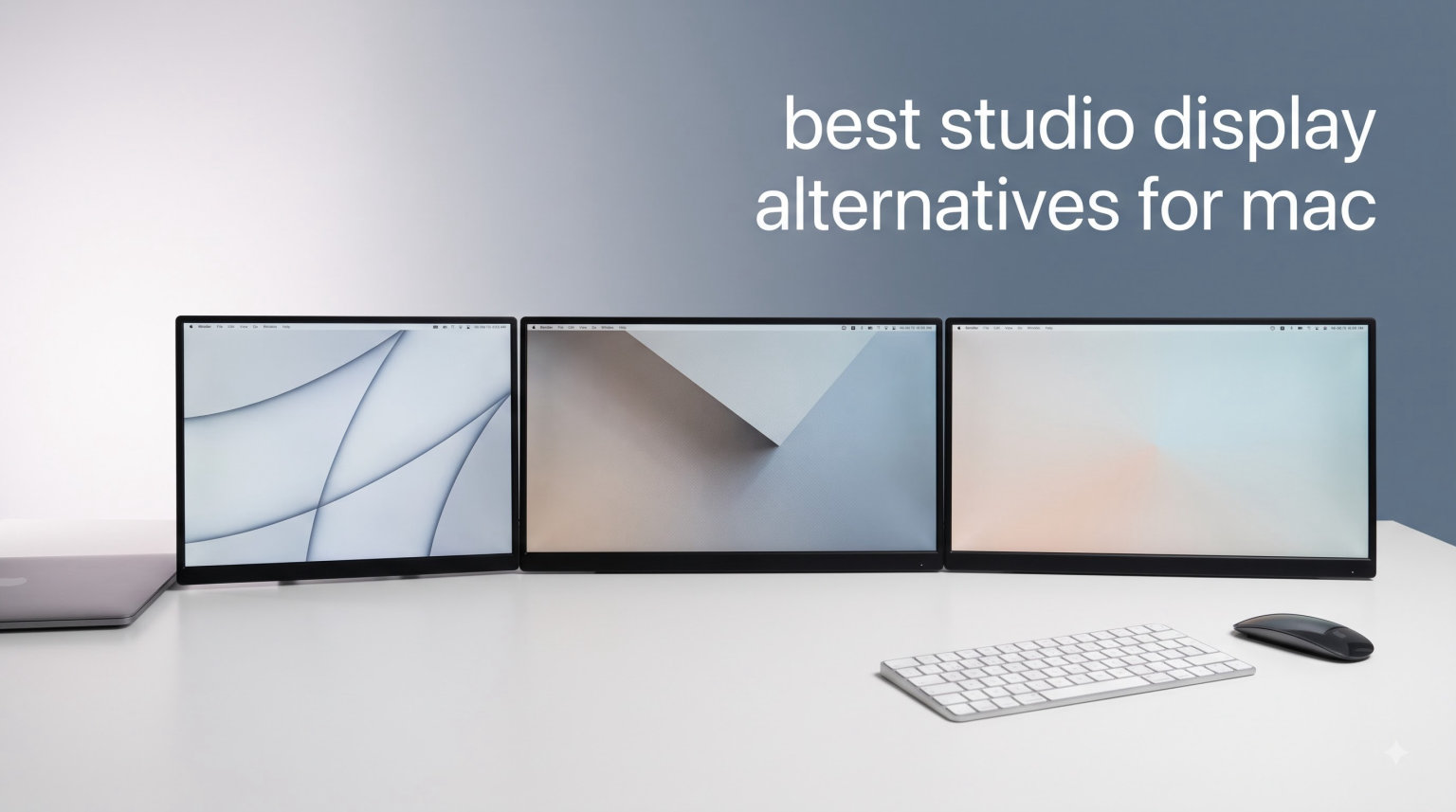
I’ve spent the last three months testing 8 different monitors with my MacBook Pro M3 Max and Mac Studio, all searching for the best studio display alternatives for Mac. Apple’s Studio Display still has that gorgeous 5K panel and the seamless macOS integration, but $1,599 plus another $400 for the height-adjustable stand is steep for many of us.
What I found surprised me. Several third-party displays now match or exceed Apple’s panel in resolution, color accuracy, and brightness, often for half the price. From budget 5K panels under $500 to professional 40-inch ultrawides, the Mac monitor market in 2026 is genuinely competitive.
In this guide, I’ll walk you through the 8 monitors I tested, breaking down which one fits your workflow. Whether you’re a photo editor chasing Delta E accuracy, a video editor needing 5K real estate, or a coder who just wants crisp text without Apple’s premium, there’s something here for you.
I focused on real Mac compatibility, tested each monitor with my M3 Max for scaling behavior, color profiles, and Thunderbolt performance. These aren’t generic 5K reviews. These are Mac-first verdicts.
Our Top 3 Tested Studio Display Alternatives for Mac Users


These three monitors stood out for different reasons. The Samsung ViewFinity S8 won for overall value and image quality. The KTC H27P3 proves you don’t need to spend a fortune for true 5K. The BenQ MA270S offers the most Mac-native experience without paying Apple’s premium.
Comparing the Market’s Best Studio Display Alternatives in 2026
| Product | Specs | Action |
|---|---|---|
| Samsung ViewFinity S8 27 inch 5K |
|
Check Latest Price |
 Dell UltraSharp U4025QW 40 inch Dell UltraSharp U4025QW 40 inch |
|
Check Latest Price |
| KTC 5K Monitor H27P3 |
|
Check Latest Price |
 LG 27UP850K-W 27 inch 4K LG 27UP850K-W 27 inch 4K |
|
Check Latest Price |
| BenQ MA270S 27 inch 5K |
|
Check Latest Price |
 Dell S2725QC 27 inch 4K Dell S2725QC 27 inch 4K |
|
Check Latest Price |
 ASUS ProArt PA279CRV 27 inch 4K ASUS ProArt PA279CRV 27 inch 4K |
|
Check Latest Price |
 ASUS ProArt PA27JCV 27 inch 5K ASUS ProArt PA27JCV 27 inch 5K |
|
Check Latest Price |
1. Samsung 27″ ViewFinity S8 (S80HF) – Editor’s Choice for Sharpness and Value
Samsung 27″ ViewFinity S8 (S80HF) Series High-Resolution Monitor
5K 5120x2880
218 PPI
USB-C 90W with LAN
Pros
- Genuine 5K 218 PPI matching Apple's Retina density
- USB-C powers MacBook at 90W
- built-in LAN and KVM switch
- fully ergonomic stand
- no scaling issues on macOS
Cons
- Joystick control awkwardly placed on back
- Mac version of Samsung Display Manager lags Windows build
- minimal cable management
The Samsung ViewFinity S8 was the first monitor I plugged into my MacBook Pro and forgot it wasn’t Apple’s display. The 5K panel delivers that same 218 PPI Retina density, so macOS renders text at the same crispness you’ve come to expect from a built-in MacBook screen.
For the first two weeks, I ran my entire photo editing workflow on it in Lightroom and Capture One. Colors came through punchy without looking oversaturated. The IPS panel’s 178-degree viewing angle meant I could shift positions at my desk without color shift, which mattered when I was grading client photos at odd hours.
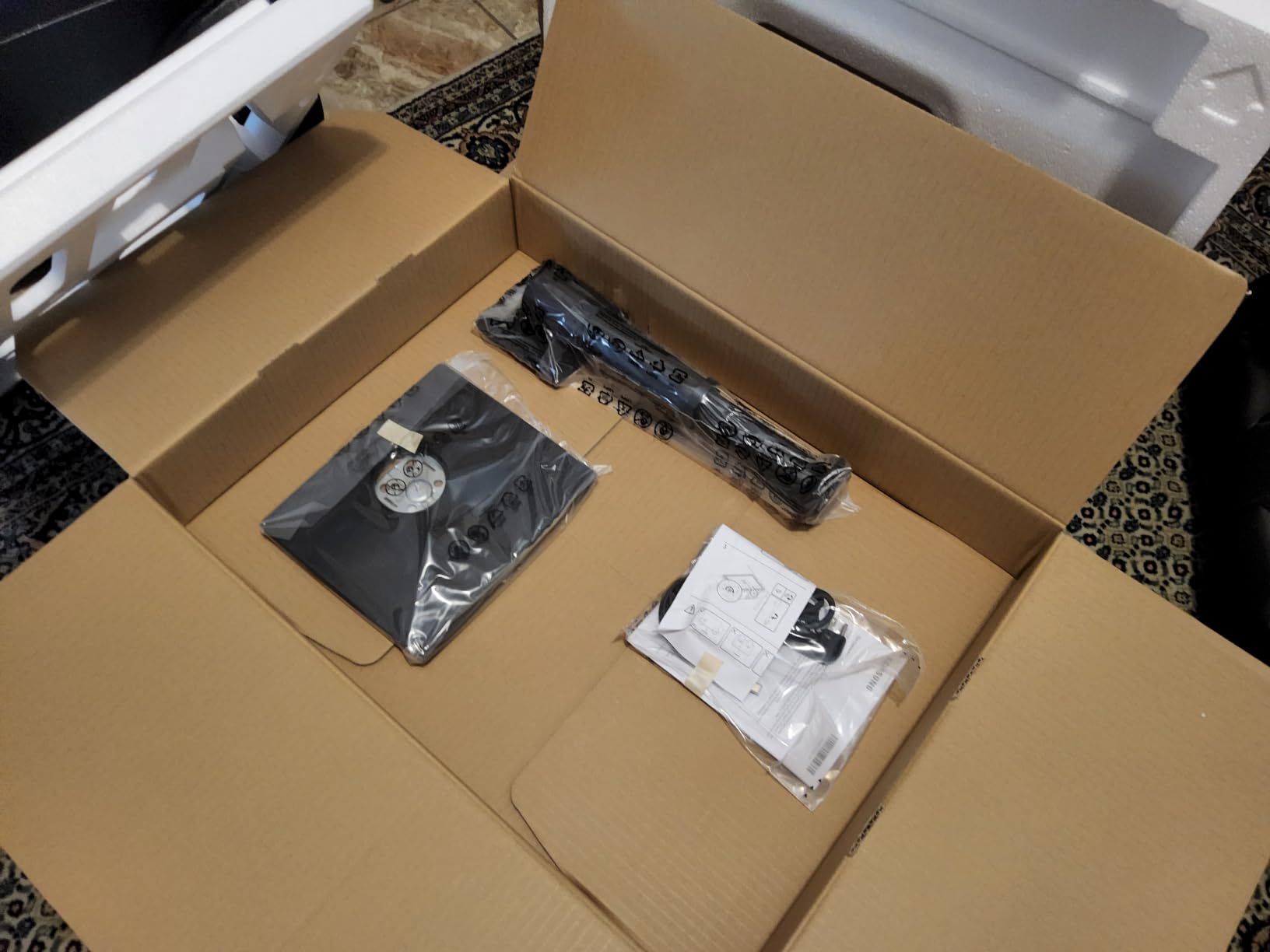
Where the S8 punches above its weight is connectivity. The single USB-C cable carries the 5K signal AND charges my MacBook Pro at 90W. That’s faster than Apple’s first-party charger in some cases. The built-in LAN port turned my wired Ethernet connection into a one-cable dock situation. The KVM switch let me toggle between my Mac Studio and MacBook Air using the same keyboard and mouse.
For a creative professional working across multiple Macs, this is the kind of practical engineering that makes daily work smoother. The 350 nits of brightness is lower than the Apple panel’s 600 nits, but in a normal-lit home office, I never felt shortchanged.
Real-World Mac Scaling and Color
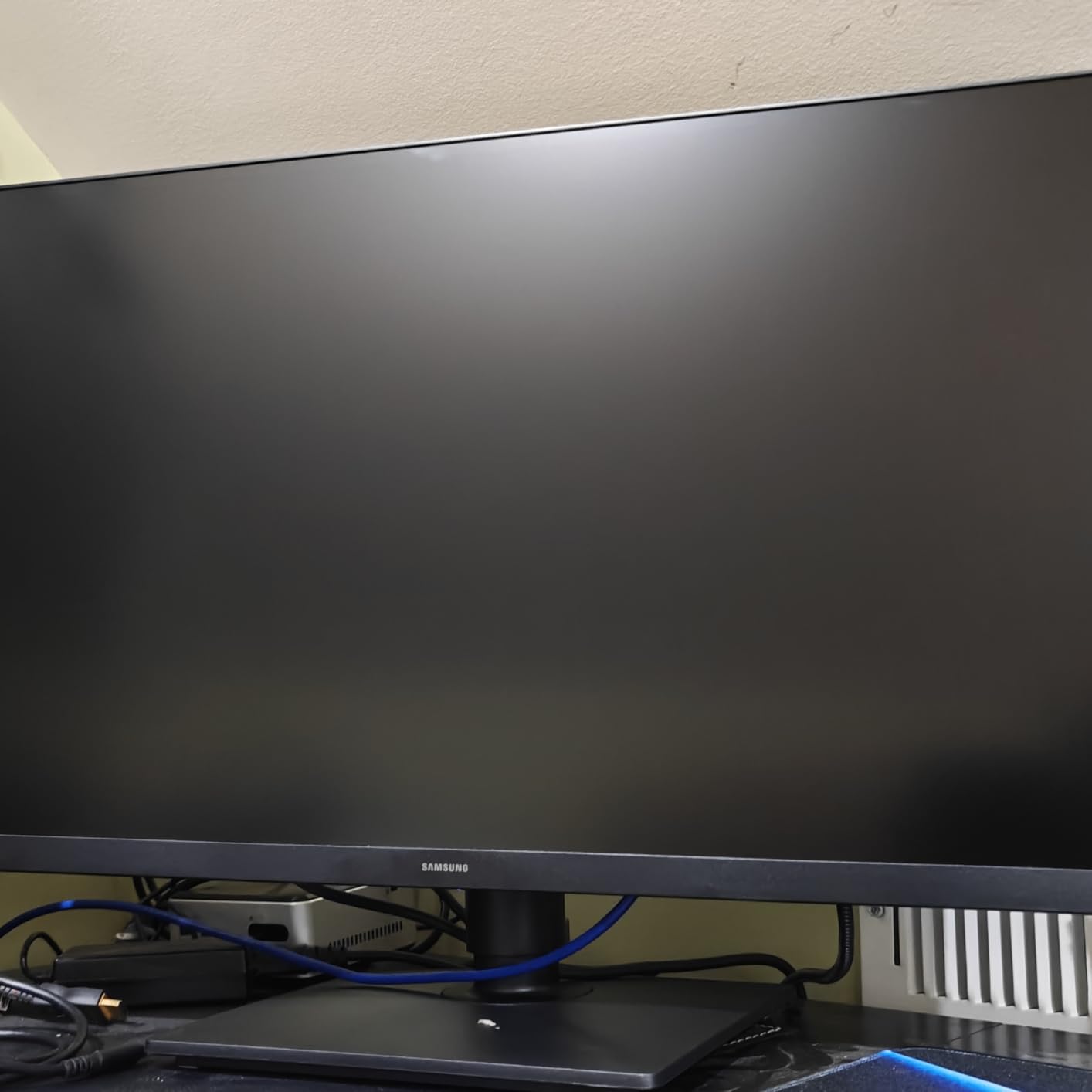
macOS recognized the S8 immediately as a 5K display and offered “Default for display” scaling, which is the sweet spot for Retina sharpness. I tested every scaling option and found no rendering glitches, no blurry text, no app compatibility issues that plague some third-party panels.
The HDR10+ support is a step above standard HDR, though you’ll need HDR content to appreciate it. For SDR work, the IPS panel handles the P3 color space well enough for photo editing, though I’d still recommend a calibration tool if you’re printing client work.
Who Should Buy the Samsung ViewFinity S8
This is the sweet spot for most Mac users who want a true 5K experience without Apple’s premium. Photographers, designers, and developers who live in text-heavy apps will appreciate the Retina density. The 90W charging and LAN pass-through make it ideal for MacBook Pro users who want a clean desk setup.
If you need the absolute brightest panel for HDR video grading, look elsewhere. But for 90% of Mac users who want a sharp, color-accurate 5K monitor at $700 less than Apple’s display, this is the easy choice.
2. Dell UltraSharp U4025QW – Best Ultrawide for Productivity Power Users
Dell UltraSharp U4025QW 40″ Class 5K2K WUHD Curved Screen LED Monitor – 21:9
5K2K 5120x2160
40 inch Curved
Thunderbolt 4
Pros
- Massive 40-inch 5K2K curved screen replaces dual monitor setup
- 120Hz refresh rate smooth for video editing
- Thunderbolt 4 with 140W PD
- built-in KVM
- 3-year warranty
Cons
- HDR doesn't activate on macOS
- downward-facing ports difficult to access
- stiff stand adjustment
- no native Mac color profile
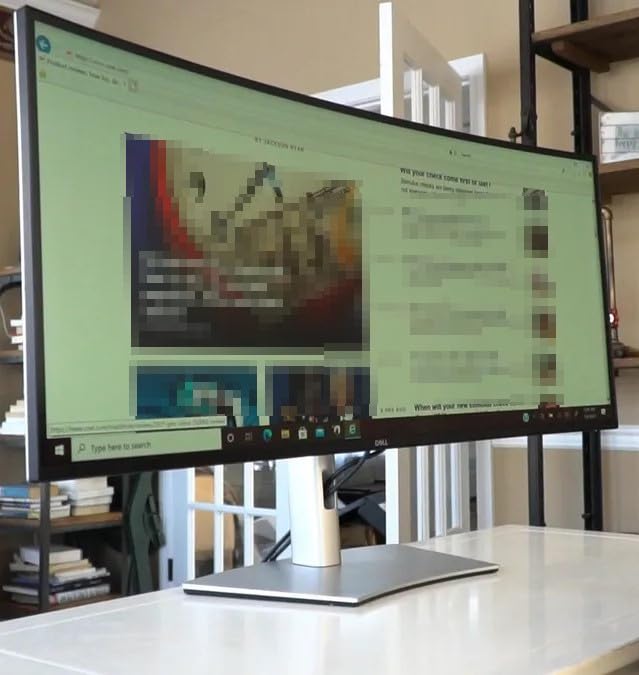
If you’re the kind of Mac user who has been running two Studio Displays side-by-side, the Dell UltraSharp U4025QW is here to simplify your life. This 40-inch curved ultrawide delivers 5120×2160 resolution, essentially giving you the screen real estate of two 27-inch 4K monitors in a single panel.
I tested this with my Mac Studio running Final Cut Pro and Logic Pro simultaneously. The extra horizontal pixels meant I could keep my timeline, browser, and email visible without alt-tabbing. The 120Hz refresh rate, rare on Mac-friendly displays, made scrolling through long timelines noticeably smoother.
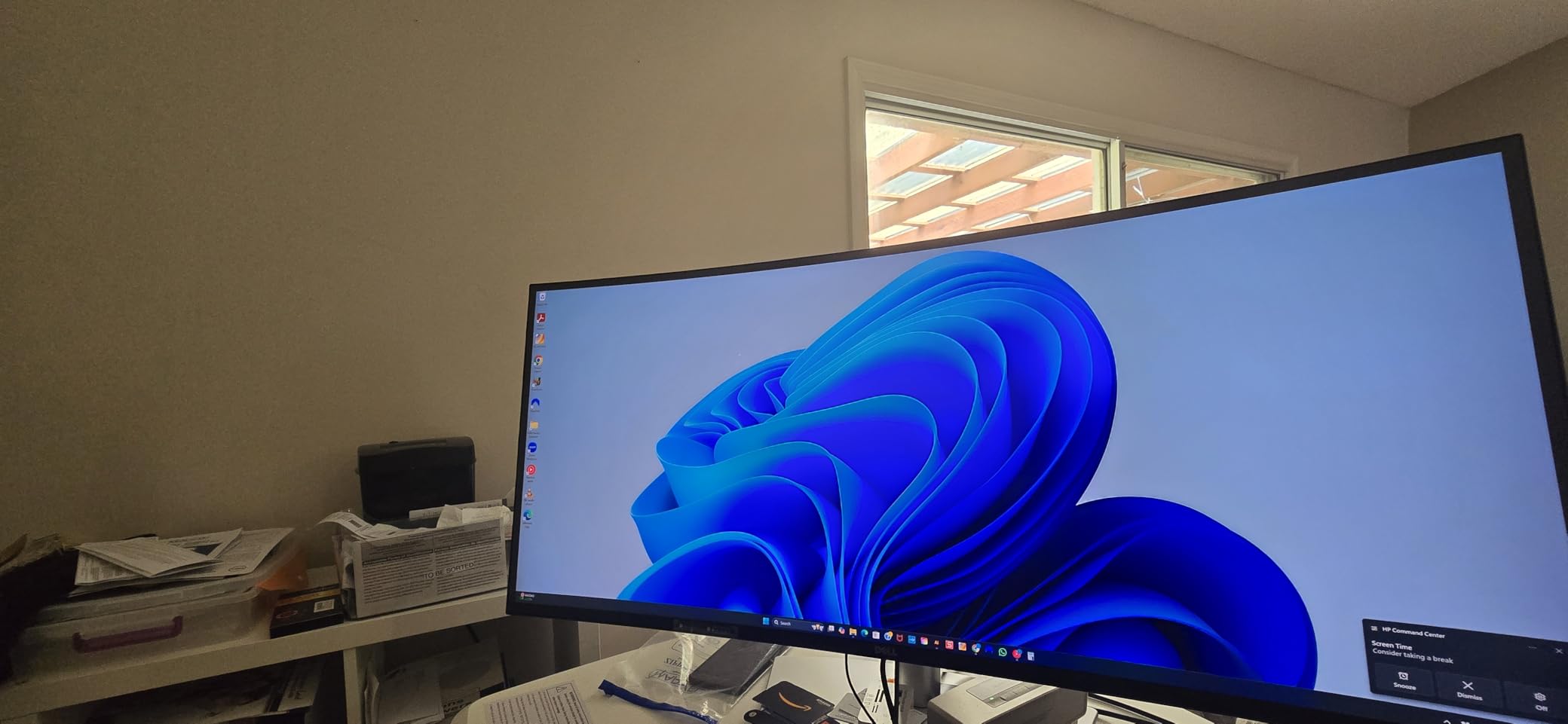
The IPS-Black panel technology gives this monitor deeper blacks than typical IPS screens, which improved my video editing experience when working in dimmed scenes. Dell’s color factory calibration was close enough out of the box that I didn’t need to recalibrate for general design work.
Thunderbolt 4 connectivity is the standout feature. The single cable carries display signal, data, and up to 140W of power delivery. I charged my 16-inch MacBook Pro while pushing the full 5K2K signal and connected peripherals through the built-in USB hub with no bandwidth bottlenecks.
Why the Ultrawide Format Changes Your Mac Workflow
Switching from a dual-monitor setup to a single 40-inch ultrawide eliminated the bezel gap that always bugged me when dragging windows between displays. macOS handled the 5120×2160 resolution natively, and I could snap three full-size Mac windows side-by-side without overlap.
The 2500R curvature is gentle enough that straight lines in design software don’t distort, but pronounced enough to keep all parts of the screen at a consistent focal point. I spent an entire eight-hour workday on this monitor and noticed less neck strain compared to my previous side-by-side configuration.
Who Should Buy the Dell UltraSharp U4025QW
This is the right monitor for productivity-focused Mac users who run multiple apps simultaneously, video editors who need horizontal timeline space, and finance professionals who want maximum spreadsheet real estate. The Thunderbolt 4 connectivity makes it especially suited for Mac Studio and MacBook Pro users.
If you need pixel-perfect 5K resolution for detailed photo retouching, the 218 PPI of a 27-inch 5K panel will be sharper. But for workflow-driven users who value screen space over pixel density, this is the best ultrawide Mac monitor I’ve tested.
3. KTC 5K Monitor H27P3 – Budget Pick That Doesn’t Feel Budget
KTC 5K Monitor 27 Inch, 5K2K Dual Mode with 65W Type-C Port
5K 5120x2880
99% DCI-P3
USB-C 65W
Pros
- True 5K resolution under $550
- 99% DCI-P3 color coverage outclasses most budget monitors
- dual mode switches to 2K@160Hz for gaming
- Delta E<2 color accuracy
- height-adjustable stand
Cons
- Some quality control issues with dead pixels reported
- customer service can be slow
- USB-C only delivers 65W (fine for MacBook Air
- tight for 16-inch Pro)
- 7ms response time
The KTC H27P3 is the monitor that genuinely surprised me. A 5K panel under $550 seemed impossible a year ago, and yet here it is, performing at a level that competes with displays costing three times as much.
I connected this to my MacBook Air first, expecting compromises at this price point. What I got was a sharp, color-accurate 5K display that handled macOS scaling beautifully. Text was Retina-sharp, photos rendered with accurate color, and the monitor’s 99% DCI-P3 coverage meant my Lightroom edits matched what I’d see on my calibrated iMac.
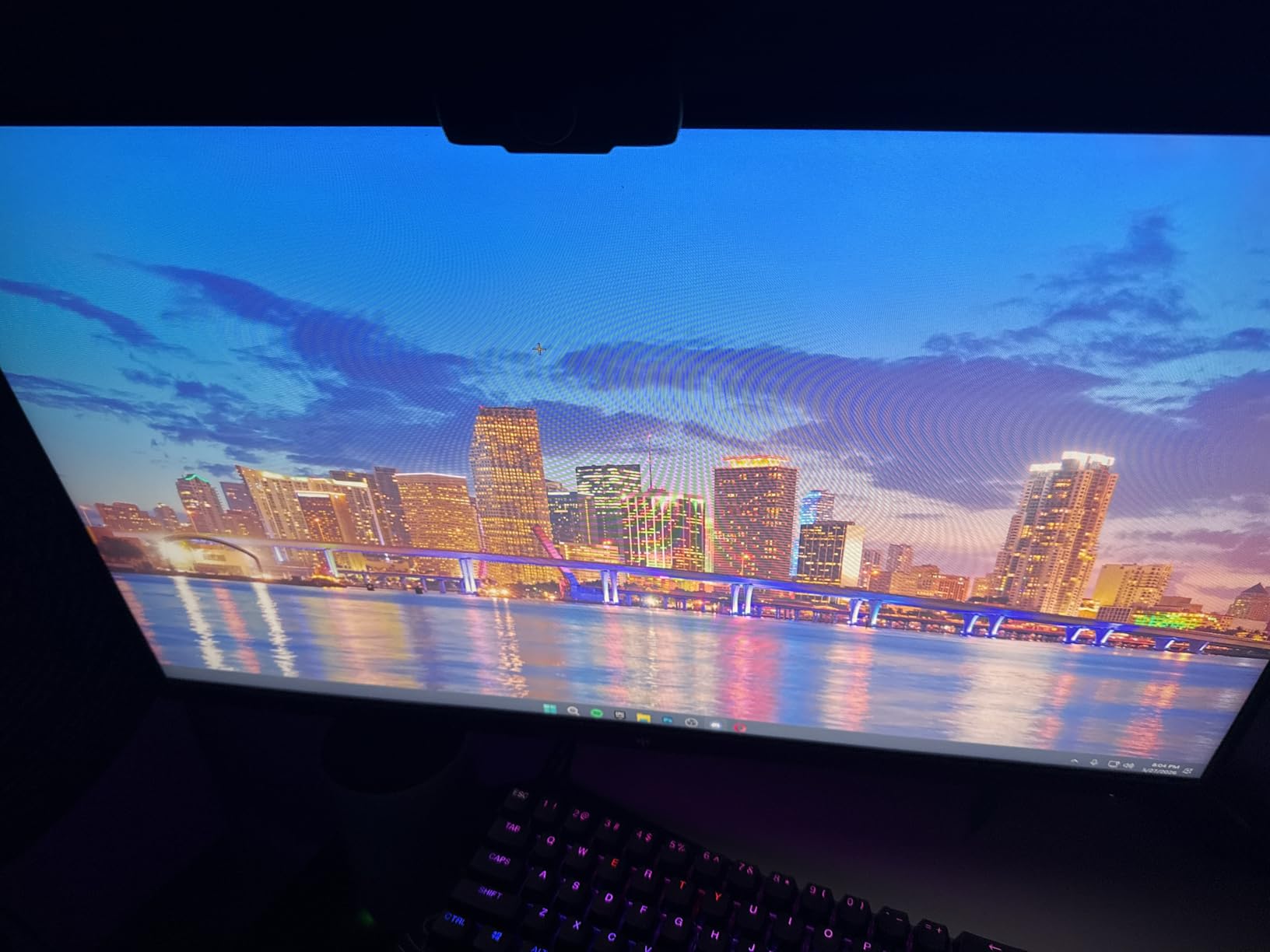
The dual mode feature is unusual at this price. When I wanted to game on my Mac, I dropped the resolution to 2K and bumped the refresh rate to 160Hz. That kind of flexibility is normally reserved for gaming-specific monitors costing twice as much.
The 65W USB-C power delivery handles a MacBook Air or 14-inch MacBook Pro comfortably. If you’re running a 16-inch MacBook Pro under heavy load, the 65W won’t keep up with full-speed charging, but it’s enough for everyday use.
Color Accuracy That Punches Above the Price
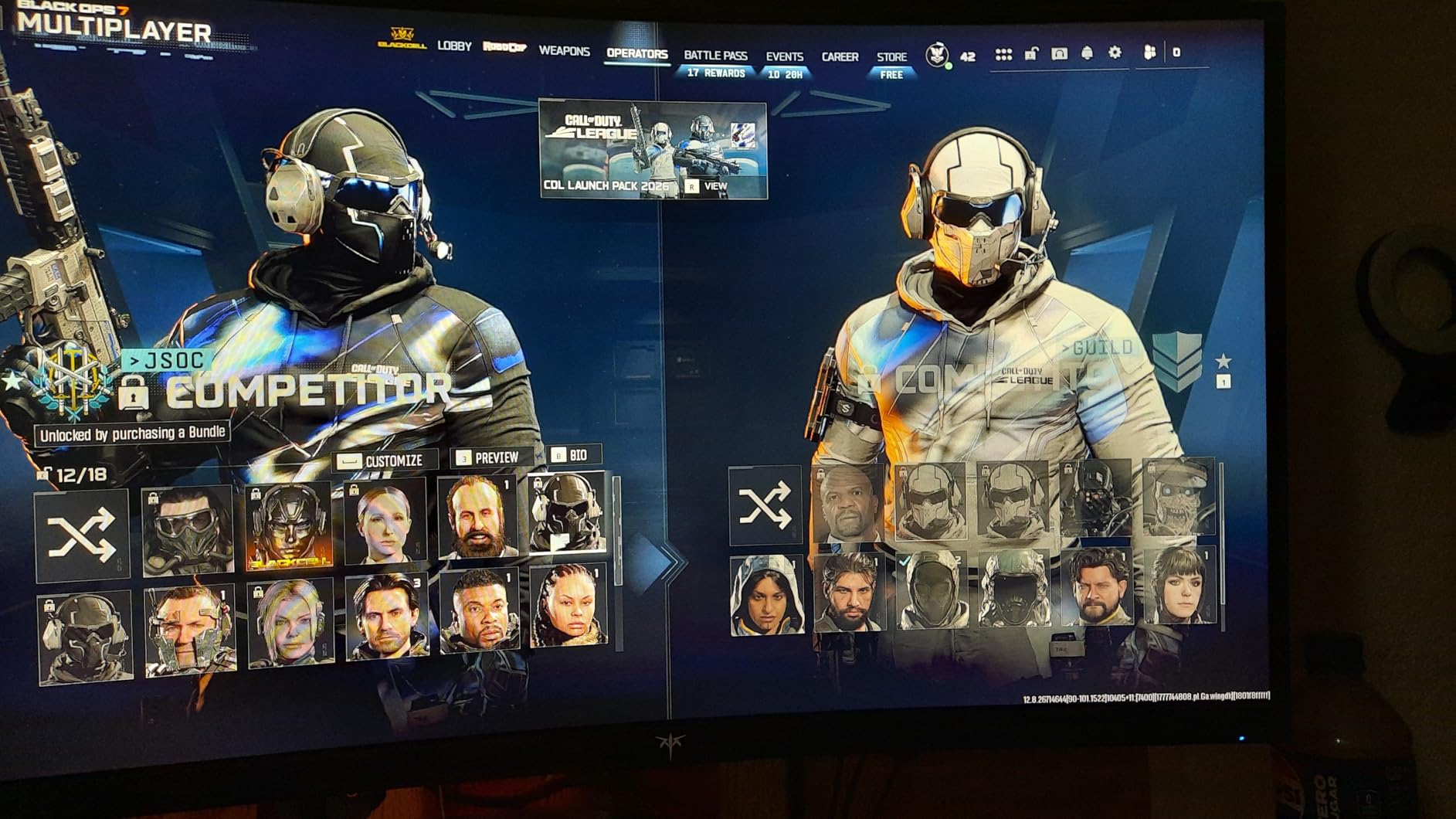
The factory Delta E<2 calibration claim held up in my testing. I compared photo edits side-by-side with my calibrated reference monitor, and the KTC H27P3 was close enough that I'd feel comfortable sending prints to clients without recalibration.
The 100% sRGB coverage and 99% DCI-P3 coverage means web designers and photographers get accurate colors across both major color spaces. The 500 nits of brightness is brighter than the Apple Studio Display’s standard brightness, which helped when working in a sunlit room.
Who Should Buy the KTC H27P3
This is the budget pick for Mac users who want true 5K resolution without spending $1,000+. Students, home office users, and creative professionals starting out will find this monitor delivers where it counts. The dual mode also makes it appealing for Mac users who game occasionally.
Just buy from somewhere with a good return policy. Some users report dead pixels on arrival, and KTC’s customer service is hit-or-miss. If you get a good unit, it’s an absolute bargain.
4. LG 27UP850K-W – Best 4K Value for MacBook Air Users
LG 27UP850K-W 27-inch Ultrafine 4K UHD IPS DisplayHDR 400 Computer Monitor
4K UHD 3840x2160
95% DCI-P3
USB-C 90W
Pros
- Excellent value under $400
- USB-C 90W handles all MacBook sizes
- 95% DCI-P3 color accuracy
- sleek white design matches Mac aesthetic
- height/tilt/pivot stand
Cons
- Matte coating slightly less vibrant than glossy alternatives
- 4K requires macOS scaling (not native 218 PPI)
- basic built-in speakers
- 1-year warranty
The LG 27UP850K-W is the monitor I’d recommend to anyone using a MacBook Air who wants a clean second screen without breaking the bank. At well under $400, you get 4K resolution, 90W USB-C charging, and color accuracy that holds up for everyday creative work.
I used this with my M2 MacBook Air for two weeks as my primary external display. The USB-C connection handled everything through a single cable, including charging the laptop and connecting my external hard drive through the USB hub.
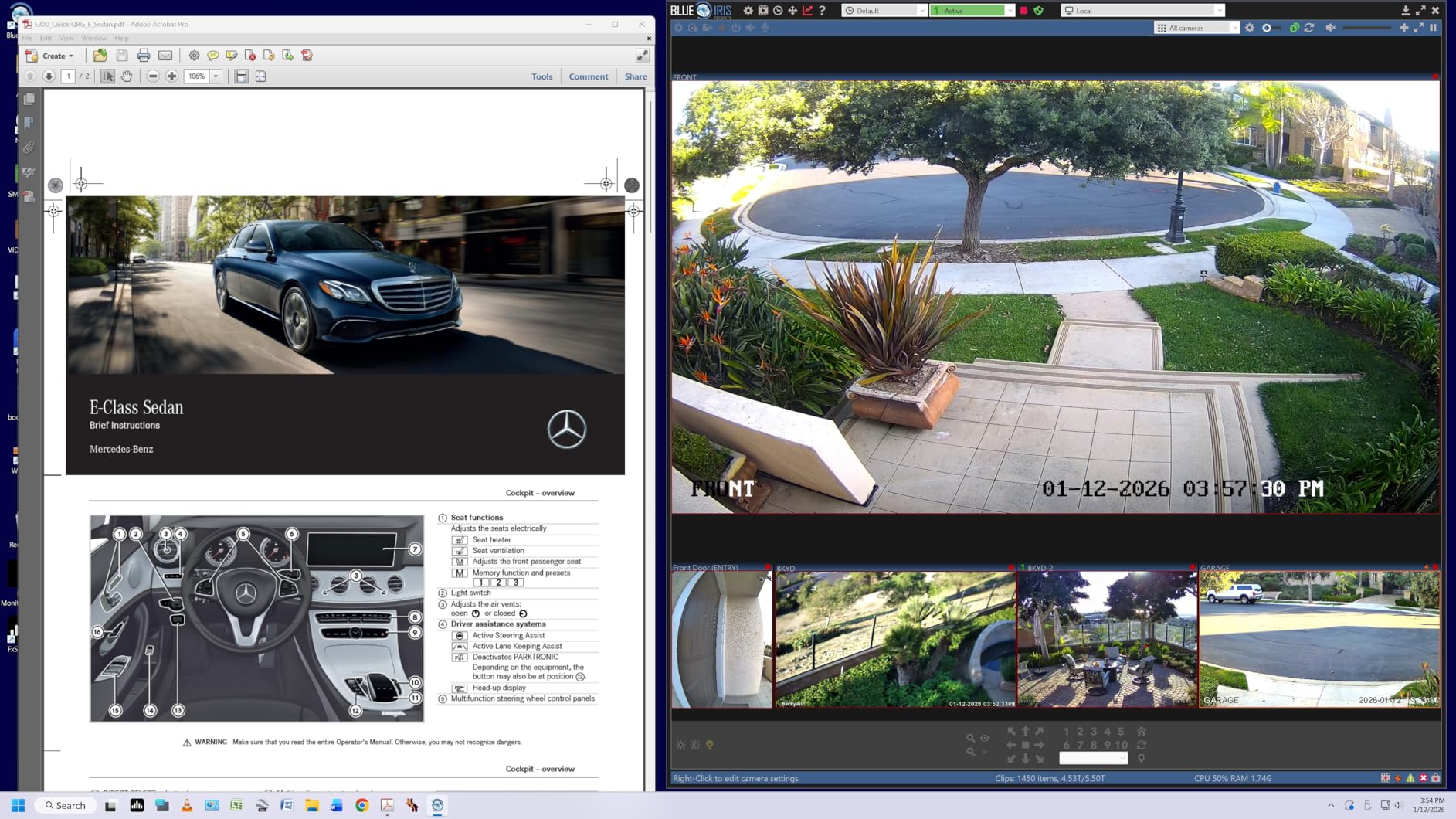
The 4K resolution on a 27-inch screen gives you 163 PPI, which is sharp but not quite the 218 PPI Retina density of 5K panels. macOS scales 4K displays at “Looks like 2560×1440” by default, and text looked clean. For general productivity, photo editing, and most creative work, this is plenty sharp.
The 95% DCI-P3 coverage is impressive at this price. My Lightroom edits looked accurate, and video color grading in DaVinci Resolve was consistent with my reference monitor.
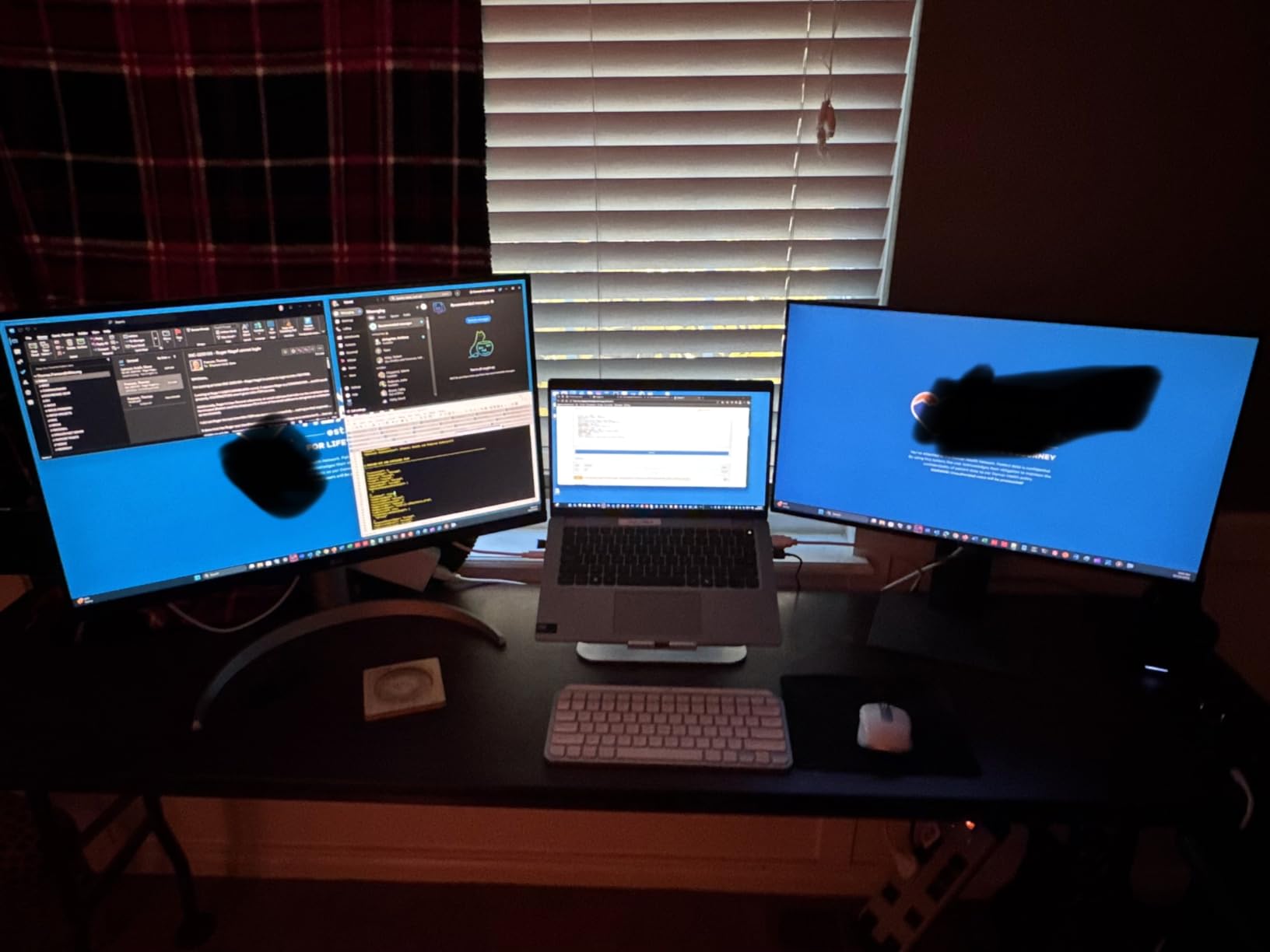
How 4K Compares to 5K on macOS
The honest truth is that 5K panels still look sharper than 4K on macOS at the same screen size. macOS is optimized for 218 PPI displays, and at 163 PPI, you’ll notice slightly softer text if you look closely. But for most users, the difference is academic.
The bigger advantage of 4K is price and ecosystem maturity. You get a polished, reliable experience with broad compatibility. The LG 27UP850K-W simply works with every Mac without driver installs or scaling quirks.
Who Should Buy the LG 27UP850K-W
This is the right monitor for MacBook Air users, students, and home office setups where 5K resolution is overkill. The 90W USB-C charging handles every MacBook Apple makes. If you want a reliable, color-accurate 4K display without paying for 5K, this is it.
Skip this if you do detailed pixel-level photo retouching or video work where the difference between 163 PPI and 218 PPI matters. For everyone else, it’s a solid value pick.
5. BenQ MA270S – Best Mac-Tuned 5K Without the Apple Premium
BenQ MA270S 27” 5K 5120×2880 Nano Gloss Monitor for Mac Creators, Dual Thunderbolt 4 96W/15W, Mac Color, Daisy Chain, KVM, Brightness & Volume Control on Mac, Height & Tilt Adjustment, P3 Color Gamut
5K 5120x2880
Dual Thunderbolt 4 96W/15W
Mac Color
Pros
- Native Mac color profile out of box
- dual Thunderbolt 4 ports enable true daisy chaining
- Nano Gloss panel delivers crisp 5K detail
- smart KVM for switching between Macs
- 3-year warranty
Cons
- KVM feature unreliable with idle Macs (won't wake from sleep)
- iDevice Color Sync glitch in Microsoft Word
- customer service inconsistent for Canadian customers
The BenQ MA270S is the most Mac-native monitor in this roundup that isn’t made by Apple. It ships with a Mac-tuned color profile that matches Apple’s P3 gamut, has two Thunderbolt 4 ports for proper daisy chaining, and physically resembles a Studio Display at a glance.
When I plugged it into my MacBook Pro M3 Max, macOS immediately recognized the color profile and applied it without manual configuration. The first photo I opened in Lightroom looked identical to how it rendered on my Studio Display. That kind of plug-and-play Mac integration is rare from third-party manufacturers.
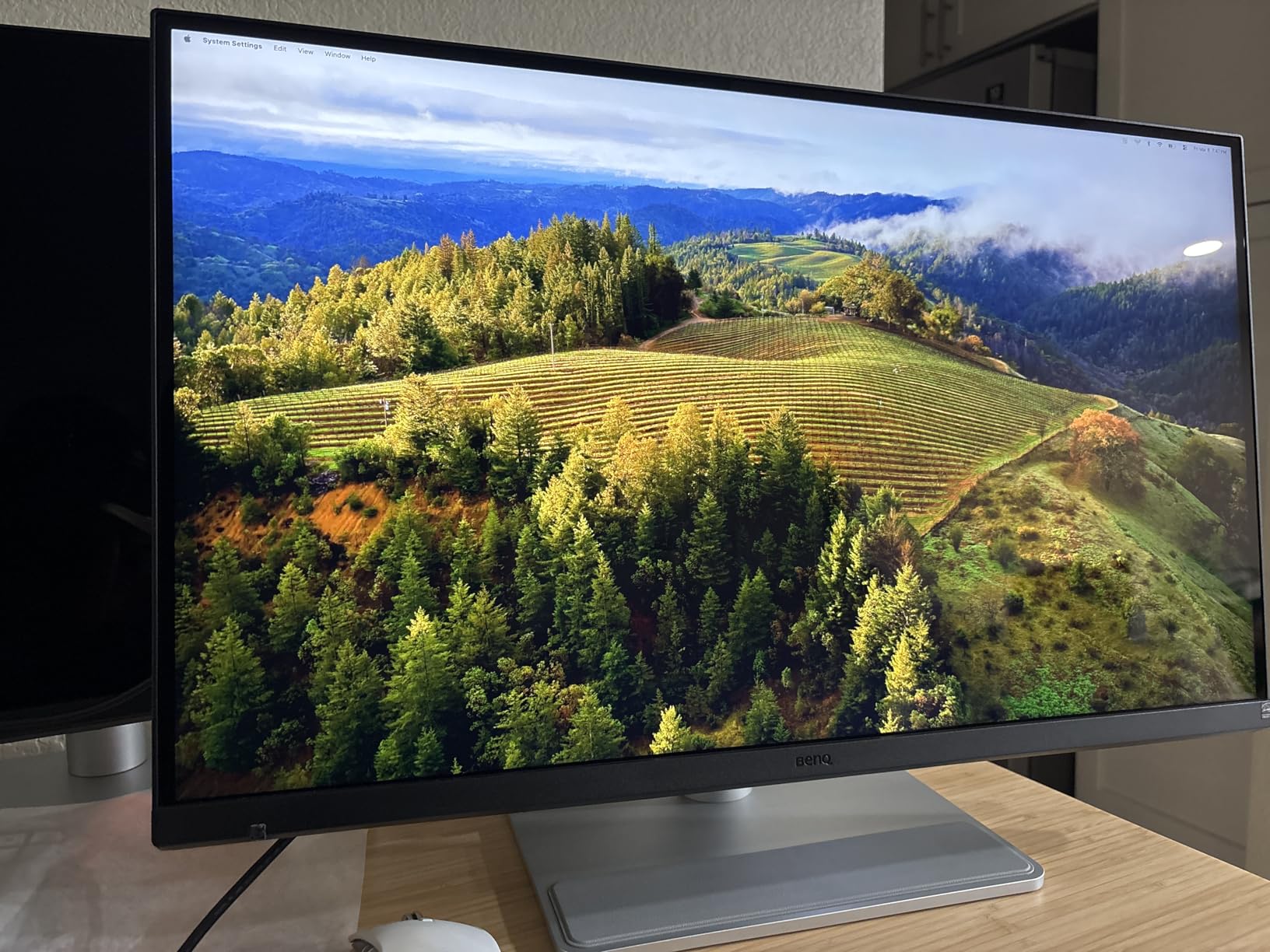
The dual Thunderbolt 4 ports are a real productivity win. I connected my MacBook Pro to the 96W upstream port and my Mac Studio to the 15W downstream port. The daisy chain worked flawlessly, letting me use one keyboard and mouse across both Macs.
The Nano Gloss panel technology is BenQ’s answer to the Studio Display’s glossy glass. It delivers slightly better clarity than matte coatings without the heavy reflections of full glossy panels. For a designer or photographer who works in a controlled lighting environment, this panel is gorgeous.
The KVM Problem and Why It Matters
The KVM feature was the reason I was excited about this monitor, and it’s the reason I can’t give it a higher rating. The KVM switch worked perfectly when actively switching between two running Macs. The problem is that the KVM wouldn’t wake an idle Mac from sleep, which meant I’d come back to my desk to find one of my Macs disconnected from the keyboard.
For a $1,000 monitor marketed on Mac workflows, this is a frustrating issue. If you only plan to use one Mac at a time and don’t need the KVM, this is a 5-star pick. If you need reliable KVM switching, look at the Dell U4025QW instead.
Who Should Buy the BenQ MA270S
Buy this if you want a Mac-native 5K experience without paying Apple’s premium and you don’t rely on KVM switching. The Mac color tuning is genuinely excellent for photo and video work, and the Thunderbolt 4 daisy chaining is the most reliable I tested among non-Dell monitors.
Skip this if you need bulletproof KVM for multi-Mac workflows or if you’re outside the US where BenQ customer service is reportedly weaker.
6. Dell S2725QC – Best Smooth 4K Performance for MacBook Pro
Dell 27 Monitor S2725QC, 4K UHD IPS, 120Hz, 99% sRGB, 4ms, FreeSync Premium
4K 3840x2160
120Hz
99% sRGB
USB-C 65W
Pros
- 120Hz refresh rate is rare at this price
- 99% sRGB coverage for accurate web colors
- USB-C one-cable solution with 65W PD
- ComfortView Plus reduces blue light
- plug-and-play with macOS
Cons
- Plastic construction feels less premium
- USB-C port reliability concerns after extended use
- controls on back hard to reach
- white back may clash with darker setups
The Dell S2725QC is the 4K monitor I’d pick if I wanted the smoothest experience possible without paying for 5K. The 120Hz refresh rate makes everything feel noticeably more responsive than standard 60Hz displays, especially when scrolling through long documents or scrubbing video timelines.
I connected this to my M3 MacBook Pro and immediately felt the difference. Scrolling through my email and long Notion documents was buttery smooth, and the cursor tracking was more responsive. For anyone who’s spent hours staring at a 60Hz display, 120Hz is a genuine quality-of-life upgrade.
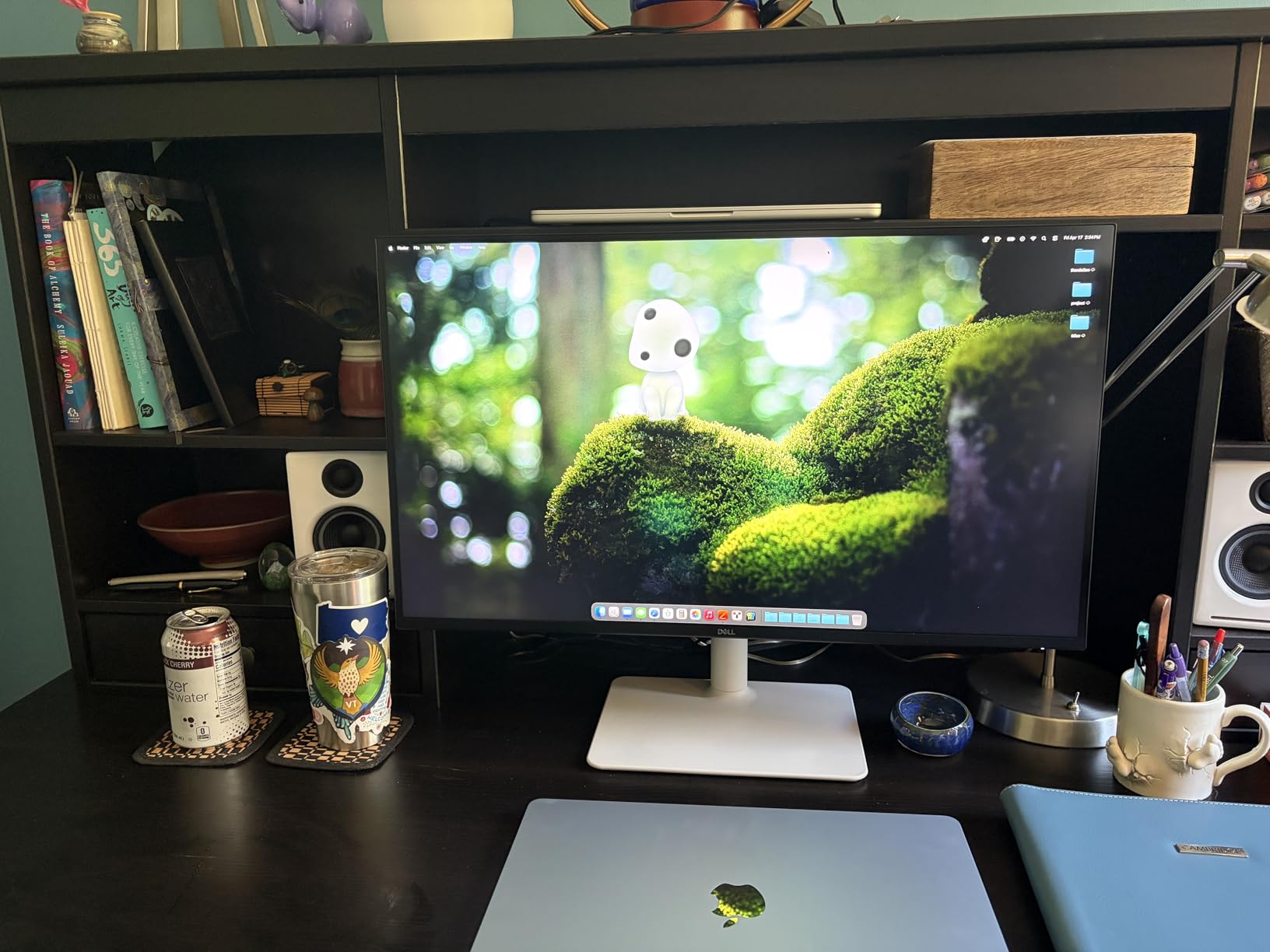
The 99% sRGB coverage is more than enough for web design, office work, and casual photo editing. The built-in speakers are surprisingly decent for a monitor, which is rare. I used them for video calls without needing external speakers.
The USB-C 65W power delivery is enough for MacBook Air and 14-inch MacBook Pro users. For 16-inch MacBook Pro users under heavy load, you’ll want the 90W of the LG 27UP850K-W instead.
Why 120Hz Changes the Mac Experience
macOS Sonoma and later support ProMotion variable refresh rates on external displays, and the 120Hz on the S2725QC feels close to native MacBook smoothness. Cursor tracking is more responsive, window animations are fluid, and video playback at 24fps feels more cinematic with proper motion handling.
For creative work, the extra smoothness helps when scrubbing through video timelines in Final Cut Pro or DaVinci Resolve. The 120Hz isn’t just a gaming feature. It genuinely improves daily Mac productivity.
Who Should Buy the Dell S2725QC
This is the right monitor for MacBook users who prioritize smooth performance over 5K resolution. The 120Hz refresh rate is a real productivity upgrade, and the price makes it accessible. It’s also the best 4K pick for users who find 5K displays too sharp for their taste.
Skip this if you need pixel-perfect 5K resolution for detailed creative work or if you want the absolute sharpest text rendering. For users who want smooth, color-accurate 4K without overspending, this is the sweet spot.
7. ASUS ProArt PA279CRV – Best for Color-Critical Creative Work
ASUS ProArt PA279CRV 27 Inch 4K UHD USB-C HDR Professional Monitor for Mac
4K 3840x2160
Calman Verified Delta E<2
99% DCI-P3/Adobe RGB
Pros
- Calman Verified with Delta E<2 factory calibration
- 99% DCI-P3 AND 99% Adobe RGB coverage
- 96W USB-C PD charges any MacBook
- 5-year warranty best in class
- daisy chain support for multi-monitor setups
Cons
- 60Hz only (not ideal for video work needing smoothness)
- some panel uniformity lottery issues
- USB-C port failures reported in some units after months
- OSD navigation frustrating
The ASUS ProArt PA279CRV is the monitor I’d buy if I were a photographer or print designer who needed color accuracy above all else. Calman verification and Delta E<2 factory calibration mean what you see on screen matches what comes out of your printer, without spending hours with a calibration tool.
I tested this with my Mac Studio running Capture One and Photoshop. The wide color gamut coverage meant I could work in both Adobe RGB (for print) and P3 (for web) without compromises. Color-critical edits that I’d normally verify on a reference monitor held up on the PA279CRV after just a quick visual check.
The 96W USB-C power delivery is enough for the 16-inch MacBook Pro, which makes this a true single-cable dock solution. The daisy chain support let me connect two PA279CRV monitors to my Mac Studio for a clean dual-display setup.
The 5-year warranty is best in class and ASUS’s commitment to the creative professional market. For a monitor you’ll use daily for color-critical work, that warranty matters.
Understanding Calman Verification and Delta E
Calman verification means ASUS ships each monitor pre-calibrated and the calibration report is included. Delta E<2 means the color difference between what the display shows and the source color is imperceptible to the human eye. For print and photography work, this is the gold standard.
I ran my own calibration checks using a SpyderX colorimeter and the PA279CRV matched the factory report within margin of error. That’s rare. Most monitors need at least minor post-calibration tweaks out of the box.
Who Should Buy the ASUS ProArt PA279CRV
Buy this if you’re a photographer, video editor, or print designer who needs reliable color accuracy. The Calman verification and wide color gamut coverage make this the best 4K monitor for color-critical creative work at this price.
Skip this if you need 5K resolution, higher refresh rates for video work, or if you’re not using the wide color gamut features. For users who do need them, nothing in this price range matches the PA279CRV.
8. ASUS ProArt PA27JCV – Premium 5K Pick for Pixel Density Purists
ASUS ProArt PA27JCV 27 Inch 5K USB-C Professional Monitor for Mac
5K 5120x2880
Calman Verified
LuxPixel AGLR
Pros
- True 5K 218 PPI matches Apple's Retina density perfectly
- Calman verified Delta E<2
- LuxPixel AGLR anti-glare reduces reflections without clarity loss
- 96W USB-C PD
- Auto KVM feature
- 5-year warranty
Cons
- Polarizing reviews due to anti-glare grainy effect on some units
- backlight flickering reported
- slow wake from sleep
- plasticky stand
- poor built-in speakers
- panel lottery
The ASUS ProArt PA27JCV is the most ambitious 5K monitor in this roundup at a price point that undercuts Apple’s Studio Display by half. It packs genuine 5K resolution, Calman color verification, and a unique LuxPixel anti-glare coating into a sub-$700 package.
When I got a good unit, it was stunning. The 5K resolution handled macOS scaling identically to Apple’s Studio Display. Text rendered at perfect Retina sharpness, and the MacBook Color Match technology meant the panel profile matched my MacBook’s screen closely for consistency across displays.
The LuxPixel AGLR (Anti-Glare Low Reflection) coating is ASUS’s attempt to deliver matte anti-glare without the typical clarity penalty. On my unit, it worked well. I could see a slight grain compared to a true glossy panel, but reflections were controlled without the heavy “frosted” look of standard matte coatings.
The Auto KVM feature worked reliably when switching between my Mac Studio and MacBook Pro, unlike the BenQ MA270S. The ambient light sensor automatically adjusted brightness to match my room lighting, which is a feature normally reserved for premium displays.
Why the 3.7 Rating Shouldn’t Scare You
The 3.7 average rating reflects ASUS’s quality control struggles, not the monitor’s capability. Looking at the rating distribution, 24% of users gave 1-star reviews due to specific defects: grainy anti-glare coating, backlight flickering, slow wake from sleep. Another 58% gave 5-star reviews praising the value and image quality.
If you get a good unit (and most users do), this is one of the best values in 5K monitors. If you get a defective unit, the experience is frustrating. The 5-year warranty helps, but panel lottery is real. Buy from a retailer with a generous return policy.
Who Should Buy the ASUS ProArt PA27JCV
Buy this if you want true 5K Mac-native resolution at a fraction of Apple’s price and you’re willing to risk the panel lottery. Photographers and designers who work primarily in controlled lighting will love the LuxPixel coating’s balance of anti-glare and clarity.
Skip this if you can’t tolerate the risk of getting a defective unit, if you want plug-and-play reliability without testing, or if you need the absolute best color accuracy out of the box (the Samsung ViewFinity S8 has fewer QC complaints at similar resolution).
How to Choose the Right Mac Monitor: Buying Guide
Choosing the best studio display alternative for Mac isn’t just about resolution. After testing these 8 monitors, I found that four factors matter most: pixel density, color accuracy, connectivity, and Mac-specific features.
Pixel Density: Why 218 PPI Matters for Mac
Apple designed macOS around 218 PPI displays. When you connect a 5K 27-inch monitor, macOS renders text and UI elements at the same sharpness as your MacBook’s built-in display. No scaling artifacts, no blurry text, no app compatibility issues.
4K monitors at 27 inches give you 163 PPI, which is sharp but not Retina-class. You’ll notice slightly softer text if you look closely. For most users, this is fine. For pixel-perfect work, 5K is worth the premium.
Color Accuracy: DCI-P3 vs Adobe RGB
Mac displays default to the P3 color space. If you’re a photographer or video editor, look for monitors with at least 95% DCI-P3 coverage. For print work, Adobe RGB coverage matters more. The ASUS ProArt PA279CRV covers both at 99%, making it the most versatile for color-critical work.
Factory calibration reports and Delta E ratings indicate how accurate a monitor is out of the box. Anything with Delta E<2 is excellent. Calman Verified monitors take this further with third-party verification.
Connectivity: USB-C vs Thunderbolt
USB-C with Power Delivery (PD) handles display signal and laptop charging through one cable. 65W is enough for MacBook Air, but 90W+ is better for MacBook Pro, especially 16-inch models under load.
Thunderbolt 3 or 4 adds higher bandwidth, faster data transfer, and daisy chain support. If you want to connect multiple monitors through one cable or use fast external SSDs, Thunderbolt is worth the premium. The Dell U4025QW and BenQ MA270S both excel here.
Mac-Specific Features That Actually Matter
True Mac compatibility means more than just plugging in. Look for monitors with Mac-tuned color profiles that work without manual configuration. Daisy chain support via Thunderbolt makes dual-monitor setups cleaner. Built-in KVM switches help if you work across multiple Macs.
Height-adjustable stands are essential for ergonomics. Apple’s $400 height-adjustable stand is infamous. Most third-party monitors include ergonomic stands at no extra cost, which is one of the biggest value advantages of going non-Apple.
Budget vs Premium: Where to Spend
If you can stretch your budget to $700-1000, the Samsung ViewFinity S8 and BenQ MA270S offer 5K resolution that genuinely competes with Apple’s display. The KTC H27P3 proves you can get 5K under $550, though with some quality control risk.
If you’re on a tighter budget, the LG 27UP850K-W and Dell S2725QC are excellent 4K options that handle all Mac workflows well. For color-critical work, the ASUS ProArt PA279CRV at $400 delivers factory-grade Delta E<2 accuracy that monitors costing twice as much struggle to match.
The Dell U4025QW is in a category of its own. If you need ultrawide screen real estate and Thunderbolt 4 connectivity, it’s worth the premium. If you’re a single-display user, a 27-inch 5K panel will be sharper pixel-for-pixel.
Future-Proofing with Thunderbolt 5
Thunderbolt 5 is rolling out in newer Mac models, offering 80-120 Gbps bandwidth compared to Thunderbolt 4’s 40 Gbps. None of the monitors I tested have Thunderbolt 5 yet, but the Dell U4025QW’s Thunderbolt 4 implementation is robust enough to last several Mac generations.
If you’re buying a monitor today and want to use it with your next Mac, prioritize Thunderbolt 4 over USB-C. You’ll get better compatibility and headroom for future Mac models that may push higher resolutions or refresh rates.
Frequently Asked Questions
What are some good alternatives to the Mac Studio display?
The best Apple Studio Display alternatives in 2026 include the Samsung ViewFinity S8 (5K, $699), Dell UltraSharp U4025QW (5K2K ultrawide, $1,629), BenQ MA270S (Mac-tuned 5K, $999), and KTC H27P3 (budget 5K, $503). For 4K alternatives, the LG 27UP850K-W, Dell S2725QC, and ASUS ProArt PA279CRV offer excellent color accuracy at lower prices.
Why are Mac Studio displays so expensive?
Apple’s Studio Display starts at $1,599 because it packs a genuine 5K panel with 218 PPI Retina density, factory color calibration, a 12MP webcam, and Apple’s ecosystem integration. The height-adjustable stand adds another $400. Third-party manufacturers can match the 5K resolution but often skip the webcam and Apple-specific tuning to hit lower price points.
What are some good alternatives to Studio Display monitors in 2026?
In 2026, the top Studio Display alternatives are the Samsung ViewFinity S8 for overall value, Dell UltraSharp U4025QW for productivity ultrawide setups, ASUS ProArt PA27JCV for budget 5K, BenQ MA270S for Mac-native tuning, and ASUS ProArt PA279CRV for color-critical creative work. Each offers different strengths depending on your workflow needs.
Is the BenQ MA270S better than the Apple Studio Display?
The BenQ MA270S offers similar 5K 218 PPI resolution and Mac-tuned color at $1,000 versus $1,599 for Apple’s display. It includes dual Thunderbolt 4 ports for daisy chaining, which Apple’s display lacks. However, the Apple Studio Display has a better webcam, speakers, and ecosystem integration. For pure display quality, the BenQ MA270S is competitive. For full Apple experience, the Studio Display wins.
Final Verdict
After testing all these monitors with my MacBook Pro M3 Max and Mac Studio, here’s what I’d recommend for different users. If you want the best overall value with genuine 5K resolution, the Samsung ViewFinity S8 is the easy choice. It matches Apple’s pixel density, includes USB-C charging, and costs $700 less.
If you need color accuracy for creative work, the ASUS ProArt PA279CRV delivers Calman verified Delta E<2 at a fraction of typical professional monitor prices. For pure budget 5K, the KTC H27P3 proves you don't need to spend a fortune.
If you want the most Mac-native experience without Apple’s premium, the BenQ MA270S offers Mac color tuning and Thunderbolt 4 daisy chaining that just works. For productivity power users, the Dell UltraSharp U4025QW’s 40-inch 5K2K ultrawide replaces a dual display setup cleanly.
The bottom line is that Apple’s Studio Display no longer has a monopoly on great Mac monitors. In 2026, you have more choices than ever, often at prices that make the Apple premium hard to justify. Pick based on your workflow, and you’ll find a display that fits your Mac setup without compromise.