
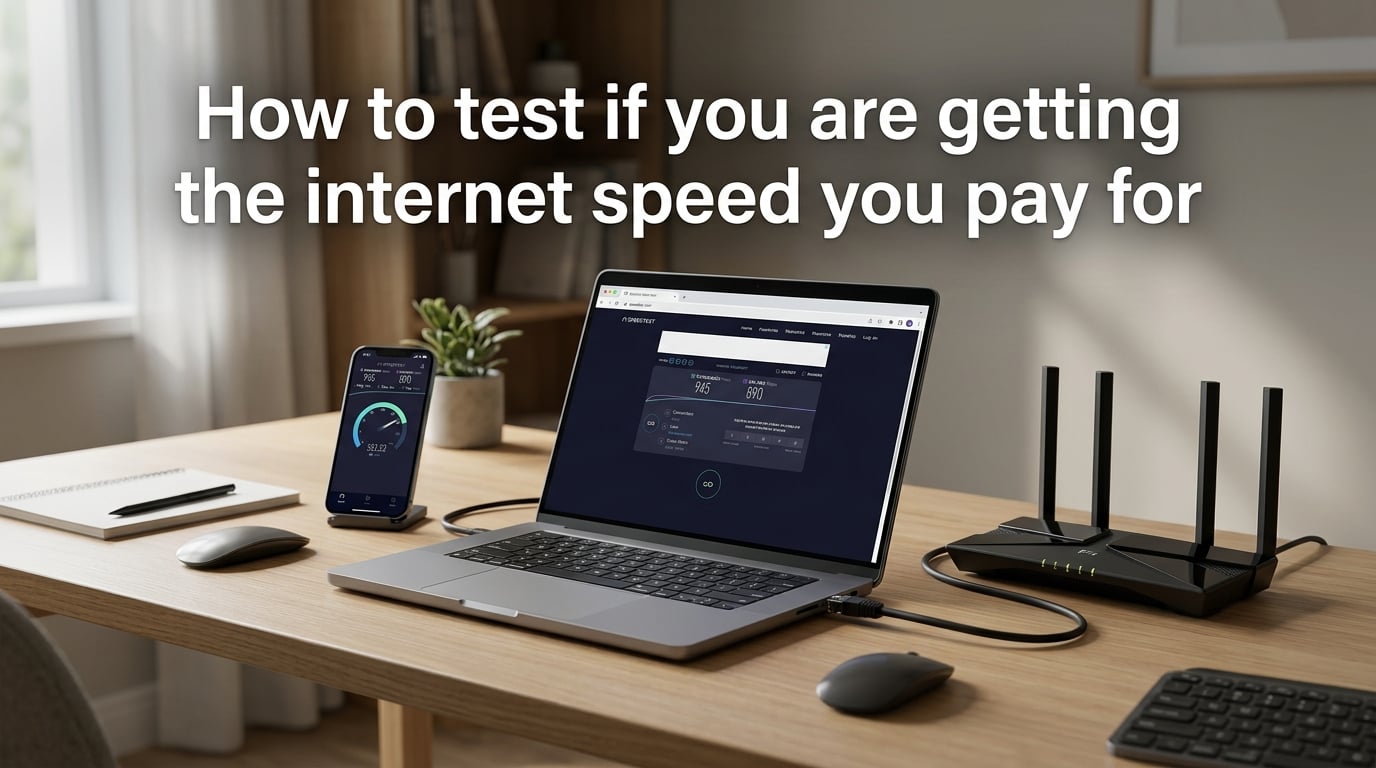
You pay good money every month for internet service, but are you actually getting the speeds your provider promised? Figuring out how to test if you are getting the internet speed you pay for is simpler than most people think. With the right tools and a methodical approach, you can verify your connection in under five minutes.
Internet Service Providers (ISPs) advertise their plans using phrases like “speeds up to 500 Mbps.” That word “up to” does a lot of heavy lifting. In many households, real-world speeds fall 20 to 40 percent short of advertised numbers. Sometimes that gap is normal; other times, it signals a problem worth reporting.
In this guide, I will walk you through exactly how to run a reliable speed test, interpret the numbers, understand why they differ from what you pay for, and take action when your connection underperforms. Whether you work from home, stream in 4K, or game competitively, knowing your true speed puts you in control.
Understanding Internet Speed Basics: What You Are Actually Paying For
Before running any tests, it helps to understand what the numbers on your internet bill actually mean. ISPs sell plans using megabits per second (Mbps) or gigabits per second (Gbps). One Gbps equals 1,000 Mbps. A plan rated “500 Mbps” means your provider promises download speeds up to that figure under ideal conditions.
Every internet plan includes two separate speed ratings: download and upload. Download speed determines how fast data flows to your device, which affects streaming, browsing, and file downloads. Upload speed controls how fast your device sends data outward, which matters for video calls, cloud backups, and online gaming. Most plans emphasize download speed because that is what the average household uses most heavily.
Beyond raw speed, three additional metrics affect your online experience. Ping measures the round-trip time for data to travel to a server and back, measured in milliseconds (ms). Latency refers to any delay in data transmission. Jitter tracks the consistency of your ping over time. High jitter causes choppy video calls and lag in online games, even when your download speed looks fine on paper.
That phrase “up to” in your plan description is the single most important word on your bill. It legally protects the ISP because actual speeds depend on network conditions, your equipment, and your home wiring. The FCC recommends testing at 80 percent of advertised speeds as a reasonable baseline. If you pay for 100 Mbps and consistently see 80 Mbps or above, your provider is technically delivering what they promised.
How to Test If You Are Getting the Internet Speed You Pay For?: Step-by-Step
Testing your internet speed takes less time than making a cup of coffee. The key is eliminating variables that could skew your results. Follow these steps for the most accurate reading.
Step 1: Prepare Your Network
Close every application on your computer that uses the internet. That means streaming services, cloud storage sync, automatic updates, and background downloads. Check that nobody else on your network is streaming video or downloading large files. Even a phone backing up photos to the cloud can eat bandwidth and throw off your test.
Restart your modem and router by unplugging them for 30 seconds, then plugging them back in. Wait two minutes for all lights to stabilize before proceeding. This clears cached data and gives your equipment a fresh start.
Step 2: Use a Wired Connection If Possible
Connect your computer directly to your router using an Ethernet cable. Wi-Fi introduces interference, distance issues, and signal degradation that can cut your speed by 30 to 50 percent. A wired connection removes those variables and gives you a true picture of what your ISP delivers to your home.
If Ethernet is not an option, position your device as close to the router as possible. Stand within 10 feet with a clear line of sight. This minimizes Wi-Fi interference from walls, furniture, and neighboring networks.
Step 3: Choose a Reliable Speed Test Tool
Open your browser and navigate to a reputable speed test website. Speedtest.net by Ookla is the most widely used option, while Fast.com by Netflix offers a clean, no-frills alternative. I recommend running tests on at least two different tools to compare results.
Step 4: Run the Test and Record Results
Click the test button and wait for the process to complete. Most tools finish in 30 to 60 seconds. Write down your download speed, upload speed, ping, and jitter. Note the time of day and whether you tested over Wi-Fi or Ethernet.
Step 5: Run Multiple Tests at Different Times
A single test only captures a snapshot. Network congestion fluctuates throughout the day, especially during evening peak hours when everyone in your neighborhood streams Netflix simultaneously. Run tests at three different times: morning, afternoon, and late evening. Average the results for a reliable picture of your typical speed.
Many experienced users on forums like r/HomeNetworking recommend testing during off-peak hours, around 3 to 5 AM, for the most accurate baseline reading. This avoids local node congestion and shows what your connection is truly capable of delivering.
Best Speed Test Tools Compared
Not all speed test tools are created equal. Different tools use different servers, testing methods, and algorithms, which means results can vary by 10 to 20 percent between sites. Here is a breakdown of the most trusted options.
Speedtest.net (Ookla)
Speedtest.net is the industry standard with over 10 billion tests completed. It automatically selects the closest test server to your location, which reduces network distance as a variable. The interface displays download speed, upload speed, ping, and jitter clearly. You can also change the test server manually to compare results across different locations.
However, forum users on r/speedtest have raised a valid concern. Some ISPs allegedly prioritize Speedtest.net traffic to produce higher-than-real results, making customers think their connection performs better than it actually does. This is not proven universally, but it is worth knowing as a possibility.
Fast.com (Netflix)
Fast.com provides a stripped-down, ad-free interface that shows one number: your download speed. Netflix built this tool to measure real-world streaming performance, so it tests against Netflix’s own content delivery network. The simplicity is refreshing, and the results tend to reflect what you will actually experience when streaming video.
Click “Show more info” to reveal upload speed, ping, and connection details. Fast.com is excellent for a quick sanity check but lacks the customization of Speedtest.net.
Google Speed Test
Type “speed test” into Google Search and a built-in tool appears at the top of the results. Click “Run Speed Test” and Google measures your download and upload speeds using Measurement Lab infrastructure. The results are reliable for a quick check, though the tool does not display jitter or let you choose a test server.
Speedof.me
Speedof.me uses an HTML5-based testing method rather than the more common Flash or server-based approaches. Forum communities trust Speedof.me for providing what many consider unbiased results, particularly because it does not have ISP partnerships that could influence outcomes. The interface shows a real-time graph of your speed throughout the test.
If you suspect your ISP prioritizes certain speed test traffic, running Speedof.me alongside Speedtest.net gives you a comparison point. Large discrepancies between the two tools can indicate that something is off.
How to Interpret Your Speed Test Results?
Getting numbers from a speed test is only half the battle. Understanding what those numbers mean in the context of what you pay for requires some context. Let me break down how to read your results.
The 80 percent rule is your starting point. If your plan advertises “up to 200 Mbps” and your wired test consistently shows 160 Mbps or above, your ISP is meeting its obligation. Anything below that threshold warrants investigation. Keep in mind that wireless speeds will almost always be lower than wired, sometimes significantly so.
For ping, lower is always better. A ping under 20 ms is excellent and suitable for competitive gaming. Anything between 20 and 50 ms works well for video calls and casual online gaming. Above 100 ms, you will start noticing lag in real-time applications. Jitter should stay under 30 ms for smooth performance.
Upload speed matters more than many people realize. If you work from home and frequently do video calls, cloud backups, or large file uploads, low upload speeds will frustrate you daily. Many cable plans offer 10 to 20 Mbps upload, which is adequate for one person but struggles with multiple concurrent users.
Compare your results against the speed tier you pay for. If your bill says “Internet 500” but your tests consistently show 150 Mbps on a wired connection, you have a legitimate complaint. Document these results with screenshots before contacting your provider.
Why Your Speed Test Results Are Lower Than Expected?
Slow results do not automatically mean your ISP is cheating you. Many factors between the provider’s network and your device can reduce speed. Understanding these variables helps you pinpoint whether the problem lies with your equipment, your home network, or the provider itself.
Wi-Fi Interference and Distance
Wi-Fi signals degrade rapidly as they pass through walls, floors, and furniture. A router in your basement may struggle to deliver full speed to a second-floor bedroom. Microwaves, baby monitors, and neighboring Wi-Fi networks on the same channel all create interference. If your wired test shows full speed but Wi-Fi tests come in low, your router placement or wireless hardware is the bottleneck.
Network Congestion During Peak Hours
Cable internet and DSL connections share bandwidth among multiple households on the same local node. When everyone in your neighborhood streams video between 7 PM and 11 PM, available bandwidth drops. This is not throttling; it is shared infrastructure reaching capacity. Testing at 3 AM versus 8 PM on the same connection can show a 30 percent difference.
Outdated Router or Modem
If your router is more than five years old, it may not support the speeds your plan delivers. Older Wi-Fi standards like 802.11n cap out around 150 Mbps, while 802.11ac (Wi-Fi 5) and 802.11ax (Wi-Fi 6) can handle much faster speeds. Check your router’s specifications against your plan speed. Similarly, an outdated modem from your ISP may not support newer DOCSIS standards that cable providers use for higher speeds.
Device Limitations
The device you test on matters. An older laptop with a 100 Mbps Ethernet port cannot measure speeds above that, regardless of your plan. A phone with an older Wi-Fi chip may not detect speeds your router is fully capable of delivering. Always test on a modern device with a gigabit Ethernet port or the latest Wi-Fi standard.
VPN Impact on Speed Tests
If you run a VPN while speed testing, expect lower results. VPNs encrypt and route traffic through additional servers, adding overhead. Forum users on r/HomeNetworking note that VPN usage can cut speeds by 20 to 50 percent depending on the server location and protocol. Always disable your VPN before running a speed test to get an accurate baseline.
How to Check If Your ISP Is Throttling Your Speed?
Bandwidth throttling is when your ISP intentionally reduces your speed for certain types of traffic. This practice became legal in the United States after net neutrality rules were rolled back. Detecting throttling requires a comparison approach.
First, run a speed test with your VPN off and note the results. Then enable a VPN and run the same test. Because a VPN encrypts your traffic, your ISP cannot see what type of data you are sending or receiving. If your speed jumps significantly with the VPN active, that is a strong indicator your ISP is throttling specific traffic types.
Second, compare your ISP’s own speed test tool against third-party tools. Many internet providers offer their own speed test on their website. Forum users consistently report that ISP-branded tests show higher speeds than independent tools. If your provider’s tool shows 400 Mbps but Speedtest.net and Speedof.me both show 150 Mbps, ask questions.
Third, test with different types of traffic. Download a large file from a fast server like a Microsoft Windows update or a Steam game download. If those downloads consistently run at full speed but streaming video buffers constantly, your provider may be throttling entertainment traffic specifically.
Wi-Fi vs Ethernet: Which Should You Test With?
The short answer is both, but for different reasons. Ethernet and Wi-Fi tell you different things about your internet connection.
An Ethernet test gives you your true baseline speed. This is the maximum speed your ISP delivers to your home before any wireless interference, distance issues, or device limitations come into play. Always run at least one test over a wired connection to know what your provider is actually delivering.
A Wi-Fi test reflects your real-world experience. Most people use wireless devices, so testing over Wi-Fi tells you what your typical browsing, streaming, and gaming sessions actually feel like. If your wired test shows full speed but Wi-Fi tests come in low, focus on optimizing your router placement or upgrading your wireless equipment.
For troubleshooting purposes, always lead with wired results when talking to your ISP. Support agents will ask you to test over Ethernet anyway, and having those numbers ready saves time. Wireless results are easier for providers to dismiss as “a Wi-Fi issue” rather than a network problem on their end.
Speed Requirements for Common Online Activities
Knowing what speed you actually need helps you determine whether a shortfall matters. Here are the general speed requirements for everyday online activities.
For standard definition streaming, 3 to 5 Mbps is sufficient. HD streaming on one device needs 5 to 10 Mbps. Netflix recommends 25 Mbps for 4K Ultra HD streaming on a single device. If multiple people in your household stream simultaneously, add those requirements together.
Online gaming requires surprisingly modest download speeds, typically 3 to 6 Mbps. However, competitive gaming depends far more on low ping (under 50 ms) and low jitter (under 30 ms) than raw bandwidth. A 500 Mbps connection with 150 ms ping will feel worse for gaming than a 25 Mbps connection with 15 ms ping.
Video conferencing through Zoom, Microsoft Teams, or Google Meet needs 1.5 to 4 Mbps for a one-on-one call and 3 to 8 Mbps for group video calls. Add 1 to 2 Mbps for screen sharing. Work from home setups with concurrent video calls, cloud document editing, and file transfers should plan for 25 to 50 Mbps minimum.
For households with multiple users, a simple rule of thumb is 25 Mbps per active device. A family of four where everyone streams, games, or video calls simultaneously will want at least 100 Mbps, preferably 200 Mbps or more. Having a 300 Mbps plan for a single person who browses the web and checks email, on the other hand, is likely more speed than needed.
How to Improve Your Speed Test Results?
If your tests reveal speeds lower than expected, try these fixes before contacting your ISP.
Move your router to a central, elevated location in your home. Avoid corners, closets, and placement behind large metal objects. Walls containing metal ductwork, concrete, or brick are particularly problematic for Wi-Fi signals. A simple repositioning can improve wireless speeds by 20 to 30 percent.
Check for router firmware updates through your router’s admin panel or mobile app. Manufacturers release updates that fix performance bugs and improve stability. An outdated firmware version can silently limit your speeds without any obvious warning.
Switch your Wi-Fi to the 5 GHz band if your router supports dual-band operation. The 2.4 GHz band travels farther through walls but offers slower speeds and more interference from neighbors. The 5 GHz band delivers faster speeds with less interference but has shorter range. For speed testing, 5 GHz is almost always the better choice.
Reduce the number of connected devices during testing. Smart home devices, streaming sticks, and even smart appliances constantly communicate in the background. Disconnecting non-essential devices during a test eliminates their bandwidth consumption from your results.
When and How to Contact Your ISP About Slow Speeds?
If you have ruled out equipment and Wi-Fi issues and your wired speeds still consistently fall below 80 percent of your advertised plan, it is time to contact your ISP. Approach the conversation prepared.
Document your results over multiple days. Take screenshots of at least three wired speed tests run at different times of day. Note the date, time, and test tool for each result. Having specific numbers prevents the support agent from dismissing your complaint with generic troubleshooting steps.
When you call, state clearly that your wired speed tests consistently show speeds below 80 percent of your plan. Use that specific threshold because it aligns with FCC guidance. Ask if there is a known outage or capacity issue in your area. Request that they check signal levels on your modem remotely.
If the phone representative cannot resolve the issue, ask for a technician visit. Many speed problems stem from degraded wiring outside your home, corroded connectors, or an oversubscribed local node. A technician can diagnose and sometimes fix these issues on the spot. If the problem is an oversubscribed node, which is common in cable internet, your ISP may need to perform infrastructure upgrades that take weeks or months.
Keep records of every call, including the date, representative name, and what was discussed. If your provider fails to deliver advertised speeds and refuses to fix the problem, you have grounds to request a plan downgrade, bill credit, or contract cancellation without early termination fees.
FAQs
How do I know if I’m getting the internet speed I’m paying for?
Run a speed test using Speedtest.net or Fast.com over a wired Ethernet connection. Compare the download and upload speeds to what your plan advertises. If your results consistently show at least 80 percent of your advertised speed, your ISP is delivering adequately. Test at multiple times of day for an accurate picture.
How do I find out what internet speed I pay for?
Check your monthly internet bill or log into your ISP account online. Your plan name usually includes the speed tier, such as Internet 300 or Gigabit. You can also call your ISP and ask what speed tier you are subscribed to.
Do you actually get the internet speed you pay for?
In most cases, you will not get the exact advertised speed. ISPs use ‘up to’ language, meaning actual speeds can legally fall short. A consistent result at 80 percent or higher of your advertised speed is considered acceptable by FCC standards.
Is there a way to test my internet speed?
Yes. Several free tools let you test your internet speed instantly. Popular options include Speedtest.net, Fast.com, the Google Speed Test (search ‘speed test’ on Google), and Speedof.me. Each tool measures download speed, upload speed, and ping.
Why is my internet speed not what I pay for?
Common causes include Wi-Fi interference, outdated router or modem, network congestion during peak hours, distance from the router, too many connected devices, and ISP throttling. Running a wired test helps isolate whether the issue is your home network or your provider.
Is 300 Mbps overkill?
For a single user who browses the web and streams video, 300 Mbps is more than necessary. For a family of four with multiple simultaneous streams, gaming sessions, and work-from-home video calls, 300 Mbps is a comfortable middle ground that prevents bottlenecks.
How do I check my exact internet speed?
Go to Speedtest.net and click the Go button. The tool measures your exact download speed, upload speed, ping, and jitter within about 30 seconds. For the most accurate result, connect your computer directly to your router with an Ethernet cable and close all other applications.
Conclusion
Learning how to test if you are getting the internet speed you pay for puts real power in your hands. A five-minute test over an Ethernet connection, repeated at different times of day, tells you exactly what your provider delivers versus what they promise.
Remember the 80 percent rule. If your wired results consistently hit that threshold of your advertised plan, your ISP is meeting its obligation. Below that, you have grounds to investigate, troubleshoot, and ultimately contact support with documented evidence.
Start by running a test right now using Speedtest.net or Fast.com. Compare those numbers to your bill. If there is a gap, work through the troubleshooting steps in this guide methodically. Your internet connection is too important, and too expensive, to leave unverified.