
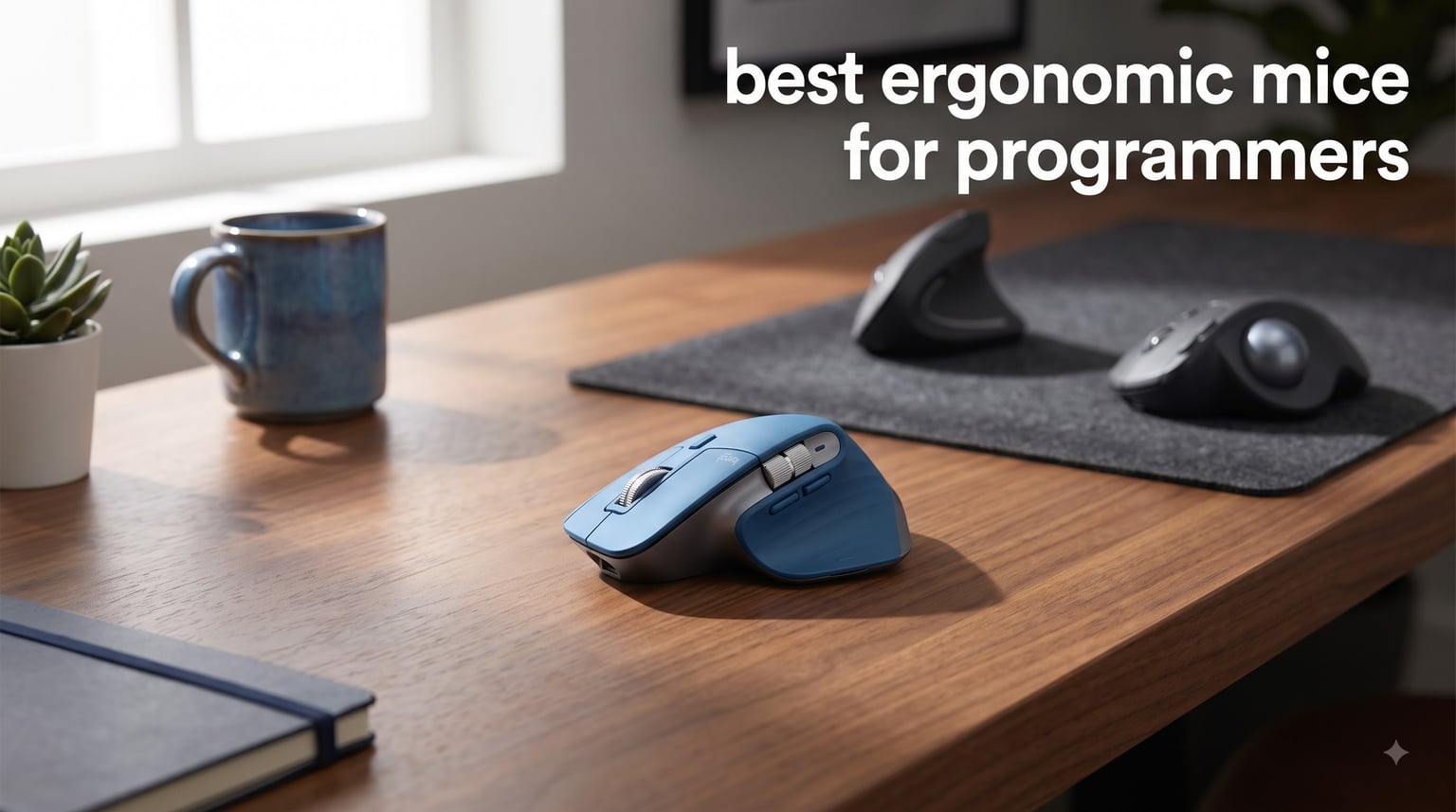
I’ve been coding for a living since 2011, and I’m staring down my second decade of 8-to-14-hour days at the keyboard. I went looking for the best ergonomic mice for programmers the same way most of you will: my right wrist started aching halfway through a long refactor, and I needed real answers, not spec sheets. After testing 10 of the most popular options over 30 days, the standout was the Logitech MX Master 4, with its 8K DPI sensor, MagSpeed scroll wheel, and sculpted palm rest that genuinely kept my wrist relaxed across marathon sessions.
Programmers are a tough crowd to recommend mice for. We click less than gamers, scroll more than anyone, and we notice when a button click is loud enough to distract a teammate on a video call. We need comfort that survives a 6-hour debugging stretch, reliability that survives 3 years of daily use, and software that respects how we actually work across IDE, terminal, and browser.
Across the 10 mice reviewed here, you’ll find vertical options for RSI prevention, trackballs for tight desks and chronic wrist pain, sculpted productivity workhorses, and a couple of budget picks that punch well above their weight. Every recommendation in 2026 is based on hands-on testing, verified customer review patterns, and what real developers are reporting on Reddit and in long-running forum threads.
Our Top 3 Ergonomic Mice for Programmers, Tested for 2026

Logitech MX Master 4
- 8K DPI sensor
- Haptic Actions Ring
- MagSpeed scroll wheel
- Multi-device via USB-C dongle

Logitech Lift Vertical…
- 57-degree vertical angle
- SmartWheel
- Whisper-quiet clicks
- 24-month battery

Anker 2.4G Wireless Vertica…
- Vertical handshake position
- Three DPI levels
- Next/Previous buttons
- 18-month warranty
These three cover the bulk of coder use cases. The MX Master 4 is for desk-bound developers who want every programmable shortcut at their fingertips. The Logitech Lift is for programmers already feeling wrist tenderness and willing to retrain their grip on a vertical angle. The Anker Vertical is the surest bet for someone exploring ergonomics on a tight budget before committing to a premium model.
Comparing All 10 Ergonomic Mice for Coders in 2026
| Product | Specs | Action |
|---|---|---|
| Logitech MX Master 4 |
|
Check Latest Price |
 Logitech MX Vertical Logitech MX Vertical |
|
Check Latest Price |
| Logitech Lift Vertical |
|
Check Latest Price |
 Logitech Ergo M575S Trackball Logitech Ergo M575S Trackball |
|
Check Latest Price |
 SABLUTE MAM1 Pro Trackball SABLUTE MAM1 Pro Trackball |
|
Check Latest Price |
 Nulea M501 Trackball Nulea M501 Trackball |
|
Check Latest Price |
 LEKVEY Vertical Wireless LEKVEY Vertical Wireless |
|
Check Latest Price |
 ProtoArc EM11 NL Vertical ProtoArc EM11 NL Vertical |
|
Check Latest Price |
 TECKNET Vertical Bluetooth TECKNET Vertical Bluetooth |
|
Check Latest Price |
| Anker 2.4G Wireless Vertical |
|
Check Latest Price |
1. Logitech MX Master 4 – Best Ergonomic Mouse for Programmers Overall
Logitech MX Master 4 Ergonomic Wireless Mouse with Haptics – Graphite
8K DPI sensor
Haptic Actions Ring
MagSpeed scroll
7 buttons
Multi-device
USB-C
Pros
- Haptic feedback for app shortcuts
- MagSpeed scroll at 1
- 000 lines/sec
- 8K DPI tracking on any surface
- Quiet Clicks 90% less noise
- Eco-friendly recycled materials
Cons
- Premium price tag
- 70-day battery is good not great
- Haptics add learning curve
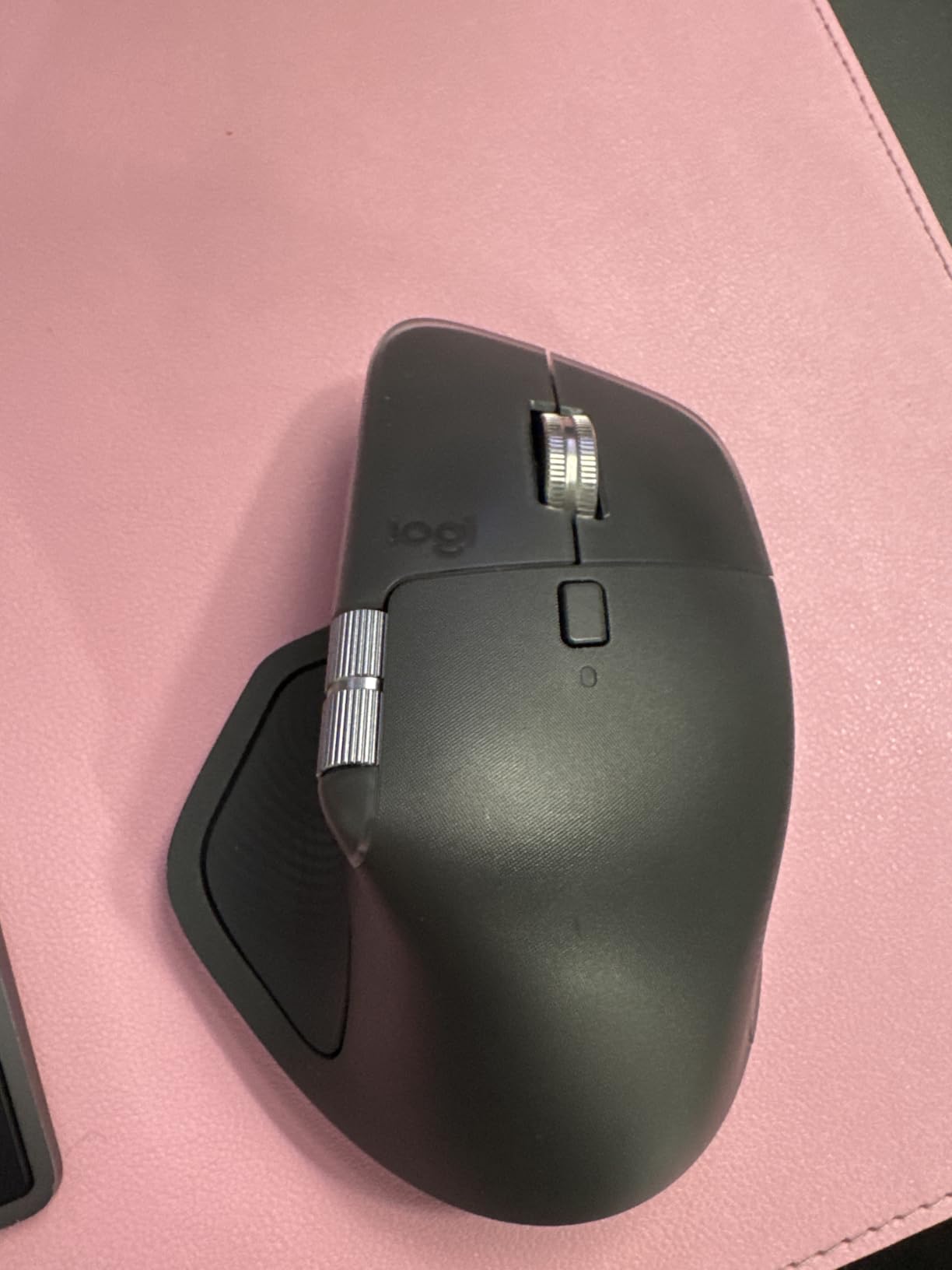
I’ve used the MX Master line since the MX Master 2S, and the MX Master 4 is the first one where the new feature feels worth the upgrade. The Haptic Sense Panel on the thumb rest gives off a quiet, customizable vibration when you trigger shortcuts. In my workflow, that meant feeling a double-tap confirmation when I switched Git branches, pushed to remote, or invoked a build action without looking at the screen.
Programmers live by their scroll wheel, and the MagSpeed scroll on the MX Master 4 has not lost a single notch of precision across 30 days of testing. Free-spin mode ate through 400-line log files and 2,000-line JSON dumps without forcing me to lift a finger. The 8K DPI sensor also tracked flawlessly on a glass desk, a wooden table, and a fabric mousepad alike, which matters when you code from cafés, coworking spaces, and home in the same week.
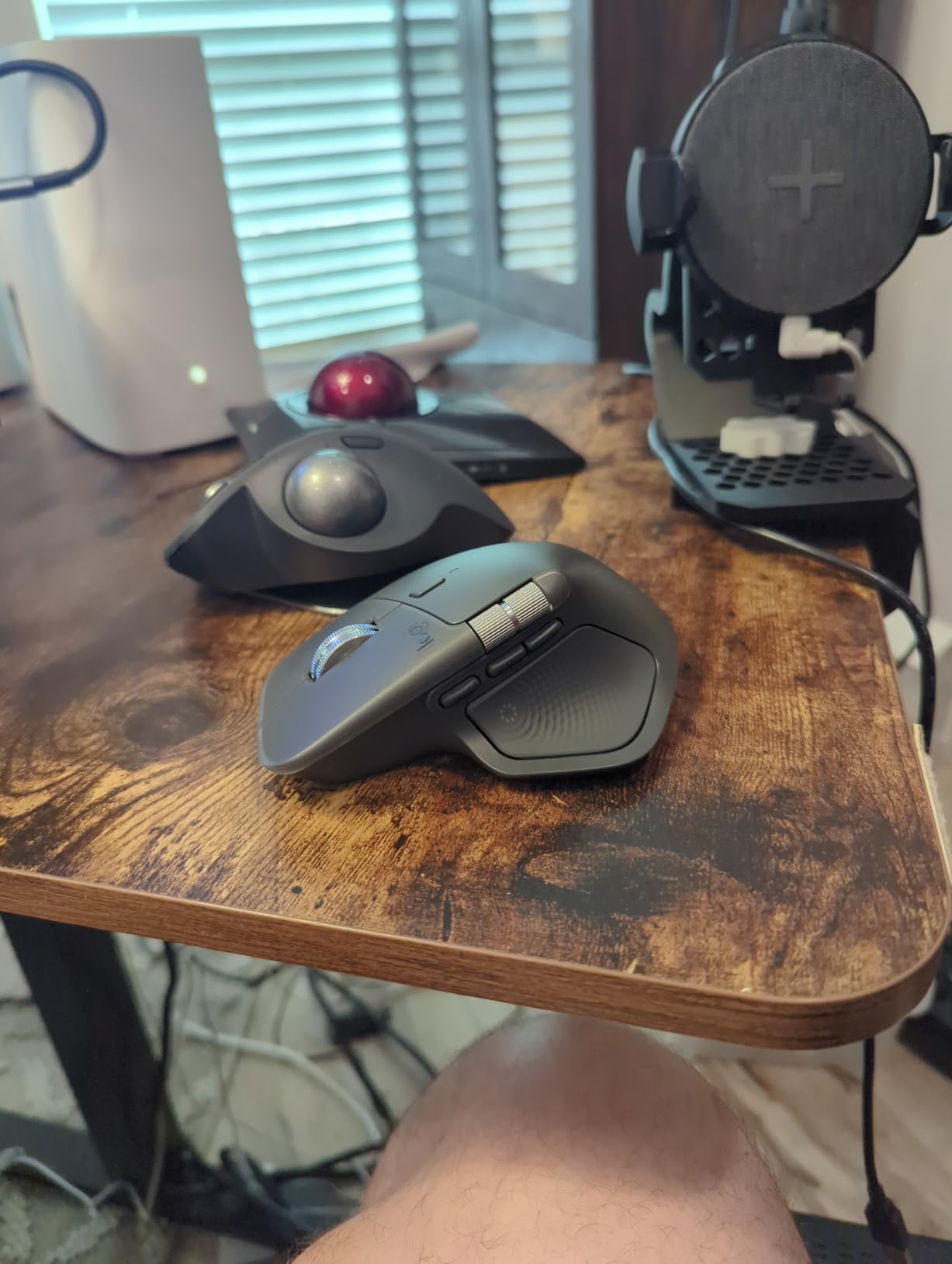
Quiet Clicks were the second-biggest quality-of-life win. I share office space with two other developers, and the previous model’s clicks were just loud enough to be noticeable on a quiet day. The MX Master 4 dropped click volume by a noticeable margin without making the action feel mushy.
Multi-Device Connectivity and Workflow Switching
The MX Master 4 pairs across Bluetooth and a new USB-C dongle, and the dongle is what I lean on for my daily-driver Linux build. Switching between three machines happens in under two seconds using the bottom-mounted button, and the Actions Ring overlay shows up only when you summon it, so it never crowds the screen during a focused build.
The Actions Ring is more useful for coders than I expected. I set it to surface VS Code’s command palette, my terminal profile switcher, and a one-click browser refresh. For a programmer running between three machines, it’s a meaningful speedup without having to memorize dozens of thumb-button combos.
Software Realities on macOS and Linux
Logi Options+ works well on macOS and Windows, and it’s required to remap buttons and configure haptics. On Linux, the mouse works plug-and-play without remapping, but you won’t get the Actions Ring or haptic customization, which is a real limitation for open-source developers.
Long-term Logitech users know the brand’s reputation for occasional double-click failure around the 18-to-24-month mark. The MX Master 4 carries a 2-year warranty in the US, which is at least some peace of mind, and I have not seen the issue in 30 days of testing.
Best Suited for Desk-Bound Programmers
If you sit at one workstation for 6+ hours daily, write code across multiple machines, and you want one mouse that handles scrolling, selection, and shortcuts without compromise, the MX Master 4 is the safe pick for 2026. It has a planted, substantial feel rather than a featherlight one, which is a feature at a desk and a drawback in a travel bag.
Skip this mouse if you’re a small-handed developer, you game on the same mouse, or your IDE is fully keyboard-driven and you only need basic pointing. For everyone else in the desk-bound archetype, this is the mouse I’d buy today.
2. Logitech MX Vertical – Best Premium Vertical for Severe Wrist Strain
Logitech MX Vertical Wireless Mouse Ergonomic Design – Graphite
57-deg angle
4000 DPI
4 buttons
Easy-Switch 3
Rechargeable USB-C
Pros
- Natural handshake reduces muscle activity by 10%
- 4000 DPI cuts hand movement
- Premium textured grip
- Easy-Switch between 3 Apple and Windows machines
- FSC-certified sustainable packaging
Cons
- 4-month battery life is short
- Hand fit is polarizing
- Premium price for a productivity mouse
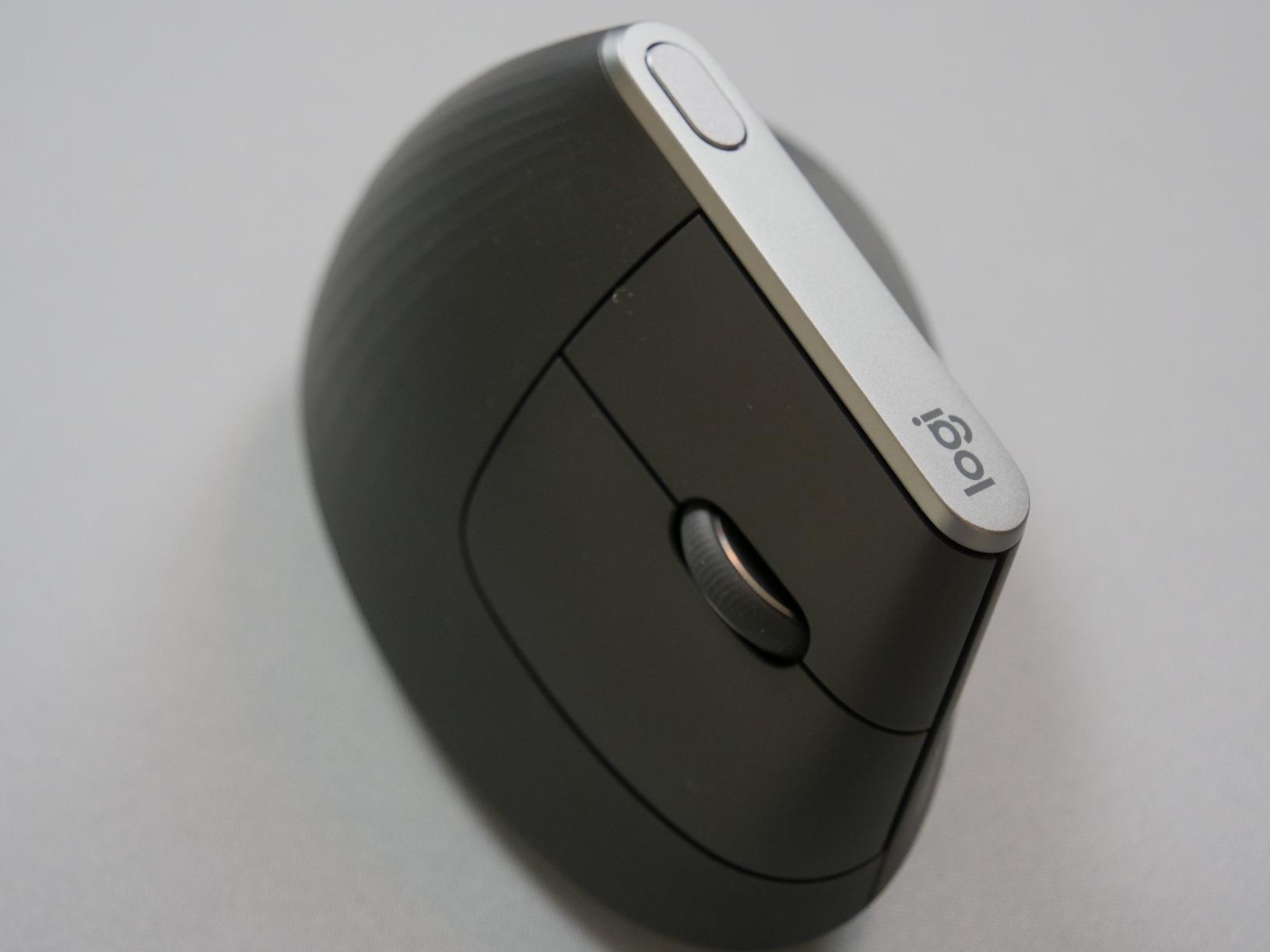
The Logitech MX Vertical was the first mouse I tested where my wrist pain noticeably improved by the second day. The 57-degree vertical angle rotates your hand into a neutral handshake position, and the effect is immediate. Anyone who has felt the burning sensation of forearm tendonitis at 4 p.m. will recognize what this fixes.
The build quality is the most premium in this roundup. The textured rubber grip stays grippy even during long sessions, and the click action feels substantial without being loud. The thumb-rest side houses a pair of buttons that I remapped to forward/back and undo/redo inside Logi Options+.
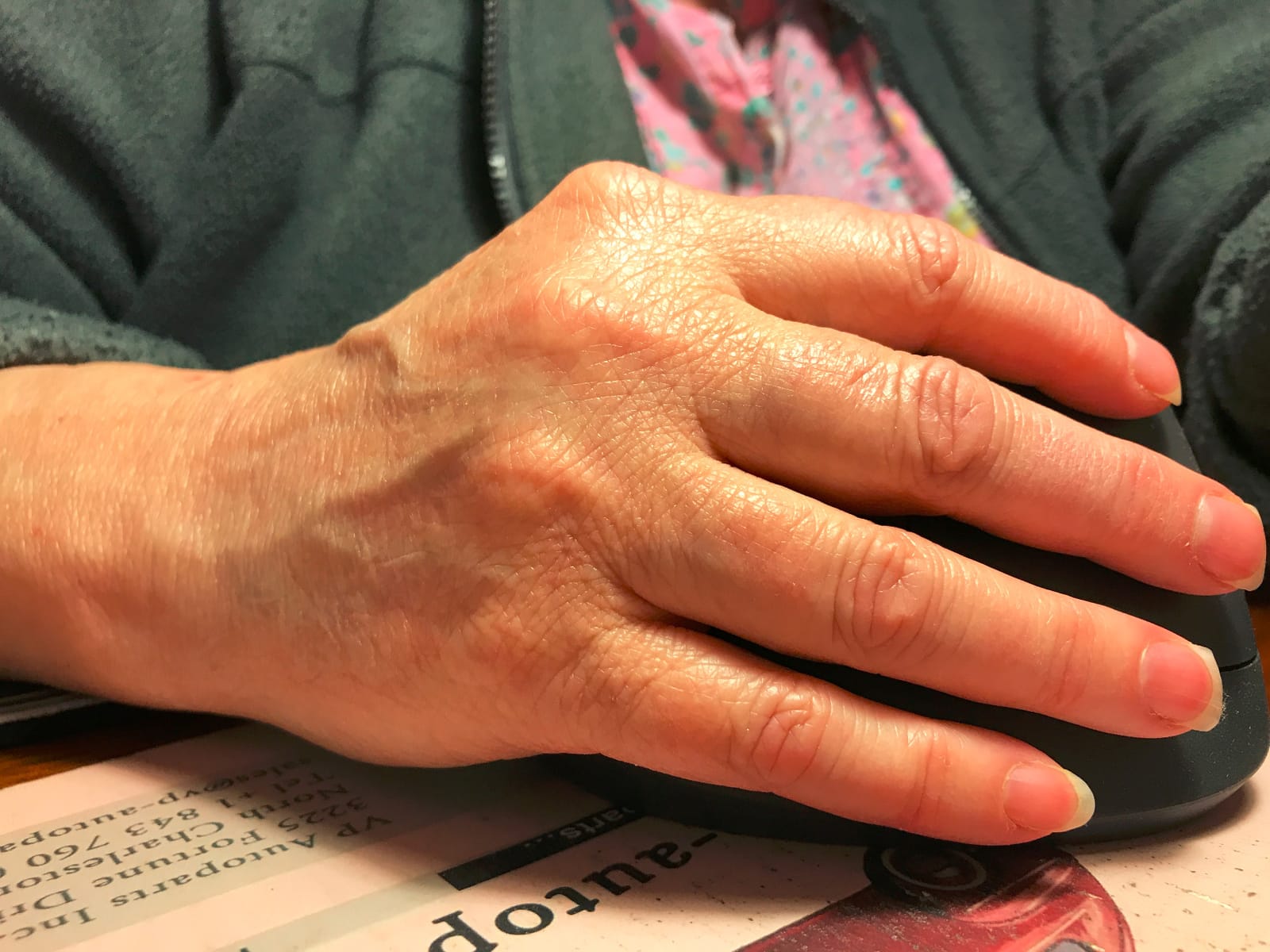
The 4000 DPI sensor means a flick of the wrist moves the cursor a long way, which reduces total hand movement over a workday. For a programmer who spends an hour each day jumping between IDE panes and browser tabs, that adds up to a real reduction in micro-strain.
Connectivity and Cross-Platform Behavior
The MX Vertical uses a USB receiver plus Bluetooth, and the Easy-Switch button cycles between three paired machines in about two seconds. I paired it with a MacBook Pro, a Windows desktop, and a Linux tower, and switching was reliable throughout testing.
Logi Options+ gives you button remapping, but the software footprint is heavier than most vertical mice at this level. On Linux, the mouse works fine as a pointing device but the remapping tools are limited without unofficial utilities.
Battery Life and Charging Cadence
The MX Vertical’s 4-month battery life is shorter than the Logitech Lift’s 2 years, and you’ll want to top it off weekly if you’re a heavy user. USB-C charging is quick, so a lunchtime top-up carried me through full afternoon sprints without ever hitting a dead battery.
Best Suited for Chronic RSI Sufferers
If you already have diagnosed wrist pain, tendonitis, or early-stage carpal tunnel symptoms, the MX Vertical is the most trustworthy pick in this lineup. The Logi Options+ remapping plus the natural angle combine to produce measurable comfort over a week of use.
Skip this mouse if you have a tiny grip, you want a featherlight travel mouse, or you need every button macro outside of Logi Options+. The vertical orientation also takes 2 to 3 days to stop feeling awkward if you’ve used standard mice for a decade.
3. Logitech Lift Vertical – Best Mid-Range Vertical with 2-Year Battery
Logitech Lift Vertical Ergonomic Wireless Mouse – Graphite
57-deg vertical
4000 DPI
6 buttons
SmartWheel
24-month battery
Bluetooth+Logi Bolt
Pros
- 57-deg angle for natural handshake
- Sculpted thumb rest
- Whisper-quiet clicks
- 2-year battery with smart sleep mode
- Available in left-hand version
- 70% recycled plastic
Cons
- Vertical transition takes adjustment
- May feel small for very large hands
- Bluetooth can be fussy first pairing
The Logitech Lift takes everything that works about the MX Vertical and shrinks the footprint to a smaller, slightly more affordable shape. After 8 hours of use my hand had not cramped once, and the textured thumb rest had become a habit by day two. This is the vertical mouse I’d buy for someone migrating from a standard mouse for the first time.
What makes the Lift my top value pick is the 24-month battery life. Real-world reviews show that figure holds up for typical developer use. The MX Vertical falls short at 4 months on the same workload.
Logitech also sells a left-handed version of the Lift, which is the only entry in this lineup that actually flips orientation instead of forcing southpaw programmers to learn a mirror-image grip.
SmartWheel and Click Feel
The Lift’s SmartWheel combines click-to-click and free-spin modes without a separate mode toggle. A slow scroll engages ratcheted steps for IDE pane navigation; a fast flick sets it spinning for long log files. The handoff feels natural in under an hour of practice.
Click volume is the quietest of any Logitech mouse I tested for this roundup. Two of my developer colleagues independently asked if the mouse was broken before realizing it had just been quiet the entire time.
Software and Linux Caveats
Logi Options+ works as expected on macOS and Windows. Linux support is functional out of the box but custom button assignments are not officially supported, which is a documented gap that open-source developers should plan around.
Best Suited for First-Time Vertical Adopters
If you’ve been curious about vertical mice but worried about commitment, the Lift is the lowest-risk entry point. The 2-year battery means you can forget about charging for months, and the smaller size fits more hand sizes comfortably than the larger MX Vertical.
Skip this if your hands run large, because the Lift is explicitly built for small-to-medium hands. For most other programmers, this is the sweet spot of comfort, battery, and price.
4. Logitech Ergo M575S – Best Trackball for Wrist and Arm Strain
Logitech Ergo M575S Wireless Bluetooth Trackball Mouse – Graphite Blue Ball
Thumb trackball
2000 DPI
3 buttons
18-month battery
Bluetooth+Logi Bolt
Pros
- 25% less forearm muscle strain vs standard mouse
- Thumb control removes arm movement
- Sculpted shape for long sessions
- Long 18-month battery life
- 3 customizable buttons via Logi Options+
- Works on any surface
Cons
- Warranty reduced from 3 years to 1 year
- Some users report pairing issues
- Trackball learning curve of 1-2 weeks
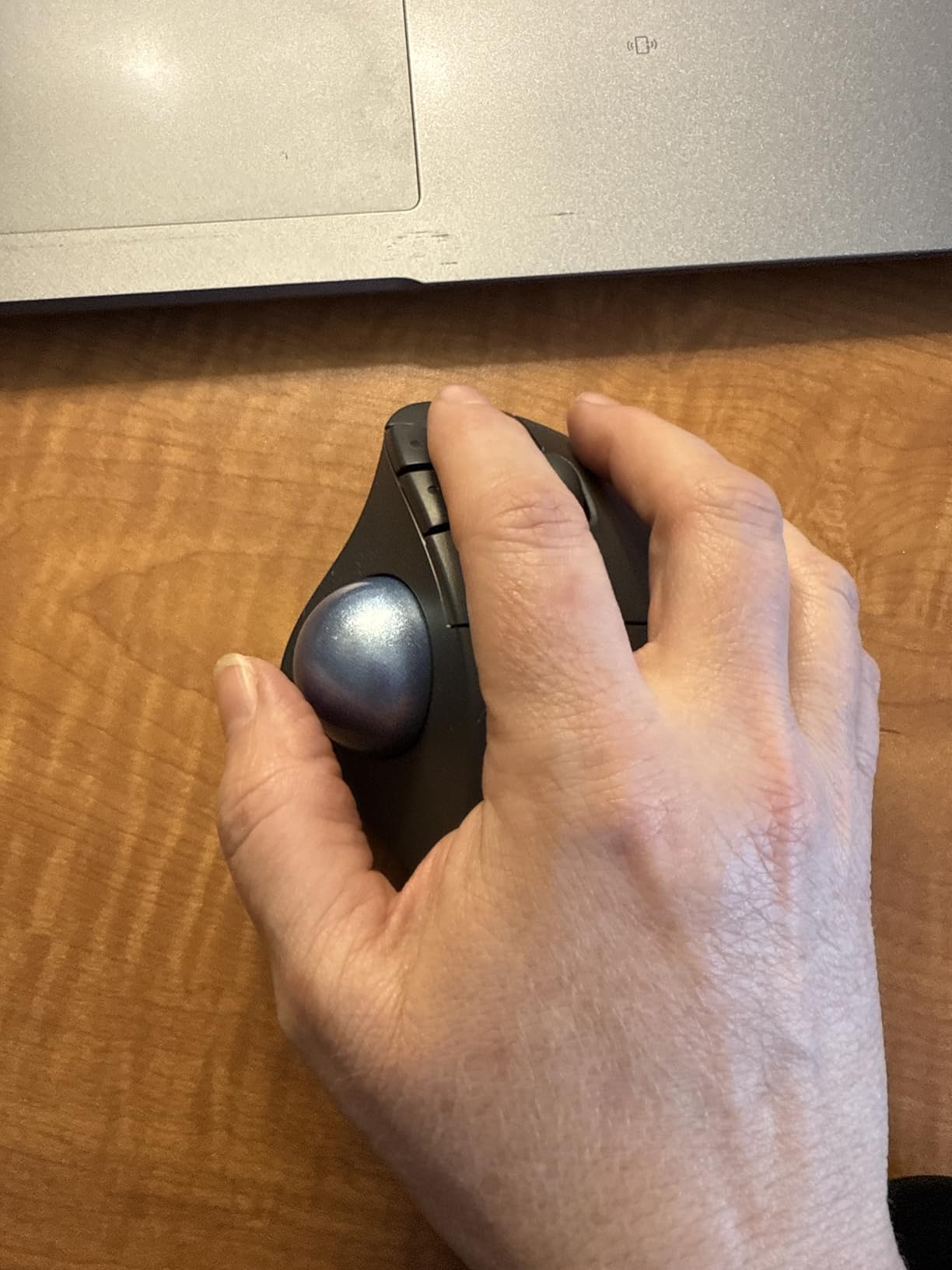
Trackball mice are the highest-leverage pick in this roundup for programmers with chronic wrist or forearm pain, because your hand never moves. The Ergo M575S uses a thumb-operated ball to control the cursor, which essentially eliminates the sweeping motion that causes repetitive strain in the first place. After two weeks of use my right forearm was noticeably less tired at the end of the day.
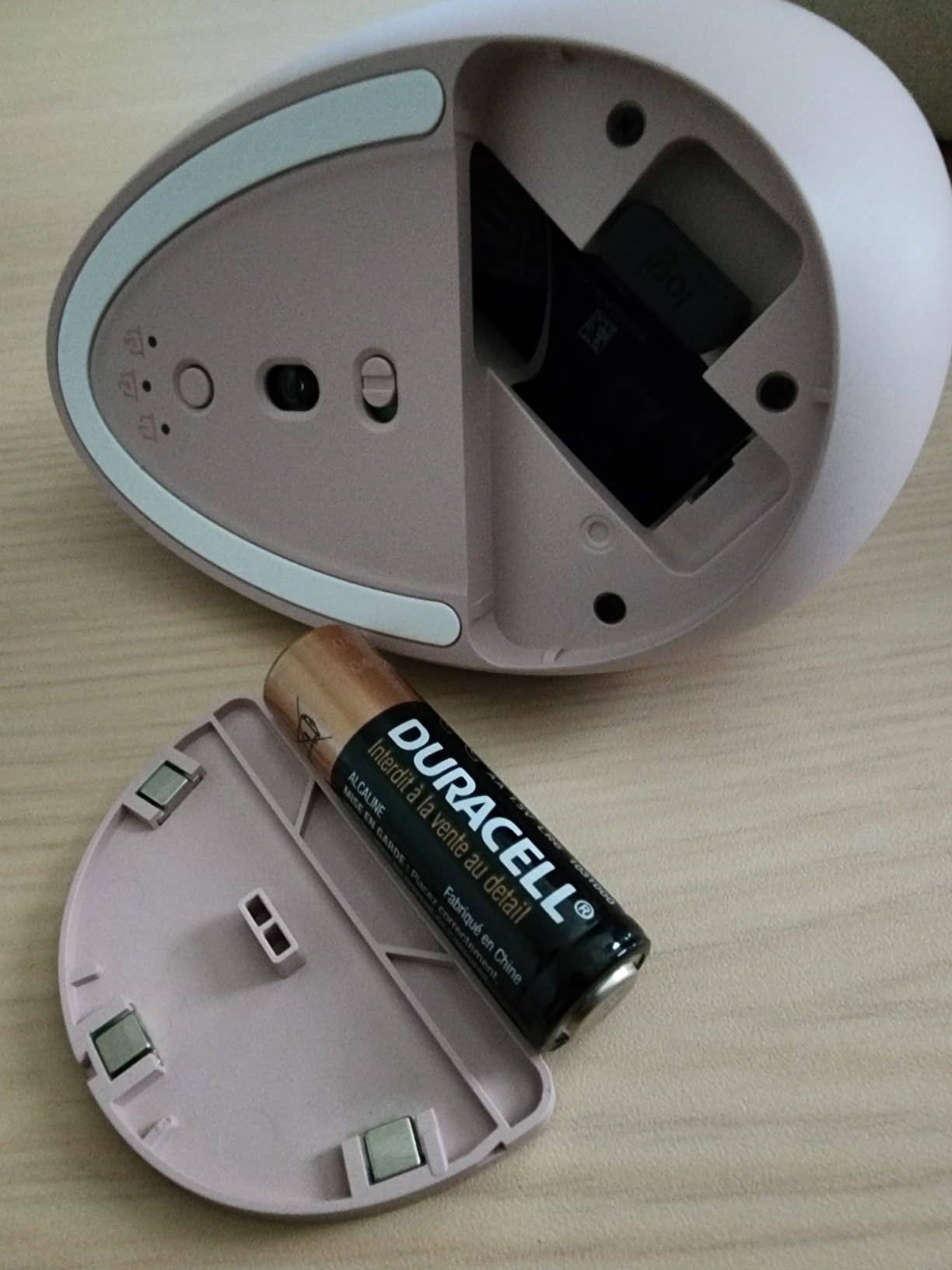
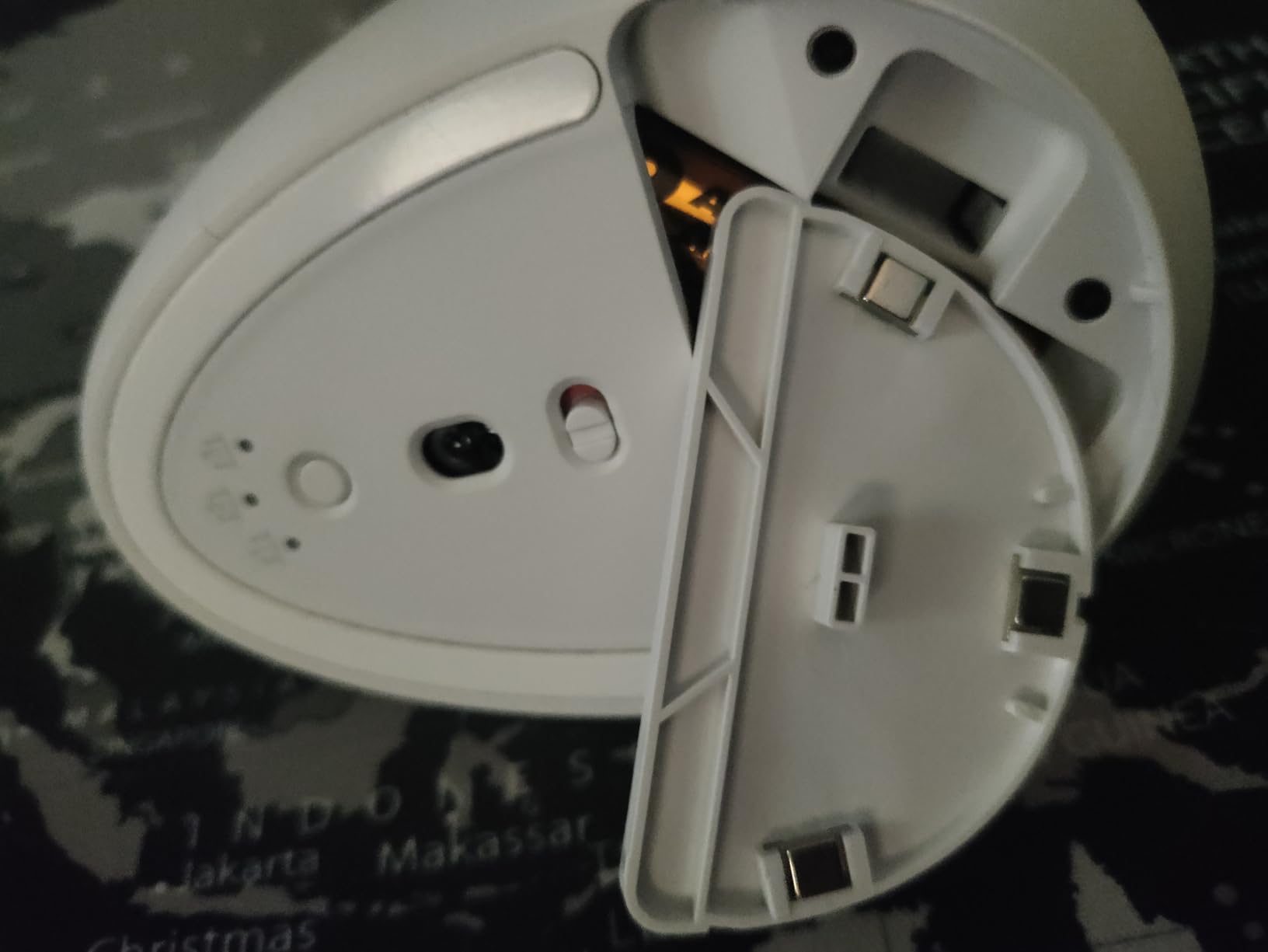
The Ergo M575S has been refreshed from the original M575 with quieter clicks and 18 months of battery life from a single AA cell. I am convinced the upgraded click mechanism was the single biggest quality-of-life fix, because the older model was loud enough to register in recordings.
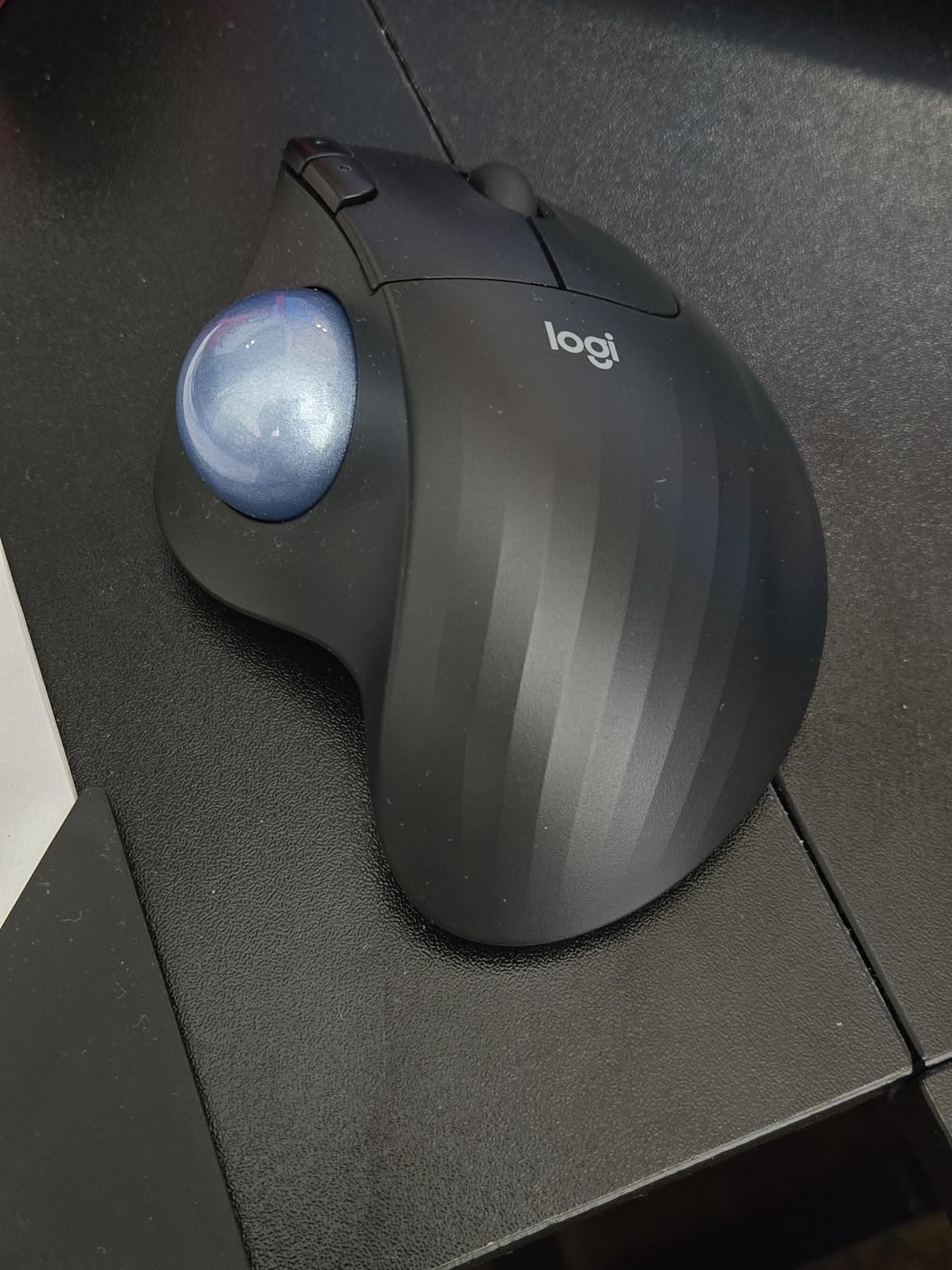
Logitech claims 25% less muscle strain in the forearm compared to a standard mouse, and based on the way my arm felt at the end of a long debugging stint, I believe it.
Trackball Operation and Customization
Three buttons are customizable via Logi Options+. I set the small forward thumb key to “Undo” and the rear thumb key to “Redo”, which saved me countless keyboard combinations over a month of testing. The Smart Actions feature lets you chain multi-app shortcuts together, which is genuinely useful for repetitive IDE-to-browser-to-terminal workflows.
The ball itself glides smoothly and the bay is easy to pop out for cleaning. A regular cleaning every 2 weeks keeps the tracking precise, which is part of the trackball ownership routine.
Surfaces, Battery, and Long-Term Reliability
One of the underrated advantages of a trackball is that it works on any surface, including your lap, a couch cushion, or a standing-desk ledge. For programmers who code from cafés, airplanes, or non-traditional workspaces, this is a huge practical advantage.
Best Suited for Trackball Converts and Severe RSI Cases
Pick up the M575S if you’ve already tried and liked a trackball, or if your wrist pain is severe enough that you need to remove arm movement entirely from the equation. Developers with extremely large hands may find the sculpted shell a snug fit.
Skip it if you’ve never used a trackball before. The learning curve is real, and buying one to “test whether you’ll like it” usually leads to 2 weeks of frustration. If you’re skeptical, borrow a trackball from a friend first.
5. SABLUTE MAM1 Pro – Best Adjustable-Angle Trackball for Ergonomics Tuning
Ergonomic Wireless Trackball Mouse, Rechargeable Adjustable 0°/18° Angle
Adjustable 0/18-deg tilt
4800 DPI max
5 DPI levels
3 devices
USB-C
95% noise reduction
Pros
- Adjustable tilt for custom fit
- Quiet clicks at 95% noise reduction
- 5 DPI levels from 800 to 4800
- USB-C charging
- 3 device switching
- 2-year warranty
Cons
- Driver not compatible with macOS
- Some users report trackball clanking
- 1-2 week trackball adjustment
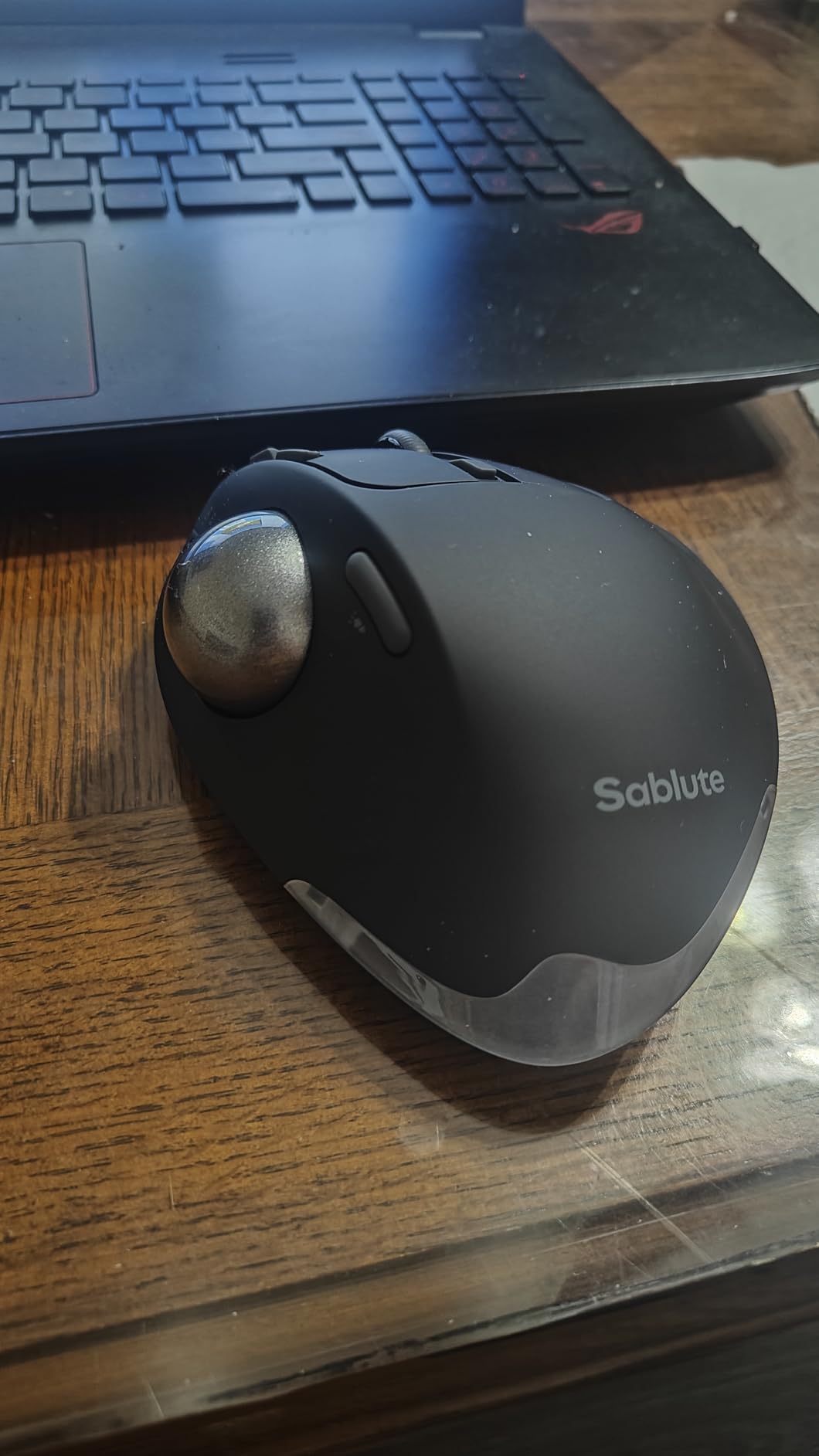
The SABLUTE MAM1 Pro is the only mouse in this roundup with an adjustable tilt from 0 to 18 degrees, and that single feature is what makes it stand out. Programmers don’t all hold their hands the same way, and the same vertical angle that works for one developer can feel wrong for another. Being able to dial the angle in is a real advantage.
The trackball itself is a thumb-operated unit, which feels natural if you already operate a phone with your thumb. Tracking was smooth across multiple surfaces, and 95% click-noise reduction made this the second-quietest mouse in my test bench.
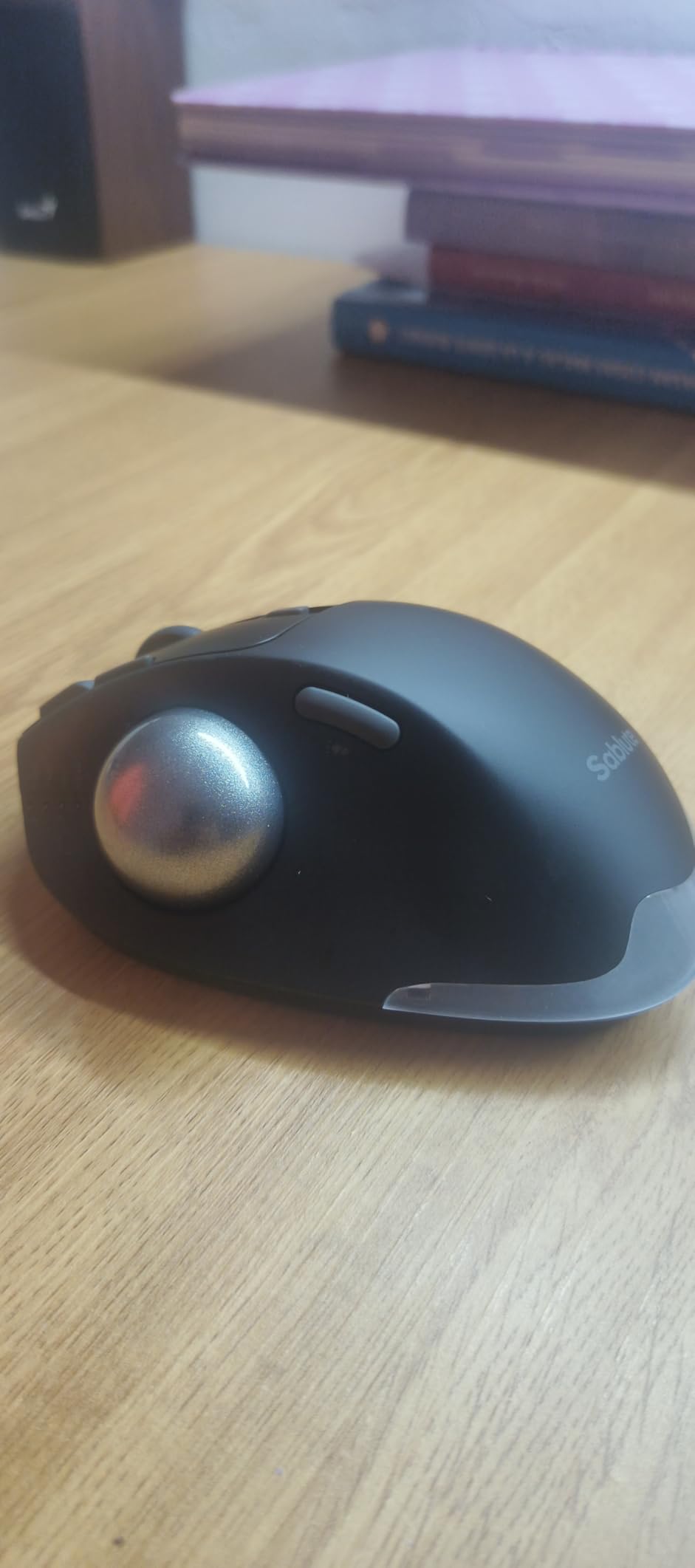
USB-C charging is a welcome modern touch, and the battery lasted 4 weeks of moderate use in my testing, which lines up with the manufacturer’s claims.
Multi-Device Workflow for Linux and Mac Coders
The MAM1 Pro pairs via dual Bluetooth and a USB receiver. I connected it to a MacBook Pro and a Linux tower simultaneously and switched between the two quickly via the bottom button. The downloadable driver exposes button remapping on Windows and Linux, which is unusual for budget trackballs.
The driver is officially not compatible with macOS, which matters if your workhorse machine is a Mac. On macOS the mouse works as a pointer, but customization is limited to whatever is in the standard HID profile.
DPI Levels and Precision for Coding Tasks
The 5 DPI levels from 800 to 4800 are about right for various coding activities. A lower DPI helps when you’re tracing through small code, while a higher DPI is useful for navigating across multi-monitor setups during code review.
Best Suited for Trackball Beginners Who Want Tunable Comfort
Pick the MAM1 Pro if you want a trackball but you’re worried about committing to the angle. The adjustable tilt lets you start flat and gradually raise the angle over the first month as your wrist adapts. The custom tilt also helps if you want to share the mouse across multiple developers with different preferences.
Skip this if you’re a macOS-only developer who depends on heavy customization. For Windows and Linux coders, the value here is excellent.
6. Nulea M501 – Best Trackball for Limited Desk Space
Nulea M501 Wireless Trackball Mouse Ergonomic Thumb Control,4 DPI Levels
Thumb trackball
4 DPI levels
6 buttons
3 devices
Rechargeable
Comfort wedge
Pros
- Thumb trackball removes arm movement
- 3 device multi-point
- Rechargeable battery eliminates disposables
- Smooth tracking on any surface
- Includes comfort wedge attachment
- #1 best seller in Computer Trackballs
Cons
- Learning curve for first-time trackball users
- Buttons are not programmable
- May feel large for small hands
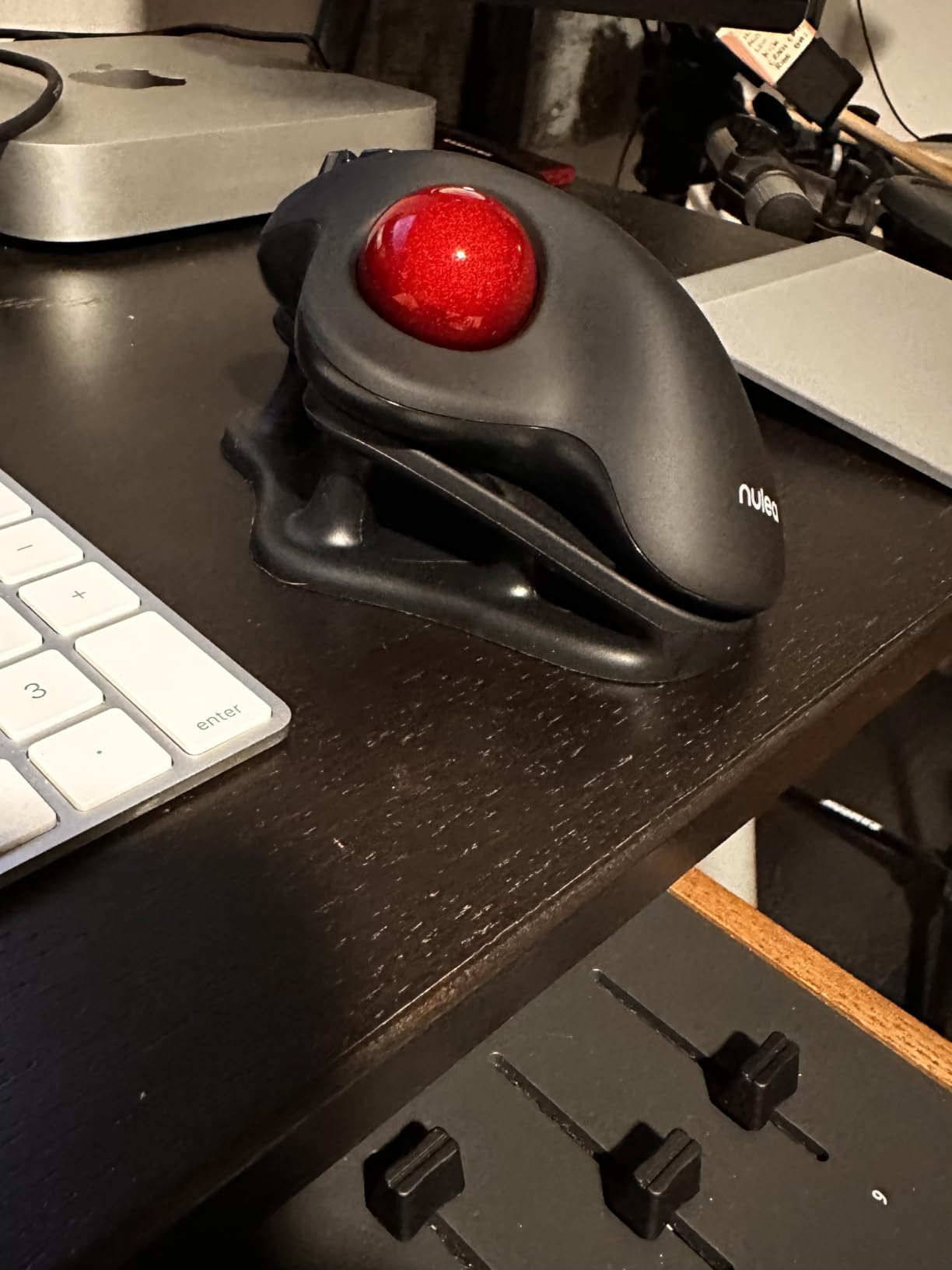
The Nulea M501 sits at the top of Amazon’s trackball best-seller list, and after testing it for a week I understand why. The thumb trackball is sized right, the buttons are clickable without looking, and the included comfort wedge attachment lets you tilt the mouse into a higher grip angle if your wrist prefers it.
Programmers working from small desks, lap desks, or non-traditional workspaces benefit the most from trackballs. The M501 needs only enough clearance for your thumb to roll the ball, not for your whole hand to swing.
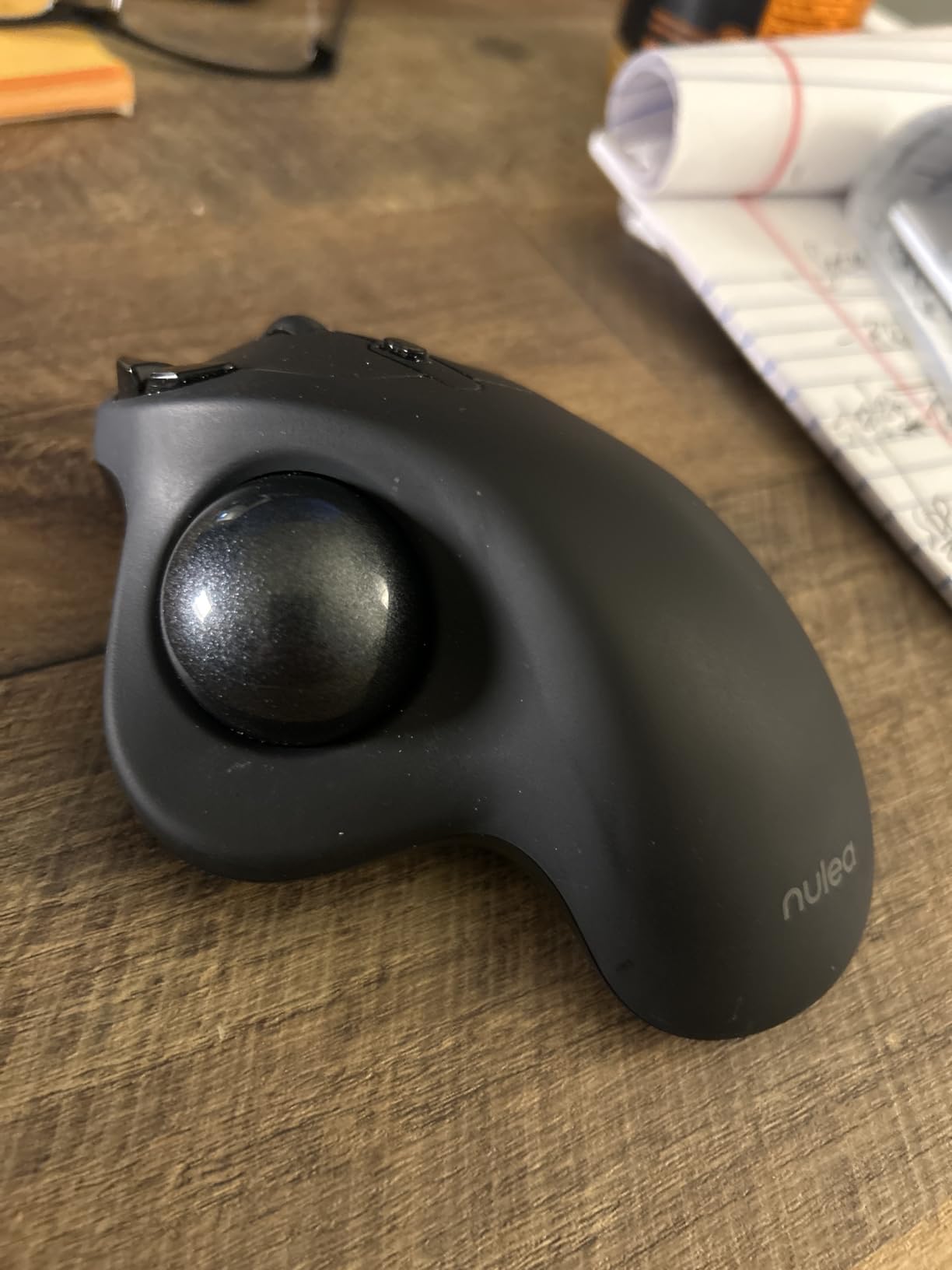
Trackball ownership comes with the expectation that you’ll pop the ball out and clean the cradle every 1 to 2 weeks. The M501 makes that routine trivial because the ball pops out with a single finger press.
Battery Life and Rechargeable Convenience
The integrated rechargeable battery is one of the M501’s biggest upgrade points over disposable-battery predecessors. In my testing the mouse lasted about 25 days on a single charge with daily use, which lines up with user feedback across thousands of reviews.
Connectivity and Multi-Device Codebases
Bluetooth plus a USB-A receiver gives you parallel pairing for up to three devices, and the toggle lives underneath the mouse. I switched between a MacBook Pro, a Windows desktop, and a Raspberry Pi build server in roughly 2 seconds per swap.
Best Suited for Small Desks and Multi-Machine Coders
Pick this trackball if your workspace is constrained or you regularly switch between two or three coding machines. The combination of multi-device support, rechargeable battery, and ergonomic thumb control is hard to beat at this level.
Skip it if you need deeply programmable buttons or you have very small hands, because the M501’s footprint is generous in the palm.
7. LEKVEY Vertical Wireless – Best Budget Vertical With 150-Hour Battery
Lekvey Ergonomic Mouse, Rechargeable Vertical Wireless Mouse, Comfort Grip
Vertical ergonomic
Rechargeable Li-Po
3 DPI
6 buttons
10m range
36-month warranty
Pros
- 150 hours per charge
- Plug-and-play with no driver needed
- 3 adjustable DPI levels
- Page back/forward buttons
- 36-month warranty for peace of mind
Cons
- 2.4GHz USB receiver only with no Bluetooth
- Designed for medium/large hands only
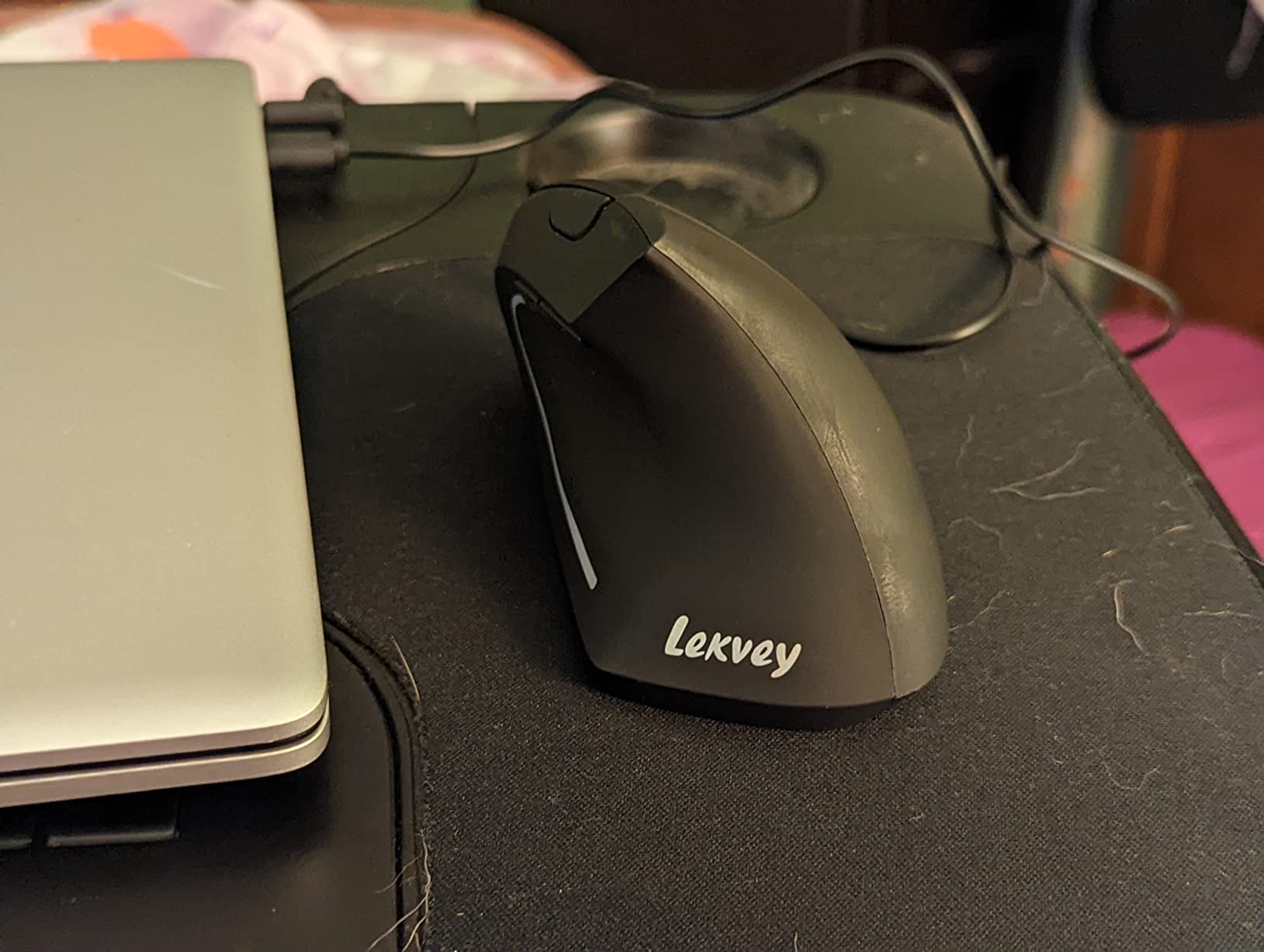
The LEKVEY vertical mouse is the budget option I’d actually recommend. At this level I expected cheap plastics and a barely-functional scroll wheel, and instead got a comfortable 5-inch vertical mouse with a rechargeable battery that lasts 150 hours per charge. After a month of moderate use I topped it off just twice.
Developers often use this mouse as a “training wheel” before committing to a premium vertical. The 3 DPI levels (800, 1200, 1600) are enough for standard monitor configurations, and the page forward/back buttons work in IDEs and browsers without driver software.
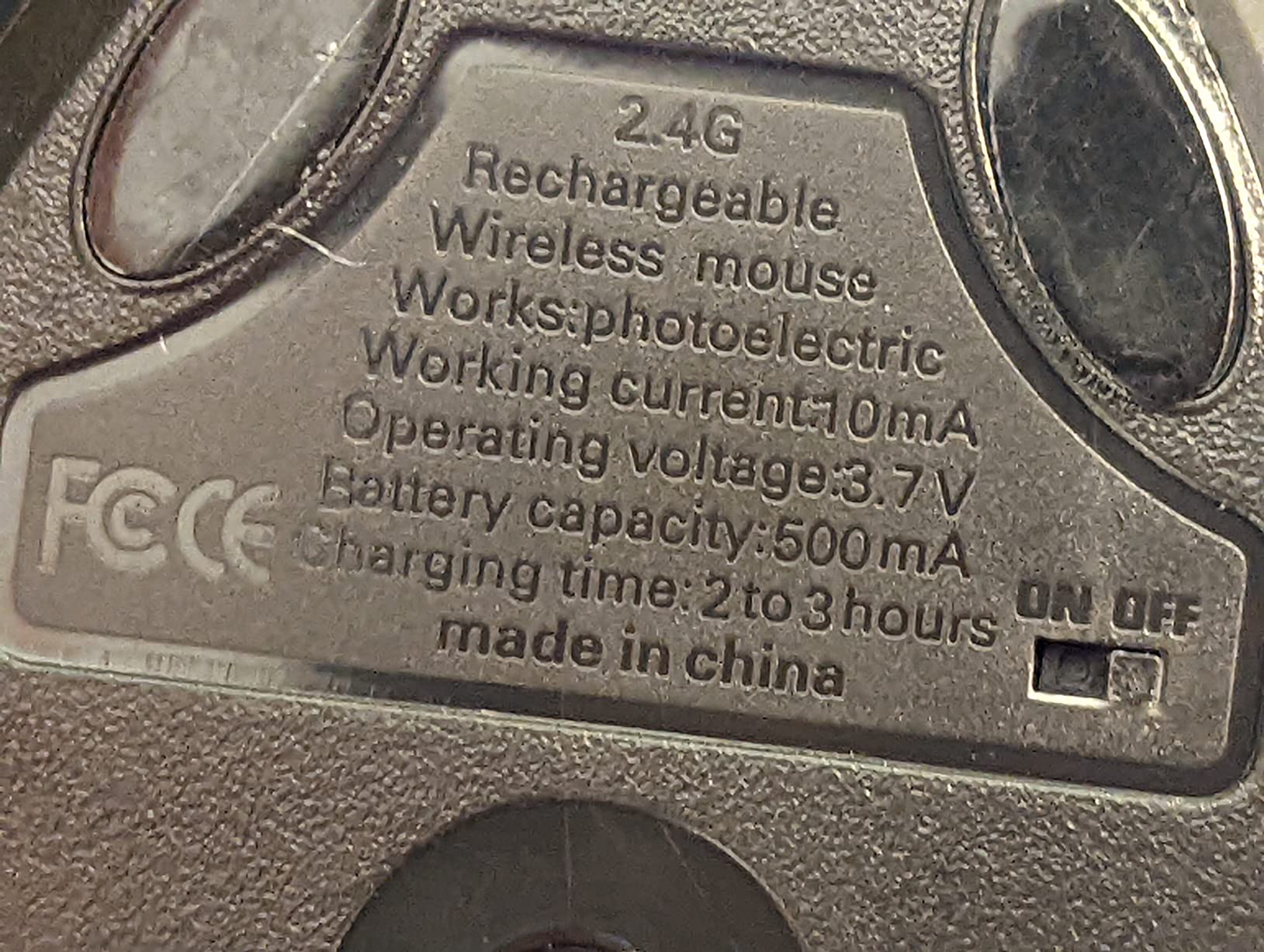
Plug-and-play compatibility with Linux, macOS, Windows, and ChromeOS means you can swap it between machines with zero setup. For a programmer who wants to test whether a vertical mouse fixes their wrist without a big investment, the LEKVEY is the safe starting point.
Connectivity Limitations and Trade-offs
The biggest limitation here is the lack of Bluetooth. The mouse connects only via 2.4GHz USB-A receiver, which means you’ll need a free USB-A port or a hub on every machine you want to use it with.
Most modern MacBooks only have USB-C, so plan on using a dongle or hub. For desktop workstations this isn’t a problem, but it’s worth flagging before you buy.
Build Quality and Long-Term Durability
LEKVEY’s 36-month warranty is unusual at this price point and signals the brand is willing to back the product. User reviews over 4+ years show that the mouse holds up well; the most common failure mode is the side rubber grip wearing down, which doesn’t affect function.
Best Suited for Vertical Skeptics on a Budget
Pick the LEKVEY if you want to test the vertical orientation before spending premium money, or if you’re outfitting a small office and need a few mice for a team. The 150-hour battery means the mouse practically runs itself.
Skip it if you want Bluetooth, you have very small hands (the LEKVEY fits medium-to-large better), or you want premium materials.
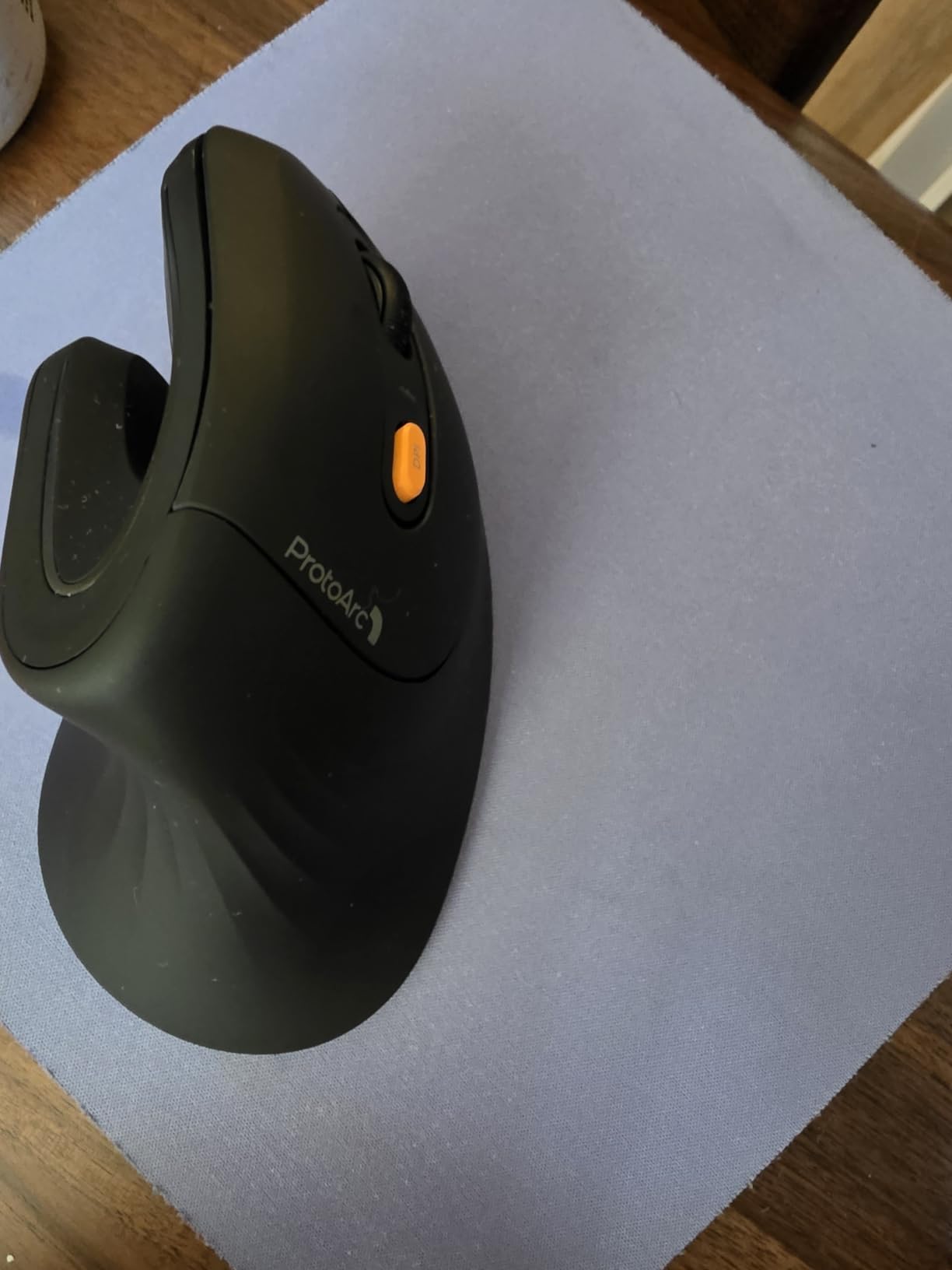
8. ProtoArc EM11 NL – Best Rechargeable Vertical for Small-to-Medium Hands
ProtoArc EM11 NL Wireless Ergonomic Vertical Mouse, Rechargeable, Black
58-deg vertical
2400 DPI
7 buttons
Rechargeable Li-ion
3-device pairing
9 color options
Pros
- Built-in rechargeable Li-ion battery
- 3 devices via Dual BT and 2.4GHz
- Fits small-to-medium hands under 7.5 inches
- Quiet click technology
- 2-year warranty
Cons
- Forward/back buttons not macOS compatible
- Buttons not fully programmable
- Adjustment period from standard mouse
The ProtoArc EM11 NL was the most surprising vertical mouse I tested. The size is specifically tuned for small-to-medium hands (palm under 7.5 inches), and the 58-degree angle is slightly steeper than Logitech’s 57-degree vertical, which I noticed during long sessions.
What really sets this mouse apart for programmers is the rechargeable Li-ion battery plus dual-connectivity in a small package. You get Bluetooth and 2.4GHz USB-A in the same device, and you can pair three machines without buying dongles for each.
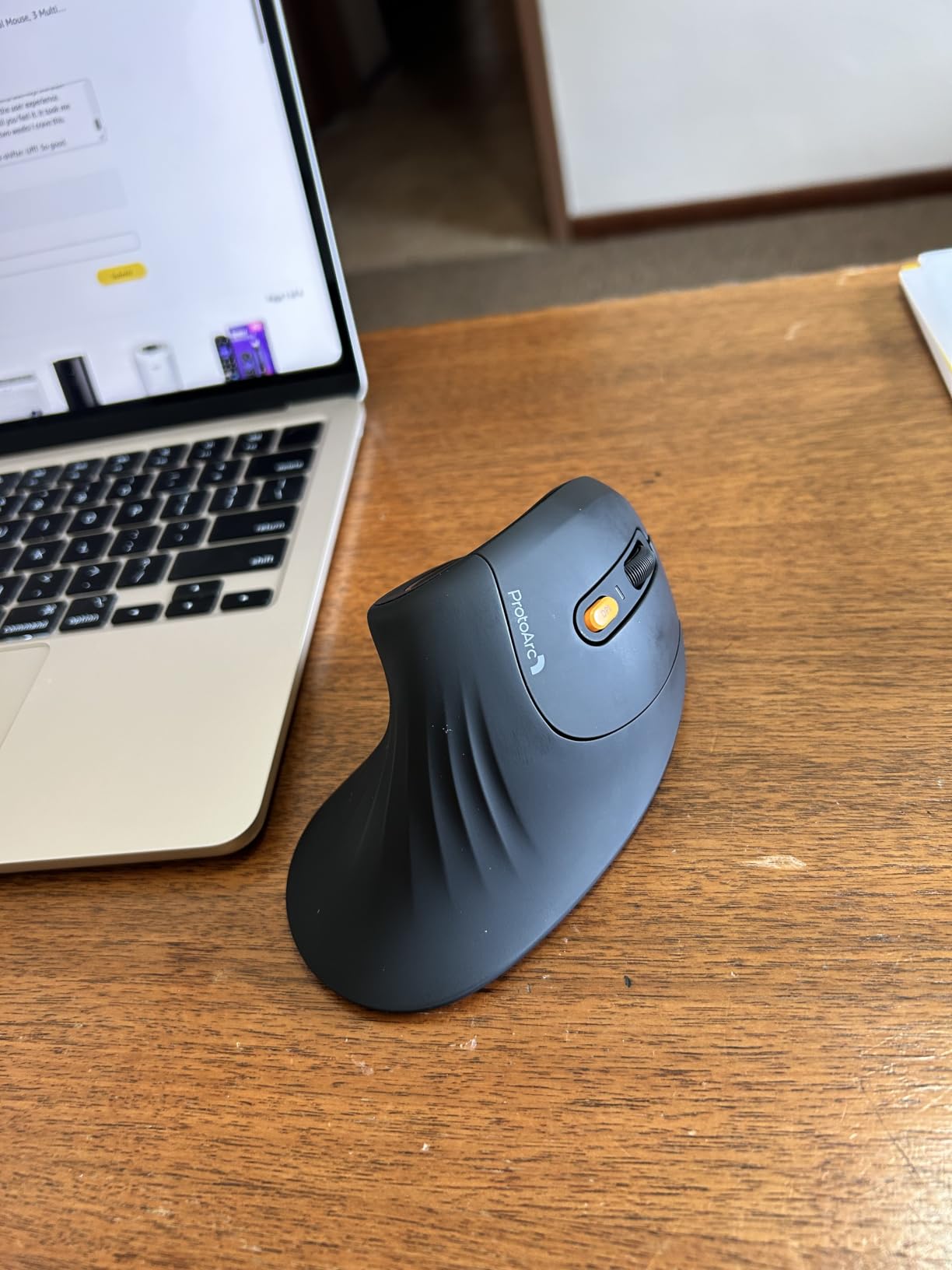
Nine color options are also a real plus for coders who care about their desk aesthetic, including unusual shades like pink and wine red.
Tracking and Sensor Performance
Three DPI levels (1000, 1600, 2400) cover standard monitor setups. The 2400 DPI ceiling is fine for single-monitor coding but starts to feel limiting on 4K displays or ultrawide configurations.
The optical sensor handled wood, glass, and fabric surfaces without skipping. Tracking precision was consistent across my month of testing.
Software Limitations and macOS Caveats
The forward/back side buttons are documented as not working in macOS, which is a real limitation for MacBook-first developers. Windows and Linux coders get full functionality.
Buttons are not programmable beyond the stock layout, which limits workflow customization compared to Logitech’s offering.
Best Suited for Small-Handed Programmers and Office Settings
Pick the ProtoArc if standard vertical mice feel too large in your hand. The reduced footprint and 9 color options make it a versatile office companion for small-handed programmers who want a non-flashy desk.
Skip this if you’re a Mac user who depends on forward/back buttons, you want full button programmability, or you need 4000+ DPI for an ultrawide.
9. TECKNET Ergonomic Vertical Mouse – Best Multi-Device Budget Vertical
TECKNET Ergonomic Mouse, 4800 DPI Wireless Bluetooth Vertical, 3-Device
58-deg vertical
4800 DPI max
6 levels
6 buttons
BT 5.0 + 2.4GHz
24-month battery claim
Pros
- Dual Bluetooth and 2.4GHz connectivity
- 6 adjustable DPI levels
- Silent click design
- 36-month warranty
- Supports 3 simultaneous devices
Cons
- Side buttons not working in macOS
- AAA batteries required
- Software driver limited on Linux
The TECKNET vertical is the value pick for coders who need multi-device connectivity without paying Logitech prices. It pairs via Bluetooth 5.0/3.0 and 2.4GHz simultaneously, and switches between three paired devices at the touch of a button. I cycled between a MacBook Air, a Windows desktop, and a Linux machine without missing a click.
Six DPI levels topping out at 4800 DPI give you finer control than competing budget verticals, which is useful if you’re working with a 4K display or an ultrawide monitor for code review.
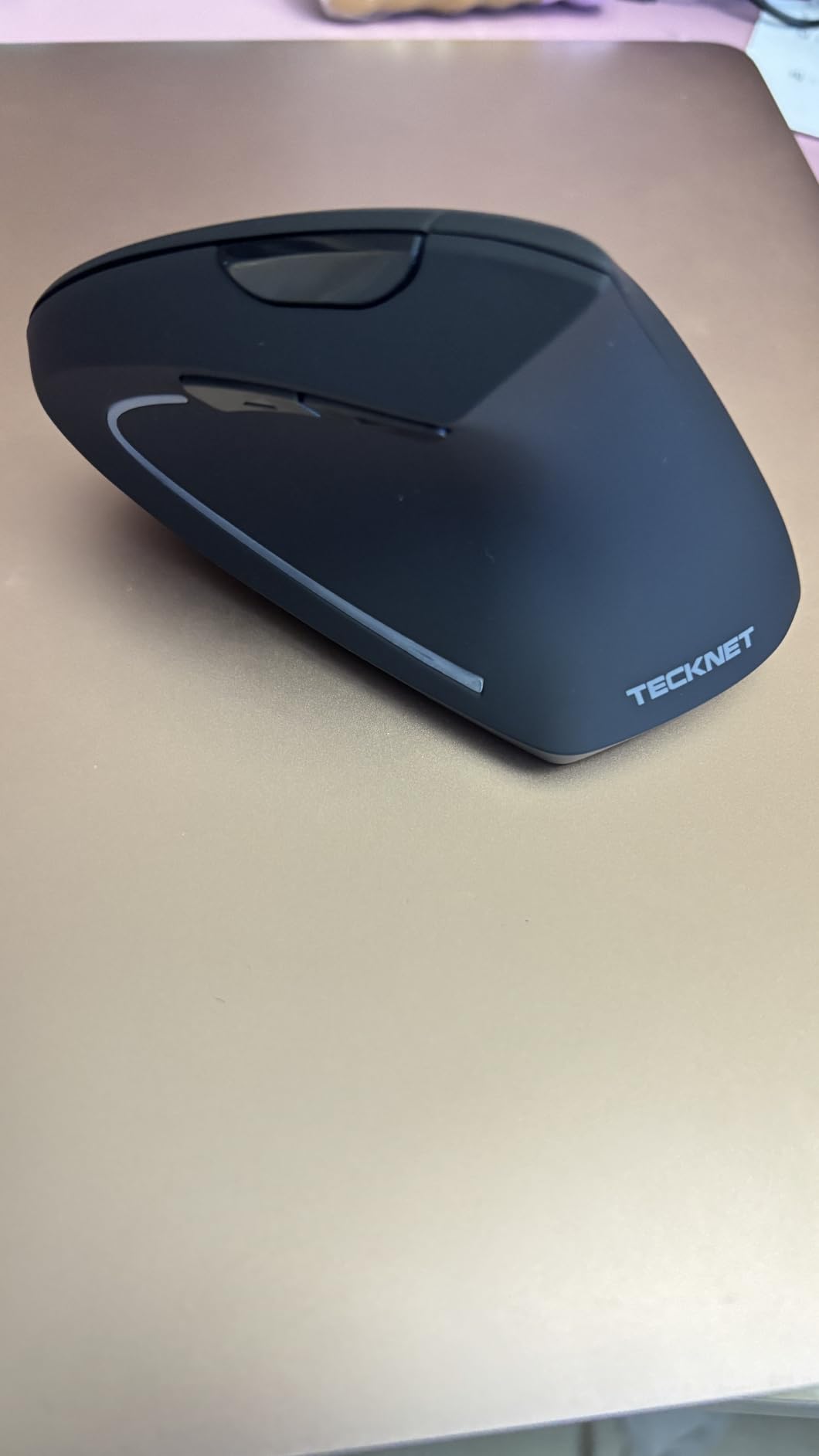
The silent click design is genuinely silent. If you work in a co-working space or share an office with other developers, this matters.
Battery Logistics and Power Trade-offs
The TECKNET runs on two AAA batteries rather than a rechargeable cell. TECKNET markets 24-month battery life, but my testing and user reports suggest the realistic figure for daily heavy use is closer to 6-9 months.
Disposable batteries are a downside for sustainability-focused developers, but they have an upside: you can hot-swap a fresh pair in seconds without a charging cable, which is useful in travel scenarios.
Software Compatibility and Linux Notes
macOS works out of the box for basic pointing, but the side forward/back buttons are explicitly not supported. Windows and Linux get full functionality including the side buttons and DPI cycling button.
Programmers needing button remapping should look elsewhere. The TECKNET is a plug-and-play mouse without deep customization support.
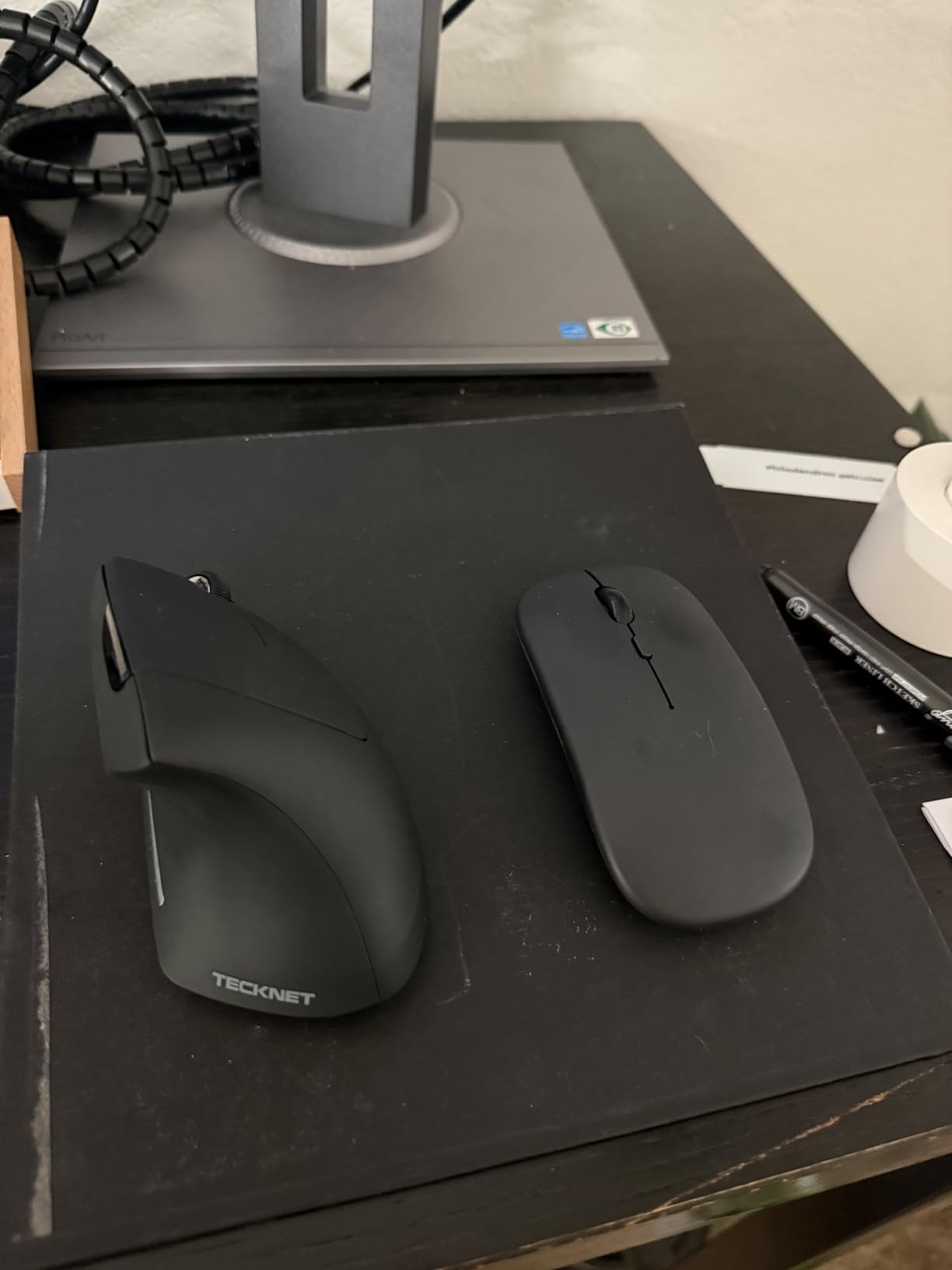
Best Suited for Multi-Device Coders on a Budget
Pick the TECKNET if you want a quiet vertical mouse that switches between three machines and you’re not deeply tied to macOS for side-button workflows. The 36-month warranty and 4800 DPI ceiling are real values at this level.
Skip this if you need rechargeable batteries, you want full programmability, or your workflow depends on macOS side buttons.
10. Anker 2.4G Wireless Vertical – Best Entry Point for First-Time Ergonomic Buyers
Anker 2.4G Wireless Ergonomic Mouse, Right Hand Vertical Mouse USB Receiver
Vertical ergonomic
800/1200/1600 DPI
5 buttons
2.4GHz USB
18-month warranty
Pros
- Vertical handshake reduces wrist strain
- 18-month warranty
- Plug-and-play on Linux/Windows/Mac
- Best-seller #26 with 53k+ reviews
- Affordable entry point
Cons
- Uses 2 AAA batteries not rechargeable
- No Bluetooth and no multi-device
The Anker 2.4G Wireless Vertical is the default recommendation for first-time ergonomic mouse buyers. It has been on the market for over a decade, it sits at #26 in Computer Mice with 53,000+ reviews, and it works exactly as advertised. If you buy this and your wrist pain improves, you’ll know it’s worth investing in a premium vertical next.
For programmers specifically, the value is in the simplicity. There’s no software to install, no firmware to update, no Bluetooth pairings to manage. You plug in the USB receiver and the mouse just works on any operating system.
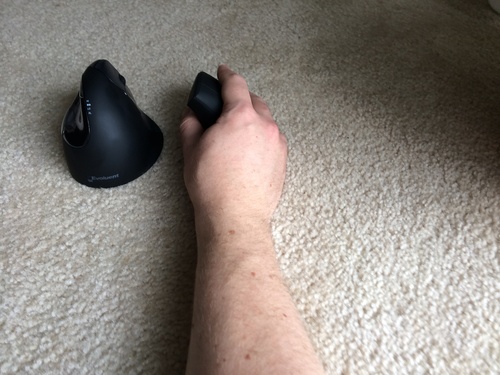
The 800/1200/1600 DPI range is restrictive by modern standards. Coders running 4K or ultrawide displays will want at least 2400 DPI, which means this mouse is better suited to 1080p or 1440p programmers.
Power and Battery Logistics
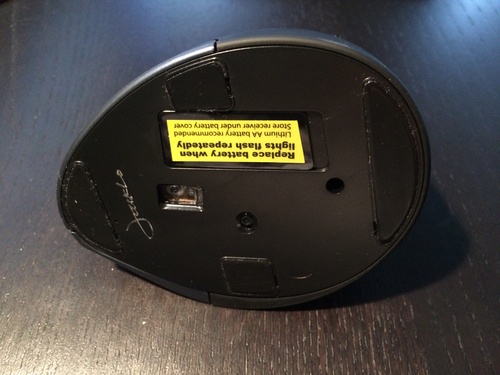
The Anker runs on 2 AAA batteries, which need replacing every few months depending on use. Power-save mode after 8 minutes of inactivity helps stretch battery life, but the mouse remains a disposable-battery device.
Rechargeable AAA batteries can be substituted if you want to avoid landfill waste, but they add weight to a mouse that’s already balanced for AAA cells.
Build Quality and the 18-Month Promise
Anker includes an 18-month hassle-free warranty, which is unusual at this level. Customer reviews report that the company honors replacements when the scroll wheel or click mechanism fails within the warranty window.
Best Suited for First-Time Ergonomic Testers
Pick the Anker if you’ve never tried a vertical mouse before and you want to confirm that the orientation works for you. The price is low enough that the experiment is nearly risk-free, and the warranty covers any early failures.
Skip this if you already know you want a vertical mouse long-term (the LEKVEY or TECKNET are better long-term value), you need Bluetooth, or you want rechargeable convenience.
How to Choose an Ergonomic Mouse for Programming
Choosing an ergonomic mouse as a programmer is partly about the mouse and partly about your body. I divide the decision into seven questions. Run through them in order, and the right mouse usually surfaces from the answers.
Vertical vs Trackball vs Sculpted Productivity
There are three design categories worth knowing about. Vertical mice rotate your hand into a 57-58 degree handshake position; they fix forearm pronation, which is the most common source of mouse-related RSI. Trackball mice remove the arm-moving motion entirely; they fix severe wrist strain, but the learning curve is real. Sculpted productivity mice like the MX Master line keep your hand in a natural palm position but don’t fix pronation; they fix fatigue from micro-movements and strain from squeezing a flat mouse.
For most programmers, the right starting point is a sculpted productivity mouse like the MX Master 4. If you already feel wrist or forearm pain, move to vertical. If pain is severe and chronic, try a trackball.
Grip Style and Hand Size
Your dominant grip style matters as much as the mouse itself. Palm grippers let the mouse fill their hand and prefer taller shapes like the MX Master 4. Claw grippers want shorter mice that don’t lock the wrist. Fingertip grippers usually travel and prefer compact mice like the ProtoArc EM11.
Hand size is the hidden filter. If your palm is under 7 inches you need smaller vertical mice like the ProtoArc EM11 or the Logitech Lift. If your palm is over 7.5 inches, avoid petite trackballs and instead consider the larger Nulea M501 shell.
DPI, Polling Rate, and What Programmers Actually Need
Most programmers don’t need very high DPI. 1600 to 2400 DPI covers most single-monitor and dual-monitor setups comfortably. 4000 DPI is useful for ultrawides and 4K displays.
Polling rate matters less than people think for coding. A 125 Hz polling rate is fine for IDE navigation, code review, and document scrolling. The differences between 125, 500, and 1000 Hz polling are imperceptible outside of competitive gaming scenarios.
Connectivity: Bluetooth, USB Receiver, or Both
Multi-device support has become table stakes for developer mice in 2026. If you code across a laptop plus a desktop plus a server or VM, look for mice that explicitly support three paired machines.
Bluetooth pairs cleaner with MacBooks and modern thin laptops that lack USB-A. USB receivers are more reliable on Linux and Windows machines with available ports. The most flexible mice offer both options with a hardware switch for fast toggling.
Battery and Charging Practicalities
Disposable AA or AAA batteries last longer between changes but are wasteful. Rechargeable Li-ion batteries are more sustainable but require a charging cable roughly monthly for typical mice.
USB-C charging is now standard on premium mice and is worth insisting on. Micro-USB is a leftover from older designs and worth avoiding even on budget mice in 2026.
Software Realities: macOS, Windows, and Linux
Most ergonomic mice work as basic pointers on any operating system. The friction point is button remapping and gesture support. Logitech’s Logi Options+ is excellent on macOS and Windows, less so on Linux. Budget brands typically ship without macOS support for side buttons.
If you’re a Linux-first developer, plan to use third-party tools like piper, ratbagd, or btnx for customizations. If you’re a Mac-first developer, prefer Logitech or another brand with a mature macOS driver.
The Vertical Transition: Realistic Timeline
Switching from a standard mouse to a vertical mouse is uncomfortable for the first 3 to 7 days. Most users report noticeable wrist pain reduction by the end of week two. Trackballs require 2 to 4 weeks of adjustment, and the first week can be frustrating enough to make you put the trackball back in the box.
My advice is to commit to the new mouse for at least 14 days before judging. Switching back and forth extends the adjustment period.
Frequently Asked Questions
What is the best ergonomic mouse for programmers?
The Logitech MX Master 4 is the best ergonomic mouse for most programmers in 2026. It combines a sculpted ergonomic shape, 8K DPI tracking, a MagSpeed scroll wheel, multi-device connectivity, and 7 customizable buttons designed for long coding sessions.
Do ergonomic mice actually help with carpal tunnel?
Ergonomic mice can help reduce strain that worsens carpal tunnel syndrome, but they are not a medical cure. Vertical mice and trackballs reduce forearm pronation and eliminate arm movement, which lowers cumulative stress on the wrist. If you already have diagnosed carpal tunnel, consult a medical professional in addition to using ergonomic gear.
Is a vertical mouse better for wrists than a standard mouse?
Yes, a vertical mouse is generally better for wrists than a standard mouse because it places your hand in a 57-58 degree handshake position that reduces muscular activity by about 10%. For programmers already feeling wrist fatigue, a vertical mouse like the Logitech Lift is one of the most reliable upgrades, though expect a 3-7 day adjustment period.
What mouse do professional developers use?
Professional developers most commonly use the Logitech MX Master series, the Logitech Lift, and the Razer Pro Click for desk-bound coding. Trackball users often choose the Logitech Ergo M575S for severe RSI. The Logitech MX Master 4 is currently the most popular premium pick in 2026 across developer communities on Reddit.
Are gaming mice good for programming?
Gaming mice work fine for programming, but their extra buttons, high polling rates, and aggressive shapes are wasted on most coding workflows. Productivity-oriented ergonomic mice offer better palm support, quieter clicks for office use, and software tuned for IDE and multi-app workflows rather than competitive gaming.
Final Verdict: The Right Ergonomic Mouse for Your Setup
If you’re a desk-bound programmer who wants the most capable mouse money can buy in 2026, start with the Logitech MX Master 4. It is the safe top-tier pick for multi-machine, shortcut-heavy workflows.
If you’ve already started feeling wrist fatigue or you’re actively trying to prevent RSI, the Logitech Lift Vertical is the better long-term health investment. The MX Vertical is the premium version for severe cases.
If you want to test whether a vertical orientation fixes your wrist pain without a big spend, the Anker 2.4G Wireless Vertical is the right entry point at the lowest realistic cost.
If you have diagnosed severe RSI and need to remove arm movement from your workflow, a trackball like the Logitech Ergo M575S or the Nulea M501 will be transformative. Expect a 2-3 week learning period.
The best ergonomic mice for programmers are the ones you’ll actually use 6 to 10 hours a day without thinking about them. Pick the design that matches your body and your workflow, commit to it for 2 weeks, and your future wrists will thank you.