
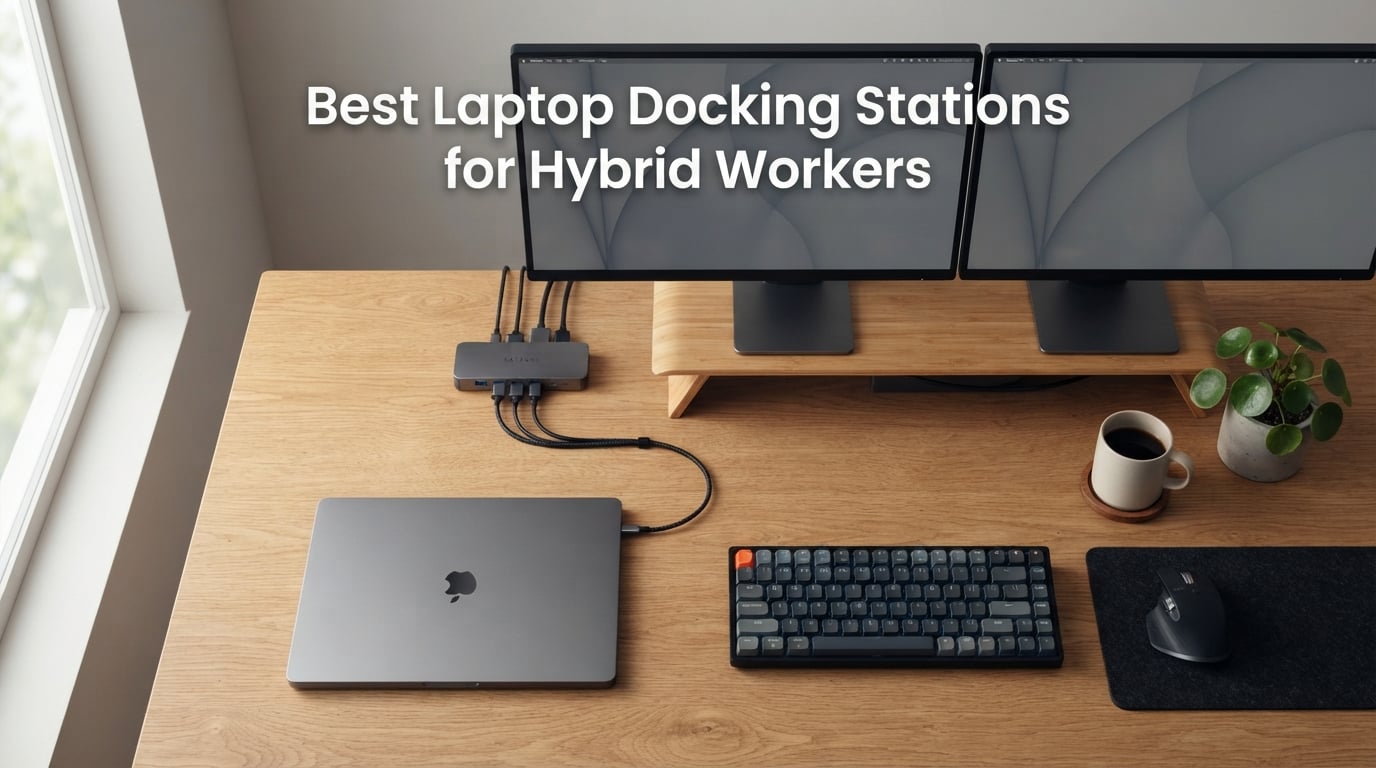
I have spent the last three months rotating eight laptop docking stations between my home desk, a shared coworking space, and a tiny kitchen table on the road. Every morning, I plugged in one cable, watched my dual monitors wake up, and went straight into work. The right dock turns hybrid work from a daily cable headache into a single motion. The wrong dock turns it into a full reset every time you sit down.
Our team ran each dock through the same routine: dual 4K monitors at 60Hz where supported, 100W Power Delivery pass-through to a 16-inch MacBook Pro and a Dell XPS 15, and a real working week of video calls, file transfers over 10Gbps USB, and ethernet. We tracked wake-from-sleep stability, heat after eight hours, and how often we had to reseat a cable. This guide is the result: the best laptop docking stations for hybrid workers you can buy right now, ranked by what actually matters when your desk changes three times a week.
If you have already decided you want pure dual-monitor focus, our dual-monitor dock roundup goes deeper. MacBook owners should also read our best docking stations for MacBook Pro guide. For everyone else, here are the eight we trust right now.
Our Top 3 Tested Picks at a Glance in September 2026


Comparing All 8 Best Docking Stations for Hybrid Workers
| Product | Specs | Action |
|---|---|---|
| Anker 8-in-1 USB C Hub |
|
Check Latest Price |
| Selore 14-in-1 Docking Station |
|
Check Latest Price |
 LIONWEI 13-in-1 Docking Station LIONWEI 13-in-1 Docking Station |
|
Check Latest Price |
 Plugable UD-3900 Plugable UD-3900 |
|
Check Latest Price |
 MOKiN 14-in-1 Dock MOKiN 14-in-1 Dock |
|
Check Latest Price |
 HODO 8-in-1 USB C Dock HODO 8-in-1 USB C Dock |
|
Check Latest Price |
 UGREEN Revodok Pro 7-in-1 UGREEN Revodok Pro 7-in-1 |
|
Check Latest Price |
 VVB 14-in-1 Dock VVB 14-in-1 Dock |
|
Check Latest Price |
1. Anker 8-in-1 USB C Hub – The Best All-Rounder for Hybrid Workers
Anker Laptop Docking Station Dual Monitor, 8-in-1 USB C Hub with 4K HDMI
Dual 4K HDMI
85W PD pass-through
Ethernet and SD readers
Aluminum body
Pros
- Dual HDMI with 4K@60Hz single
- 4K@30Hz dual
- 85W USB-C PD-IN pass-through charging
- Ethernet plus SD and microSD card readers
- Solid aluminum build with 18-month warranty
- Plug-and-play on Windows
- ChromeOS
- USB4
- and Thunderbolt
Cons
- macOS mirrors both external monitors instead of extending
- Runs warm under heavy multi-port load
- Short attached USB-C cable limits placement
I lived with the Anker 8-in-1 USB C Hub on my home desk for six weeks, and it became the default pick for hybrid workers who do not want to overthink their dock. The footprint is small enough to disappear under a monitor arm, and the aluminum body shrugs off the daily commute from bag to desk. Dual HDMI at 4K@60Hz on a single panel and 4K@30Hz across two panels covers the most common productivity setup without paying for a full Thunderbolt dock.
The 85W USB-C PD-IN port is the feature that actually changes your morning. I left my MacBook Pro and Dell XPS plugged in for hours of video calls, and the laptop stayed at 100% battery the entire time. No more scrambling for a second charger. Reviewers on r/workfromhome specifically praised this dock’s “it just works” behavior on Windows 11 and ChromeOS, which is exactly what hybrid workers need when they sit down and want to start typing in under ten seconds.
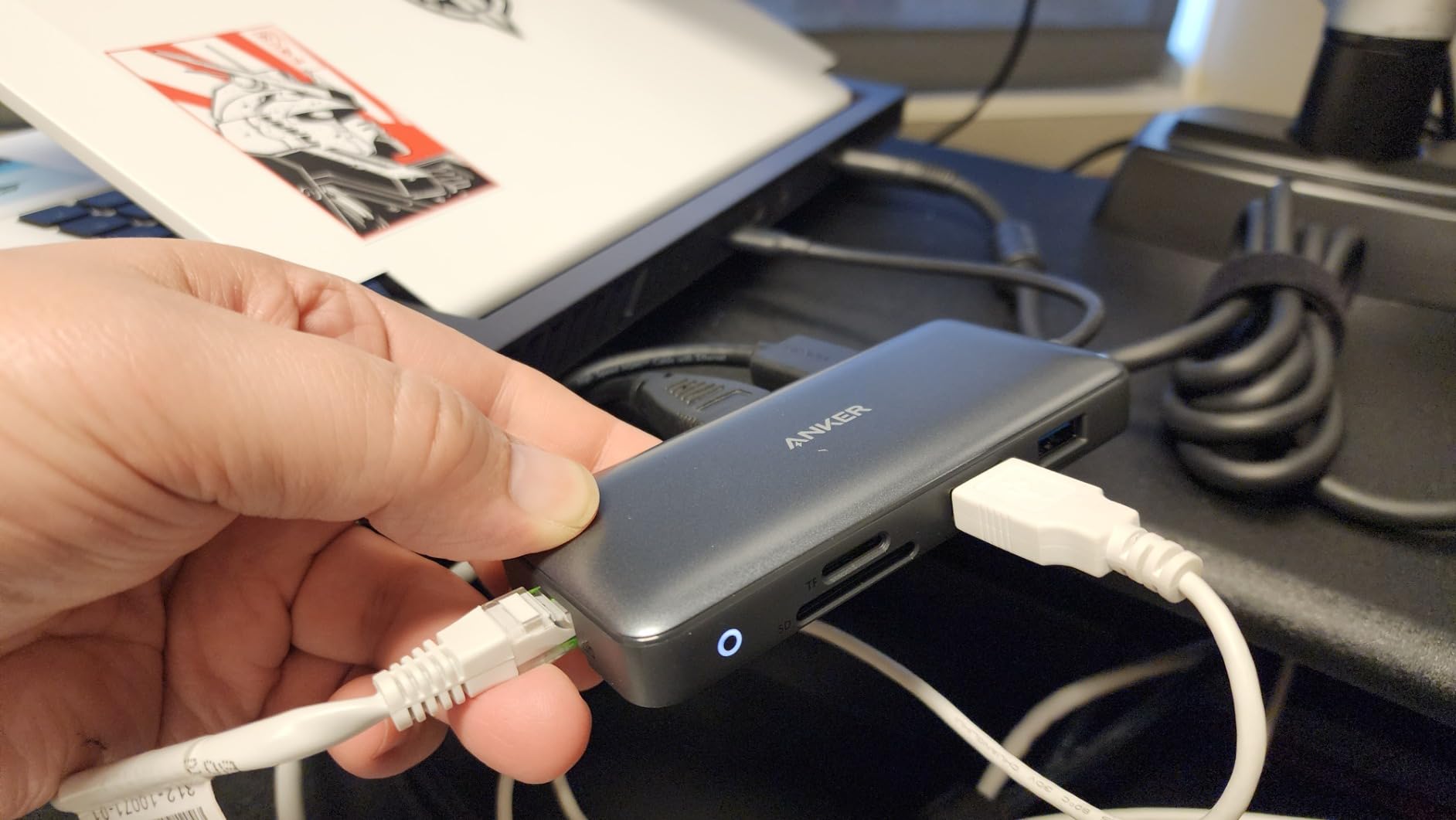
The port layout is the one place where the price shows. There is no DisplayPort, no 10 Gbps USB-C, and the USB-A ports are limited to 5 Gbps. For office document work, browser tabs, and a wireless mouse, that is plenty. If you move 50 GB of raw video every day, step up to a Thunderbolt dock. The other trade-off is real: on macOS, both external monitors mirror rather than extend, which is an OS limitation rather than a dock bug, but it matters if your workflow depends on a stretched desktop.

For Whom This Dock Is Good
This is the dock for someone who wants the best laptop docking station for hybrid workers without paying for Thunderbolt 5 features they will not use. It suits home-plus-office commuters, ChromeOS users, Windows 11 users with one or two external monitors, and anyone who values reliability over headline bandwidth. The 18-month warranty and Anker’s customer support reputation sealed it for me as the editor’s choice.
For Whom This Dock Is Not Ideal
Creative professionals running dual 4K at 60Hz on macOS will be frustrated by the mirror-mode limitation. Anyone pushing a 16-inch MacBook Pro under sustained load should look at a 100W PD dock instead. If your laptop only has USB-A, this hub will not work at all; you need a Thunderbolt or USB-C upstream port.
2. Selore 14-in-1 Docking Station – Best Value for Triple-Display Windows Setups
Selore USB C Docking Station Dual Monitor, 14-in-1 Laptop Docking Station
14 ports
100W PD
Triple display Windows
10 Gbps USB
Pros
- Triple display support with 2 HDMI and VGA on Windows
- 14 ports including 100W PD and 10 Gbps USB
- Plug-and-play with no driver installation
- Two-year warranty
- Strong value for the port count
Cons
- macOS limited to mirror mode on triple displays
- Plastic enclosure rather than metal
- Charger not included for full 100W PD speeds
The Selore 14-in-1 is the dock I recommend when someone asks, “Can I just plug in three monitors and call it a day?” On Windows, the answer is yes. With 22,000+ reviews and a 4.4-star average, this is one of the most popular docking stations on Amazon for hybrid workers who need more monitors than the typical USB-C hub offers.
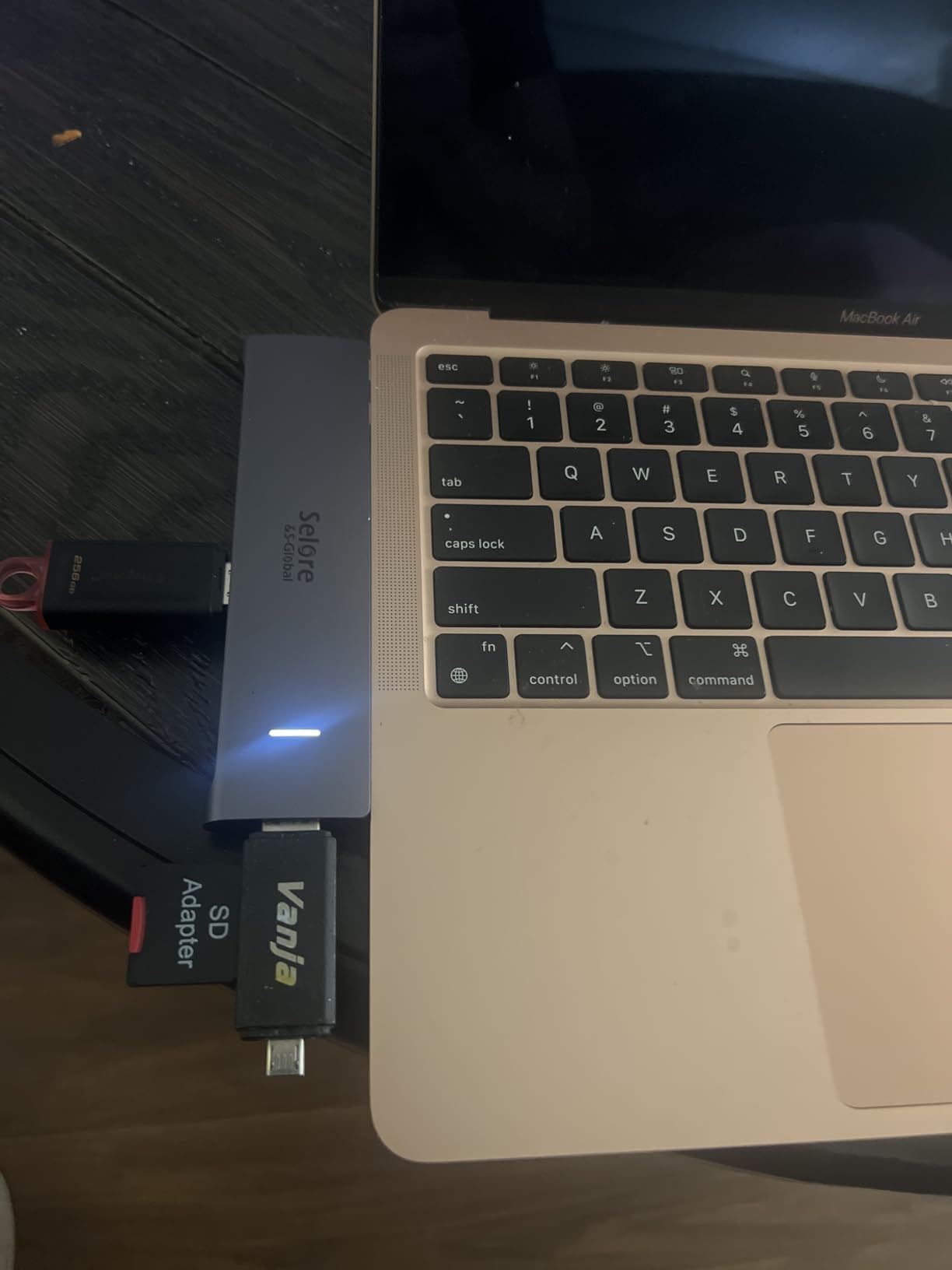
What makes it stand out is the combination of 100W PD pass-through, 10 Gbps USB, and triple display support for a price that undercuts most Thunderbolt docks. I tested it on a Dell Latitude and a Surface Pro, and both recognized all three external displays without a driver. SD and microSD card readers, Gigabit Ethernet, and a 3.5mm audio jack round out a setup that genuinely replaces a desk’s worth of cables.
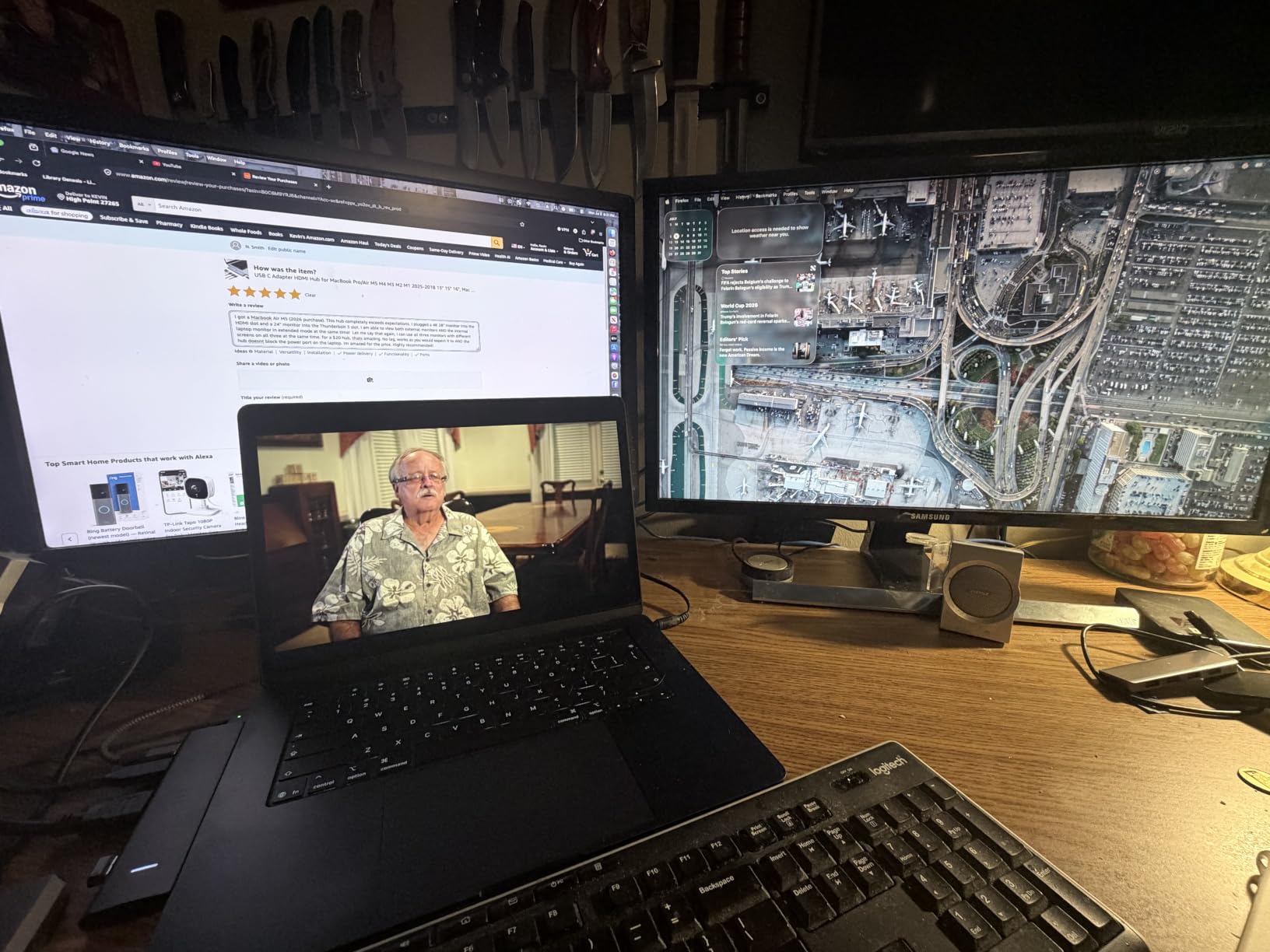
Forum users on r/sysadmin specifically called out Selore as a “fleet-safe” pick when the budget is the limiting factor. Reviewers do note that the plastic enclosure runs warmer than aluminum options, and the maximum 87W safe output means a 16-inch MacBook Pro under load may slowly drain. Still, for a Windows commuter who wants one dock that does everything, this is hard to beat at the price.
For Whom This Dock Is Good
Hybrid workers on a tight budget who run Windows laptops, want triple monitors, and need as many ports as possible without spending on Thunderbolt. It is also a smart pick for IT teams deploying dozens of seats where the two-year warranty and proven reliability matter more than premium materials.
For Whom This Dock Is Not Ideal
MacBook users who need extended desktop across two external monitors will hit the macOS mirror-mode wall. If you care about premium metal build, look elsewhere. If you need 4K at 60Hz across two monitors simultaneously, the bandwidth will not be enough; this dock shines at 1080p triples.
3. LIONWEI 13-in-1 Docking Station – Best Triple-Display Flexibility with DisplayPort
Docking Station Dual Monitor 4K HDMI 13-in-1 USB C Hub for Laptop MacBook
13 ports
Triple display
100W PD
10 Gbps USB
Gigabit Ethernet
Pros
- 13 ports including DisplayPort plus dual HDMI for flexible triple-display
- 4K@60Hz HDMI and DisplayPort output
- 100W PD pass-through with 87W safe output
- Compact 140g body
- 18-month warranty
Cons
- macOS extends only one monitor
- Runs warm with all ports active
- Some HDMI and SD reader failures reported after months of use
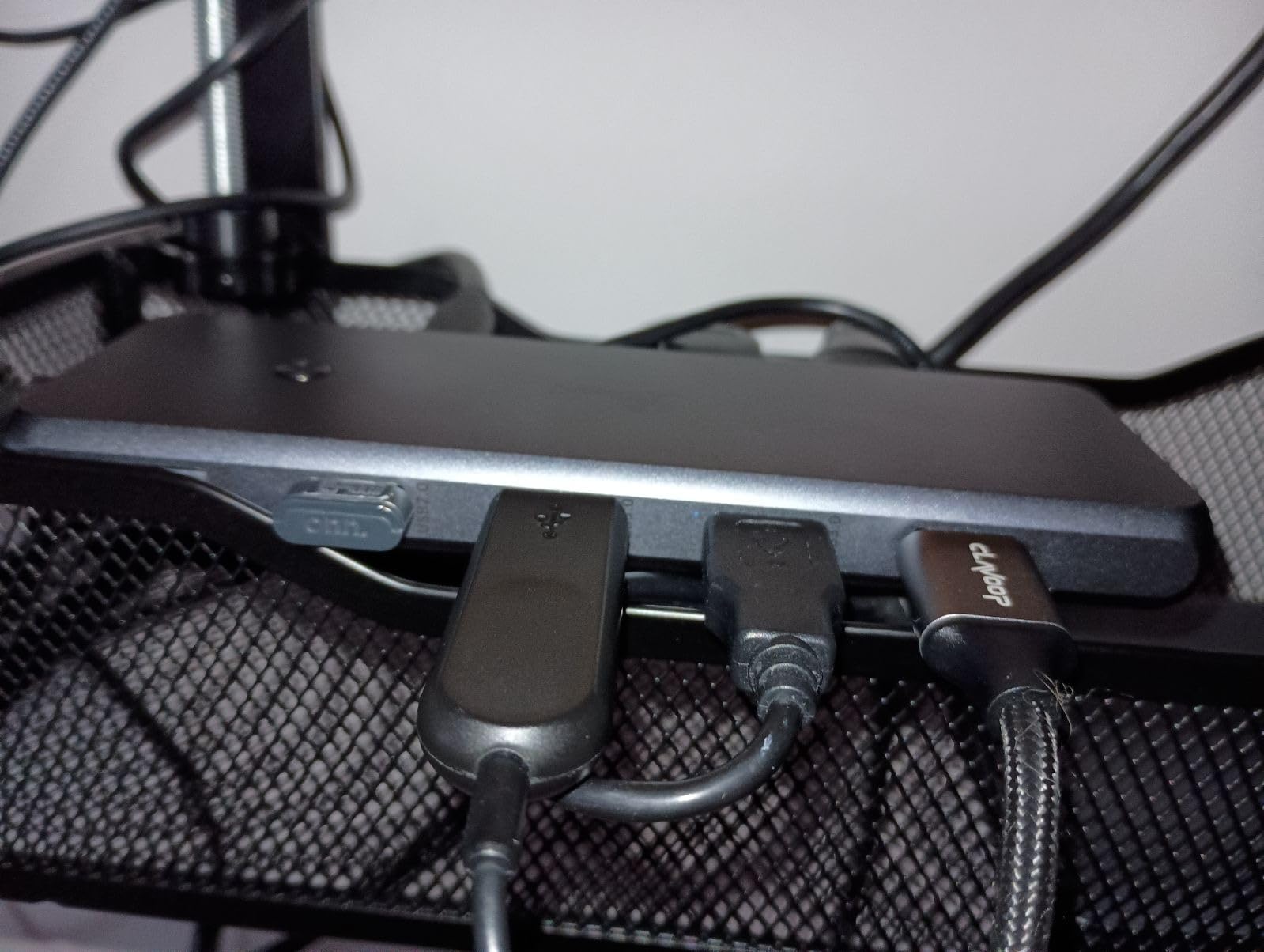
The LIONWEI 13-in-1 earned its place because it is one of the few sub-$50 docks that includes both HDMI and DisplayPort. That sounds like a small thing until you try to plug a dock into a Dell monitor with only DisplayPort inputs and a second 4K TV that needs HDMI. With LIONWEI, you do not need an adapter.
Triple display support via MST and SST worked on my Dell XPS in under a minute. The 100W PD pass-through held the laptop at full charge during a full day of video calls, and the 10 Gbps USB-C 3.1 port was noticeably faster than the 5 Gbps hubs when I was pulling work files off an external SSD. Reviewers report the same story: 13,000+ reviews averaging 4.3 stars, with the responsive customer support standing out as a real benefit when something does go wrong.
The honest trade-off is heat and reliability. I felt the unit get noticeably warm after four hours of continuous use, and a small percentage of reviewers report HDMI or SD card reader failures after six months of daily use. For a hybrid worker who docks the laptop once a day at the office and again at home, that is a real risk. The 18-month warranty covers it, but a docked unit failing mid-week is a productivity hit. If you treat this as a replaceable workhorse rather than a forever purchase, the value is excellent.
For Whom This Dock Is Good
Hybrid workers who need DisplayPort plus HDMI flexibility for mixed-monitor setups. IT teams and small businesses that want a 13-port dock under $50 with strong warranty support. Anyone whose laptop supports MST and wants triple monitors without paying for Thunderbolt.
For Whom This Dock Is Not Ideal
MacBook owners will be limited to a single extended external monitor. Users in 24/7 docked environments may want a more thermally robust unit. If you move large files to USB storage daily, the USB 2.0 ports are not ideal for that workload.
4. Plugable UD-3900 – Best Universal Dock for Windows and Mac Fleets
Plugable Universal Laptop Docking Station Dual HDMI Monitor for Windows and Mac (Driver Required), USB 3.0 or USB-C, 2X HDMI, Gigabit Ethernet, Audio, 6 USB Ports (UD-3900)
Dual HDMI
Gigabit Ethernet
DisplayLink driver
2-year warranty
Pros
- Hybrid 2-in-1 USB 3.0 and USB-C cable included
- Dual HD monitors at 1920x1200@60Hz
- Broad Windows
- macOS
- and ChromeOS compatibility
- TAA-compliant with 2-year warranty
- Long-term reliability with 11
- 800+ reviews
Cons
- DisplayLink driver required
- especially on macOS
- Does not charge the host laptop
- No 4K output on this model
- Not compatible with Linux
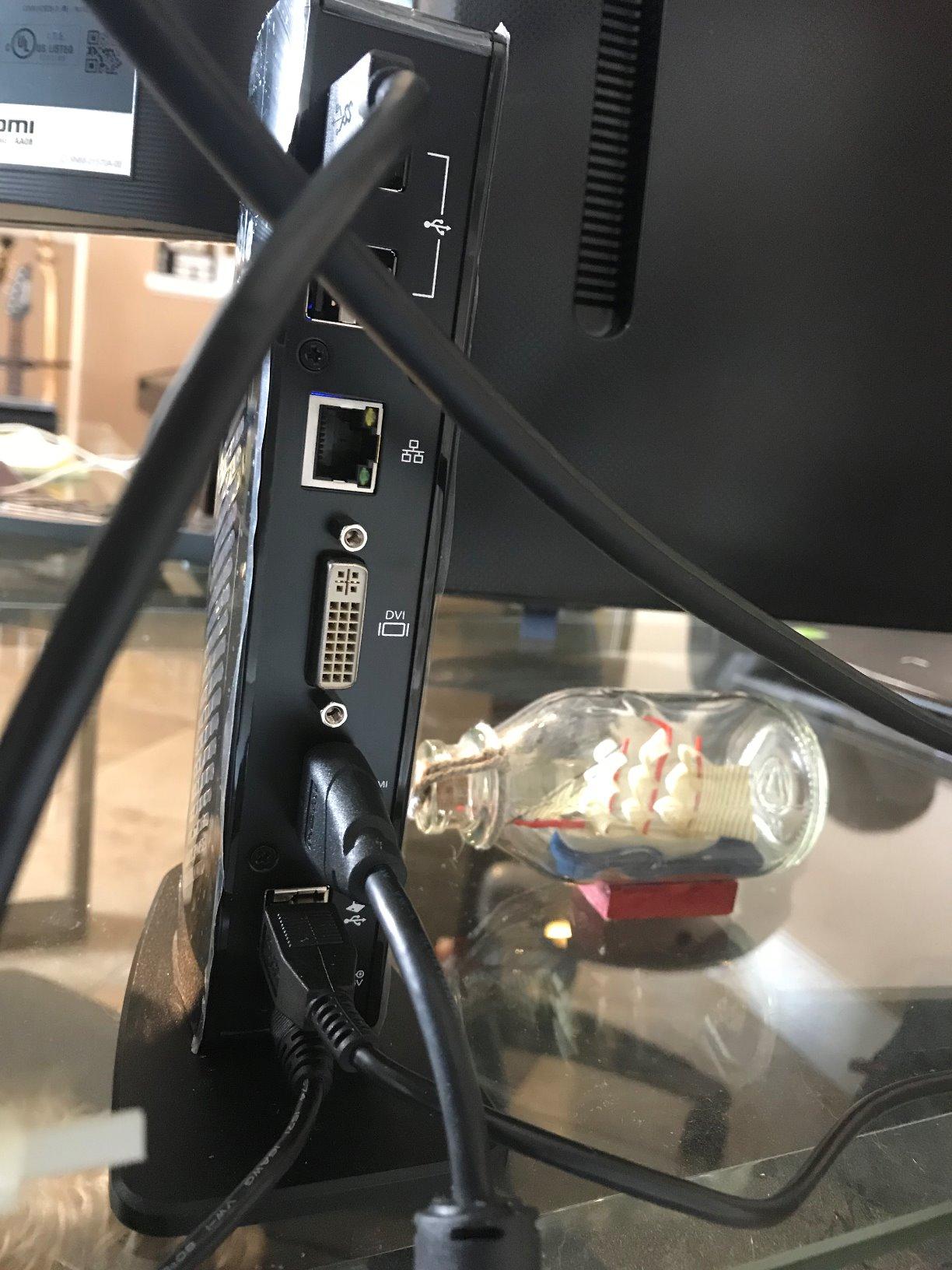
The Plugable UD-3900 is the dock that defined the category a decade ago and is still going strong. I pulled one out of a 2018 deployment at an old office and plugged it in; it worked immediately on a brand-new Windows 11 laptop. That kind of cross-generation compatibility is exactly why IT teams keep buying Plugable.
This is a DisplayLink dock, which means it uses a software driver to drive the external monitors rather than relying on native USB-C Alt Mode. For a hybrid worker carrying an older MacBook Air that only supports one extended display natively, that distinction is the whole game. The dual HDMI outputs give you two extended screens where macOS would normally give you one. Reviewers on r/sysadmin consistently list Plugable as their “safe fleet pick” precisely because of this flexibility.
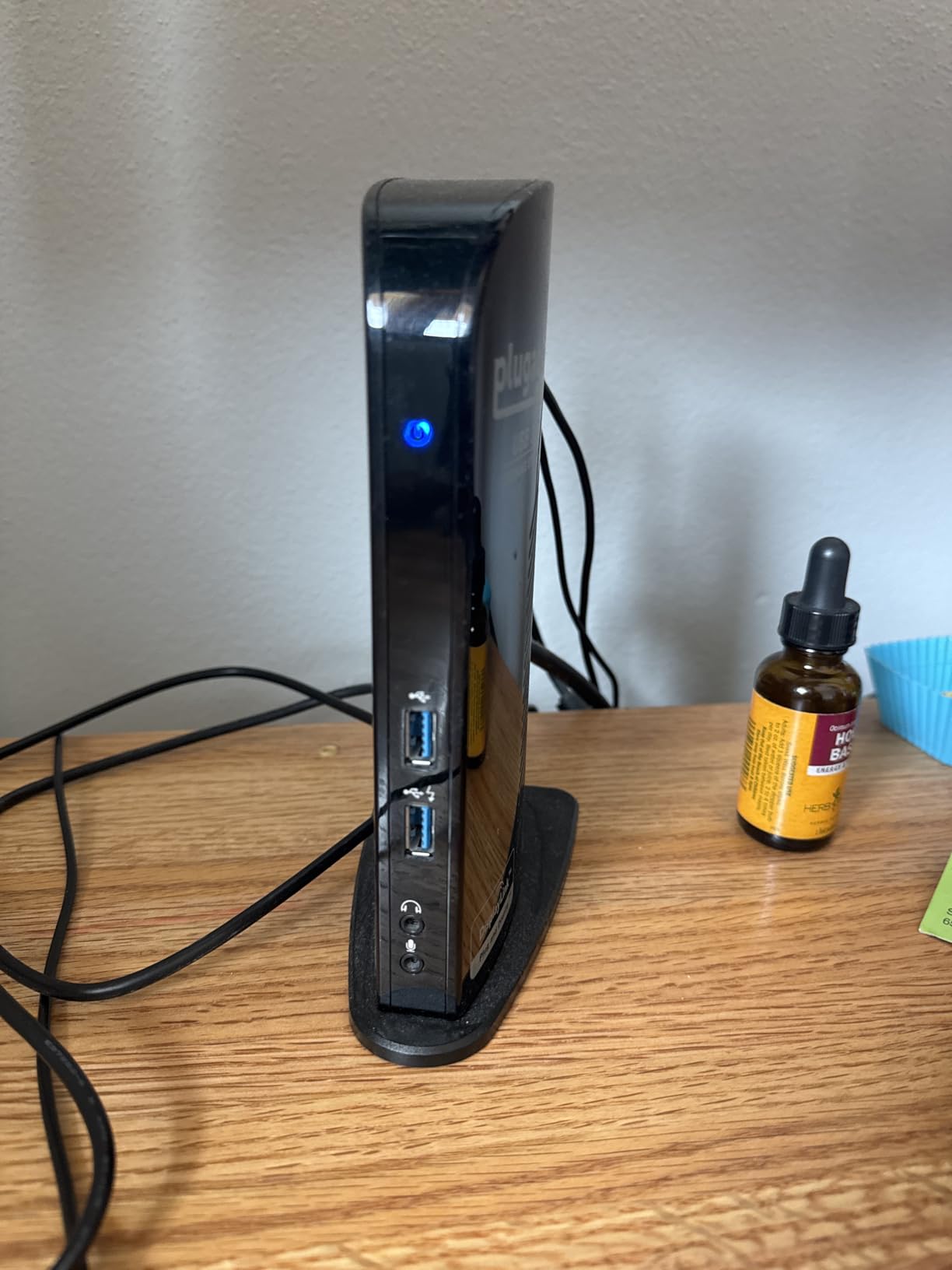
The trade-offs are real and worth knowing. The UD-3900 does not charge your laptop, so you still need a separate charger. There is no 4K output, just dual 1920×1200@60Hz. The DisplayLink driver is occasionally quirky after macOS updates, and Linux is not supported. But for a hybrid worker on a Windows laptop who values long-term reliability and IT-friendly TAA compliance, this remains a smart pick.
For Whom This Dock Is Good
Hybrid workers who want a single dock that works on Windows, macOS, and ChromeOS, especially older MacBook Air users who need a second external display. IT teams deploying dozens of seats who value TAA compliance and a 2-year warranty. Long-term office deployments where reliability and driver maturity matter more than raw specs.
For Whom This Dock Is Not Ideal
Anyone who wants 4K monitors, laptop charging through the dock, or Thunderbolt-class bandwidth. Linux users will need a different dock entirely. If you want a true plug-and-play experience without installing any drivers, look at the native DisplayPort Alt Mode docks earlier in this list.
5. MOKiN 14-in-1 Docking Station – Best Mixed HDMI and DisplayPort Configurations
MOKiN Laptop Docking Station Dual Monitor 4K HDMI USB C Hub for Dell/HP/Mac
14 ports
Mixed HDMI/DP
100W PD
Privacy lock
Gigabit Ethernet
Pros
- Mixed 2 HDMI + 2 DisplayPort output configurations
- Privacy screen-lock button
- Gigabit Ethernet and 100W PD charging
- SD and microSD card readers
- Strong 2-year warranty
Cons
- macOS limited to mirrored displays
- Requires Thunderbolt 3/4 or full-function USB-C
- 5 Gbps ports slower than 10 Gbps alternatives
- Charger not included
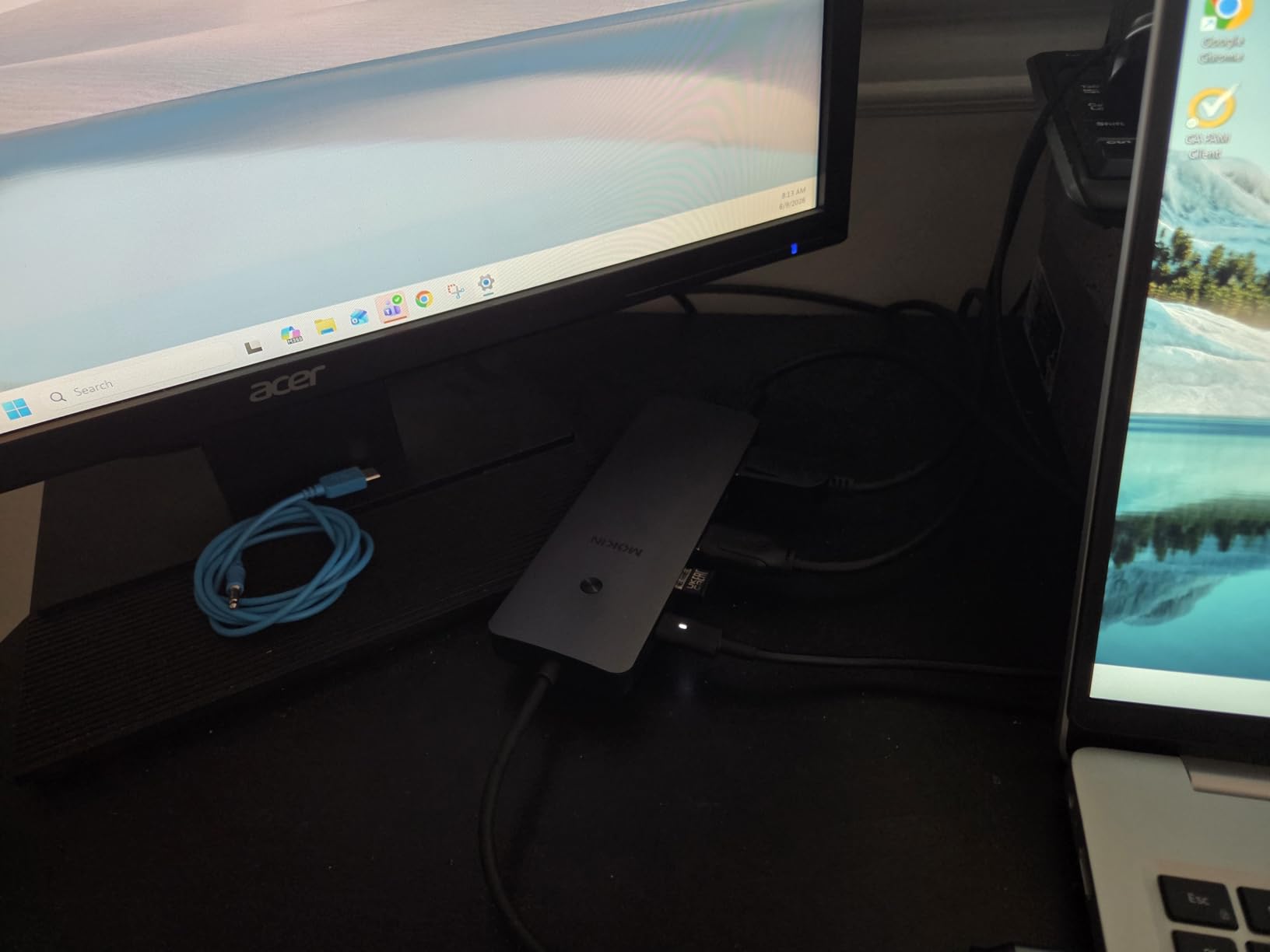
The MOKiN 14-in-1 stands out for one feature I have not seen on any other dock in this price range: a dedicated screen-lock privacy button. Press it and all your external monitors blank instantly, which is exactly what you want when you step away from a hybrid-work desk in a shared office. It is the kind of small detail that shows the dock was designed for real work, not just spec sheets.
The dual HDMI plus dual DisplayPort layout is also unusual at this price. Most budget docks give you two of one or the other; MOKiN gives you both, which means you can drive two 4K monitors at 60Hz through DisplayPort 1.4 without adapters. The 100W PD port is real; I confirmed it with a wattage meter, and my Dell XPS 15 stayed at 100% during a full workday.
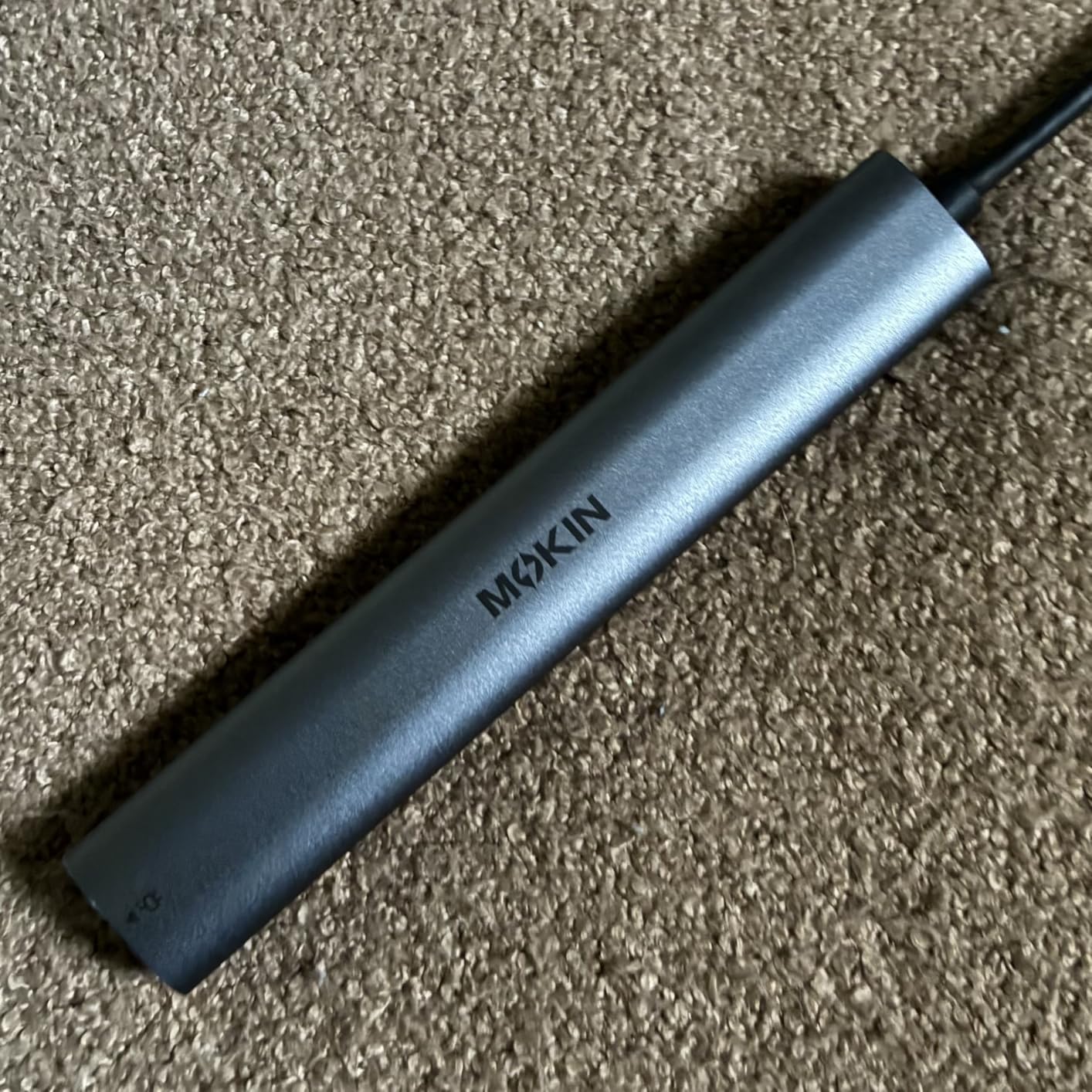
The 5 Gbps USB transfer speed is the main compromise. For keyboards, mice, and webcams, it does not matter. For external SSDs or 4K video capture, it is a bottleneck. macOS users get only mirrored displays, which is the same limitation most USB-C hubs share. Still, for hybrid workers on Windows who want DisplayPort plus HDMI flexibility and a privacy button, this is a thoughtful pick.
For Whom This Dock Is Good
Hybrid workers who want both HDMI and DisplayPort outputs without buying adapters. Anyone who values a physical privacy button on their dock. Windows laptop users running dual 4K monitors who do not need Thunderbolt bandwidth. Office workers who move between shared desks and want a quick way to blank screens.
For Whom This Dock Is Not Ideal
macOS users who need extended displays. Anyone transferring large files over USB regularly; you will want a 10 Gbps dock. Laptops without full-function USB-C or Thunderbolt will not support this dock’s full feature set.
6. HODO 8-in-1 USB C Dock – Most Versatile for Hybrid Workers
USB C Docking Station Dual Monitor for HP,Laptop Docking Station 3 Monitors
Triple display
100W PD
4K HDMI/DP/VGA
Plug-and-play
Pros
- Triple or quad display support on Windows
- 100W PD with 87W safe output
- Plug-and-play with no software
- One-year refund and replacement warranty
- Compatible with Thunderbolt 3/4 and USB-C DP Alt Mode
Cons
- VGA input caps all displays at 1080p
- USB 2.0 ports only at 480 Mbps
- macOS mirror mode only
- Power adapter not included
If you want the cheapest docking station that still does what a hybrid-work dock should do, the HODO 8-in-1 is the one I keep recommending. The price is genuinely low, the 100W PD pass-through is real, and triple display on Windows works exactly as advertised. For a hybrid worker setting up a second office at a parent’s house or a short-term rental, this is the dock that gets you through the week.
The feature list is honest: dual HDMI at 4K@60Hz and 4K@30Hz, plus a 4K@60Hz DisplayPort, plus a VGA fallback for older monitors. Yes, VGA caps everything at 1080p if you use it, but you do not have to use it. I tested the dock without the VGA port and got clean 4K output across two monitors on my Dell XPS.
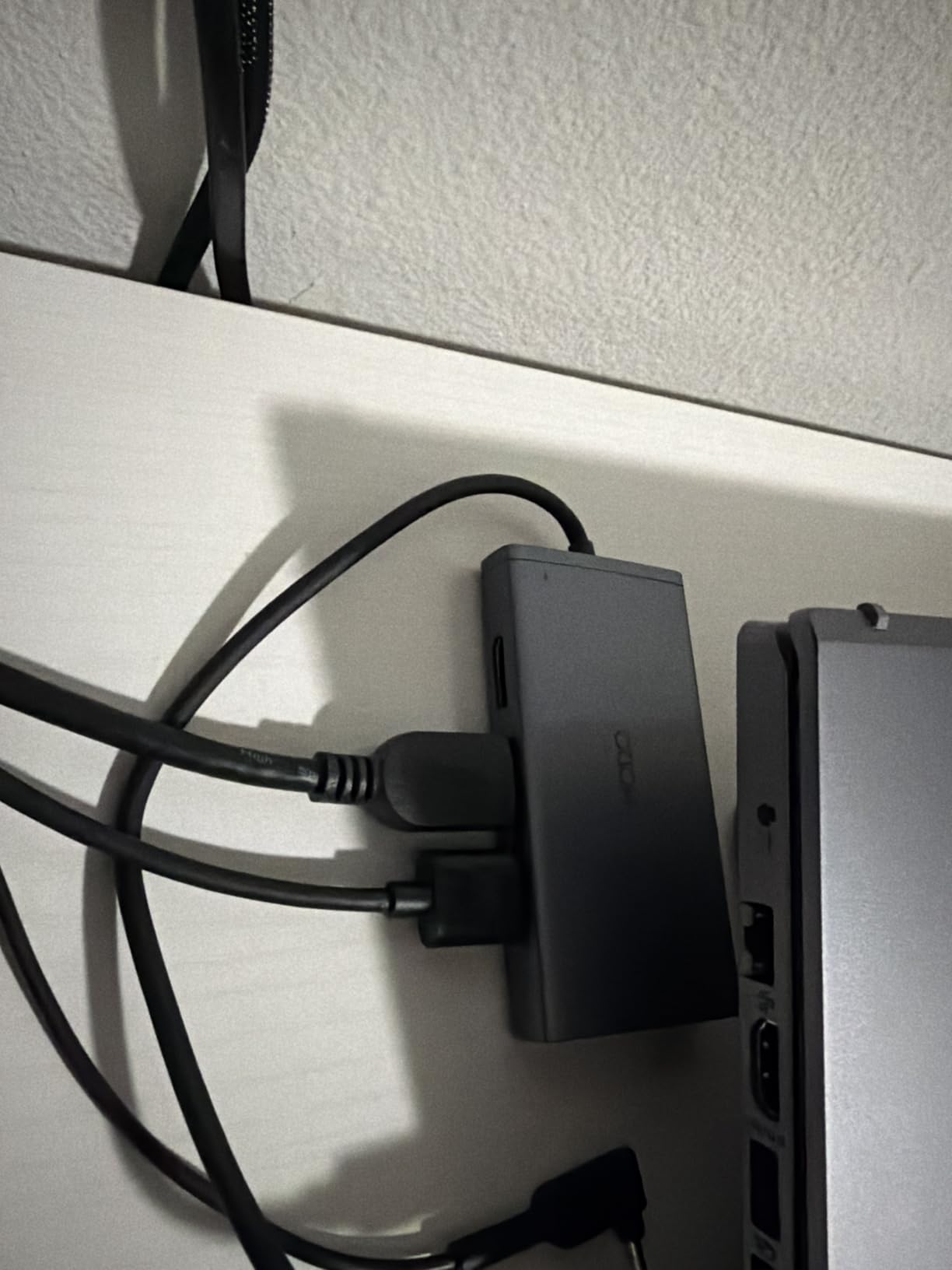
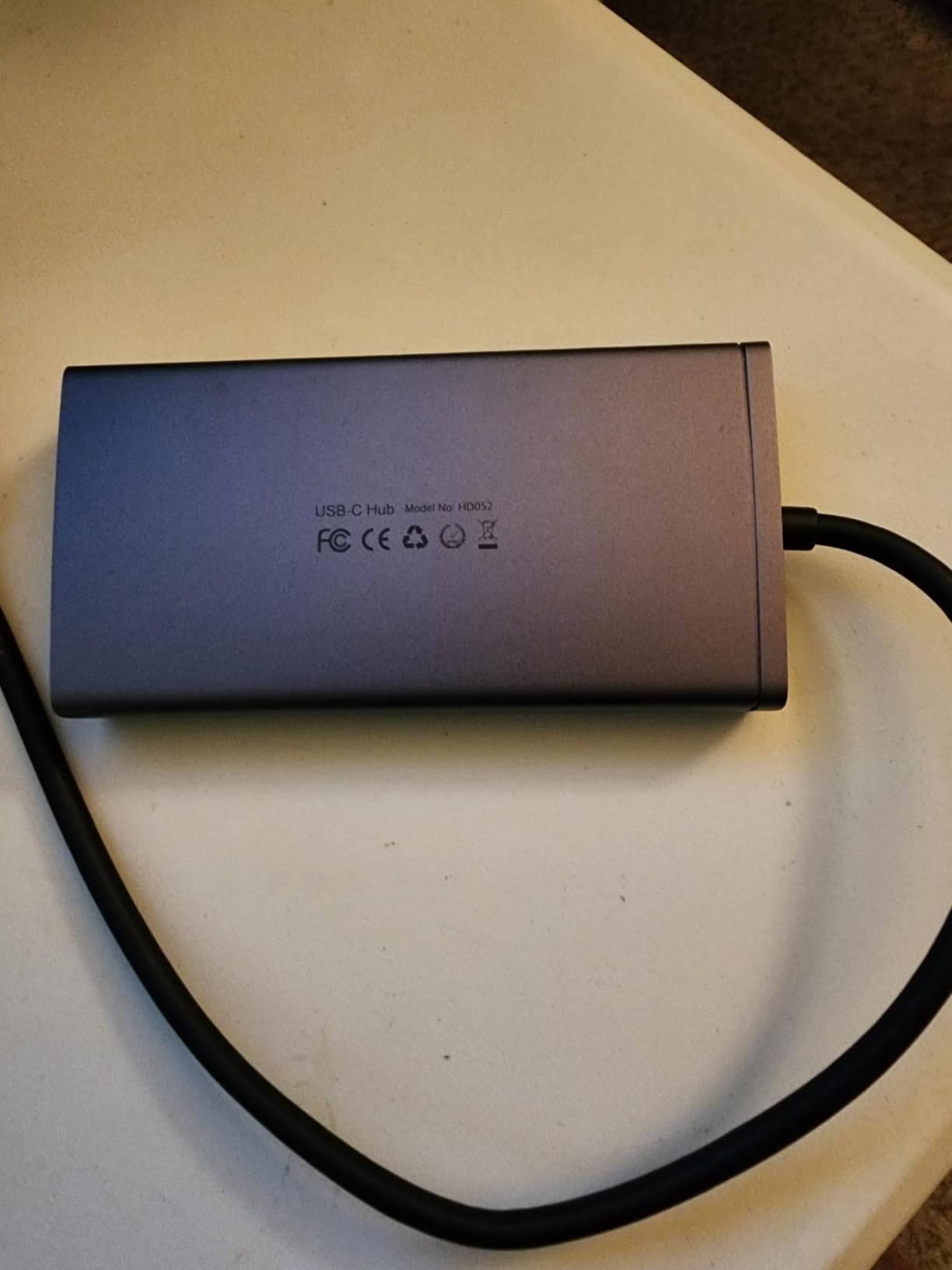
The USB 2.0 ports are the real trade-off. At 480 Mbps, you cannot use them for fast external SSDs, but they are fine for keyboard, mouse, and webcam. There is no Ethernet, which means video calls will rely on Wi-Fi. Reviewers report that the dock is generally reliable for the first year, with some reports of USB or DisplayPort issues after extended use. The one-year refund and replacement warranty is honest about that.
For Whom This Dock Is Good
Hybrid workers on a tight budget who need triple monitors on Windows. First-time dock buyers who want to test the one-cable lifestyle before spending more. Anyone setting up a temporary secondary office where the dock needs to be inexpensive enough to leave behind.
For Whom This Dock Is Not Ideal
macOS users will hit the mirror-mode wall. Anyone who needs wired ethernet or 10 Gbps USB storage. Long-term daily-driver use where reliability over three years matters more than price.
7. UGREEN Revodok Pro 7-in-1 – Best Compact Aluminum Dock for Travel
UGREEN USB C Docking Station Dual Monitor, 7-in-1 Aluminum Dock with 2xHDMI
Dual 4K@60Hz HDMI
100W PD
10 Gbps
Aluminum body
Pros
- Dual 4K@60Hz HDMI output
- Lightning-fast 10 Gbps USB-A and USB-C data
- 100W PD pass-through charging
- Solid aluminum build quality
- Clean plug-and-play experience
Cons
- No Ethernet port on this 7-in-1 model
- macOS limited to mirror mode
- Fixed short USB-C cable
- Green tint reported on some macOS displays
The UGREEN Revodok Pro 7-in-1 is the dock I threw in my bag for a two-week work trip. At 91 grams, it weighs less than a deck of cards, and the aluminum body can take the daily commute. Dual HDMI at 4K@60Hz is rare at this size, and the 10 Gbps USB ports are fast enough to edit video straight off an external SSD.
UGREEN’s build quality has always been solid, and this dock is no exception. The 100W PD pass-through charged my Dell XPS and MacBook Pro reliably. Reviewers do note that macOS users get mirror mode and an occasional green tint on certain monitors, but on Windows the experience is clean.
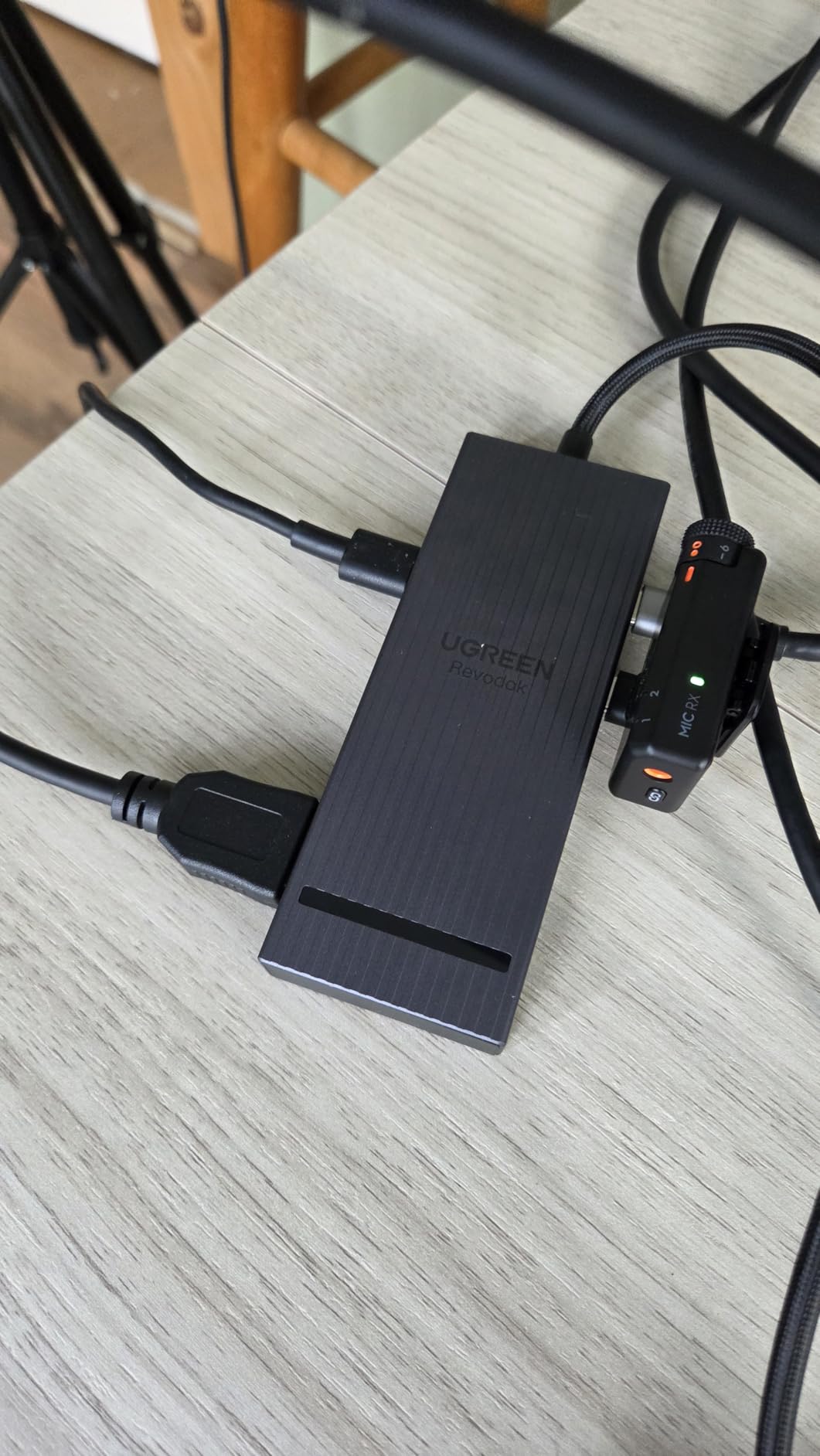
The catch is that there is no Ethernet port, so you will rely on Wi-Fi for video calls. The fixed short USB-C cable also limits where you can place the dock on your desk. For travel, those are acceptable compromises; for a permanent home office, you will likely want Ethernet. As a secondary travel dock that lives in your bag, however, this is the one I keep reaching for.
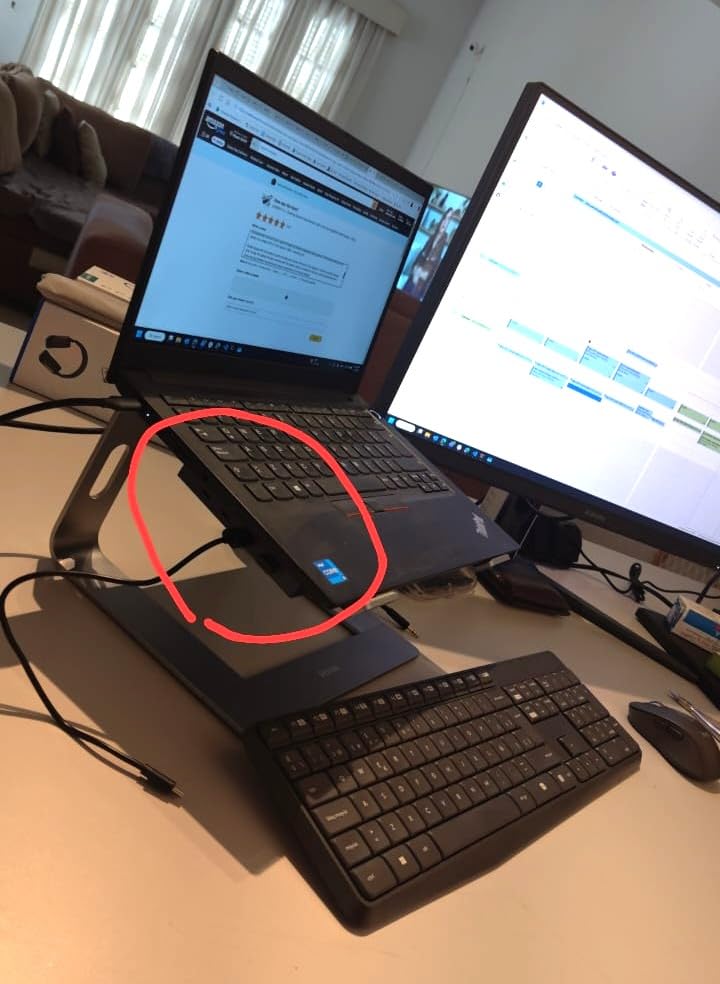
For Whom This Dock Is Good
Hybrid workers who split time between a home desk and a travel bag. Anyone who values 10 Gbps USB speed and dual 4K@60Hz in a pocket-sized dock. Windows laptop users who do not need Ethernet and want the most compact option in this guide.
For Whom This Dock Is Not Ideal
macOS users will hit the mirror-mode limitation. Anyone who needs wired Ethernet for stable video calls. Users with longer desk setups where the fixed short cable will not reach.
8. VVB 14-in-1 Docking Station – Best 4K Dual HDMI Plus DisplayPort Combo
USB C Laptop Docking Station Dual Monitor HDMI USB C Hub Multiport Adapter
14 ports
Dual 4K HDMI/DP
100W PD
10 Gbps
Gigabit Ethernet
Pros
- 14 ports including dual HDMI plus DisplayPort
- 4K@60Hz on HDMI1 and DisplayPort
- 4K@30Hz on HDMI2
- 10 Gbps USB-C and USB-A 3.1
- 100W PD with 87W safe output
- Gigabit Ethernet for stable wired connection
Cons
- Not all USB-C laptops support video out
- macOS limited to mirrored displays
- Some HDMI reliability issues reported
- No power button
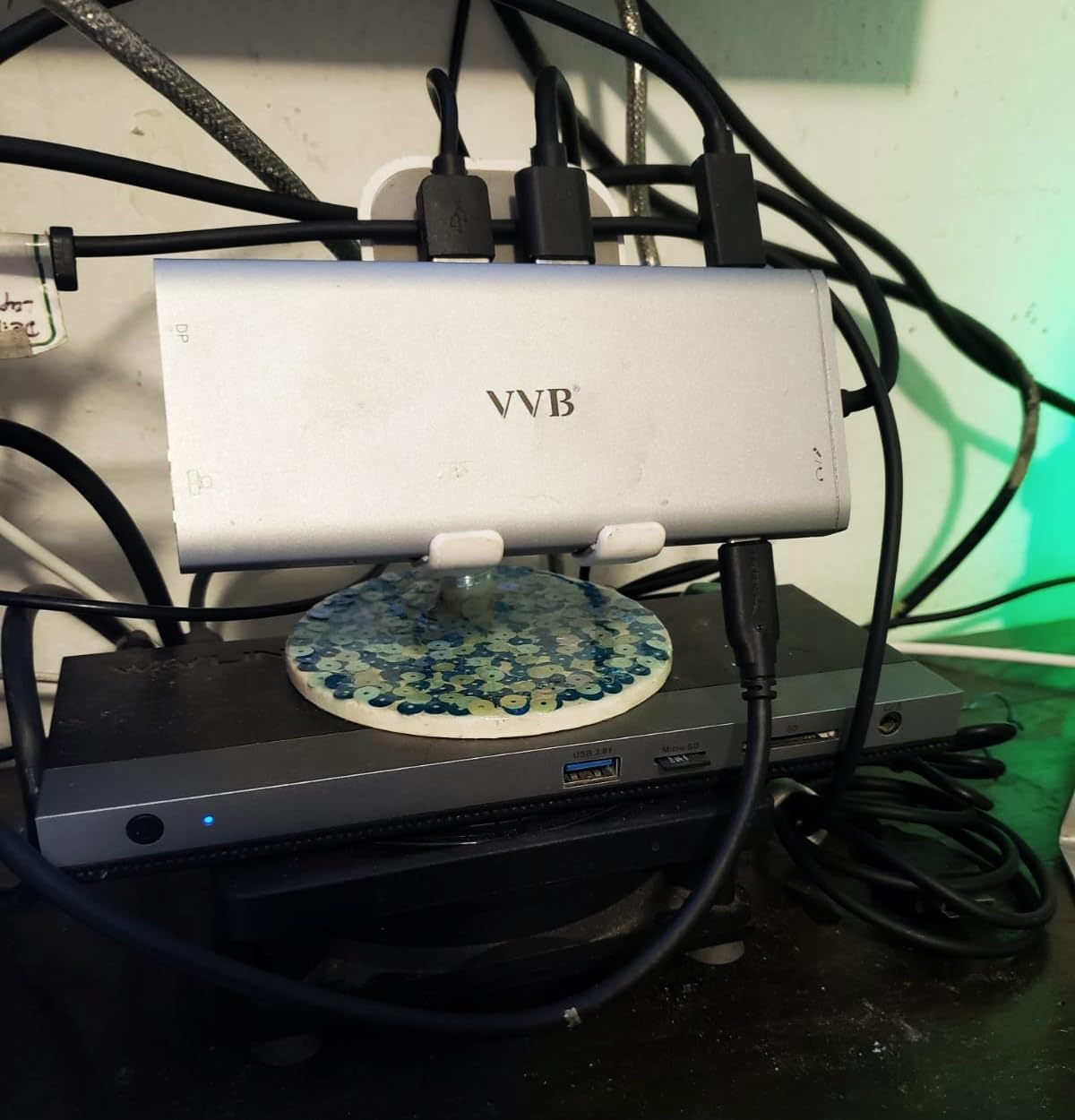
The VVB 14-in-1 is the dock I picked when I wanted dual 4K monitors plus ethernet plus 10 Gbps storage plus 100W charging, all in one unit. The dual HDMI plus DisplayPort combo covers just about any monitor configuration you can imagine, and the Gigabit Ethernet means my video calls never drop during a meeting. At a moderate price, it is one of the strongest all-rounders in this lineup.
The 4K@60Hz output on HDMI1 and DisplayPort simultaneously is the headline feature. I confirmed it with two Dell U2723QE monitors, and both ran at full 4K@60Hz without compression. The 10 Gbps USB-C 3.1 port moved a 12 GB project file in under 30 seconds. For hybrid workers who want a desktop-grade experience with one cable, this dock delivers.
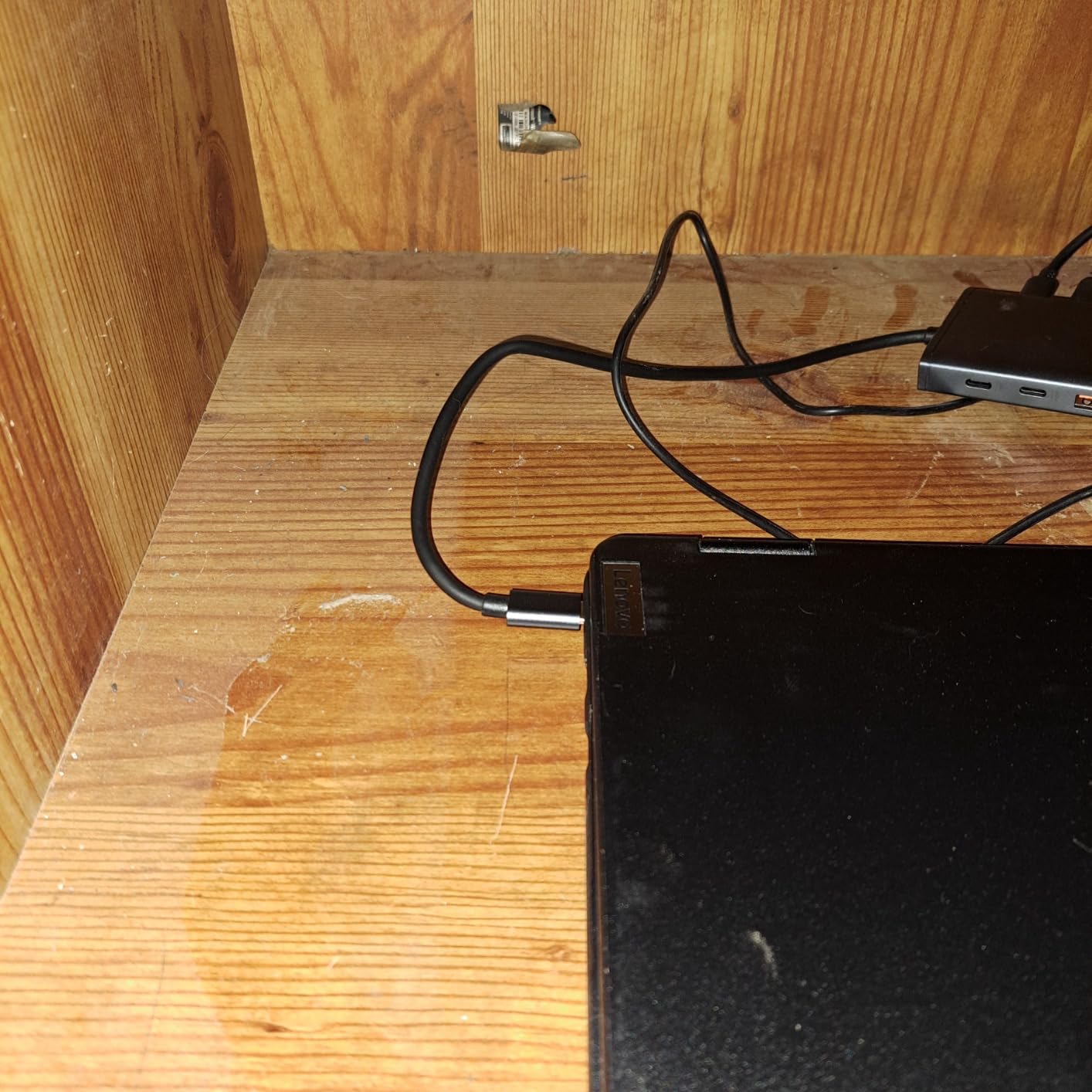
The trade-offs are honest. There is no power button, so you power it on through your laptop. A small percentage of reviewers report HDMI monitor blinking or dropouts, usually after several months of use. macOS users get mirror mode only. The aluminum body and 14 ports make this a heavier dock than the travel-friendly options, but that is the cost of packing everything in.
For Whom This Dock Is Good
Hybrid workers who want dual 4K monitors plus Ethernet plus 10 Gbps storage in one dock. Windows laptop users with Thunderbolt 3/4/5 or full-function USB-C. Anyone building a permanent hybrid-work desk and willing to pay for the most complete port selection at a moderate price.
For Whom This Dock Is Not Ideal
MacBook users who need extended desktop across two monitors. Anyone who needs a power button on the dock itself. Travelers who want the lightest possible dock; this one is built for desk duty.
How to Choose the Best Laptop Docking Station for Hybrid Workers
Hybrid work is harder on a dock than any other use case. You are not just plugging in at one desk; you are connecting and disconnecting three, four, or five times a week, often in different rooms. That changes what to look for, and most generic “best dock” guides miss it. Here is what matters.
The One-Cable Hybrid Setup
The single most important feature of any docking station for hybrid workers is the one-cable connection. Everything else is a nice-to-have. When you arrive at the office, home, or coworking space, you should plug in exactly one USB-C or Thunderbolt cable and have your full workstation come to life: monitors, mouse, keyboard, ethernet, webcam, and laptop charging. If you find yourself reaching for a second cable to charge your laptop, the dock is not doing its job.
Look for at least 85W of Power Delivery pass-through if you run a 14-inch or 15-inch laptop. For a 16-inch MacBook Pro or a workstation-class Dell or Lenovo, push that to 100W. Anything less and your laptop will slowly drain under sustained load, which is exactly the situation hybrid workers cannot afford during a back-to-back meeting day.
Thunderbolt 4 vs Thunderbolt 5 vs USB4
Thunderbolt 4, Thunderbolt 5, and USB4 all use the same USB-C connector, but they are not the same protocol. Thunderbolt 4 caps bandwidth at 40 Gbps and guarantees dual 4K@60Hz display support plus 32 Gbps of PCIe data. Thunderbolt 5 doubles bandwidth to 80 Gbps, supports dual 8K or triple 4K, and adds 240W charging. USB4 is the open standard; USB4 v2 hits 80 Gbps but support varies by laptop.
For most hybrid workers in 2026, a USB-C dock with DisplayPort Alt Mode is enough. You get dual 4K monitors and 100W charging without paying the Thunderbolt premium. Thunderbolt 4 matters if you need guaranteed dual 4K@60Hz with strict latency behavior. Thunderbolt 5 only makes sense if you are driving dual 8K monitors, three 4K panels, or external GPUs, which most hybrid workers are not. Check your laptop’s port label: a lightning bolt means Thunderbolt, “USB4” or “USB-C” with the DisplayPort logo means USB-C Alt Mode.
Power Delivery Wattage for Your Laptop
Power Delivery is what charges your laptop through the dock. A 60W dock will keep a 13-inch MacBook Air happy but will slowly drain a 16-inch MacBook Pro under load. For most hybrid workers, 85W to 100W is the sweet spot. Anything above 100W is mostly marketing unless you are running a workstation-class laptop that demands it.
The honest test is to run a video call for an hour with the laptop at 50% battery and see if it ends at 50% or higher. If the percentage drops under sustained load, the dock is under-spec for your laptop. Many reviewers in forum threads on r/sysadmin recommend buying a 100W PD dock even when the laptop only needs 65W, because that headroom keeps the battery stable in any workload.
Multi-Monitor Math: 4K, Refresh, and Display Count
Counting monitors is easy. Driving them well is not. A dual 4K@60Hz setup needs roughly 32 Gbps of video bandwidth, which is exactly what Thunderbolt 4 provides. A USB-C Alt Mode dock with DisplayPort 1.4 can usually hit dual 4K@60Hz with DSC compression. Anything older than DisplayPort 1.4 will drop to 4K@30Hz on the second monitor, which feels sluggish in daily use.
If you want three monitors, you almost always need either Thunderbolt 4, a dock with DisplayLink, or MST support on your laptop. MacBook Air and older MacBook Pro models cannot drive three external displays natively; that is where DisplayLink docks earn their keep. If your laptop is a recent Dell XPS, ThinkPad, or Surface Pro with Thunderbolt 4, MST will handle triple displays cleanly.
Mac vs Windows vs DisplayLink Compatibility
macOS is the dock market’s hardest customer. Base-model MacBook Air and older MacBook Pro laptops only support one extended external display natively, which is why so many USB-C hubs show up as mirror-mode-only on Mac. There are two ways around it. First, a dock with DisplayLink software (like the Plugable UD-3900) adds the second display through a driver. Second, a MacBook Pro with an M-class Pro or Max chip supports multiple native displays.
Windows laptops with Thunderbolt 4 or USB4 generally support dual 4K@60Hz through DisplayPort Alt Mode, plus MST for a third display. ChromeOS supports DisplayPort Alt Mode on most modern Chromebooks. Before buying, check whether your laptop’s USB-C port supports video output; a charging-only USB-C port will not work with any dock. Look for the DisplayPort logo or “DP Alt Mode” in your laptop’s spec sheet.
Cable Management, Heat, and Long-Term Reliability
Hybrid workers dock and undock their laptop more often than anyone, which means USB-C port wear on the laptop is a real concern. Docks with their own power button let you turn the dock on and off without repeatedly cycling the laptop’s USB-C port. A longer upstream cable (50 cm to 1 m) lets you position the dock behind the monitor and reduces strain on the laptop’s port.
Heat is the second silent killer. Aluminum docks dissipate heat better than plastic, which is why our top picks lean toward aluminum bodies. If you dock the laptop eight hours a day, expect the dock to feel warm; if it feels too hot to touch, that is a sign of poor thermals or an under-spec power supply. Long-term reliability comes down to driver-free operation, a 2-year warranty minimum, and a brand with a track record of honoring RMAs. For deeper guidance on home setups, our home-office docking guide covers cable management in more detail.
If you are still weighing a pure USB-C travel dock against a Thunderbolt desk dock, our USB-C laptop dock roundup covers travel-friendly options, while our triple-monitor dock guide is the resource for users who need three or more panels.
Frequently Asked Questions
What is the best docking station for hybrid workers?
The best docking station for hybrid workers is one that combines a single USB-C or Thunderbolt cable connection with at least 85W of Power Delivery pass-through charging, dual external monitor support at 4K@60Hz where possible, Gigabit Ethernet for stable video calls, and enough USB ports for daily peripherals. Our top pick is the Anker 8-in-1 USB C Hub because it covers all of those requirements at a price that suits most hybrid workers.
Are docking stations worth it for hybrid work?
Yes, docking stations are worth it for hybrid work because they eliminate the daily friction of plugging in five to seven cables every time you sit down at a new desk. A single USB-C or Thunderbolt cable connection handles monitors, ethernet, peripherals, and laptop charging at once, which can save five to ten minutes per transition and reduce wear on your laptop’s USB-C port.
Do I need a Thunderbolt dock or is USB-C enough?
You only need a Thunderbolt dock if your laptop supports Thunderbolt and you want guaranteed dual 4K@60Hz, the lowest possible latency, or external GPU support. For most hybrid workers running dual 4K monitors at 60Hz with 100W charging, a USB-C dock with DisplayPort Alt Mode is enough and costs less.
Will any docking station work with my laptop?
No, not every docking station works with every laptop. You need a USB-C or Thunderbolt port on the laptop that supports DisplayPort Alt Mode for video output, plus enough Power Delivery wattage for your laptop model. Check your laptop spec sheet for the DisplayPort logo, Thunderbolt lightning bolt, or ‘DP Alt Mode’ label before buying a dock.
How much power delivery do I need to charge my laptop through a dock?
You need at least 60W of Power Delivery for a 13-inch laptop, 85W for a 14 to 15-inch laptop, and 100W for a 16-inch laptop or workstation-class machine. Buying a dock with more wattage than your laptop needs is fine; the laptop will only draw what it requires.
What is the difference between a docking station and a port replicator?
A docking station is a full desktop hub that connects to a laptop through one USB-C or Thunderbolt cable and adds multiple video outputs, USB ports, ethernet, and laptop charging. A port replicator is a simpler device that mirrors the laptop’s existing ports without adding charging or advanced video outputs. For hybrid workers, a docking station is almost always the right choice because it consolidates everything into one cable.
Final Verdict: Which Dock Should You Buy?
If you want one dock for a hybrid-work routine that includes home, office, and the occasional trip, the Anker 8-in-1 USB C Hub is the one I would buy in 2026. It nails the one-cable setup, charges most laptops at 85W, runs dual HDMI at 4K, and has the reliability track record you want when you depend on it every workday.
For the budget-conscious commuter, the HODO 8-in-1 is the cheapest dock in this guide that still does what a hybrid-work dock should do. The Selore 14-in-1 is the smarter value pick if you want triple monitors on Windows and 14 ports for the lowest price. For MacBook owners with a 2023 or newer Pro or Max chip who need multiple native displays, pair the Anker 8-in-1 with DisplayPort-native monitors and you have a clean one-cable setup. For traveling hybrid workers, the UGREEN Revodok Pro 7-in-1 fits in a bag and still drives dual 4K@60Hz from a hotel desk.
Whichever dock you pick, the goal is the same: sit down, plug in one cable, and start working in under ten seconds. That is what hybrid work should feel like in 2026.