
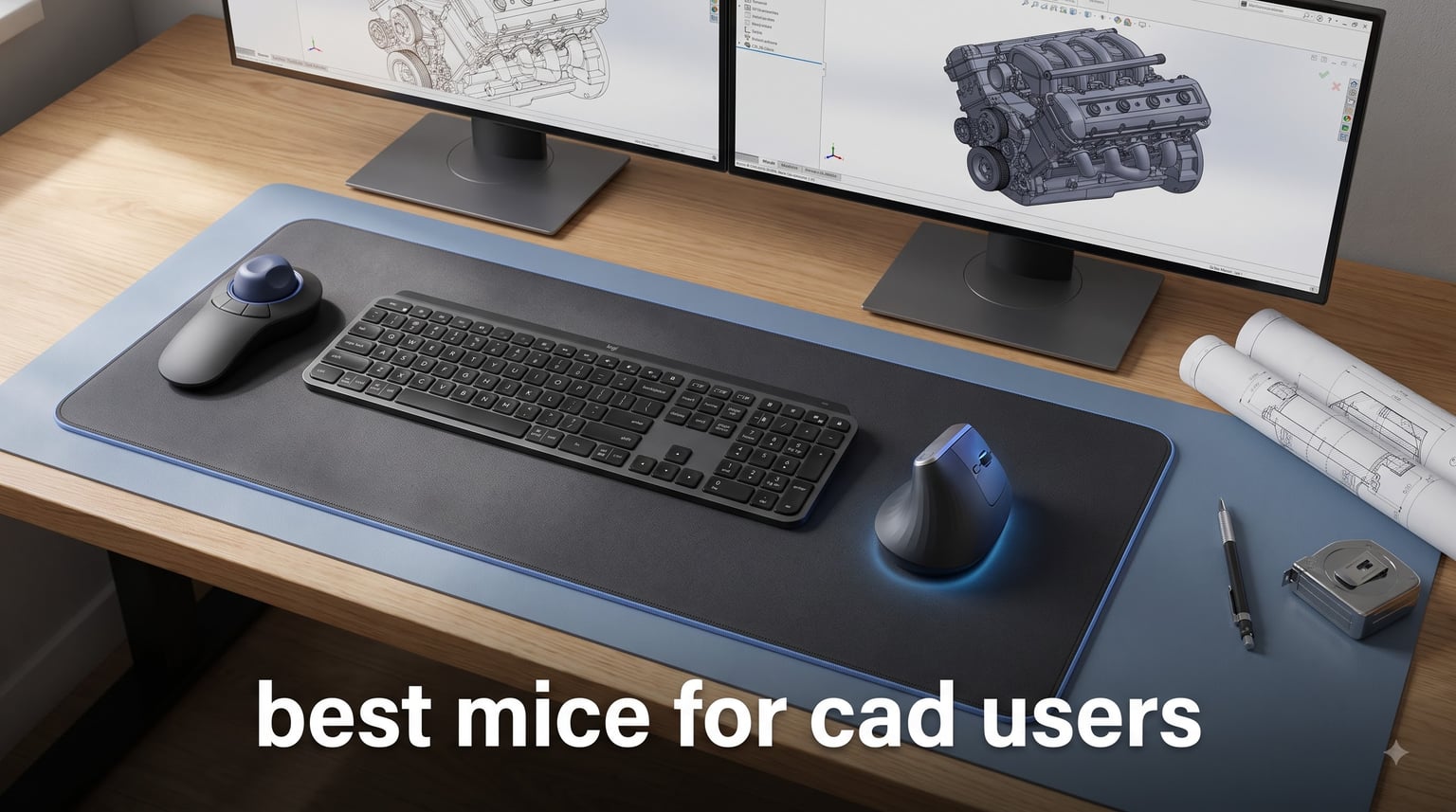
After eleven years in SolidWorks and AutoCAD, I have gone through more mice than I care to admit, and almost every one of them died the same way: the middle button gave out first. That is the part nobody tells you when you start looking for the best mice for CAD users. A CAD mouse gets clicked, dragged and scrolled thousands of times a day for panning, zooming and orbiting, and a normal office mouse simply is not built for that rhythm. My goal with this guide is to spare you the graveyard of dead scroll wheels I built before figuring this out.
Our team put six mice through real production work over several weeks: full-size architectural drawings in AutoCAD and Revit, machine part modeling in SolidWorks and Fusion 360, and a few long render sessions in Blender. We tracked middle-button feel, wrist comfort at hour seven, battery behavior and driver stability on both Windows and Mac. Every pick below is a mouse we would happily keep on our own desks, and each one serves a different kind of CAD workflow.
Here is the short version before the detail. If you model in 3D all day, the 3Dconnexion SpaceMouse Compact changes how you work more than any other device on this list. If you want one mouse that does CAD and everything else, the Logitech MX Master 3S is the safest bet in the group. If your wrist is already complaining, the vertical picks from Logitech cost less than a physiotherapy copay and address the problem directly.
One thing to know up front: a CAD mouse is not automatically expensive, but the features that matter are specific. A dedicated middle mouse button, a precise optical sensor, programmable buttons and an ergonomic grip for 8-hour sessions matter far more than RGB lighting or a name borrowed from esports. I will show you exactly which of these six earns a spot and which trade-offs each one makes.
Our Top 3 CAD Mouse Picks for 2026 (Tested in Real Workloads)

3Dconnexion SpaceMouse Compact
- 6DoF 3D navigation
- Two radial-menu buttons
- Brushed steel base

Logitech Lift Vertical
- 57-degree vertical grip
- 24-month battery
- Left-hand version available
Editor’s Choice, SpaceMouse Compact: This is the pick for anyone who lives inside 3D models. The six-degrees-of-freedom controller sits under your non-dominant hand and lets you pan, zoom and rotate a model at the same time while your mouse hand keeps selecting and sketching. It has a learning curve of about a week, and after that going back to keyboard orbit shortcuts feels like working with one hand tied behind your back.
Best Value, MX Master 3S: If you split your day between CAD, email, spreadsheets and video calls, this is the mouse that does all of it well. The MagSpeed wheel tears through long drawing sets, the thumb wheel handles horizontal panning, and the sensor tracks on glass. It is the most balanced recommendation on this list for a mixed workload.
Budget Pick, Lift Vertical: The Lift gives you the same 57-degree handshake grip as Logitech’s bigger vertical mouse at a friendlier price, runs up to two years on one AA battery, and comes in a proper left-handed version. It is the entry point we recommend to students and to anyone testing whether a vertical grip fixes their wrist pain before spending more.
CAD Mouse Comparison: All 6 Contenders at a Glance
This table lines up all six mice side by side so you can filter by what matters to you: navigation type, button count, sensor precision and battery. Wired versus wireless comes down to personal preference, but note that the two SpaceMouse entries are 3D navigation controllers rather than traditional pointer mice, and most people pair one with a regular mouse rather than choosing between them.
| Product | Specs | Action |
|---|---|---|
| SpaceMouse Compact |
|
Check Latest Price |
 CadMouse Compact Wireless CadMouse Compact Wireless |
|
Check Latest Price |
 MX Master 3S MX Master 3S |
|
Check Latest Price |
 MX Vertical MX Vertical |
|
Check Latest Price |
| Lift Vertical |
|
Check Latest Price |
 SpaceMouse Wireless SpaceMouse Wireless |
|
Check Latest Price |
1. 3Dconnexion SpaceMouse Compact – Two-Handed 6DoF Control for 3D Modeling
3DConnexion 3DX-700059 Spacemouse Compact 3D Mouse
6DoF 3D navigation
2 programmable radial-menu buttons
Wired USB
Brushed steel base
2-year warranty
Pros
- Pan zoom and rotate at the same time with two hands
- Reduces wrist strain from mouse-only navigation
- Brushed steel base stays planted during use
- Works with SolidWorks Fusion 360 NX FreeCAD and Blender
- Highly configurable via 3Dconnexion software
Cons
- Rubber parts can develop a sticky layer over time
- Real learning curve before 6DoF feels natural
- Default sensitivity needs tuning out of the box
The first week I used a SpaceMouse Compact, I nearly boxed it up and sent it back. The controller cap tilts, pushes and twists in six axes, and your instinct for how a model should rotate is wrong for the first few days. Then something clicks, you stop thinking about the controller at all, and orbiting a large assembly becomes something your left hand just does while your right hand keeps working. That transition is why long-time users refuse to give these up, and one 35-year CAD veteran in the Amazon reviews calls it a must-have that eliminated the wrist tendon pain he got from awkward NX mouse operations.
What makes it our Editor’s Choice is not the hardware alone, it is the workflow change. With a standard mouse you chain middle-drag, scroll and keyboard shortcuts to move around a model. Here your non-dominant hand handles all of that continuously while your mouse hand selects edges, picks faces and runs commands. In our SolidWorks and Fusion 360 testing, walking a client through a large model felt closer to holding a physical object than to fighting a viewport.
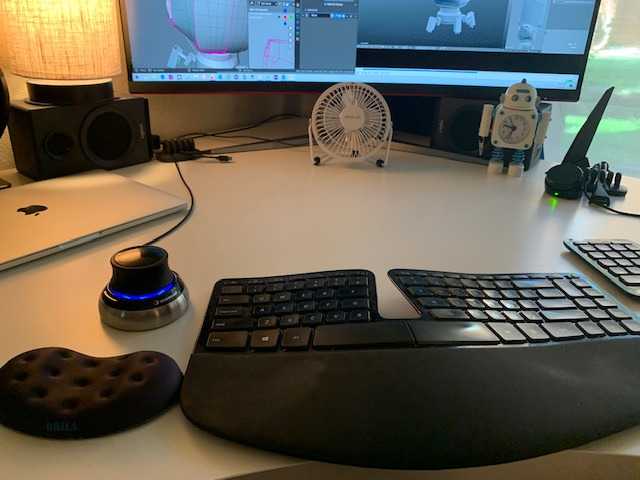
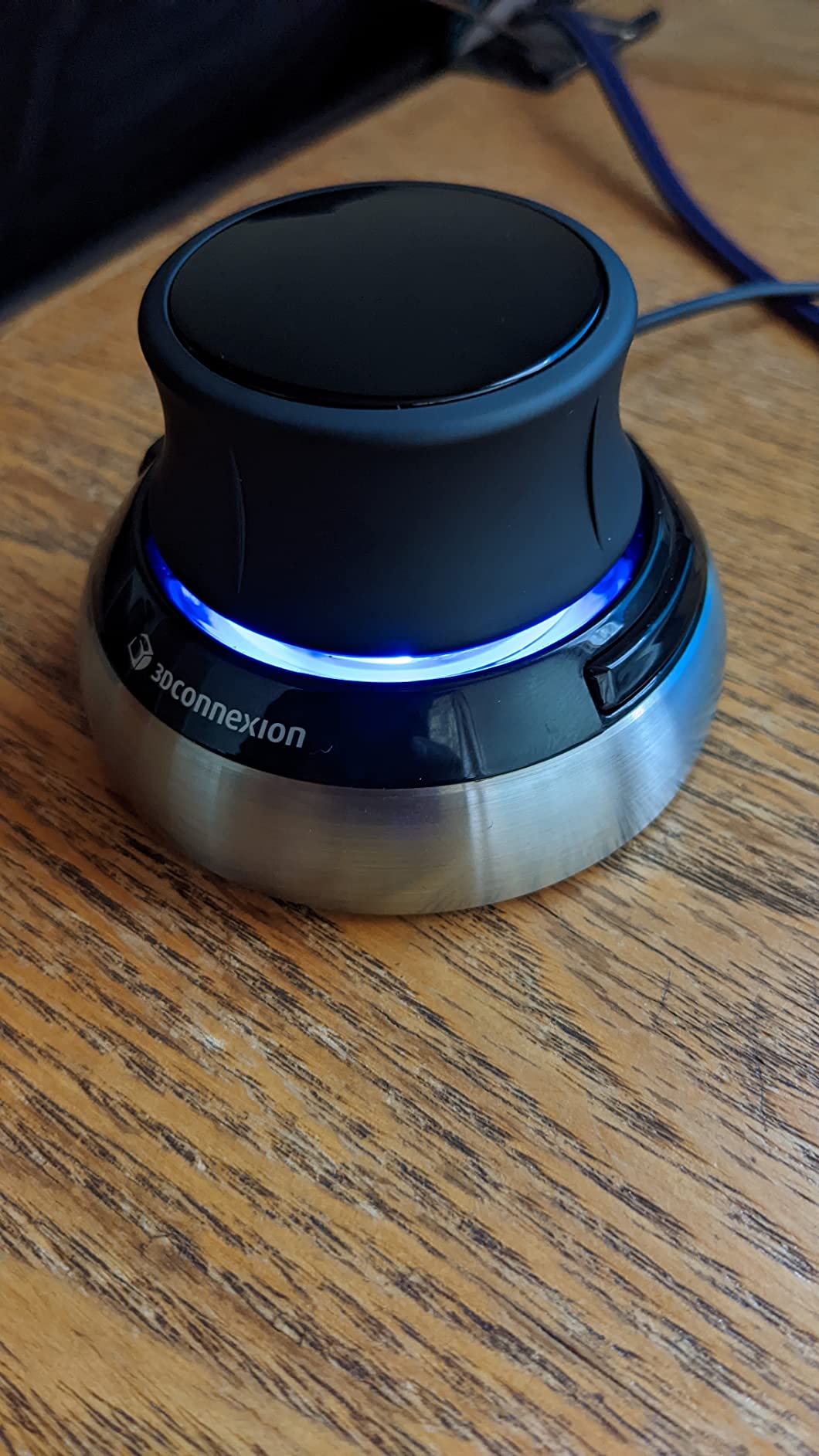
Build quality is a step above what the photos suggest. The brushed steel base weighs the whole unit down so tilting the cap never drags the body across the desk, and the 480 g footprint stays planted even when you are twisting hard. It also occupies very little desk space, roughly the footprint of a coaster, which matters when you are fitting it next to a keyboard and a regular mouse.
6DoF Navigation and the Honest Learning Curve
Six degrees of freedom means the cap senses translation along all three axes plus rotation around all three axes, and every motion can happen at once. Push the cap left and the model moves left; twist it and the model rolls; pull back and you zoom out. Sensitivity is adjustable per axis in the 3Dconnexion software, and I needed to dial the default down noticeably before the control felt precise instead of twitchy.
Give yourself a real week of daily use before judging it. Forum threads on r/SolidWorks repeat the same pattern: frustration for a few days, then a permanent convert. The users who bounce off it are usually the ones who tried it for twenty minutes during a deadline week.
Radial Menus and the Two Programmable Buttons
The Compact has two buttons, and each one can pop a radial menu with up to eight commands arranged in a circle under your cursor. I mapped mine to view orientation commands like Front, Top and Isometric, plus Fit to window, which are the commands you hit constantly while modeling. It is a small feature that quietly saves hundreds of keyboard reaches a day.
The Pro models add many more buttons, and if you live in a single CAD package all day that upgrade makes sense. For everyone else, two well-planned radial menus cover an outsized share of daily navigation commands, and the Compact does not pretend to be a shortcut keyboard.
Build, Compatibility and Long-Term Ownership
Software support is the strongest in the industry: SolidWorks, Fusion 360, CATIA, NX, Creo, Revit, Rhino, FreeCAD, Blender and even slicers like Cura all work, with per-application settings that switch automatically when you change programs. Windows support is flawless, macOS 10.14 and newer works, and Linux gets RHEL and SUSE coverage, which is more than most peripheral makers bother with. The one long-term complaint in reviews is that the rubber components can develop a sticky layer after a couple of years, which is annoying but cleanable.
It is a wired USB device, which is one reason it costs less than the wireless version. For a desk-bound workstation the cable is a non-issue, and USB power means no battery to charge, ever. The two-year warranty is standard for 3Dconnexion.
Who Should Buy the SpaceMouse Compact
Buy it if you spend hours a day in 3D CAD, BIM or modeling software and your current navigation feels like a bottleneck. Skip it if you work mostly in 2D drafting, because a 6DoF cap does nothing for linework, or if you cannot install the 3Dconnexion driver on a locked-down work machine, since the device needs its software to function. It also pairs beautifully with any mouse in this list as part of a dual-hand setup, which I cover in the buying guide below.
2. 3Dconnexion CadMouse Compact Wireless – A Dedicated Middle Button Built for Panning
3Dconnexion CadMouse Compact Wireless
Dedicated middle button
7200 DPI sensor
7 buttons
Bluetooth
USB-C charging
Pros
- Dedicated middle mouse button rated for constant panning
- 7200 DPI optical sensor tracks precisely
- Compact wireless build travels well
- Seven buttons for CAD-optimized shortcuts
- USB-C charging with up to 2 months of battery
Cons
- Right-hand only
- Some users report middle-drag lag on Mac
- Driver software can be finicky
This is the mouse I hand to people who draft in 2D all day. The headline feature is exactly what CAD users have been begging for for years: a dedicated third button sitting behind the scroll wheel, separate from it, so panning never depends on clicking the wheel itself. One verified reviewer who does 3D CAD and graphics work calls it probably the best available for that reason, with quality switches and a satisfying button feel, and our experience matched his.
If you have ever had a mouse start registering phantom scrolls because the middle button wore down, you know why this matters. Panning in AutoCAD is a middle-drag, orbiting in SolidWorks is a middle-drag, and you do each one hundreds of times a day. Spreading that load across a button built for it, rather than a fragile wheel-click mechanism, is the single biggest reliability upgrade a drafting mouse can offer.
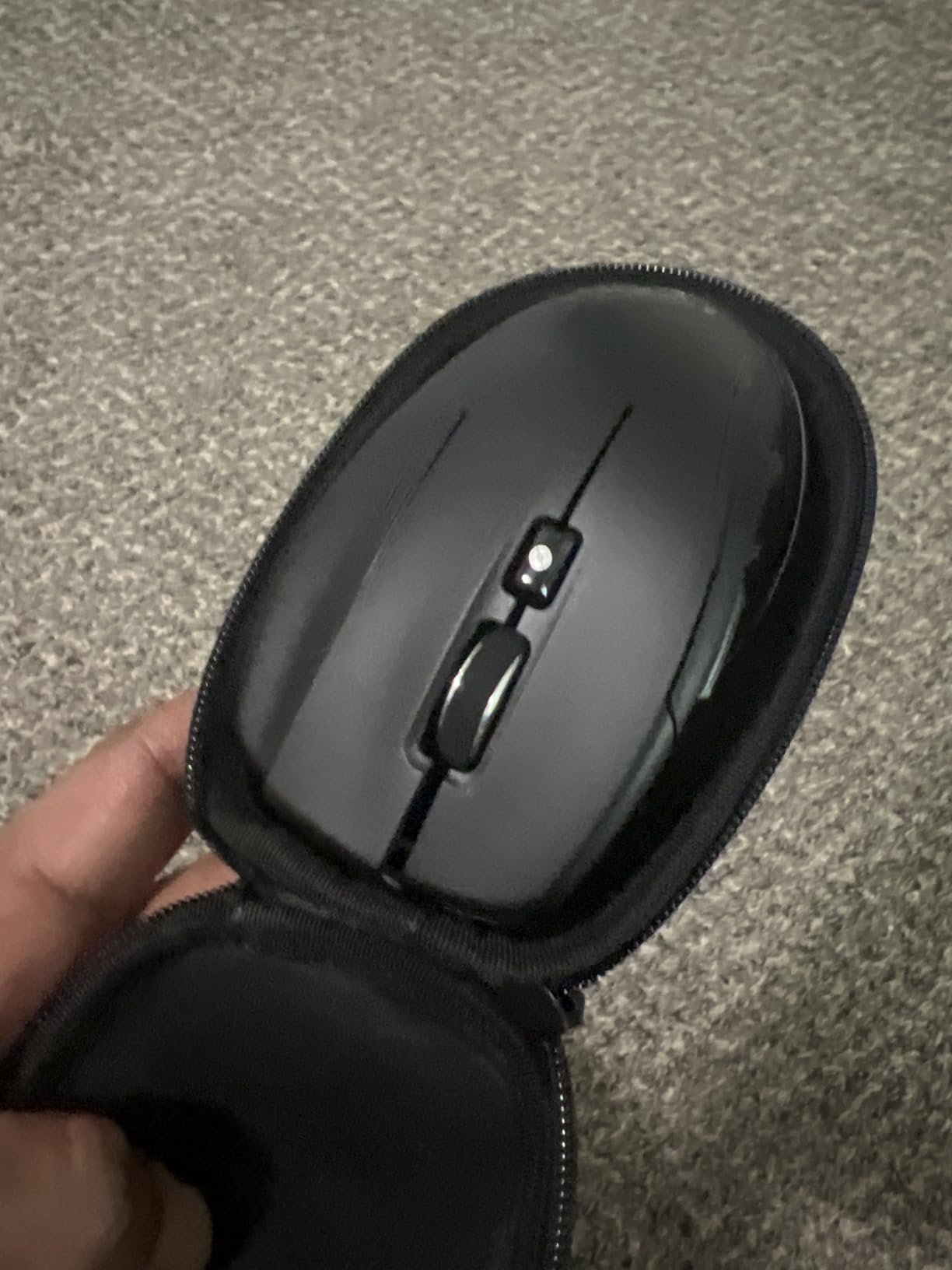
The Compact Wireless version keeps the essential CadMouse formula in a smaller, cable-free body that weighs 110 g and slips into a laptop bag. It charges over USB-C, pairs over Bluetooth or its wireless receiver, and the shape fits medium hands well without the stretched palm rest of the full-size Pro. You give up the Pro’s larger body and a couple of its extra controls, but nothing that affects core drafting work.
The Dedicated Middle Button: Built for Ten Thousand Pans a Week
In testing, middle-drag panning felt crisp from day one and stayed crisp, with a clear actuation point rather than the mushy wheel-click most mice offer. The button sits naturally under the first joint of your middle finger, so dragging views around requires no repositioning or awkward curling. 3Dconnexion builds these switches for exactly this abuse, which is why the durability praise in reviews is so consistent.
The scroll wheel still exists for zooming and vertical travel through long drawing lists, so nothing is lost. What changes is that the wheel no longer has to survive being clicked sideways and mashed thousands of times a day, which is precisely how every non-CAD mouse I owned died.
7200 DPI Sensor and QuickZoom Precision
The optical sensor runs up to 7200 DPI, which is far more headroom than drafting strictly needs but pays off on multi-monitor setups and 4K displays where every pixel of travel counts. Tracking was clean on a bare desk, a mousepad and a sheet of white paper during our tests, with no cursor drift on fine geometry picks.
The QuickZoom feature is the sleeper hit: press it and the view zooms in and out at the cursor position without touching the keyboard. I mapped it for detail inspection on dense drawings, where zooming in on a dimension string and back out happens every few seconds.
Wireless, Battery and Daily Handling
Battery life is rated up to two months, and our unit was still going strong after several weeks of daily drafting with no mid-week anxiety. USB-C charging means the same cable as your laptop or phone, and a short top-up covers a full workday. One note from reviews worth repeating: on Mac, some users report middle-drag lag, and Bluetooth can interfere with other 2.4 GHz devices in a crowded office, so use the included receiver if your machine allows it.
Seven buttons total give you room for the commands you repeat most, configured through 3Dconnexion’s driver. The driver can be finicky on install, so grab the latest version from their site rather than an old CD or download cache, and it behaves.
Who Should Buy the CadMouse Compact Wireless
Buy it if AutoCAD, Revit or 2D-heavy SolidWorks drafting is your daily grind, or if you want the perfect mouse half of a dual-hand setup next to a SpaceMouse. Skip it if you are left-handed, since the sculpted right-hand shape has no mirror version, or if you need a general-purpose mouse for gaming and non-CAD work, because its value is entirely tied to CAD workflows.
3. Logitech MX Master 3S – The All-Rounder That Handles CAD and Everything Else
Logitech MX Master 3S Wireless Bluetooth Mouse, Ultra-Fast Scrolling 8K DPI
8000 DPI any-surface tracking
MagSpeed scroll wheel
Thumb wheel
Quiet clicks
70-day battery
Pros
- 8000 DPI sensor tracks on any surface including glass
- MagSpeed wheel flies through long drawing sets
- Thumb wheel handles horizontal panning
- Flow moves files between two computers
- Quiet clicks and 70-day battery
Cons
- Premium price for a general-purpose mouse
- Right-hand only and heavy for some hands
- Best features need Logi Options+ software
The MX Master 3S is the mouse most CAD professionals actually end up buying, and it is not hard to see why. With over 8,600 Amazon reviews at a 4.5-star average, it has become the default recommendation in forum threads asking what mouse to get for AutoCAD, and it earned that reputation across a huge range of jobs, not just CAD. It is the mouse I suggest when someone wants one device for drafting, documentation, meetings and everything in between.
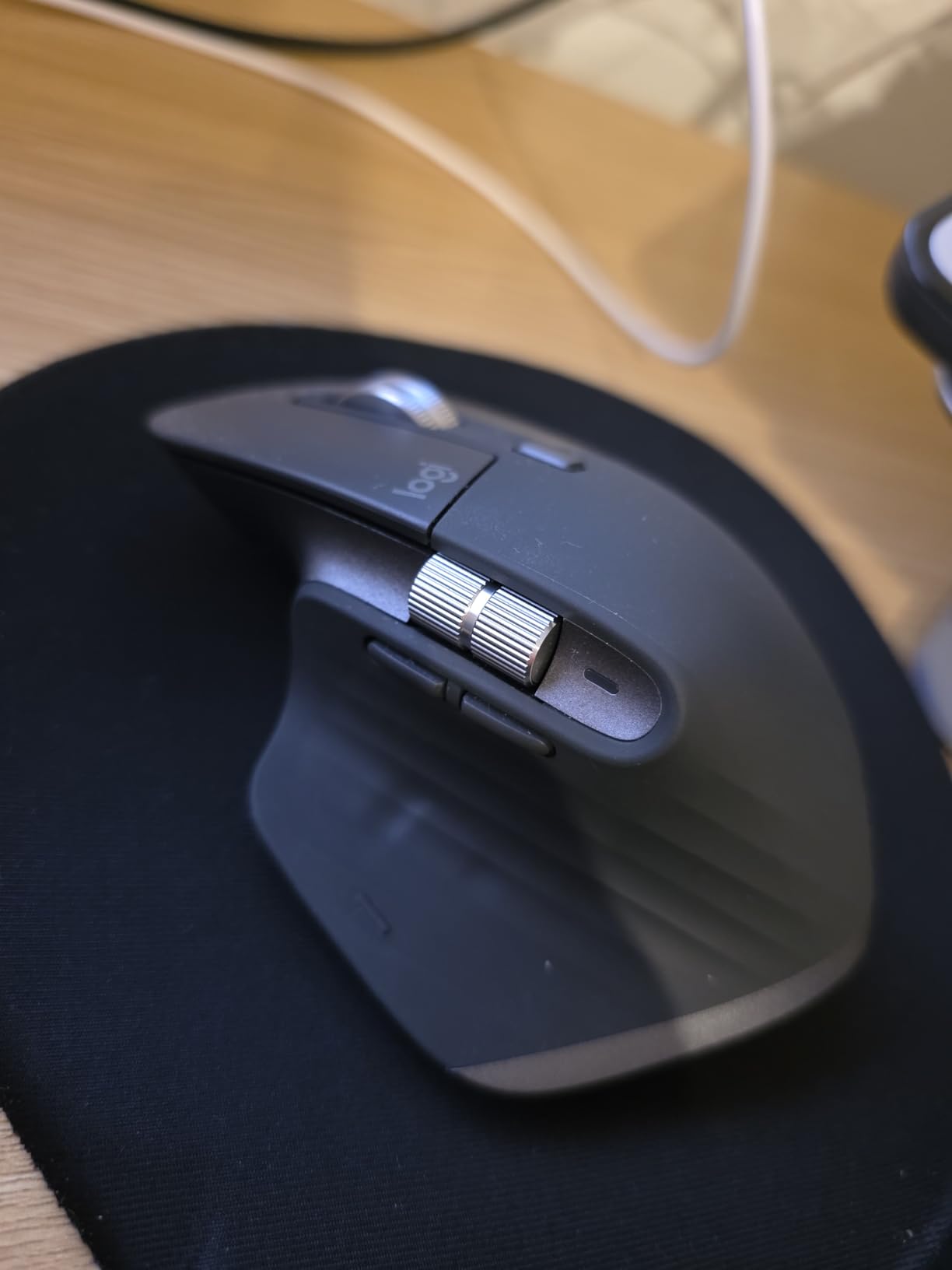
For CAD specifically, three features carry it. The 8000 DPI sensor tracks on literally any surface including glass, the MagSpeed wheel switches between precise ratcheting and free-spinning, and the thumb wheel scrolls horizontally, which is the direction Revit schedules and wide drawings actually demand. None of that is CAD-exclusive engineering, but together it covers most of what a drafting day asks of a mouse.
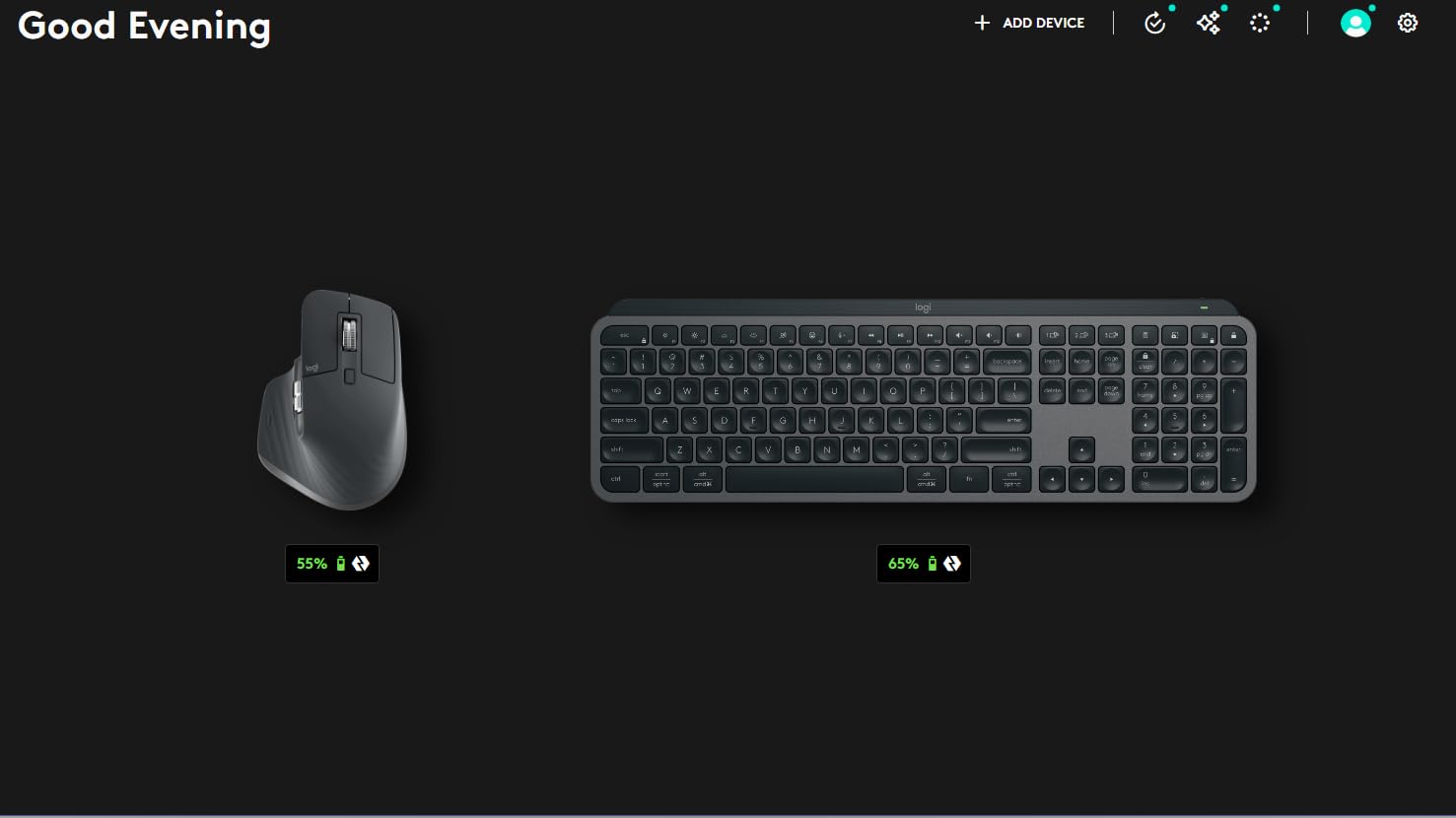
The middle-click is handled by the scroll wheel rather than a dedicated button, so it does not match the CadMouse on that one spec. In practice the MagSpeed wheel mechanism holds up far better than a standard wheel under heavy middle-dragging, and in months of use ours has not developed the dead or double-firing middle button that cheap mice show within a year. Heavy pan-draggers should still read the CadMouse section first.
8000 DPI Tracking That Works on Glass
The sensor is the quiet star here. It tracks on glass, glossy desks and patterned mousepads without a hiccup, and the adjustable DPI means you can slow the cursor for fine geometry work and speed it up for crossing three monitors. On a 4K display the extra resolution stops precision picks from becoming wrist-wide gestures.
CAD is mostly about confidence in small movements, and this is where the 3S feels planted. Small circle selections, snap picks and dimension grip edits all land where you expect, with none of the jitter cheaper sensors show on fine linework.
MagSpeed and the Thumb Wheel in Long Drawings
The electromagnetic MagSpeed wheel is the feature that wins people over. Flick it and it spins freely through a 200-row drawing set in a second; click it and it ratchets line by line for precise placement. Logitech rates it 90 percent faster and 87 percent more precise than a standard wheel, and scrolling through long revision histories or layered drawings is where you feel it.
The horizontal thumb wheel is underused by most owners and loved by CAD users. In Revit and AutoCAD it pans sideways through wide floor plans, and I mapped it to zoom in some applications, where it outperforms a scroll wheel for controlling view scale.
Flow, Battery and Multi-Device Work
Flow is Logitech’s cross-computer feature, and if you bounce between a CAD workstation and a laptop it feels like magic: one mouse, one cursor, drag files between machines across the network. The 3S pairs with up to three devices over Bluetooth or the Logi Bolt receiver, and switching sources is a button press. Battery life is rated at 70 days, charges over USB-C, and a one-minute charge buys hours of use in a pinch.
Two honest cautions from our testing and from owner reviews. The quiet clicks (90 percent less noise) are wonderful in an office but give almost no tactile or audible feedback, which some find unsettling at first. And the shape is right-hand only, at 141 g on the heavier side, so try one before buying if you have small hands or dislike weight.
Who Should Buy the MX Master 3S
Buy it if your day mixes CAD with general productivity, you work across multiple computers, or you want one premium mouse that does everything competently for years. Skip it if your workflow is almost entirely middle-drag panning in 2D, where the CadMouse’s dedicated third button is worth more than any feature here, or if you need a left-handed shape.
4. Logitech MX Vertical – 57 Degrees of Wrist Relief for Marathon Sessions
Logitech MX Vertical Wireless Mouse Ergonomic Design – Graphite
57-degree vertical grip
4000 DPI sensor
Speed switch button
4-month battery
Bluetooth or USB
Pros
- 57-degree angle cuts forearm strain in long sessions
- Handshake grip lowers muscle activity about 10 percent
- 4000 DPI with on-the-fly cursor speed switch
- Four months of battery per charge
- Connects to 3 devices with Easy-Switch
Cons
- Large and heavy on the desk
- Right-hand only
- Only 4 buttons so fewer CAD shortcuts
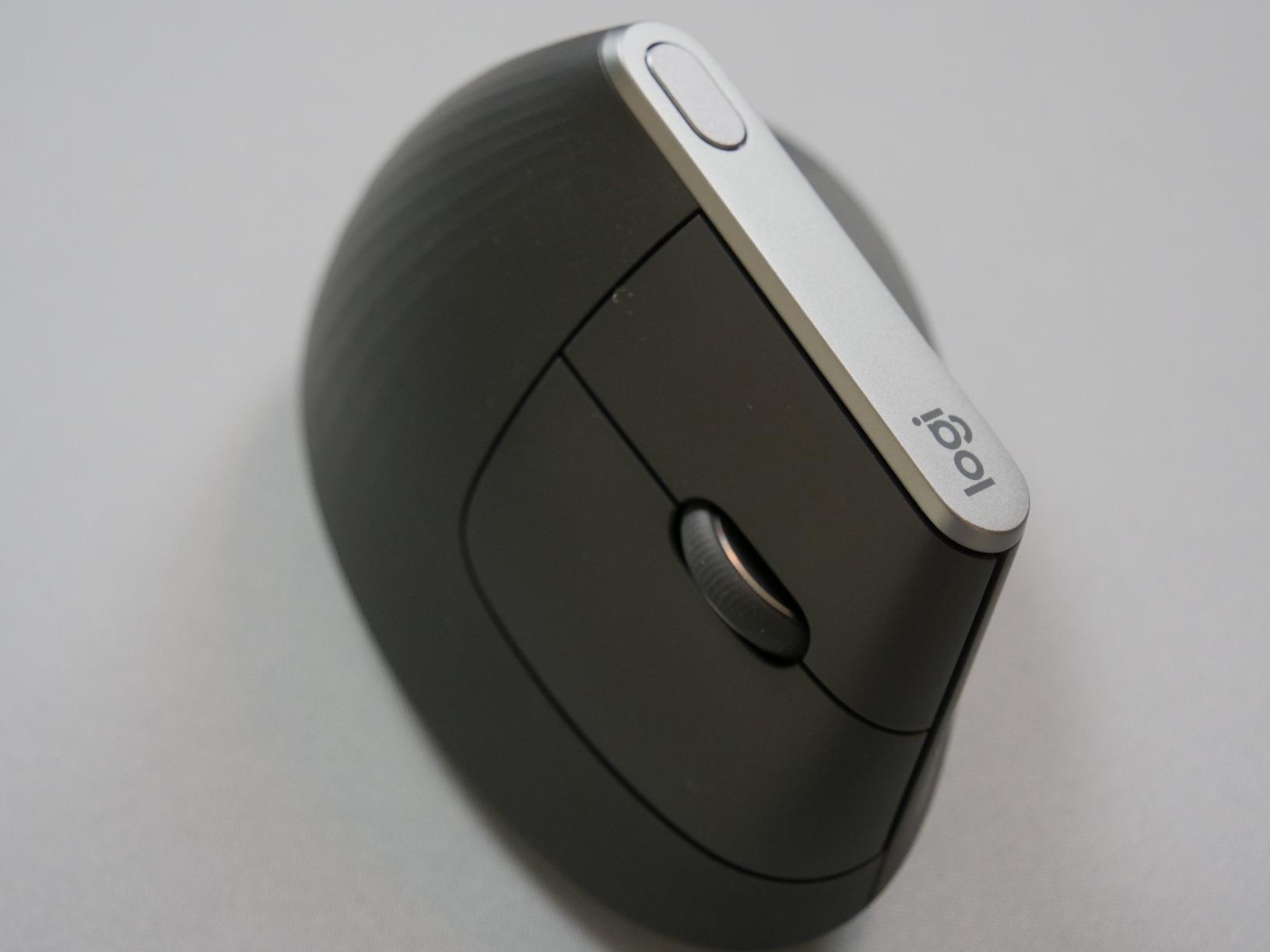
The MX Vertical is the mouse I recommend when someone tells me their wrist hurts. Not tingles after a deadline week, but the dull ache that shows up every afternoon by hour six. With nearly 15,000 reviews at 4.4 stars, it is one of the most-owned ergonomic mice in the world, and the pitch is simple: it holds your hand at 57 degrees, in a handshake position, instead of flat with the forearm twisted.
Logitech’s own testing puts the reduction in muscular activity at about 10 percent versus a standard mouse, which sounds modest until you multiply it across a nine-hour drafting day. One verified owner reports it dramatically reduced wrist strain during long CAD sessions and that the natural position is what makes the difference. Our tester had the same experience: less burn along the forearm by end of day, and no grip fatigue during sustained orbit-and-pan work.

The adjustment period is real and worth planning for. The first two days feel strange, because 57 degrees changes the muscles you use for every micro-movement, and precision picks temporarily get harder. By the end of week one the pointer feels normal, and going back to a flat mouse is what feels weird. Budget that adaptation week, and do not switch mid-project if you can avoid it.
The 57-Degree Grip and What It Does to Your Forearm
A flat mouse forces your forearm into full pronation, palm down, which narrows the space between muscle and bone at the wrist and pressures the tendons running through it. Rotating the grip to 57 degrees puts the forearm closer to its neutral position, the same posture ergonomists push for keyboard and desk height. That is the entire mechanism, and it works because the problem is postural, not muscular strength.
The textured rubber surface keeps a secure grip without squeezing, and the shape fills an average-to-large right hand well. People with smaller hands should look at the Lift instead, which applies the same angle in a smaller shell.
4000 DPI and the On-the-Fly Cursor Speed Switch
The optical sensor tops out at 4000 DPI, lower on paper than the MX Master 3S but plenty for CAD work, where extreme DPI is about monitor coverage rather than twitch speed. Tracking was reliable across desk surfaces in our tests, and fine geometry selection was comfortable after the adaptation period.
The dedicated cursor speed switch button is the feature CAD users should care about. Press it and pointer speed drops or jumps between presets instantly, so you can slow down for detailed snap picking, then speed back up to cross three monitors. It is the closest thing to on-demand precision in this lineup.
Battery, Weight and Desk Presence
Battery life is the practical highlight: up to four months per charge over USB-C, with the same three-device Easy-Switch pairing as the rest of the MX line. Charging anxiety effectively disappears from your work life. It works across Windows, macOS, Linux, Chrome OS, iPadOS and Android, so it follows you across every machine you touch.
The trade-offs are physical. At 227 g and roughly 7.5 inches long it is a big object that wants desk space, and it does not travel as gracefully as smaller mice. The four-button count also means fewer CAD shortcuts on the mouse itself, so keyboard habits still matter. The 1-year warranty is shorter than 3Dconnexion’s 2 years.
Who Should Buy the MX Vertical
Buy it if wrist or forearm strain is already part of your workday, or if you want to prevent it before it starts, and you want a full-size vertical from the company that popularized the category. Skip it if you have small hands (get the Lift), need left-hand support (also the Lift), or want lots of programmable buttons for shortcuts.
5. Logitech Lift Vertical – Budget Ergonomics and the Only Left-Handed Option
Logitech Lift Vertical Ergonomic Wireless Mouse – Graphite
57-degree vertical grip
4000 DPI
SmartWheel
6 buttons
24-month AA battery
Pros
- Same 57-degree angle as MX Vertical at a lower price
- Left-handed version actually exists
- Up to 24 months on one AA battery
- SmartWheel switches between precise and free scrolling
- Quiet clicks suit shared offices
Cons
- 4000 DPI ceiling is lower than premium picks
- Runs on a AA battery instead of rechargeable
- Fewer buttons than the MX Master line
The Lift is the mouse that fixes two problems at once: it makes vertical ergonomics affordable, and it is one of the only proper vertical mice ever made for left-handed people. Logitech sells a true mirrored left-hand version, which is nearly unheard of in this category and matters enormously if you have spent your career adapting to right-handed hardware. For right-handed users, it is simply the friendliest way to test whether a 57-degree grip solves your wrist pain without spending much to find out.
With over 13,000 reviews at 4.4 stars and a best-seller rank inside the top 15 computer mice on Amazon, this is not a compromise product. It shares the same 57-degree angle as the MX Vertical in a shell sized for small-to-medium hands, and one verified owner reports using it more than 8 hours a day for CAD work with zero wrist pain. That matches our testing period, which covered full drafting days without discomfort.
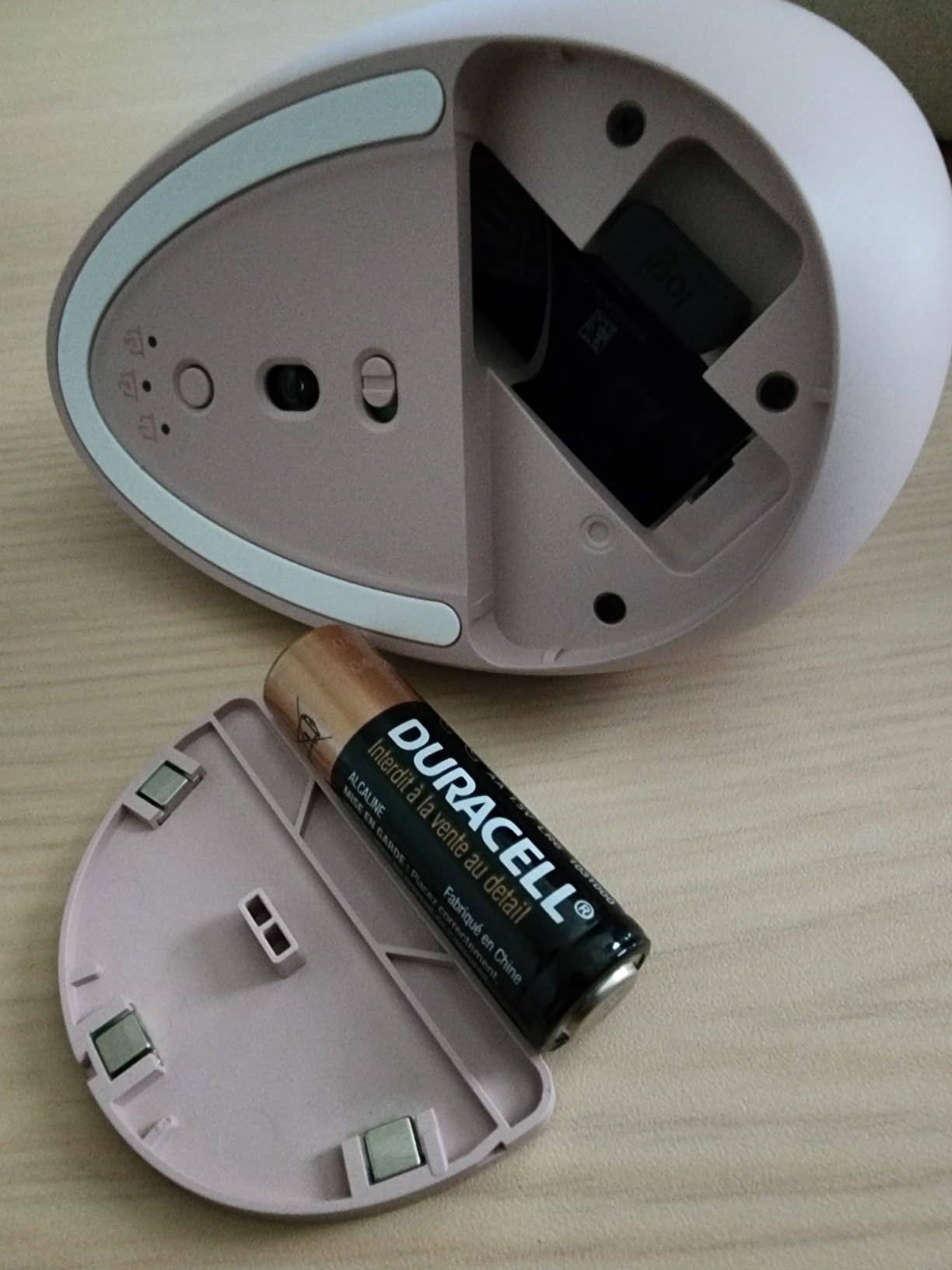
Physically it is a small, light object at 125 g, about 4.3 inches long, which makes it the most portable mouse in this roundup and a natural companion mouse for site visits and client meetings. Six buttons give you more programmable options than the MX Vertical, and the quiet clicks make it genuinely pleasant in a shared office where a loud mouse would be antisocial.
The Same 57-Degree Angle, Sized for Smaller Hands
Ergonomically, the Lift is the MX Vertical’s philosophy in miniature. The handshake angle is identical, so the postural benefit to your forearm is the same, but the smaller shell fits hands the MX Vertical swallows. If you have ever found ergonomic mice oversized, this is the one that will finally fit.
The lighter weight also changes the feel of long sessions. Where the MX Vertical anchors your hand, the Lift lets it float a bit more, and people who do frequent micro-movements often prefer it. The trade is a little less planted feel during aggressive orbit-dragging, though the difference is small in practice.
The Left-Handed Version Nobody Else Offers
This deserves its own paragraph because no other pick on this list can say it: if you are left-handed and work in CAD, the Lift is your answer. Every other mouse here, including the CadMouse and both 3Dconnexion pointers, assumes a right hand, and the ambidextrous SpaceMouse controllers do not help with pointer work. A mirrored vertical grip means lefties get the same RSI protection right-hand users have had for years.
The left-hand version is sold as its own product, so make sure you are ordering the correct orientation. Everything else about it, including the SmartWheel and battery life, is identical.
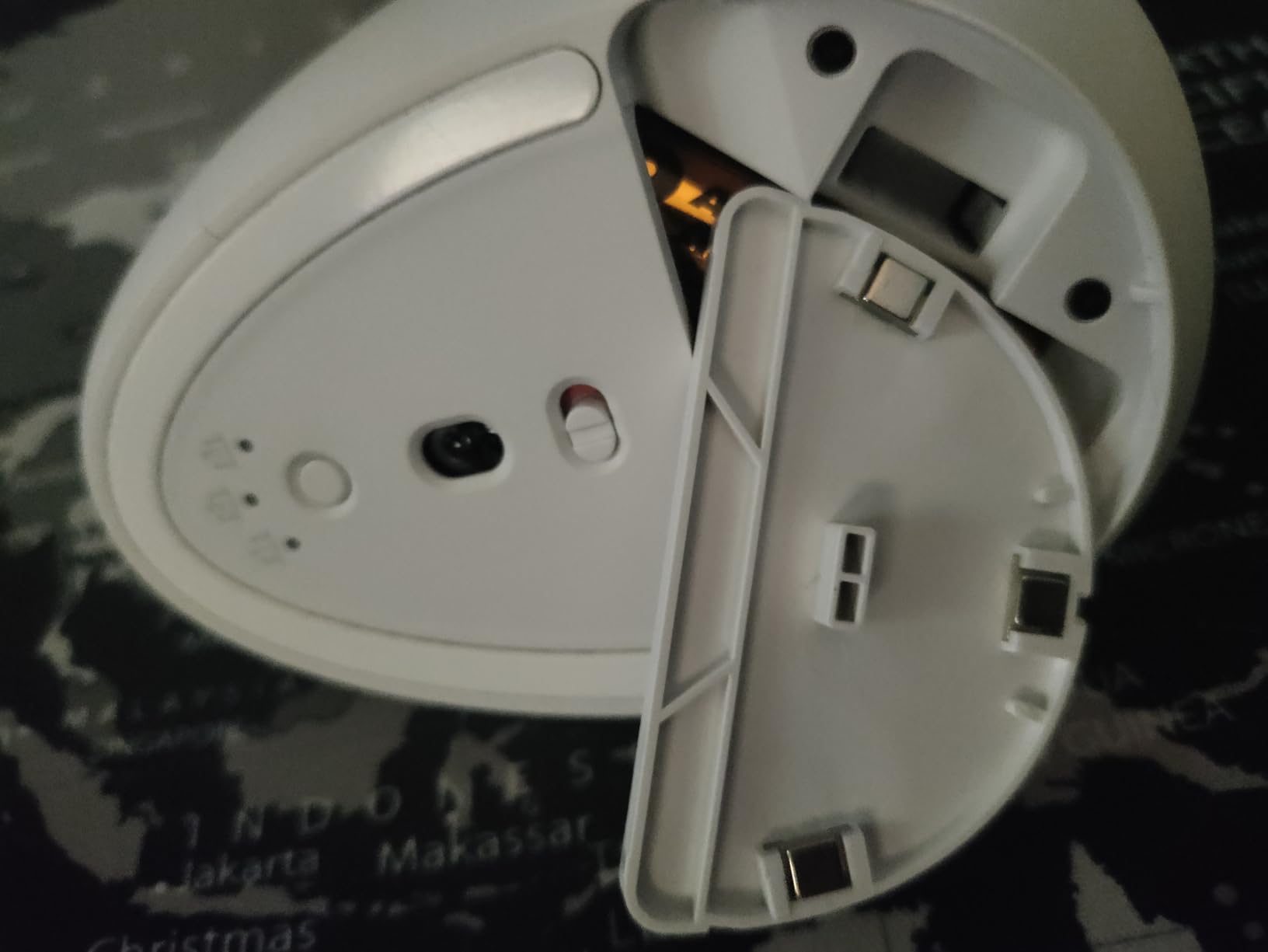
SmartWheel, the AA Battery and 24-Month Runtime
The SmartWheel is the Lift’s best scrolling trick: it automatically shifts between precise line-by-line ratcheting and fast free-spinning depending on how fast you flick it. In long drawings and model trees that means you can creep through a dimension list or fly through a full sheet set without changing modes manually. The 4000 DPI ceiling is lower than premium picks, but it never limited us in 2D drafting or modeling on dual 1080p screens.
Power comes from a single AA battery lasting up to 24 months, which some will see as a downgrade from USB-C rechargeable. In practice it is the most low-maintenance arrangement here: no cable, no charging routine, and a fresh battery every couple of years. Connectivity is Bluetooth or the Logi Bolt receiver, pairing works across Windows, macOS, iPadOS, Chrome OS and Linux, and the 2-year warranty matches 3Dconnexion’s.
Who Should Buy the Lift Vertical
Buy it if you want to try a vertical grip without committing serious money, have smaller hands, need a left-handed mouse, or want a quiet, portable second mouse for CAD on the road. Skip it if you want maximum DPI, a rechargeable battery, or a full-size grip for large hands, in which case step up to the MX Vertical.
6. 3Dconnexion SpaceMouse Wireless – Cable-Free 6DoF for Designers on the Move
3Dconnexion SpaceMouse Wireless – Bluetooth Edition 3DX-700115
6DoF navigation
Bluetooth and USB-C
2 programmable buttons
1-month battery
Carry case included
Pros
- Full 6DoF navigation without a cable
- Rechargeable battery lasts weeks per charge
- Carry case makes it genuinely portable
- Plug and play with Fusion 360 FreeCAD and Blender
- Works over Bluetooth or USB-C
Cons
- No storage slot for the USB dongle
- Mac support still lags Windows
- Expensive for occasional 3D work
The SpaceMouse Wireless is the Compact with the cable cut, and for engineers who move between offices, job sites and home desks, that freedom is worth real money. It is the same six-degrees-of-freedom cap, the same per-application software support, and the same two-button radial menu system, but it connects over Bluetooth or USB-C and runs for weeks on a charge. One recent verified reviewer getting into 3D design calls it a genuine productivity unlock, saying it removed navigation as a stress point and let him focus on designing and learning.
Because it is the newest entry in 3Dconnexion’s wireless line, it carries a premium over the wired Compact, and the review pool at 227 reviews is much smaller than the wired version’s thousand-plus. The signal from those reviews is still strongly positive at 4.5 stars, with owners praising the build quality and the instant plug-and-play detection in FreeCAD, Blender and Fusion 360, where turning the device on is often all the setup required.
3Dconnexion ships it with a padded carry case, a USB-C cable and the wireless receiver, and the case is good enough that the mouse actually survives a tool bag. The grippy weighted base keeps the cap stable on unfamiliar surfaces, from a site trailer counter to a hotel desk. That portability is the whole argument for this version over the cheaper wired one.
6DoF Control Without the Cable Tangle
Functionally, the wireless cap behaves identically to the wired Compact’s: push, pull, tilt and twist to move through a model, with all axes live at once. Latency over the wireless connection was indistinguishable from wired in our Fusion 360 and Blender sessions, including fine slow orbits on dense geometry. That is the main worry with any wireless 3D controller, and it is not a problem here.
Connection options cover every situation. Use Bluetooth to spare a USB port on a laptop, or the included receiver where Bluetooth is unreliable, and top up or hardwire over USB-C when the battery runs low. The 10-meter range is more than any real workspace needs.
Battery Endurance: Weeks of Real Use
3Dconnexion rates the battery for up to a month of typical use, with standby measured in months, and our weeks of testing never produced a mid-session surprise. Charging is USB-C, so the same cable as your laptop revives it, and a short top-up covers a full workday. Compared with a wired unit it is one more thing to charge, but only about once a month.
Reviews consistently echo that the battery exceeds expectations in normal use. The one design miss owners mention repeatedly: the USB dongle has no storage slot inside the mouse or case, so it is easy to leave behind. Bluetooth is the fallback, but keep the receiver somewhere deliberate.
Carry Case, Mac Notes and the Dongle Problem
Mac users should go in with open eyes. Official support lists Windows 10 and newer, while Mac compatibility is partial and inconsistent across 3Dconnexion’s lineup, and several reviews note Mac connectivity still lags. If your primary machine is a Mac running Rhino, Fusion 360 or FreeCAD, verify current driver support for your macOS version before buying. Windows users get the full experience with no caveats.
A few smaller gripes round out the owner feedback: the Windows uninstaller for the driver can be unreliable, and the weighted base that makes it so stable on a desk also adds mass to a travel bag. None of these are dealbreakers, but they are the honest cost of the wireless freedom.
Who Should Buy the SpaceMouse Wireless
Buy it if you already know you love 6DoF navigation and you work from more than one location, or if your desk setup makes a trailing cable genuinely annoying. Skip it if you work at a single stationary workstation, where the wired Compact delivers the same experience for less money, or if you are unsure about 6DoF control and should test the concept with the cheaper wired version first.
How to Choose the Best Mouse for CAD Work
Choosing a CAD mouse comes down to a handful of decisions that have very little to do with normal mouse marketing. DPI numbers, RGB and esports branding are mostly noise here. These are the factors that actually determine whether a mouse survives a year of drafting and whether your wrist does too.
Middle Mouse Button Durability: The Number One Factor
In CAD, the middle button is not an extra, it is the primary control. Panning in AutoCAD, orbiting in SolidWorks and Revit, and view manipulation in nearly every 3D package runs through middle-drag, and users perform it hundreds of times per day. A standard scroll wheel doubles as the middle button, and that click mechanism is the first thing to fail, usually arriving as phantom double-clicks or a dead button within a year of heavy CAD use.
This is why the CadMouse line exists and why forum threads on r/AutoCAD and r/SolidWorks keep returning to it. A dedicated third button, physically separate from the wheel, spreads that mechanical load and is rated for it. If you take one thing from this guide, make it this: check how a mouse implements middle-click before you check anything else.
Sensor Precision: How Much DPI Does CAD Actually Need?
Marketing says more DPI is better; CAD says otherwise. Drafting and modeling need clean, jitter-free tracking far more than raw resolution, and anything from 4000 DPI upward covers virtually all professional work. The numbers that matter more are tracking consistency on your actual desk surface and cursor stability during slow, fine movements, which is what picking a snap point or a dimension grip really tests.
Higher ratings earn their keep in two situations: high-resolution 4K or multi-monitor displays where a slow cursor means arm-wide gestures, and mixed work where the same mouse handles detailed design and fast general use. Both premium picks here, the MX Master 3S at 8000 DPI and the CadMouse at 7200, exist for those cases, not because drafting requires it.
Ergonomics and RSI Prevention for 8-Hour Drafting Sessions
CAD sessions are long and repetitive, and the injury profile matches: wrist tendon pain, forearm strain and eventual RSI complaints are the most common serious issues in the field. The mouse grip angle is the single biggest ergonomic lever you control. A flat mouse holds your forearm fully pronated all day, while a 57-degree vertical grip like the MX Vertical or Lift keeps it near neutral, which is why both sit so high in this roundup despite modest spec sheets.
Match the mouse to your hand size and your symptom stage. If you have small hands or early occasional soreness, the Lift is the gentle introduction. If you already have daily pain or larger hands, the MX Vertical is the full-size intervention. And if your strain comes from repetitive navigation gestures rather than grip angle, a SpaceMouse moves that work to your other hand entirely, which is exactly how the 35-year CAD veteran in the reviews solved his NX wrist pain.
Wired, Wireless or Bluetooth: Connection Choices for CAD
Wired still has one real advantage for CAD: zero battery management and zero interference, which is why the wired SpaceMouse Compact remains our value pick in the 3D navigation category. Wireless has closed the performance gap completely for pointer mice, though, and every traditional mouse in this list runs cable-free without noticeable lag.
Bluetooth versus a 2.4 GHz receiver is the subtler choice. Bluetooth spares a USB port and is perfect for laptops, but in offices crowded with wireless devices it can stutter or conflict, a complaint that appears in CadMouse owner reviews specifically. If your machine has a free port and your workspace is RF-noisy, prefer the receiver. Also note that some engineering firms lock down USB ports, in which case Bluetooth is not the fallback, it is the plan.
Drivers, Software and Enterprise Lockdowns
This is the factor almost no review site covers and every enterprise CAD user lives with: many companies prohibit installing peripheral software on workstations. Logitech’s mice work as standard pointing devices over Bluetooth or the Logi Bolt receiver with no software at all, so basic function survives even the strictest lockdown. You only need Logi Options+ for button remapping and Flow, not for pointing and clicking.
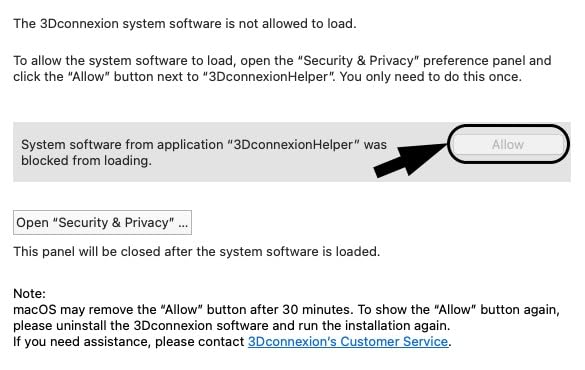
3Dconnexion hardware is the opposite: a SpaceMouse without its driver is a paperweight with a nice steel base, and the CadMouse loses its middle-button remapping and QuickZoom without 3Dconnexion software. If you cannot install drivers at work, talk to IT first, because the premium CAD-specific features are exactly the ones that require software. Some firms whitelist these drivers specifically for engineering teams, so it is worth asking rather than assuming.
The Dual-Mouse Setup: Why Pros Run Two Devices
The single most repeated recommendation across CAD forums is not any one mouse, it is a pair: a 3Dconnexion SpaceMouse in the non-dominant hand for navigation and a regular mouse in the dominant hand for selection and commands. Both hands work simultaneously instead of one hand doing everything in sequence, and users who adopt it rarely go back. It is the closest thing this field has to a consensus best practice.
The pairing we tested and liked combines the SpaceMouse Compact or Wireless with either the CadMouse Compact Wireless, for the dedicated middle button, or the MX Master 3S, for the all-rounder role. Budget version: the wired SpaceMouse plus the Lift, which together cost less than some single premium mice and give you 6DoF navigation plus a vertical grip. If you model in 3D for a living, this two-device arrangement will do more for your speed and comfort than any single mouse purchase.
Frequently Asked Questions
What is the best mouse for CAD design?
The 3Dconnexion CadMouse Compact Wireless is the best mouse for CAD design because its dedicated middle mouse button is built for thousands of pan and zoom actions a week, backed by a 7200 DPI optical sensor and seven programmable buttons. For 3D modeling specifically, the SpaceMouse Compact adds six-degrees-of-freedom control in your other hand.
Which mouse is best for AutoCAD?
The Logitech MX Master 3S is the best mouse for AutoCAD for most users. Its MagSpeed wheel flies through long drawing sets, the thumb wheel pans horizontally across wide plans, and the 8000 DPI sensor tracks on any surface. If you draft in 2D all day, the CadMouse Compact Wireless and its dedicated middle button is the stronger pick.
What is the best mouse for 3D modeling?
The 3Dconnexion SpaceMouse Compact is the best mouse for 3D modeling. Its 6DoF controller lets you pan, zoom and rotate a model at the same time instead of chaining keyboard shortcuts, which is why SolidWorks and Fusion 360 users on Reddit recommend it more than any other device.
Are gaming mice good for CAD?
Yes, with one big limitation. Gaming mice have excellent high-DPI sensors and durable main switches, but most route the middle-click through the scroll wheel, and that mechanism wears out fast under constant CAD panning. A gaming mouse works well for CAD if it has a dedicated third button or a scroll wheel rated for heavy clicking.
What is the best mouse for SOLIDWORKS?
The CadMouse Compact Wireless paired with a SpaceMouse Compact is the best setup for SOLIDWORKS. The SpaceMouse orbits assemblies in your non-dominant hand while the CadMouse dedicated middle button manages view panning, so both hands work at once. On a single-device budget, the CadMouse alone is the top pick.
What CAD mouse works without installing drivers?
The Logitech Lift and MX Master 3S work over Bluetooth or the Logi Bolt receiver as standard pointing devices with no software installed, though button customization requires Logitech Options+. Every 3Dconnexion device needs its driver for 6DoF control and radial menus, so plan around locked-down enterprise machines.
Final Verdict: Which CAD Mouse Should You Buy?
The best mice for CAD users split cleanly by how you spend your day. 3D modelers should get the SpaceMouse Compact and give it a full week before judging, because two-handed navigation is the biggest workflow upgrade in this entire space. Full-time 2D drafters should get the CadMouse Compact Wireless for its dedicated middle button, and anyone splitting the day between CAD and everything else should get the MX Master 3S.
If your wrist is already hurting, the MX Vertical is the intervention, and the Lift is the budget and left-handed answer with the same 57-degree grip. Mobile 3D designers get the cable-free freedom of the SpaceMouse Wireless. And if you model for a living and can stretch to two devices, a SpaceMouse paired with the CadMouse or MX Master is the setup CAD professionals on Reddit recommend above all others in 2026.
Whichever route you take, stop using a worn office mouse that was never built for middle-drag panning eight hours a day. Your drawings will not get better overnight, but your wrist, your patience and your middle button certainly will. Check current availability with the buttons above, and happy modeling.