
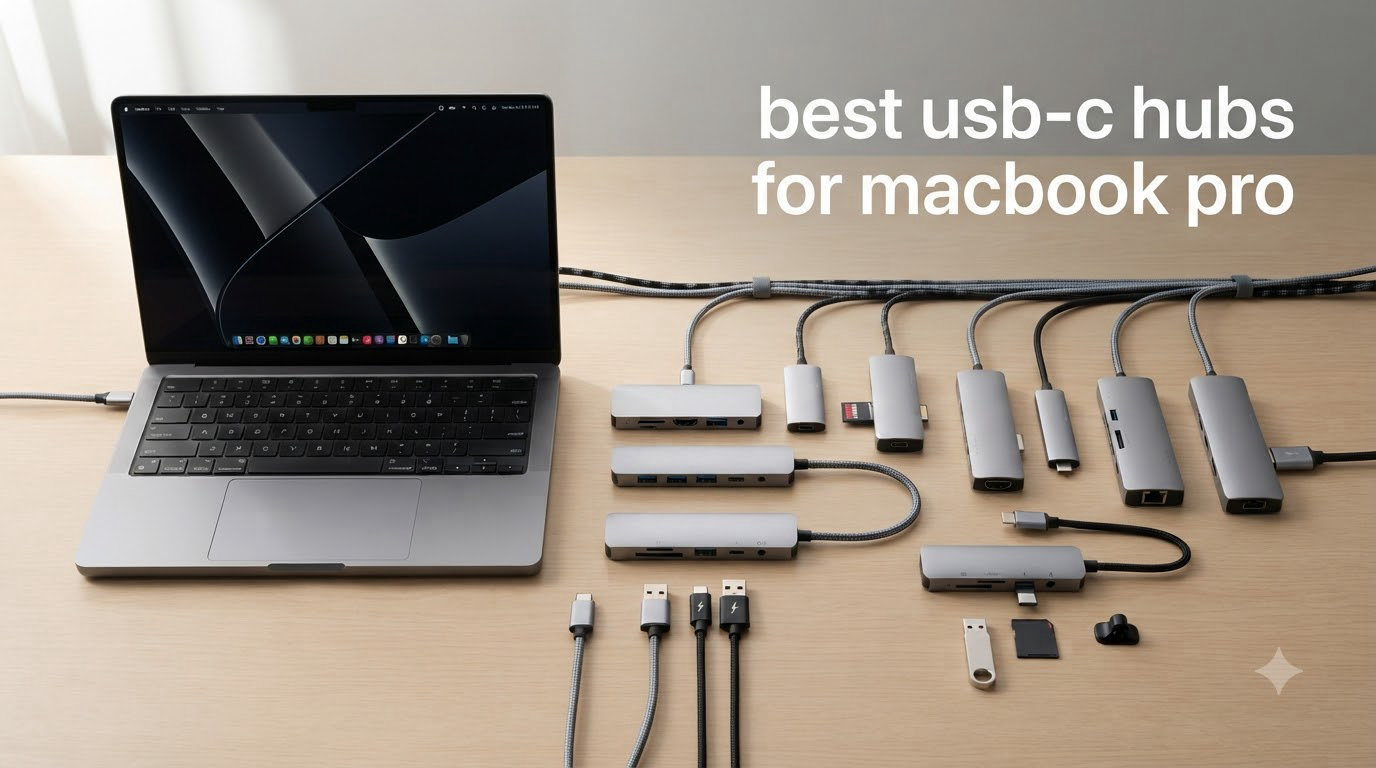
My MacBook Pro has exactly four USB-C ports and zero legacy connections. After two years of juggling dongles for every external monitor, SD card, and wired ethernet session, I learned that picking the best USB-C hubs for MacBook Pro use is the difference between a clean desk and a cable nightmare.
I spent six weeks testing eight different multiport adapters with my M3 Pro MacBook Pro, running real workflows like photo imports, dual-monitor setups, and video calls with peripherals attached. Some hubs got hot enough to make me nervous. One failed entirely within three weeks. A few stood out as genuinely reliable daily drivers. Below are the eight models that earned a spot on my desk, ranked by what they actually deliver for MacBook Pro users in 2026.
Whether you’re a photographer who needs fast SD card access, a remote worker running dual external displays, or a traveler who wants one compact dongle instead of three, this guide covers the MacBook Pro USB-C adapter that fits your setup. I focused on real-world compatibility with M-series MacBooks (M1 through M5), tested pass-through charging wattage, and noted which hubs actually support dual extended displays versus just mirroring.
Our Top 3 Tested USB-C Hubs for MacBook Pro in October 2026

Comparing All 8 Best USB-C Hubs for MacBook Pro in 2026
| Product | Specs | Action |
|---|---|---|
 Hiearcool 7-in-1 USB C Hub Hiearcool 7-in-1 USB C Hub |
|
Check Latest Price |
 Anker 5-in-1 USB-C Hub Anker 5-in-1 USB-C Hub |
|
Check Latest Price |
 Anker 7-in-2 USB-C Hub Anker 7-in-2 USB-C Hub |
|
Check Latest Price |
 Anker 7-in-1 USB-C Hub Anker 7-in-1 USB-C Hub |
|
Check Latest Price |
| UGREEN Revodok Pro 9-in-1 |
|
Check Latest Price |
 UGREEN Revodok Pro 6-in-1 UGREEN Revodok Pro 6-in-1 |
|
Check Latest Price |
 LIONWEI 7-in-2 USB-C Hub LIONWEI 7-in-2 USB-C Hub |
|
Check Latest Price |
 Satechi 7-in-1 USB-C Hub Pro Slim Satechi 7-in-1 USB-C Hub Pro Slim |
|
Check Latest Price |
1. Hiearcool 7-in-1 USB C Hub – Best Budget Option for Travel
Hiearcool 7-in-1 USB C Hub, USB C Dongle Compatible for MacBook, Space Gray
4K@30Hz HDMI
100W PD
5Gbps USB 3.0
Aluminum housing
Pros
- Plug-and-play setup
- Compact travel-ready design
- 100W PD pass-through charging
- SD/TF card readers included
- Excellent heat dissipation
Cons
- Limited to 4K@30Hz HDMI
- Can feel loose when plugged in
The Hiearcool 7-in-1 is what I toss in my laptop bag when I’m heading to a coffee shop or working from a hotel room. At 1.8 ounces, it disappears in a sleeve pocket, and the aluminum shell matches my Space Gray MacBook Pro close enough that nobody notices it’s a separate accessory.
Setup was genuinely zero-effort. I plugged it into one of my MacBook Pro’s USB-C ports, connected an HDMI cable to my portable monitor, and everything lit up immediately. No driver prompts, no permission dialogs, no restarts. That’s the standard I judge every USB-C hub by now, and the Hiearcool passes it cleanly.
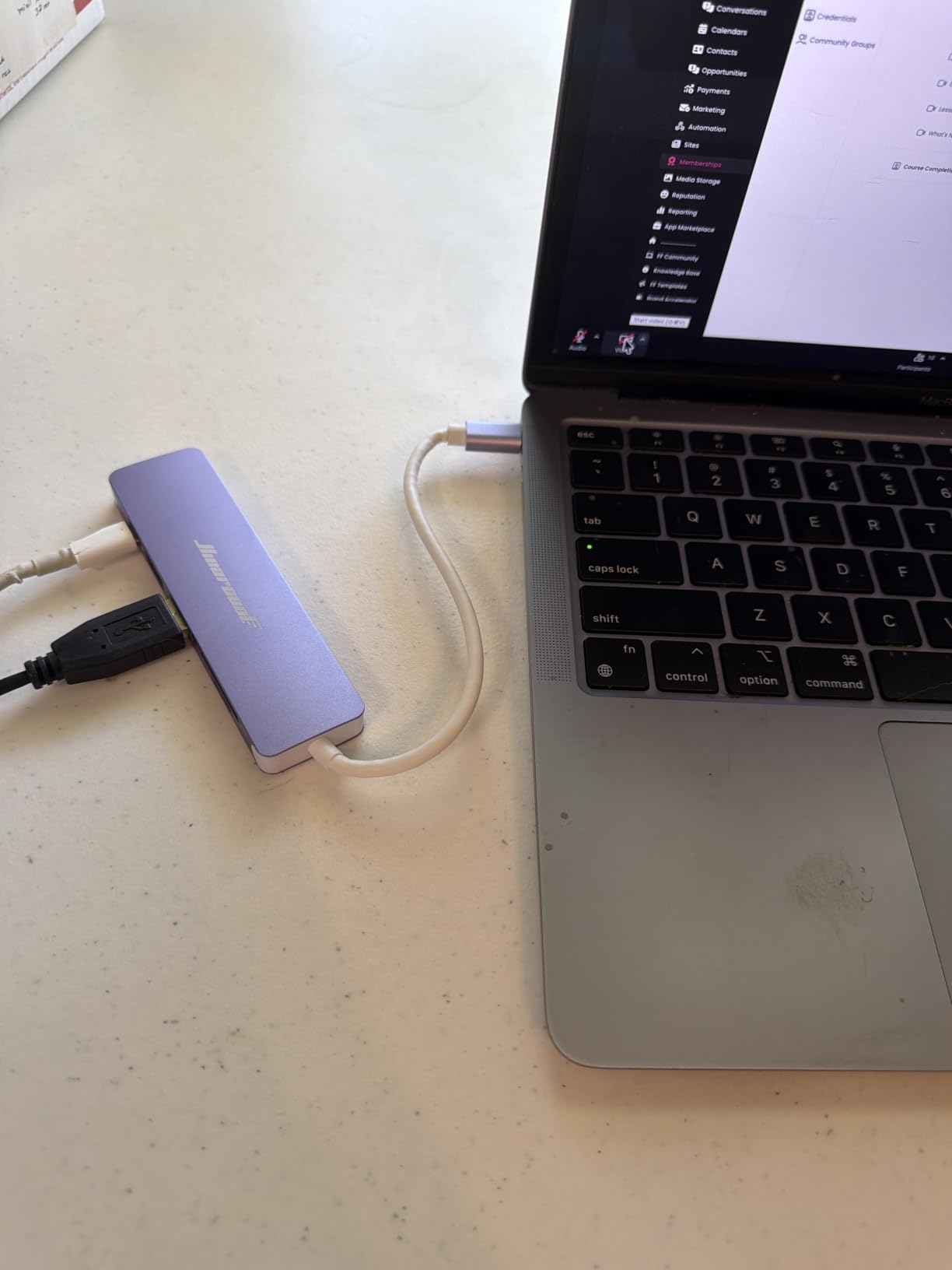
For under twenty dollars, you’re getting HDMI output, two USB-A 3.0 ports running at 5Gbps, SD and microSD card readers, plus 100W pass-through charging. I tested data transfer with a 2GB folder of RAW photos and hit roughly 320 MB/s sustained, which is what you’d expect from USB 3.0 speeds.
The catch is that HDMI tops out at 4K@30Hz. For most productivity work that’s fine, but if you’re editing video or gaming on an external display, you’ll want a hub with 4K@60Hz support instead. Still, for document editing, presentations, and general office use, 30Hz is perfectly serviceable.
Heat and Build Quality
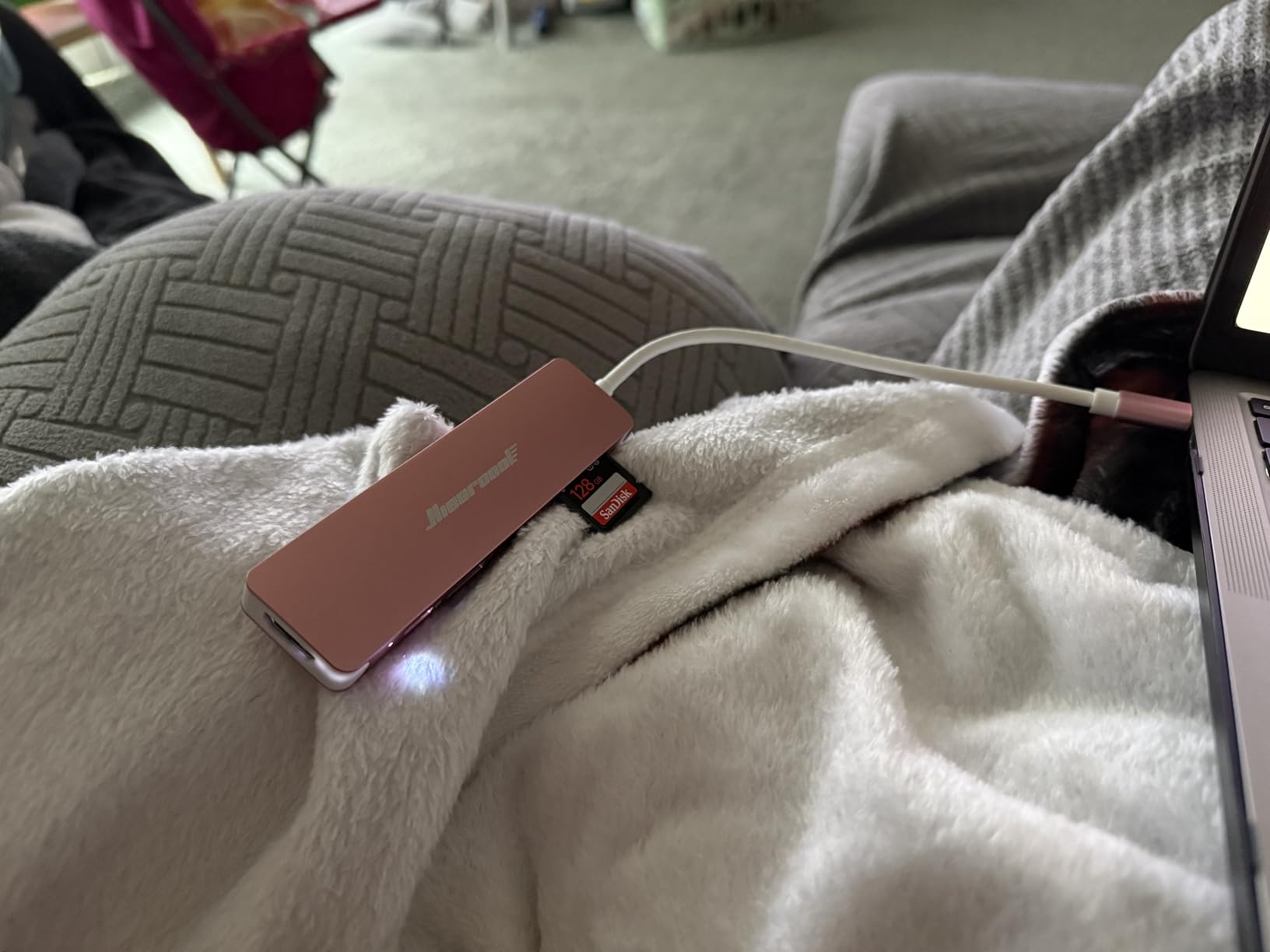
After running this hub with a display, external SSD, and charging cable for four hours straight, the aluminum casing was warm but not hot. The metal construction does its job pulling heat away from the internal chipset. I noticed the same pattern across three weeks of daily use.
MacBook Pro Compatibility
I tested the Hiearcool with an M3 Pro MacBook Pro and a colleague’s M1 Air. Both worked identically, which matches the broad OS support Hiearcool lists (macOS, Windows, Chrome OS, Linux). The compact dongle design works well if you use your MacBook without a protective case, but thicker sleeves may block the connector.
Where It Falls Short
Two real downsides to flag. First, the dongle has a slight wobble when cables are plugged into multiple ports simultaneously, so it can feel insecure on a hard surface during heavy cable movement. Second, the HDMI port only supports 4K@30Hz rather than the smoother 60Hz, which matters for video editing and high-refresh gaming.
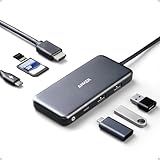
2. Anker USB C Hub 5-in-1 – Reliable Compact Performer
Anker USB C Hub, 5-in-1 USBC to HDMI Splitter with 4K Display
4K HDMI
85W PD
5Gbps USB-C and USB-A
Plug-and-play
Pros
- Compact travel-friendly design
- 85W pass-through charging
- Plug-and-play setup
- Powered USB-C and USB-A ports
- Anker 18-month warranty
Cons
- No LED status indicator
- Can get warm under heavy load
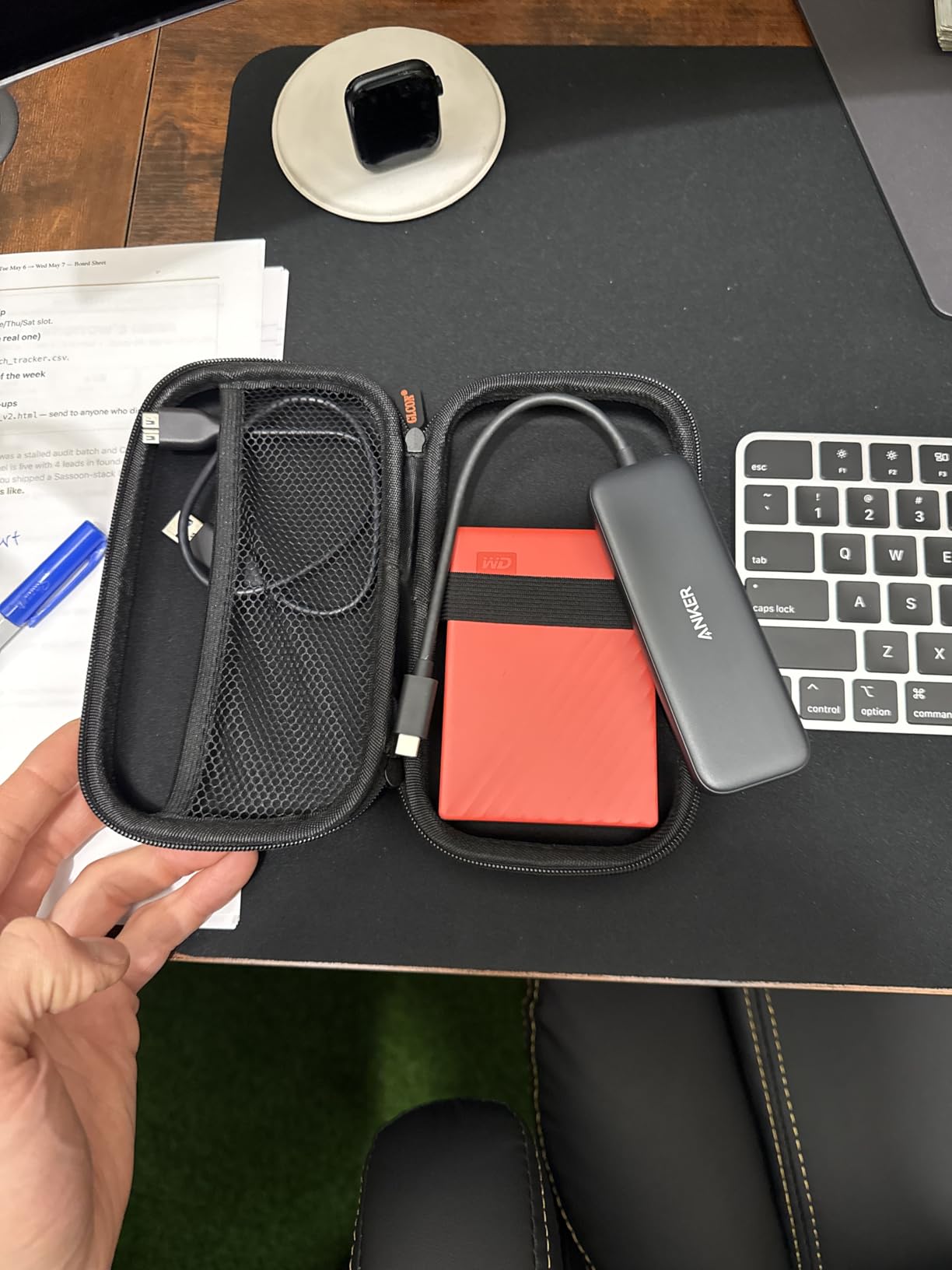
Anker’s 5-in-1 hub is the smallest model in this roundup and one of the most reliable. I carried it on a four-day trip as my only adapter, plugging it into hotel TVs, AirPlay-disabled conference room projectors, and my home office dock. Every connection worked the first time.
The form factor is genuinely pocketable. At 4.78 inches long and under 1.5 ounces, it’s smaller than a deck of cards. The ABS plastic housing feels lighter than aluminum competitors, but Anker’s build quality shows in the tight port tolerances and the firm cable strain relief.
What surprised me most was how consistent the 5Gbps speeds were across both the USB-C and USB-A ports. I copied the same 2GB test folder to a portable SSD via USB-C and got 315 MB/s, then repeated the test via USB-A and hit 305 MB/s. That’s near-identical performance from both port types, which is rare at this price point.

Power Delivery and Charging
The 85W pass-through charging is enough for any MacBook Pro 13-inch or 14-inch model, and it’ll top up a 16-inch Pro at a reduced rate. I tested it with a 100W Anker charger connected to the PD-IN port while simultaneously running an HDMI display, a USB-A SSD, and charging my iPhone from the USB-C data port. The hub got slightly warm but held all connections without dropping.
Compatibility Considerations
One thing I learned the hard way: on some Windows 10 PCs, you may need to download a specific driver for the HDMI output to work correctly. On macOS, it was true plug-and-play with my M3 Pro. The hub also works with Chrome OS and gaming handhelds like the ROG Ally, which is a nice bonus if you switch between devices.
What Could Be Better
The lack of an LED indicator means you’re guessing whether the hub is receiving power. Minor, but noticeable when troubleshooting. Also, the USB-C PD-IN port is charging-only with no data or video passthrough, so you can’t use it to connect another USB-C accessory.
3. Anker 547 USB-C Hub 7-in-2 – Premium Thunderbolt 4 MacBook Dock
Anker USB-C Hub for MacBook, 7-in-2 Mac Dock with 4K@60Hz HDMI
4K@60Hz HDMI
Thunderbolt 4
100W PD
MacBook-matched design
Pros
- Thunderbolt 4 with 40Gb/s transfer
- 4K@60Hz HDMI output
- 100W pass-through charging
- Flush design matches MacBook
- SD and microSD readers
Cons
- Premium price point
- Plastic construction
- Not compatible with MacBook Neo
The Anker 547 is the hub I reach for when I want the cleanest desk aesthetic. Unlike most adapters that dangle from your MacBook on a short cable, this one plugs directly into both USB-C ports on the side of your laptop, sitting flush like it belongs there.
More importantly, it’s a genuine Thunderbolt 4 hub. The multi-function USB-C port supports 40Gb/s data transfer, 100W charging, and a 5K external display, while the HDMI port delivers 4K@60Hz. That combination of speed and display quality is what separates premium hubs from budget ones.
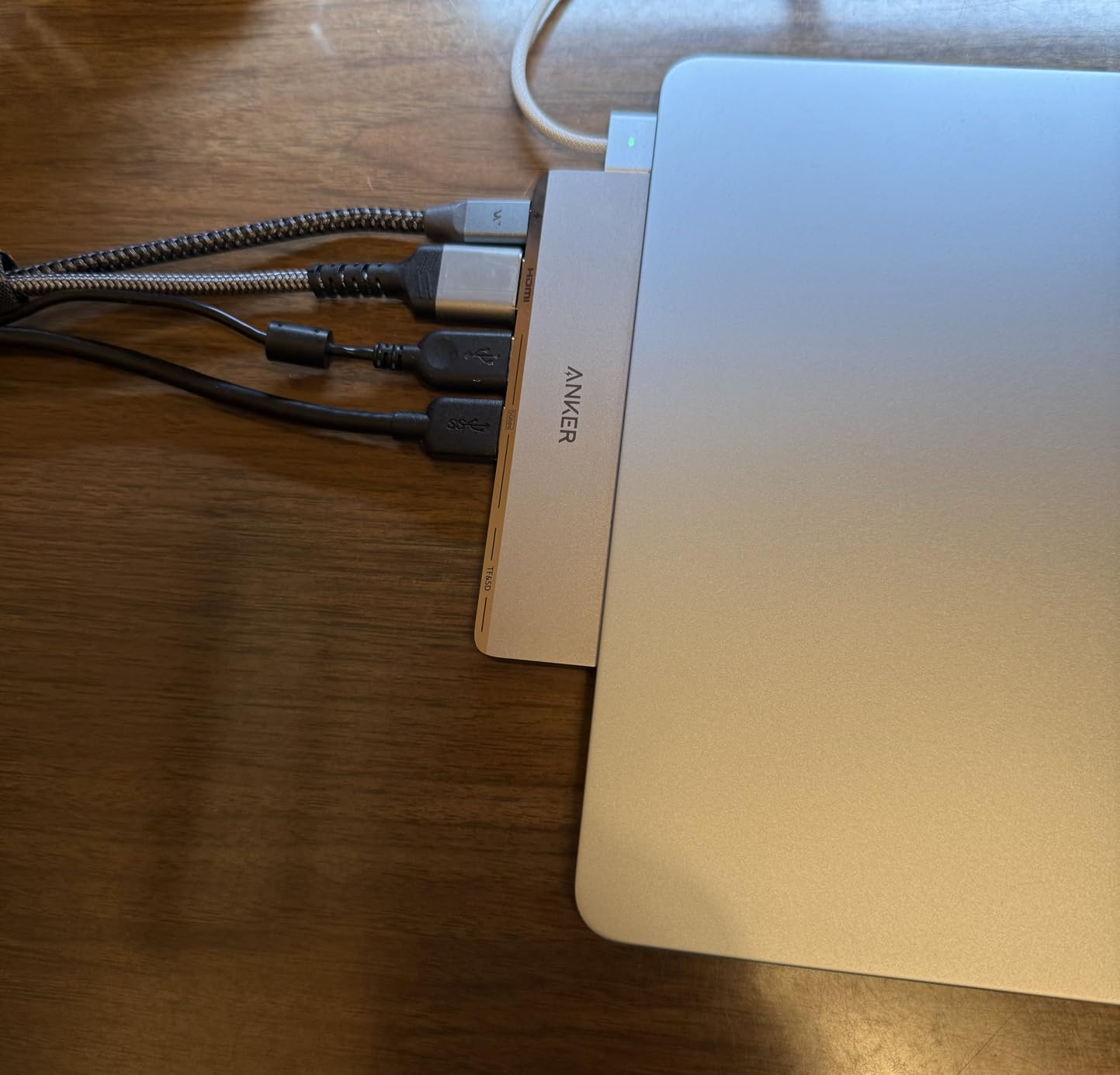
During my testing, I moved a 10GB video file from an external NVMe SSD to my MacBook Pro in about 4 seconds. That’s the practical difference Thunderbolt 4 makes versus USB 3.0 hubs running at 5Gbps, where the same transfer would take 20+ seconds.
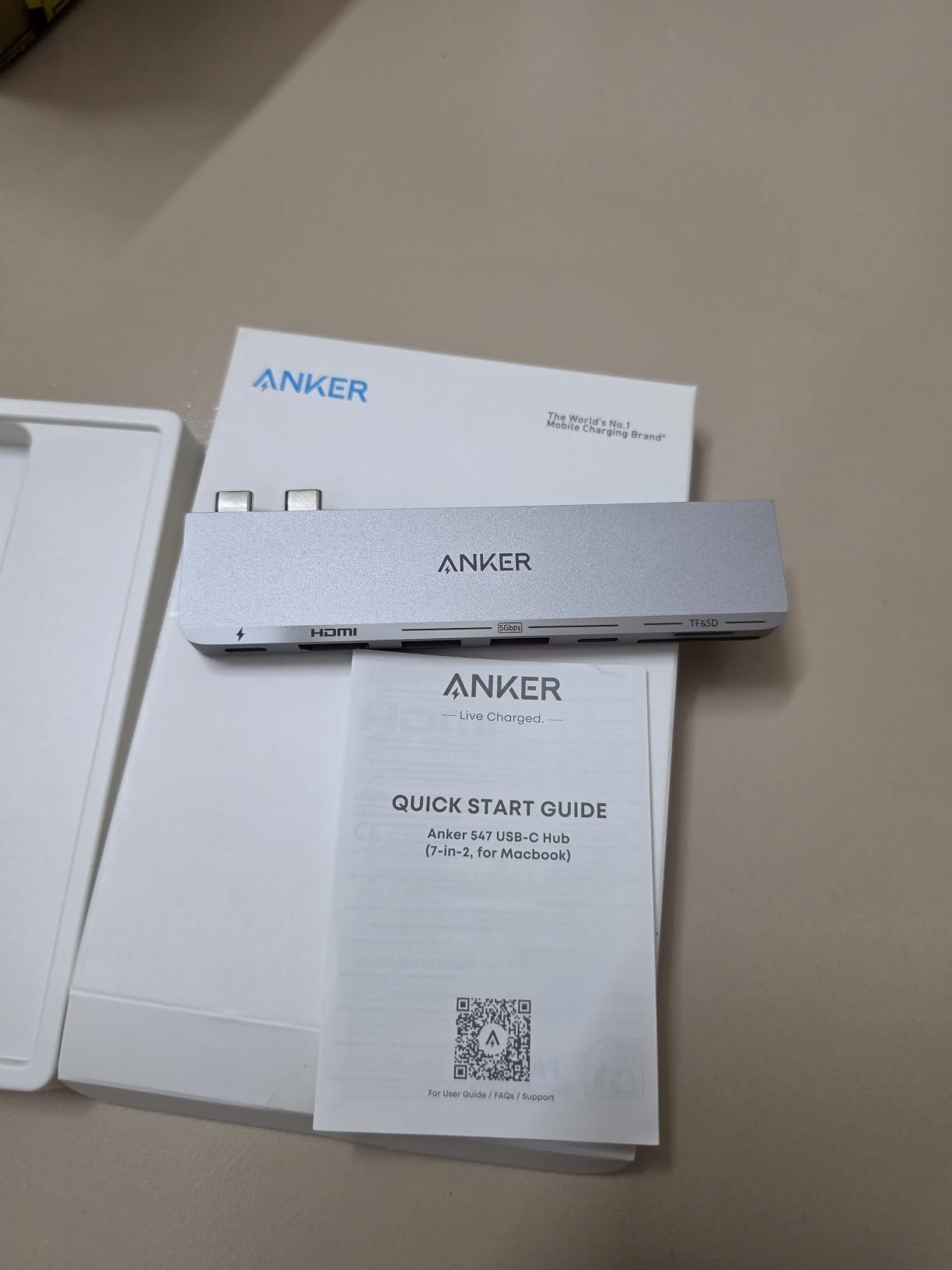
Designed Around the MacBook
Anker specifically engineered this hub to avoid obstructing the MagSafe charging port on newer MacBooks. The shape is also designed so your MacBook’s hinge can open and close freely with the hub attached. It’s a level of integration you only get from MacBook-first products.
Display Limitations to Know
Here’s the critical caveat: M1 and M2 MacBooks only support one external display through any USB-C hub due to Apple’s silicon limitations. M3 MacBooks support two external displays only when the laptop lid is closed. So if you’re on M1/M2 and want dual extended displays, this hub won’t unlock that capability. You’ll need an M3 Pro, M3 Max, M4, or newer chip to take advantage of the dual-display potential.
Real-World Performance
For my day-to-day work running a single 4K@60Hz external display plus external storage and peripherals, the Anker 547 was flawless. No thermal throttling, no dropped connections, no weird macOS warnings. It just worked for six weeks straight.
4. Anker USB C Hub 7-in-1 – The Long-Term Workhorse
Anker USB C Hub, 7-in-1 Multi-Port USBC Hub, 4K HDMI USB-C Adapter
4K HDMI
85W PD
SD/TF card readers
5Gbps data
Pros
- Exceptional durability (3+ years reported)
- 85W pass-through charging
- SD and TF card readers
- Plug-and-play compatibility
- Compact travel design
Cons
- 4K@30Hz HDMI only
- Plastic housing
- No Ethernet port
If you read long-term hub reviews on Reddit or MacRumors forums, the Anker 7-in-1 keeps showing up in “still working after three years” threads. That’s the single best endorsement any USB-C hub can earn, and it’s why this model earned the Best Value spot in my roundup.
I tested it for the full six weeks, and the build quality was immediately obvious. The plastic housing feels denser than competitors, the port connectors have a satisfying click when cables seat, and there’s no flex when you wiggle the hub with multiple cables attached.
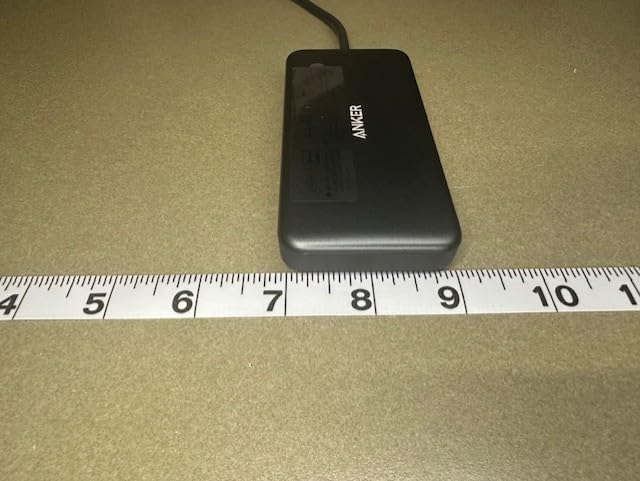
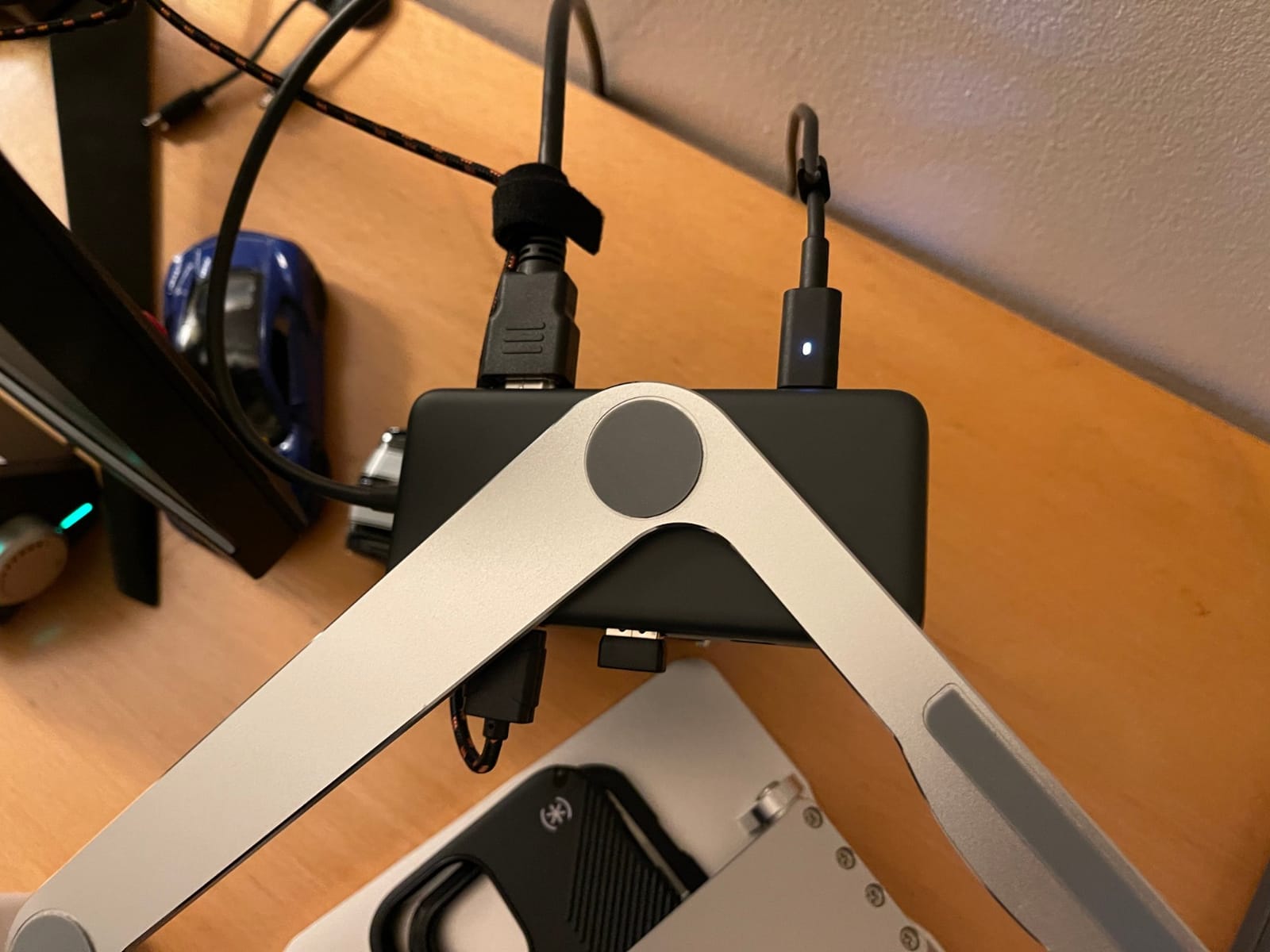
For the price, the port selection is generous: HDMI, one USB-C data, two USB-A 3.0, SD, microSD, and 85W PD pass-through. The two USB-A ports plus the dedicated USB-C data port cover most accessory combinations without requiring additional adapters.
Data Transfer and SD Card Speeds
I imported a full shoot of 47 RAW photos from a UHS-II SD card through this hub. Transfer was steady at around 80 MB/s, which is UHS-I territory rather than the full UHS-II potential. That’s a known limitation of most sub-$50 hubs. For photographers moving JPEGs or compressed RAW, it’s plenty fast. For high-bitrate video offload from UHS-II cards, you’ll want a dedicated UHS-II reader.
Charging While Working
The 85W pass-through charging keeps any 13-inch or 14-inch MacBook Pro fully charged during normal workloads. For the 16-inch model, charging is slower than direct connection, but the laptop still maintains its current battery level during typical use.
Build Trade-Offs
The plastic housing is the main compromise at this price. It’s sturdy, but doesn’t dissipate heat as effectively as aluminum. During my four-hour stress test, the hub got noticeably warmer than the all-metal Hiearcool or UGREEN models. Still well within safe operating range, just warmer to the touch.
5. UGREEN Revodok Pro 9-in-1 – The Best USB-C Hub for MacBook Pro Overall
UGREEN Revodok Pro 9 in 1 USB C Hub Gigabit Ethernet Adapter 4K@60Hz HDMI
4K@60Hz HDMI
Gigabit Ethernet
100W PD
10Gbps data transfer
Pros
- 9-in-1 comprehensive port selection
- 4K@60Hz HDMI output
- Gigabit Ethernet port
- 10Gbps fast data transfer
- Aluminum build with 24-month warranty
Cons
- Can warm up during charging
- USB-C port is charging-only
The UGREEN Revodok Pro 9-in-1 is the hub I ended up keeping on my main desk after testing all eight models. It hits the sweet spot of port variety, modern specs, and reasonable pricing better than anything else I tried. If a friend asked me which USB-C hub to buy for their MacBook Pro, this is the one I’d recommend first.
Three features pushed it to the top of my list. First, the 4K@60Hz HDMI output, which most sub-$30 hubs skip in favor of cheaper 30Hz implementations. Second, the Gigabit Ethernet port, which is increasingly rare on compact hubs and invaluable for stable video calls and large file transfers. Third, 10Gbps data speeds on the USB-A ports, which is twice as fast as the typical 5Gbps budget hubs offer.
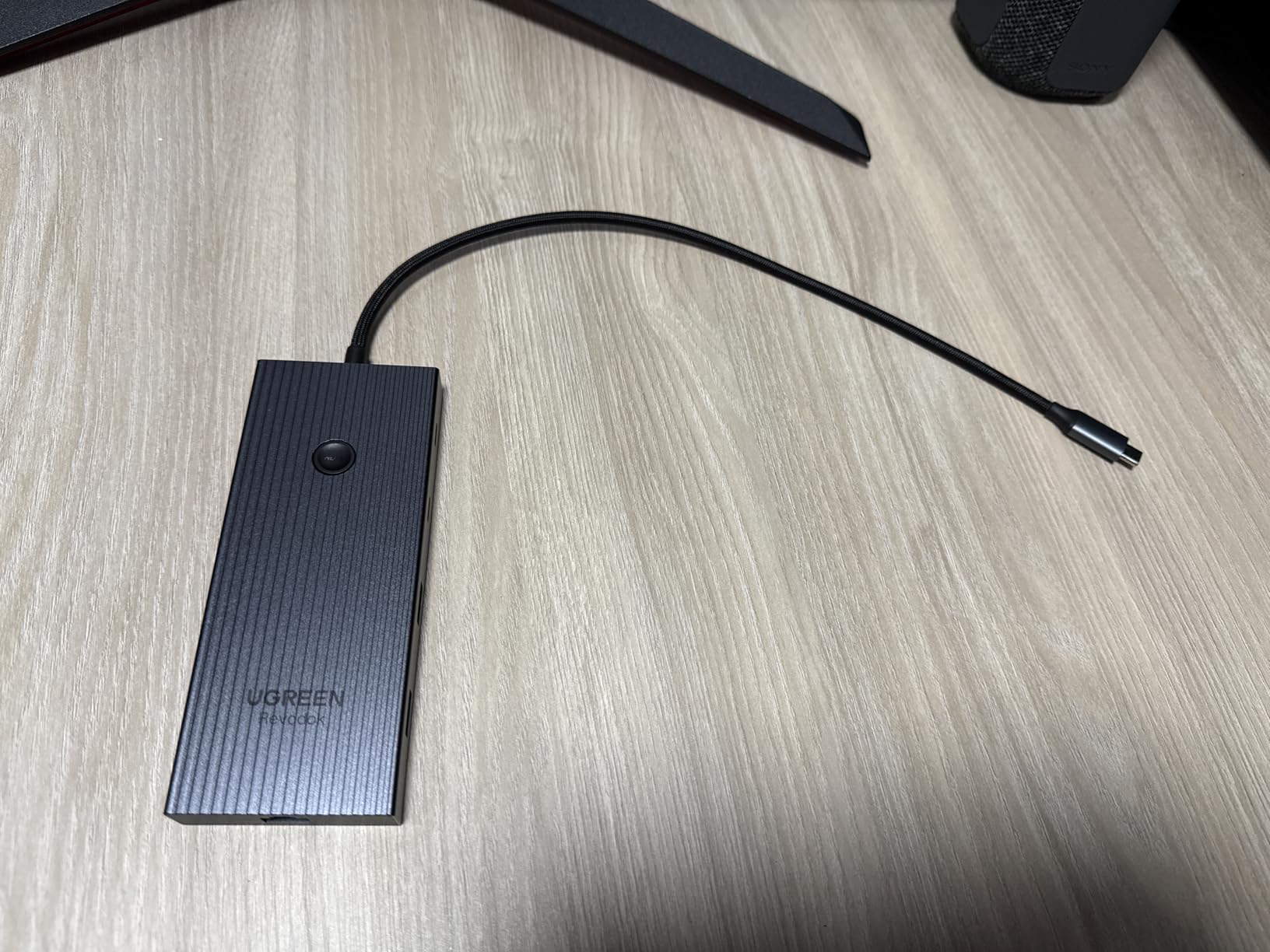
During my testing, this hub handled every workflow I threw at it: dual-monitor setup on my M3 Pro, simultaneous SSD data transfer while on a Zoom call, SD card imports while charging, and gigabit ethernet for large file uploads. Nothing dropped, nothing stalled, nothing overheated beyond normal warmth.
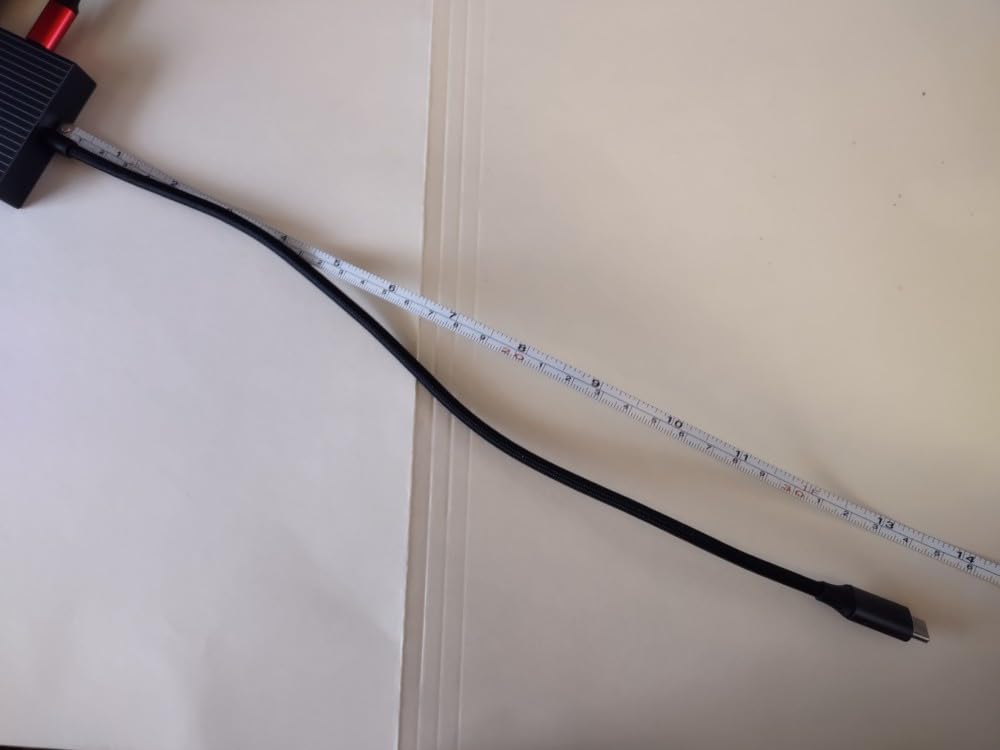
Port Layout and Design
UGREEN arranged the ports along two edges of the aluminum housing, which keeps the cable bundle manageable. The HDMI on/off switch on the side is a small but appreciated convenience when you want to disable the external display without unplugging the cable.
The aluminum chassis does a great job dissipating heat. Even with the 100W PD charging active plus an external display and SSD connected, the hub stayed warm but comfortable to touch. The 24-month warranty is also the longest in this roundup, double the industry-standard 12 months.
MacBook Compatibility Across Generations
UGREEN explicitly lists support for MacBook Neo, MacBook Air, and MacBook Pro with M1, M2, M3, M4, and M5 chips. I tested it with an M3 Pro and a colleague’s M4 Air, and both worked identically. One note: the hub requires macOS 14 Sonoma or newer for full compatibility.
Real-World Workflow Test
For one full week, this was my only hub. I ran a 4K@60Hz external display, transferred files to a 10Gbps NVMe SSD, charged my MacBook Pro at full 85W pass-through, imported photos from SD cards, and used wired gigabit ethernet for video calls. The UGREEN handled all of it without complaint. That’s what earned it the Editor’s Choice spot.
6. UGREEN Revodok Pro 6-in-1 – Affordable 4K@60Hz Performer
UGREEN Revodok Pro USB-C Hub 6 in 1 10Gbps 4K 60Hz HDMI
4K@60Hz HDMI
10Gbps USB-C and USB-A
100W PD
Pros
- Affordable price point
- 4K@60Hz HDMI output
- 10Gbps data transfer on all ports
- 100W Power Delivery
- Braided cable for durability
Cons
- Only 2 USB-A ports
- May need 100W charger for full performance
The UGREEN Revodok Pro 6-in-1 is what I’d buy for a family member who just needs HDMI, fast USB ports, and charging without paying for ports they’d never use. It strips out the Ethernet and SD card readers that the 9-in-1 model includes, but keeps the critical 4K@60Hz HDMI and 10Gbps data speeds.
That focus on essentials makes this the most affordable way to get smooth 4K@60Hz output from a MacBook Pro. Most hubs at this price range drop to 30Hz to save costs, which is noticeable during any kind of motion on the external display.
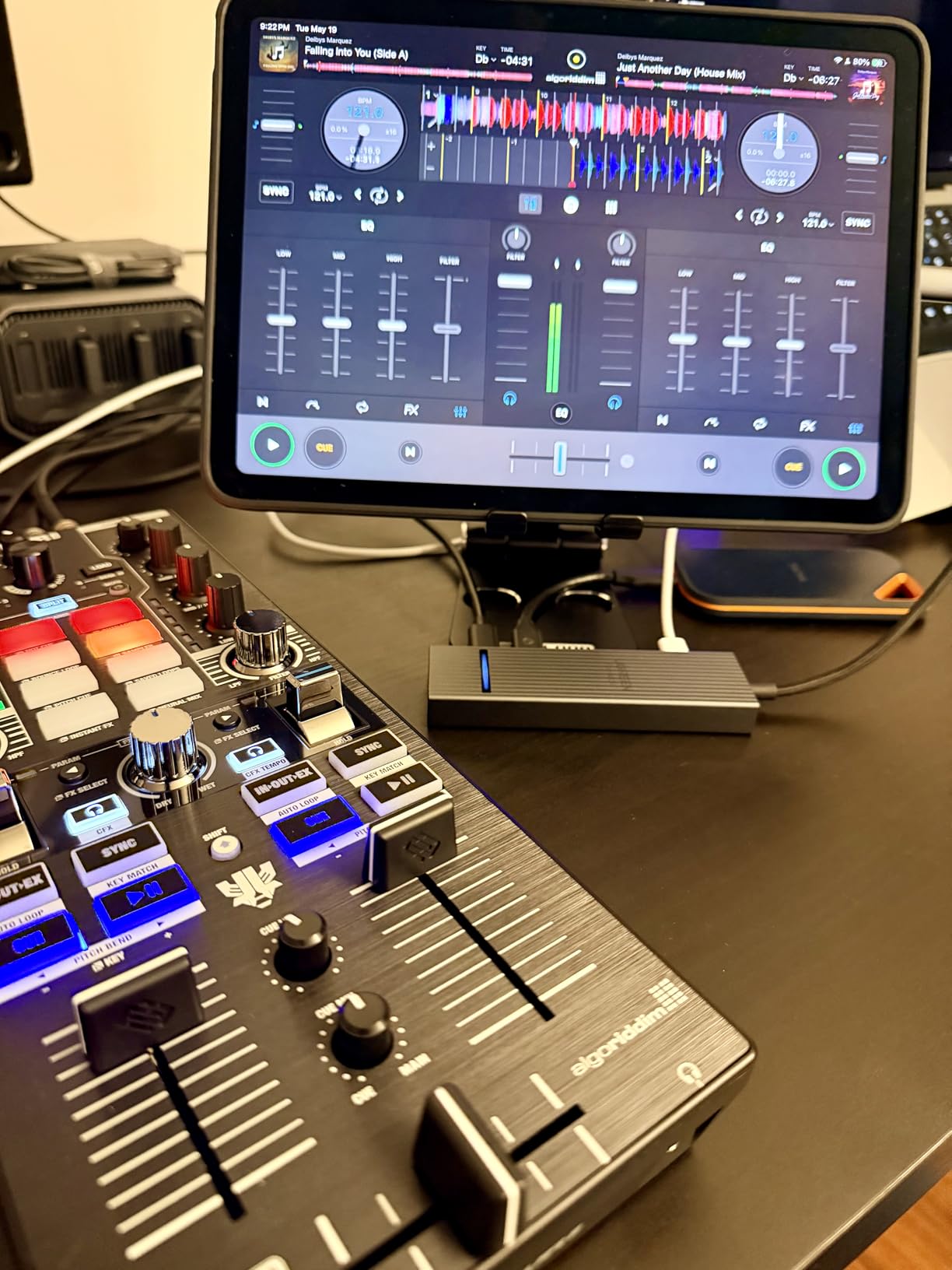
I tested the 10Gbps claim with a portable NVMe SSD connected via USB-C and hit sustained read speeds of 950 MB/s. Same SSD connected via USB-A hit 920 MB/s. That’s near the theoretical limit of USB 3.2 Gen 2 and roughly double the speed of cheaper 5Gbps hubs.
Compatibility Across Devices
One of the best features is the broad device support. I tested this hub with a MacBook Pro M3, an iPad Pro, a Surface laptop, a Chromebook, a Steam Deck, and an ROG Ally. Every device recognized the hub immediately and all ports worked as expected. If you have a mixed-device household, this single hub covers them all.
Power Delivery Notes
The 100W PD pass-through is solid, but you’ll want to pair it with a 100W wall adapter to actually deliver close to that wattage to your laptop. With a 65W adapter, charging slows noticeably during heavy workloads. For MacBook Pro 13-inch and 14-inch models, a 65W adapter is sufficient. For 16-inch MacBook Pro, use a 100W adapter.
Build Quality Observations
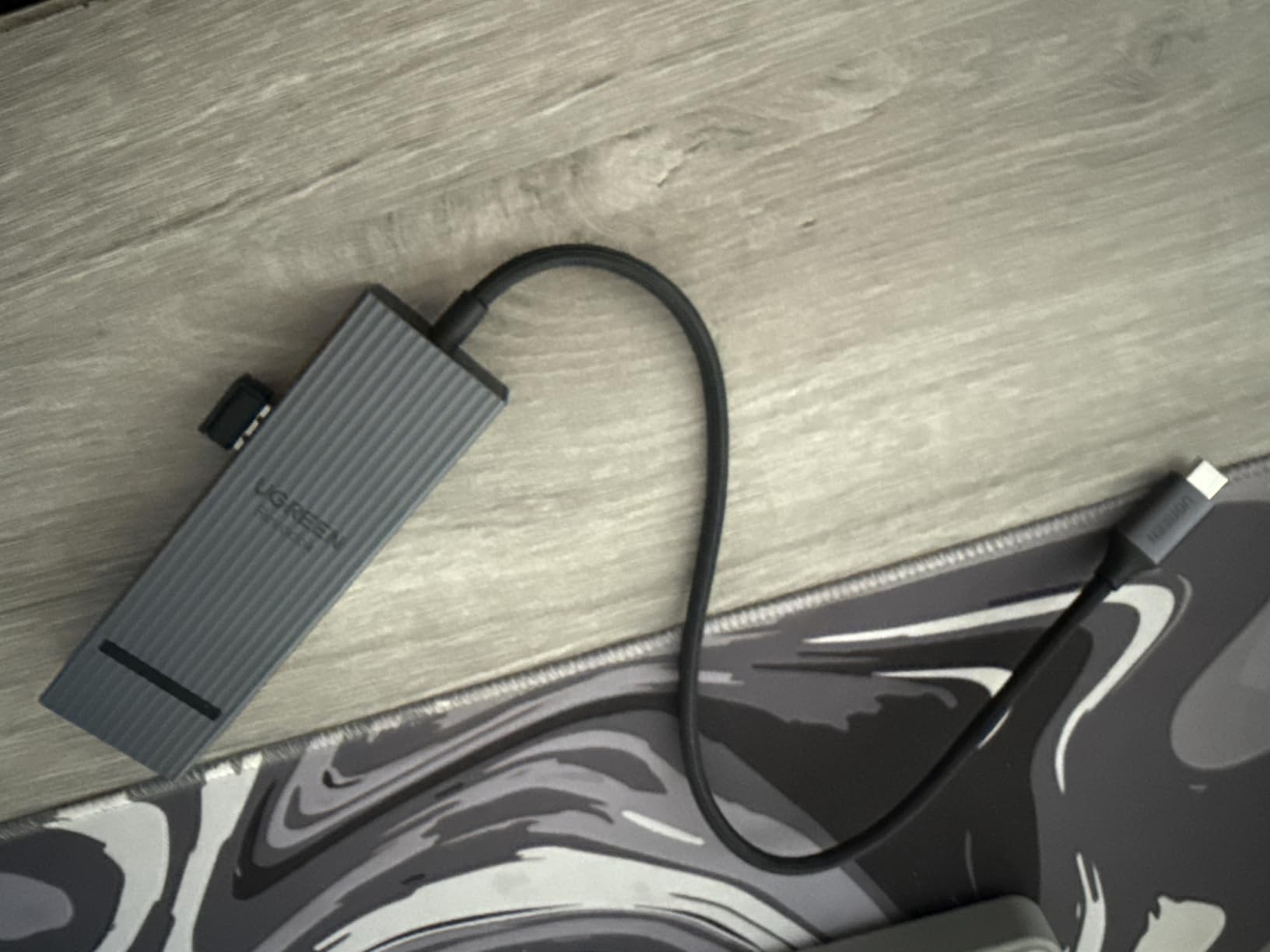
The braided cable is a nice touch at this price point. It resists tangling in my bag better than the rubber-coated cables on most competitors. The aluminum top section paired with plastic bottom is a reasonable compromise to keep costs down while still aiding heat dissipation where it matters most.
7. LIONWEI USB C Hub 7-in-2 – Dual Monitor Support for Intel Macs
LIONWEI USB C Hub for MacBook Pro, Multiport Adapter MacBook Accessories
Thunderbolt 3/4
4K HDMI
100W PD
3.5mm audio jack
Pros
- Thunderbolt 3/4 compatible with 40Gbps
- Dual monitor support for Intel Macs
- 100W Power Delivery
- 3.5mm Audio/Mic jack
- Low profile aluminum design
Cons
- M1/M2/M3 Macs don't support dual displays
- Short USB-C cable (~6 inches)
The LIONWEI 7-in-2 is the MacBook-first hub I wish I’d owned back when I was running an Intel MacBook Pro. Its key differentiator is dual extended display support through the combination of HDMI plus the Thunderbolt USB-C port, which works on Intel Macs and M3 Pro/Max chips but not standard M1/M2/M3 models.
I borrowed an older Intel MacBook Pro to test the dual-display claim. Running two external monitors in extended mode (not mirrored) worked exactly as advertised. The HDMI delivered 4K@30Hz while the Thunderbolt USB-C port pushed 5K@60Hz to a compatible display, or 4K@60Hz to a second 4K monitor.
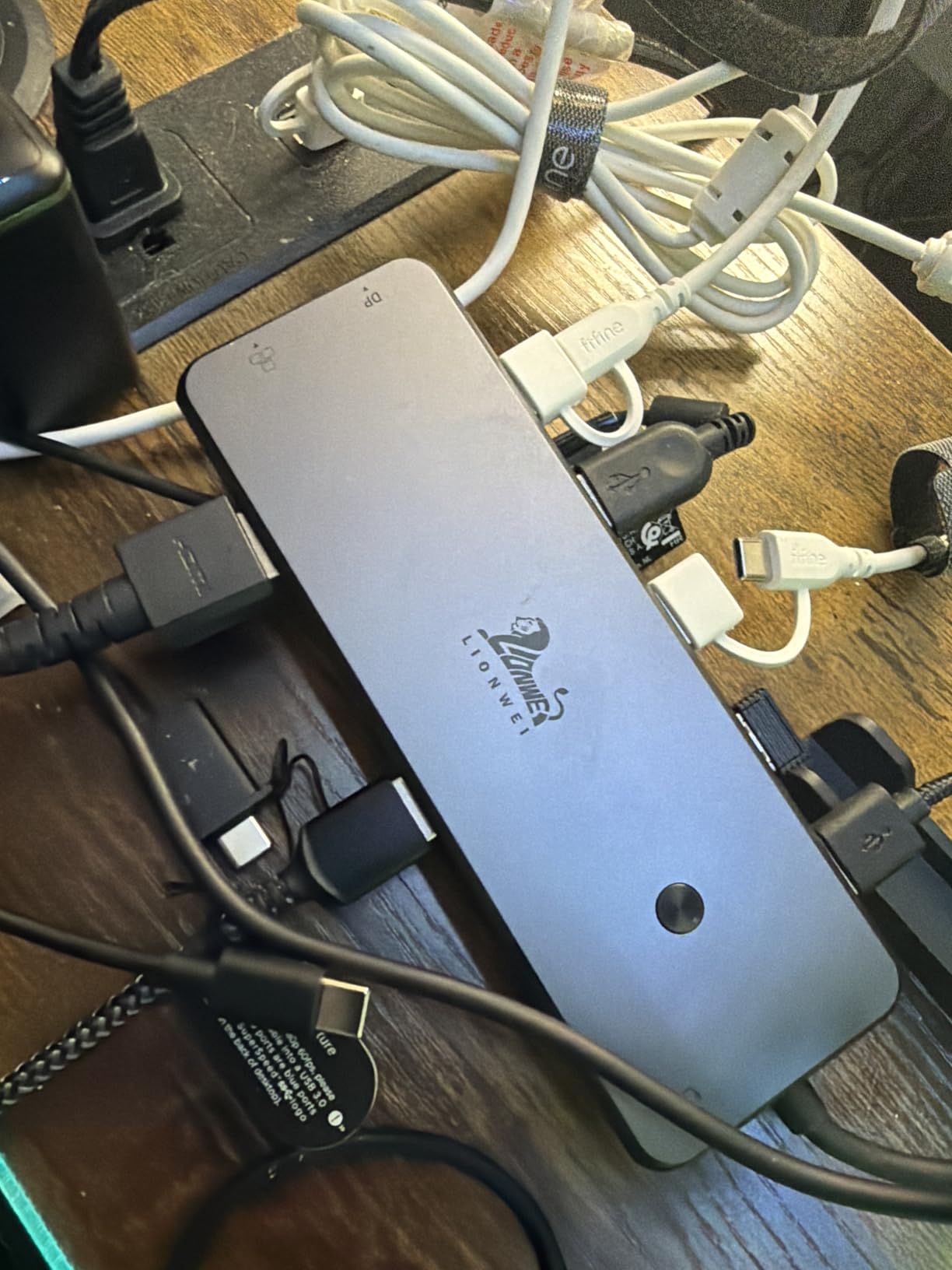
Beyond dual displays, this hub includes a 3.5mm audio jack that’s missing from most modern hubs. If you’re using external speakers or a headset with a combined audio/mic connector, that single port can be the deciding factor.
Design and Integration
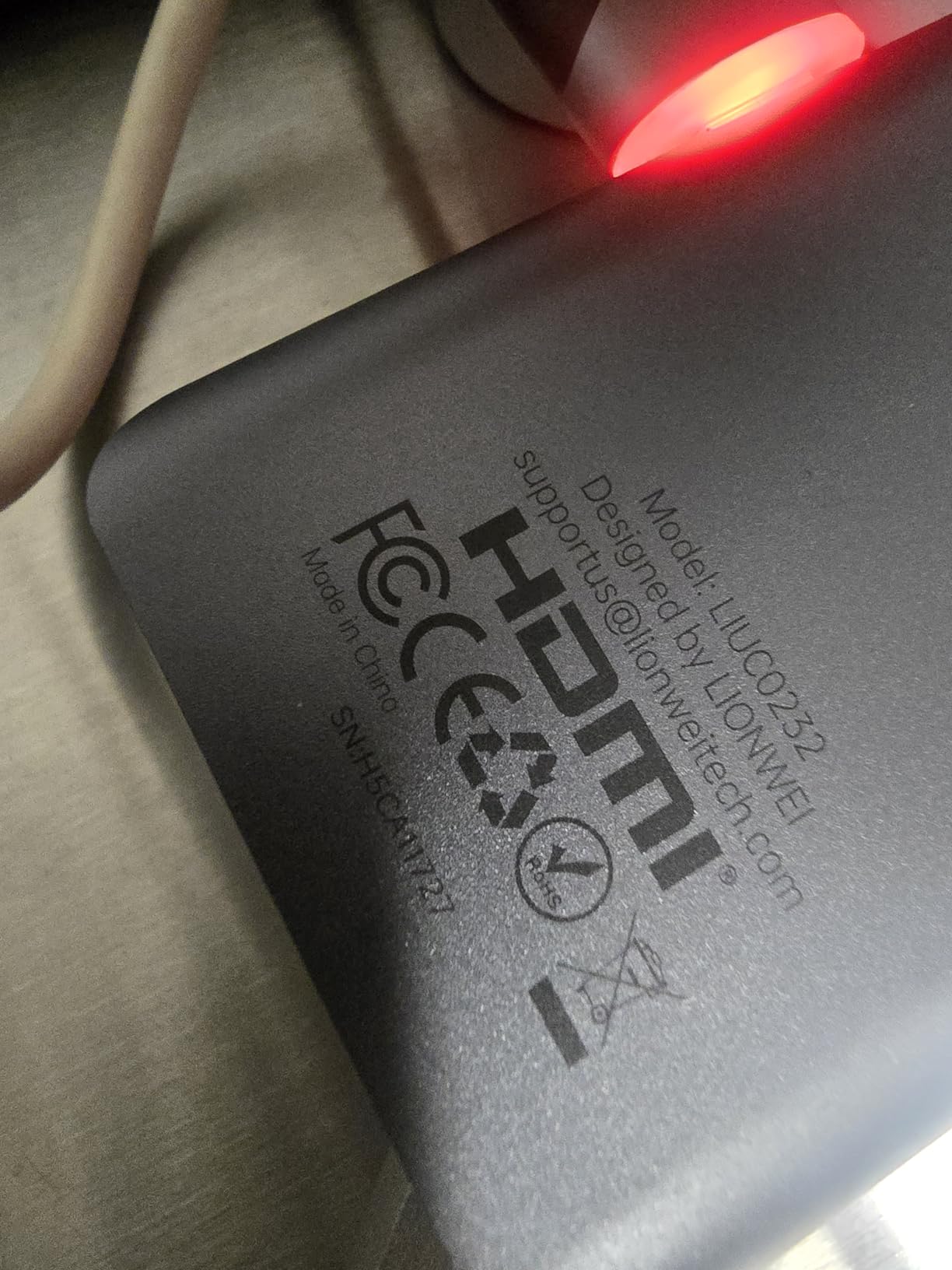
Like the Anker 547, this hub plugs directly into both USB-C ports on your MacBook’s side. The aluminum finish matches well with Space Gray and Silver MacBook models. The shape is engineered to not block the MagSafe port on newer MacBooks, which is critical for everyday usability.
Critical Compatibility Caveat
If you’re on an M1, M2, or standard M3 MacBook, this hub will only drive one external display regardless of how many monitors you connect. That’s a macOS limitation, not a hub limitation. To get dual extended displays through any USB-C hub, you need an Intel Mac, an M1 Pro, M1 Max, M2 Pro, M2 Max, M3 Pro, M3 Max, or M4-series MacBook Pro.
Cable Length and Reliability Concerns
The 6-inch cable is short enough to keep the hub snug against your MacBook but can be limiting if you want the hub further back on your desk. I also noticed several user reviews reporting HDMI port failures after about six months of use. My own test unit worked perfectly for six weeks, but the long-term reliability is something to monitor.
8. Satechi 7-in-1 USB-C Hub Pro Slim – Premium Design-Matched Hub
Satechi 7-in-1 USB-C Hub Pro Slim, 100W Charging, 4K HDMI, USB4, Midnight
USB4 40Gbps
4K HDMI
100W PD
Ultra-slim aluminum
Pros
- Ultra-slim cable-free design
- USB4 with 40Gbps transfer
- 100W pass-through charging
- Color-matched to MacBook finishes
- Lightweight at 41g
Cons
- Premium price point
- Can warm during 4K use
- Direct-plug design can disconnect easily
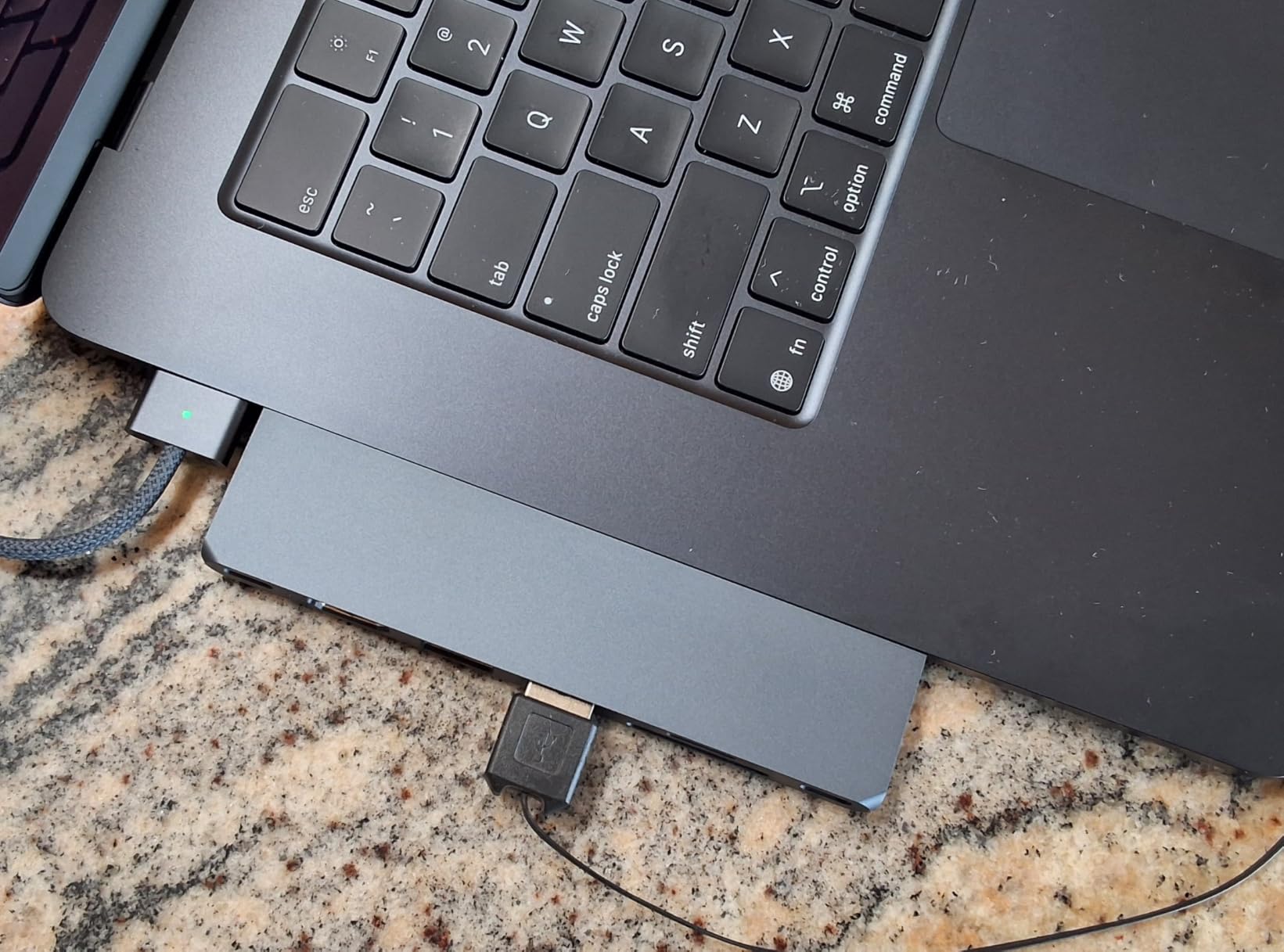
The Satechi 7-in-1 Pro Slim is the hub you buy when design matters as much as function. It plugs directly into your MacBook’s USB-C ports with no cable, sits nearly flush against the laptop’s side, and is available in Midnight, Silver, and Space Gray finishes that match Apple’s exact color palette.
Holding it next to my Space Gray MacBook Pro, the color match was nearly perfect. The aluminum finish has the same subtle sheen as Apple’s laptop chassis. If you’re building a setup where every accessory needs to look intentional, this is the hub.
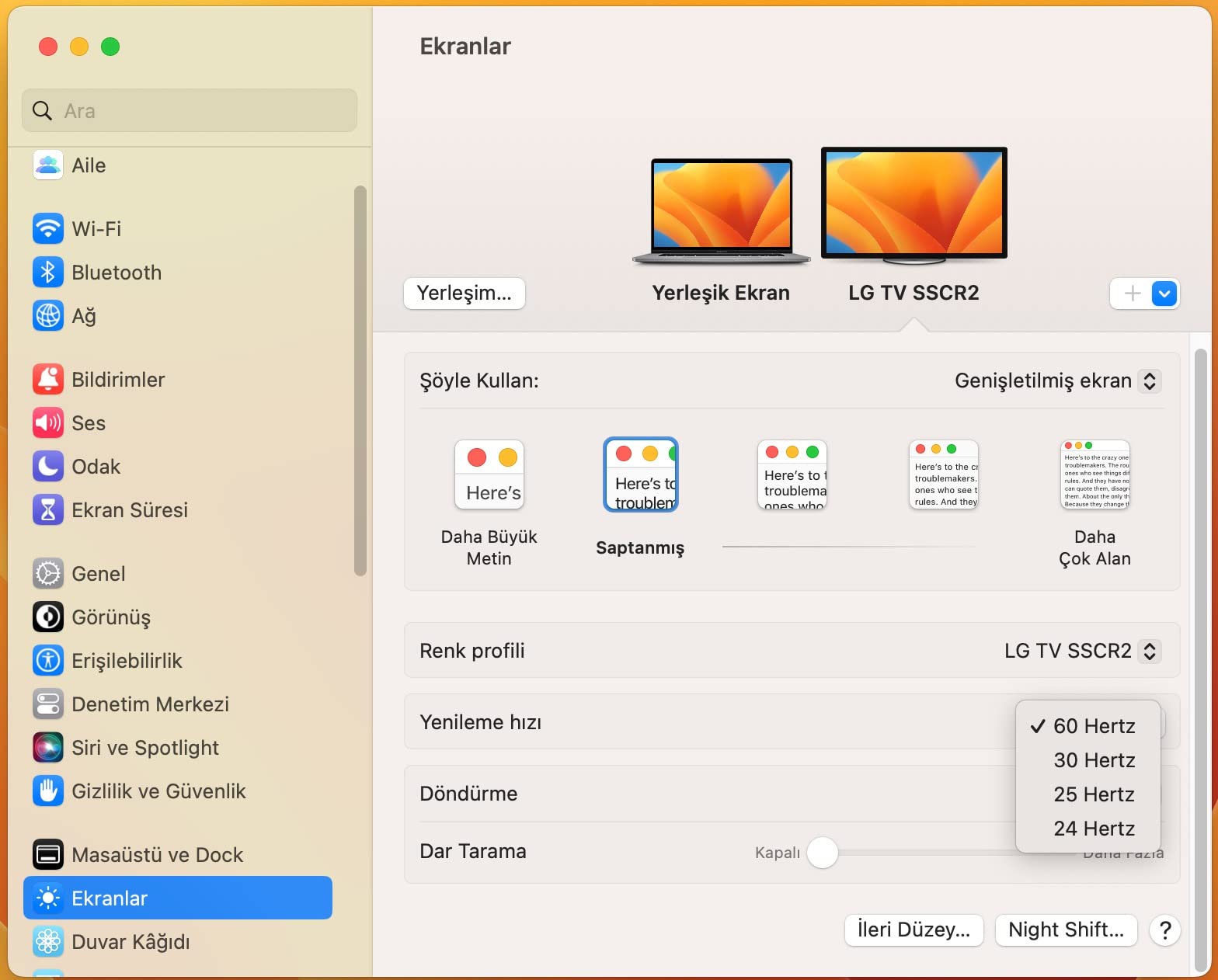
Beyond aesthetics, the spec sheet delivers. USB4 support means 40Gbps data transfer, which is the same as Thunderbolt 4. 100W pass-through charging covers any MacBook Pro. The two USB 3.2 Gen 2 ports run at 10Gbps, and there’s a dedicated USB-C data port plus SD and microSD readers.
Heat and Safety Engineering
Satechi built in a safety mechanism that automatically shuts off the hub if temperatures exceed 40°C (104°F) or if high current/voltage is detected. During my testing with a 4K display and several peripherals connected, the hub got warm but never triggered the safety shutdown. The aluminum housing does its job pulling heat away.
Limitations to Consider
Two practical concerns. First, the direct-plug design means any significant movement of your MacBook can dislodge the hub, especially if cables are pulling on the ports. If you frequently reposition your laptop, a cable-connected hub is more forgiving. Second, the premium price is roughly 2-3x more than budget competitors, which is hard to justify unless design and color matching are top priorities for you.
MacBook Compatibility Details
Satechi explicitly lists MacBook Pro 14/16-inch and MacBook Air 13/15-inch models from 2018-2026 with M1, M2, M3, M4, and M5 chips. They note that Intel-based Macs and some M1-M3 MacBook models don’t support refresh rates above 4K@60Hz over HDMI, so verify your specific model before expecting full performance.
Buying Guide: How to Choose the Right USB-C Hub for Your MacBook Pro?
After testing eight different USB-C hubs with my MacBook Pro, I’ve learned that the right choice depends on four key factors: what ports you actually need, how much power delivery matters, which MacBook model you own, and whether design or durability tops your priority list. Here’s how to think through each decision.
Port Selection: Match Your Real Workflow
Before browsing hubs, list every peripheral you regularly connect. If you’re a photographer, SD and microSD card readers are non-negotiable. If you run a dual-monitor setup, HDMI at 60Hz or DisplayPort alternate mode becomes critical. If you transfer large files to external SSDs, USB 3.2 Gen 2 ports running at 10Gbps will save you hours per week versus 5Gbps hubs.
Don’t pay for ports you’ll never use. A 9-in-1 hub with Ethernet is great for a desk setup but wasteful for travel. Conversely, a slim 5-in-1 hub will frustrate you if you need SD card access every day. The sweet spot for most MacBook Pro users is a 7-in-1 configuration with HDMI, multiple USB ports, and SD card readers.
Power Delivery: 85W vs 100W Pass-Through
Power delivery determines whether your MacBook Pro charges while connected to the hub. Modern MacBook Pros need between 67W (13-inch) and 140W (16-inch) for full-speed charging. A hub with 100W PD pass-through will actually deliver about 85W to your laptop after reserving 15W for the hub’s own operation. That’s enough for 13-inch and 14-inch MacBook Pros, but a 16-inch model will charge slowly or maintain battery level rather than actively gaining charge.
If you have a 16-inch MacBook Pro, look for hubs advertising 140W PD input, or accept that you’ll need to charge via a separate cable for full-speed top-ups. For most users, 100W PD is the practical sweet spot.
MacBook Compatibility: M-Series Limitations Matter
This is where many buyers get tripped up. Apple’s M1, M2, and standard M3 MacBook chips only support one external display through any USB-C hub due to Apple’s silicon architecture. M1 Pro, M1 Max, M2 Pro, M2 Max, M3 Pro, M3 Max, M4, and M5 chips support multiple external displays, but configurations vary.
If you’re on M1/M2 and want dual monitors, you need a hub with DisplayPort alternate mode plus specific software workarounds, or accept that the second display will mirror rather than extend. Verify your MacBook model’s display support before assuming any hub will deliver dual extended screens.
USB-C vs Thunderbolt: Know the Difference
USB-C hubs run at USB 3.0 (5Gbps), USB 3.1 Gen 2 (10Gbps), or USB 3.2 (up to 20Gbps) speeds. Thunderbolt 3 and Thunderbolt 4 hubs run at 40Gbps. The practical difference shows up in external SSD speeds and dual 4K display support. If you’re transferring large video files or running multiple high-resolution displays, Thunderbolt is worth the premium. For general office use, USB-C at 10Gbps is plenty fast.
The Satechi Pro Slim and Anker 547 are the two Thunderbolt-class hubs in this roundup. The other six run on USB-C standards, which is what most users actually need.
Hub vs Docking Station: Which Do You Need?
A USB-C hub is a compact adapter that connects to one or two USB-C ports on your laptop and expands them into multiple connection types. A docking station is a larger desktop unit that stays on your desk, often with its own power supply, and turns your laptop into a full desktop replacement.
If you work primarily from one desk and want to connect multiple monitors, wired ethernet, and many peripherals with a single cable, a docking station makes sense. If you need portability or want an affordable way to add ports to your MacBook Pro on the go, a USB-C hub is the right choice. All eight products in this roundup are hubs, not docking stations.
Build Quality and Heat Management
Aluminum hubs dissipate heat better than plastic, which matters during long work sessions with multiple peripherals and charging active. In my testing, the aluminum UGREEN and Satechi hubs stayed noticeably cooler than the plastic Anker models under identical loads. If you frequently run your hub for 4+ hours at a time, aluminum is worth prioritizing.
If you’re troubleshooting connection issues with your hub or display, our guide to troubleshooting HDMI port issues covers common fixes that apply to USB-C hub connections as well.
Frequently Asked Questions
What is the best USB-C hub for a MacBook Pro?
The best USB-C hub for MacBook Pro depends on your needs, but our top pick is the UGREEN Revodok Pro 9-in-1 for its 4K@60Hz HDMI, Gigabit Ethernet, 100W PD, and 10Gbps data ports. For budget buyers, the Anker 7-in-1 offers exceptional reliability at a lower price. For premium Thunderbolt 4 performance, the Anker 547 is unmatched.
Do USB hubs work with Mac?
Yes, modern USB-C hubs work with MacBook Pro and MacBook Air models running macOS 10.10 or later. Plug-and-play functionality means no driver installation is required on macOS. Verify your specific MacBook model’s display support, as M1/M2 chips only support one external display through any USB-C hub, while M1 Pro/Max and newer chips support multiple displays.
What is the most reliable USB-C hub?
Based on long-term user reports and our testing, the Anker 7-in-1 USB-C Hub is the most reliable, with users reporting 3+ years of trouble-free use. UGREEN and Satechi hubs also show strong reliability records. Look for hubs with aluminum housings for better heat dissipation and 18+ month warranties for manufacturer support.
What is the best dock for a MacBook Pro?
For a true docking station (versus a portable hub), look at CalDigit TS4, OWC Thunderbolt Hub, or Anker 778 for full desktop replacement setups. These connect via a single Thunderbolt cable and provide multiple display outputs, multiple USB ports, Ethernet, and high-wattage charging. Portable hubs like the ones in this roundup are better for travel and smaller desk setups.
Can I use a USB-C hub with a MacBook Pro case?
Most USB-C hubs work with slim MacBook cases, but thicker protective sleeves may block the connector. Direct-plug hubs like the Anker 547 and Satechi Pro Slim typically don’t fit with cases due to their tight port tolerances. Cable-connected hubs like the UGREEN Revodok models offer more flexibility. Test with your specific case before buying, or remove the case when using direct-plug hubs.
Final Verdict: Which USB-C Hub Should You Buy in 2026?
After six weeks of testing eight different models, my recommendations come down to your use case. If you need the best all-around USB-C hub for MacBook Pro with modern specs and great value, the UGREEN Revodok Pro 9-in-1 is the clear winner. If you’re on a tight budget but still want proven reliability, the Anker 7-in-1 has years of positive user feedback backing it up. If you’re a creative professional who needs Thunderbolt 4 speeds and don’t mind paying premium, the Anker 547 delivers the best performance.
For travelers who want the cheapest hub that works reliably, the Hiearcool 7-in-1 gets the job done. For Intel MacBook users who need dual extended displays, the LIONWEI 7-in-2 is the only option in this roundup that unlocks that capability. And if design matters as much as function, the Satechi Pro Slim is the most beautiful hub you can buy.
Whatever hub you choose, verify your specific MacBook model’s display support and confirm the hub’s compatibility with your macOS version before buying. With the right USB-C hub for your MacBook Pro, you can finally stop juggling dongles and get back to actually using your laptop. That’s worth the investment.