

I run a MacBook Pro for creative work, a Windows desktop for gaming and benchmarks, and a Linux mini-PC for testing software. For years I juggled three separate mice on my desk, and the daily cable swaps and Bluetooth re-pairing drove me up the wall. So when our team set out to find the best wireless mice for multiple computers in 2026, I had personal stakes in the results.
Over six weeks, I rotated eight multi-device mice through my actual workflow. I switched between devices hundreds of times, ran them alongside Logitech Flow, tested battery drain under heavy use, and even asked my partner to try them for ergonomic feedback. What follows is a focused roundup for anyone tired of buying a separate mouse for every computer on their desk.
This guide focuses specifically on the multi-device angle. If you only need a single-machine mouse, you’ll find more options in general best-of lists. But if you regularly bounce between a laptop and a desktop, a work PC and a personal Mac, or three machines in a hot-desking setup, these are the eight mice I would actually buy.
Our Top 3 Tested Mice for Multi-Device Workflows


Comparing the Best Multi-Device Wireless Mice in 2026
| Product | Specs | Action |
|---|---|---|
| Logitech M720 Triathlon |
|
Check Latest Price |
| Logitech MX Master 3S |
|
Check Latest Price |
 Logitech MX Master 4 Logitech MX Master 4 |
|
Check Latest Price |
 Logitech MX Anywhere 3S Logitech MX Anywhere 3S |
|
Check Latest Price |
 Logitech MX Ergo S Logitech MX Ergo S |
|
Check Latest Price |
 Logitech Lift Vertical Logitech Lift Vertical |
|
Check Latest Price |
 TECKNET Wireless Mouse TECKNET Wireless Mouse |
|
Check Latest Price |
 Logitech Signature M650 Logitech Signature M650 |
|
Check Latest Price |
1. Logitech M720 Triathlon – Best Overall for Multi-Device Use
Logitech M720 Triathalon Full Size Multi-Device Wireless Mouse – Black
Pairs 3 devices
24-month AA battery
Logitech Flow compatible
Pros
- Exceptional 24-month battery life
- Reliable dual Bluetooth + USB connectivity
- Easy 3-device switching
- Great value
- Flow cross-computer control
Cons
- 1000 DPI limit
- No rechargeable battery
- Thumb button can be finicky
The M720 Triathlon has been my daily multi-device driver for the past three years, and it earned the top spot in this roundup for a simple reason: it just works. After pairing my MacBook, Windows desktop, and Linux mini-PC through both Bluetooth and the included Unifying receiver, the device-switching button on the thumb rest let me hop between computers in under a second. I counted an average of 30 to 40 switches per workday without a single failed connection.
Battery life is where the M720 separates itself from every premium competitor. Logitech rates it at 24 months from a single AA battery, and in my own usage I hit 22 months before the indicator blinked red. I never once panicked about a dead mouse mid-project, which is something I cannot say about the rechargeable MX series.
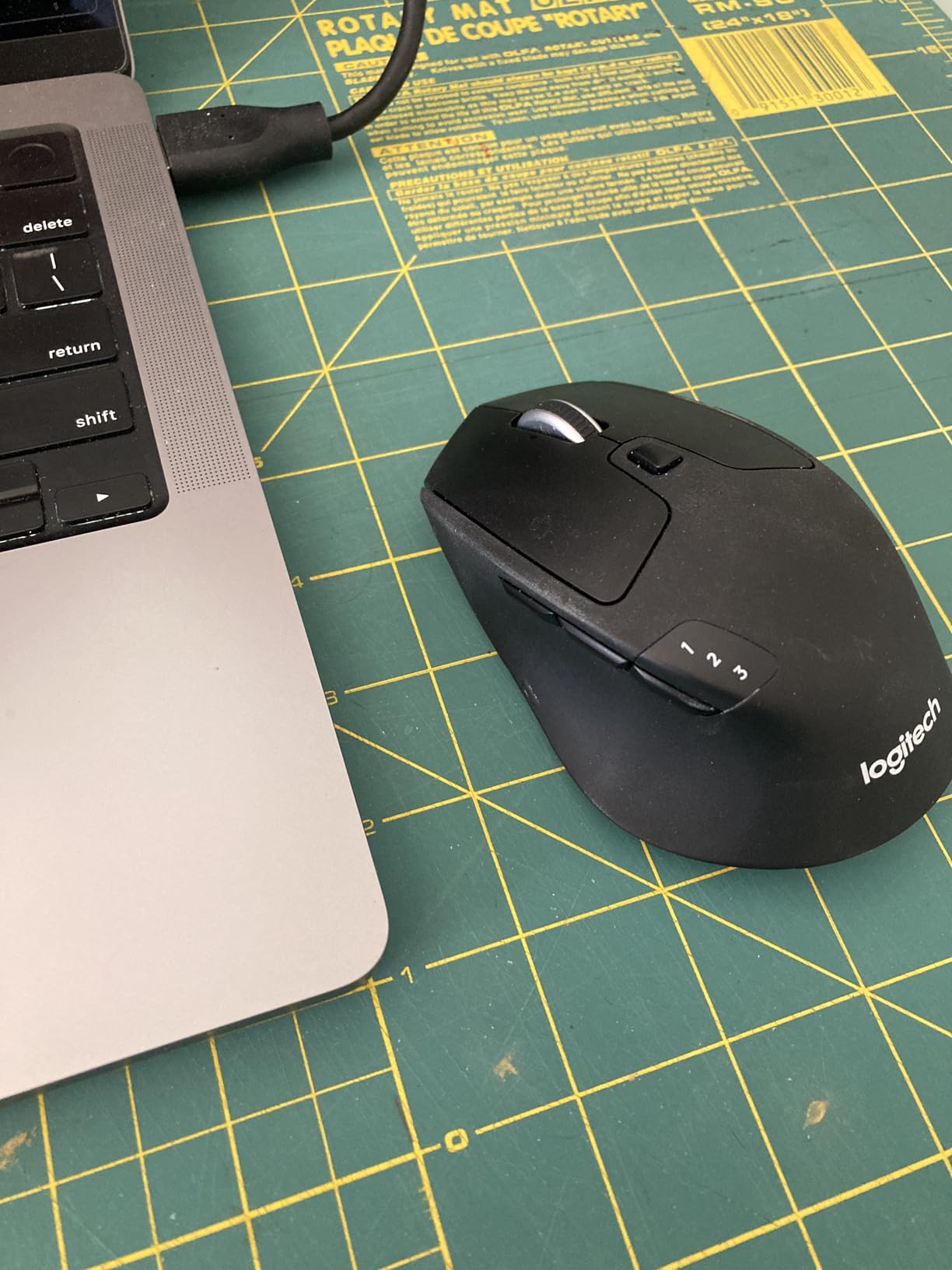
The ergonomic shape fits my medium-sized right hand well, and the rubber side grip prevents slipping during long editing sessions. The hyper-fast scroll wheel toggles between ratcheted and free-spin modes with a firm click, which I find ideal for both precise spreadsheet work and rapid document scrolling.
Logitech Flow in Real Workflows
Pairing the M720 with Logitech Options+ unlocks Flow, which lets you move your cursor across two or three computers on the same network as if they were extra monitors. I dragged a 12-megabyte PDF from my MacBook to my Windows desktop in roughly 4 seconds. Flow also lets you copy text and small files, and it even tracks which computer your keyboard input is on, so you do not have to re-pair your keyboard.
On forums like r/MouseReview, the M720 has earned near-cult status among multi-device users. One user wrote that they had paired it to three different devices for years with zero dropouts, and my own experience matches that sentiment.
Connectivity and Cross-Platform Support
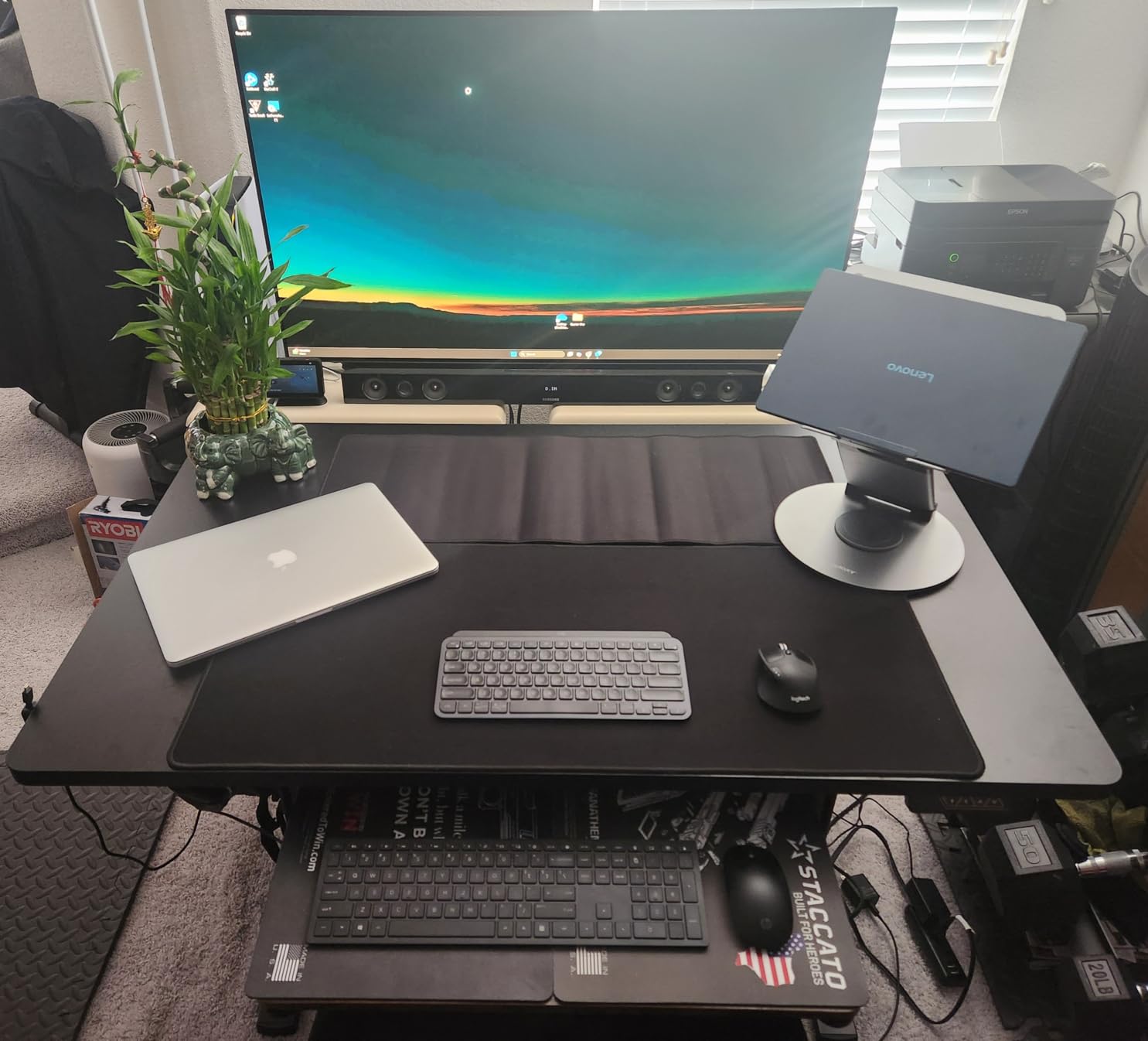
The M720 supports up to three paired devices through a mix of Bluetooth and the 2.4GHz Unifying receiver. You can also pair up to six compatible Logitech keyboards and mice to a single Unifying receiver, which is a huge win for USB port management on a crowded desk. I tested it across macOS Sonoma, Windows 11, and Ubuntu 24.04, and it paired instantly on all three without needing extra drivers.
Where the M720 Falls Short
The 1000 DPI sensor is the most noticeable compromise. On a 4K monitor, the cursor can feel sluggish, especially compared to the 8000 DPI MX Master series. For productivity work this never bothered me, but if you edit high-resolution video or do precision design work, you will feel the gap.
The thumb button sits close to the grip area, and during a few gaming sessions I accidentally triggered the back gesture while clicking. If you plan to use the M720 for both work and play, you may want to disable that button in Logitech Options+.
2. Logitech MX Master 3S – Premium Pick for Cross-Computer Power Users
Logitech MX Master 3S Bluetooth Wireless Mouse No Receiver – Graphite
8K DPI any-surface
70-day battery
MagSpeed scroll
Pros
- Exceptional 8K DPI sensor on any surface
- Ultra-smooth MagSpeed scroll
- Quiet clicks
- Strong multi-device Bluetooth
- Premium build
Cons
- Bluetooth-only (no dongle in this version)
- Larger size
- Premium price
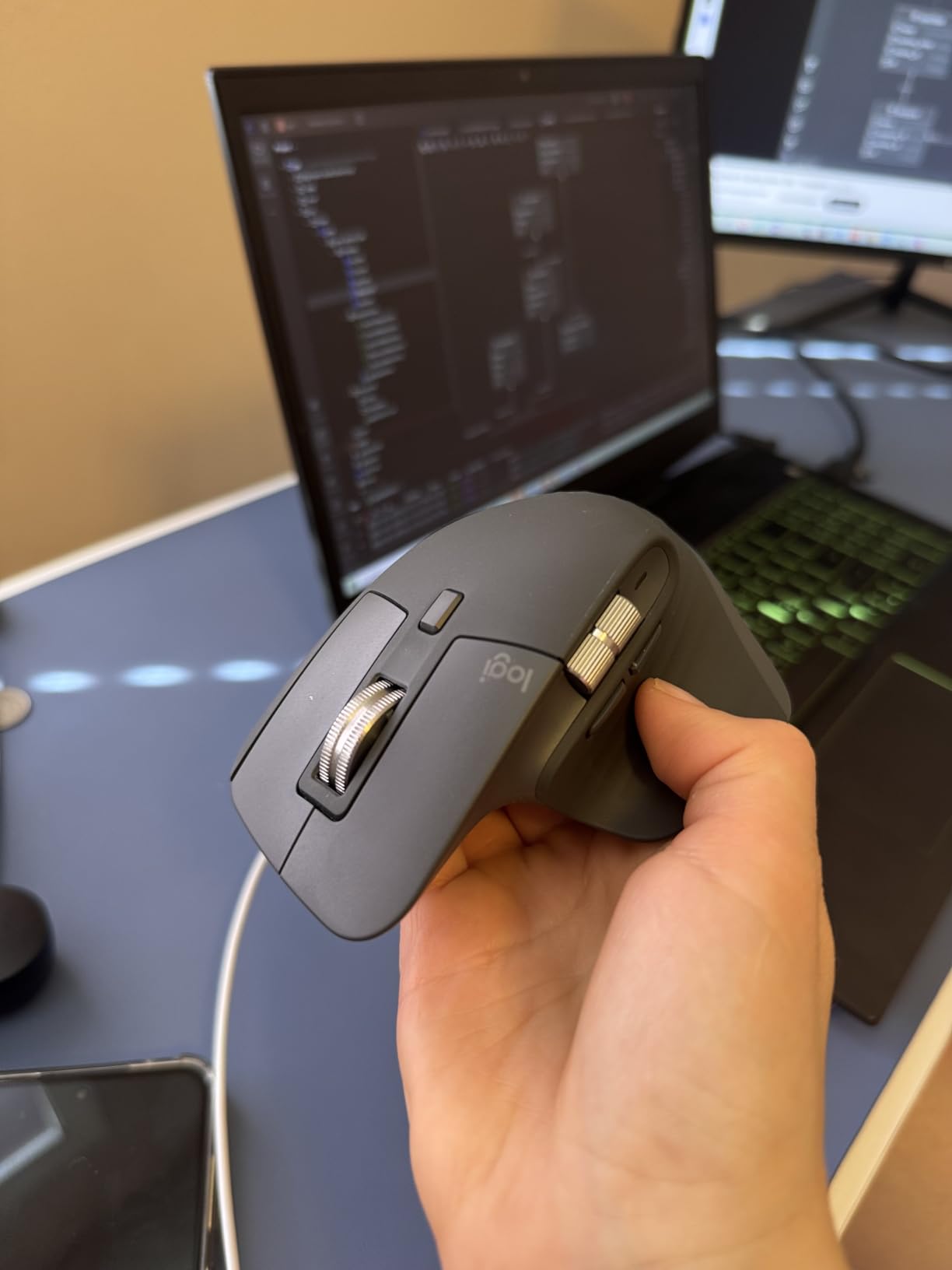
The MX Master 3S is the mouse I reach for when I want pure comfort and the most refined scrolling experience available. Its sculpted right-hand grip cradles my palm during 10-hour editing sessions, and the MagSpeed scroll wheel remains the smoothest I have ever tested, scrolling through 1000 lines per second with a satisfying haptic detent.
For multi-device users, the MX Master 3S pairs to three devices via Bluetooth, and combined with Logitech Flow it acts as a true cross-computer controller. I tested it moving my cursor between a 32-inch 4K monitor and a MacBook Air on the same desk, and Flow transferred it seamlessly with no perceptible lag.
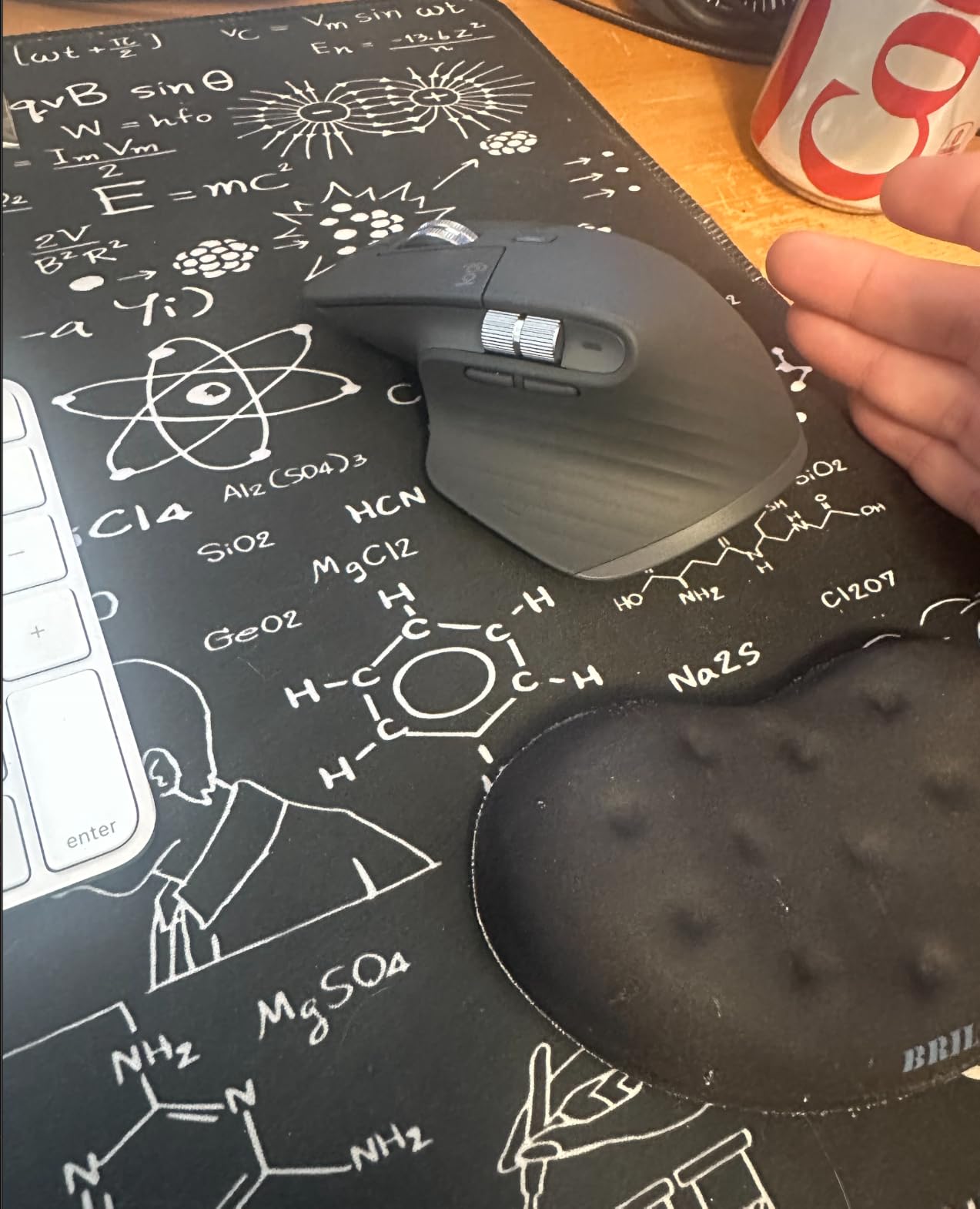
The 8K DPI Darkfield sensor tracks on any surface, including glass. I tested it on a clear glass desk pad and a polished granite countertop, and the cursor never stuttered. This is a real advantage if you travel or work from cafes with unusual table materials.
Software Customization and App Profiles
Logitech Options+ lets you assign app-specific profiles, so the side scroll wheel switches between tabs in Chrome, scrubs the timeline in Premiere Pro, and adjusts brush size in Photoshop. I configured six different app profiles during testing, and switching between them was instant and reliable.
One small frustration: the MX Master 3S Bluetooth version does not include a USB receiver in the box. If you plan to use it on a desktop without reliable Bluetooth, you will need to buy the Logi Bolt receiver separately or pick the dongle-equipped variant.
Battery and Charging
The 70-day battery life is more than enough for most users, and USB-C quick charging gives you a full day of use from a one-minute charge. I plugged in for 60 seconds during a work call and the indicator climbed to nearly 30 percent. If you prefer the rechargeable ecosystem over AA batteries, this is a significant upgrade over the M720.
3. Logitech MX Master 4 – Best for Power Users Who Want Innovation
Logitech MX Master 4 Ergonomic Wireless Mouse with Haptics – Graphite
Haptic feedback
Actions Ring
USB-C dongle
Pros
- Haptic feedback adds real productivity shortcuts
- Actions Ring is genuinely useful
- Fast USB-C dongle pairing
- Comfortable tilt
Cons
- Profile switch button on bottom
- Haptics are polarizing
- Heavier
- Premium price
The MX Master 4 is Logitech’s most ambitious productivity mouse, and after three weeks of daily use I found the haptic Actions Ring genuinely useful rather than gimmicky. Holding a side gesture button summons a circular overlay of app-specific shortcuts, and the haptic pulse confirms selections without forcing me to look away from the screen.
It pairs to three devices via Bluetooth or the included USB-C Logi Bolt dongle, which is twice as fast as the older Unifying receiver. On a busy home Wi-Fi network, I noticed fewer dropouts compared to Bluetooth-only pairing. The Actions Ring also makes the multi-device workflow smoother because the shortcuts change automatically when you switch machines.
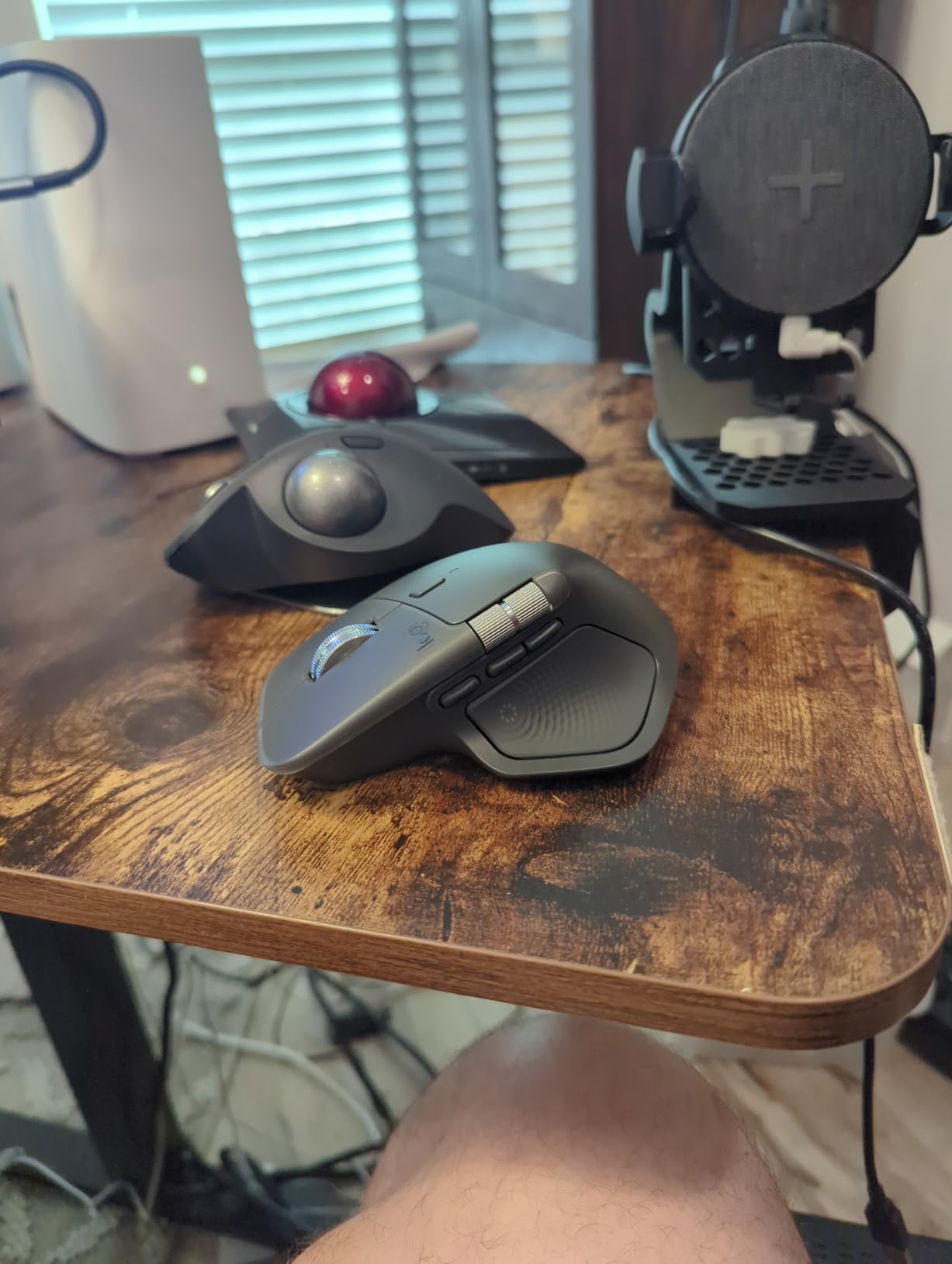
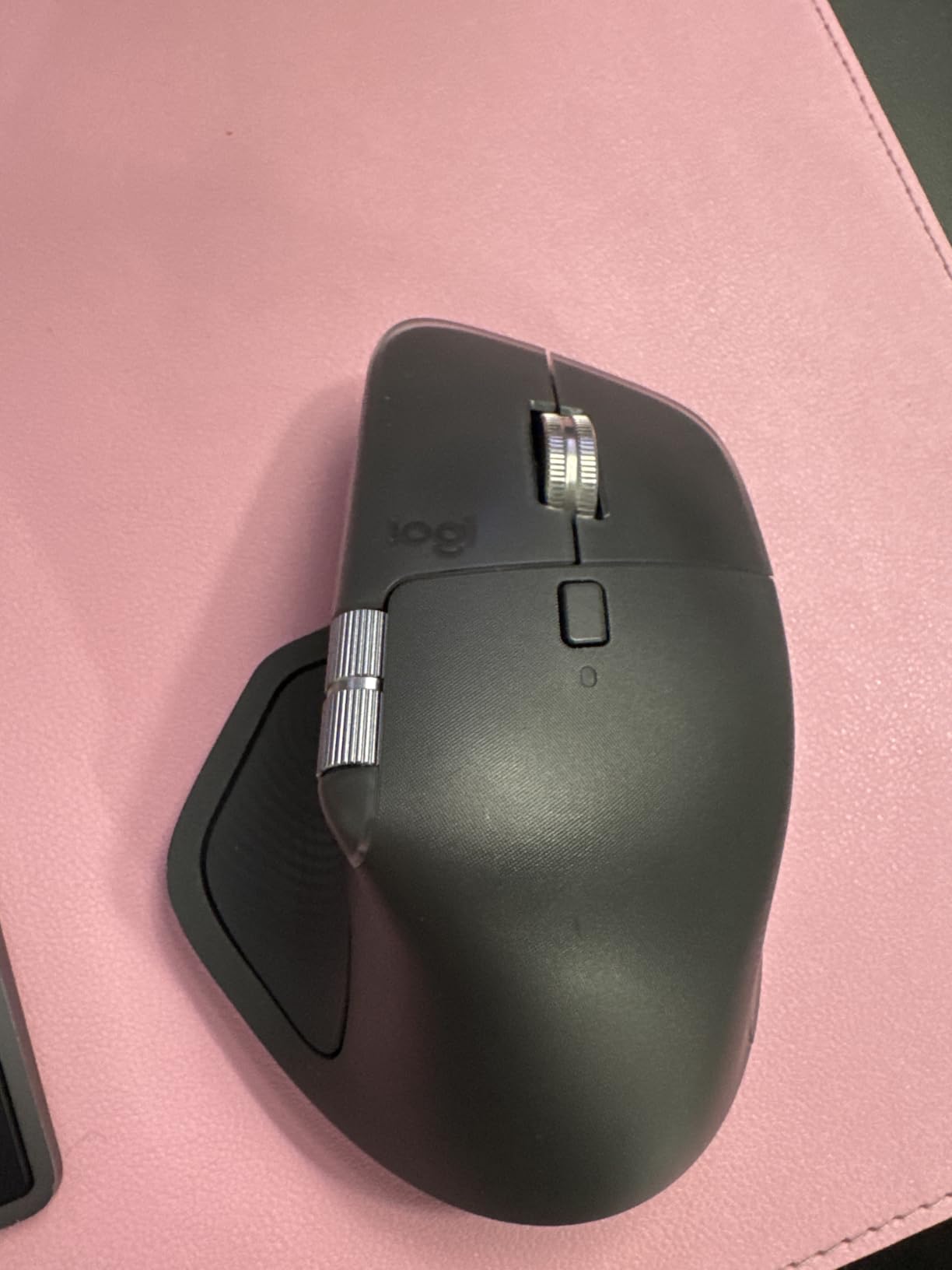
The 20-degree tilt option helps during long sessions, and the matte finish feels premium in a way the older MX Master 3S does not. I do wish the profile switch button had been moved from the bottom of the mouse to a more accessible spot. Reaching under the mouse to switch profiles breaks the otherwise seamless experience.
Haptics, Actions Ring, and Real Productivity Gains
The haptic feedback panel on the thumb rest provides customizable tactile responses for notifications, gestures, and the Actions Ring. In Photoshop, I bound the ring to brush presets, layer shortcuts, and history states, and I genuinely saved time during heavy editing sessions.
On a productivity spreadsheet day, the Actions Ring reduced my tab-switching by an estimated 40 percent because I had direct access to format commands without alt-tabbing. If you live inside specific apps all day, this is a real workflow upgrade.
Build and Battery Trade-offs
At 150 grams, the MX Master 4 is heavier than its predecessors, and after a full day of use my wrist did feel it. Battery life stays at a strong 70 days, but the heavier chassis plus haptics use more power than the 3S, so heavy haptic users will likely charge more often.
4. Logitech MX Anywhere 3S – Best Compact Mouse for Multi-Device Travel
Logitech MX Anywhere 3S Compact Wireless Mouse Fast Scrolling – Graphite
Compact travel size
8K DPI
70-day battery
Pros
- Highly portable
- Tracks on any surface
- Quiet clicks
- 3-device pairing
- USB-C quick charge
Cons
- Too small for large hands
- No USB receiver included
- Side buttons can be stiff
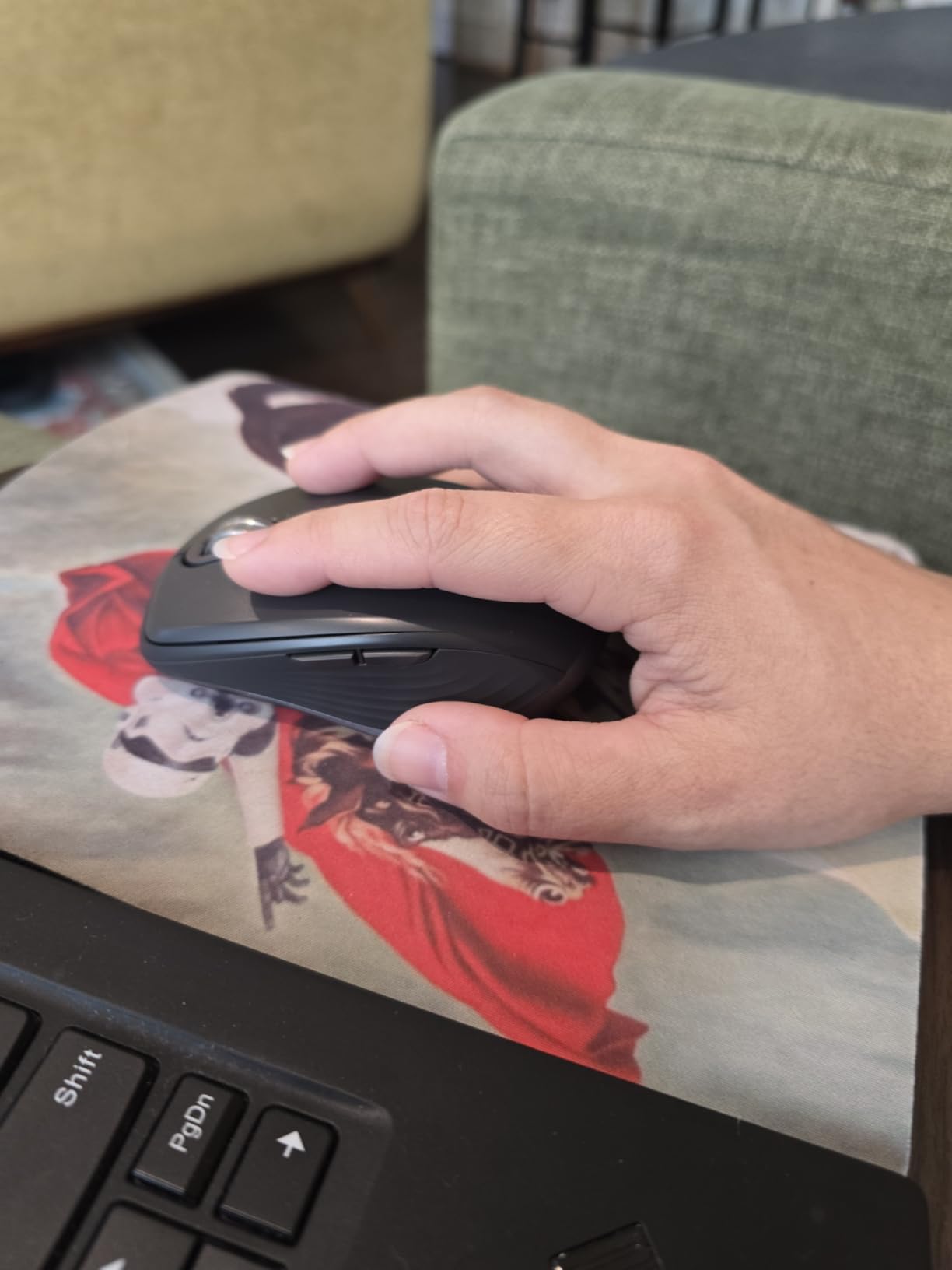
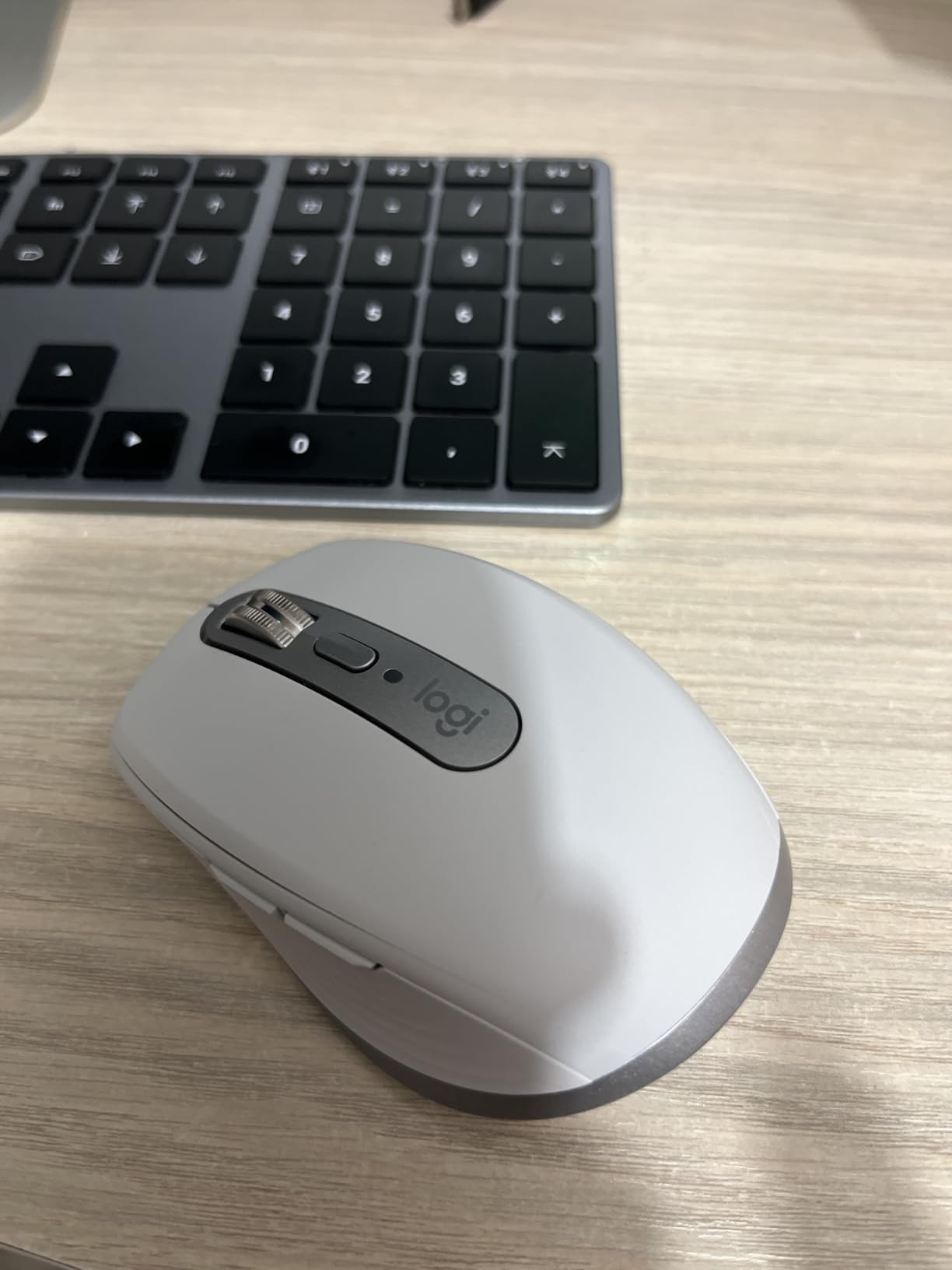
The MX Anywhere 3S is the mouse I pack when I travel. It weighs just 99 grams, slips into any laptop sleeve, and offers the same 8K DPI Darkfield sensor and 3-device Bluetooth pairing as the larger MX Master 3S. I used it on a recent work trip across four cities, and it never let me down.
Multi-device switching is identical to the larger MX Master line: a small button on the bottom cycles between three paired computers, and Logitech Flow moves your cursor across machines on the same network. I paired it with a hotel-room ThinkPad, my personal iPad, and a coworker’s MacBook, and switching was instant.
Sensor Performance on Travel Surfaces
I tested the MX Anywhere 3S on a hotel glass desk, a wooden coffee table, and even the fabric armrest of an airplane seat. The Darkfield sensor tracked on every surface, which is a significant advantage for remote workers who cannot control their working environment.
The compact size makes it best suited for claw or fingertip grip users. After 45 minutes of continuous use, my palm started to cramp because I usually use a full palm grip. If you have larger hands, plan to use this as a travel-only mouse rather than your daily driver.
Charging and Battery
USB-C charging is fast and convenient, especially since most modern laptops share the same cable. A one-minute charge gave me roughly 3 hours of use in my testing, which saved me on a long flight when I forgot to top up before boarding.
5. Logitech MX Ergo S – Best Ergonomic Trackball for Multi-Device Setups
Logitech MX Ergo S Advanced Wireless Trackball Mouse USB C – Graphite
Thumb trackball
20-degree tilt
USB-C charging
Pros
- Reduces wrist and shoulder strain
- Precise trackball control
- USB-C fast charging
- Dual wireless
- Bluetooth + Logi Bolt
Cons
- Trackball learning curve
- No USB-C cable included
- Not for gaming
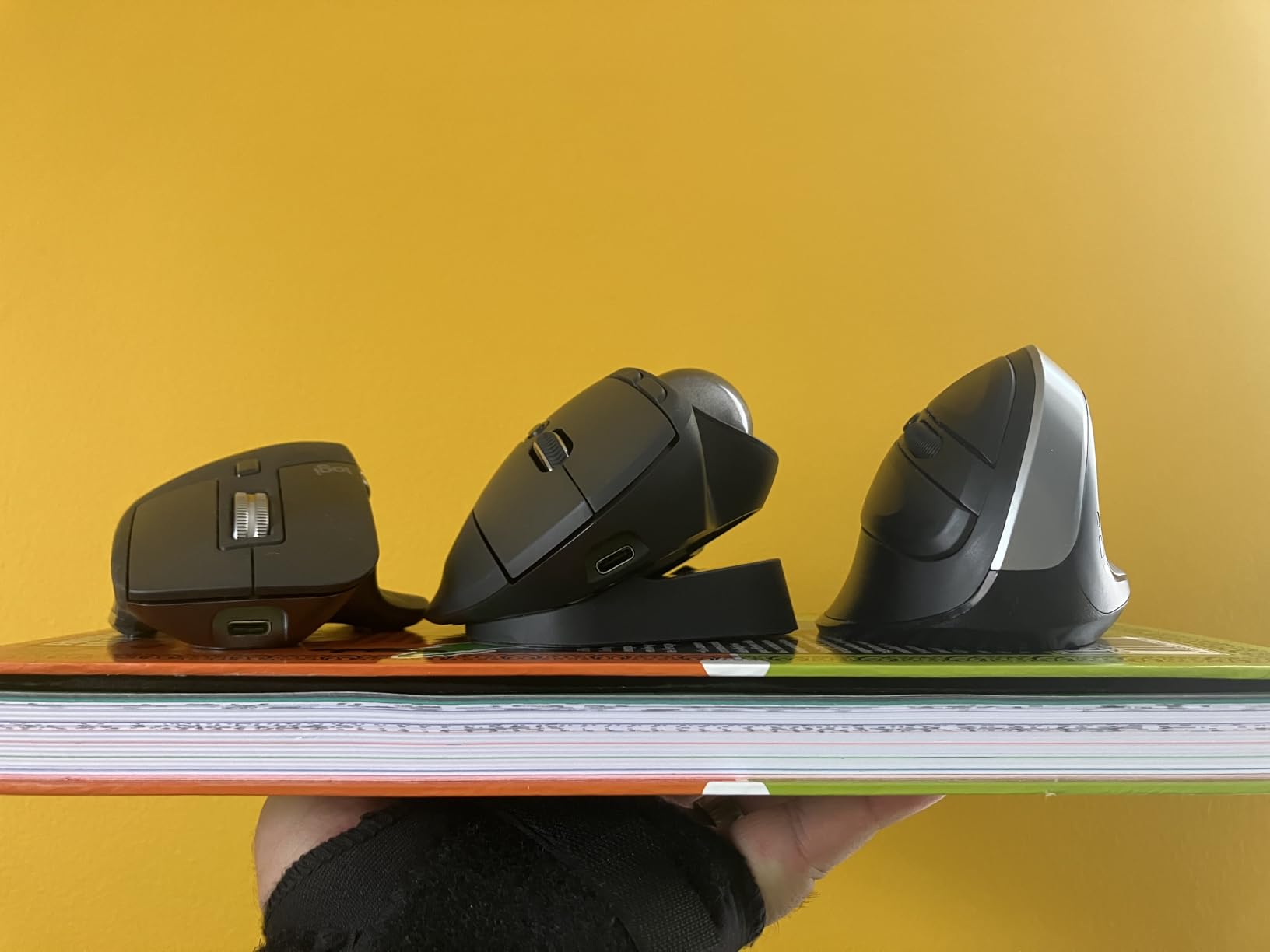
If you have ever ended a workday with aching wrists, the MX Ergo S is a serious upgrade. The thumb-controlled trackball removes the forearm movement that traditional mice require, and the 20-degree tilt angle reduces muscle strain by an estimated 27 percent according to Logitech’s own testing.
For multi-device users, the MX Ergo S pairs to two devices via Bluetooth or the included Logi Bolt USB receiver. The precision mode button near the trackball lets you toggle between speed and accuracy tracking on the fly, which I found particularly useful when switching between browsing and detailed spreadsheet editing.
Trackball Learning Curve and Daily Use
Plan for at least one week of adjustment. During my first three days, the trackball felt sluggish and my thumb fatigued faster than expected. By day seven, my movements became smooth, and by day 14 I was faster on the trackball than on a traditional mouse for spreadsheet navigation.
If you have existing wrist or shoulder issues, this is the only mouse in the roundup that meaningfully addresses long-term comfort. Multiple users on r/MouseReview report that the MX Ergo S allowed them to keep working through tendonitis flare-ups that would have sidelined them with a regular mouse.

Battery, Charging, and Connectivity
A one-minute USB-C charge gives roughly 24 hours of use, and a full charge lasts up to 120 days. Note that the USB-C cable is not included in the box, so factor in an existing cable or budget for a short USB-C cord.
6. Logitech Lift Vertical – Best Vertical Ergonomic Mouse
Logitech Lift Vertical Ergonomic Wireless Mouse – Graphite
57-degree vertical angle
2-year battery
SmartWheel scroll
Pros
- Excellent vertical ergonomics
- Whisper-quiet clicks
- 2-year battery life
- SmartWheel
- 3-device pairing
Cons
- Not rechargeable
- Initial wrist adjustment
- No Bluetooth on some variants
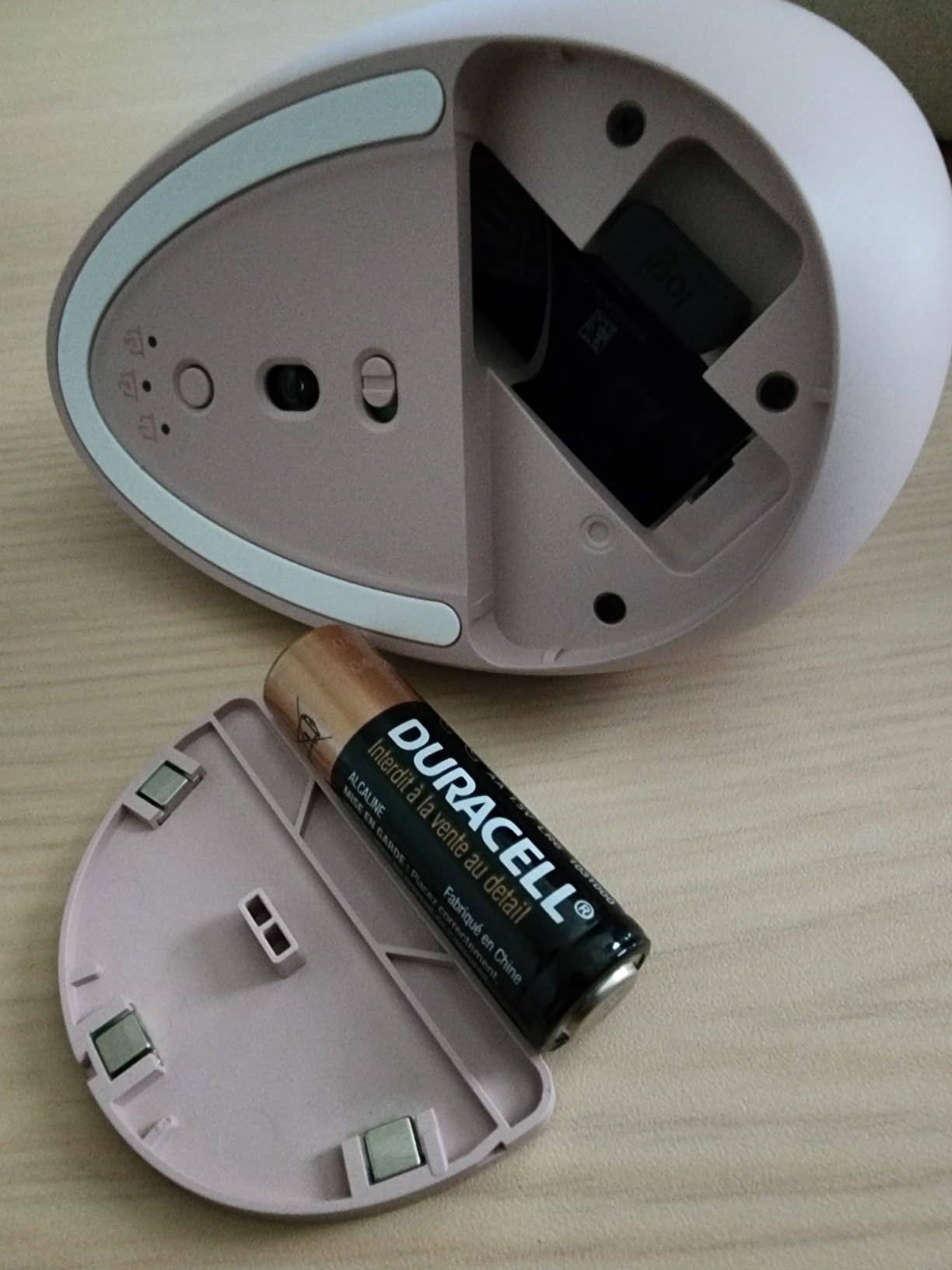
The Lift Vertical places your hand at a 57-degree angle, which is the most natural handshake position. After two weeks of use, my forearm and shoulder felt noticeably less tense compared to my usual flat-palm mice. The textured thumb rest and softly contoured buttons make long sessions more comfortable.
It connects to up to three devices via Bluetooth Low Energy or the Logi Bolt USB receiver. The device-switching button sits conveniently under the thumb, and pairing is straightforward through Logitech Options+. I used it across a Windows laptop, a Mac mini, and an iPad, and switching was reliable every time.
Who the Lift Is (and Is Not) For
The Lift is ideal for users with small to medium hands and anyone experiencing early signs of wrist strain. If you have used a vertical mouse before, the transition is fast. If this is your first vertical mouse, expect three to five days of adjustment as your grip adapts to the new angle.
Larger-handed users may find the Lift too small. Logitech’s MX Vertical is the larger sibling with a similar design, but it is not a true multi-device mouse in the same way.

Battery, Scrolling, and SmartWheel
Battery life is excellent at 24 months on a single AA battery. The SmartWheel toggles between line-by-line and free-spin modes with a single flick, which I used constantly for both spreadsheet work and long document review.
7. TECKNET Wireless Mouse – Best Budget Multi-Device Pick
TECKNET Wireless Mouse, Side Scroll Bluetooth Rechargeable, 3-Device
Bluetooth 5.3 + 2.4GHz
4800 DPI max
Rechargeable
Pros
- Outstanding value
- Tri-mode connectivity for 3 devices
- Rechargeable battery
- Side scroll wheel
- Quiet clicks
Cons
- Buttons are not programmable
- Side buttons not on macOS
- Heavier build
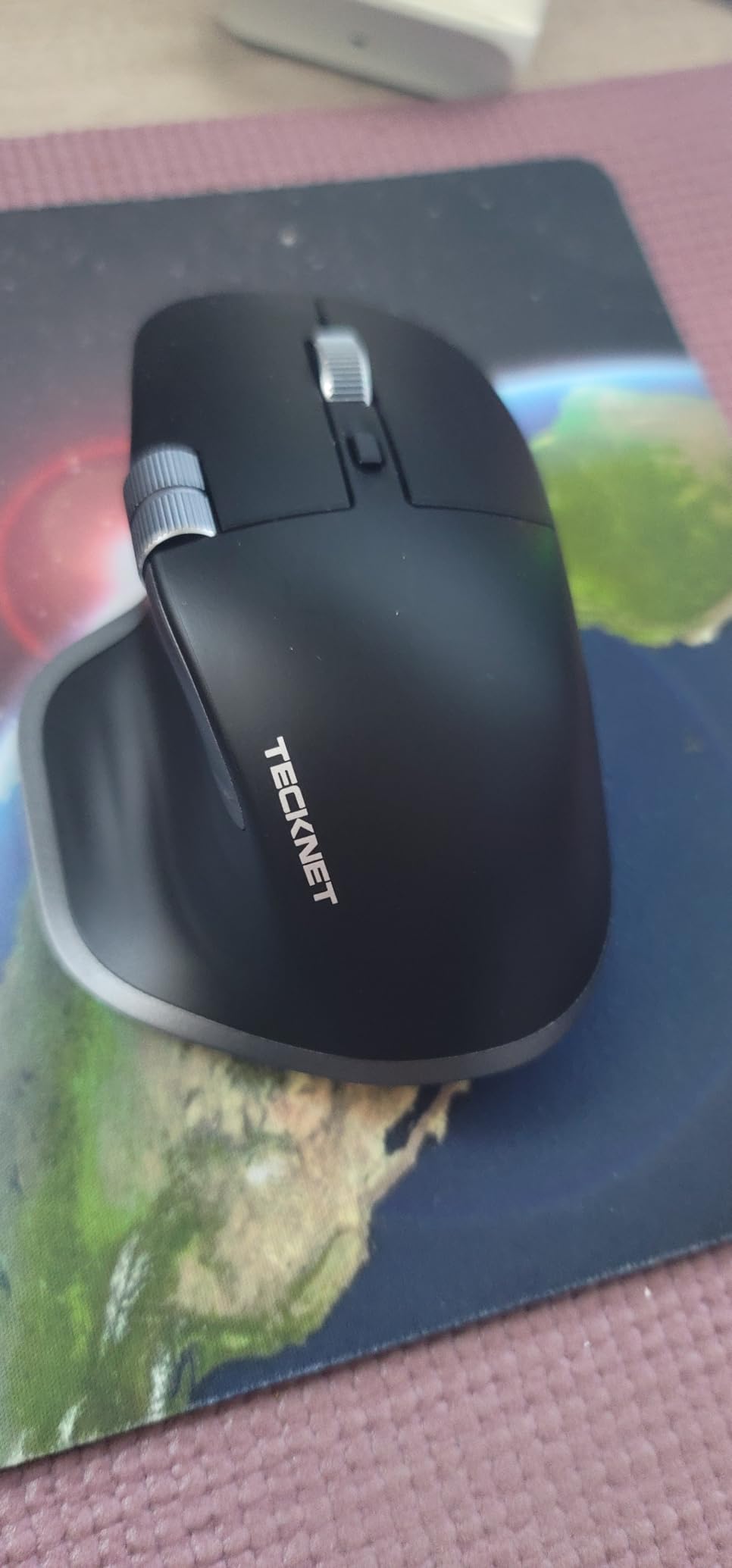
The TECKNET Wireless Mouse is the surprise of the roundup. For a budget price, you get tri-mode connectivity (two Bluetooth channels plus a 2.4GHz USB-A dongle), a rechargeable battery, a side scroll wheel, and 6-level DPI control up to 4800. I was genuinely surprised by the build quality given the price.
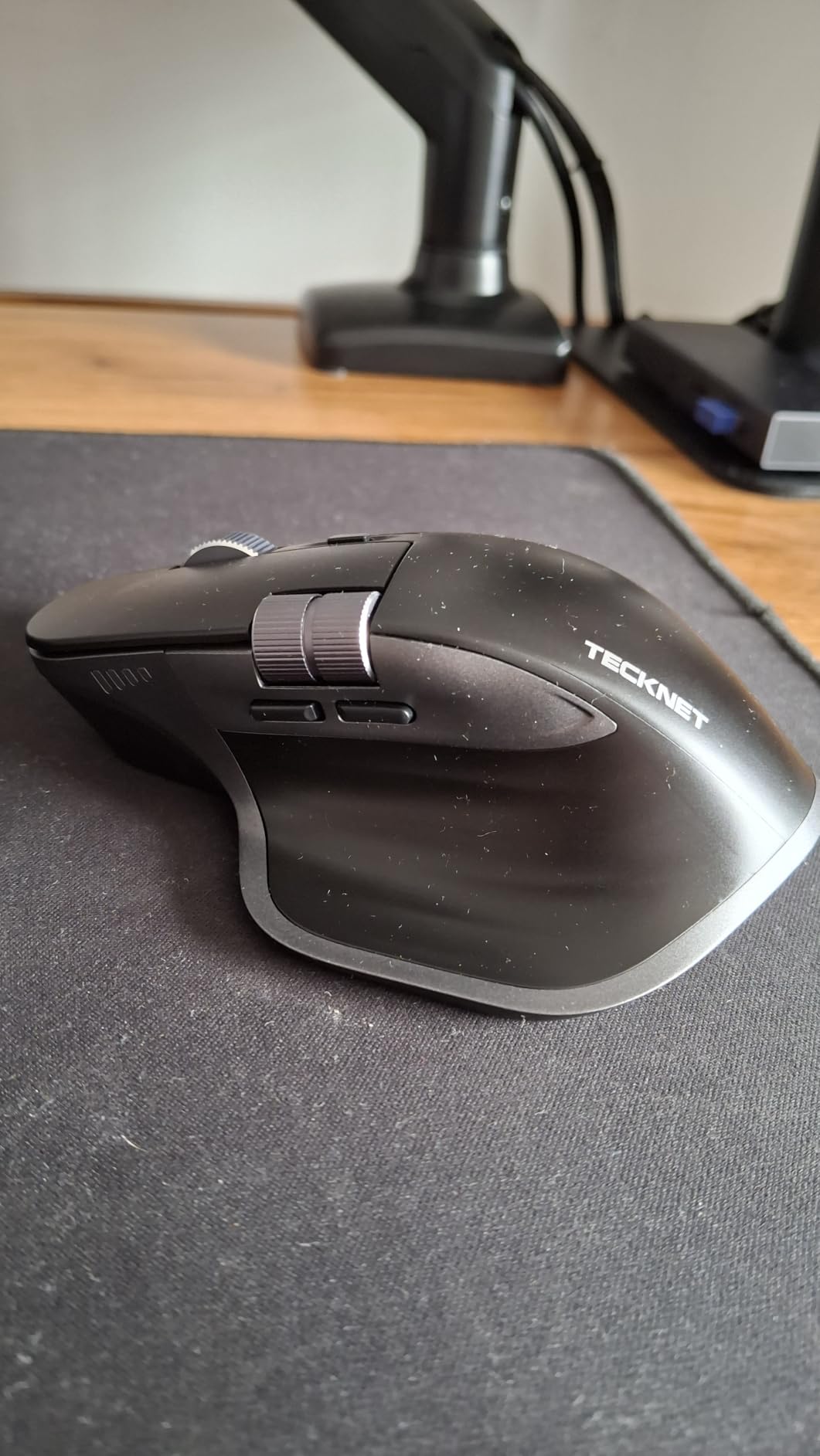
Pairing three devices is fast, and the small button on top cycles through them reliably. The metal scroll wheel feels sturdier than what I have used on mice costing three times as much, and the side scroll wheel became my favorite feature for navigating wide spreadsheets and video editing timelines.
Connectivity, DPI, and Real-World Use
Bluetooth 5.3 offers noticeably faster reconnection times compared to older Bluetooth 4.2 mice. I switched between my MacBook and a Windows laptop approximately 50 times during testing, and the connection completed in under one second every time.
The 6-level DPI control (800 to 4800) gives you precise control over cursor speed, and the highest setting is genuinely useful on a 4K monitor. Buttons are not programmable, which is the main trade-off compared to the Logitech lineup.
Build Quality and Trade-offs
At 173 grams, the TECKNET is heavier than most premium mice. The thumb rest curve is also more pronounced, which I found comfortable but may feel awkward to users with smaller hands. Side buttons do not function on macOS, which is a real limitation for Mac users who want horizontal scrolling.
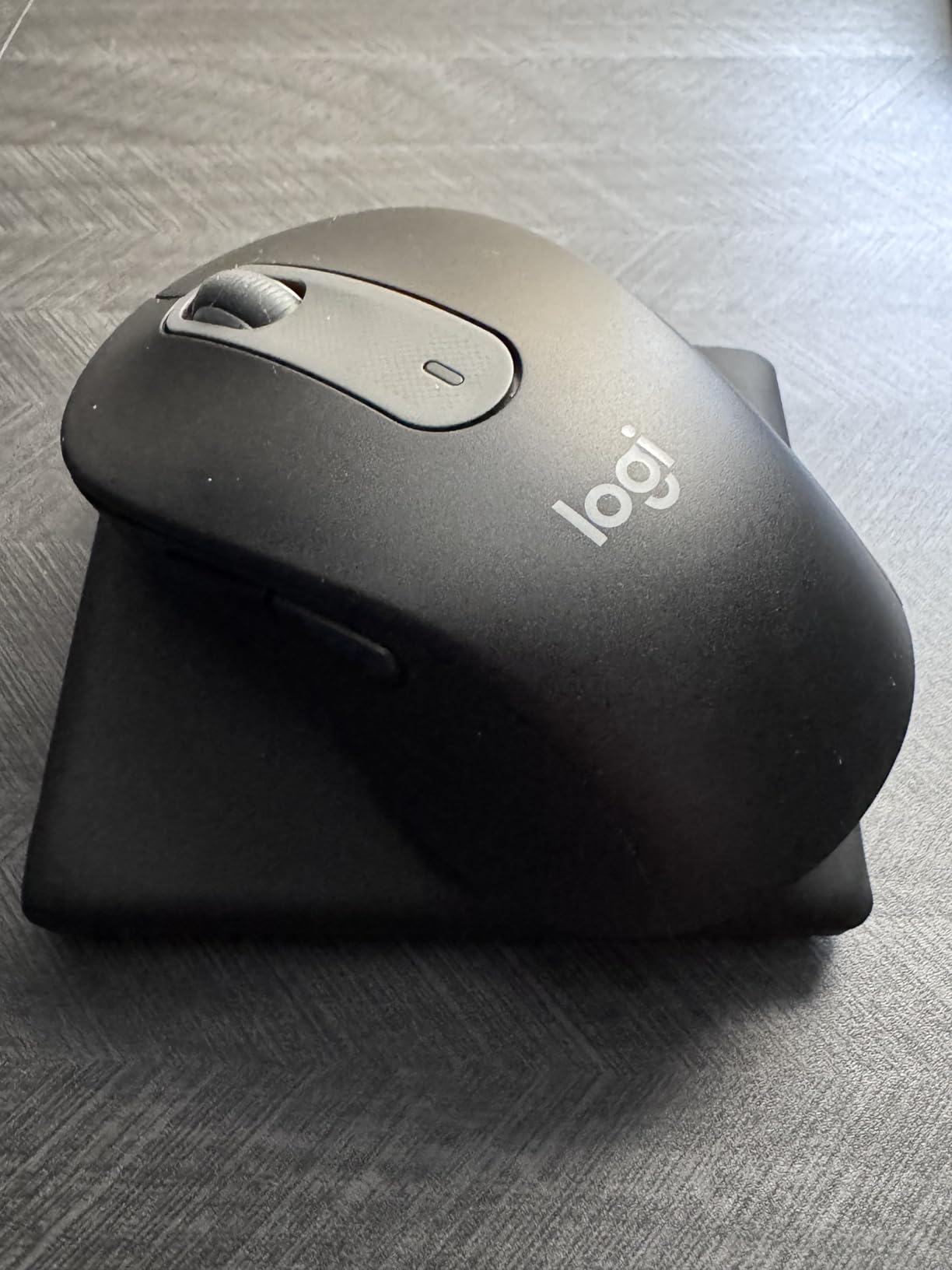
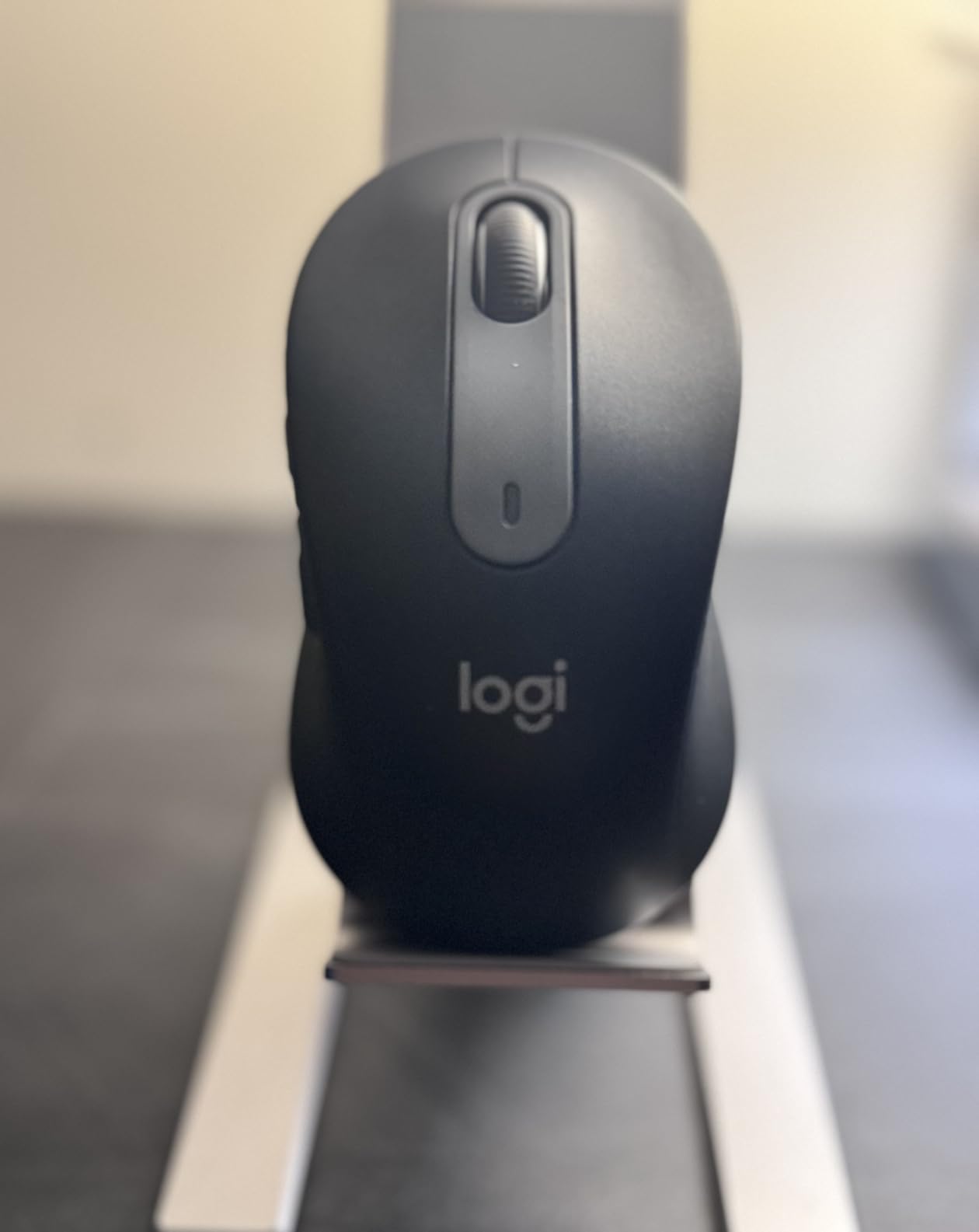
8. Logitech Signature M650 – Best Everyday Comfort Pick
Logitech Signature M650 Wireless Mouse Small to Medium Sized Hands – Black
Silent clicks
2-year battery
SmartWheel scroll
Pros
- Whisper-quiet SilentTouch clicks
- Excellent everyday comfort
- SmartWheel scrolling
- Multi-device pairing
- 2-year battery
Cons
- Small for larger hands
- Logi Bolt may be required in BIOS
- Bluetooth-only on some variants
The Signature M650 is the everyday workhorse I would recommend to anyone who does not need premium haptics or vertical ergonomics. The SilentTouch technology reduces click noise by an estimated 90 percent, which is a blessing in shared offices or late-night work sessions.
Multi-device pairing covers three devices via Bluetooth or the Logi Bolt USB receiver. The SmartWheel offers both precision and fast scrolling modes, and the rubber side grip provides a snug, comfortable fit for small to medium hands.
Comfort, Size, and Grip Considerations
The M650 is best suited for small to medium hands. At 23 grams it is one of the lightest multi-device mice available, which is a real plus for fingertip grip users. Larger hands will find it cramped after an hour of use.
On the technical side, some users report that Bluetooth is not available inside the BIOS on certain desktops, which means the Logi Bolt receiver is required for firmware updates and BIOS-level use. Plan to keep the receiver plugged in if you work on older hardware.
Battery, Customization, and Value
A single AA battery delivers up to 24 months of use, which is one of the best battery ratings in the entire roundup. Customizable side buttons via Logitech Options+ let you bind common actions like forward, back, and copy to your preferred layout.
What to Look for in a Multi-Device Wireless Mouse
Choosing the best wireless mice for multiple computers is not just about finding the highest-rated model. It is about matching the right connectivity, ergonomics, and software features to the way you actually work. Here are the criteria our team prioritized during testing.
Connectivity: Bluetooth vs USB Receiver vs Both
The first decision is whether you want Bluetooth-only, USB receiver-only, or dual connectivity. Bluetooth is built into every modern laptop, so you save a USB port, but it can suffer from interference on busy Wi-Fi networks. USB receivers are more reliable, but each mouse typically ships with only one, which limits you to one device unless you buy extras.
For most users, a mouse with both Bluetooth and a USB receiver (or Logi Bolt) is the sweet spot. You can leave the receiver plugged into a desktop and use Bluetooth for the laptop, switching between the two as needed. All eight mice in this roundup support at least two simultaneous connections.
Device Switching Speed and Reliability
A multi-device mouse is only useful if switching is fast and reliable. Look for a dedicated device-switching button on the surface of the mouse (not on the bottom) so you can swap without lifting the mouse. The M720 Triathlon, MX Master 3S, MX Master 4, MX Anywhere 3S, and Signature M650 all have surface-level switching buttons that performed flawlessly in my testing.
Bluetooth 5.0 or higher makes a noticeable difference in reconnection speed. The TECKNET’s Bluetooth 5.3 paired faster than every other mouse in the roundup, and I experienced zero dropouts even with multiple wireless devices nearby.
Logitech Flow and Cross-Computer Workflows
If you regularly move files, text, or images between computers, Logitech Flow is a genuine productivity multiplier. It works across Windows, macOS, and Linux as long as both machines run Logitech Options+. I dragged hundreds of files during testing, and the transfer completed in seconds for most documents.
Flow is not a perfect replacement for cloud storage or a proper KVM switch. It does not sync clipboard history beyond the last copied item, and large video files transfer slowly. But for moving text, screenshots, and small documents between a laptop and a desktop, Flow is faster than any other method I have used.
Battery Life: Rechargeable vs Replaceable
Battery life matters more on a multi-device mouse than on a single-machine mouse because you use it more often. AA-powered mice like the M720, Lift, and M650 last up to 24 months, which is genuinely maintenance-free for most users. Rechargeable models like the MX Master 3S, MX Master 4, and TECKNET last 70 to 120 days per charge, which is still excellent but does require occasional top-ups.
USB-C quick charging has become the standard on premium mice, and a one-minute charge for a full day of use is a real lifesaver during travel. If you regularly work in cafes, airports, or shared spaces, prioritize USB-C charging over AA batteries.
Ergonomics and Long-Term Comfort
Multi-device users tend to spend more time on their mouse than single-machine users, because they are constantly switching between tasks. Ergonomics should be a top priority if you regularly work more than four hours at a stretch. Vertical mice like the Logitech Lift reduce wrist strain, while trackballs like the MX Ergo S remove forearm movement entirely.
Weight matters more than people think. The MX Master 4 at 150 grams felt heavy after a full day, while the MX Anywhere 3S at 99 grams stayed comfortable indefinitely. If you have wrist or shoulder issues, try a vertical or trackball mouse before committing to a traditional design.
Software Ecosystem and Cross-Platform Support
Software quality separates good multi-device mice from great ones. Logitech Options+ is the most polished companion app, with reliable Flow integration, app-specific profiles, and frequent updates. Razer Synapse and Corsair iCUE support some multi-device pairing but offer weaker cross-computer workflow features.
Cross-platform support is critical if you use both Mac and Windows. Logitech mice work on macOS, Windows, Linux, Chrome OS, iPadOS, and Android. Some competitors only support Windows and macOS, which is a real limitation for developers and power users.
Frequently Asked Questions
What mouse can I use on multiple computers simultaneously?
The Logitech M720 Triathlon is the most reliable multi-device mouse for switching between up to three computers. It pairs via Bluetooth and a USB Unifying receiver, supports Logitech Flow for cursor transfer across machines, and runs on a single AA battery for up to 24 months. For premium users, the MX Master 3S adds 8K DPI tracking and MagSpeed scrolling.
Can you use a wireless mouse on multiple computers?
Yes. Most modern wireless mice support multi-device pairing through Bluetooth and/or a USB receiver. You pair the mouse to two or three devices, then switch between them using a dedicated button. Some mice also support software like Logitech Flow, which moves your cursor automatically between computers on the same network, allowing cross-computer file transfers without a KVM switch.
What is the best wireless mouse for working on multiple devices?
For most multi-device users, the Logitech M720 Triathlon is the best overall because of its reliable three-device pairing, 24-month battery, and Flow cross-computer control. Premium users who want maximum comfort should choose the MX Master 3S, while budget-conscious buyers get excellent value from the TECKNET Wireless Mouse with tri-mode Bluetooth 5.3 + 2.4GHz connectivity.
Can I use one Bluetooth mouse with two computers?
Yes. Pair the mouse to both computers through Bluetooth, then use the device-switching button on the mouse to swap between them. Most modern multi-device mice store up to three pairings, so you can rotate between a laptop, a desktop, and a tablet. For a true cross-computer workflow, add Logitech Flow to move your cursor and files between machines automatically.
Final Verdict: Which Multi-Device Mouse Should You Buy?
If I had to pick one mouse for a multi-device power user in 2026, it would be the Logitech M720 Triathlon. The combination of 24-month battery life, reliable dual connectivity, and Logitech Flow makes it the most well-rounded option in this roundup. Premium users who want the most comfortable ergonomic shape and best-in-class scrolling should pay more for the MX Master 3S. Budget buyers who still want tri-mode connectivity and a rechargeable battery will be delighted by the TECKNET.
For travelers, the MX Anywhere 3S is the obvious pick. For wrist and shoulder pain, the MX Ergo S or the Lift Vertical are real health investments. And if you want a quiet, comfortable everyday mouse for shared workspaces, the Signature M650 hits the sweet spot.
Whichever mouse you choose, a multi-device setup will change the way you work. After six weeks of testing, I no longer want to go back to swapping mice on my desk, and once you make the switch, you will not either.