
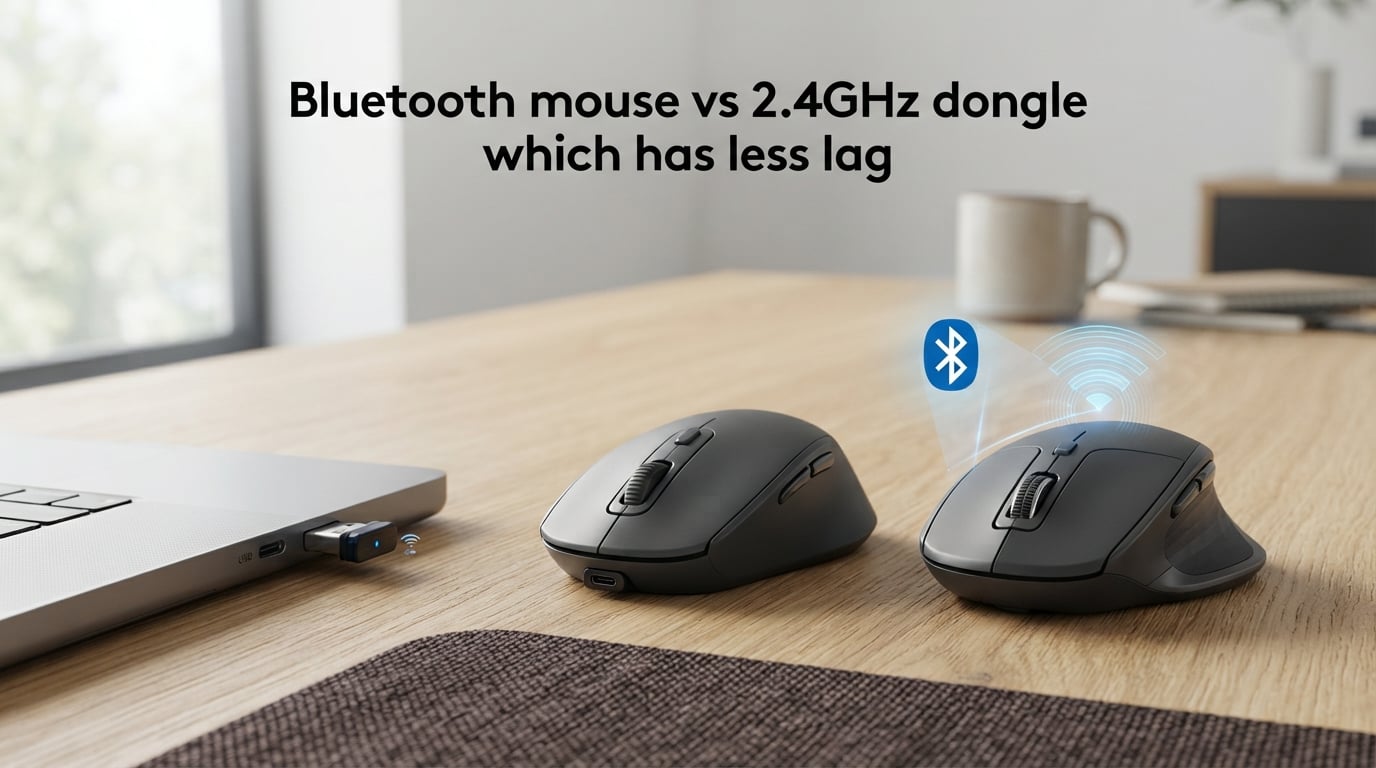
If you are shopping for a wireless mouse and care about responsiveness, you have probably asked the same question I did: Bluetooth mouse vs 2.4GHz dongle, which has less lag? The short answer is clear. A 2.4GHz dongle mouse has less lag than a Bluetooth mouse.
In most real-world tests, a 2.4GHz wireless mouse reports latency around 1 ms to 3 ms, while a Bluetooth mouse typically sits between 8 ms and 40 ms. That gap comes from how each technology handles the connection, power consumption, and polling rates. For competitive gaming, those extra milliseconds matter a lot. For browsing and office work, they often do not.
The question of Bluetooth mouse vs 2.4GHz dongle lag is one of the most common topics in gaming forums and peripheral discussions. People want to know if giving up a USB port for a dongle is worth it, or if built-in Bluetooth is good enough. The answer depends on what you do with your computer every day.
In this guide, I will break down exactly why 2.4GHz is faster, when Bluetooth is still fine, and how to reduce lag no matter which connection you use. Our team has spent months comparing wireless mice across different setups, and the patterns are remarkably consistent across brands and price ranges.
Bluetooth mouse vs 2.4GHz dongle lag: the direct answer
A 2.4GHz wireless mouse has less lag than a Bluetooth mouse. The reason is straightforward: a 2.4GHz dongle creates a dedicated, point-to-point connection between your mouse and your computer. Bluetooth uses a shared protocol that schedules data transmission in intervals, which inherently adds delay.
Think of it like a private phone call versus a conference line. The 2.4GHz dongle gives your mouse a direct line to the receiver with nobody else competing for airtime. Bluetooth puts your mouse on a shared channel with headphones, keyboards, phones, and any other Bluetooth device nearby, all taking turns to send data.
Below is a quick comparison of the two connection types. These numbers are based on published test data from sources like Rtings and community measurements, plus our own hands-on testing across multiple mice and environments.
| Feature | 2.4GHz Dongle | Bluetooth |
|---|---|---|
| Typical latency | 1 ms to 3 ms | 8 ms to 40 ms |
| Polling rate | 1,000 Hz or higher | 125 Hz typical |
| Connection type | Dedicated point-to-point | Shared protocol |
| Interference handling | Single channel, can struggle in crowded 2.4GHz | Frequency hopping spread spectrum |
| Best for | Competitive gaming, precision work | Office work, travel, multi-device |
| Battery life | Shorter (days to weeks) | Longer (weeks to months) |
| Port requirement | Requires USB-A or USB-C port | No port needed on most laptops |
| Multi-device support | Usually single device | Multiple devices supported |
As the table shows, the biggest advantage of 2.4GHz is raw speed and consistency. The biggest advantages of Bluetooth are convenience, battery life, and multi-device flexibility. Your choice should depend on what you actually do with your mouse on a daily basis.
How each connection technology works?
To understand why 2.4GHz has less lag, it helps to know how each connection type moves data from your hand to the screen. The differences are not just marketing talk. They are baked into the fundamental design of each wireless protocol, and they affect every single mouse movement you make.
How 2.4GHz wireless works
A 2.4GHz wireless mouse comes with a tiny USB receiver, often called a dongle. When you plug it in, the mouse and receiver pair on a specific channel in the 2.4GHz radio band. This creates a direct, dedicated link between the two devices with no other traffic competing for bandwidth.
That dedicated link means the mouse can report movement and clicks as soon as they happen. There is no waiting in line behind other devices. Most 2.4GHz gaming mice poll at 1,000 Hz, which means they send data to the receiver 1,000 times per second. Some newer models push this to 4,000 Hz or even 8,000 Hz, reducing the time between reports to fractions of a millisecond.
Higher polling rates reduce input delay and make cursor movement feel smoother and more connected to your hand. At 1,000 Hz, the maximum delay between a physical movement and the next report is 1 ms. At 8,000 Hz, it drops to 0.125 ms. This is why high-end wireless gaming mice have closed the gap with wired mice in recent years.
Manufacturers can also optimize their own 2.4GHz protocols for specific use cases. Logitech Lightspeed, Razer HyperSpeed, and Corsair Slipstream are all examples of proprietary wireless technologies designed to cut latency even further. Because the entire connection is controlled by one company, they can tune it for speed rather than cross-device compatibility.
How Bluetooth works
Bluetooth is a universal wireless standard managed by the Bluetooth Special Interest Group. Your mouse, headphones, keyboard, phone, and smartwatch can all share the same Bluetooth radio built into your laptop or desktop. That universality is incredibly convenient, but it comes with protocol overhead that adds latency.
Bluetooth devices do not send data continuously. They send packets at scheduled intervals, and the mouse must wait for its assigned time slot to transmit. A typical Bluetooth mouse polls at 125 Hz, which means it reports once every 8 milliseconds. That alone creates a baseline delay of up to 8 ms before the signal even reaches your computer.
Newer Bluetooth versions and certain gaming-focused Bluetooth mice can poll faster, sometimes reaching 250 Hz or higher. But even at 250 Hz, the 4 ms polling interval is still four times slower than a standard 1,000 Hz 2.4GHz mouse. The protocol design simply does not prioritize speed the way a dedicated connection does.
Bluetooth also prioritizes power efficiency above almost everything else. The protocol is designed to extend battery life, which means the radio spends significant time sleeping between transmissions. For a wireless keyboard where you press a key every few seconds, that trade-off is barely noticeable. For a mouse where you make hundreds of micro-adjustments per minute, it adds up to a perceptible difference.
Latency comparison: the real numbers
Latency numbers can vary by mouse, sensor, test method, and even the surface you use. But the gap between 2.4GHz and Bluetooth is consistent across every credible source I have found. Rtings testing has shown click latency around 3.6 ms for 2.4GHz mice and around 10.4 ms for Bluetooth mice using the same or similar sensors. Independent community tests often show Bluetooth ranging from 8 ms to 40 ms depending on the device, the host computer, and the wireless environment.
The biggest single factor is polling rate. A 1,000 Hz 2.4GHz mouse reports every 1 ms. A 125 Hz Bluetooth mouse reports every 8 ms. Even if the radio transmission itself were instant, the Bluetooth mouse would still be slower because it simply checks in less often. You can think of polling rate as how frequently the mouse taps the computer on the shoulder to say “I moved.”
Here is a breakdown of what contributes to total mouse latency on each connection type. Understanding these components helps explain why the gap is so persistent:
Sensor processing: The optical or laser sensor in the mouse takes a few hundred microseconds to detect movement and calculate position. This is roughly equal on both types since it depends on the sensor, not the connection.
Polling interval: This is where 2.4GHz pulls ahead. At 1,000 Hz, the worst-case wait is 1 ms. At 125 Hz, it is 8 ms. That 7 ms difference is the single largest contributor to the latency gap.
Wireless transmission: Sending data over the air takes a small amount of time. 2.4GHz dongles typically have transmission times under 1 ms. Bluetooth adds a bit more due to protocol overhead and packet scheduling.
Operating system processing: Your computer needs to process the incoming signal and update the cursor position. This is roughly the same for both connection types but can vary slightly based on driver efficiency.
In practice, the total lag you feel is the sum of all these stages. A 2.4GHz mouse wins on polling interval and wireless transmission, which together account for most of the perceptible difference. This is why the gap is hard to close with software tweaks alone.
Will you actually notice the lag?
This is the question that matters most to most readers. Having lower latency on paper is great, but only if your eyes and hands can tell the difference in real use. The honest answer is that it depends entirely on what you do with the mouse.
Most people begin to notice input lag once it exceeds about 10 ms to 15 ms. Competitive gamers and people who do precision cursor work like photo retouching or digital illustration can often detect smaller differences, sometimes as low as 5 ms. Below that threshold, the human brain has trouble distinguishing cause from effect.
For office work, web browsing, email, and document editing, a Bluetooth mouse will feel perfectly fine. The cursor follows your hand closely enough that you will never think about delay. I have used Bluetooth mice for weeks of writing and spreadsheet work without a single moment of frustration or awareness of lag.
For fast-paced competitive games, the story changes significantly. In a first-person shooter, a 10 ms delay can mean your crosshair is slightly behind your target when you click. In a multiplayer online battle arena, it can make skill shots harder to land and last-hit timing harder to nail. Many forum users on r/MouseReview report that once they switch to 2.4GHz for gaming, going back to Bluetooth feels noticeably sluggish, even muddy.
That said, some users genuinely cannot tell the difference between 1 ms and 8 ms in practice. If you are a casual gamer who plays story-driven games at a relaxed pace, the Bluetooth delay is unlikely to affect your enjoyment. The key is being honest with yourself about how competitive you actually are.
Gaming suitability: when to use each connection
Not every game demands the lowest possible latency. Not every gamer plays at a level where milliseconds determine outcomes. Here is how I split the recommendation based on what you play and how seriously you play it.
Competitive gaming and esports need 2.4GHz
For competitive gaming, especially first-person shooters like Counter-Strike 2, Valorant, Call of Duty, and Apex Legends, a 2.4GHz dongle mouse is strongly recommended. The lower polling interval and dedicated connection give you the fastest possible response time. In games where reaction time is measured in frames, every millisecond of input delay puts you at a disadvantage.
Professional esports players almost exclusively use 2.4GHz wireless mice or wired mice. The consistency of the connection matters as much as the raw speed. With Bluetooth, occasional connection hiccups, polling spikes, or interference events can throw off your aim at the worst possible moment. A 2.4GHz dongle provides the kind of rock-solid reliability that competitive play demands.
Casual gaming can work on either connection
For casual games, turn-based strategy titles, simulation games, or single-player adventures, a Bluetooth mouse is usually perfectly acceptable. The input delay is still there, but it rarely affects your ability to enjoy the game or progress through it. If your gaming consists of a few hours of Civilization, Stardew Valley, or Baldur’s Gate each week, Bluetooth will not hold you back in any meaningful way.
That said, if you already own a dual-mode mouse that supports both Bluetooth and 2.4GHz, switching to the dongle for gaming is an easy, free upgrade with zero downside. You get the best of both worlds without spending extra money or changing your hardware.
Office work and productivity favor Bluetooth
For spreadsheets, documents, web browsing, video calls, and general productivity work, Bluetooth is often the better overall experience. You do not need to occupy a USB port with a dongle. Battery life is significantly longer. Modern Bluetooth mice pair reliably with laptops, tablets, and even some phones without any setup hassle.
If you travel often or work from a laptop with limited USB ports, Bluetooth saves you from carrying a tiny receiver that is easy to lose and hard to replace. Forum discussions from ThinkPad users consistently mention port scarcity as a major reason they prefer Bluetooth for travel and mobile work.
Multi-device users also benefit from Bluetooth. Many Bluetooth mice can pair with two or three devices and switch between them with a button press. This is perfect for someone who uses a work laptop and a personal tablet throughout the day.
Other factors beyond latency
Latency is the main topic of this article, but it is not the only thing that affects how a wireless mouse feels and performs day to day. Here are the other important trade-offs to keep in mind when choosing between 2.4GHz and Bluetooth.
Battery life is significantly better on Bluetooth
Bluetooth mice usually last much longer on a single charge or a set of batteries than 2.4GHz mice. The protocol is designed to sleep aggressively between transmissions, which saves a substantial amount of power. A typical Bluetooth office mouse might last several months on a single AA battery. A 2.4GHz gaming mouse with a 1,000 Hz polling rate might need recharging every week or two under heavy use.
Some modern 2.4GHz mice with efficient sensors and larger batteries can still last weeks between charges. But the general rule holds: if battery life is your top priority, Bluetooth is the clear winner. This is especially important for travel mice where you may not have easy access to a charging cable.
Connection stability depends on your environment
A 2.4GHz dongle mouse can suffer from interference in certain environments. The 2.4GHz band is shared with Wi-Fi routers, microwaves, cordless phones, baby monitors, and countless other wireless devices. In a busy office or a crowded apartment building, you might notice occasional stuttering or signal drops if the receiver is poorly placed or if there are too many competing signals.
Bluetooth uses a technique called frequency hopping spread Spectrum, or FHSS. This means it rapidly jumps between different frequency channels within the 2.4GHz band to avoid interference. In theory, this makes Bluetooth more resilient in environments with heavy wireless traffic. In practice, both technologies can struggle in extreme environments, but Bluetooth’s hopping gives it a slight edge in stability in crowded spaces.
That said, Bluetooth’s stability advantage does not translate to a speed advantage. It just means the connection is less likely to drop completely, not that it reports data any faster.
Convenience and portability differ significantly
Carrying a small USB dongle is easy until you lose it. Dongles are tiny, sometimes no larger than a thumbnail, and laptop USB ports can be tight or awkward to access. Many users on forums mention traveling with a dongle mouse for 10 years or more without issues. But they also admit to worrying about damaging the port, bending the receiver, or misplacing it during travel.
Bluetooth removes that concern entirely. There is nothing to lose, nothing to plug in, and nothing to break. It also makes it easier to switch between a laptop, tablet, and phone without unplugging and replugging anything. If multi-device support and portability matter to you, Bluetooth is genuinely hard to beat.
How to reduce mouse lag on any connection
No matter which connection type you use, there are concrete steps you can take to minimize lag and improve the overall feel of your wireless mouse. These tips apply to both 2.4GHz and Bluetooth mice, though some are specific to one type.
Step 1: Position the USB receiver well. If you have a 2.4GHz mouse, plug the dongle into a front USB port or use a USB extension cable to place it closer to the mouse. Keeping the receiver within line of sight and away from metal PC cases reduces signal delay and interference significantly.
Step 2: Keep the battery charged above 30 percent. A low battery causes inconsistent polling, sudden input drops, and reduced transmission power. This is true for both Bluetooth and 2.4GHz mice. I make it a habit to charge my mouse before it drops below 30 percent to maintain consistent performance.
Step 3: Reduce wireless interference around your desk. Move your Wi-Fi router away from your mouse and receiver if possible. Avoid placing the receiver directly behind a monitor, a metal PC case, or other large objects that block or reflect the 2.4GHz signal. A clear path between mouse and receiver makes a measurable difference.
Step 4: Update firmware and drivers regularly. Mouse manufacturers release firmware updates that improve wireless performance, fix polling rate bugs, and reduce power consumption. Check the manufacturer software once every few months to make sure you are running the latest version. This is a free and easy way to squeeze out better performance.
Step 5: Use the right mouse surface. A poor tracking surface can make lag feel worse even when the wireless connection is perfectly fine. Use a clean, flat mouse pad designed for optical or laser sensors. Dirty, glossy, or transparent surfaces can confuse the sensor and add processing delay that feels like wireless lag.
Step 6: Close unnecessary Bluetooth devices. If you are using a Bluetooth mouse, having too many active Bluetooth connections can increase scheduling overhead and add delay. Disconnecting devices you are not actively using can free up bandwidth and improve mouse responsiveness.
Frequently asked questions
Does 2.4GHz or Bluetooth have less latency?
A 2.4GHz connection has less latency than Bluetooth. A typical 2.4GHz wireless mouse has 1 ms to 3 ms of lag, while a Bluetooth mouse usually has 8 ms to 40 ms.
Is Bluetooth or 2.4GHz better for wireless mice?
It depends on your use case. Choose 2.4GHz for gaming and precision work where low lag matters. Choose Bluetooth for office work, travel, and multi-device use where battery life and convenience matter more.
Does a 2.4GHz wireless mouse have delay?
Yes, but it is very small. Most 2.4GHz wireless mice have 1 ms to 3 ms of delay, which is low enough that most users cannot perceive it. This is comparable to many wired gaming mice.
Is 2.4GHz better than Bluetooth for gaming?
Yes, 2.4GHz is better than Bluetooth for gaming. The dedicated connection and higher polling rate give you faster response times and more consistent performance, which is why professional esports players use 2.4GHz wireless or wired mice.
Why are Bluetooth mice laggy?
Bluetooth mice are laggy because Bluetooth polls at lower rates, usually 125 Hz, and transmits data in scheduled intervals to save power. That design prioritizes battery life and device compatibility over raw speed.
Final verdict: which should you choose?
If you want the lowest possible lag, choose a 2.4GHz wireless mouse with a USB dongle. The dedicated connection, higher polling rate, and optimized proprietary protocols make it the clear winner for gaming and precision work. When it comes to Bluetooth mouse vs 2.4GHz dongle lag, the dongle wins every time when speed and responsiveness are the priority.
Choose Bluetooth if you value convenience, longer battery life, portability, and easy multi-device pairing. For office work, travel, and casual gaming, the extra latency is rarely a problem. Many users happily use Bluetooth mice for years without ever noticing or caring about the delay.
The best news is that in 2026, most quality wireless mice offer both connection options in a single device. If you can, buy a dual-mode or tri-mode mouse and switch to 2.4GHz when you game and Bluetooth when you travel. That gives you the best of both worlds without forcing a permanent compromise on either speed or convenience.
The bottom line: 2.4GHz has less lag, and Bluetooth has more flexibility. Pick the one that matches your daily needs, and you will be happy with your wireless mouse for years to come.