
By September 2026, I had already spent three weeks trying to figure out why my Pixel was dying before lunch. I would unplug at 7 AM, and by 11 my battery icon was flashing red. Something was eating my battery in the background, and I had no idea what.
If that sounds familiar, you are in the right place. Learning how to find which app is draining your Android battery is one of the most practical troubleshooting skills you can have. The good news is that Android has excellent built-in tools for this.
You do not need to install anything or pay for a diagnostic app. Our team has tested battery troubleshooting steps across Samsung Galaxy, Google Pixel, and OnePlus devices running Android 12 through the latest 2026 builds. The process is nearly identical on all of them, but there are small differences worth knowing about.
I will walk you through every step, explain what the data means, and cover exactly what to do when you catch the culprit. You will also learn how to interpret those confusing battery percentages, why Android System sometimes appears at the top of the list, and when battery drain points to something more serious like a degrading battery or malware.
Quick Answer: How to Find Which App Is Draining Your Android Battery
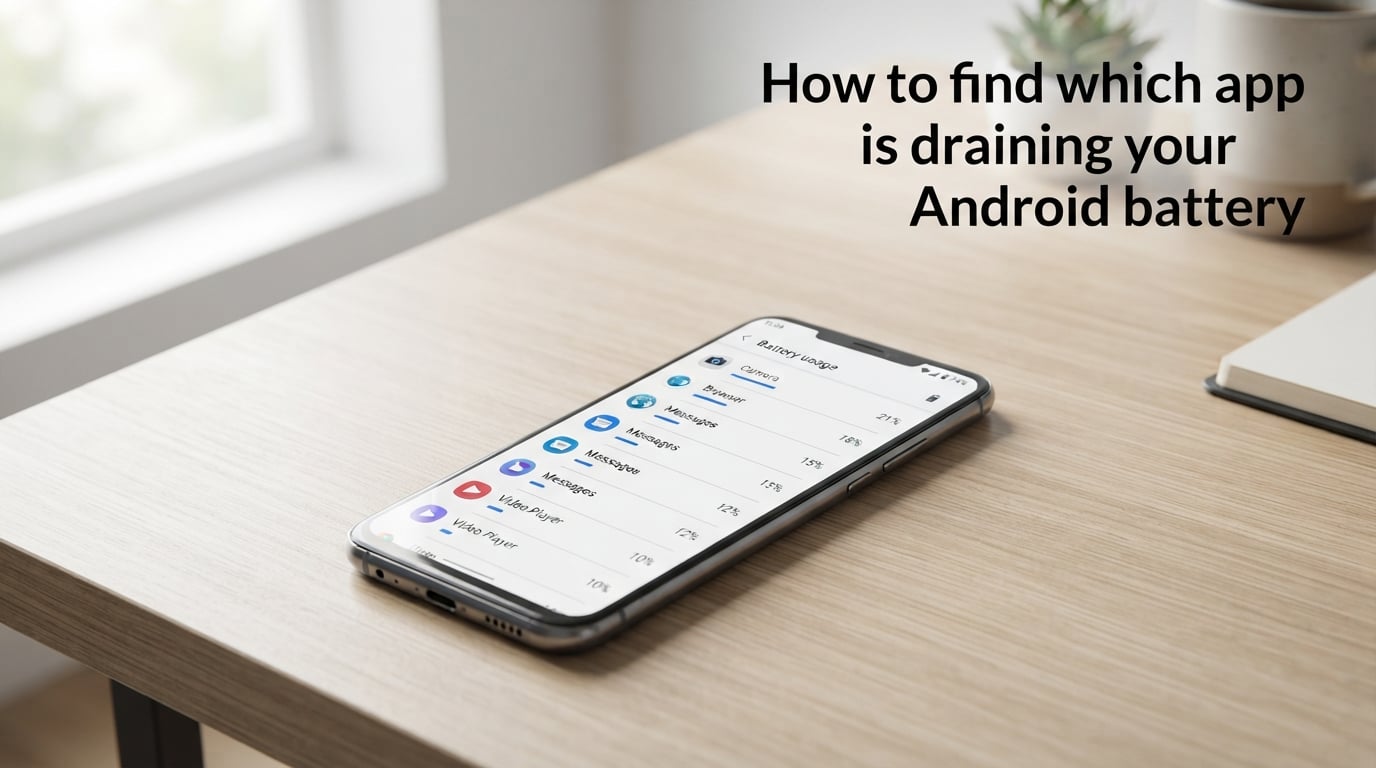
Go to Settings > Battery > Battery Usage on your Android phone. You will see a list of every app ranked by how much battery it has consumed since your last full charge. The app at the top of that list is using the most power.
Tap any app in the list to see details about its foreground and background activity. If an app you barely opened is near the top, that is your battery drain culprit.
This built-in screen is the fastest and most reliable way to identify power-hungry apps. No third-party tools needed.
Step-by-Step: How to Find Which App Is Draining Your Android Battery
Here is the complete walkthrough. I recommend having your phone handy so you can follow along.
Step 1: Open Settings
Find the Settings app on your home screen or app drawer. It looks like a gear icon on most phones.
You can also swipe down from the top of your screen to open the Quick Settings panel. Tap the gear icon in the corner to jump straight into Settings.
Step 2: Navigate to Battery
Scroll down in Settings until you find the Battery option. On most Android phones, it sits near the middle of the list.
On Samsung devices running One UI, you may see it labeled as Battery and device care. Tap that, then select Battery from the submenu.
Step 3: Open Battery Usage
Inside the Battery screen, look for Battery Usage. This is where Android stores the breakdown of power consumption by app.
On Google Pixel phones, you will see this option near the bottom of the Battery screen. On Samsung, tap the Battery usage text at the top of the battery stats page.
You may need to scroll to find it. The exact label varies slightly between manufacturers, but every Android device has this screen.
Step 4: Review the App List
Once you open Battery Usage, you will see a list of apps ordered by battery consumption. The biggest consumer appears at the top.
Each entry shows the percentage of total battery power that app has used. You will also see a small graph at the top showing your battery level over time.
Pay attention to the time range. Android typically shows data since your last full charge. Some devices also offer a 24-hour view. Switch between these to get a clearer picture.
Step 5: Tap Individual Apps for Details
Tap any app in the list to open its battery details page. Here you will see two important numbers:
App usage while in active use (also called foreground usage) shows how much battery the app consumed while you had it open on screen.
App usage while in background shows how much power the app used when you were not actively using it. This is the number that matters most when tracking down drain issues.
If an app has high background usage relative to its foreground usage, it is running processes behind the scenes. That is your problem app.
Tip: Take a screenshot of your Battery Usage screen before making any changes. This gives you a baseline to compare against later.
Warning: Do not force stop system apps like Google Play Services or Android System unless you know what you are doing. Stopping critical system processes can cause glitches, crashes, or boot loops.
How to Interpret Battery Usage Data
Seeing the numbers is one thing. Understanding what they mean is another. Let me break down how to read the Battery Usage screen so you can separate real problems from normal behavior.
What the Percentages Mean
The percentage next to each app represents its share of total battery consumed since the last full charge. If your screen shows Facebook at 18%, that means Facebook used 18% of all battery power your phone has drained since you unplugged it.
These percentages are relative, not absolute. They add up to 100% of whatever battery has been used. If you have used 60% of your total charge, Facebook at 18% means it burned through roughly 11% of your actual battery capacity.
What Counts as Normal
Here is a rough guide based on what I have seen across dozens of devices:
Screen: Typically the top consumer at 20% to 40%. This is completely normal. Your display uses more power than anything else.
Social media apps: 5% to 15% is common if you use them regularly. Anything above 20% with light usage is suspicious.
Android System and Android OS: 5% to 15% combined is normal. These handle core phone functions.
Google Play Services: 5% to 10% is typical. This manages app updates, location services, and account sync.
Any single app above 15%: Worth investigating, especially if you rarely use it.
Why Android System Shows High Usage
This is one of the most common questions I see on Reddit. Users open Battery Usage, see Android System or Android OS at 8% or 12%, and panic.
Do not worry. Android System is the backbone of your phone. It handles cellular connections, Wi-Fi, Bluetooth, location tracking, app installations, and dozens of other background tasks. A moderate percentage here is expected.
What should concern you is if Android System usage suddenly jumps from its normal range. A spike from 8% to 25% after an update usually means something went wrong with a system process. A factory reset or waiting for the next OTA update typically resolves this.
Time Periods Matter
Always check which time range you are viewing. Data since last full charge gives you the most complete picture. A 24-hour view can hide patterns if your charging habits are irregular.
If your phone has been off the charger for 30 minutes and shows an app at 40%, that number looks alarming. But in absolute terms, it may only represent 4% of your total battery. Context matters.
Device-Specific Instructions
While the core Settings > Battery > Battery Usage path works on virtually every Android phone, manufacturers customize their interfaces. Here is how to access battery data on the three most popular Android brands.
Samsung Galaxy (One UI)
Samsung wraps battery settings inside its Device Care menu. The path is slightly longer but the data is the same.
Open Settings > Battery and device care. Tap Battery, then look for Battery usage at the top of the screen.
Samsung also offers a Background usage limits menu inside Battery settings. You can put unused apps to sleep automatically, which is a great preventive measure. Tap Background usage limits and enable Put unused apps to sleep.
For specific app restrictions, go to Settings > Apps > [App name] > Battery. Samsung lets you choose between Unrestricted, Optimized, and Restricted for each app individually.
Google Pixel (Stock Android)
Pixel phones offer the cleanest battery interface. The path is straightforward and the data presentation is clean.
Open Settings > Battery. Tap Battery usage near the bottom of the screen. You will see a graph of your battery level over time followed by a ranked list of apps.
Pixel phones running Android 14 and later show a helpful percentage breakdown for both foreground and background usage right in the main list. Tap any app for a detailed view.
To restrict an app on Pixel, tap it in the Battery Usage list, then select Battery optimization or Restricted. Restricted apps cannot run in the background, which stops battery drain immediately.
OnePlus (OxygenOS)
OnePlus uses its own battery management layer called OxygenOS Battery Optimization. The navigation is similar to stock Android but with a few twists.
Open Settings > Battery. Tap Battery usage to see the app breakdown. OnePlus also shows battery usage by hour, which is helpful for spotting overnight drain.
OnePlus includes a feature called Optimized battery charging that learns your charging patterns and slows down charging overnight to reduce battery wear. Enable it under Settings > Battery > Battery health.
For app-level controls, go to Settings > Apps > App management > [App name] > Battery. Choose from Optimized, Don’t optimize, or Don’t allow background activity.
Tip: No matter which phone you use, the search bar inside Settings is your friend. Just type “battery usage” and tap the matching result to skip the menus entirely.
Understanding Background Activity
Background activity is the core concept behind most unexplained battery drain. Let me explain what it means in plain terms.
When you close an app by swiping it away or pressing the home button, the app does not fully stop. Many apps continue running processes behind the scenes. They check for new messages, sync data, fetch updates, send push notifications, and report analytics.
All of this background work consumes battery. Some of it is necessary. You want your email app checking for new messages. But some is wasteful, especially when apps check for updates far more frequently than needed.
What Are Wakelocks
A wakelock is a mechanism that prevents your phone from entering deep sleep mode. Normally, when your screen is off, your phone drops into a low-power state to conserve battery.
Some apps request wakelocks to stay awake for legitimate reasons. A music streaming app needs a wakelock to keep playing when your screen is off. A navigation app needs one to track your location.
But poorly coded or buggy apps can hold wakelocks indefinitely, keeping your phone awake even when nothing useful is happening. This is a common cause of overnight battery drain. Your phone never enters deep sleep, so battery slowly bleeds away.
How to Check Background Usage
In the Battery Usage screen, tap any app to see its foreground versus background split. If an app shows 2% foreground and 12% background, that means it is doing far more work behind the scenes than when you actually use it.
This imbalance is the clearest signal of a battery drain problem. A well-behaved app should use more power in the foreground than in the background.
What to Do When You Find a Battery-Draining App
Once you have identified the culprit, you have several options. Start with the least aggressive and work your way down if the problem persists.
1. Restrict Background Activity
This is your first and best option. Go to Settings > Apps > [App name] > Battery and select Restricted. The app will still work normally when you open it, but it cannot run processes in the background.
This keeps the app installed and functional while cutting off its ability to drain battery when you are not using it. You may notice a delay in receiving push notifications from that app, which is a worthwhile tradeoff.
2. Force Stop the App
If you need an immediate fix, force stop the app. Go to Settings > Apps > [App name] and tap Force Stop. This kills all running processes immediately.
The app will restart the next time you open it. Force stopping is temporary, so if the app relaunches on its own (many social media apps do), you will need to combine this with background restrictions.
Force stopping is completely safe. It does not delete any data or settings. It simply halts the app’s current session.
3. Review App Permissions
Some apps drain battery because they have permissions they do not need. Location access is the biggest offender. Go to Settings > Apps > [App name] > Permissions and review what the app can access.
Change location permission from Always allow to Allow only while using the app. This alone can cut battery consumption significantly for apps that constantly ping GPS.
4. Update or Reinstall the App
Battery drain is often caused by bugs. Check the Google Play Store for available updates to the problem app. Developers frequently release patches that fix excessive battery consumption.
If updating does not help, try uninstalling and reinstalling the app. This clears corrupted data that may be causing the app to misbehave.
5. Uninstall the App
If nothing else works, remove the app entirely. Some apps are simply poorly optimized and will drain your battery no matter what restrictions you apply.
Before uninstalling, check if the app offers a Lite version. Facebook Lite, for example, uses a fraction of the battery that the full Facebook app consumes while offering the core features most people need.
6. Check for Malware
If you notice an unfamiliar app consuming battery, or if your battery drain started suddenly and no legitimate app is responsible, scan for malware. Malicious apps run hidden processes that drain battery fast.
Install a reputable security app like Google Play Protect (built into most Android phones) or Malwarebytes, run a full scan, and remove any threats detected.
Warning signs of malware include: apps you do not remember installing, unusually high data usage alongside battery drain, persistent pop-up ads, and your phone running hot even when idle.
Common Battery-Draining App Types
Based on forum discussions and my own testing across multiple devices, certain categories of apps are repeat offenders. Here are the types most likely to drain your Android battery:
Social media apps: Facebook, Instagram, Snapchat, and TikTok are notorious for heavy background activity. They constantly refresh feeds, preload videos, and sync notifications.
Streaming apps: YouTube, Netflix, Spotify, and similar apps consume significant power during playback. Background audio and pre-buffering add to the drain.
Navigation apps: Google Maps and Waze use GPS continuously, which is one of the most power-hungry hardware components in your phone.
Games: Graphics-intensive games push your GPU and CPU hard, especially titles with always-online features that maintain server connections in the background.
Shopping apps: Amazon, eBay, and similar apps send frequent push notifications and sync product data in the background. They may seem harmless but can quietly consume battery throughout the day.
News and weather apps: These check for updates frequently. Many default to short refresh intervals that keep your radio and processor active.
VPN apps: Always-on VPNs encrypt all your traffic, which requires continuous processing. This adds measurable battery overhead.
Battery Health and Degradation: What to Know
Sometimes the problem is not an app at all. Your battery itself may be degrading.
Lithium-ion batteries lose capacity with every charging cycle. A charging cycle equals one full discharge and recharge. After 300 to 500 cycles, most phone batteries retain only about 80% of their original capacity.
If your phone is over two years old and you notice shorter battery life across all apps, degradation is the likely cause. No amount of app optimization will fix a worn-out battery. A replacement is the only real solution.
Enable Optimized Battery Charging or Adaptive Charging if your phone supports it. This feature delays charging past 80% until shortly before you typically unplug, reducing wear on the battery cells over time.
FAQs
What are the top 10 apps that drain your battery?
The most common battery-draining apps are Facebook, Instagram, TikTok, Snapchat, YouTube, Google Maps, WhatsApp, Amazon, Netflix, and Spotify. Social media and streaming apps top most lists because they run heavy background processes for feed refreshing, video preloading, and push notifications.
What kills the phone battery most?
Screen brightness is the single biggest battery consumer on any phone, typically accounting for 20% to 40% of total usage. After the screen, the biggest drains are background app activity, GPS and location services, cellular signal searching in weak coverage areas, and push notifications that wake your phone from sleep mode repeatedly.
How to see which apps take up the most battery?
Open Settings, tap Battery, then tap Battery Usage. You will see a ranked list of every app showing the percentage of battery each one has consumed since your last full charge. Tap any app for a breakdown of foreground versus background usage.
How to tell which apps are running in the background?
Go to Settings u0026gt; Battery u0026gt; Battery Usage and look at the background usage percentage for each app. Apps with high background usage relative to foreground usage are running processes behind the scenes. You can also go to Settings u0026gt; Apps and check each app’s battery detail page for a background activity summary.
Conclusion
Learning how to find which app is draining your Android battery comes down to one simple path: Settings > Battery > Battery Usage. From there, you can see exactly which apps consume the most power, identify background activity imbalances, and take action with restrictions, force stops, or uninstallation.
The key is to check the background usage split. An app using 12% in the background when you barely opened it is a problem. Restrict its background activity first, and escalate to force stop or uninstall if the drain continues.
Run through these steps the next time your phone dies earlier than expected. In most cases, a single app is to blame, and a two-minute fix in Settings solves it completely.