
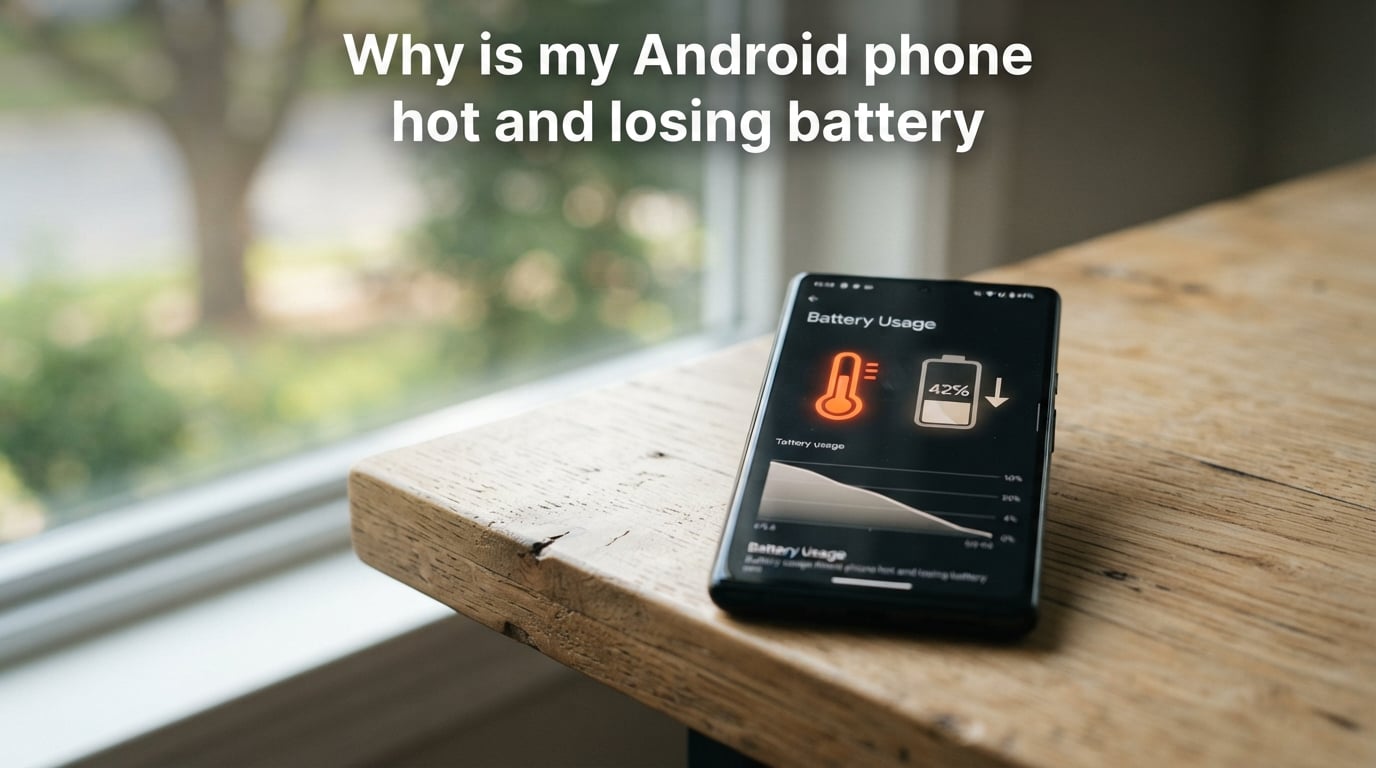
Your Android phone is hot and losing battery because something is putting excessive strain on its processor. When your phone works harder than it can cool itself, heat builds up and your battery drains faster than normal. This combination is frustrating, but the good news is most causes have straightforward fixes.
In this guide, I will explain exactly why Android phones overheat, the direct connection between heat and battery drain, and give you actionable steps to cool your phone down and extend its battery life in 2026.
Why Is My Android Phone Hot and Losing Battery?
An Android phone gets hot and loses battery when the CPU and GPU work harder than the device can dissipate heat. This happens for several reasons, and heat plus battery drain often occur together for one important reason: lithium-ion batteries drain faster when they get warm.
Here are the main reasons your Android phone overheats:
Background apps running constantly – Apps like social media, email, and news refresh in the background, keeping your processor active.
Resource-heavy activities – Gaming, video streaming, and GPS navigation push your processor to its limits.
Weak cellular signal – Your phone works harder to maintain a connection in poor reception areas, generating extra heat.
5G connectivity – 5G consumes more power than 4G LTE, especially in areas with spotty 5G coverage.
Charging while using – Fast charging generates heat, and using your phone while charging adds to the problem.
Direct sunlight exposure – External heat sources prevent your phone from cooling down.
Faulty or aging battery – An old battery struggles to deliver power efficiently, creating excess heat.
Software bugs or malware – Rogue apps or malicious software can run processes that overwork your phone.
Common Causes of Android Overheating
Let me break down each cause in more detail so you can identify what is happening with your specific device.
Background Apps Draining Battery
Many apps continue running in the background even when you are not actively using them. Social media apps are notorious for this. They constantly sync new content, check for notifications, and update their feeds. This keeps your processor working and generates heat over time.
One culprit I have seen repeatedly on forums is Android System Intelligence. This system service analyzes your usage patterns to provide suggestions, but on some devices it can get stuck in a loop. Users on Reddit reported that disabling Android System Intelligence stopped their phones from running hot and draining battery fast.
Google Play Services is another common battery drainer. While it is essential for many Android functions, it can sometimes malfunction and consume excessive resources after a software update.
Gaming, Streaming, and GPS Navigation
High-intensity activities push your processor to its thermal limits. Modern games with detailed graphics, 4K video streaming, and turn-by-turn GPS navigation all require significant processing power. Your phone compensates by ramping up CPU and GPU performance, which generates heat.
If you notice your phone getting hot only during these activities, that is normal. The problem arises when your phone runs hot even during light use or while idle.
5G Network Connectivity
5G provides faster speeds but consumes more power than 4G LTE. When your phone switches between 5G and 4G in areas with spotty coverage, it works overtime. Many users found that switching their network preference from 5G to LTE stopped overheating and improved battery life significantly.
If you live in an area with limited 5G coverage, your phone may be constantly searching for a 5G signal. This continuous searching generates heat and drains battery.
Weak Cellular and Wi-Fi Signal
Your phone increases its radio power to maintain a connection in areas with poor reception. This happens with both cellular and Wi-Fi signals. The radio hardware works harder, producing more heat and consuming more battery.
If your phone is hot even when not in use, weak signal could be the cause. Check your signal strength. If it is low, your phone is working hard to stay connected.
Charging While Using Your Phone
Fast charging technology pushes more current into your battery, which creates heat. Using your phone while charging adds processor load on top of that heat. The combination can make your phone uncomfortably warm.
I recommend avoiding resource-heavy activities while charging. Let your phone charge without interruption. If you must use it, stick to light tasks like reading or messaging.
Direct Sunlight and Environmental Heat
External heat sources compound internal heat generation. Leaving your phone in direct sunlight, in a hot car, or near a heater prevents proper cooling. Your phone cannot dissipate its own heat when the ambient temperature is high.
Android phones are designed to operate between 32°F and 95°F (0°C to 35°C). Above that range, thermal throttling kicks in to protect components, but your phone will still feel hot and battery performance suffers.
Software Updates and Bugs
After a major Android update, some users report sudden battery drain and overheating. This can happen when the update includes bugs or when apps are not optimized for the new version. Google Play Services often gets blamed after updates because it runs processes that other apps depend on.
Usually, these issues resolve within a few days as apps update and the system settles. If problems persist beyond a week, check for app updates or consider a factory reset.
Malware and Rogue Apps
Malicious software can run hidden processes that overwork your processor. Crypto-mining malware, spyware, and poorly coded apps can all cause overheating. If you recently installed an app from outside the Google Play Store and noticed battery drain, that app could be the culprit.
Google Play Protect scans your apps for threats, but it is not perfect. Run a security scan if you suspect malware.
NFC and Bluetooth Scanning
Some users discovered that NFC service was stuck in a waking state, constantly scanning for nearby devices. This background activity drained their battery and generated heat. Bluetooth scanning for devices can cause similar issues.
If you do not use NFC for payments or device pairing, consider turning it off. The same applies to Bluetooth when not actively connected to a device.
Why Heat Makes Your Battery Drain Faster
Heat and battery drain are directly connected. Lithium-ion batteries, which power all Android phones, are sensitive to temperature. When a battery gets hot, its internal resistance increases, chemical reactions speed up, and the battery discharges faster.
This is not just about immediate drain. Repeated exposure to heat permanently reduces battery capacity. Each time your phone overheats, it causes microscopic damage to the battery chemistry. Over months and years, this adds up to noticeable degradation.
Here is a simple way to think about it: heat is both a symptom and a cause. When your processor works hard, it generates heat. That heat makes your battery less efficient. The battery drains faster, your phone works harder to compensate, and the cycle continues.
If your phone regularly reaches temperatures above 104°F (40°C), you should take action. Modern phones have thermal protection that throttles performance to prevent damage, but prolonged high temperatures will shorten your battery lifespan.
How to Find Out What Is Draining Your Android Battery
Android makes it easy to see which apps consume the most power. Here is how to check your battery usage:
Step 1: Open Settings and tap Battery. On some phones, it is under Battery and Device Care.
Step 2: Tap Battery Usage or Usage Details. You will see a list of apps and their battery consumption over the last 24 hours.
Step 3: Look for apps at the top of the list. Android System, Screen, and Phone services are normal. If a third-party app appears high on the list, that app may be misbehaving.
Step 4: Tap on an app to see details. You can check whether it runs in the background excessively.
On Samsung phones, you can also access Device Care and run a diagnostic check. Some phones, like Pixel devices, show estimated battery health in Settings.
Quick Fixes: How to Cool Down Your Android Phone
When your phone is already hot, you need immediate solutions. Follow these steps to bring the temperature down:
1. Close Background Apps
Swipe up from the bottom of your screen and swipe away apps you are not using. This stops them from running in the background. You can also enable Developer Options and limit background processes to reduce strain.
2. Enable Airplane Mode
Turning on Airplane Mode disables cellular, Wi-Fi, and Bluetooth radios. This stops signal searching and network activity. Use this when you do not need connectivity. Your phone will cool down within minutes.
3. Remove Your Phone Case
Some cases trap heat. If your phone is warm, removing the case allows better heat dissipation. This is especially helpful during charging or heavy use.
4. Turn Off Unused Features
Disable NFC, Bluetooth, and location services when you do not need them. These radios consume power and generate heat even when idle.
5. Switch from 5G to LTE
If you suspect 5G is causing issues, change your network preference. Go to Settings, then Mobile Networks, and select LTE instead of 5G. Many users reported this fixed their overheating issues.
6. Disable Android System Intelligence
On Pixel phones, go to Settings, Apps, and find Android System Intelligence. Disable it if your phone runs hot even during light use. This service provides app suggestions and smart features but can malfunction.
7. Lower Screen Brightness
Your screen is one of the biggest battery consumers. Lowering brightness reduces both power draw and heat. Consider enabling auto-brightness or dark mode to save additional power.
8. Restart Your Phone
A simple restart clears temporary files, stops stuck processes, and resets system resources. This often resolves unusual overheating caused by software glitches.
9. Use Battery Saver Mode
Enable Battery Saver to limit background activity, reduce screen refresh rate, and lower processor performance. This mode is designed for extending battery life when power is low, but it also helps cool your phone.
10. Stop Charging and Let Your Phone Rest
If your phone is hot while charging, unplug it and let it cool before resuming. Avoid using your phone while charging. If heat persists even when not charging, there may be a hardware issue.
Long-Term Tips to Prevent Overheating and Battery Drain
Prevention is better than troubleshooting. Adopt these habits to keep your phone cool and your battery healthy:
Manage App Permissions
Apps with unnecessary permissions can run background processes. Review app permissions regularly. Go to Settings, Privacy, and Permission Manager. Disable location access for apps that do not need it. Restrict background data for apps that consume too much power.
Use Adaptive Battery
Android’s Adaptive Battery feature learns your usage patterns and limits battery power for apps you rarely use. Enable it in Settings under Battery. This reduces background activity without manual intervention.
Follow Good Charging Habits
Avoid letting your battery drain to zero. Lithium-ion batteries last longer when kept between 20% and 80% charge. Do not leave your phone charging overnight every night. Fast charging is convenient but generates more heat than slow charging. If you charge overnight, consider using a slower charger.
Keep Your Software Updated
Software updates often include battery optimizations and bug fixes. Install updates promptly. Check for app updates regularly too, as developers improve efficiency over time.
Use Dark Mode
If your phone has an OLED screen, dark mode saves significant battery. Dark pixels on OLED displays consume less power. Enable dark mode system-wide in Display settings.
Check for Malware Regularly
Run Google Play Protect scans periodically. Avoid sideloading apps from unknown sources. Stick to the Google Play Store for downloads. If you suspect an app is malicious, uninstall it immediately.
Avoid Extreme Temperatures
Do not leave your phone in a hot car or in direct sunlight for extended periods. Cold temperatures can also harm batteries, though heat is more immediately damaging. If your phone gets too cold, let it warm to room temperature before using or charging.
Factory Reset as a Last Resort
If nothing else works, a factory reset can resolve deep software issues. Back up your data first. A fresh start eliminates accumulated software conflicts, but you will need to set up your phone again. Use this only when other solutions fail.
When to Worry: Signs Your Battery May Be Bad
If your phone overheats regularly despite following these tips, your battery may be failing. Here are signs that indicate battery problems:
Sudden shutdowns: Your phone turns off even when showing 20% or more battery remaining.
Rapid percentage drops: Battery percentage falls several points in minutes without heavy use.
Swollen battery: Your phone case bulges or the screen lifts. This is dangerous. Stop using the phone immediately.
Inconsistent charging: Charging is slow, or the phone does not charge consistently.
Phone only works while plugged in: The device shuts off immediately when unplugged.
If you notice these symptoms, your battery likely needs replacement. Most Android phones allow battery replacement at repair shops. Pixel and Samsung devices have reliable service options. Check if your phone is under warranty or covered by insurance.
FAQs
How to stop phone from overheating and draining battery?
Close background apps, enable airplane mode, remove your phone case, lower screen brightness, and switch from 5G to LTE. If your phone is charging, unplug it and let it cool. Disable unused features like NFC, Bluetooth, and location services. Restart your phone to clear stuck processes. For persistent issues, check battery usage to identify problem apps.
How can I find out what’s draining my Android battery?
Go to Settings, then Battery, and tap Battery Usage. You will see a list of apps and their battery consumption over the last 24 hours. Look for apps at the top of the list that should not be there. Tap on each app to see details and background usage. System apps like Android System and Screen are normal. Third-party apps with high usage may be misbehaving.
What are the signs that your phone battery is going bad?
Signs of a failing battery include sudden shutdowns when battery shows charge remaining, rapid percentage drops without heavy use, swollen battery case or lifting screen, slow or inconsistent charging, and the phone only working while plugged in. If you notice these symptoms, your battery likely needs replacement. Most phones can have batteries replaced at repair shops.
Why is my phone battery dying so fast all of a sudden and getting hot?
Sudden battery drain and overheating usually indicate a misbehaving app, software bug, or stuck process. Check for recent app installations or updates. Look at battery usage to identify culprit apps. Google Play Services and Android System Intelligence sometimes malfunction after updates. Restart your phone to clear temporary issues. If the problem started after a software update, wait a few days for apps to update or consider a factory reset.
Conclusion
When your Android phone is hot and losing battery, start by identifying the cause. Check battery usage for problem apps, consider switching from 5G to LTE, disable background activity for unnecessary apps, and keep your phone out of direct sunlight. Most overheating issues have simple fixes.
Apply the quick fixes in this guide to cool your phone down immediately. Then adopt the long-term habits to prevent future problems. If nothing works and your battery shows signs of failure, professional battery replacement is the solution.