
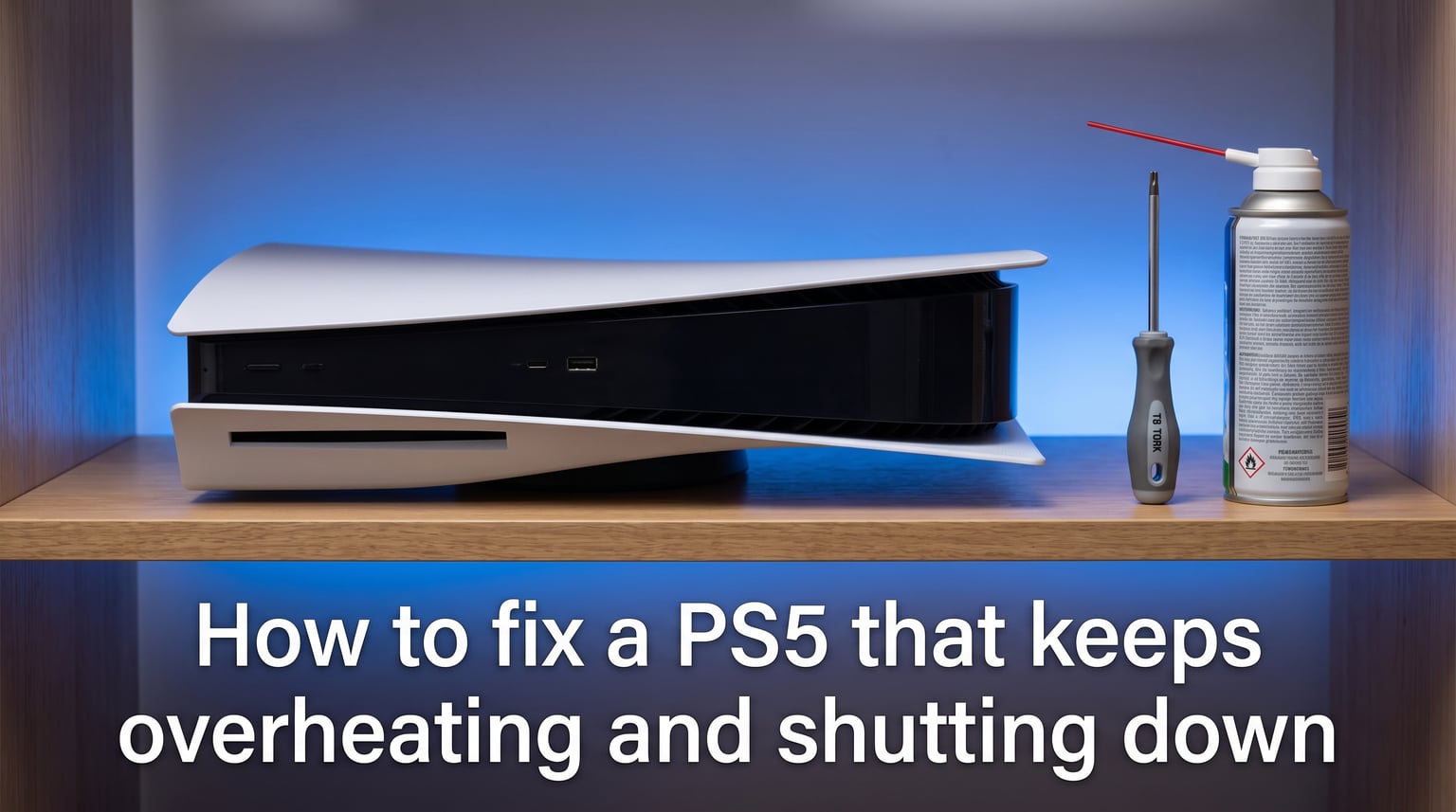
My PS5 shut down right in the middle of a boss fight. No warning, no error screen, just a dead console and a blinking red light. If your PS5 keeps overheating and shutting down, you know exactly how frustrating that feels. The good news is that most overheating problems are fixable at home with simple tools and about 30 minutes of your time.
This guide walks through every PS5 overheating fix I have tested and confirmed working, from basic ventilation improvements to full internal fan cleaning. Whether you are dealing with a PS5 overheating warning message, random shutdowns during intense gameplay, or a console that will not even turn back on, you will find the solution here.
A quick note before we start: yes, overheating can permanently damage your PS5 if left unchecked. The auto-shutdown is a built-in safety feature that protects the processor, but repeated overheating degrades internal components over time. Let us fix the root cause before that happens.
Signs Your PS5 Is Overheating
Before diving into fixes, you need to confirm that overheating is actually the problem. The PS5 gives several warning signs before and during overheating episodes.
Here are the most common indicators that your PS5 is running too hot:
An on-screen message that reads “Your PS5 is too hot” before the system powers off
Loud, whining fan noise that kicks in during gameplay and never settles down
The console exterior feels unusually hot to the touch, especially along the back vents
Random shutdowns that happen during graphically intensive games but not lighter titles
Games stuttering or dropping frames before the console eventually shuts off
The fan spins at maximum speed even when the PS5 is idle on the home screen
If you are seeing two or more of these symptoms together, overheating is almost certainly the culprit. A PS5 that gets warm during a long session is normal, but one that shuts itself off is telling you something needs attention.
One thing worth noting: some users confuse a hot console with an overheating console. The PS5 naturally generates warmth during gameplay. The difference is whether that heat causes shutdowns, warnings, or performance issues. If your console is warm but running perfectly fine, you likely do not have a problem.
Why Your PS5 Keeps Overheating and Shutting Down
Understanding the cause of your PS5 overheating helps you pick the right fix. There is no single reason this happens, and in many cases, multiple factors combine to push the console past its thermal limits.
Here are the most common causes of PS5 overheating and shutdowns:
Dust buildup in the fan and heatsink. Over months of use, dust accumulates inside the PS5 and blocks the airflow path. The fan works harder but moves less air, and the heatsink cannot dissipate heat effectively. This is the number one cause of overheating that I see across forums and repair communities.
Poor ventilation and enclosed placement. Sitting your PS5 inside a TV cabinet, on a carpet, or against a wall traps the hot air it pushes out. The console ends up recirculating its own exhaust heat instead of pulling in cool air.
Outdated firmware with thermal bugs. Sony occasionally releases system software that has temperature management issues. These get patched quickly, but if you have not updated in a while, your PS5 may be running a version with known overheating bugs.
Software conflicts with Rest Mode and HDMI Device Link. These features can prevent the PS5 from entering proper low-power states, keeping the processor active and generating heat even when you think the console is resting.
Thermal paste degradation. The thermal paste between the processor and heatsink dries out over time, reducing heat transfer. This is more common in PS5 consoles that are two or more years old.
Specific games pushing the hardware beyond typical limits. Forum discussions on Reddit and Blizzard’s support boards highlight games like Death Stranding 2 and certain graphically demanding titles triggering overheating in PS5s that handle other games fine. This suggests thermal throttling under maximum load.
How to Clean Your PS5 Fan and Heatsink (Step by Step)
Cleaning the internal fan is the single most effective PS5 overheating fix. Every forum thread, YouTube repair video, and community discussion points to this as the solution that works most often. I will walk you through the process in detail.
Tools You Need
Before starting, gather these items:
A T8 Torx screwdriver (this is the specific size for PS5 fan screws, confirmed by community consensus)
A can of compressed air
A clean microfiber cloth
A small soft brush (a clean makeup brush works well)
A Phillips head screwdriver (for the PS5 faceplates)
You can find a T8 Torx screwdriver at any hardware store for a few dollars. Do not try to substitute a different size, as you will strip the screw heads and create a much bigger problem.
Step 1: Power Down and Unplug Everything
Shut down your PS5 completely through the menu. Do not use Rest Mode. Once the power light stops blinking, unplug the power cable from the wall. Disconnect the HDMI cable, any USB devices, and the power cable from the back of the console.
Wait at least 30 minutes after unplugging before opening the console. The internal components hold heat, and you want everything cooled down before you start working inside.
Step 2: Remove the PS5 Faceplates
Lay the PS5 flat on a clean surface. Grip the bottom left corner of a faceplate and gently slide it upward and to the side. The plates pop off with light pressure. Do this for both the white faceplates.
You will now see the black internal frame and the large cooling fan housing.
Step 3: Remove the Cooling Fan
Locate the fan screws. There are typically four T8 Torx screws securing the fan assembly. Use your T8 Torx screwdriver to remove them carefully. Keep the screws in a safe place because you will need them for reassembly.
Gently disconnect the fan cable from the motherboard. Lift the fan assembly straight up and out of the console. Take your time here and do not force anything.
Step 4: Clean the Fan Blades
Use short bursts of compressed air to blow dust off the fan blades. Hold the fan still with one hand so it does not spin freely while you spray, as spinning the fan with compressed air can damage the bearings.
Wipe the fan blades with a microfiber cloth to remove any sticky residue. Use the soft brush to get into the corners where dust clings.
Step 5: Clean the Heatsink
With the fan removed, you can now see the heatsink fins underneath. This is where the worst dust buildup hides. One Reddit user described finding a mat of dust so thick it looked like felt. That mat blocks all airflow through the heatsink, which is why your PS5 keeps overheating even after a surface clean.
Use compressed air in short, controlled bursts to blow dust out of the heatsink fins. Work from one side to the other systematically. The soft brush helps dislodge stubborn dust between the fins. Keep going until no more dust comes out.
Step 6: Clean the Intake and Exhaust Vents
Use compressed air to blow out the intake vents along the sides and the exhaust vents on the back. Check the dust catcher grilles on the intake holes, as these trap larger particles and can become completely blocked over time.
Step 7: Reassemble and Test
Reconnect the fan cable, place the fan back in position, and secure it with the four T8 Torx screws. Snap the white faceplates back on. Reconnect all cables and power on your PS5.
Launch a graphically demanding game and play for 30 minutes. You should notice the fan running quieter and the console staying cooler. If the overheating returns, move on to the ventilation and software fixes below.
Important warranty note: Opening your PS5 to clean the fan does void the warranty if your console is still covered. If your PS5 is under the one-year manufacturer warranty and the overheating is not caused by user damage, contact PlayStation support first. They may repair or replace it for free. If your warranty has expired, which is common since many users report overheating issues starting around the two-and-a-half-year mark, you have nothing to lose by cleaning internally.
Improve PS5 Ventilation and Placement
Cleaning the fan solves the internal heat problem, but if your PS5 sits in a poor location, it will overheat again. Let us fix the environment around your console.
Vertical vs Horizontal: Does Orientation Matter?
This is one of the most debated topics in PlayStation communities. The short answer: Sony designed the PS5 to work in both positions, but some users report heat dissipation differences between the two.
Horizontal placement keeps the intake vents lower and the exhaust higher in relation to natural heat rise. Some repair technicians believe this gives marginally better convective airflow. However, forum users who switched between orientations report mixed results, and no definitive study proves one is significantly better than the other for cooling.
My recommendation: use whichever orientation fits your setup, but make sure there is at least 4 inches of clearance on all sides regardless of how you position it. The clearance matters far more than the orientation itself.
One real issue some users have discovered: placing the PS5 in an orientation where the intake vents are partially blocked by a surface can cause overheating. One forum user found their PS5 was effectively “upside down” relative to airflow, which was the root cause of constant shutdowns.
Keep the PS5 Out of Enclosed Cabinets
An enclosed TV cabinet is essentially an oven for your PS5. The console pushes hot air into the cabinet, that air has nowhere to go, and the PS5 ends up pulling its own heated exhaust back through the intake vents.
If you must use a cabinet, keep the doors open while gaming and for at least 30 minutes after. Better yet, move the PS5 to an open shelf or place it on top of the cabinet.
Check Your Room Temperature
The PS5 cools itself by pulling in room-temperature air and exhausting heated air. If your room is 80 degrees or warmer, the console has to work much harder to maintain safe operating temperatures. During summer months, consider running a fan or air conditioning in the room where your PS5 lives.
One Reddit thread highlighted a user whose PS5 only overheated during summer and ran perfectly fine in winter. Ambient temperature plays a real role.
Consider Aftermarket Cooling Accessories
If cleaning and repositioning do not fully solve the problem, some users turn to aftermarket PS5 cooling stands with external fans. These clip onto the console and provide additional airflow. Community opinions are mixed on their effectiveness, but many users report they help in borderline situations where the console is running hot but not shutting down yet.
Be cautious with cheap third-party coolers. Look for ones with positive community reviews and avoid anything that blocks the PS5’s own intake or exhaust vents.
Fix Software Issues That Cause PS5 Shutdowns
Not every overheating-related shutdown is actually caused by heat. Some software settings and bugs cause the PS5 to shut down in ways that mimic overheating. Let us eliminate these possibilities.
Turn Off Rest Mode
Rest Mode has been linked to unexpected shutdowns since the PS5 launched. When the console enters Rest Mode, it is supposed to maintain a low-power state while keeping background tasks running. However, bugs in this feature can cause the system to crash and shut down completely.
If your PS5 shuts down overnight or after you walk away from it, Rest Mode may be the culprit rather than overheating. To disable it, go to Settings, then System, then Power Saving, and set “Time Until PS5 Enters Rest Mode” to “Do Not Put in Rest Mode” for both Media Playback and Game Playback.
Many users on the LaptopMag guide and Reddit forums report that disabling Rest Mode eliminated their random shutdowns entirely. It is the quickest thing to try before moving to more involved fixes.
Disable HDMI Device Link
HDMI Device Link lets your TV remote control your PS5 and allows the console to turn on and off with your TV. This feature can cause communication issues between the TV and PS5 that trigger unexpected shutdowns.
To turn it off, go to Settings, then System, then HDMI, and toggle off “Enable HDMI Device Link.” If this was causing your shutdowns, the problem should stop immediately.
Check for Firmware Updates
Sony regularly patches system software bugs, including ones that affect temperature management and power states. Outdated firmware can cause the PS5’s cooling system to behave incorrectly, leading to unnecessary fan ramp-ups or premature shutdown triggers.
Go to Settings, then System, then System Software, then System Software Update and Settings. Select “Update System Software” and let the console check for and install any available updates. If your PS5 has been overheating, you may have avoided turning it on long enough to miss recent patches.
Rebuild the PS5 Database
Database corruption can cause the PS5 to work harder than necessary, generating excess heat and causing system instability that leads to shutdowns. Rebuilding the database is safe and does not delete your games or save files.
To rebuild the database, fully power off your PS5. Press and hold the power button until you hear the second beep, which puts the console into Safe Mode. Connect your controller via USB cable and select option 5, “Rebuild Database.” The process takes 10 to 30 minutes depending on how full your storage is.
This step is not covered by most competitor guides, but forum users who tried everything else report that a database rebuild resolved shutdowns that would not go away with cleaning alone.
Check Your Power Cord and Connections
A loose or damaged power cord can cause shutdowns that feel like overheating. The PS5 draws significant power during gameplay, and a poor connection creates intermittent power loss.
Unplug the power cord from both the wall and the PS5. Inspect the cable for any damage, kinks, or burn marks on the connectors. Plug it back in firmly at both ends. If you suspect the cable is faulty, replacements are inexpensive and easy to find.
Also check whether your PS5 is sharing a power strip with other high-draw devices. A overloaded power strip can cause voltage drops that trigger shutdowns.
Can Overheating Damage Your PS5 Permanently?
Yes, overheating can cause permanent damage to your PS5 if the problem is ignored for too long. The auto-shutdown feature exists to protect the processor from thermal damage, but it is a last-resort safety measure, not a long-term solution.
Here is what prolonged overheating does to your PS5 over time:
The processor sustains thermal stress that degrades silicon and shortens its lifespan
Thermal paste dries out faster when the console runs hot, creating a downward spiral of worse cooling
Solder joints on the motherboard can develop micro-cracks from repeated thermal expansion and contraction
The cooling fan bearings wear out faster from constant maximum-speed operation
Data corruption can occur if the system shuts down during a write operation
The good news is that the PS5 is engineered with multiple thermal protection layers. The console does not instantly damage itself the first time it overheats. It takes repeated overheating episodes over weeks or months before permanent damage becomes likely.
If you have been dealing with overheating for a while and your PS5 now will not turn on at all, there may already be hardware damage. In this case, professional repair or replacement is your best option.
When to Contact PlayStation Support?
If you have cleaned the fan, improved ventilation, fixed software issues, and your PS5 still overheats, it is time to consider professional help. Some problems go beyond what DIY fixes can solve.
Here are the signs that your PS5 needs professional attention:
The console overheats within minutes of turning on, even with no game running
You cleaned the fan and heatsink thoroughly and the problem did not improve at all
The PS5 will not turn on after an overheating shutdown
You hear grinding or clicking noises from the fan, indicating bearing failure
The fan does not spin at all when the console is running
One forum user shared that their PS5 overheated even after a fan replacement done by a repair shop. This suggests that sometimes the issue goes deeper, into thermal paste failure, heatsink contact problems, or even processor degradation. In those cases, Sony’s repair service or a qualified console repair technician is the right call.
To contact PlayStation support, visit the official PlayStation support website and start a live chat or request a repair. Have your PS5 serial number ready. If your console is still under the one-year warranty, Sony may repair or replace it at no cost. Even outside warranty, Sony offers paid repair services that are typically cheaper than buying a new console.
Check your warranty status before opening the console. As mentioned earlier, internal cleaning voids the warranty. If you are within the warranty period, let Sony handle it.
Frequently Asked Questions
Why is my PS5 constantly overheating and turning off?
Your PS5 is likely overheating due to dust buildup in the fan and heatsink, poor ventilation around the console, or a combination of both. The PS5 auto-shuts down to protect the processor from thermal damage when its cooling system cannot dissipate heat fast enough. Less commonly, software bugs in Rest Mode or HDMI Device Link can cause shutdowns that mimic overheating.
Can an overheated PS5 be repaired?
Yes, an overheated PS5 can usually be repaired. In most cases, cleaning the internal fan and heatsink with compressed air and a T8 Torx screwdriver solves the problem completely. If cleaning does not work, the issue may require thermal paste replacement, fan replacement, or professional repair from Sony or a qualified technician. The PS5 is designed to be serviceable, and most overheating problems are fixable.
What are the signs of a failing PS5?
Signs of a failing PS5 include the overheating warning message on screen, loud or grinding fan noise, random shutdowns during gameplay, the console being unusually hot to the touch, games stuttering before shutdowns, the fan running at maximum speed constantly, and failure to power on after overheating. If you notice several of these symptoms together, address them quickly to prevent permanent damage.
Can PS5 overheating damage it permanently?
Yes, prolonged overheating can permanently damage a PS5. The auto-shutdown feature protects the processor from immediate thermal damage, but repeated overheating episodes over weeks or months degrade the processor, dry out thermal paste, stress solder joints, and wear out the fan bearings. Fixing the overheating issue early prevents permanent hardware damage.
How often should I clean my PS5 to prevent overheating?
Clean the exterior vents of your PS5 every 2 to 3 months using compressed air. For internal fan and heatsink cleaning, aim for every 6 to 12 months depending on your environment. If you have pets, smoke indoors, or keep your PS5 in a dusty area, clean it more frequently. Regular cleaning is the most effective way to prevent overheating before it starts.
Wrapping Up
Learning how to fix a PS5 that keeps overheating and shutting down comes down to three core actions: clean the fan and heatsink, improve ventilation around the console, and eliminate software issues like Rest Mode and HDMI Device Link bugs. Start with the simplest fixes first, and work your way through the steps in this guide before considering professional repair.
The T8 Torx screwdriver is your best friend here. A thorough internal clean resolves the vast majority of overheating cases, and it costs almost nothing. Do not wait until your PS5 stops turning on entirely. Address overheating the first time it happens, and your console will keep running cool for years to come.