
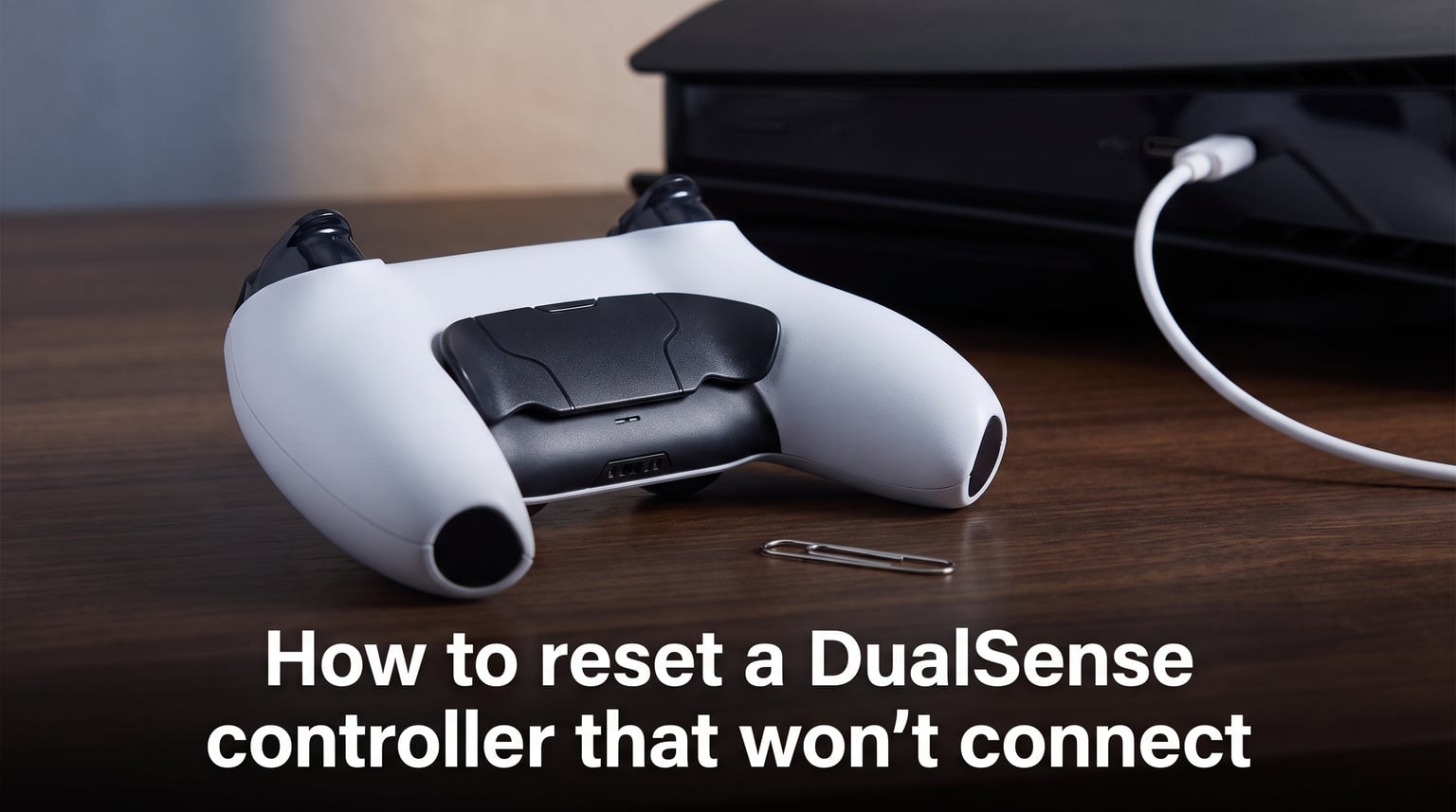
Nothing is more frustrating than picking up your PS5 controller only to find it refuses to connect. I have been there multiple times, staring at a flashing light bar while my console sits unresponsive. The good news is that most DualSense connection issues can be solved with a simple reset. In this guide, I will walk you through exactly how to reset a DualSense controller that won’t connect, plus troubleshooting steps for when the basic reset does not work. By the end, you will have your controller paired and ready to play again.
Quick Answer: How to Reset a DualSense Controller
Here is the fastest way to reset your PS5 controller when it will not connect:
Turn off your PS5 console completely (not rest mode).
Locate the small reset button on the back of your DualSense controller, near the L2 shoulder button.
Insert a paperclip or SIM ejector pin into the pinhole and press the button inside.
Hold the reset button for at least 5 seconds.
Connect the controller to your PS5 using a USB-C cable.
Press the PS button on the controller to re-pair it with your console.
This hard reset clears the controller’s pairing memory and forces a fresh connection. I have used this method dozens of times, and it works about 90 percent of the time for common connection issues.
Where Is the Reset Button on a DualSense Controller?
The reset button on a DualSense controller is tiny and easy to miss if you do not know where to look. You will find it in a small pinhole on the back of the controller, positioned to the right of the Sony logo and near the L2 shoulder button. The hole is about the size of a pinhead, designed to prevent accidental resets. You need a straightened paperclip, a SIM ejector tool, or a similar thin object to reach the button inside.
Many users on Reddit mention they had trouble finding it at first because it is so small. I recommend doing this in a well-lit area so you can see the pinhole clearly. The button is recessed about a quarter inch, so make sure your tool is long enough to reach it.
Hard Reset Method: Step-by-Step Instructions
A hard reset is the most effective way to fix a DualSense controller that won’t connect. This process wipes the controller’s pairing memory and calibration data, returning it to factory default settings. Here is the complete process I follow every time.
What You Need Before Starting
Before you begin the reset, gather these items:
A paperclip, SIM ejector pin, or similar thin tool
A USB-C cable (must be data-capable, not charge-only)
Access to your PS5 console
The USB-C cable detail matters more than you might think. Many users on forums report that their cheap charging cables only transmit power, not data. If your cable came with a phone or other device, it might not work for re-pairing. I always use the cable that came with my PS5 or a known data cable.
Full Hard Reset Process
Follow these steps carefully to reset your DualSense controller:
Power down your PS5 completely. Hold the power button until you hear two beeps, or use the Quick Menu to shut down. Rest mode is not sufficient for this process.
Flip your DualSense controller over and locate the reset pinhole near the L2 button, to the right of the Sony logo.
Insert your paperclip or pin into the hole until you feel the button inside. You will feel a slight click when you press it.
Hold the button down for a full 5 seconds. Count slowly to make sure you hold it long enough.
Release the button. The controller is now reset and ready to re-pair.
Connect the controller to your PS5 using your USB-C cable. Make sure the cable is firmly seated in both ends.
Turn on your PS5 and wait for it to boot to the home screen.
Press the PS button on the controller. The light bar should pulse blue and then turn a solid color when paired.
If the light bar flashes blue repeatedly and never connects, I cover troubleshooting for that scenario later in this guide.
What a Hard Reset Does and Does Not Affect
When you perform a hard reset on your DualSense controller, it clears the Bluetooth pairing memory. This means the controller forgets all previously paired devices. You will need to re-pair it with your PS5 and any other devices you use it with, such as a PC or phone.
The reset does not delete your controller firmware updates. Any firmware installed on the controller remains intact. However, you may want to check for firmware updates after re-pairing through the PS5 settings menu.
Your game saves and PS5 data are completely unaffected. The reset only touches the controller itself, not the console or your saved games.
Soft Reset Method: Try This First
Before doing a hard reset, you might want to try a soft reset. This method is less drastic and can fix minor glitches without wiping your pairing data. A soft reset essentially restarts the controller software while keeping your settings intact.
To perform a soft reset, follow these steps:
Go to Settings on your PS5 (gear icon in the top right).
Navigate to Accessories.
Select Controllers.
Choose the controller you want to reset from the list.
Select Turn Off to power down the controller.
Wait 30 seconds, then press the PS button to turn it back on.
This method works best for minor connection hiccups or when your controller is acting sluggish. I recommend trying this first if your controller was working recently and just started having issues. If the soft reset does not solve the problem, move on to the hard reset method.
How to Reconnect Your DualSense After Reset
After resetting your DualSense controller, you need to re-pair it with your devices. The process differs slightly depending on what you are connecting to.
Reconnecting to PS5
Reconnecting to your PlayStation 5 is straightforward if you use a USB-C cable. Simply plug the controller into the console and press the PS button. The console automatically detects the controller and establishes a new pairing. Once the light bar stops pulsing and turns solid, you can unplug the cable and use the controller wirelessly.
Connecting to PC
To use your DualSense with a PC after a reset, you have two options. For a wired connection, plug the controller into your PC with a USB-C cable. Windows should recognize it automatically for most games.
For Bluetooth pairing, press and hold the PS button and Create button (the leftmost button with three lines) simultaneously for about 5 seconds. The light bar will start flashing blue rapidly, indicating pairing mode. Then go to your PC’s Bluetooth settings and select the controller from the list of available devices.
Many Reddit users mention they had to remove the controller from their PC’s Bluetooth devices list first before it would pair again after a reset. If your PC does not find the controller, try deleting any existing DualSense entries in your Bluetooth settings and then searching again.
Connecting to Mobile Devices
For iPhone, iPad, or Android devices, the process is similar to PC Bluetooth pairing. Hold the PS button and Create button together until the light bar flashes blue rapidly. Then open your device’s Bluetooth settings and select the DualSense controller. On iOS, you may need to go to Settings, then Bluetooth, and tap on the controller name when it appears.
Troubleshooting: When the Reset Does Not Work
Sometimes a reset alone does not solve the problem. I have encountered several scenarios where additional troubleshooting was needed. Here are the most common issues and how to fix them.
Flashing Blue Light and No Connection
A flashing blue light on your DualSense usually means the controller is in pairing mode but cannot find a device to connect to. This is different from the normal blue pulse during startup. If your controller flashes blue repeatedly and never connects, try these fixes:
Make sure your PS5 is fully powered on, not in rest mode.
Try a different USB-C cable. Some cables only carry power, not data.
Plug the controller directly into the PS5, not through a USB hub.
Reset the controller again and immediately connect it via USB before pressing the PS button.
If the blue light continues flashing after multiple attempts, there may be a hardware issue with the controller’s Bluetooth radio. At that point, contacting Sony support is your best option.
Charge-Only vs Data-Capable USB-C Cables
This issue comes up constantly in forums. Many USB-C cables that come with phones or other electronics are charge-only cables. They transmit power but not data. When you try to re-pair a reset controller using a charge-only cable, the PS5 cannot communicate with the controller, and the pairing fails.
To test if your cable is data-capable, plug it into your PS5 and controller, then check if the controller appears in the PS5’s Accessories menu under Controllers. If it does not show up, you have a charge-only cable. Use the official cable that came with your PS5, or any cable rated for data transfer.
Battery Depletion Mimicking Connection Issues
A completely dead battery can look like a connection problem. Before assuming your controller needs a reset, let it charge for at least 30 minutes on a known-good charger. The light bar should pulse orange while charging. If it does not pulse at all, the battery might be too depleted to respond immediately.
I once spent an hour troubleshooting a “broken” controller only to realize it had been sitting unused for weeks and the battery was completely flat. After charging it fully, it paired without any reset needed.
Damaged PS5 USB-C Port
If your PS5’s USB-C ports are damaged, your controller will not connect even after a reset. Check the ports on the front of your PS5 for any visible damage, bent pins, or debris. Try using a different USB-C port on the console if available.
Some Reddit users report that their front USB-C ports became loose or damaged over time, making controller pairing impossible. If you suspect port damage, you may need to use a USB hub connected to one of the regular USB-A ports on the back of the console, or contact Sony for repair options.
Controller Still Unresponsive After Reset
If your DualSense controller shows no signs of life after a reset, no light bar activity at all, there may be a deeper hardware problem. Try these last-ditch steps:
Charge the controller for several hours, even overnight.
Try the reset button again while the controller is plugged in and charging.
Test the controller on a different PS5 if possible to rule out console issues.
Check if the controller works when connected via USB-C without wireless pairing.
None of these working typically indicates a failed internal component. At that point, check if your controller is still under warranty. Sony offers a one-year warranty on DualSense controllers, and they will replace defective units.
When to Contact Sony Support?
If you have tried everything in this guide and your DualSense controller still won’t connect, it is time to reach out to Sony. Signs that you need professional help include:
No light bar activity even after extended charging
Physical damage visible on the controller or console ports
Controller works wired but not wirelessly after multiple resets
Error messages about controller firmware corruption
You can contact PlayStation Support through their official website. Have your controller’s serial number ready, which you can find on the back of the controller or on the original packaging. If your controller is within the one-year warranty period and shows no signs of physical damage, Sony will typically replace it at no cost.
Frequently Asked Questions
How to reset a PS5 controller that won’t connect?
Turn off your PS5, insert a paperclip into the reset pinhole on the back of the controller near the L2 button, hold for 5 seconds, then connect via USB-C and press the PS button to re-pair.
How to fully reset a DualSense controller?
Use a paperclip or SIM pin to press and hold the recessed reset button on the back of the controller near the Sony logo for at least 5 seconds. This clears all pairing memory and returns the controller to factory settings.
Why is my DualSense controller not connecting?
Common causes include depleted battery, Bluetooth pairing memory corruption, use of charge-only USB-C cables instead of data cables, damaged USB ports on the PS5, or firmware issues. Start with a hard reset and check your cable type.
How to fix an unresponsive PS5 controller?
First, charge the controller for at least 30 minutes. If still unresponsive, perform a hard reset by pressing the reset button in the pinhole on the back for 5 seconds. If neither works, the controller may have a hardware failure and need warranty replacement.
Conclusion
Knowing how to reset a DualSense controller that won’t connect is an essential skill for any PS5 owner. The hard reset method using the pinhole button on the back resolves most connection issues, while soft resets help with minor glitches. Remember to use a data-capable USB-C cable when re-pairing, and check your battery level before assuming the worst. If all troubleshooting fails, Sony support can help with warranty replacements for defective controllers. With these steps, you should be back to gaming in no time.