
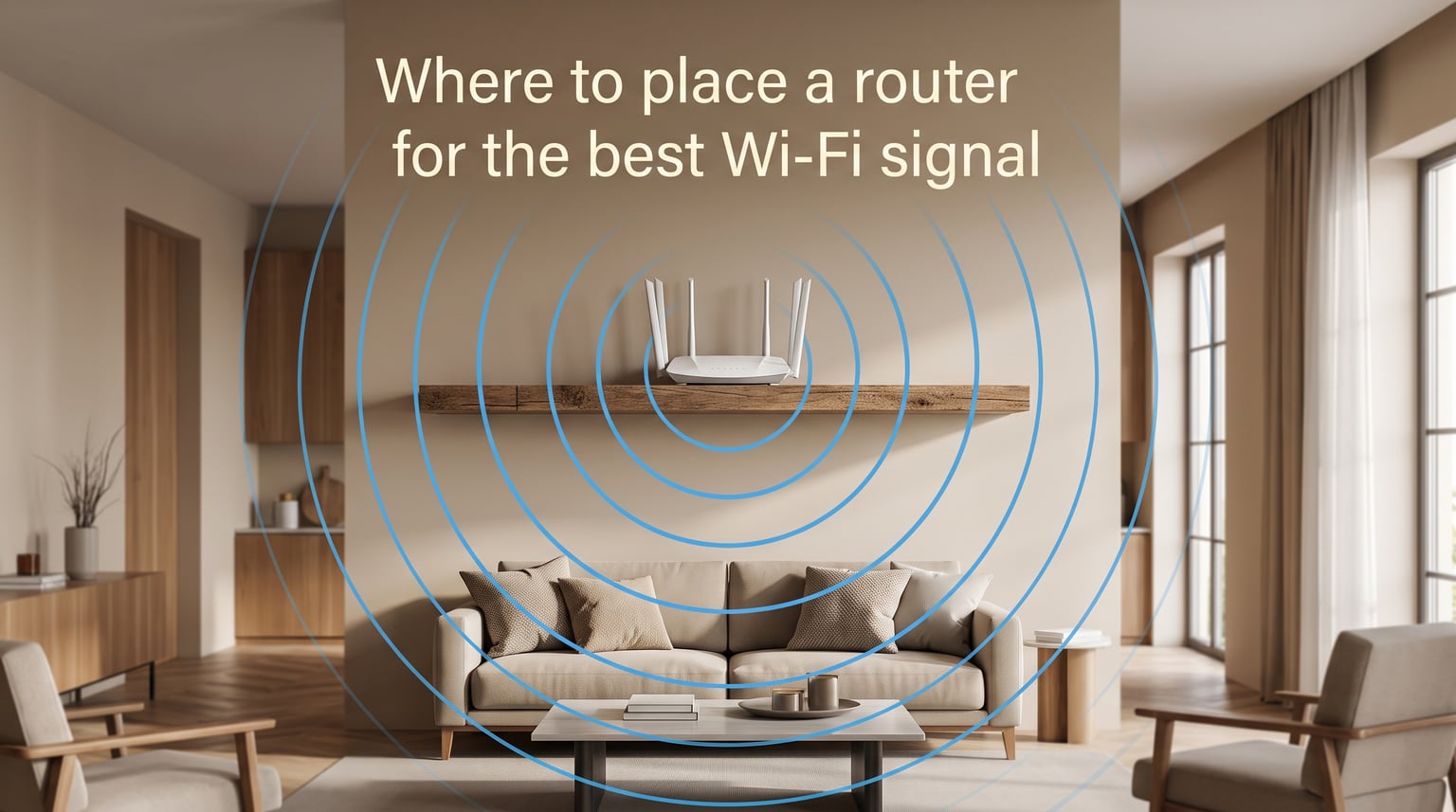
The best place for your router is a central, high, and open location in your home. This placement lets the Wi-Fi signal radiate outward evenly and reach the most rooms with the least obstruction. In most homes, that means a shelf or wall mount near the middle of the main living area rather than a corner office or a basement closet.
Most people blame their internet plan when videos buffer or video calls drop. In my experience testing home networks, the real problem is almost always where the router sits. A router tucked behind a TV, stuffed in a cabinet, or banished to the basement wastes a huge portion of its signal before it ever reaches your devices. Before you upgrade your plan or buy new gear, try moving the router first.
If you want to know where to place a router for the best Wi-Fi signal, the short answer is this: central, high, visible, and away from metal, thick walls, and other electronics. The rest of this guide explains why each rule matters and exactly how to apply it to your home.
Wi-Fi signals behave like light from a lamp. They travel in straight lines, bounce off hard surfaces, and get absorbed or blocked by walls, floors, and furniture. Consumer routers use omnidirectional antennas that send signal in all directions, not just toward one room.
That is why a central location beats a corner every single time, even if the corner is closer to where you sit. The signal has to travel through fewer obstacles to reach every device in the house. And unlike a lamp, a router cannot aim its beam around a wall.
Over the last several years, I have helped friends and family set up home networks in studio apartments, split-level houses, and open-plan lofts. The same rules apply in every space, and a better location almost always beats a more expensive router. Small moves often deliver improvements that feel like you doubled your internet speed.
You do not need any special tools or technical knowledge to follow this guide. All you need is a willingness to move the router and test the results, which I will show you how to do with free apps later in this article.
Where to Place a Router for the Best Wi-Fi Signal: 5 Key Rules
If you only remember five things about router placement, make it these. I have tested each rule in real homes and seen consistent results across different building types and router models.
Place it centrally. The closer the router is to the middle of your home, the more evenly the signal spreads. Corners force the signal to fight through more walls.
Raise it 5 to 7 feet. A router on a bookshelf or mounted on a wall outperforms one sitting on the floor every time. Floor placement means your signal battles furniture and floor joists.
Keep it visible. Hiding the router inside a cabinet, behind a couch, or inside a closet blocks signal in every direction. Open air is your friend.
Stay away from electronics. Microwaves, cordless phones, baby monitors, and even Bluetooth speakers can interfere with Wi-Fi on the 2.4 GHz band. Give your router at least 3 to 5 feet of clearance from other electronics.
Minimize walls and floors between the router and your devices. Each wall the signal passes through reduces its strength. Drywall is mild, but concrete, brick, and metal studs can cut signal in half.
Print this list, tape it to your fridge, and use it as a checklist when you reposition your router. Even following just the first two rules will improve coverage for most homes.
Start in the Center of Your Home
The single most important placement decision is putting the router near the center of your living space. Routers broadcast signal in a roughly spherical pattern, so a central location means every room is within a shorter radius of the source. The shorter the distance, the stronger the signal when it arrives.
Think of it like a sprinkler in a yard. If you place the sprinkler in one corner, most of the water hits the fence and runs off. Place it in the middle, and the whole lawn gets even coverage. Wi-Fi works the same way.
To find your home’s center, walk through the rooms where you actually use Wi-Fi the most. In most homes, that is the living room, kitchen, and a home office or bedroom. Pick a spot that is roughly equidistant from all of those rooms.
If your home has a long hallway running through the middle, that hallway can be a great location. The signal travels down the open corridor and reaches rooms on both sides with fewer obstacles in the way.
One common frustration I hear on forums like r/HomeNetworking is that the cable outlet is in a terrible spot, usually a corner of the house or a basement. If your internet service provider installed the connection point in a bad location, you have a few options.
You can run a longer Ethernet cable from the modem to a better router location. You can ask your ISP to move the entry point, which some providers do for free or a small fee. Or you can use a mesh system, which I cover later in this guide.
The key takeaway is that central placement is worth the effort of moving cables. I have seen a router moved from a basement corner to a first-floor hallway eliminate dead zones across an entire 2,000-square-foot house.
Raise Your Router to About 5-7 Feet
Router height matters because Wi-Fi signals radiate outward and slightly downward from the antenna. A router placed high up sends signal over furniture and across rooms instead of fighting through couches, tables, and people. The ideal height is between 5 and 7 feet off the ground, roughly at or slightly above head level.
TP-Link published test data showing that raising a router from floor level to a shelf improved signal strength by a measurable amount on every floor of a two-story home. Users on r/wifi consistently report the same finding: getting the router off the floor is one of the fastest ways to fix weak coverage.
When a router sits on the floor, its signal has to pass through furniture legs, carpet padding, floor joists, and whatever is on the floor above or below. Those obstacles stack up fast and degrade both range and speed.
Good high spots include a bookshelf, the top of a media console, a wall-mounted shelf, or a dedicated wall mount bracket. Some routers even come with mounting slots on the bottom designed for this purpose.
Avoid going too high, though. If you mount the router on the ceiling or near the top of a vaulted ceiling, the signal spreads too far horizontally before it reaches devices at desk or couch level. The 5-to-7-foot range hits the sweet spot for most homes.
If you live in a two-story house, placing the router on the upper floor near the top of the staircase can give the signal a clear path downstairs. The signal naturally radiates downward through the open stairwell area.
Avoid These Common Placement Mistakes
Knowing what not to do is just as important as knowing what to do. Here are the five worst places I have seen people put their routers, along with why each one kills your signal.
1. On the Floor
Floor placement is the number one mistake I see in almost every home I visit. The router’s signal gets absorbed by the floor itself and blocked by furniture. Even carpet and rugs add a layer of material that weakens the signal before it ever reaches your devices.
If your router is currently on the floor, pick it up and put it on a table or shelf right now. You will likely notice an improvement within minutes.
2. Inside a Cabinet or Closet
Hiding the router inside a media cabinet, entertainment center, or utility closet is tempting for aesthetics. The problem is that wood, glass, and metal cabinet doors all block Wi-Fi signal. A closed cabinet can reduce your effective range by 30 to 50 percent.
CNET reported that routers enclosed in cabinets can overheat, and there have been documented cases of routers causing fires when stuffed into poorly ventilated spaces. Keep your router in open air for both performance and safety.
3. Behind the TV
The area behind a television is one of the worst possible spots for a router. TVs contain large metal components, power supplies, and speakers that all interfere with Wi-Fi. The wall of cables and electronics behind a wall-mounted TV creates a near-perfect signal barrier.
Many people put the router there because the TV and router share the same entertainment area. Move the router at least 3 to 5 feet away from the TV, ideally to a side table or nearby shelf.
4. In the Basement or Corner
Basements are usually the farthest point from where people actually use Wi-Fi. Concrete foundation walls, ductwork, and plumbing all absorb signal heavily. A basement router might give you great Wi-Fi in the basement itself but leave the rest of the house with weak or dead zones.
Corners are nearly as bad because they force the signal to travel through two exterior walls to reach most rooms. Exterior walls are often thicker and may contain insulation, brick, or concrete that blocks signal far more than interior walls.
5. Next to Another Router or Access Point
If you live in a dense apartment building or a neighborhood with close-packed houses, your neighbors’ routers can interfere with yours. This is especially true if multiple routers are on the same channel and the same 2.4 GHz frequency band.
Keep your router at least 5 to 10 feet from any other wireless access point if possible. You can also switch to the 5 GHz band or use a Wi-Fi analyzer app to find a less crowded channel.
Watch Out for Interference and Obstructions
Even a well-placed router can struggle if the wrong objects surround it. Wi-Fi interference comes in two forms: physical obstructions that block the signal and electronic devices that compete on the same frequencies.
Physical Obstructions
Not all walls are created equal when it comes to Wi-Fi. The building materials in your home have a huge impact on how far your signal can reach, and this is something most guides skip entirely.
Drywall and standard interior wood walls cause mild signal loss, typically reducing strength by 10 to 20 percent per wall. Brick walls are worse, cutting signal by 25 to 40 percent. Concrete and stone walls are the toughest, sometimes blocking signal almost entirely depending on thickness and rebar content.
Metal is the biggest enemy of Wi-Fi. Metal studs, metal cabinets, refrigerators, filing cabinets, and even large mirrors can reflect or absorb signal. Fish tanks are surprisingly effective signal blockers because water absorbs radio waves, which is a point multiple Reddit users have confirmed after troubleshooting mysterious dead zones.
If you have a choice, place the router in a room with drywall interior walls rather than brick or concrete. And avoid putting large metal appliances between the router and the rooms where you need signal the most.
Electronic Interference
The 2.4 GHz frequency band that most routers use is also shared by many household devices. Microwaves are the most notorious offender because they operate at nearly the same frequency and can briefly knock out Wi-Fi when running.
Cordless phones, baby monitors, wireless security cameras, and Bluetooth devices can all contribute to interference. Even fluorescent lights and some dimmer switches generate electromagnetic noise that affects nearby routers.
The fix is simple: keep the router at least 3 to 5 feet away from any of these devices. If interference persists, switch your devices to the 5 GHz band, which has more channels and is far less crowded in most homes.
The Tin Foil Myth
You may have seen online tutorials claiming that aluminum foil or a soda can shaped into a parabola can boost your Wi-Fi signal. Netgear specifically debunked this in their placement guide, and my own testing confirms it.
Foil reflectors can redirect signal in one direction but at the cost of reducing it everywhere else. They can also create unpredictable interference patterns that make your coverage worse overall. Stick with proper placement and skip the DIY hacks.
Position Antennas for Your Layout
If your router has external antennas, their angle affects how signal spreads through your home. Most people leave the antennas pointing straight up and never think about them again. That default works fine for single-floor homes, but a few tweaks can make a real difference.
Single-Floor Homes
For a single-story home or apartment, point all antennas straight up. This creates the widest horizontal coverage pattern, which is exactly what you want when all your devices are on the same level.
Multi-Floor Homes
For a two-story or multi-story home, you need signal to travel both horizontally and vertically. TP-Link recommends positioning one antenna vertically and the other at a 30-degree angle from vertical. This creates a signal pattern that covers both floors more effectively.
The vertical antenna handles same-floor coverage, while the angled antenna pushes signal up and down between floors. If you have four antennas, point two straight up and angle the other two outward at 30 to 45 degrees.
Long or Narrow Homes
In a long ranch-style house or a narrow apartment, antenna direction can help push signal down the length of the space. Try angling antennas slightly toward the far end of the home where you experience the weakest signal.
Keep in mind that antennas are omnidirectional, so you are not creating a laser beam. You are slightly biasing the coverage pattern in one direction, which can help reach a distant bedroom or office.
Internal Antennas
Many modern routers, especially mesh systems and compact models, have internal antennas. You cannot adjust these, which makes placement even more important. Follow the central and height rules strictly, since you have no antenna angle to compensate for a bad location.
Special Layouts: Apartments, Multi-Story Homes, and Rentals
Not every home offers a perfect central shelf. Here is how to handle the layouts that cause the most trouble.
Apartments and Small Spaces
In a small apartment, you are rarely more than 30 feet from the router, so raw range is less of a problem. The bigger issue is interference from neighbors’ routers, especially in buildings with many units on the same floor.
Place the router in the room where you stream and work the most, usually the living room. Use the 5 GHz band to avoid the crowded 2.4 GHz spectrum, and run a Wi-Fi analyzer app to find the least congested channel.
Two-Story Houses
For a two-story home, the best spot is usually on the upper floor near the center or the top of the staircase. Signal travels downward more easily than upward, so placing the router high gives you coverage on both floors.
If your modem connection is on the ground floor, run an Ethernet cable upstairs to the router. Alternatively, place the router on the first floor near the ceiling and angle one antenna to push signal up.
Rentals and Cable Outlet Limits
Renters often face a frustrating constraint: the ISP installs the modem in one spot, and you cannot run cables through walls or drill holes. This is one of the most common complaints I see on forums.
Your best bet is to buy a long Ethernet cable and run it along baseboards from the modem to a better router location. Flat Ethernet cables are designed for this and sit flush against the wall. If even that is not possible, a mesh system with a wireless backhaul can extend signal from the modem location to the rest of the apartment without any new wiring.
In a rental, focus on the principles you can control: height, keeping the router visible, and moving it away from electronics. Even small improvements add up when you cannot change the basic cable layout.
Test and Fine-Tune Your Signal Strength
Once you have moved your router, you need to verify that the new spot is actually better. Guessing is not good enough, and walking around with a phone watching the Wi-Fi bars jump is unreliable. Here is how to test properly.
Use Built-In Signal Tools
Both iOS and Android have built-in signal diagnostics that show real signal strength in numbers, not just bars. On an iPhone, you can use Airport Utility in Settings to see RSSI values. On Android, look for the Wi-Fi signal strength meter in network settings.
RSSI, or received signal strength indicator, is measured in negative numbers. A reading of -30 to -50 dBm is excellent, -50 to -60 is good, -60 to -70 is fair, and anything below -70 dBm means you will likely experience slowdowns and dropouts.
Test Each Room
Walk through your home with your phone after placing the router in its new location. Stand in each room for about 30 seconds and record the RSSI reading. Compare these numbers to the readings you took before moving the router.
Pay special attention to the rooms that had the worst signal before. If those rooms improved by 5 to 10 dBm, you have made meaningful progress. If they did not improve, try a different location and test again.
Use a Speed Test App
Signal strength tells you about coverage, but a speed test tells you about actual performance. Run a speed test app like Speedtest by Ookla in each room where you use Wi-Fi. Compare the download and upload speeds to what you got before the move.
Sometimes a location gives you great signal bars but poor actual throughput because of interference from a hidden source. Speed tests catch problems that signal meters miss.
Iterate
Router placement is an iterative process. Try a location, test it, and if it is not good enough, try another spot. Most homes have one or two locations that work dramatically better than everywhere else, and finding them is worth the effort of testing two or three spots.
I usually recommend testing at least three locations before settling on a final placement. The whole process takes about 30 minutes and can save you from months of frustration with weak Wi-Fi.
When to Add a Mesh System or Extender
Sometimes placement alone cannot solve the problem. If your home is very large, has thick concrete or brick walls, or spans multiple floors with a challenging layout, a single router may not be enough no matter where you put it.
Signs You Need More Than Placement
You have tried central placement, height adjustments, and antenna positioning, and you still have rooms with RSSI readings below -75 dBm. Your speed test shows less than half your plan speed in certain rooms. Or your video calls and streams drop even when the signal bars look fine.
These are signs that the distance and obstacles between your router and your devices are too great for a single access point to overcome.
Mesh Systems
A mesh Wi-Fi system uses two or more access points placed throughout your home to create a single unified network. Unlike traditional extenders, mesh nodes communicate with each other intelligently and hand off your devices smoothly as you move between rooms.
Mesh is the best solution for homes larger than 2,500 square feet, homes with three or more floors, or homes with layouts that make central placement impossible. Place the main node near your modem and satellite nodes in the rooms or hallways where signal is weakest.
Wi-Fi Extenders
A Wi-Fi extender is a cheaper alternative that picks up your existing signal and rebroadcasts it. Extenders are less polished than mesh because they create a separate network name and can cut your speed in half since they use the same radio to receive and transmit.
Use an extender if you have one specific dead zone, like a garage or a far bedroom, and you do not want to invest in a full mesh system. Place the extender halfway between the router and the dead zone, where it can still receive a strong signal to repeat.
Powerline Adapters
Powerline adapters send internet through your home’s electrical wiring. You plug one unit near the router and connect it with Ethernet, then plug the second unit in any room with a power outlet. This avoids Wi-Fi entirely for that one room.
Powerline works best in homes with modern electrical wiring on the same circuit panel. It is a great option for a home office or gaming setup where you need a stable wired connection but cannot run Ethernet through the walls.
Frequently Asked Questions
Where not to place a Wi-Fi router?
Do not place your router on the floor, inside a cabinet or closet, behind a TV, in a basement corner, or next to large metal appliances and other electronics. These locations block signal, cause interference, or trap heat that can damage the router over time.
Does the router need to be near the window?
No, a window is not a good location for a router. Windows offer no signal benefit inside the home, and placing the router near a window can actually leak your Wi-Fi signal outside where neighbors can access it. Keep the router away from exterior walls and windows.
Is it okay to put the router behind the TV?
No, behind the TV is one of the worst spots for a router. Televisions contain metal components, power supplies, and speakers that interfere with Wi-Fi signals. Move the router at least 3 to 5 feet away from the TV to a side table or nearby shelf.
Does it matter if the router is on the floor?
Yes, floor placement significantly reduces Wi-Fi performance. The signal has to pass through furniture, carpet, and floor joists before reaching your devices. Raising the router to a shelf or wall mount at 5 to 7 feet improves signal strength measurably across the entire home.
Where should the router be placed for Wi-Fi speed?
For maximum speed, place the router centrally in your home at a height of 5 to 7 feet, in open air away from walls, metal objects, and other electronics. Minimize the number of walls and floors between the router and your primary devices to reduce signal loss.
Where to place your router for the best Wi-Fi signal?
The best location is a central, raised, and open spot in your home, about 5 to 7 feet off the ground. Keep it away from thick walls, metal objects, microwaves, and other electronics. A central hallway shelf or wall mount near the middle of your living space is ideal for most homes.
Final Thoughts
Figuring out where to place a router for the best Wi-Fi signal comes down to a few simple principles: central, raised high, visible, and away from interference. These rules cost nothing to follow and can transform your home network in an afternoon.
Start by moving your router off the floor and toward the center of your home. Test the results with a signal app or speed test, and iterate from there. If you still have dead zones after trying three or four locations, consider a mesh system or extender to fill the gaps.
The best router in the world performs like a budget model in the wrong spot. Spend 30 minutes on placement before you spend hundreds of dollars on new equipment. Your Wi-Fi will thank you.