
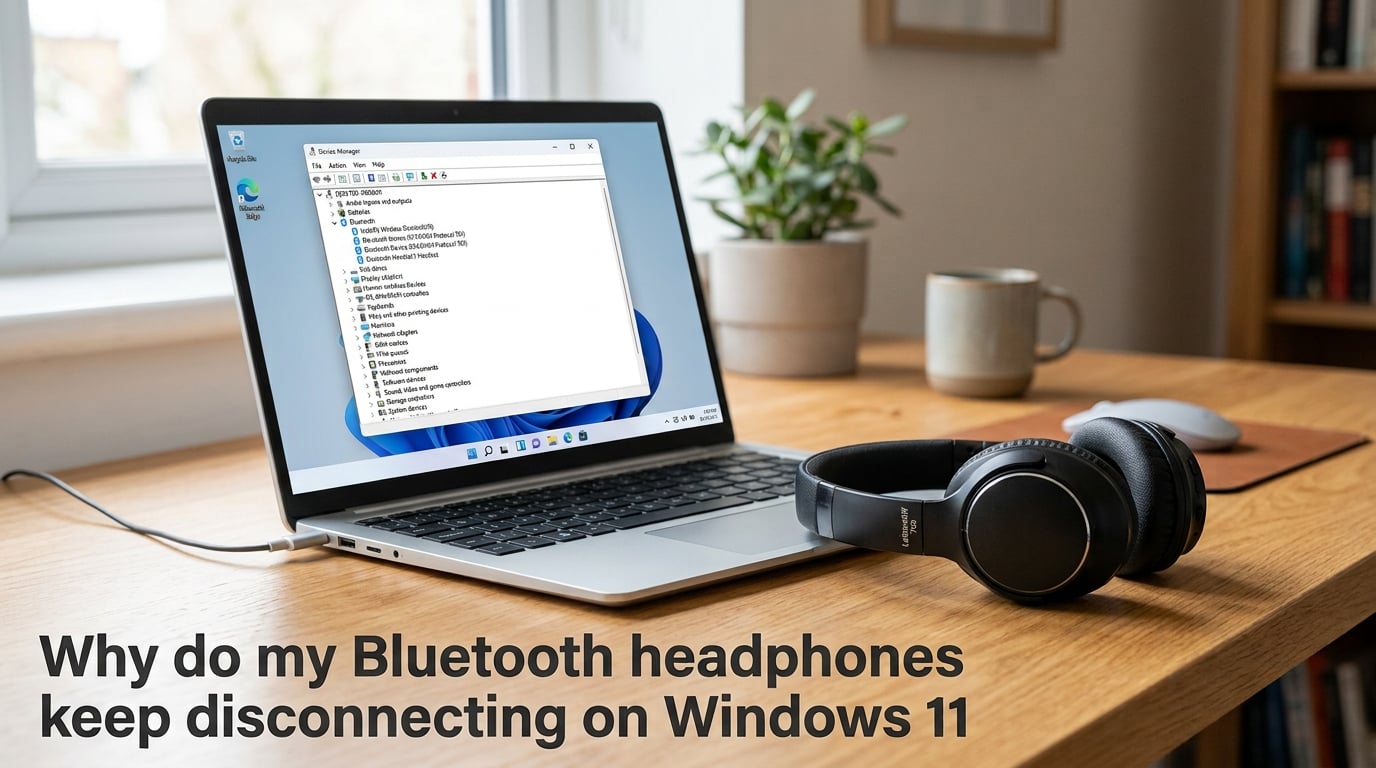
Bluetooth headphones keep disconnecting on Windows 11 because the operating system’s power-saving features shut off the Bluetooth adapter to conserve battery, or because of outdated drivers, 2.4GHz signal interference, and a stalled Bluetooth Support Service. If your headphones keep disconnecting and reconnecting every few minutes, the fix usually involves changing a single setting in Device Manager.
I have helped dozens of Windows 11 users troubleshoot this exact problem, and in roughly 80 percent of cases the culprit is the “Allow the computer to turn off this device to save power” checkbox buried in the Bluetooth adapter properties. Below I will walk you through every common cause and each step-by-step fix so you can get stable audio back.
Common Causes: Why Do My Bluetooth Headphones Keep Disconnecting on Windows 11
Several factors can make your Bluetooth headphones keep disconnecting on Windows 11. Understanding which one applies to your situation will save you from trying fixes blindly.
1. Power-saving settings (most common). Windows 11 aggressively manages power by turning off the Bluetooth radio when it thinks the device is idle. Many Reddit users on r/ZephyrusG14 and r/bluetooth confirmed that Windows was disabling the Bluetooth Radio to “save power” as the root cause of their random disconnections.
2. Outdated or corrupted Bluetooth drivers. If your Bluetooth adapter driver is out of date or has become corrupted after a Windows update, the connection will drop intermittently. Driver conflicts are especially common after major Windows 11 feature updates.
3. 2.4GHz signal interference. Bluetooth operates on the 2.4GHz frequency band, which it shares with Wi-Fi, microwaves, USB 3.0 ports, and many smart home devices. When too many devices compete for that frequency, the noise floor rises and your headphones drop out. Almost no competitor guide explains this clearly, but it is a major cause that users overlook.
4. Battery Saver mode. Windows 11 Battery Saver restricts background activity and can throttle Bluetooth performance. If Battery Saver kicks in at 20 or 30 percent battery, your headphones may start cutting out.
5. Bluetooth Support Service issues. The Bluetooth Support Service manages device pairing and connection stability. If this service stalls or is not set to start automatically, your headphones will disconnect randomly.
6. Corrupted Bluetooth cache and duplicate paired devices. Over time, Windows can accumulate corrupted pairing data. If your headphones are paired on your phone and PC simultaneously, conflicts arise. Some users on tech forums found that clearing the Bluetooth cache and removing old paired devices from their phone fixed persistent dropouts.
Quick Fixes: 5 Things to Try First
Before diving into detailed steps, try these five quick fixes. Most users resolve their issue within this list.
Toggle Bluetooth off and on. Go to Settings > Bluetooth and devices, turn Bluetooth off, wait 10 seconds, and turn it back on.
Restart the Bluetooth Support Service. Press Win + R, type services.msc, find Bluetooth Support Service, right-click and select Restart.
Run the built-in Bluetooth troubleshooter. Go to Settings > System > Troubleshoot > Other troubleshooters > Bluetooth and run it.
Check your headphone battery. Low battery on the headphones themselves is a frequent and easily missed cause of disconnection.
Turn off Battery Saver. Go to Settings > System > Power and battery and make sure Battery Saver is off or set to a very low threshold.
If none of those worked, move on to the detailed fixes below.
How to Fix Bluetooth Headphones Keep Disconnecting Windows 11 (Step-by-Step)
These five fixes address the most common root causes. Work through them in order, starting with the power-saving fix since it resolves the majority of cases.
Fix 1: Disable Power-Saving for the Bluetooth Adapter in Device Manager
This is the single most effective fix. Windows 11 gives itself permission to power down your Bluetooth adapter, which causes your headphones to disconnect and reconnect seemingly at random.
Step 1: Right-click the Start button and select Device Manager.
Step 2: Expand the Bluetooth category to see all Bluetooth devices.
Step 3: Right-click your main Bluetooth adapter (usually named something like “Intel Wireless Bluetooth” or “Realtek Bluetooth Adapter”) and select Properties.
Step 4: Switch to the Power Management tab. If you do not see this tab, move on to Fix 2.
Step 5: Uncheck the box that says “Allow the computer to turn off this device to save power.”
Step 6: Click OK, then restart your computer.
Many users on Reddit reported that this single change permanently fixed their Bluetooth disconnection issues. One user noted: “Windows has been disabling the Bluetooth Radio to save power, and once I unchecked that box, my headphones have stayed connected perfectly.”
Fix 2: Update or Reinstall Your Bluetooth Driver
If the Power Management tab was missing, or if Fix 1 did not solve the problem, your Bluetooth driver may be outdated or corrupted.
To update the driver: Open Device Manager, expand Bluetooth, right-click your adapter, and select Update driver. Choose “Search automatically for drivers” and let Windows find and install the latest version.
To reinstall the driver: Right-click the adapter in Device Manager and select Uninstall device. Restart your computer and Windows 11 will automatically reinstall a fresh driver.
For the most reliable results, visit your laptop or motherboard manufacturer’s website (Dell, HP, Lenovo, ASUS) and download the latest Bluetooth driver directly. Manufacturer drivers are often newer than what Windows Update provides.
Fix 3: Restart the Bluetooth Support Service
The Bluetooth Support Service handles pairing and connection management behind the scenes. If it stalls, your headphones will disconnect without warning.
Step 1: Press Win + R, type services.msc, and press Enter.
Step 2: Scroll down to Bluetooth Support Service.
Step 3: Right-click it and select Properties.
Step 4: Set Startup type to Automatic.
Step 5: If the service status says Stopped, click Start. If it is already running, click Stop, wait a few seconds, then click Start to force a fresh restart.
Step 6: Click OK and test your headphones.
Setting the startup type to Automatic ensures the service is always running when you need it, preventing future dropouts.
Fix 4: Clear the Bluetooth Cache and Re-pair Your Headphones
Corrupted pairing data can cause persistent disconnection loops. Removing and re-pairing your headphones clears this cache.
Step 1: Go to Settings > Bluetooth and devices.
Step 2: Find your headphones in the device list, click the three dots, and select Remove device.
Step 3: Put your headphones into pairing mode.
Step 4: Click Add device > Bluetooth and pair them again.
Tip: If your headphones are also paired to your phone, try temporarily disabling Bluetooth on your phone to rule out cross-device conflicts. Some users found that removing the headphones from their phone’s paired list entirely resolved the issue.
Fix 5: Reduce 2.4GHz Interference
Bluetooth shares the 2.4GHz frequency band with Wi-Fi, USB 3.0 devices, and many household electronics. When too many signals crowd that band, your headphones will cut out.
Move your Wi-Fi router away from your PC, switch your Wi-Fi to the 5GHz band if possible, and keep USB 3.0 flash drives and hard drives away from your Bluetooth adapter. If you are using a Bluetooth USB dongle, plug it into a port on the opposite side of the computer from your Wi-Fi antenna.
FAQs
Why does my Bluetooth headset keep disconnecting from my PC?
Your Bluetooth headset keeps disconnecting from your PC because Windows 11 power-saving settings shut off the Bluetooth adapter to conserve battery. Open Device Manager, expand Bluetooth, right-click your adapter, go to the Power Management tab, and uncheck the option that allows the computer to turn off the device to save power.
Why does my Bluetooth audio keep cutting out in Windows 11?
Bluetooth audio cuts out in Windows 11 due to power-saving settings, outdated Bluetooth drivers, 2.4GHz signal interference from Wi-Fi or USB 3.0 devices, or Battery Saver mode restricting background activity. The most common fix is disabling power management for the Bluetooth adapter in Device Manager.
Why does Bluetooth keep randomly disconnecting?
Bluetooth randomly disconnects when the Bluetooth Support Service stalls, when pairing data becomes corrupted, or when Windows aggressively manages power to the Bluetooth radio. Restarting the Bluetooth Support Service and clearing the Bluetooth cache by removing and re-pairing your device usually resolves random disconnections.
Why do my headphones keep cutting out Bluetooth on my PC?
Your headphones cut out over Bluetooth because of power-saving settings, low headphone battery, driver conflicts after Windows updates, or signal interference. Turn off Battery Saver mode, charge your headphones fully, update the Bluetooth driver in Device Manager, and reduce nearby 2.4GHz device interference.
Conclusion
If your Bluetooth headphones keep disconnecting on Windows 11, the first fix to try is disabling power management for the Bluetooth adapter in Device Manager. That single change resolves the issue for most users. If that does not work, update your Bluetooth driver, restart the Bluetooth Support Service, clear the pairing cache, and reduce 2.4GHz interference. If none of these fixes work after a full driver reinstall, you may be dealing with a hardware incompatibility between your headphones and your PC’s Bluetooth adapter, and a USB Bluetooth dongle can serve as a reliable workaround.