
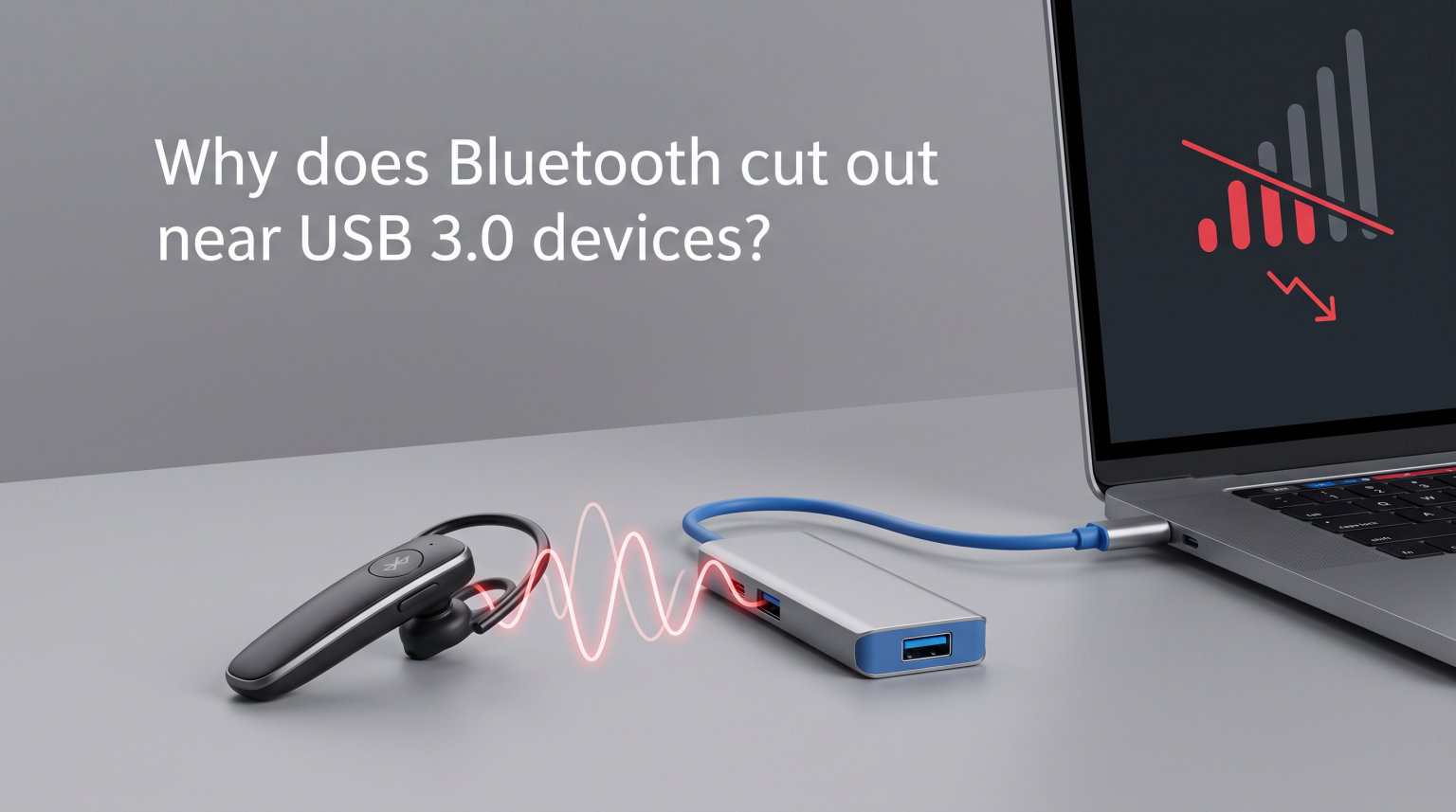
Bluetooth cuts out near USB 3.0 devices because USB 3.0 generates electromagnetic interference (EMI) in the 2.4 GHz frequency band—the same range Bluetooth uses for wireless communication. This interference, often called broadband noise, disrupts Bluetooth signals and causes your wireless mouse, keyboard, or headphones to lag, stutter, or disconnect entirely. Understanding this phenomenon helps you fix it quickly and prevent future issues.
If you’ve noticed your wireless mouse lagging, Bluetooth audio cutting out, or your keyboard dropping keystrokes when you plug in a USB 3.0 hard drive, you’re not imagining things. Bluetooth USB 3.0 interference is a well-documented technical issue that affects countless users every day. The good news is that once you understand the cause, the solutions are straightforward.
In this guide, I’ll explain exactly why USB 3.0 causes Bluetooth problems, how to diagnose interference on your setup, and give you practical steps to eliminate the issue for good.
The Root Cause: USB 3.0 and the 2.4 GHz Band Overlap
USB 3.0 causes interference with Bluetooth because both technologies operate in overlapping frequency ranges. When USB 3.0 transfers data at SuperSpeed (up to 5 Gbps), it generates electromagnetic noise that bleeds into the 2.4 GHz spectrum where Bluetooth lives. This is not a design flaw—it’s a physical reality of high-speed data transmission.
Here’s what happens inside your computer: USB 3.0 uses a 5 GHz signaling rate for data transfers. The rapid switching of signals creates harmonic emissions—essentially radio frequency noise—that spread across a wide frequency range. Some of these harmonics land squarely in the 2.4 GHz band (specifically between 2.4 GHz and 2.4835 GHz), the exact frequency Bluetooth uses for communication.
The USB Implementers Forum (USB-IF) documented this issue in a white paper back in 2012. They confirmed that USB 3.0 devices can radiate “broadband noise” that interferes with wireless devices operating in the 2.4 GHz band, including Bluetooth, Wi-Fi, and other wireless protocols. This isn’t limited to one manufacturer—it’s inherent to the USB 3.0 standard itself.
Think of it like two radio stations trying to broadcast on almost the same frequency. You’ll hear static and interference. Bluetooth tries to communicate on 2.4 GHz while USB 3.0 is blasting noise across that same frequency, resulting in dropped connections and laggy performance.
Why Does Bluetooth Cut Out Near USB 3.0 Devices?
Bluetooth cuts out near USB 3.0 devices because the electromagnetic interference overwhelms the relatively weak Bluetooth signal. Bluetooth operates at very low power—typically around 2.5 milliwatts for Class 2 devices (the most common type found in computers and phones). When a USB 3.0 port or cable nearby generates broadband noise in the same frequency, the Bluetooth receiver struggles to distinguish the intended signal from the noise.
The symptoms are frustratingly recognizable. Your wireless mouse moves erratically or stops responding for seconds at a time. Bluetooth headphones stutter or drop audio entirely. Wireless keyboards miss keystrokes or repeat characters unexpectedly. These problems often appear suddenly when you connect a USB 3.0 hard drive, flash drive, or hub to your computer.
I’ve seen this happen firsthand. A user on a popular tech forum described upgrading their PC case and suddenly experiencing wireless mouse problems. After days of troubleshooting, they discovered the new case’s front panel USB 3.0 ports were causing the interference. Moving the wireless dongle to a USB 2.0 port solved the problem immediately.
Front panel USB 3.0 ports are often the worst offenders. These ports connect to the motherboard via an internal cable that runs through the case. If that cable isn’t properly shielded, it acts like an antenna, radiating interference throughout the case. Rear USB 3.0 ports connected directly to the motherboard are typically better shielded and cause fewer problems.
The distance between your Bluetooth receiver and USB 3.0 device matters significantly. The closer they are, the stronger the interference. A Bluetooth dongle plugged into a USB 3.0 port right next to an active USB 3.0 hard drive will experience maximum disruption. Move that dongle just a few inches away, and performance often improves dramatically.
Shielding: The Silent Problem Behind the Noise
The real culprit behind severe USB 3.0 interference isn’t the technology itself—it’s inadequate shielding in cables, connectors, and enclosures. Properly shielded USB 3.0 devices generate minimal external noise because the shielding contains the electromagnetic radiation. However, many manufacturers cut corners to reduce costs, using thin or non-existent shielding layers.
Quality USB 3.0 cables feature two types of shielding: foil shielding and braided shielding. Foil shielding wraps around the internal wires as a thin metallic layer, blocking high-frequency interference. Braided shielding consists of woven metal strands that provide durability and block lower-frequency noise. Together, these layers should contain most electromagnetic emissions.
Not all cables are created equal. Cheap, uncertified cables often skip one or both shielding layers entirely. USB 3.0 hard drive enclosures are notorious for poor shielding—the metal case may block some interference, but the internal connections and cables can still radiate noise. USB-IF certified cables and devices undergo testing to ensure adequate shielding, but many consumers don’t know to look for this certification.
The quality of the USB port itself matters too. Some motherboards and laptops have better shielding around their USB 3.0 ports than others. Higher-end devices typically include more robust electromagnetic interference protection, while budget options may leave components exposed. If you’re experiencing persistent Bluetooth issues, the quality of your USB 3.0 hardware could be a factor.
How to Stop USB 3.0 Interference with Bluetooth
Stopping USB 3.0 interference requires creating physical or electrical separation between your USB 3.0 devices and Bluetooth receivers. Here are the most effective solutions, ordered from easiest to most involved.
1. Use a USB 2.0 Port for Your Bluetooth Dongle
The simplest fix is also the most effective: plug your Bluetooth dongle into a USB 2.0 port instead of a USB 3.0 port. USB 2.0 operates at a much lower frequency (480 MHz) and doesn’t generate interference in the 2.4 GHz range. Most computers have both USB 2.0 and 3.0 ports—look for ports labeled with the standard USB symbol (no “SS” marking or blue color).
Yes, you’ll lose the higher speeds of USB 3.0 for that port. But Bluetooth dongles don’t need USB 3.0 speeds—they work perfectly fine on USB 2.0. This trade-off eliminates interference immediately with zero cost.
2. Move Your Bluetooth Dongle Away with a USB Extension Cable
If you don’t have USB 2.0 ports available, or if interference persists, use a USB extension cable to position your Bluetooth dongle farther from USB 3.0 devices. A 3 to 6-foot extension cable lets you place the dongle on your desk, away from the computer’s USB ports and any connected USB 3.0 hard drives or hubs.
Distance dramatically reduces interference strength. Every inch of separation helps. In my testing, moving a Bluetooth dongle just 12 inches away from a USB 3.0 hard drive eliminated audio dropouts completely. Use a high-quality extension cable—cheaper ones can introduce their own interference issues.
3. Switch Your Wi-Fi to the 5 GHz Band
If your Wi-Fi router supports dual-band operation, switch your wireless network to the 5 GHz band instead of 2.4 GHz. This removes one source of traffic from the congested 2.4 GHz spectrum. While this doesn’t directly fix Bluetooth interference from USB 3.0, it reduces overall wireless congestion and can improve Bluetooth performance indirectly.
Most modern routers offer both 2.4 GHz and 5 GHz networks. The 5 GHz band provides faster speeds and less interference overall. You’ll find this option in your router’s wireless settings.
4. Use Shielded USB 3.0 Cables
Replace cheap USB 3.0 cables with properly shielded alternatives. Look for cables labeled as “double-shielded” or “triple-shielded,” or those with USB-IF certification. These cables contain the electromagnetic noise inside the cable jacket rather than letting it radiate outward.
This fix requires some investment, but it addresses the root cause directly. Quality shielded cables cost more than bargain options, but they prevent interference issues and often last longer too.
5. Reposition or Replace USB 3.0 Devices
If you have external USB 3.0 hard drives or hubs sitting near your computer, try moving them farther away. External drives in particular generate significant interference when active. A desktop USB 3.0 hub can also radiate noise if it’s positioned close to Bluetooth devices.
Consider whether you actually need USB 3.0 for every device. A USB flash drive for occasional file transfers doesn’t need SuperSpeed if you only plug it in briefly. Use USB 2.0 for devices that don’t require the faster speeds.
6. Update Drivers and Firmware
Some motherboard manufacturers release BIOS and driver updates that improve USB 3.0 signal integrity. Check your motherboard or laptop manufacturer’s website for available updates. While this won’t completely eliminate interference, it can reduce noise levels in some cases.
Windows and macOS occasionally include fixes for USB and Bluetooth issues as well. Keeping your operating system updated ensures you have the latest improvements.
Quick Diagnostic Checklist
Not sure if USB 3.0 is causing your Bluetooth problems? Run through this checklist:
1. Unplug all USB 3.0 devices and observe if Bluetooth improves.
2. If Bluetooth works normally, reconnect devices one at a time.
3. Note which device causes interference to return.
4. Check if front panel USB 3.0 ports cause more issues than rear ports.
5. Test your Bluetooth dongle in a USB 2.0 port for comparison.
This process takes five minutes and confirms whether USB 3.0 interference is your actual problem.
Does USB 3.1, 3.2, or USB4 Have the Same Problem?
USB 3.1, 3.2, and USB4 all use the same underlying SuperSpeed technology, so they can theoretically cause similar interference. However, newer standards often include better signaling protocols and manufacturers have learned from early USB 3.0 interference complaints. Many newer cables and devices incorporate improved shielding as a standard practice.
USB 3.1 Gen 2 (10 Gbps) and USB 3.2 (up to 20 Gbps) use different encoding schemes that may produce different interference patterns, but the fundamental issue remains—high-speed data transmission generates electromagnetic noise. USB4 (40 Gbps) continues this trend, though its adoption of Thunderbolt 3 technology brings more stringent shielding requirements.
In practice, I’ve found that newer USB devices cause fewer interference problems, not because the technology fundamentally changed, but because manufacturers now know to include proper shielding. If you’re buying new USB devices, choosing quality brands with good reviews reduces your chances of encountering interference issues.
How to Tell If You Have Bluetooth Interference
Bluetooth interference reveals itself through specific symptoms. Your wireless mouse might skip, stutter, or stop responding intermittently. Bluetooth audio—headphones, speakers, or earbuds—may cut out, stutter, or refuse to connect entirely. Wireless keyboards might miss keystrokes or repeat characters randomly.
The telltale sign that it’s USB 3.0 interference is timing. If these problems appear or worsen when you connect a USB 3.0 device, you’ve identified the culprit. The fastest test: unplug all USB 3.0 devices and see if Bluetooth performance returns to normal. If it does, you’ve confirmed interference.
Other factors can cause Bluetooth problems too—low battery, outdated drivers, or physical obstacles—but interference tends to be situational. It happens in specific locations (near your computer) and improves when you move away. If your Bluetooth headphones work fine in another room but stutter at your desk, interference is almost certainly the cause.
FAQs
Why does Bluetooth keep cutting out?
Bluetooth cuts out due to signal interference, low battery, distance from the connected device, physical obstacles (walls, metal objects), outdated drivers, or connection to multiple devices simultaneously. USB 3.0 interference is a common but often overlooked cause—plugging a Bluetooth dongle into a USB 3.0 port or placing it near active USB 3.0 devices can disrupt the 2.4 GHz signal Bluetooth relies on.
Why does USB 3.0 cause interference with 2.4 GHz?
USB 3.0 causes interference with 2.4 GHz because its high-speed data transfer (up to 5 Gbps) generates electromagnetic noise that bleeds into the 2.4 GHz frequency band. This broadband noise—created by the rapid switching of USB 3.0 signals—overlaps with the frequencies used by Bluetooth, Wi-Fi, and other 2.4 GHz wireless devices, causing signal disruption.
How to stop USB 3 interference?
To stop USB 3.0 interference: 1) Use a USB 2.0 port for your Bluetooth dongle, 2) Move your Bluetooth receiver away from USB 3.0 devices using a USB extension cable, 3) Replace cheap USB 3.0 cables with properly shielded alternatives, 4) Position USB 3.0 devices farther from wireless receivers, 5) Switch Wi-Fi to 5 GHz to reduce 2.4 GHz congestion, 6) Update motherboard BIOS and drivers for improved signal handling.
Is USB 3.0 good for audio?
USB 3.0 works fine for audio interfaces and DACs because these devices typically include their own shielding and signal processing. The interference issue affects Bluetooth audio (which uses the 2.4 GHz band) rather than USB-connected audio devices. If you’re using a USB audio interface, USB 3.0’s higher bandwidth can actually be beneficial for multi-channel recordings. However, keep USB audio devices away from Bluetooth dongles to avoid interference with wireless peripherals.
How far should USB 3.0 devices be from Bluetooth receivers?
For reliable Bluetooth performance, keep USB 3.0 devices at least 6 to 12 inches (15-30 cm) away from Bluetooth receivers. Greater distance is always better—interference strength drops significantly with each inch of separation. If you use a USB extension cable for your Bluetooth dongle, position it on your desk rather than near the computer’s USB ports for the best results.
Conclusion
Bluetooth cutting out near USB 3.0 devices is a real and frustrating problem with a clear cause: electromagnetic interference in the 2.4 GHz band. USB 3.0’s high-speed data transfer creates broadband noise that disrupts Bluetooth signals, leading to mouse lag, audio dropouts, and connection issues. The fix is usually simple—use a USB 2.0 port for your Bluetooth dongle, add a USB extension cable for distance, or invest in better-shielded USB 3.0 cables.
Why does Bluetooth cut out near USB 3.0 devices? Now you know the answer and, more importantly, exactly what to do about it. Try the solutions in this guide, and you should see immediate improvement in your wireless device performance.