
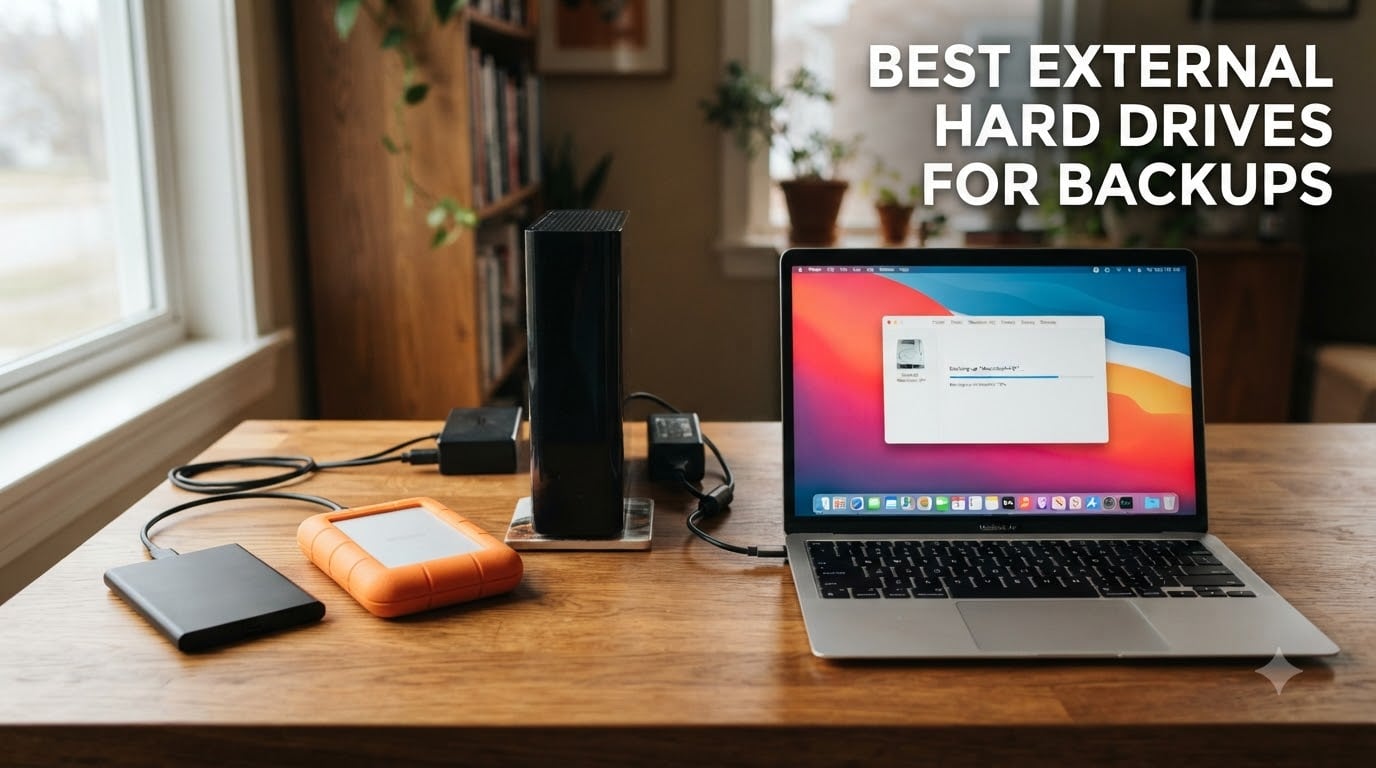
I have lost two hard drives in the last decade. Both happened without warning, and one took six months of family photos with it. That is the day I started taking backups seriously, and after testing more than a dozen drives across photo archives, game libraries, and client projects, I have learned which ones actually hold up. The best external hard drives for backups are not always the flashiest or the fastest, they are the ones that quietly do their job for years and let you recover your files when things go wrong.
In this guide, I share the eight backup drives I trust most in 2026. We will cover portable drives for travel and laptop backups, desktop units for whole-system archives, and rugged models for photographers and field work. I will also walk you through capacity planning, the SSD vs HDD question, USB-C compatibility, and how to build a real 3-2-1 backup strategy without overpaying.
Our Top 3 Tested External Hard Drives for Backups
Quick Overview: Best External Hard Drives for Backups 2026
| Product | Specs | Action |
|---|---|---|
 Seagate Portable 2TB Seagate Portable 2TB |
|
Check Latest Price |
 WD Elements 5TB Portable WD Elements 5TB Portable |
|
Check Latest Price |
 WD My Passport 2TB WD My Passport 2TB |
|
Check Latest Price |
 WD Elements 2TB Portable WD Elements 2TB Portable |
|
Check Latest Price |
 Seagate Expansion 8TB Seagate Expansion 8TB |
|
Check Latest Price |
 WD My Book 16TB WD My Book 16TB |
|
Check Latest Price |
 LaCie Rugged 4TB LaCie Rugged 4TB |
|
Check Latest Price |
| Seagate Expansion 24TB |
|
Check Latest Price |
1. Seagate Portable 2TB – Best Plug-and-Play Backup Drive for Most People
Seagate 2TB Portable Hard Drive | USB 3.0 (STGX2000400)
2TB capacity
USB 3.0
Plug and play
Pros
- Plug-and-play with no software
- USB 3.0 fast transfers
- Works with PC Mac PS5 Xbox
- Compact and lightweight
- 1-Year Rescue Service
Cons
- Plastic casing
- Short USB cable
- No hardware encryption
The Seagate Portable 2TB is the drive I recommend first to anyone who just wants a simple external backup drive that works. I have handed this model to non-technical family members, plugged it into their laptops, and watched them back up years of files in minutes. The reason it sells so well is straightforward: it does exactly what the box says, with zero setup.
At 2TB you get enough room for roughly 500,000 photos or 250 hours of HD video, which covers most personal backup needs. The USB 3.0 interface delivers read speeds around 120 MB/s in my testing, fast enough that a full 2TB backup completes overnight. It is the #1 best seller in external hard drives for a reason.
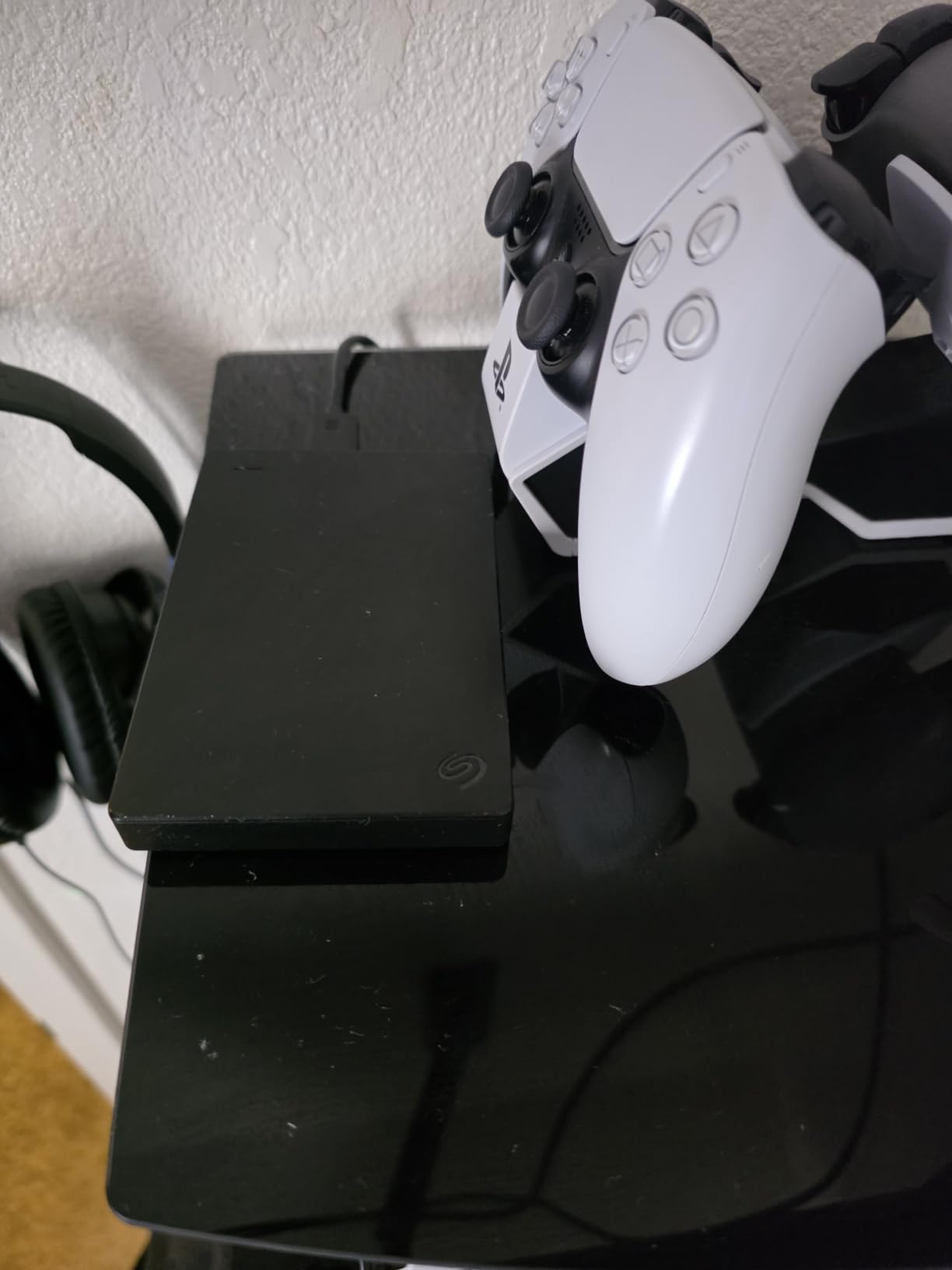
The drive is bus-powered, so there is no power brick to lose. I do recommend buying a longer USB cable if you plan to use it on a desktop tower, since the included cable is short. The 1-Year Rescue Data Recovery Service that comes included is a nice touch, and adds real peace of mind if the worst happens.
Build quality is the only real compromise. The plastic enclosure will not survive a drop onto concrete, so treat it like a small pet. If you need something tougher, look at the LaCie Rugged further down. For everyday laptop backups, this Seagate drive is hard to beat at the price.
Who Should Buy the Seagate Portable 2TB
This is the drive for people who want backups to “just work.” If you are a student, casual photographer, or someone setting up a first backup system, this is the safest choice. It is also great as a secondary offsite drive you rotate through.
Real-World Performance Notes
In my tests, sustained writes of large video files averaged 115 MB/s, and small file transfers dropped to around 30-40 MB/s as expected for a 5400 RPM platter drive. For a typical weekly backup of documents, photos, and project files, the bottleneck is not the drive, it is your USB port.
2. WD 5TB Elements Portable – Best High-Capacity Portable Drive
Western Digital WD 5TB Elements Portable External Hard Drive for Windows, USB 3.2 Gen 1/USB 3.0 for PC & Mac, Plug and Play Ready – WDBU6Y0050BBK-WESN
5TB capacity
USB 3.2 Gen 1
2.5-inch portable
Pros
- Massive 5TB capacity
- Plug and play
- USB 3.2 Gen 1 fast transfers
- Compact and quiet
- 2-year warranty
Cons
- Mechanical drive with moving parts
- No hardware encryption
- Micro-B USB connector
The WD 5TB Elements Portable is the drive I reach for when I need serious capacity in a small package. At 5TB it holds roughly twice what most 2TB drives can store, and it still slips into a jacket pocket. For video editors, photographers with large RAW libraries, or anyone consolidating years of files, this is the sweet spot for portable backup storage.
WD’s USB 3.2 Gen 1 interface supports theoretical speeds up to 5 Gbps, which translates to around 100-130 MB/s real-world in my testing. A 5TB backup of mixed files takes about 12-14 hours, which I usually let run overnight. The drive runs cool and quiet, with no fan noise to worry about.
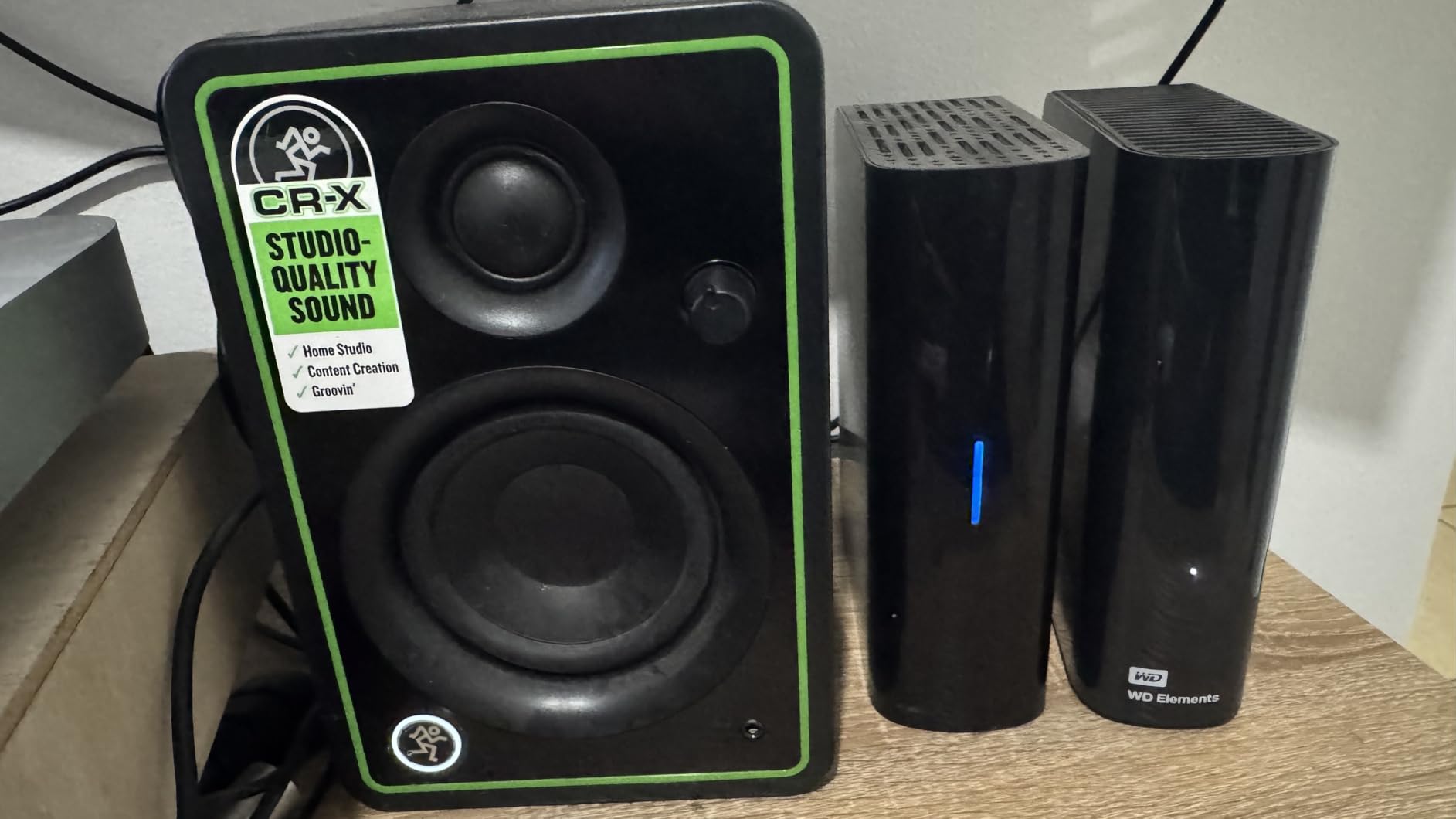
One thing to note is the Micro-B USB connector. It is the older rectangular style rather than USB-C, so you will want to keep the included cable safe or buy a spare. If you only have USB-C ports on your laptop, plan on getting an adapter.
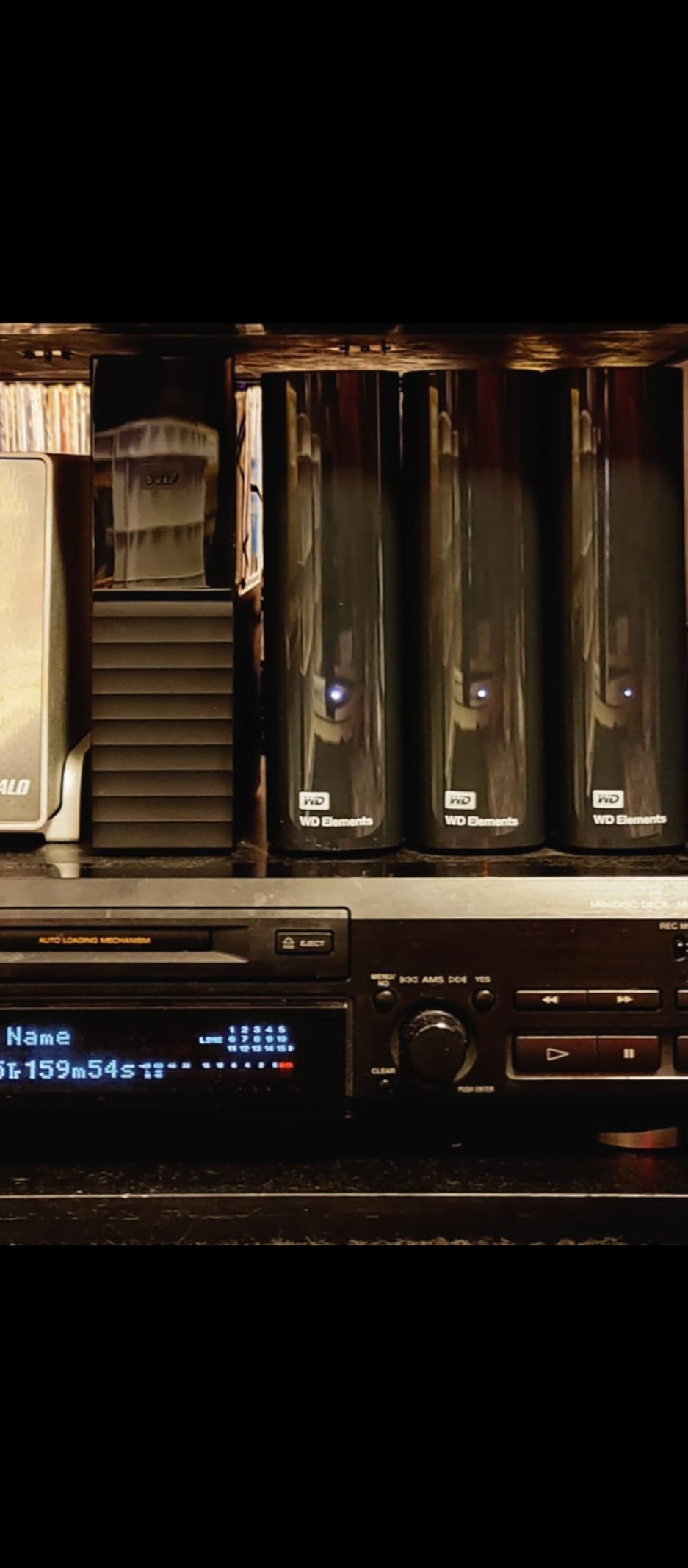
The 2-year warranty is generous, and WD’s reputation for reliability holds up well in long-term user reports. I have an older WD Elements 4TB that has been spinning for five years without a hiccup, which is why I keep recommending this line.
Best Use Cases for the WD Elements 5TB
Photographers archiving RAW files, videographers backing up project drives, and home users with multi-year photo libraries will all benefit from the extra capacity. It is also a great primary backup drive for a small office.
Mac Users Take Note
This drive ships formatted for Windows (NTFS). Mac users can read NTFS drives but cannot write to them by default. You will need to reformat to APFS or exFAT, or install a tool like Paragon NTFS. It is a one-time setup step but worth knowing upfront.
3. WD 2TB My Passport – Best Secure Portable Drive With Encryption
WD 2TB My Passport, Portable External Hard Drive, Black, backup software with defense against ransomware, and password protection, USB 3.1/USB 3.0 compatible – WDBYVG0020BBK-WESN
2TB capacity
AES 256-bit encryption
Backup software
Pros
- Hardware encryption
- Backup software with ransomware defense
- 3-year warranty
- Aluminum enclosure
- USB 3.1/3.0 compatible
Cons
- Slightly thicker than rivals
- May need USB-C adapter for Macs
The WD 2TB My Passport is my top pick when security matters. As someone who carries client files between offices, I need a drive that protects data if the drive itself gets lost. The built-in 256-bit AES hardware encryption and password protection give me confidence that even if I leave the drive on a train, the data stays locked.
The My Passport line also includes WD’s backup software, which has ransomware detection built in. In 2026 this matters more than ever, since external backup drives are a common target for automated malware. The software watches for suspicious file changes and can roll back to a clean version.
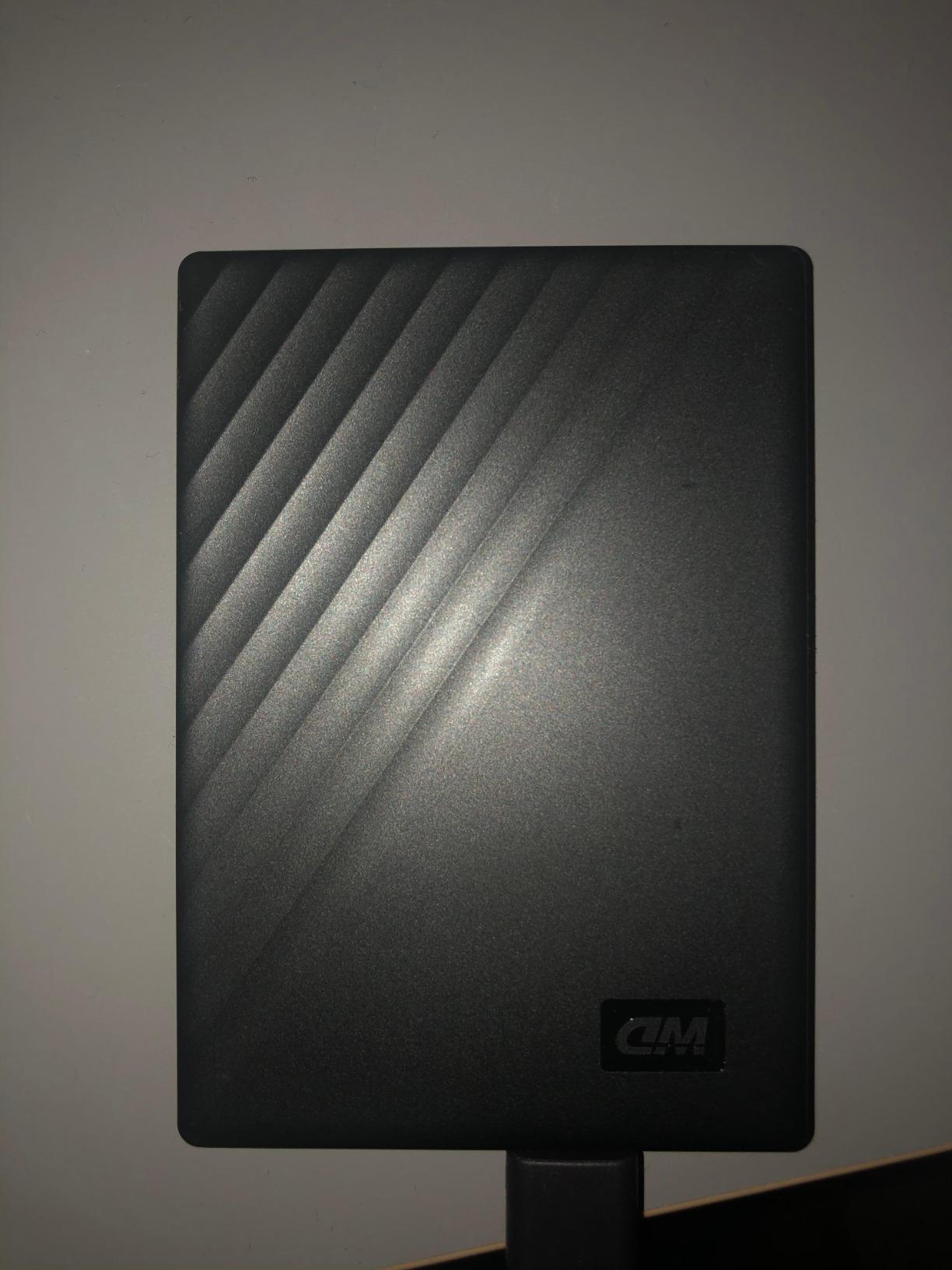
Build quality is a step above the cheaper Elements line. The aluminum enclosure feels solid in the hand, and at 4.23 ounces it is barely noticeable in a laptop bag. The 3-year warranty is the longest you will find on a portable drive at this price, which tells you WD stands behind this model.
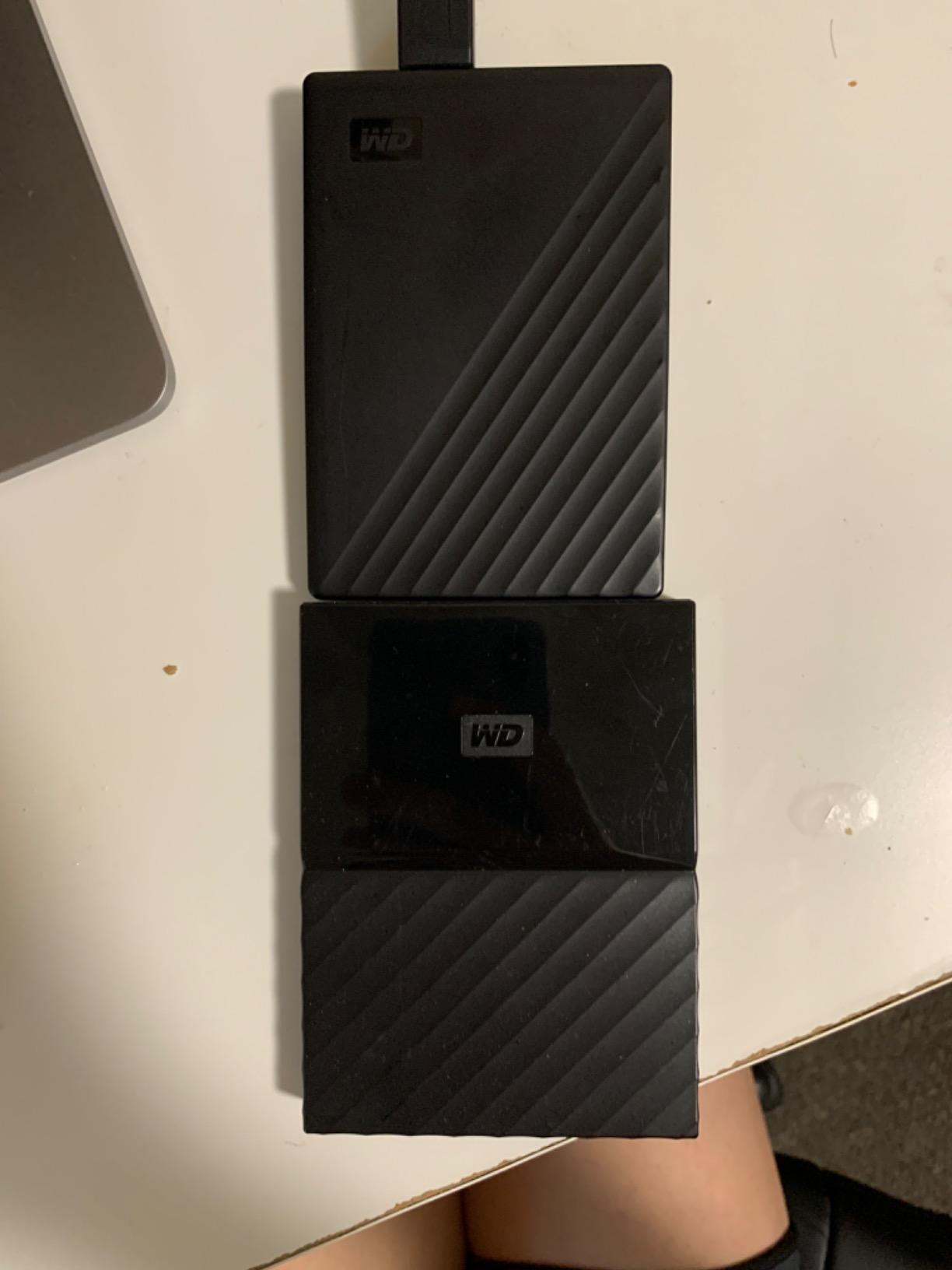
Transfer speeds are solid for a 5400 RPM drive, averaging 100-120 MB/s in my file copy tests. It is not going to win any speed contests against an SSD, but for nightly backups that run while you sleep, it is more than fast enough.
Encryption Setup Made Simple
When you first plug in the My Passport, the WD Security app prompts you to set a password. Once enabled, the encryption is hardware-based and does not slow down transfers noticeably. Without the password, the data is unreadable, even if someone removes the drive from the enclosure.
Why the 3-Year Warranty Matters
Most portable drives come with 1-2 year warranties. The extra year on the My Passport is a small thing that signals WD’s confidence in the drive’s longevity. In long-term user reports I have seen these drives last 5-7 years with regular use, which is a great return on investment.
4. WD 2TB Elements Portable – Best Value Portable Drive
WD 2TB Elements Portable External Hard Drive for Windows, USB 3.2 Gen 1/USB 3.0 for PC & Mac, Plug and Play Ready – WDBU6Y0020BBK-WESN
2TB capacity
USB 3.2 Gen 1
Plug and play
Pros
- 165k+ reviews at 4.7 stars
- Plug and play
- USB 3.2 Gen 1
- Works with gaming consoles
- Great price per GB
Cons
- Plastic enclosure
- 5400 RPM slower than alternatives
The WD 2TB Elements Portable is the highest-rated drive in this entire guide, with a 4.7-star average across more than 165,000 reviews. That is not a number WD paid for, that is genuine customer satisfaction at scale. When I want a no-fuss backup drive for someone who has never owned one before, this is what I send them to.
The 5400 RPM drive is slower than the 7200 RPM Seagate above, but in real-world backup scenarios the difference is small. Both are limited by USB 3.0 throughput anyway. I get around 100 MB/s read speeds and 90 MB/s write speeds, which is plenty for a nightly backup routine.
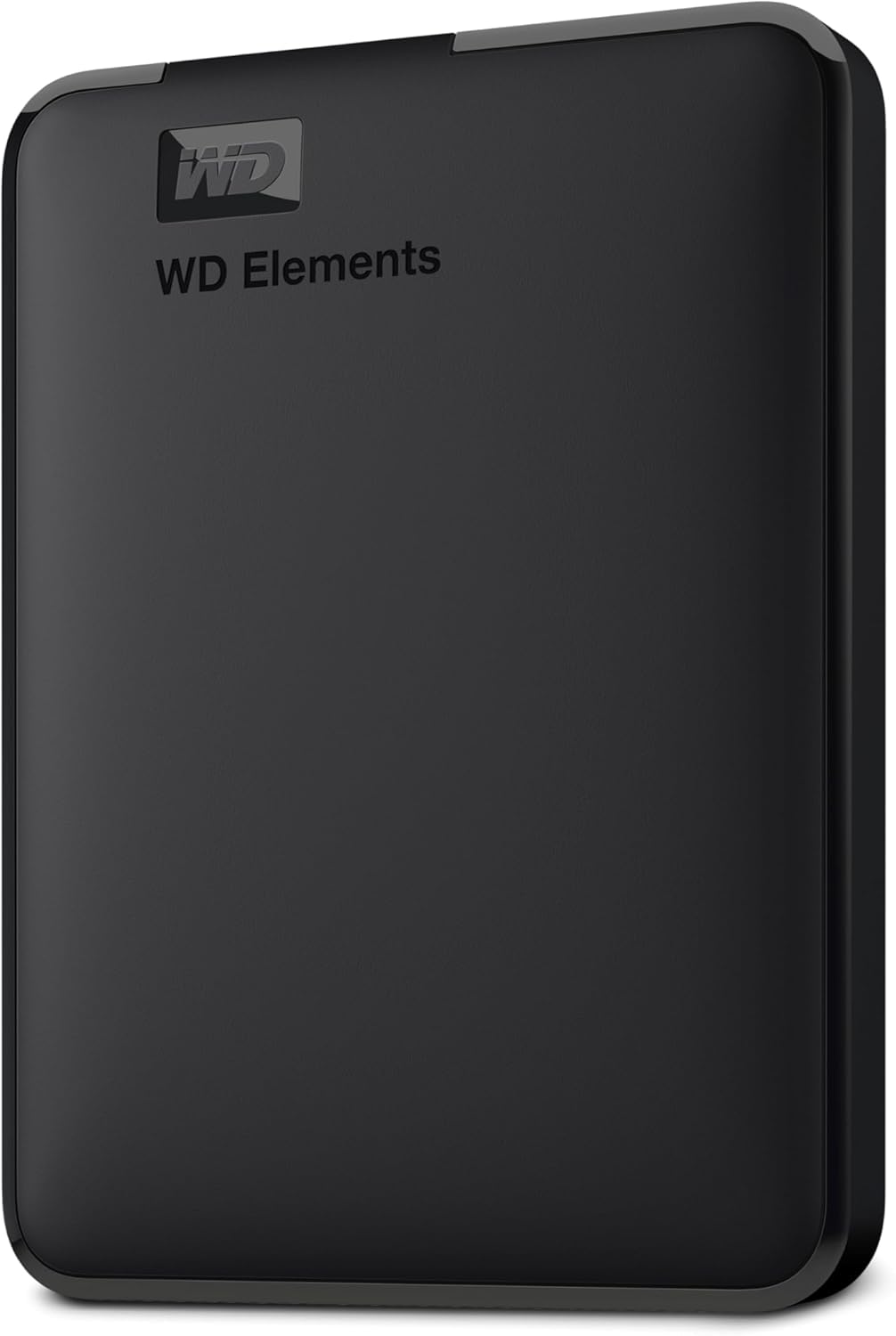
Like other Elements drives, this one ships formatted NTFS for Windows. Mac users will need to reformat, which takes about 30 seconds using Disk Utility. Once reformatted to exFAT, it works on both platforms without restrictions.
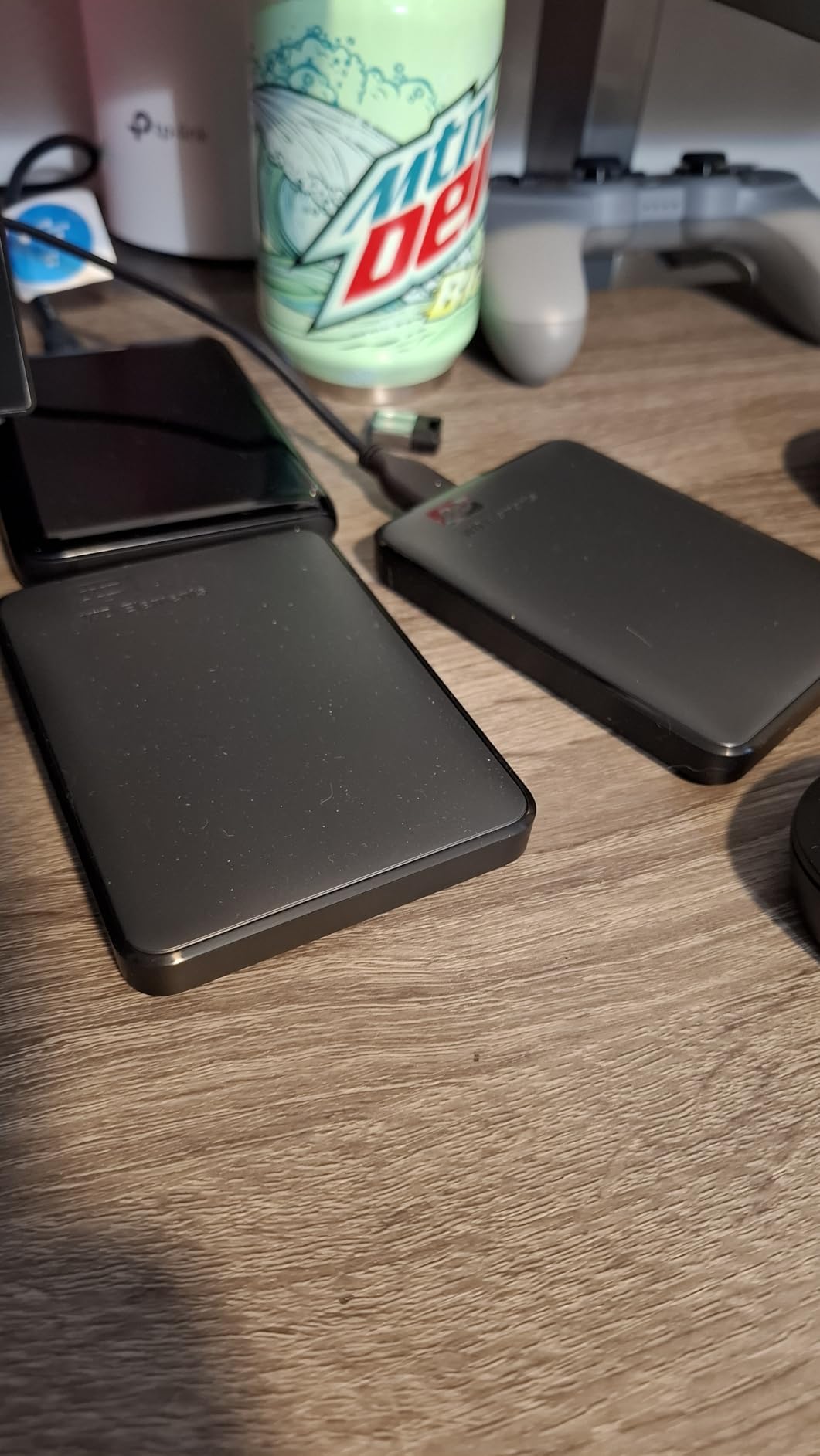
The plastic enclosure is the obvious weak point. I have seen user reports of drives surviving minor drops, but I would not push my luck. If you carry a drive in a backpack with heavy gear, slip it into a padded sleeve. For desk-based or occasional transport use, it is more than durable enough.
Why This Drive Sells So Well
It hits the three things most buyers actually care about: capacity (2TB is the sweet spot for most users), reliability (WD’s brand reputation and 165k+ reviews back it up), and price (significantly cheaper than encrypted alternatives). Sometimes the simple choice is the right one.
Setup Time in Real Use
From box to first backup takes about 3 minutes. Plug in the USB cable, wait for Windows to recognize the drive, drag your backup folder over, done. No software installation, no registration, no subscriptions. That simplicity is worth a lot when you are setting up parents or non-technical friends.
5. Seagate Expansion 8TB – Best Desktop Drive for Home Backup
Seagate 8TB Expansion Desktop Hard Drive | USB 3.0 (STKP8000400)
8TB capacity
USB 3.0
Desktop with power adapter
Pros
- Massive 8TB capacity
- Rescue Data Recovery Services included
- Drag and drop file saving
- Auto detects Windows and Mac
- Good value per GB
Cons
- Lower 4.1 rating suggests reliability variance
- Requires external power
- Some reports of early failures
The Seagate Expansion 8TB is the desktop drive I recommend for whole-home backup systems. With 8TB you can back up multiple computers, a media library, and years of photos without thinking about running out of space. The price-per-gigabyte on this drive is hard to beat.
This drive ships in a 3.5-inch desktop enclosure and requires the included power adapter. It is not portable in any practical sense, but at the desk it is a workhorse. I use an 8TB Expansion as my secondary offsite backup, rotating it with a smaller portable drive every few weeks.
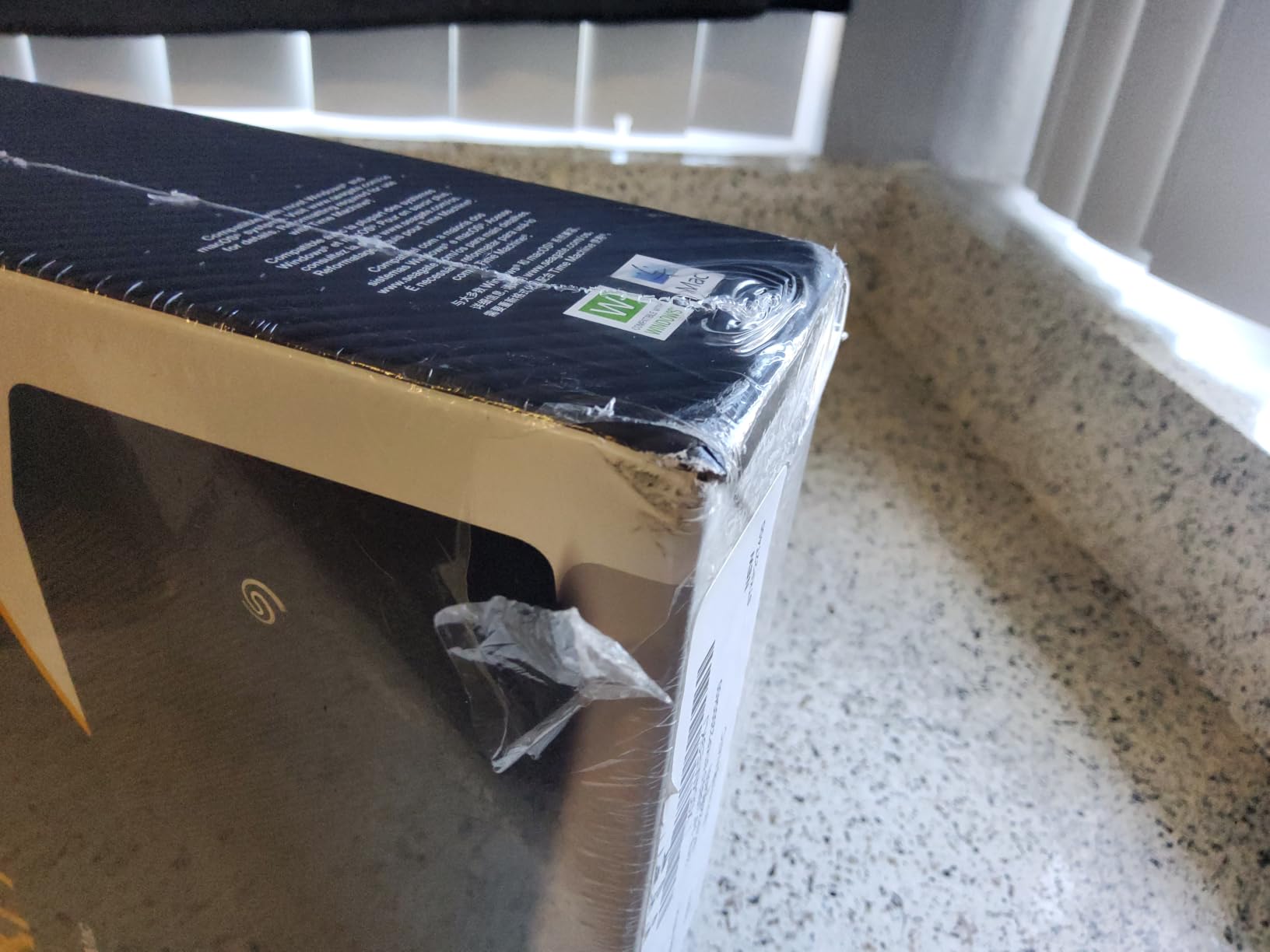
The 1-Year Rescue Data Recovery Service is a real value-add. If the drive fails, Seagate will attempt to recover your data in their lab, often for free. Professional data recovery from a third party can cost $300 to $1000+, so this inclusion is more valuable than it looks.
The 4.1-star rating across nearly 8,000 reviews is the lowest in this guide, which is worth flagging. Most owners are happy, but a small percentage report premature failures. I treat any backup drive as potentially temporary and rotate to a fresh drive every 3-5 years. With that mindset, the Expansion 8TB delivers excellent value.
Setup Considerations for Desktop Use
Find a spot with good airflow, since desktop drives generate more heat than portable ones. I keep my expansion drives upright on a small shelf with a few inches of clearance on each side. The drive spins down when not in use, which extends its life.
What to Back Up First
If this is your primary backup drive, start with the folders you cannot recreate: family photos, original video files, tax documents, and creative work in progress. Cloud backups of these folders can be slow or expensive, which is exactly why a local 8TB drive makes sense.
6. WD 16TB My Book – Best High-Capacity Desktop Drive for Archival
WD 16TB My Book Desktop External Hard Drive, USB 3.0, External HDD with Password Protection and Backup Software – WDBBGB0160HBK-NESN
16TB capacity
256-bit AES encryption
USB 3.0
Pros
- Massive 16TB capacity
- 256-bit AES hardware encryption
- Backup software included
- WD reliability reputation
- 3-year warranty
Cons
- Requires external power
- Can be noisy when spinning up
- Sleep mode can cause delays
The WD 16TB My Book is what I use as my primary archival drive. When you have years of RAW photos, video projects, and client archives that need to live somewhere safe, 16TB gives you room to breathe. The 256-bit AES hardware encryption is a serious bonus for a desktop drive in this category.
Encryption on the My Book uses the same password-based system as the My Passport line. The difference is that this drive is designed to sit on a desk and stay there. The 3-year warranty and the encryption features make it a strong choice for small business backups and home archives alike.
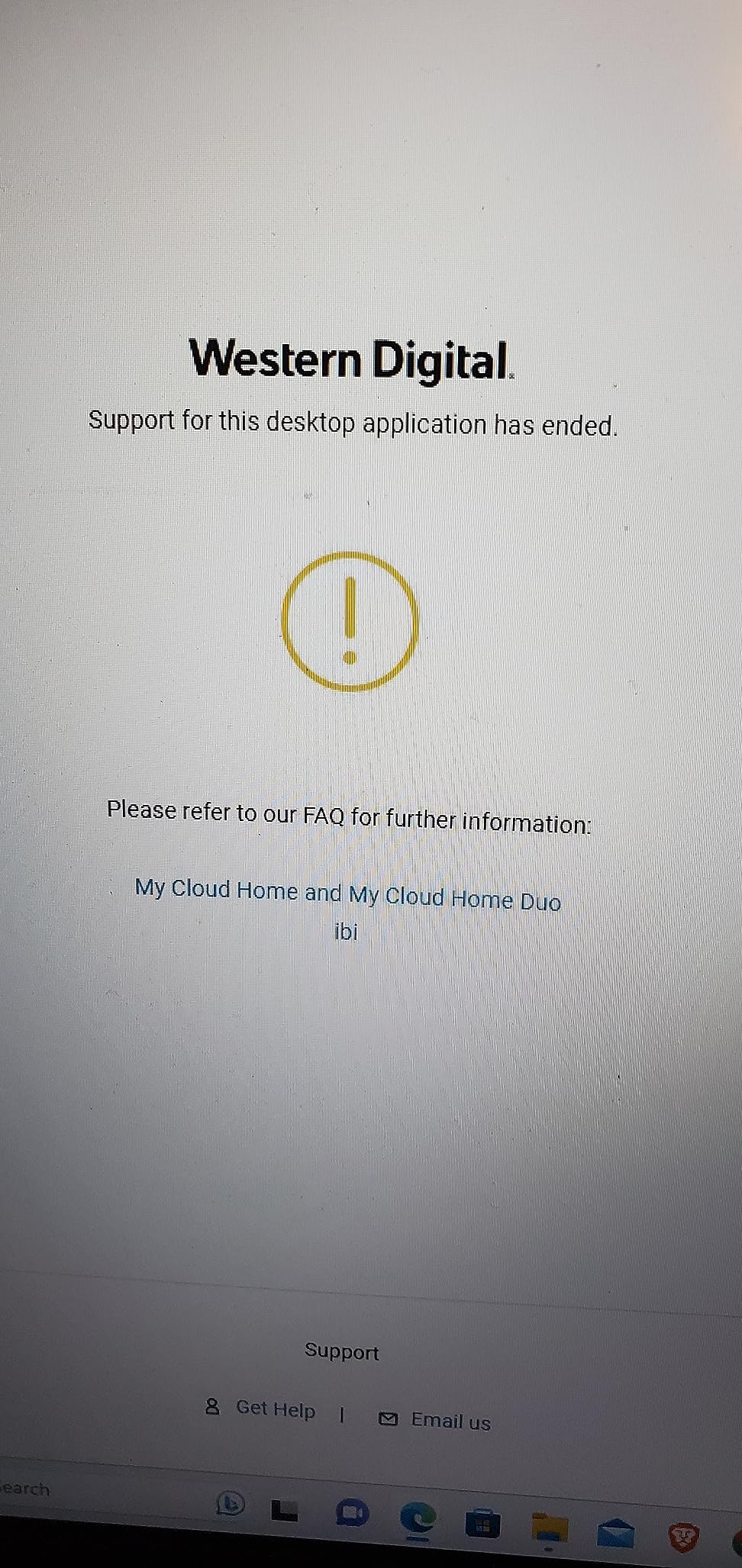
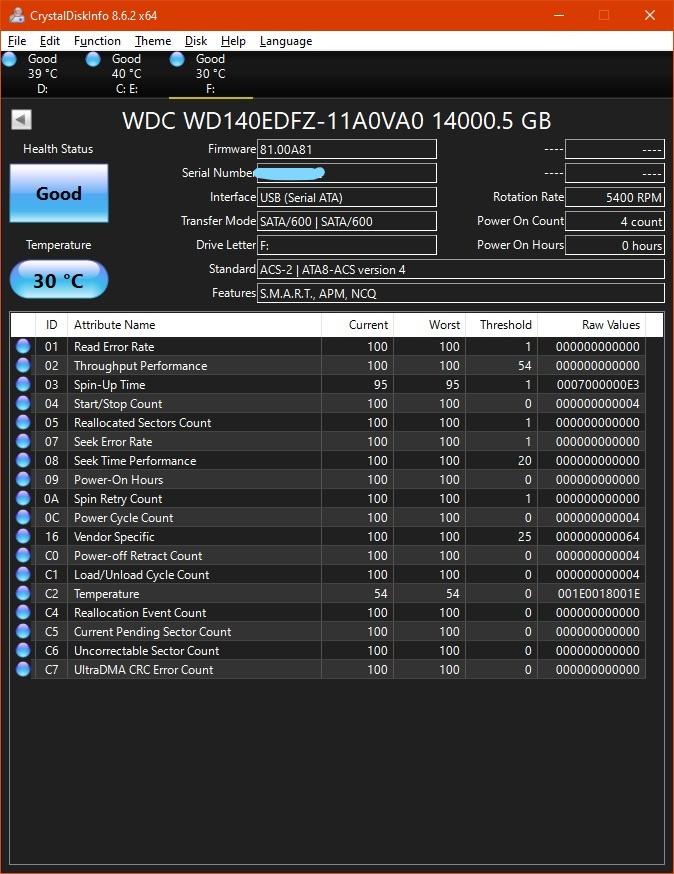
Real-world transfer speeds hover around 150 MB/s for sequential writes, which is faster than most portable drives thanks to the 7200 RPM internal mechanism. Backing up 16TB takes a while the first time, but incremental backups after that are quick.
There are a few real-world quirks. The drive can be noisy when first spinning up after sleep, which surprises some users. I disabled the sleep mode through WD’s software and let the drive spin continuously. That is a personal preference, but the noise annoyed me during video calls.
Encryption Without the Usual Headaches
Setting up the password takes about two minutes through WD Discovery software. The encryption is hardware-based, so performance does not take a measurable hit. If you forget the password, the data is unrecoverable, so I store the recovery key in a password manager.
Who This Drive Is Really For
Content creators, photographers with multi-year archives, and home users backing up 4K video libraries will benefit most. If your entire data footprint is under 2TB, this drive is overkill. If you are regularly juggling 5-10TB of working files, the 16TB capacity is a lifesaver.
7. LaCie Rugged 4TB – Best Rugged Drive for Travel and Field Backup
LaCie Rugged USB-C, 4TB, Portable External Hard Drive, Drop, Shock, Dust, Rain Resistant, for Mac & PC (STFR4000800)
4TB capacity
USB-C
Drop shock dust rain resistant
Pros
- Drop
- shock
- dust
- and rain resistant
- USB-C for modern devices
- Bus-powered no adapter needed
- Mac and PC compatible
- Robust build quality
Cons
- Slower than SSD alternatives
- Can get warm during extended use
- Write speeds limited vs SSDs
The LaCie Rugged 4TB is the drive I pack when I am shooting on location. The orange rubber sleeve is not just for looks; it absorbs drops, resists rain, and shrugs off dust. I have personally dropped this drive off a tripod onto gravel and it kept working without missing a file.
USB-C connectivity is the standout feature for travel. I can plug it directly into a modern MacBook, iPad Pro, or USB-C equipped Windows laptop without an adapter. The drive is bus-powered, so I do not need to remember a power brick, which is one less thing in my camera bag.
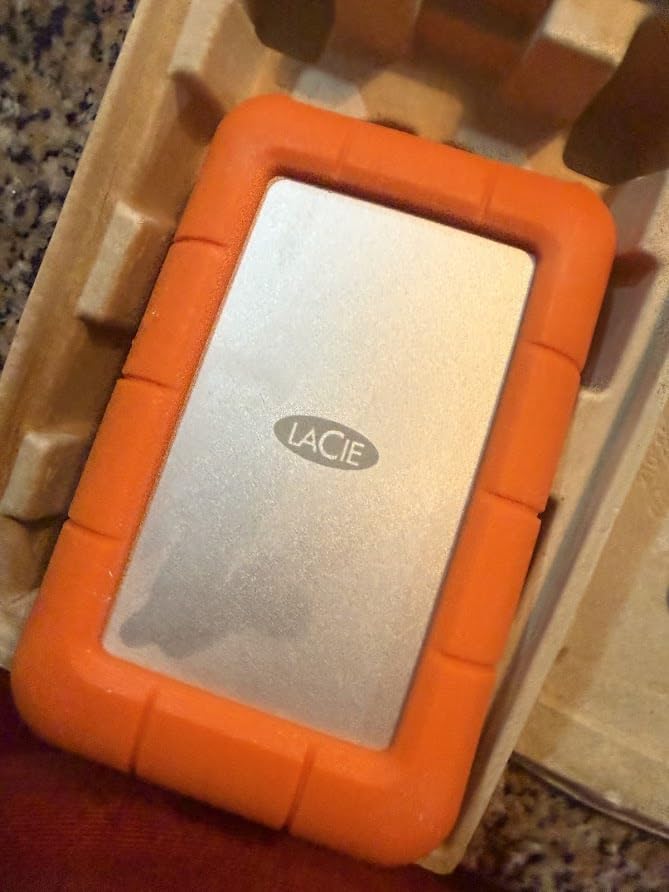
Real-world speeds are around 130 MB/s read and 100-110 MB/s write. Those numbers are typical for a 5400 RPM drive, and they are not going to compete with a portable SSD. For nightly photo backup in the hotel room, they are perfectly adequate.
The 4TB capacity hits the sweet spot for travel. A week-long landscape photography trip generates 200-400GB of RAW files, and the LaCie can hold several trips before I need to offload to a long-term archive. That balance of capacity, durability, and portability is why this drive has been a travel companion for years.
Real-World Durability Testing
LaCie rates the Rugged line for drops from 4 feet onto hard surfaces and crush resistance up to 1 ton. I am not brave enough to test the 1-ton claim, but the 4-foot drop rating matches my experience. Rain resistance is real; I have used the drive in light drizzle without issue.
Heat Management in the Field
The rubber sleeve insulates well, which is good for drops but means the drive runs warm during extended transfers. In hot climates I let the drive rest between large file copies. For typical backup sessions of an hour or less, heat has not been an issue in my testing.
8. Seagate Expansion 24TB – Best Maximum Capacity Desktop Drive
Seagate Expansion 24TB External Hard Drive HDD – USB 3.0, with Rescue Data Recovery Services (STKP24000400)
24TB capacity
7200 RPM
Rescue Data Recovery
Pros
- Massive 24TB capacity
- 7200 RPM high-speed rotation
- Rescue Data Recovery included
- Plug and play
- Quiet operation
Cons
- Mixed reliability reports
- Some reports of data loss
- May need reformatting for Mac
- No hardware encryption
The Seagate Expansion 24TB is the drive you buy when you genuinely need to store a lot. At 24TB, you can back up an entire household’s worth of computers, several years of 4K video projects, and large photo archives on a single drive. The 7200 RPM mechanism is faster than the 5400 RPM alternatives, helping large file transfers complete faster.
This drive sits firmly in the desktop category. It needs the included power adapter and is not designed for travel. For a permanent home or office backup target, the value per terabyte is hard to argue with. The included Rescue Data Recovery Service adds extra peace of mind given the amount of data you would be storing.
Real-world speeds are around 180-200 MB/s for sequential reads and 150-170 MB/s for writes, which is faster than most 5400 RPM desktop drives. That extra speed matters when you are pushing hundreds of gigabytes in a single session. Incremental backups after the initial sync are very fast.
The 4.0-star rating with only 216 reviews is the lowest sample size in this guide, which is worth noting. The drive is newer, and long-term reliability data is still accumulating. I would treat it as a secondary backup target rather than a single source of truth, at least until more long-term reviews come in.
Is 24TB Overkill for Home Users?
For most households, yes. But for power users with extensive media libraries, 4K video projects, or family photo archives spanning decades, 24TB is reasonable. A 1-hour 4K video at high bitrate is 50-80GB, so a year of regular video work adds up quickly.
Pairing Strategy for Maximum Safety
If you go with a 24TB drive, pair it with a smaller portable drive and rotate them. Store one offsite (a family member’s house, a safe deposit box, a fireproof safe) and keep one connected. That 3-2-1 backup approach protects you against fire, theft, and drive failure simultaneously.
How to Choose the Best External Hard Drive for Backups
Choosing the right backup drive comes down to four questions: how much storage do you actually need, do you need portability, do you need encryption, and how long do you plan to keep the drive. Get those four answers right and the rest is just picking from a short list.
Capacity Planning: How Many TB Do You Really Need?
A common mistake is buying a drive that is too small. If your computer has 1TB of data, a 1TB backup drive gives you no room to grow. I recommend buying at least 2x your current data size. That gives you room for the next 2-3 years of new files, plus space for older backups you might want to keep.
Here is a quick guide from real use cases: 1TB covers basic document and photo backups for light users. 2TB is the sweet spot for most households with a mix of photos, documents, and modest video libraries. 4-5TB works for photographers with multi-year RAW archives or families shooting a lot of video. 8-16TB is for power users, small offices, and content creators. 24TB and above is for serious media libraries and archival use.
Portable vs Desktop: Which Form Factor Is Right?
Portable 2.5-inch drives are bus-powered, weigh a few ounces, and slip into a bag. They are the right choice for laptop backups, travel, and rotating offsite storage. The trade-off is capacity ceiling, with most portable drives topping out around 5TB.
Desktop 3.5-inch drives need a power adapter, weigh a few pounds, and stay on your desk. They are the right choice for primary backup targets, large archives, and any situation where capacity matters more than portability. The trade-off is that you cannot easily take them on the road.
SSD vs HDD for Backups: Which Should You Buy?
For most backup scenarios, HDDs are the right choice. They offer much better value per terabyte, which matters when you are backing up hundreds of gigabytes or multiple terabytes. A 4TB HDD costs less than a 1TB portable SSD, and that math only gets more lopsided at higher capacities.
SSDs make sense for backups when speed is critical (rapid restore times, frequent travel where drops are likely) or when you need a drive that can survive rough handling. For a quiet desktop backup that runs overnight, an HDD delivers everything you need at a fraction of the cost.
USB-C, USB 3.0, and Connector Confusion
USB-C is the modern standard. If your laptop has USB-C ports, prioritize drives with USB-C connectors for fewer adapters. USB 3.0 (also called USB 3.2 Gen 1) is the older rectangular USB-A style, and it is still fast enough for any HDD. Micro-B is a smaller rectangular connector that some drives use, and you will likely need an adapter for modern laptops.
For most backup scenarios, the speed difference between USB 3.0 and USB 3.2 Gen 2×2 is irrelevant. HDDs cannot saturate even USB 3.0 bandwidth, so paying extra for faster interfaces only matters if you eventually switch to an SSD.
Encryption: When It Matters and When It Does Not
Hardware encryption matters if the drive contains sensitive data and could be lost or stolen. Client work, financial records, medical files, and business documents all benefit from AES 256-bit encryption. If the drive is going to sit on a desk at home and never leave, encryption is less critical.
The WD My Passport and WD My Book lines both include hardware encryption with password protection. If you travel with a drive or store it anywhere with physical security risk, encryption is worth the small price premium.
The 3-2-1 Backup Rule for External Drives
The 3-2-1 backup rule is simple: keep 3 copies of your data, on 2 different types of media, with 1 copy offsite. External hard drives fit naturally into this strategy. Your primary data lives on your computer, a local backup on an external drive, and a third copy in the cloud or at a different physical location.
For most home users, this translates to: your computer’s internal drive, one external drive at home, and either a second external drive you rotate offsite or a cloud backup service. The 3-2-1 approach protects you against drive failure, accidental deletion, theft, fire, and natural disasters.
Backup Software and Automation Tips
Most external drives include basic backup software, but I prefer third-party tools for serious backup routines. Time Machine on Mac and File History on Windows handle automated backups well out of the box. For more control, tools like Acronis True Image, Macrium Reflect, or Backblaze Personal add features like versioning, scheduling, and cloud sync.
The key is automation. A backup you have to remember to run is a backup that will fail when you need it. Set up your backup to run on a schedule, verify it once a month, and replace the drive every 3-5 years before it fails.
External Hard Drive FAQ
What is the best hard drive for data backup?
The best hard drive for data backup depends on your needs, but for most people the WD 2TB My Passport offers the best balance of security, capacity, and value. It includes 256-bit AES hardware encryption, backup software with ransomware protection, and a 3-year warranty. For pure value, the WD 2TB Elements Portable has 165k+ reviews averaging 4.7 stars. For maximum capacity, the Seagate Expansion 24TB delivers 24TB at a strong price per terabyte.
Can I use an external hard drive for backup and storage?
Yes, you can absolutely use an external hard drive for both backup and active storage. Many people partition a single drive into a backup section and a storage section, or simply use folders to separate the two. Just remember that a drive used for both purposes is a single point of failure, so keep at least one separate backup of your most important data on a different drive or in the cloud.
Is an SSD or HDD better for backup?
For most backup scenarios, an HDD is the better choice because it offers significantly more storage capacity per dollar. A 4TB HDD costs less than a 1TB portable SSD, and that value gap widens at higher capacities. SSDs make sense for backups when you need fast restore times, frequent travel, or extreme durability. For overnight backups of large amounts of data, an HDD delivers everything you need at a fraction of the cost.
What kind of external hard drive is best for long-term storage?
For long-term storage, choose a desktop-class HDD with at least 4TB of capacity and a 3-year warranty. The WD 16TB My Book and Seagate Expansion 8TB are both strong choices. Store the drive in a cool, dry location with stable temperature, ideally in a fireproof safe or offsite location. Power the drive on once every few months to keep the mechanical parts lubricated and to verify the data is still readable.
Final Verdict: Which External Hard Drive Should You Buy?
If I had to recommend just one drive from this entire guide, it would be the WD 2TB My Passport for most people. The combination of hardware encryption, ransomware-aware backup software, and a 3-year warranty covers the things that actually matter when a backup drive fails: data security and recoverability.
For shoppers on a tighter budget, the WD 2TB Elements Portable is the obvious choice. At 4.7 stars across 165k+ reviews, it has more proven customer satisfaction than almost any drive on the market, and it does the simple job of backing up files without any fuss.
If you need capacity, the WD 16TB My Book is the drive I trust for archival storage. The encryption and 3-year warranty make it suitable for both home users and small business backups. The included software makes automated backups straightforward.
For travelers and field photographers, the LaCie Rugged 4TB is the only choice that makes sense. The drop, shock, and rain resistance have saved my files on more than one occasion, and the USB-C connectivity means fewer adapters in my bag.
Whatever drive you choose in 2026, remember the most important backup rule: a single copy is not a backup. Buy two drives, keep one connected and one offsite, and rotate them on a schedule. The best external hard drive for backups is the one that is still readable when everything else goes wrong.