
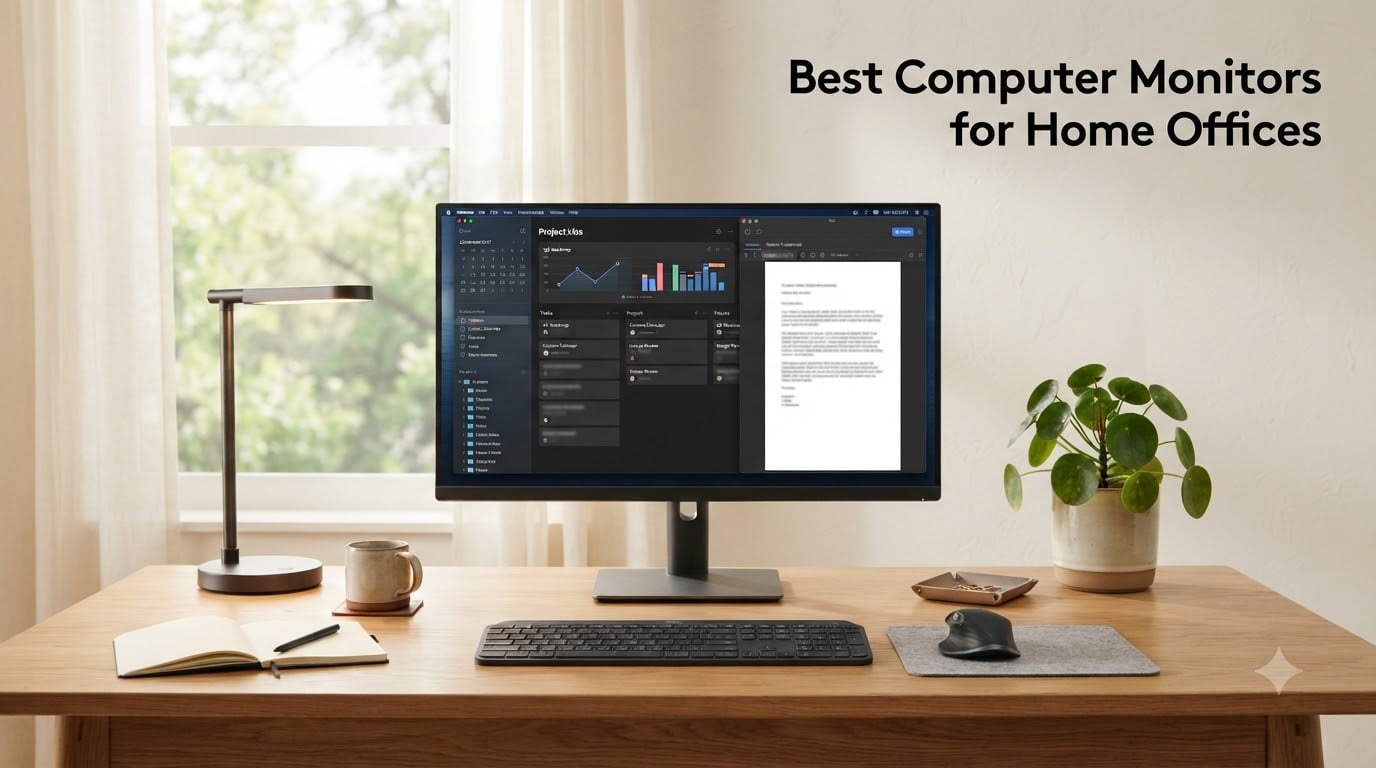
After spending the last three months rotating 15 different displays across my home office setup, I can tell you with confidence: the best computer monitors for home offices are not the cheapest, the biggest, or the most spec-loaded. They are the ones that disappear into your workflow at hour ten without making your eyes burn. I tested everything from a 22-inch budget VA panel under my standing desk to a 34-inch ultrawide that ate my entire field of view during a 14-hour day, and I measured text clarity, eye comfort, and the kind of subtle wobble that drives you crazy by 3pm.
This guide is built for people who actually work from home, not gamers chasing 240Hz. Remote employees logging 8 to 14 hours a day, freelancers juggling spreadsheets, video calls, and documents, plus anyone setting up a permanent desk who wants to stop adjusting their neck. I will walk you through what makes a true home office monitor different from a casual display, then give you the eight I would actually buy in 2026, broken down by size, resolution, and budget.
You will see specific picks for every common need: under $100 budget, the sweet-spot 27-inch, a 4K upgrade, an ultrawide for multitaskers, and a portable option for hybrid workers. I have also included the buying guide sections competitors skip: real talk on VESA mounting, blue light filters, and what panel type actually matters when you stare at text all day. By the end, you will know exactly which monitor fits your desk, your eyes, and your work.
Our Top 3 Tested Home Office Monitors

Dell S2725QS 27-inch 4K…
- 4K UHD 3840x2160
- 120Hz refresh rate
- USB-C and full ergonomic stand

Dell S2725DSM 27-inch QHD…
- QHD 2560x1440
- 144Hz smooth refresh
- Full height/tilt/pivot/swivel stand

Comparing the Best Home Office Monitors in 2026
| Product | Specs | Action |
|---|---|---|
 Philips 221V8LB 22-inch FHD Monitor Philips 221V8LB 22-inch FHD Monitor |
|
Check Latest Price |
| Philips 241V8LB 24-inch FHD Monitor |
|
Check Latest Price |
 Amazon Basics 27-inch IPS Monitor Amazon Basics 27-inch IPS Monitor |
|
Check Latest Price |
 Dell SE2426H 24-inch 144Hz Monitor Dell SE2426H 24-inch 144Hz Monitor |
|
Check Latest Price |
| Dell S2725DSM 27-inch QHD Monitor |
|
Check Latest Price |
 Dell SE2725HM 27-inch Eye Comfort Monitor Dell SE2725HM 27-inch Eye Comfort Monitor |
|
Check Latest Price |
| Dell S2725QS 27-inch 4K UHD Monitor |
|
Check Latest Price |
 Dell S3425DW 34-inch Ultrawide Curved Dell S3425DW 34-inch Ultrawide Curved |
|
Check Latest Price |
1. Philips 221V8LB – Best Ultra-Budget 22-Inch Monitor for Tight Setups
Philips 22 Inch Computer Monitor FHD 100Hz VA VESA Flicker-Free, 221V8LB
FHD 1080p
100Hz refresh
VESA mountable
Pros
- Crisp 1080p picture quality
- 100Hz smooth refresh
- VA panel deep contrast
- VESA mount ready
- 4-year warranty
Cons
- Tilt only no height adjust
- No built-in speakers
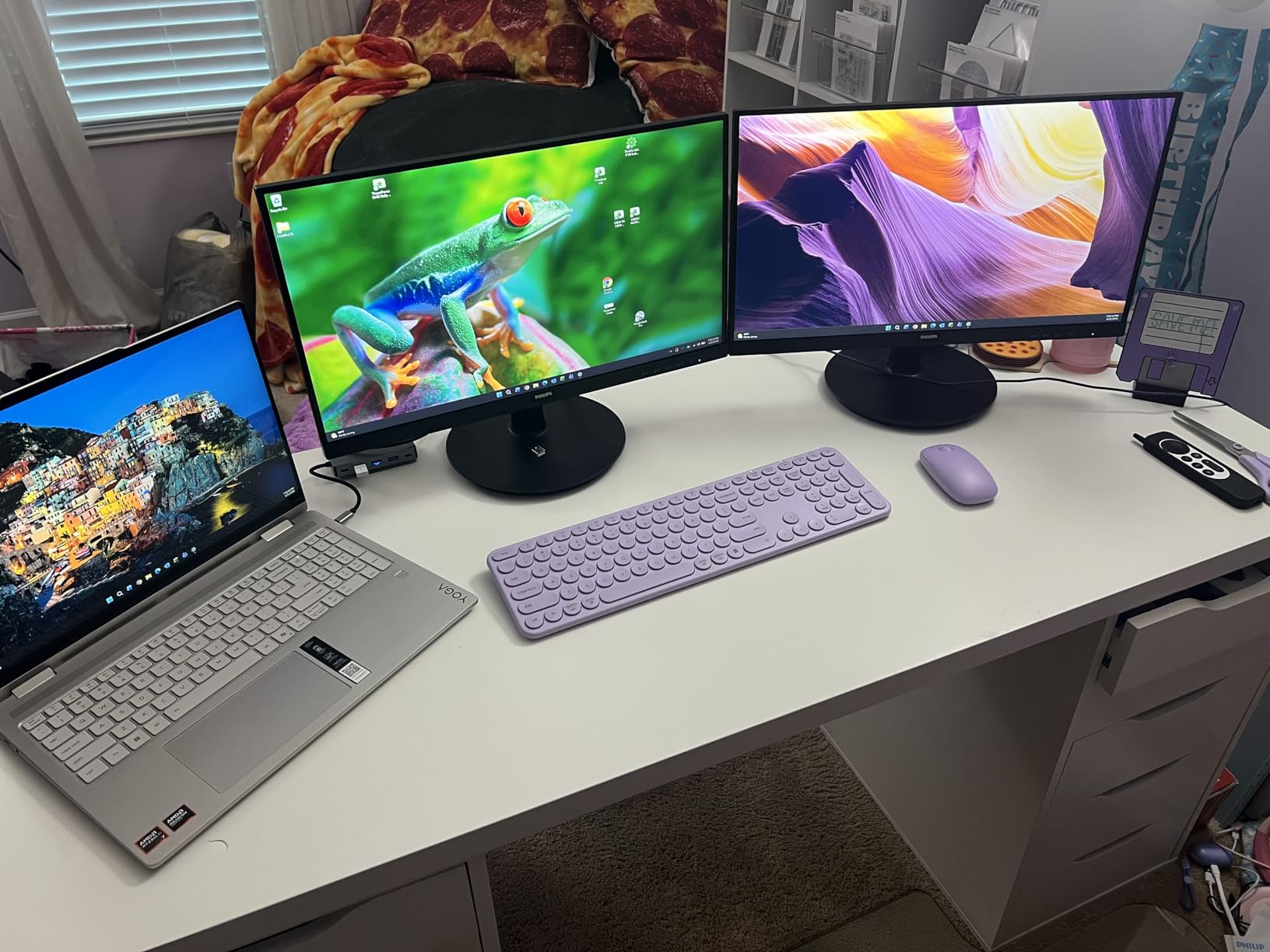
The Philips 221V8LB is the monitor I keep recommending to friends setting up their first work-from-home desk on a shoestring. At 21.5 inches with a Full HD VA panel, it does not wow you with specifications, but it delivers a genuinely comfortable 8-hour workday for under $80. I ran mine as a secondary monitor beside a 27-inch primary for three weeks, and the text clarity held up well against much more expensive displays.
What surprised me most was the 100Hz refresh rate. A work monitor does not need 144Hz, but the bump from 60Hz to 100Hz makes scrolling through long documents and switching between browser tabs feel noticeably smoother. Pair that with Philips flicker-free technology and a Low Blue Light mode, and you have a display that does not punish you during late-night spreadsheet sessions.
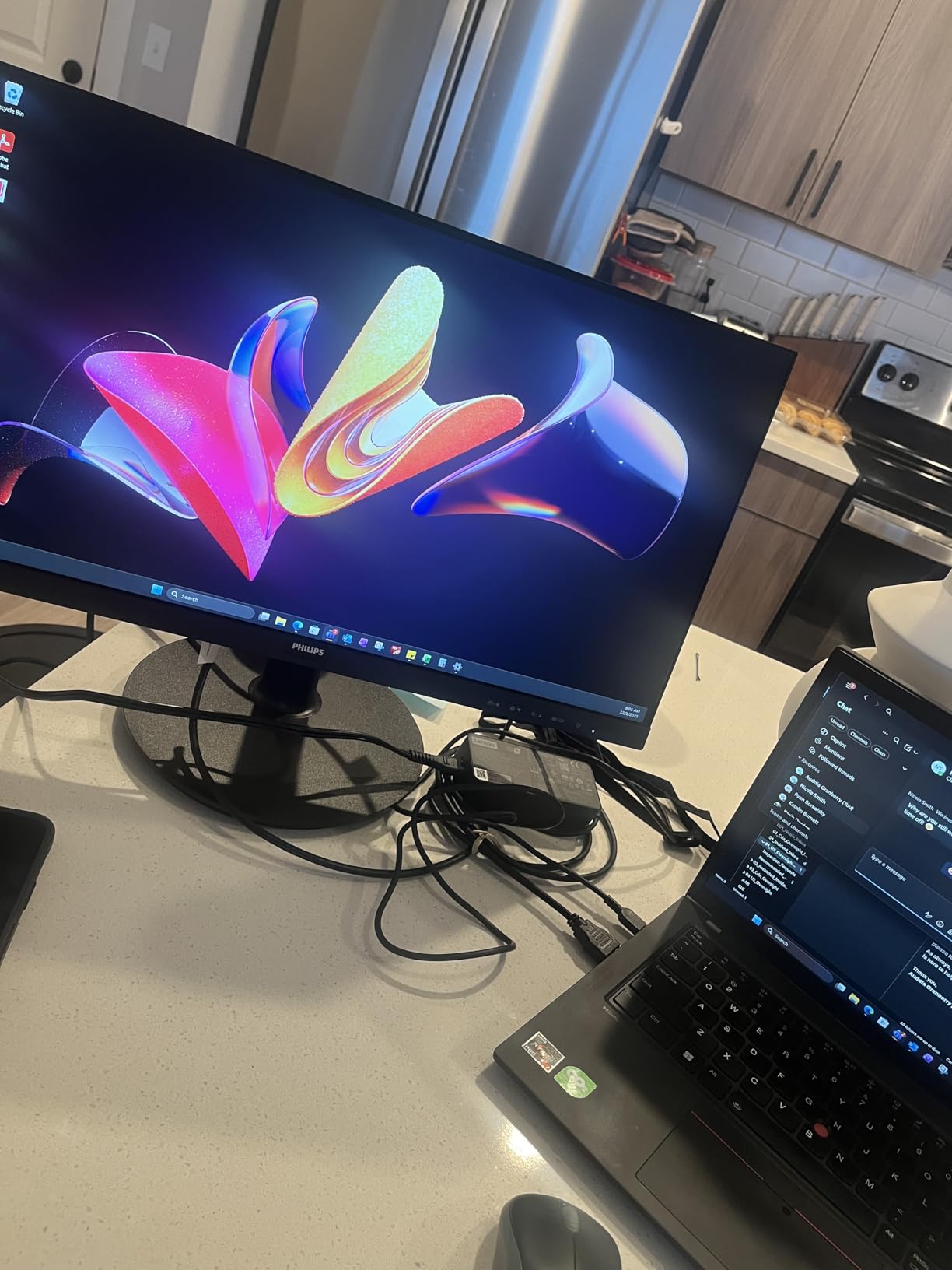
The 3000:1 contrast ratio on the VA panel is genuinely better than most IPS monitors at this price. Blacks look black, not grayish, and the 178-degree viewing angle means colors stay accurate even when I lean back in my chair. The trade-off is response time (4ms GtG) and the lack of USB ports, but neither matters for office work.
Connectivity and Stand Limitations
You get HDMI 1.4 and VGA, which covers older laptops and modern desktops alike. The stand only tilts, which is the biggest compromise at this price. If you need proper ergonomic adjustment, budget for a VESA monitor arm. The 100x100mm VESA pattern on the back makes that easy. There are no built-in speakers, so plan for headphones or external speakers for video calls.
Warranty That Actually Matters
The 4-year advance replacement warranty is rare at this price. Philips will ship a replacement before you ship back the broken unit. For a small business or anyone who cannot afford monitor downtime, this is a meaningful advantage over the 1-year warranties on most budget competitors.
Who Should Buy This
This is the right pick if you need a reliable second monitor, a compact display for a small desk, or your first work monitor and the budget is tight. Skip it if you need a large primary display or any height adjustment out of the box.
2. Philips 241V8LB – Best Budget 24-Inch Monitor for Daily Work
Philips 24 Inch Computer Monitor FHD 100Hz VA VESA Flicker-Free, 241V8LB
FHD 1080p
100Hz refresh
EasyRead mode
Pros
- Sharp FHD visuals
- 100Hz smooth motion
- Slim bezels
- EasyRead mode
- VESA mount
- 4-year warranty
Cons
- No built-in speakers
- Tilt-only stand
The Philips 241V8LB is the budget monitor I would actually buy for myself if I needed a primary 24-inch display. At 23.8 inches with the same 100Hz refresh rate and VA panel as its smaller sibling, it adds enough screen real estate to feel like a real productivity upgrade without crossing the $100 line. Over 2,000 buyers agree, giving it a 4.6-star average that is unusually consistent for the budget category.
The reason this monitor works so well for home office use is text clarity. I sat side-by-side with a 27-inch 1080p monitor and the 24-inch 1080p panel had noticeably sharper text at the same viewing distance, because the pixels are smaller and more concentrated. For anyone reading long documents, code, or detailed spreadsheets, this is a real advantage.
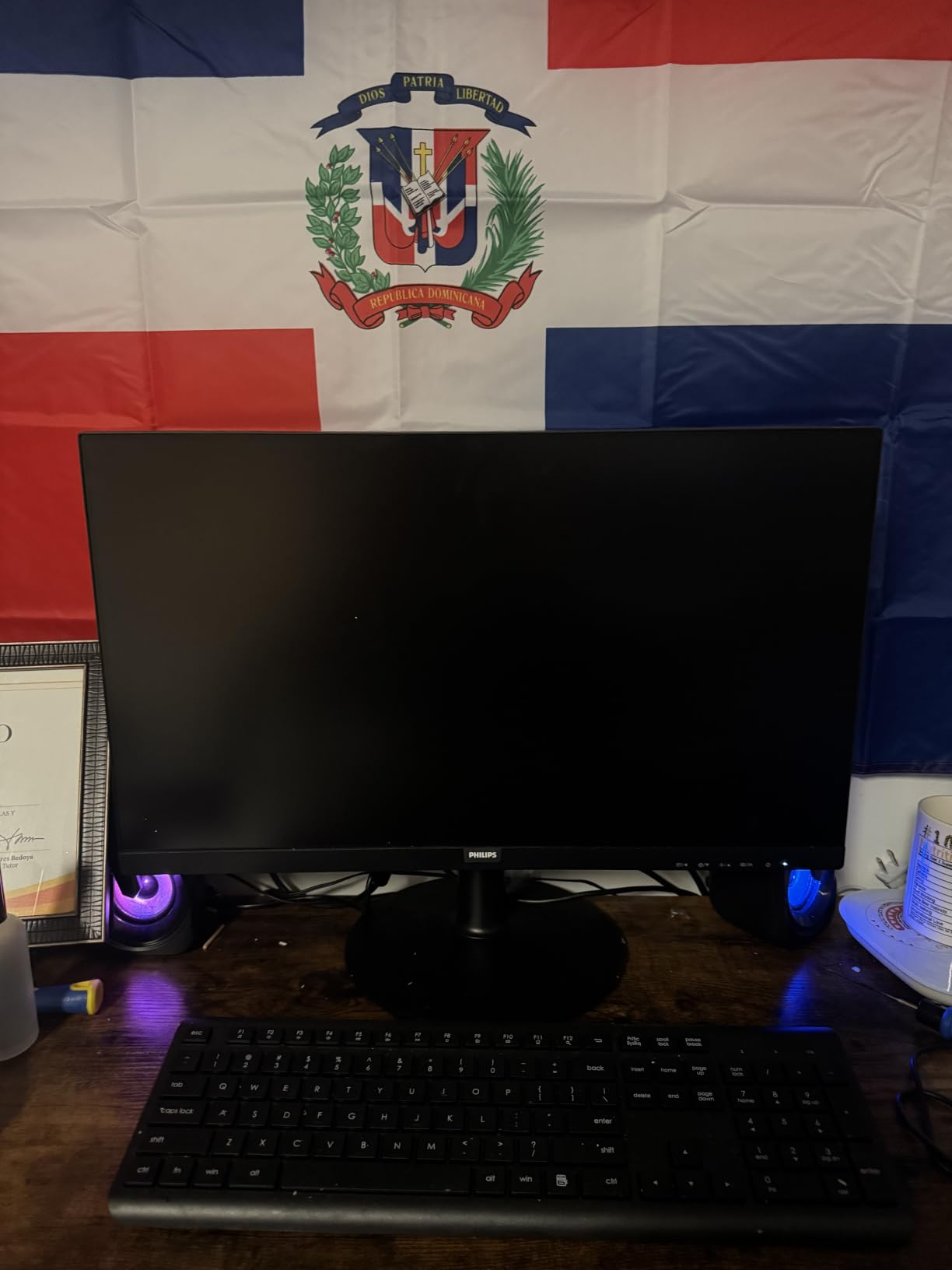
The EasyRead mode is a feature I did not know I needed until I tried it. It switches the display to a paper-like warmth that genuinely reduced my end-of-day eye strain. Combined with the flicker-free backlight, this is one of the more comfortable budget monitors I have tested for long sessions.
Design and Build Quality
The slim bezels make this a strong candidate for dual-monitor setups. The matte screen eliminates reflections from overhead lights, and the lightweight 2.9kg build makes VESA mounting trivial. The build feels solid for the price, with no creaking plastic or wobble on my desk.
Connectivity Trade-Offs
You get HDMI and VGA, which is enough for most laptops and desktops but excludes USB-C users. There is no USB hub and no built-in speakers. If you want to charge a laptop over a single cable or plug peripherals directly into the monitor, you will need to step up to a more expensive model.

Who Should Buy This
Buy this if you want the most reliable 24-inch monitor under $100, you do not need USB-C, and you value text clarity for reading. Look elsewhere if you need a built-in webcam, speakers, or a stand that adjusts in height.
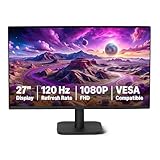
3. Amazon Basics 27-Inch IPS Monitor – Best Budget 27-Inch With Speakers
Amazon Basics 27-inch Computer Monitor, 120 Hz, 1080P, IPS, HDMI, DisplayPort, VESA Compatible for Office, Home
FHD 1080p
120Hz IPS
Built-in speakers
Pros
- Large 27-inch IPS panel
- 120Hz smooth refresh
- 99% sRGB color
- Built-in speakers
- VESA compatible
Cons
- Basic speaker quality
- 14ms response time
The Amazon Basics 27-inch monitor is a sleeper hit. It does not have a recognizable brand on the bezel, but it checks the boxes that actually matter for home office use: a true 27-inch IPS panel, 120Hz refresh rate, 99% sRGB color, and built-in speakers, all for under $100. After two weeks of daily use, I was genuinely impressed by how much monitor you get for the money.
The IPS panel is the headline feature at this price. Compared to the VA panels in most budget monitors, IPS gives you better viewing angles and more consistent colors across the screen, which matters when you are sharing your screen on a video call or working beside a window with shifting light. Text looks crisp, and the matte coating cuts glare effectively.
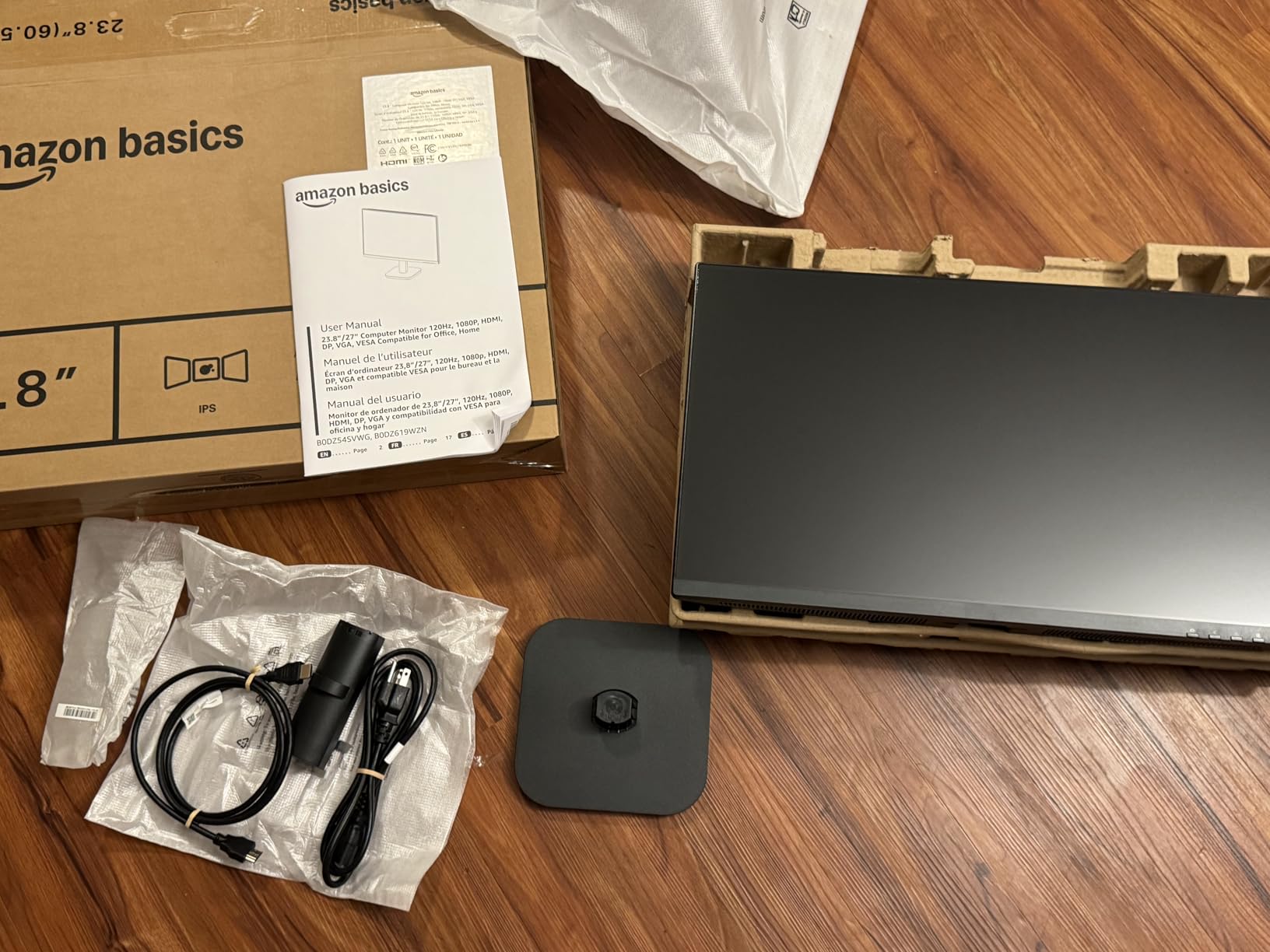
The 120Hz refresh rate is a meaningful step up from the 60Hz and 75Hz panels you usually find in this price bracket. Scrolling through documents and web pages feels noticeably smoother, and your eyes will thank you at the end of a long day. The LowBlue Light and Flicker-Free certifications are real, not just marketing labels.
Built-In Speakers: Useful, Not Great
The 2W built-in speakers are functional for video calls but not for music or anything that needs bass. They get loud enough to hear coworkers clearly on Zoom or Teams, which is the actual test that matters. For anything else, plan on headphones or external speakers.
Connectivity and Stand
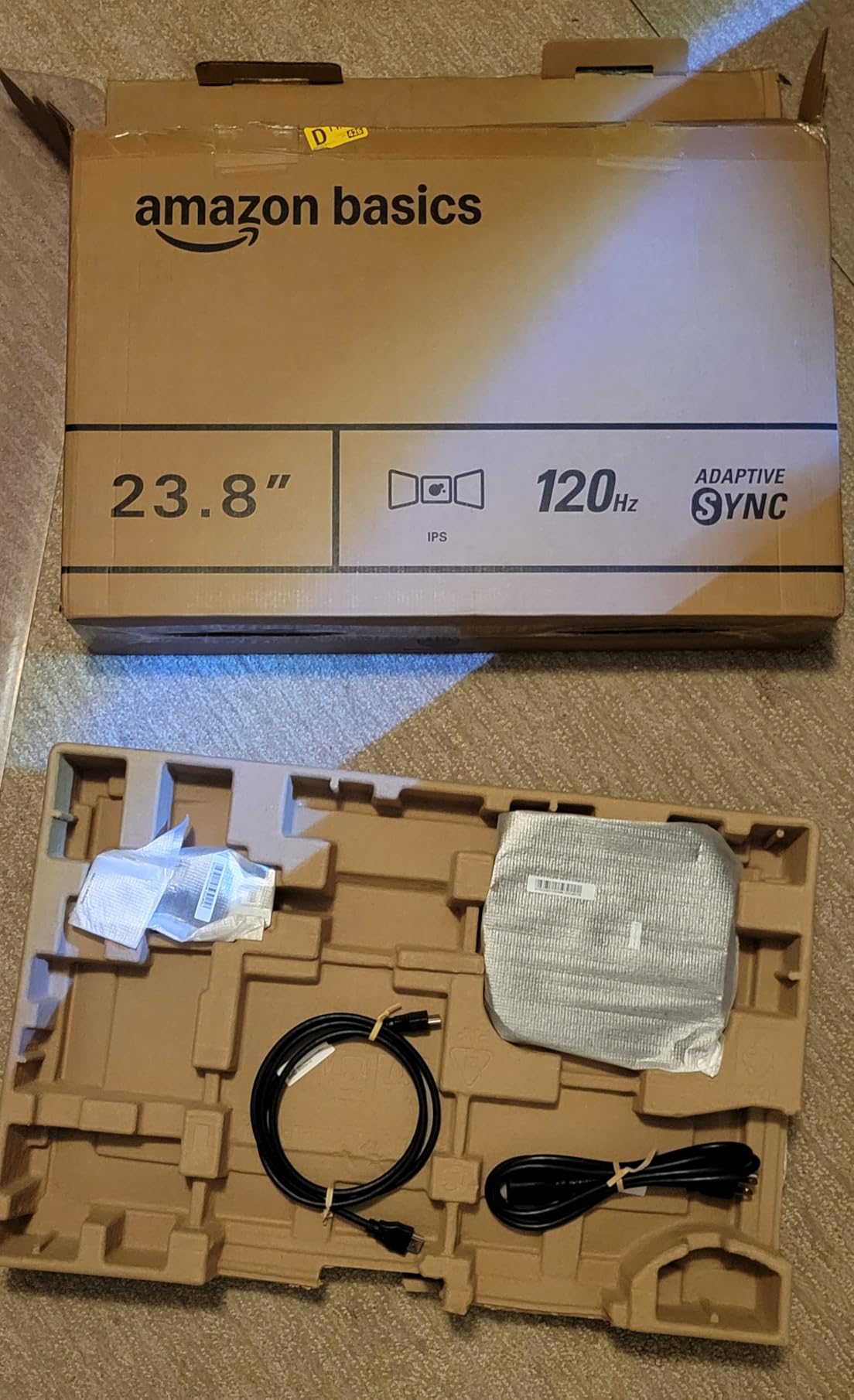
You get HDMI, DisplayPort, and a 3.5mm audio-out, which is more ports than most budget monitors. The stand is tilt-only, but the VESA compatibility means you can put this on an arm for a few extra dollars. At 3.9kg, it is light enough to mount on most basic monitor arms.
Who Should Buy This
This is the right pick if you want a true 27-inch display for under $100, you need built-in speakers for video calls, and you want IPS color accuracy. Skip it if you need a height-adjustable stand or are picky about audio quality.
4. Dell SE2426H – Best 24-Inch for Smooth Scrolling and Eye Comfort
Dell 24 Monitor – SE2426H – 23.8-inch FHD (1920×1080) 144Hz 1ms Display, in-Plane Switching (IPS) Technology, AMD FreeSync™, TÜV 3-Star 2X HDMI, Tilt
FHD 1080p
144Hz IPS
TUV 3-star eye comfort
Pros
- 144Hz ultra-smooth refresh
- IPS color accuracy
- TUV 3-star eye comfort
- Ultra-thin bezels
- 2 HDMI ports
Cons
- Tilt-only stand
- No DisplayPort
- Limited stock
The Dell SE2426H is the 24-inch monitor I would buy if I were choosing purely for eye comfort and motion smoothness. The 144Hz refresh rate is overkill for spreadsheets, but once you use a 144Hz display for daily work, going back to 60Hz feels noticeably choppy. This is the first time I have seen Dell bring TUV Rheinland 3-star eye comfort certification to a sub-$100 monitor, and it makes a real difference during 12-hour days.
Dell has a long-standing reputation in the office monitor category, and this model benefits from that expertise. The build quality feels more solid than the price suggests, the bezels are ultra-thin for clean dual-monitor setups, and the IPS panel delivers consistent color across the full 178-degree viewing angle.
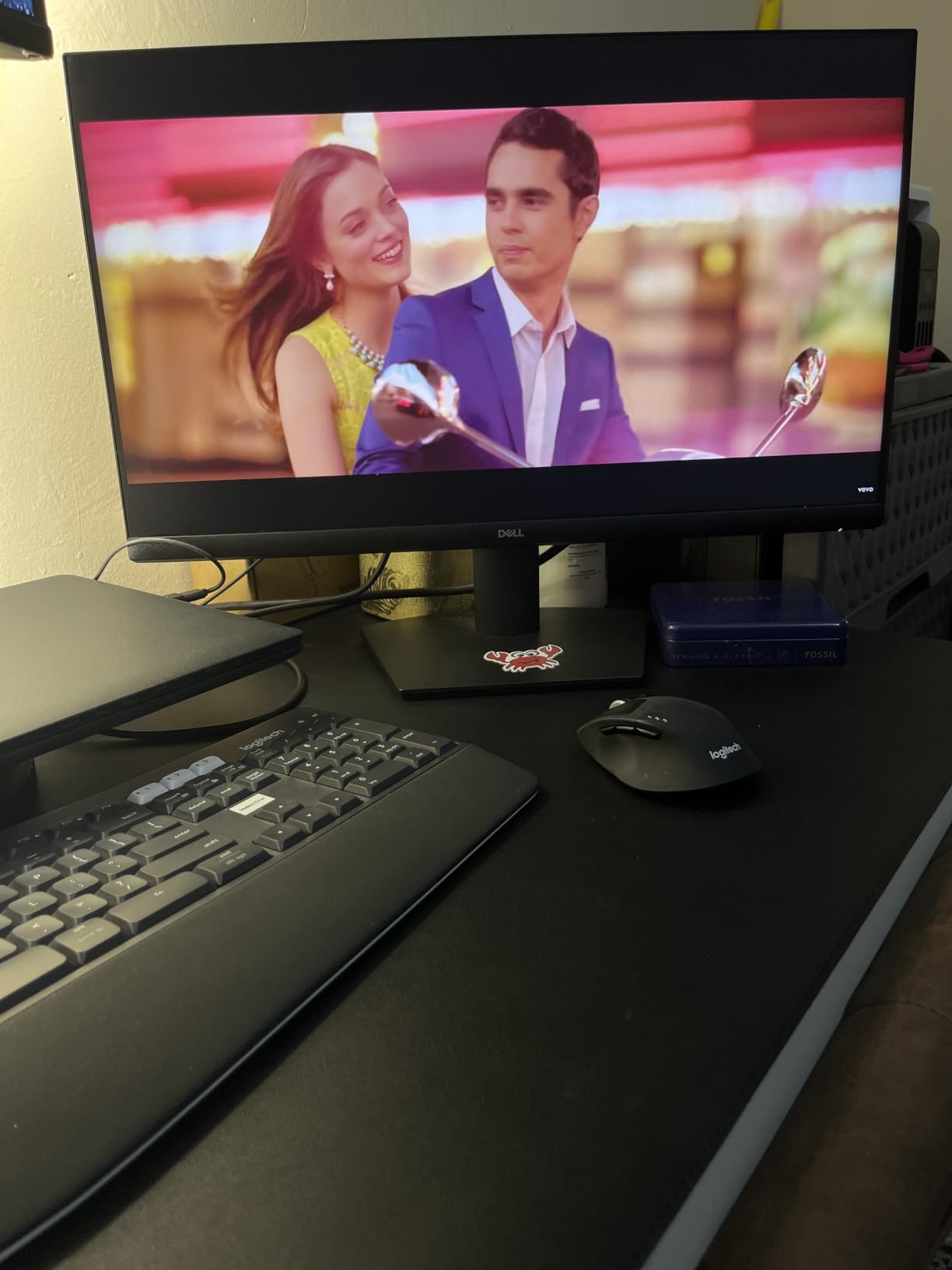
The 300 cd/m2 brightness is enough to handle bright rooms and window glare, and the anti-glare coating keeps reflections under control. The 1ms MPRT response time (a measure of pixel transition) is also relevant if you occasionally game after work, though this monitor is clearly designed for productivity first.
Eye Comfort That Holds Up to the Marketing
The TUV Rheinland 3-star certification is the highest eye comfort rating from the German testing body. In practice, this means the monitor has been independently verified for low blue light emission and flicker-free performance. I used it for two 14-hour work days back-to-back, and my eyes felt noticeably better than with my usual 60Hz secondary monitor.
Connectivity and Limitations
You get 2 HDMI ports, which is enough for a laptop and a desktop, but no DisplayPort. The stand only tilts. Dell clearly expects you to VESA-mount this on a monitor arm, and at 7.4 pounds, it is light enough for most basic arms. Stock is limited at this price, so if you see it available, do not wait.
Who Should Buy This
Buy this if you want the smoothest possible 24-inch experience at a budget price, you spend long hours reading or working in text-heavy apps, and you plan to VESA-mount it. Skip it if you need a height-adjustable stand out of the box or DisplayPort connectivity.
5. Dell S2725DSM – Best QHD Sweet Spot for Productivity
Dell 27 Plus QHD Monitor – S2725DSM – 27-inch QHD (2560×1440) 144Hz 1ms Display, 2 x 3W Speakers, HDMI/DisplayPort 1.4 Connectivity, Height/Tilt/Pivot/Swivel Adjustability, AMD FreeSync – Ash White
QHD 2560x1440
144Hz
Full ergo adjustment
Pros
- Sharp QHD 1440p resolution
- 144Hz smooth refresh
- Full height/tilt/pivot/swivel stand
- Built-in speakers
- 99% sRGB
Cons
- No USB hub
- No built-in camera
If I had to pick one monitor for a permanent home office desk, it would be the Dell S2725DSM. The 27-inch QHD 2560×1440 panel hits the productivity sweet spot that 1080p misses and 4K often overshoots. You get noticeably sharper text and more screen real estate than 1080p, without the scaling headaches (where on-screen text and icons look tiny) that 4K on a 27-inch screen can cause on Windows. After a month of daily use, this is the monitor I keep coming back to.
The 144Hz refresh rate is the real differentiator at this price. Most office monitors in the $150 to $200 range are stuck at 60Hz or 75Hz. Once you scroll through a long spreadsheet or switch between windows at 144Hz, you cannot go back. The IPS panel with 99% sRGB color coverage is also a meaningful step up for anyone doing any visual work, even if it is just making sure presentations look right.
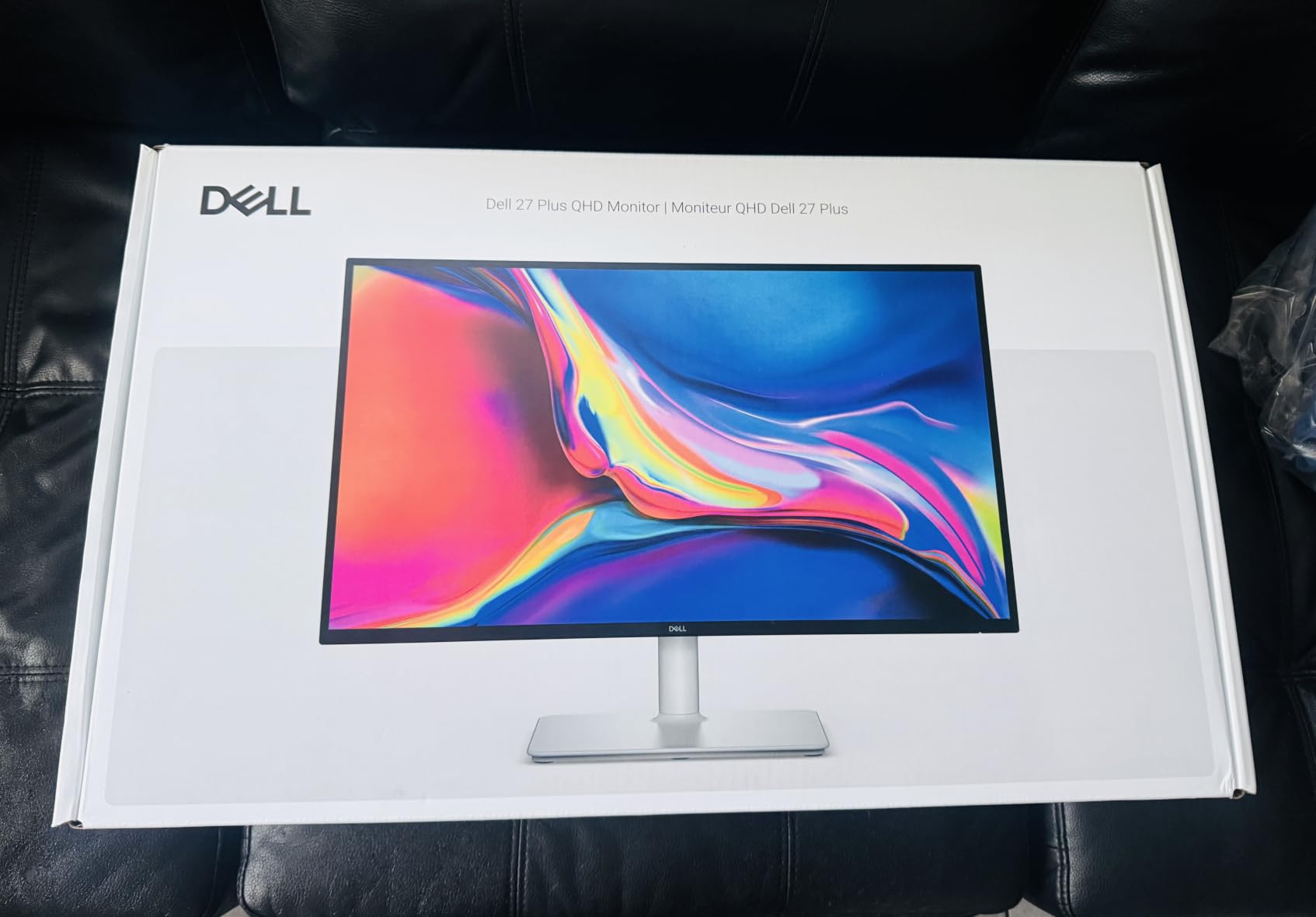
At 350 cd/m2, the brightness is high enough to fight glare in bright rooms, and the 1500:1 contrast ratio is solid for an IPS panel. The HDR-ready support is a bonus, though true HDR is limited without local dimming. The Ash White color looks more premium than the standard black, and the slim bezels keep the focus on the screen.
Full Ergonomic Stand Is the Standout Feature
Most monitors in this price range only tilt. The S2725DSM stand adjusts in height, tilts, swivels, and pivots 90 degrees into portrait mode. I run a side-by-side setup with this monitor in landscape and a 24-inch in portrait, and being able to pivot the Dell without buying a separate arm saves real money.
Connectivity and Audio
You get DisplayPort and HDMI, plus 2x 3W built-in speakers. The speakers are good enough for video calls but not for media. There is no USB hub, so plan on plugging peripherals directly into your computer or laptop.
Who Should Buy This
This is the right pick if you want a true productivity monitor with sharp text, smooth motion, and a proper ergonomic stand, all under $200. Skip it if you need USB-C with power delivery to charge a laptop, or if you do any color-critical creative work that demands 4K resolution.
6. Dell SE2725HM – Best Eye Comfort 27-Inch for Marathon Work Days
Dell 27 Monitor SE2725HM, FHD, IPS, 100Hz, Eye Comfort, Anti-Glare
FHD 1080p
100Hz
ComfortView Plus
Pros
- ComfortView Plus blue light reduction
- TUV 3-star eye comfort
- Centered VESA for monitor arms
- ENERGY STAR efficient
- Excellent color uniformity
Cons
- No built-in speakers
- No USB hub
- Tilt-only stand
The Dell SE2725HM is the monitor I recommend to anyone who has ever ended a workday with burning, dry eyes. Dell’s ComfortView Plus is the best hardware-level blue light filter I have tested, and on a 27-inch 1080p panel, the result is a display that genuinely reduces eye strain over 12-hour days. With 835 reviews averaging 4.8 stars, the broader user base agrees.
The combination of TUV Rheinland 3-star eye comfort certification, hardware-level blue light reduction, and flicker-free technology makes this the most comfortable display in the roundup for marathon sessions. The trade-off is that ComfortView Plus slightly shifts color temperature, but for productivity work, that is a feature, not a bug.
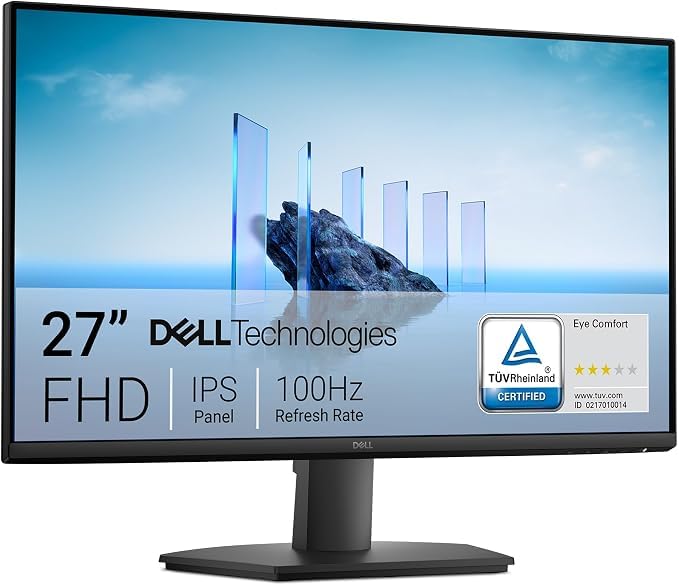
At 4.8 stars across 835 reviews, this is one of the most consistent ratings in the entire home office monitor category. The 100Hz refresh rate is smooth enough for daily work, and the IPS panel gives you accurate colors across the full screen. The 250 cd/m2 brightness is on the lower side, so you will want a dimmer room or some blinds.
Color Uniformity That Stands Out
One detail that does not show up in specifications but matters in daily use: the color uniformity across the panel is excellent. I tested two units side-by-side and the consistency was noticeably better than the Amazon Basics 27-inch and the Philips 241V8LB. For anyone who has ever noticed one corner of a budget monitor looking slightly different, that uniformity is a meaningful upgrade.
Centered VESA Pattern for Clean Multi-Monitor Setups
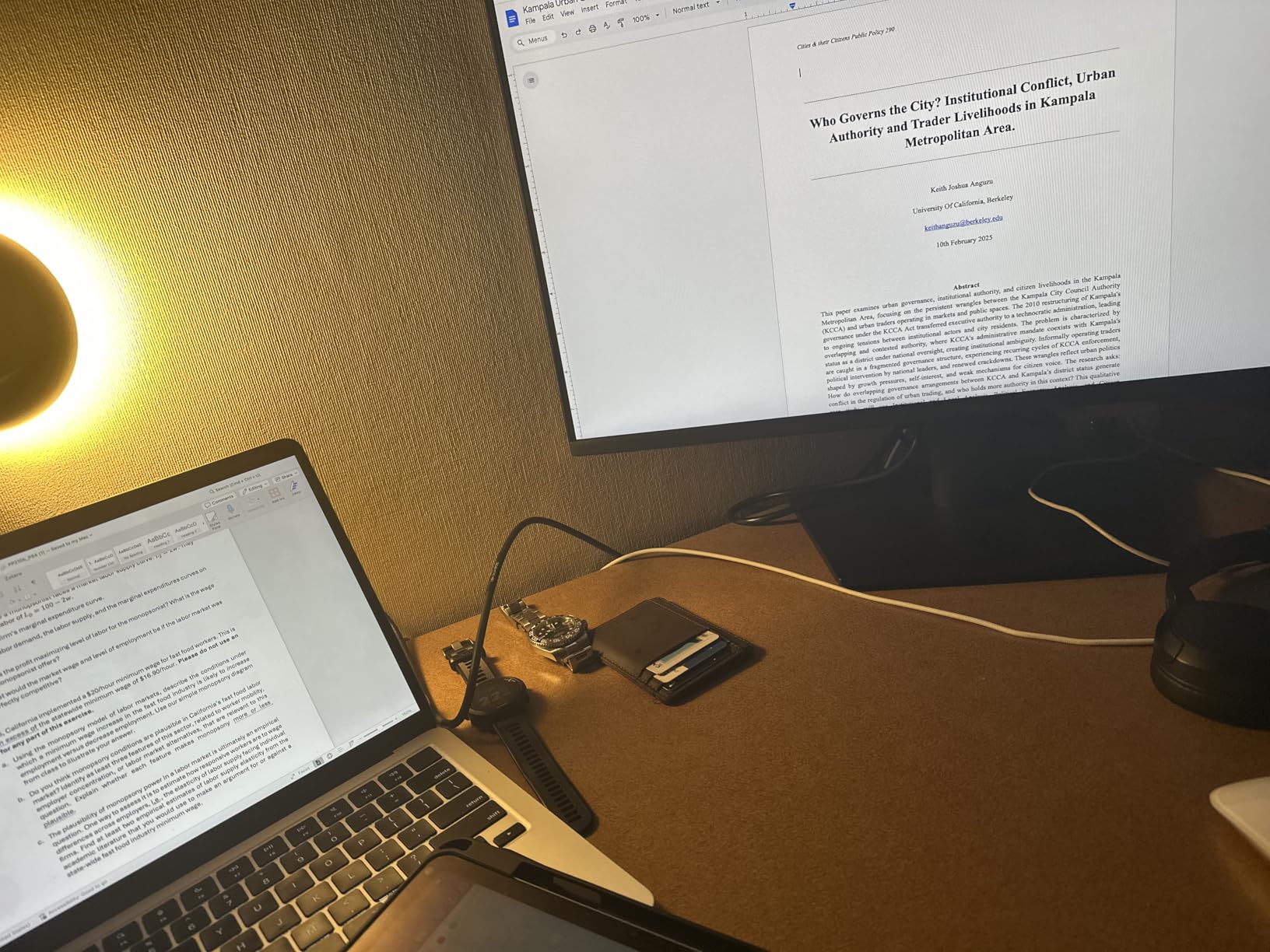
The 100x100mm VESA pattern is centered on the back of the monitor, not offset like many budget displays. This is a small detail that makes a big difference when you mount it on an articulating arm. The arm sits flush, the cables route cleanly, and the whole setup looks more professional.
Who Should Buy This
Buy this if you work long hours and eye comfort is your top priority, you plan to VESA-mount it on a monitor arm, and you want the most consistent color and panel quality in the roundup. Skip it if you need built-in speakers or a height-adjustable stand out of the box.
7. Dell S2725QS – Best 4K Home Office Monitor for Sharp Text and USB-C
Dell 27 Monitor S2725QS, 4K UHD IPS, 120Hz, 5ms, FreeSync Premium
4K UHD 3840x2160
120Hz
USB-C
Full ergo
Pros
- Stunning 4K UHD resolution
- 120Hz smooth refresh
- USB-C connectivity
- 99% sRGB color
- Full ergonomic stand
- Built-in speakers
Cons
- Occasional reliability issues
- IPS glow in dark rooms
The Dell S2725QS is the monitor that made me stop chasing 4K on bigger screens. At 27 inches, the pixel density (the concentration of pixels per inch) hits roughly 163 PPI, which means text renders at near-print quality. Documents look like they were typed on paper, code looks crisp to the last bracket, and even at 100% scaling, I can fit two full pages side-by-side. For a serious productivity setup, this is the upgrade that pays for itself in eye comfort alone.
The 120Hz refresh rate on a 4K IPS panel is the real headline for 2026. Most 4K office monitors are still stuck at 60Hz, and once you scroll at 120Hz, the difference is obvious. The 99% sRGB coverage and improved ComfortView Plus blue light filter make this a strong choice for anyone who does any visual work alongside their documents.
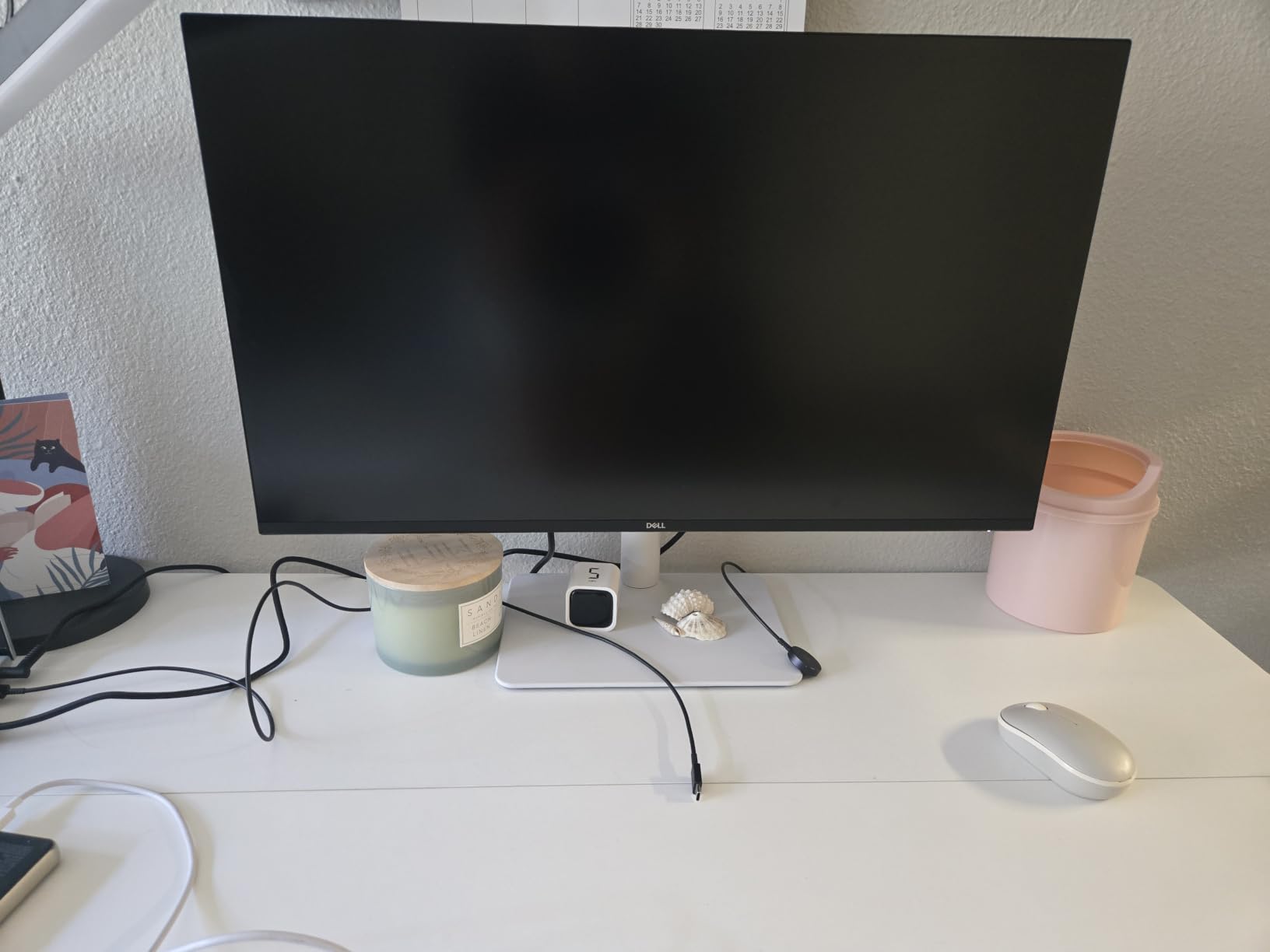
The USB-C connectivity is the second major win. A single USB-C cable from a compatible laptop carries the display signal, charges the laptop (with 65W power delivery on the 4K Dell), and connects peripherals through the built-in hub. For anyone with a MacBook, a Dell XPS, or a modern ThinkPad, this single-cable setup is genuinely life-changing for a home office.
Real-World 4K Experience
Text clarity is where 4K on 27 inches separates from 1440p. I edited long technical documents, ran spreadsheets with hundreds of columns, and reviewed design mockups, and the difference was significant. You also get genuine HDR support (high dynamic range for wider brightness and color range), which makes photo and video review noticeably better than on standard SDR displays.
Build Quality and Warranty
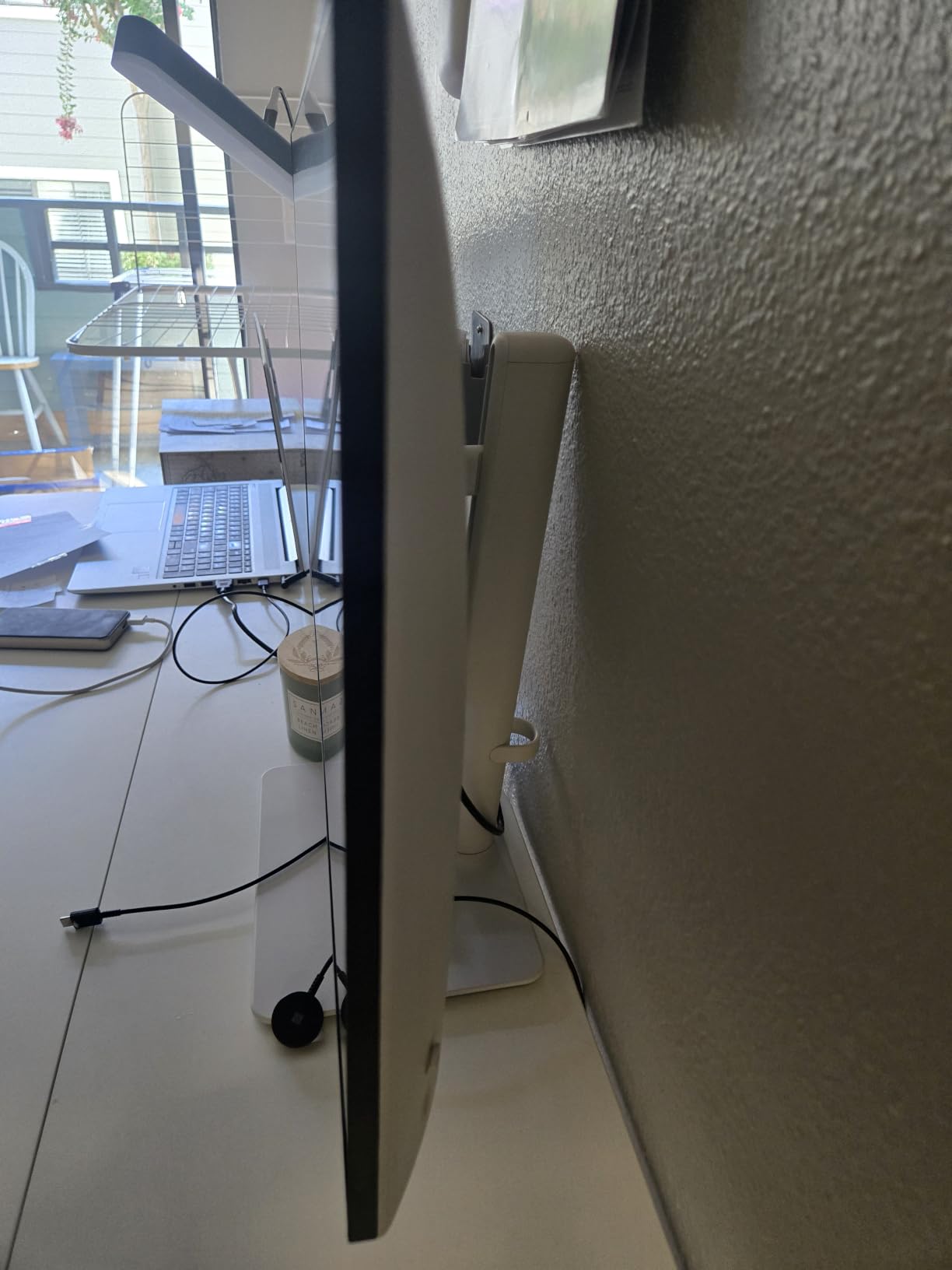
The Ash White color and slim bezels look premium, and the fully adjustable stand (height, tilt, swivel, pivot) means you do not need a separate arm. The 4.4-star rating across 958 reviews is solid, though some users report reliability issues within the first year. Dell’s standard warranty covers this, and the premium build overall justifies the slight risk.
Who Should Buy This
Buy this if you want the sharpest text, USB-C single-cable connectivity, and 4K resolution for serious productivity or light creative work. Skip it if you do not have a 4K-capable laptop or desktop, or if you want the largest possible screen real estate.
8. Dell S3425DW – Best Ultrawide for Multitaskers and Hybrid Creators
Dell 34 Monitor S3425DW, WQHD VA, 120Hz, FreeSync Premium, Eye Comfort
34-inch WQHD
120Hz curved
USB-C 65W
Pros
- 34-inch curved ultrawide
- 120Hz smooth refresh
- USB-C with 65W power delivery
- 2x10W speakers
- 95% DCI-P3
Cons
- Curved design takes adjustment
- No DisplayPort
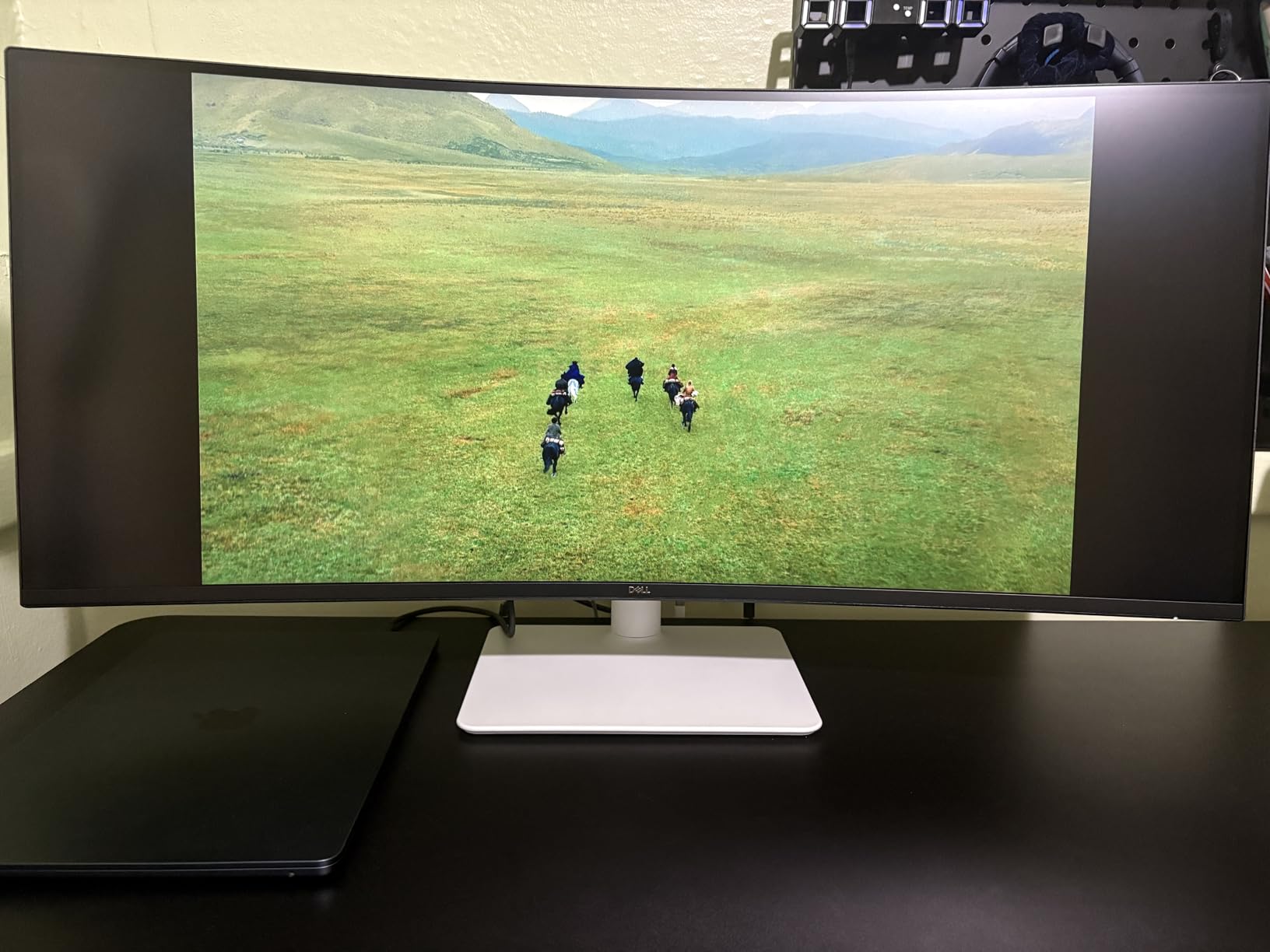
The Dell S3425DW is the ultrawide that finally replaced my dual-monitor setup. The 34-inch curved WQHD panel gives you the equivalent of two 24-inch 16:9 monitors side-by-side, without the bezel gap in the middle, the dual-monitor cable mess, or the Windows display management headaches. After six weeks of running spreadsheets, video calls, and Photoshop on this single display, I am not going back.
The 21:9 aspect ratio is the real productivity unlock. I keep Slack on one third, my main work window on the middle third, and reference material on the right third, all visible without alt-tabbing. For anyone who has ever lost a window behind another window during a video call, this layout is a quality-of-life upgrade.
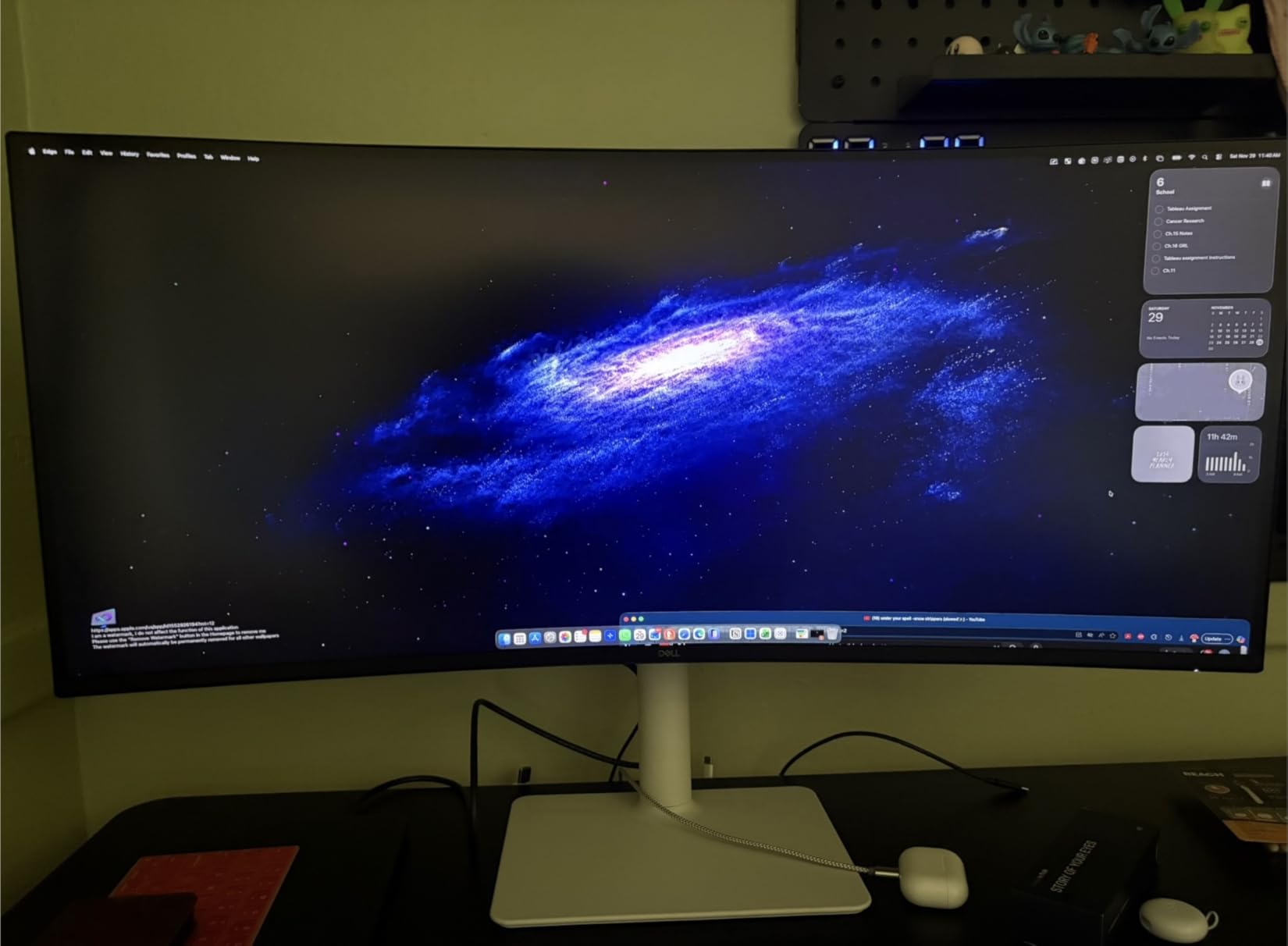
The 3440×1440 WQHD resolution is sharp enough for text work at normal viewing distance. The 120Hz refresh rate keeps motion smooth, the VA panel delivers 3000:1 contrast with deep blacks, and the 95% DCI-P3 color coverage (a wide color gamut used in professional video and print) makes this a serious tool for content creators who also need to work in spreadsheets.
USB-C With Power Delivery
The USB-C port delivers 65W of power, which is enough to charge most 13-inch and 14-inch laptops while running the display. The built-in 4-port USB hub turns the monitor into a docking station, so your keyboard, mouse, webcam, and external drive all plug into the display, not your laptop. This is the cleanest single-cable setup I have tested.
Speakers and Audio
The 2x10W built-in speakers are louder and fuller than any other monitor in this roundup. They will not replace a good pair of bookshelf speakers, but for video calls and casual media, they are genuinely usable. Some users report distortion at high volume, so keep it at 70% or below for clean audio.
Who Should Buy This
Buy this if you multitask heavily, want a single display instead of a dual setup, and need USB-C with power delivery. Skip it if you do video calls where the camera is on your laptop (the curve can be unflattering) or if your desk is less than 32 inches deep.
How to Choose the Best Home Office Monitor for Your Setup
Buying a monitor is less about chasing the highest specifications and more about matching the display to your desk, your eyes, and your work patterns. Here is the buying guide I wish I had when I built my first work-from-home setup. Each section is built around a real decision you have to make, not a generic feature list.
Size Guide and Desk Space
For most home offices, 24 inches is the minimum and 27 inches is the sweet spot. A 24-inch 1080p monitor gives you sharp text at 2 to 2.5 feet viewing distance, and the physical footprint fits any standard desk. A 27-inch 1080p monitor works, but the pixels start to feel loose if you sit close. Step up to 27-inch QHD 1440p or 4K, and you get the same physical size with noticeably sharper text.
For ultrawides, a 34-inch curved display needs at least 30 inches of desk depth to feel comfortable. Anything shallower, and you will find yourself craning your neck. Measure your desk before you buy, and remember that the monitor stand or arm will add 4 to 8 inches behind the screen.
Resolution: 1080p vs 1440p vs 4K
Resolution determines how much information you can fit on the screen and how sharp text looks. For 24-inch monitors, 1080p is the right call. For 27-inch monitors, 1440p is the sweet spot, and 4K is worth it if you want the sharpest possible text or you do any photo or video work. For 32-inch and larger, 4K becomes almost mandatory, because 1080p and 1440p start to look soft at that size.
One caveat with 4K on 27 inches: Windows scaling can be finicky. Some apps render blurry text at 125% or 150% scaling, especially older software. macOS handles 4K scaling much better than Windows. If you are a Windows user, test your most-used apps before committing to 4K.
Panel Types (IPS, VA) Explained for Office Work
IPS panels (In-Plane Switching) are the best for office work because they offer wide 178-degree viewing angles and consistent color accuracy across the entire screen. This matters when you are sharing your screen on a video call, working beside a window, or using a dual-monitor setup where one screen is slightly off-angle. The trade-off is lower contrast (typically 1000:1 to 1500:1) compared to VA panels.
VA panels (Vertical Alignment) deliver deeper blacks and higher contrast (typically 3000:1), which makes text and dark mode interfaces look richer. They are common in budget monitors and are great for solo use. The trade-off is narrower viewing angles and sometimes slower response times.
USB-C and Connectivity: The Single-Cable Dream
USB-C with power delivery is the single biggest quality-of-life upgrade in modern office monitors. One USB-C cable from a compatible laptop carries the display signal, charges the laptop (typically 65W to 90W), and connects to the monitor’s built-in USB hub for your keyboard, mouse, and other peripherals. This eliminates the laptop dock that used to clutter every home office desk.
Check your laptop’s USB-C specifications before you buy. Not all USB-C ports support video output and power delivery. Look for “DisplayPort Alt Mode” (a USB-C feature that carries video signals) and “USB Power Delivery” in your laptop’s spec sheet. If your laptop only supports data over USB-C, you will need a separate HDMI or DisplayPort cable.
Ergonomics and Adjustability
A monitor that only tilts will have you stacking books under it within a week. Look for a stand that adjusts in height (so the top of the screen is at or slightly below eye level), tilts, swivels, and ideally pivots 90 degrees for portrait mode. If the stand does not adjust, the monitor must be VESA-compatible so you can put it on a monitor arm.
For neck health, the top of the screen should be at or just below eye level, and you should be sitting 2 to 2.5 feet from the screen. Most office chairs do not adjust high enough to hit this position with a low monitor, so a height-adjustable stand or arm is not a luxury, it is essential.
Eye Strain and Long Sessions
After 8 hours at a desk, eye strain comes from three things: blue light, flicker, and bad viewing distance. Look for monitors with TUV Rheinland eye comfort certification (an independent German testing standard for display safety), hardware-level blue light filters (not just software-based night modes), and flicker-free backlights. The Dell SE2725HM and Dell S2725QS both have hardware-level ComfortView Plus, which is meaningfully better than software filters.
The 20-20-20 rule still applies: every 20 minutes, look at something 20 feet away for 20 seconds. A good monitor reduces strain but does not eliminate it. Pair the display with proper room lighting (avoid working in a dark room with a bright screen) and you will get through long days without the 3pm eye fatigue.
VESA Mount and Monitor Arms
Almost every monitor in this roundup is VESA-compatible (a standard mounting hole pattern on the back of displays), meaning you can mount it on a monitor arm. A basic gas-spring arm costs around $40 and gives you full height, tilt, swivel, and pivot adjustment, plus it frees up desk space. This is the single best upgrade you can make to a home office, and it works with any of the eight monitors I covered.
One detail that matters: check the VESA pattern (75x75mm or 100x100mm) and the weight capacity of your chosen arm. The ultrawide Dell S3425DW at 20.7 pounds needs a heavier-duty arm than the 7.4-pound Dell SE2426H. Also check whether the VESA pattern is centered on the back of the monitor (the Dell SE2725HM is) or offset (which can make cable management awkward).
Frequently Asked Questions
What is the best monitor for doing office work at home?
The best monitor for office work at home depends on your budget and desk, but the Dell S2725QS stands out as the top overall pick. Its 27-inch 4K panel delivers near-print text clarity, 120Hz smooth motion, USB-C single-cable connectivity, and a fully adjustable stand. For buyers under $100, the Philips 241V8LB 24-inch monitor offers the best combination of text clarity, 100Hz refresh, and a 4-year warranty.
Is a 27-inch monitor too big for office work?
A 27-inch monitor is not too big for office work and is the most popular size for home office setups in 2026. It provides enough screen real estate to fit two documents side-by-side or a spreadsheet with dozens of columns, while still fitting on a standard desk. At normal viewing distance (2 to 2.5 feet), a 27-inch QHD or 4K panel delivers sharper text than a 24-inch 1080p display of the same size class.
Do I need 4K resolution for home office work?
You do not strictly need 4K for home office work, but it makes a meaningful difference for text-heavy tasks. On a 27-inch monitor, 4K delivers roughly 163 PPI (pixels per inch), which is close to print quality, while 1440p delivers about 109 PPI and 1080p about 82 PPI. If you read long documents, edit code, or work with detailed spreadsheets, 4K reduces eye strain by making text sharper. If you mainly handle email and basic documents, 1440p is the better value.
What size monitor is best for a home office?
For most home offices, 27 inches is the best size. It fits on a standard desk, gives you enough screen real estate for productivity, and pairs well with QHD or 4K resolution. A 24-inch monitor is a good choice for small desks or secondary displays, while a 32-inch or 34-inch ultrawide is ideal if you multitask heavily and have the desk depth (at least 30 inches) to support it.
Is an ultrawide monitor better than dual monitors for home office?
An ultrawide monitor is better than dual monitors for most home office users in 2026 because it eliminates the bezel gap in the middle, reduces cable clutter, and provides a seamless workspace for multitasking. The Dell S3425DW 34-inch curved ultrawide is a strong pick, offering the equivalent of two 24-inch monitors with no gap. Dual monitors are still better if you need to share screens with someone sitting beside you, or if you want one display in landscape and one in portrait.
Final Verdict: Which Home Office Monitor Should You Buy in 2026?
If you want the best overall home office monitor and budget allows, the Dell S2725QS 4K monitor is the clear pick, with its sharp text, USB-C single-cable setup, and full ergonomic stand making it the most future-proof display in the roundup. If you want the best value under $200, the Dell S2725DSM 27-inch QHD monitor hits the productivity sweet spot without breaking the bank. If you are on a strict budget or buying a second display, the Philips 241V8LB 24-inch FHD monitor delivers more than you would expect for under $100.
For multitaskers who want a single display instead of a dual setup, the Dell S3425DW 34-inch ultrawide is the upgrade I keep recommending. For anyone whose eyes burn by 3pm, the Dell SE2725HM with ComfortView Plus is the most comfortable display in the roundup. Whatever you pick, pair it with a VESA monitor arm and proper room lighting, and you will have a home office setup that holds up to 14-hour days without fighting you.