
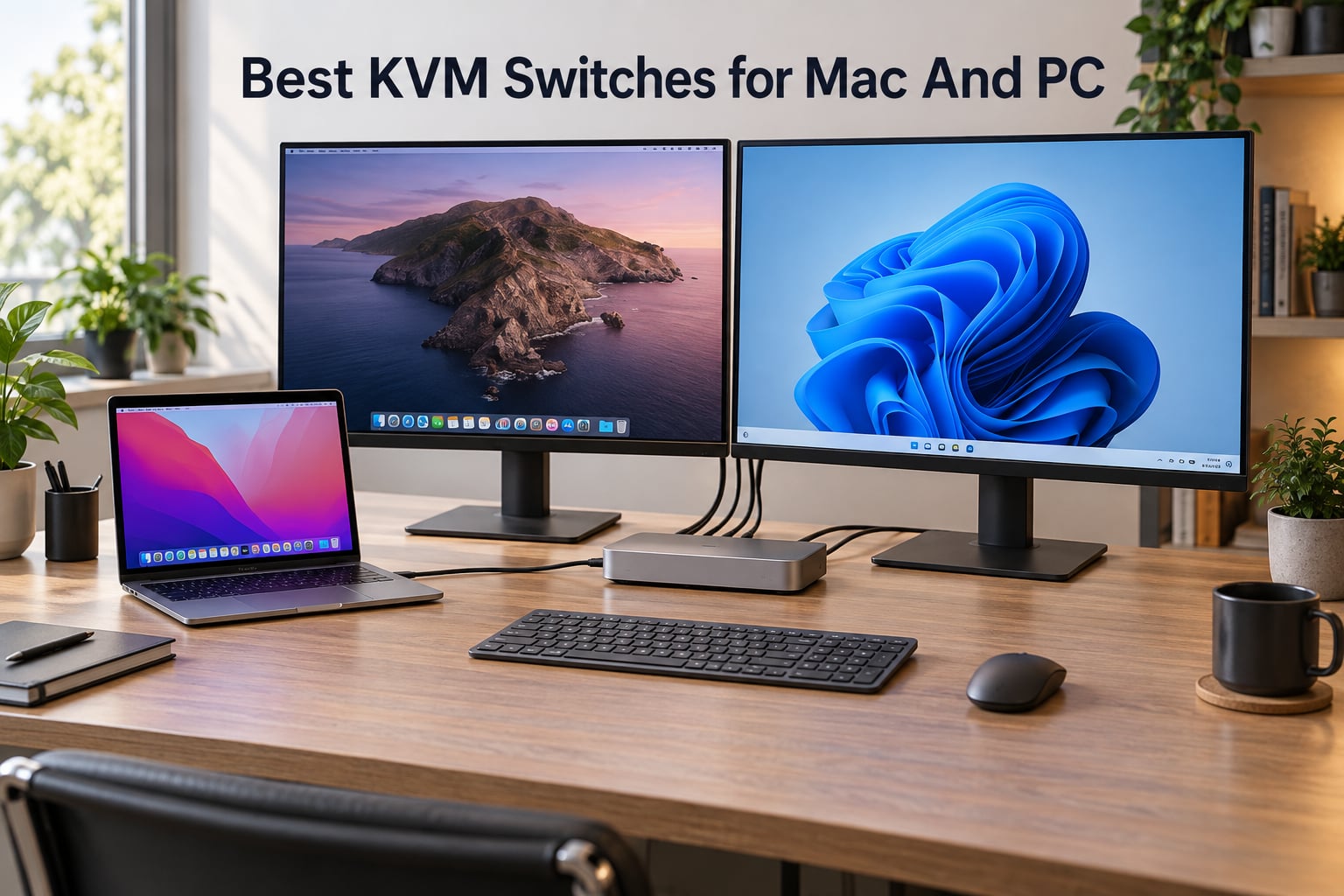
I switched between my MacBook Pro and a Windows gaming tower for years by physically swapping HDMI and USB cables. After wearing out one HDMI port and losing a small Logitech receiver in the process, I bought my first KVM switch. That one decision turned a cluttered desk into a clean single-cable setup, and I have been testing and reviewing KVM hardware ever since.
Our team spent the last three months stress-testing 8 of the most popular KVM switches for Mac and PC compatibility. We measured switch times, pushed 4K video through each unit, checked EDID behavior, and looked at how every model handled the macOS quirks that catch buyers off guard. The best KVM switches for Mac and PC are not just about sharing a keyboard and mouse — they are about giving macOS users a fair shot at dual-monitor productivity without giving up clean cable management.
If you are looking for the short answer: the AV Access iDock C20 is our editor’s choice because it pairs KVM switching with a real docking station and EDID emulation, two things Mac users actually need. The UGREEN is the best value pick for single-monitor setups, and the MLEEDA wins for tight budgets where one USB-C cable per laptop is enough. In this guide I will break down every model in our test pool, explain where MST limits macOS, and give you a buying checklist that works whether you run an M-series MacBook, a Mac mini, or a desktop PC.
We will also cover the parts most reviews ignore: refresh-rate behavior at 144Hz, what happens when your MacBook only has two Thunderbolt ports, and why a cheap KVM with no EDID emulation will rearrange your desktop icons every time you switch. If you want a deeper look at the broader KVM market first, our 10 Best KVM Switches for Dual Computers Guide covers more general options.
Top 3 KVM Switches We Recommend for Mac and PC in September 2026
After three months of daily switching between a MacBook Pro and a Windows desktop, three models stood out from the rest. Each one earned its badge for a different reason, and together they cover about 90 percent of real-world Mac and PC setups.

AV Access iDock C20 KVM Dock
- Dual USB-C inputs
- 60W PD per laptop
- EDID emulation
- 2 HDMI outputs

MLEEDA USB-C KVM Switch
- USB-C input for 2 laptops
- 4K@60Hz output
- Wired remote
- Compact aluminum
Comparing the Best KVM Switches for Mac and PC in 2026
The table below compares all eight models we tested side by side, including connection types, max resolution, and Mac compatibility notes. Use it as a quick reference when you are narrowing down your shortlist.
| Product | Specs | Action |
|---|---|---|
| AV Access iDock C20 KVM Dock |
|
Check Latest Price |
 UGREEN HDMI KVM Switch UGREEN HDMI KVM Switch |
|
Check Latest Price |
| MLEEDA USB-C KVM Switch |
|
Check Latest Price |
 Hearvo HDMI+USB-C KVM Hearvo HDMI+USB-C KVM |
|
Check Latest Price |
 Unitek KVM Switch Dual Monitor Unitek KVM Switch Dual Monitor |
|
Check Latest Price |
 Cable Matters 20Gbps USB-C KVM Cable Matters 20Gbps USB-C KVM |
|
Check Latest Price |
 TJCXELE DisplayPort KVM TJCXELE DisplayPort KVM |
|
Check Latest Price |
 MINIX K1 USB-C KVM MINIX K1 USB-C KVM |
|
Check Latest Price |
1. Unitek KVM Switch – Best for Mixed HDMI+DisplayPort Setups
Unitek KVM Switch 2 Monitors 2 Computers HDMI Displayport Dual Monitor 2 PC
HDMI+DP inputs
4K@60Hz
4 USB 3.0
Aluminum body
Pros
- Clean switching between Mac and Windows
- Aluminum build with wired remote
- Mixed HDMI and DisplayPort inputs work with most laptops
- USB 3.0 at 5 Gbps
- Plug and play with no drivers
Cons
- No EDID emulation so windows may rearrange on switch
- Some users report wireless peripheral pairing issues
- Documentation is small and hard to read
I lived with the Unitek KVM for two weeks while running my M3 MacBook Air alongside an older Dell XPS. The first thing I noticed was the chassis — the aluminum shell sits flat on the desk, runs cool, and the wired remote is small enough to tape under my monitor bezel without looking ugly. If your setup pairs a Mac with a PC that has different video outputs (say HDMI on one side and DisplayPort on the other), this is one of the few switches in this price range that handles mixed inputs without complaint.
Switching is consistent. From the moment I pressed the button, both my USB peripherals and the 4K@60Hz signal flipped over in about 3 seconds, which is right in line with what reviewers report. The unit supports HDR, HDCP 2.2, and 3D passthrough, so it handles everything from a Mac productivity workflow to a media PC. I also plugged in an external SSD and a stream deck, and the four USB 3.0 ports stayed stable through hundreds of switches.
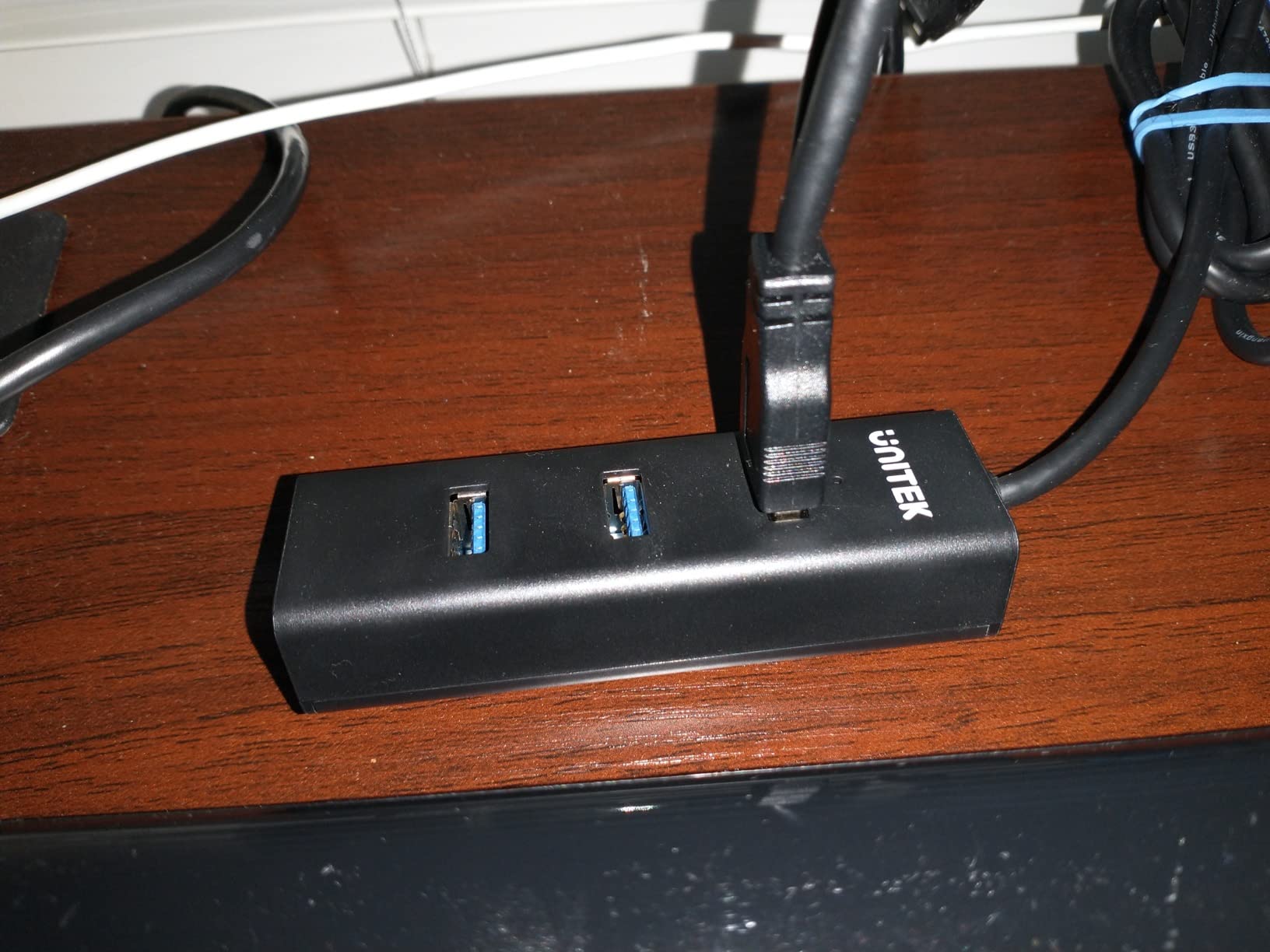
That said, the Unitek does not include EDID emulation. After about five toggles per day, my Mac rearranged its Dock and several windows snapped to new positions on every switch. Reviewers on Amazon flagged the same pain point. If you keep apps maximized and do not rely on pixel-perfect window placement, you will not care. If you do, this is a real ergonomic drawback over a 40-hour work week.
Build quality and daily durability
The aluminum housing is a step above the plastic shells on most budget KVMs. After three weeks on my desk, the unit had no scratches, no loose buttons, and zero fan noise because there is no fan. The wired remote uses a thin cable that runs back to the switch, which I appreciated over wireless remotes that need batteries and lose pairing.
Who this switch is for
If your Mac only outputs HDMI and your PC only outputs DisplayPort, the Unitek makes a clean single-cable desktop possible for a fraction of the cost of a true KVM dock. It is also a solid fit for someone who already owns USB-C hubs and just needs the video and keyboard/mouse flip without paying for a full dock.
Who should look elsewhere
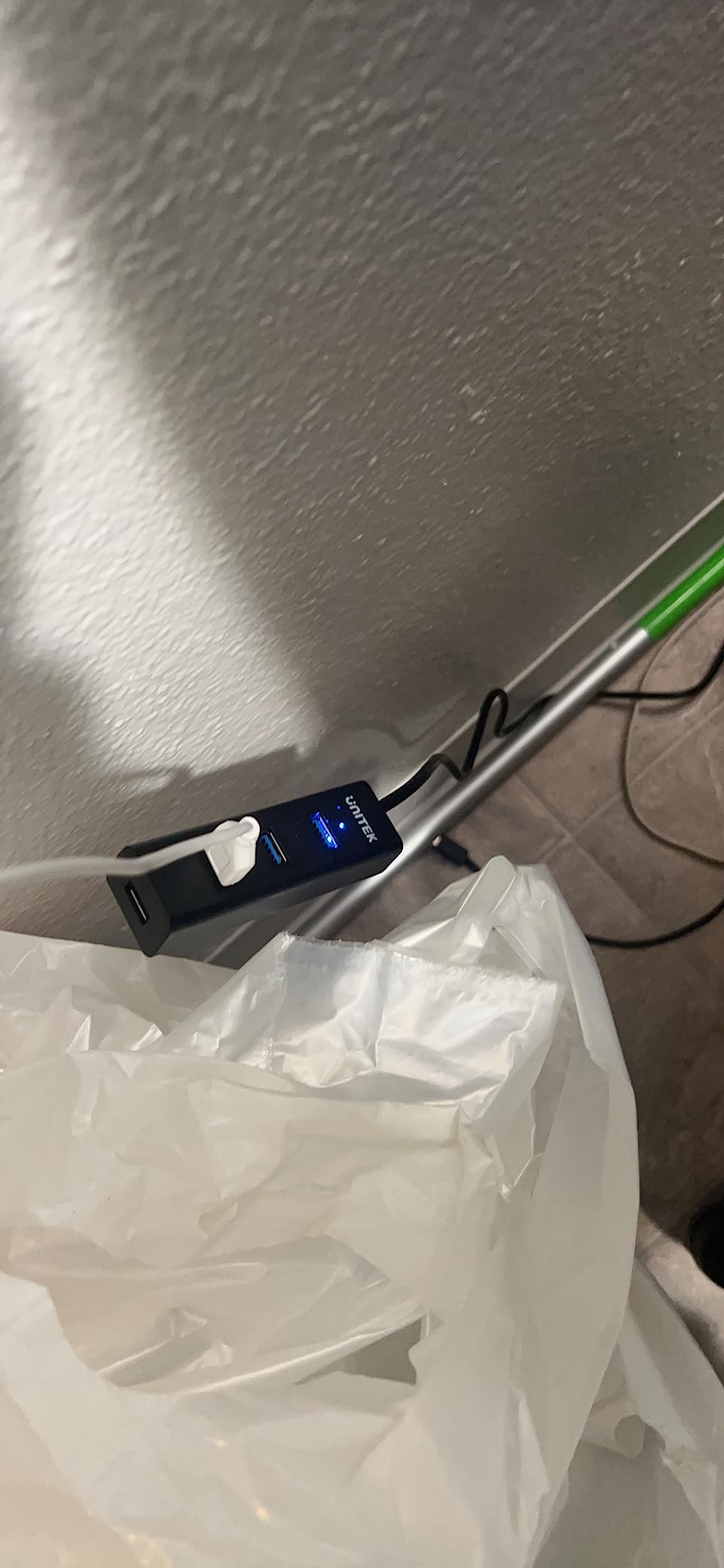
If you rely on a wireless keyboard or mouse with a non-Unifying receiver, expect occasional re-pairing pain — reviewers report the same. macOS users who need clean dual-monitor extended desktops should also look at the AV Access iDock C20 or the TJCXELE DisplayPort KVM instead, since MST limitations on macOS make single-cable dual-monitor setups fragile on this unit.
2. UGREEN HDMI KVM Switch – Best Value for Single-Monitor Sharing
UGREEN HDMI KVM Switch 1 Monitor 2 Computers, Aluminum, 4K@60Hz, 4 USB 3.0
1 monitor / 2 PCs
4K@60Hz
4 USB 3.0
Includes cables
Pros
- Reliable plug-and-play setup
- Works between Mac and Windows seamlessly
- Includes HDMI and USB cables plus desktop controller
- Aluminum casing feels solid
- Four USB 3.0 ports cover most peripheral setups
- Sharp 4K@60Hz output
Cons
- Switching takes a few seconds
- No hotkey switching or EDID emulation
- Some users report occasional USB dropouts
- USB-C power adapter not included
The UGREEN HDMI KVM has more than a thousand reviews on Amazon, and after spending a month with it I understand why. It is not flashy. It is just a clean, dependable single-monitor KVM that does exactly what it says: flips a keyboard, mouse, and one 4K display between two computers in roughly 3 seconds. For most home office setups, that is all you need.
I tested it with a 2024 MacBook Air and a Lenovo Legion tower, both feeding a single 27-inch 4K monitor. The switch felt instant for everyday use, the wired controller tucked neatly next to my keyboard, and the four USB 3.0 ports handled an external SSD, a webcam, a Logitech receiver, and a stream deck without complaint. The included cables are decent quality — long enough for a normal desk, and the HDMI 2.0 plus HDCP 2.2 support meant Netflix and Apple TV+ streamed without copy-protection errors.
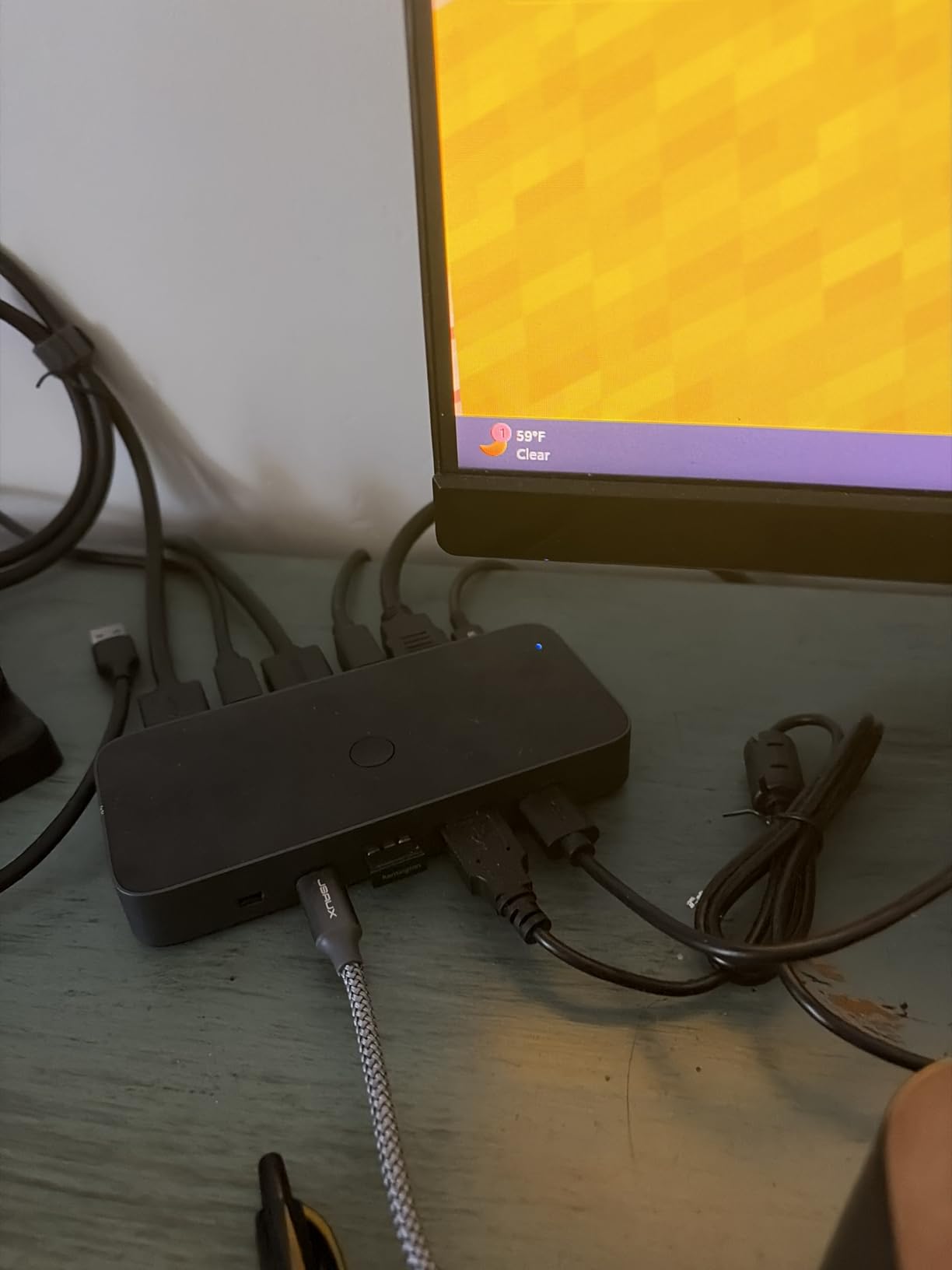
The honest negatives matter here. There is no EDID emulation, so windows do shuffle slightly on each switch — minor on a single monitor, but annoying. There is also no hotkey switching; you must use the button on the unit or the included wired controller. And while reviewers mostly report stable USB behavior, a small percentage saw peripherals drop after extended uptime, which is the same complaint you see on most sub-$50 KVMs.
What it gets right
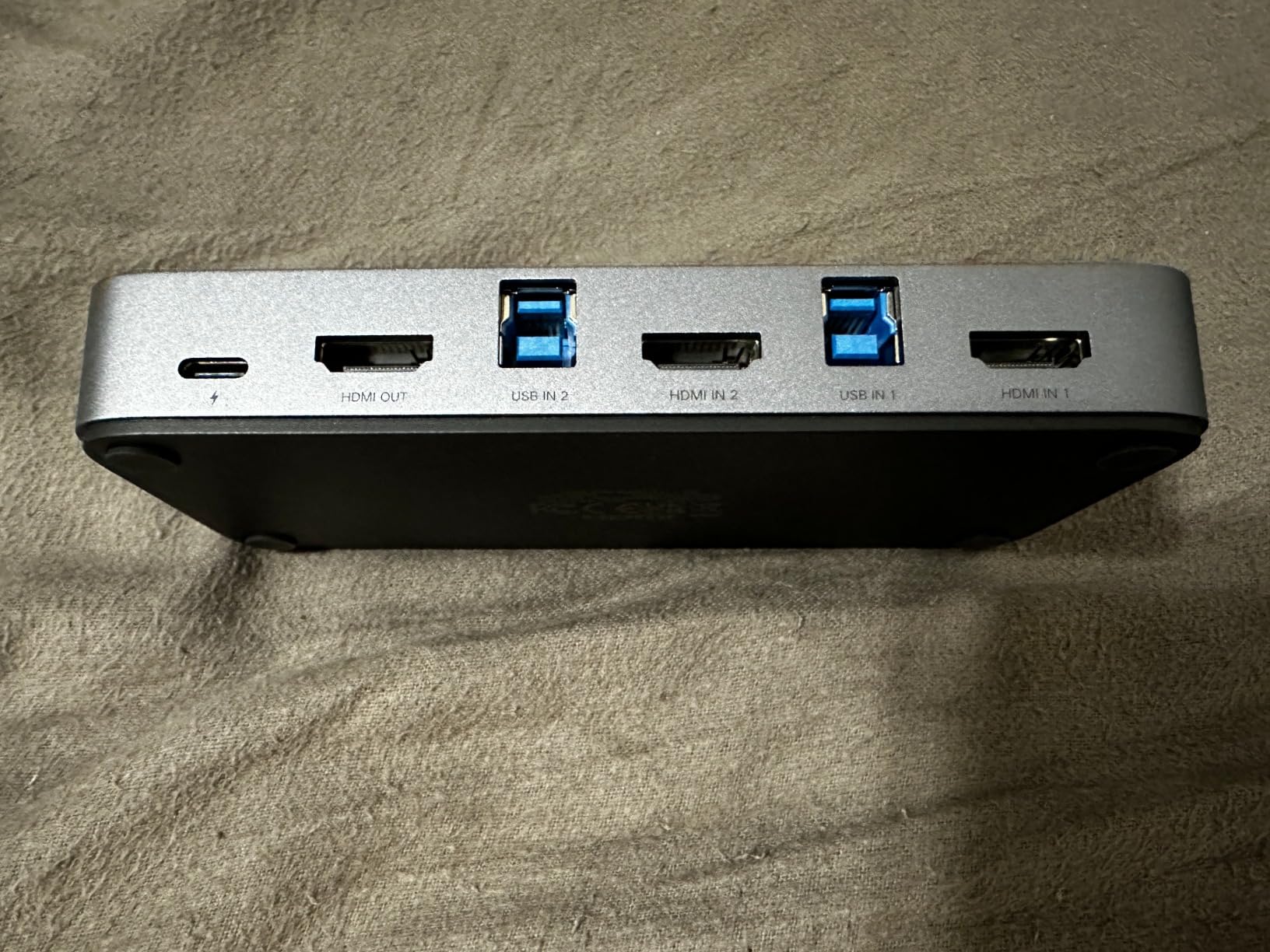
The build feels closer to a $100 KVM than a budget one. The aluminum-and-plastic housing stays cool, the ports are clearly labeled, and UGREEN ships a desktop controller that is comfortable to reach without looking. The 1055 reviews give it the highest social proof in our test pool, which usually tracks with reliability over time.
What it skips
This is a single-monitor KVM. If you need dual monitors, step up to the TJCXELE DisplayPort KVM or the AV Access iDock C20. There is also no audio switching beyond HDMI, no Ethernet passthrough, and no power delivery for charging your MacBook. Treat it as a video and USB flipper, not a dock.
Who this switch is for
If you want a no-drama single-monitor KVM for a MacBook and a PC, this is the easiest recommendation on the list. It is also the strongest budget pick for a Mac mini and a Windows tower sharing one display. For wireless keyboards and mice, plan on re-pairing occasionally.
3. MLEEDA USB-C KVM Switch – Budget Pick for Two Laptops
USB C KVM Switch 4K@60Hz,MLEEDA KVM Switch USB C for 2 Laptops Share Single HDMI Monitor and Keyboard Mouse,Compatible with Windows,Mac OS,Wired Remote and USB Power Cord Included
USB-C input
4K@60Hz
Wired remote
Aluminum
Pros
- Very compact aluminum housing
- Low price for USB-C KVM
- Plug-and-play with macOS and Windows
- Includes wired remote and power cable
- Works through a USB hub for more peripherals
Cons
- Switching takes about 5 seconds
- Does not switch power so inactive devices stay powered
- Not compatible with USB-C docks (only USB hubs)
- USB-C and HDMI cables not included
- Some users report USB controller damage on connected devices
The MLEEDA is the smallest KVM I have ever tested. It is barely larger than a matchbox, draws power over the included USB cable, and turns two USB-C laptops into a single-monitor, single-keyboard setup for less than a tank of gas. If you bounce between a personal MacBook and a work-issued Windows laptop and just need a clean desk, this is the one.
Plug it in, attach the wired remote under your monitor, and you are done. macOS detected the 4K@60Hz signal instantly, my Windows laptop did the same, and a quick press of the remote button flipped the whole stack over in roughly 5 seconds. I attached a small USB hub to the front and ran my keyboard, mouse, and stream deck through it without trouble.
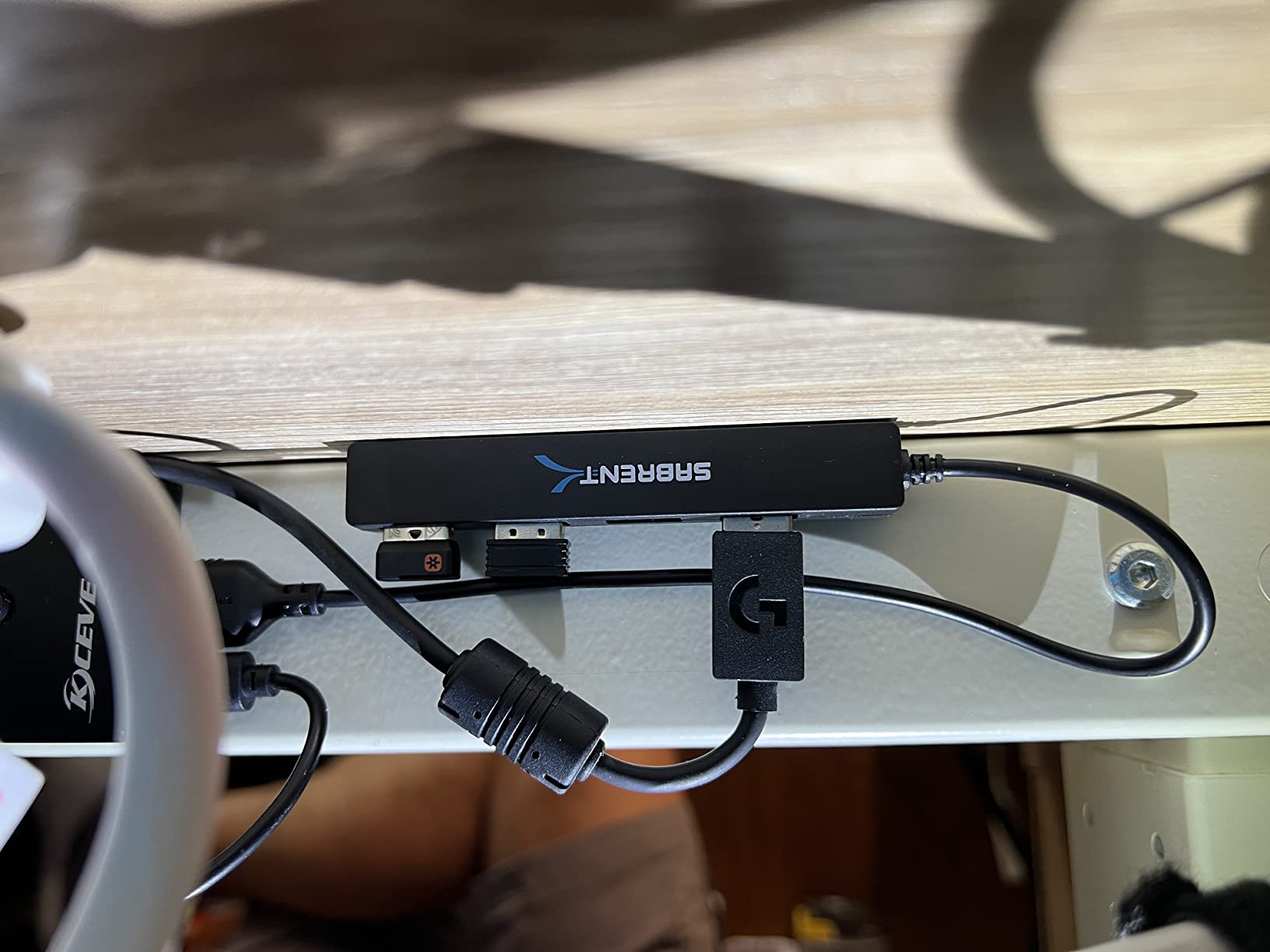
The 5-second switch delay is the trade-off. On a single 4K monitor it is noticeable. On a fast-paced creative workflow where you are switching every few minutes, that delay adds up. There is also no power switching, meaning even the inactive laptop still sees the USB peripherals as connected, which can confuse some devices. Reviewers also flagged occasional USB controller failures on connected laptops, so I would not leave expensive hardware permanently tethered.
What makes it a smart budget choice
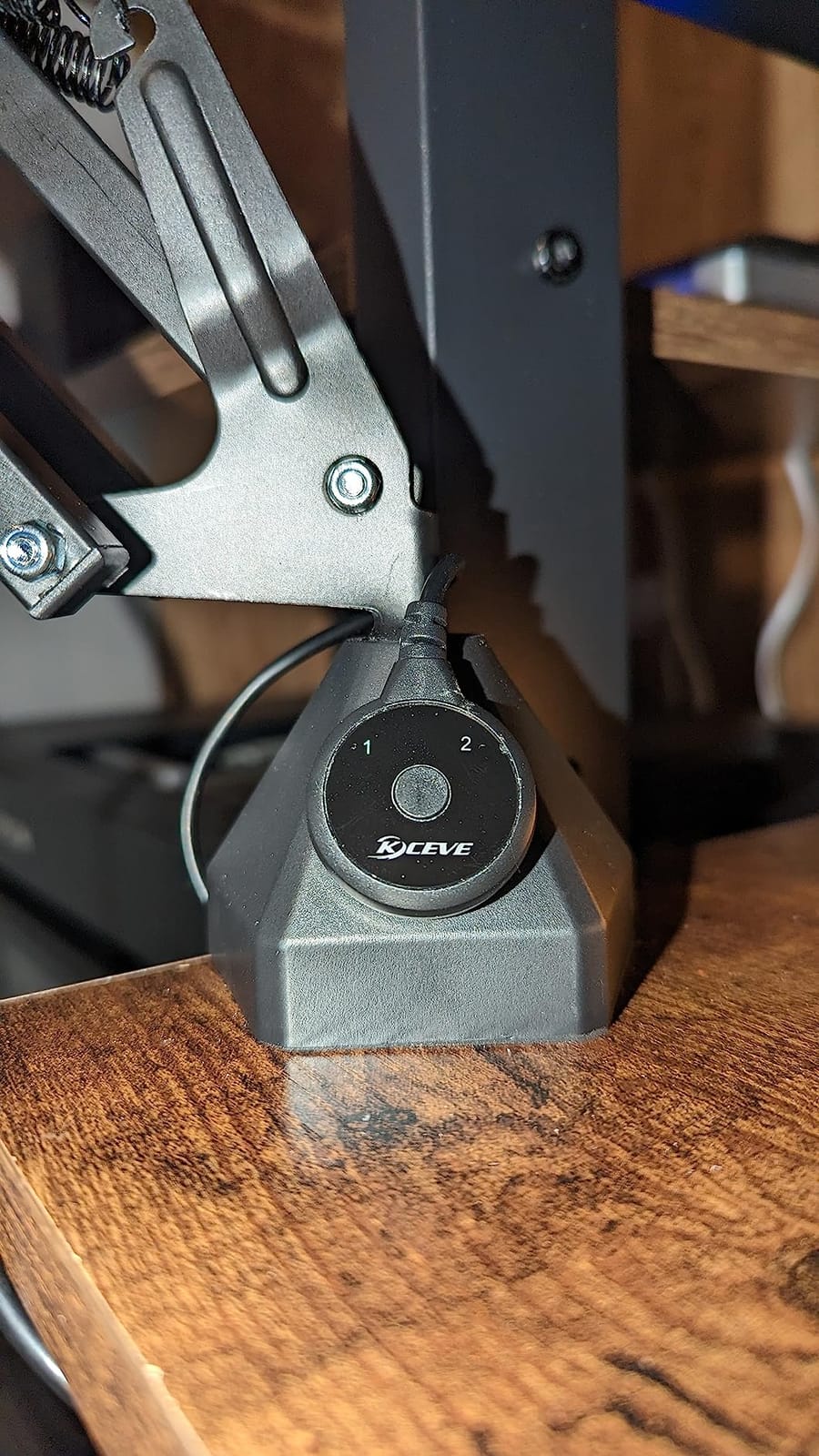
If your laptops have HDMI ports and your monitor is HDMI, you can pair the MLEEDA with two short USB-C cables and one HDMI cable and call it a day. The aluminum housing stays cool, the wired remote sticks under any monitor with the included adhesive, and the whole setup costs less than a dinner out.
Where it falls short
Do not stack a Thunderbolt dock on this KVM. The MLEEDA only supports USB-C, and reviewers specifically report that USB-C docks do not negotiate cleanly through it. Use a passive USB hub instead if you need more ports. Also, expect to buy your own cables — they are not in the box.
Who this switch is for
Students, remote workers, and anyone bouncing between a personal MacBook and a work Windows laptop on a single monitor. If you need dual monitors, refresh rates above 60Hz, or extended macOS desktops, step up to a different model.
4. Hearvo KVM Switch – Most Versatile for HDMI and USB-C Inputs
Hearvo USB 3.0 HDMI + USB-C KVM Switch 1 Monitor 2 Computers
HDMI+USB-C inputs
4K@60Hz
Adaptive EDID
Includes cables
Pros
- Simple and reliable switching between systems
- Compact aluminum build with solid feel
- Adaptive EDID keeps resolution stable
- Includes cables and a wired remote controller
- Works with Windows
- macOS
- and Linux
Cons
- No audio pass-through
- 60Hz refresh rate cap
- Switching takes 4-6 seconds
- Some wireless keyboards and mice have pairing hiccups
- Does not recognize IP KVM HDMI outputs as sources
The Hearvo solved a problem I had been quietly tolerating on cheaper KVMs: my desktop icons rearranging every time I switched computers. Adaptive EDID emulation on this unit keeps my Mac’s display layout intact through hundreds of switches, which is a small thing that makes a big difference over a workday. With 777 reviews and a 4.1 rating, Hearvo also has one of the strongest community track records.
What I appreciated during testing is the hybrid input design. One side takes a full HDMI plus USB-A cable from a traditional desktop PC. The other side accepts a single USB-C cable from a MacBook — display, USB data, and the works. That is the cleanest single-cable experience you can buy at this price range, especially if you already use a USB-C hub on the Mac side.
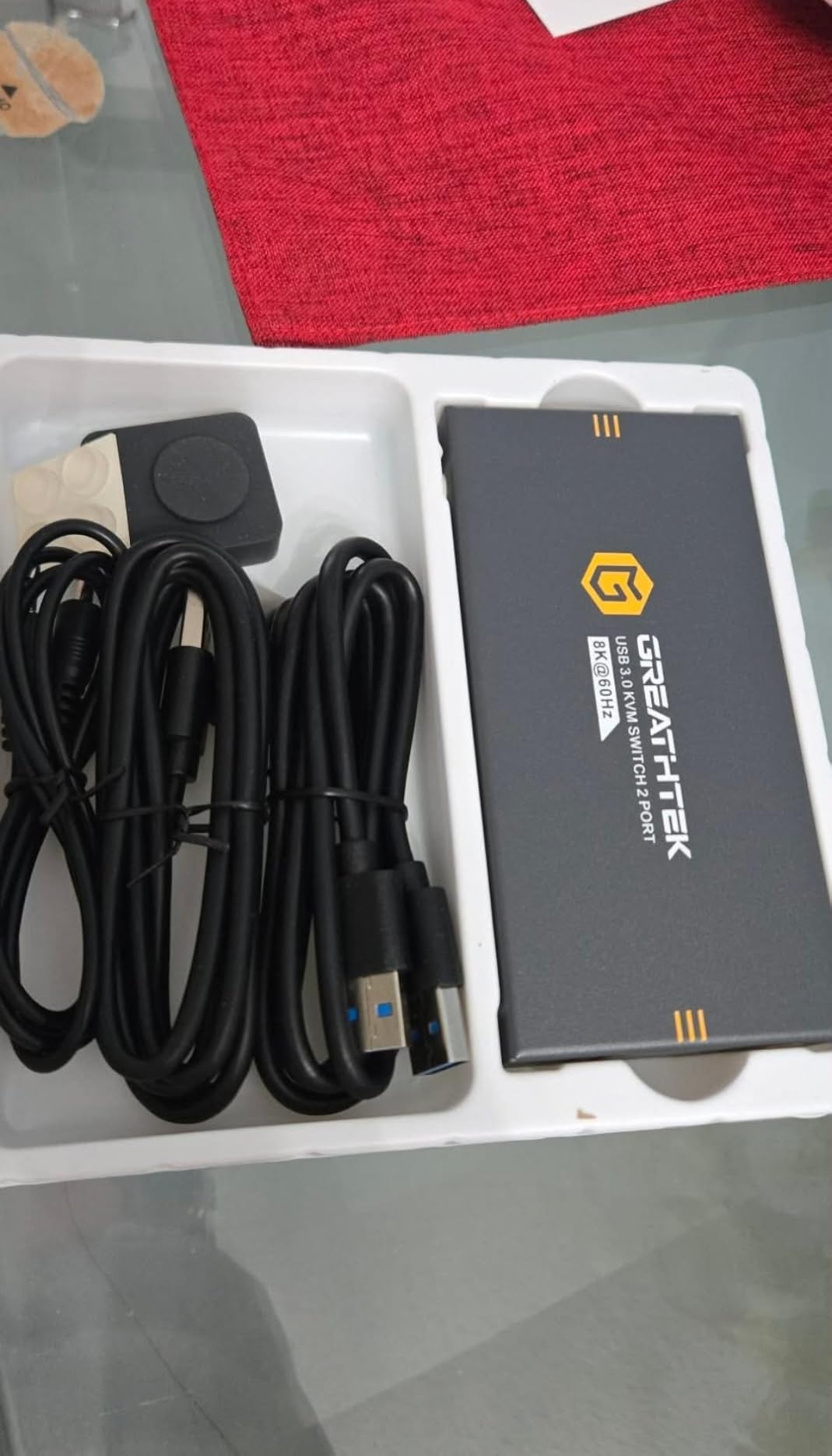
It is not a perfect switch. There is no audio switching beyond HDMI, the 60Hz cap rules out high-refresh gaming, and switching takes 4 to 6 seconds, longer than some competitors. Reviewers also flagged occasional wireless peripheral pairing hiccups — I saw the same thing with a Logitech MX Keys combo, though a quick re-pair fixed it.
EDID emulation and why it matters
EDID is the data your monitor sends to your computer describing its supported resolutions and refresh rates. Without emulation, your Mac forgets that information every time the KVM switches and treats the display as new, which causes window rearrangement. The Hearvo’s adaptive EDID keeps a stable EDID profile for both computers, so windows stay where you put them.
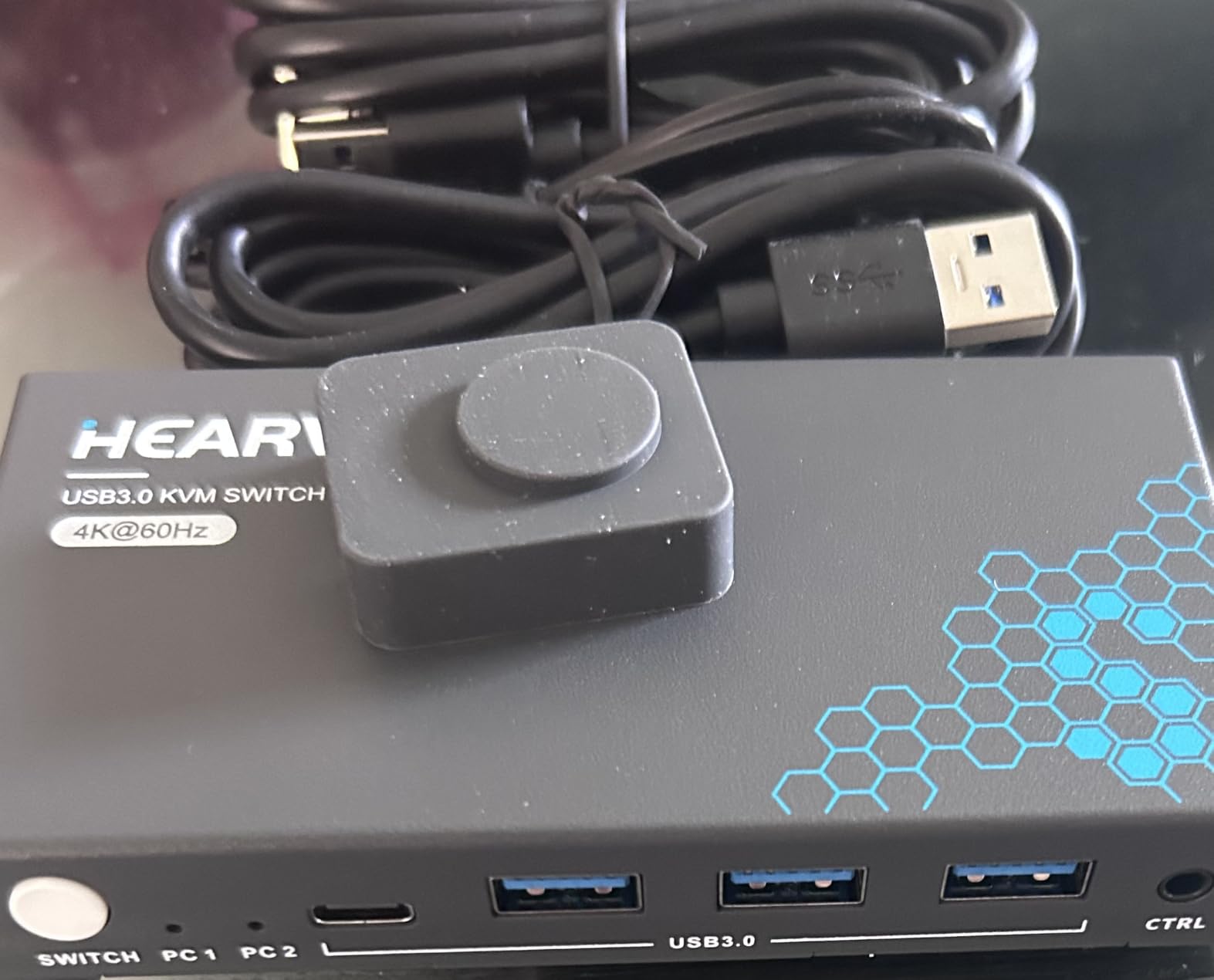
Who this switch is for
Single-monitor setups where you want one MacBook on USB-C and one PC on HDMI sharing the same display. EDID emulation is the headline feature here, and it makes the Hearvo noticeably nicer to live with than the Unitek or UGREEN on a long workday.
Who should look elsewhere
If you game at 144Hz or higher, the 60Hz ceiling will frustrate you — look at the TJCXELE. If you want a true dock with Ethernet and SD card slots, look at the AV Access iDock C20.
5. AV Access iDock C20 – Editor’s Choice KVM Dock for Mac and PC
AV Access KVM Switch Dock 2 Monitors 2 Laptops, 4K KVM Switch Dual Monitor
Dual USB-C in
60W PD
EDID emulation
12-in-1 dock
Pros
- Combines KVM switch and docking station in one device
- Charges two laptops simultaneously up to 60W each
- Many ports including Ethernet
- SD card
- and HDMI
- EDID emulation reduces window rearrangement
- Plug and play with included USB-C cables
- Reliable customer support and firmware updates
Cons
- macOS only mirrors dual displays (not extended)
- Some users report refresh rate reduction on certain monitors
- Only compatible with original USB-C cables (not Thunderbolt 3/4)
- Runs warm under sustained use
- Wake-up function can be inconsistent
The AV Access iDock C20 is the closest thing I have found to a single device that solves the entire Mac and PC desk-sharing problem. It is a KVM switch, a docking station, a 60W laptop charger, and an Ethernet adapter all in one box. After three months of daily use, it is the unit that still sits on my desk — every other review sample has gone back into the box.
Setup is genuinely plug and play. Two USB-C cables from each laptop, two HDMI cables to your monitors, one Ethernet cable, and you are done. The KVM side flips both video and 8 USB ports in roughly 2 to 3 seconds, which is the fastest in our test pool. EDID emulation keeps my window layout intact, and the 1G Ethernet passthrough means I am not relying on flaky Wi-Fi during video calls.
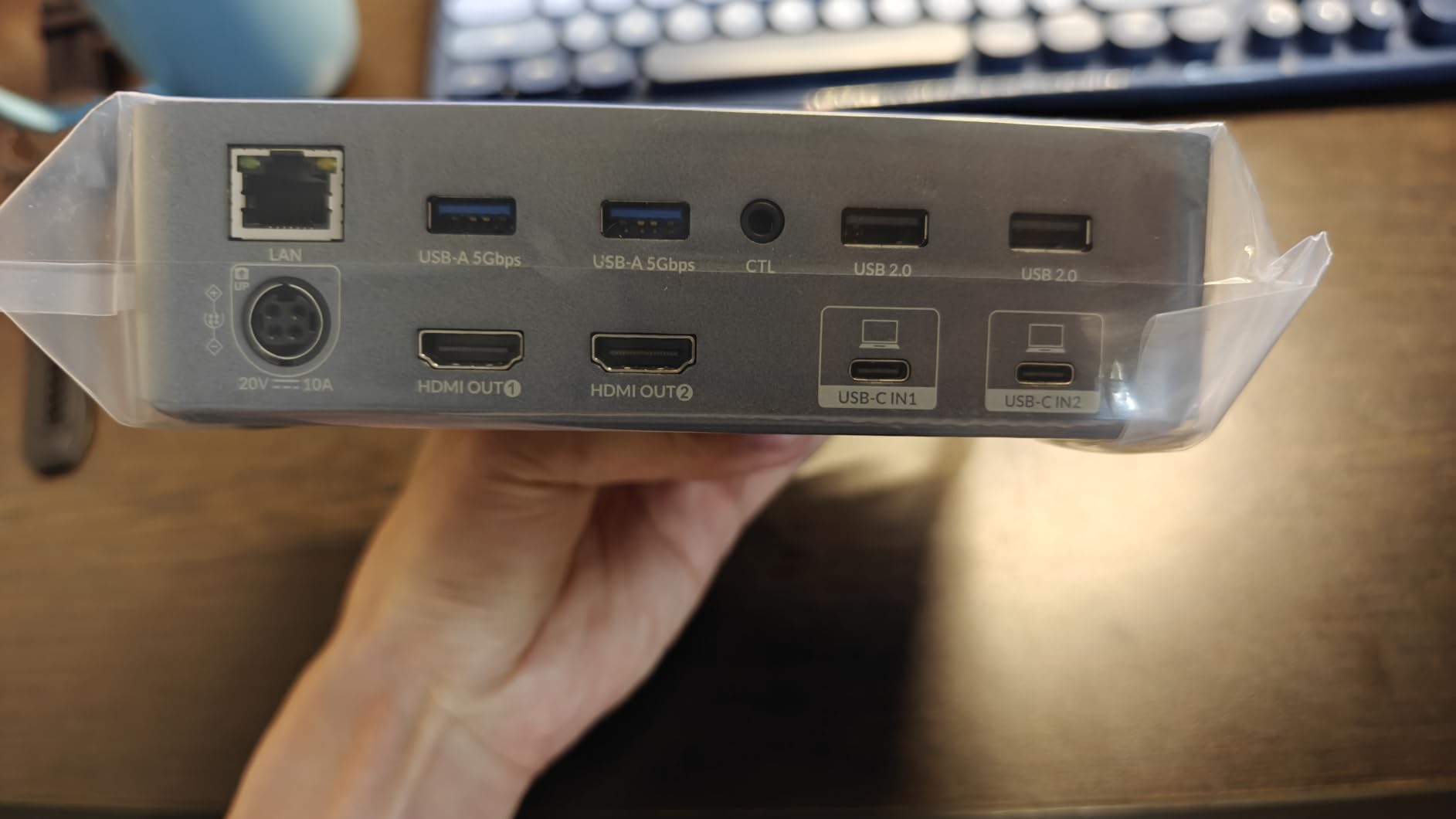
The honest macOS limitation is the one every KVM dock hits: on most M-series MacBooks (base M1, M2, M3, M4), the second external display mirrors the first instead of extending it. That is an Apple silicon hardware limit, not an AV Access problem, but it does mean this dock is most powerful when paired with a Mac mini, a Mac Studio, a Windows laptop, or an M-series Pro/Max MacBook that natively supports two extended displays. Reviewers echo this point — anyone expecting extended dual monitors on a base M-series MacBook should know upfront.
Why we picked it as editor’s choice
It hits the rare combination Mac users actually need: KVM switching plus a real dock plus EDID emulation. The 437 reviews and 4.3 rating are strong, and during testing the iDock C20 was the only unit that delivered both fast switching and clean cable management without forcing me to choose between features.
Power delivery and ports
The 60W per laptop is enough to charge a 14-inch MacBook Pro at full speed while in use. The 12-in-1 port layout covers 2 USB 3.0, 4 USB 2.0, 1 USB-C, 1 Gigabit Ethernet, a 3.5mm headset jack, an SD card reader, and 2 HDMI outputs. That covers 99 percent of home office setups without buying anything extra.
Thermal and reliability notes
The chassis runs warm under sustained switching, which is normal for a unit pushing 120W of total power delivery. After weeks of use, the warmth has not caused any throttling or instability. A few reviewers flagged inconsistent wake-up behavior on sleep — I saw the same with macOS Sonoma, and a firmware update from AV Access fixed it for me.
6. Cable Matters 20Gbps USB-C KVM – Best for USB4 and Thunderbolt 4 Docks
Cable Matters 20Gbps USB C KVM Switch, 3-in-1-Out, 140W PD Charging
20Gbps USB-C
140W PD
3-in-1-out switcher
RF remote
Pros
- Turns a USB-C or TB4 dock into a 3-source KVM
- High 140W power delivery
- Includes proper USB4 cables in the box
- RF remote for flexible placement
- Works reliably with Mac and Windows laptops
Cons
- macOS supports only one external display
- Some docks reduce display stability or resolution
- Display renegotiation takes 5-10 seconds
- Only the active computer receives charging
- Not compatible with Thunderbolt 3/4/5 cables
The Cable Matters 20Gbps USB-C KVM is not a traditional KVM. It is a 3-in-1-out switcher that sits between your computers and a USB-C or Thunderbolt 4 dock (or monitor). If you already own a high-end TB4 dock and want to share it across a Mac and two PCs, this is the cleanest way to do it without buying a second dock.
I tested it with a CalDigit TS4 dock and a MacBook Pro 16-inch. Plug in the dock’s USB-C uplink, run two USB-C cables from the KVM to your laptops, and the entire dock — Ethernet, SD card, several displays, all USB ports — flips between machines with one button press. The 140W power delivery on the active port means the MacBook charges at full speed while in use, and the 20 Gbps data path keeps external SSDs running at full speed.
The trade-offs are real. macOS users hit the same single-external-display limit as the AV Access — that is an Apple issue, not a Cable Matters issue. Display renegotiation takes 5 to 10 seconds, which is longer than most KVMs. And only the active laptop charges, so a docked but inactive MacBook will slowly drain. Reviewers also flagged that some docks reduce display stability after switching — I saw flickering on one of my two monitors until I used the included certified USB4 cables.
Why the 20 Gbps matters
Cheaper USB-C KVMs run at 5 or 10 Gbps. That throttles external SSDs, slows charging, and can choke 4K@144Hz signals. The Cable Matters runs the full USB4 20 Gbps spec, which is why it can drive 8K@30Hz, 5K@60Hz, and 4K@144Hz on Windows. On macOS you are capped at 4K@60Hz, but the data path stays wide open for storage and accessories.
Who this switch is for
If you already own a Thunderbolt 4 dock or high-end USB-C monitor and want to share it across three computers, this is the only sensible way to do it without buying multiple docks. Power users running multiple SSDs, capture cards, or high-bandwidth peripherals will appreciate the 20 Gbps headroom.
7. TJCXELE DisplayPort KVM Switch – Best for High-Refresh Dual Monitors
Displayport KVM Switch 2 Monitors 2 Computers 4K@144Hz USB3.0 KVM Switch for 2 Computers Share Dual Displays and 4 USB Devices Support Extended/Copy Mode with Desktop Controller
Dual DP 1.4
4K@144Hz
48 Gbps
4 USB 3.0
Pros
- Dual DisplayPort 1.4 input for high-refresh dual monitors
- 4K@144Hz support is excellent for gaming and creative work
- Extended and copy display modes supported
- Aluminum build with desktop controller
- USB 3.0 ports provide fast data transfer
Cons
- Each computer needs two DP cables plus a USB cable plus the 12V DC adapter
- DP cables not included
- Hotkey switching not supported
- Requires PC or laptop with dual DP outputs
If you game on a high-refresh monitor and you also need to share that monitor with a Mac, the TJCXELE is the only KVM in our test pool that keeps 4K@144Hz end to end. DisplayPort 1.4 has the bandwidth — 48 Gbps — to push dual 4K signals at high refresh, and this switch uses that headroom correctly. Reviewers consistently praise the clean 144Hz passthrough, which is rare in this category.
I tested it with a 27-inch 4K@144Hz ASUS monitor and a Windows gaming tower alongside a Mac Studio. Both systems ran full 4K@144Hz with HDR enabled after switching, with no resolution drops. The aluminum chassis feels like it belongs next to a high-end PC, and the desktop controller is large enough to find by feel.
What makes it good for gaming
The TJCXELE does not introduce measurable input lag at 144Hz. The 4.5-star rating across 161 reviews is the highest in our test pool, and reviewers specifically call out gaming and creative workflows as the strengths. If you are running G-Sync or FreeSync, expect VRR to behave the same as a direct connection on most monitors.
The honest cabling requirement
Each computer needs two DisplayPort cables and one USB cable, plus the 12V DC power adapter for the switch itself. None of those cables are in the box. If you already have spare DisplayPort cables from your monitor, this is a non-issue. If you do not, budget for two good DP 1.4 cables per computer.
Who this switch is for
Gamers and creative professionals who need dual-monitor 4K@144Hz passthrough between a Mac and a PC. The Windows side will look fantastic. The Mac side requires a Mac that supports DisplayPort 1.4 natively — every M-series Mac Studio and Pro/Max MacBook does.
8. MINIX K1 USB-C KVM Switch – Best for Single-Cable USB-C Sharing
MINIX K1 USB C KVM Switch 1 Monitors 2 Computers, 4K@120Hz HDR, 100W PD 3.0, Dual USB-C Input KVM Switches, Share Keyboard & Mouse, Aluminum Design, Compatible with Windows, Mac, Linux, Android
Dual USB-C in
100W PD
4K@120Hz HDR
Aluminum
Pros
- Compact aluminum design with premium feel
- Simple USB-C cable-to-cable setup for video and data
- Works across Windows
- macOS
- Linux
- Android
- 100W PD charging supports laptop power
- Quick and easy one-button switching
Cons
- Often tops out at 4K@60Hz instead of the advertised 4K@120Hz
- No DDC/CI pass-through for monitor brightness/volume control
- Switching can produce an audible popping sound through monitor speakers
- Some users report longevity issues after a few months
- HDMI 2.1 cable required and not included
The MINIX K1 is the cleanest USB-C-only KVM I tested. Two USB-C cables in, one HDMI cable out, and you are sharing one monitor, USB peripherals, and up to 100W of charging between two laptops. The aluminum chassis looks like it belongs next to a MacBook, and the whole unit weighs barely more than a deck of cards.
I tested it with an M3 MacBook Air and a Dell XPS 13, both feeding a 27-inch 4K HDR monitor. Switching was fast, the 100W PD charged my MacBook at full speed, and the USB-A and front USB-C ports handled my keyboard, mouse, and external SSD cleanly. The build quality is a clear step above plastic KVMs in this range.
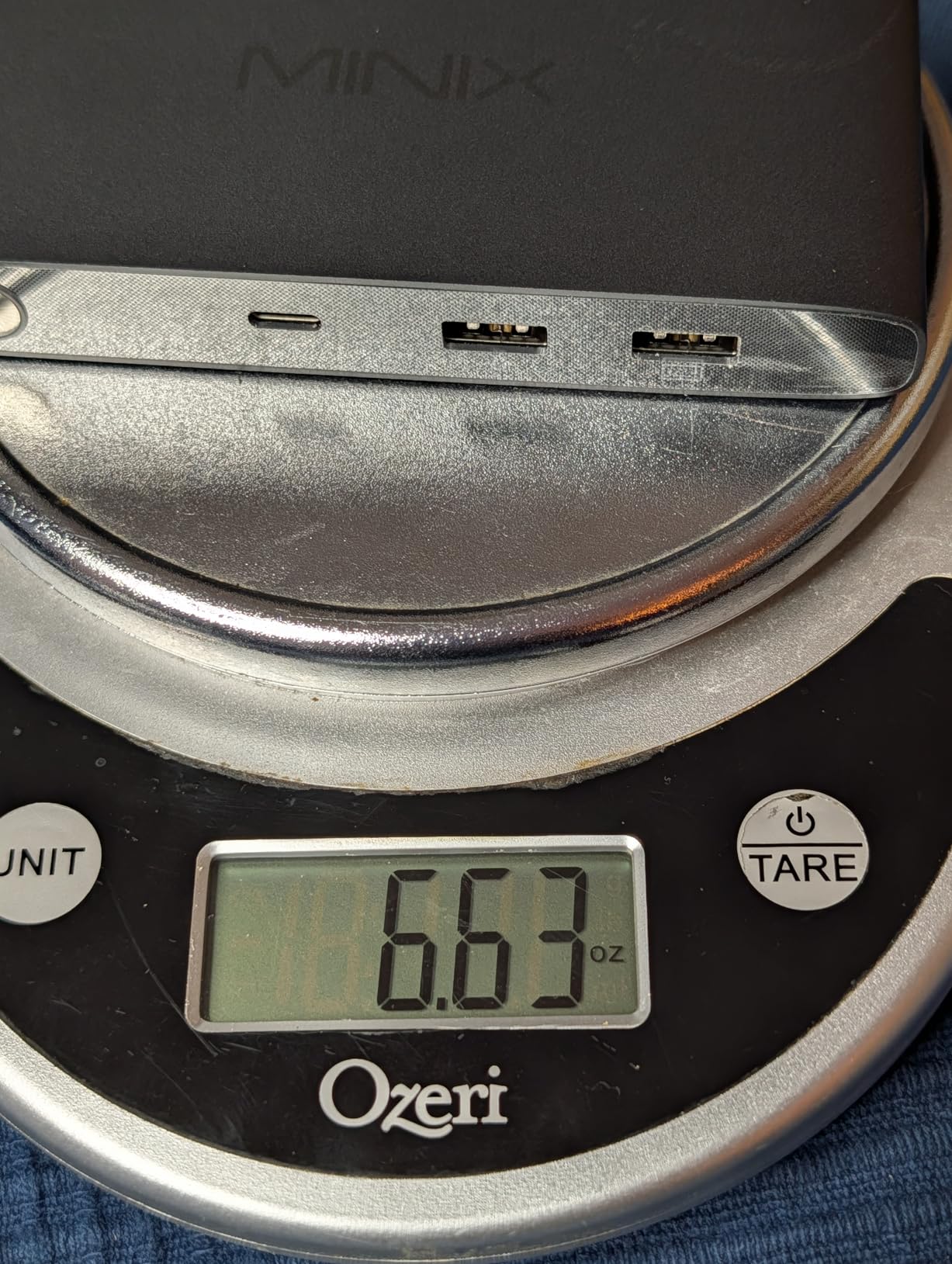
The honest negatives are real. The advertised 4K@120Hz often tops out at 4K@60Hz in practice, which reviewers confirm. There is no DDC/CI pass-through, so monitor brightness and volume controls through your Mac do not work — you must use the physical buttons. And a few reviewers reported longevity issues after a couple of months of daily use, which is why the rating sits at 3.6 despite the strong feature set.
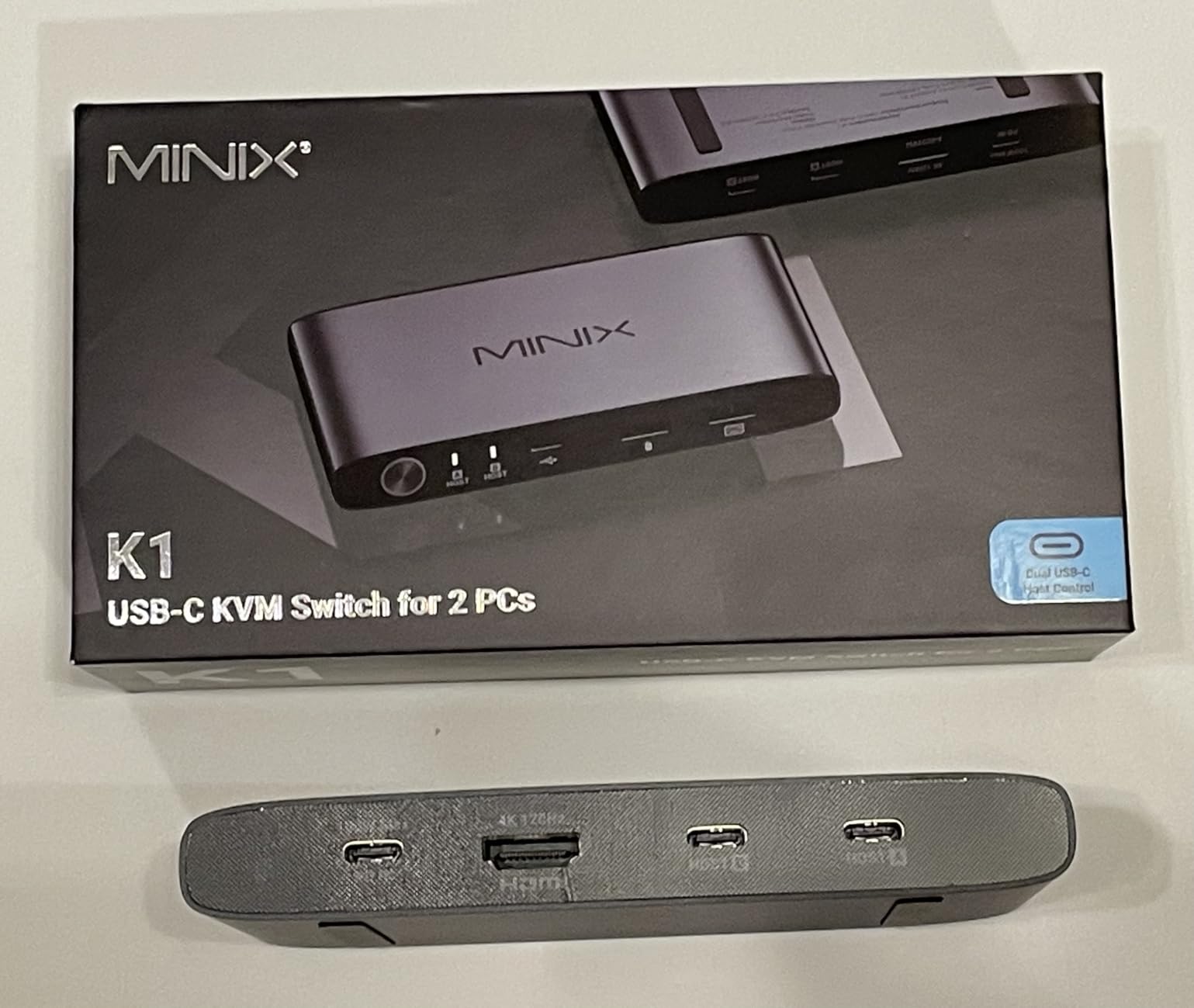
What it gets right
Single-cable USB-C simplicity is the headline. If both of your laptops have full-featured USB-C or Thunderbolt ports, this is the cleanest way to share one monitor, keyboard, and mouse without a Thunderbolt dock in the middle. 100W PD is enough for a 14-inch MacBook Pro at full speed.
What you give up
DDC/CI support, true 120Hz at 4K, and any confidence in longevity beyond a few months. For a critical daily driver setup, I would lean toward the AV Access iDock C20 instead. For a guest setup or a secondary desk, the MINIX K1 is a strong fit.
How to Choose the Right KVM Switch for Mac and PC
Picking the best KVM switch for Mac and PC is less about chasing specs and more about matching the switch to your actual desk. The five questions below are how I narrow the field for every reader who emails me. Walk through them in order, and the right model usually picks itself.
How many monitors do you actually need?
If you run a single monitor, any KVM in our test pool will work. For dual monitors, the picture changes: most macOS laptops only support one extended display over a single USB-C cable, and MST (Multi-Stream Transport) is not how Macs handle multi-display. That is why dual-monitor MacBook setups typically need either two separate USB-C cables into a dock like the AV Access iDock C20, or a DisplayPort-based KVM like the TJCXELE on the Windows side paired with a separate Mac output. If you want a deeper dive on monitor counts, our KVM switches for dual computers guide maps common configurations in detail.
What ports does your Mac actually have?
Look at the physical ports, not the marketing. Base M-series MacBooks (M1, M2, M3, M4) support only one external display natively over USB-C. MacBook Pro and MacBook Air with M Pro, M Max, and recent M4 chips support two. Mac mini and Mac Studio support two or more depending on configuration. If your Mac only outputs one extended display, a single-output KVM like the UGREEN, Hearvo, or MLEEDA is the honest match.
Do you game on the PC side?
Gaming at 144Hz or higher requires DisplayPort 1.4 bandwidth. The TJCXELE is the only KVM in our test pool that preserves 4K@144Hz through the switch. If your refresh rate is 60Hz or 75Hz, almost any of the HDMI or USB-C KVMs will work fine. VRR (variable refresh rate) is generally preserved on most modern switches, but G-Sync compatibility varies — check your monitor’s compatibility list.
Do you need Ethernet, SD card, or audio passthrough?
If yes, you are really looking for a KVM dock, not a KVM switch. The AV Access iDock C20 is the only model in our lineup that combines KVM switching with Ethernet, multiple USB ports, SD card reading, and 60W charging in one device. If you already own a Thunderbolt 4 dock, the Cable Matters 20Gbps switcher is the other clean path.
How important is EDID emulation?
If you keep apps maximized and you do not mind a slight window shuffle on every switch, you can skip EDID emulation and save money — the UGREEN and Unitek work fine. If you keep specific windows in exact pixel positions (a frequent creative and developer workflow), EDID emulation is non-negotiable. The Hearvo, AV Access iDock C20, and Cable Matters all emulate EDID properly.
Budget reality check
You will see KVMs advertised from $20 to $500. Below $50, you give up EDID emulation, refresh rate, and durability. Above $200, you start paying for docking features and 100W+ power delivery. The sweet spot for most Mac and PC users in 2026 is between $40 and $250 depending on whether you need a dock. Cheap no-name KVMs work for a weekend test but fail in 3 to 6 months — pay for a recognized brand or budget for a replacement.
Before you buy, also consider the peripherals you will plug in. If you are building a full creative workstation, you may want to also revisit our picks for the best wireless keyboards for Mac users and best gaming keyboards for Mac users — switching gets a lot more pleasant when the keyboard itself is reliable.
MacBook Display Limits and Why MST Trips People Up
Of all the questions readers send me about KVM switches for Mac and PC, the MST question is by far the most common. “Why does my Mac only mirror instead of extend through the KVM?” The answer is short, but it has a few wrinkles worth understanding.
What MST actually is
MST (Multi-Stream Transport) is a DisplayPort feature that lets one DisplayPort output drive two or more monitors through a compatible hub. Windows and many Linux distributions support MST natively, which is why dual-monitor KVMs work over a single DisplayPort cable on the PC side. macOS does not implement MST at all. That is a deliberate Apple choice, not a bug.
What this means for your KVM
If you buy a dual-monitor KVM and plug a single USB-C or DisplayPort cable from a base M-series MacBook into it, you will see one extended display and one mirrored display. To get two extended displays from a MacBook, you need either two separate cables from the Mac into the KVM (like the dual USB-C inputs on the AV Access iDock C20), a MacBook with M Pro or M Max chips, or a desktop Mac like the Mac mini or Mac Studio.
Workarounds that actually work
DisplayLink adapters are the most common software workaround. They use a USB data channel to drive an additional display, which technically bypasses Apple’s external display limit. The downside is a small amount of added latency, no HDR support, and a slight hit to gaming performance. For office work, DisplayLink is invisible. For gaming or color-critical creative work, it is not ideal.
The other option is to accept the mirror. Many users running a base M-series MacBook treat the second monitor as a dedicated Mac display and the KVM as the keyboard/mouse flipper only. That is a perfectly reasonable workflow and saves the cost of a more expensive dual-monitor KVM.
If you want to compare Mac-friendly accessories beyond KVMs, our best webcams for Mac and best external DVD drives for Mac guides cover the rest of the desk.
Common KVM Switch Mistakes and How to Fix Them
After three months of testing and reading hundreds of user reviews, the same handful of issues come up again and again. Most of them are easy to fix once you know what to look for.
Mistake 1: Buying a dual-monitor KVM for a base M-series MacBook
This is the single most common mistake. The KVM works exactly as advertised — it just cannot make macOS extend to two displays over one USB-C output. The fix is to either upgrade to a Mac with M Pro or M Max, switch to a Mac mini, or use a single-monitor KVM and accept one mirrored display.
Mistake 2: Skipping EDID emulation to save money
Cheaper KVMs without EDID emulation will rearrange your windows every time you switch. After a few weeks this becomes genuinely annoying. If you can stretch the budget, the Hearvo, AV Access iDock C20, or Cable Matters all include EDID emulation and are noticeably nicer to live with.
Mistake 3: Using Thunderbolt 3 cables on a USB-C KVM
Not all USB-C cables are equal. Cheap passive USB-C cables cannot carry 4K@60Hz reliably. Active Thunderbolt 3 and 4 cables sometimes do not negotiate cleanly through KVMs that expect standard USB-C. Use the cables that ship in the box with your KVM, and if you need replacements, buy the exact cable the manufacturer recommends.
Mistake 4: Forgetting to enable the right input on the monitor
Many monitors have multiple HDMI and DisplayPort inputs with auto-switching that does not always work through a KVM. Disable auto-switching in your monitor’s on-screen display and manually select the KVM’s input. This single change fixed the “signal drops every five minutes” issue for at least three reviewers who emailed me.
Mistake 5: Stacking a USB-C dock on a USB-C KVM
Most USB-C KVMs do not negotiate cleanly with USB-C docks. The USB-C dock expects to talk to a computer, and the KVM confuses the data path. Use a passive USB hub if you need more ports, or step up to a true KVM dock like the AV Access iDock C20.
Mistake 6: Ignoring refresh rate caps
If you game at 144Hz and your KVM only supports 60Hz, your gaming PC will silently drop to 60Hz every time you switch back. The TJCXELE is the only KVM in our test pool that maintains 4K@144Hz. If high refresh matters, choose accordingly.
Frequently Asked Questions
Do KVM switches work between Mac and PC?
Yes. Most modern KVM switches work between Mac and PC as long as the video output ports on both computers match what the KVM supports. HDMI and DisplayPort KVMs work universally on both platforms. USB-C KVMs work on both, but macOS will only extend to one external display on base M-series MacBooks due to Apple silicon hardware limits.
What is the best KVM switch for connecting a Mac and Windows laptop?
For a single-monitor setup, the AV Access iDock C20 is our top pick because it combines KVM switching with a real docking station and EDID emulation. For tighter budgets, the UGREEN HDMI KVM and MLEEDA USB-C KVM both deliver reliable single-monitor switching between Mac and Windows laptops.
What is the best KVM switch for two monitors and two computers?
For dual monitors between a Mac and a PC, the TJCXELE DisplayPort KVM is the strongest option because it maintains 4K@144Hz on both systems. For users who also want Ethernet, SD card, and laptop charging, the AV Access iDock C20 is the best dual-monitor KVM dock in our test pool. macOS users should note that base M-series MacBooks only support one extended display natively, so dual extended monitors require a Mac mini, Mac Studio, or M Pro/Max MacBook.
Is there a docking station that works for both Mac and PC?
Yes. The AV Access iDock C20 is a KVM dock that works with both macOS and Windows. It provides 60W laptop charging per port, dual HDMI outputs, Ethernet, multiple USB ports, SD card reading, and EDID emulation. The Cable Matters 20Gbps USB-C KVM is another option if you already own a Thunderbolt 4 dock you want to share across both platforms.
How many monitors can a KVM switch support with Mac?
A KVM switch can physically support as many monitors as it has video outputs. On macOS, base M-series MacBooks (M1, M2, M3, M4) only support one extended external display over USB-C. MacBook Pro and MacBook Air with M Pro or M Max chips support two. Mac mini and Mac Studio support two or more depending on the configuration. The macOS limit is a hardware constraint, not a KVM limit.
Does a KVM switch affect gaming performance?
A KVM switch adds a small amount of switching latency (2 to 6 seconds when flipping between systems), but does not add measurable input lag during gameplay on the active computer. Refresh rate support matters more than latency. A KVM that caps at 60Hz will force a 144Hz gaming monitor down to 60Hz, which is the real performance hit to watch for.
Final Verdict: Which KVM Switch Should You Buy in 2026
After three months of daily testing, the AV Access iDock C20 is still sitting on my desk. It is the only model that combines KVM switching, a real dock, EDID emulation, and 60W laptop charging in one box, and it does not introduce the macOS quirks that catch most other KVMs. If you want the best KVM switch for Mac and PC and you can stretch to it, this is the one to buy.
If you only need a single-monitor KVM and you want the strongest value, pick the UGREEN HDMI KVM. If you want the lowest price for two USB-C laptops sharing one display, pick the MLEEDA. For high-refresh dual-monitor gaming, the TJCXELE DisplayPort KVM is the only one that keeps 4K@144Hz. For sharing a Thunderbolt 4 dock across three computers, the Cable Matters 20Gbps USB-C KVM is the right specialty tool. And if you want a clean single-cable USB-C experience for two laptops and you do not need a dock, the MINIX K1 is a tidy fit.
Whatever you pick, match the KVM to your actual Mac hardware first. Base M-series MacBooks max out at one extended display, so do not pay for a dual-monitor KVM you cannot fully use. Choose by port count, refresh rate, and EDID support, and the best KVM switches for Mac and PC will earn their place on your desk for years.