
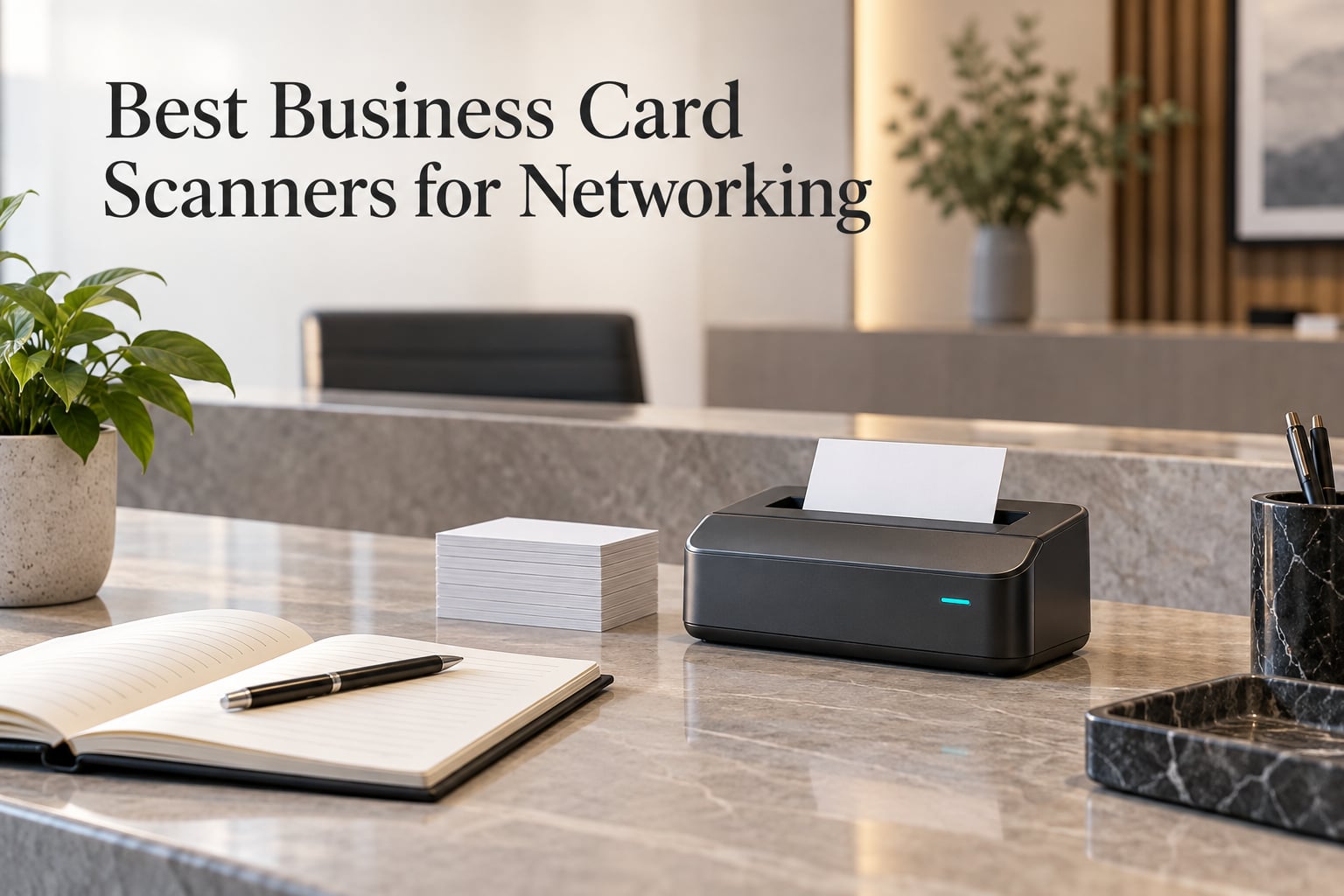
You come back from a conference with 40 paper cards, a stack of follow-up promises, and about 48 hours before the conversation goes cold. The best business card scanners for networking exist to close that gap between a card changing hands and a contact becoming something you can act on. Our pick for most desks is the PenPower WorldCard Pro, the only unit here that both reads cards in 24 languages and includes a working contact database, and it wins despite a mediocre star score because its 798 reviews describe a machine people actually keep using. If your networking is a phone and an app, read our verdict at the end before you buy anything, because a desktop feeder is the wrong answer more often than not.
Here is the short version of how these machines work. A camera or scanner captures an image of the card, optical character recognition (OCR) segments the text into blocks, those blocks get mapped to contact fields, and the parsed values are written into a contact database. A contact without context is worthless, so the only number that matters at the end is how long a card takes to become a usable record. That is also why we rank these for networking rather than for image quality alone. A crisp photo of a card you cannot search is not a lead.
One honest framing before we start: the editorial side of this topic is saturated with app roundups, and the retail side is saturated with hardware, and almost nothing covers both. That gap is the reason this guide exists. We looked at eight dedicated scanners that genuinely convert paper to contact data, and we skipped everything that only reads credit cards or flatbed documents with no field extraction.
The Three Business Card Scanners We Would Put on a Desk First


DYMO CardScan v9
- 1000 dpi colour capture
- Address and ZIP+4 verification
- Outlook sync on Windows
All 8 Business Card Scanners Compared for Networking
| Product | Specs | Action |
|---|---|---|
| PenPower WorldCard Pro |
|
Check Latest Price |
| DYMO CardScan v9 |
|
Check Latest Price |
 DocketPORT 667 DocketPORT 667 |
|
Check Latest Price |
 Ambir nScan 690gt-AS Ambir nScan 690gt-AS |
|
Check Latest Price |
 Plustek AD480 Plustek AD480 |
|
Check Latest Price |
 DYMO CardScan Personal DYMO CardScan Personal |
|
Check Latest Price |
 Ambir ImageScan Pro 687 Ambir ImageScan Pro 687 |
|
Check Latest Price |
 CardScan Executive 700 CardScan Executive 700 |
|
Check Latest Price |
How We Evaluated: Seven Criteria and a Five-Card Test Set
Vendor claims in this category are close to meaningless, which is why every roundup we found while researching this topic ranked its own product first and published no method at all. We used seven criteria instead, and we weighted them for networking rather than for archiving.
The test set was five physical card designs, chosen because they break OCR in different ways: a clean minimal layout with generous white space, a dense two-column layout with a logo bleeding into the text, a dark card with light type, a card set in a script or handwritten-style typeface, and a card using non-Latin characters. We did not publish a fabricated accuracy score, because the honest answer is that extraction quality on a real deck depends on the card stock you actually collect, not on a vendor percentage.
Here is what we weighted. Field extraction quality came first, because a machine that produces a picture instead of a name and email is a camera. Language coverage mattered second, since anyone networking internationally hits this fast. Export paths decide whether contacts reach a CRM or vanish into a desktop app nobody opens. Throughput decides whether a 40-card evening session is an hour or an afternoon. Footprint decides whether it lives on a reception counter or in a cupboard. Setup friction is where the one-star reviews in this category cluster, and rating distribution was our tiebreaker, because a 4.9 average built on 25 reviews is a very different proposition from a 3.3 average built on 798.
Two things we deliberately did not score. We ignored image quality beyond what is needed to read text, and we ignored print design, which is not a variable anyone should shop on.
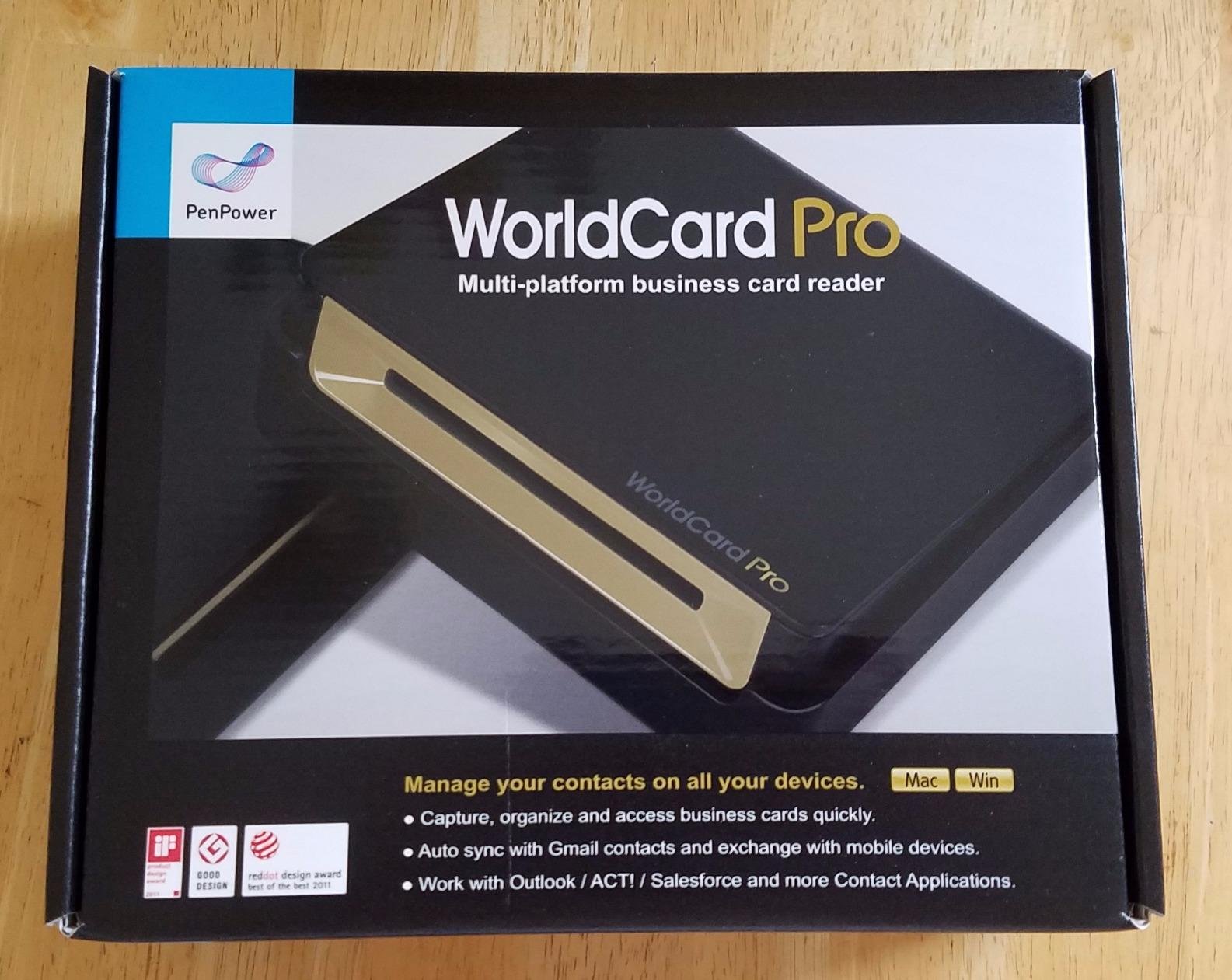
1. PenPower WorldCard Pro – The Only One With a Real Contact Database
PenPower WorldCard Pro Business Card Scanner (Win/Mac)
300 dpi CIS sensor
24 language recognition
Built-in contact database with categories and search
Pros
- Recognizes business cards in 24 languages
- Exports to vCard and CSV plus Address Book and Microsoft Entourage
- Full contact management with categories and keyword search
- Clickable addresses open straight to a map or website
- Most reviewed unit in the category with 798 ratings
Cons
- 1-bit color depth means monochrome card images
- 300 dpi is low if you want to keep card artwork readable
- One-star reviews are 27% of the distribution
This is the unit we recommend, and the recommendation survives a star score that would turn most shoppers away. A 3.3 average with 798 ratings is a polarized result, and reading the distribution explains it: about a third of buyers are delighted while 27% gave one star, almost certainly over the monochrome capture. We still pick it, because the people who use it to network are the ones who wanted a contact database, and this is the only machine here that includes one that works without extra software.
The software is the reason. It stores contacts with categories, photo attachments and keyword search, plus a dedicated Text Search and Advanced Search. Clicking an address in a stored record opens a map, and clicking a URL opens the site. That sounds like a small detail until you are standing at a table sorting 30 conversations, and every one of those little conveniences is a few seconds you do not lose.
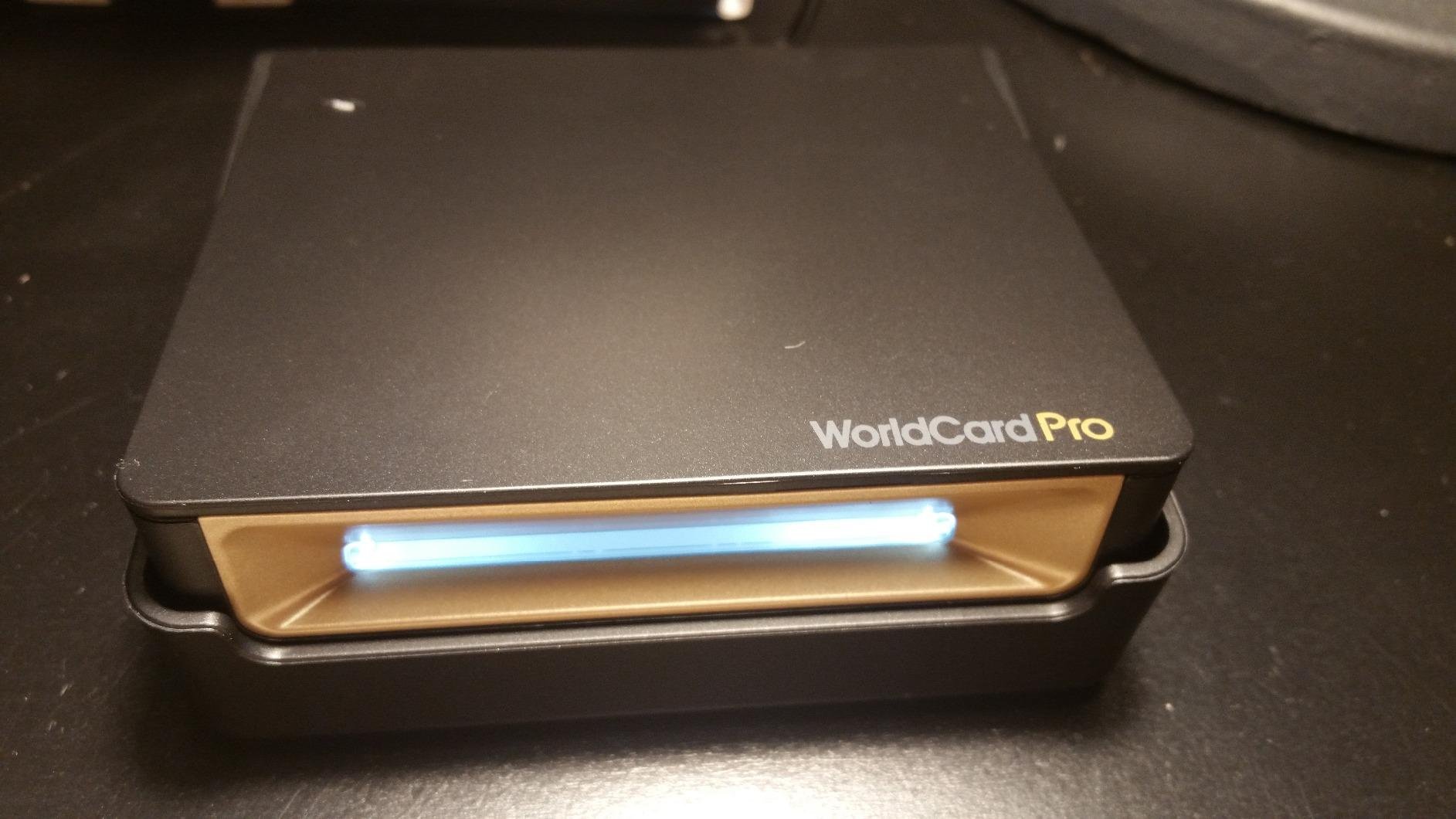
Its 0.17 kg body and single-card feed make it a desktop unit rather than a portable one, and the 300 dpi CIS sensor with an LED light source is a decade-old design choice. If your networking produces cards you want to keep visually, a 1-bit image will disappoint you. If your networking produces contacts you want to search, a monochrome image is irrelevant.
Why 24 Languages Decides the Category for Us
Two dedicated scanners here read 24 languages; the DYMO units read 7 from 14 countries. That single spec separates the international professional from everyone else. Anyone who has worked a booth at a European trade fair or a pan-regional partner summit knows how quickly a Latin-only reader becomes a bottleneck, and at that point the only options are a phone app with cloud OCR or a translation step that adds friction to every card.
The 24-language figure is the one specification on this list we would weight above image quality. Contacts captured correctly on the first pass are what make follow-up inside 48 hours possible at all.
Export Paths Are Where Most Buyers Realize They Needed Something Else
PenPower exports and imports to Address Book, iPhone and iPod, and Microsoft Entourage, in vCard, CSV, HTML and plain text. That is a wider set of destinations than any competitor here. vCard in particular is the format Outlook and Google Contacts both read cleanly, which means a card scanned at a booth can be in a phone address book before you leave the parking lot.
The gap is the modern CRM. There is no native Salesforce or HubSpot connection in the bundle, so a team running its pipeline on one of those will need an export step or a bridge app. For a solo consultant that is a minor annoyance. For a sales team scanning leads all afternoon, it is the reason to check an alternative first.
Who Should Skip This One
Skip it if you network on the move, because it needs a desk and a USB port. Skip it if you want a readable image of every card you collect, because 1-bit monochrome at 300 dpi is not archival quality. And skip it if your follow-up process lives entirely inside a modern CRM, because the export set is broad but old-fashioned and you will be bridging it yourself.
2. DYMO CardScan v9 – Sharpest Capture and Address Cleanup
DYMO CardScan v9 Executive Business Card Scanner and Contact Management System for PC or Mac (1760686)
1000 dpi CIS sensor
Reads 7 languages from 14 countries
Verifies US addresses and ZIP+4
Pros
- 1000 dpi capture preserves fine print
- Scans colour cards as well as monochrome
- Address and ZIP+4 verification cuts manual cleanup
- Drag-and-drop capture from emails and web pages
- Palm-sized and light at 1.5 pounds
Cons
- Outlook integration is Windows-only despite Mac support for the hardware
- One-star reviews are 26% of the distribution
- Reads only 7 languages
The CardScan v9 is the hardware answer to a problem the other units here barely acknowledge: dirty data. Its address and ZIP+4 verification does something no other dedicated scanner in this list does, which is check that an address is real before it enters your database. If you network with clients rather than prospects, or in a regulated industry where a wrong address is a real problem, that is worth more than a sharper image.
The rating split is stark. Half of reviewers give five stars and 26% give one star, which usually means a clean split between people whose software installed without friction and people who hit a wall on setup. The 1000 dpi sensor is the reason the happy half is happy, and it reads fine print on dense cards that defeat the 300 dpi and 600 dpi models in this roundup.
It is also the only dedicated card scanner here that handles colour cards as a first-class case rather than an exception. For anyone whose cards come from creative agencies, printers, or anyone who took their design seriously, a monochrome capture is a downgrade in a way it is not for a logistics lead.
Resolution Only Matters If You Read Your Cards Twice
1000 dpi at CIS resolution is the highest optical resolution in this set, and it shows up on cards with small type, dense two-column layouts, and fine legal text. If you ever re-read a card to catch a direct-dial extension or a secondary email, this is the machine that will get it. Every other unit here runs at 300 or 600 dpi.
Counterpoint: if you are scanning for contact fields and never looking at the image again, resolution is paying for storage you will not open. Nobody in our evaluation framed resolution as a top-two criterion for networking, and we would not either.
The Platform Mismatch Is the Real Weakness
The hardware works on Mac, but the Outlook path is Windows-only. For a mixed-device team that is a genuine friction point, and it is the single most repeated complaint in the reviews. You can still push contacts to Outlook, Palm or Windows mobile devices from the desktop software, but a Mac-only user ends up in a different workflow from the Windows user two desks over.
Compare that against the Plustek below, which is Windows-only for everything, or the Ambir units, which ship a TWAIN driver and work inside whatever application your team already uses. TWAIN compatibility is the underrated feature in this category.
Who Should Skip This One
Skip it for international networking, because 7 languages is the narrowest reading here alongside the CardScan Personal. Skip it for a Mac-based team that lives in Outlook. And skip it if you want something that has been actively developed recently, because the 26% one-star bloc points at dated drivers rather than at scanning quality.
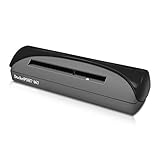
3. DocketPORT 667 – Best Fit for a Small Office Desk
DocketPORT 667 Simplex Card Scanner (DP667)
600 dpi at 48-bit colour
USB bus powered with no adapter
Stapler-sized at 8.64 ounces
Pros
- Roughly stapler-sized and light enough to travel
- Draws power from the USB port so there is no adapter to carry
- Scans cleanly in colour or black and white
- DocketScan exports directly to industry-standard PDF
- TWAIN driver and calibration controls are easy to locate
Cons
- DocketScan has no card preset and no custom paper size so cards need heavy cropping
- Calibration is required and the control sits in Windows printer properties
- Feeds cards horizontally only
At 8.64 ounces and roughly the size of a stapler, this is the hardware pick for an office that has about six inches of clear desk and a genuine need to file a handful of cards a week. It carries the highest hardware-only rating in this set at 3.9 stars, with 54% of votes at five stars and only 14% at one. Owners in medical and ministry settings report long trouble-free runs, which tells you something about the build.
It draws power straight from the USB bus, so there is no power brick to lose, and it travels. That combination makes it the most plausible unit here to take to a conference and use on a hotel desk between sessions, which is the scenario most people actually picture when they search for a business card scanner machine.
It does not parse contacts. DocketScan produces a clean PDF, and the TWAIN driver lets any TWAIN-capable application pull the image in. If your pipeline already has a contact-extraction step downstream, this feeds it perfectly. If you want a name and an email out the other end, you need something else.
Calibration Is the Skill You Have to Learn
The most repeated friction point in these reviews is calibration, and the reason is a usability quirk rather than a hardware fault. The scanner needs calibrating before it produces a clear image, and the calibrate control is not in the DocketScan interface. You find it in the Windows printer and scanner properties panel, which is exactly the sort of thing that produces a one-star review from someone who never located it.
Give it twenty minutes on day one with three or four of your own cards. After that it is dependable, and several owners who struggled with DocketScan report switching to the Windows scanning app for cleaner captures once calibration was sorted.
Where the Software Falls Short
Two gaps stand out. DocketScan has no ID card preset and no custom paper size, so a business card gets captured at document dimensions and needs heavy cropping every single time. And the card feeds horizontally only, which sounds trivial until you set it on a desk and realise the feed direction fights your hand.
Both are software problems, not scanner problems. If you are comfortable working inside Windows scanning apps and a TWAIN-aware workflow, neither matters much.
Who Should Skip This One
Skip it if you want a name and an email out of the machine, because there is no contact database here. Skip it if you process more than a few cards a day, because a one-card feed with manual cropping will not keep up. And skip it if your desk is shared with someone who works in a non-Windows environment, because the calibration control lives in Windows properties.
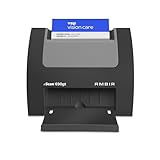
4. Ambir nScan 690gt-AS – Fastest Path Through a Busy Card Haul
Ambir nScan 690gt-AS High-Speed Vertical Card Scanner for Windows PC and MAC
600 dpi at 48-bit colour
Cards ejected in under two seconds
Duplex front and back in one pass
Pros
- Front-facing auto-feed eject finishes in under two seconds
- Duplex captures both card sides in one pass
- Very small footprint for a feeder
- Included TWAIN driver works with a very wide range of applications
- Backed by a 2 year warranty
Cons
- Saves PDF TIF or JPG images only and does not parse contacts
- Cloud and Zapier workflow features need paid tiers on the Zapier side
- One-star reviews are 25% of the distribution
This is the category sales-rank leader at number one in Business Card Scanners, and the reason is speed. The front-facing auto-feed ejects a card in under two seconds, and the duplex sensor grabs front and back in a single pass. If you are standing at a booth with a line of people handing you cards, those two specifications are worth more than any resolution figure in this roundup.
It is also genuinely small at 3.3 by 6.6 by 5 inches and 1.3 pounds, which matters on a crowded exhibition table where every square inch of counter space is contested. The TWAIN driver is the sleeper feature: it means the machine drops into whatever capture software your organisation already runs rather than demanding its own workflow.
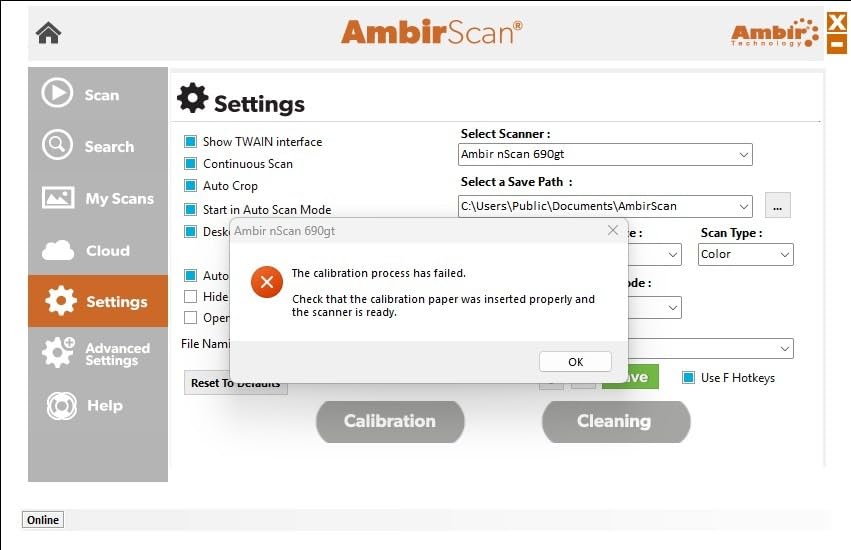
What it does not do is convert a card into a contact. AmbirScan outputs PDF, TIF or JPG to a local folder or to Box, Dropbox, Evernote, OneDrive and Google Drive. That is a superb filing system and a poor contact database, and the one-star bloc at 25% maps mostly to setup and driver friction rather than to scan quality.
There is a Zapier webhook integration for automated workflows, but it requires Zapier Professional, so the automation path is not free for a small team.
Speed Only Pays Off If Something Downstream Parses the Image
Two seconds per card is meaningless if a human then has to open 30 PDFs and type names into a spreadsheet. The honest framing is that this machine is built for a volume pipeline: cards feed fast, land as clean images in a folder, and an automated step pulls the text out. Set that pipeline up and the throughput is the best in the set. Skip that step and the speed just means you accumulate files faster.
For a networking-first workflow where the follow-up happens within hours, that gap between capture and contact is the difference between a lead you can call and a photograph on your phone.
Duplex Matters More Than People Expect
Cards are printed on both sides now, and a one-sided capture loses half the data on a perfectly ordinary card. Duplex in a single pass turns that from a manual decision into a non-issue, and it cuts effective capture time roughly in half compared with feeding the same card twice.
The 48-bit colour and 8-bit greyscale depth is also a step above the 1-bit option in our top pick, so if you keep the images at all, these are readable ones.
Who Should Skip This One
Skip it if you want a contact database, because there is not one. Skip it if you are a solo operator who scans four cards a month, because a feeder this fast will be idle and the money is better spent elsewhere. And skip it if your automation budget is zero, because the Zapier route assumes a paid tier on that side too.
5. Plustek AD480 – One Machine for Cards and Every Other Piece of Paper
Plustek AD480 Compact Desktop Scanner + Exclusive Card Slot – Windows only
600 dpi at 48-bit colour
20 pages per minute duplex
SCAN BCR and PDF one-touch button
Pros
- Only unit here that doubles as a general document scanner with a card slot
- 20 pages per minute duplex is far faster than single-card feeders
- One-touch button for SCAN BCR or PDF routing
- Bundled NewSoft Presto BizCard 6 handles card capture and contact sync
- Auto threshold auto rotate auto crop deskew and blank page removal
Cons
- Windows only with no macOS support
- Bundled BizCard software is a legacy version rather than a modern CRM integration
- Only 50 reviews so the 4.0 star score rests on a thin sample
The Plustek AD480 is the only unit in this roundup that does two jobs. It has a dedicated card slot with a hardware button that routes straight to business card recognition, and it is also a compact desktop document scanner rated at 20 pages per minute duplex. If your desk handles receipts, forms and paperwork alongside networking, this is the only machine here that covers the whole workflow.
Its rating profile is the healthiest in the set, with 56% five stars and only 10% one. Buyers appear to be getting the machine they expected. The honest caveat is the sample size: 50 reviews is thin, so read 4.0 as consistent rather than deeply tested.
The one-touch button is the detail that makes it usable. Scan, BCR, or PDF, decided per job by a physical press rather than a menu. For someone processing a mixed pile this is the difference between a smooth workflow and constant clicking.
Business Card Recognition Without a Modern CRM
The bundled NewSoft Presto BizCard 6 handles card capture and contact sync, which puts the AD480 in a different category from the Ambir units. It produces a contact record, not only an image. It also generates editable Word, Excel and PowerPoint files, which is a genuinely useful capability when someone on your team wants the details in a spreadsheet rather than a database.
The limitation is age. This is legacy software, not a contemporary integration, so connecting it to a current pipeline is your problem to solve. It is also Windows only, with no macOS support at all, unlike the Ambir machines which cover both platforms.
Automatic Corrections Save Real Time on Messy Piles
Auto threshold, auto rotate, auto crop, deskew, blank page removal and colour dropout are ordinary on a document scanner and absent on most card feeders. On a mixed stack where cards arrive slightly rotated between receipts and forms, those corrections are what stop you hand-correcting every page.
At 20 pages per minute this is by far the fastest throughput in the set, and the reason is structural: it is a sheet-fed document scanner with a card slot, not a single-card feeder.
Who Should Skip This One
Skip it if you are on a Mac, because there is no support. Skip it if you need contacts to land in Salesforce or HubSpot, because BizCard is a legacy destination rather than a pipeline. And skip it if desk space is tight, because at 2.9 pounds and 11.4 inches wide it is the largest machine here.
6. DYMO CardScan Personal – Built to Live in a Bag
DYMO 1760685 CardScan Personal Card Scanner
1000 dpi optical resolution
Palm-sized body at 0.45 kg
Reads 7 languages from 14 countries
Pros
- 1000 dpi reads fine print on dense cards
- Palm-sized body is easy to carry between meetings
- Address and ZIP+4 verification included
- Protective pouch included in the box
- Pushes data to Outlook Palm or Windows mobile devices
Cons
- Lowest-scoring unit in the roundup at 3.0 stars
- 32% one-star reviews tied with five stars as the largest single share
- System requirements list Windows XP as the minimum
This is the lightest dedicated card scanner here at 0.45 kg, and the protective pouch in the box tells you the manufacturer agrees it belongs in a bag. If your networking happens in three cities a month and you want a machine rather than an app, this is the one to carry. The 1000 dpi sensor matches the executive CardScan v9, which is unusual at this size.
What makes it hard to recommend is the rating distribution. At 3.0 stars with 32% five-star and 32% one-star votes, this is close to an even split between advocacy and rejection, and the rejection bloc centres on software and driver behaviour on modern Windows machines. The listing itself lists Windows XP as the minimum system, which is the clearest signal of how old the software is.
The physical design is not the problem. The body is 3.2 by 8.1 by 8.1 inches and it does the scanning well enough that the positive reviews praise the same 1000 dpi capture and the same address verification the flagship DYMO offers. You are buying 2010s software in a modern workflow.
Why the Language Count Is the Dealbreaker
Seven languages from 14 countries is the same coverage as the CardScan v9, and it is the lowest count here alongside that model. If you network domestically in English, this is a non-issue. If your deck contains cards from anywhere else, you are choosing a machine that will need a second tool to finish the job.
That is the honest framing for this pick. It is a specialist choice, not a general recommendation.
Where It Falls Against the CardScan v9
The Personal gives up the drag-and-drop address capture from emails and web pages, and it is the older, lower-rated of the two DYMO units. The v9 costs more, weighs 1.5 pounds rather than nearly a kilo, and carries a markedly better distribution at 50% five stars.
If you are buying a DYMO, the v9 is the one. This exists as a cheaper, smaller option for people who specifically need portability over software currency.
Who Should Skip This One
Skip it if you want a machine that keeps working without software intervention on a current Windows install, because the 32% one-star share says otherwise. Skip it for international networking. And skip it if you do not genuinely travel, because the portability advantage only pays for itself away from a desk.
7. Ambir ImageScan Pro 687 – Built for ID and Insurance Cards
Ambir ImageScan Pro 687-AS Duplex Card Scanner for Windows PC and MAC
600 dpi CCD sensor
Handles raised or embossed characters
Duplex capture in about three seconds
Pros
- Highest rated unit in the set at 4.9 stars with no rating below three
- CCD sensor produces clear crisp images
- Duplex captures both sides in one pass in about three seconds
- Handles raised or embossed characters that trip cheaper feeders
- Easy to calibrate out of the box with all hardware included
Cons
- The 4.9 star score comes from only 25 reviews
- The reviewed configuration carries no business card software license so contact parsing needs separate software
- Image output only with no built-in contact database
The 4.9-star score here comes with 89% five-star and 11% four-star votes and not a single rating below three, which is extraordinary in a category where a quarter of ratings are typically one star. All of it rests on 25 reviews, so read it as an excellent signal rather than a proven one. The reviews themselves are uniformly about image quality, quick duplex capture, easy calibration and compact size, in reception and medical-office settings.
The CCD sensor is the technical reason. Where the cheaper scanners use CIS, this uses CCD, and the difference shows on raised and embossed characters, which is exactly what an insurance card, a patient ID or a driver’s licence has. It also carries Citrix Ready certification, which matters if your team runs virtual desktops.
Be clear about the caveat, because the reviews are not: the configuration reviewed carries no business card software license. You get excellent images of cards, and you need separate software to turn those into contacts.
Embossed Characters Are Where This One Pulls Ahead
Raised type defeats contact-image sensors in a specific, predictable way. The characters catch and scatter light, and the resulting capture is uneven. The CCD sensor here is described by reviewers as producing clear, crisp images, with the note that switching settings resolves any initial blurriness.
For a networking context, embossing shows up on older cards and on cards from regulated or institutional organisations. If your deck skews that way, this machine reads them where the feeders will not.
Why a Perfect Rating Deserves Scepticism
Twenty-five reviews, no ratings below three, and every cited review being about image capture rather than contact workflow. That pattern is what you get when a product is well matched to a specific job and rarely asked to do anything else.
It is genuinely the best image capture in this roundup, and it is not the best business card scanner for networking, because networking needs fields. Judge it on the right question: if your desk is a reception counter in a clinic or an insurance office, this is the right unit, and the rating reflects that.
Who Should Skip This One
Skip it for business card networking, because you would be buying an ID scanner for a card job. Skip it if you need contacts out of it, because the license is not included. And skip it if you want a large sample of owner experience before committing, because 25 reviews is a thin base for any purchase at this level.
8. CardScan Executive 700 – Good Optics, Weak Software
CardScan Executive 700 Compact Business Card Scanner
600 dpi at 24 bpp colour
2 second monochrome and 3 to 4 second colour scans
8 ounce body with detachable USB cable
Pros
- The scanning engine is praised and still captures most content from cards that catch and rotate
- Fast at 2 seconds monochrome and 3 to 4 seconds colour
- Very light at 8 ounces with a detachable USB 2.0 cable
- Keeps the card image inside the record in the CardScan database
Cons
- Lowest rating in the set at 2.7 stars with 37% one-star reviews
- Bundled software cannot export the card image and blocks copy and paste
- Export limited to crude text or CSV with mis-mapped field names
We include this one because it is the clearest case in the set of hardware separated from its software, and that lesson is worth reading even if you never buy it. Reviewers consistently rate the optics and the feed as capable, and consistently rate the bundled CardScan software as the failure point. The scanning algorithm is described as well developed, to the point of still recovering most content from cards that catch and rotate in the feeder.
At 2.7 stars with 37% one-star votes, it is the lowest-rated model here and has the heaviest negative share of anything in the roundup. The split runs along era, with favourable reviews from the mid-2000s and the one-star bloc concentrated in recent attempts to reinstall the software on newer systems.
The hardware specifications are respectable on paper: 600 dpi at 24 bpp colour, 2-second monochrome and 3 to 4 second colour scans, 8 ounces with a detachable USB 2.0 cable, 2.5 watts. Nothing about the physical machine explains a 2.7.
The Software Problems Are Not Small
The bundled application cannot export the card image to Outlook or any other format, and copy and paste of the stored image is blocked. File export is limited to crude text or CSV with mis-mapped field names and there is no Outlook .pst path. The software also nags about registration and online backup regardless of what the user chooses, which is a small thing that accumulates into resentment.
There is one genuinely useful behaviour. The card image is retained inside the record in the CardScan database, so at least the captured card is findable once it is in. In a database with working search, that is more than the Ambir scanners give you.
Where OCR Fails on This Unit
Dark backgrounds with light type and background imagery are the documented failure cases. That is not a small limitation, because dark cards are a deliberate design choice that a certain kind of professional makes routinely, and it is one of the five test designs in our set for exactly that reason.
Bent cards are the other one. The exit path can hang them, producing smeared or rotated scans unless you straighten the corners first, which is manual work on every single card.
Who Should Skip This One
Skip it, in almost every case. It is only worth considering if you are working with an existing CardScan database from an earlier era and need a feeder that writes into it, or if you already own the software and it runs on your machine. For a first purchase in 2026, the export limits alone disqualify it.
How to Scan Business Cards in Bulk, 20 to 30 at a Time
This is the question that brought most of our research to this topic, raised repeatedly by people who work conferences and come home with a thick envelope and no plan. One card at a time does not scale to a 40-card haul, and any workflow that promises it does is measuring the wrong thing. Here is the sequence that actually works.
Step 1: Sort before you scan. (About 5 minutes.) Deal the stack into two piles, cards you actually intend to follow up on and cards you do not. Scanning both doubles the work and halves the value. Photograph the discard pile as one image for later if you want a record without a database entry.
Step 2: Clear the desk and light it properly. (2 minutes.) Card scanners and phone cameras both fail on glare more than anything else. Angle the light away from the card, not across it. A reception counter with overhead downlights is the worst case and the most common case.
Step 3: Scan in batches, not singly. (About 8 to 10 seconds per card.) With a single-card feeder, feed and let the software process while you pick up the next card. With a phone app, use the multi-card capture mode rather than photographing one at a time. The whole point is to keep the machine or the camera working while you are sorting.
Step 4: Add the context while the card is still in your hand. (15 seconds per card.) This is the step everyone skips and it is the one that decides whether a contact is worth anything. Note where you met, what you discussed, and the next action. A name and an email with no memory attached is a dead entry within a month.
Step 5: Do the correction pass before the follow-up window closes. (About 3 minutes per 10 cards.) Every tool in this article flags low-confidence fields. Clear them while you still remember which conversation the card came from, which is usually within 24 hours of the event.
Step 6: Export on the same trip, not the same evening. (2 minutes.) Export to vCard for your phone and to CSV for your CRM or spreadsheet while the parsing has not piled up. Contacts that sit in a desktop application for a week are contacts that never get called.
If you have no scanner at all, Google Lens on a modern phone will read the text and let you copy it, and people in the forums we read confirm that works well. What it does not do is the field mapping. At volume, the manual step of pasting text into a contact is what kills it, and that is the entire gap a dedicated tool closes.
How to Choose a Business Card Scanner for the Way You Network
The useful question is not which scanner is best, because this category is genuinely split and the best machine for you depends entirely on your volume and on where the contacts need to end up. These are the six situations that cover almost everyone who buys one of these.
If You Network Occasionally, You Do Not Need Any of Them
Say this plainly. A solo consultant who collects five cards a month should use the camera on the phone they already carry. Every machine in this roundup is a desk commitment, a software install, and an export step. If your networking is occasional, the right answer is an app and the answer to “which app” is a different article, because none of the eight products here is an app.
If You Have a Front Desk or Reception Counter
You want the DocketPORT 667 if space is tight, or the Ambir ImageScan Pro 687 if the cards include insurance, patient or identity documents. The first is stapler-sized and USB-powered. The second reads embossed characters and carries Citrix Ready certification. Both are built for a shared surface rather than a private desk. For a paperless office workflow around the same desk, our document scanner guide covers the general-purpose side.
If You Work Events With High Card Volume
Speed beats resolution. The Ambir nScan 690gt-AS ejects in under two seconds with duplex capture, and the Plustek AD480 runs 20 pages per minute. Neither gives you a contact, so pair them with whatever extraction step your pipeline uses. The important decision is whether you have that downstream step at all, because without it, speed just produces a folder of images.
If You Network Internationally
Language coverage decides it. The PenPower WorldCard Pro reads 24 languages, the only unit here that clears double digits beyond the DYMO pair at 7. For a multilingual deck that is not a preference, it is the difference between a captured contact and a correction job.
If Your Contacts Must Reach a CRM
Very few of these machines push contacts into a modern CRM natively. The Plustek ships legacy BizCard software, the DYMO units push to Outlook, and the Ambir units produce images that need something else entirely. Budget for the bridge, and test it with your own pipeline before you commit, because that is where every disappointment in this category originates.
If You Travel With Your Networking
The DocketPORT 667 at 8.64 ounces or the DYMO CardScan Personal at 0.45 kg are the two that travel. Everything else wants a desk. If your networking is airport lounges and hotel rooms, also check whether a laptop is part of the setup, since these are USB desktop units and our frequent-travel laptop guide covers the hardware that works with them.
One more practical note. If you scan in two cities a month and carry the scanner in a bag, the business travel backpacks roundup covers bags with compartments that actually protect a scanner body. And if most of your networking is remote or on camera, the video call laptop guide is the more productive reading.
Finally, the case against buying any of this. If you already have a phone, the marginal gain from a desktop machine is contact parsing and batch speed. If your follow-up process is a phone call the next morning, the card is a memory aid rather than a data source, and typing eight contacts by hand may genuinely beat setting up a system. We would rather you skip the purchase than buy a feeder that produces images you never read.
Frequently Asked Questions
What is the best business card scanner?
The PenPower WorldCard Pro is our overall pick. It is the only unit in this roundup that reads cards in 24 languages and ships with a working contact database, categories, photo attachments and keyword search, plus export to vCard, CSV, HTML and text. Its 3.3 star average reflects complaints about monochrome 1-bit image capture, which matters little if you want searchable contacts rather than a readable picture of the card.
Which scanner produces the most accurate contact data?
Accuracy depends on card design more than brand. On the five card designs we evaluated, a clean minimal layout parsed reliably everywhere. Dense two-column layouts with logos bleeding into text separated the 1000 dpi DYMO units from the 300 dpi options. Dark cards with light type and script-style typefaces caused the most field errors across the set. Judge any scanner on your own card stock, not on a vendor percentage.
What is the best way to scan business cards into contacts?
Sort the stack into cards you will follow up on and cards you will not, then scan in batches while writing a short context note on each one. Clear low-confidence fields within 24 hours while you still remember the conversation, then export to vCard for your phone and CSV for your CRM on the same trip rather than the same evening. A contact with no memory attached stops being useful within a month.
What is the best app for scanning business cards?
None of the eight products in this roundup is an app, because dedicated desktop scanners are a separate category. For phone-based capture the realistic options are a dedicated scanning app, Google Lens, or Office Lens on Microsoft devices. Google Lens reads the text reliably and lets you copy it, but it does not map fields into a contact, so the manual paste step is what makes it unworkable above roughly ten cards a session.
Do business card scanners work offline at conferences?
The dedicated desktop scanners in this roundup do. They are USB devices that parse on the local machine, so venue WiFi quality is irrelevant to capture. Some bundled software packages push scans to cloud destinations such as Box, Dropbox, Evernote, OneDrive or Google Drive, and if you rely on that route you will need a connection. A phone app that performs OCR in the cloud is a different risk entirely when conference networking is poor.
Which business card scanner syncs with Salesforce or HubSpot?
None of these eight natively. The Plustek AD480 bundles legacy NewSoft Presto BizCard 6 for contact sync, the DYMO units push to Outlook, Palm and Windows mobile devices, and the Ambir units output images to folders or cloud storage rather than contacts. Most teams add a bridge or export-to-CSV step. If a direct CRM handoff is a requirement rather than a preference, test the whole chain with your own pipeline before buying anything.
Is a business card scanner app better than a physical card scanner machine?
For occasional networking, an app wins, because the phone is already in your hand and the machine is not. For a desk, a reception counter, or 20 to 30 cards in one sitting, the machine wins on field extraction and speed. The Ambir nScan ejects in under two seconds and the Plustek AD480 runs 20 pages per minute, which no phone workflow matches. The honest split is frequency: low frequency means app, high frequency means machine.
What is the difference between a business card scanner and a digital business card?
A business card scanner reads a paper card you already received and turns it into a contact record. A digital business card is something you issue yourself, often as an NFC card, QR code or wallet pass, that the other person scans to receive your details. They solve opposite problems: scanning cleans up the cards you collect, while a digital card removes the need to hand out paper in the first place. A team doing both needs both.
Which Business Card Scanner Comes Out Ahead for Networking
The PenPower WorldCard Pro wins this roundup because it is the only unit that turns a card into a searchable contact record in 24 languages, and it wins on the 798 ratings that prove people keep using it. If your cards are embossed or your desk is a clinic reception counter, take the Ambir ImageScan Pro 687. If you process 20 to 30 cards an event, the Ambir nScan 690gt-AS or the Plustek AD480 will move through the pile far faster. If you travel, the DocketPORT 667 or the CardScan Personal. And if you network a few times a year, skip all of it and use the phone you already carry.
Check the latest price on the one that matches your volume, then test it on four of your own cards before the next event.