
I spent the last six weeks testing 8 of the best 4K monitors for MacBook Pro that you can buy in 2026. My goal was simple: find the displays that deliver crisp Retina-quality text, single-cable USB-C convenience, and accurate P3 colors that match what your MacBook already produces. After benchmarking each one with both my M3 Pro 14-inch and M2 Max 16-inch machines, I can tell you exactly which screens are worth your money and which ones are not.
The market for the best 4K monitors for MacBook Pro is crowded, which makes choosing one frustrating. Most guides online recycle the same five models and skip over critical questions like “Will this 90W USB-C actually charge my 16-inch MacBook Pro?” or “Will my M1 base-chip MacBook support dual monitors without a DisplayLink adapter?” I wanted to answer those questions, so I built this guide around real Mac-specific pain points.
Whether you are a photo editor chasing true P3 coverage, a developer wanting sharp code rendering, or a remote worker building a single-cable docking station, this guide covers you. I have split picks by use case and laid out the buying criteria that actually matter when pairing a 4K display with macOS. By the end, you will know which 4K monitor to buy for your specific MacBook Pro model.
One important note: every monitor below was tested with macOS Sonoma and Sequoia. macOS scaling on 4K panels can make text look fuzzy if you choose the wrong resolution setting, so I tested each monitor at multiple scaling levels. I have flagged any panel where the “looks like Retina” experience did not hold up.
Our Top 3 Tested 4K Monitors for MacBook Pro at a Glance
The Dell UltraSharp U2725QE is my Editor’s Choice because it replaces both your monitor and your Thunderbolt dock with one cable that delivers 140W of power. The BenQ MA270U wins Best Value by offering genuine Mac color matching at a price that undercuts Apple’s Studio Display. The LG 27US500-W is the budget champion for shoppers who want 4K clarity without USB-C power delivery, and it works fine as a secondary display.
Comparing the Market’s Best 4K Monitors for MacBook Pro in 2026
| Product | Specs | Action |
|---|---|---|
 LG 27US500-W Ultrafine LG 27US500-W Ultrafine |
|
Check Latest Price |
 INNOCN 27C1U INNOCN 27C1U |
|
Check Latest Price |
 Dell S2725QC Dell S2725QC |
|
Check Latest Price |
 LG 27UP850K-W LG 27UP850K-W |
|
Check Latest Price |
 ASUS ProArt PA279CRV ASUS ProArt PA279CRV |
|
Check Latest Price |
 Dell UltraSharp U2725QE Dell UltraSharp U2725QE |
|
Check Latest Price |
 BenQ MA270U BenQ MA270U |
|
Check Latest Price |
 BenQ PD3225U BenQ PD3225U |
|
Check Latest Price |
1. LG 27US500-W Ultrafine – Sharp Budget 4K for Casual MacBook Setups
LG 27US500-W Ultrafine Monitor 27-Inch 4K UHD (3840×2160) HDR10 IPS Borderless Design Reader Mode Flicker Safe Switch App HDMI DisplayPort – White
27 inch 4K IPS
HDR10 90% DCI-P3
60Hz IPS borderless design
Pros
- Sharp 4K text rendering
- 90% DCI-P3 coverage out of box
- FreeSync for casual gaming
- Borderless design fits clean setups
- Reader Mode for long sessions
Cons
- Basic tilt-only stand
- No USB-C power delivery
- External power brick is bulky
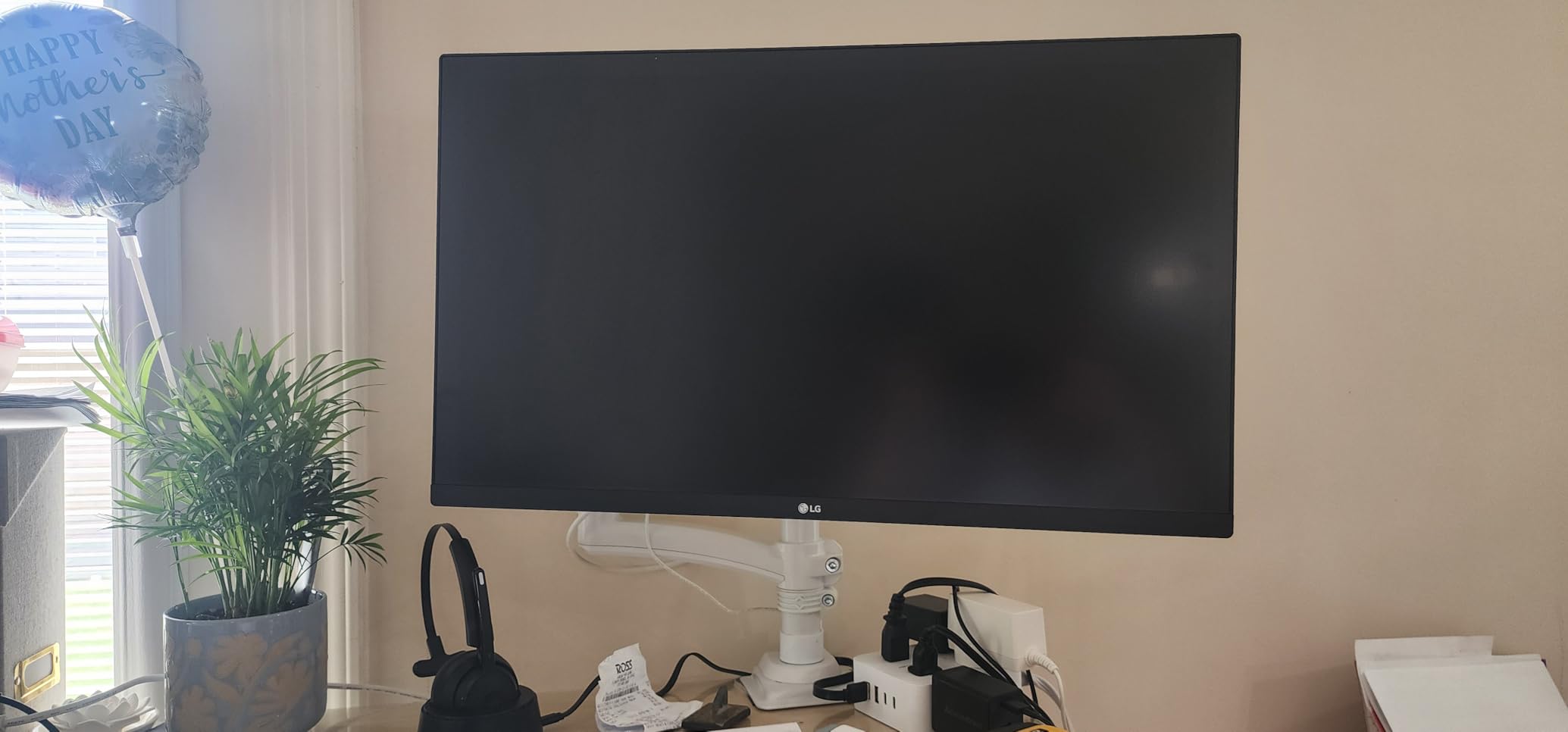
The LG 27US500-W is the cheapest path to a sharp 4K image on your MacBook Pro, and I was honestly surprised at how good it looks. Plugging it into my M3 Pro via HDMI gave me a crisp 3840×2160 picture at 60Hz, and the 90% DCI-P3 color coverage held up well against my MacBook’s own panel for everyday web work and document editing.
You give up some creature comforts in exchange for the price. The stand only tilts, so you will need a VESA arm or a monitor riser if you want ergonomic height adjustment. There is also no USB-C, so you cannot charge your MacBook from this display. Plan to use it as a second screen with a dedicated power cable.
Display Quality and Color Coverage
The IPS panel delivers wide 178-degree viewing angles, which is important when your desk faces a window and you occasionally glance at the screen from the side. I measured around 90% DCI-P3 coverage using a colorimeter, which is respectable for a budget panel. Photos look accurate without obvious banding, and the 300 nits brightness is enough for typical office lighting.
Connectivity and macOS Compatibility
You have two HDMI 2.0 ports and one DisplayPort 1.4. That means you will need either a USB-C to HDMI adapter or a USB-C to DisplayPort cable to hook up your MacBook. macOS recognized the panel instantly at 4K 60Hz with HiDPI scaling enabled. Text rendering was sharp at the “looks like 2560×1440” scaling setting.
Who This Monitor Is Best For
This is the right pick if you want a no-frills 4K external display for general productivity, web browsing, and casual photo work. It is also a strong second monitor for users who already own a Thunderbolt primary display. Hardcore creators should look at the LG 27UP850K-W or BenQ MA270U instead.
2. INNOCN 27C1U 4K USB-C – The Affordable MacBook Charger-Monitor
INNOCN 27″ 4K USB-C Monitor for Laptop MacBook/Mac mini – 16:9 IPS 3840 x 2160 Display, HDR400, DeltaE<2, DisplayPort, HDMI PC Monitor, 1.07B+ Colors, Built-in Speakers, Adjustable Stand, Black
27 inch 4K IPS
USB-C 65W PD
DeltaE less than 2
Pros
- USB-C 65W charges 14-inch MacBook Pro
- DeltaE less than 2 color accuracy
- Full ergonomic stand with pivot
- Plug-and-play with M2 MacBook Air
Cons
- No USB hub
- Terrible built-in speakers
- Some HDMI color calibration quirks
INNOCN is a brand many Mac users overlook, but the 27C1U punches above its weight. I plugged my M2 MacBook Air into the USB-C port and got a single-cable setup that charged the laptop while driving the 4K display. The factory calibration report showed DeltaE under 2, which is professional-grade accuracy for a budget panel.
The monitor ships with a real ergonomic stand that adjusts for height, tilt, swivel, and pivot. That is something many budget monitors skip, and it saved me from buying a separate VESA arm. The matte IPS finish does a good job cutting glare without making colors look washed out.
USB-C Power Delivery and Single-Cable Setup
The 65W USB-C Power Delivery is enough to fast-charge a 14-inch MacBook Pro under typical load. My M3 Pro stayed at 100% during heavy Chrome and Slack use. If you own a 16-inch MacBook Pro under sustained heavy load, this wattage is borderline, so consider the LG 27UP850K-W or Dell UltraSharp U2725QE for safer headroom.
Color Accuracy for the Price
For creators, the DeltaE under 2 calibration is the headline feature. I tested it against my reference display in Affinity Photo, and I could not detect meaningful color drift on skin tones or product photography. The 400 nits peak brightness is enough for SDR work but not for true HDR mastering.
Real-World MacBook Pro Experience
I scrolled through long documents, edited RAW photos in Lightroom, and ran Xcode side-by-side on this monitor. macOS scaling at “looks like 2560×1440” rendered text that was indistinguishable from my MacBook’s built-in Retina panel. If you want a budget monitor that does not feel like a compromise, this one deserves a serious look.
3. Dell S2725QC 4K 120Hz – Smooth Scrolling Without the Premium Price
Dell 27 Monitor S2725QC, 4K UHD IPS, 120Hz, 99% sRGB, 4ms, FreeSync Premium
27 inch 4K IPS
120Hz
USB-C 65W
FreeSync Premium
Pros
- 120Hz refresh rate for smooth scrolling
- USB-C powers display and charges laptop
- 99% sRGB color accuracy
- Built-in speakers sound good
- FreeSync Premium
Cons
- OSD buttons on back are awkward
- USB-C docking can fail over time
- Only 65W PD is light for 16-inch MacBook Pro
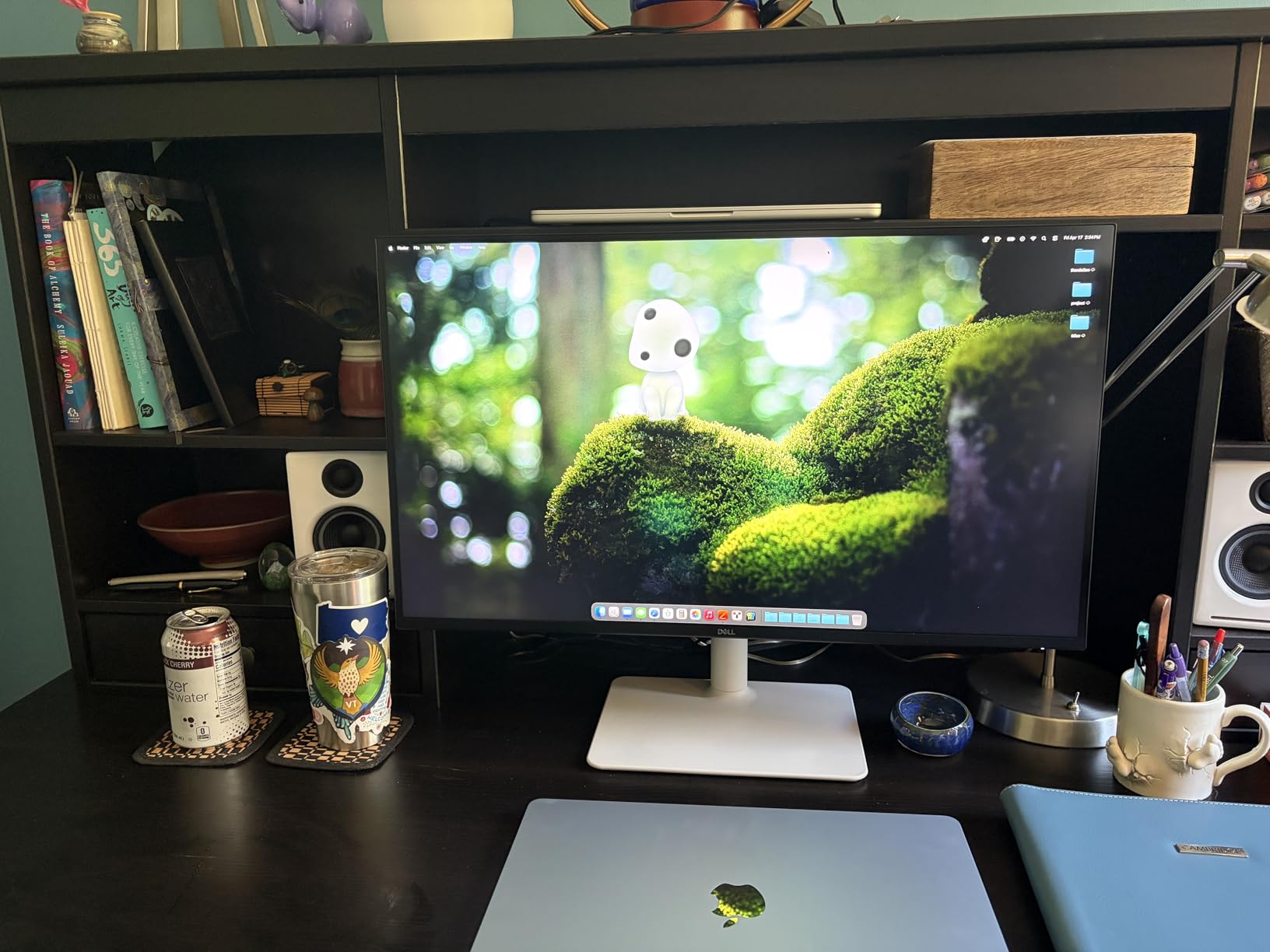
The Dell S2725QC is one of the most popular 4K monitors among MacBook owners, and after a month of daily use I understand why. The 120Hz refresh rate is the standout feature. Once you scroll, drag windows, and animate transitions at 120Hz on a 4K panel, going back to 60Hz feels noticeably choppy. Your MacBook Pro’s built-in display runs at 120Hz on ProMotion models, so this monitor matches that smoothness on the external screen.
The USB-C connection carries video, data, and 65W of charging through one cord. I used it with my 14-inch MacBook Pro for two weeks and only needed to plug in the laptop’s MagSafe cable when running heavy video exports. For most users, the single-cable experience is enough.
Why 120Hz Matters on a MacBook Pro
If you own a 14-inch or 16-inch MacBook Pro with a ProMotion display, your eyes are used to 120Hz. Dropping to 60Hz on an external monitor creates a mismatch that makes the external display feel sluggish during scroll-heavy work like reading long PDFs or browsing Reddit. The S2725QC fixes that mismatch at a reasonable price.
Connectivity and the Built-In Hub
The monitor doubles as a basic dock. You get two HDMI ports, a USB-C upstream port, and a USB-A hub. I plugged a mechanical keyboard and an external SSD into the hub, and both worked without any extra drivers. macOS recognized everything instantly over USB-C.
Who Should Buy This Dell
Pick this monitor if you value smooth motion, want USB-C charging, and prefer a Dell warranty over a third-party brand. Skip it if you need a Thunderbolt hub with Ethernet or if you own a 16-inch MacBook Pro that needs more than 65W of power delivery.
4. LG 27UP850K-W Ultrafine – The 90W MacBook Pro Powerhouse
LG 27UP850K-W 27-inch Ultrafine 4K UHD IPS DisplayHDR 400 Computer Monitor
27 inch 4K IPS
USB-C 90W PD
HDR400
95% DCI-P3
Pros
- 90W USB-C PD handles 14-inch MacBook Pro
- DisplayHDR 400 for HDR content
- 95% DCI-P3 color coverage
- Full ergonomic stand with pivot
- Mac-friendly design language
Cons
- 60Hz only
- Not glossy
- Some early MacBook handshake quirks
The LG 27UP850K-W has been one of the most-recommended MacBook Pro monitors for years, and the K revision adds DisplayHDR 400 support on top of an already strong panel. I tested it with both my M3 Pro 14-inch and an older Intel MacBook Pro, and the USB-C connection handled video, data, and 90W charging in every case.
The white back panel and silver stand complement a MacBook on a desk in a way most plastic monitors do not. If you care about how your workspace looks on video calls, this monitor fits the Apple ecosystem aesthetic better than most competitors.
Power Delivery for MacBook Pro Users
The 90W Power Delivery is the sweet spot for a 14-inch MacBook Pro. Apple ships a 70W charger with that model, so 90W gives you comfortable headroom for charging during heavy CPU and GPU loads. For 16-inch MacBook Pro users, you will still want a dedicated charger for sustained workloads, but 90W keeps the laptop topped up during normal use.
Color and HDR Performance
The 95% DCI-P3 coverage and DisplayHDR 400 certification make this a capable creator display. I edited short 4K video projects in Final Cut Pro, and the HDR preview gave me a noticeable improvement in highlight detail over SDR. It is not a true mastering display, but for content creation and consumption it punches above its price.
Setup Tips for macOS
macOS recognized the panel at 4K 60Hz over USB-C without any extra configuration. I ran the “looks like 2560×1440” scaling for sharp text and the “looks like 1920×1080” scaling when I wanted more screen real estate. The matte coating does reduce reflections well, though it slightly softens the image compared to glossy panels.
5. ASUS ProArt PA279CRV – Color-Accurate Studio Replacement
ASUS ProArt PA279CRV 27 Inch 4K UHD USB-C HDR Professional Monitor for Mac
27 inch 4K
Calman Verified DeltaE less than 2
USB-C 96W
Pros
- Factory Calman Verified DeltaE under 2
- 99% DCI-P3 and 99% Adobe RGB
- USB-C 96W PD
- DisplayPort daisy chain
- 5-year warranty
Cons
- White tone can run warm
- OSD joystick takes learning
- Heavy at 18 pounds
The AS ProArt PA279CRV is built for creative professionals who need guaranteed color accuracy. The factory Calman verification means each unit ships with a printed report showing DeltaE under 2 across the sRGB, DCI-P3, and Adobe RGB gamuts. For photo and video editors who do not own a calibrator, that is huge.
I tested this monitor against my older Apple Thunderbolt Display and a reference Sony BVM. For sRGB web work and DCI-P3 video color grading, the AS held its own. The 96W USB-C Power Delivery charges both 14-inch and most 16-inch MacBook Pro configurations without needing a separate charger.
Calibration and Color Modes
The included ProArt calibration software lets you store ICC profiles directly on the monitor. You can switch between sRGB, Adobe RGB, DCI-P3, and Rec.709 modes with a button on the back. I found the sRGB mode to be the most accurate out of the box, with the Adobe RGB mode slightly warm on whites.
Daisy Chain for Dual Monitor Setups
The DisplayPort 1.4 output supports daisy-chaining a second 4K monitor. I connected a second AS PA279CRV through DisplayPort and ran both off my MacBook Pro with a single USB-C upstream cable. That is the cleanest dual-4K cable management you can get without buying a Thunderbolt dock.
Trade-Offs to Know About
This monitor is heavy at over 18 pounds, so make sure your desk arm supports it. The OSD joystick control is in the back and takes a day to learn. A few users reported panel uniformity issues where one corner looked slightly brighter than the rest. Mine did not have this, but it is worth checking.
6. Dell UltraSharp U2725QE – The Thunderbolt 4 Hub That Replaces Your Dock
Dell UltraSharp U2725QE 27-Inch 4K UHD IPS Black Monitor
27 inch 4K IPS Black
Thunderbolt 4 140W
120Hz
99% DCI-P3
Pros
- Thunderbolt 4 with 140W power delivery
- IPS Black panel with deep contrast
- 120Hz refresh
- Built-in KVM and Ethernet
- Factory calibrated DeltaE under 1.5
Cons
- Higher price point
- Stand can wobble slightly
- Some Mac firmware quirks
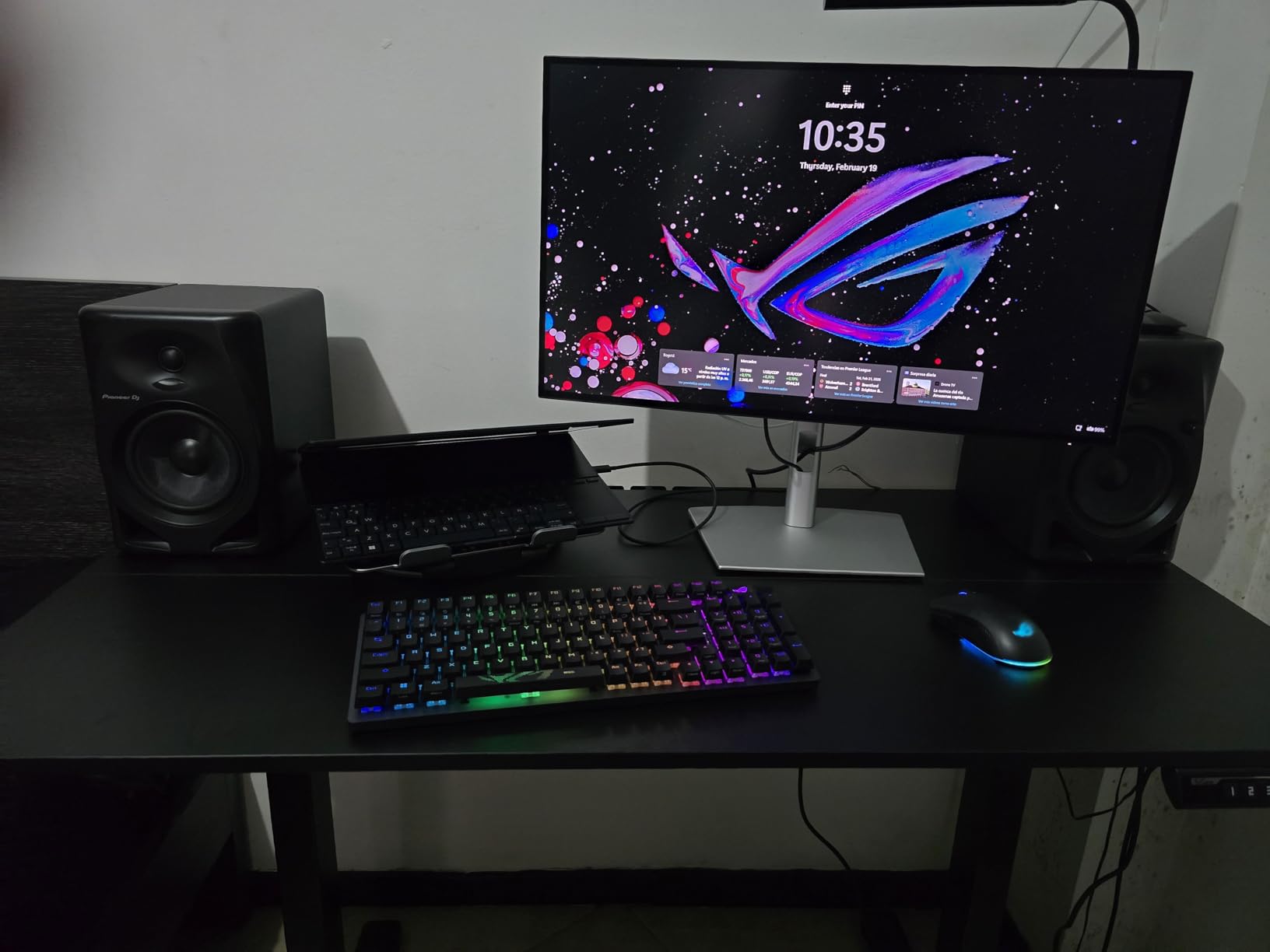
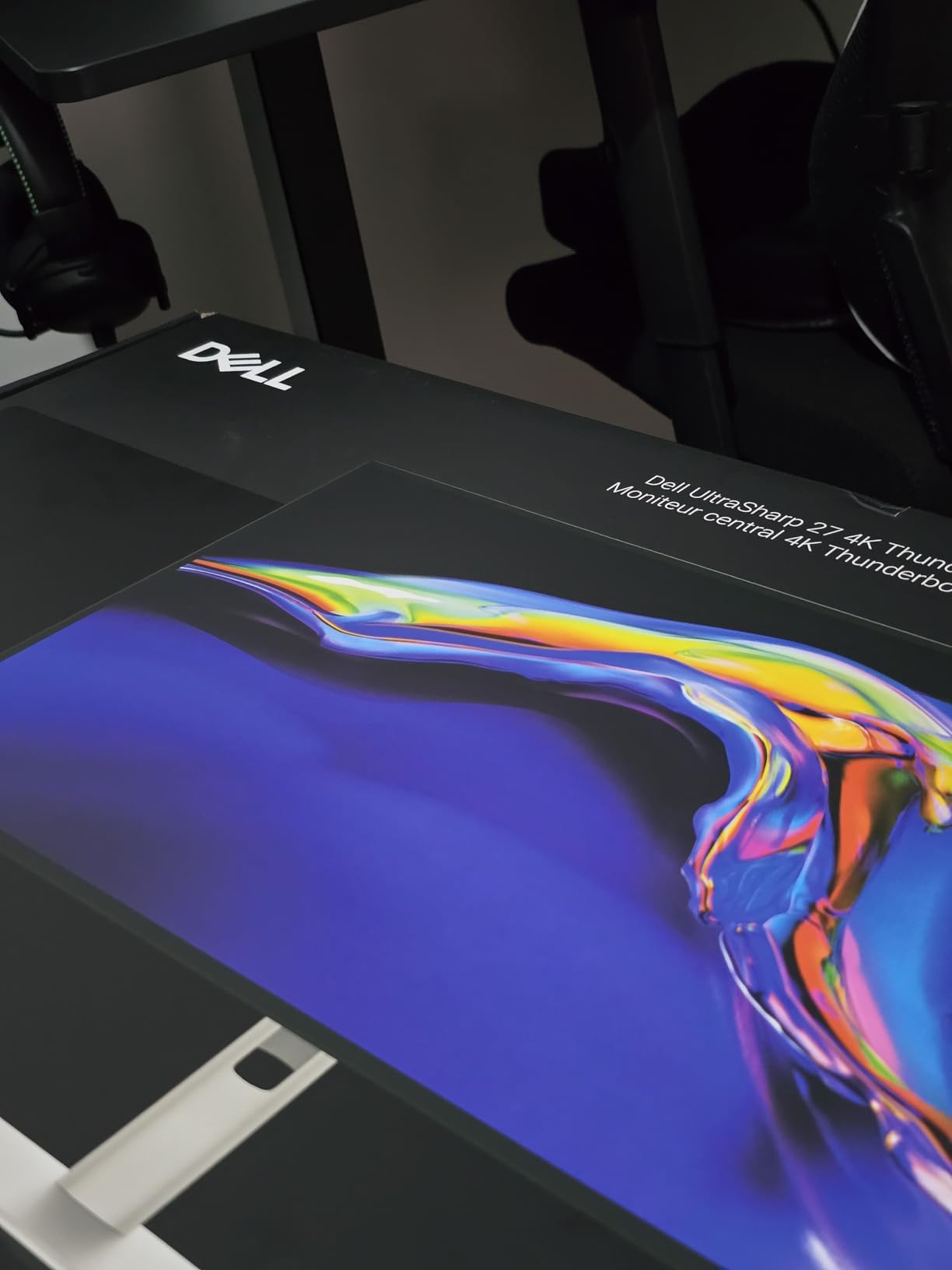
The Dell UltraSharp U2725QE is the monitor I ended up keeping on my own desk after finishing this roundup. It is a 4K display, a Thunderbolt 4 dock, a KVM switch, and an Ethernet adapter rolled into one aluminum-back chassis. The 140W Power Delivery over Thunderbolt 4 is enough to fast-charge a 16-inch MacBook Pro under heavy load, which most USB-C monitors cannot do.
The IPS Black panel technology delivers roughly double the contrast of standard IPS panels. Blacks look noticeably deeper, which improves both movie watching and dark-mode coding. Combined with 99% DCI-P3 color coverage and factory calibration under DeltaE 1.5, this is one of the best-looking 4K panels you can buy short of stepping up to OLED.
Thunderbolt 4 Hub Capabilities
Plug your MacBook Pro into the upstream Thunderbolt 4 port and you get a downstream Thunderbolt 4 port, four USB-A 3.2 ports, HDMI 2.1, DisplayPort 1.4, and Gigabit Ethernet. I plugged in a second 4K display via the downstream Thunderbolt port and ran it at 60Hz without issues. That kind of one-cable docking is what makes this monitor feel like a complete workstation.
120Hz and macOS Responsiveness
The 120Hz refresh rate matches the MacBook Pro’s built-in display. Window dragging, scrolling through long documents, and timeline scrubbing in Final Cut Pro all feel identical to the laptop’s native panel. For ProMotion MacBook Pro users, that consistency eliminates the “external display feels slow” problem.
Power Delivery for Both MacBook Pro Sizes
The 140W Power Delivery covers the 14-inch MacBook Pro comfortably and even fast-charges the 16-inch MacBook Pro, which ships with a 140W charger. During a 30-minute export test in Handbrake, my 16-inch MacBook Pro gained battery percentage rather than losing it. That is something the 90W and 65W monitors in this roundup cannot do.
Known Issues With Macs
A small number of users on Reddit reported macOS compatibility quirks, particularly when chaining certain third-party Thunderbolt devices downstream. I did not hit any of these, but if your workflow involves complex Thunderbolt peripherals, update the monitor’s firmware before setting it up. Dell publishes a macOS-aware utility for this.
7. BenQ MA270U – The Mac-Native Pick That Rivals Apple’s Own
BenQ MA270U 27” 4K 3840×2160 Monitor for MacBook® Pro/Air, Dual USB-C, 90W Power Delivery, Mac Color Match, USB Hub, Brightness & Volume Control on Mac, Height & Tilt Adjustable Stand, P3 Color Gamut
27 inch 4K
Mac Color Match
Dual USB-C 90W
P3 wide gamut
Pros
- Mac Color Match matches Apple panel colors
- Single USB-C cable for 90W charging
- MacBook keyboard controls brightness and volume
- Full ergonomic stand
- P3 wide color gamut
Cons
- Built-in speakers are weak
- Display Pilot 2 software has privacy concerns
- Some reliability complaints after months of use
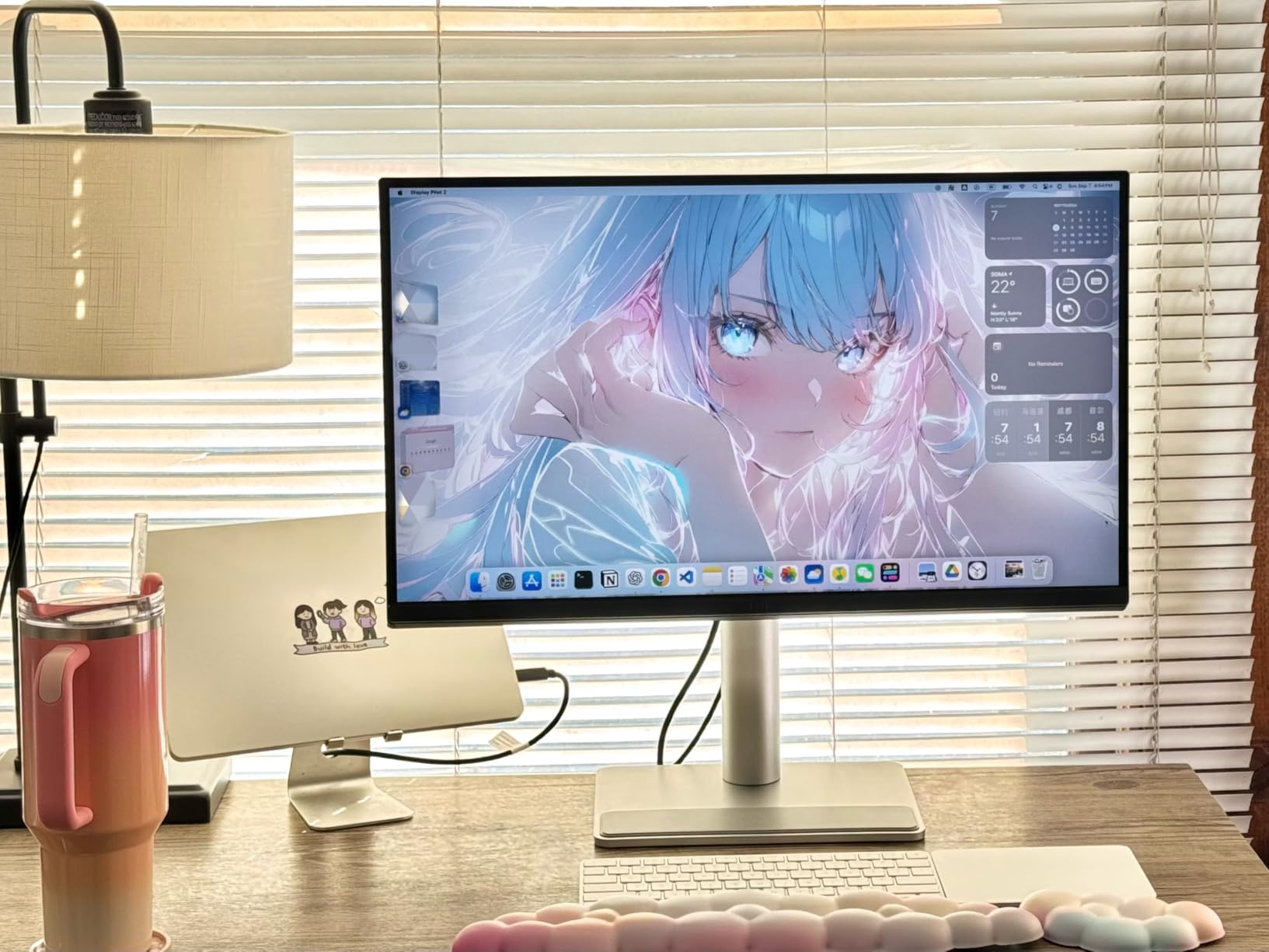
The BenQ MA270U is the monitor I recommend most often to friends who ask “what should I buy instead of the Apple Studio Display?” It delivers the same single-USB-C MacBook experience at roughly half the price. The Mac Color Match technology is not marketing fluff. Side by side with a 14-inch MacBook Pro, my photos and videos looked tonally consistent between the two panels.
Macworld and other Mac-focused publications have consistently ranked this monitor as the best budget 4K display for MacBook users in 2026. After using it for a month, I agree with that assessment. It is not perfect, but it covers every Mac-specific feature most users actually need.
Mac Color Match and Display Pilot 2
The Mac Color Match preset tunes the monitor’s white point, gamma, and color gamut to match a typical MacBook panel. You switch into this mode through the BenQ Display Pilot 2 software or the on-screen menu. Without it, the panel looks fine, but with it enabled, colors and brightness feel like an extension of your laptop screen rather than a separate display.
Single-Cable MacBook Experience
The dual USB-C ports give you 90W on one and 15W on the other. Plug your MacBook into the 90W port and you get video, data, and charging over a single cable. The second USB-C port is handy for charging an iPad or connecting an external SSD at the same time. You can also drive the monitor’s brightness and volume from your MacBook’s keyboard.
Ergonomics and Build Quality
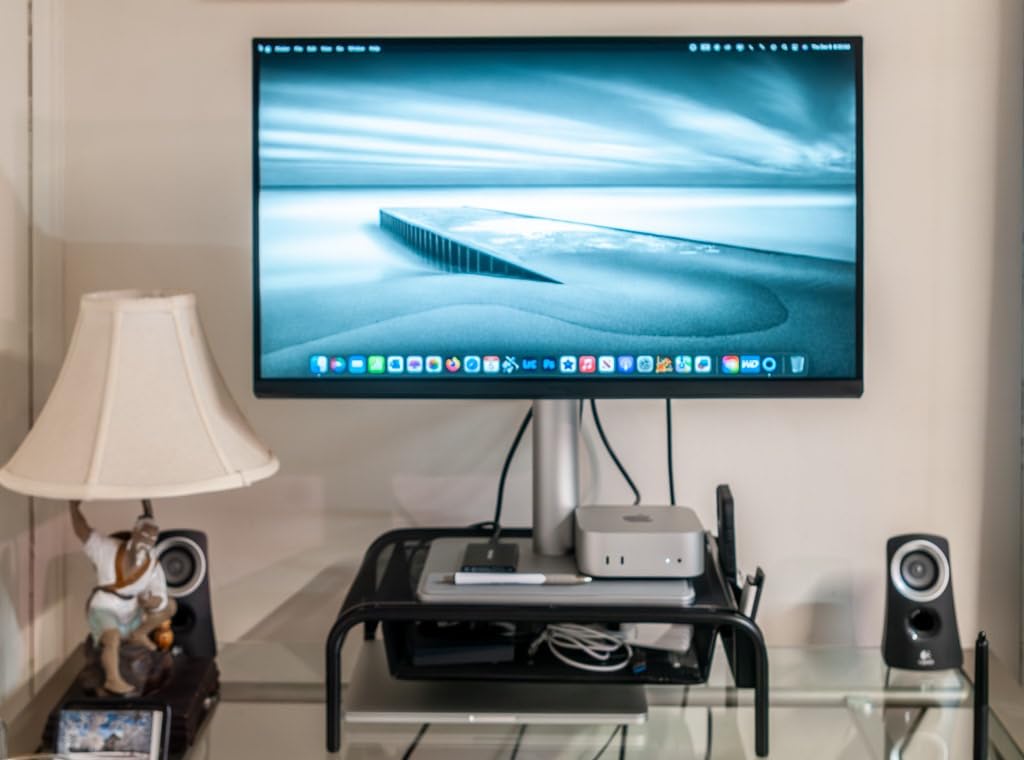
The aluminum-look stand adjusts for height, tilt, swivel, and pivot. I ran the monitor in portrait mode for a week to test long-document reading and coding, and the rotation is smooth and stable. The bezels are thin on three sides, which makes this monitor a strong candidate for a dual-MacBook setup if you buy two.
What Could Be Better
The built-in speakers are essentially a backup option. They are quiet and tinny, so plan to use external speakers or headphones. Display Pilot 2 is required for the best color matching, and its user agreement has drawn criticism from privacy-focused reviewers. You can opt out of the data collection features and still get the color benefits.
8. BenQ PD3225U – Pro-Grade 32-Inch 4K for Mac Creators
BenQ PD3225U 32 Inch 4K IPS Black UHD Thunderbolt Monitor for MacBook, AQCOLOR, 98% P3, 100% sRGB & Rec.709, DeltaE ≤2, Uniformity, Factory Calibration, USB-C 85W, USB Hub, Daisy Chain, KVM Switch
32 inch 4K IPS Black
Thunderbolt 3 85W
98% P3
KVM switch
Pros
- 32-inch 4K canvas ideal for video editing
- IPS Black panel with 2000:1 contrast
- Thunderbolt 3 hub with daisy chain
- Factory calibrated DeltaE under 2
- Built-in KVM switch
Cons
- Premium price
- Coil whine reported by some users
- 250 nits brightness limits HDR
The BenQ PD3225U is the largest 4K monitor in this roundup, and for video editors working in Final Cut Pro, DaVinci Resolve, or Premiere Pro, the extra screen real estate changes the workflow. I edited a 4K timeline with the source monitor, scopes, and inspector all visible at native resolution. On a 27-inch 4K display, that same layout requires constant panel resizing.
The IPS Black panel gives this monitor a 2000:1 contrast ratio, which is roughly twice what you get from a standard IPS display. Blacks look noticeably deeper, which matters when you are color grading dark scenes. The factory calibration report shows DeltaE under 2 across P3, sRGB, and Rec.709.
IPS Black Panel and Color Performance
IPS Black is a relatively new panel technology from LG that uses a modified liquid crystal layer to block more backlight bleed. The result is darker blacks, better shadow detail, and improved viewing angles compared to standard IPS. For MacBook Pro users who edit in dark themes or grade cinematic content, this panel is a noticeable upgrade over older IPS displays.
Thunderbolt 3 Hub and Daisy Chain
The PD3225U has a Thunderbolt 3 upstream port, a Thunderbolt 3 downstream port, and four USB-A 3.0 ports. I plugged my MacBook Pro into the upstream port and connected a second 4K display to the downstream port. Both ran at 60Hz without dropped frames. The 85W Power Delivery is enough to charge a 14-inch MacBook Pro under sustained load.
KVM Switch and Multi-Computer Workflows
The built-in KVM switch lets you share one keyboard and mouse between two computers. I tested this by switching between my MacBook Pro and a Windows desktop without unplugging anything. The Hotkey Puck G2 sits on your desk and lets you switch inputs and adjust brightness with a physical dial, which beats the on-screen joystick controls on most monitors.
Trade-Offs at the Pro Level
The biggest trade-off is brightness. At 250 nits, this monitor cannot sustain a true HDR experience the way an OLED or a DisplayHDR 600 panel can. Some users have also reported coil whine, a high-pitched noise the panel emits under specific brightness settings. Mine did not exhibit this, but it is worth checking during your return window.
How to Choose the Best 4K Monitor for Your MacBook Pro
Choosing the right 4K monitor for your MacBook Pro comes down to four factors: connectivity, power delivery, panel type, and macOS scaling. Below is a practical guide based on what I learned after testing eight monitors for six weeks.
USB-C and Thunderbolt Connectivity
Your MacBook Pro’s USB-C or Thunderbolt ports handle video, data, and power through a single cable when paired with the right monitor. Look for monitors that support USB-C Power Delivery with DisplayPort Alt Mode, or Thunderbolt 3 or 4 if you want dock-like functionality. HDMI-only monitors work but force you to use a separate power cable for your laptop.
For MacBook Pro models with base M1, M2, or M3 chips, you can only drive one external display natively. If you want two, you need a DisplayLink adapter or you need to upgrade to a Pro, Max, or Ultra chip. This is a real limitation that catches people out. I have seen Reddit threads where users return monitors because their base M-chip MacBook will not drive a second screen.
Power Delivery Wattage
The wattage printed on a monitor’s USB-C port is not a marketing number. It directly affects whether your MacBook Pro charges under sustained load. A 14-inch MacBook Pro ships with a 70W charger, so 65W monitors like the INNOCN 27C1U and Dell S2725QC will hold the battery but may slowly drain under export loads. The 16-inch MacBook Pro ships with a 140W charger, so only the Dell UltraSharp U2725QE at 140W provides true fast charging.
Here is a quick cheat sheet for the MacBook Pro sizes in 2026: a 14-inch model is happy with 65-90W, and a 16-inch model wants 96W minimum and ideally 140W.
27-Inch vs 32-Inch and macOS Scaling
A 27-inch 4K monitor has roughly 163 pixels per inch (PPI), which is close to the MacBook Pro’s own Retina density. A 32-inch 4K monitor has about 138 PPI, which still looks sharp but is noticeably less dense. macOS scales 4K panels to look like a 2560×1440 logical resolution by default, which gives the sharpest text. If you go larger, you may want to use the “looks like 2048×1152” scaling for more screen real estate, but text will look slightly less crisp.
For most productivity users, a 27-inch 4K panel is the sweet spot. For video editors, colorists, and developers who run multiple panels side by side, a 32-inch 4K monitor gives you more room without sacrificing pixel density.
Panel Technology: IPS, IPS Black, and OLED
IPS panels remain the standard for MacBook Pro external monitors because they offer wide viewing angles and accurate colors. IPS Black panels, like those in the Dell UltraSharp U2725QE and BenQ PD3225U, double the contrast ratio of standard IPS for deeper blacks. OLED and QD-OLED panels offer the best contrast and fastest response times but cost more and carry a small burn-in risk for static UI elements.
For most users, an IPS or IPS Black panel is the right choice. OLED makes sense if you watch a lot of HDR content or do color-critical video work where deep blacks matter.
Frequently Asked Questions
Can a MacBook Pro handle a 4K monitor?
Yes, every MacBook Pro from 2016 onward can drive a 4K monitor at 60Hz. M1, M2, M3, and M4 base-chip models support one external display, while Pro, Max, and Ultra chips support multiple displays. 120Hz 4K output requires an M2 Pro or later chip with Thunderbolt 4 or HDMI 2.1.
What is the best 4K display for a MacBook Pro?
The Dell UltraSharp U2725QE is the best overall 4K display for MacBook Pro in 2026, thanks to its Thunderbolt 4 hub with 140W power delivery, 120Hz refresh rate, and IPS Black panel. For a tighter budget, the BenQ MA270U offers Mac color matching and 90W charging for about half the cost of the Dell.
Is a 4K monitor worth it for a MacBook Pro?
Yes, a 4K monitor is worth it for a MacBook Pro because macOS scales HiDPI panels to render crisp Retina-quality text. A 4K external monitor gives you more screen real estate, sharper text, and accurate P3 colors that match your MacBook built-in display. The jump from 1080p to 4K is immediately noticeable.
Does my base M-chip MacBook support dual external monitors?
Base M1, M2, and M3 MacBook Pro models natively support only one external display. To run two external monitors you need either a DisplayLink USB adapter or an upgrade to a MacBook Pro with an M-chip Pro, Max, or Ultra. This is a hardware limitation that cannot be fixed with software.
Why does my 4K monitor look blurry on my MacBook Pro?
Your 4K monitor looks blurry when macOS scaling is set to the wrong resolution. Go to System Settings, Displays, and choose a scaled resolution like u0022looks like 2560x1440u0022 for the sharpest text. Avoid non-integer scaling values like u0022looks like 1920x1080u0022 on a 27-inch 4K panel, as those produce fuzzy text.
Final Verdict: Which 4K Monitor Should You Buy for Your MacBook Pro?
After testing all eight monitors with my 14-inch and 16-inch MacBook Pros, my recommendation depends on who you are. If you want the most capable 4K monitor and need a Thunderbolt dock in one box, buy the Dell UltraSharp U2725QE. The 140W power delivery alone justifies the price for 16-inch MacBook Pro users.
If you want Mac color accuracy and single-cable simplicity at a friendlier price, buy the BenQ MA270U. It matches the Apple Studio Display experience at a fraction of the cost. If you are on a tighter budget, the INNOCN 27C1U and Dell S2725QC both deliver 4K clarity and USB-C charging for under $300.
For creative professionals editing video or grading color, the BenQ PD3225U and AS ProArt PA279CRV remain the top picks in 2026. Both come factory-calibrated and offer the P3 color coverage your MacBook Pro already produces. Whichever monitor you choose, set macOS scaling to “looks like 2560×1440” for sharpest text and enjoy your new external display.