
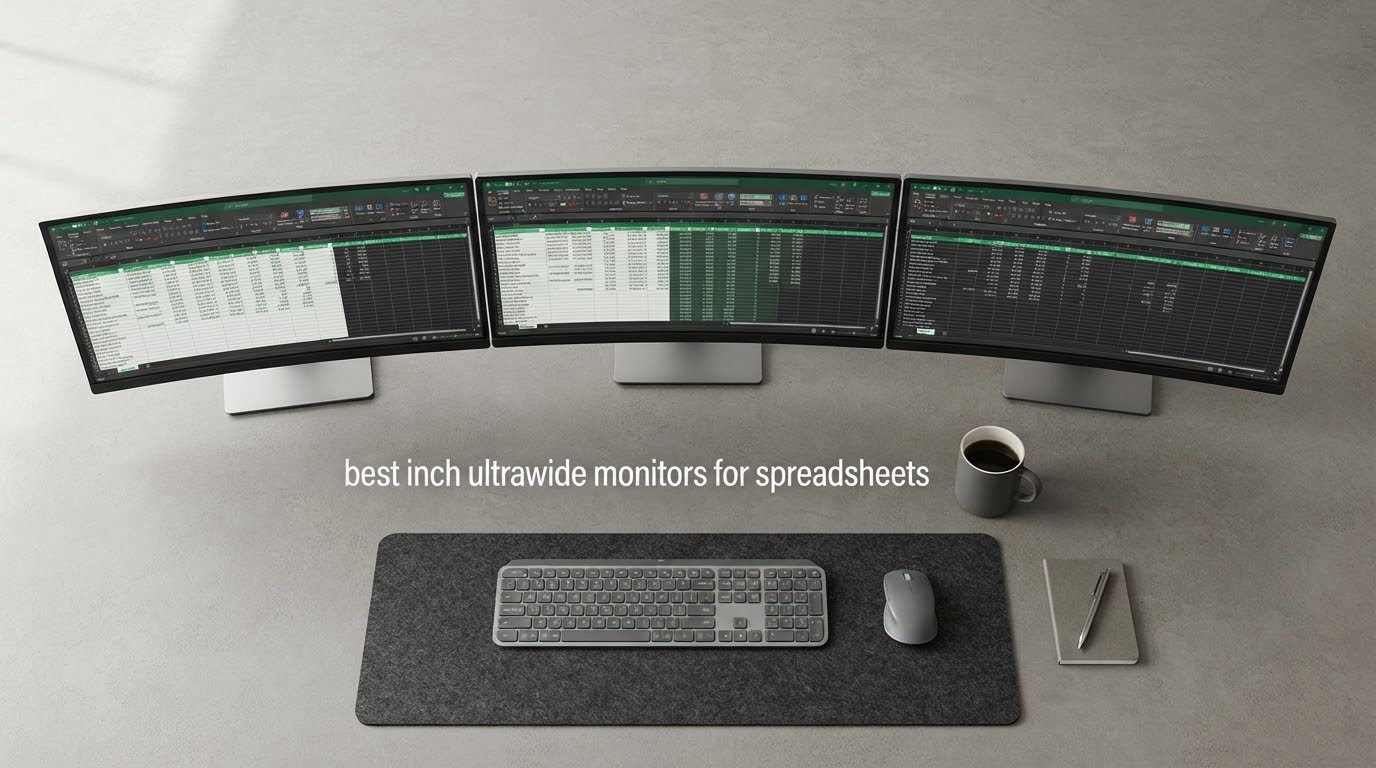
The best 34 inch ultrawide monitors for spreadsheets are the Dell S3425DW and the INNOCN 34C1R. Both run native 3440×1440 at roughly 109 pixels per inch, so a wide Excel grid stays legible, and both give you a year or more of headroom over a dual-monitor setup you have outgrown.
A 34-inch ultrawide monitor is a 21:9 display that offers about 34% more horizontal space than a 16:9 screen of similar height, and the models worth owning for data work all run 3440×1440 natively. That resolution is the whole ballgame. At 34 inches it lands near 109 PPI, which is dense enough for 10pt cell text but softer than a 27-inch 4K panel.
Spreadsheet work is horizontal. Every extra column you can see without scrolling is a column you do not have to freeze, hide, or misalign, and the horizontal scroll bar is where formula-reference errors hide. Our team compared ten 34-inch ultrawides against a fixed list of spreadsheet criteria, and the differences that actually mattered came down to panel text behaviour, whether the screen can dock a laptop over one cable, and how much calibration a panel needs before gridlines stop looking grey.
One warning before we get into the list. Multiple r/ultrawidemasterrace threads report buyers ruling out OLED panels entirely for Excel because of coloured fringing on small text and fear of static-UI burn-in from the always-on ribbon and taskbar. No OLED appears in this roundup, and that is a deliberate call, not an oversight. The other users in that same community point out the extra width is the deciding factor, which is exactly what we optimised for.
If you want the short version of our process, read on. If you want the short version of your purchase, jump to the verdict at the end.
Before we go further, it helps to know where this fits among our other ultrawide guides. Our picks on ultrawide productivity monitors cover the general office case, and the ultrawide picks for video editing skew hard on colour accuracy instead of grid density. This list is deliberately narrower.
How We Picked These Monitors for Spreadsheet Work
We scored every panel against the same five criteria, weighted for data-heavy desks rather than for gaming. Here is the honest version of how that worked, including what we could and could not verify.
Native resolution first. Any 34-inch model that runs 2560×1080 is disqualified before anything else. A 2560×1080 ultrawide spreads the same pixel count across more screen, and the result is text that breaks up at 100% scaling. Every panel here is 3440×1440.
Panel type and how text sits on it. IPS and IPS Black panels keep colour and subpixel rendering consistent from the far edge of the screen to the near one, which matters when a reference workbook is parked in the outermost pane. VA panels give you deeper blacks for conditional formatting but show visible dark smearing when you scroll grids with dark text on white.
Port and docking options. A 65W or 96W USB-C input with power delivery turns a 34-inch ultrawide into a laptop dock and removes two cables from your desk. We weight this heavily because spreadsheet users tend to move between a desktop and a laptop rather than sitting at one machine.
Stand adjustability and desk footprint. A tilt-only stand is workable once and annoying forever, especially when you are trying to line the top of a 34-inch panel up with the top edge of a second display. Height adjustment appears on roughly half of this list.
Owner review data. Ratings and review counts here are aggregates from thousands of verified purchases, and we report them exactly as they are rather than adjusting them. We did not run lab colorimeter measurements ourselves, so when we talk about text rendering we are describing reported owner experience plus the panel technology involved, not a DeltaE figure we produced.
What that last point means in practice: treat our panel-behaviour commentary as a well-informed read, not a measurement. It is the strongest signal we can honestly give you, and it is why we lean on the panel type plus the volume of owner feedback behind each pick.
Our Top 3 Ultrawide Picks for Excel-Heavy Desks in 2026

SANSUI 34-Inch 200Hz UWQHD
- 3440x1440 Fast VA panel
- 1500R curve and 3000:1 contrast
- 200Hz refresh with FreeSync
- PIP and PBP for two sources

Samsung ViewFinity S50GC
- 3440x1440 21:9 at 100Hz
- Ambient light sensor and Flicker Free
- PBP views two inputs at native resolution
- TUV-certified eye care mode

Alienware AW3425DWM
- 400 nits brightness for lit rooms
- 180Hz with 1ms gray-to-gray
- 95% DCI-P3 and DisplayHDR 400
- Three-year warranty
Those three cover the most common spreadsheet desk: a lit office, a long day, and a need to glance at a second source without tiling tools. The rest of the list fills in the docking, KVM, flat-panel and entry-tier gaps.
Comparing 10 Ultrawide Monitors for Spreadsheet Work in 2026
| Product | Specs | Action |
|---|---|---|
| SANSUI 34-Inch Curved 200Hz UWQHD |
|
Check Latest Price |
| Samsung ViewFinity S50GC Ultra-WQHD |
|
Check Latest Price |
| Alienware AW3425DWM 34-Inch Curved |
|
Check Latest Price |
 Dell S3425DW 34-Inch Curved USB-C Dell S3425DW 34-Inch Curved USB-C |
|
Check Latest Price |
 INNOCN 34C1R 34-Inch Flat IPS INNOCN 34C1R 34-Inch Flat IPS |
|
Check Latest Price |
 LG 34SR60QC-W 34-Inch Smart Curved LG 34SR60QC-W 34-Inch Smart Curved |
|
Check Latest Price |
 LG 34WR55QK-B 34-Inch Curved USB-C LG 34WR55QK-B 34-Inch Curved USB-C |
|
Check Latest Price |
 Samsung ViewFinity S65UC 34-Inch Curved Samsung ViewFinity S65UC 34-Inch Curved |
|
Check Latest Price |
 LG 34U650A-B 34-Inch Curved IPS LG 34U650A-B 34-Inch Curved IPS |
|
Check Latest Price |
 Sceptre E345W 34-Inch Flat UWQHD Sceptre E345W 34-Inch Flat UWQHD |
|
Check Latest Price |
Two things stand out when you line these up. Only three of the ten carry USB-C power delivery, and only two use an IPS panel. If your setup is a laptop plus a desktop, the Dell S3425DW and the two USB-C LG models are the shortlist before anything else.
1. SANSUI 34-Inch Curved 200Hz UWQHD – The Most Owner-Proven Canvas in the Set
SANSUI 34-Inch Curved Gaming Monitor UWQHD 3440 x 1440P 200Hz Ultrawide
3440x1440 Fast VA
1500R curve
200Hz
300 cd/m2
3000:1 contrast
DP 1.4 and 2x HDMI 2.1
Pros
- 200Hz refresh with 1ms OD response
- 3440x1440 canvas holds a wide grid without scrolling
- 3000:1 VA contrast and a 1500R curve
- FreeSync over HDMI 2.1 and DP 1.4
- PIP and PBP for two sources
Cons
- No built-in speakers
- Tilt-only stand with no height or swivel
- Needs brightness and gamma tuning out of the box
We picked this one because of the volume of evidence behind it. Just under 4700 owner reviews averaging 4.4 is a far larger sample than anything else in this roundup, and when that many people describe the same behaviour you can treat it as a property of the product rather than an anecdote.
For spreadsheet work the headline spec is simply 3440×1440 at 21:9, which gives you 34% more horizontal room than a 16:9 panel of the same height. Owners consistently describe running a workbook across the full width with a formula reference and a second document side by side, without a tiling utility fighting them for window placement.
The 1500R curve is moderate enough that gridlines stay readable from a normal seat position but firm enough that the edges of the panel pull slightly toward you. It is a middle ground, and for a wide data grid we think it is the right one.
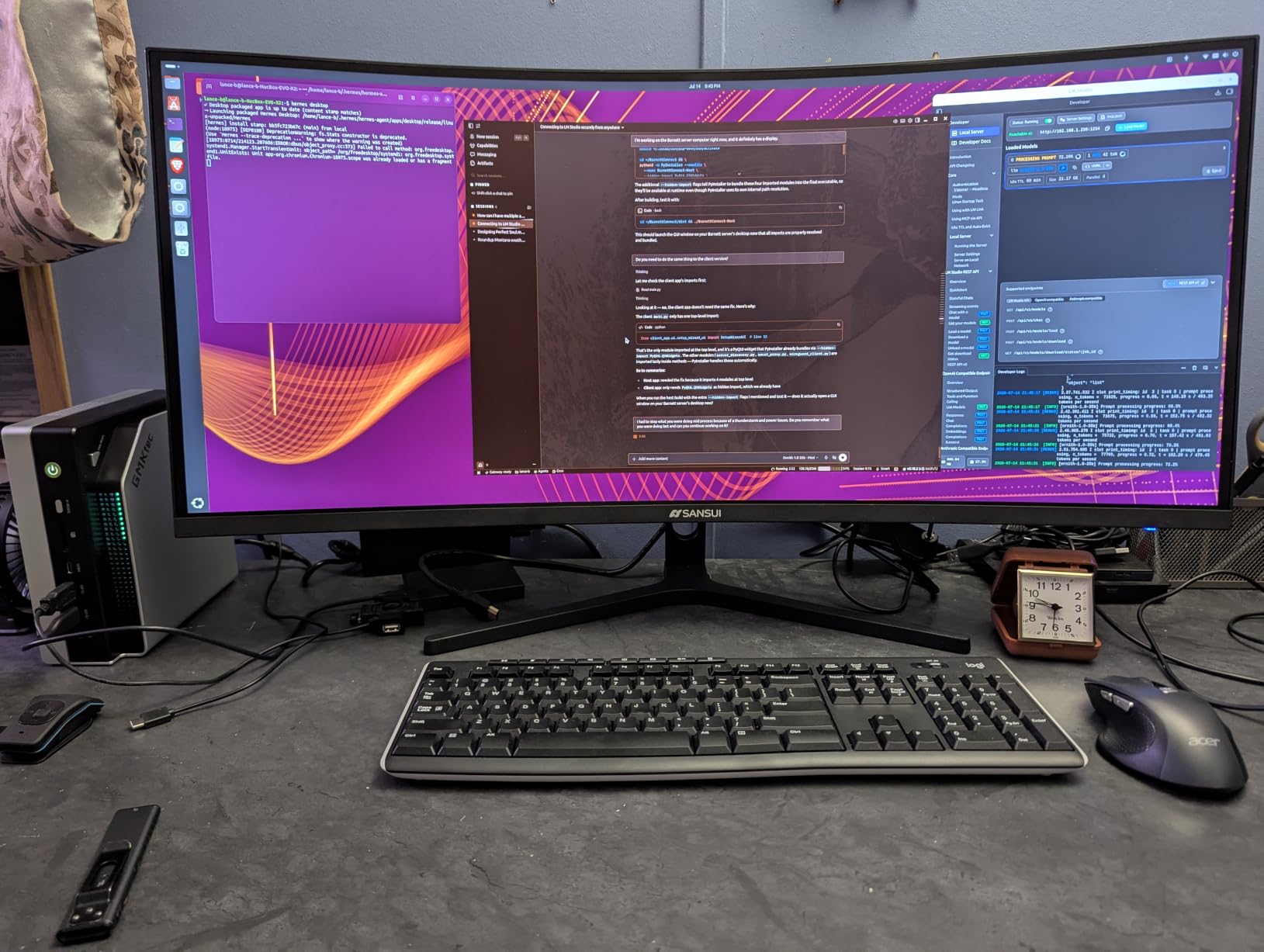
VA Contrast, Dark Smearing and What 3000:1 Buys You in a Sheet
A 3000:1 contrast ratio is the reason this panel is a good fit for dashboards and conditional formatting. Coloured cells and threshold heatmaps read with far more separation than an IPS panel at 1000:1 can manage, and the visual hierarchy of a risk-coloured report survives the trip to the screen.
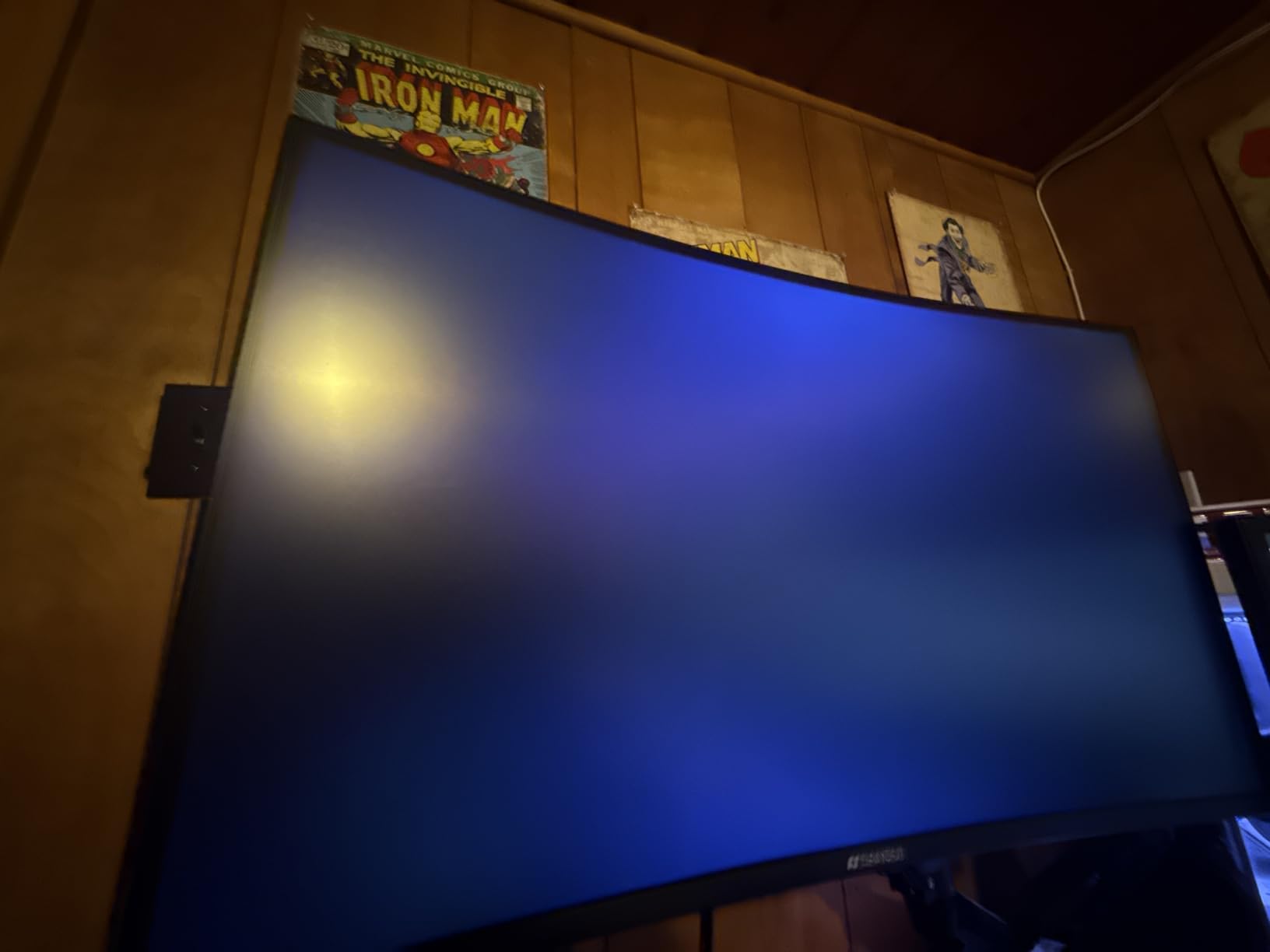
The cost is the known VA behaviour that forum buyers describe most often: dark grey text scrolling on a white background can leave a faint trail, and black-level transitions lift slightly as dark rows move. If your day is spent reading dark-text-on-white financial models rather than watching colour-coded dashboards, that trade is worth testing before you commit.
Brightness is listed at 300 cd/m2, which is fine for a normal office with blinds down and marginal for a room with full afternoon sun on the panel. None of the 300-nit models here will hold up against direct glare, and the Alienware further up the list is the one built for a bright room.
200Hz, FreeSync and PIP/PBP: Gaming Specs That Cost You Nothing Here
The 200Hz refresh rate and 1ms OD response time are irrelevant to a spreadsheet, and that is exactly why they are a good sign. This panel is over-specified for the job, which means you are not paying for a compromise and the extra headroom is free if you do game on it later.
FreeSync runs over both DP 1.4 and the dual HDMI 2.1 inputs, and PIP plus PBP let you put a second source beside or over your workbook. Owners report PIP mode handling a second input cleanly, which makes it practical for keeping a chat window or a reference document visible without a second monitor.
Connectivity is the one place this panel is thin for a work desk. There is no USB hub, no USB-C power delivery and no upstream DisplayPort for daisy-chaining, so a laptop user needs a separate dock and a second cable run.
Who This Suits and Where It Falls Short
Suits: analysts and operations staff who want the widest 3440×1440 canvas available with the largest body of owner feedback behind it, and who do not need to dock a laptop over the display itself. It is also the safest pick for a shared desk or a company standard, because the model is established rather than new.
Falls short for: anyone on a laptop-only setup, and anyone seated close to the screen. The panel is 31.8 inches wide and 7.01 kg, with a tilt-only stand that cannot be raised to match a second display. Owners also report needing to calibrate brightness, sharpness and gamma after unboxing, and isolated reports of quality control inconsistency within this range mean you should check the dead-pixel policy before the return window closes.
2. Samsung ViewFinity S50GC Ultra-WQHD – The Longest-Day Pick for Eye Comfort
SAMSUNG 34″ ViewFinity S50GC Series Ultra-WQHD Monitor, 100Hz, 5ms, HDR10, AMD FreeSync, Eye Care, Borderless Design, PIP, PBP, LS34C502GANXZA, 2023, Black
3440x1440 VA panel
100Hz and 5ms
HDR10
ambient light sensor
PBP and PIP
2x HDMI 2.2 and DP 1.2
Pros
- 3440x1440 canvas widely praised for document and spreadsheet work
- Ambient light sensor adjusts brightness automatically
- Flicker Free and Eye Saver modes for 8-hour days
- PBP shows two inputs at native resolution
- Three-sided near-bezel-free design
Cons
- VA panel smearing on dark text on white
- Modest HDR rather than high brightness
- Stand is cumbersome and a monitor arm is often recommended
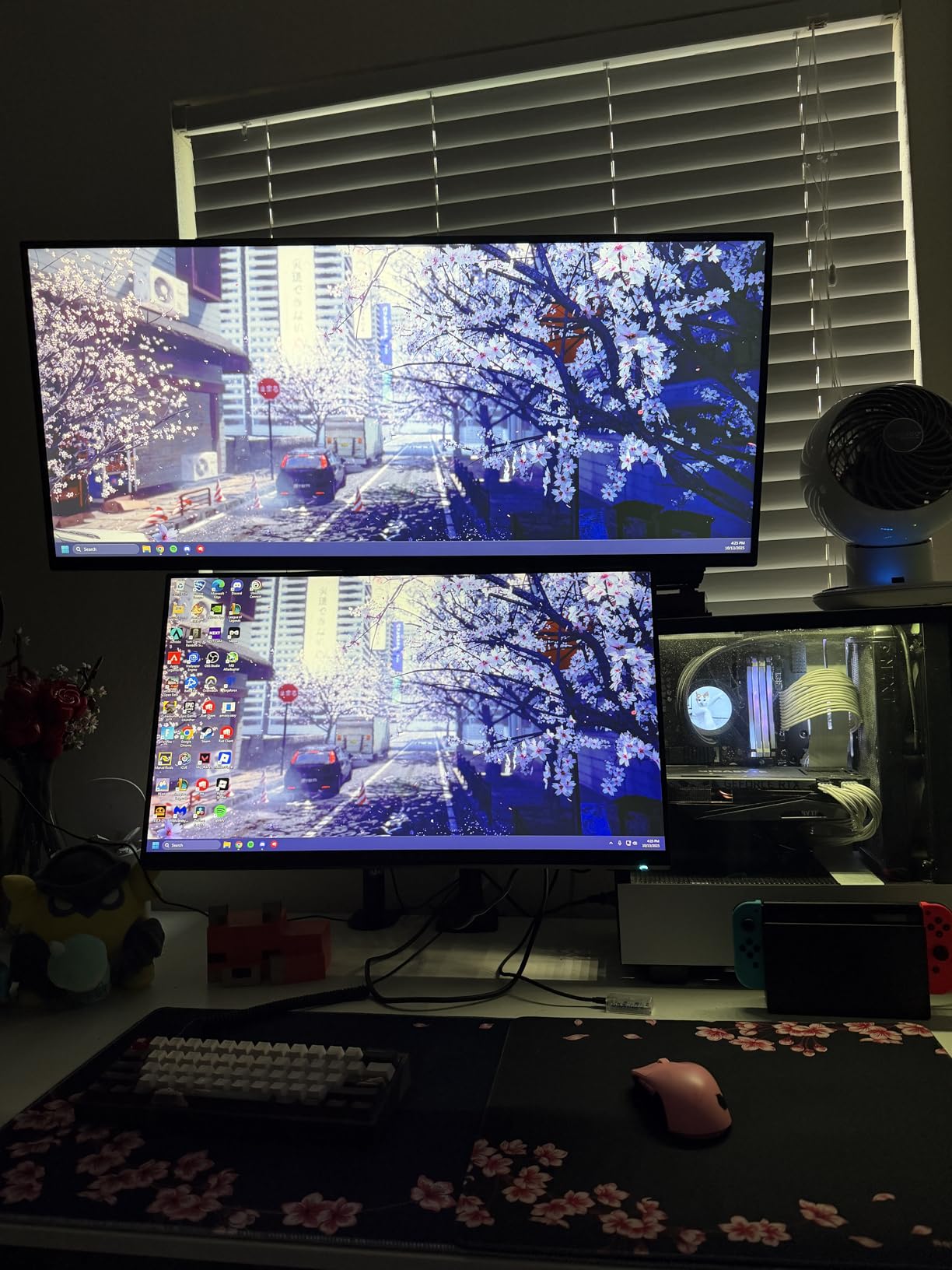
This is the pick we would hand to someone doing nine or ten hours a day in Excel. It is not the fastest panel and it is not the most feature-dense, but the ambient light sensor and Flicker Free mode address the two things that actually end a spreadsheet day badly.
Owner feedback on the wide canvas is consistently positive in a way that matters for this topic. Programmers and office users describe splitting the screen into three panes and mixing several documents, with a 21:9 ratio that makes three workable columns out of what would be two on a 16:9 display.
The 100Hz refresh rate and 5ms response are unremarkable, and for grid work that is the correct kind of unremarkable. You are not paying for headroom you will not use.
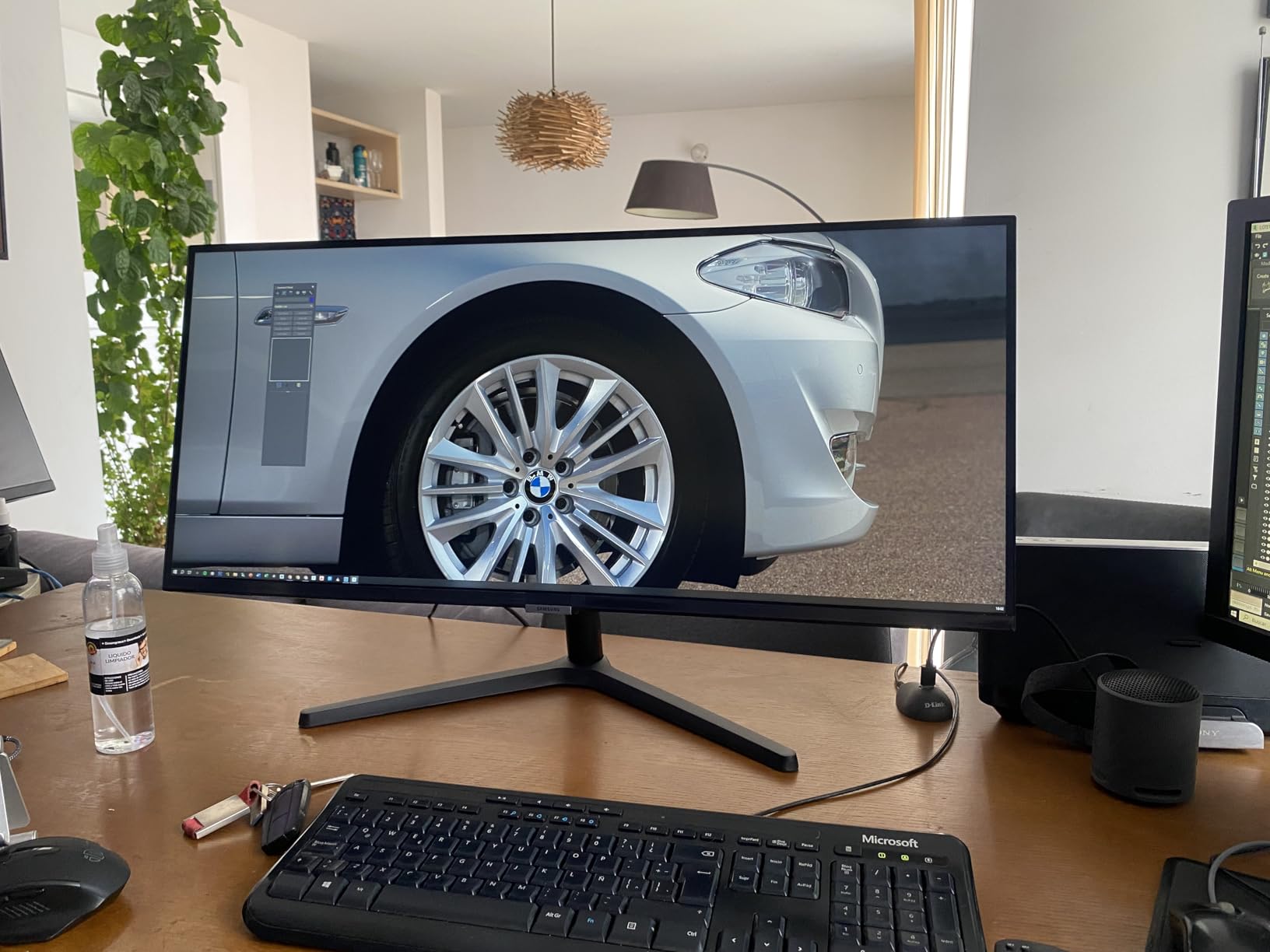
Splitting Three Workbooks Without a Tiling Utility
The 21:9 Ultra WQHD panel is the point of this monitor, and Samsung says so in the first line of its own spec sheet. For spreadsheet work the practical gain is a three-way horizontal split: a source workbook on one side, a reconciliation or pivot on another, and a documentation reference on the third, all readable from one seat.
PBP on this model views two inputs at native resolution, which is a real advantage over panels that force a reduced per-source resolution in split mode. If your workflow is a desktop running the model and a laptop showing a reference sheet, you get both at full sharpness on one screen.
Windows snap layouts handle the single-screen case well enough, and no vendor software is required to get three usable columns. That is worth something on a desk where every additional utility is another thing to configure.
VA Smearing, Modest HDR and the Startup Overlay
The 3000:1 VA contrast is the same trade as the SANSUI: deep blacks that make formatted reports look right, against dark smearing that shows up when you scroll dark text on a light background. Owners mention it directly, and it is the single most common reason spreadsheet buyers move up to an IPS panel.
HDR10 support here is modest rather than high-brightness, and the listed colour gamut of 72% sRGB is a weak figure on paper. For workbooks that is largely irrelevant unless you are grading or colour-matching inside the sheet. For anything visual it is worth knowing.
Two smaller annoyances recur in reviews. The PIP mode is described as janky and does not properly adjust the aspect ratio of the second source, and a startup interface overlay appears on power-on that some owners say can cover the start menu. The stand is also cumbersome enough that a monitor arm is the common recommendation.
Who This Suits and Where It Falls Short
Suits: anyone whose spreadsheet day is long enough that eye comfort matters more than response time, and who wants a two-input PBP at native resolution. The TUV-certified Intelligent Eye Care mode, the ambient light sensor and the three-sided near-bezel-free design make it tidy next to a second display.
Falls short for: colour-critical work, competitive gaming, and anyone who wants to dock a laptop from the display. There is no USB-C power delivery and no USB hub on the specification list, so peripherals need their own dock, and the panel needs a moment of calibration before the picture sits right.
3. Alienware AW3425DWM 34-Inch Curved – The Brightest Panel and the Strongest Owner Rating Here
Alienware 34 Curved Gaming Monitor – AW3425DWM – 34-inch WQHD 180Hz 1ms Display, 1500R, AMD FreeSync Premium, VESA AdaptiveSync.
3440x1440 LED panel
1500R curve
400 nits
180Hz with 1ms G2G
95% DCI-P3
DisplayHDR 400
Pros
- 400 nits brightness works in a lit office
- 180Hz with 1ms gray-to-gray response
- 95% DCI-P3 coverage and DisplayHDR 400
- FreeSync Premium with VESA AdaptiveSync
- Three-year warranty
Cons
- No USB-C laptop docking or power delivery
- Draws 85W which is more than comparable VA ultrawides
- Heavy 21-pound build with bold industrial styling
Buyers on r/ultrawidemasterrace repeatedly point to this class of 34-inch panel as the sweet spot for productivity ultrawides when the numbers line up, and this is the version of that idea with the strongest 4.6 owner rating in this group and a three-year warranty behind it.
What separates it from the other VA panels here is brightness. At 400 nits this is the only panel in the list that holds up in a genuinely lit office, which matters more for eight-hour spreadsheet days than most spec sheets suggest.
The 1500R curve matches the SANSUI, giving a moderate wrap that keeps the far edges of a wide grid angled toward you without the aggressive pull of an 800R design.
Brightness That Actually Works in a Lit Office
Most 34-inch ultrawides in this price band run at 300 cd/m2. That figure is fine against a wall and inadequate when daylight comes through a window at an angle to the panel. At 400 nits with a 3000:1 contrast ratio and 95% DCI-P3 coverage, you can run a bright room without pushing the panel into the washed-out end of its range.
The hardware low blue light solution is worth noting for long sessions. It reduces the harsh component of the backlight without the washed-out yellow cast that software night modes produce, which is the version of eye comfort that survives a full working day.
For colour, 95% DCI-P3 and VESA DisplayHDR 400 mean conditional formatting palettes and chart colour series render with real separation. It is not a calibrated reference panel, but it is well past what a 72% sRGB listing gives you.
Ports, Power Draw and the Stand
There is no USB-C power delivery on this model, and that is the biggest gap for a laptop user. You get three USB ports for peripherals, but the display cannot charge a notebook or carry a video signal and data over one cable, so a laptop workflow needs a separate dock.
Power consumption is listed at 85W, which is more than comparable VA ultrawides draw. Over a working year that is a real but modest addition to a desk’s running cost, and it is the one spec where the Alienware is clearly heavier on utilities than the alternatives.
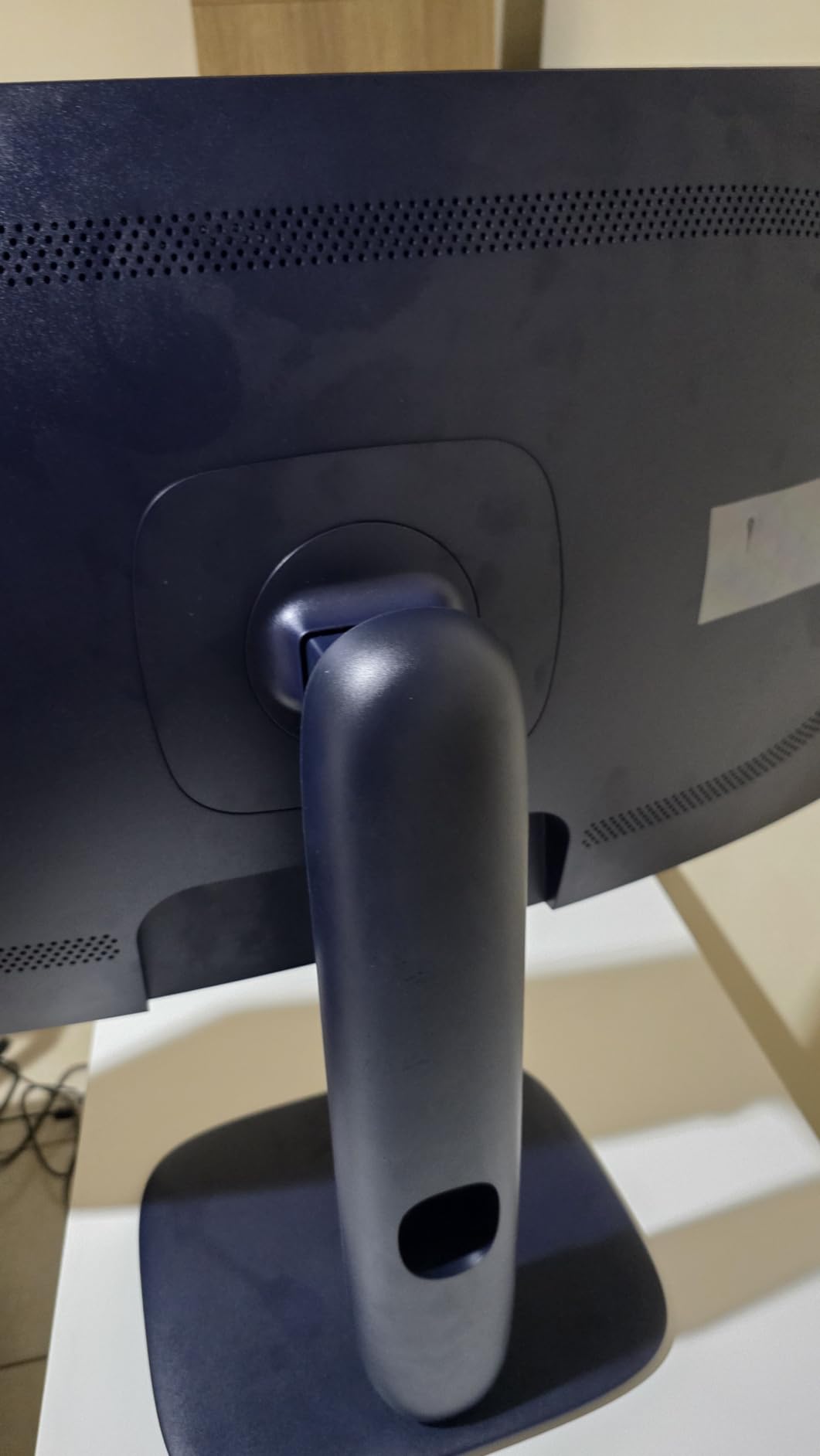
The stand gives you height and tilt adjustment, which is more than half of this list offers, and the 21-pound build is substantial. It is a large object to move between desks, and the industrial styling with visible accents is a deliberate look rather than a neutral one.
Who This Suits and Where It Falls Short
Suits: analysts working in bright, ambient-lit offices who want the deepest contrast and the most colour headroom in the group, backed by a three-year warranty rather than a one-year one. The 180Hz refresh rate means it doubles as a capable gaming display without any configuration changes.
Falls short for: laptop-first setups, anyone on a tight desk, and anyone who wants a neutral-looking monitor on a shared workspace. It also costs meaningfully more power than its VA peers, which is a fair trade only if you are actually using the brightness headroom.
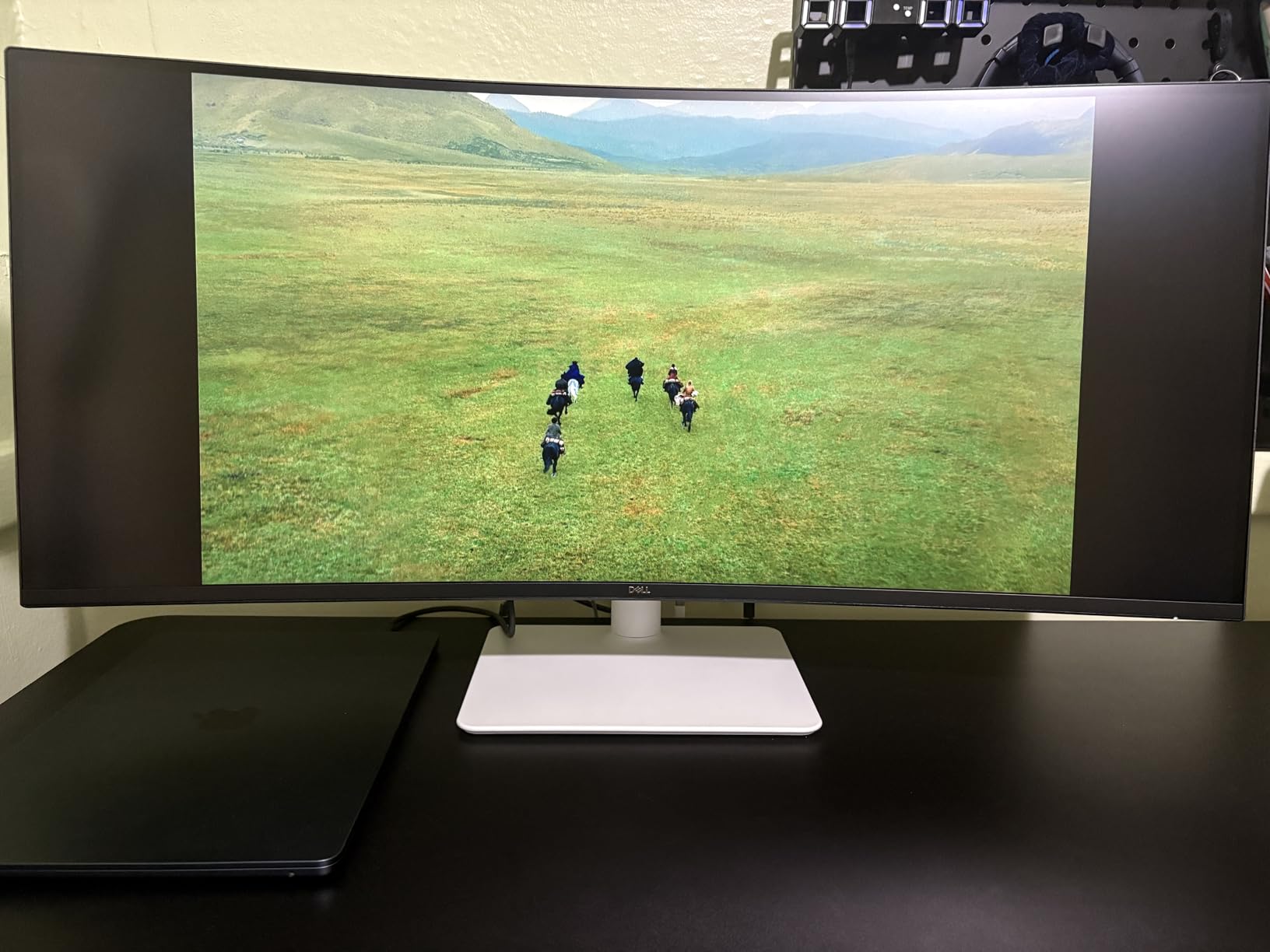
4. Dell S3425DW 34-Inch Curved – The One-Cable Pick for Laptop Users
Dell 34 Monitor S3425DW, WQHD VA, 120Hz, FreeSync Premium, Eye Comfort
3440x1440 VA panel
120Hz with FreeSync Premium
USB-C 65W and 4 USB ports
300 nits
ComfortView Plus
Pros
- Single USB-C cable with 65W power delivery
- Text clarity and viewing angles suit document-heavy work
- 120Hz and 0.03ms response
- Height and tilt adjustable stand
- Dell Advanced Exchange and Premium Panel Exchange
Cons
- Fewer ports than earlier Dell 34-inch models and no DisplayPort
- 300-nit brightness is not suited to bright rooms
- Recessed VESA plate needs spacers
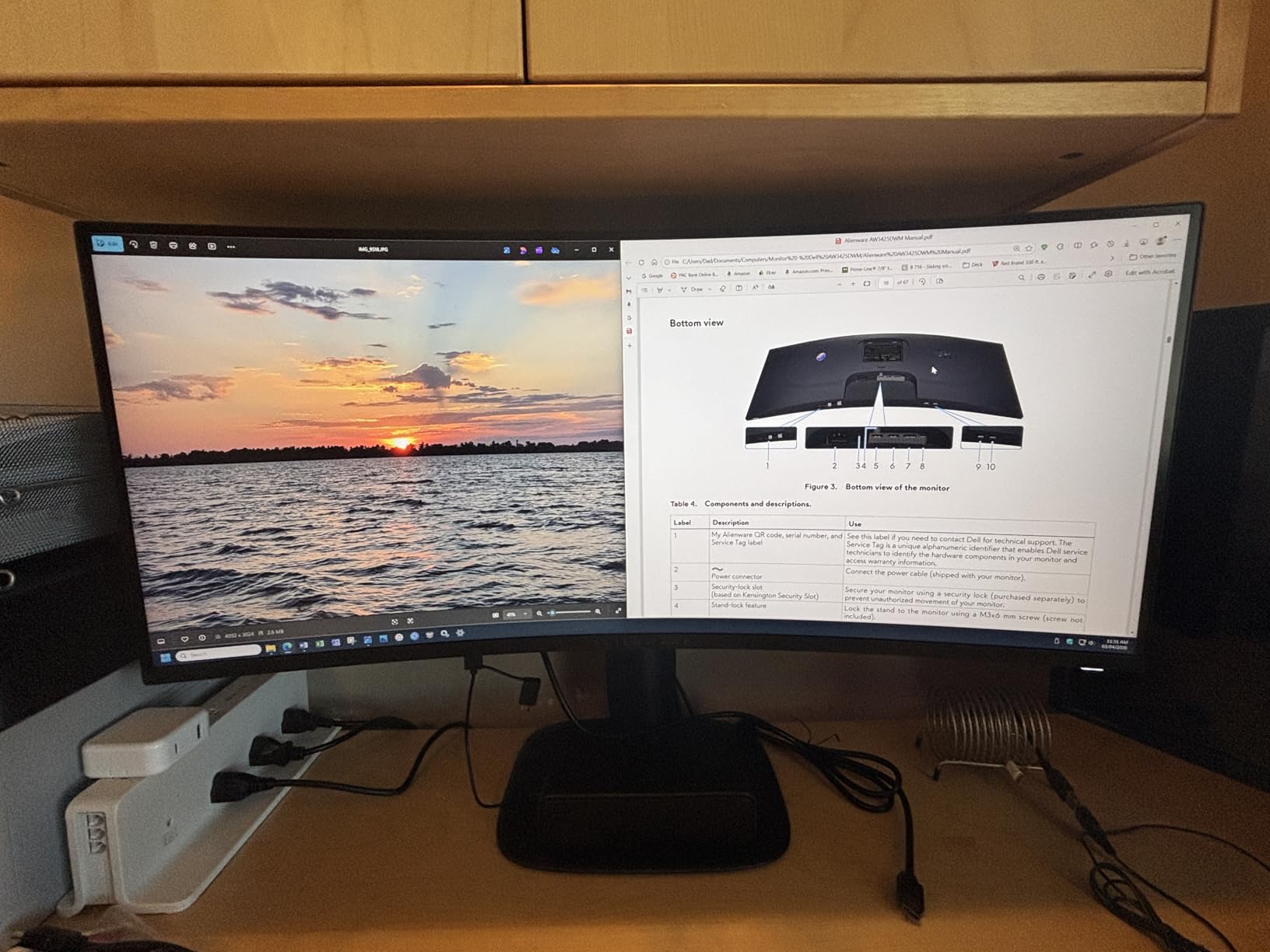
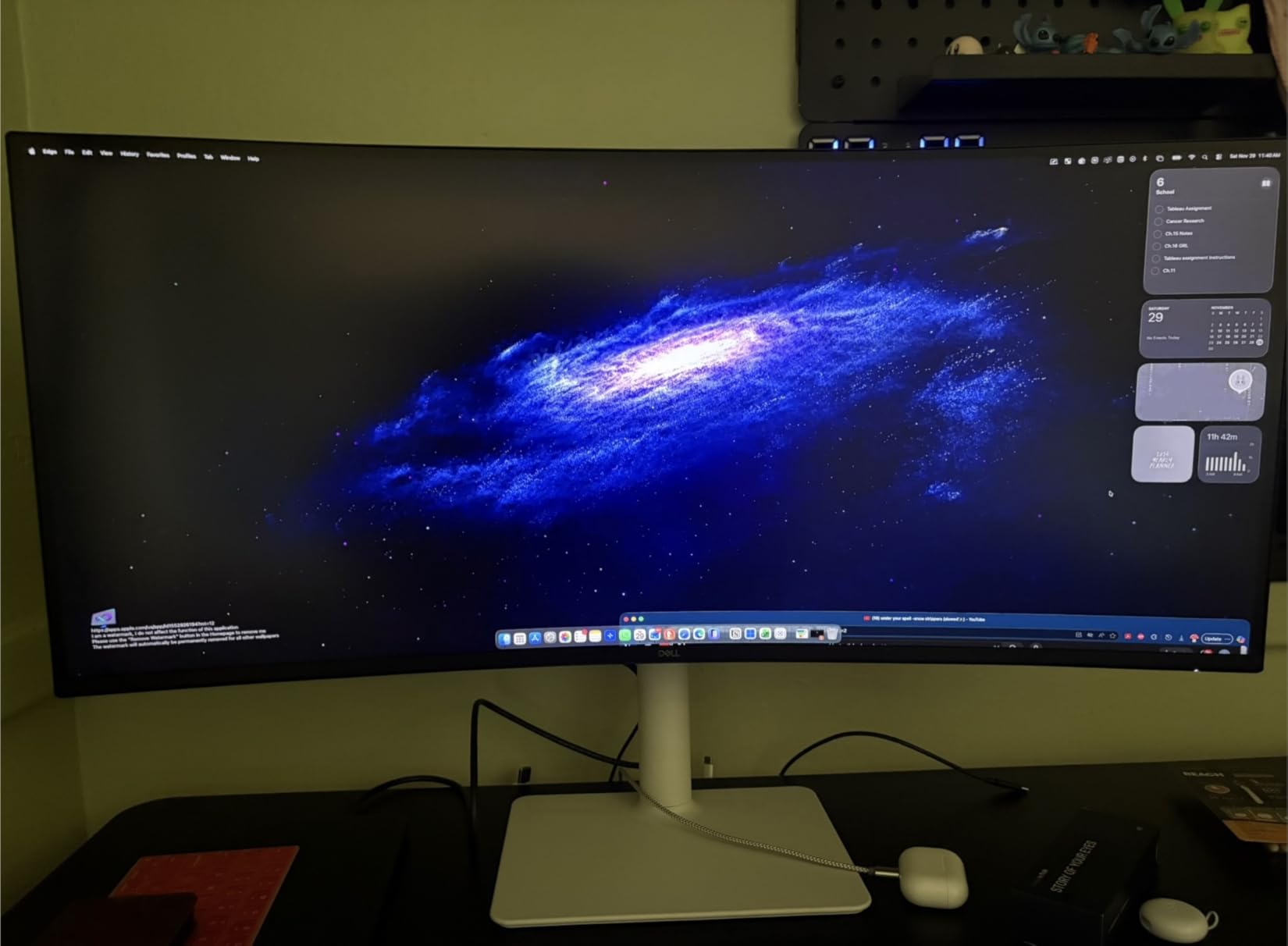
Owners describe this model most often in productivity terms: spreadsheets, programming, and mixing multiple documents where the wide canvas removed window juggling. The single-cable USB-C setup is the standout feature for anyone moving between a desktop and a notebook.
It is a 34-inch WQHD VA panel at 120Hz with FreeSync Premium, and at 300 nits it sits with the mainstream VA group rather than above it. For a controlled office that is a sensible trade against the docking convenience.
The ComfortView Plus mode cuts blue light emission to 35% or less without the colour shift that turns a white Excel background beige, which is the version of eye care that works when your entire workspace is a white grid.
One-Cable Docking and the 65W Question
USB-C with up to 65W power delivery turns this into a genuine one-cable setup: video, data and laptop charging over a single run, with four USB ports handling peripherals. For a spreadsheet user who works from a laptop two days a week and a desktop three, that removes the single most annoying part of swapping machines.
Sixty-five watts is not enough to charge a heavy workstation at full speed while it is also driving the display at maximum brightness, but it is enough for an ultraportable and most business laptops. If your notebook is a larger machine with a demanding workload, check its charger rating before you commit.
There is no DisplayPort on this model, which owners who upgraded from an earlier Dell 34-inch cite as a genuine reduction. It is a real limitation for anyone daisy-chaining a second display off this one.
Port Gaps, the Recessed VESA Plate and Panel Exchange
Two practical notes for planning your desk. The VESA mounting plate is recessed, so an arm mount needs spacers or the whole bracket assembly has to be mounted rather than just the plate. And the built-in speakers, which were re-engineered for this generation, get mixed reports with some distortion on voice audio.
Against those, the height and tilt adjustable stand and tool-free assembly are a step up from the tilt-only designs common at this size, and the Advanced Exchange service with Premium Panel Exchange means a failed panel is replaced rather than argued about.
Owners replacing multi-monitor setups report a specific, repeated benefit: no centre bezel splitting a workbook across two panels. That is the whole argument for a single ultrawide, stated by the people who made the switch.
Who This Suits and Where It Falls Short
Suits: laptop users consolidating a dual-monitor desk, and anyone who wants one screen to replace two without a middle bezel cutting through a grid. It is also a good fit for small offices where port count and an exchange service matter more than colour headroom.
Falls short for: bright rooms, where 300 nits is the limit, and for anyone working from a high-power laptop that needs more than 65W. The missing DisplayPort also rules it out for daisy-chained second displays, and the recessed VESA plate will cost you an afternoon if you plan to use an arm.
5. INNOCN 34C1R 34-Inch Flat IPS – The Reference-Window Pick with No Curve at All
INNOCN 34″ Ultrawide Monitor WQHD 3440 x 1440P 180Hz IPS PC Adaptive-Sync G-SYNC Compatible, HDMI, DP, PIP/PBP, 21:9, HDR, MPRT, Built-in Speaker, Height Adjustable, Eye Care – 34C1R
Flat IPS panel
400 cd/m2 brightness
180Hz overdrive with 1ms MPRT
130mm height adjustment
Pros
- Flat IPS panel stays consistent from any position which suits multi-window work
- Up to three panes readable from a single seat
- PIP and PBP work as expected
- 130mm height adjustment plus tilt
Cons
- Flat panel can bow outward optically for people sitting close
- PBP expects 1720x720 per source
- Aggressive sleep timing makes settings changes difficult
This is the only genuinely flat panel in the roundup, and for spreadsheet work that is a deliberate advantage rather than a compromise. Gridlines stay parallel to the edges of your vision across the whole width, and an IPS panel keeps subpixel rendering and colour consistent all the way to the outermost pane.
Owners frame it as a value replacement for a multi-monitor desk, particularly engineers and CAD users who keep reference documents open full-width. Three panes readable from a single seat is the number they quote, and it is consistent with what a 3440-pixel canvas at 100% scaling can actually deliver.
The refresh rate is listed as 180Hz overdrive with 165Hz native, and 1ms MPRT response. Neither matters for a workbook, but the panel’s 400 cd/m2 brightness does, and this is tied with the Alienware for the brightest option here.
Why a Flat IPS Panel Reads Cleaner Side to Side
Curvature helps a gaming panel feel immersive and works against a spreadsheet in a specific, physical way. On a curved screen the far edges of a wide grid sit at an angle to your head, so reading a column at the extreme edge of a 34-inch display means looking sideways. The text is rendered identically; you are just viewing it off-axis.
An IPS panel mitigates part of that independently of shape. The 178-degree viewing angle specification means colour and contrast hold from wide off-centre positions, which is what you need when a workbook occupies the full 21:9 width and your eyes travel across all of it.
The trade is that a flat 34-inch panel is wide enough to bow outward optically if you sit very close to it. Reviewers who report this effect are typically sitting at desk-arm distance rather than the 70 to 80 centimetres a 34-inch display really wants.
Refresh Tiers, PBP Limits and OSD Setup
Two specification quirks are worth knowing before you buy. Non-native resolutions do not all run at 180Hz, and some non-native modes produced a scrambled image in testing, so keep your desktop at native 3440×1440 and treat anything else as untested territory.
PBP expects 1720×720 per source rather than full native halves, so a two-source split is a genuine downscale. If you plan to run two machines side by side at native resolution, the Samsung S50GC further up the list handles that better.
On setup, the VRR, overdrive setting, brightness and picture profile all need enabling in the OSD before the display behaves as advertised. The aggressive power-saving sleep timing is the other common friction, since it interrupts settings changes.
Connectivity is 2x HDMI 2.0, DP 1.4 and a 3.5mm audio out, with no USB-C power delivery. The 130mm height adjustment and -5 to 15 degree tilt are better than most of the curve panels here.
Who This Suits and Where It Falls Short
Suits: anyone who keeps a reference document or a second workbook parked at the far edge of the screen all day, and anyone who finds curve distortion distracting while reading. The 400 cd/m2 brightness also makes it viable in a moderately lit room, and there is no dithering or panel noise to worry about in a long session.
Falls short for: laptop-only setups, since there is no USB-C docking, and for two-machine native-resolution workflows because of the PBP downscale. Sit far back rather than close, and expect to spend five minutes in the OSD before it looks the way the listing implies.
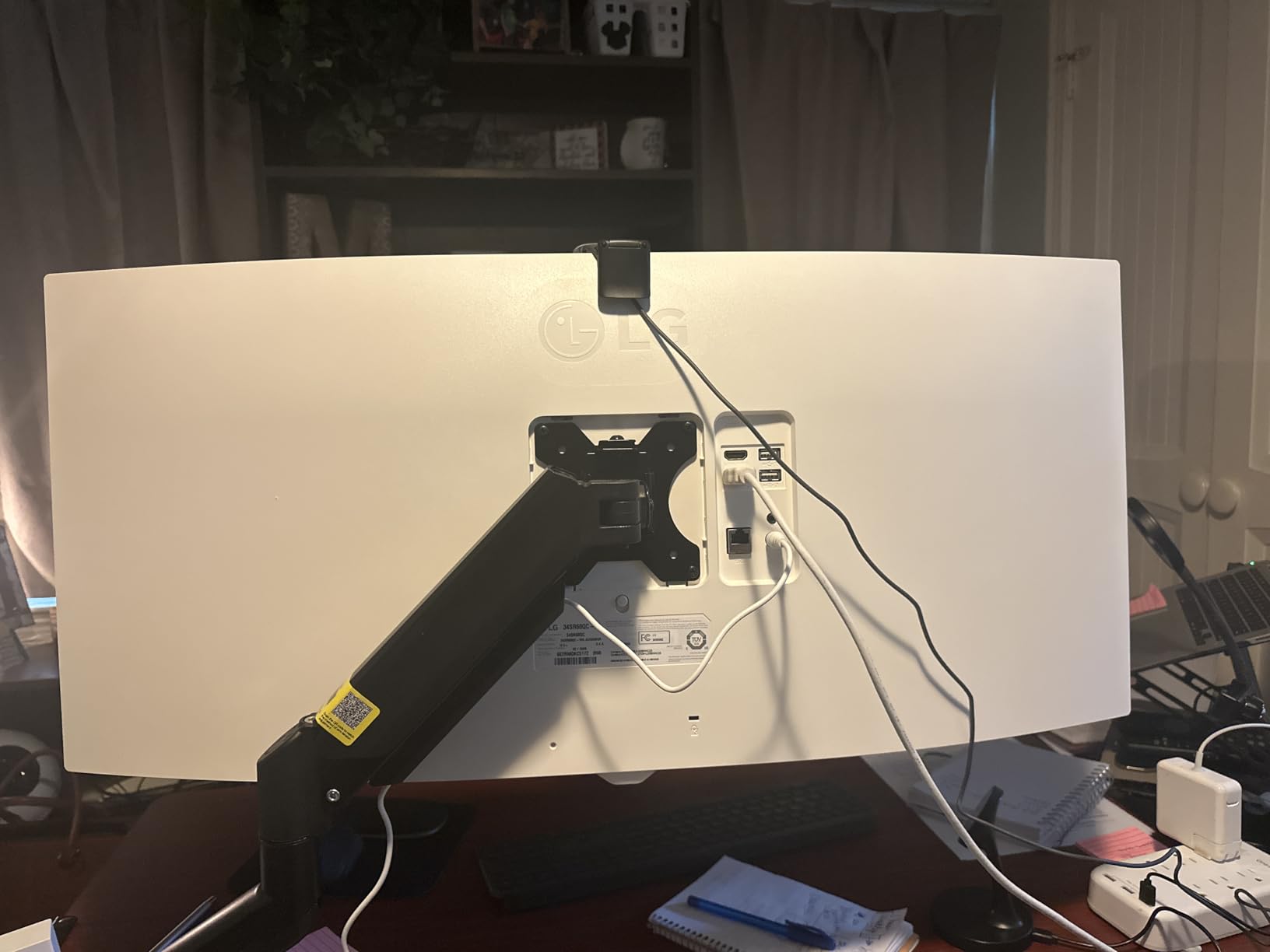
6. LG 34SR60QC-W 34-Inch Smart Curved – The Pick When the Monitor Also Runs the Room
LG 34SR60QC-W 34-inch QHD (3440×1440) Curved Smart Monitor with Streaming, UltraWide Screen, webOS, HDR10, 100Hz, Built-in Speaker, AirPlay2, Screen Share, Bluetooth, ThinQ App, White
3440x1440 VA panel
1800R curve
100Hz and 5ms
99% sRGB with HDR10
webOS23
AirPlay 2 and Bluetooth
Pros
- Wide curved canvas for work and general productivity
- webOS23 streaming apps and cloud PC access without a separate machine
- 99% sRGB with HDR10
- Two HDMI plus three USB ports cover most hub needs
- Three-sided virtually frameless design
Cons
- 100Hz and 5ms are modest against faster ultrawides
- VA panel is not ideal for colour-critical work
- Stand offers tilt only with no height or swivel
The 1800R curve is the gentlest wrap of the curved panels in this list, and that is deliberate on LG’s part. A 1800R radius on a 34-inch display means the edges bend enough to reduce glare at the sides but not enough to visibly curve your gridlines.
For a spreadsheet user who also wants the display to handle a meeting-room screen share or a streaming session without a second device, the webOS23 platform is the differentiator. Cloud access to Microsoft 365 and Google applications means you can open a workbook on the monitor itself.
99% sRGB coverage with HDR10 is a better colour figure than several VA rivals here, and the three USB ports plus two HDMI cover most peripheral needs without a separate hub.
Curvature at 1800R and What It Does to a Spreadsheet Grid
Curvature is described by a radius number, and lower is tighter. A 1500R panel wraps more aggressively around your head than an 1800R panel, and an 800R design wraps so hard that straight lines visibly bow at the edges and your head has to turn to read the far columns.
At 1800R the effect on a spreadsheet grid is close to invisible at a normal viewing distance. The panel still curves enough to reduce side glare and to keep the outer columns angled slightly toward you, which is the part that helps when you are reading across a wide grid.
For spreadsheet work specifically, 1800R and gentler is the range we would stay in. Panels at 1000R and below start to introduce a visible curve in horizontal gridlines, and 800R designs make the outermost columns genuinely awkward to read.
webOS Overhead, Ports and the Tilt-Only Stand
The smart platform is a genuine feature for some desks and pure overhead for others. Owners who only want a productivity display report the interface as something to navigate past, and the 100Hz refresh rate with 5ms response is modest next to several rivals in the same band.
The tilt-only stand is the practical limitation. On a 34-inch panel that sits 19 inches tall, no height adjustment means you are choosing a fixed relationship between the top of your grid and the top of your vision, and correcting it means stacking books.
Bluetooth, AirPlay 2 and HomeKit compatibility make wireless casting straightforward from a phone or Mac, which is useful when the same display does double duty as a meeting screen.
Who This Suits and Where It Falls Short
Suits: shared desks, home offices and small meeting rooms where one screen has to be a monitor, a presentation display and a streaming screen. The 1800R curve is also the safest curved option here for anyone sensitive to gridline distortion.
Falls short for: colour-critical work, since a VA panel is not the right choice there, and for anyone who needs height adjustment on a 34-inch panel. It also has no USB-C power delivery, so a laptop user connects over HDMI and charges separately.
7. LG 34WR55QK-B 34-Inch Curved USB-C – The Split-Screen Workspace Manager
LG 34WR55QK-B 34-inch UltraWide WQHD (3440 x 1440) Curved Computer Monitor, 100Hz, 5ms, HDR10, Reader Mode, HDMI, DisplayPort, USB Type-C, Tilt/Height Adjustable Stand, Black
3440x1440 curved VA
100Hz and 5ms
USB-C 65W
OnScreen Control split screen
PbP and Reader Mode
Pros
- 4.6 owner rating across 241 reviews
- OnScreen Control with workspace splitting and Picture-by-Picture
- USB-C with up to 65W power delivery
- Height and tilt adjustable stand with wall-mount support
- DisplayPort plus two HDMI and two USB
Cons
- 100Hz and 5ms limit it for high-end competitive gaming
- VA panel produces black-level smearing in dark interfaces
- 300 nit brightness is modest for an HDR-capable display
This is the model we would pick for someone whose entire day is three workbooks and a document, because OnScreen Control turns the 21:9 canvas into a defined workspace rather than a wide blank space you have to tile yourself.
It is a 3440×1440 curved VA panel at 100Hz with 5ms response, and 99% sRGB with HDR10. The colour figure is better than several VA panels here, and the 300 nit brightness is the usual mainstream figure.
What raises it above the other VA options is the combination of a full port selection, USB-C power delivery and a real workspace utility. Owners consistently cite the ergonomic stand, the OnScreen Control split-screen workflow and the single-cable laptop setup as the reasons it earns a place on a productivity desk.
OnScreen Control as a Spreadsheet Workspace Manager
OnScreen Control lets you define custom workspace splits and adjust monitor options with a few mouse clicks, and Picture-by-Picture shows content from two separate input sources simultaneously. For spreadsheet work that is the difference between a monitor that is merely wide and one that is organised.
The workflow we would set up: a two-thirds split for the primary workbook and a one-third pane for a reference document, with Picture-by-Picture handling a second machine that needs to be visible for a check rather than for continuous work. The 21:9 ratio gives you a three-way horizontal split that 16:9 cannot match.
USB Type-C with up to 65W power delivery handles a single-cable laptop connection, and Reader Mode reduces blue light for extended document and spreadsheet sessions. The port selection is genuinely generous for a 34-inch: two HDMI, two USB, a DisplayPort and a headphone jack.
VA Text Behaviour and the 100Hz Ceiling
The VA panel produces the black-level smearing and shift that shows up in dark interfaces, and it is the reason we would put an IPS panel ahead of this one for anyone reading dark-text-on-white models all day. The 3000:1 contrast makes formatted reports look good and costs you that scrolling behaviour.
At 100Hz and 5ms, this is not a competitive gaming panel, and that is a fair trade for a productivity-first build. It is also below the refresh rate of several cheaper monitors in this list, so the money here went into ports and stand rather than speed.
300 nit brightness is modest for an HDR-capable display, which means the HDR10 label is more about colour than luminance. In a controlled office that is fine; in a bright room it is not.
Who This Suits and Where It Falls Short
Suits: analysts who want a defined three-pane workspace without tiling software, and laptop users who want one cable for video, data and charging. The height and tilt adjustable stand plus three-side virtually borderless design also make it a clean choice next to a second display.
Falls short for: dark-interface work where VA smearing gets in the way, and for anyone in a bright office. If gaming matters at all, several cheaper panels here give you a higher refresh rate and a faster response for a similar outlay.
8. Samsung ViewFinity S65UC 34-Inch Curved – The KVM and Ethernet Pick for Two-Machine Setups
Samsung 34” ViewFinity S65UC, Ultra-WQHD Curved Monitor
3440x1440 VA LED
1000R curve
350 nits
built-in KVM switch
USB-C with Ethernet LAN
3-year warranty
Pros
- Built-in KVM switch controls two sources with one keyboard and mouse
- Ethernet LAN port adds networking to a laptop over USB-C
- Easy screen splitting across multiple files
- 1000R curve keeps a wide grid facing you
- Three-year manufacturer warranty
- Monitor-arm friendly with included split-screen software
Cons
- KVM is advertised but documentation gives little guidance on configuring it
- Built-in speakers are backward-firing and tinny
- On-screen control behaviour takes practice
- An intrusive pop-up window can be difficult to disable
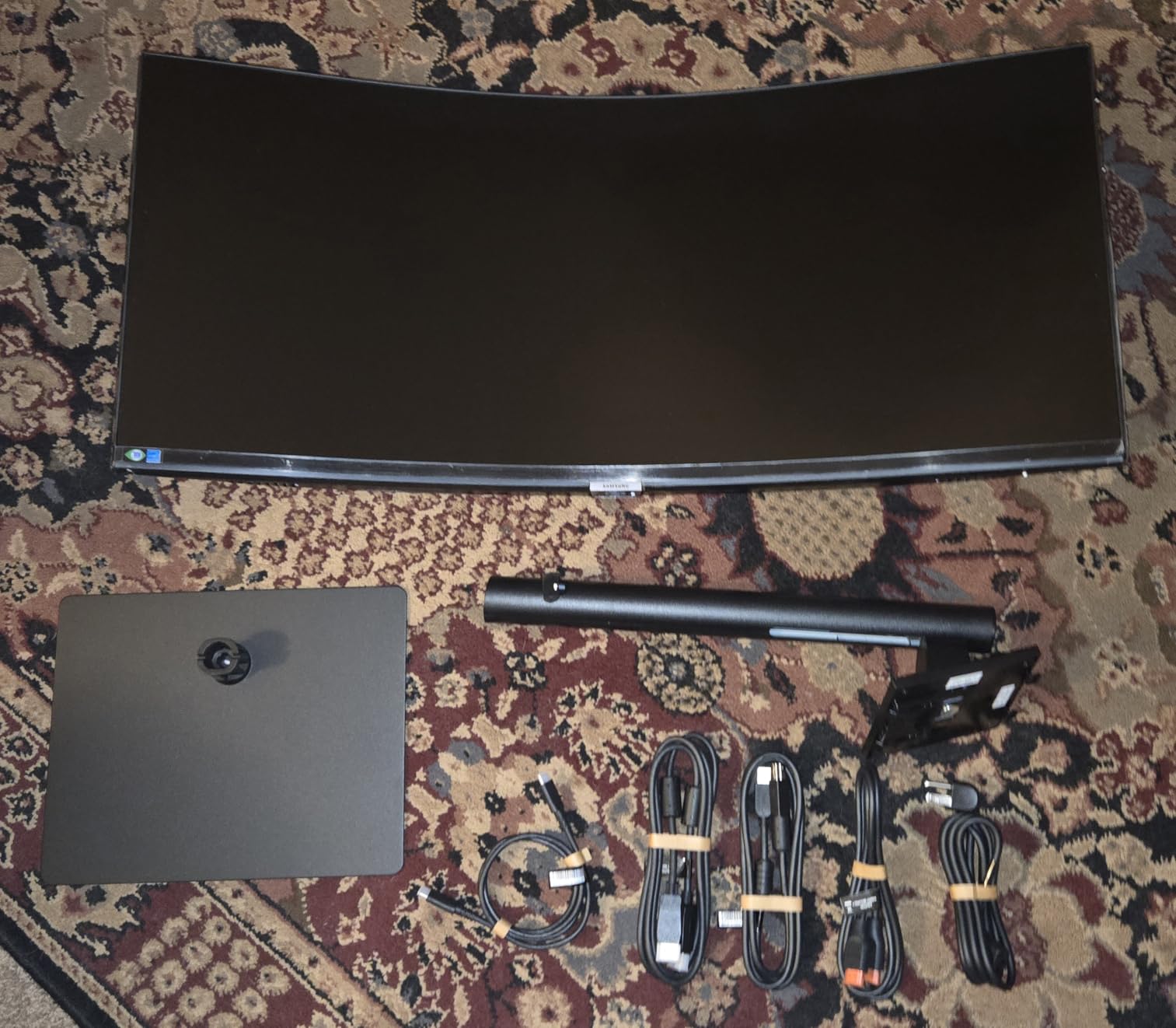
The S65UC is the only monitor here with a built-in KVM switch and a LAN port, and for a spreadsheet user running a desktop and a laptop that combination is worth more than any refresh rate on this page. One keyboard, one mouse, two machines, one switch.
Owners who pair it with a Mac over USB-C specifically praise the built-in ethernet and the easy screen splitting for office workflows. If you have ever run a spreadsheet from a laptop that has no network port, you know exactly what that solves.
It is a 1000R curved VA LED panel at 350 cd/m2 with 100Hz and FreeSync, and 1000R is tighter than most of the curve panels here, which we will come back to below.
1000R Curve, KVM and the Ethernet Angle
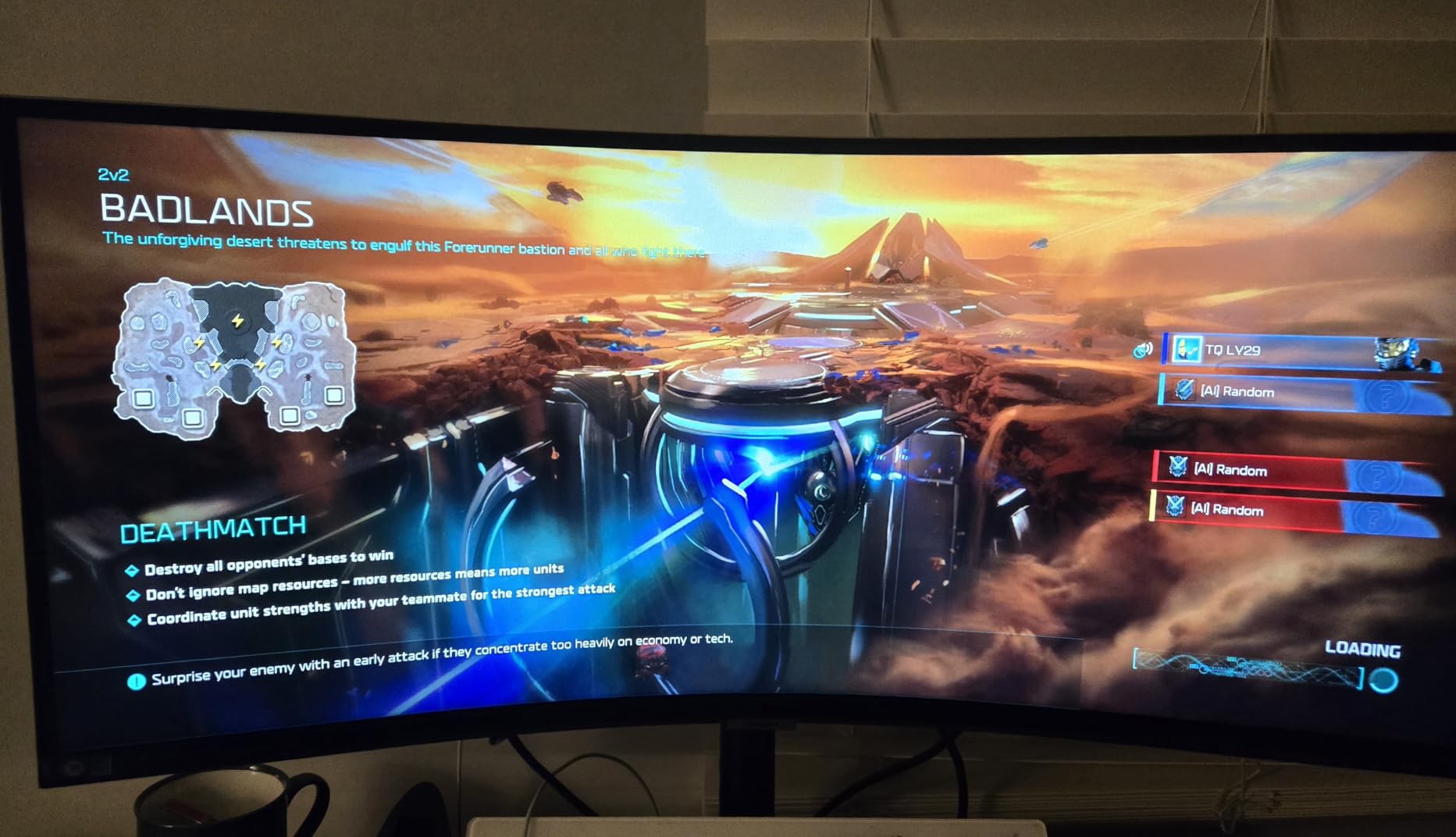
At 1000R the panel wraps more noticeably than the 1500R and 1800R designs elsewhere in this list. That helps pull the outer columns of a wide grid toward you, but it also introduces a visible bow in horizontal gridlines if you look for it. For most spreadsheet work it is acceptable; for anyone sensitive to straight lines, test it in person.
The KVM switch connects and controls two sources with one keyboard and mouse, and split screen, PIP and PBP are all supported. For financial modelling or data analysis, that means you can keep a live model on the desktop and a reporting workbook on the laptop and switch between them without touching a hub.
The LAN port is the sleeper feature. It delivers ethernet to a laptop that lacks a network port over a single USB-C cable, which removes the last reason to carry a dongle. The USB-C port also handles one-cable power and data.
Speakers, Pop-Ups and KVM Documentation
The most common criticism by a distance is the built-in speakers, which are backward-firing and described as tinny. If you plan to take calls on this monitor, bring headphones; the headphone output is there for a reason.
KVM configuration is genuinely under-documented. Owners report that support pages provide little guidance on getting the switch working, so budget an evening for the initial setup rather than assuming it is plug-and-play. The on-screen control behaviour also takes practice.
An intrusive pop-up window on some setups is hard to disable, and the 4.2 owner rating here is the lowest in the group, driven by these setup frictions rather than by the panel itself. Against that, the three-year warranty is joint-longest in this roundup.
Who This Suits and Where It Falls Short
Suits: two-machine desks that need a real KVM switch and wired networking without a separate dock, and anyone monitoring wide market data or dashboards where the tight curve and 3000:1 contrast help. Owners also note it installs easily on monitor arms.
Falls short for: anyone who wants clear text on a straight grid, because 1000R is tighter than we would ideally recommend for precision work, and for anyone who relies on the built-in speakers. If you only run one machine, the KVM is a feature you will never touch.
9. LG 34U650A-B 34-Inch Curved IPS – The Strongest USB-C Power Delivery Option
LG 34U650A-B 34-inch UltraWide WQHD (3440 x 1440) IPS Curved Wide Computer Monitor, 100Hz, HDR10, Built-in Speaker, HDMI, DisplayPort, USB Type-C PD 96W, Tilt/Height/Swivel Adjustable Stand, Black
34-inch 3440x1440 IPS
3800R subtle curve
100Hz and 5ms
USB-C up to 96W
The Switch app to 6 panes
Reader Mode
Pros
- IPS panel delivers crisp text and stable colour over VA alternatives
- 3800R curve is comfortable without distorting text
- USB-C with up to 96W charges a laptop over the same video cable
- The Switch app splits the screen into up to six sections
- Tilt swivel and height adjustable stand
Cons
- FreeSync is listed but some owners report AMD drivers do not detect it
- Built-in ethernet over USB-C is speed-limited and reduces resolution if maximised
- 100Hz is slower than many competitors
- 22.3-pound weight and a heavy base
- Isolated reports of panel failure and flaky USB hub mounting
This is the pick when the machine on your desk is a laptop that needs real charging power. At up to 96W over USB-C it delivers more than any other 34-inch ultrawide in this roundup, and it does it on the same cable that carries the video.
Owners who moved from a VA ultrawide to this IPS panel describe a decisive improvement in text clarity and corner colour consistency for writing and long document work. That is the exact change most spreadsheet buyers are looking for, and it is why this panel type exists in a category otherwise dominated by VA.
The 3800R curve is the gentlest in the group, following what LG describes as the natural line of sight. For gridlines it is the safest curved option available: you get the glare reduction of a curve without a visible bow.
3800R Curve and IPS Text Clarity
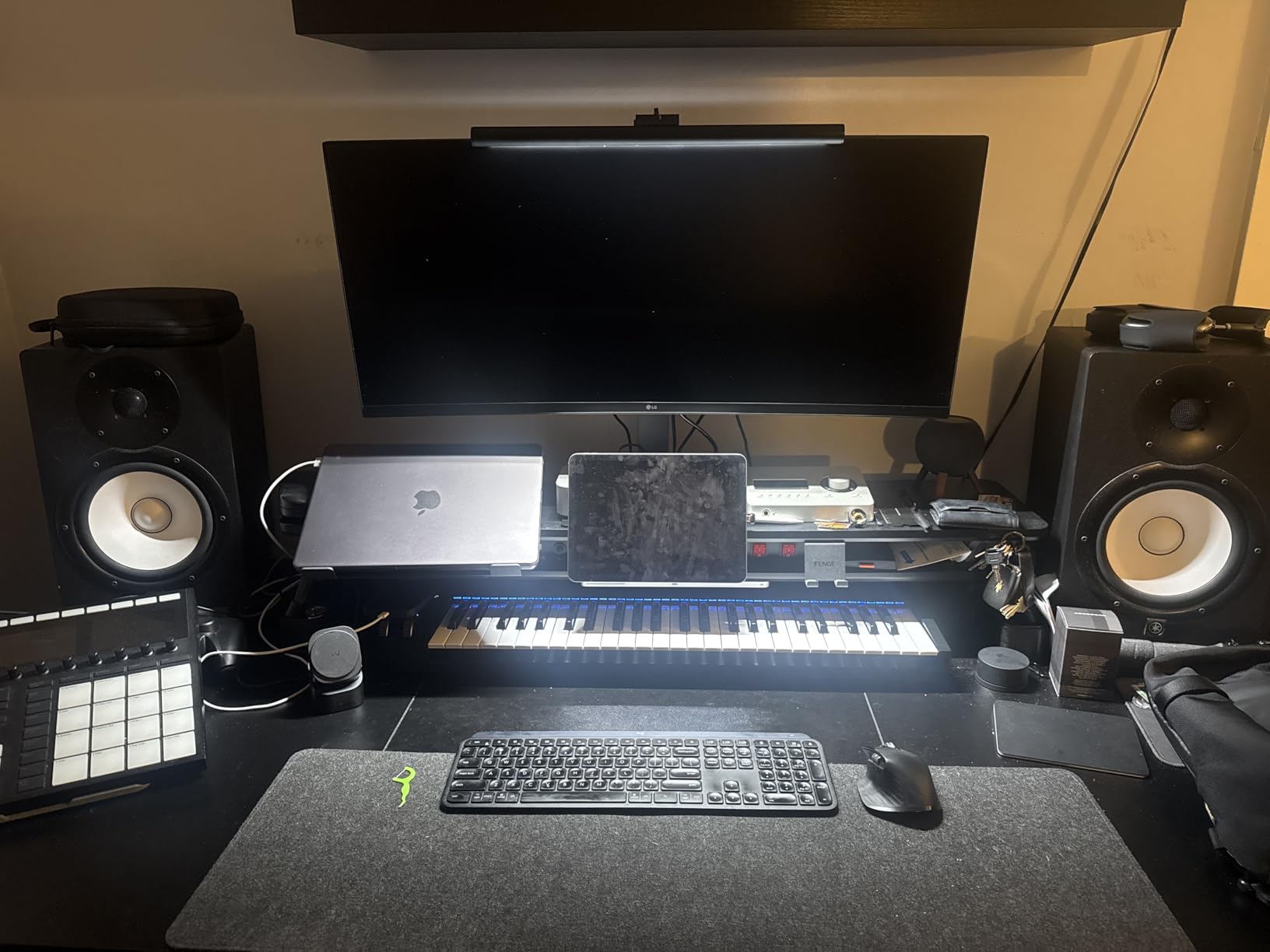
A 3800R radius means the panel barely curves at all, which makes it functionally close to a flat screen while keeping the anti-glare benefit of a curved design. Horizontal gridlines across a 3440-pixel width stay visually straight, and that is precisely the geometry spreadsheet work needs.
The IPS panel is the other half of the argument. Owners report crisp text and stable colour as the deciding factor over VA alternatives, and an IPS panel’s consistent rendering from off-centre positions means the far-left and far-right panes of a three-way split read as evenly as the middle one.
Up to 99% sRGB coverage with HDR10 support and smooth tonal transitions across documents means charts and conditional formatting look right, and Reader Mode reduces blue light for document reading. The trade against VA is contrast: 1000:1 instead of 3000:1, so dark themes and colour-heavy dashboards lose some depth.
96W Charging, The Switch App and Network Limits
Ninety-six watts covers a wide range of performance laptops, which makes this the only monitor here that can plausibly replace a desktop-grade charger. The Switch app splits the screen into up to six sections and launches video calls from a hotkey, which is useful when a spreadsheet share is suddenly a meeting.
Two cautions. FreeSync is listed in the specification but at least one owner reports AMD drivers do not detect it and the OSD game-adjust options contain no VRR controls, so if adaptive sync matters to you, verify it before buying. And the built-in ethernet over USB-C is speed-limited, with choosing high-speed networking reducing resolution and refresh rate.
At 22.3 pounds with a heavy base, this is a substantial object, and the included monitor arm feels flimsy with noticeable wobble according to owners. The tilt, swivel and height adjustable stand is a real plus, but budget for a proper arm if you intend to move it regularly.
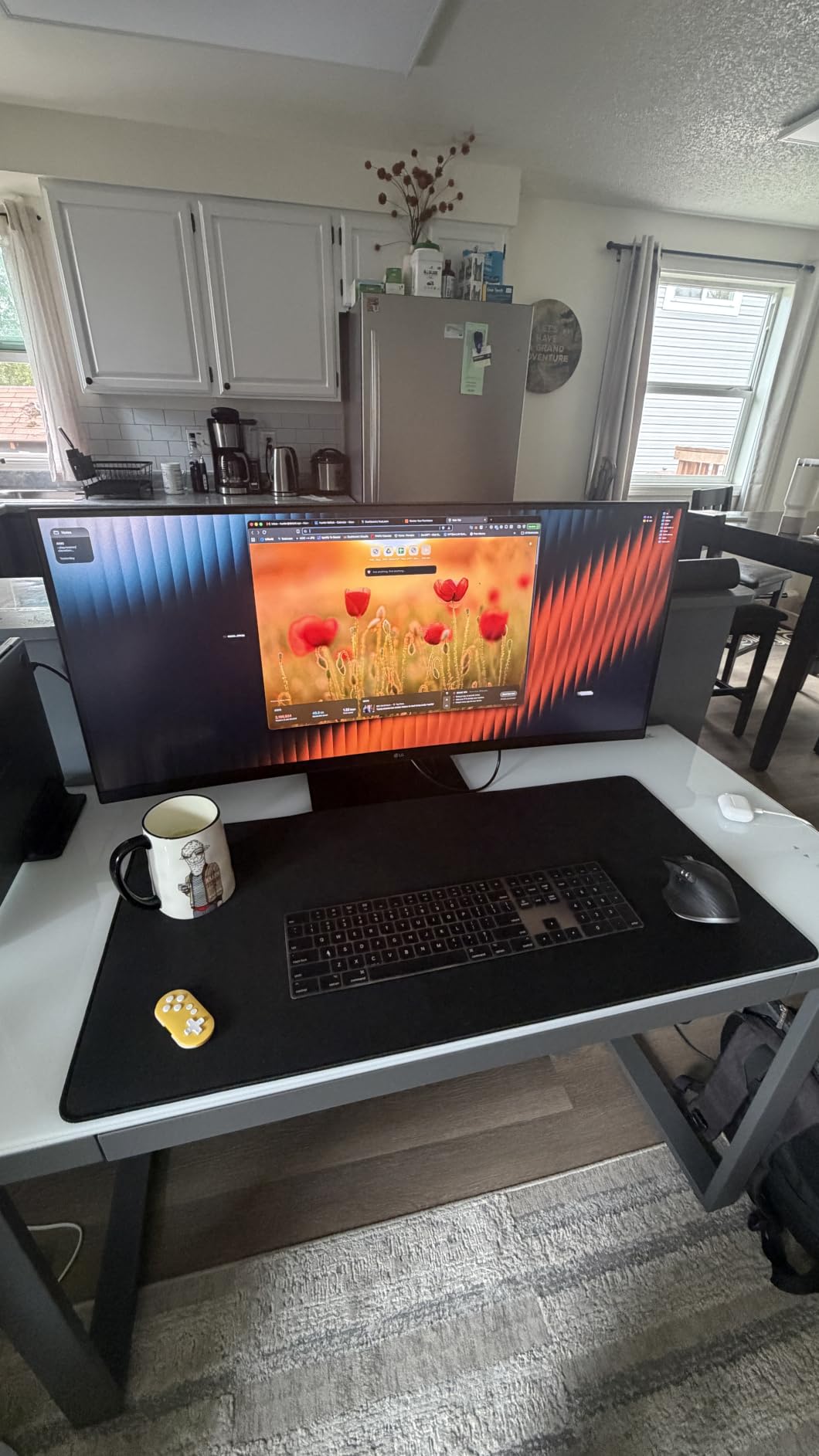
Who This Suits and Where It Falls Short
Suits: laptop-first users who want one cable for power, video and data with enough wattage to avoid carrying a charger, and anyone who reads text for long hours and prefers IPS consistency over VA contrast. The 3800R curve makes it a good fit for grid-heavy work where straight lines matter.
Falls short for: dark dashboards and colour-critical work, where 1000:1 IPS contrast and 300-nit brightness both fall short. The 100Hz refresh rate is slow next to several cheaper panels, and the weight is a genuine consideration if you move monitors between desks.
10. Sceptre E345W 34-Inch Flat UWQHD – The Entry Tier With Four Inputs and a Flat Panel
New! Sceptre 34-inch Prime Monitor 3440 x 1440 up to 115Hz 103% sRGB DisplayPort HDMI Build-in Speakers, Machine Black 2026 (E345W Series)
Flat 34-inch 3440x1440 VA
up to 115Hz with FreeSync
103% sRGB
2x HDMI and 2x DisplayPort
built-in speakers
Pros
- Low-cost entry into a 34-inch 3440x1440 ultrawide
- Four video inputs is more than most monitors at this tier
- Stable metal-look stand that does not wobble
- Good real estate for CAD work and coding
- All cables included for plug-and-play setup
Cons
- Integrated speakers are among the worst in a monitor
- Screen is dim and needs gamma and backlight tuning especially for dark themes
- HDR produces no meaningful brightness increase
- VA blacks are washed out until calibrated
- Some listing text describes the panel as IPS when it ships as VA
The Sceptre E345W is a low-cost way onto a native 3440×1440 canvas in this roundup, and at 103% sRGB with four video inputs and a stable stand it is a more complete package than the price would suggest.
Owners treat it as a first 34-inch ultrawide and praise the resolution, port count and stand stability. For a student or a first analytics role who has outgrown a 24-inch display, it delivers the single most important spreadsheet upgrade: visible width.
The flat VA LED panel here runs up to 115Hz with FreeSync, and a flat surface means gridlines stay straight across the full 3440-pixel width without the curve distortion question arising at all.
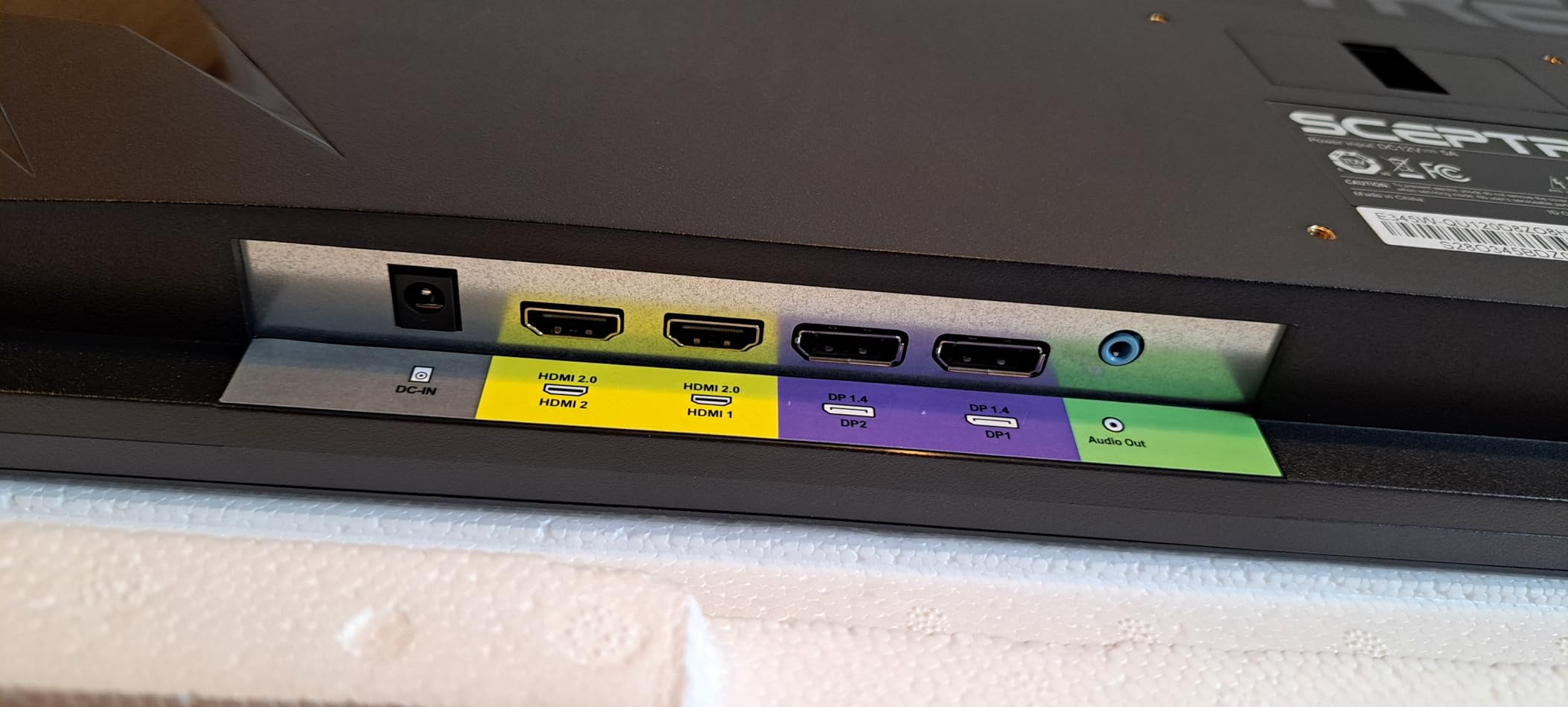
Four Inputs and a Stable Stand at the Entry Tier
Two HDMI ports up to 100Hz and two DisplayPort inputs up to 115Hz is a port count that most monitors in this range cannot match, including several that cost considerably more. For a setup that cycles between a laptop, a desktop and occasionally a second machine, that is a real practical advantage.
The stand is described as a stable metal-look design that does not wobble under normal use, and the box includes the AC adapter, a DisplayPort cable, stand hardware, a user guide and a warranty card. Everything you need to be working the same afternoon it arrives.
Blue-Light Shift reduces blue light emission for long sessions, and at 103% sRGB the colour figure is respectable for a VA panel. The 3440×1440 native resolution is the feature that carries this monitor, and it carries it properly.
Dim Picture, Speakers and Panel-Type Confusion
Two complaints dominate owner feedback. The integrated speakers are widely criticised as tinny and among the worst in any monitor, so treat them as a convenience for system audio rather than something you will listen to. And the screen is dim, particularly with dark editor themes, requiring gamma, backlight and brightness tuning after unboxing.
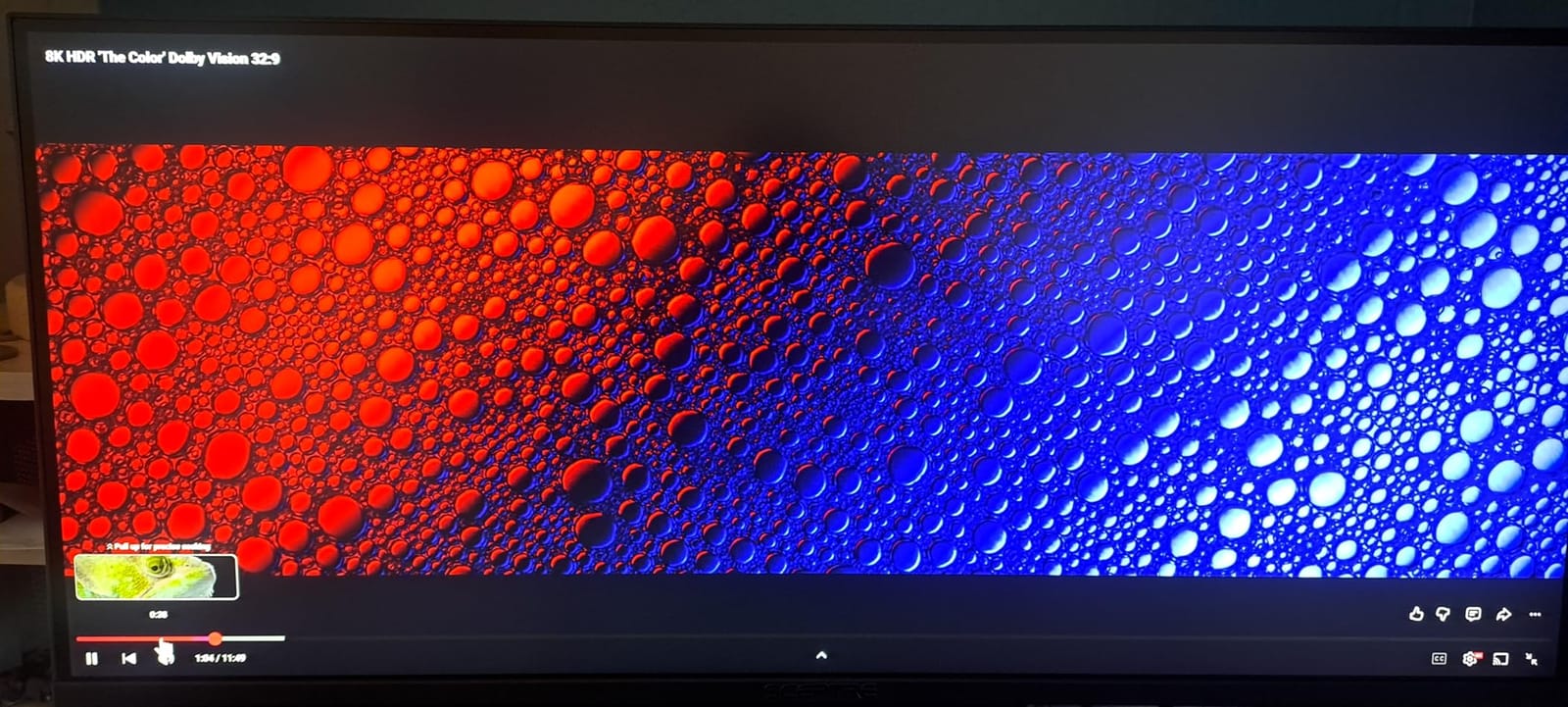
The VA panel also shows washed-out blacks out of the box until it is calibrated, and HDR produces no meaningful brightness increase when enabled. There is no brightness figure published in the fetched specification block, which is itself worth noting: you are buying resolution and ports here, not picture quality.
Finally, some listing text describes the panel as IPS when the unit ships as VA, and that confusion is a recurring source of buyer frustration. Treat it as a VA panel and calibrate accordingly.
Who This Suits and Where It Falls Short
Suits: students, first-time analysts and anyone who needs visible spreadsheet width more than they need accurate colour or a bright picture. Four inputs and included cables make it the least fussy option to get running, and a monitor arm is an optional later upgrade rather than a requirement.
Falls short for: colour-critical work, dark-interface coding without calibration, and anyone relying on built-in audio. It is also the pick most likely to need an hour of OSD adjustment before the picture stops looking washed out.
What to Check Before Buying a 34-Inch Ultrawide for Excel
These are the decisions that actually change your daily experience, in the order you should make them. If you want the broader context on why ultrawides work for multitasking at all, our picks on the best ultrawide productivity monitors cover the general case.
Resolution First: Why 3440×1440 Is the Floor
A 34-inch ultrawide at 2560×1080 is a trap. The extra width is real, but the pixel density drops far enough that small spreadsheet text breaks up and cell borders look ragged at 100% scaling. A 34-inch panel at 3440×1440 lands near 109 PPI, which is below a 27-inch 4K panel but comfortably above the point where text suffers.
Every monitor in this roundup runs 3440×1440 natively. If you find a 34-inch model advertised at a lower native resolution, skip it regardless of what the marketing says about the physical size.
Panel Type and How Text Renders on It
IPS panels render text consistently from any viewing position, which suits a wide screen where your eyes travel to the far edges. VA panels deliver 3000:1 contrast for better-looking dashboards, but show dark smearing when scrolling dark text on white backgrounds. QD-OLED panels render small text beautifully at high resolution, but forum buyers consistently report coloured fringing on 10pt spreadsheet text and burn-in anxiety from a permanently visible ribbon and taskbar, which is why none appear here.
Our rule: IPS if text is the workload, VA if colour-coded dashboards are, and neither if you cannot decide, because the difference is smaller than the resolution difference.
Curvature and Straight Gridlines
Curvature is specified as a radius. Lower numbers mean a tighter wrap: 3800R is barely curved, 1800R is gentle, 1500R is moderate, 1000R is noticeable, and 800R wraps hard enough that you turn your head to read the outer columns.
For spreadsheet work, stay at 1800R or gentler, or go flat. A 3800R panel and a flat panel both keep horizontal gridlines visually straight, and 1500R is a reasonable compromise. Below 1000R you are trading gridline accuracy for field of view, and the trade only makes sense for immersive content.
USB-C, KVM and Daisy-Chaining for a Laptop Plus a Desktop
USB-C with power delivery is the single most useful port on a productivity ultrawide. At 65W it covers ultraportables and most business laptops; at 96W it covers performance machines. Combined with a built-in USB hub, one cable replaces a charger, a video cable and a dock.
KVM switches let one keyboard and mouse drive two machines, which matters if your spreadsheets live on a desktop and your reporting runs on a laptop. Picture-by-Picture and PIP do the same thing visually, letting two sources sit side by side on one panel. Check whether PBP runs each source at native resolution before you rely on it for a two-workbook comparison.
Daisy-chaining, where a DisplayPort out port passes video to a second monitor, is rarer on this size. Only one model in our top tier keeps a full DisplayPort alongside its USB hub, so if you plan a second screen, verify the port before you buy.
How OS Scaling Changes Visible Excel Columns
This is the part nobody explains, and it changes how many columns you actually see more than the panel does. Excel draws a default column about 64 pixels wide at 100% scaling, so a 3440-pixel canvas fits roughly 54 columns before you subtract the row-number gutter, the formula bar, the ribbon and the sheet tabs. On a 2560-pixel 27-inch 16:9 screen the same calculation gives about 40.
Now scale it. At 90% scaling, Excel renders 10% smaller, so the same 3440 pixels fit about 60 columns. At 80%, roughly 68. Vertically, 1440 pixels at a default 20-pixel row height gives around 72 rows, and after the ribbon, formula bar and headers that lands near 50 visible rows. Rows scale the same way as columns.
The practical advice is to buy for the resolution, then set scaling per display. On a 34-inch at arm’s length, 90% scaling is comfortable for a full workday and buys you roughly 10% more grid. If you also use a 27-inch 4K panel, matching the effective scaling across both keeps row heights consistent when you drag a workbook between screens.
On macOS, the default looks-like settings may not fill 3440×1440 natively, and the resulting scaling can be softer than the panel is capable of. Set the display to its full native resolution rather than accepting a fractional scaled mode.
Brightness, Flicker and an Eight-Hour Spreadsheet Day
Most panels here run 300 cd/m2, which is fine with blinds down and marginal with sun on the screen. Only the Alienware AW3425DWM at 400 nits and the INNOCN 34C1R at 400 cd/m2 are genuinely bright-room options, so if your desk sits near a window, weight brightness heavily.
For long sessions, flicker-free dimming matters more than most buyers expect. The Samsung S50GC’s Flicker Free mode and the LG models’ Reader Mode both reduce the pulsing you can get from a dimmed backlight, and the Sceptre’s Blue-Light Shift does the same job. Combined with 90% or 100% scaling rather than an artificially small font, that is most of what eye comfort actually consists of.
Set OS scaling so your default Excel font renders at 11pt or 12pt equivalent rather than shrinking the font inside the sheet. The scaling change costs you nothing and keeps gridlines aligned across your whole day.
Desk Depth, Stand Footprint and Ergonomics
A 34-inch panel is roughly 80 to 90 centimetres wide and needs about 70 centimetres of viewing distance to avoid turning your head for the outer columns. If your desk is under 60 centimetres deep, measure before you order, because the panel will overhang or push your keyboard forward.
Height adjustment appears on the Dell S3425DW, the INNOCN 34C1R, the LG 34WR55QK-B, the LG 34U650A-B, the Alienware AW3425DWM and the Samsung S65UC. The SANSUI, Samsung S50GC and LG 34SR60QC-W are tilt-only, which on a panel this tall is a daily irritation. If you already own a monitor arm, a tilt-only stand is a much smaller problem.
Weight ranges from about 9.7 pounds on the Sceptre to 22.3 pounds on the LG 34U650A-B, and desk arms have rated limits. Check your arm’s capacity before you assume a heavy ultrawide will lift cleanly.
If you also want to manage lighting across a wide desk, our guide to monitor light bars for ultrawide monitors covers the fit and placement questions that come with an 80-centimetre panel.
34-Inch Ultrawide or Two 27-Inch Monitors
Two 27-inch 16:9 panels give you 5120 horizontal pixels in total against the ultrawide’s 3440, and they cost about the same as one of the premium models here. That is the strongest argument against a single ultrawide, and it is the argument people in r/homeoffice raise most often when weighing one large curved display against two smaller ones.
The case for the ultrawide is the bezel and the ergonomics. No centre bezel cutting a workbook in half, one power cable, one stand, one KVM to manage, and a single focal distance for your eyes instead of two panels at different depths. It also wins decisively when desk depth is the constraint.
Our recommendation for spreadsheet work: if you can mount two 27-inch panels on arms and your desk is deep enough, do that. If desk depth is limited or you keep context-switching between many applications, the single 34-inch is the better tool.
Frequently Asked Questions
What is the best 34-inch ultrawide monitor for office work?
The Dell S3425DW is our pick for office work because it combines a native 3440×1440 panel with 65W USB-C power delivery, four USB ports and a height-adjustable stand. That single-cable setup removes a dock from a laptop desk, and the wide canvas holds multiple workbooks side by side. Its 300 nit brightness suits a controlled office rather than a sunlit one.
What is the best monitor for spreadsheets?
For spreadsheets, resolution and pixel density matter more than refresh rate or panel speed. A 34-inch ultrawide at native 3440×1440 gives roughly 109 PPI and fits about 54 default-width Excel columns at 100% scaling, or about 60 at 90% scaling. Avoid 2560×1080 ultrawides, which render small cell text too sparsely for data work.
Which ultrawide monitor is best for office use?
The INNOCN 34C1R is the strongest office choice because it is a flat IPS panel, which keeps text and colour consistent from the far edge of a three-pane split to the near one. It runs 400 cd/m2 brightness, offers 130mm of height adjustment and includes PIP and PBP. There is no USB-C power delivery, so laptop users need a separate dock.
Does a curved monitor distort spreadsheet gridlines?
It depends on the radius. Panels at 1900R or gentler, such as the LG 34U650A-B at 3800R, keep horizontal gridlines visually straight at normal viewing distance. A 1500R curve is a reasonable compromise, but at 1000R and below a visible bow appears in long horizontal lines. Flat panels such as the INNOCN 34C1R remove the question entirely.
Is OLED better than IPS for spreadsheets?
For spreadsheet work, IPS is usually the safer choice. OLED panels render small text with coloured fringing on many subpixel layouts, and a permanently visible Excel ribbon, formula bar and taskbar create a burn-in risk that many buyers refuse to accept. OLED also runs dimmer in bright rooms than a 300 to 400 nit LCD. Choose IPS for text clarity, VA for deeper contrast on dashboards.
Should I buy a 34-inch ultrawide or two 27-inch monitors?
Two 27-inch 16:9 panels give you 5120 horizontal pixels in total against an ultrawide’s 3440, and they cost roughly the same as one premium ultrawide. The ultrawide wins on desk depth, cable count and the absence of a centre bezel splitting a workbook. If your desk is deep and you can mount both on arms, two 27-inch panels give you more usable area.
The Verdict on 34-Inch Ultrawides for Spreadsheet Work in 2026
If you want the widest canvas with the largest body of owner evidence behind it, take the SANSUI 34-inch 200Hz UWQHD. It has been proven over close to 4700 reviews, the 3000:1 VA contrast makes formatted dashboards read properly, and calibrate brightness and gamma in the first ten minutes.
If text clarity is your job, go IPS. The INNOCN 34C1R is flat, bright at 400 cd/m2 and adjustable, and it is the panel type that holds up when you read 10pt cells at the far edge of the screen all day.
If you dock a laptop, the Dell S3425DW gives you 65W over one cable, or the LG 34U650A-B gives you 96W on a gentler 3800R curve with better text. If you run two machines with one keyboard, the Samsung ViewFinity S65UC has the KVM and the LAN port, though its 1000R curve is tighter than we would ideally recommend for grid accuracy.
If your office is bright, the Alienware AW3425DWM is the one to buy at 400 nits with a three-year warranty. If you are starting out, the Sceptre E345W gets you onto native 3440×1440 with four inputs and you accept a dim picture and weak speakers in exchange.
Whichever you choose, set OS scaling to 90% or 100% before you start working rather than shrinking the font inside Excel, and check your desk depth against the 70 centimetres a 34-inch panel really needs. Those two steps decide whether the extra width becomes productive or just wide.
We keep the wider picks on ultrawide setups and gaming-focused ultrawides if you want to see how these panels behave when the workload is not a grid.