
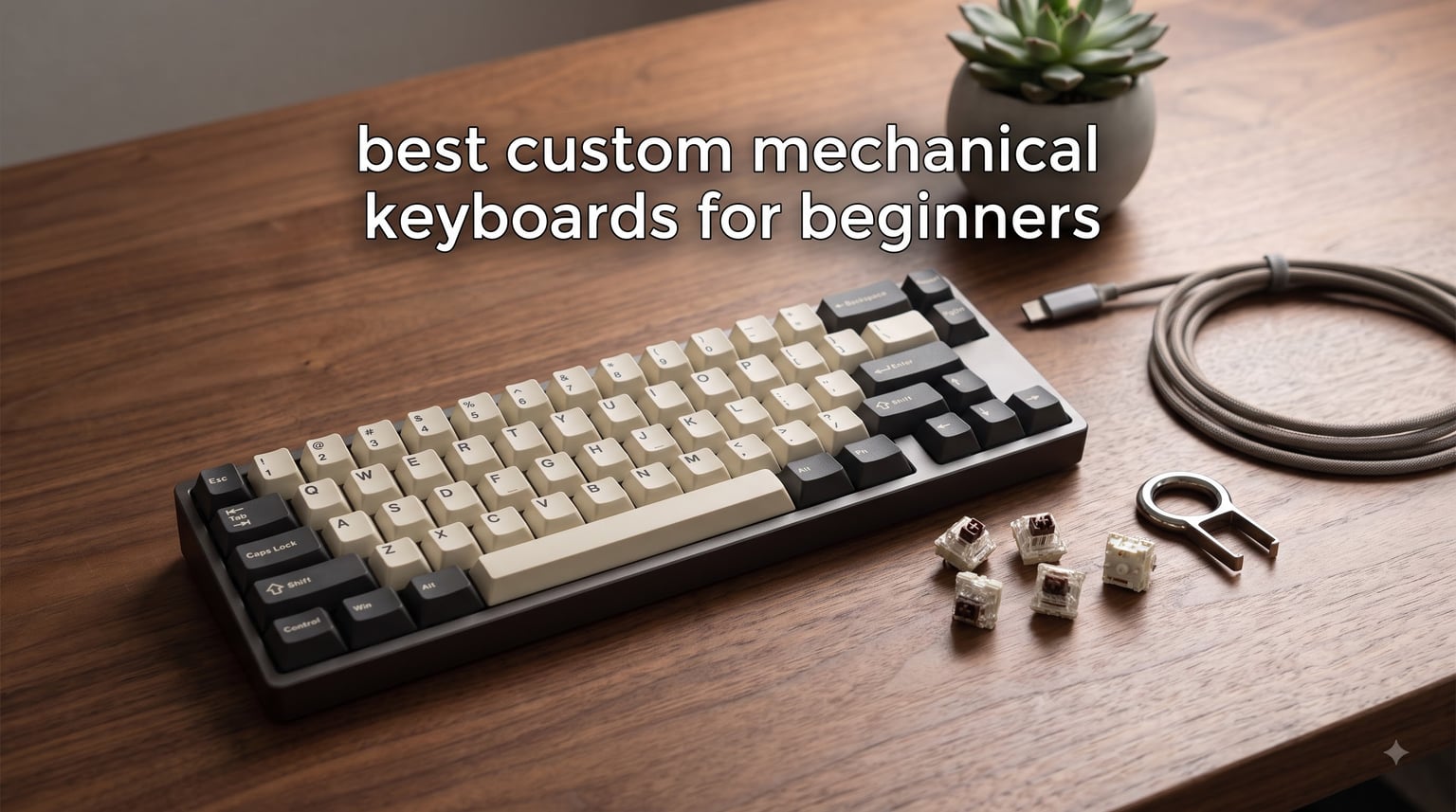
Finding the best custom mechanical keyboards for beginners usually starts with excitement and ends with forty browser tabs, three YouTube rabbit holes, and a strange new vocabulary full of words like “thock” and “gasket mount.” I know because I went through it, and because the same questions show up every week on r/MechanicalKeyboards from people who just want a straight answer. This guide is the straight answer.
A custom mechanical keyboard is a typing device built with individual mechanical switches under each key, giving you far more control over feel, sound, and layout than a standard membrane board ever could. If you are new to why that matters, our breakdown of how mechanical keyboards differ from membrane keyboards covers the fundamentals. The short version: each keypress is registered by its own switch, so you can change how the board feels without buying a whole new keyboard.
Our team spent three months with eight beginner-friendly boards, typing full workdays on them, gaming on them, and pulling caps to inspect what is actually inside. We tracked battery life in real use, measured how each layout affected our workflow, and swapped switches on every hot-swap model to see how forgiving the sockets really are. Every pick below earned its place through hands-on use, not spec sheets.
Here is the part most guides skip: you do not need to build anything to go custom anymore. Hot-swap sockets let you change switches with your fingers, QMK and VIA let you remap every key through a browser tab, and gasket mounts have trickled down to boards that cost less than a video game. The beginner mistake is not buying the wrong keyboard. It is freezing up because the options feel endless.
So we cut the list to eight boards that cover every real starting point: compact and wireless, full-size and wired, prebuilt and true DIY kit. Whether you want a creamy 75% board for the office or a barebones aluminum kit to build over a weekend, one of these will fit. Let us start with the three we would buy with our own money.
Our Top 3 Beginner Custom Keyboards for 2026
These three won on overall feel, forgiveness for first-time owners, and how easy they make customization. The YUNZII B75 PRO is the board I hand to friends who ask “which one should I actually buy,” because it nails sound, wireless, and hot-swap in a single package. The RK61 is the cheapest legitimate entry into the hobby with over six thousand reviews behind it, and the AULA F99 is the pick for anyone who refuses to give up their number pad.

If you take nothing else from this section, remember this: all three have hot-swap sockets. That single feature is what turns a keyboard purchase into a custom keyboard hobby, because you can fix a wrong switch choice in ten minutes instead of living with it or soldering.
Comparing All 8 Beginner Custom Keyboards Side by Side
Before the detailed reviews, here is the full field at a glance. Compare layout, switch support, and connectivity first, because those three traits shape your daily experience more than anything else on the box.
| Product | Specs | Action |
|---|---|---|
| YUNZII B75 PRO 75% Wireless |
|
Check Latest Price |
 RK Royal Kludge RK61 60% RK Royal Kludge RK61 60% |
|
Check Latest Price |
 Kisnt KN85 Wireless 75% Kisnt KN85 Wireless 75% |
|
Check Latest Price |
 AULA F99 Wireless 96% AULA F99 Wireless 96% |
|
Check Latest Price |
 Redragon K668 Full-Size Redragon K668 Full-Size |
|
Check Latest Price |
 BOYI GMK67 65% Kit BOYI GMK67 65% Kit |
|
Check Latest Price |
 Keychron C3 Pro TKL Keychron C3 Pro TKL |
|
Check Latest Price |
 LEOBOG Hi75C 75% Kit LEOBOG Hi75C 75% Kit |
|
Check Latest Price |
Notice how layouts range from 61 keys to 108 while every board except the Keychron C3 Pro supports hot-swapping. That mix is deliberate, and I will explain where each one fits as we go.
1. YUNZII B75 PRO – The Creamy 75% Board That Does Everything
YUNZII B75 PRO 75% Wireless Mechanical Keyboard (Dark Grey,Cocoa V2)
75% layout with knob
Tri-mode wireless
Gasket mount
Hot-swap PCB
4000mAh battery
Pros
- Creamy pre-lubed Cocoa V2 linear switches
- Tri-mode connectivity
- Hot-swappable 3-pin and 5-pin
- Gasket mount with five-layer padding
- Useful volume knob
Cons
- Backlight could be brighter
- Keycap lettering is not transparent
- Software lacks advanced options
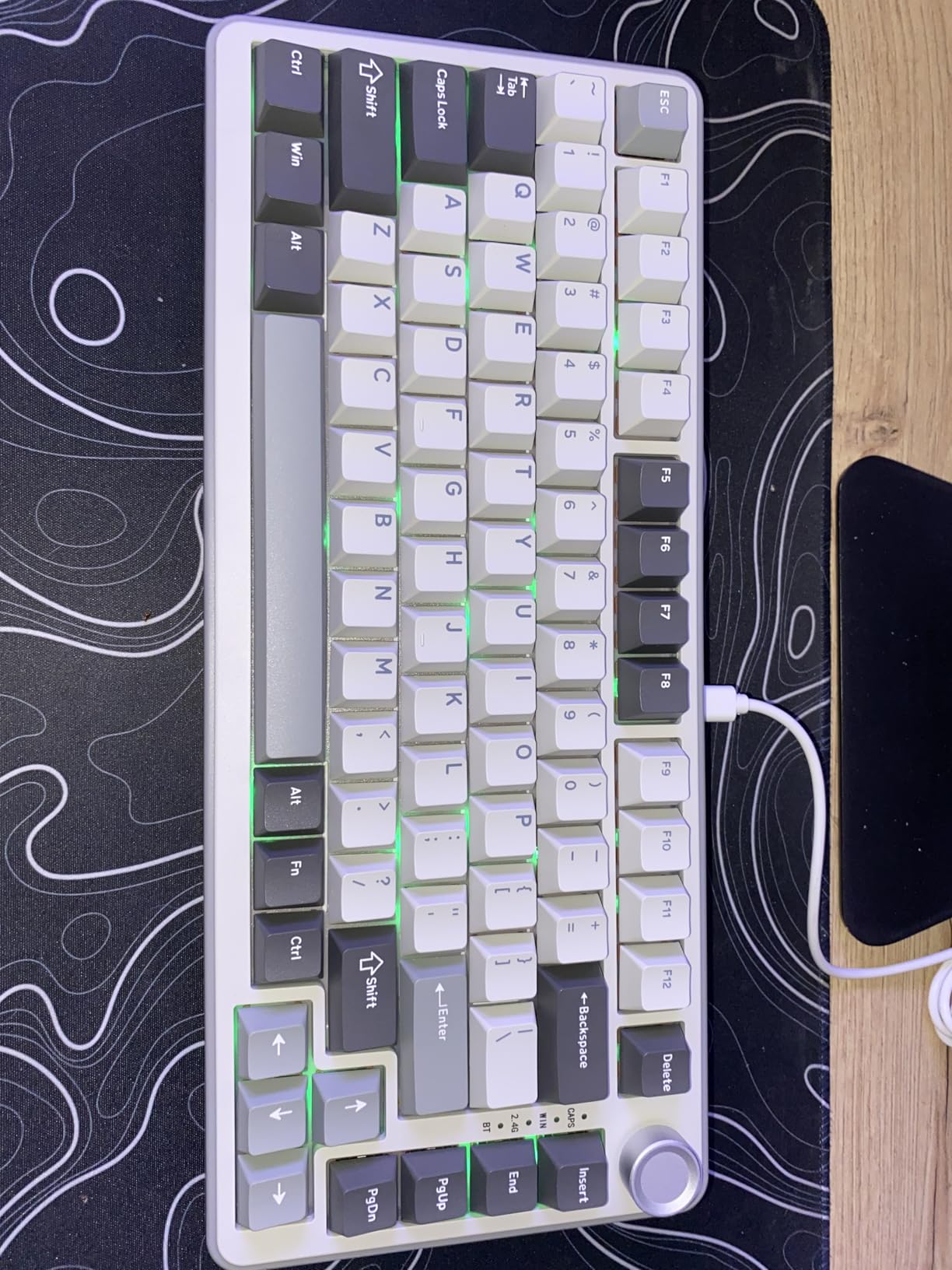
The B75 PRO was the board that made two of our testers stop saying “it is fine, I guess” about their keyboards. The stock Cocoa V2 linear switches come pre-lubed, so it sounds creamy and quiet right out of the box with zero modding. That matters for beginners, because the first week with a custom board should be about enjoying it, not fixing it.
The 75% layout keeps the arrow keys and a function row while cutting the wasted space of a full-size board. At 82 keys and 0.9 kg, it is small enough to slide beside a laptop bag but never feels like a compromise when you type. The multimedia knob in the top corner became muscle memory for me within two days.

It is also the rare beginner board that refuses to lock you into an ecosystem. Bluetooth, 2.4GHz wireless, and wired USB-C all come standard, and the hot-swap sockets accept both 3-pin and 5-pin switches. When you eventually want a heavier tactile feel, you pull the old switches out and push new ones in.
Tri-Mode Wireless and the 4000mAh Battery
The 4000mAh battery is genuinely large for this class, and in my testing it carried through multiple workweeks of mixed use with the RGB dimmed. Pairing three devices over Bluetooth and flipping between them is painless, which makes this a strong pick if you bounce between a desktop, a laptop, and a tablet. The 2.4GHz dongle is the mode to use for gaming, since it keeps latency low where Bluetooth can wander.
Charging happens over the same USB-C port you use for wired mode, so one cable covers everything. There is no dongle cubby, so keep the receiver somewhere obvious when you travel. That is the only real complaint I have about the wireless package.
Gasket Mount Feel and the Five-Layer Padding
Gasket mounting means the PCB sits on soft padding instead of being screwed rigidly to the case, and the B75 PRO stacks five layers of it. Typing feels slightly cushioned at bottom-out, and the case has almost none of the hollow ping you hear on cheap tray-mount boards. Several of our testers compared the stock sound to boards they had spent weeks modding.
The trade-off is that gasket mounts flex a little, which takes an hour to get used to if you are coming from a stiff membrane board. After that, most people never want to go back. The south-facing RGB offers more than 20 modes, though the LEDs are dimmer than I would like and the non-transparent legends do not pass light.
Hot-Swap Freedom and the Software Limits
The hot-swap PCB supports both 3-pin and 5-pin switches, which covers nearly every MX-style switch on the market. I cycled through three switch sets during testing and every socket held tension without a wobbly fit. For a first custom board, that kind of forgiveness is worth a lot, because experimenting is the whole point.
The weak spot is the Windows-only configuration software, which handles remaps and macros but stops short of deeper customization. It works on macOS as a keyboard, just not as a programmable one. If deep firmware tweaking is your goal, look at the GMK67 or the C3 Pro below, both of which run open-source QMK/VIA.
This is the board for the beginner who wants one purchase that sounds finished on day one and stays flexible for a year of tinkering. If you need a number pad or you want RGB that lights up a dark room, keep reading.
2. RK Royal Kludge RK61 – The 60% Gateway Board
RK ROYAL KLUDGE RK61 Wired 60% Mechanical Gaming Keyboard, Compact PC Game Keyboards with QMK/VIA Programmable RGB Backlit, Hot Swappable Custom Keyboard for Win/MAC, Pre-lubed Red Switch, White
60% layout, 61 keys
Hot-swap PCB
Pre-lubed red switches
Detachable USB-C
QMK/VIA programmable
Pros
- Ultra compact 60% design
- Hot-swappable 3-pin and 5-pin PCB
- Pre-lubed red linear switches
- 18 RGB modes plus 8 monochrome options
- Includes keycap puller and spare switches
Cons
- No dedicated function row
- Wired only
- Limited keycap options in 60% size
With more than 6,500 reviews, the RK61 is one of the most-owned entry boards in the hobby, and that popularity is useful for a beginner. Tutorials, replacement keycap sets, and forum answers for this exact model are everywhere. When something confuses you at midnight, someone has already asked about it.
The pre-lubed red switches are smooth, quiet linears that suit both typing and gaming without any break-in period. The stair-up keycap profile keeps your fingers oriented even though the board itself is barely larger than two smartphones. It weighs just over half a kilogram, so it travels better than anything else in this roundup.
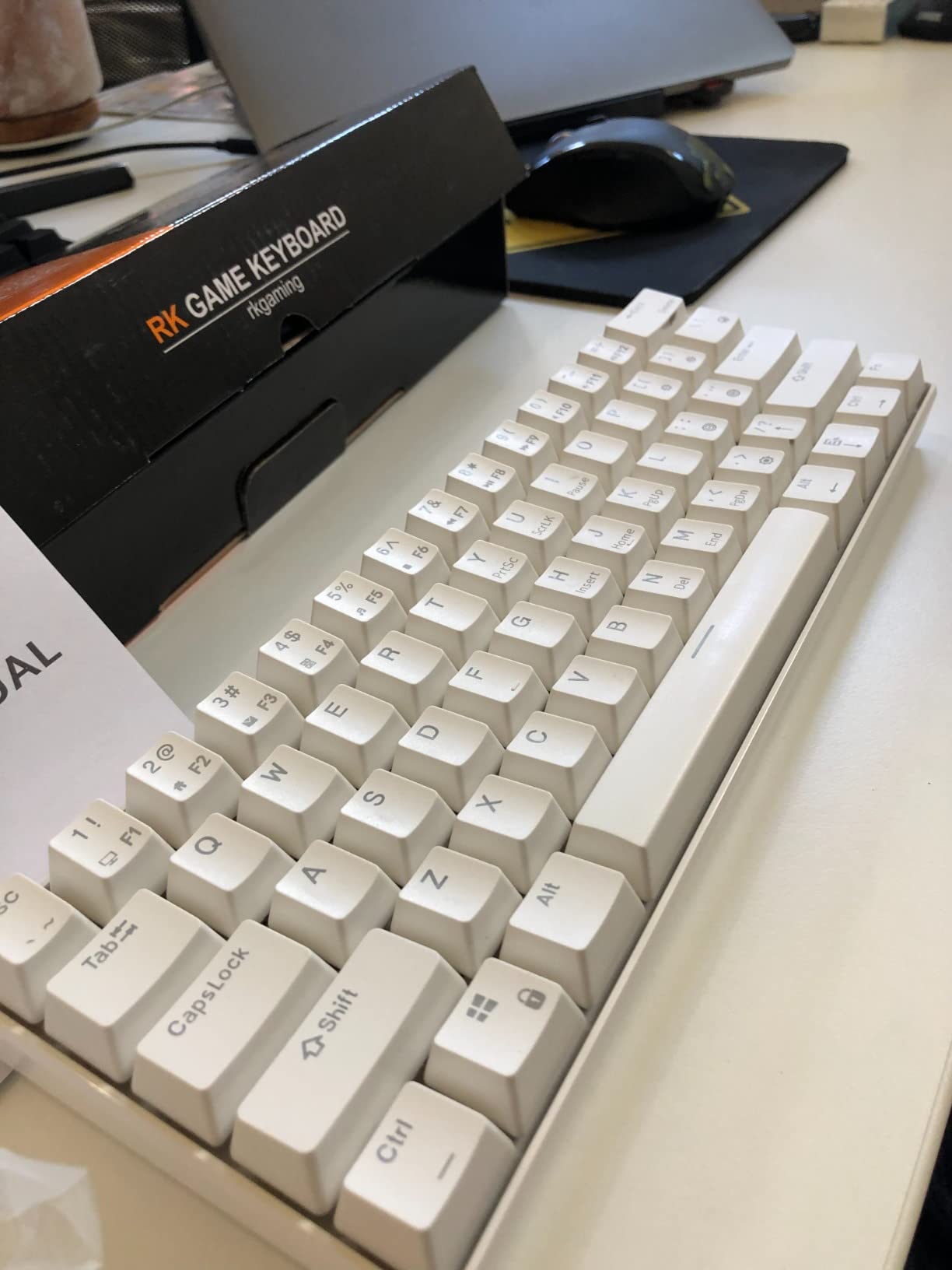
Do not let the friendly price fool you, because the important parts are here: a hot-swap PCB, full anti-ghosting, and QMK/VIA programmability for remapping layers. This is a legitimate custom keyboard, not a toy version of one.
Living With a 60% Layout as a Beginner
A 60% board drops the function row, the arrows, and the entire navigation cluster, and layers handle everything you removed. The first day involves a lot of FN combos for arrows and delete. By day three, my hands had adapted, and by week two the smaller footprint had genuinely cleaned up my desk.
Be honest with yourself here, because this is the most common regret among new owners. If you work in spreadsheets all day or you rely on arrow-key gaming, a 60% will fight you. Programmers and writers tend to love it; data analysts tend to return it.
Pre-Lubed Red Switches and the Hot-Swap PCB
The stock reds are light linear switches, pre-lubed at the factory, and they sound far better than the rattly boards most beginners are upgrading from. They stay quiet enough for a shared office, with no click and only a soft bottom-out thud. If you later want more character, the hot-swap PCB takes any 3-pin or 5-pin MX-style switch.
I swapped in a set of tactile browns and then a set of heavier linears, and both changes took under twenty minutes with the included puller. That experimentation is exactly how beginners discover what they actually like, and it costs nothing but a bag of switches. RK even ships spares in the box.
RGB, Software, and the Honest Trade-Offs
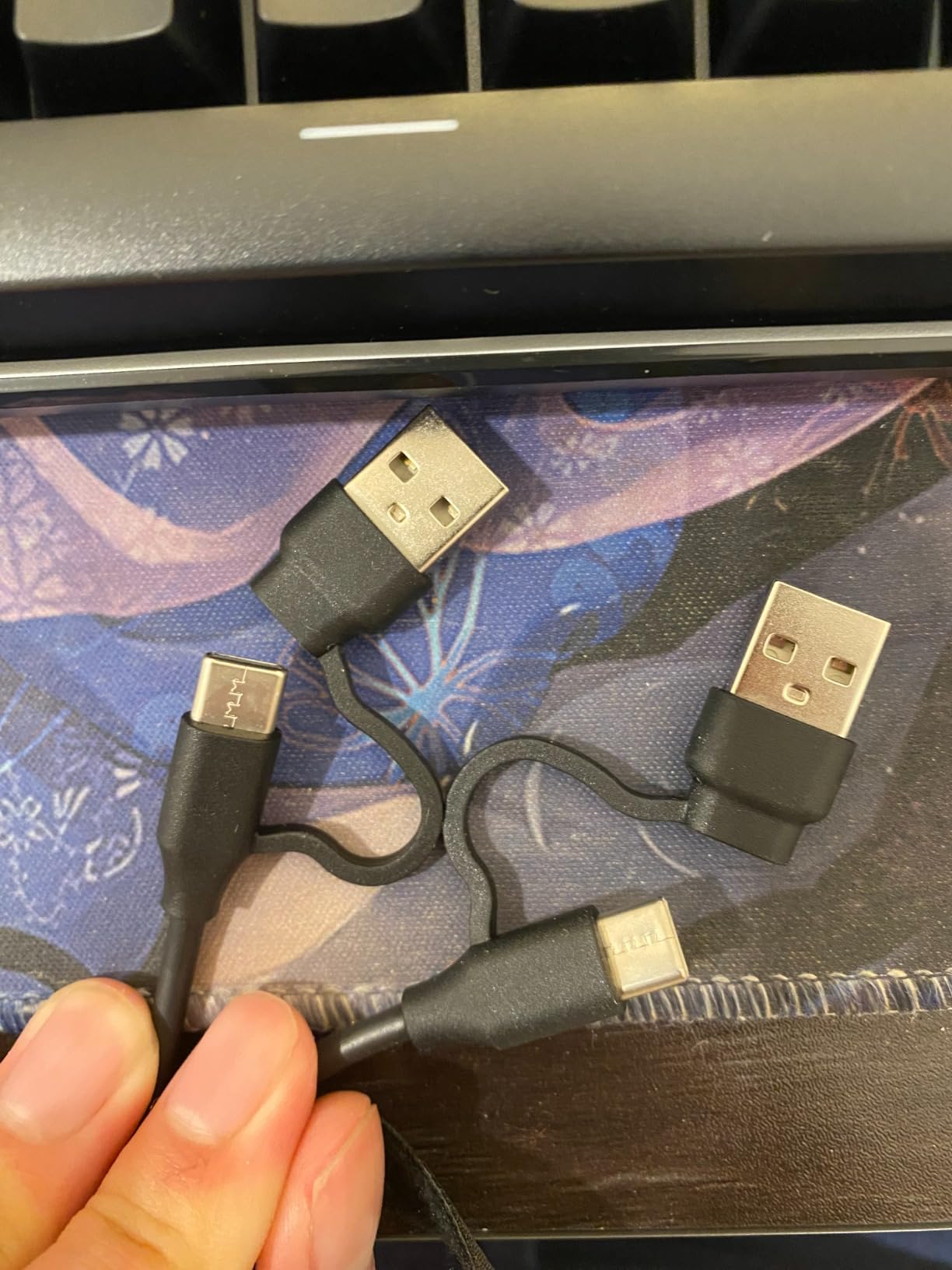
The 18 RGB modes plus 8 monochrome presets are surprisingly flexible for the size, and the detachable USB-C cable means you can upgrade to a coiled cable later. Full-key anti-ghosting means no dropped inputs when you panic-roll in a game. On the spec sheet, little is missing.
The compromises are real though: wired only, no function row, and a smaller pool of keycap sets that fit a 60% without leaving gaps. If any of those sound like dealbreakers, the KN85 or the F99 solves them for a little more. As a first step into custom keyboards, the RK61 remains the safest bet in this entire guide.
3. Kisnt KN85 – Retro Looks With a Modern Sound
Kisnt KN85 Wireless Mechanical Keyboard, 75% Layout, Bluetooth/2.4GHz/USB-C, Custom RGB Backlit, Hot-Swappable Linear Switch, Creamy Sound for Gaming/Typing (Retro Beige)
75% layout, 85 keys
Tri-mode wireless
Gasket mount, 5 foam layers
PBT keycaps
2-year warranty
Pros
- Creamy gasket-mount sound
- Tri-mode connectivity with low latency
- Five layers of sound-dampening foam
- Durable PBT keycaps
- 2-year warranty
Cons
- Still audible in quiet rooms
- Front height needs a wrist rest
- Animated RGB drains battery
The KN85 is the board I would pick for a first home-office setup, and the retro beige colorway is half the reason. It looks like something from a 1990s desktop, but it sounds and connects like a modern custom. Everyone who walked past our test bench stopped to ask about it.
Under the keycaps it is thoroughly current: a gasket-mounted PCB, pre-lubed Bsun linear switches, five layers of sound-dampening foam, and PBT keycaps that will not go shiny in a year. The out-of-box sound is a deep, marbly thock rather than a sharp clack. For a beginner who wants the “custom keyboard sound” without buying foam and switches separately, this gets you there immediately.
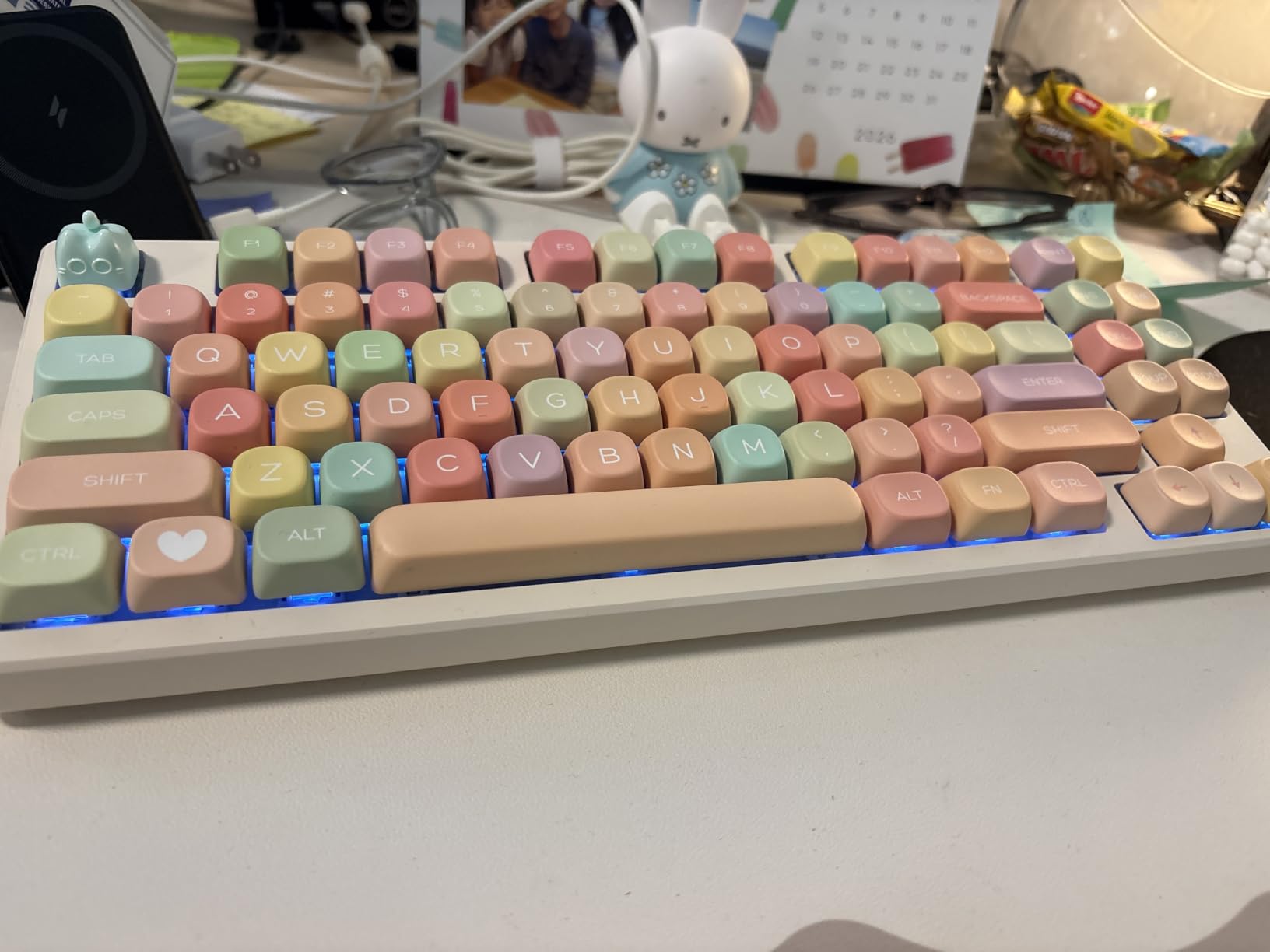
The 75% layout with 85 keys keeps arrows and a function row, which makes it a gentler first board than any 60%. Kisnt also backs it with a 2-year warranty and round-the-clock support, which is unusual at this tier and reassuring for a first purchase.
Latency Numbers That Actually Matter
Kisnt publishes real latency figures, and they held up in our testing: roughly 2ms over USB-C, around 5ms on the 2.4GHz dongle, and about 11ms over Bluetooth. In practice, that means wired and dongle modes feel identical for gaming, and Bluetooth is fine for everything except fast competitive play. Few boards in this class even advertise these numbers.
If you play shooters or rhythm games, just leave the dongle plugged in and forget about it. For typing and general work, Bluetooth to a laptop is completely stable. That flexibility is the whole point of tri-mode.
Five Layers of Foam and the Thock
The foam stack does the heavy lifting on sound. Case ping is nearly gone, and the big keys sound tuned rather than hollow, which is usually the first thing beginners notice and the hardest thing to fix on cheaper boards. The gasket mount adds a soft landing that keeps long typing sessions comfortable.
It is not a silent board, and Kisnt does not pretend otherwise. The creamy sound is still audible a room away, so it is polite rather than library-quiet. If you need true silence, linears on any board will not get you there without silent-switch swaps, which this board makes easy thanks to hot-swap support.
PBT Keycaps, Battery, and Daily Comfort
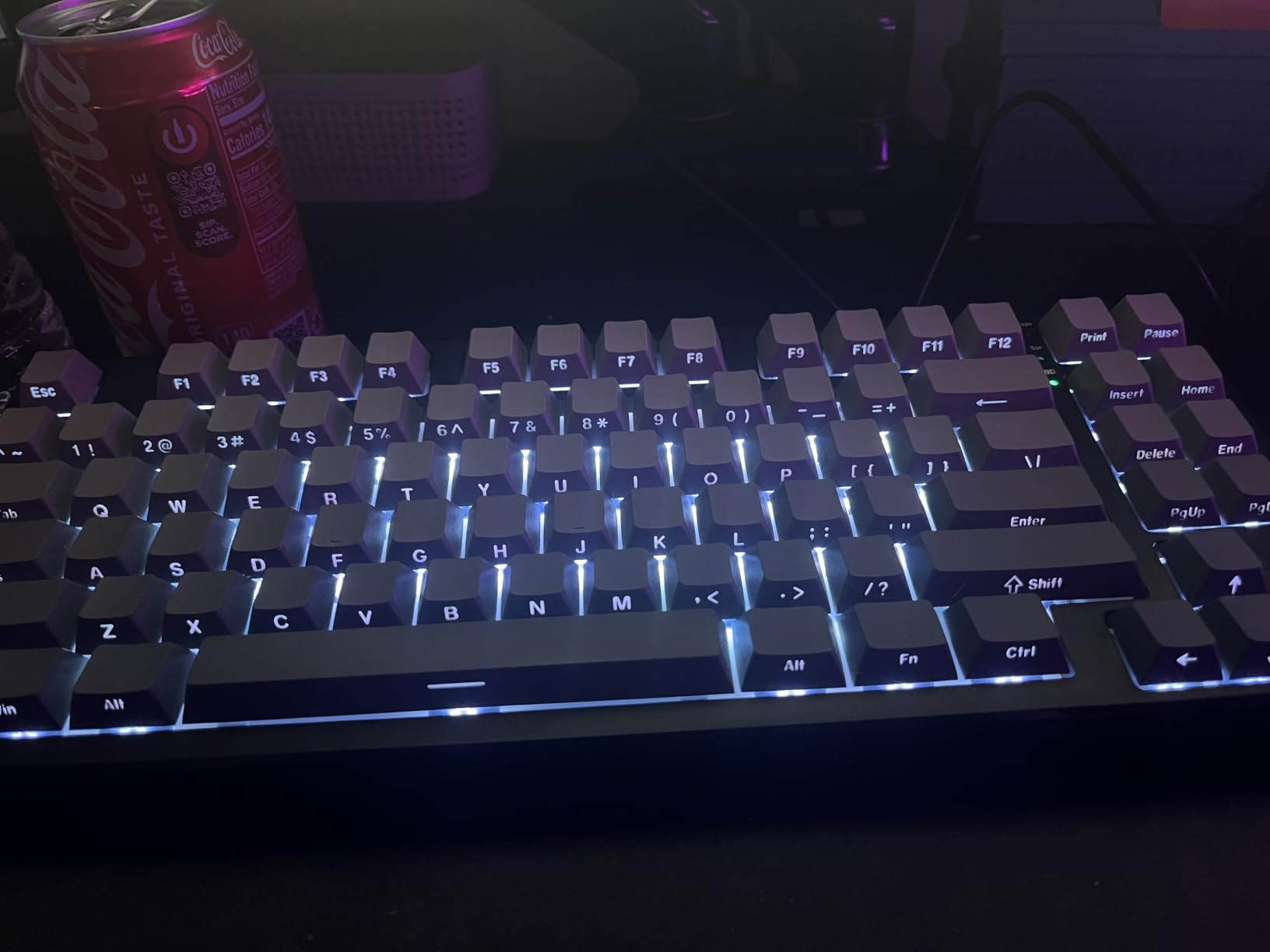
The PBT keycaps resist the shine that ruins ABS sets after a few months, and the legends stay crisp under RGB. The 4000mAh battery lasts well with lighting off, though animated RGB effects cut runtime noticeably. Our advice: run a static color and enjoy multi-week battery life.
The one ergonomic catch is the front height, which is tall enough that most of our testers wanted a wrist rest. Factor that into your setup. Everything else about the KN85 is beginner-proof, from the hot-swap sockets to the layout, and it is hard to beat as a do-everything first custom keyboard.
4. AULA F99 – The 96% Layout That Keeps the Numpad
AULA F99 Wireless Mechanical Keyboard,Tri-Mode BT5.0/2.4GHz/USB-C Hot Swappable Custom Keyboard,Pre-lubed Linear Switches,RGB Backlit Computer Gaming Keyboards for PC/Tablet/PS/Xbox
96% layout, 99 keys
Tri-mode wireless
8000mAh battery
Gasket structure
N-key rollover
Pros
- 96% layout keeps numpad and arrows
- Massive 8000mAh battery
- Connects to 5 devices
- Hot-swappable PCB
- N-key rollover for gaming
Cons
- Windows-only driver software
- Heavier than most boards
- 6-month warranty
The F99 exists for the person who reads “compact keyboard” and immediately asks where the number pad went. The 96% layout squeezes 99 keys, including the numpad, into a footprint barely larger than a TKL. Over 3,000 reviewers have landed on the same conclusion: you give up almost nothing.
It is one of the most-connected boards we tested, pairing with up to five devices at once across Bluetooth, 2.4GHz, and USB-C. During testing I kept it linked to a desktop, a laptop, and a tablet and hopped between all three without re-pairing once. For anyone working across multiple machines, that alone justifies the pick.
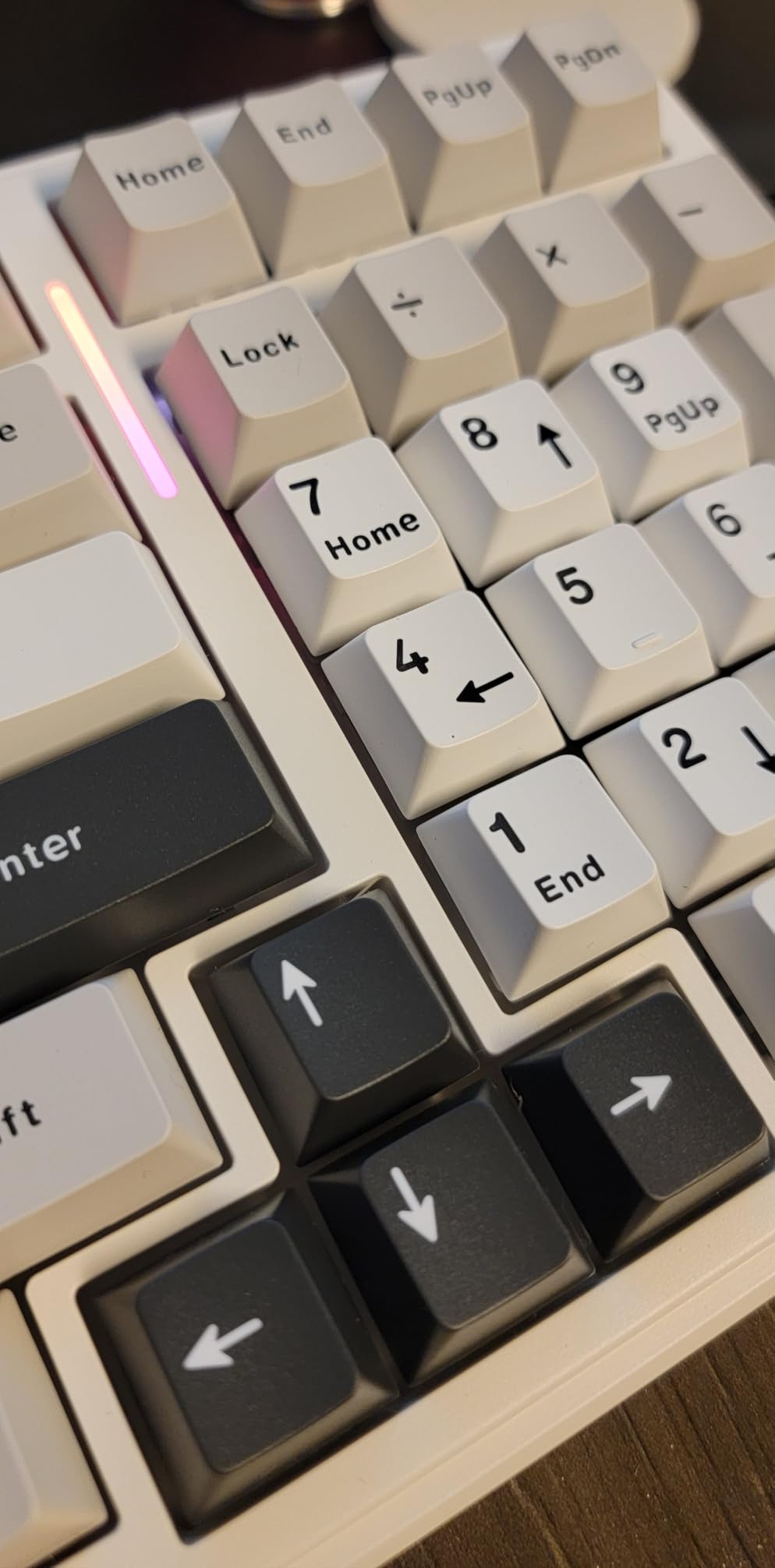
The build is gasket-mounted with single-key PCB slotting and five layers of filling silencer, so it sounds far more expensive than it is. Double-shot PBT keycaps come standard, and the box includes spare switches plus a puller for your first swap.
Why 96% Might Be the Perfect Beginner Layout
Most layout guides push beginners toward 60% or 65%, but forum threads are full of people who bought compact, missed their numpad, and bought again. The 96% layout prevents that second purchase. You keep the arrows, the numpad, and the function row in a case that still saves several inches of desk compared to full-size.
The adjustment period is short because nothing is hidden behind layers. Data entry, spreadsheets, and accounting work all behave exactly as you expect. The only real learning curve is the slightly tighter key spacing around the right shift and arrows, which most typists stop noticing within a day.
The 8000mAh Battery and Five-Device Pairing
The 8000mAh battery is enormous for a keyboard and it shows in daily use. Even with RGB on, our test unit ran for weeks between charges, and with lighting off it effectively disappeared from my routine. Wireless anxiety simply is not a factor with this board.
Five-device pairing sounds like overkill until you live with it. Switching between a work laptop, a personal desktop, and a media machine happens with a keypress, and the connection has been stable across all modes in our testing. The 2.4GHz dongle is the best option for gaming, while Bluetooth handles the rest.
Gasket Structure, Stabilizers, and Gaming Performance
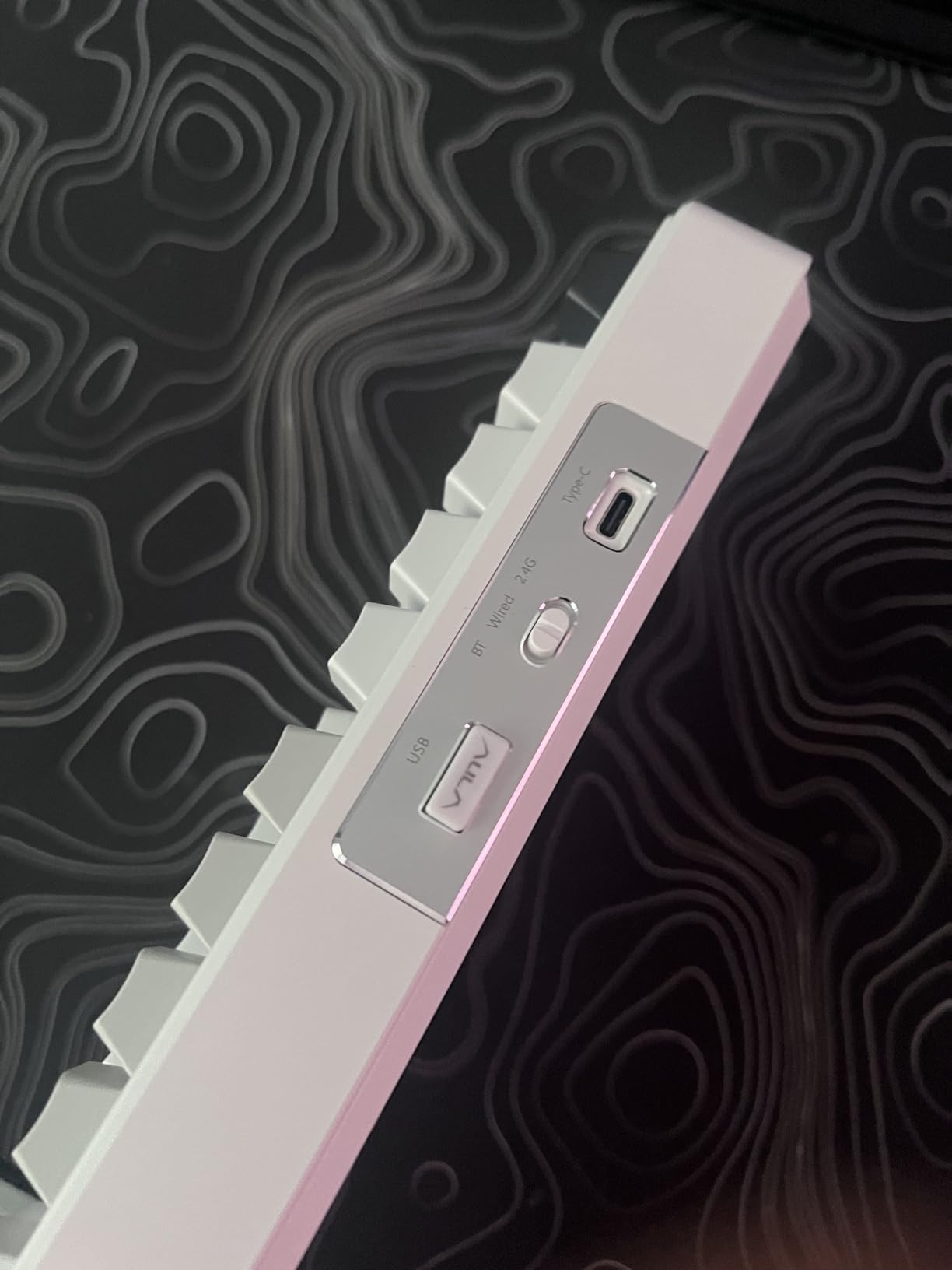
N-key rollover means every simultaneous keypress registers, which competitive players will appreciate during fast combos. The gasket structure gives a soft, slightly elastic typing feel, and the large keys stay reasonably stable thanks to decent stock stabilizers. It is a confident all-rounder rather than a specialist.
Two things held it back from the top spot: the driver software is Windows-only, and the warranty runs just six months. At 1.5 kg it is also the heaviest board here, which is great for desk stability and terrible for travel. As a stay-at-home daily driver with every key you could need, the F99 is the easy call.
5. Redragon K668 – Full-Size Hot-Swap for Traditionalists
Redragon K668 108-Key Hot-Swap Wired RGB Gaming Keyboard, Extra 4 Hotkeys
Full-size 108 keys
Hot-swap sockets
Dedicated shortcut keys
19 RGB modes
Water resistant
Pros
- Full-size layout with 4 extra hotkeys
- Dedicated mute and calculator keys
- Hot-swappable 3-pin and 5-pin sockets
- Cushioned creamy sound
- Two full sets of keycaps included
Cons
- Wired only
- Plastic body
- Space bar can feel sluggish
Some beginners do not want a layout adventure, they want the keyboard they already know with better switches inside. That is the K668: a full-size 108-key board with four extra hotkeys, hot-swap sockets, and sound dampening that produces a genuinely creamy thock. Redragon has quietly made one of the safest first mechanical keyboards around.
The dedicated shortcut row is the sleeper feature. Mute, calculator, screen lock, and desktop shortcuts each get their own physical key, and I used the calculator key more in a month than any macro I have ever programmed. For office work, that row alone changes daily habits.
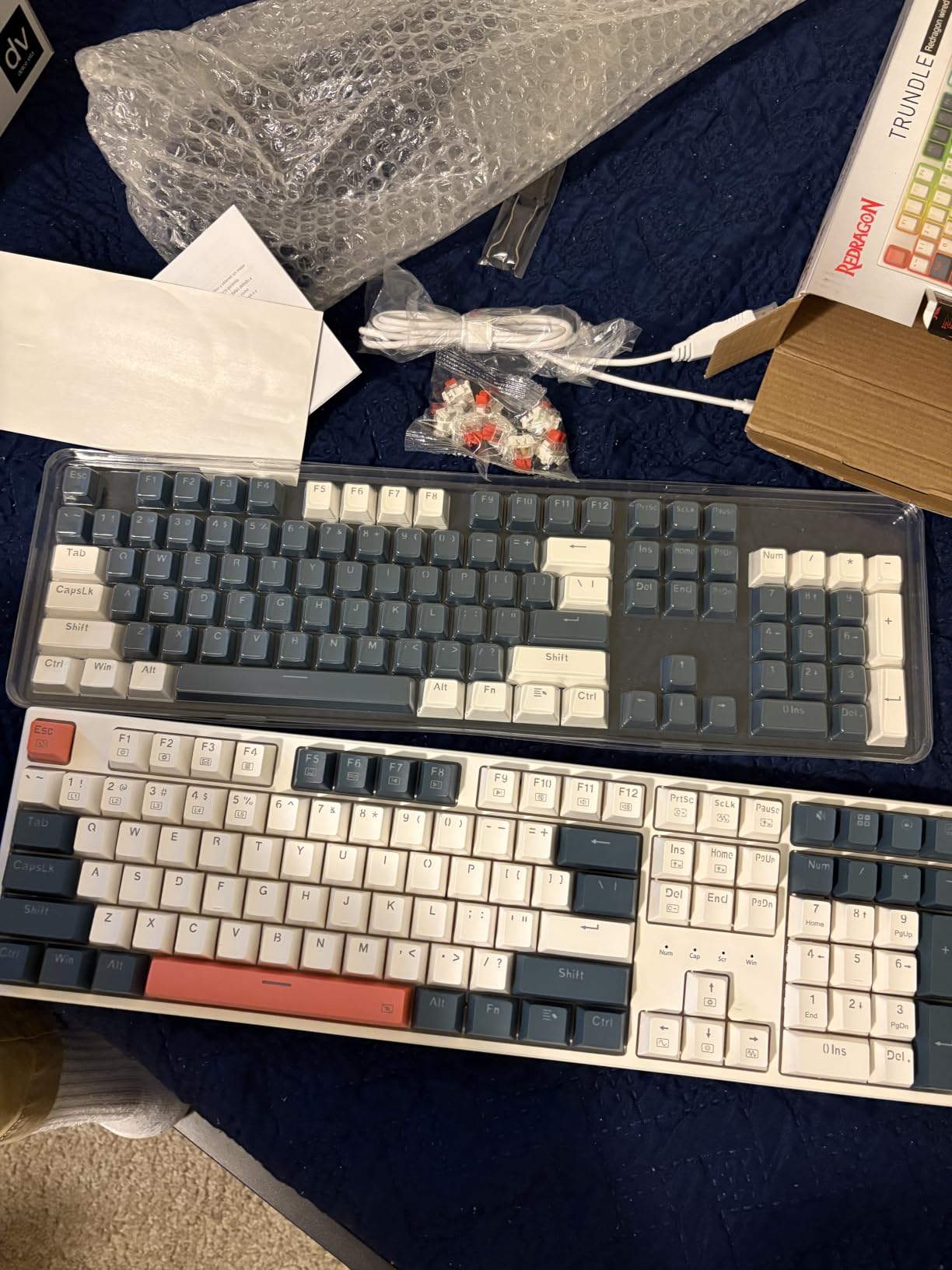
The cushioned noise dampening stops the case from sounding hollow, and the shine-through keycaps make the 19 RGB modes pop. Two complete sets of mixed-color keycaps ship in the box, so you can restyle the board on day one without buying anything.
Dedicated Shortcut Keys You Will Actually Use
Beginner guides obsess over layers and macros, but physical shortcut keys are the zero-learning-curve alternative. Hitting a real mute key mid-meeting is faster than any FN combo, and the calculator launch is instant. These four keys alone justify the K668 over most full-size rivals for office use.
The Pro software lets you remap the hotkeys and record macros if you want more. It is Windows software and straightforward enough that our least technical tester configured it without help. Nothing about this board requires homework.
Creamy Thock From the Cushioned Dampening
The stock red switches are smooth linears, and the internal cushioning rounds off the bottom-out into that soft thock sound beginners chase. It is quiet enough for an office and satisfying enough that our testers kept typing well after the notes were done. Stabilizers on the big keys are acceptable, though the space bar can feel slightly sluggish with tactile swaps.
Build is plastic, but it is assembled well and the water-resistant construction adds a little peace of mind next to a coffee cup. The two-stage adjustable feet let you dial in a comfortable typing angle. This is a practical, low-drama board.
Who Should Pass on the K668
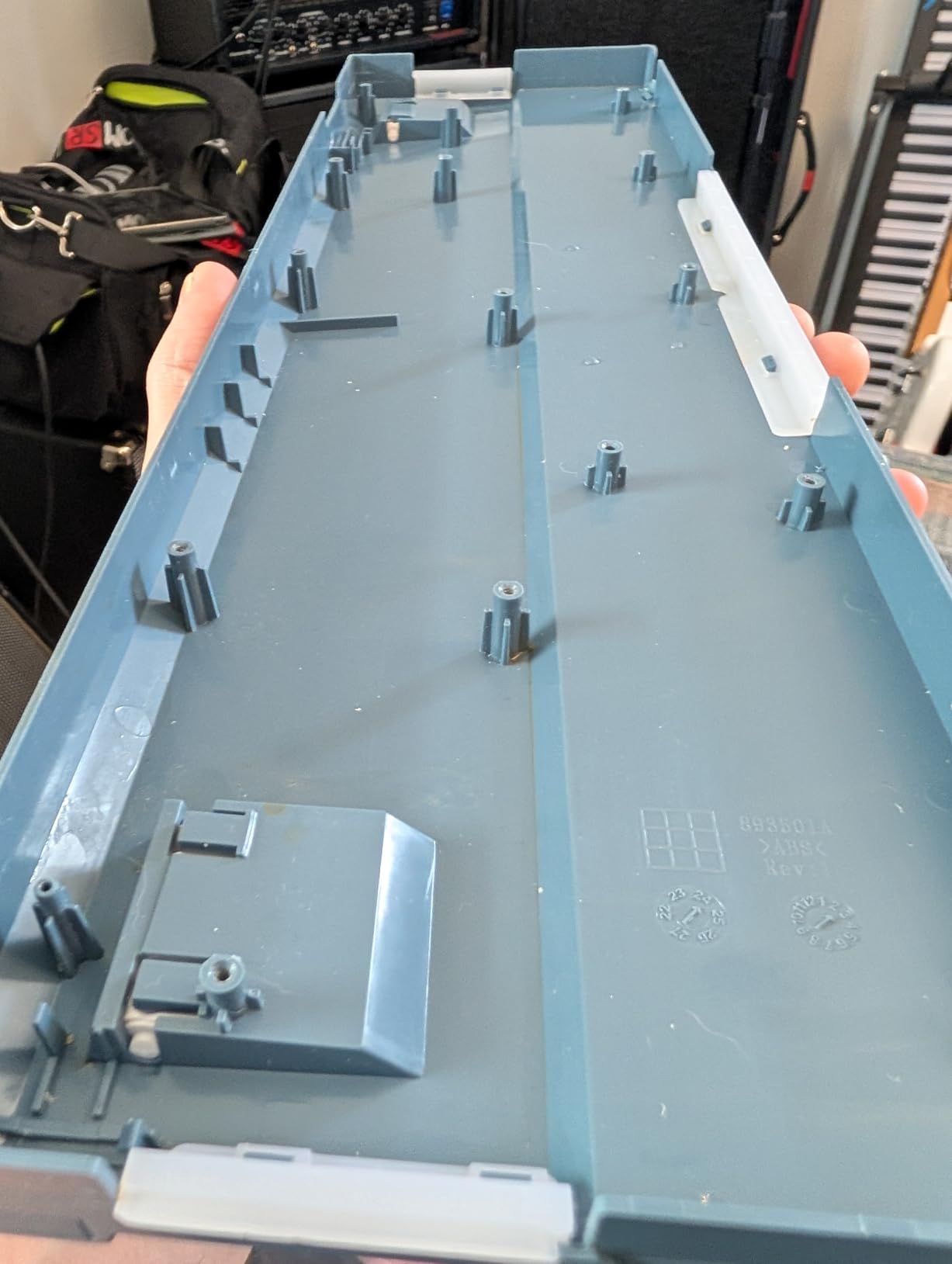
It is wired only, so wireless shoppers should look at the F99 or the B75 PRO instead. The plastic body is solid but will not fool anyone into thinking it is aluminum. And if your desk is small, a 17.3-inch-long board will dominate it.
For everyone else, the K668 is the full-size entry point I recommend without hesitation. It proves you can get hot-swap sockets, good sound, and a complete accessory package while spending barely more than a membrane board. Buy it, swap switches when you are curious, and learn the hobby at your own pace.
6. BOYI GMK67 – The Barebones Kit That Teaches You the Hobby
BOYI GMK67 Barebones Keyboard Kit,VIA Programmable Custom BT5.0/2.4GHz/Type-C Tri-Mode Gasket Mounted Hot Swap RGB 4000mAh Wireless 65% Mechanical Gaming Keyboard DIY Kit with Knob(White)
65% barebones kit
QMK/VIA support
Tri-mode wireless
Hot-swap PCB
4000mAh battery
Pros
- Full QMK/VIA key mapping and macros
- Hot-swappable with no soldering
- Tri-mode wireless with 4000mAh battery
- Gasket mount with foam and PC plate
- Programmable media knob
Cons
- Switches and keycaps sold separately
- No optical or magnetic switch support
- White case shows dirt
The GMK67 is where this guide shifts from prebuilt to genuinely custom, because it arrives as a barebones kit with no switches or keycaps. You choose your own, snap them in, and the result is a keyboard nobody else owns. That choice is the entire appeal of the hobby, and this kit is the least intimidating way in.
Assembly is beginner-appropriate: open the case, seat the PCB, push switches into the hot-swap sockets, and cap them. No soldering, no firmware flashing, no tools beyond the included puller. Our newest team member built one in about 40 minutes on her first try, following only the included diagram.
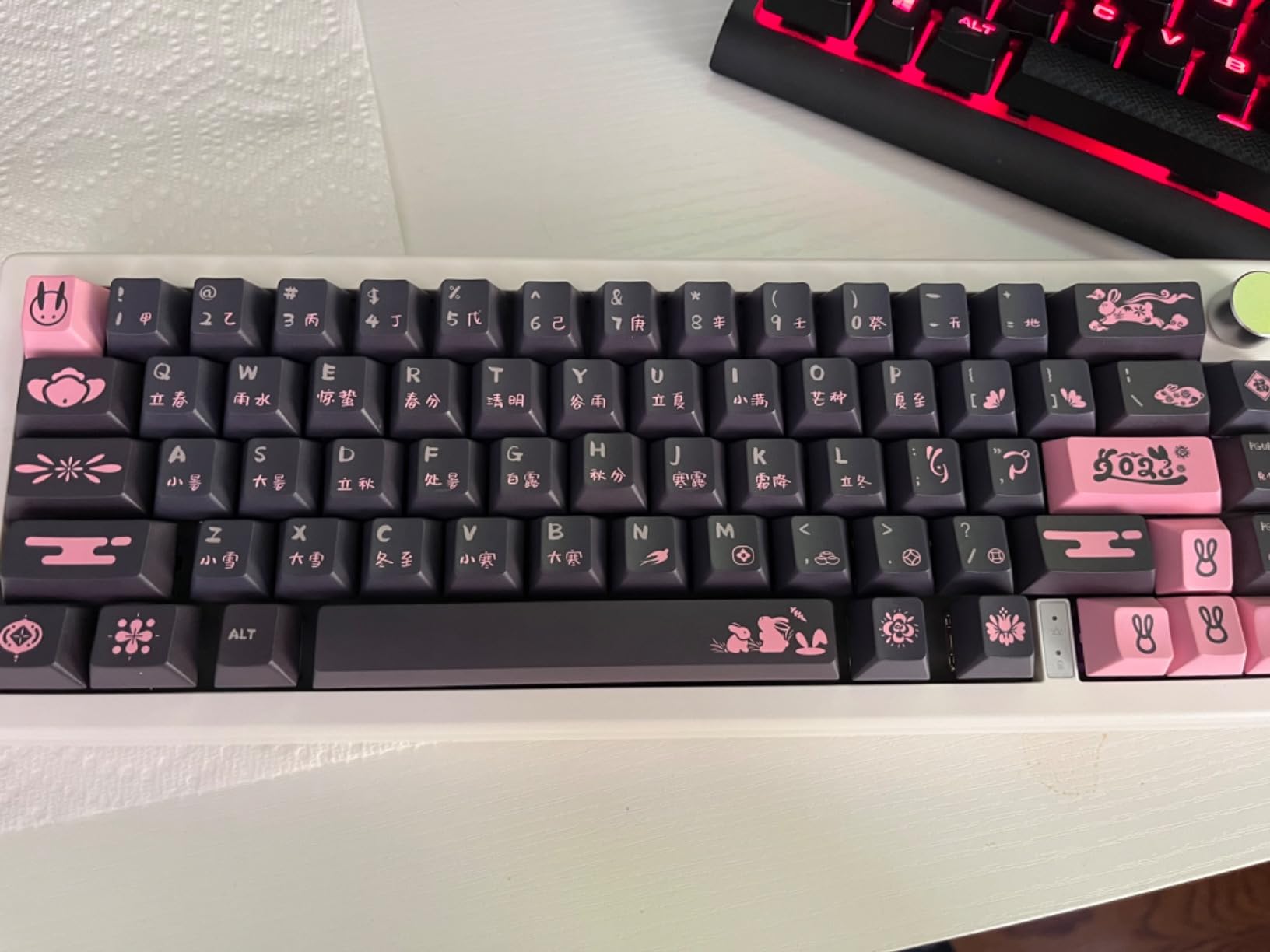
What you get for the effort is serious hardware: a gasket-mounted 65% layout with 67 keys, a polycarbonate plate, an aluminum-and-plastic enclosure, ample foam, and a multifunction knob. It also runs full QMK/VIA, which is the same open-source firmware used by boards far up the price ladder.
QMK/VIA: The Real Gateway to Custom
VIA opens in a browser tab and lets you remap any key, build layers, record macros, and control per-key lighting in real time. Changes apply instantly, and because it is QMK underneath, the community documentation is enormous. Once you learn VIA on this board, you know how to customize half the keyboards on the market.
That is why I push beginners toward QMK/VIA boards over proprietary software. Vendor apps come and go, but QMK keeps working, and every trick you learn transfers to your next build. The GMK67 makes that education cheap and painless.
Tri-Mode Wireless and the Programmable Knob
Bluetooth 5.0, 2.4GHz, and USB-C wired all come standard, with a 4000mAh battery inside that handled weeks of casual use in our testing. South-facing RGB offers 16.8 million colors and works with most keycap profiles. For a kit at this level, the wireless package is unusually complete.
The multifunction knob handles volume by default and can be reprogrammed in VIA to scrub, scroll, or switch apps. Small touches like that make a self-built board feel personal in a way prebuilt boards rarely match. Just note the PCB accepts standard mechanical switches only, not optical or magnetic ones.
What Building Your First Kit Actually Looks Like
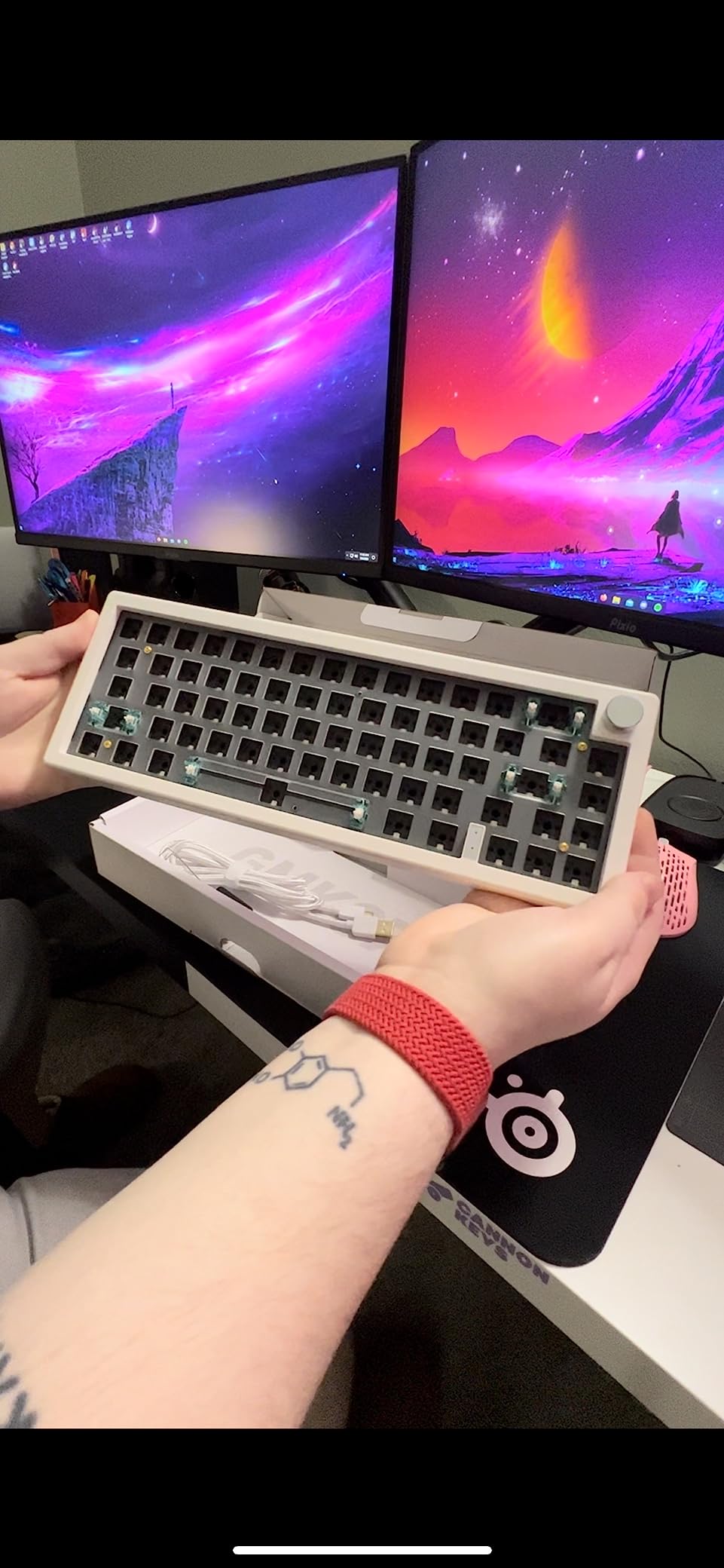
Budget for switches and keycaps on top of the kit itself, because nothing clicks or types until you add them. Pick a switch weight around 45g to 55g linear for a first build, and choose keycaps you like looking at, since they set the whole aesthetic. Everything else is included.
The 113 reviews are fewer than others here, but 73 percent are five-star and the feedback is consistent: easy build, good sound, no regrets. If you have ever watched a keyboard build video and thought “I want to try that,” the GMK67 is the answer. It is the best first kit for the money, full stop.
7. Keychron C3 Pro – Open-Source Firmware on a Budget
Keychron C3 Pro QMK/VIA Custom Gaming Keyboard, Programmable 87 Keys Compact TKL Layout Gasket Mount, Red LED Backlight Wired Mechanical Keyboard with Brown Switches for Mac/Windows/Linux
TKL layout, 87 keys
QMK/VIA firmware
Gasket mount
1000Hz polling
NKRO
Pros
- QMK/VIA open-source customization
- Gasket mount with sound-absorbing foam
- 1000Hz polling rate
- NKRO for simultaneous keys
- Quick macOS and Windows toggle
Cons
- Not hot-swappable
- Wired only
- Red LED backlight only
The C3 Pro is the enthusiast pick hiding in plain sight. Keychron built it around QMK/VIA with a 1000Hz polling rate and a gasket mount, which are specs you normally find on boards well above this class. It is the board I recommend to programmers who want deep customization and do not care about lighting.
The TKL layout keeps the function row and arrows while dropping the numpad, which is the comfortable middle ground for most people. Brown tactile switches give a gentle bump you can feel but coworkers cannot hear. The case is ABS plastic, yet it feels hefty and planted rather than hollow.
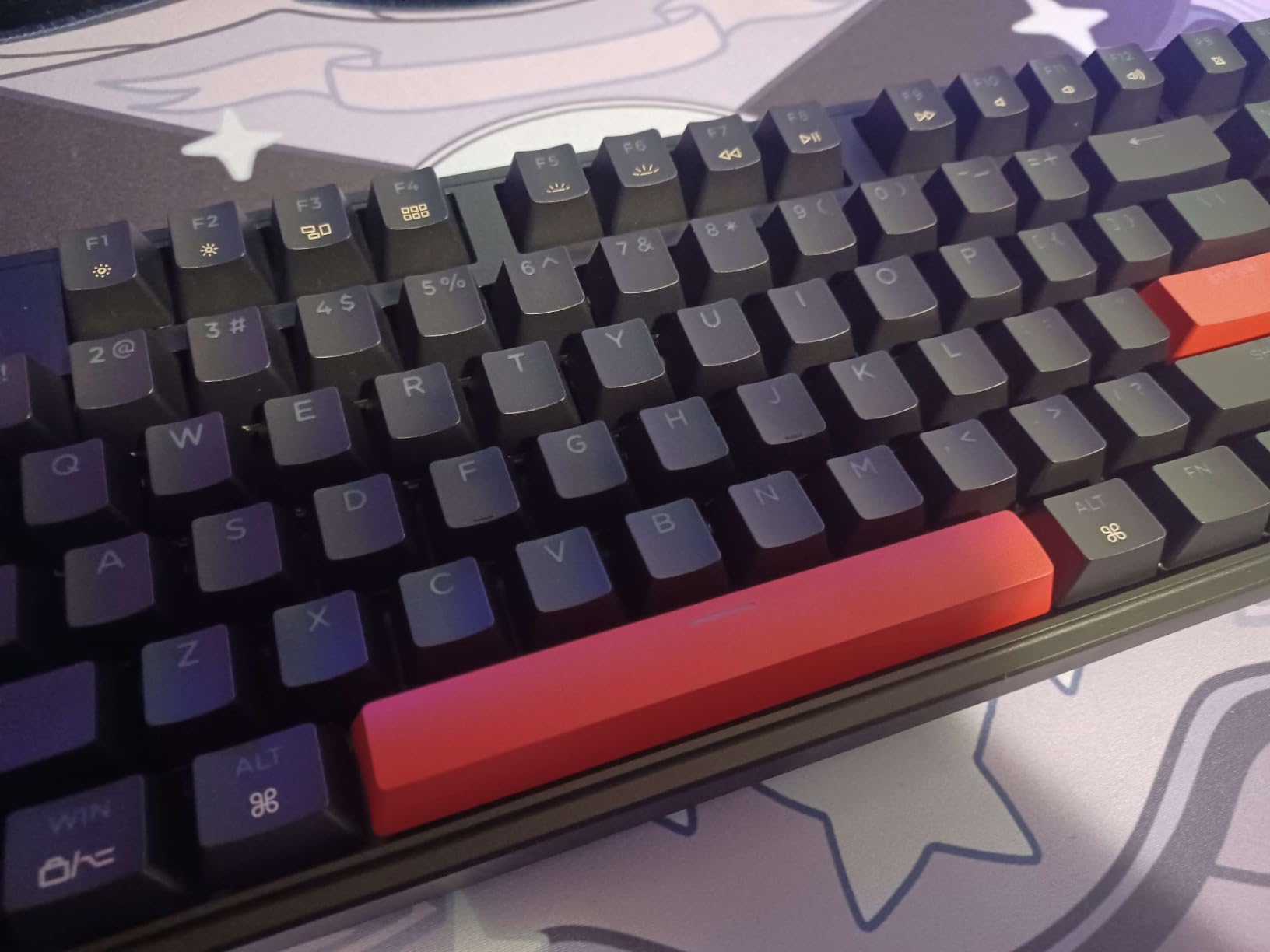
In the box you get a braided USB-C cable, a key puller, and an alternate set of black keycaps for a different look. It is a modest bundle, but nothing about it feels cheap. About 71 percent of its 630 reviewers give it five stars, and the pattern in the feedback is consistent: it types like a more expensive board.
1000Hz Polling and NKRO for Gaming
A 1000Hz polling rate means the keyboard reports its state to the PC every millisecond, which is overkill for typing and excellent for games. Combined with NKRO, every key in a tangled fighting-game input registers in order. Our testers who play competitively noticed no input weirdness over weeks of use.
The browns are quick enough for gaming and tactile enough for typing, making them a solid all-rounder if you cannot decide on a switch type. If reds are more your speed, Keychron sells a red switch variant of the same board. Either way, latency is not a concern.
Gasket Mount Sound and the Red LED Choice
The gasket mount with sound-absorbing foam delivers a quiet, slightly soft typing experience that suits shared offices and late nights. This is one of the least expensive gasket-mount boards you can buy, and it shows in the sound rather than the price of admission. Stabilizers arrive well-tuned from the factory, which Keychron is known for.
The lighting is red LED only, with 14-plus effects, and that is the compromise for RGB fans. Shine-through double-shot ABS keycaps make the most of it, but no firmware update turns red into a rainbow. Consider it a deliberate trade: Keychron spent the budget on mount quality and firmware instead.
The One Dealbreaker: No Hot-Swap
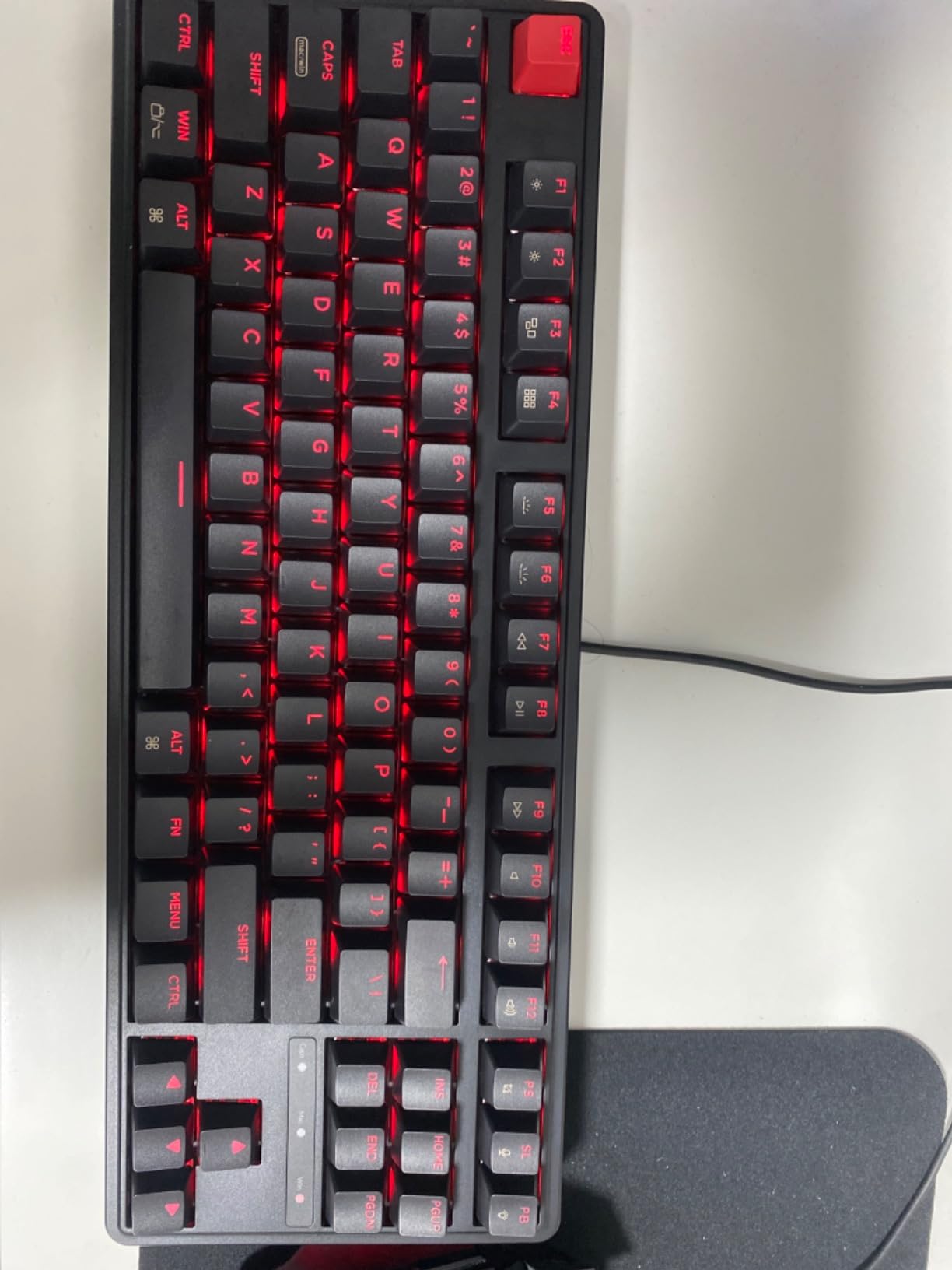
The C3 Pro is not hot-swappable, so changing switches means soldering, which is beyond what most beginners want on their first board. You are effectively committing to the browns you buy it with. Everything else about it rewards tinkering, which makes that single limitation frustrating.
So here is the honest split. If your idea of custom is remapping keys, building layers, and perfecting macros in VIA, the C3 Pro is tremendous. If your idea of custom is trying a new switch every month, buy the GMK67 kit instead. Also note the TKL drops the numpad, and the taller profile suits a wrist rest.
8. LEOBOG Hi75C – An Aluminum Build Kit for Ambitious Beginners
LEOBOG Hi75C Upgraded Wired Mechanical Keyboard Kit – Aluminum Alloy 75%
75% barebones kit
CNC aluminum frame
Gasket mount
Hot-swap PCB
Volume knob
Pros
- CNC-machined aluminum frame
- Gasket mount with layered foam
- Hot-swap PCB with no soldering
- 17 RGB effects and 10 music modes
- High-quality stock stabilizers
Cons
- Wired only
- Switches and keycaps not included
- No adjustable feet
The Hi75C is the board for the beginner who already knows they will end up deep in this hobby. It is a barebones 75% kit wrapped in a CNC-machined aluminum alloy frame, which is the material that makes expensive boards feel expensive. Pick it up and the weight tells you immediately that this is not a plastic starter board.
Like the GMK67, it arrives without switches or keycaps, so your first build session is part of the purchase. Unlike most kits, the stock tuning is good enough that you may never mod it. Multiple foam layers kill hollowness, and the stock stabilizers are among the best we have used on any board in this guide.
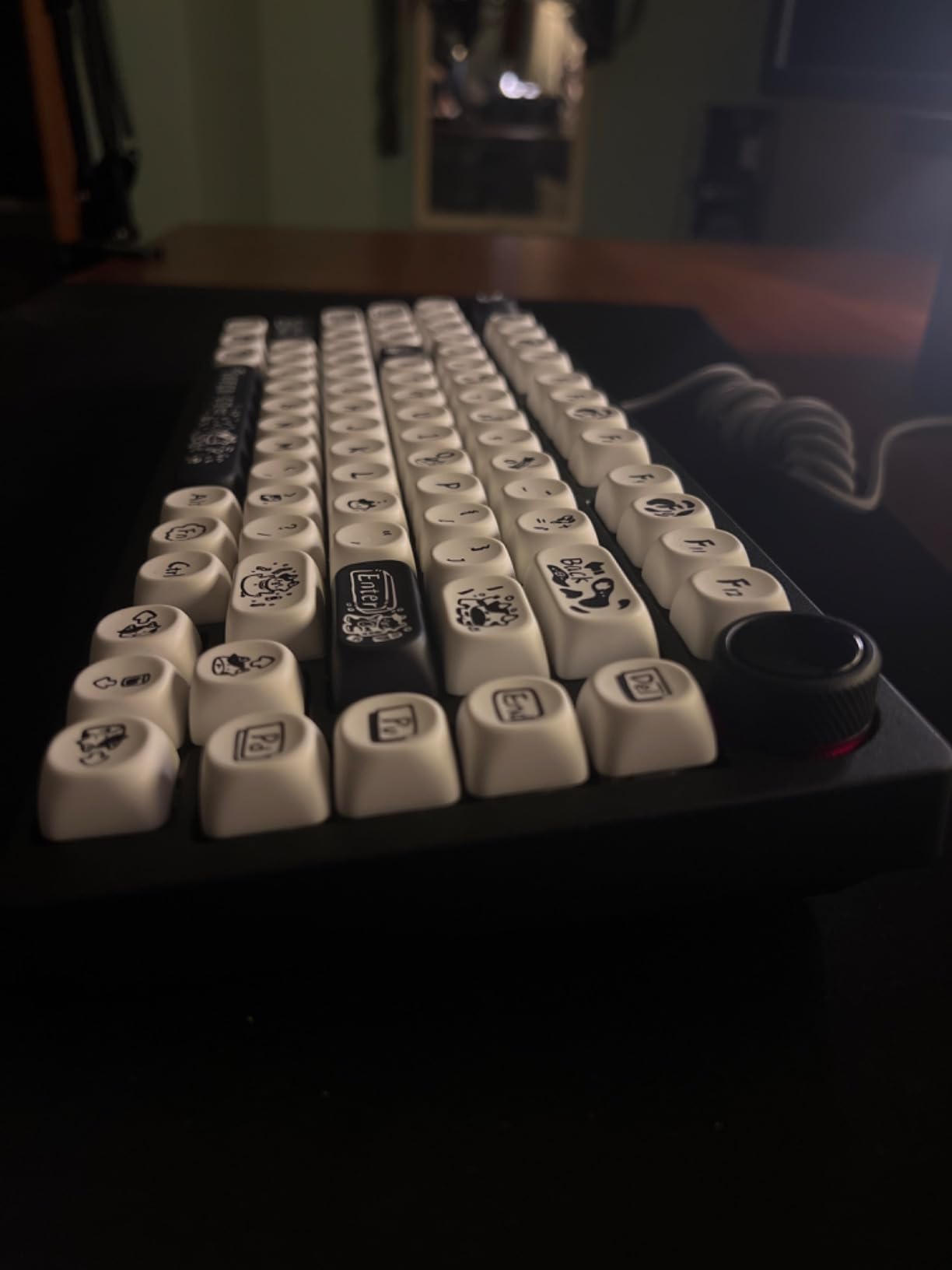
The upgraded PCB refines the original Hi75 design and keeps full hot-swap support for 3-pin and 5-pin switches. Combined with the aluminum chassis and gasket mount, the finished build sounds like it belongs alongside far costlier boards, which is what the reviews repeat over and over.
Aluminum Build and the Foam Sound Stack
CNC aluminum is denser than plastic, so the case does not resonate or flex, and the foam stack handles what little vibration remains. The result is a deep, cushioned sound profile from the moment you finish building, with none of the ping that betrays cheap boards. Gasket mounting softens each keystroke on top of that.
The 81-key 75% layout keeps arrows and a function row, so the compact size does not cost you usability. A volume knob and mute button sit in the corner for instant audio control. It is a layout and feature set that works equally well for gaming and long writing sessions.
Hot-Swap PCB and Lighting Control
The hot-swap PCB means your first build needs no iron, and you can re-spec the board whenever your taste changes. Seventeen RGB effects plus ten music rhythm modes give the south-facing LEDs plenty of range, and the included retractable coiled USB-C cable suits the retro-industrial look. LEOBOG also lists VIA/QMK macro programming support for deeper customization.
During our testing the board ran flawlessly wired, which is good because wired is the only mode. There is a wireless PRO variant available if that matters to you. For a desk-bound station, the absence of a battery simply means less to charge.
Rough Edges to Know Before You Build
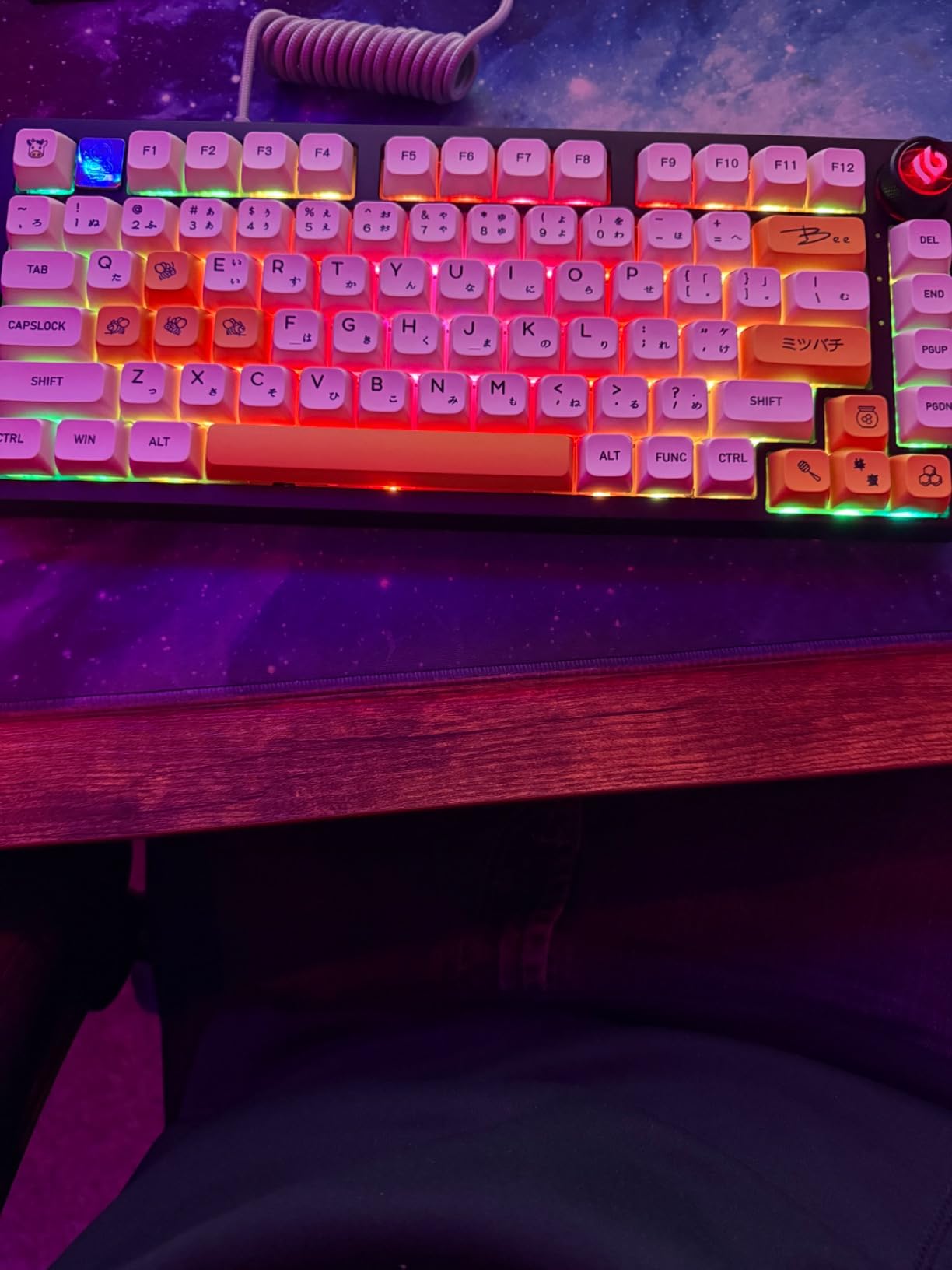
Be aware of the imperfections before you commit. The ribbon cable connecting the PCB is fragile, so open the case gently and avoid repeated teardowns. The USB-C port is slightly recessed, which can block chunky aftermarket cables, and there are no adjustable feet for angle tuning. The warranty runs six months.
With only 61 reviews so far, you are also an early adopter here, though 75 percent of them are five-star. My verdict: if you already know you want the hobby and you want your first build to look serious on the desk, the Hi75C delivers an aluminum experience that usually costs several times more. Beginners who want simplicity first should still start with the B75 PRO or the GMK67.
How to Choose Your First Custom Mechanical Keyboard
Every week, someone posts on a keyboard forum that they are overwhelmed by the options and afraid of buying wrong. The fix is to make three decisions in order: switch feel, layout, and how much building you actually want to do. Get those right and almost any board in this guide will make you happy.
If you are still weighing whether mechanical is worth it at all, the same comparison of mechanical and membrane keyboards we linked earlier is worth a read before you commit. Otherwise, here is the framework our team uses.
Linear vs Tactile vs Clicky: Which Switch Should a Beginner Get?
Linear switches travel smoothly with no bump, like the reds in the RK61, B75 PRO, and F99. They are quiet, fast, and forgiving, which is why I recommend them to almost every beginner. Tactile switches, like the browns in the C3 Pro, add a bump you feel mid-press, confirming the keystroke without extra noise; writers and programmers love them.
Clicky switches add a loud click at actuation, and they are the ones that get keyboards banned from shared offices. They are fun for about a week at home. My honest advice for a first board: start with linear or tactile, and since every pick here except the C3 Pro is hot-swappable, you can always try clicky later for the cost of a switch set.
Which Layout Should a Beginner Get: 60% to Full-Size?
Layout is the decision beginners get wrong most often, usually by going too small. A 60% board like the RK61 drops arrows, function row, and navigation, and layers replace them all. A 65% like the GMK67 adds arrows back, which forum users consistently call the sweet spot. A 75% like the B75 PRO, KN85, or Hi75C adds the function row too.
TKL (the C3 Pro) keeps the full nav cluster but loses the numpad, while 96% (the AULA F99) squeezes the numpad back in, and full-size (the Redragon K668) keeps every key. Simple test: if you type numbers all day, you need a numpad, and if you game in tight desk space, smaller wins. When in doubt, 75% is the safest first choice.
Why Hot-Swap Is the One Feature You Should Never Skip
A hot-swap PCB has a socket under every switch, so you can pull switches with your fingers and push in new ones. No soldering, no tools, ten minutes per change. This is what lets a beginner buy a board they like and fix the switch feel later, instead of guessing perfectly on day one.
Our team treats hot-swap as non-negotiable for first-time buyers, and seven of the eight boards here have it. The one exception, the Keychron C3 Pro, earns a pass because its QMK/VIA firmware customization is deep enough to satisfy a different kind of tinkerer. If you are unsure what you will like in six months, buy hot-swap.
Build vs Buy: Should a Beginner Start With a Kit or a Prebuilt?
The forums answer this one clearly: start with a prebuilt, then graduate to a kit. A prebuilt like the B75 PRO or F99 teaches you what you like, and its hot-swap sockets let you dabble in switches without commitment. Once you know your preferred weight and sound, a barebones kit like the GMK67 or Hi75C turns those preferences into a board that is genuinely yours.
Building is not cheaper, and beginners should know that up front. A kit plus switches plus keycaps often adds up to more than a complete prebuilt, and group-buy kits add weeks or months of waiting. What building buys you is choice and satisfaction, not savings. Both are worth it eventually, which is why a prebuilt-first path costs less overall.
Gasket Mounts, Foam, and the Sound Question
Every board in this guide is gasket-mounted, and that is not a coincidence. A gasket mount floats the PCB on soft padding, which flexes slightly as you type and kills the harsh bottom-out slap of older designs. Layer in foam, which five of these boards include, and the hollow ping disappears too.
Sound terms like “creamy” and “thocky” are not marketing fluff; they describe a deep, rounded keystroke instead of a sharp rattle. You cannot audition sound from a spec sheet, so watch a sound test for any board before buying. The B75 PRO, KN85, and K668 all sound tuned straight from the box.
Frequently Asked Questions
What is the best mechanical keyboard for a first-time user?
The u003cstrongu003eYUNZII B75 PROu003c/strongu003e is the best mechanical keyboard for most first-time users because it combines a forgiving 75% layout, hot-swappable switches, tri-mode wireless, and a creamy pre-lubed sound straight out of the box. Budget buyers should start with the u003cstrongu003eRK Royal Kludge RK61u003c/strongu003e, while anyone who needs a number pad should get the u003cstrongu003eAULA F99u003c/strongu003e.
What switch type is best for beginners?
u003cstrongu003eLinear switchesu003c/strongu003e (like red switches) are best for most beginners because they are smooth, quiet, and require no adjustment, while u003cstrongu003etactile switchesu003c/strongu003e (like browns) suit typists who want physical feedback. Avoid u003cstrongu003eclicky switchesu003c/strongu003e for a first board if you share an office, since the sound becomes tiring fast. A hot-swap PCB lets you try all three types later without soldering.
Is it cheaper to build your own mechanical keyboard?
No, building your own mechanical keyboard is usually u003cstrongu003emore expensiveu003c/strongu003e than buying a prebuilt, because a barebones kit plus switches plus keycaps often exceeds the cost of a complete board. Building also adds waiting time if parts come from a group buy. The value of building is customization and satisfaction, not savings.
Should beginners build or buy their first mechanical keyboard?
Most beginners should u003cstrongu003ebuy a prebuilt hot-swap keyboard firstu003c/strongu003e, such as the YUNZII B75 PRO or AULA F99, because it teaches you what you like with zero risk. Once you know your preferred switch weight and sound, a barebones kit like the BOYI GMK67 or LEOBOG Hi75C turns those preferences into a truly custom build.
What keyboard layout should a beginner get?
A u003cstrongu003e75% layoutu003c/strongu003e is the safest choice for beginners because it keeps the arrow keys and function row while saving desk space, followed closely by u003cstrongu003e65%u003c/strongu003e for compact fans and u003cstrongu003e96%u003c/strongu003e or u003cstrongu003efull-sizeu003c/strongu003e for anyone who needs a number pad. Only choose a u003cstrongu003e60%u003c/strongu003e board if you are comfortable using FN key combinations for arrows and delete.
Final Verdict: The Best Beginner Custom Keyboard for You
Pick by archetype and this becomes easy. If you want one board that sounds finished on day one, buy the YUNZII B75 PRO. If you want the cheapest real entry into the hobby, get the RK61, and if you refuse to give up the number pad, the AULA F99 was made for you. First-time builders should choose the BOYI GMK67 for value or the LEOBOG Hi75C for aluminum, while office traditionalists will love the Redragon K668 and firmware fans belong on the Keychron C3 Pro.
Whichever you choose, make sure it has hot-swap sockets, because that single feature is what turns a keyboard purchase into a custom keyboard hobby. Every board on this list of the best custom mechanical keyboards for beginners is a sound starting point in 2026, and any one of them will teach you more about what you like than another week of research. Check current availability with the buttons above, grab a switch puller, and start experimenting.
[…] this is it. The 6761-review rating speaks for itself. If you want a smaller 60% custom starter, our beginners custom roundup pairs […]
[…] you want to see the full process of putting a kit together, our best custom keyboards for beginners guide walks through the build step by step. For pure FPS tuning, check our best gaming keyboards […]