
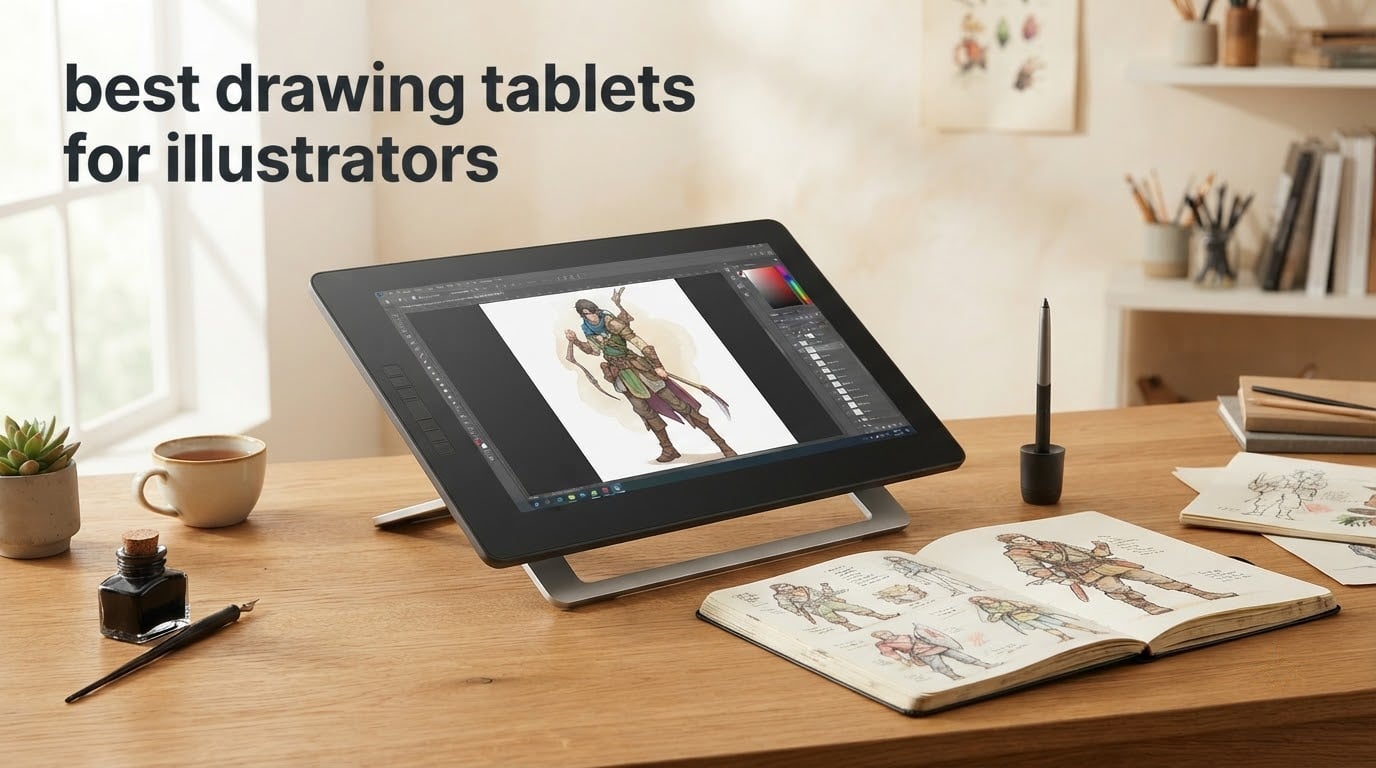
If you want the answer before the details: the Wacom Intuos Small is the best drawing tablet for illustrators who want dependable pen feel without spending much, the XP-Pen Artist 13.3 Pro is the best pen display when you want to draw directly on the image, and the HUION Kamvas Pro 16 is the best value large canvas for full illustrations. Everything else in this roundup sits around one of those three.
Our team drew on all twelve tablets in this list across line art, shading and colour work in Adobe Illustrator, Clip Studio Paint and Krita. We judged the things that show up after a week of sessions rather than on a spec sheet: how the pressure curve behaves at light touch, whether the line stays steady when you rotate your wrist, how long the hand stays comfortable, and whether the driver software behaves itself after a restart.
Two findings shaped this roundup more than any others. Parallax, the mismatch between where your hand is and where the cursor appears, is the most common ergonomic complaint in artist forums and the entire reason pen displays exist. Driver stability is a real purchase risk that almost no competing guide mentions. Both appear throughout the reviews below.
If you are still deciding between a pen display, a screenless board and something that runs without a computer, our drawing tablet beginner guide is the better place to start. For travel and no-computer setups, see our standalone tablet picks for beginners.
Our Top 3 Picks for Illustrators in 2026


Every Drawing Tablet in This Roundup at a Glance
| Product | Specs | Action |
|---|---|---|
| Wacom Intuos Small |
|
Check Latest Price |
 XPPen Deco 01 V3 XPPen Deco 01 V3 |
|
Check Latest Price |
 HUION Inspiroy H1060P HUION Inspiroy H1060P |
|
Check Latest Price |
 Wacom Intuos Pro Medium Wacom Intuos Pro Medium |
|
Check Latest Price |
 XENCELABS Medium XENCELABS Medium |
|
Check Latest Price |
| XP-Pen Artist 13.3 Pro |
|
Check Latest Price |
 Wacom One HD 13.3 Wacom One HD 13.3 |
|
Check Latest Price |
 HUION Kamvas Pro 16 HUION Kamvas Pro 16 |
|
Check Latest Price |
 HUION Kamvas 13 Gen 3 HUION Kamvas 13 Gen 3 |
|
Check Latest Price |
 XP-Pen Artist Pro 14 Gen2 XP-Pen Artist Pro 14 Gen2 |
|
Check Latest Price |
 PicassoTab X11 11 inch PicassoTab X11 11 inch |
|
Check Latest Price |
 RubensTab T11 Pro RubensTab T11 Pro |
|
Check Latest Price |
1. Wacom Intuos Small – The Most Reliable Starting Point for Illustration
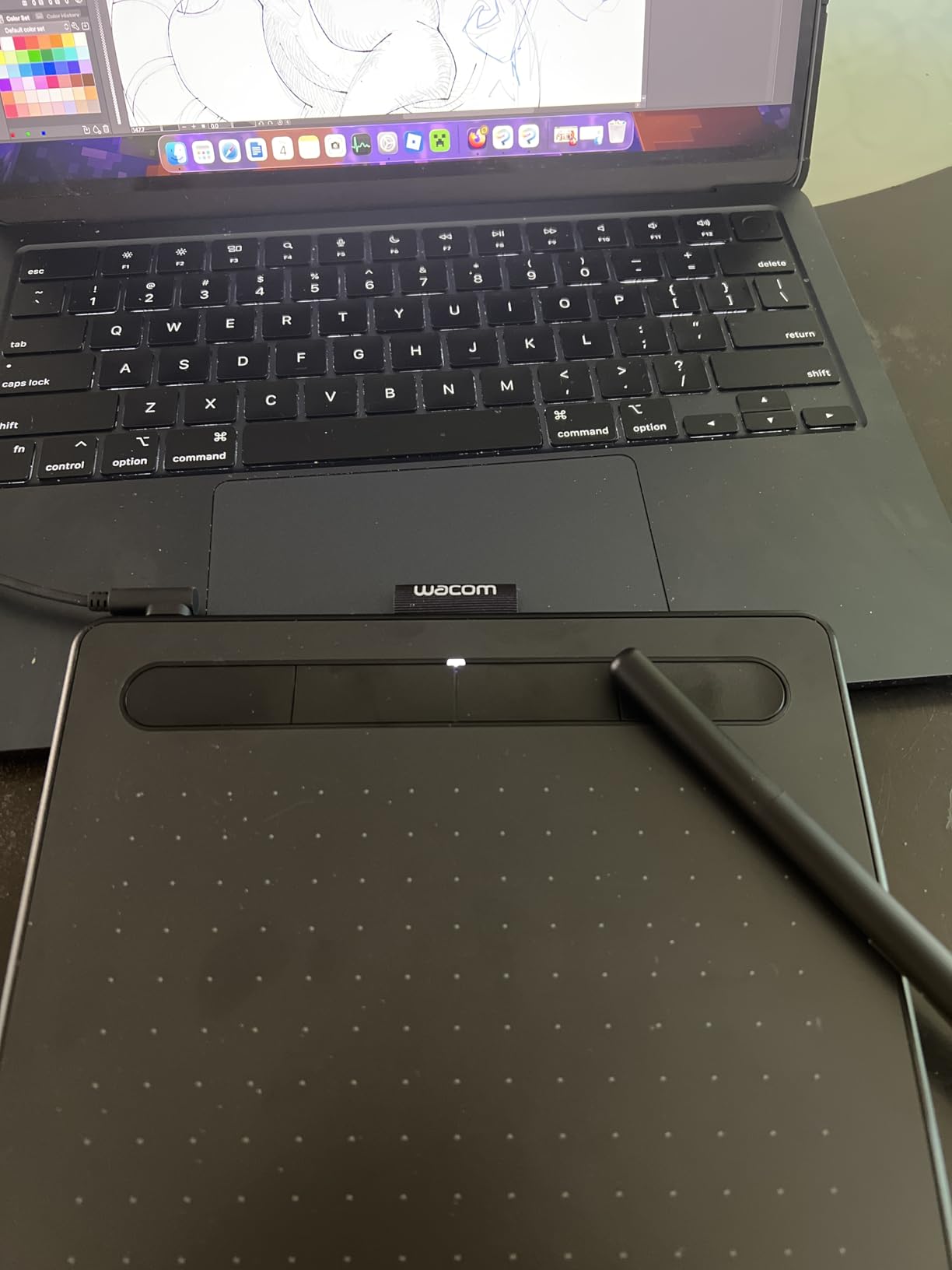
Wacom Intuos Small, Wired Graphic Drawing Tablet with Pen + Software
6 x 3.7 inch active area
4096 pressure levels
Battery-free EMR pen
8.1 ounces
Pros
- EMR pen feels close to pen on paper
- Works with essentially all illustration software
- 4 ExpressKeys plus customizable pen buttons
- Software and training included with registration
- Plug-and-play with no driver hunting
Cons
- Small active area cramps large arm strokes
- Wired connection uses a dated connector
- Included nibs dull quickly under light pressure
This is the tablet we hand to beginners who are worried about spending money on something that fights them. The EMR pen needs no battery, no pairing and no charging, so the first time you put it on a canvas the line appears. That removes the most common reason new buyers quit digital drawing.
Line consistency was the standout in our sessions. Wacom’s pen reports pressure smoothly rather than in steps, which shows most clearly in tapered inking strokes where a jumping pressure curve reads as a wobble. Artists on r/drawingtablet and r/ArtistLounge repeatedly report that the default pressure curve feels too stiff, so remap it before drawing anything finished.
The honest limitation is size. At 6 by 3.7 inches, forearm-length gestures get cramped fast once you move to backgrounds or full-body character work. For tight, detail-heavy illustration the space is fine, but plan to grow into a larger board within a year.
Pressure Response and Inking Behaviour
4096 levels is the lowest count here, and it is enough. Illustrator’s brush engine does not map one-to-one with raw pressure levels, and the gap between 4096 and 8192 is invisible unless you are drawing very fine taper under a loupe. What matters more is the low initial activation force, which registers light lines without a deliberate push.
The included nibs dull quickly under light pressure, so buy a spare set early. Compared with the larger surfaces on our animation tablet picks, this board rewards short, controlled strokes and punishes long sweeps.
Active Area and Desk Comfort
At 8.1 ounces the board needs no anchoring, and your forearm rests naturally on it. During long evening sessions it became the tablet we reached for when wrist fatigue was the problem, not the one with the biggest surface. If you paint large shapes, that same small area becomes the reason to move up a size.
Driver Stability and Software Support
This is the strongest argument for Wacom here, and it is not a hardware argument. The driver has been stable for years across Windows, Mac and Chromebook, and the tablet works with essentially any software you already own. Nothing to install, nothing to remap, no compatibility ticket to file when Illustrator updates.
2. XPPen Deco 01 V3 – Most Spec per Dollar for a New Illustrator
XPPen Deco 01 V3 10×6 Drawing Tablet, 16K Battery-Free Stylus, 8 Keys
16384 pressure levels
10 x 6.25 inch active area
8 ExpressKeys
8mm body
Pros
- 16384 pressure levels with 60 degree tilt
- Large active area in a thin 8mm body
- 8 fully reprogrammable shortcut keys
- Strong Linux and Chrome OS driver support
- Works directly with Android 10 or later
Cons
- Stylus tip feels soft and slightly wobbly
- Side buttons trigger accidentally in a firm grip
- Lowest pressure steps are hard to register
- Pen nibs wear down quickly
This board is the spec-sheet shock of the roundup. A 10 by 6.25 inch active area with 16384 pressure levels and 60-degree tilt, in an 8mm chassis, costs less than the small Wacom listed above it. For a student moving from mouse drawing to pressure-sensitive work, that combination is hard to argue against.
Eight ExpressKeys is generous. You can map brush size up and down, undo and your colour swap on day one, which removes most of the friction people report in their first month. The driver also carries per-application profiles, so Illustrator, Krita and Photoshop shortcuts can all differ.
What you give up is tip precision. The nib feels soft rather than firm, and that shows when you place small details like eye irises or comic panel borders. For colour blocking, character design and large shapes it makes no difference.
Pressure Range and Tilt for Shading
16384 levels with 60-degree tilt is more than most illustrators consciously use, but the count is not meaningless. It gives headroom for gradual tonal transitions, which is what you want when a face is built with a soft brush rather than hard edges. Beyond roughly 60 degrees of tilt the pen barrel hits your hand before the software registers anything useful.
Cross-Platform and Android Use
Driver quality on Linux is worth calling out, because several community recommendations name this tablet specifically for Linux and Chrome OS work where most competing budget drivers are thin. With the XPPen Tools app the same tablet draws on Android phones and tablets running Android 10 or later, turning a desktop peripheral into a two-device setup.
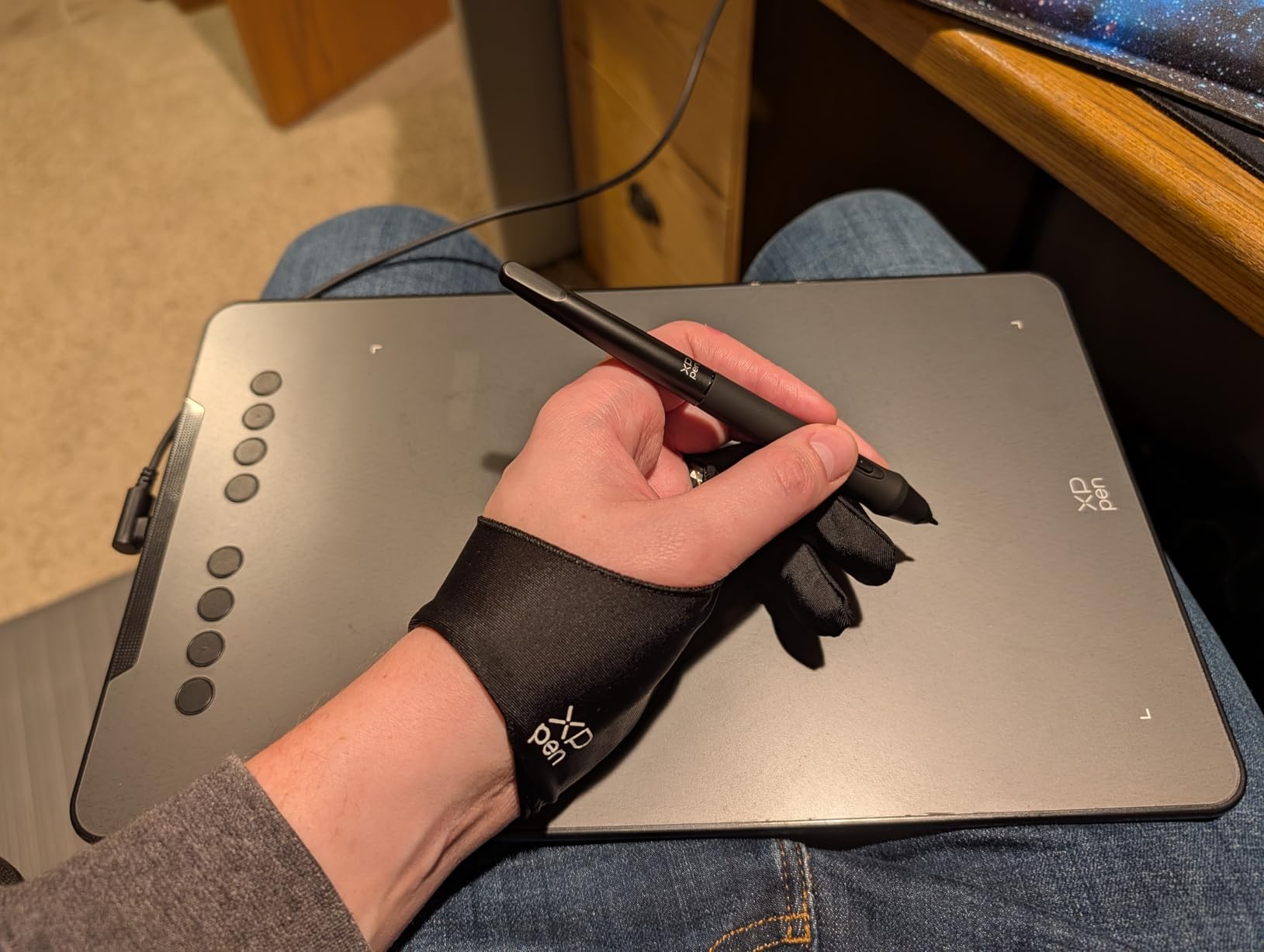
3. HUION Inspiroy H1060P – The Best First Tablet for Total Beginners
HUION Inspiroy H1060P Graphics Drawing Tablet, 10 x 6.25 in, 12+16 Hot Keys
10 x 6 inch active area
8192 pressure levels
12 press keys plus 16 soft keys
0.77 kg
Pros
- Far more active area than a comparable Wacom
- 24 programmable controls in total
- Symmetrical body works left- or right-handed
- Drivers install quickly and the interface is simple
- Reported to hold up over years of daily use
Cons
- USB cable connection is tight and bends
- Pen side buttons are easy to hit under pressure
- Stylus is fragile if dropped
- Left-handed mode needs manual key remapping
Long-term owners describe this as the tablet that keeps working. Our sessions produced stable tracking and consistent response, and the pattern in reviews over several years is the same unit still in daily use. For a first purchase that must survive a learning curve and a few drops, that reliability matters as much as any feature.
Twenty-four programmable controls is the highest shortcut count on any screenless board here. It is overkill in week one and quietly essential by month six, once your workflow depends on one-key brush switching instead of hunting through menus.
Our main practical complaint is the cable. The port is tight-fitting and sits at an angle that puts strain on the connector during long sessions. It does not fail immediately, but it is the part we would inspect first after a year of use.

Pressure and Tilt Balance
8192 levels with 60-degree tilt sits in the middle of this list and is the sweet spot for most illustration. You get a wide tonal range for shading without chasing the maximum number. The nib here feels firmer and more pencil-like than the XP-Pen above, which helps with small controlled marks, so inking artists may prefer this pen despite the lower count.
Left-Handed Use and Software Compatibility
The body is symmetrical and the driver flips 180 degrees, so left-handed illustrators can use it without switching tablets, though the function key positions do not mirror automatically and need remapping once. Windows, macOS, Linux on Ubuntu and Android are all supported from the same driver, but iPhone and iPad are not.
Our standalone tablet guide for professional artists covers the other end of the size spectrum if you want a bigger surface instead.

4. Wacom Intuos Pro Medium – Professional Pen Feel with Dials and Wireless
Wacom Intuos Pro Medium, Bluetooth Graphic Drawing Tablet with ProPen 3
8192 pressure levels
Pro Pen 3 with tilt
10 ExpressKeys and 2 dials
5080 LPI
Pros
- Pro Pen 3 with adjustable grip and balance
- 10 ExpressKeys plus 2 mechanical dials
- 16:9 medium area suits widescreen setups
- 4mm magnesium body
- Bluetooth pairing to multiple computers
Cons
- Command Center software feels dated
- 8192 levels is below some rivals at this tier
- 8.7 x 5.8 inch area is small for full-arm strokes
- No on-screen readout of pen settings
This is the board for a working professional moving between a laptop and a desktop. Bluetooth pairing to multiple computers with a simple switch removes the cable-swapping step entirely, and the Pro Pen 3 is the same pen technology Wacom puts in its professional displays.
The two mechanical dials are the reason to choose it over a cheaper medium board. Rotating a dial for brush size or zoom keeps your other hand on the stylus, and once you work that way, going back feels clumsy. Ten ExpressKeys fill out the rest of the workflow.
Its 8.7 by 5.8 inch active area is small for illustration specifically. This is a board built for animators, designers and 3D artists working in tight interface areas, and it serves that brief better than large background painting.
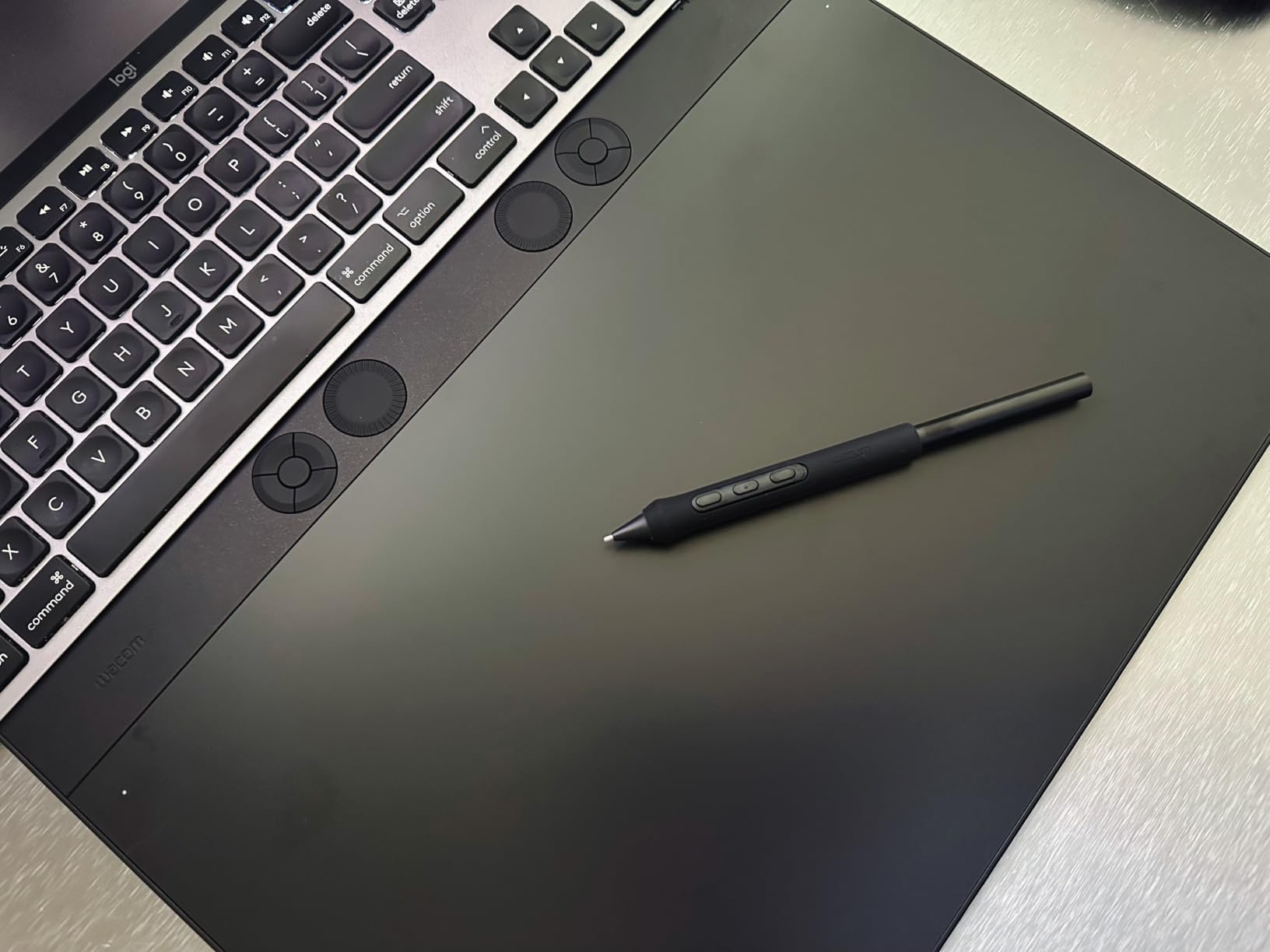
Pro Pen 3 and Latency Behaviour
The Pro Pen 3 is a battery-free EMR pen with tilt support and lag-free tracking, and the box includes a stand, a balance weight, extra grips and button covers so you can tune the feel to your hand. Lifting the pen and replacing it to start the next stroke produced no visible jump, which is the lag complaint we heard most about budget boards.
Resolution, Multi-Setup Workflow and Software
5080 LPI native resolution gives finer detail placement than the 2540 LPI boards common at this size, a visible difference on line art and hair strands. The 16:9 active area is proportioned for widescreen monitors, which keeps hand-to-cursor mapping intuitive on a single large display.
Command Center is functional and stable but visibly older than the utilities shipped with current XP-Pen and HUION hardware. If you set your keys once and forget them, the age of the software makes no practical difference.
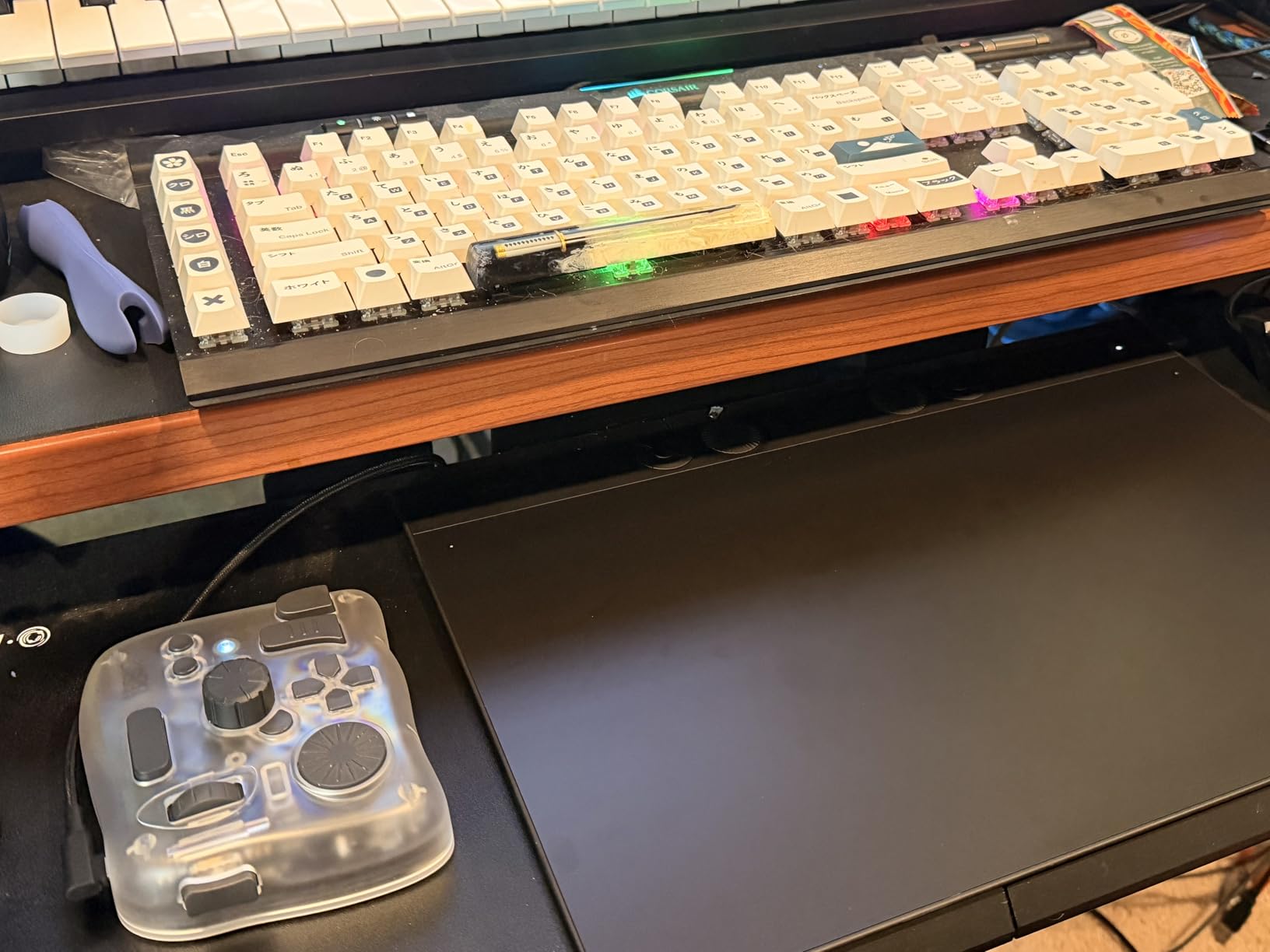
5. Xencelabs Medium – The Best Textured Surface for Pencil-Style Drawing
XENCELABS DrawingTablet Medium, Graphic Tablets with 40 Customizable Quick Keys, 12″ Ultrathin Pen Tablet with 2 Battery-Free Stylus, 8192 Levels Pressure for Win/Win 11 ARM/Mac/Linux, Nebula White
10.33 x 5.8 inch active area
8192 pressure levels
40 quick keys across 5 sets
2 battery-free pens
Pros
- Textured surface gives genuinely paper-like friction
- 40 programmable keys with an OLED assignment display
- Two pens with different diameters and button counts
- Well structured driver software
- Wireless operation clears the desk
Cons
- Both included pens are rechargeable and need frequent charging
- Occasional pressure dropouts and cursor jumping reported
- Surface coating can wear after about a year
- Heavier than typical non-display tablets
The headline feature is friction. The ultra-fine frosted surface gives the pen something to grip against, so you can rest your hand on the board and push the stylus without it skating. Artists coming from graphite report that this is the first digital surface that felt familiar rather than glassy.
Forty quick keys across five sets of eight, with an OLED panel labelling whichever set is active, is a system you can grow into. Give the first set to brush operations, the second to layers, the third to views, and you have a working studio layout.
Two pens ship in the box with different diameters and button counts. Most illustrators end up using one and keeping the other as a spare, but having a second pen included costs nothing.
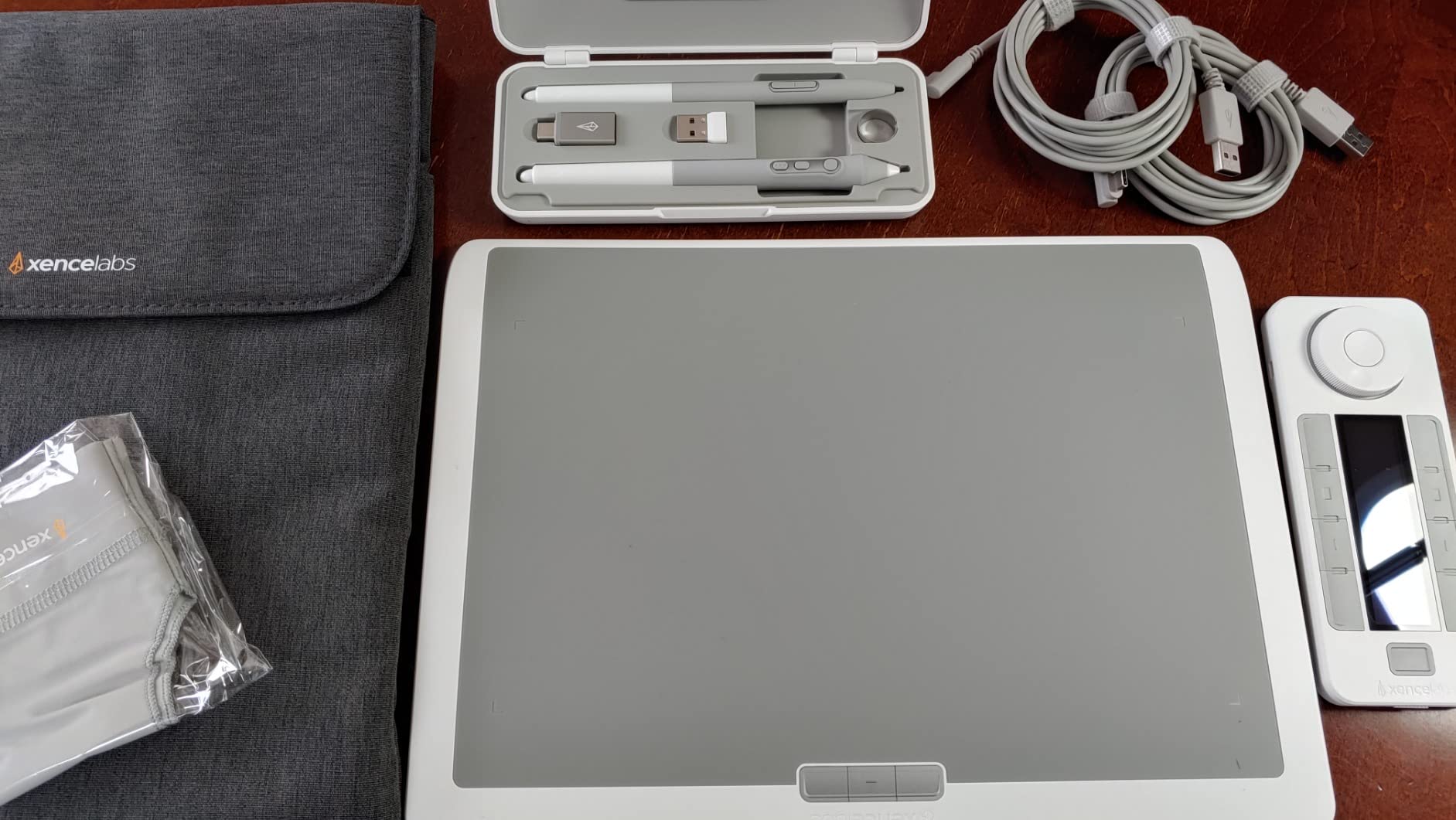
Texture, Slope and Long-Session Comfort
The 6.5-degree slope keeps the board close to flat and your wrist neutral, which over multi-hour sessions removed the need for a separate wrist support. Texture does wear, though. Reports of the surface coating degrading after roughly a year of daily use are common, and once it flattens, the main reason to own this board is gone.
Wireless Operation and Driver Software
Running without a cable solves the bending-connector problem that appears on most wired competitors, and the driver is well structured, with Linux support alongside Windows and macOS and explicit compatibility with Adobe, Corel, Autodesk, Toon Boom and Foundry tools. Users arriving from long-term Wacom ownership frequently report equal or better pen feel and clearly better utility software.
The complaints are pen-related rather than software-related. Both included pens are rechargeable and need frequent charging, and some users report intermittent pressure dropouts or cursor jumping, so this is a rechargeable-pen board in a category full of battery-free ones. At 2 kg it is also heavy for a non-display tablet.
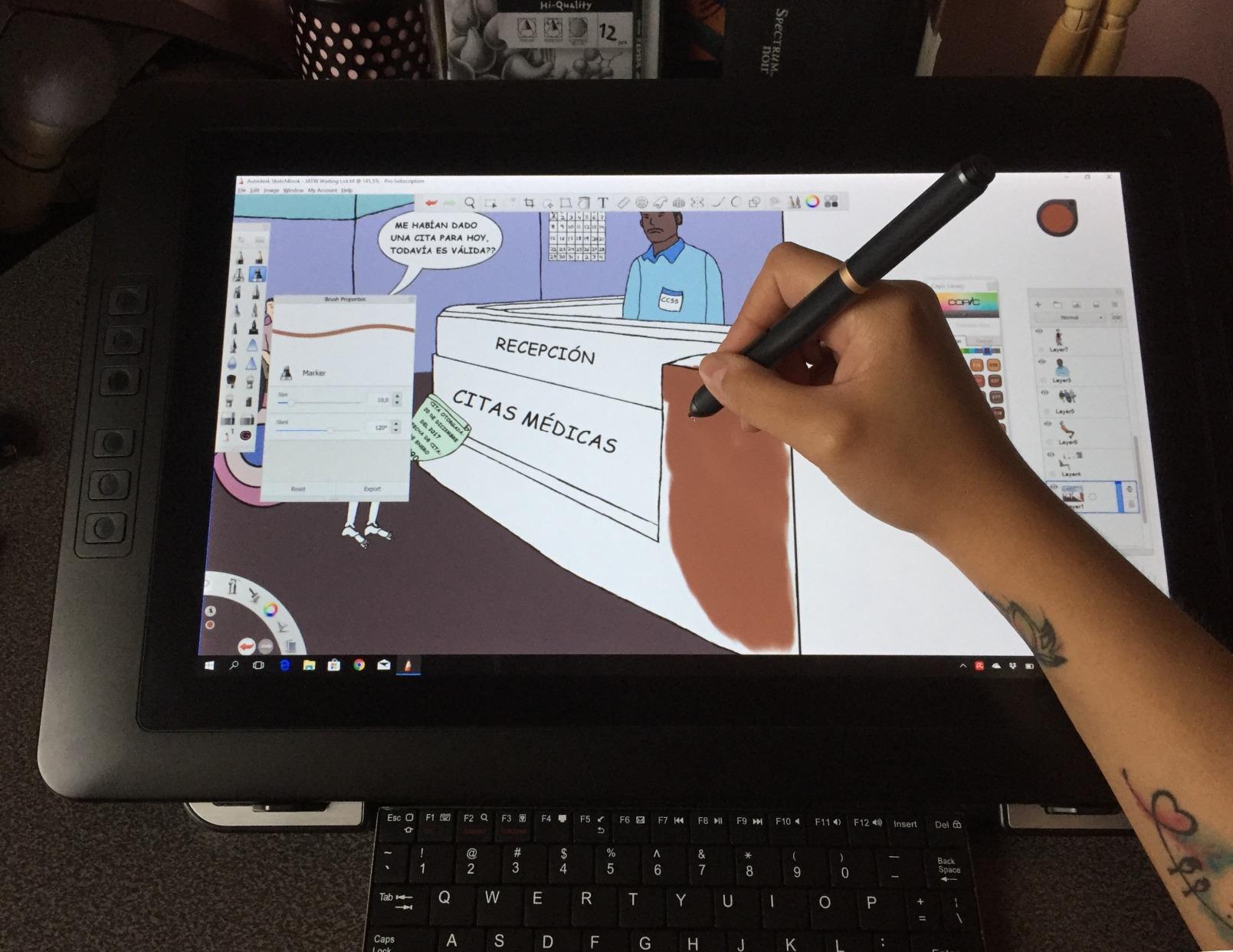
6. XP-Pen Artist 13.3 Pro – The Best Pen Display for Illustrators
XPPen Artist 13.3 Pro 13.3″ Drawing Tablet with Screen, 16K, Full-Laminated
13.3 inch laminated FHD display
16384 pressure levels
X3 Pro pen with tilt
99% sRGB
Pros
- Full lamination gives near-zero parallax
- 16384 levels with a battery-free pen and 60-degree tilt
- Red Dial plus 8 shortcut keys
- Low-latency screen response suits fine hatching
- Box includes glove
- cloth
- extra nibs and a 3-in-1 cable
Cons
- Included foldable stand is weak and single-position
- Needs its own display connection plus power and USB
- Calibration can be lost if cables are reconnected
- Stylus side buttons are easy to press with larger hands
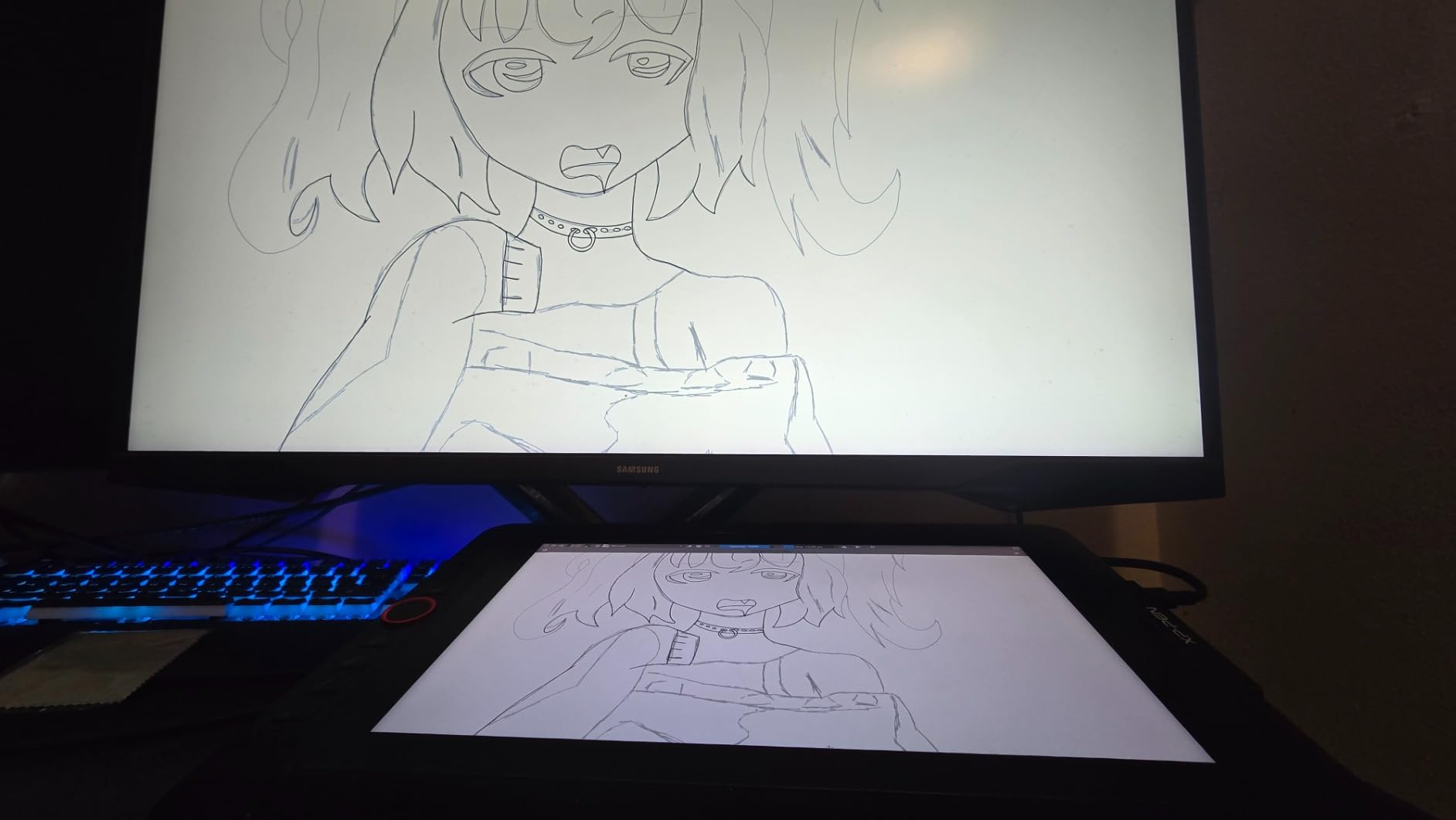
This is the tablet that convinced our team pen displays justify the extra cable. Fully laminated means the glass and the digitiser are bonded, so there is no visible gap between your pen tip and the line it makes. Your hand covers the line you are drawing and you never have to mentally correct for the offset.
The X3 Pro pen reports 16384 pressure levels with 60-degree tilt and a digital eraser on the end, which behaves like the eraser on the back of a pencil. Across inking tests the response stayed smooth at both ends of the pressure range, which is where a stepped curve usually shows.
It is not a standalone device. You need a computer with a free display port, a power outlet and a USB port, and that is a real consideration on a crowded desk.
Parallax and Full Lamination in Practice
Parallax is the distance between where your hand physically is and where the cursor appears. On an unlaminated screen, glass sits in front of the digitiser and that gap makes fine placement feel like guesswork. Full lamination closes it to the point where you can ink a panel border and see it appear exactly under the nib. Artists arriving from a screenless board describe the first sessions as disorienting in the opposite direction, then it becomes the baseline.
Colour Accuracy, Anti-Glare Surface and the Red Dial
Coverage of 99% sRGB with a 178-degree viewing angle suits most illustration and much graphic design work, though it is not calibrated to the tolerance of a reference display, so calibrate before matching brand colour. The anti-glare surface trades a little clarity for a large reduction in reflections, and for long sessions that is the right trade.
The Red Dial sits under your drawing hand and handles zoom or brush size without leaving the canvas, and with eight customizable keys it covers the two adjustments illustrators make most. Response was smooth and low-latency in our hatching tests, with 220 RPS sampling and a low activation force that stops fine light lines skipping the first millimetre of a stroke.
Stand, Connections and Calibration
The included foldable stand is the weakest part of this package. It holds a single position and collapses under pressure, so a monitor arm is the first upgrade most owners make. Calibration can also be lost if you unplug and reconnect cables, which means re-running alignment after moving the tablet between desks.
7. Wacom One HD 13.3 – The Dependable Wacom Pen Display
Wacom One HD Creative Pen Display, Drawing Tablet with Screen, 13.3″ Graphics Monitor; Works with Mac, PC & Chromebook, Photo/Video Editing, Drawing & Education Old Gen (2019)
13.3 inch fully laminated display
4096 pressure levels
11.6 x 6.5 inch active area
Single pen button
Pros
- Fully laminated 13.3 inch display with low parallax
- Wacom EMR pen feel and reliability
- Works with any software you already own
- Customizable pen button for undo or paste
- Long-standing driver stability and brand support
Cons
- 4096 pressure levels
- the lowest in this roundup
- No express keys
- dials or touch bar
- HDMI setup needs separate power and USB
- Older generation body at 4.5 pounds
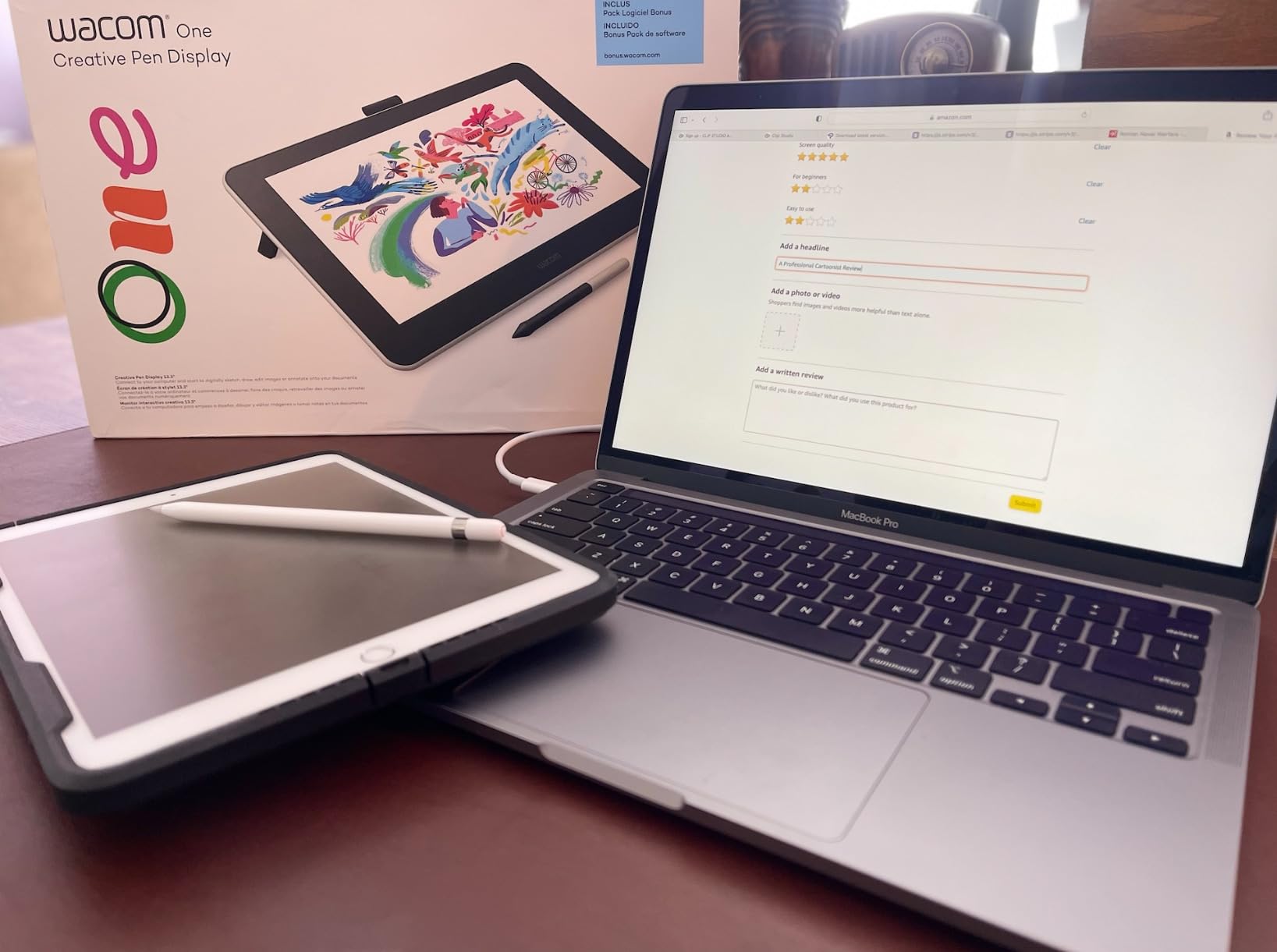
If you want a Wacom pen on a screen, this is the display that does it. The EMR pen is the same technology as the Intuos boards, so line quality, pressure smoothness and tilt behaviour carry straight over to a laminated 13.3 inch screen.
Buyers consistently accept the trade-off: no express keys, dials or touch bar, and a 4096 pressure count. In exchange they get Wacom driver stability and a pen that works with whatever software they open.
It is an older-generation design, and the 4.5 pound body is noticeably heavier than laminated third-party displays of similar size. Plan for a solid desk rather than a portable arrangement.
Workflow Limitations and Connection Setup
With no key row, dial or touch bar, every shortcut goes through the pen button or the keyboard. The single customizable pen button, commonly set to undo, is genuinely useful, but professionals working at speed will miss the shortcut hardware that cheaper XP-Pen and HUION displays include. Connection is wired HDMI with separate power and USB, so if your laptop has few ports, count them first.
Who Should Buy This and Who Should Not
Buy it if you already trust Wacom hardware and want the lowest-friction software experience. Skip it if you need a larger active area, a shortcut row or the deepest colour accuracy at this screen size, because cheaper competitors in this list cover all three. Our drawing tablet picks for younger artists cover boards where reliability and durability matter more than pressure range.
8. HUION Kamvas Pro 16 – The Best Value Large Canvas for Illustration
HUION Kamvas Pro 16 Drawing Tablet with Screen,120% sRGB, Touch Bar,15.6″
15.6 inch laminated anti-glare screen
120% sRGB gamut
6 express keys plus touch bar
3 pounds
Pros
- Large laminated anti-glare screen with slight texture
- 120% sRGB and 1000:1 contrast for shadow detail
- Touch bar plus 6 express keys for zoom and brush control
- Adjustable stand from 20 to 60 degrees
- Battery-free pen with 60-degree tilt
- 3-in-1 USB-C cable keeps the desk tidy
Cons
- Requires a connected computer
- 8192 pressure levels only
- Touch bar not fully remappable in all software
- Not offered in a left-handed configuration
Screen size is the argument here. At 15.6 inches, a full illustration or a comic page sits on the panel at close to its real proportions, which means fewer zoom-and-pan cycles while you block in a composition. For full-canvas work that saves real time.
The 120% sRGB coverage and 1000:1 contrast ratio translate into visible shadow detail. When you shade a dark scene and need to separate values that a lower-contrast panel would merge, that headroom is usable rather than theoretical.
The PW507 pen is battery-free with 60-degree tilt and two programmable side buttons, and the stand adjusts from 20 to 60 degrees. A shallower angle genuinely reduces the neck and shoulder tension that comes from leaning over a flat screen all day.

Screen Size for Full Illustrations
Every zoom operation is a small interruption to your flow. On a 13.3 inch panel, a full-body character plus a background means constant scaling; on a 15.6 inch panel you can often block in at close to 1:1. The trade-off is desk footprint, so this needs a real surface and a clear viewing position rather than a laptop-adjacent spot.
Touch Bar, Colour Depth and Connection
The touch bar handles zoom and brush size continuously while six express keys cover discrete actions like layer switching and view changes. Separating continuous control from step control is a sensible design, and it felt fastest in our brush testing, though the touch bar is not fully remappable in some software.
Eight-bit colour with 16.7 million colours and 1000:1 contrast covers the range most illustrators need for painted work, and the slight texture on the laminated anti-glare surface gives the pen enough friction to avoid the slippery feeling some artists report on smooth glass. The 3-in-1 USB-C cable handles display, power and data in one run, though firmware and driver updates are occasionally needed after a major software release.

9. HUION Kamvas 13 Gen 3 – The Most Colour-Accurate Display Here
HUION Kamvas 13 (Gen 3) Drawing Tablet with Screen, Dual Dial, 13.3″, Black
13.3 inch laminated Canvas Glass 2.0
16384 pressure levels
Dual dials and 5 keys
Delta-E under 1.5
Pros
- 16384 levels with a very light 2g activation force
- Canvas Glass 2.0 reduces glare and improves accuracy
- Dual dials plus 5 programmable keys
- Factory calibrated with a printed calibration report
- Light two-pound body with an adjustable stand
Cons
- Requires a host computer
- Full-featured USB-C cable sold separately
- 13.3 inch size is small for large illustrations
- Pen side buttons can be pressed depending on grip
This is the display to buy if colour accuracy is part of your job. It ships factory calibrated to an average Delta-E under 1.5 across 99% sRGB and Rec.709 coverage, and the calibration report is in the box. Delta-E measures distance from a reference value, so under 1.5 is a tight tolerance rather than a marketing approximation.
The pen is the lightest-feeling one we tested. A 2g activation force means the faintest marks register without a conscious press, and 16384 pressure levels underneath give you both ends of the tonal range from one pen.
Two dials and five programmable keys give more in-hand control than most 13.3 inch displays, and reviewers who expected the dials to be a gimmick report using them daily.

What Delta-E Means for Your Artwork
Lower Delta-E means closer to the reference colour, and under 1.5 is close enough that most viewers cannot see the difference side by side. Practically, the colours you pick in Illustrator land closer to what you intended on a calibrated monitor, which matters when a client rejects a palette. It does not make the panel a reference monitor for print proofing.
Surface, Buttons, Dials and Stand
The anti-sparkle Canvas Glass 2.0 coating reduces the shimmer that appears on glossy panels under bright light and improves accuracy at glancing angles. The PW600L pen carries three customisable side buttons, more than the two-button pens on most rivals, so the digital eraser and a zoom control can both be mapped without opening menus.
The ST300 stand adjusts to a working angle and the whole unit weighs two pounds. Two practical notes before you buy: the full-featured USB-C cable is sold separately, so budget for the right cable, and 13.3 inches remains a compact canvas for regular background painting.

10. XP-Pen Artist Pro 14 Gen 2 – The Best 16:10 Workspace for Digital Art
XPPen Artist Pro 14 Gen2 Drawing Tablet with Screen 14 inch Graphic Art Tablet with Full Laminated Anti-Glare Screen 16384 Pressure Levels X3 Pro Battery-Free Stylus 123% sRGB Tilt Stand Mini Keydial
14 inch laminated etched glass
16384 pressure levels
16:10 aspect ratio
Delta-E under 2.2
Pros
- Laminated etched glass with near-zero parallax and less glare
- 16384 levels with a battery-free X3 Pro pen
- 16:10 ratio gives more room for app interface
- Wireless remote plus X-Edge wrist rest
- TUV SUD certified blue light reduction
Cons
- Requires a connected computer
- Out-of-box colours need calibration
- Built-in stand sits low with no arm mount
- No touch input and no port pass-through
Aspect ratio is the quiet advantage. A 16:10 panel gives noticeably more vertical space than the 16:9 displays that dominate this category, and for illustration that space goes to your tool panels and brush presets rather than a shorter canvas. You end up with fewer collapsed sidebars mid-work.
The etched anti-glare glass is the most aggressive matte treatment in this roundup. It cuts reflection almost completely, which is excellent for long sessions and costs you some brightness. If you work in a dim room, raise the display brightness before you start.
Reviewers who compared it directly against a professional Wacom pen display judged the pen feel, accuracy and response equal or better. Their consensus advice is the same: calibrate the screen first, because it ships noticeably oversaturated.
Pen Feel and 16384 Levels with Tilt
The X3 Pro battery-free stylus supports 16384 pressure levels and 60-degree tilt, and testers describe the feel as close to Wacom’s Pro Pen 3, which is the pen you would be comparing against if the question is whether a third-party display is good enough for paid work. For shading, that combination gives a range from fine lines to broad soft strokes.
Colour Accuracy and Calibration Reality
The panel covers 99% sRGB with a 123% sRGB gamut area and a Delta-E under 2.2 once calibrated. Out of the box the colours are oversaturated, and a lot of owners assume that is a defect rather than a known starting state. Run a colourimeter profile or your operating system’s screen profile before judging it, and reviewers describe strong value after that step.
Comfort Features and Stand Limitations
The X-Edge wrist rest and the wireless shortcut remote address the same problem, namely that your drawing hand should not have to leave the pen. TUV SUD certified blue light reduction is worth noting for evening sessions, since lower eye fatigue at hour three is a real productivity difference.
The built-in foldable stand sits low with no monitor-arm mounting option, which is the most common complaint, and there is no touch input or port pass-through, so you are routing two cables to the host machine. Budget desk depth as well as desk width.
11. PicassoTab X11 11 inch – The Best Standalone Tablet for Sketching Away from a Desk
11″ Standalone Drawing Tablet, Portable PicassoTab, No Computer Needed -X11
Fully standalone 11 inch device
2K laminated display
4096 pressure levels
6GB RAM and 128GB storage
Pros
- No computer needed
- so you can draw anywhere
- Laminated 2K screen with low parallax and a paper-like feel
- Good battery life with quick charging
- Five preloaded creative apps plus lifetime app upgrades
- Case
- glove
- adapter and screen protector included
Cons
- 4096 pressure levels
- Stylus is basic and can drop strokes
- Weak palm rejection registers your resting hand
- Ghost touches and slower-than-expected performance on some units
- Bundled apps are basic next to Krita or Clip Studio
Everything else in this roundup assumes you own a capable computer. This one does not, which makes it the odd one out and the reason it earns a place. For travel sketching, working away from a desk, or sharing a device with a younger artist, nothing else here works that way.
The 11 inch laminated 2K screen gives a low-parallax drawing surface, and 95 square inches of active area is enough for a character sketch or a colour study. An octa-core processor with 6GB of RAM and 128GB of expandable storage handles the bundled apps without complaint.
Our reservations are pen-related. The stylus is basic, drops strokes intermittently, and palm rejection is weak enough that your resting hand registers on the canvas. On a screenless board a resting hand is harmless; on a standalone display it is a daily irritation.

Standalone Workflow and Preloaded Software
Five preloaded creative apps cover sketching, painting, animation and guided lessons, with lifetime upgrades bundled for two of them. That combination shortens the learning curve more than any hardware spec, and it is why this device comes up so often in gift-buying conversations. The limitation is depth: the bundled apps are simpler than Krita or Clip Studio Paint, so confirm your preferred app is available before you commit.
Screen, Pen and Portability
At 4096 pressure levels, line variety is limited compared with everything else here. You can sketch and block colour effectively, but smooth tapered inking and fine shading transitions are harder on a 16K pen. The included case, universal adapter, glove and pre-installed screen protector make the device genuinely portable, and some units report ghost touches or a charging port that degrades over time.
Our standalone guide for professional artists sets out what a pro-grade alternative involves.

12. RubensTab T11 Pro – A Standalone Starter for Students and Gifts
Frunsi RubensTab T11 Pro standalone Drawing Tablet
10.1 inch FHD IPS display
1024 pressure levels
5800mAh battery
Krita and Sketchbook preinstalled
Pros
- Fully standalone with a 5800mAh battery
- Bright 10.1 inch IPS screen readable in daylight
- Sketchbook and Krita preinstalled and ready to use
- Adjustable case doubles as a stand and is travel friendly
- Stylus hover shadow helps with placement
Cons
- 1024 pressure levels
- the lowest here
- Stylus input occasionally drops and the tip feels wobbly
- Full brightness drains the battery faster
- Some units stopped charging after several months
- Included drawing glove is often too large
This is the one to buy when the person drawing is a student, a teenager or a total beginner, and the priority is that it works the moment it comes out of the box. Sketchbook and Krita are installed, the case doubles as a stand, and no computer is required.
The 5800mAh battery is the strongest argument for it, offering up to five hours of continuous use and the ability to charge from a power bank over USB-C. That is enough for a full class session or a sketching trip without a wall socket.
At 1024 pressure levels this is the weakest pen specification in the roundup and the reason it sits at the end. Line weight variety is genuinely limited, and if the person drawing intends to keep going past their first year, a screenless board here gives far more room to grow.

Screen, Pen and Pressure Limits
The 10.1 inch Full HD IPS panel is bright enough to work near a window, which matters for a device carried to class or a park, and multi-touch is supported for zooming and panning. The pen is the weak point: 1024 levels gives a coarse tonal ramp, owners report the stylus occasionally dropping input, and the hover shadow, while pleasant, can obscure fine placement for some users.
Battery, Ports and Everyday Durability
Beyond the pen the specification is generous, with USB-C charging, HDMI output, a headphone jack and a microSD slot under a 12-month warranty. The adjustable stand case is the most praised feature because it protects the tablet in a bag and props it up on a table. Recurring issues are charging reliability on some units after several months and a drawing glove that runs too large for smaller hands.

How to Choose a Drawing Tablet for Illustration
Most buying mistakes come from comparing spec numbers across categories that do not measure the same thing. Work through these decisions in order and the product choice takes care of itself.
Screenless, Pen Display, or Standalone: Decide the Form Factor First
A screenless drawing tablet is a peripheral. You draw on a matte surface while looking at a separate monitor. It is the cheapest way in, the most portable, and it requires hand-eye coordination you will spend a week training.
A pen display has a screen built in, so your hand and your line occupy the same place. It removes parallax and costs more in money, desk space and cables. A standalone tablet needs no computer at all, which makes it the only option for drawing away from a desk and the only one where the bundled app matters more than the pen.
Pressure Levels and Tilt Set Your Line Weight
Pressure sensitivity is measured in levels: 1024, 4096, 8192, 16384. Higher counts allow finer control of line weight and opacity, but quality comes from how smoothly those levels are reported, not from the headline number. Tilt support, typically 60 degrees, is what lets a brush behave like a real brush; if you only ink line art, spend that budget on a larger active area instead.
Match the Active Area to Your Illustration Style
Active area is the drawable region in inches and the most under-considered spec. Roughly 6 by 3.7 inches suits small tight work, 10 by 6.25 inches handles character design and comics comfortably, and anything above 12 inches on a display is for full background painting. Our rule: buy for the work you do this year, not the work you might do eventually.
Parallax Matters More Than Any Other Display Spec
Parallax is the visual gap between the physical position of your hand and the position of the cursor. Full lamination bonds the glass to the digitiser and closes that gap, while every screenless board has some amount of it. It is the most common complaint in artist forums about screenless tablets, showing up as wrist strain and imprecise placement, and it is the entire reason pen displays exist.
Express Keys, Dials and Palm Rejection
Express keys are programmable buttons along the tablet edge. Eight to twelve is a useful range; forty exists but only helps if you maintain a layout you use. Dials give continuous control of brush size and zoom that discrete keys cannot.
Palm rejection tells the tablet to ignore a resting hand, usually through a hand-sized exclusion zone on screenless boards and through the touch layer on displays. Left-handed users should check for mirrored key layouts or a 180-degree flip in the driver before buying.
Screen Resolution, Colour Accuracy and Surface Finish
Resolution matters most on pen displays, where a low-resolution screen softens line art. For colour-critical work, look for a stated Delta-E figure and a factory calibration report, the only measurable way to compare displays fairly.
Surface finish is the underrated half of the decision. Glossy panels show reflections and are uncomfortable in bright rooms, while matte or etched glass is better for long sessions and slightly less crisp. Artists drawing more than two hours a day should prefer anti-glare, and the 15.6 inch screen in this roundup adds a slight texture that gives the pen extra friction.
Adobe Illustrator, Clip Studio Paint and Krita Compatibility
Every board here works with Adobe Illustrator through its pen API, so the tablet does not decide your software. What differs is the driver layer: per-application profiles, custom key mapping, pressure curve editing and multi-monitor configuration. If you work on Linux or Chrome OS, driver quality is the deciding factor, not the hardware, and it is worth checking your operating system before you fall for a screen or pressure count.
Driver Stability Is a Purchase Risk Nobody Mentions
Drivers break. A major operating system or creative software update can leave a tablet drawing badly or not at all until you reinstall. Before buying, check how recently the manufacturer’s driver was updated and how active its support community is, and check whether the tablet needs manual driver installation at all. A board that works immediately after plugging in is worth real money on a day when you have lost half a day to a compatibility problem.
Session Length, Wrist Position and Pen Grip
For long sessions, three things matter more than resolution: a shallow board angle, a surface with some friction, and a pen that does not require a tight grip. A stylus with a low initial activation force also reduces the hand pressure that causes fatigue. Repetitive strain in illustrators is common, and a pen display that removes parallax often solves the problem more effectively than any ergonomic mouse.
Frequently Asked Questions
What is the best drawing tablet for illustrators?
For most illustrators the Wacom Intuos Small is the best starting point, because its battery-free EMR pen is smooth and reliable and it works with any illustration software without driver headaches. If you draw detailed line art and want your hand and your line in the same place, the XP-Pen Artist 13.3 Pro is the better choice. If you paint full illustrations and need a large canvas, the HUION Kamvas Pro 16 gives you a 15.6 inch laminated screen.
Which drawing tablet is best for Adobe Illustrator?
Any tablet with a standard pen API works in Illustrator, so the decision comes down to driver quality and pen feel. The Wacom Intuos Small has the most stable driver and the smoothest pressure response, while the HUION Kamvas 13 Gen 3 stands out if colour accuracy matters, with a factory calibration report and an average Delta-E under 1.5.
Is Wacom or Huion better for illustration?
Wacom builds the more refined pen and ships the more stable driver, which is why professionals often pay the premium. Huion delivers more active area, more shortcut keys and higher pressure level counts for less money, and community recommendations frequently name it the go-to when budget is the main constraint. If you are starting out, a Huion board rarely disappoints; if pen feel is your priority, Wacom leads.
Do I need a drawing tablet with a screen for illustration?
No. A good screenless tablet is enough for professional illustration, and most working artists use one daily. A pen display removes parallax, which makes fine detail easier and reduces wrist strain over long sessions, so it is worth the extra cost and desk space if you draw tightly for hours. Screenless boards are cheaper, lighter and easier to travel with.
How many pressure levels do I need for illustration?
At least 4096 for smooth line weight control, and 8192 or more if you shade or paint gradients. Above 16384 the difference is difficult to see in finished work, and pen smoothness matters more than the count. For a beginner, a board with 8192 levels and tilt support will carry you further than any specification above it.
Which Drawing Tablet Should You Buy in 2026?
If you want the safest first purchase and the most consistent pen feel, choose the Wacom Intuos Small. If you are starting with almost no money and want the most drawing surface per pound, the XPPen Deco 01 V3 is hard to argue with. If you ink comic pages where placement precision decides the quality, the XP-Pen Artist 13.3 Pro removes parallax and changes how the work feels.
If you paint full compositions, the HUION Kamvas Pro 16 is the roomiest laminated canvas here, and the HUION Kamvas 13 Gen 3 is the one to buy when client colour work depends on matching a palette. For the pen itself, nothing beats Wacom’s Pro Pen 3 on the Intuos Pro Medium, and the Xencelabs Medium is the strongest alternative when a textured, paper-like surface matters more to you than a battery-free pen.
Whichever you pick, spend your first session remapping the pressure curve and the shortcut keys. Every tablet in this list gets noticeably better once it is configured for your hand, and that hour of setup separates a frustrating experience from one you enjoy. Check current specifications and the latest model generation before you buy, since this category refreshes quickly and older boards are often listed beside newer ones.