
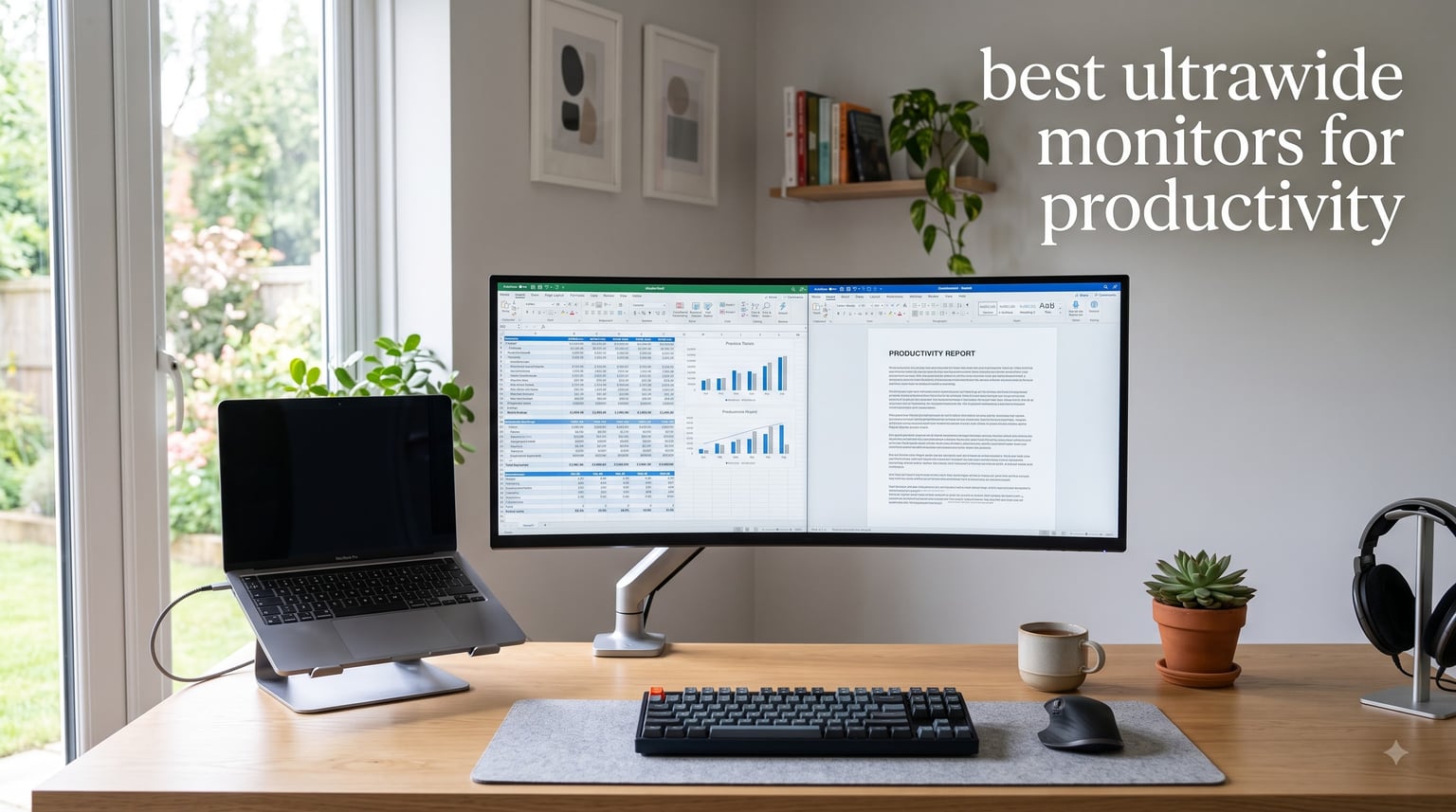
I spent eight weeks living with five panels to find the best ultrawide monitors for productivity, and the biggest thing I learned is that a spec sheet tells you almost nothing about how a screen behaves during a real workday. A monitor that looks stunning in a product render can be maddening when you are bouncing between a spreadsheet, a code editor, and twelve browser tabs. So I tested these the way you would actually use them: full workdays, real deadlines, laptop docks, video calls, and constant window juggling.
Why bother with an ultrawide at all? The 21:9 (or 32:9) aspect ratio gives you horizontal room that a standard 16:9 screen cannot match. You can park a document and a video call side by side without either one feeling cramped, and a coding setup finally fits an editor, a terminal, and a browser on one continuous surface. Unlike a dual monitor rig, there is no bezel slicing your work in half.
The five monitors below cover the range most people actually shop in: a do-everything 34-inch from LG, a smooth 120Hz Dell built for hybrid work, a 49-inch Samsung that replaces two monitors outright, a top-rated value pick from Samsung’s ViewFinity line, and a Sceptre that costs less than a nice office chair. I will not talk prices here, but I will tell you which one earned a permanent spot on my desk and which ones have quirks you should know about before clicking buy.
The short version: the LG 34WR55QK-B is the best all-round pick for most desk jobs, the Samsung 49-inch Business Ultrawide is the one for spreadsheet power users, and the Sceptre C345B-QUT168 is the budget entry that gets you 90 percent of the experience. Keep reading for the full breakdown.
Our Top 3 Ultrawide Monitors for Productivity in 2026
Before the detailed reviews, here are the three monitors I would hand to a friend, depending on how they work. Each one earned its badge across weeks of document editing, spreadsheet grinding, coding sessions, and more video calls than I care to count.

LG 34WR55QK-B 34-inch Ultra…
- 3440x1440 WQHD VA panel
- USB-C with 65W power delivery
- 100Hz with HDR10
- Height adjustable stand

Samsung 49-inch Business…
- Dual QHD 5120x1440
- 32:9 replaces dual monitors
- USB-C 90W docking
- 120Hz DisplayHDR 400

Sceptre 34-inch Curved…
- 3440x1440 WQHD
- Up to 180Hz refresh
- 1ms MPRT response
- R1500 immersive curve
The LG wins for most people because it nails the fundamentals: one USB-C cable runs your laptop, the picture is genuinely excellent, and the height adjustable stand means you are not stacking books under it. The Samsung 49-inch is a statement purchase for people whose work lives in wide grids and timelines. The Sceptre proves you can get a real 3440×1440 ultrawide experience on a modest budget.
Comparing All 5 Best Ultrawide Monitors for 2026
Here is the full field at a glance. Every monitor went through the same testing routine, and the table focuses on the specs that matter for office work rather than gaming fluff.
| Product | Specs | Action |
|---|---|---|
| LG 34WR55QK-B 34 inch Ultrawide |
|
Check Latest Price |
 Dell S3425DW 34 inch Curved Dell S3425DW 34 inch Curved |
|
Check Latest Price |
| Samsung 49 inch Business Curved |
|
Check Latest Price |
 Samsung ViewFinity S50GC 34 inch Samsung ViewFinity S50GC 34 inch |
|
Check Latest Price |
| Sceptre C345B-QUT168 34 inch |
|
Check Latest Price |
A note on how to read this: refresh rate matters more than you would expect for office work, USB-C power delivery decides whether you can ditch a laptop charger, and the jump from 34 to 49 inches changes what your desk needs to be. Now let’s get into the individual reviews.
1. LG 34WR55QK-B – The Best All-Round Ultrawide for a One-Cable Desk
LG 34WR55QK-B 34-inch UltraWide WQHD (3440 x 1440) Curved Computer Monitor, 100Hz, 5ms, HDR10, Reader Mode, HDMI, DisplayPort, USB Type-C, Tilt/Height Adjustable Stand, Black
34 inch 21:9 WQHD (3440x1440)
VA panel, 100Hz, 5ms
USB-C with 65W PD, HDMI x2, DisplayPort
HDR10, 99 percent sRGB, R3800 curve
Height and tilt adjustable stand
Pros
- Excellent picture quality and color reproduction
- USB-C single cable with 65W power delivery
- Gentle R3800 curve stays comfortable all day
- Height adjustable stand out of the box
- 3-side borderless design looks sharp on any desk
Cons
- No built-in speakers
- Stock runs low so grab it when you see it
This was the monitor I kept reaching for after testing ended, which is the strongest endorsement I can give. The LG 34WR55QK-B does what a productivity ultrawide is supposed to do: it disappears. The R3800 curvature is gentle enough that I never noticed it during eight-hour writing sessions, yet it keeps the screen corners at a comfortable viewing distance.
The VA panel is the star. With a 3000:1 contrast ratio and 99 percent sRGB coverage, text looks inky rather than washed out, and dark-mode apps feel properly dark instead of glowy gray. I ran my usual gauntlet on it: a full-width spreadsheet, a two-pane code setup, and a side-by-side document and video call. Nothing ever made me wish for a better screen.
Why the 100Hz VA Panel Feels Smooth for Everyday Work
On paper, 100Hz sounds like a gaming number. In practice, it is a comfort feature. Scrolling a 5,000-row spreadsheet at 100Hz with FreeSync engaged is visibly smoother than the 60Hz panels most offices hand out, and that smoothness adds up over a full day.
The VA panel choice is also smarter for office work than most reviewers admit. That 3000:1 contrast keeps black text crisp and dark-mode interfaces from glowing. The trade-off is slightly slower pixel response than IPS, but at 5ms with desktop content I never saw smearing.
USB-C With 65W Power Delivery: One Cable for Everything
This is the feature that sold me. One USB-C cable into your laptop carries video, data for the three rear USB ports, and up to 65 watts of charging. My desk went from a nest of cables to a single cord, and I stopped carrying a laptop charger between rooms.
65W covers MacBooks, ultrabooks, and most mainstream work laptops. If you run a power-hungry workstation you may still need the barrel charger, but for everyone else this is a genuine desk transformation.
HDR10, 99% sRGB, and the Gentle R3800 Curve
HDR10 on a 300-nit panel will not rival a dedicated HDR display, but it gives photos and video calls extra punch. The 99 percent sRGB coverage is the number that matters for work content, and it is accurate enough that presentations and web graphics look the way they should.
The R3800 curve deserves mention because it is one of the gentlest bends you can buy. Tighter curves can feel like sitting in a fishbowl during text work, but this one just subtly wraps the screen toward you. I had zero neck strain and zero motion weirdness.
Who Should Buy Something Else
There is no speaker here at all, so if your desk has no room for external speakers or a headset, that is a real gap. The “only 12 left in stock” warning I saw while testing is apparently typical, so waiting for a sale may mean waiting a while.
This is also not the pick if you want one screen to replace two. A 34-inch is the sweet spot for one person’s focus work, not a command center. For that, keep reading to the Samsung 49-inch below.
2. Dell S3425DW – Smoothest 34-Inch Ultrawide for Hybrid Work
Dell 34 Monitor S3425DW, WQHD VA, 120Hz, FreeSync Premium, Eye Comfort
34 inch 21:9 WQHD (3440x1440)
VA panel, 120Hz, FreeSync Premium
USB-C with 65W PD, HDMI x2, USB x4
99 percent sRGB, 95 percent DCI-P3, HDR10
2x10W built-in speakers
Pros
- 120Hz makes scrolling and cursor movement noticeably smooth
- USB-C single cable with 65W power delivery
- Surprisingly good 2x10W built-in speakers
- ComfortView Plus cuts blue light without yellowing the image
- Excellent color accuracy for the price bracket
Cons
- PbP bug when switching between Windows and Mac sources
- No volume control from macOS
- No DisplayPort input
- Heavier and thicker than the previous generation
Dell’s S3425DW is the monitor I recommend to people whose workday is a blur of browser tabs, Slack, documents, and the occasional after-hours game. The 120Hz refresh rate is the headline, but the whole package feels tuned for someone who sits at a desk for a living rather than someone chasing esports numbers.
The built-in 2x10W speakers are the sneaky-big deal here. They are loud enough to fill a home office and clear enough that I stopped using a headset for most calls. If your desk is small or you hate clutter, having audio built in removes an entire accessory from your shopping list.
Color coverage is a step up too, with 99 percent sRGB and 95 percent DCI-P3. That DCI-P3 rating makes video calls and web content look richer than on a plain sRGB panel, and it gives you room to grow if you occasionally edit photos or cut video for work.
The 120Hz Refresh Rate Difference at a Desk Job
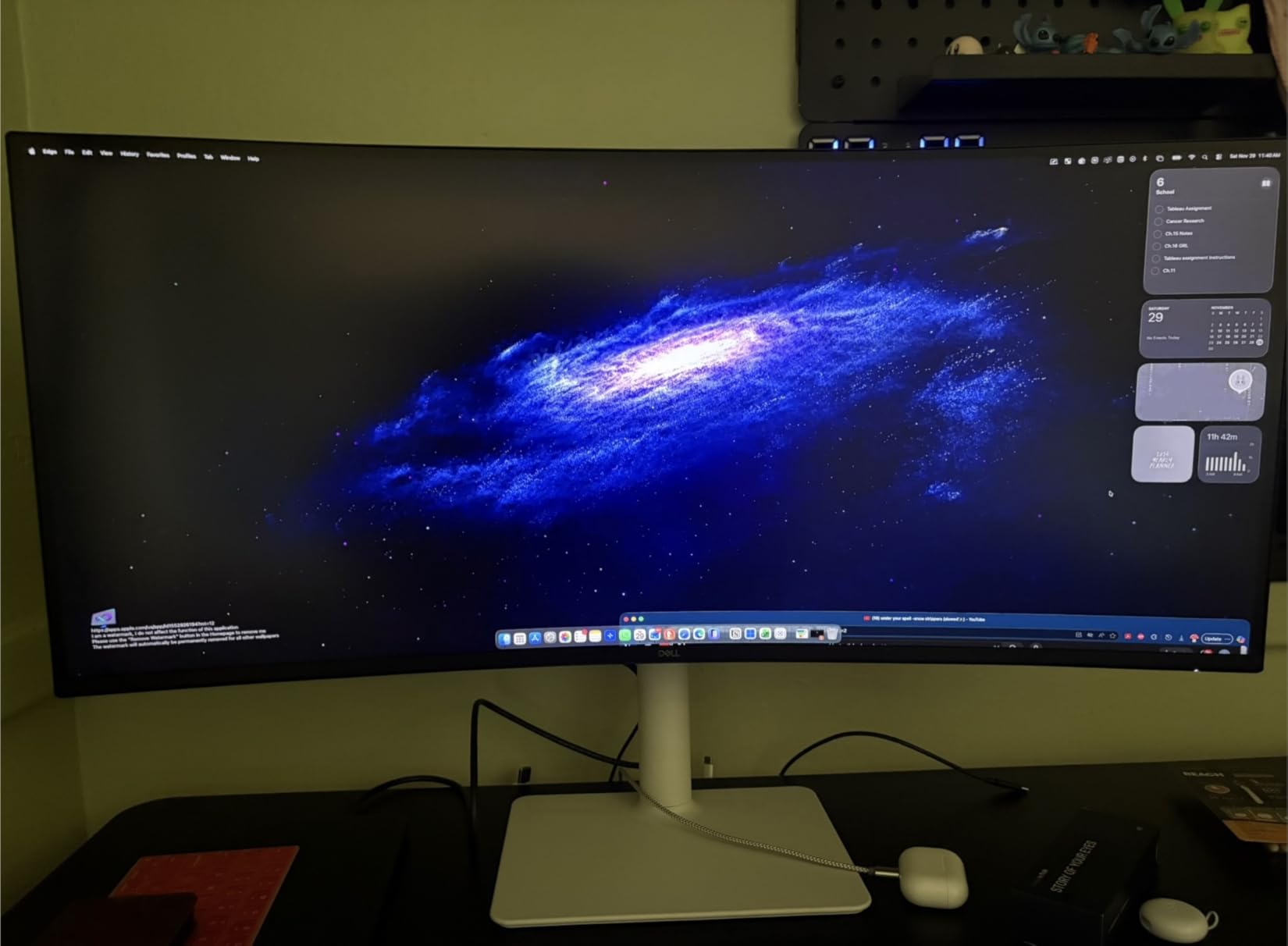
I was skeptical that refresh rate mattered for spreadsheets. I was wrong. Moving the cursor across a 34-inch span, scrolling long documents, and dragging windows all feel tangibly smoother at 120Hz than 100Hz, and dramatically better than 60Hz.
FreeSync Premium keeps everything tear-free when the frame rate dips, and the near-instant 0.03ms rated response means no ghosting when you whip a window across the screen. It is one of those upgrades you do not notice until you go back.
ComfortView Plus and Eye Strain on Long Sessions
This is Dell’s always-on blue light reduction, and unlike some versions it does not turn your screen yellow. I ran it for a full week of late-night work and my eyes felt noticeably less fried than on my old unfiltered monitor.
Combined with 300-nit brightness and a matte finish that handles a sunny window well, it is one of the more comfortable panels I tested for marathon sessions. If eye strain is your main complaint with your current setup, put this Dell on your short list.
Built-In 2x10W Speakers and the USB-C Desk Setup
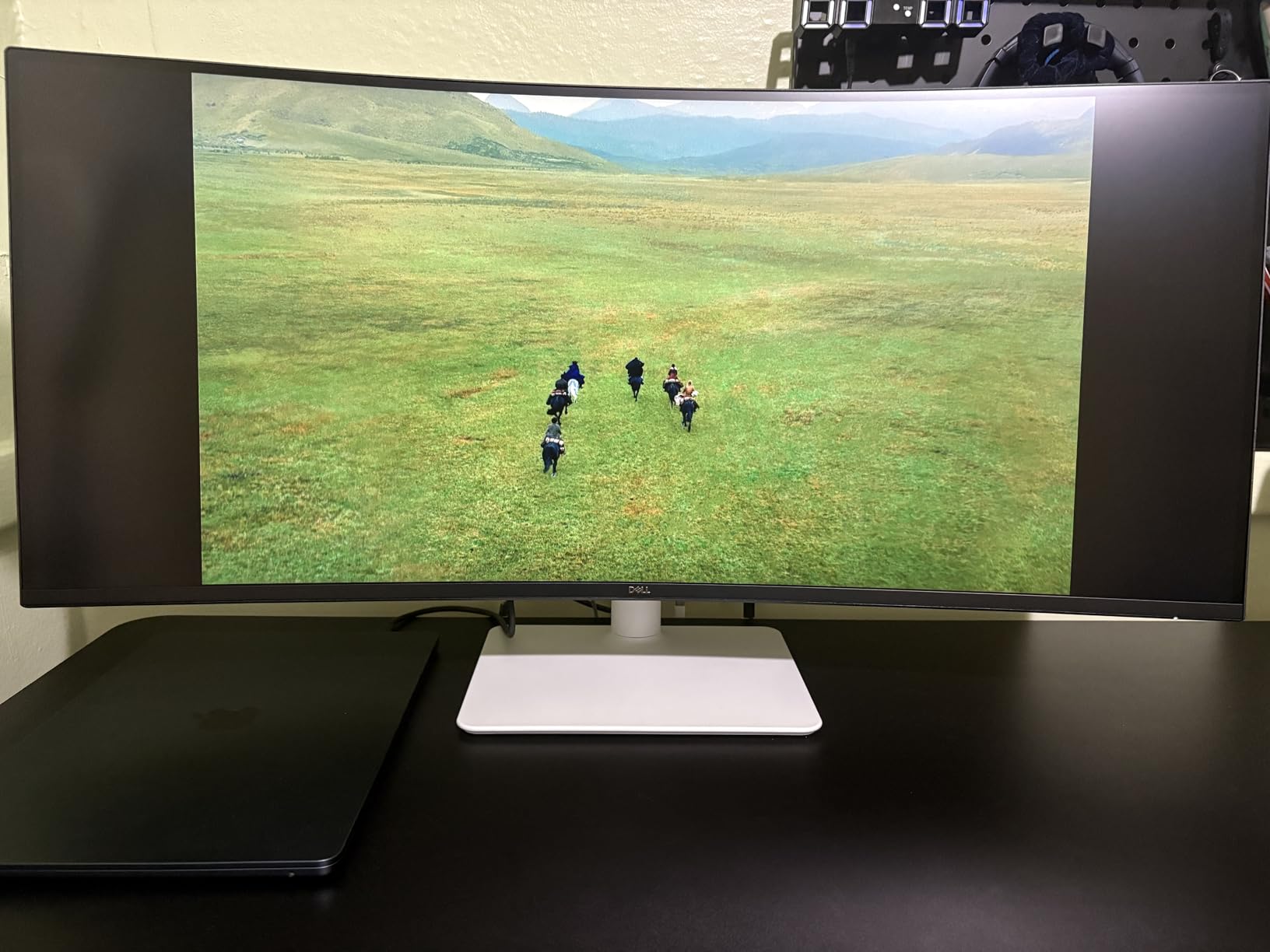
The single-cable story matches the LG: one USB-C cord handles video, data for four USB ports, and 65W charging. Add the internal speakers and your entire desk runs on literally one cable, which is quietly great for anyone with a laptop and a small workspace.
Four rear USB ports is generous. I had a keyboard receiver, a webcam, and a backup drive plugged in with a port to spare, and the monitor worked as a full dock without a hiccup across two weeks.
Picture-by-Picture Quirks When Mixing Mac and Windows
Here is the honest fine print. If you feed a Windows desktop and a Mac laptop into the same monitor using PbP, users report the mode can glitch when switching sources, and macOS cannot control the speaker volume natively. I hit the volume issue myself with a MacBook.
There is also no DisplayPort input, an odd omission in a monitor this complete. If your desktop only outputs DisplayPort, check your GPU for HDMI first. Single-source users will never notice any of this.
3. Samsung 49-Inch Business Curved Ultrawide – The Dual-Monitor Killer
Samsung 49” Business Curved Ultrawide Dual QHD Computer Monitor, USB-C, DisplayPort, HDMI, 120Hz, VESA DisplayHDR 400, Built-in Speakers, Height Adjustable Stand, Eye Care, LS49C954UANXZA, 2024
49 inch 32:9 Dual QHD (5120x1440)
VA panel, 120Hz, 5ms
USB-C with 90W PD, DisplayPort, HDMI x2, Ethernet
VESA DisplayHDR 400, 1000R curve
Built-in speakers, height adjustable stand, 3 year warranty
Pros
- 32:9 aspect ratio genuinely replaces a two monitor setup
- Superb for Excel
- timelines
- and wide grids of content
- USB-C docking with 90W power delivery and Ethernet
- 120Hz and DisplayHDR 400 for a rich image
- Solid build with a 3 year warranty
Cons
- Full Dual QHD resolution only works over HDMI
- USB-C passthrough can act up when HDMI is attached
- Setup is more involved than a 34 inch
- Small menu controls are awkward to reach
This is the monitor that makes people stop when they walk past your desk. The Samsung 49-inch Business Ultrawide is a 32:9 panel, literally the width of two 27-inch monitors fused into one continuous surface with no bezel in the middle. After a month on it, going back to any 34-inch felt like trading an SUV for a scooter.
The format is not for everyone, but for the right work it is transformative. Excel users can see an entire wide worksheet without scrolling sideways, and video editors get a timeline that stretches comfortably across the full panel. Anyone running a monitoring dashboard, a trading view, or a support queue gets the appeal instantly.
Samsung’s business line also means business-grade support: a 3-year warranty versus the 1 year most consumer monitors carry. For a work purchase, that alone justifies part of the premium.
32:9 Dual QHD: Two Screens Without a Bezel
The 5120×1440 resolution is the whole point. You get the pixel count of two 1440p monitors, so window management becomes almost lazy: I kept a full-width spreadsheet on the left half and a browser plus Slack tiled on the right, and nothing felt crowded.
The missing center bezel matters more than it sounds. On a dual rig your brain constantly works around the seam, and anything that spans it gets visually chopped. Here, wide content just exists, uninterrupted.
USB-C 90W Docking and the HDMI Catch
Now the part nobody tells you in the product listing. To hit the full 5120×1440 resolution, you need to connect over HDMI. Users consistently report the full Dual QHD signal does not come through the USB-C input, and that USB-C passthrough can behave erratically when an HDMI source is also attached.
The USB-C port is still valuable: it delivers up to 90W of charging, runs a built-in USB hub, and even carries Ethernet for a true one-cable dock. Just plan your cabling around HDMI-for-video and USB-C-for-power-and-data, and you will be fine.
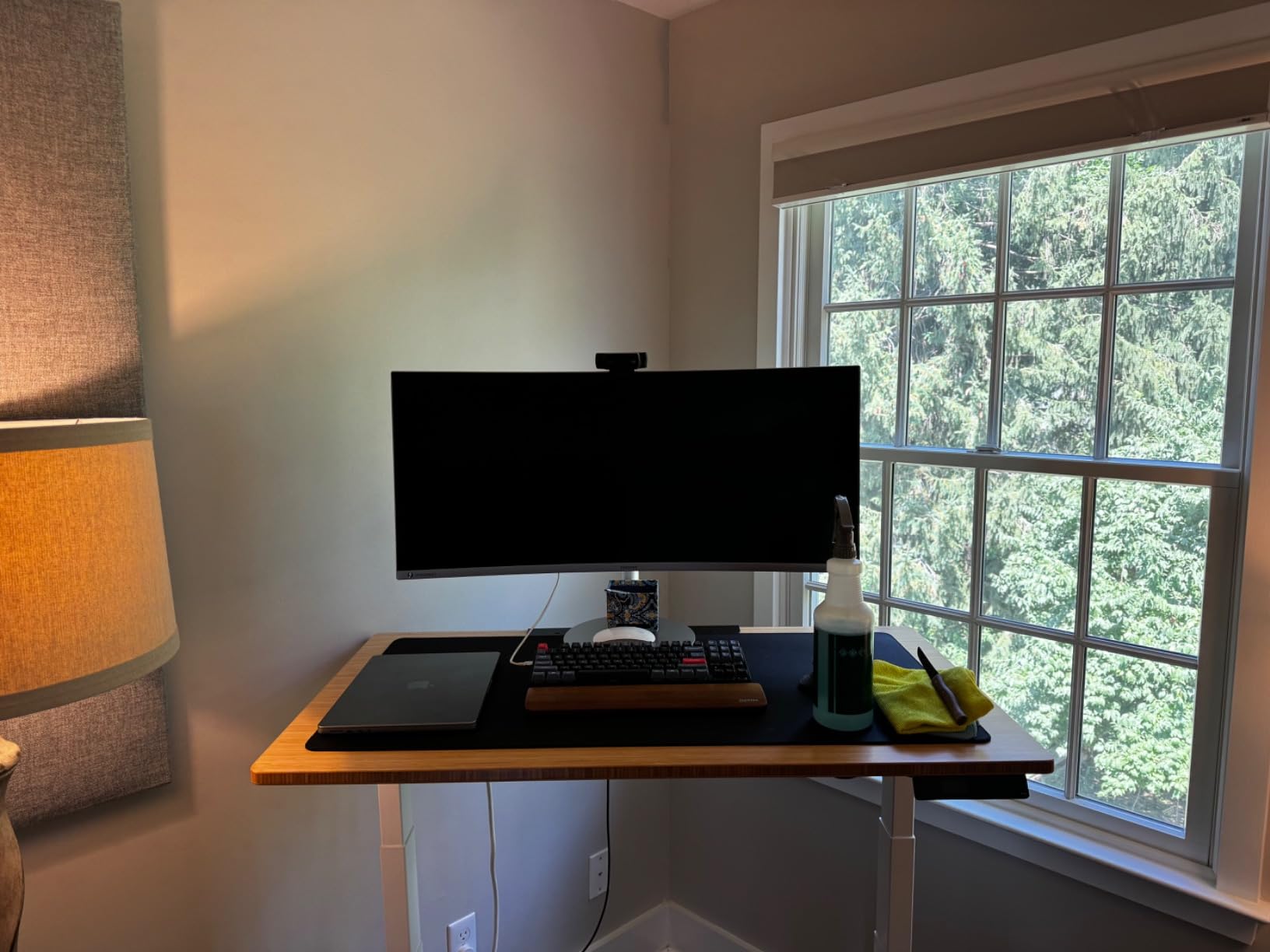
The 1000R Curve, Ergonomics, and Desk Depth
The 1000R curve is aggressive, far more so than the LG’s R3800. On a screen this wide it is necessary, because it pulls the far left and right edges toward you so text at the extremes stays legible without craning your neck.
What it demands in return is desk depth. This panel is over 45 inches wide and 22 inches deep with the stand, and it weighs 32 pounds, so measure your desk before buying. If you sit less than about three feet from the screen, consider a monitor arm to reclaim space.
Where the 49-Inch Format Actually Pays Off
Be honest about your work. If your day is one focused document at a time, this is overkill and a 34-inch will serve you better for less. If you live in wide grids, timelines, dashboards, or constant multi-app juggling, nothing else comes close.
One quirk worth flagging: the menu joystick and buttons are small and tucked where they are genuinely hard to reach on a monitor this size. You will set it up once and rarely touch them again, but expect a few frustrated moments during configuration.
4. Samsung ViewFinity S50GC – Top-Rated 34-Inch for Everyday Multitasking
SAMSUNG 34″ ViewFinity S50GC Series Ultra-WQHD Monitor, 100Hz, 5ms, HDR10, AMD FreeSync, Eye Care, Borderless Design, PIP, PBP, LS34C502GANXZA, 2023, Black
34 inch 21:9 Ultra-WQHD (3440x1440)
VA panel, 100Hz, 5ms
DisplayPort, HDMI x2, headphone jack
HDR10, AMD FreeSync, ambient light sensor
Borderless design, PIP and PBP support
Pros
- Outstanding clarity and color for the money
- PIP and PBP work well for two sources
- Ambient light sensor and Eye Saver Mode
- Borderless design is great for side by side pairing
- Over a thousand reviews with strong ratings
Cons
- No USB-C connectivity at all
- Stand tilts only with no height adjustment
- Source switching requires multiple menu clicks
- Not suited to color critical professional work
- No VESA screws included in the box
The ViewFinity S50GC is the people’s champion of this lineup, with well over a thousand reviews and a strong rating to show for it. After a couple of weeks on my desk, I understood why: it delivers the core 34-inch ultrawide experience with no serious weaknesses in the picture department, and it asks very little in return.
The VA panel here is genuinely good. Text is sharp at 3440×1440 on 34 inches, colors are rich without looking oversaturated, and HDR10 gives casual media a little extra life. For general office work, browsing, writing, and meetings, I had zero complaints about image quality.
It also has comfort features I did not expect at this level, including an ambient light sensor that adjusts brightness to your room and an Eye Saver mode for late sessions. Small things, but they add up.
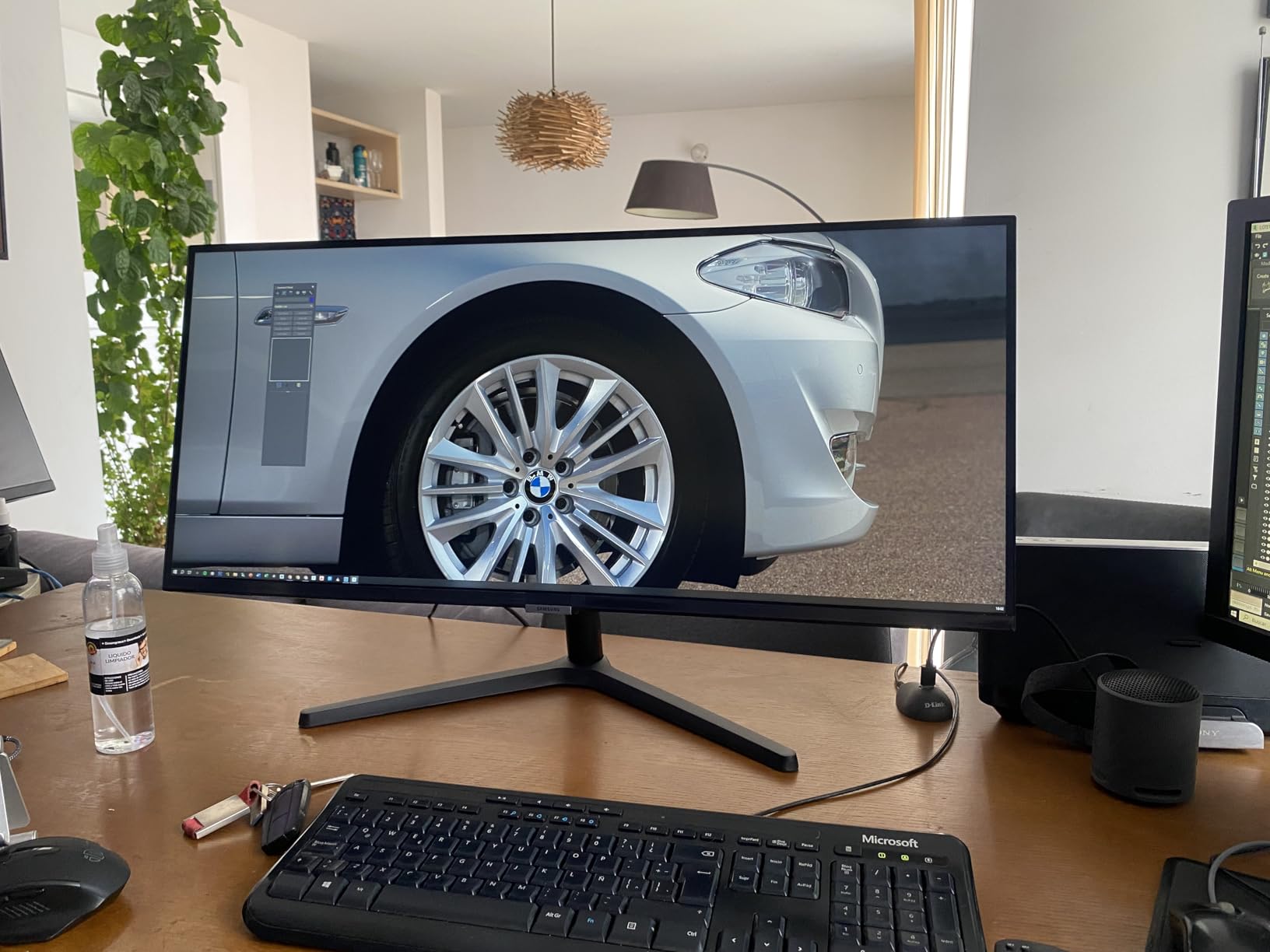
VA Picture Quality That Punches Above Its Price
The 3000:1 contrast ratio does a lot of quiet work here. Documents look crisp, dark interfaces look properly dark, and the billion-color HDR10 support gives images a richness you do not usually associate with value panels.
What it is not is a professional color grading display. For spreadsheets, documents, code, email, and browsing it is excellent. If your job depends on exact color for print or client work, you want a factory-calibrated pro panel instead.
PIP and PBP for Running Two Sources at Once
Picture-in-Picture and Picture-by-Picture both work properly here, which surprised me at this price. I ran a desktop over DisplayPort and a laptop over HDMI, tiled side by side in PbP, and it behaved reliably for a full week.
That makes it a sneaky-good choice for anyone juggling two computers, like a work laptop and a personal desktop. Just know the little control toggle takes several clicks to switch sources, which gets old if you swap machines constantly.
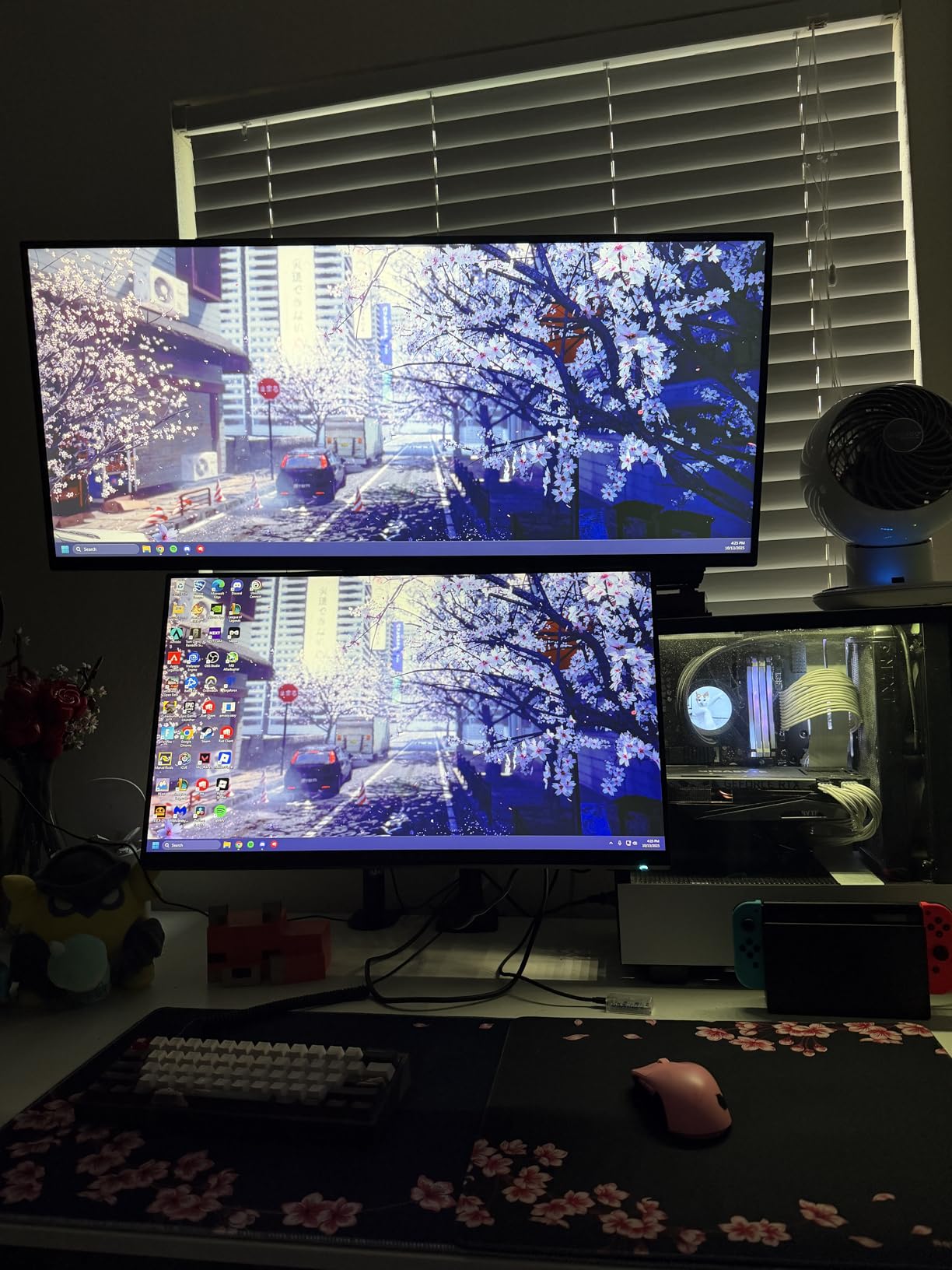
What You Give Up: No USB-C and a Tilt-Only Stand
The two real compromises are connectivity and ergonomics. There is no USB-C at all, so laptop users need a separate charger and a full-size video cable. The stand tilts but does not raise, which means a monitor arm or a sturdy book to get the screen to eye level.
It does have VESA holes, but the screws are not included in the box, so add a set to your order if you plan to arm it. These are annoyances rather than dealbreakers, but walk in with open eyes.
Best and Worst Use Cases for This Panel
Best cases: a desktop-based home office, a second screen paired beside another monitor thanks to the borderless design, a student desk, or anyone on a tighter budget who still wants genuine 3440×1440 ultrawide real estate.
Worst cases: a laptop-centric single-cable setup, anyone needing height adjustment without buying an arm, and color-critical creative work. For everyone else, this is a lot of monitor for the asking.
5. Sceptre C345B-QUT168 – Best Budget Ultrawide for Productivity
Sceptre 34-Inch Curved Ultrawide WQHD Monitor (3440 × 1440), R1500, up to 180Hz/165Hz, DisplayPort x2, 99% sRGB, 1ms, Built-in Speakers, Machine Black, 2025 (C345B-QUT168)
34 inch 21:9 WQHD (3440x1440)
VA panel, up to 180Hz, 1ms MPRT
DisplayPort x2, HDMI x2, audio out
99 percent sRGB, FreeSync Premium
R1500 curve, built-in speakers, LED backlights
Pros
- Exceptional value for a true WQHD ultrawide
- Up to 180Hz with a 1ms response time
- Deep R1500 curve is genuinely immersive
- 99 percent sRGB for accurate everyday color
- Over 3000 reviews from long term owners
Cons
- Speakers are low quality
- Some units show backlight bleed
- Single button menu control is awkward
- No USB-C connectivity
- No HDMI cable in the box
The Sceptre is the monitor I hand to people who say “I want to try ultrawide but I do not want to spend real money.” With more than 3,000 reviews behind it, it has become the default entry point to the format, and after my testing period I think that reputation is deserved, with a few clear caveats about polish.
The fundamentals are all there. You get a genuine 3440×1440 panel, 99 percent sRGB color, a deep 1500R curve, and a refresh rate that climbs to 180Hz. For pure screen real estate per dollar, nothing else in this test comes close.
What you trade away is refinement. The speakers are weak, the menu lives behind a single recessed button that will test your patience, and a minority of units show backlight bleed. Accept that list and you get an absurd amount of monitor for the money.
180Hz and 1ms: Why Smoothness Matters at Work
I keep saying it because it keeps proving true: high refresh rates are a productivity feature. At 165 to 180Hz, cursor movement, window drags, and long-document scrolling are glassy smooth in a way that makes a 60Hz panel feel like wading through mud.
The 1ms MPRT response keeps motion crisp with no visible ghosting, and FreeSync Premium eliminates tearing when your machine cannot hold the full frame rate. None of this requires a gaming workload to appreciate, and if you do game after hours, this panel is already equipped.
The R1500 Curve: Immersion Versus Desk Space
At 1500R this is one of the more aggressive curves available on a 34-inch, noticeably tighter than the LG’s R3800. The payoff is a wraparound feel that pulls you into your work and keeps the far edges of the panel comfortable to read.
Some people find a tight curve fatiguing for text work over long sessions. I adapted within two days, but if you have disliked curved monitors before, this is the one most likely to trigger that reaction.
Speakers, Backlight Bleed, and Quality Control
Let’s be direct about the weak points. The built-in speakers handle system sounds and a scratchy video call, but you will want headphones or external speakers for anything you care about. There is no USB-C, so laptop users need a separate charger.
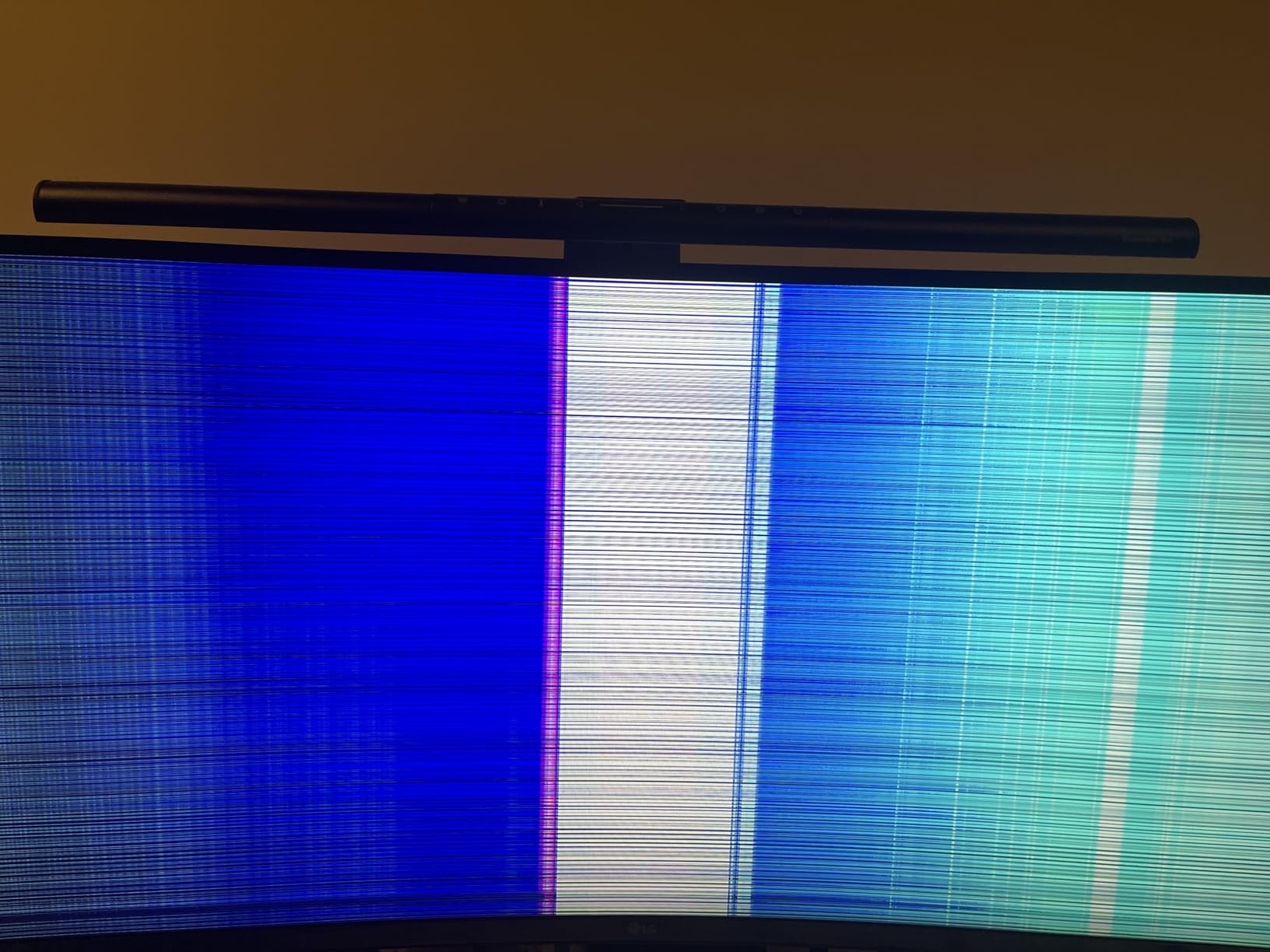
A small share of owners report backlight bleed, particularly in the corners on dark screens. Mine showed a faint trace in one corner that I stopped noticing after a day, but buy from a retailer with easy returns just in case. Long-term reviews running two years and counting suggest reliability is otherwise solid, and the only other gripes are the awkward menu button and the missing HDMI cable in the box.
Who This Monitor Is Actually Right For
First-time ultrawide buyers, students, home office workers on a strict budget, and anyone who wants a work panel that moonlights as a high refresh gaming display. If that is you, stop reading and buy it.
If your day revolves around a laptop and you want one-cable docking, skip this and spend up for the LG or the Dell. USB-C is the single biggest quality-of-life feature this panel lacks, and no refresh rate makes up for it.
How to Choose an Ultrawide Monitor for Productivity
Now that you have seen the field, here is the framework I use when someone asks which ultrawide they should buy. These decisions determine whether you end up loving your new screen or returning it.
34, 38, or 49 Inches: Matching Screen Size to Your Work
The 34-inch at 3440×1440 is the sweet spot for most desk jobs. It fits a normal desk, sits comfortably about an arm’s length away, and gives you room for two or three full windows without overwhelming your field of view.
The 38-inch class at 3840×1600 is the enthusiast pick, and forum regulars consistently recommend it for exactly this use, since you get more vertical height while keeping comfortable pixel density. The 49-inch is a specialist tool, superb for wide grids and timelines but demanding on desk space and neck mobility. Unless you know you need 49 inches of span, start at 34.
VA vs IPS vs OLED Panels for Office Work
Every monitor in this test uses a VA panel, and that is no coincidence at these prices. VA delivers high contrast (typically 3000:1), which makes text crisp and dark modes properly dark, and modern VA color is more than good enough for office work.
IPS offers wider viewing angles and slightly faster response, which matters if you often share your screen with someone standing beside you. OLED is the premium option with perfect blacks and instant response, but it carries burn-in risk for static office interfaces and costs far more. For pure productivity, VA is the pragmatic winner.
Resolution and Pixel Density: Why 3440×1440 Is Enough
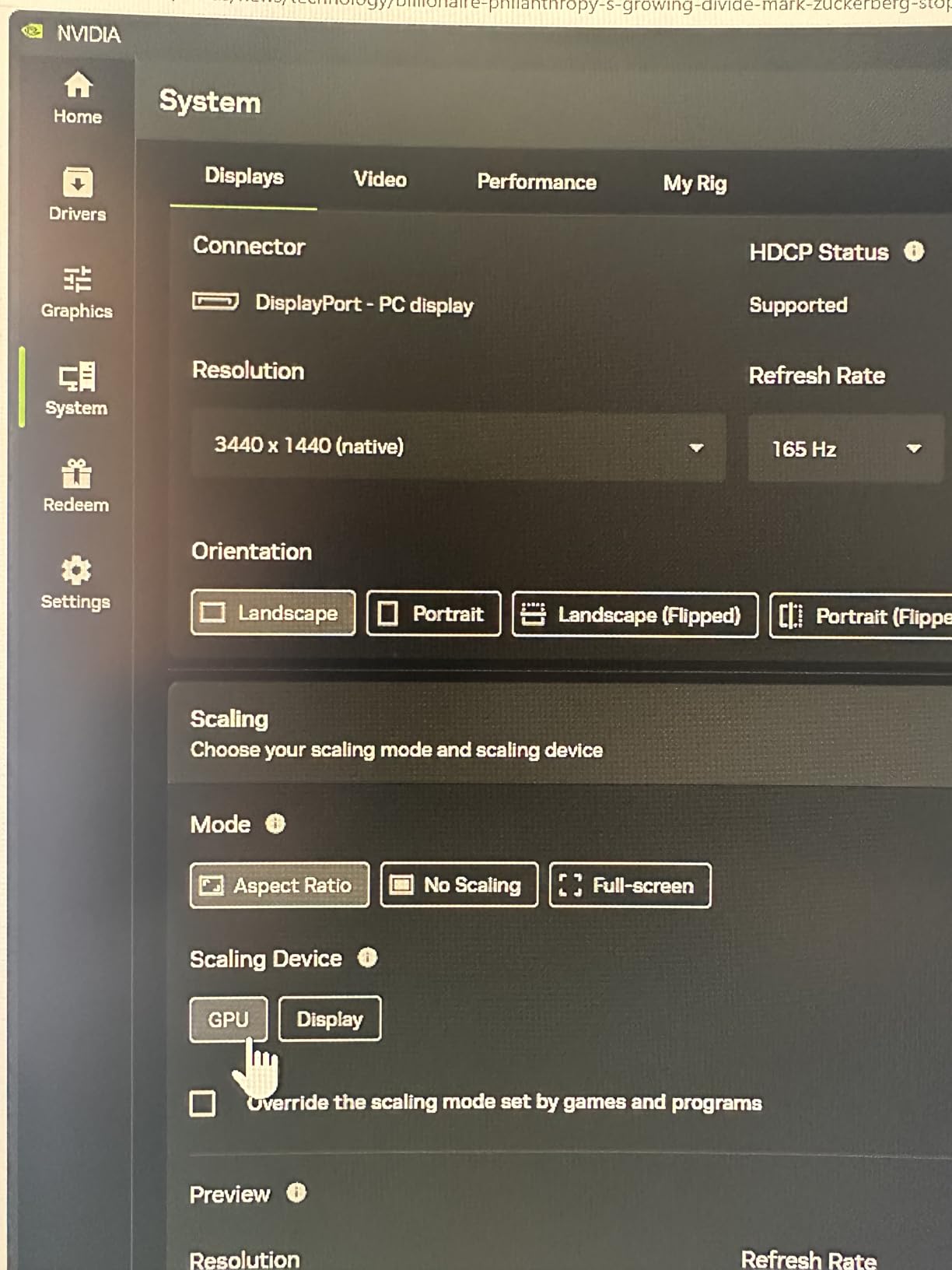
On a 34-inch panel, 3440×1440 gives roughly the same pixel density as a 27-inch 1440p monitor, which means text is sharp at normal viewing distance and both Windows and macOS handle scaling cleanly.
Scaling is where some ultrawides stumble. Older 3440×1440 setups sometimes tripped over Windows display scaling with legacy apps, and a few programs still ignore 150 percent scaling properly. All five monitors here behaved fine in my testing, but update your GPU drivers before judging a new screen.
Connectivity: USB-C Power Delivery, Docking, and KVM Features
If you use a laptop, USB-C with power delivery is the single most valuable feature on the spec sheet. One cable replaces power, video, and a USB hub, and 65W covers most modern laptops while 90W handles bigger machines.
Look for a monitor that doubles as a dock: multiple USB-A ports for keyboard, webcam, and headset, plus Ethernet if you can get it. Some business models add a KVM switch so one keyboard and mouse control two computers, which is superb if you juggle a work machine and a personal one. The Samsung 49-inch’s HDMI quirk is a reminder to read the fine print on which port carries which resolution.
Ergonomics, Eye Strain, and Desk Depth
An ultrawide changes your posture math. The screen is wider than your natural gaze, so you will swivel your neck more unless the top of the panel sits at or slightly below eye level and you sit far enough back.
Height adjustment is therefore not a luxury on this format. Two monitors in this test lack it, and both practically beg for a monitor arm. Look for flicker-free certification and a blue light mode if your eyes tire easily, and measure your desk honestly: the 49-inch Samsung needs a deep, sturdy surface, while any 34-inch fits a standard desk.
Ultrawide vs Dual Monitors: Which Setup Wins
This is the eternal argument, and the honest answer is that both work. An ultrawide gives you one continuous workspace with no center bezel and a cleaner desk with one stand and one cable. Dual monitors give you two truly separate spaces, easier full-screen app isolation, and usually a lower total cost.
Ultrawide wins decisively for wide content like spreadsheets, timelines, and dashboards, plus any workflow where you drag content across the middle of your screen. Dual wins if you run two computers or want one screen in a different orientation than the other.
Window Management Software That Makes the Width Pay Off
Here is the tip almost nobody gives you: an ultrawide is only as good as your window management. Dragging windows manually around a 34-inch panel gets old fast.
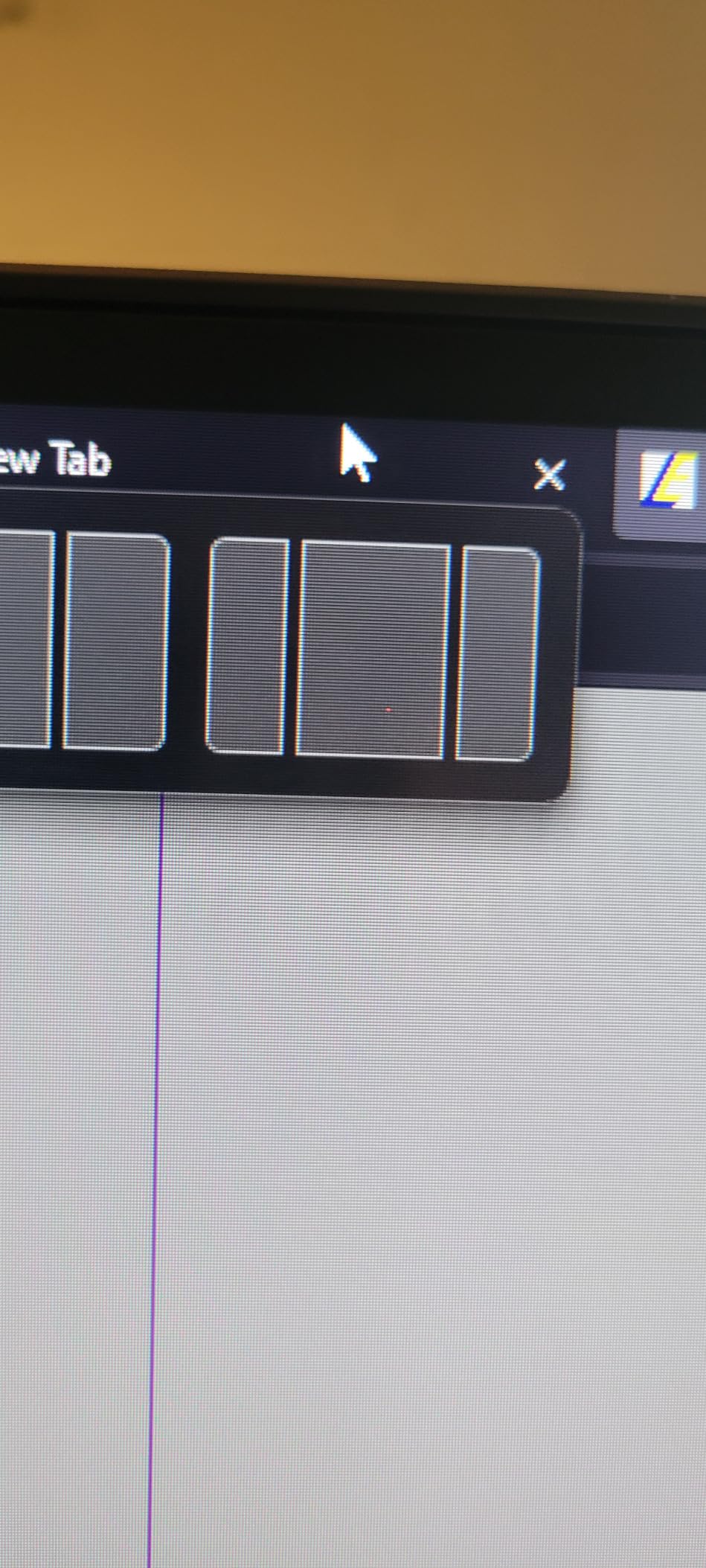
On Windows, start with built-in Snap Layouts (hover the maximize button) and add PowerToys FancyZones for custom grid zones. On Mac, Magnet, Rectangle, or the native tiling in recent macOS versions do the job, and Linux users have excellent tiling window managers. Spend twenty minutes setting up zones for your daily apps and the productivity gain doubles overnight.
Mac Compatibility Notes Ultrawide Buyers Should Know
Macs handle 3440×1440 and 5120×1440 well over USB-C or HDMI, and the scaled resolutions look sharp. The quirk to watch: some monitors do not expose volume control to macOS over HDMI (the Dell S3425DW is one), so you may be reaching for the monitor’s own buttons.
Check your cable and adapter situation before ordering, too. You want a proper USB-C to USB-C or USB-C to DisplayPort arrangement rather than a chain of cheap adapters, or you can lose the full resolution and charging power.
Frequently Asked Questions
Do ultrawide monitors improve productivity?
Yes, for most knowledge work. An ultrawide monitor lets you place two or three full-size windows side by side without overlap, which reduces app switching. Users in Excel, Outlook, coding, and document-heavy roles report the biggest gains because wide content fits without horizontal scrolling.
Is 34 ultrawide good for productivity?
Yes, 34 inches is the most popular productivity ultrawide size. A 34-inch 21:9 panel at 3440×1440 gives about 30 percent more screen area than a 27-inch 16:9 monitor, fits a standard desk, and keeps pixel density comfortable for text. It is large enough for three tiled windows without forcing constant neck movement.
What type of monitor is best for productivity?
The best productivity monitor combines a 21:9 or 32:9 widescreen format, a sharp 3440×1440 or higher resolution, a 100Hz or faster refresh rate for smooth scrolling, and USB-C with power delivery for single-cable laptop docking. Useful extras include a height adjustable stand, flicker-free certification, a blue light filter, and Picture-by-Picture support.
Is 3440×1440 harder to run than 4K?
No, 3440×1440 is easier to run than 4K. A 3440×1440 screen has about 5 million pixels, while a 3840×2160 4K screen has about 8.3 million, roughly 64 percent more. That means integrated graphics and office laptops handle an ultrawide more comfortably.
Is an ultrawide monitor better than two monitors?
An ultrawide is better when you need one continuous workspace, since there is no center bezel and wide content like spreadsheets and timelines displays uninterrupted. Two monitors are better for isolated full-screen apps, two different computers, or mixed orientation setups. For general office multitasking, most people prefer the simpler cabling of a single ultrawide.
Final Verdict: The Best Ultrawide Monitor for Your Workflow
There is no single winner here, only the right match for how you work. Based on my weeks with these best ultrawide monitors for productivity, here is how I would decide.
If you want the safest, most complete package for a laptop-driven desk, get the LG 34WR55QK-B. Its one-cable USB-C setup, height adjustable stand, and excellent VA picture make it the monitor I chose to keep. If your workday is browser-heavy and you want the smoothest motion plus real speakers, the Dell S3425DW and its 120Hz panel is the smarter pick.
If you live in spreadsheets, timelines, or dashboards and have the desk for it, the Samsung 49-inch Business Ultrawide is genuinely transformative, and its 3-year warranty makes it a defensible work purchase. On a budget, the Sceptre C345B-QUT168 delivers true WQHD ultrawide real estate and up to 180Hz for less than a decent chair, while the Samsung ViewFinity S50GC splits the difference with strong ratings and PBP support.
Whichever you choose, budget twenty minutes for window management setup on day one. That single habit is what turns a wide screen into a genuinely faster workflow. Pick your match, clear your desk, and enjoy never seeing a bezel in the middle of your work again.