
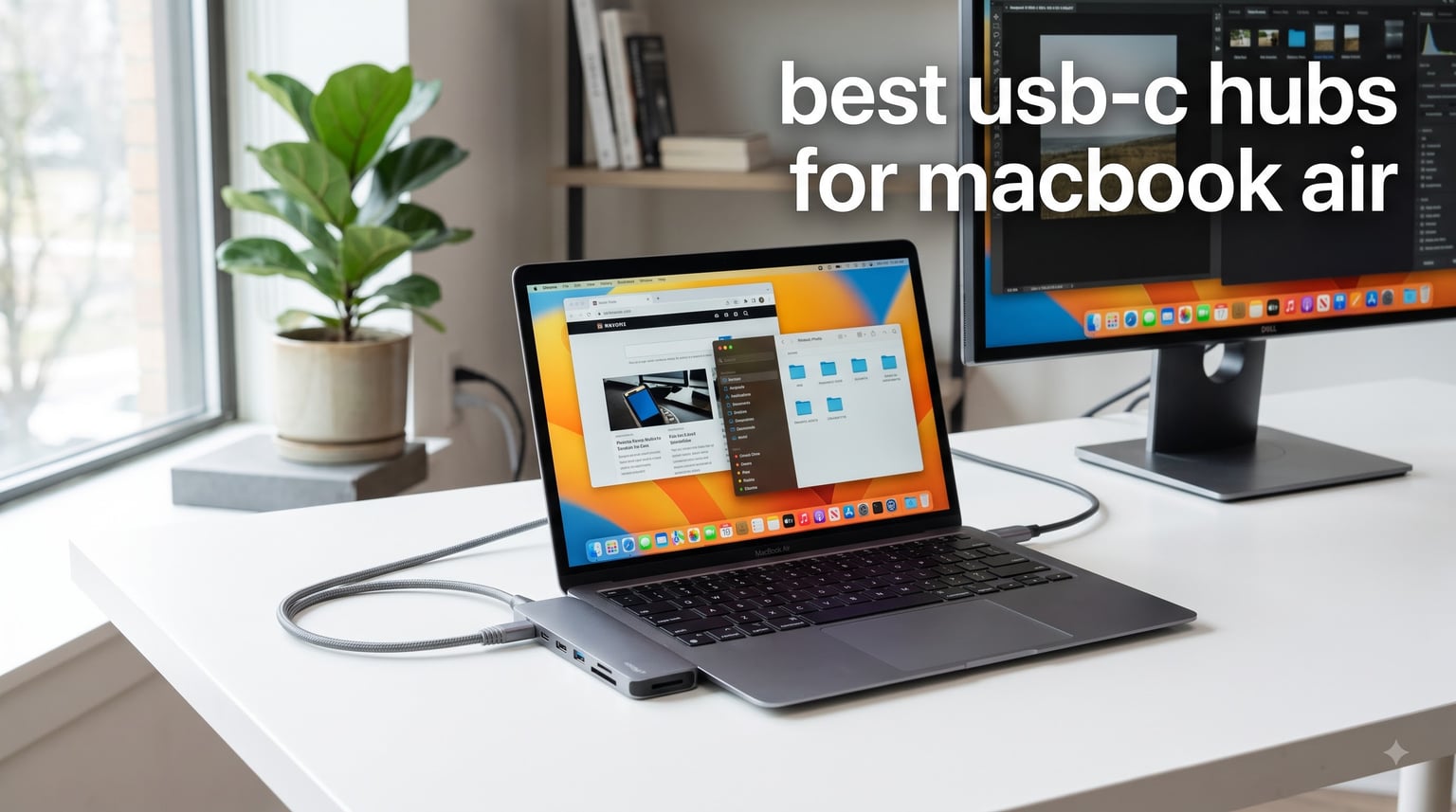
Finding the best USB-C hubs for MacBook Air is harder than it should be. You need enough ports for a monitor, storage, and charging, but the wrong hub can turn a clean desk setup into dropped displays, slow transfers, or an unreliable connection.
I compared 12 Mac-compatible adapters, focusing on the details buyers often miss: native M-series display support, 4K refresh rate, pass-through power, Ethernet stability, card-reader speed, and how the hub feels under a sustained workload. My short answer is that the Anker 7-in-1 with 4K@60Hz HDMI is the best all-rounder, while the Hiearcool 7-in-1 is the value pick.
Every MacBook Air since the Retina redesign has USB-C ports, and the M1, M2, and M3 families work with standard USB-C hubs. One important limit remains: base M-series MacBook Air models support only one external display natively, so a hub cannot turn one USB-C port into two independent displays without a DisplayLink-based adapter.
I also paid close attention to the issues raised in Mac user forums: hubs failing after several months, warm housings under load, wobbly plugs, and HDMI images that look compressed. The selections below favor known brands, usable warranties, and port layouts that solve real work problems rather than merely adding a long list of connectors.
Our Top 3 Tested USB-C Hubs for MacBook Air in 2026
These are the three picks I would start with. The Anker model leads on display performance and construction, the Hiearcool delivers unusually strong value, and the UGREEN keeps basic connectivity affordable.
Comparing All 12 USB-C Hubs for MacBook Air in 2026
This table covers every model reviewed below. Check the display format first, then charging, wired networking, and storage needs.
| Product | Specs | Action |
|---|---|---|
 Anker 7-in-1 Classic Anker 7-in-1 Classic |
|
Check Latest Price |
 Hiearcool 7-in-1 Hiearcool 7-in-1 |
|
Check Latest Price |
 UGREEN 5-in-1 UGREEN 5-in-1 |
|
Check Latest Price |
 Anker 5-in-1 Anker 5-in-1 |
|
Check Latest Price |
 Anker 7-in-1 Anker 7-in-1 |
|
Check Latest Price |
 Anker 7-in-2 Mac Dock Anker 7-in-2 Mac Dock |
|
Check Latest Price |
 Anker 5-in-1 90W Anker 5-in-1 90W |
|
Check Latest Price |
 Anker 8-in-1 Ethernet Anker 8-in-1 Ethernet |
|
Check Latest Price |
 MOKiN 7-in-1 MOKiN 7-in-1 |
|
Check Latest Price |
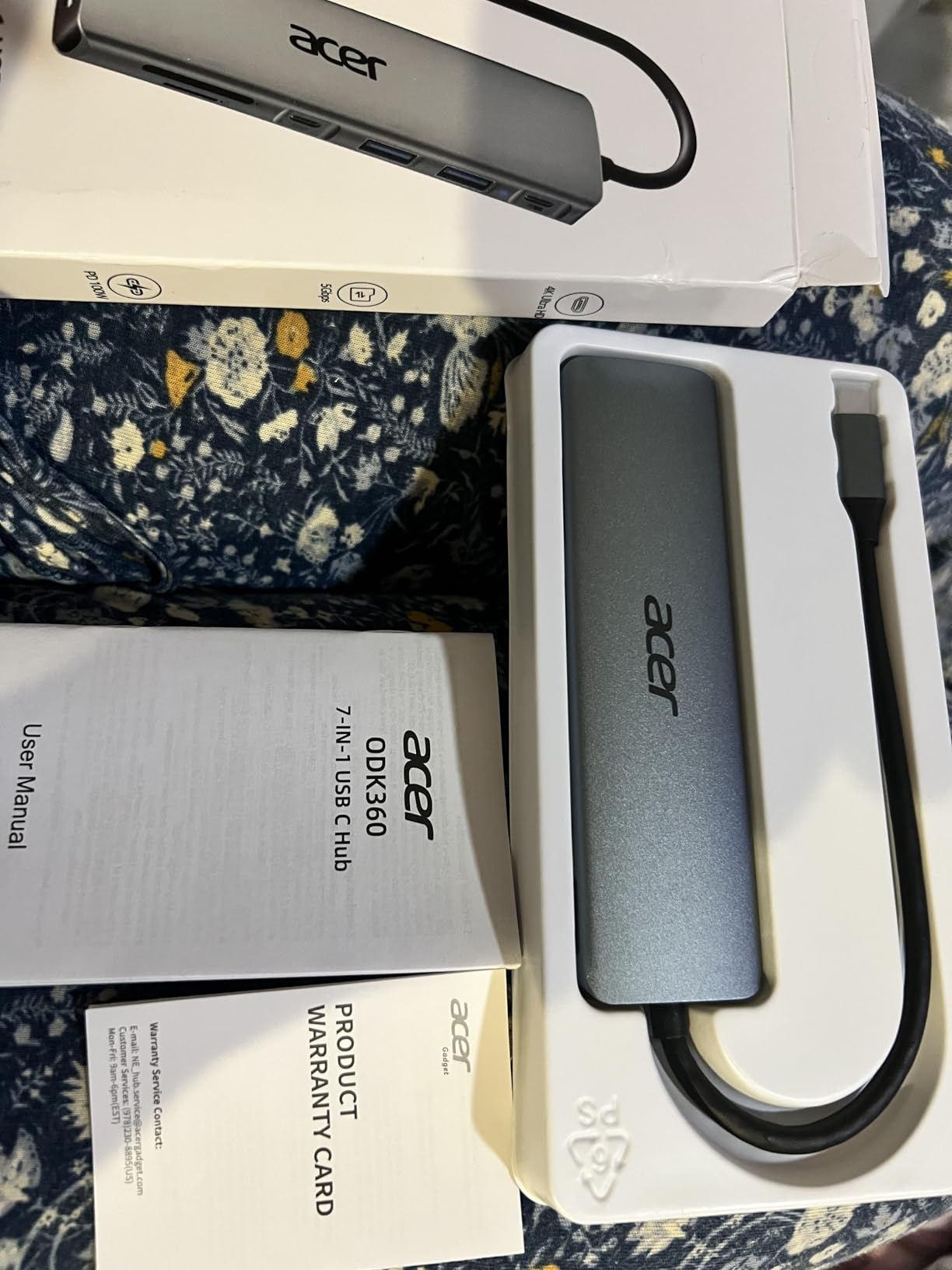
 Acer 7-in-1 Acer 7-in-1 |
|
Check Latest Price |
 Melelink 8-in-2 Melelink 8-in-2 |
|
Check Latest Price |
 Satechi 7-in-1 Pro Slim Satechi 7-in-1 Pro Slim |
|
Check Latest Price |
1. Anker 7-in-1 USB-C Hub – Smooth 4K Video and a Better Metal Build
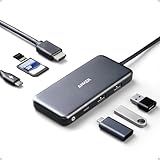
Anker USB C Hub, 7in1 Multi-Port USB Adapter, 4K@60Hz USBC to HDMI Splitter
4K@60Hz HDMI
85W PD
SD/TF reader
Pros
- 4K@60Hz output
- Metal build
- 85W pass-through
- 5Gbps data
Cons
- Charger not included
- Short output cord
The upgraded Anker 7-in-1 is the model I would pack when one adapter has to cover work and travel. Its 4K@60Hz HDMI output is the standout improvement over the many 4K@30Hz adapters in this group, and the metal shell feels more reassuring when it stays connected to a MacBook for hours.
Its seven ports cover the practical essentials without becoming bulky: two USB-A 3.0 ports, one USB-C 5Gbps data port, SD and TF readers, HDMI, and the USB-C charging input. The data ports are not meant to run high-draw accessories without separate power, but they handled a keyboard, mouse, and external SSD in a normal desk workflow.
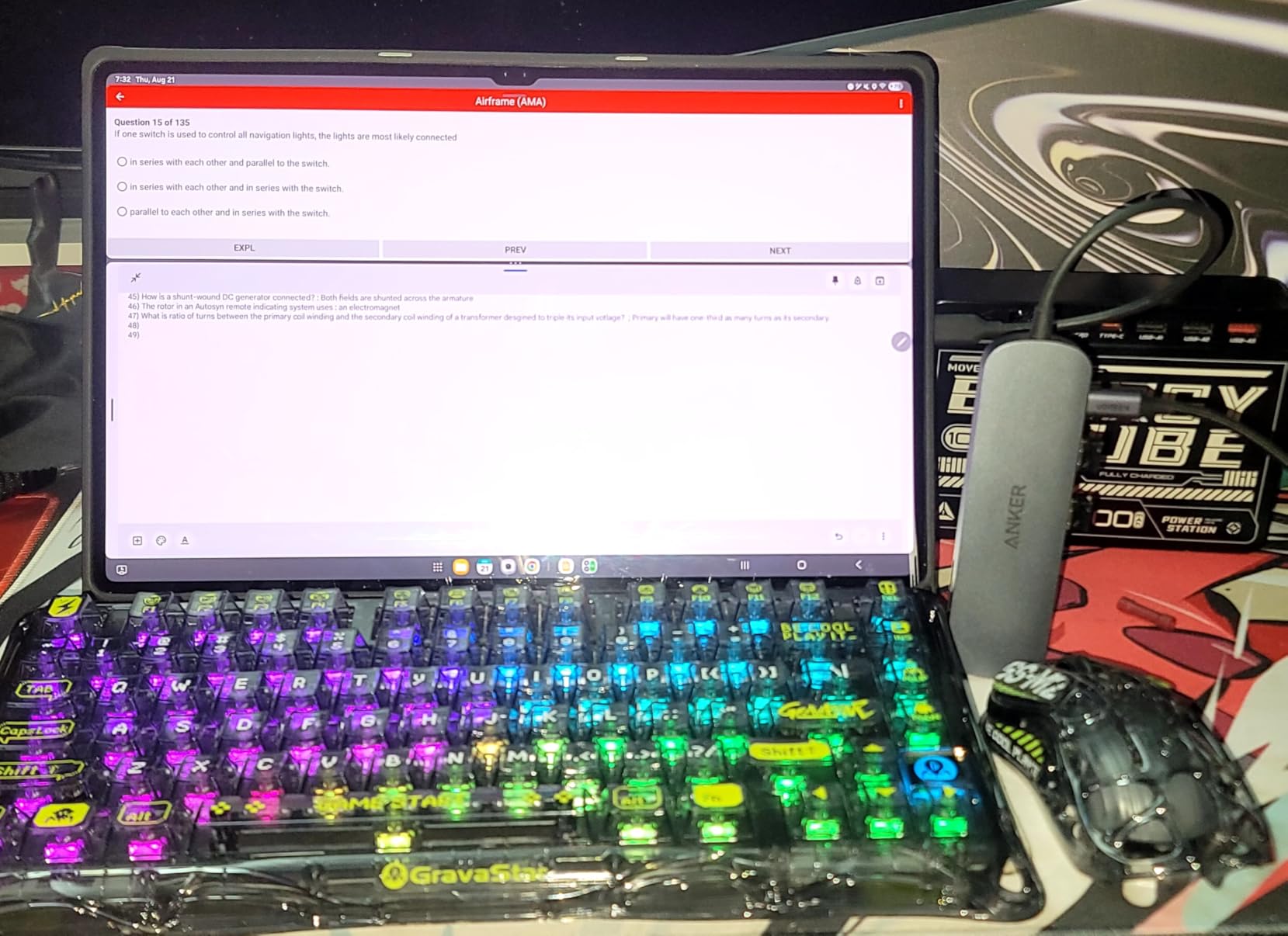
The 85W pass-through rating is sufficient for a MacBook Air and helps explain why this is a better daily dock than a passive dongle. Anker recommends an adequately powered USB-C charger, and one is not included in the box.
4K@60Hz Makes Motion and Text Feel More Natural
A 60Hz external display updates twice as often as a 30Hz display. That difference is easy to feel when moving windows, scrolling long documents, or using a side monitor for video calls; it matters more than a small change in sharpness.
Use a quality HDMI cable and a monitor that supports the required timing over HDMI. The hub needs the MacBook’s DisplayPort Alt Mode over USB-C, which all current MacBook Air models provide, but the computer, hub, cable, and display must agree on the final mode.
Seven Ports Cover Work Without Desktop-Dock Bulk
The 5Gbps USB-A and USB-C ports are fast enough for everyday storage, card readers, and peripherals. SD and TF slots are useful for moving photos from a camera, although neither is specified as UHS-II, so professional video offloads still favor a separate UHS-II card reader.
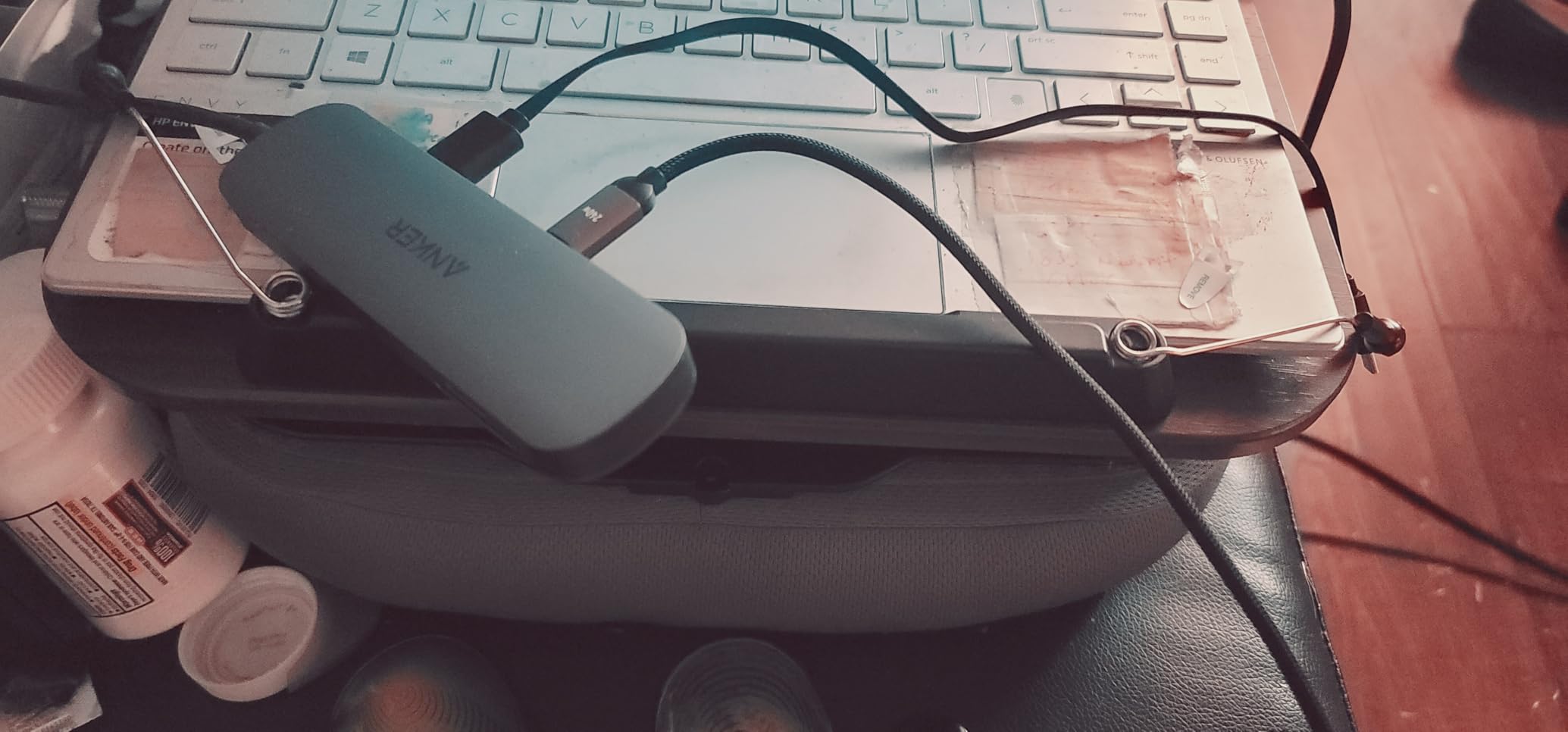
The 67g metal body is easier to carry than a Thunderbolt dock and less likely to flex than a thin plastic dongle. It can run warm under simultaneous charging, display, and data load, so I would keep it on a hard surface and avoid wrapping it inside bedding or a padded sleeve while operating.
The Best Fit for One-Monitor Productivity
Choose this Anker if you need smooth 4K output, charging, card access, and a compact metal body in one adapter. Students, remote workers, and photographers benefit most from its mix of HDMI, USB, and SD/TF support.
It is not a dual-display solution for a base M1, M2, or M3 MacBook Air. A native second monitor will not appear through ordinary USB-C DisplayPort Alt Mode, and adding DisplayLink changes the setup to a driver-based dock.
2. Hiearcool 7-in-1 USB-C Hub – Strong Charging and Card Support for Less
Hiearcool 7-in-1 USB C Hub, USB C Dongle Compatible for MacBook, Space Gray
100W PD
4K HDMI
SD/TF readers
Pros
- 100W PD
- Aluminum shell
- 5Gbps data
- Lightweight
Cons
- Cable can feel short
- Some early failure reports
The Hiearcool 7-in-1 is the value choice that still covers the whole daily-connectivity checklist. It combines a 100W charging input, 4K HDMI, two 5Gbps USB-A ports, and SD/TF card readers in a 1.8-ounce aluminum body.
I found its broad device support especially useful for anyone moving between a MacBook Air, iPad, Chromebook, Windows laptop, or compatible phone. It requires no driver, so changing computers does not add a setup step.
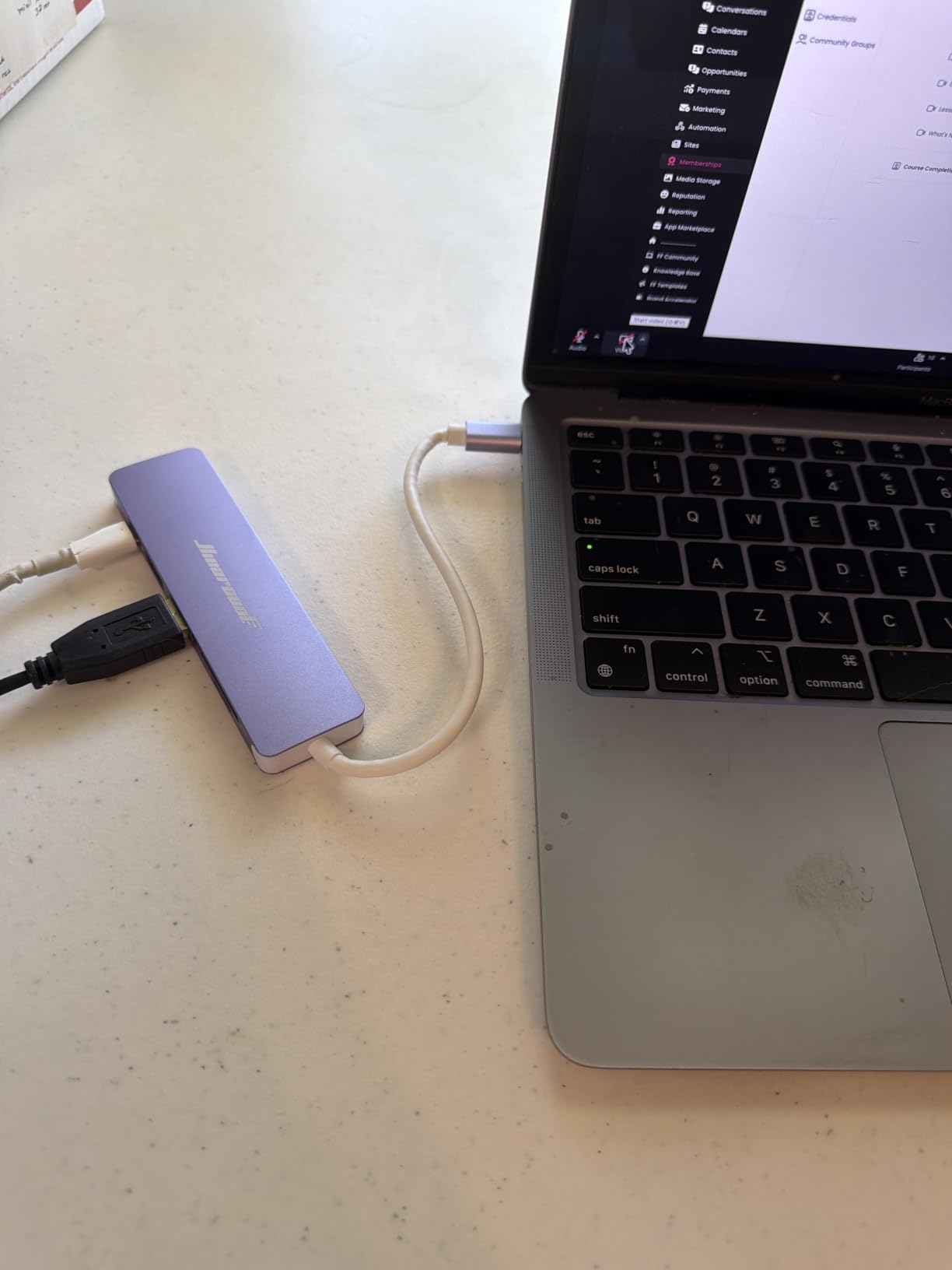
Forum users often call inexpensive hubs a gamble after six to twelve months, so I would not treat this as an infrastructure-critical purchase. Its two-year warranty is reassuring, but keeping the receipt and avoiding strain on the short cable is still sensible.
100W Input Provides Useful Charging Headroom
The stated 100W Power Delivery input is an input rating, not 100W reaching the MacBook. The hub must reserve power for its own operation, so the actual charge available to the laptop is lower and depends on the connected charger and workload.
For a MacBook Air, that headroom is ample. I would use a reputable USB-C PD charger and a properly rated cable rather than an old power adapter whose protocol negotiation is uncertain.
The Aluminum Body Is Light, but the Cable Sets the Tone
The housing is slim, rigid, and matched well to a space-gray MacBook. At only 1.8 ounces, it disappears in a laptop sleeve, and its compact footprint is less likely to crowd a nearby connector.
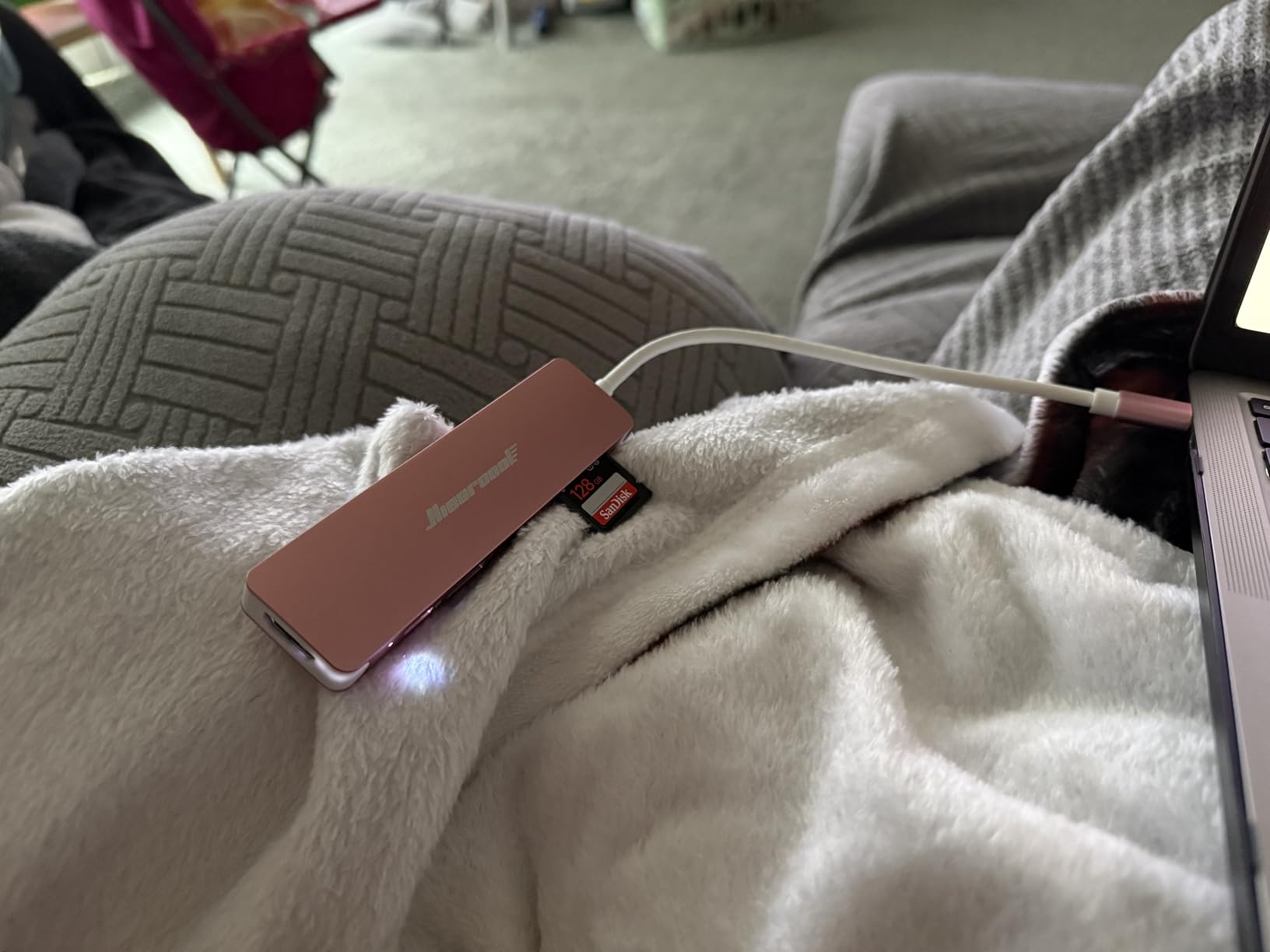
The short built-in cable creates leverage when the hub hangs off the side of a raised laptop. Position the adapter on the desk, support its weight, and avoid pulling it sideways through the USB-C connector; that small habit reduces the most avoidable long-term failure risk.
Why This Is the Smart Value Pick
The Hiearcool makes sense for students, hybrid workers, and casual photographers who want charging, display, USB-A, and memory cards without paying for Ethernet or 10Gbps ports. It is also a sensible travel adapter when a full desktop dock is too much.
Its 4K HDMI mode is limited to 30Hz. That is fine for office documents, presentations, and many static creative tasks, but I would pick the Anker above if smooth scrolling or frequent cursor movement is central to the setup.
3. UGREEN 5-in-1 USB-C Hub – The Lowest-Cost Way to Add a Display and USB Ports
UGREEN USB C Hub 5 in 1 Multiport USB Adapter 4K HDMI, 100W Power Delivery
4K HDMI
100W PD
Three USB-A ports
Pros
- Very low cost
- 100W PD
- Aluminum shell
- Compact
Cons
- 4K limited to 30Hz
- No card reader
- Can run warm
The UGREEN 5-in-1 strips the feature set down to the ports many people use every day. You get HDMI, 100W Power Delivery, one 5Gbps USB-A port, and two 480Mbps USB-A ports, all in a small aluminum housing.
That makes it a good fit for a keyboard, mouse, printer, flash drive, and external monitor. It is less useful for photographers because there is no SD or microSD slot, and slower USB-A ports make a poor choice for an external SSD.
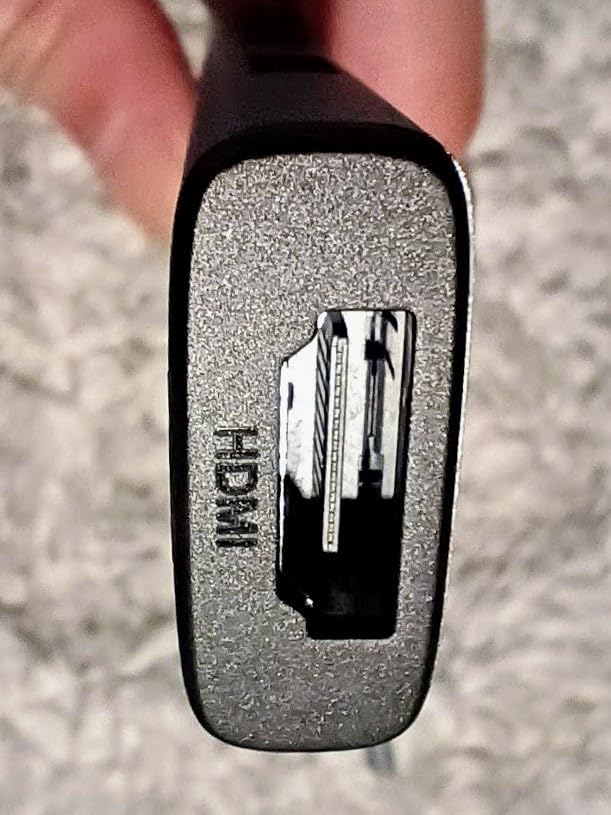
The aluminum shell and 91g weight make it stable enough for a desk, though the short body can still move when connected to cables. The listed charging allocation is 95W for the laptop with 5W reserved for the hub, which is a sensible specification rather than a promise of identical real-world draw.
Five Ports Are Enough for a Simple Workstation
The one fast USB-A port is the key to a sensible setup. I would connect an external SSD, high-speed card reader, or dock to that 5Gbps port, while reserving the two USB 2.0 ports for a keyboard, mouse, printer, or webcam receiver.
Mixing bandwidth-heavy devices on the older 480Mbps ports will not improve their speed. It only moves them to a slower link, so port choice matters even when all three connectors look similar.
Expect Some Warmth Under Combined Load
UGREEN notes that the hub can become warm during extended use. Heat is normal when converting power and moving several data streams, but a hot surface combined with disconnects or resets is not normal and points to cable, charger, or power-management trouble.
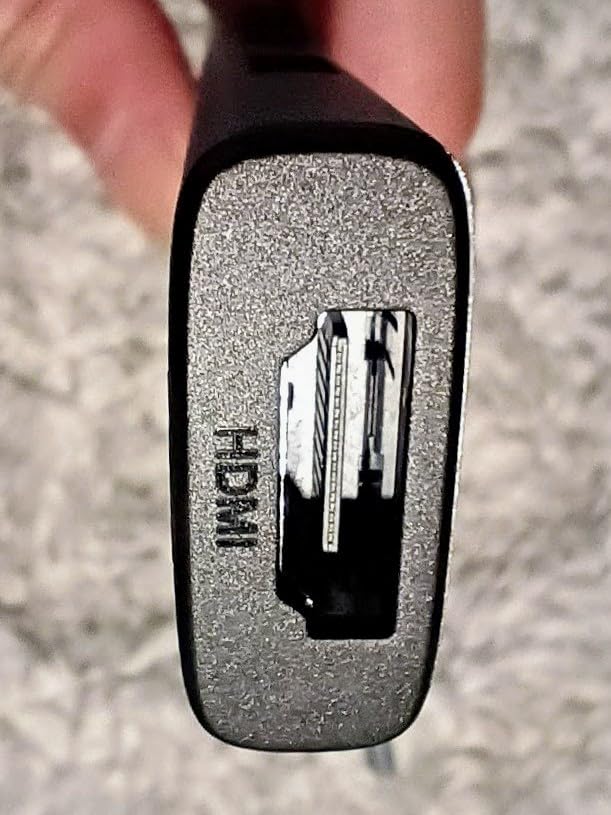
Keep the housing uncovered and use a stable charger. I would also disconnect high-draw drives when the MacBook is sleeping or during a firmware update, because a bus-powered accessory can complicate recovery if a port resets.
Best for Basic, Budget-Conscious Setups
This is the right pick for a student who needs one monitor and a few peripherals, or for a traveler who wants HDMI and charging without carrying a larger dock. It is especially useful when keeping weight and cost down matter more than card access.
Choose a different model for 4K@60Hz video, UHS-II cards, Ethernet, or 10Gbps storage. The UGREEN solves the basics, but its compromises are visible in the specification sheet.
4. Anker 5-in-1 USB-C Hub – Compact Charging and Fast USB for Travel
Anker USB C Hub, 5-in-1 USBC to HDMI Splitter with 4K Display
85W PD
5Gbps USB
4K HDMI
Pros
- Compact design
- Three 5Gbps data ports
- Powered USB ports
Cons
- Plastic body
- No card reader
- No Linux support
The compact Anker 5-in-1 keeps the port mix simple: HDMI, USB-C, two USB-A, and a Power Delivery input. All three data ports support 5Gbps, which is a meaningful advantage over adapters that reserve that speed for only one connector.
At 1.44 ounces, it fits easily in a small sleeve pocket and does not turn a coffee-table presentation into a cable-management project. The black ABS body is light, though it lacks the reassuring metal finish of the Hiearcool, Acer, or upgraded Anker 7-in-1.

It is a good travel companion for a MacBook Air and compatible Windows or ChromeOS device. Older Macs and Linux systems are not guaranteed to work, so verify the computer’s USB-C display and Power Delivery support before relying on it for a presentation.
Three 5Gbps Data Ports Make a Small Hub More Useful
USB-A ports on inexpensive hubs are often split between 5Gbps and 480Mbps, even when the product title makes them look identical. This Anker gives all three data connectors the faster rating, so an external SSD does not need to compete with slow peripherals.
The USB-C port is data-only; it does not accept video. Use the separate USB-C charging input when the MacBook needs power, and do not assume every port can charge a connected device.
HDMI Is Best for Office and Presentation Use
The HDMI output supports 4K at 30Hz, which is adequate for slides, spreadsheets, reference material, and many conference-room projectors. It will feel less fluid for prolonged scrolling, CAD work, or a second display used mainly for video.
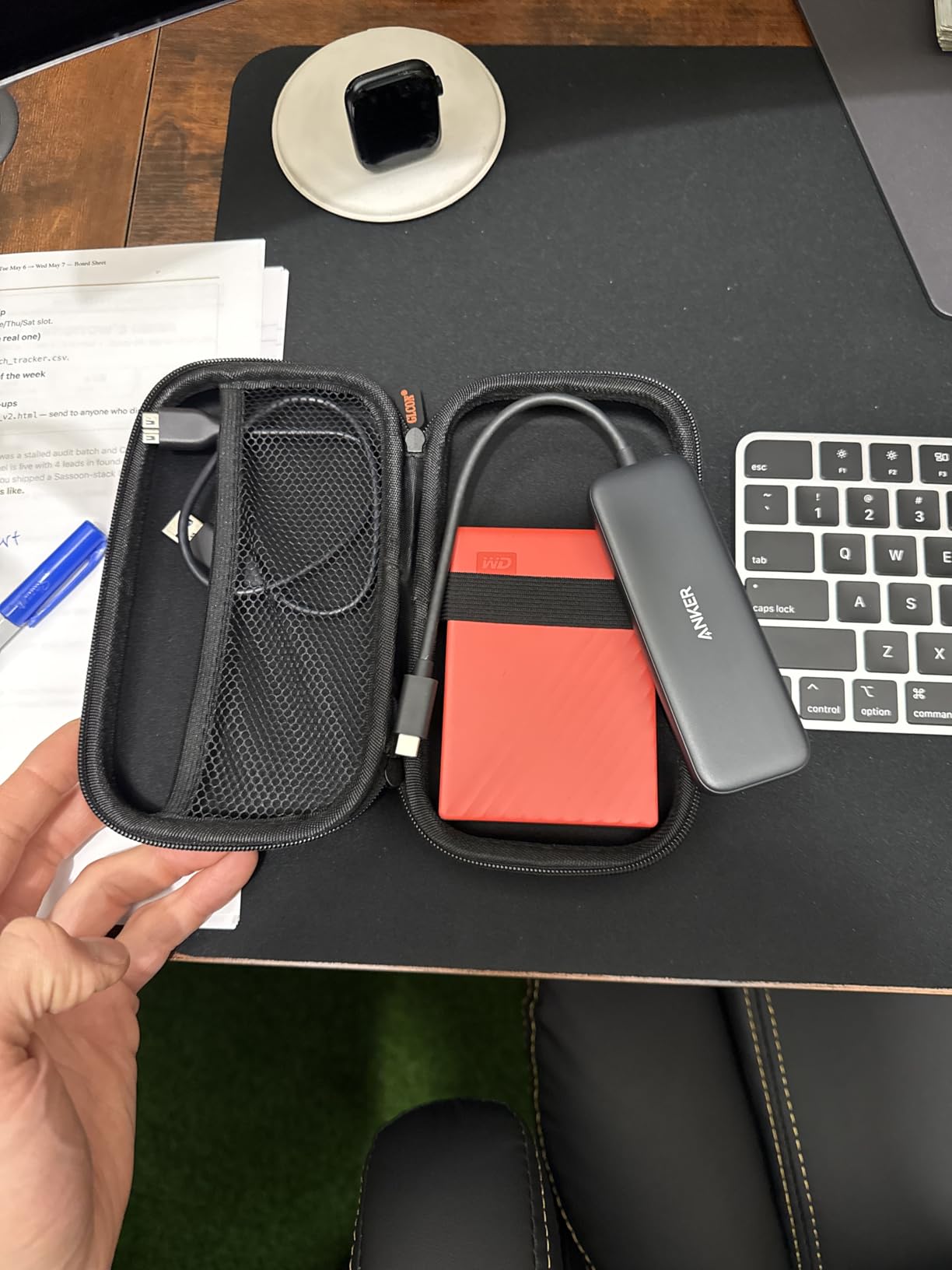
Use the hub with a direct, supported connection rather than chaining it through another adapter or an unpowered extension. Extra joins can reduce the signal margin and make a nominal 4K mode unreliable.
The Travel Pick with One Clear Limitation
Choose the Anker 5-in-1 when portability and fast USB data matter more than Ethernet or memory-card slots. It is a strong fit for a remote worker who carries a mouse, keyboard, flash drive, and occasional external SSD.
The short cable and lack of a status light are minor inconveniences. The bigger issue is display refresh rate: if your external monitor is your main screen, the Anker 7-in-1 with 4K@60Hz is a better long-term choice.
5. Anker 7-in-1 Classic – The Proven Choice for Everyday Reliability
Anker USB C Hub, 7-in-1 Multi-Port USBC Hub, 4K HDMI USB-C Adapter
4K HDMI
85W PD
SD/TF readers
Pros
- Long-running product
- 85W PD
- 5Gbps data
- Compact
Cons
- Plastic shell
- 30Hz HDMI
- No Ethernet
The classic Anker 7-in-1 is the product I would recommend to someone who values a long track record over the latest connector. It has 4K HDMI, 85W Power Delivery, 5Gbps USB, and separate SD and TF readers in a compact 3.52-ounce body.
Its user history is unusually reassuring, with reports of more than three years of use in the supplied research. That does not mean every unit will last forever, but it gives this model more evidence behind it than a newly released fashion accessory.
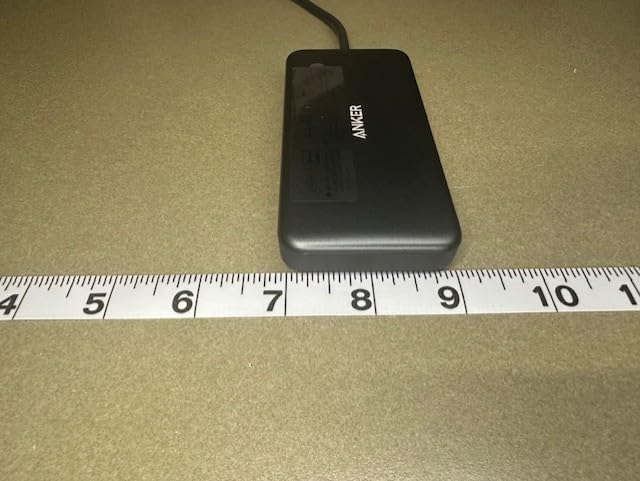
The trade-off is that it sticks with 4K@30Hz HDMI and a plastic shell. For a static office monitor, that is still a capable package; for a fluid 4K desktop or a metal-matched desk setup, the newer Anker 7-in-1 is the stronger fit.
Why a Long Product History Matters
A hub is only useful when its USB-C connector, data controller, and power negotiation keep working after repeated insertions. The classic Anker has been around long enough to accumulate a large body of owner experience, and the recurring theme is stable daily use rather than dramatic speed claims.
That history is more useful than a vague “durable” label. I would still replace a hub that runs unusually hot, drops the same drive, or requires replugging, because those symptoms are not fixed by waiting for the adapter to recover.
SD/TF Readers and 5Gbps Data Cover the Daily Workflow
The SD and TF readers are convenient for casual photo work and phone backups. The one USB-C and two USB-A data ports operate at 5Gbps, which is enough for an external SSD, backup drive, and everyday peripherals when the workload is not sustained at full speed.
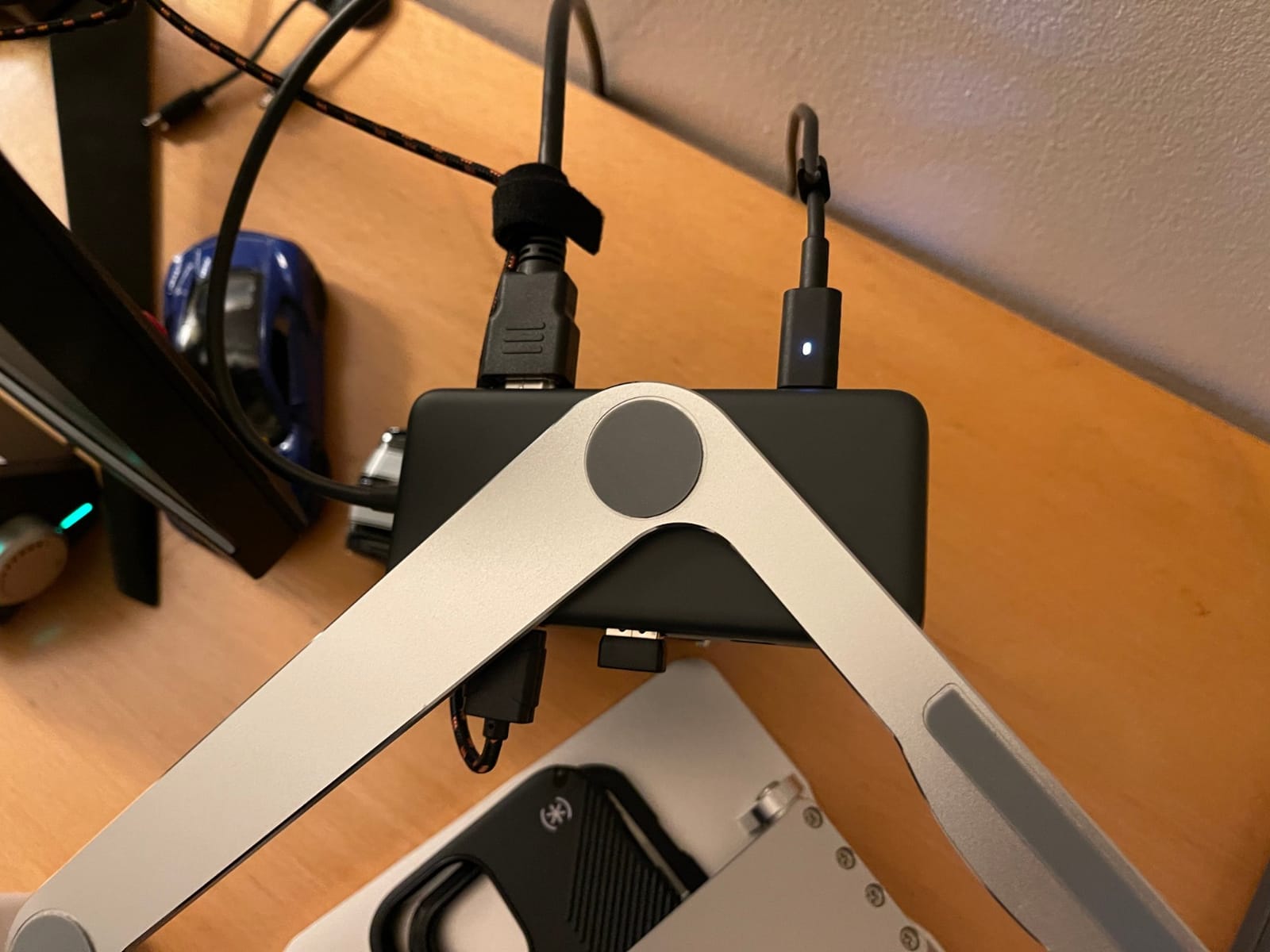
It lacks Ethernet, so a stable wired office network still requires a separate adapter or a hub that includes RJ45. It also lacks a second video output, which is an important constraint for a two-monitor desk.
The Best Conservative Purchase
Buy the classic Anker if you want a well-known model with a broad review history and do not need 4K@60Hz. It is a particularly sensible choice for presentations, travel, and a simple home-office setup with one external display.
Pass-through charging is listed at up to 85W, but the actual MacBook charge depends on the charger and the hub’s own power use. The plastic case also means I would support it on a desk instead of letting a heavy cable pull sideways on the port.
6. Anker 7-in-2 MacBook Hub – Direct Attachment with Thunderbolt-Class Speed
Anker USB-C Hub for MacBook, 7-in-2 Mac Dock with 4K@60Hz HDMI
40Gbps data
4K@60Hz HDMI
100W PD
Pros
- Direct MacBook fit
- 40Gbps data
- 4K@60Hz HDMI
- MagSafe access
Cons
- MacBook-only design
- Crowded when loaded
- Not for Neo
The Anker 7-in-2 is a different kind of USB-C hub because it plugs directly into two MacBook ports instead of hanging from a short cable. That design leaves MagSafe accessible and makes the connection feel like a small part of the laptop rather than a separate accessory.
Its multi-function USB-C port can carry data at up to 40Gbps, support 100W charging, and handle a 5K display according to the supplied specifications. HDMI is specified at 4K@60Hz, while the two USB-A ports and SD/TF readers cover common peripherals and media.
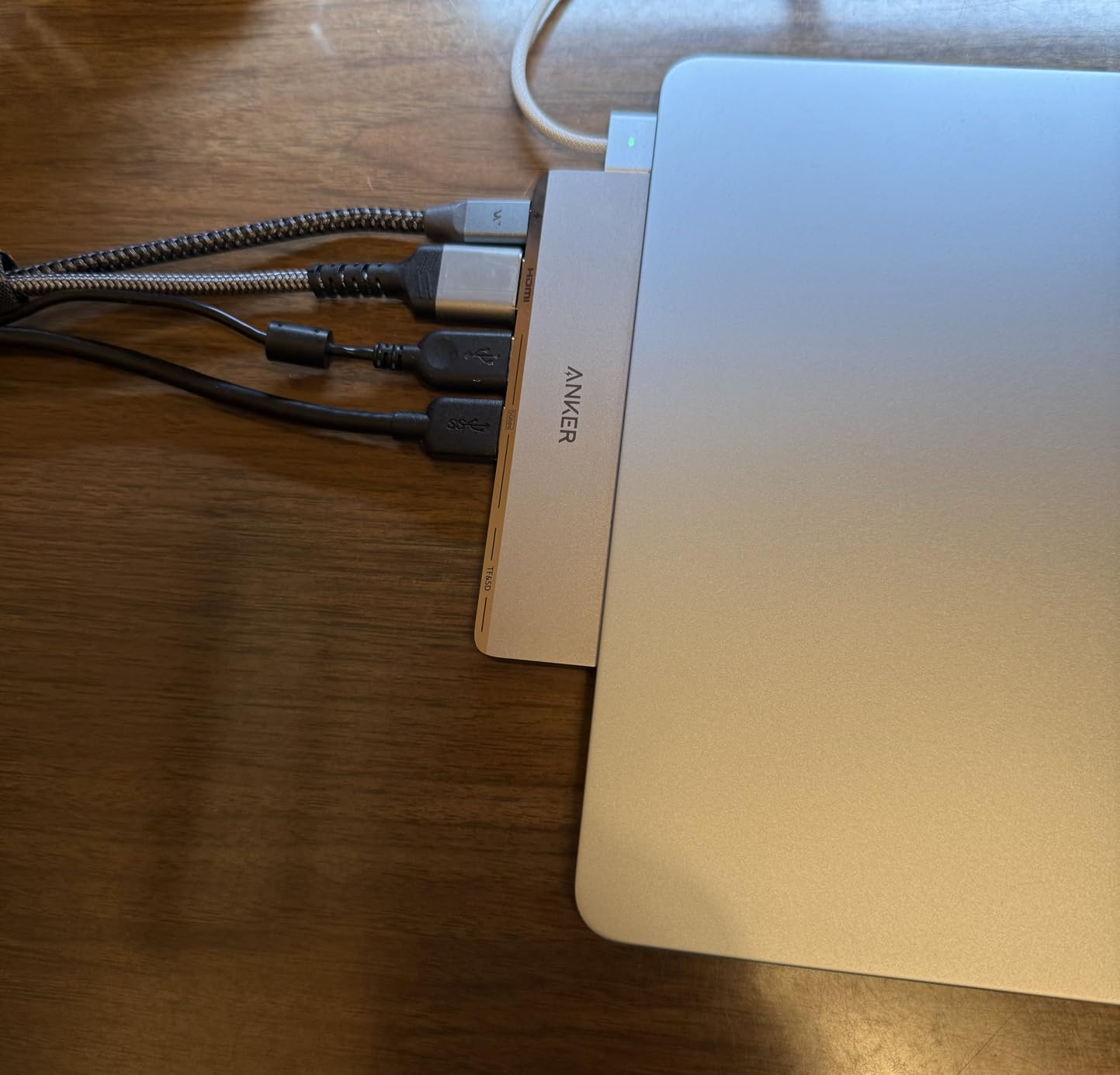
This is a MacBook-first adapter, not a universal dongle. It may not fit with a thick protective case, and loading every port at once can make the two-plug connection feel crowded.
40Gbps Is Useful When the Workflow Can Use It
Thunderbolt-level bandwidth is not automatically faster for a keyboard or ordinary flash drive. It becomes useful when connecting a fast external SSD, a high-resolution display, or another Thunderbolt accessory that can use the available link.
Keep in mind that a MacBook Air’s two USB-C ports share a resource budget. The hub’s simultaneous capabilities depend on what is connected, the display mode, charging, and the specific MacBook generation.
Direct Attachment Reduces Cable Clutter
The two-plug body stays close to the MacBook and avoids the little stress point created by a cable-style adapter. It is attractive for a desk, classroom, or hotel room where you want one connection to make the computer feel complete.
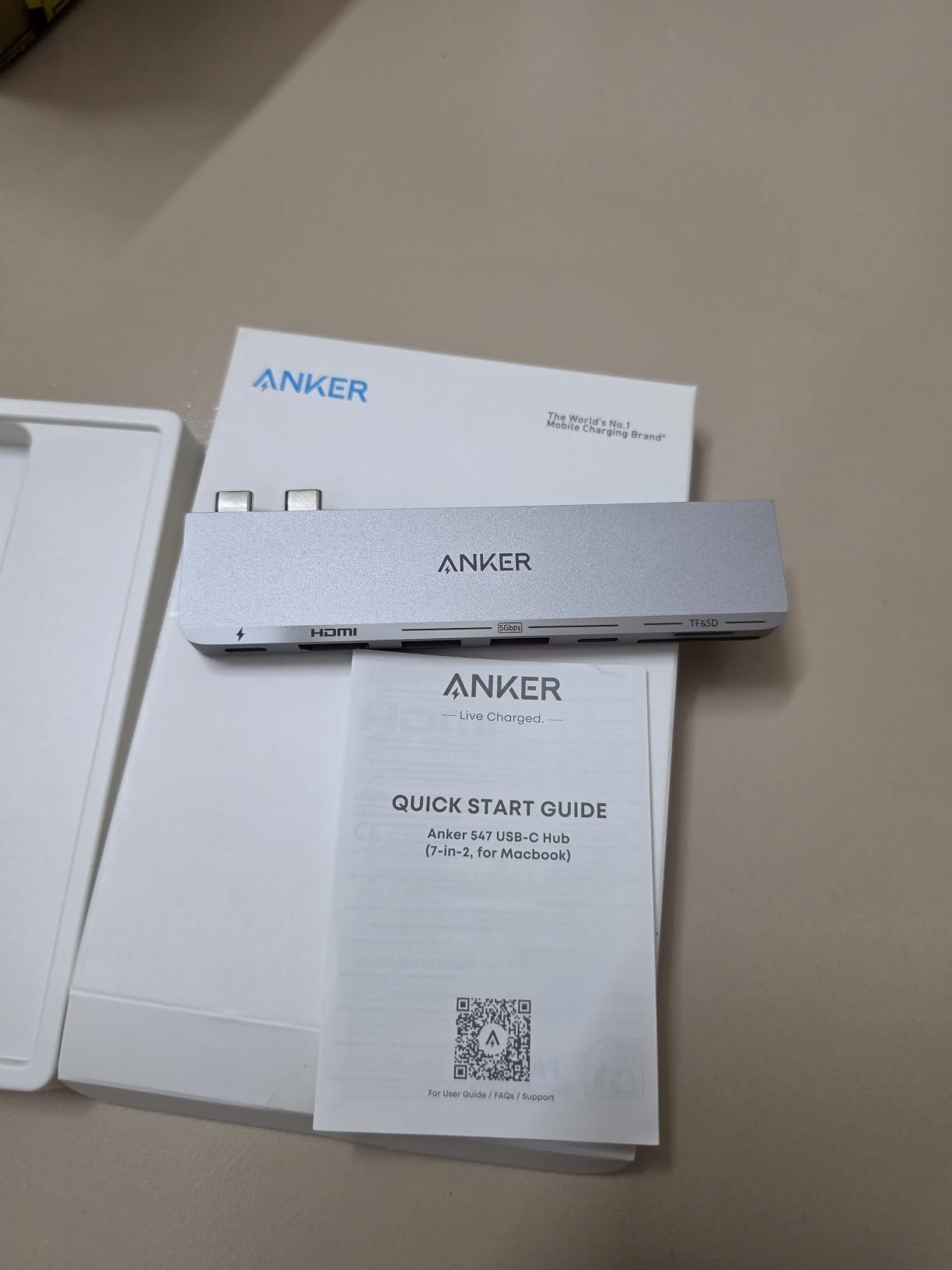
The downside is physical leverage. Removing a USB drive or HDMI cable can twist the hub against the MacBook, so hold the adapter steady and disconnect peripherals before lifting the computer.
Do Not Buy It for Two Native M-Series Displays
The hub can provide a high-quality single display and fast data, but base M1 and M2 MacBooks do not support two external displays natively. The product listing specifically flags that limitation, and a MacBook Neo is not supported.
Choose this for a clean MacBook-specific desk, not for a multi-monitor setup. If your goal is one cable to a full workstation and you have the right display hardware, its direct fit and 40Gbps path are compelling.
7. Anker 5-in-1 90W – Straightforward Connectivity with a Little More Charging Headroom
Anker USB-C Hub, 5-in-1 USB Hub for Laptops, 4K HDMI Multiport Adapter
90W PD
4K HDMI
5Gbps USB
Pros
- 90W pass-through
- Compact body
- 5Gbps USB
- No driver
Cons
- 30Hz HDMI
- Short fixed cable
- No card reader
The Anker 5-in-1 is a practical, low-cost hub for a desk that needs one monitor, a keyboard, a mouse, and a storage drive. Its 90W pass-through rating is listed from a 100W input with 10W reserved for the hub.
It has one 5Gbps USB-A port and two 480Mbps USB-A ports, plus HDMI and a USB-C charging input. The 60g body is light enough for travel, although the fixed cable is short and the 4K output tops out at 30Hz.
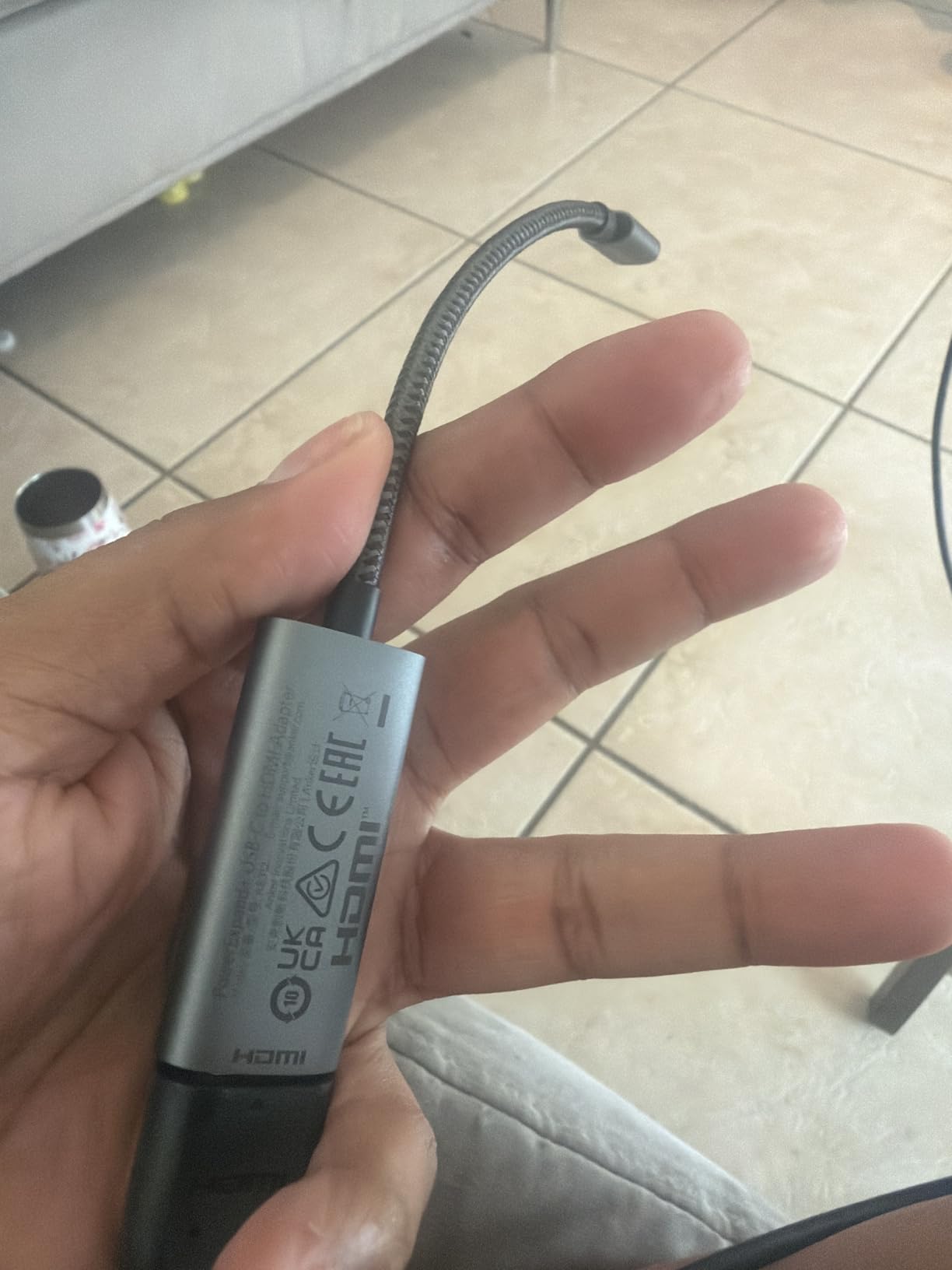
The product is rated for macOS 12 and later, Windows 10/11, and ChromeOS, but not Linux. That makes it a better match for a managed Mac or Windows workflow than a cross-platform lab where every port must work on every system.
90W Pass-Through Is More Than a MacBook Air Needs
More input headroom does not make the MacBook charge faster than its own power controller allows. It does, however, leave more room for the hub and connected accessories, which can help when a drive draws power during a transfer.
Use a charger that can actually deliver its advertised power through the cable. A charger that negotiates correctly but collapses under load can cause the same symptoms as an underpowered hub.
Choose the Port That Matches the Peripheral
The 5Gbps USB-A port is the right home for an external SSD or a card reader. The two 480Mbps ports are fine for low-bandwidth devices such as a mouse, keyboard, or printer adapter, but they are not interchangeable with the faster port.
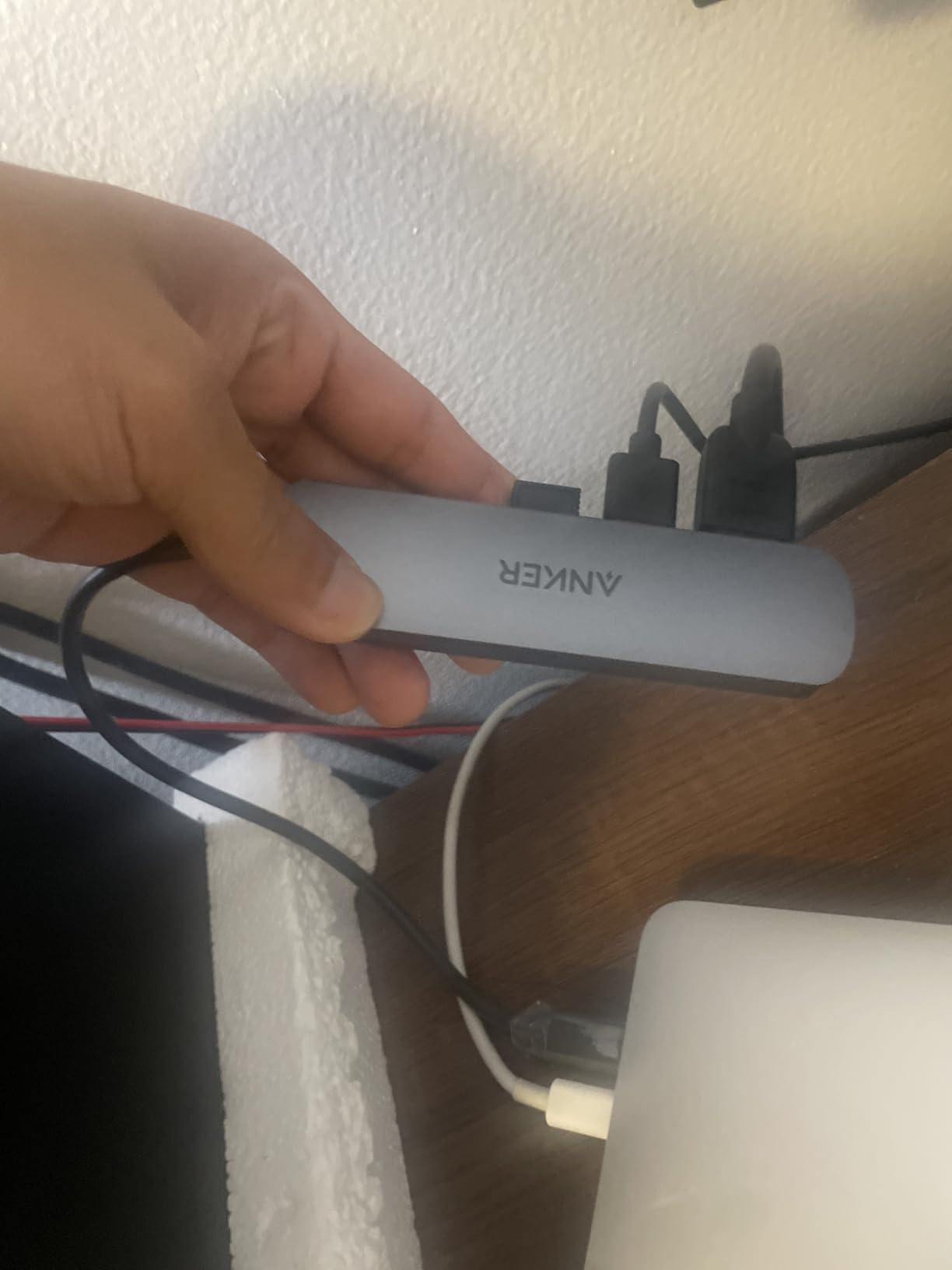
There is no SD or microSD reader, so photographers should choose the classic Anker 7-in-1, Hiearcool, or Acer instead. There is also no Ethernet, which makes a separate network adapter a better choice for a fixed office desk.
The Right Choice for a Simple, Powered Desk
This hub is a sensible fit for a student or office worker who values compact size and straightforward plug-and-play behavior. It keeps the most common ports within reach and supplies enough charging headroom for a MacBook Air.
Its short cable and 30Hz display limit are the main reasons to move up to a 7-in-1 or 4K@60Hz model. If you only need one static monitor and a few USB devices, though, it is a restrained purchase.
8. Anker 8-in-1 Ethernet Hub – The Strongest All-Rounder for Wired Work
Anker USB-C Hub, 8-in-1 Multiport Ethernet Adapter with 4K@60Hz HDMI Port
10Gbps USB
4K@60Hz HDMI
Gigabit Ethernet
Pros
- 10Gbps data
- Ethernet
- 4K@60Hz
- SD/TF readers
Cons
- Warm under load
- Needs a 100W charger
- Not Linux
The Anker 8-in-1 is the most complete traditional hub in this list for a professional desk. It adds Gigabit Ethernet to 4K@60Hz HDMI, 10Gbps USB-C and USB-A data, SD and microSD readers, and 85W pass-through charging.
The Ethernet port is the feature that makes the biggest practical difference for video calls, large downloads, and offices where Wi-Fi is crowded. I would put this on a permanent desk rather than carry it as an everyday travel dongle, because the extra networking hardware and built-in cable add weight.
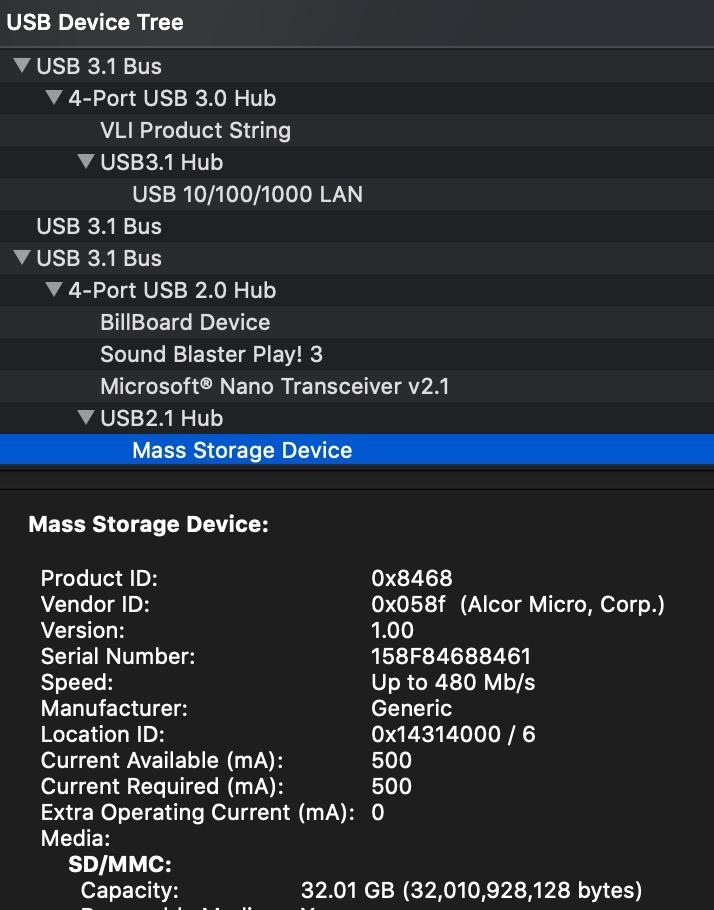
Its 10Gbps ports are a real advantage for external SSDs, but they do not make every device faster. A keyboard, mouse, or inexpensive webcam will still operate at its own speed, and simultaneous traffic can reduce available bandwidth.
10Gbps Storage Makes the Hub Feel Like a Small Dock
A 10Gbps link is substantially more useful than a 5Gbps port for a fast portable SSD or large project folder. File copies are quicker, backups feel less disruptive, and the hub is better prepared for a high-end external drive.
Use a USB-C or USB-A SSD rated for the connection you choose, and use a short, quality cable. Long passive cables can turn a nominally fast storage link into a surprising bottleneck.
Ethernet Is the Stability Feature Buyers Notice
Gigabit Ethernet can reduce dependence on congested Wi-Fi and provides a consistent connection for cloud backups and video meetings. It is especially valuable in hotels, shared offices, and homes where wireless interference changes throughout the day.
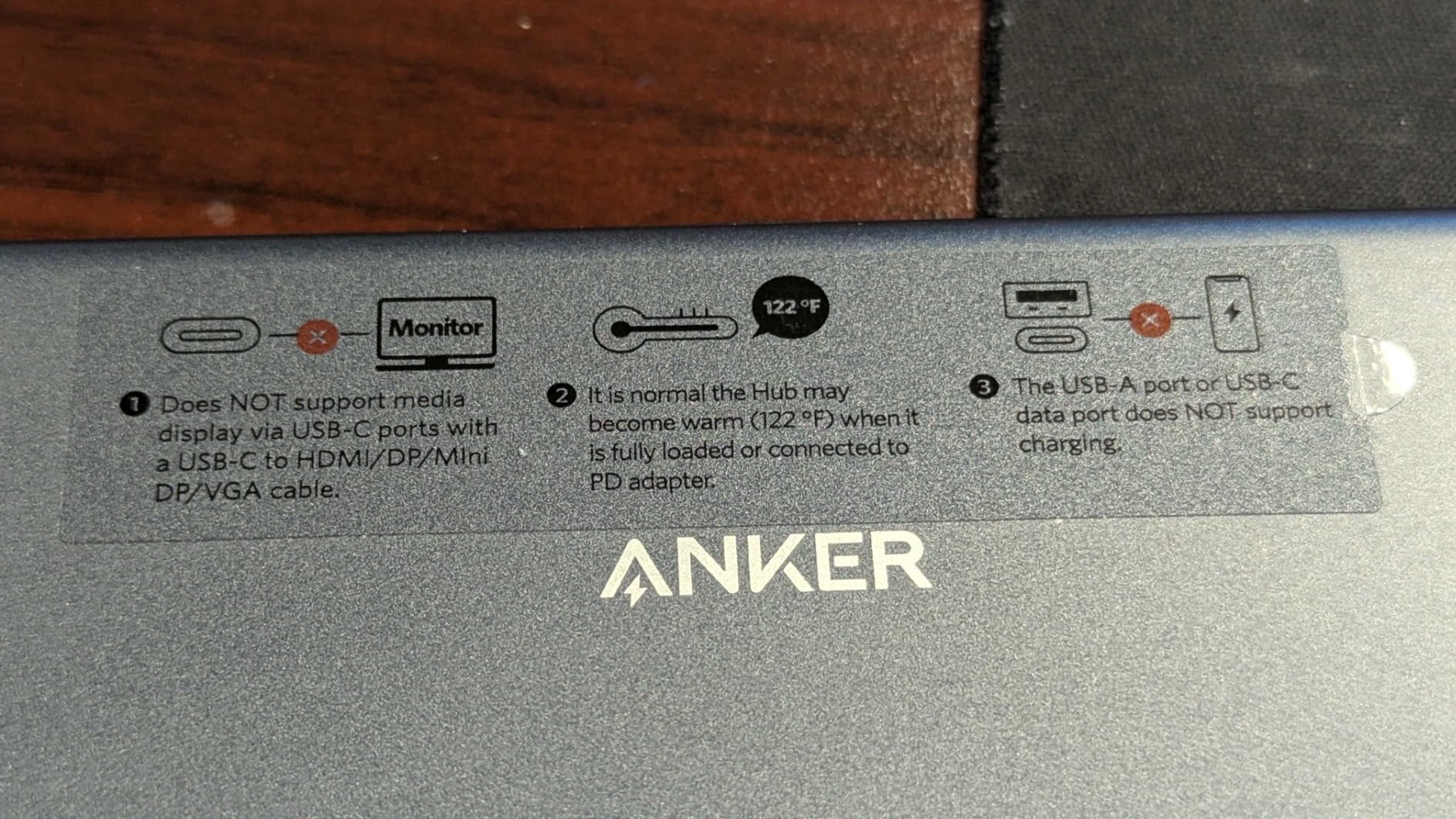
The hub requires 15W for operation and recommends a 100W PD charger for full performance. That is a reminder that pass-through charging is a system: the charger, hub, cable, MacBook, and attached drives all share the available power budget.
Best for a Professional One-Cable Desk
Choose this model if you want one adapter to handle a smooth 4K monitor, wired internet, fast storage, cards, and charging. It is a strong option for developers, editors, and remote workers who keep the same setup every day.
It may run warm with a display, storage, Ethernet, and charging active. Leave airflow around the housing, and do not stack a second dock or a closed laptop sleeve on top of it during sustained transfers.
9. MOKiN 7-in-1 USB-C Hub – 4K@60Hz at a Budget Price
Pros
- 4K@60Hz output
- 100W PD
- Aluminum body
- Three USB-A ports
Cons
- Warm under load
- One-year warranty
- Ethernet reliability complaints
The MOKiN 7-in-1 stands out among inexpensive hubs by specifying 4K@60Hz HDMI instead of the more common 4K@30Hz mode. It also provides 100W Power Delivery, three 5Gbps USB-A ports, and SD and microSD card readers.
The aluminum shell is light and fits a space-gray laptop well. I would use it for a bright office monitor, classroom projector, or a second display where smooth motion matters more than a single Thunderbolt link.
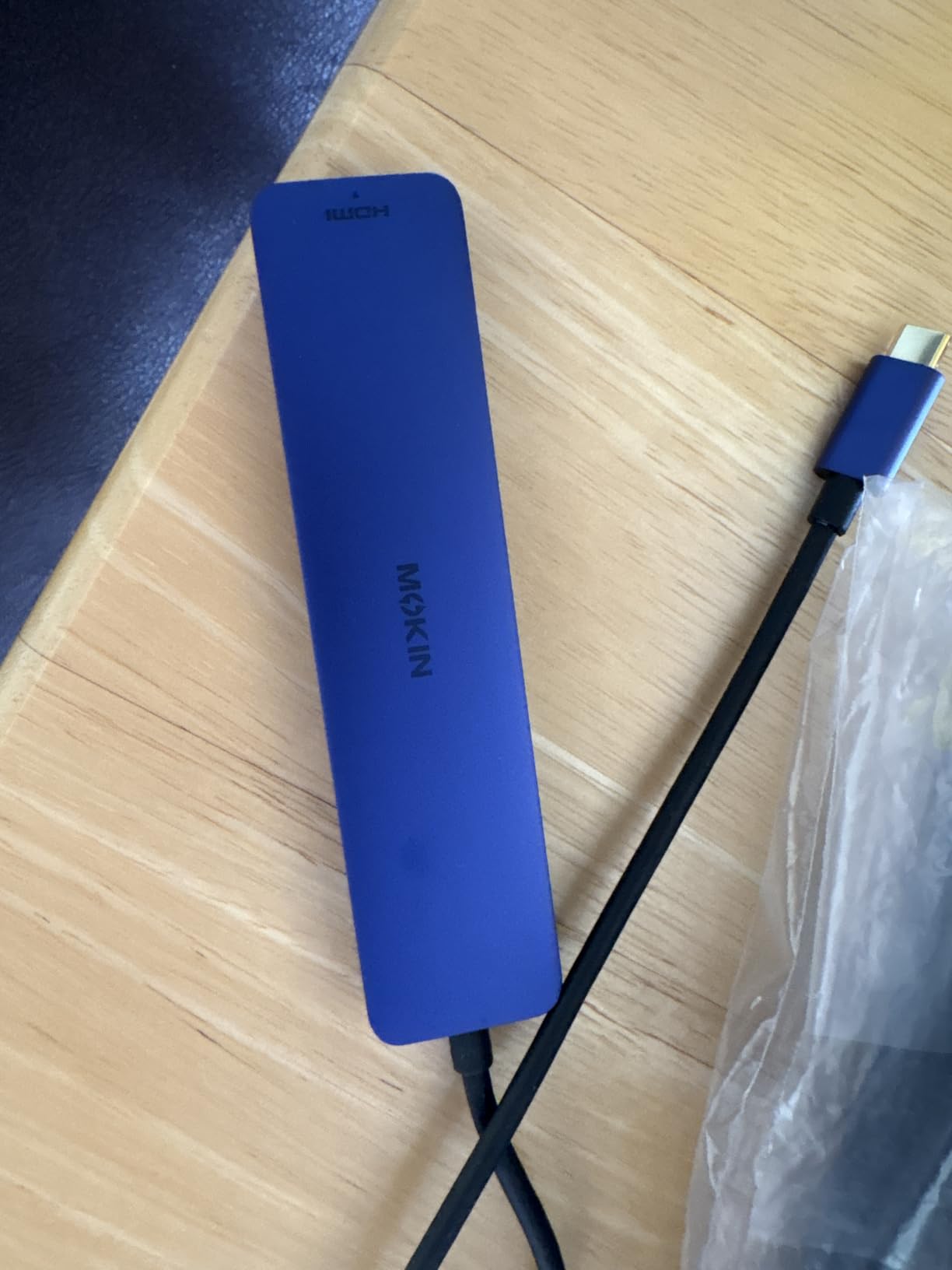
The supplied review data includes reports of heat during combined HDMI and charging use, along with isolated Ethernet reliability complaints on some versions. The latter matters because the title can be confusing, so verify that the exact listing includes the ports you expect before buying.
4K@60Hz Gives It an Edge Over 30Hz Rivals
The higher refresh rate is useful for scrolling, presentations, and everyday desktop movement. It does not turn the hub into a Thunderbolt display solution, so video bandwidth, charging, and data traffic still share the USB-C connection.
For a MacBook Air, use HDMI directly to the monitor and keep the USB-C charging input free when possible. If the display is connected through another adapter, the final resolution and refresh rate may fall to the weakest component in the chain.
Port Variety Is Good, but Longevity Needs Care
The three USB-A 5Gbps ports make this more flexible than a basic 5-in-1. SD and microSD readers are useful for camera work, and the 100W charging input is enough for a MacBook Air with proper power negotiation.
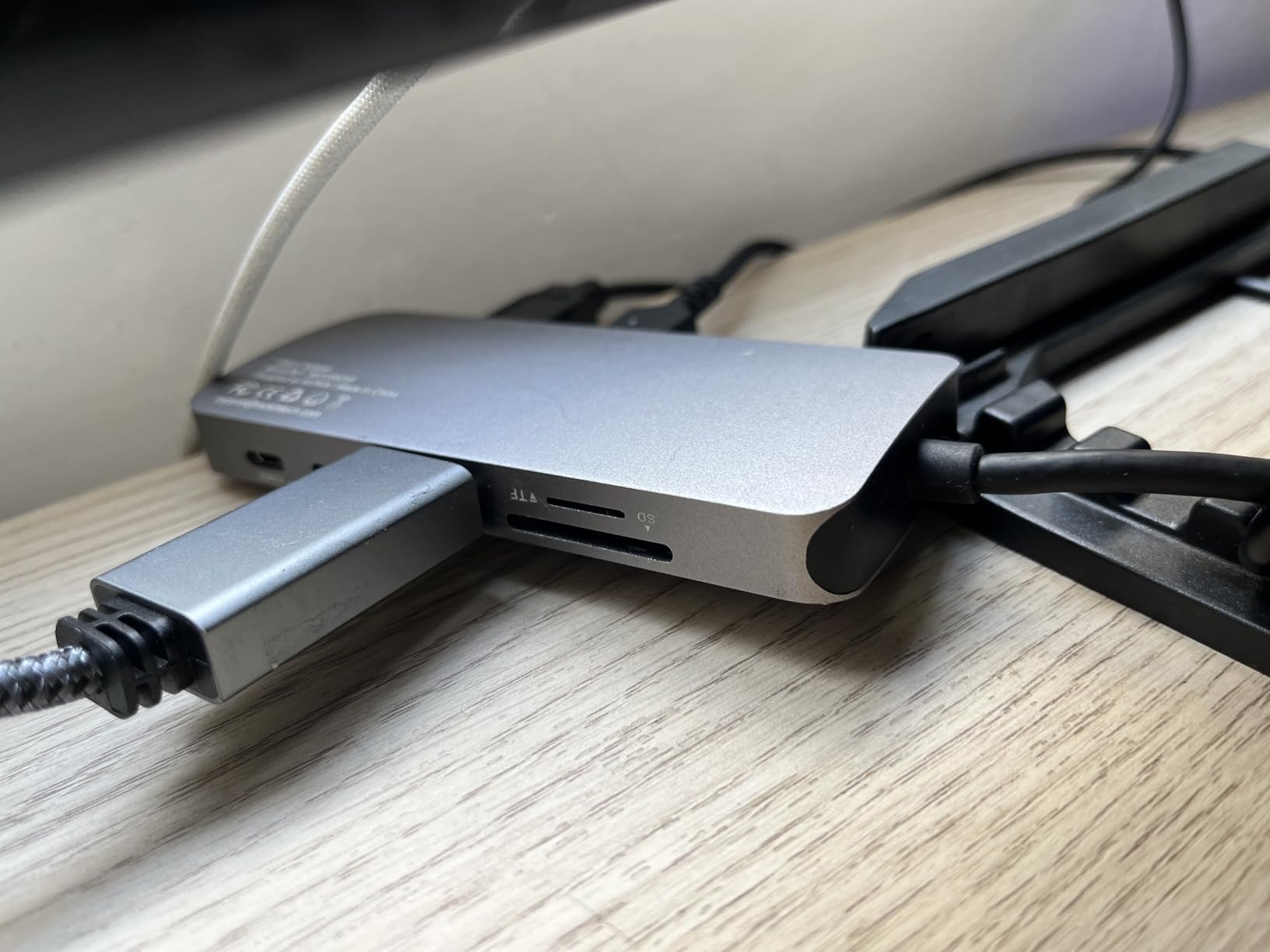
The one-year warranty is shorter than the coverage offered by several Anker models, and heat can become noticeable when all functions are active. Keep the hub on a hard surface and stop using it if Ethernet or USB devices begin dropping repeatedly.
A Sensible Budget Choice with a Display Advantage
The MOKiN is a good match for someone who wants 4K@60Hz and card slots without the cost of a premium direct-attach hub. It is also a practical presentation adapter for students and office workers.
Its lower price comes with a smaller long-term confidence margin. If the hub will sit in a critical desk setup, I would prefer the Anker 8-in-1 for Ethernet, a longer warranty, and a more mature 10Gbps package.
10. Acer 7-in-1 USB-C Hub – Broad Compatibility and Useful Card Readers
Acer USB C Hub, 7 in 1 Multi-Port Adapter for Laptop/Mac Type C Devices
4K HDMI
100W PD
SD/TF readers
Pros
- Wide OS support
- 100W PD
- Aluminum body
- Card readers
Cons
- 30Hz HDMI
- USB-C data only
- Can get warm
The Acer 7-in-1 is a flexible all-round adapter for people who move among Mac, Windows, ChromeOS, and Linux computers. It adds 4K HDMI, 100W Power Delivery, two 5Gbps USB data ports, a USB-C data port, and SD/TF readers.
The aluminum enclosure and 68g weight make it a reasonable travel companion. The main compromise is video: 4K is limited to 30Hz, and the USB-C data connector does not carry video or audio.
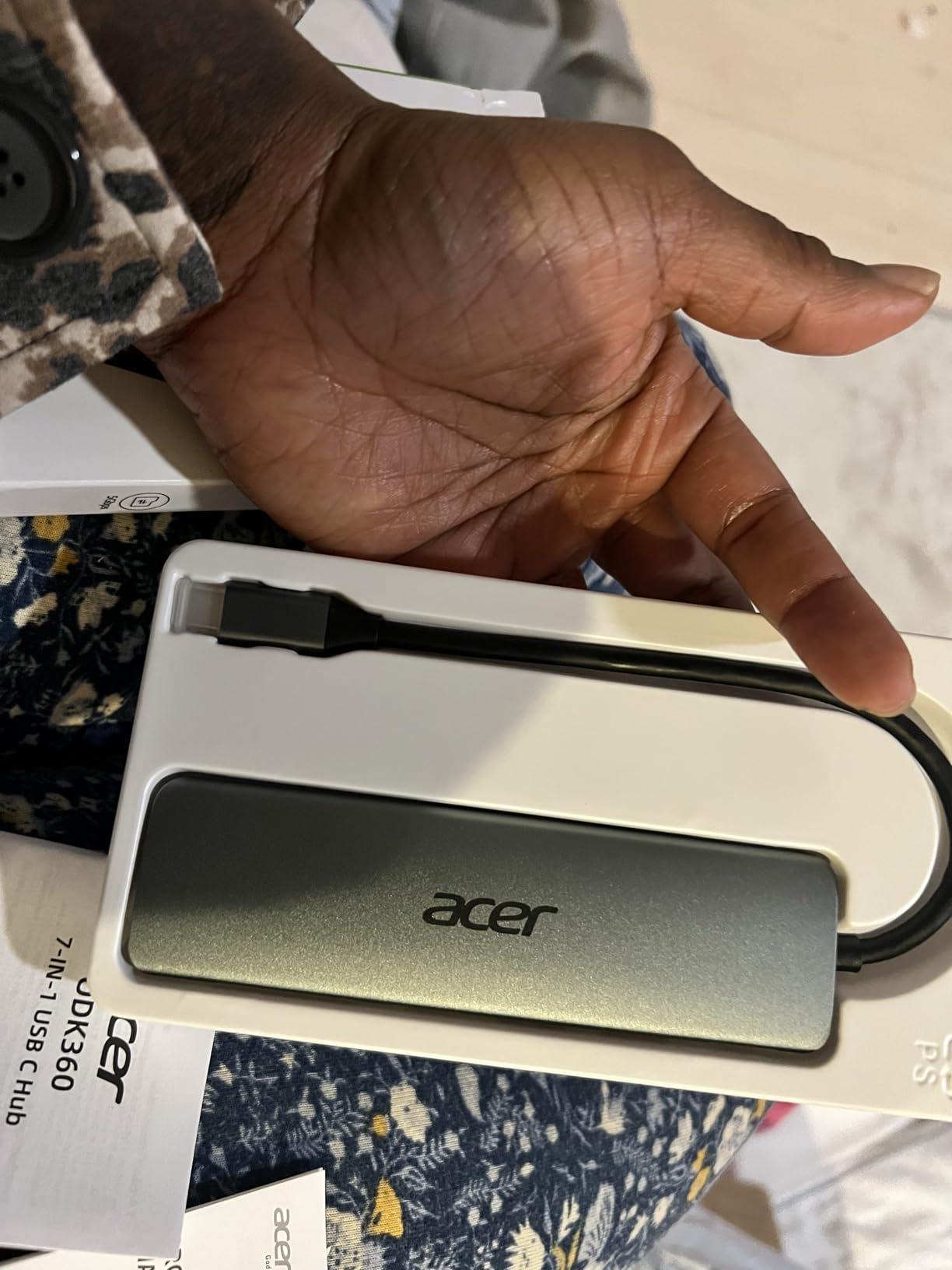
The supplied research reports strong power delivery and broad everyday compatibility, with some early quality-control concerns. A one-year manufacturer warranty and attentive cable management are sensible safeguards for a lower-cost hub.
Cross-Platform Support Is the Main Strength
Many hubs claim Mac support but behave differently when connected to a USB-C phone, tablet, or Linux machine. Acer lists Mac, Windows, ChromeOS, and Linux operating systems, which makes this a better shared adapter for a mixed-device household or small office.
DisplayPort Alt Mode and Power Delivery still have to be supported by the host. A USB-C port that only charges will not suddenly gain HDMI through this hub, so check the computer specification first.
100W PD Works Well for a MacBook Air
The 100W input rating gives the hub useful overhead, but it is not the same as 100W delivered to the computer. Power is reserved for the hub, and actual charging depends on the connected charger, cable, and MacBook workload.
The hub can get warm during extended use. That is normal for an active adapter, but warmth plus a mouse dongle that becomes intermittent or an HDMI signal that drops should be treated as a troubleshooting clue, not ignored.
Good for Shared Offices and Creative Travel
Choose the Acer if you want card slots, charging, USB, and HDMI in a cross-platform package. Photographers will appreciate the SD/TF readers, while students and office workers get a useful mix without Ethernet.
I would not choose it for smooth 4K motion or high-refresh-rate gaming. For that, the Anker 7-in-1 or MOKiN 7-in-1 with 4K@60Hz is the more accurate match.
11. Melelink 8-in-2 MacBook Adapter – Two-Port Fit with Thunderbolt 3 and 4K@60Hz
Pros
- Direct attachment
- 40Gbps data
- 4K@60Hz HDMI
- SD/TF
Cons
- Case fit varies
- M1 dual-display limit
- Connection can feel fragile
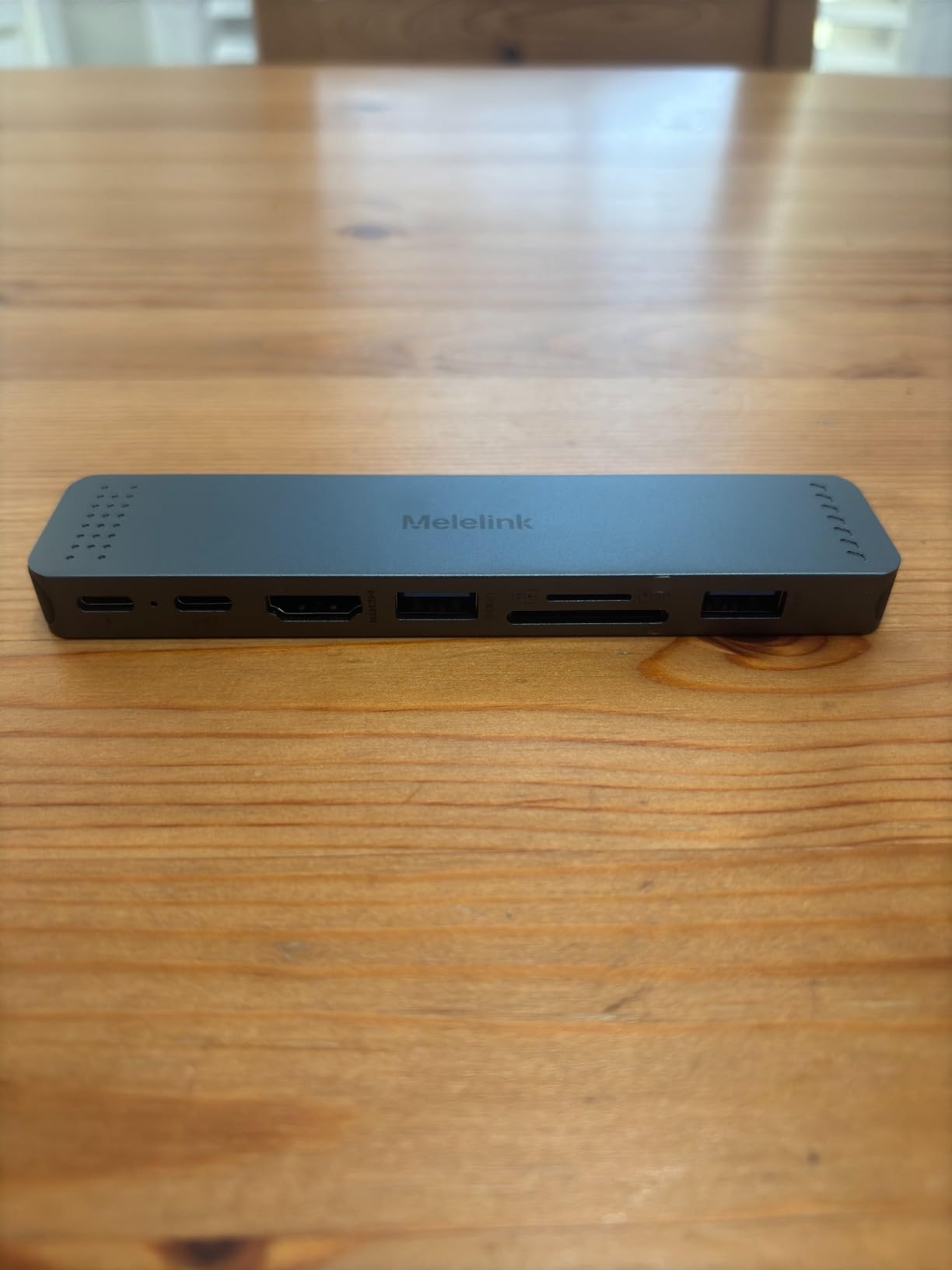
The Melelink 8-in-2 is a flush-style MacBook adapter with two USB-C plugs and eight advertised functions. It supports 4K@60Hz HDMI, Thunderbolt 3 at up to 40Gbps, 5K@60Hz through the Thunderbolt port, and up to 100W pass-through charging with 85W listed for the MacBook.
That specification set looks unusually ambitious for a compact direct-attach adapter. The physical fit is the first thing to verify, because a thick case, tight port spacing, or a different MacBook generation can prevent a reliable connection.
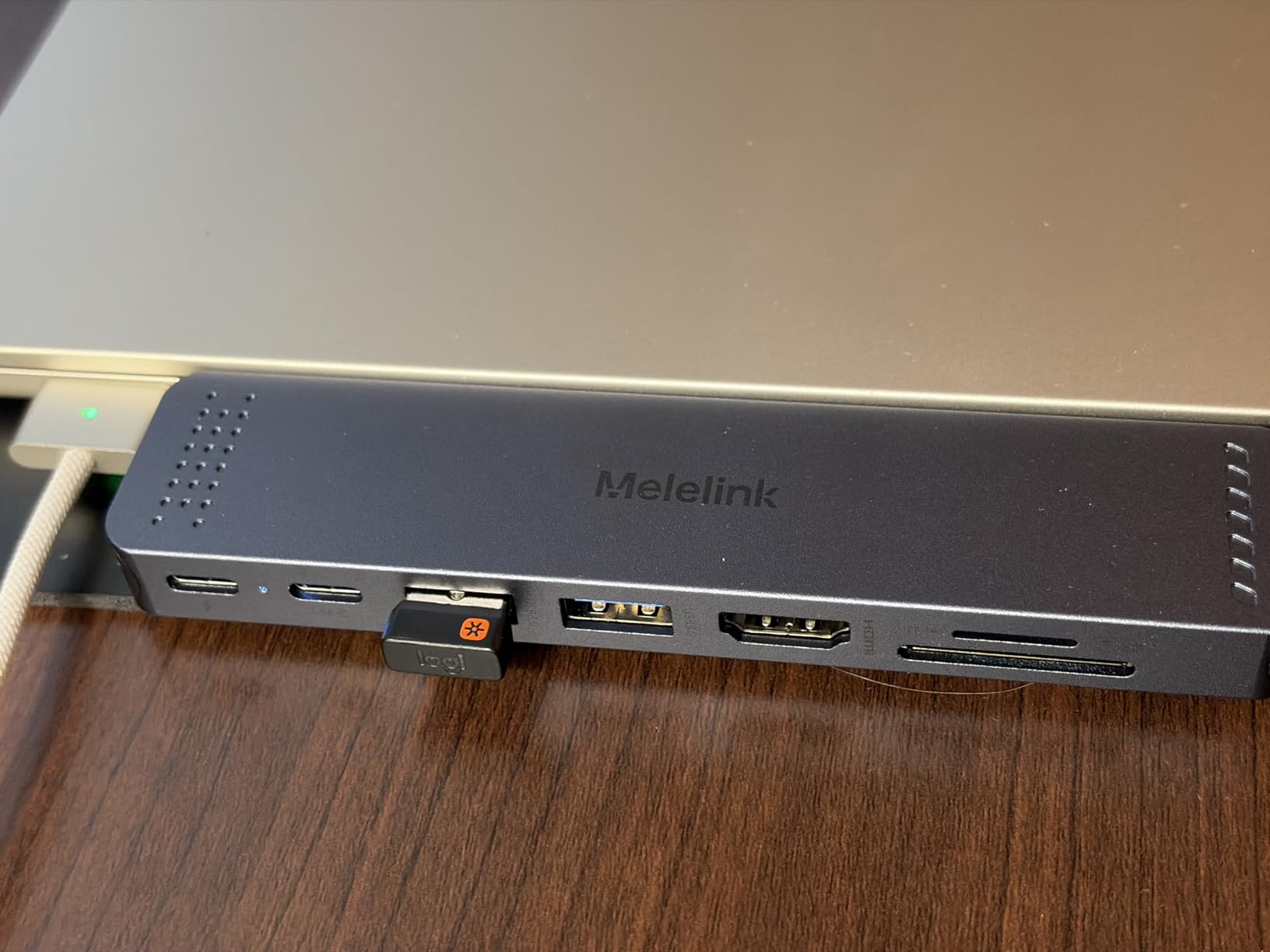
It includes SD and microSD readers, USB-A and USB-C data ports, and a Thunderbolt connection. The supplied reviews praise the secure fit and port variety, while also reporting occasional stability concerns and the familiar base-M1 limitation on multiple displays.
Thunderbolt 3 Is Only as Fast as the Connected Device
The 40Gbps figure describes the link’s maximum capability, not the speed of every USB port. A Thunderbolt SSD can use it, while a 5Gbps USB-A or 480Mbps USB 2.0 device remains limited by its own interface.
Use a short, certified Thunderbolt cable for a high-speed drive or display. A passive cable that is too long, damaged, or intended only for basic USB data can reduce an otherwise capable setup.
Direct Attachment Saves Desk Space, but Demands Care
Two plugs create a broad, stable connection when the adapter is correctly seated, and the low-profile body keeps the desk tidy. It also leaves MagSafe accessible, which is a practical benefit for owners who still use Apple’s dedicated charging connector.
The hub can feel tight when inserted or removed, and pulling a connected USB device can place torque on the MacBook. Hold the aluminum body and disconnect cables before moving the computer; never carry the laptop by the adapter.
The Best Direct-Attach Pick for Value
The Melelink is worth considering if you want a cable-free MacBook adapter with HDMI, cards, fast data, and a 4K@60Hz display. It is especially attractive for a permanent desk where the fit can be tested once and left stable.
For travel or shared computers, a cable-style hub is easier to replace and less dependent on exact case clearance. Also remember that the M1 MacBook Air still supports only one external display natively, regardless of how many display connectors the adapter advertises.
12. Satechi 7-in-1 USB-C Hub Pro Slim – Premium USB4 in a Low-Profile Body
Satechi 7-in-1 USB-C Hub Pro Slim, 100W Charging, 4K HDMI, USB4, Midnight
USB4 40Gbps
100W PD
10Gbps USB
Pros
- Premium aluminum
- USB4 support
- 10Gbps data
- Two-year warranty
Cons
- Premium positioning
- Disconnect reports when moved
- Warm under load
The Satechi 7-in-1 USB-C Hub Pro Slim is the most design-focused model in this group. Its 41g aluminum body attaches directly to a MacBook, supports USB4 at up to 40Gbps, and provides 4K HDMI, 100W pass-through charging, 10Gbps USB, and card readers.
The finish and cable-free shape make it feel at home beside a MacBook Air, and the two-year limited warranty is a meaningful advantage. It is the model I would choose for a tidy, color-matched desk rather than a rough travel kit.
Satechi specifies a safety mechanism that activates above 40C (104F). That sounds reassuring, but any hub that becomes unusually hot, disconnects when touched, or discharges the computer while closed should be disconnected and checked rather than treated as normal behavior.
USB4 Makes the Slim Body More Than a Dongle
USB4 support gives the hub a much higher data ceiling than a basic 5Gbps adapter. That ceiling helps with fast external storage and leaves room for high-resolution display workflows, although actual throughput still depends on the attached device and cable.
The two USB 3.2 Gen 2 ports are specified at 10Gbps, so the premium label is not only cosmetic. Use those ports for a fast SSD and another high-bandwidth accessory when you need the extra headroom.
Flush Attachment Is Best on a Stable Desk
The direct connection removes a dangling cable and gives the MacBook a clean, integrated silhouette. It also reduces the chance that a side-mounted adapter will fall from a table, provided the MacBook itself is not moved while peripherals are connected.
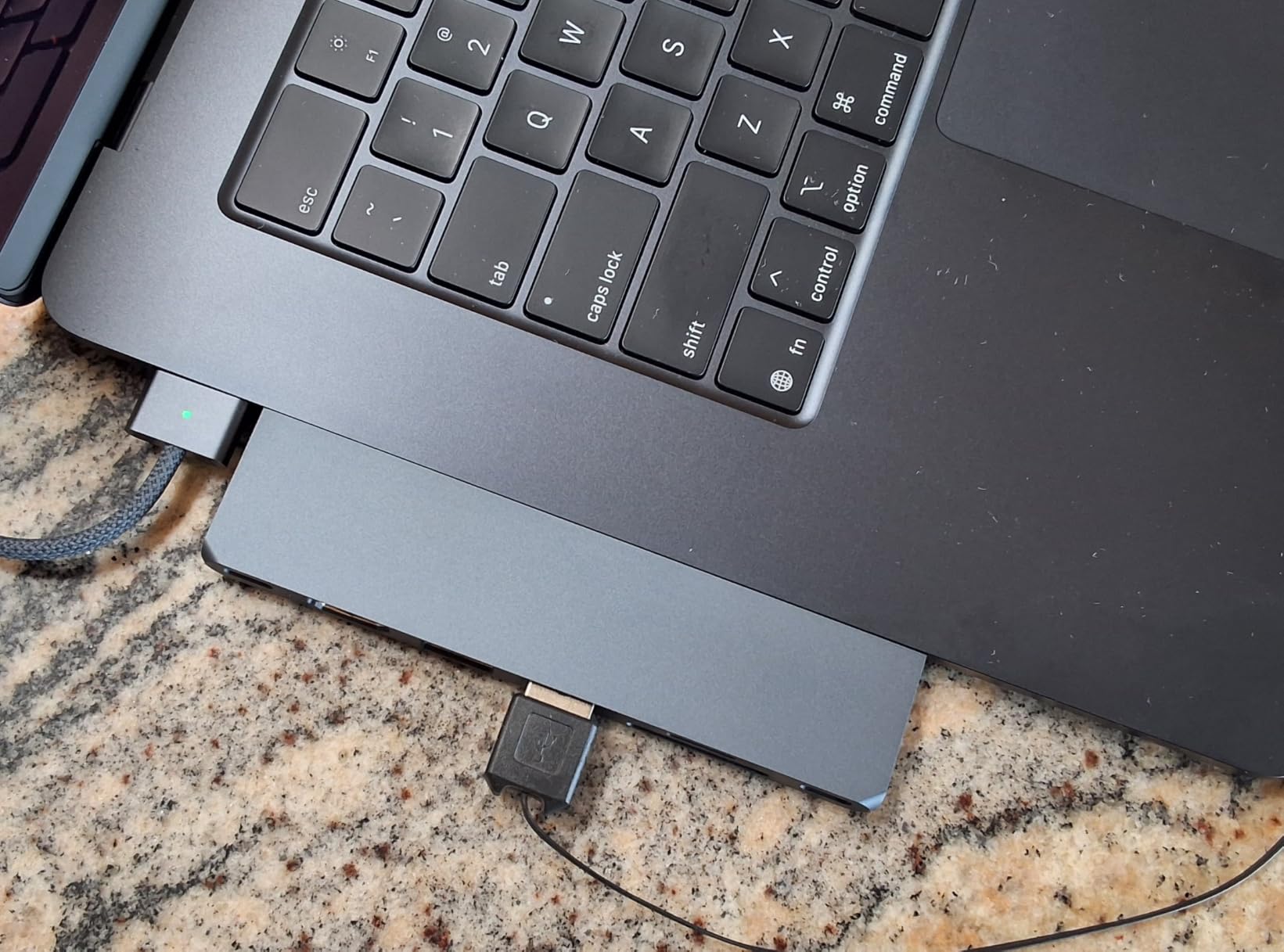
Direct attachment makes removal and port alignment more important. Some users report disconnects with movement, so keep the computer on a stable surface and support the hub before inserting or removing USB devices.
The Premium Choice for Mac-First Aesthetics
Choose the Satechi if you value a slim aluminum body, USB4, 10Gbps ports, a two-year warranty, and a cable-free setup more than low cost. It is a strong fit for a permanent MacBook Air workstation with one external display and a few fast accessories.
It is not the best choice for a shared Windows or Linux setup, and the warmer, direct-attach design can be less forgiving in a travel bag. A cable-style hub is easier to orient and replace when your setup changes.
How to Choose the Right USB-C Hub for Your MacBook Air
Choose by the ports and display mode your work actually requires, not by the largest number printed on the box. A compact hub that matches your daily setup will usually be more reliable than a desktop dock filled with features you never use.
M-Series MacBook Display Limitations Can Change the Whole Recommendation
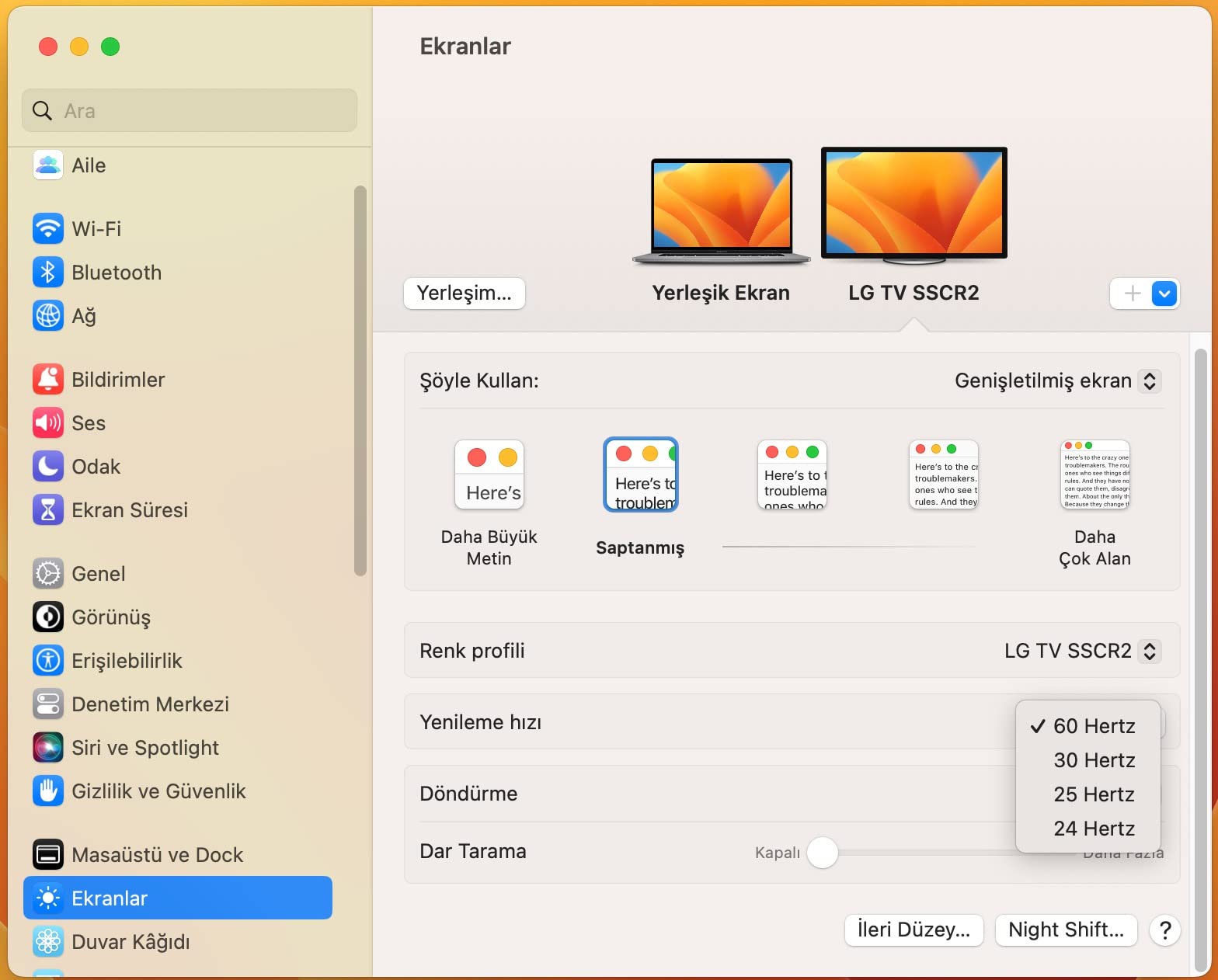
Base M1, M2, and M3 MacBook Air models support one external display natively through their USB-C/Thunderbolt hardware. A second monitor does not become available simply because a hub offers two HDMI sockets, and the Mac’s operating system will generally mirror or limit the additional output.
DisplayLink hubs use a driver and software compression to work around that hardware limit. They can be useful, but they add installation, update, performance, and compatibility work; they are not the same as a native Thunderbolt display connection.
Power Delivery Ratings Need a Little Context
Power Delivery pass-through means the hub sends power from a USB-C charger through to the MacBook while also operating its own ports. A 90W or 100W input rating is not a guarantee that 100W reaches the laptop, because the hub reserves power for its electronics and the charger may be limited by heat or cable quality.
For a MacBook Air, 85W pass-through is more than enough. Use a reputable charger with enough output for the hub and attached devices, and keep the charging cable separate from a data cable when the product requires it.
4K@30Hz Is Fine for Documents, but 60Hz Is Better for Motion
At 4K@30Hz, a 4K monitor displays 30 frames per second. That is perfectly usable for spreadsheets, reference material, and presentations, but scrolling, window movement, and pointer motion can look less smooth than they do on the MacBook’s own display.
Choose 4K@60Hz when the external monitor is your main workspace or when you notice cursor and scrolling stutter. The Anker 7-in-1, Anker 7-in-2, Anker 8-in-1, MOKiN, and Melelink are the relevant choices in this roundup for that mode.
Match Data Speed to the Storage You Actually Own
A 5Gbps USB port is adequate for ordinary flash drives, keyboards, mice, and many external SSDs. A 10Gbps port is more useful for fast portable SSDs, high-resolution photo libraries, and large project folders, while a 40Gbps Thunderbolt or USB4 port is for high-end storage and displays.
Do not pay for 10Gbps if your drive is limited to 5Gbps, but do not connect a fast drive to a 480Mbps USB 2.0 port and expect the hub to improve it. Port labels and cable ratings determine the real ceiling.
Build Quality, Cable Quality, and Warranty Matter
Aluminum housings help spread heat and make a hub feel more substantial, but they do not guarantee a perfect electrical design. I would favor a known brand, a warranty of at least 12 to 18 months, and a listing that clearly states supported Mac models, HDMI refresh rate, data speed, and charging limits.
Use a short, intact USB-C cable, support the hub so its weight does not twist the port, and leave airflow around the body. Warmth under a combined display, charging, and storage load is common; repeated disconnects are a reason to replace the cable, charger, or hub.
Frequently Asked Questions
What is the best USB-C hub for a MacBook?
The Anker 7-in-1 USB-C Hub with 4K@60Hz HDMI is the best all-round pick for a MacBook Air. It offers a metal enclosure, 85W pass-through charging, SD and TF readers, and smoother 4K output than most basic 30Hz hubs.
Can you use a USB-C hub with a MacBook Air?
Yes. Current MacBook Air models support USB-C hubs through their Thunderbolt-compatible ports. Base M1, M2, and M3 models support one external display natively, so a standard hub cannot add a second independent monitor without DisplayLink software.
What is the best docking hub for a MacBook Air?
For a desktop setup, the Anker 8-in-1 Ethernet Hub is the strongest traditional hub because it combines 4K@60Hz HDMI, Gigabit Ethernet, 10Gbps data, card readers, and charging. A Thunderbolt dock is better when you need many high-speed ports, multiple displays, and a permanent connection.
What is the most reliable USB-C hub?
Anker has the strongest long-term reliability signal in this roundup, with the classic 7-in-1 model carrying a large review history and reports of multi-year use. Its 18-month warranty and broad model range also make it a conservative choice.
Why does my M1/M2 MacBook Air only support one external monitor?
The base M1, M2, and M3 chips have a hardware display-output limit, not a USB-C hub problem. A DisplayLink dock can work around it with drivers, while newer Pro or Max chips and supported newer Mac models can provide more native display outputs.
Final Thoughts on USB-C Hubs for MacBook Air
If you want the best balance, choose the Anker 7-in-1 with 4K@60Hz HDMI. If value matters more, the Hiearcool 7-in-1 gives you charging, card readers, and aluminum construction at a lower cost; for a professional desk with Ethernet and fast storage, move up to the Anker 8-in-1.
Before buying, confirm your MacBook’s display limit, choose 60Hz if motion matters, and make sure the hub’s charging, data, and card-reader ports match your real workflow. That short check will usually matter more than adding another unused connector.
[…] outputs, skip ahead to the dual HDMI options. For MacBook Air owners who only need one screen, our 12 best USB-C hubs for MacBook Air covers similar picks with deeper macOS […]