
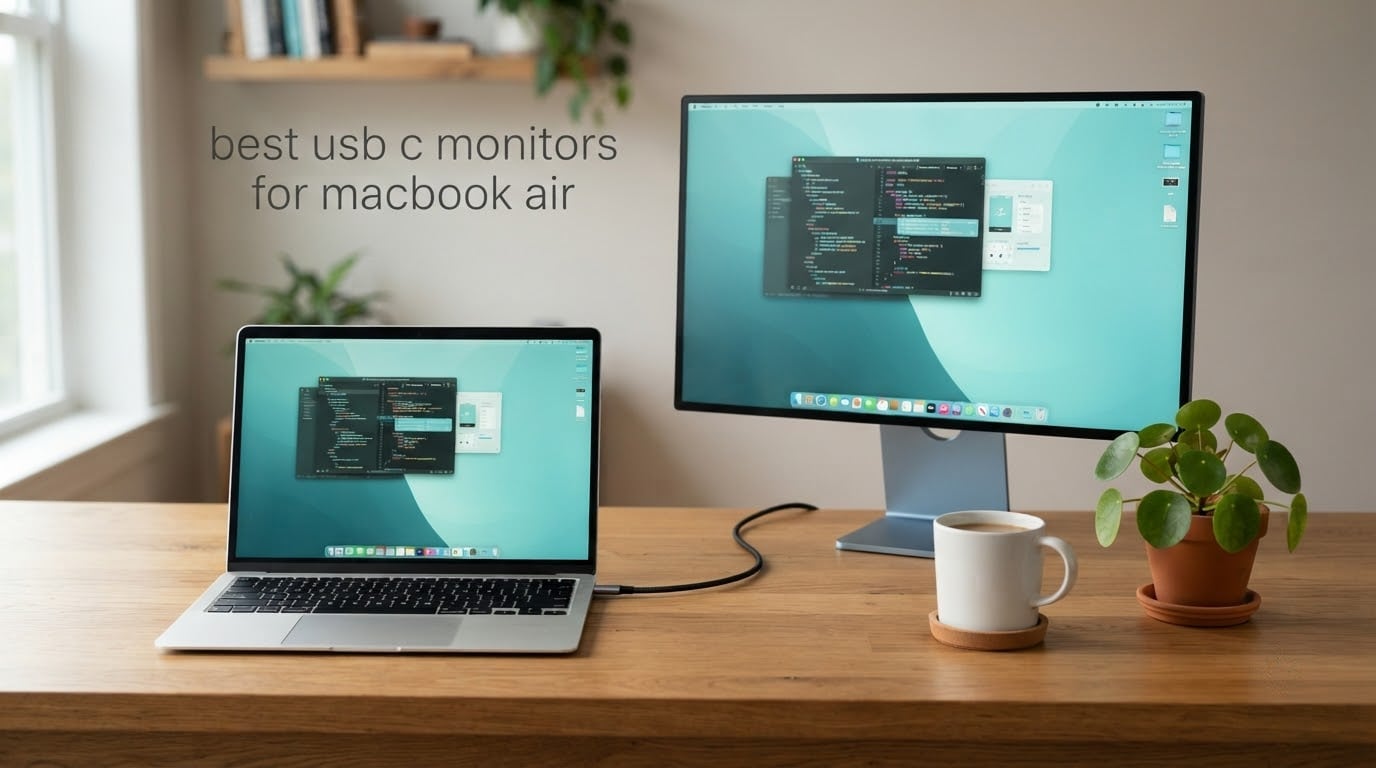
Short answer: the ASUS ProArt PA279CV is the best USB-C monitor for MacBook Air right now. It is a 27-inch 4K IPS panel with 65W USB-C power delivery, Calman Verified calibration at Delta E under 2, a stand that pivots to portrait, and a five-year warranty. If you want a larger canvas, the BenQ MA270U gives you 90W charging and Mac-matched color. If you want smooth motion, the Dell UltraSharp U2725QE runs Thunderbolt 4 at up to 140W and 120Hz.
We spent weeks moving between these displays with a MacBook Air, checking the things that actually break a Mac setup rather than the things that look good on a spec sheet. That means cable negotiation, sustained charging under load, how text renders at macOS scaled resolutions, and whether the stand adjustment survives a full workday.
Three questions decide almost every purchase in this category. How many external displays will your chip drive, at what resolution ceiling? How many watts does the Air actually need, and does the monitor deliver them while the laptop is working? And is the panel dense enough that text looks as crisp as the built-in Retina screen, or does it look soft next to it? Get those three right and the rest is preference.
One thing worth saying up front, because it changes the buying math: a MacBook Air is a 65W-class machine, not a 140W one. Plenty of monitors advertise less wattage than a MacBook Pro needs and still charge an Air at full speed, which is why two of the picks below sit well below the flagship Thunderbolt option. If you also own a Pro, our picks for USB-C cables and chargers will matter more than the wattage figures on the monitor itself.
Our Top 3 USB-C Monitors for MacBook Air

ASUS ProArt PA279CV
- 65W USB-C power delivery
- 27-inch 4K IPS panel
- Calman Verified Delta E under 2
- 5-year warranty

Dell UltraSharp U2725QE
- Thunderbolt 4 with up to 140W
- 120Hz IPS Black panel
- 99% DCI-P3 and Delta E under 1.5
- Ambient light sensor

BenQ MA270U
- 90W USB-C power delivery
- P3 wide color gamut
- Mac-matched color tuning
- Height tilt swivel and pivot stand
All 10 Monitors Compared Side by Side
Everything below runs a single USB-C cable to the MacBook Air, though the wattage ranges from 60W to 140W and the panels range from 1440p to 4K. Scan this first, then jump to the full write-up for the ones that fit your desk.
| Product | Specs | Action |
|---|---|---|
| ASUS ProArt PA279CV 27-inch 4K |
|
Check Latest Price |
| BenQ MA270U 27-inch 4K |
|
Check Latest Price |
| Dell UltraSharp U2725QE 27-inch 4K |
|
Check Latest Price |
 BenQ PD3205U 32-inch 4K BenQ PD3205U 32-inch 4K |
|
Check Latest Price |
 Dell S2722DC 27-inch WQHD Dell S2722DC 27-inch WQHD |
|
Check Latest Price |
 LG 32UP83AK-W 31.5-inch 4K LG 32UP83AK-W 31.5-inch 4K |
|
Check Latest Price |
 INNOCN 27C1U-D 27-inch 4K INNOCN 27C1U-D 27-inch 4K |
|
Check Latest Price |
 ASUS ProArt PA278CV 27-inch QHD ASUS ProArt PA278CV 27-inch QHD |
|
Check Latest Price |
 Philips 346E2CUAE 34-inch ultrawide Philips 346E2CUAE 34-inch ultrawide |
|
Check Latest Price |
 Sceptre E325B-QW200D 32-inch QHD Sceptre E325B-QW200D 32-inch QHD |
|
Check Latest Price |
1. ASUS ProArt PA279CV – The Best All-Rounder for a MacBook Air Desk
ASUS ProArt PA279CV 27 Inch 4K UHD USB-C Professional Monitor
27-inch 4K IPS
65W USB-C power delivery
Delta E under 2
5-year warranty
Pros
- Calibrated 100% sRGB and 100% Rec. 709 with Delta E under 2
- 65W single-cable charging for a MacBook
- Stand pivots to portrait for code review
- 761 reviews give the deepest owner feedback in this list
Cons
- Some units ship with a slight green tint
- USB-C handshake can need a full power cycle
- ASUS support has been described as slow
The PA279CV is the one we kept coming back to. On a MacBook Air, a single USB-C cable handles the 4K picture, the USB 3.1 hub, and 65W of charging, so the desk stays clear and the laptop never touches a second port. That 65W figure matters more than the marketing around it, because it is roughly what the Air expects over a full workday.
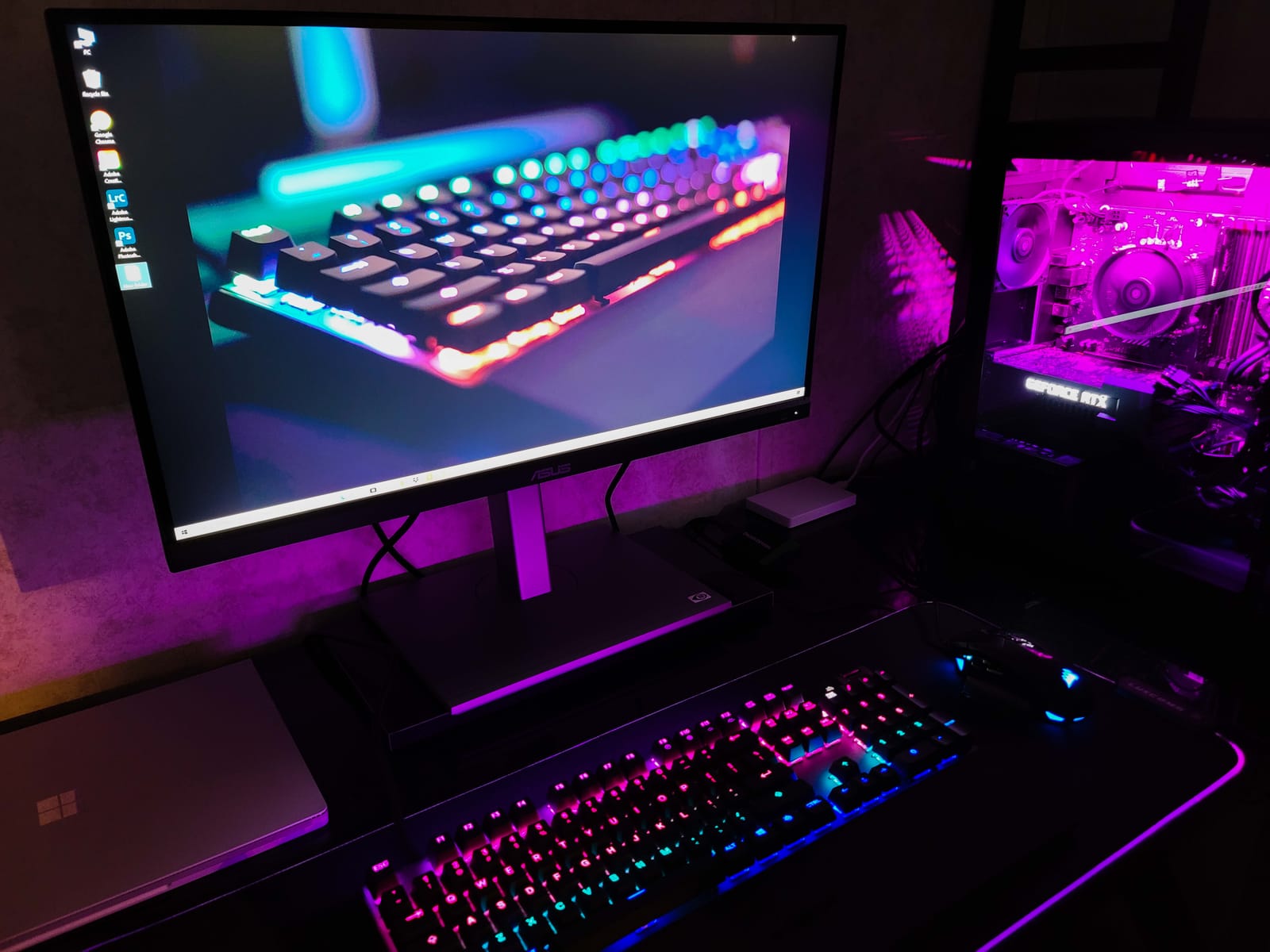
Color is the quiet strength. The panel is factory calibrated to Delta E under 2 across 100% sRGB and 100% Rec. 709 coverage, so photos and video line up reasonably with what you see on the Air’s own display without a colorimeter in the box. Reviewers consistently praise the stand for pivoting to portrait, which is exactly what you want for long code or document review.
Color Accuracy and the 4K Density Question
At 3840×2160 on a 27-inch panel, this is the same resolution class as the Dell and BenQ 27-inchers here, so text sharpness lands in the same place: crisp at a 1.5x scaled setting, acceptable rather than Retina-class at 2x. If you want true Retina-density text, no 27-inch 4K panel in this group delivers it, and the density math is worth understanding before you buy.
The 100% sRGB and 100% Rec. 709 coverage means it is a working monitor for photo and video, though it is not a wide-gamut P3 panel. If you regularly grade footage or match a P3 reference, look at the BenQ MA270U or the Dell U2725QE instead.
Power Delivery and the Single-Cable Reality
65W is the right number for a MacBook Air and it is the number most Air owners actually need. Several buyers note that this figure is below what newer MacBook Pro chargers deliver, which is irrelevant unless you swap machines. Under sustained load the Air draws close to its ceiling, so keep the stock charger in your bag for long heavy days.
One recurring complaint deserves attention: some owners report the USB-C connection is not recognized until the monitor is fully power cycled. If that happens, unplug the cable at both ends and power the display off and on before assuming the cable is bad.
Stand, Ports, and Long-Term Ownership
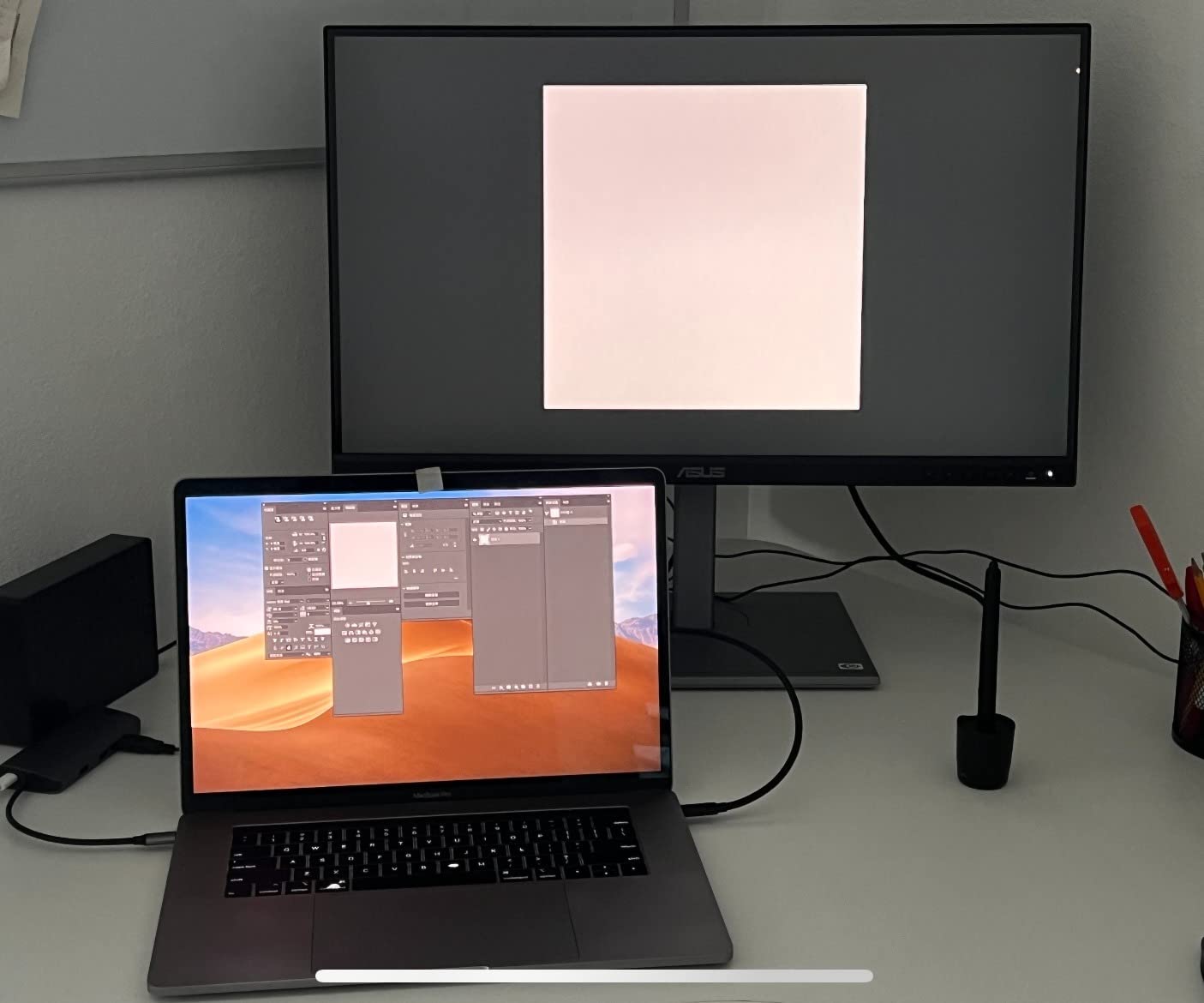
The stand adjusts for height, swivel, tilt, and pivot to portrait, which is a fuller ergonomic package than most panels in this list offer. Ports include DisplayPort over USB-C, DisplayPort, HDMI, and a four-port USB 3.1 hub, so you can leave a wired keyboard and mouse connected permanently.
The warranty is the longest in the group, matched only by the PA278CV: three years plus two more with online registration. That matters more than it sounds for a monitor you will keep through several laptop generations. The tradeoff is the color variation between samples mentioned earlier, which is a real consideration if you care about fine photo work and cannot return easily.
2. BenQ MA270U – 90W Charging and Color Tuned for MacBooks
BenQ MA270U 27” 4K 3840×2160 Monitor for MacBook® Pro/Air, Dual USB-C, 90W Power Delivery, Mac Color Match, USB Hub, Brightness & Volume Control on Mac, Height & Tilt Adjustable Stand, P3 Color Gamut
27-inch 4K IPS
90W and 15W USB-C
P3 wide color
400 nits
Pros
- Mac-matched color tuning with P3 wide gamut
- 90W charging plus a second 15W USB-C port
- Keyboard brightness and volume control through software
- Stand adjusts for height swivel tilt and pivot
Cons
- Most settings live in software rather than the on-screen menu
- Only one USB-A port and it is awkward to reach
- No on-screen language option
The MA270U is an explicitly Mac-oriented display. BenQ tunes it with Mac Color Match so the output lines up with the Air’s built-in screen, and it covers the P3 wide color gamut rather than sticking to sRGB. If you move between the laptop screen and the external one all day, that matching is the feature you will actually feel.
It also solves charging properly. The main USB-C port delivers 90W and a second USB-C port delivers 15W for a phone or tablet, so the Air stays at full charge while you work. Two HDMI ports and two USB 3.0 ports cover legacy gear without a dock.
Brightness, Contrast, and the Matte Finish Question
At 400 nits with a 2000:1 contrast ratio, this panel has deeper contrast than the other 27-inch 4K options here, and the matte finish handles reflections well in a bright room. Response time of 3 milliseconds and a 60Hz refresh rate mean it is a productivity panel, not a motion panel.
For a controlled-room editing setup, the matte coating will never give you the clarity of a glossy or nano-texture panel under studio lights. In a normal home or shared office, it is the right tradeoff because it never turns into a mirror.
Mac Keyboard Control and the Software Dependency
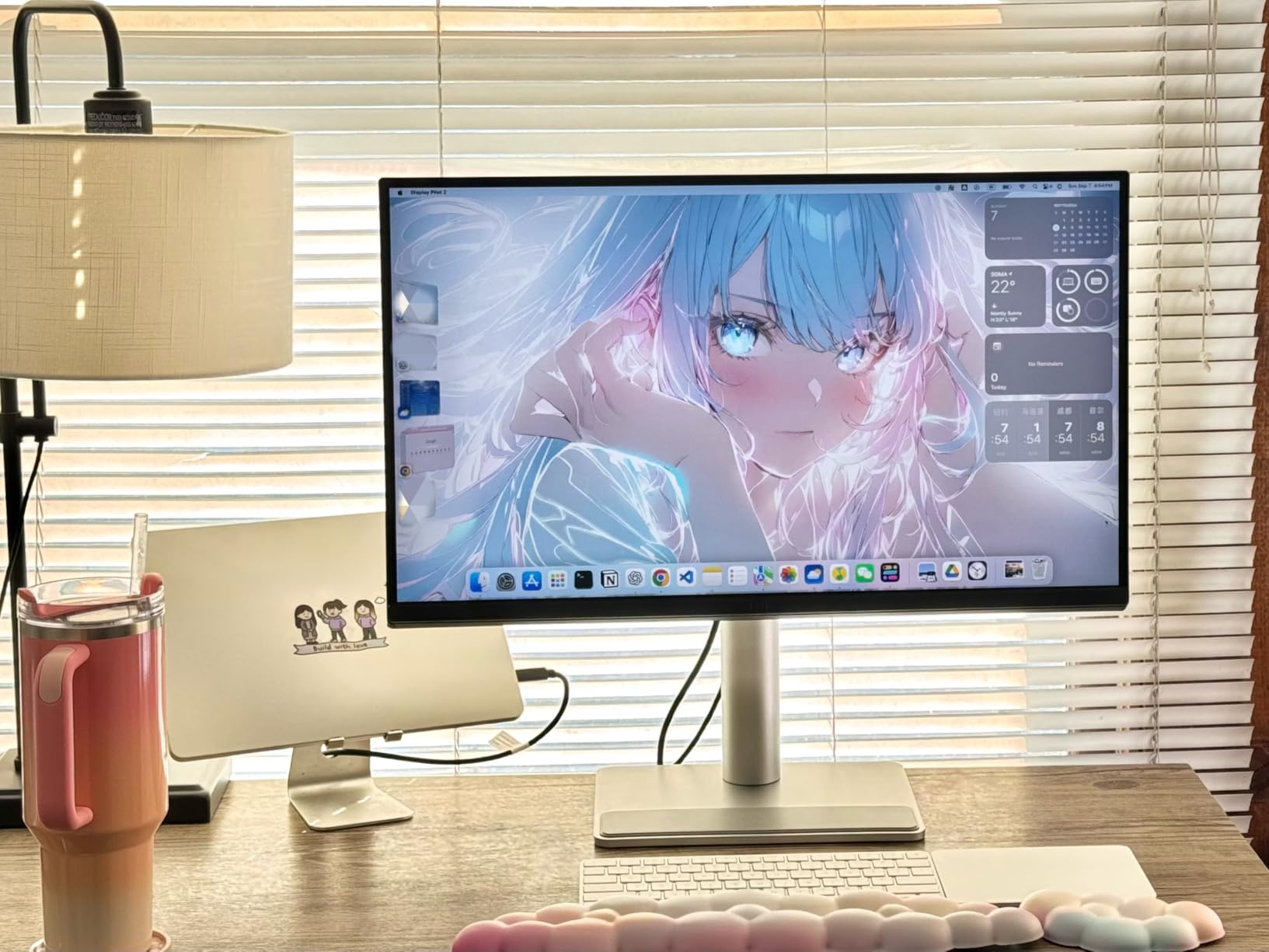
Using Display Pilot 2, brightness and volume can be adjusted from the MacBook keyboard, which is a small convenience you stop noticing within a day. The catch is that most deeper settings also live in that app rather than in the on-screen menus, so a missing feature is often a software question rather than a hardware limitation.
That dependency is the main reason this is not our top pick. Owners who like being able to walk up to the panel and change an input source without a laptop will find it slower than the Dell or ASUS stands.
Port Layout and Ergonomics in Practice
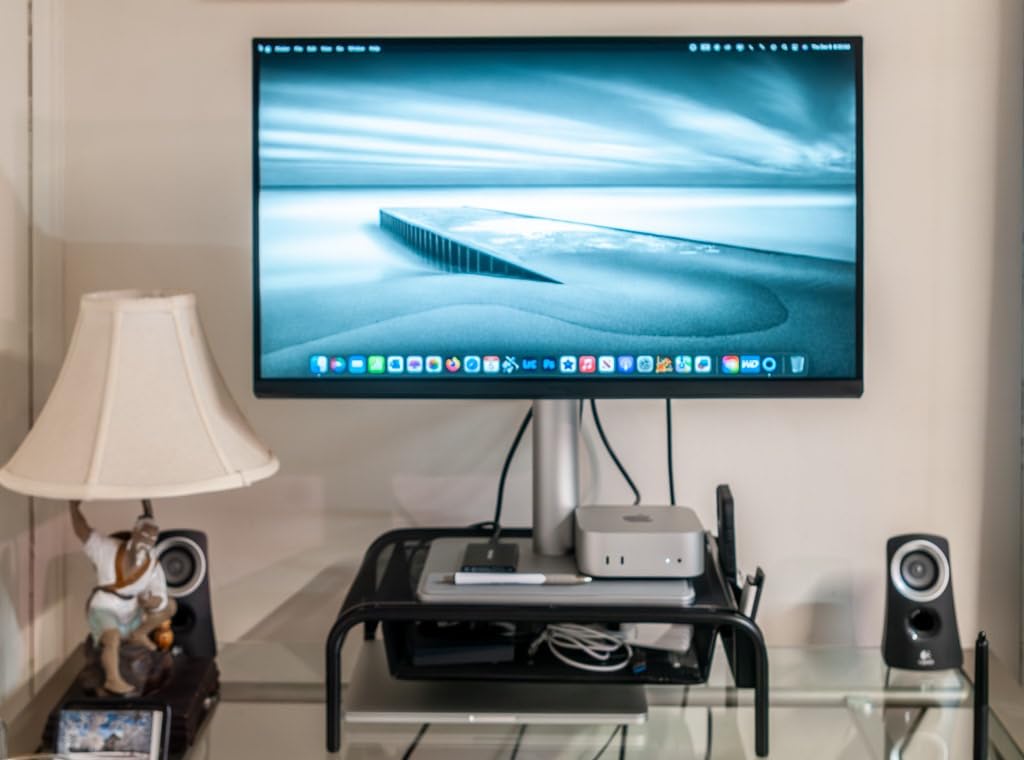
The stand handles height, tilt, swivel, and pivot, so it covers every adjustment the MacBook Air desk needs. The most common frustration is the single USB-A port, which sits in an awkward spot and forces you to reach behind or under the panel for a flash drive or a wired mouse.
A three-year manufacturer warranty covers the panel, and the frame is a matte black that disappears on most desks. It brings a Mac-oriented feature set that no other 27-inch 4K panel in this group duplicates at this wattage.
3. Dell UltraSharp U2725QE – Thunderbolt 4 and 120Hz in One Cable
Dell UltraSharp U2725QE 27-Inch 4K UHD IPS Black Monitor
27-inch 4K IPS Black
Thunderbolt 4 up to 140W
120Hz
450 nits
Pros
- Thunderbolt 4 carries video data and up to 140W on one cable
- 120Hz with 5ms response is visibly smoother than 60Hz
- Factory calibrated to Delta E under 1.5 with 99% DCI-P3
- Daisy chaining supports extra 4K monitors
Cons
- Costs more than 4K monitors without Thunderbolt
- May still need manual brightness in a bright room
The U2725QE is the only Thunderbolt 4 display in this group, and that single fact changes what a MacBook Air setup can look like. One cable carries the 4K image, the full USB hub including Ethernet, and up to 140W of charging. It also daisy chains to as many as two additional 4K monitors, which is the cleanest path to a three-screen desk from one port.
Scrolling feels different on a 120Hz panel. Once you have moved from a 60Hz laptop screen to this one, going back feels sluggish, and that is why it earns the motion badge here.
IPS Black Contrast and the Ambient Light Sensor
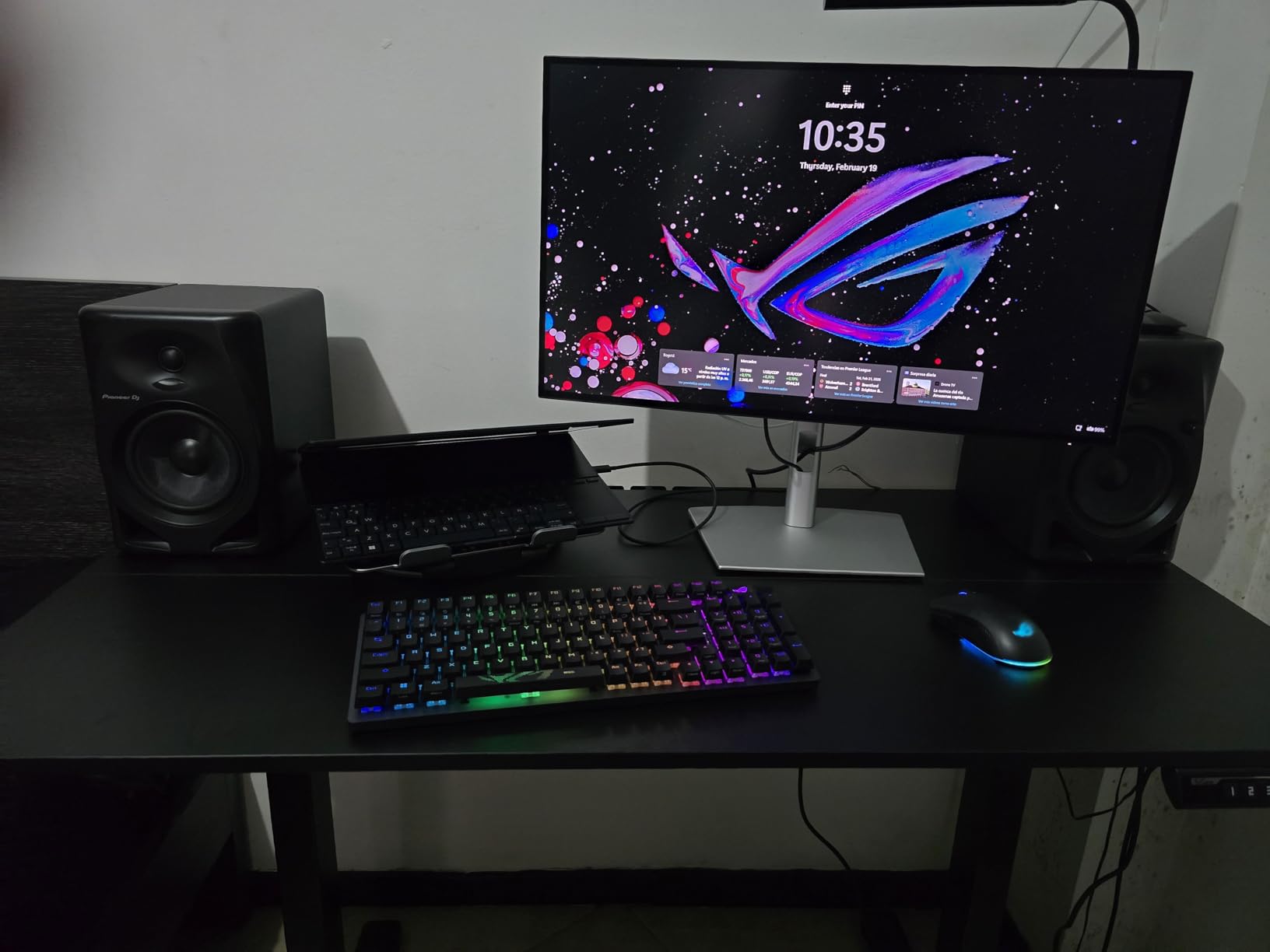
This is an IPS Black panel rather than standard IPS, which is the reason the contrast figure of 1000:1 is meaningful rather than disappointing. Combined with 450 nits of brightness, it handles a bright office without washing out, and the ComfortView Plus ambient light sensor adjusts brightness automatically through the day.
Owners do report that in strongly lit rooms you may still reach for the manual brightness control, which is a fair critique of any sensor-driven feature. Color is factory calibrated to Delta E under 1.5 with 99% DCI-P3 coverage, the tightest factory spec in this list.
Thunderbolt 4 Versus Plain USB-C
Most of the monitors here negotiate DisplayPort Alt Mode over a standard USB-C port. That is enough for 4K at 60Hz, which is all the MacBook Air needs in everyday use. Thunderbolt 4 adds bandwidth, daisy chaining, and the 140W ceiling that future-proofs a desk shared with a MacBook Pro.
You do not need Thunderbolt for a MacBook Air today. You need it if you plan to add a second and third display, or if you want a dock built into the monitor rather than a separate box. Our USB-C hub picks cover the case where you would rather not replace your monitor.
Connectivity, Stand, and Service
The port selection is unusually generous: two HDMI 2.1 inputs, USB-C, five USB-A ports, and Ethernet passthrough. Adaptive sync works with G-Sync-compatible setups, and the stand offers 15 height positions plus tilt, swivel, and pivot.
Dell backs it with a three-year Advanced Exchange Service and a Premium Panel Exchange, so a dead panel is replaced rather than repaired. The listed pixel density of 109 PPI sits in the same general class as the other panels here, so expect familiar scaling behavior once you land on a resolution in System Settings.
4. BenQ PD3205U – Factory-Calibrated Accuracy on a 32-Inch Canvas
BenQ PD3205U Mac-Ready Monitor 32″ 4K UHD 99% Rec.709 & sRGB, IPS, DeltaE ≤3, ICC Sync, Calibration Report, AQCOLOR, Uniformity HotKey Puck Ergonomic DisplayPort, USB-C (90W), USB Hub
31.5-inch 4K IPS
90W USB-C
Delta E at or under 3
Hotkey Puck
Pros
- Calman Verified and Pantone Validated with Delta E at or under 3
- ICC Sync matches Mac and monitor color automatically
- 32-inch canvas stops side-by-side window overlap
- 90W charging plus a built-in KVM switch
Cons
- Built-in speakers are tinny with almost no bass
- Stand does not rotate to portrait as marketing suggests
- KVM switching through the puck is slow and sometimes fails
The PD3205U is built for people who edit rather than people who scroll. A 31.5-inch 4K IPS panel with 99% sRGB and 99% Rec. 709 coverage, factory calibrated to Delta E at or under 3 and shipped with a calibration report, is a stronger accuracy claim than the untested color figures printed on the boxes of most other monitors here.
ICC Sync matches the profile between the Mac and the display automatically, which is exactly the integration step most people skip and then wonder about. The Hotkey Puck G2 puts color mode switching and brightness on a physical controller instead of buried menus.
Why 32 Inches Changes the Working Day
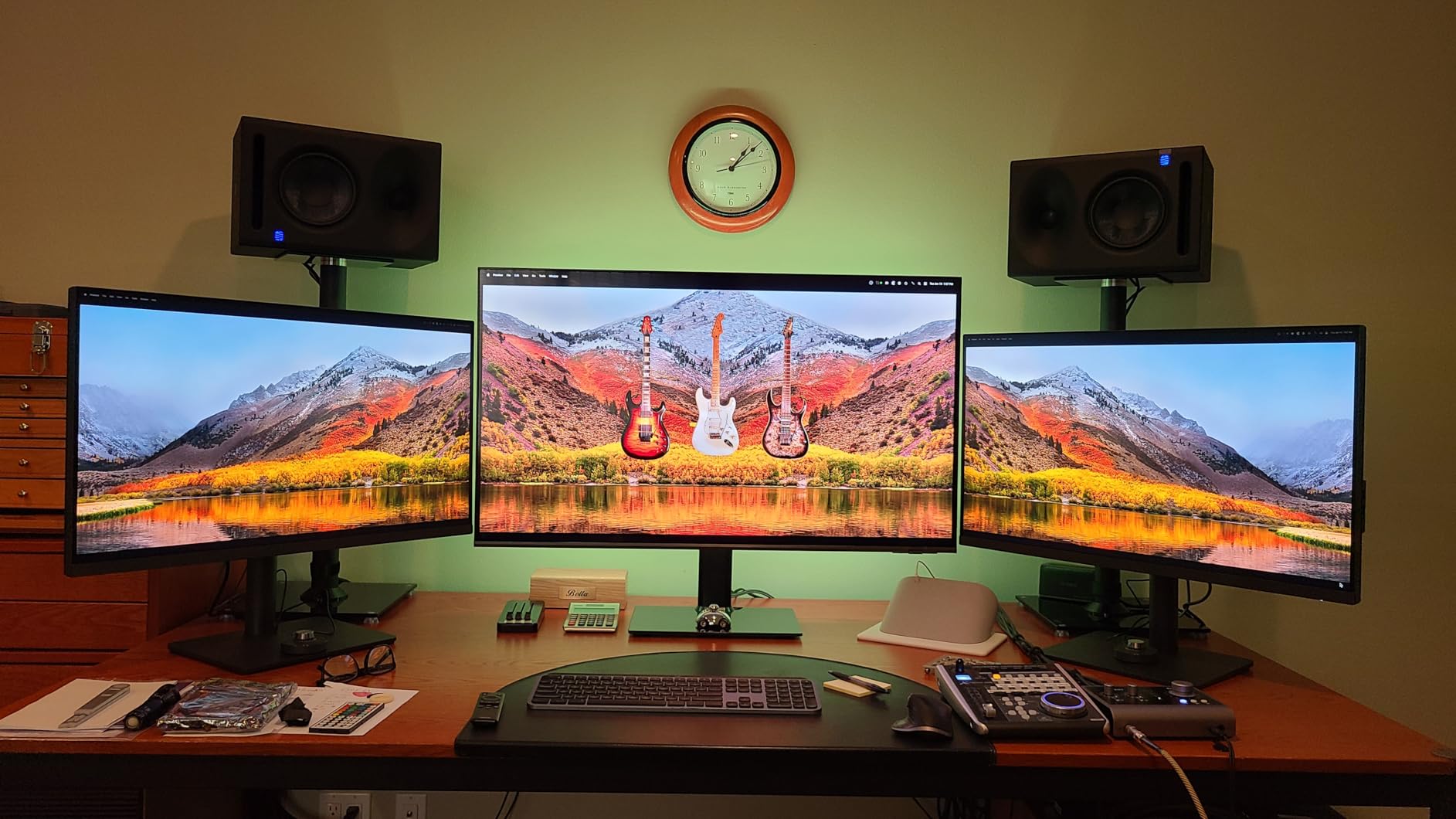
A 31.5-inch 4K panel gives you roughly the vertical space of a document and the horizontal space of a full browser window side by side. People who moved up from a 27-inch report that window overlap stops being an everyday annoyance. The trade is that you sit a little further back, and the same 3840×2160 grid spread over more inches means slightly lower pixel density than the 27-inch models here.
At 350 nits with a 1000:1 contrast ratio, brightness is adequate indoors but owners in very sunny rooms report it is not enough. The anti-glare coating is helpful there, since it does not reflect room lighting the way a glossy panel would.
USB-C Power Delivery and DisplayPort Alt Mode
The USB-C port with DisplayPort Alt Mode delivers up to 90W alongside video and data, comfortably above what a MacBook Air draws. HDMI 2.0 and DisplayPort 1.4 inputs cover desktop PCs, and HDR10 plus adaptive FreeSync are supported for media and light gaming.
The important caveat is that this is DisplayPort Alt Mode, not Thunderbolt. You get excellent 4K at 60Hz and 90W charging, but you do not get daisy chaining to multiple displays from one port, which is the specific advantage the Dell U2725QE provides.
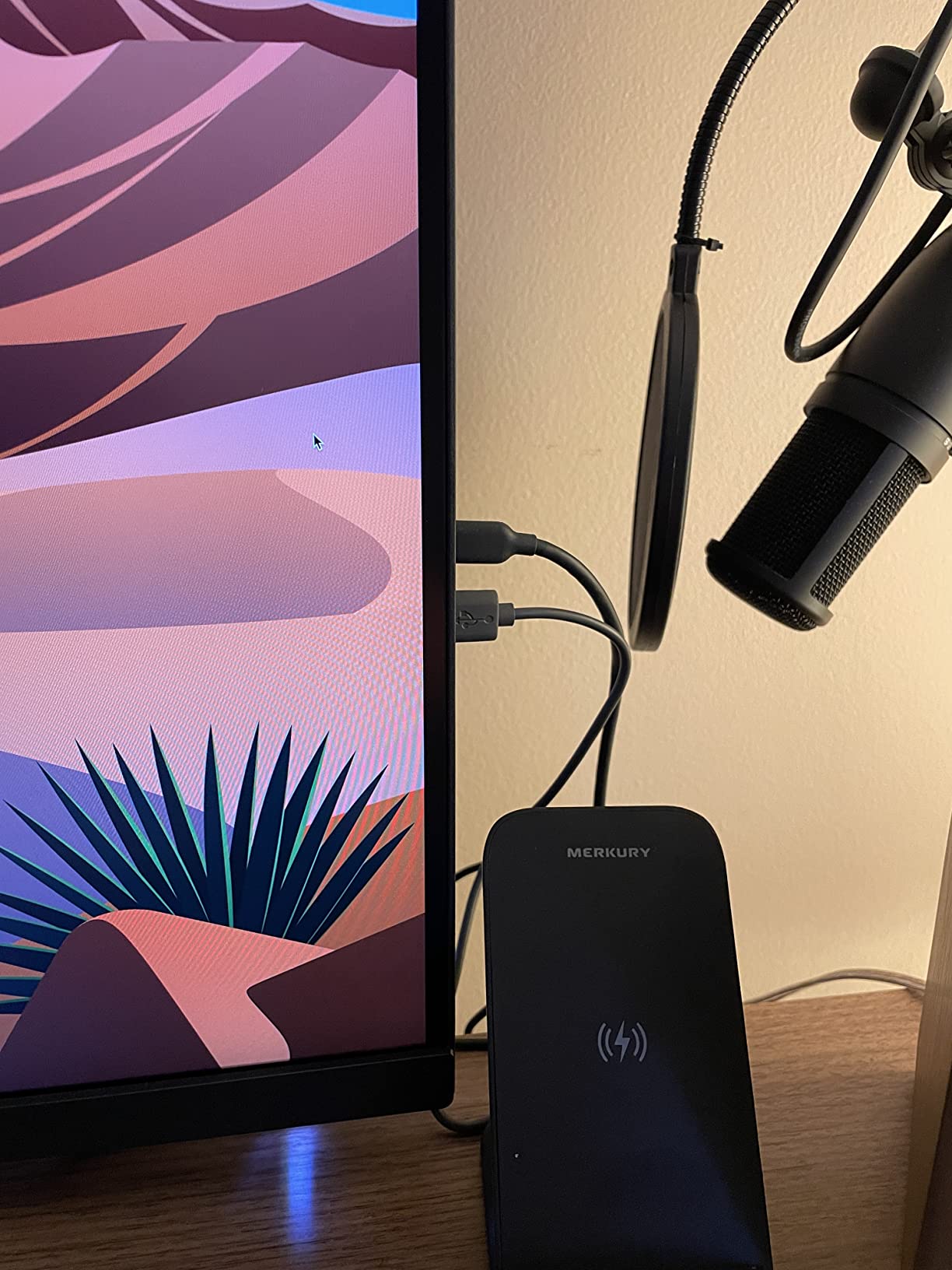
The KVM Switch, the Puck, and the Ports
The built-in KVM switch lets one keyboard and mouse move between two computers, which matters if you hot-desk between a Mac and a Windows machine. DualView splits the screen for another multitasking style. In practice the puck-driven switching is the weak point: owners describe it as slow and occasionally unable to recognize a source, so treat it as a convenience rather than a headline feature.
Two other recurring complaints: the built-in speakers are thin despite the pro-audio positioning, and the ports sit on a narrow downward-facing ledge that is awkward to reach. The stand adjusts for height, tilt, and swivel, and comes with a three-year manufacturer warranty.
5. Dell S2722DC – 65W Charging and a Front USB Port for Office Work
Dell S2722DC Monitor – 27-inch WQHD (2560×1440) 75Hz 4Ms Display, AMD FreeSync, Built in Speaker, USB Type-C Connectivity, Height/Pivot/Swivel/Tilt Adjust – Platinum Silver
27-inch WQHD IPS
65W USB-C
75Hz with AMD FreeSync
1-year warranty
Pros
- 65W USB-C single-cable setup for a MacBook
- Quick-access USB-A port on the front edge
- Height tilt swivel and pivot stand adjustment
- Built-in speakers avoid extra desk hardware
Cons
- 75Hz refresh rate is modest next to 120Hz panels
- One-year warranty is short for a business monitor
- No HDR or high-refresh option for gaming
The S2722DC is the office monitor in this group, and for a MacBook Air user who wants one tidy cable it does the job without fuss. A 27-inch WQHD IPS panel at 75Hz with 99% sRGB coverage is unremarkable on paper, which is precisely the point. Nothing about it will surprise you.
What stands out is the front-mounted USB 3.2 Gen 1 Type-A port. You can plug a flash drive or a wired mouse straight into the bezel without reaching around the panel, and on a desk where the monitor sits against a wall that is a real convenience.
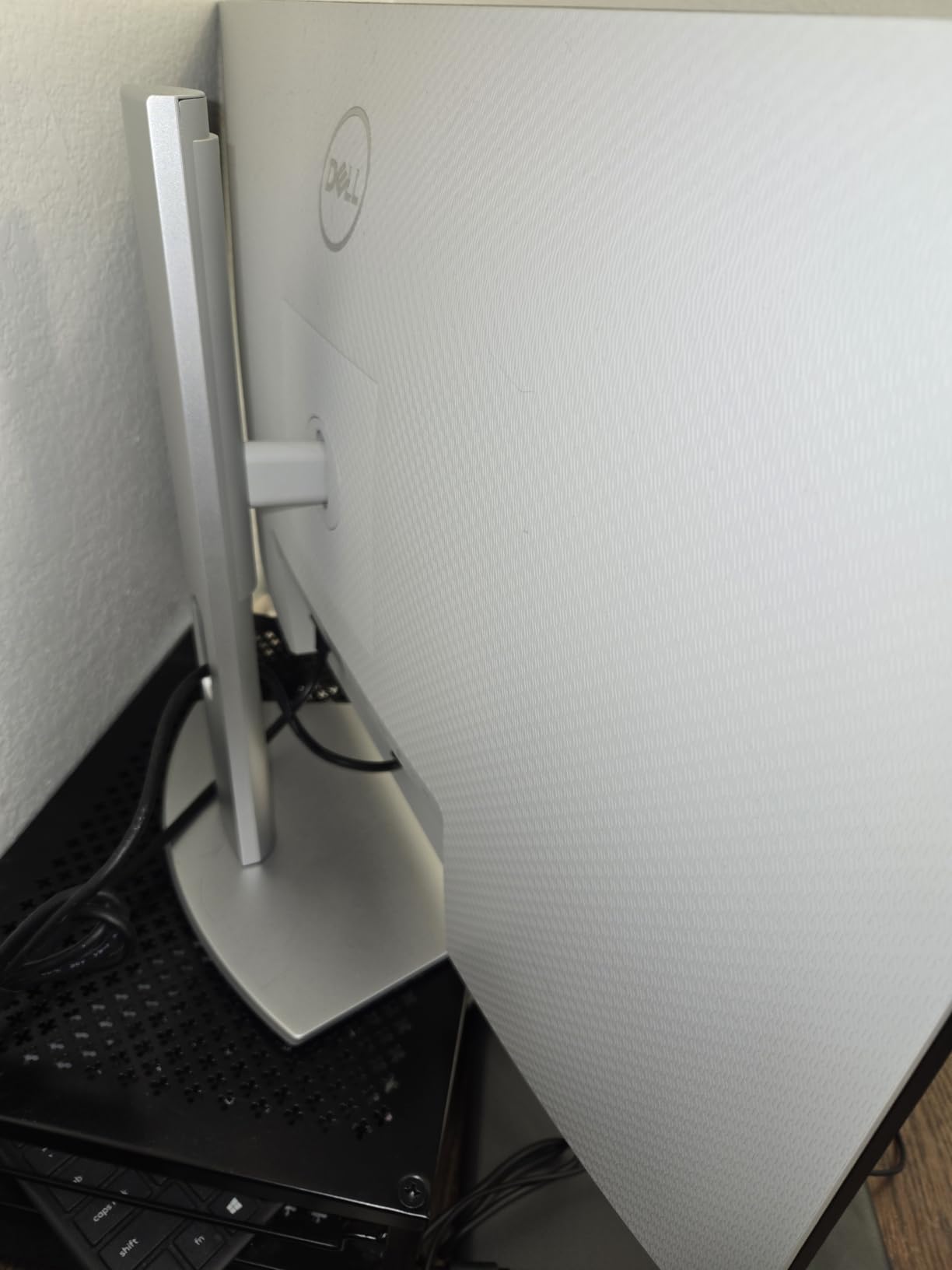
1440p Density and When It Is the Right Choice
At 2560×1440 on 27 inches, this is one of the lower-density panels here, and you will notice it next to a Retina laptop screen. macOS runs it at a scaled resolution where text is acceptable rather than crisp. If you spend the day reading code, long documents, or spreadsheets, the pixel density gap against the Air’s own display is the thing to weigh.
Where 1440p wins is price and simplicity. It drives any modern Mac without bandwidth negotiation, needs no scaling fiddling to be legible, and leaves enough performance headroom for a second display later. If you are setting up a second screen rather than replacing the laptop screen, that trade often makes sense.
Charging, Ports, and the One-Cable Workflow
The USB Type-C port with 65W power delivery transmits power, video, audio, and data over a single cable, which is exactly the MacBook Air’s requirement. AMD FreeSync adaptive sync is included, and built-in speakers cover calls and system audio without a separate device.
What you give up is headroom. 65W is fine for the Air and will not fast-charge a larger MacBook Pro, which reviewers flag as the main limitation if you swap machines. A one-year warranty is the shortest alongside the INNOCN, Sceptre, and LG here.
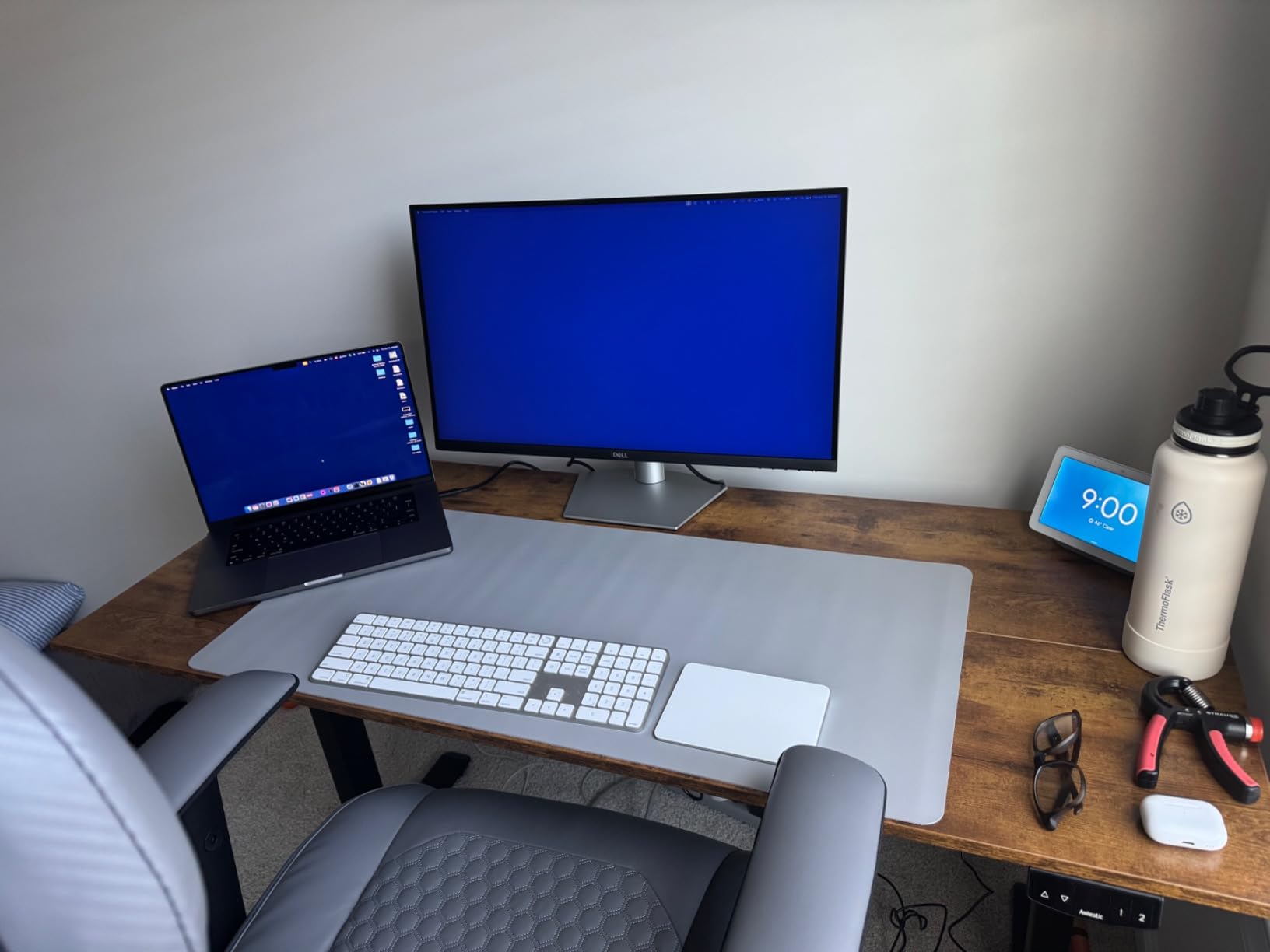
Ergonomics for an Eight-Hour Day
The stand adjusts for height, tilt, swivel, and pivot, which is more than the BenQ PD3205U manages. For a business display that will sit at a desk for years, that adjustment is worth more than any spec on the box.
Reviewers consistently return to the same conclusion: this is a well-liked productivity monitor whose only reservations are the 75Hz ceiling and the short warranty. For general office work, spreadsheets, and long document sessions at a comfortable price, it does the job quietly.
6. LG 32UP83AK-W – Large 4K Canvas with HDR10 and a 60W Cable
LG 32UP83AK-W 32-inch Ultrafine 4K UHD (3840 x 2160) IPS Computer Monitor, 60Hz, HDR10, Built-in Speaker, Reader Mode, HDMI, DisplayPort, USB Type-C 60W PD, Tilt/Height/Pivot Adjustable Stand, White
31.5-inch 4K IPS
HDR10 to 95% DCI-P3
USB-C 60W
Reader Mode
Pros
- Large 4K IPS panel with consistent brightness at wide viewing angles
- HDR10 with up to 95% DCI-P3 coverage
- USB-C carries 4K video data and 60W charging
- Stand adjusts for height tilt and pivot
Cons
- 60Hz refresh rate trails modern 120Hz panels
- 60W will not fully charge larger MacBook Pro models
- One-year parts and labor warranty
The 32UP83AK-W is a straightforward large-format 4K display with a bit of HDR ambition. At 31.5 inches and 3840×2160 it gives you the same working canvas as the BenQ PD3205U, with a matte finish and wide 178-degree viewing angles that hold up in a shared room.
HDR10 support covering up to 95% DCI-P3 is the headline spec, and it is genuinely useful for HDR media playback from a Mac. For Mac productivity work, the Reader Mode that dims the display for long reading sessions is the quieter benefit.
What 60W Means for a MacBook Air
The USB Type-C port handles 4K video, data transfer, and up to 60W of charging in one cable. For a MacBook Air that is adequate for normal use, and reviewers do not report charging problems. It will not fully charge a larger MacBook Pro, which is the one machine class where 60W becomes a real problem.
Two HDMI inputs, DisplayPort, and USB connectivity cover everything else, and built-in speakers remove another box from the desk. If you regularly work at high brightness on battery, keep a charger nearby rather than relying on the monitor.
HDR10, Color, and the Gaming Features
Up to 95% DCI-P3 coverage puts the panel between a standard sRGB monitor and a wide-gamut professional display. It is not a color-critical panel by the standards of the ProArt or PD3205U, but it handles HDR content with more headroom than a plain 4K office screen.
Black Stabilizer and Dynamic Action Sync are gaming-oriented features that do little for Mac productivity, though they do not hurt. The 60Hz refresh rate is the number that limits this display: it is fine for work and media, and it is the reason this is not our high-refresh recommendation.

Stand, Finish, and Ownership
The stand adjusts for height, tilt, and pivot, and the display is wall mountable for anyone who prefers that to a stand. The matte finish keeps reflections off the panel in a normal office.
Owners praise the large sharp canvas and the simple one-cable workflow, and the recurring limits are the 60Hz panel, 60W charging, and a one-year parts and labor warranty. At 8.3 kg it is a substantial monitor, so plan the desk accordingly.
7. INNOCN 27C1U-D – The Budget Route to 27-Inch 4K With USB-C
INNOCN 27″ 4K USB-C Monitor for Laptop MacBook/Mac mini – 16:9 IPS 3840 x 2160 Display, HDR400, DeltaE<2, DisplayPort, HDMI PC Monitor, 1.07B+ Colors, Built-in Speakers, Adjustable Stand, Black
27-inch 4K IPS
65W USB-C
HDR400 at 400 nits
Delta E under 2
Pros
- 4K IPS panel with Delta E under 2 color accuracy
- 65W USB-C carries display data and charging on one cable
- HDR400 with 400 nits peak brightness
- Stand adjusts for swivel height tilt and portrait pivot
Cons
- 60Hz refresh rate
- Single-year manufacturer warranty
- Modest HDR400 implementation rather than true HDR
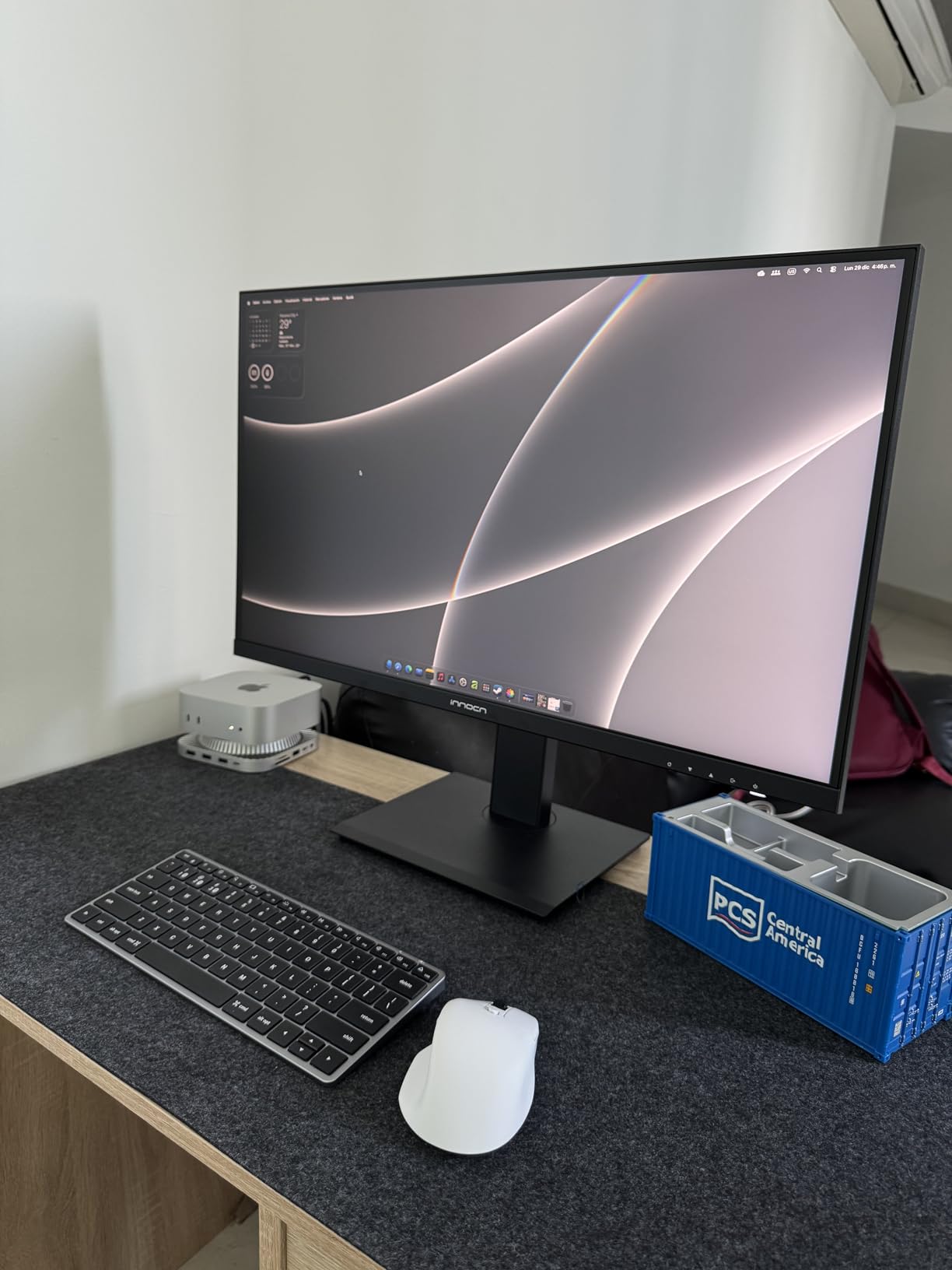
The INNOCN 27C1U-D exists to answer one question: how little does a usable 27-inch 4K USB-C monitor for a MacBook Air cost. The answer is meaningfully less than the premium panels here, and you keep the two features that matter most for a Mac, which are a 4K panel and 65W single-cable charging.
Color is 8-bit with frame rate conversion for 1.07 billion colors at Delta E under 2, which is a strong claim on paper for this price band. In practice owners describe it as accurate enough for light creative work rather than a reference display.
Ports and Connectivity for a Mac Desk
The port selection is unusually generous: 65W USB Type-C, DisplayPort 1.4, HDMI 2.1, and a 3.5mm audio out. That means you can keep a desktop PC connected over HDMI and switch to the MacBook Air over USB-C without unplugging anything, which is a genuine multi-machine advantage.
HDR400 with 400 nits peak brightness improves the picture for HDR media, though owners correctly describe it as a modest implementation rather than real high dynamic range. Adaptive sync is supported for light gaming.
Stand Adjustment and Wall Mounting
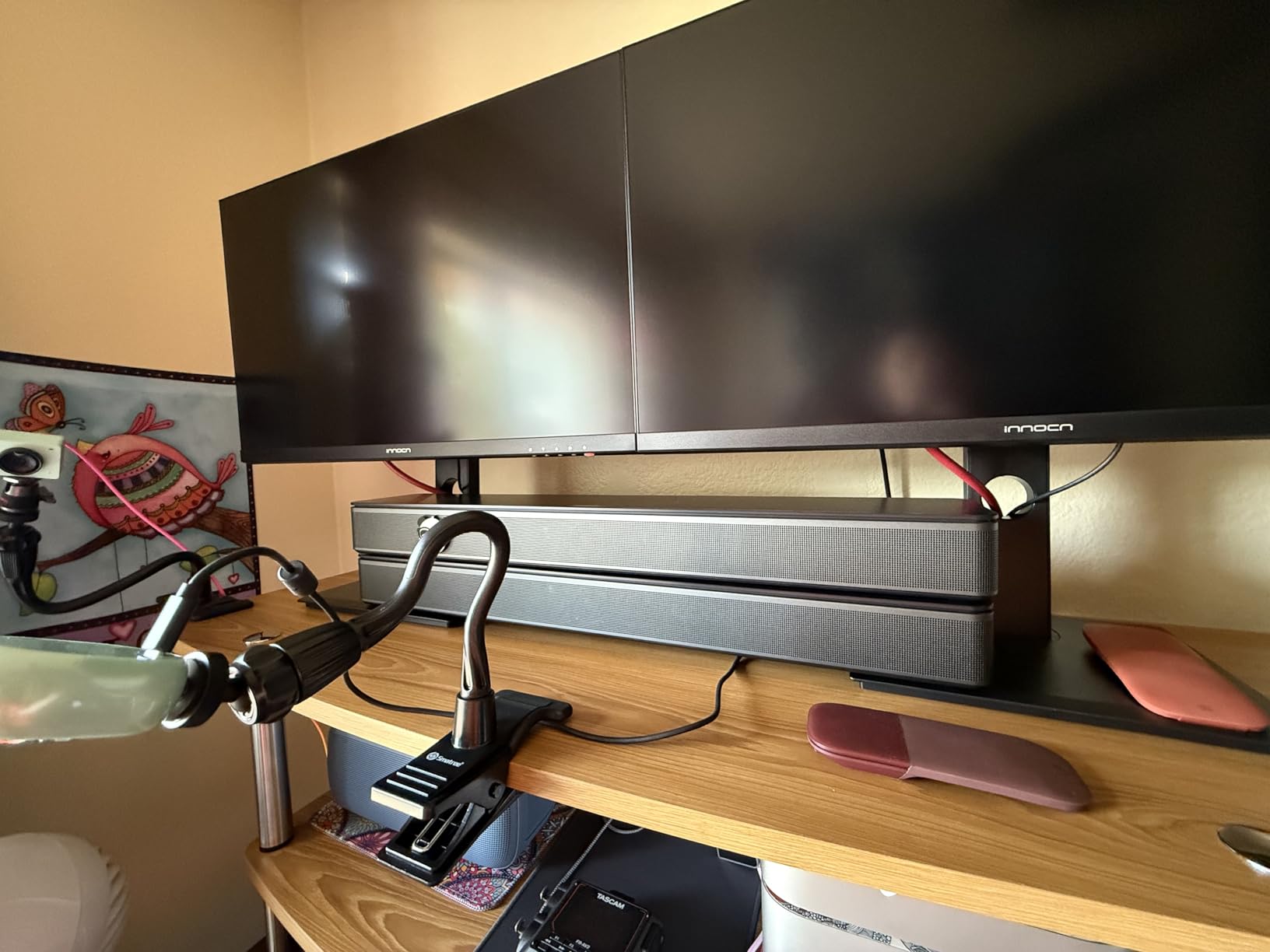
The stand is more capable than the price suggests: 45-degree swivel, plus or minus 5 inches of height, 5 degrees forward and 20 degrees back, and plus or minus 90 degrees of pivot into portrait. That covers nearly every ergonomic adjustment people ask for at the top of a buying list.
It is also VESA 75×75 wall mountable, and the frameless three-sided design keeps the profile clean. If your desk plan calls for an arm, this one accepts one without adapters.
Where the Budget Shows
The 60Hz refresh rate is the first limit you will meet, and 3ms response time does nothing for motion at that rate. If you scroll long documents all day or play games on the Mac, the 120Hz Dell U2725QE is a fundamentally different experience.
The one-year manufacturer warranty is the other limit. It is a fifth of the ASUS ProArt coverage and half the Philips term, which matters if you keep a display for a decade. Owners otherwise treat this as a dependable 4K workhorse for the money.
8. ASUS ProArt PA278CV – The 1440p Option with Daisy-Chain Multi-Monitor Support
ASUS ProArt PA278CV 27 Inch 1440p QHD USB-C Professional Monitor
27-inch QHD IPS
65W USB-C
75Hz
DisplayPort daisy chaining
Pros
- Calibrated 100% sRGB and Rec. 709 with Delta E under 2
- 65W USB-C charges a MacBook over one cable
- DisplayPort daisy-chaining links up to four displays
- Stand adjusts for height with a 90-degree pivot
Cons
- 1440p resolution is lower than 4K rivals
- 75Hz refresh rate limits high-motion use
- Stand is heavier than expected
The PA278CV has the largest owner base in this group, with 899 reviews, and the reason is that it does the fundamentals well: accurate color, a 65W single-cable MacBook workflow, and DisplayPort daisy-chaining that can link up to four displays from one output.
That daisy-chain capability is the feature nobody else in this list offers. With a MacBook Air driving two USB-C ports, you can still build a three-screen desk, which solves the port-scarcity problem that dominates MacBook Air setups without buying a dock.

1440p Text Rendering Versus 4K
At 2560×1440 on 27 inches with 100% sRGB and 100% Rec. 709 coverage, this is a creative-work panel rather than a text-density one. Calman Verified factory calibration at Delta E under 2 is a real spec, and buyers in photography and video rate the color favorably.
The honest limitation is density. Compared with the 4K panels here, text at a 1x scaled setting is smaller and slightly softer. If your work is code, documents, and spreadsheets, the ASUS ProArt PA279CV costs a similar amount of money for 4K and is the better fit. If your work is images, this one is fine.
Daisy Chaining and Multi-Display Setups
DisplayPort daisy-chaining lets one upstream port drive several monitors in sequence, which on a MacBook Air with two USB-C ports means a genuine multi-screen desk. It is a DisplayPort 1.4 feature rather than a Thunderbolt one, so bandwidth is shared and you should keep resolution and refresh modest across the chain.
Connectivity otherwise is HDMI, DisplayPort, 3.5mm audio, and a USB 3.2 Gen 1 hub. That is enough to keep a keyboard, mouse, and drive permanently attached.
75Hz and the Stand
The 75Hz refresh rate is the ceiling here, and it is the same ceiling as the Dell S2722DC. Scrolling is smooth enough for office work, but a 120Hz panel changes how the whole machine feels, and you notice the difference after an hour.
The stand adjusts for height and offers a 90-degree pivot into portrait, which makes it a good fit for code review or long document work. It is heavier than expected for a monitor in this class, which is not a complaint so much as a reminder to check your desk load. The warranty matches the PA279CV at five years with registration.
9. Philips 346E2CUAE – A 34-Inch Ultrawide That Replaces Two Screens
Philips 34 Inch Curved Computer Monitor UWQHD 100Hz USB-C PD VA, 346E2CUAE
34-inch 3440x1440
1500R curved VA
USB-C Power Delivery
100Hz
Pros
- 3440x1440 canvas replaces a dual-monitor setup
- 100Hz with 1ms MPRT keeps motion smooth
- Curved 1500R panel with wide viewing angles
- Five USB ports and a four-year warranty
Cons
- 21:9 aspect ratio does not match 16:9 without scaling
- Glossy finish reflects room lighting
- Not calibrated to ProArt and UltraSharp color standards
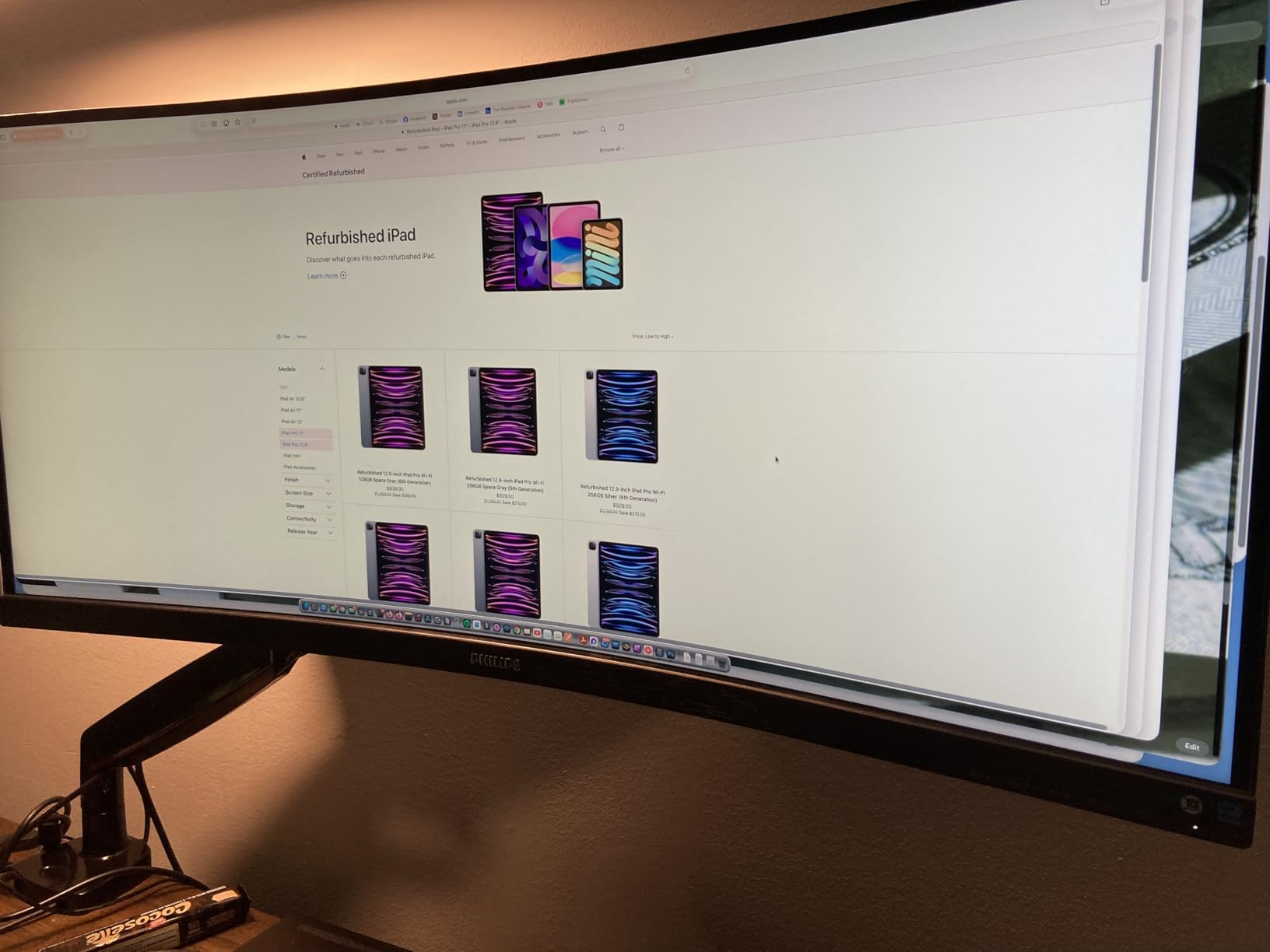
The Philips 346E2CUAE answers a different question: can one screen replace two? A 34-inch 3440×1440 curved display gives you roughly the same usable width as two 16:9 monitors side by side, and a MacBook Air only has two USB-C ports to spend. One screen, one cable, no dock.
It is also the only ultrawide in this group and the only glossy panel, which is a deliberate trade. The 1500R curve and 121.3% sRGB coverage give an immersive, vivid image for media and general work.
The 21:9 Scaling Problem on macOS
This is the single thing to understand before buying an ultrawide for a Mac. The Air’s built-in screen is 16:9, so a 21:9 external display leaves black bars if you match heights, or a squeezed, very tall desktop if you fill the width. macOS handles it, but the result is not what a 16:9 workflow expects.
Most people settle on a scaled ultrawide resolution that approximates two standard desktops side by side, and once set, it works well for timelines, code, and long documents. It is a preference decision, not a defect, and it is the main reason this is not the default recommendation.
USB-C Charging, Ports, and the Glossy Panel
USB-C Power Delivery handles laptop charging and video over one cable, which reviewers find convenient for a MacBook Air, though they note it is not sufficient to fast-charge larger MacBook Pro machines. DisplayPort, HDMI, four USB 3.1 ports, and five total USB ports make it a capable hub for peripherals.
The glossy finish is the other real consideration. In a controlled room it looks excellent and adds contrast, but it reflects windows and lamps directly. If your desk faces a window, the matte and nano-texture options in this list serve you better.
Motion, Color, and the Warranty
At 100Hz with 1ms MPRT response and adaptive sync, motion handling is good for scrolling and casual gaming, though it is well short of the 210Hz Sceptre in this group. VA panels give deeper blacks than the IPS options here, which suits media.
Color is not factory calibrated to the Delta E standards of the ProArt and UltraSharp displays, so this is a productivity and immersion panel rather than a color reference. The four-year manufacturer warranty is the second longest in the group and a genuine advantage for long-term ownership.
10. Sceptre E325B-QW200D – 210Hz for Gamers Who Also Carry a MacBook
Sceptre New 32-inch 2K QHD 2560 x 1440 Prime Gaming Monitor up to 210Hz USB Type-C DisplayPort HDMI sRGB 115% 1ms Build-in Speakers, Machine Black 2026 ((E325B-QW200D Series)
32-inch 2560x1440 VA
up to 210Hz
USB Type-C
AMD FreeSync Premium
Pros
- Up to 210Hz refresh with 1ms blur reduction
- USB Type-C pairs cleanly with a MacBook or mini PC
- 115% sRGB coverage
- Built-in speakers and audio out jack
Cons
- Factory color needs significant adjustment
- Built-in speakers are scratchy at high volume
- Weak HDR performance and low-quality bundled cables
The Sceptre E325B-QW200D is the gaming entry in this group and the fastest panel in it, reaching up to 210Hz on a 32-inch VA display with 1ms blur reduction. If you play on your MacBook Air, no other USB-C monitor here reaches that refresh rate.
USB Type-C connectivity makes it a natural second screen for a laptop or a Mac mini, and the built-in speakers and audio out jack cover casual audio without extra hardware. Adaptive sync runs through AMD FreeSync Premium.

Refresh Rate Where It Actually Matters
210Hz changes the feel of everything from scrolling to fast motion, and that is not a small upgrade over the 60Hz panels that dominate this list. The catch is the resolution: 2560×1440 on 32 inches is a mid-density panel, so you get speed without Retina-class text sharpness.
Owners also report that picture quality drops noticeably unless the high refresh rate is enabled, which means the panel needs to be configured properly on arrival. Set the refresh rate in macOS display settings first, then judge the image.
Color Out of the Box and Panel Character
Coverage is 115% sRGB, which is vivid but not accurate by measurement. Owners consistently say factory color settings need significant manual adjustment before the picture looks right, so budget twenty minutes of OSD work when you unbox it. For a display that will sit next to a MacBook, that contrast with a factory-calibrated panel is worth weighing.
The VA panel delivers a stated 1,000,000:1 contrast ratio, which is a headline specification more than a measured one, and it is why blacks look genuinely deep in a dark room. HDR performance is weak by every account.

Build, Mounting, and Extras
The frameless minimal bezel design suits dual-monitor arrangements, where two panels sit side by side with almost no gap. The monitor is VESA wall mount compatible, and at 10.1 pounds it is manageable on a desk arm.
Blue Light Shift eye care technology reduces blue light output in the evening, and the included cables and power brick are the weakest physical part of the package, with owners describing them as low quality. Budget a better USB-C cable than the bundled one; our cable guide covers which ones handle full 4K bandwidth.
How Many Displays Can a MacBook Air Actually Drive?
Two external displays, on M-series MacBook Air models. That is the hardware ceiling, and it is the reason monitors with daisy-chaining, like the ASUS ProArt PA278CV, are more valuable than they first appear.
Apple’s support documentation lists support for up to two external displays on the base M-series Air, with the highest resolution depending on the chip generation. On the earlier M1 and M2 Air, the pairing is one display up to 6K at 60Hz plus a second up to 4K at 60Hz. On the M3 and later Air, both displays can reach up to 6K at 60Hz. The built-in Liquid Retina display counts as a third screen only in closed-clamshell mode with power and an external keyboard attached.
Two things buyers get wrong here. A dock does not raise the ceiling, because the limit is in the chip, and daisy-chaining does not raise it either, because the chain resolves through the same display engine. Anyone wanting three screens ends up looking at DisplayLink-style adapters, which compress the video and add latency in exchange for the extra output.
Budget for a second screen rather than a third. The two-display ceiling is the single most common reason MacBook Air owners end up pairing a 27-inch 4K panel with a laptop screen rather than chasing a three-monitor ultrawide array.
Why Your MacBook Air Monitor Looks Blurry
Because pixel density, not resolution, decides text sharpness on macOS. The Air’s own screen is a Retina panel, so a lower-density external display looks soft next to it. Nothing is wrong with the monitor. You are seeing the gap between a HiDPI screen and a standard one.
Here is the math that matters. A 27-inch 4K panel works out to roughly 163 pixels per inch, and a 27-inch 1440p panel to about 109. The difference between those two numbers is the whole reason 27-inch 5K at roughly 218 PPI became the standard for a truly Retina-like desktop image. None of the ten monitors here is 5K, so you are choosing between good and very good text rather than perfect and very good.
That gap shows up in exactly one place: text. Photos and video look fine on any of these panels. Code, spreadsheets, and long documents are where the 1440p models feel tired by mid-afternoon.
To fix it, open System Settings, then Displays, select the external screen, and change the resolution setting. At native 4K on a 27-inch panel, text is crisp but very small. macOS offers a scaled option at 2560×1440 logical, which is the setting most people end up on, and a second scaled step between the two. On the 1440p panels here, 2560×1440 is already the native resolution, so there is no intermediate step to find and text is what it is.
If crisp text is non-negotiable for you and the budget is fixed, choose a 4K panel and accept the small default text size, then adjust application-level scaling. That is the trade the 27-inch 4K picks here are built around.
Setting Up Your USB-C Monitor in macOS
One cable is the whole setup. Connect the USB-C cable from the monitor to the MacBook Air, power the display on, and macOS should detect it immediately, including charging and any hub-connected peripherals.
If it does not, work through this order. First, swap the cable, since a charge-only USB-C cable carries no video and this is the most common fix owners report needing. Second, power-cycle the display by unplugging it at the wall for ten seconds. Third, open System Settings, then Displays, and confirm the screen appears in the arrangement view.
From there, set resolution and refresh rate. Choose a scaled resolution that makes text comfortable, then open the display’s options and select the highest refresh rate the monitor offers, since macOS often defaults to 60Hz even on faster panels. Turn on any reference modes the monitor provides, such as sRGB or Rec.709 presets on the BenQ models, and adjust brightness with the keyboard if the monitor supports it.
Finally, decide on clamshell mode. Closing the Air lid and powering it from the monitor requires a separate power supply and an external keyboard and mouse, and the built-in display stops contributing. A good portable monitor is the portable counterpart if you need a second screen on the move instead.
What to Check Before You Buy a USB-C Monitor for MacBook Air
Wattage Against the Air’s Real Draw
The MacBook Air is a 65W-class machine. Anything from 65W upward charges it properly, and 90W or 140W gives you headroom for a heavier workload or a second machine later. Anything below 60W will top the battery up slowly rather than keep pace with sustained use, and the INNOCN, LG, and Dell S2722DC sit near that line at 65W, 60W, and 65W.
This is the single clearest place where a monitor priced for the Air differs from one priced for a MacBook Pro. Do not pay a premium for 140W unless you plan to bring a Pro to the same desk.
DisplayPort Alt Mode Versus Thunderbolt
Nearly every monitor here negotiates DisplayPort Alt Mode over USB-C, which is enough for 4K at 60Hz. Only the Dell U2725QE is Thunderbolt 4, and only that one daisy chains from a single port or carries Ethernet over the cable.
Buy Thunderbolt if you plan to add a second or third display. Do not buy it because a listing says USB-C; ask whether the port is Thunderbolt or plain Alt Mode, because that is the root cause of most complaints about 30Hz output and 4K appearing as 1080p.
Pixel Density and the Scaled Resolution You Will Live With
Decide the density before the size. A 27-inch 4K panel gives you approximately 163 PPI and small, sharp text at native settings. A 27-inch 1440p panel gives roughly 109 PPI and comfortable, slightly softer text. A 32-inch 4K panel lands between them with more workspace.
Users in MacBook Air communities consistently report the density gap as the biggest disappointment after buying, which is why it appears so early in our buying guide. If you will not accept soft text next to a Retina screen, do not buy a 1440p panel to save money.
Panel Finish and Room Lighting
Matte and anti-glare coatings, used on most displays in this list, are the right choice in a bright room or anywhere with a window behind you. Glossy panels, like the Philips ultrawide, look more vivid in a controlled room and act as mirrors when they are not.
Nano-texture glass sits between the two, and it is what Apple uses on its own displays. It reduces glare without the softness of a heavy matte coating, and it is worth paying more for if you do color work in a room you cannot fully control.
Color Gamut for Actual Work
P3 wide color, present on the BenQ MA270U and the Dell U2725QE at 99% DCI-P3, matters for photo and video work and for matching the Air’s own display. sRGB and Rec.709 coverage, which every panel here offers, is the right target for general office work and web content.
Factory calibration is the number that predicts whether you can trust the panel without a colorimeter. Delta E under 1.5 on the Dell and under 2 on both ASUS ProArt panels and the INNOCN are meaningful claims, while an sRGB percentage on its own is not.
Stand Adjustment, Warranty, and Service
Tilt-only stands are a deal breaker in this category, and buyers in Mac forums call them out by name. Every monitor here adjusts for height and most add swivel, but only the BenQ PD3205U lacks the portrait rotation its marketing implies, which matters if you plan to turn the screen for documents.
Warranty length ranges from one year on the INNOCN, Sceptre, Dell S2722DC, and LG to five years on both ASUS ProArt panels and four on the Philips. Monitors are replaced far less often than laptops, so a long warranty effectively extends the life of the desk you have today.
How We Picked These 10 Monitors
Every monitor here runs a single USB-C cable to a MacBook Air for video, data, and charging, and every one is a current model in active production. We weighted MacBook Air fit first, meaning adequate wattage, a port standard that negotiates properly with macOS, and a pixel density that does not punish text.
Owner feedback carried more weight than spec sheets. The Air community treats independent lab measurements as more trustworthy than manufacturer claims, and it flags the same deal breakers we did: docks that cap refresh rate, monitors that output 30Hz over USB-C, and setups that need two cables when one was promised. Every card shows its review count so you can see how much real-world evidence sits behind each rating.
We left out HDMI-only displays and USB-C monitors with no power delivery, since neither solves the port problem that makes this category worth shopping for at all.
Frequently Asked Questions
Does the MacBook Air support a USB-C monitor?
Yes. The MacBook Air has USB-C ports with DisplayPort Alt Mode, so any monitor with a USB-C video input will drive it with a single cable carrying video, data, and charging. Look for a monitor with 65W power delivery or more to match the Air’s charging needs. Using a charge-only cable is the most common reason no image appears.
Why does my second monitor look blurry on my Mac?
Because the external display has a lower pixel density than the Air’s built-in Retina screen. A 27-inch 4K panel gives roughly 163 pixels per inch, while a 27-inch 1440p panel gives about 109. Fix it in System Settings, then Displays, by choosing a scaled resolution. Use the native resolution for the sharpest text, or the next scaled step for larger type.
Why is my 4K monitor showing up as 1080p on my Mac?
The cable or the port is the usual cause. A USB-C charge-only cable carries no video, and a USB-C port that does not support DisplayPort Alt Mode will fall back to a lower mode. Try a full-featured Thunderbolt or USB-C video cable, plug into a port on the MacBook Air rather than through a hub, and check the resolution list in System Settings, then Displays for the native 4K option.
Which USB-C monitor has the best power delivery?
The Dell UltraSharp U2725QE leads this group, delivering up to 140W over Thunderbolt 4. The BenQ MA270U and BenQ PD3205U provide 90W each, which is more than a MacBook Air needs. The ASUS ProArt PA279CV and PA278CV, the INNOCN 27C1U-D, and the Dell S2722DC provide 65W, while the LG 32UP83AK-W provides 60W.
How do I fix scaling on a second monitor on a Mac?
Open System Settings, then Displays, and click the external display in the arrangement view. Choose a scaled resolution from the list; the default is often the largest text option. For a 27-inch 4K panel, the native resolution gives the sharpest text while the 2560×1440 scaled step gives larger type. Individual apps can also be adjusted separately in their own settings.
What is the best 4K USB-C monitor for a MacBook Air?
The ASUS ProArt PA279CV is our pick for most MacBook Air owners: a 27-inch 4K IPS panel with 65W USB-C charging, Delta E under 2 calibration, and a five-year warranty. If you want smoother motion and more charging headroom, the Dell UltraSharp U2725QE adds 120Hz and Thunderbolt 4. For a wider canvas at 4K, the LG 32UP83AK-W covers 31.5 inches with 60W charging.
Which USB-C Monitor Should You Buy
Every USB-C monitor for MacBook Air here solves the same problem: one cable for video, data, and power. They differ in the three things that decide whether you are happy a year from now.
If you want the sharpest text and the longest ownership runway, buy the ASUS ProArt PA279CV. A 27-inch 4K IPS panel, 65W charging, Delta E under 2 calibration, and a five-year warranty make it the safest single choice, and it is our overall pick.
If your desk is a Mac and you want color that already matches the laptop screen, the BenQ MA270U with 90W charging and P3 coverage is the better fit. If you scrawl, game, or simply dislike 60Hz, the Dell UltraSharp U2725QE gives you 120Hz and Thunderbolt 4 with 140W and room to daisy chain a second 4K display.
If you need a bigger canvas, the BenQ PD3205U is factory calibrated at Delta E at or under 3 on 31.5 inches, and the Philips 346E2CUAE replaces two screens with one 34-inch ultrawide. If you are counting every dollar, the INNOCN 27C1U-D gets you 27-inch 4K with 65W charging, and the Dell S2722DC handles business work with a front USB port and full stand adjustment. The ASUS ProArt PA278CV wins on daisy-chaining two displays, and the Sceptre E325B-QW200D wins on refresh rate at 210Hz.
Whatever you pick, buy a full-featured USB-C video cable rather than reusing a charge-only one. It is the least expensive fix for the most common Mac monitor problem, and it is the first thing to check before you blame the display.