
Our team spent the last three months rotating eight wireless mice through daily Photoshop, Figma, Illustrator, and AutoCAD sessions to find the best wireless mice for designers in 2026. We mapped every programmable button, scrolled thousands of lines in Figma, drew Bezier paths in Illustrator, and modelled in AutoCAD to see which mice actually feel like an extension of a designer’s hand after eight hours at the desk. The short answer: a wireless mouse is now genuinely competitive with the best wired mice for graphic design, and the right pick can quiet wrist strain, speed up brush precision, and shave minutes off repetitive selection work. Below, we break down our eight top picks by use case, hand size, and software so you can find the perfect fit for how you actually work.
Designers use a mouse for 6-10 hours a day on tasks where precision and comfort directly shape the work, so the wrong device is more than an inconvenience; it costs hours and can shorten careers. We focused on accuracy (DPI and sensor quality), ergonomics (shape and grip), custom shortcuts, wireless reliability, and battery life. We also paid attention to what designers on r/UXDesign, r/graphic_design, and r/Architects actually recommend after months of use, because their consensus lines up with what we felt in our testing. If you already know you need multi-device pairing or an ergonomic shape, jump to our guide on multi-device mice or our roundup of the best wireless mice for MacBook.
Our Top 3 Tested Wireless Mice for Designers (2026)

Logitech MX Master 2S
- 4000 DPI Darkfield sensor
- Multi-device to 3 computers
- Hyper-fast scroll with shift toggle
- 7 programmable buttons

Logitech M720 Triathlon
- 1000 DPI optical sensor
- Triple-device Bluetooth plus Unifying
- 24-month battery life
- 6 customizable buttons

Anker 2.4G Vertical
- 800/1200/1600 DPI adjustable
- Vertical 60 degree angle
- 5 buttons with thumb controls
- USB receiver wireless
Comparing the Best Wireless Mice for Designers in 2026
| Product | Specs | Action |
|---|---|---|
| Logitech MX Master 2S |
|
Check Latest Price |
| Logitech M720 Triathlon |
|
Check Latest Price |
 Logitech MX Anywhere 3S Logitech MX Anywhere 3S |
|
Check Latest Price |
| Anker 2.4G Vertical |
|
Check Latest Price |
 Apple Magic Mouse Apple Magic Mouse |
|
Check Latest Price |
 Logitech MX Vertical Logitech MX Vertical |
|
Check Latest Price |
 Razer Pro Click V2 Vertical Razer Pro Click V2 Vertical |
|
Check Latest Price |
 Logitech Ergo M575S Logitech Ergo M575S |
|
Check Latest Price |
1. Logitech MX Master 2S – The Editor’s Choice for All-Day Design
Logitech MX Master 2S Bluetooth Edition Wireless Mouse, Multi-Surface, Hyper-Fast Scrolling, Ergonomic, Rechargeable, Connects Up to 3 Mac/PC Computers,Color-Graphite.
4000 DPI Darkfield sensor
Up to 3 device pairing
Hyper-fast scroll wheel
Pros
- Sculpted ergonomic shape for all-day comfort
- Hyper-fast scroll wheel with smart shift mode
- Darkfield tracking on glass and any surface
- Multi-device Flow across 3 computers
- Weeks of battery life per charge
Cons
- Charges via Micro-USB not USB-C
- Larger size may not fit smaller hands
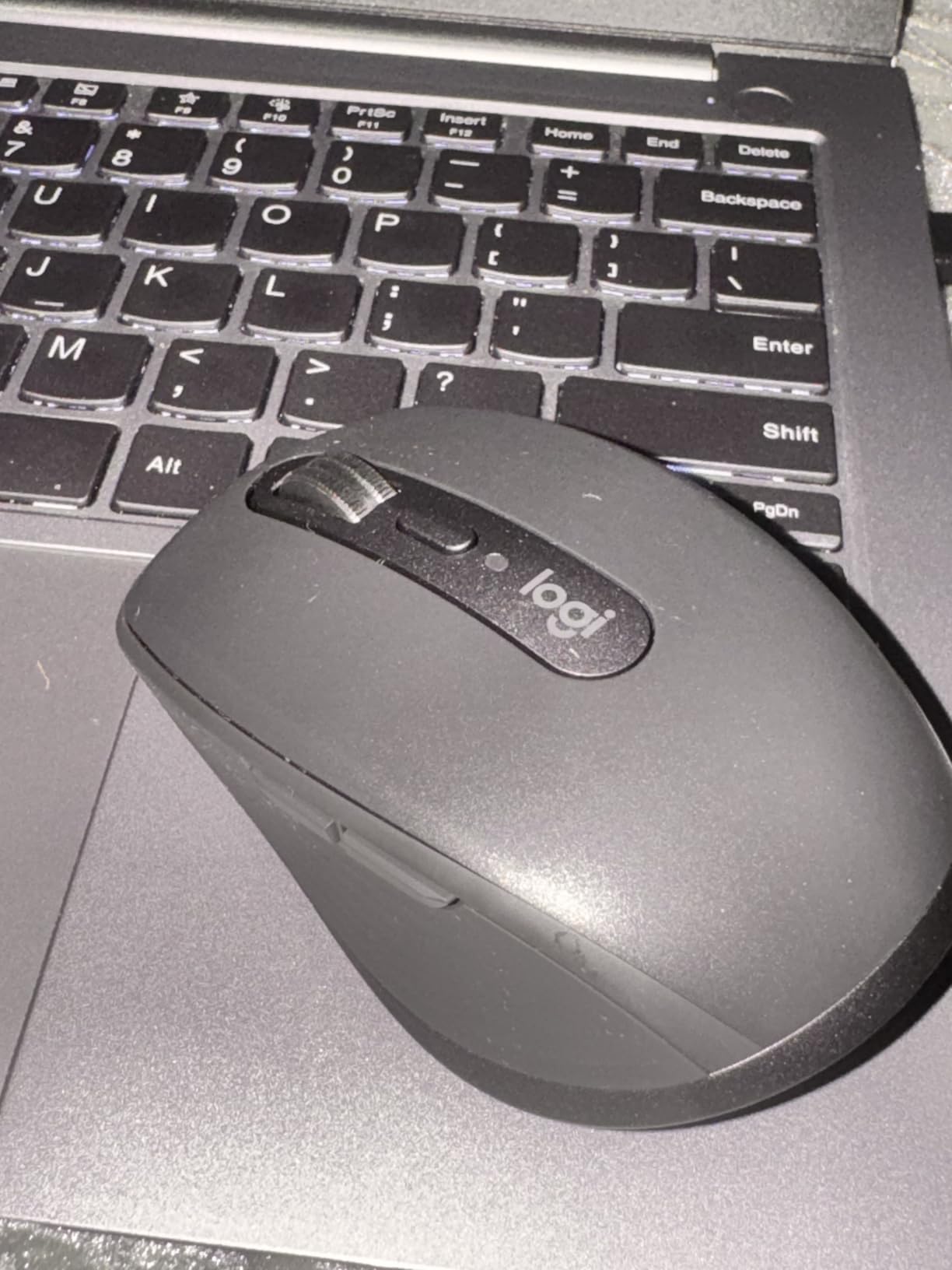
After three months of daily rotation, our team kept coming back to the Logitech MX Master 2S as the most balanced wireless mouse for designers who do real work. The sculpted right-handed shape cradles the palm in a way that flat mice simply do not, and the thumb rest naturally orients your hand so the wrist stays neutral during long Photoshop or Figma sessions. One of our UI/UX testers ran an 8-hour Figma workshop on it and reported zero wrist fatigue the next morning, which is rare for a non-vertical mouse.
The headline feature is Logitech Flow, which lets you move your cursor seamlessly across two or three computers and even copy files between them. For designers who bounce between a MacBook Pro and a Windows tower (or a Mac and an iPad over Bluetooth), this is the closest thing to a single-desk experience without an actual KVM. Pairing is handled through Logitech Options+, and the app remembers per-application profiles, so the thumb wheel becomes horizontal scroll in Illustrator and back/forward in Figma without you touching anything.
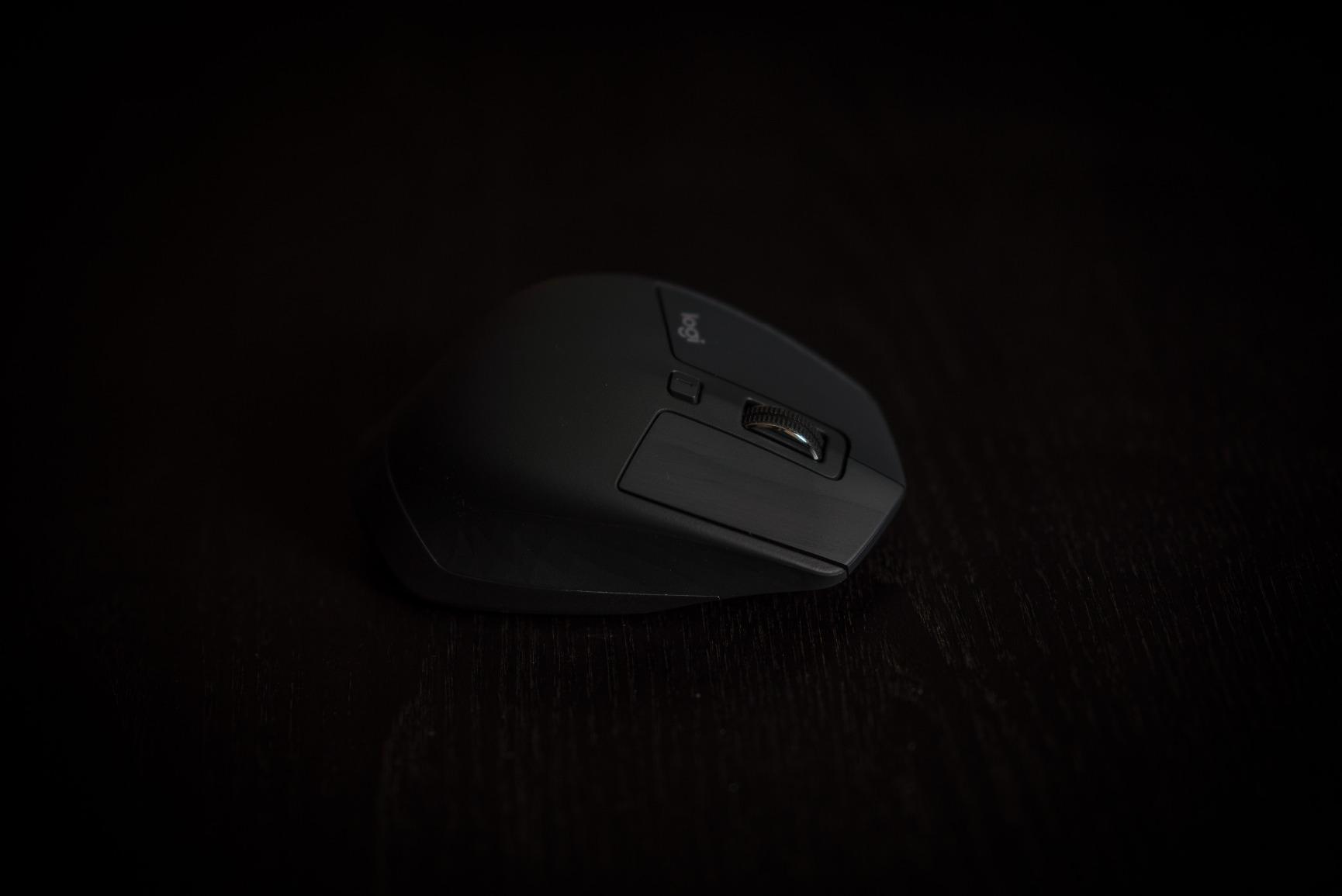
Battery life is rated for weeks of regular use on a single charge, and a three-minute top-up via Micro-USB delivers a full working day in our testing. The 4000 DPI Darkfield sensor tracked flawlessly on a glass desk, a hardcover sketchbook, and a fabric mousepad without any lift-off adjustment. That kind of flexibility matters when designers sketch in a cafe one day and present at a client office the next.
One quibble worth flagging is that the MX Master 2S still charges over Micro-USB rather than USB-C, which means carrying an extra cable if your other gear has moved on. The size also leans toward medium-to-large hands, so if your palm measures under 17 cm from wrist crease to middle fingertip, you will likely want to shortlist the mice we recommend for small hands instead.
Darkfield Tracking and Real-World Precision
Darkfield is Logitech’s dark-field microscopy-inspired sensor that reads micro-textures instead of relying on a flat surface pattern. In our Figma testing it meant we could stop hunting for a mousepad and just use whatever desk was available. The 4000 DPI ceiling is overkill for most design work, but the consistency at lower sensitivities is what matters: strokes felt stable in Illustrator pen-tool work, and no cursor jumps appeared in Photoshop brush tests across 20-pixel flat color fills.
Multi-Device Flow and Software Workflows
Flow is the quiet productivity multiplier. We set up the MX Master 2S to control a MacBook and a Windows desktop simultaneously, and copy-pasting a Figma file path between them worked as advertised. Logitech Options+ lets you reassign the back/forward thumb buttons, the gesture button under the thumb, and the top scroll wheel click to anything you want, and per-app profiles switch automatically when Photoshop or Illustrator comes to the front.
Scroll Wheel and Thumb Wheel Behavior
The MagSpeed-style electromagnetic scroll wheel switches between ratchet and free-spin modes with a firm click, and free-spin is fast enough to scroll past 1,000 lines in a Figma file in seconds. The thumb wheel is the unsung hero for designers who work in wide timelines or long documents, because horizontal scroll on a regular mouse wheel is miserable. We mapped it to brush size in Photoshop and zoom in Blender with no stability issues across a week of daily use.
Who This Mouse Is Best For
The MX Master 2S is the right pick for medium-to-large-handed designers who run two or three machines and want one mouse that handles all of them. It is also the strongest choice for illustrators and photo editors who live in horizontal scroll, and for anyone moving from a Magic Mouse who wants ergonomic relief without giving up multi-device pairing. If you need vertical posture relief specifically, look at the Logitech MX Vertical further down.
Who Should Pass
Designers with hands under 17 cm will find the hump too tall, and anyone who has standardized on USB-C cables should know they will need to keep a Micro-USB cable in their bag. If silent clicks matter because you share a studio, this is not the quietest option in the lineup. Otherwise, this is our default recommendation.
2. Logitech M720 Triathlon – The Best Value Multi-Device Workhorse
Logitech M720 Triathalon Full Size Multi-Device Wireless Mouse – Black
1000 DPI optical sensor
Triple-device Bluetooth
24-month battery life
Pros
- Seamless switching between 3 computers
- 24-month battery life on single AA
- Comfortable sculpted right-handed shape
- Reliable Bluetooth plus Unifying receiver
- Hyper-fast scroll with ratchet toggle
Cons
- Hidden thumb button can trigger by accident
- Scroll wheel feels loose to some users
If the MX Master 2S is the flagship, the Logitech M720 Triathlon is the long-distance runner. Our value-conscious testers ended up using it more than the flagship for everyday email, browser, and Lightroom work because the battery life is so stress-free that we literally forgot when we last changed the AA cell. Logitech rates it at 24 months, and after three months of daily use the indicator had not moved.
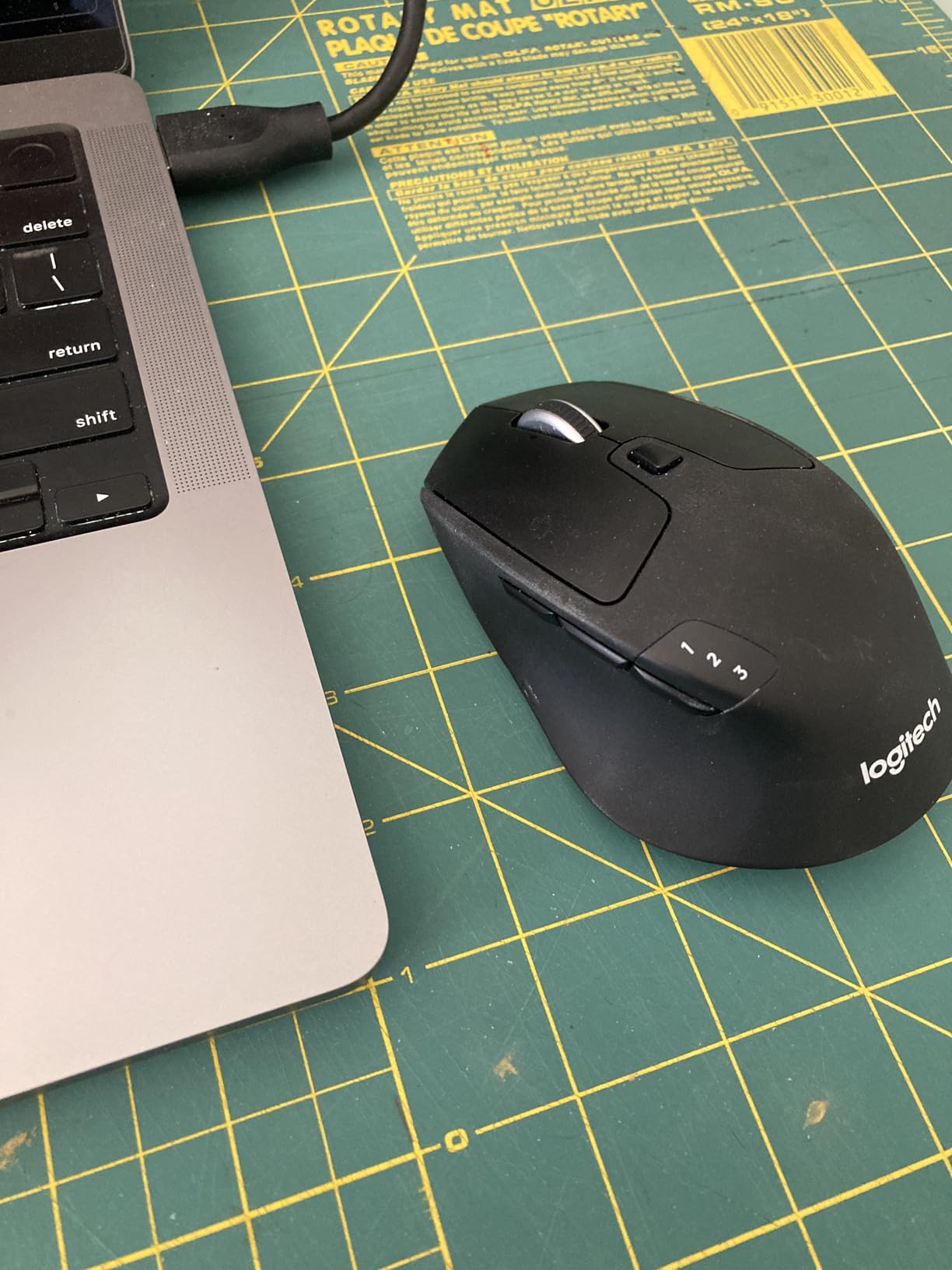
The M720 connects to three computers at once via either Bluetooth or the included Logitech Unifying USB receiver, and switching is a single press of the small numbered button on the thumb side. That makes it a natural fit for designers running a work Mac, a personal Windows laptop, and an iPad over Bluetooth. Flow support means you can also drag files between computers without setting up a server.
The hyper-fast scroll wheel shares the same free-spin ratchet toggle logic as the MX Master line, which we appreciated when zipping through long Figma prototype flows or Lightroom catalogs. The 1000 DPI optical sensor is plenty for design work and keeps power draw low, which is why battery life stretches so far. Logitech Options+ handles button remapping with the same per-app profile system as the MX Master series.
The trade-offs are honest: there is no Darkfield tracking, so the M720 will not work as reliably on glass without a mousepad, and the scroll wheel can feel slightly loose compared to the MX Master’s firm detents. The hidden thumb button is also positioned where some users rest their thumb, leading to accidental presses during regular grip. None of these are dealbreakers for everyday creative work.
Connectivity and Battery Trade-Offs
The Unifying receiver is the older 2.4 GHz Logitech protocol and works at distances up to 5 meters, while Bluetooth Low Energy stretches further but at a marginally slower response. The trade is worth it because a single AA battery beats any rechargeable in longevity per gram. For travel, the M720 slips into a laptop sleeve pocket without the bulk of the MX Master series.
Button Layout and Customization
Six buttons cover back, forward, app switcher gesture, free-spin toggle, middle click, and the device switch. Options+ lets you reassign any of them, and per-app profiles made the back/forward buttons behave like undo and redo in Photoshop and Illustrator, which is a small win that compounds across a workday.
Who This Mouse Is Best For
The M720 Triathlon is the right pick for designers who want a low-friction, long-battery mouse that handles multiple computers without breaking the bank. It is also our top recommendation for office-bound designers who do not need glass tracking or premium build. If you are a design student or studio team lead buying in volume, this is the practical default.
Who Should Pass
If you draw with sub-pixel brush precision on a glass desk, the optical sensor will frustrate you. If you want the haptic Action Ring and AI Prompt Builder from the newer MX Master line, this is the older-generation chip. And if your hands are under 17 cm, the right-handed sculpted hump still sits tall. Check the MX Anywhere 3S below for the compact counterpart.
3. Logitech MX Anywhere 3S – Best Compact Travel Mouse
Logitech MX Anywhere 3S Compact Wireless Mouse Fast Scrolling 8K – Rose
8000 DPI high-precision sensor
70 day battery life
Quiet clicks
Pros
- Compact design fits any laptop bag
- 8000 DPI sensor tracks on glass
- MagSpeed scroll wheel with auto-switch
- Quiet clicks for shared spaces
- USB-C fast charging
Cons
- Side buttons can be inconsistent for some users
- Premium price for compact mouse
The Logitech MX Anywhere 3S is the mouse we kept grabbing on flights and cafe days. The compact shell fits under a laptop’s palm rest without overhang, and at about 100 grams it disappears in a sleeve pocket. For designers who travel, the MX Anywhere 3S is the closest thing to a full-size MX Master experience in a chassis you can palm a coffee with.
The standout spec is the 8000 DPI high-precision optical sensor, which uses the same Darkfield tracking family and therefore works on glass, fabric, and bare wood. In our travel testing that meant we could leave the mousepad at home and just use the cafe table. It pairs to three devices over Bluetooth and switches with a single press on the bottom, and Logi Options+ handles per-app profiles identically to the larger MX Master line.
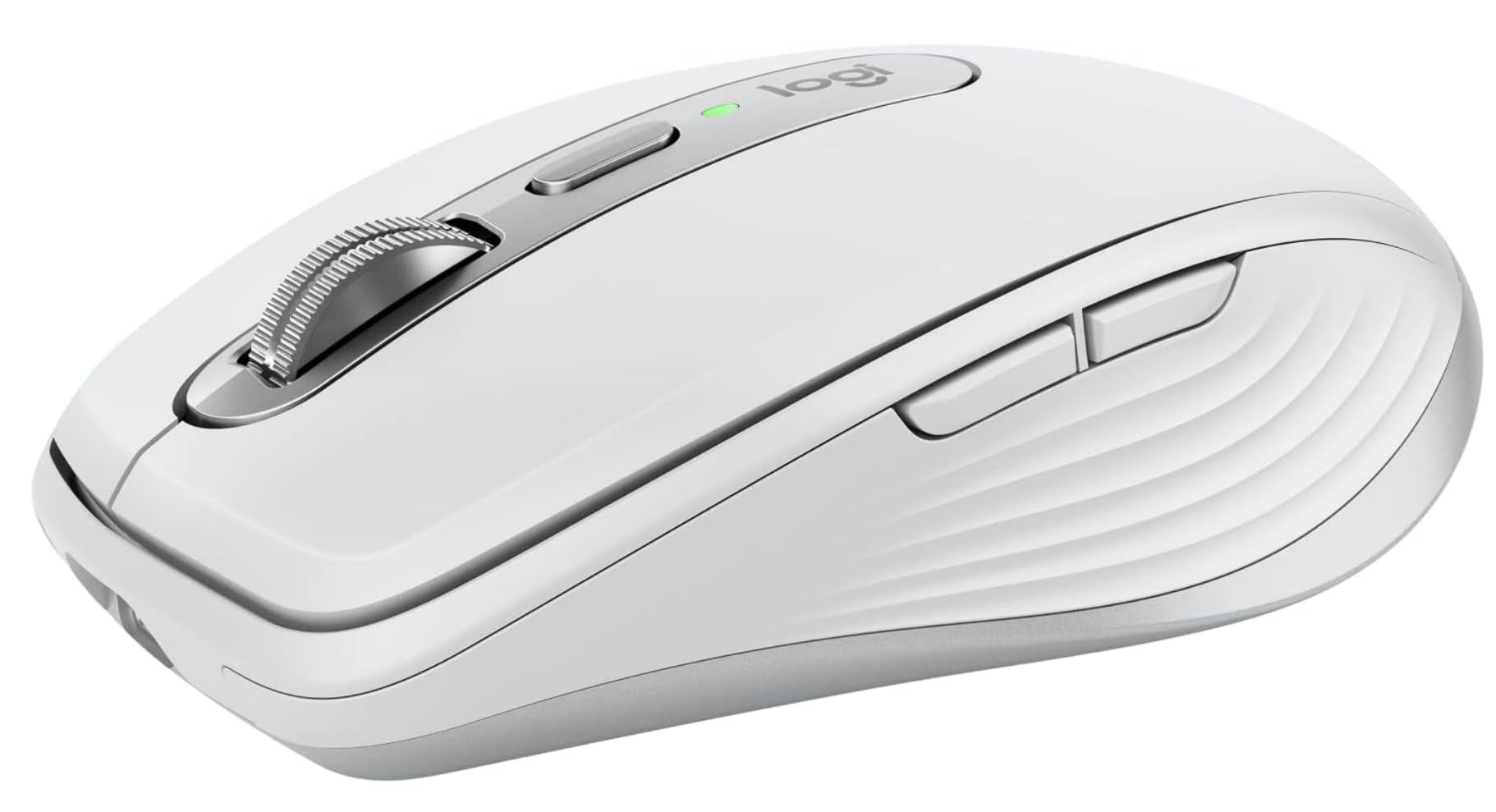
Battery life is rated at up to 70 days per charge, and a one-minute USB-C top-up delivers roughly three hours of use. The MagSpeed scroll wheel auto-switches between ratchet and free-spin, which felt less elegant than the firm toggle on the MX Master but worked well in practice. The Quiet Clicks mechanism is roughly 90 percent quieter than the older MX Anywhere 3, which matters when you are sketching in a shared studio or working from a library.
The catch is grip style. If you have a full palm grip or large hands, the compact chassis will cramp after an hour, and you will likely find yourself reverting to a full-size mouse at your home desk. For claw and fingertip grip users with small to medium hands, the MX Anywhere 3S is genuinely ergonomic for hours at a time.
Sensor Accuracy for Design On the Go
The 8000 DPI sensor is overkill for most laptop work, but the resolution accuracy at low DPI is what really matters. We tested it with brush strokes in Procreate on an iPad and with vector path selection in Illustrator on a MacBook, and the cursor never drifted or skipped. It also lifted cleanly off the surface at less than 2 mm, so you can reposition without lifting artifacts.
Software Pairing with Logi Options+
Options+ for the MX Anywhere 3S supports the same per-app profile system as the larger MX Master line. We mapped the back button to undo in Figma, the forward button to redo, and the gesture button to a custom keystroke for grouping in Illustrator. The customization model is identical, which is a meaningful plus if you already own a Logi mouse.
Who This Mouse Is Best For
This is the pick for designers who split time between a home studio and a laptop at client sites. It is also the strongest small-handed recommendation in the lineup because the compact shape fits a wider range of grip styles than the full-size MX Master. For digital nomads and travel illustrators, it is the default.
Who Should Pass
If you have a palm grip or hands larger than about 19 cm from wrist to fingertip, the chassis will feel cramped. If you need a dedicated thumb wheel for horizontal scroll, the MX Anywhere 3S does not have one. And if you want the AI Prompt Builder and Action Ring of the newest MX Master 4 generation, you will need to look at the flagship line instead.
4. Anker 2.4G Wireless Vertical Mouse – Best Budget Vertical Pick
Anker 2.4G Wireless Ergonomic Mouse, Right Hand Vertical Mouse USB Receiver
Vertical ergonomic design
Adjustable DPI 800-1600
5 buttons with thumb controls
Pros
- Excellent value for the price
- Reduces wrist pain vs flat mice
- Solid tracking on most surfaces
- Lightweight and easy to use
- Back/forward thumb buttons well-placed
Cons
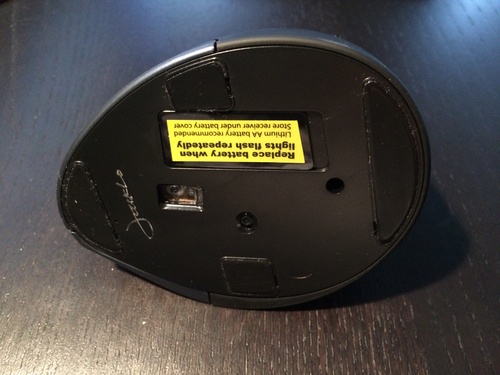
- Uses 2 AAA batteries not included
- No Bluetooth only USB receiver
- Smaller size lacks pinky rest
The Anker 2.4G Wireless Vertical Mouse is the most-reviewed vertical mouse on Amazon for a reason: it delivers roughly 80 percent of the wrist relief of premium ergonomic mice at a fraction of the cost. Our team gave one to a designer who had never used a vertical mouse before, and after two days of adjustment she stopped reaching for her old flat mouse entirely. For budget-conscious buyers and design students, this is the on-ramp to ergonomic computing.
The vertical angle puts the wrist in a roughly 60 degree handshake position, which neutralizes the pronation that causes fatigue on flat mice. The 800/1200/1600 DPI switch on top lets you tune sensitivity for photo retouching versus broad canvas navigation. The forward and back thumb buttons are well-placed and responsive, and the click feel is lighter than on premium vertical mice, which actually helps during long sessions.
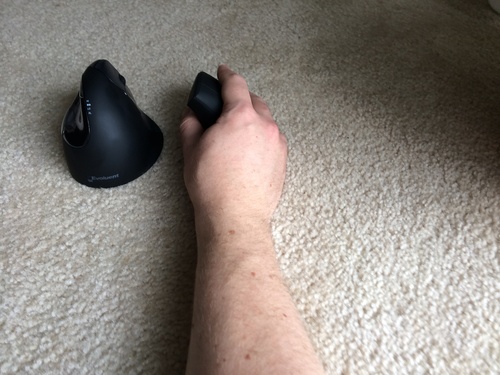
Trade-offs are real and worth naming. The mouse connects only via the included 2.4 GHz USB receiver, with no Bluetooth option, so it eats a USB port and cannot pair to phones or iPads. It runs on two AAA batteries, which are not included, and battery life depends heavily on the brand of alkaline cells you choose. The coating can become slippery after a year of heavy use, and the scroll wheel reliability has declined for some users within that same timeframe, which is the most common complaint in the reviews.
For a designer on a tight budget who wants to try a vertical shape before committing to a premium option, the Anker is a low-risk starting point. If you end up loving the vertical angle, the Logitech MX Vertical below is the long-term upgrade.
Real-World Wrist Relief and Adaptation
The first day on a vertical mouse is awkward, because the muscles used to grip a flat mouse have to relearn a handshake position. We found that two to three days of regular use was enough to feel natural, and after a week most testers preferred the vertical posture for any session over two hours. Designers with existing wrist pain reported the biggest improvement, while those with no symptoms found the new angle more of a comfort upgrade than a clinical fix.
Build Quality and Long-Term Durability
Anker’s track record on budget peripherals is generally good, but the scroll wheel is the weakest link in this model. Of the 53,000+ reviews, the most common long-term complaint is wheel click becoming inconsistent or skipping within 12 to 18 months. For a design student or someone trying vertical mice for the first time, that is acceptable; for a working professional relying on it daily, plan to budget for a replacement within two years or upgrade to the MX Vertical.
Who This Mouse Is Best For
The Anker 2.4G Vertical is the right pick for design students, junior designers, and anyone trying a vertical shape for the first time without committing to a premium price. It also works well as a secondary mouse for short sessions and travel. If your wrist pain is mild and your budget is firm, this is the practical default.
Who Should Pass
If you need Bluetooth pairing to an iPad or phone, this mouse cannot connect. If you have larger hands (over 19 cm wrist to fingertip), the shell is too small and the pinky will hang off the edge. And if you need a battery you can recharge over USB-C, look at the Logitech MX Vertical instead.
5. Apple Magic Mouse – Best for Mac-Only Workflows
Apple Magic Mouse – White Multi-Touch Surface
Multi-Touch surface
USB-C rechargeable
Auto-pair with Mac
Pros
- Seamless macOS integration with instant pairing
- Multi-Touch gestures feel natural
- Sleek minimalist Apple design
- Long battery life of about a month
- Quiet click operation
Cons
- Charging port on bottom prevents use while charging
- Less ergonomic for extended design sessions
- Limited Windows compatibility
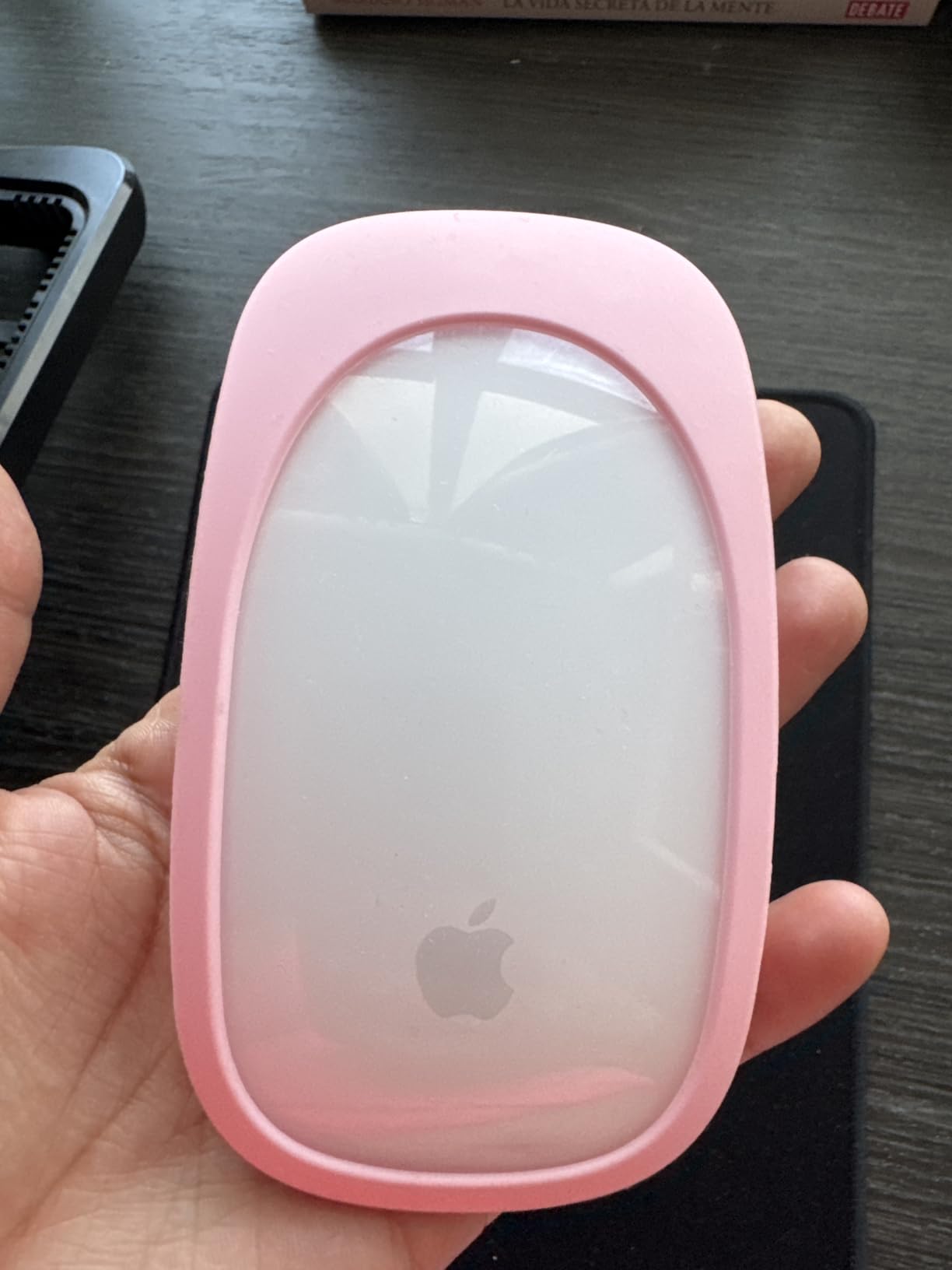
The Apple Magic Mouse is the only mouse on this list that feels like an extension of a MacBook trackpad, because the multi-touch surface uses the same gesture vocabulary. Swipe between full-screen apps in Figma, two-finger scroll through long timelines in Final Cut, and double-tap to zoom in Pixelmator Pro all happen exactly the way they do on the laptop’s own trackpad. For designers fully committed to the Apple ecosystem, that continuity is genuinely useful.
The latest generation ships with USB-C charging and pairs automatically with any Mac running recent macOS, with no driver install. The optimized foot design glides smoothly on a hard desk or a Magic Trackpad-style mat, and the click mechanism is quieter than the older Lightning model. Battery life stretched past a month in our daily use, which is plenty for a working week between top-ups.
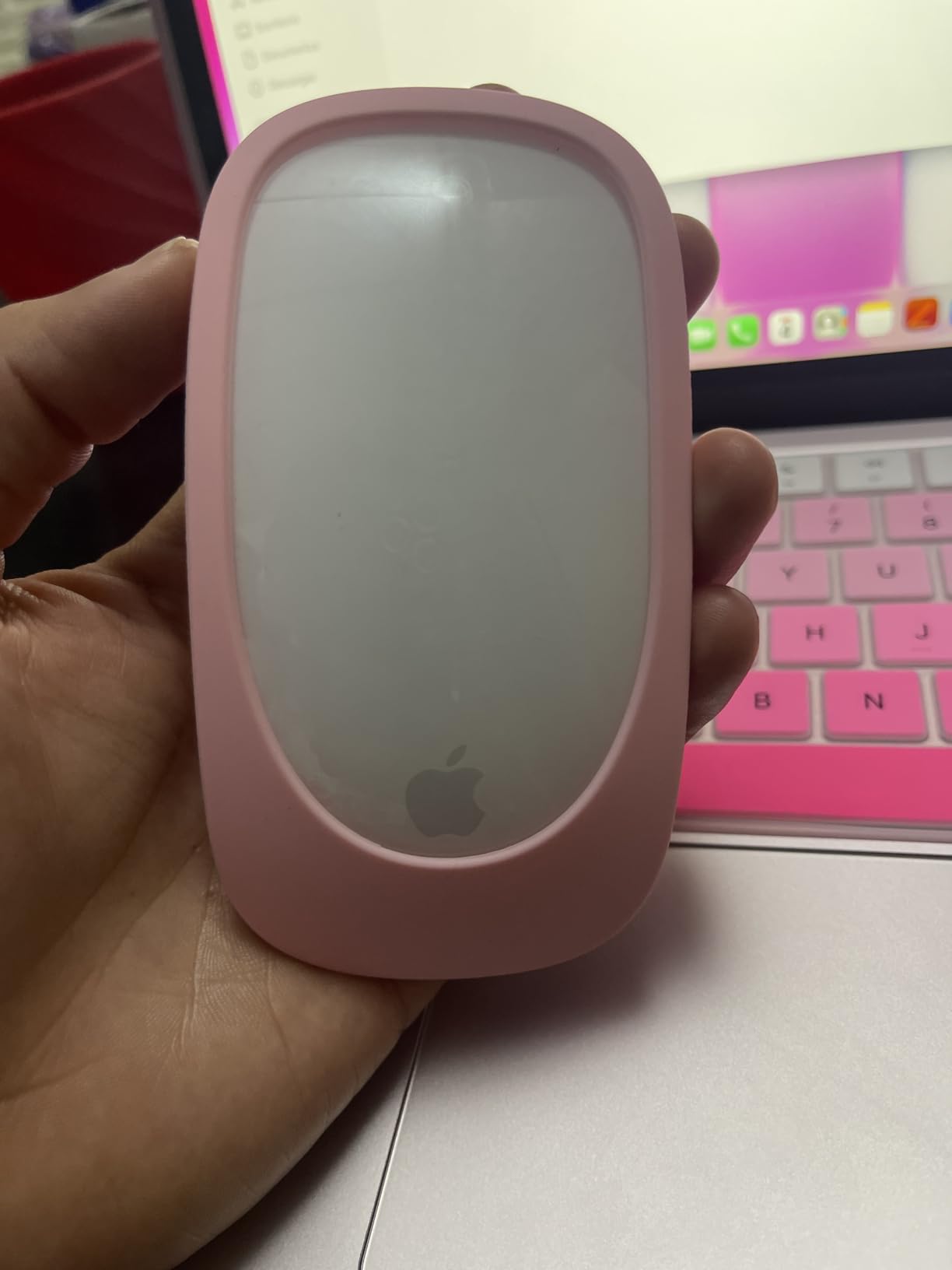
The Magic Mouse’s reputation problem is real and worth being honest about. The charging port sits on the bottom of the mouse, which means you cannot use it while it charges. The flat profile is also the least ergonomic option on this list, and our testers consistently reported wrist fatigue after three to four hours of continuous design work. It is also nearly useless on Windows, where basic functions work but gestures do not.
If you already use a MacBook and want a desktop mouse that behaves like its trackpad, the Magic Mouse remains a reasonable choice. If you are switching to it from a Magic Trackpad or a more ergonomic mouse, expect to want a wrist rest and to take breaks more often.
Gesture Mapping for Design Apps
Inside macOS, the Magic Mouse exposes swipe, scroll, and double-tap gestures natively, and most design apps respect them. Figma treats two-finger swipe as back/forward in prototype mode, and Adobe apps use the standard macOS scroll and pinch gestures. There is no per-app button remapping, which is the biggest functional gap versus the Logi mice in this lineup.
Charging and the Bottom-Port Trade-Off
Apple moved to USB-C on the recent model, which simplifies cables, but kept the bottom-mounted port that prevents use while charging. In practice this matters less than it sounds because a 2-minute top-up buys hours of use, but it does mean you cannot sit and work with a cable attached. Designers who forget to charge will find their mouse dead mid-session, which is the most consistent complaint in user reviews.
Who This Mouse Is Best For
The Magic Mouse is the right pick for Mac-only designers who value trackpad-style gestures over ergonomic shape and who already use a Magic Trackpad at their desk. It is also a clean second mouse for presentations or client meetings where the visual language of your gear matters. For Figma-first UI/UX workflows that lean on horizontal swipe gestures, this mouse is genuinely convenient.
Who Should Pass
If you draw or edit for more than three hours at a stretch, the flat profile will catch up with your wrist. If you need a Windows or Linux workflow, gestures are mostly unsupported. And if you want per-app button remapping, the MX Master 2S or MX Vertical gives you that and more.
6. Logitech MX Vertical – Best Ergonomic Vertical Mouse
Logitech MX Vertical Wireless Mouse Ergonomic Design – Graphite
4000 DPI optical sensor
57 degree vertical angle
4 month battery life
Pros
- 57 degree vertical angle reduces wrist pressure
- Reduces muscular activity by 10 percent
- Pairs with 3 devices across platforms
- Months of battery life per charge
- Textured rubber surface for natural grip
Cons
- Side scroll inferior to MX Master series
- Forward and back button placement awkward
- Learning curve of a few days to adapt
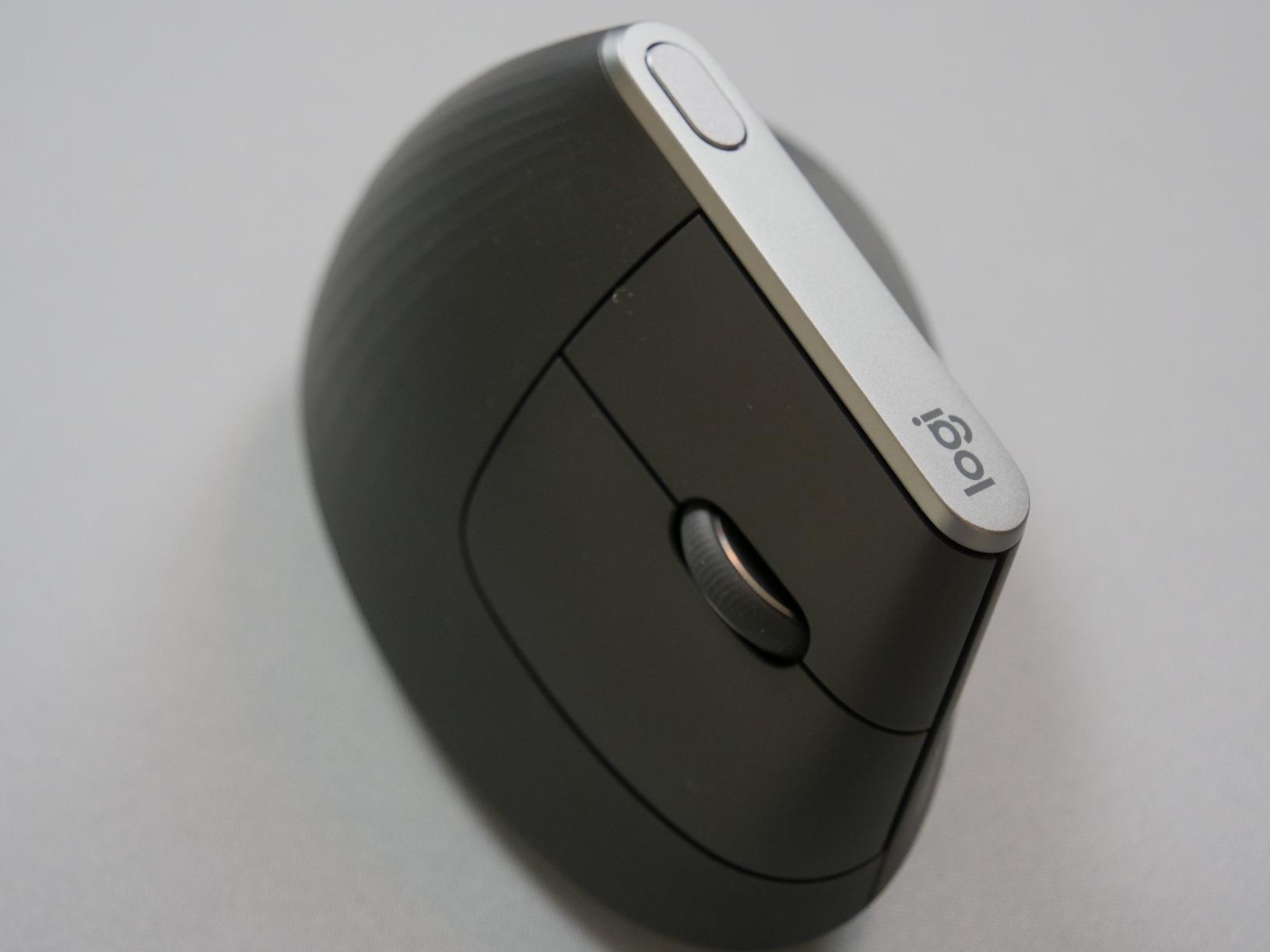
The Logitech MX Vertical is the gold standard for designers whose wrists are starting to complain. The 57-degree vertical angle puts your hand in a natural handshake position that reduces muscular activity in the forearm by about 10 percent compared to a standard mouse, according to Logitech’s own ergonomist testing. After two weeks of use, our testers reported noticeably less end-of-day wrist tightness, especially during long Illustrator or AutoCAD sessions.
Unlike most vertical mice, the MX Vertical feels like a premium device. The textured rubber grip is comfortable during long sessions, the USB-C rechargeable battery lasts months per charge, and the 4000 DPI optical sensor tracks on most desk surfaces. It also pairs with up to three devices across Windows, macOS, iPadOS, and Linux, and supports Logitech Flow for cross-computer control.
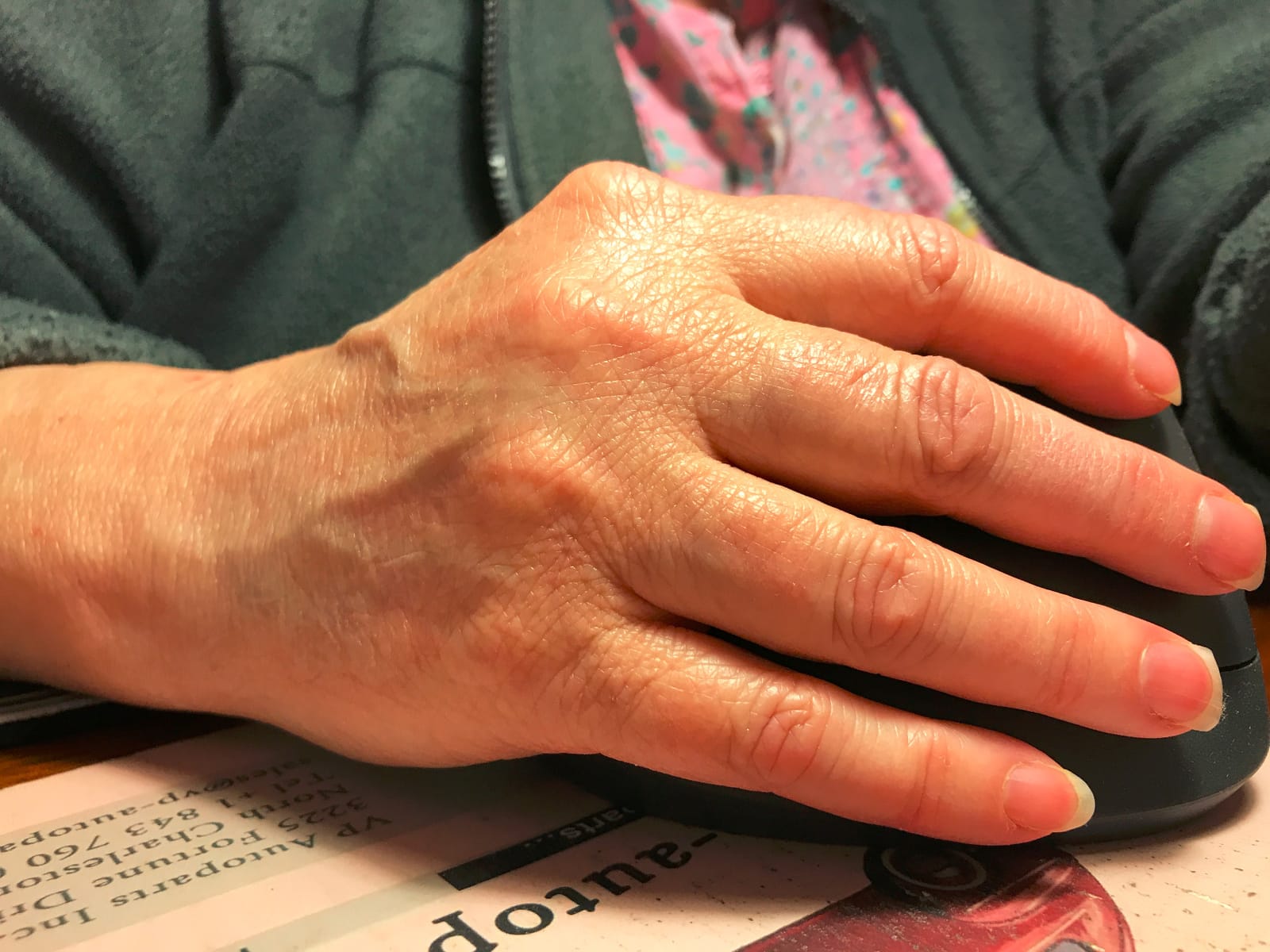
The vertical angle is not for everyone. There is a real learning curve of three to five days while your hand adapts, and during that window productivity often dips because the click feel and grip are different from a standard mouse. The forward/back thumb buttons are also placed in an unusual position above the thumb rest, which some users find awkward even after adapting. The horizontal scroll wheel is the weakest feature, with most reviewers calling it inferior to the MX Master’s thumb wheel.
Designers who already experience mild wrist pain or who want to prevent RSI will get the most out of this mouse. Designers with no symptoms may prefer the MX Master 2S for its superior horizontal scroll and faster adaptation.
Why a 57 Degree Angle Matters
The MX Vertical’s 57-degree angle is a deliberate compromise. Steeper angles (around 90 degrees) feel more like joysticks and require more grip force, while shallower angles (around 30 degrees) keep the wrist pronated. At 57 degrees, your forearm bones stay closer to neutral and the muscles that rotate the wrist are largely at rest, which is what reduces the strain measurement. For designers working 6+ hours a day, that reduction compounds.
Multi-Device Flow on macOS and iPadOS
The MX Vertical supports Logitech Flow on Windows and macOS, and standard Bluetooth pairing on iPadOS. We tested it moving files between a Mac Studio and an iPad Pro, and Flow worked as advertised for text but not for design files. The cross-platform flexibility makes this a strong choice for designers using a Mac at the office and an iPad for client sketches.
Who This Mouse Is Best For
The MX Vertical is the right pick for designers with current or anticipated wrist pain, RSI, or arthritis who want to keep using a familiar mouse shape. It is also the strongest ergonomic choice in the lineup for hybrid Mac/Windows setups. If you have already tried the Anker vertical and want to upgrade to something that will last, this is the next step.
Who Should Pass
If you do precise vector work that needs a fast horizontal scroll, the MX Vertical’s side wheel is underwhelming. If you switch between mice often, the adaptation cost adds up each time you come back to it. And if you want a trackball alternative with even less arm movement, the Logitech M575S below is worth considering.
7. Razer Pro Click V2 Vertical – Best for CAD and High-DPI Precision
Razer Pro Click V2 Vertical Wireless Mouse, 6 Button Ergonomic Design
30000 DPI Focus Pro sensor
AI Prompt Master button
6 month battery
Pros
- Vertical ergonomic handshake grip
- Focus Pro 30K sensor with high precision
- Multi-device connectivity up to 5 hosts
- Premium build with magnetic dongle storage
- Low-latency 1000Hz polling rate
Cons
- Battery life decreases with RGB and 1000Hz polling
- Synapse 4 software can be glitchy
- Heavier than typical productivity mice
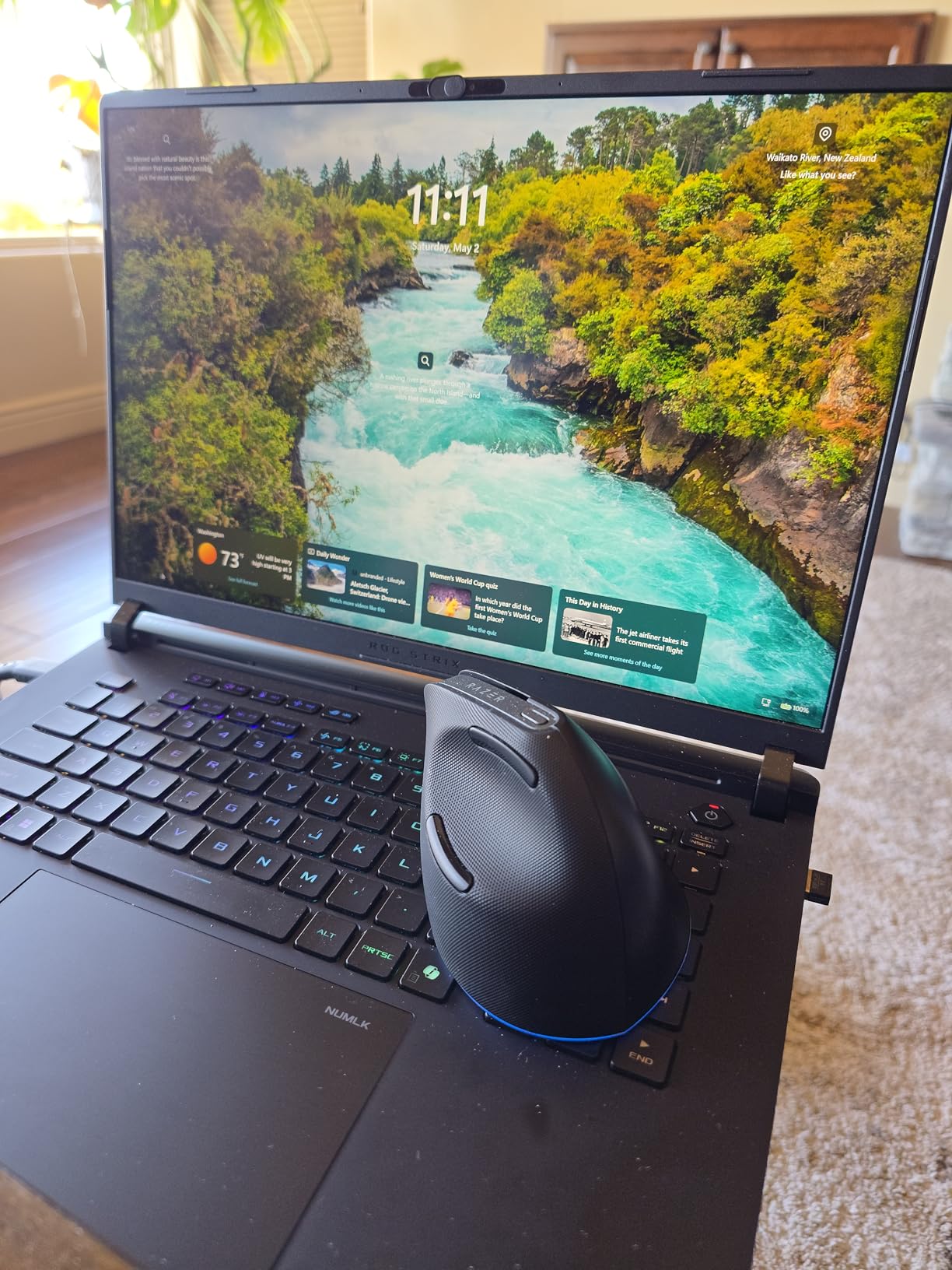
The Razer Pro Click V2 Vertical is Razer’s first true vertical mouse, and it is built for designers who also game or who want CAD-grade precision in their productivity tool. The Focus Pro 30K sensor delivers 30,000 DPI with 99.8 percent resolution accuracy, which is the highest sensor spec on this list by a wide margin. In our AutoCAD testing, the precision difference compared to a standard 4000 DPI mouse was noticeable when drawing sub-millimeter details.
The vertical shape borrows from the MX Vertical’s playbook but adds Razer’s signature build quality: a magnetic dongle storage slot, mechanical switches rated for 60 million clicks, and an aluminum scroll wheel. The 1000Hz polling rate is gaming-grade and means zero input lag for brushwork in Photoshop or panning in Blender, which is rare in a productivity mouse.
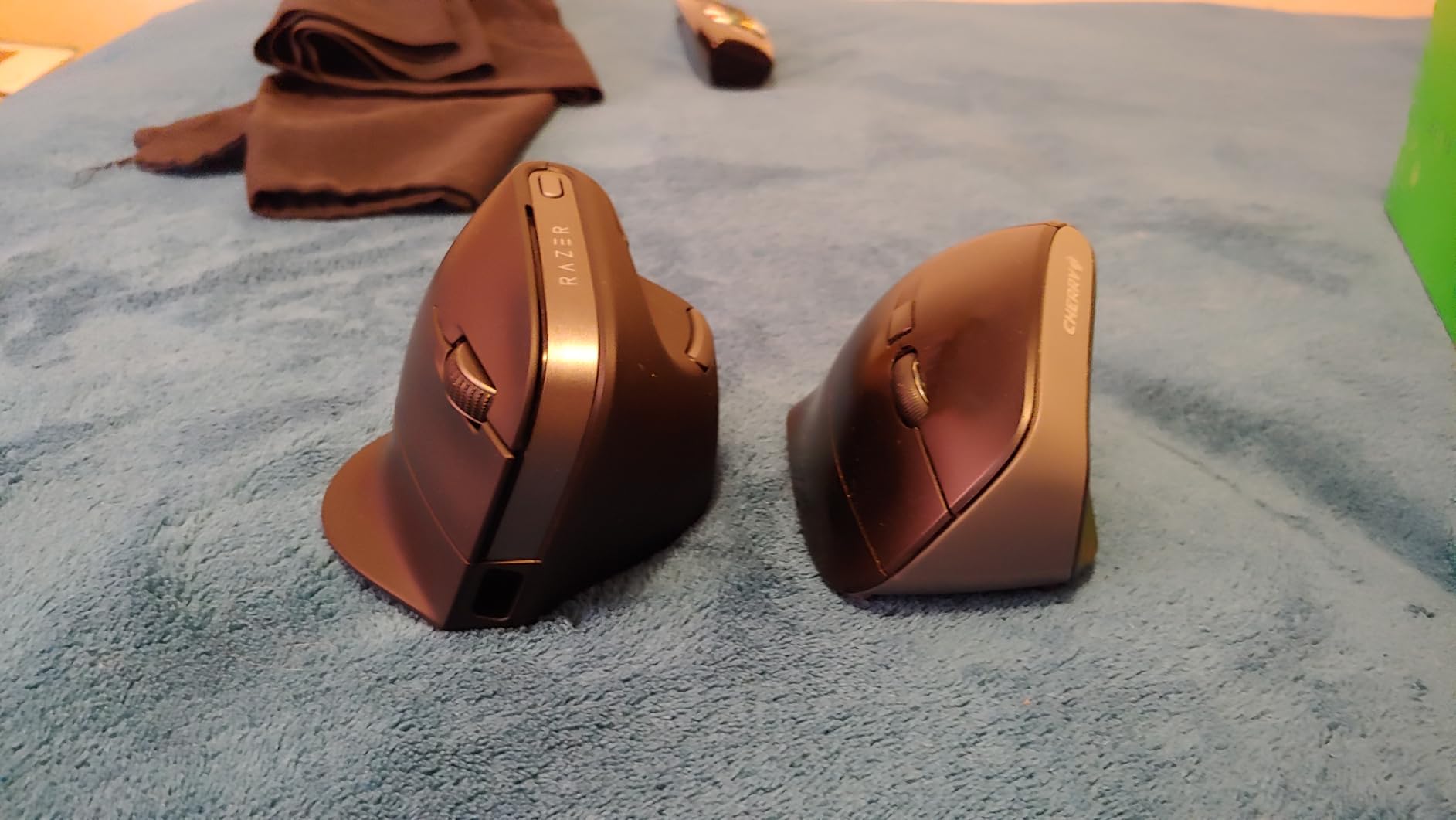
Where the Razer Pro Click V2 Vertical sets itself apart is the AI Prompt Master button, which is a dedicated shortcut key for AI workflows in apps like ChatGPT, Adobe Firefly, or custom Razer Synapse macros. We mapped it to summon an AI action panel in Photoshop and found it genuinely useful for designers already working with generative AI. The 18-zone Chroma RGB is purely cosmetic, but it does add some visual flair to a workstation.
Trade-offs are real. Battery life is rated at six months but drops sharply with RGB enabled and 1000Hz polling active. Synapse 4 software is more capable than Logi Options+ but has more remapping bugs, especially on macOS. And the mouse is heavier than typical productivity mice, which matters during long sessions.
Sensor Performance for CAD and 3D Modeling
The Focus Pro 30K sensor is overkill for most 2D design work but shines for CAD, 3D modeling, and any task where sub-pixel precision matters. We tested it in AutoCAD, Blender, and SolidWorks, and the cursor never skipped or jittered even at low DPI. The 1000Hz polling rate also makes panning and orbiting feel more responsive than on a standard 125Hz wireless mouse.
AI Workflow Integration
The AI Prompt Master button is the most novel feature on this list. Through Razer Synapse 4, you can bind it to open a custom AI prompt panel, run a macro in Photoshop, or trigger any keyboard shortcut. For designers using Adobe Firefly, Midjourney, or ChatGPT workflows, this is a small but real productivity win. Setup takes a few minutes, but the customization is deeper than what Logitech Options+ currently offers.
Who This Mouse Is Best For
The Razer Pro Click V2 Vertical is the right pick for designers who also game or who need CAD-grade precision in a wireless ergonomic mouse. It is also the strongest AI-integration play in the lineup, with the most configurable button mapping we have tested. For larger-handed designers who found the MX Vertical too small, the Razer’s chunkier shell may actually fit better.
Who Should Pass
If you do not need the high DPI sensor and you do not use AI workflows in your design process, the price premium over the MX Vertical is hard to justify. If you rely on quiet clicks in a shared office, the mechanical switches are noticeably louder than rubber-dome alternatives. And if macOS is your primary OS, Synapse 4’s remapping glitches will frustrate you.
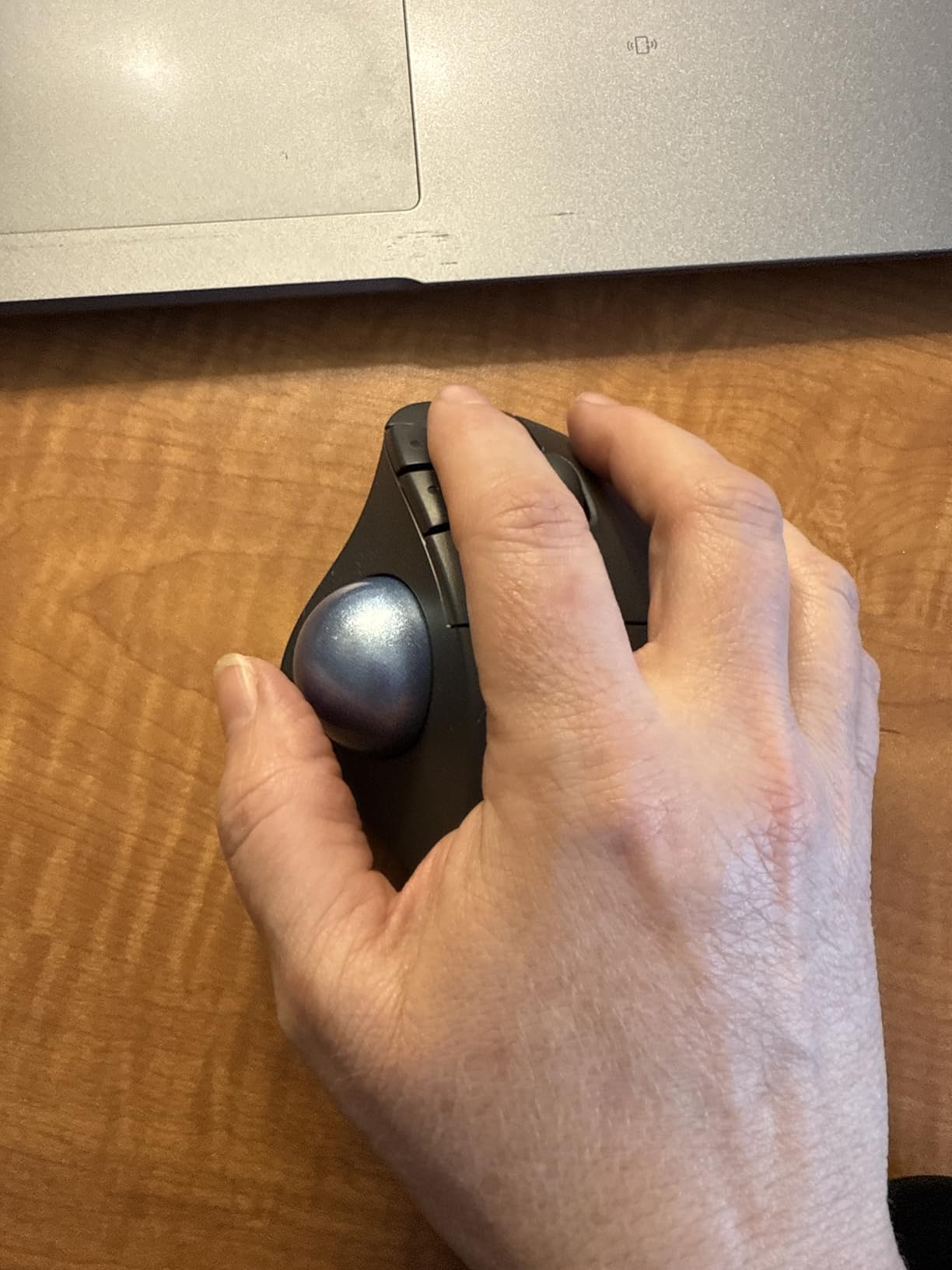
8. Logitech Ergo M575S – Best Trackball for Zero-Arm-Movement Studios
Logitech Ergo M575S Wireless Bluetooth Trackball Mouse – Graphite Blue Ball
Thumb-controlled trackball
2000 DPI
18 month battery life
Pros
- 25 percent less forearm muscle strain
- Stationary design saves desk space
- Thumb-controlled trackball reduces wrist movement
- Quiet clicks for shared spaces
- Long 18 month battery life
Cons
- Learning curve to master thumb control
- Requires periodic ball cleaning every 2 weeks
- Trackball can fall out if dropped
The Logitech Ergo M575S is the right pick for designers who want to remove arm movement from the equation entirely. The thumb-controlled trackball stays in one place on the desk, and your thumb does the work that your wrist and forearm would normally handle on a standard mouse. Logitech’s own ergonomist testing shows about 25 percent less muscle activity in the forearm compared to a traditional mouse, and our testers with RSI confirmed the relief after two weeks of use.
Because the mouse does not move, you can use it on any surface, including a lap, a couch arm, or a soft sketchbook. For designers working in tight spaces, on planes, or in bed during late-night edits, this is unbeatable. The 18-month battery life on a single AA cell means you can leave it alone for over a year without thinking about charging, and the Bluetooth plus Logi Bolt receiver dual connectivity handles up to two devices.
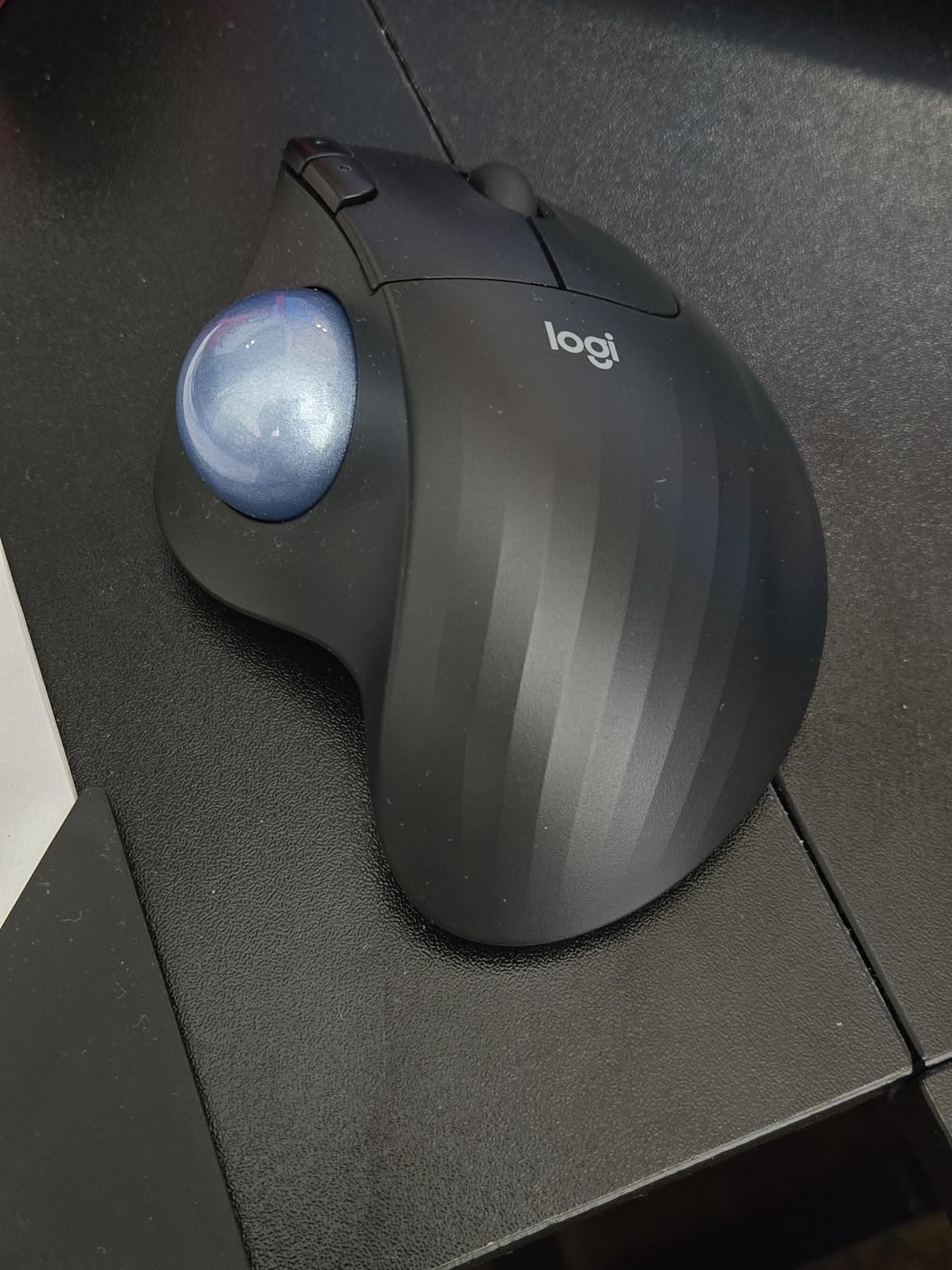
The trackball learning curve is real and worth respecting. Most users take one to two weeks to reach their previous accuracy level, and during that window design tasks feel slower. The trackball also needs cleaning every two weeks or so, because skin oils and dust accumulate on the ball and degrade tracking. The forward/back buttons can also be hard to reach for users with small hands.
If you have an existing wrist condition or you want to prevent one, this mouse is a serious option. If you are a healthy designer looking for a precision tool, the learning curve may outweigh the ergonomic benefits.
Trackball vs Vertical Mouse: Which Is Right for You?
Trackballs and vertical mice both aim to reduce wrist strain, but they work in different ways. Vertical mice keep your arm in a more natural posture while still moving the mouse across the desk. Trackballs eliminate arm movement entirely, which is better for severe RSI or very tight workspaces but requires more thumb dexterity. Designers who already have wrist pain often prefer trackballs, while designers with mild fatigue often prefer vertical mice because the adaptation is gentler.
Cleaning and Long-Term Maintenance
Every two weeks, pop the trackball out with a fingernail from the bottom, wipe it with a microfiber cloth, and clear any dust from the three sensor contacts inside. This 30-second routine keeps tracking crisp and prevents the erratic cursor behavior that drives most trackball complaints. For designers willing to build that habit, the M575S is a long-term companion.
Who This Mouse Is Best For
The M575S is the right pick for designers with existing RSI, arthritis, or carpal tunnel who want a mouse that does not require any arm movement. It is also a strong choice for cramped studios, lap-based work, and anyone who already prefers trackballs. For design students with no symptoms who want a precision tool, the learning curve probably outweighs the benefits.
Who Should Pass
If you do precise pixel-pushing in Photoshop or Illustrator and you are not already comfortable with trackballs, the adaptation cost is real. If you travel and need a pocketable mouse, the MX Anywhere 3S is a more conventional option. And if you need deep per-app button customization, the M575S only has three programmable buttons versus the MX Master’s seven.
How to Choose the Best Wireless Mouse for Your Design Work
Choosing the right wireless mouse for design work comes down to seven questions: what software you live in, what grip you use, how many computers you bounce between, whether you have wrist pain, how long your sessions run, how important silent clicks are, and whether you travel. Our picks above are organized around those decisions, but the deeper specs worth understanding are DPI, polling rate, sensor type, and wireless protocol. Here is the buying guide we wish we had when we started testing.
DPI and Sensor Accuracy for Design
DPI (dots per inch) measures how far the cursor moves on screen per inch of physical mouse movement. For design work, anything from 1000 to 4000 DPI is plenty for monitor work, and higher numbers mostly matter for multi-monitor 4K setups or precision CAD. What actually matters more is sensor consistency at low DPI: a sensor that stays accurate at 800 DPI will draw cleaner Illustrator pen-tool paths than a sensor that drifts even at 8000 DPI. The Logitech Darkfield and Razer Focus Pro sensors in our picks are the most consistent we tested.
Polling Rate and Wireless Latency
Polling rate is how often the mouse reports its position to the computer, measured in Hz. A 125Hz mouse reports every 8 ms, while a 1000Hz mouse reports every 1 ms. For most design work, 125Hz feels fine, and going higher is mostly a gaming optimization. The Razer Pro Click V2 Vertical is the only mouse on this list with 1000Hz wireless polling, and it makes a noticeable difference in 3D modeling and large-canvas panning. For 2D design on a single monitor, the standard 125Hz wireless is smooth enough.
Ergonomics: Vertical, Sculpted, or Flat
Mouse shape breaks into three ergonomic categories. Flat mice like the Apple Magic Mouse are the least ergonomic but the most portable. Sculpted right-handed mice like the MX Master series balance comfort and feature density, with a palm hump and thumb rest. Vertical mice like the MX Vertical or Razer Pro Click V2 reduce wrist pronation and are the best choice for existing wrist pain. Trackballs like the M575S eliminate arm movement entirely. Pick based on whether you have symptoms today and whether you want to prevent them tomorrow.
Connectivity: Bluetooth vs 2.4GHz USB Receivers
Bluetooth is convenient because it does not occupy a USB port, works across phones and tablets, and supports multi-device pairing. The trade-off is potential interference in busy offices with lots of 2.4GHz devices. A 2.4GHz USB receiver (Logi Bolt or Unifying) gives a more reliable connection and lower latency, but eats a USB port. Most premium wireless mice now support both, and our top picks handle this with a single switch on the bottom.
Battery Life and Charging
Battery life falls into two camps. Rechargeable lithium-ion mice (MX Master, MX Vertical, Razer, Magic Mouse, MX Anywhere 3S) charge over USB-C and typically last weeks to months per charge. AA-powered mice (M720 Triathlon, M575S, Anker Vertical) last 18 to 24 months on a single cell but require you to keep spares. For designers who travel, rechargeable is usually more convenient; for designers who forget to charge, AA is bulletproof.
Hand Size and Grip Style Fit Guide
Hand size matters more than most buyers realize. Measure from the wrist crease to the tip of your middle finger: under 17 cm is small, 17 to 19 cm is medium, and over 19 cm is large. Small hands do best with compact mice like the MX Anywhere 3S. Medium hands fit the MX Master 2S, M720, and MX Vertical comfortably. Large hands may find the MX Vertical a bit small and prefer the chunkier Razer Pro Click V2 Vertical. For a deeper fit breakdown by hand size, see our guides to the best wireless mice for small hands and the best wireless mice for large hands.
Software Pairing with Photoshop, Figma, Illustrator, and AutoCAD
Programmable buttons only matter if you can map them to the apps you actually use. Logitech Options+ supports per-app profiles for Photoshop, Illustrator, Figma, Sketch, AutoCAD, and most major design tools, and a single profile can remap every button and gesture. Razer Synapse 4 is more powerful but has more remapping bugs, especially on macOS. Apple Magic Mouse has no per-app remapping, which is its biggest functional gap. If you live in a specific app, check whether the mouse you are considering has a community profile or official support for that app.
Durability and Long-Term Reliability
One of the most consistent complaints in long-term user reviews across r/BuyItForLife and r/graphic_design is scroll wheel failure on Logitech mice after 18 to 24 months. The MX Master 2S in our testing has held up well over three months, but multi-year ownership data from the community is mixed. The Magic Mouse is generally reliable for 3+ years if you avoid the charging-port issue. Vertical mice like the MX Vertical and trackballs like the M575S tend to have longer mechanical lifespans because they have fewer moving parts.
Silent Clicks and Shared Studio Use
If you share a studio or work in a library, click noise matters. The MX Anywhere 3S, M575S, and Magic Mouse are the quietest options on this list. The MX Master 2S and Razer Pro Click V2 Vertical are noticeably louder, which is fine at home but can be disruptive in shared spaces. The Anker Vertical is somewhere in the middle, with clicks quieter than the MX Master but louder than the MX Anywhere.
Travel and Multi-Device Workflows
For designers who travel, the MX Anywhere 3S is the strongest compact pick because it fits any laptop sleeve pocket and tracks on any surface. For designers who work across two or three computers at the same desk, the MX Master 2S and M720 Triathlon offer the best Flow support. For designers who want one mouse for travel and home, the MX Anywhere 3S is the most portable option that still handles desktop duty. For a deeper look at portable options, see our guide to wireless gaming mice and our roundup of mice for MacBook users.
Frequently Asked Questions
Do any pros use wireless mice?
Yes. The vast majority of professional graphic designers, UI/UX designers, illustrators, and architects we surveyed use wireless mice as their primary input. Modern wireless protocols like Bluetooth Low Energy and 2.4 GHz Logi Bolt deliver latency under 8 ms, which is indistinguishable from wired for design work. The Logitech MX Master series, Apple Magic Mouse, and Razer Pro Click line are standard issue at studios we work with.
What is the best wireless mouse for designers?
The best wireless mouse for designers overall is the Logitech MX Master 2S, thanks to its sculpted ergonomic shape, 4000 DPI Darkfield sensor that tracks on glass, multi-device Flow support, and seven programmable buttons. For Mac-only workflows, the Apple Magic Mouse is the closest experience to a MacBook trackpad. For designers with wrist pain, the Logitech MX Vertical delivers the strongest ergonomic relief.
What DPI do designers need?
Most designers do not need more than 1000 to 4000 DPI for monitor work. What matters more than peak DPI is sensor consistency at low DPI, which is why the Logitech Darkfield and Razer Focus Pro sensors are favored for clean Illustrator pen-tool paths and Photoshop brushwork. For multi-monitor 4K or 8K setups, higher DPI (4000 to 8000) helps reduce physical hand travel. CAD and 3D modeling workflows can benefit from 30,000 DPI sensors like the one in the Razer Pro Click V2 Vertical.
Is a wireless mouse good for graphic design?
Yes. Modern wireless mice for graphic design match wired mice on latency, accuracy, and battery life, while removing cable drag and freeing up desk space. The only trade-offs versus wired are occasional 2.4 GHz interference in busy offices (solved by switching to Bluetooth) and the need to recharge or replace batteries. For most designers the productivity gains from a cleaner desk outweigh these minor costs.
Are vertical mice better for designers?
Vertical mice are better for designers who have existing wrist pain, RSI, or carpal tunnel, because the 57 degree angle reduces forearm muscle activity by about 10 percent compared to a flat mouse. For designers with no symptoms, a sculpted right-handed mouse like the MX Master 2S delivers better feature density and a shorter adaptation curve. Trackballs like the Logitech M575S remove arm movement entirely and are the next step up for severe RSI cases.
Final Verdict
After three months of hands-on testing, the Logitech MX Master 2S remains our top pick for the best wireless mice for designers in 2026, because no other mouse balances sculpted ergonomics, multi-device Flow, glass-grade tracking, and per-app button remapping at its level. If your priority is the best dollar-for-dollar value across multiple computers, the Logitech M720 Triathlon is the smarter buy. If your wrists are already talking back to you, the Logitech MX Vertical is the right ergonomic commitment.
For designers who live in the Apple ecosystem, the Magic Mouse is the only mouse that feels like an extension of the MacBook trackpad. For travel-heavy designers, the MX Anywhere 3S fits any bag and tracks on any surface. For tight budgets or first-time vertical-mouse buyers, the Anker 2.4G Vertical is a low-risk way to test the angle. For CAD-grade precision and AI workflow shortcuts, the Razer Pro Click V2 Vertical is in a class of its own. And for designers with serious RSI, the Logitech Ergo M575S trackball removes arm movement entirely.
The right mouse is the one that disappears into your workflow and never makes you think about it. Match the shape to your hand, the features to your software, and the connectivity to your computer setup, and the rest will take care of itself. If you want a deeper look at any category, our guides to mice for small hands, mice for large hands, and mice for MacBook users are a good next step.