
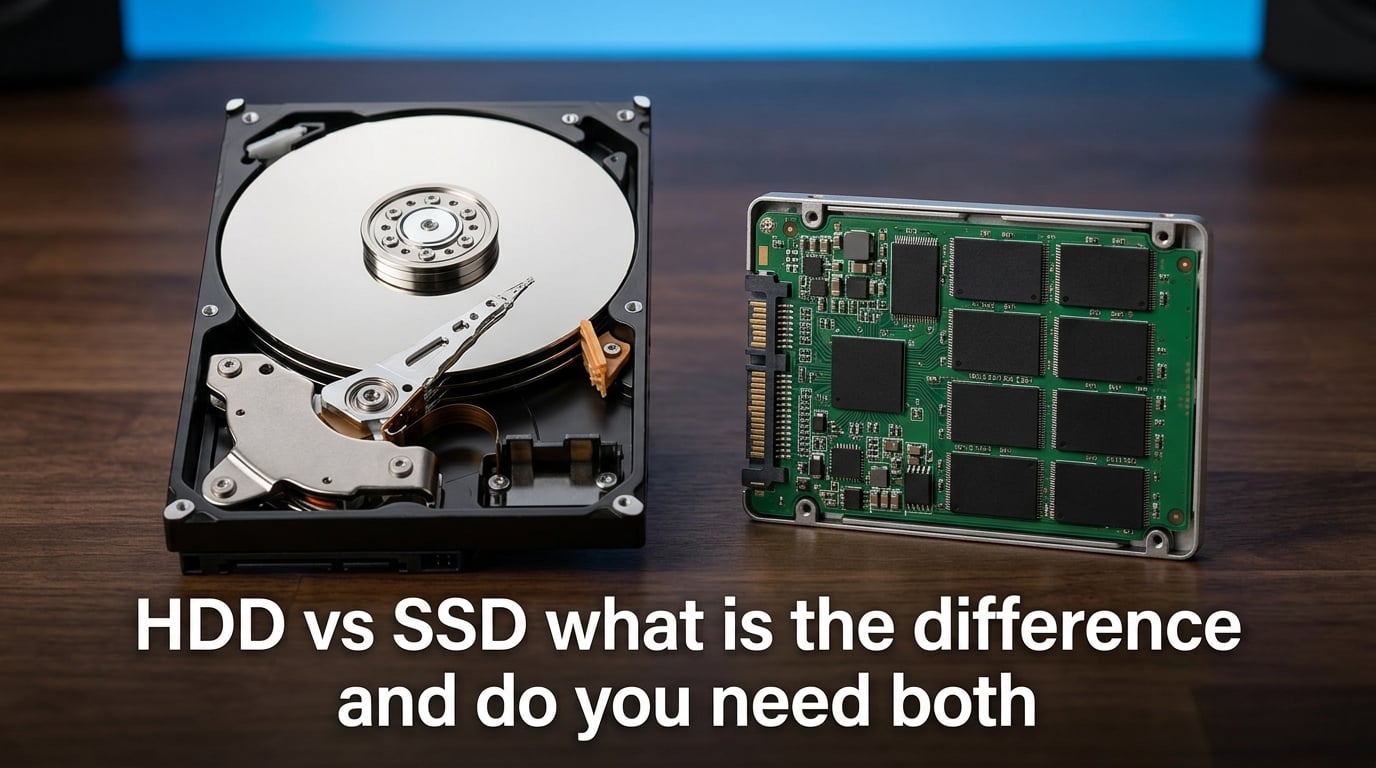
When you open your computer and everything feels slow, the storage drive is often the reason. The two main technologies you can choose from are the hard disk drive (HDD) and the solid state drive (SSD). They both store your files, games, photos, and operating system, but they work in completely different ways. In this guide, I will explain what makes each one unique, how they compare on speed, price, and durability, and whether you actually need both in your computer.
The biggest difference between an HDD and an SSD is how they store data. An HDD writes data onto spinning magnetic platters, while an SSD stores data on flash memory chips with no moving parts. That single difference affects everything from how fast your computer boots up to how much storage you can afford and how long the drive might last.
Most people building or upgrading a computer in 2026 face the same question: should I buy a fast SSD, a large HDD, or both? My goal here is to give you a clear answer based on real-world use, not just marketing numbers.
What Is an HDD?
An HDD, or hard disk drive, is a storage device that uses spinning magnetic disks to read and write data. It has been the standard form of computer storage for decades. Inside the drive, one or more platters spin at high speed while a mechanical arm with a read/write head moves across the surface to access your files.
The platters inside an HDD are coated with a magnetic material. Data is stored by changing the magnetic orientation of tiny areas on the platter. Because the entire process is mechanical, the speed of an HDD depends on how fast the platters spin, measured in revolutions per minute (RPM).
Most consumer HDDs spin at either 5400 RPM or 7200 RPM. Faster spin speeds allow data to be accessed more quickly, but they also create more noise, heat, and power consumption. Enterprise drives can spin at 10,000 or even 15,000 RPM, though those are rare outside of data centers.
How an HDD Works?
When your computer asks for a file, the HDD controller figures out where that file is located on the platter. The read/write head then moves to the correct track and waits for the platter to spin the data into position. This process involves physical movement, which is why HDDs are slower than SSDs at random access tasks.
Sequential reading is where HDDs perform best. When data is stored in one continuous block, the head can read it smoothly as the platter spins. However, when files are scattered across the disk, the head has to move back and forth, which causes noticeable slowdowns. This scattering is called fragmentation.
Defragmentation was once a common maintenance task for Windows PCs with HDDs. It reorganizes files into continuous blocks to improve speed. With SSDs, defragmentation is unnecessary and can even reduce lifespan, which is one reason why modern operating systems handle each drive type differently.
Common HDD Form Factors
HDDs come in two main sizes for consumer use. The 3.5 inch drive is the standard size for desktop computers and offers the highest capacities at the lowest cost. The 2.5 inch drive is used in laptops and external portable drives, though it usually spins slower to save power and reduce heat.
Both sizes connect using interfaces like SATA III, which has a maximum theoretical speed of about 600 MB/s. In practice, no mechanical HDD can saturate that connection, so the interface is rarely the bottleneck.
What Is an SSD?
An SSD, or solid state drive, stores data using NAND flash memory. Unlike an HDD, it has no moving parts. This makes it much faster, quieter, more resistant to physical shock, and more energy-efficient than a traditional hard drive.
The term solid state refers to the use of electronic circuits rather than mechanical components. Data is stored in memory cells made from floating-gate transistors. These cells can retain data even when the power is turned off, which makes SSDs a form of non-volatile storage, just like HDDs.
SSDs connect to your computer through several interfaces. SATA SSDs use the same connector as 2.5 inch HDDs but are still much faster because they are not limited by mechanical movement. NVMe SSDs connect through the PCIe bus using the M.2 form factor and can reach speeds many times higher than SATA SSDs.
How an SSD Works?
Inside an SSD, a controller chip manages how data is written to and read from the NAND flash memory. The controller handles error correction, wear leveling, garbage collection, and the TRIM command. These processes help the SSD maintain performance and extend its lifespan over time.
NAND flash memory comes in several types. SLC, or single-level cell, stores one bit per cell and offers the best speed and endurance. MLC stores two bits per cell, TLC stores three bits, and QLC stores four bits. Most consumer SSDs in 2026 use TLC or QLC NAND because they offer a better balance of cost and capacity.
Wear leveling spreads write operations evenly across the memory cells so that no single area wears out too quickly. The TRIM command tells the SSD which data blocks are no longer in use, allowing the drive to clean them up in the background and maintain fast write speeds.
Common SSD Form Factors
The most common SSD form factor for desktops and laptops is the M.2 drive, which is a small stick that mounts directly onto the motherboard. M.2 NVMe SSDs are the fastest consumer storage available today, with sequential read speeds that can exceed 7000 MB/s on PCIe 4.0 and even higher on PCIe 5.0.
The 2.5 inch SATA SSD remains popular for older laptops and budget upgrades. External SSDs are also common, often using USB-C connections to provide fast portable storage. Some high-end workstations use add-in card SSDs that plug directly into a PCIe slot.
HDD vs SSD: The Key Differences Explained
The most important difference between HDDs and SSDs is speed. A typical consumer HDD can deliver sequential read speeds of around 150 to 250 MB/s. A SATA SSD can reach 500 to 550 MB/s, while a high-end NVMe SSD can exceed 7000 MB/s. This gap is most noticeable when booting your operating system, launching applications, and loading large files.
Capacity is another major difference. HDDs are available in much larger sizes for less money. Consumer HDDs commonly reach 4TB, 8TB, and even 22TB. SSDs have caught up in recent years, but the largest consumer SSDs still cost significantly more per gigabyte than their HDD counterparts.
Price per gigabyte strongly favors HDDs. If your priority is storing a lot of data cheaply, an HDD is still the better choice. If your priority is speed and responsiveness, an SSD is worth the extra cost.
Durability and Shock Resistance
SSDs are more durable against physical shocks because they have no moving parts. Dropping a laptop with an SSD is less likely to cause data loss than dropping one with an HDD. This is one reason SSDs have become the default choice for laptops and portable devices.
HDDs, on the other hand, are more sensitive to movement while running. The read/write head floats extremely close to the spinning platter. A sudden jolt can cause a head crash, which may physically damage the platter and destroy data. That does not mean HDDs are fragile on a desk, but it does make them less ideal for travel.
Power Consumption and Battery Life
SSDs use less power than HDDs because they do not have to spin platters or move mechanical arms. This difference can extend laptop battery life by a noticeable amount. In a desktop, the power savings are smaller but still measurable, especially when the drive is idle.
HDDs require a small motor to keep the platters spinning. Even when no data is being accessed, the drive continues to draw power. For laptops and mobile devices, this is a real disadvantage that has helped push SSD adoption.
Noise and Heat
SSDs are completely silent. There are no spinning parts, no clicking sounds, and no vibration. Many users who switch from an HDD to an SSD immediately notice how much quieter their computer becomes. This is a common point mentioned in forum discussions about everyday computing.
HDDs produce a quiet hum from the spinning platter and occasional clicking from the read/write head. Some people do not mind this, but others find it distracting, especially in quiet rooms. HDDs also tend to run warmer because of the motor, which can affect airflow inside a small case.
Speed Comparison: How Much Faster Is an SSD Really?
Real-world speed differences between HDDs and SSDs are dramatic for some tasks and smaller for others. Booting Windows from an HDD can take 30 to 60 seconds or more. Booting from a SATA SSD usually takes 10 to 20 seconds. Booting from an NVMe SSD can take under 10 seconds.
Application launch times show the same pattern. Opening a web browser, photo editor, or game from an SSD feels nearly instant. From an HDD, you may wait several seconds for each program to load. The difference becomes especially obvious when multitasking or opening many files at once.
File transfers also benefit from SSD speed. Copying a large video file to an SSD happens much faster than copying it to an HDD. However, if you are copying files from the internet or from another slow source, the connection speed may be the bottleneck rather than the drive.
Random Access vs Sequential Speed
Random access speed is where SSDs pull ahead the most. An HDD might take 10 to 15 milliseconds to find a random piece of data. An SSD can do the same task in less than 0.1 milliseconds. This difference is what makes SSDs feel so responsive during normal use.
Sequential speed matters more for tasks like video editing or moving large files. An HDD can still perform reasonably well here, especially if the files are stored in continuous blocks. But even in sequential tasks, a modern SSD is usually several times faster.
SATA SSD vs NVMe SSD vs HDD
Not all SSDs are equally fast. A SATA SSD is limited by the SATA III interface to about 550 MB/s. That is still four to five times faster than most HDDs for many tasks. An NVMe SSD connected through PCIe can be ten to twenty times faster in sequential reads than a SATA SSD.
For everyday computing, the jump from HDD to SATA SSD is the most noticeable upgrade. The jump from SATA SSD to NVMe SSD is smaller for general tasks but very noticeable for heavy workloads like 4K video editing, large database work, and high-end gaming.
Price and Capacity: Where HDD Still Wins
If you need a lot of storage at a low price, HDDs are still the clear winner in 2026. A 4TB HDD costs far less than a 4TB SSD. This makes HDDs the standard choice for backup drives, media servers, and any situation where capacity matters more than speed.
SSDs have become much cheaper over the years, but the price gap remains. A 1TB SSD might cost the same as a 4TB or 6TB HDD. For many users, that trade-off is worth it for the speed. For others, especially those storing large media libraries, the HDD remains the practical option.
Is 1TB SSD Equal to 1TB HDD?
Yes, a 1TB SSD and a 1TB HDD both offer the same usable storage capacity. The difference is not in how much they can hold, but in how fast they access that data. Manufacturers measure capacity the same way, though operating systems sometimes display slightly less due to formatting overhead.
The confusion usually comes from speed and price, not capacity. If you are choosing between the two, ask yourself whether you value fast access or maximum storage for your money.
Maximum Capacities
Consumer HDDs are available in sizes up to about 22TB as of 2026. SSDs have reached 8TB in the consumer market, with larger models available at enterprise prices. For most home users, 1TB to 4TB is enough for an SSD, while 4TB to 16TB is common for HDD mass storage.
Lifespan and Durability: Which Lasts Longer?
The lifespan question has no simple answer because HDDs and SSDs fail in different ways. HDDs can fail due to mechanical wear, motor burnout, or physical shock. SSDs can wear out after a certain number of write cycles, though modern drives are rated for more writes than most users will ever perform.
SSDs use a rating called TBW, or terabytes written. This number tells you how much data can be written to the drive before the NAND cells wear out. A typical 1TB consumer SSD might have a TBW rating between 300 and 600 terabytes. For most users, that is enough to last many years.
Long-Term Storage Concerns
One concern often discussed in forums is data retention on SSDs that are left unpowered. Flash memory can slowly lose charge over time if it is not powered on. While the exact time frame depends on temperature and NAND quality, some users worry about leaving important data on an SSD that sits in a drawer for a year or more.
HDDs are generally considered more reliable for long-term archival storage when powered off. However, they are not perfect either. HDDs can suffer from bit rot, mechanical seizure, or environmental damage over time. The safest approach for important archives is to keep multiple copies across different drive types or storage media.
Wear Leveling and TRIM
Modern SSDs use wear leveling to distribute writes across all memory cells evenly. This prevents any single cell from wearing out too quickly. The TRIM command helps the SSD manage deleted data blocks so that write performance stays high over time.
HDDs do not have wear leveling in the same way, but they do experience mechanical wear. Bearings, motors, and actuator arms all have limited lifespans. A heavily used HDD may fail after three to five years, while a lightly used one can last a decade or more.
Real-World Reliability Experiences
Forum users often report that SSDs dramatically improve the day-to-day feel of a computer. Many describe boot times dropping from minutes to seconds and applications opening instantly. These experiences match the technical numbers and are a strong reason to consider an SSD for your main drive.
At the same time, many data hoarders and backup enthusiasts still prefer HDDs for long-term storage. They cite lower cost, easier data recovery options, and better behavior when left unpowered for extended periods. If your goal is archiving years of photos, videos, or documents, an HDD is often the safer budget choice.
Use Cases: Which Storage Type Is Right for You?
The right storage choice depends on how you use your computer. Here is a simple breakdown of common scenarios and which drive type fits best.
Gaming
SSDs are better for gaming in most cases. Modern games have large files and frequent loading screens. An SSD reduces load times and can even reduce texture pop-in in open-world games. Many new games are designed with SSDs in mind, especially on consoles like the PlayStation 5 and Xbox Series X.
If you have a huge game library, you might use a smaller SSD for your favorite games and an HDD for older or less frequently played titles. This is one of the most common hybrid setups recommended by PC builders.
Video Editing and Content Creation
Video editing benefits enormously from fast storage. Editing 4K or 8K footage from an HDD can cause stuttering, slow timeline scrubbing, and long export times. An NVMe SSD provides the bandwidth needed for smooth playback and faster rendering.
For completed projects and raw footage archives, an HDD is still useful because video files take up a lot of space. Many editors use an SSD as their working drive and an HDD for long-term project storage.
Laptops
SSDs are the best choice for almost every laptop. They are faster, lighter, more shock-resistant, and more power-efficient than HDDs. This translates to better battery life and a more responsive system. Most laptops sold in 2026 come with SSDs as the default storage.
If you need extra storage for a laptop, an external SSD or external HDD is a good option. External SSDs are faster and more durable for travel, while external HDDs offer more capacity for less money.
Backup and Archival Storage
HDDs are usually the better choice for backups and archives. The lower cost per gigabyte makes it affordable to store terabytes of data. For a local backup drive that stays on a desk, the speed advantage of an SSD is less important than the capacity advantage of an HDD.
Some users keep two backups: one on a local HDD and another in the cloud. This protects against drive failure, theft, and natural disasters. If your data is irreplaceable, redundancy matters more than drive type.
Everyday Computing
For general tasks like web browsing, email, document editing, and streaming, an SSD makes a computer feel much faster and more pleasant to use. Even an older computer can feel new again after replacing the HDD with an SSD. This is one of the most cost-effective upgrades you can make.
Do You Need Both an SSD and an HDD?
You do not need both, but many people benefit from using both. The most practical setup is a smaller, faster SSD for your operating system and programs, plus a larger, cheaper HDD for files and backups. This gives you speed where it matters and capacity where it counts.
If you only use one drive, an SSD is the better choice for most users in 2026. It makes your computer feel faster, quieter, and more reliable. You can always add an external HDD later if you need more space for media or backups.
When a Combo Setup Makes Sense?
A combo setup makes sense if you have a desktop with room for multiple drives or a laptop with both an M.2 slot and a 2.5 inch bay. Put Windows or macOS on the SSD, install your most-used programs there, and use the HDD for documents, photos, videos, and game libraries that do not need fast loading.
PC builders on forums often recommend this exact combination. It balances performance and cost better than either drive type alone. You get the responsiveness of an SSD without paying premium prices for every terabyte of storage.
When SSD-Only Is Fine?
If your storage needs are modest, an SSD alone may be enough. A 1TB or 2TB SSD can hold the operating system, plenty of applications, and a reasonable collection of games and media. For users who rely on cloud storage or streaming services, local capacity is less important than it used to be.
Laptops with only an SSD are now the norm. External drives or network-attached storage can handle anything that does not fit on the internal SSD.
When HDD-Only Is Still Acceptable?
An HDD-only setup can work for a budget desktop used mainly for storing files, watching videos, or light web browsing. It will feel slower than an SSD, but it will still function. For a media server or backup system that is accessed occasionally, an HDD is perfectly fine.
I would not recommend an HDD as the only drive in a laptop you carry around. The shock risk and battery drain make SSDs a much better choice for portable computers.
HDD vs SSD Comparison Table
Here is a quick side-by-side summary of the main differences.
| Feature | HDD | SSD |
|---|---|---|
| Storage technology | Magnetic platters | NAND flash memory |
| Moving parts | Yes | No |
| Typical read speed | 150-250 MB/s | 500-7000+ MB/s |
| Common capacities | 1TB to 22TB | 256GB to 8TB |
| Price per GB | Lower | Higher |
| Boot time | 30-60 seconds | Under 20 seconds |
| Noise | Audible hum and click | Silent |
| Power use | Higher | Lower |
| Shock resistance | Poor | Excellent |
| Best for | Mass storage, backups | Speed, laptops, gaming |
Frequently Asked Questions
Do I need both an SSD and HDD?
You do not need both, but using both is a popular choice. An SSD gives you fast boot times and responsive applications, while an HDD provides affordable storage for large files and backups.
Is 1TB SSD equal to 1TB HDD?
Yes, a 1TB SSD and a 1TB HDD have the same storage capacity. The difference is speed, durability, and price per gigabyte, not the amount of data they can hold.
What is the biggest drawback to SSD drive?
The biggest drawback of an SSD is the higher price per gigabyte compared to an HDD. SSDs also have a finite number of write cycles, though modern drives last long enough for normal users.
What happens to SSD after 10 years?
After 10 years, an SSD may still work if it has not exceeded its TBW rating and has been powered on occasionally. However, NAND flash can lose charge over long periods without power, so SSDs are not ideal for unpowered archival storage.
Conclusion
The HDD vs SSD choice comes down to what you value most. If you want a fast, quiet, and responsive computer, choose an SSD. If you need a lot of storage at the lowest possible cost, choose an HDD. For many people, the best solution is a combination of both.
In 2026, an SSD is the right starting point for most new computers and upgrades. Add an HDD only if you need extra space for backups, media, or archives. By matching the drive type to your actual needs, you get better performance without wasting money on storage you do not fully use.