
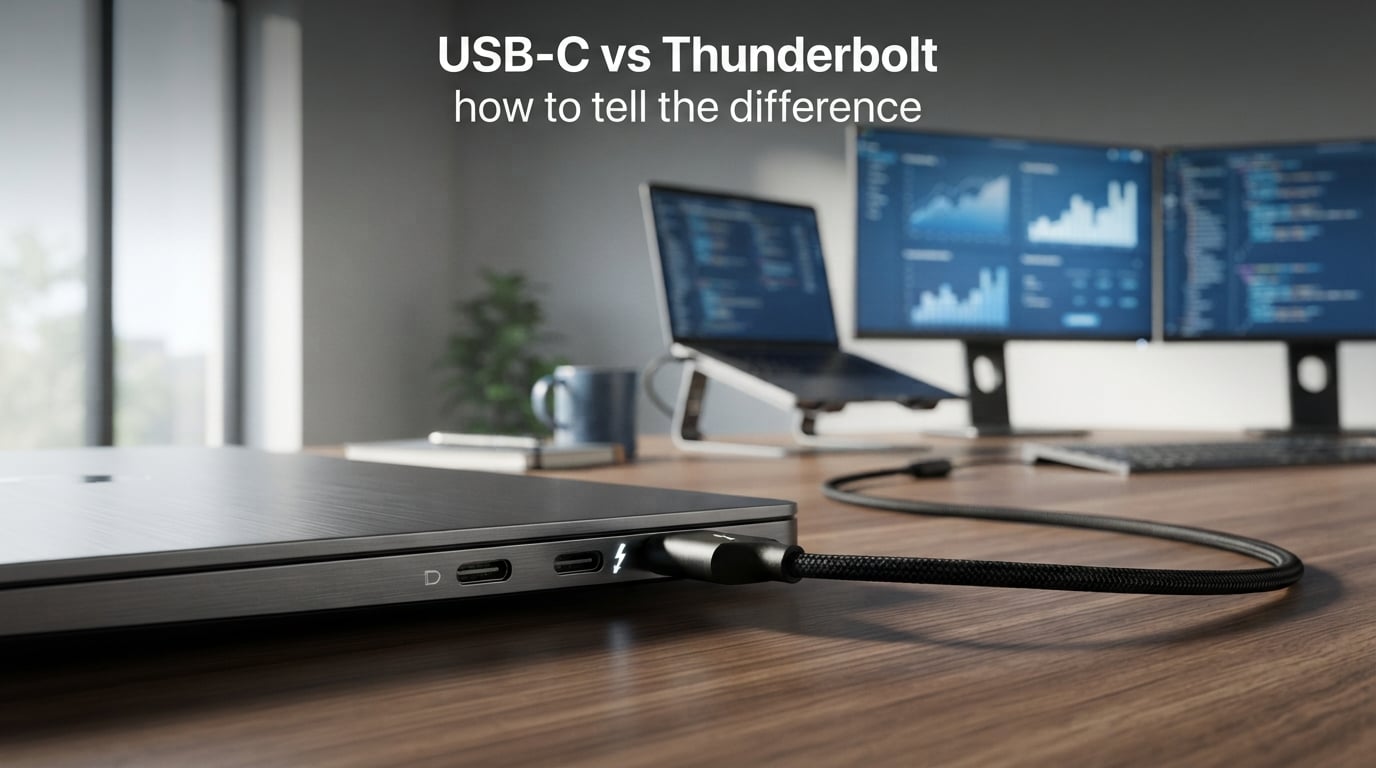
USB-C and Thunderbolt use the same connector shape, but they deliver vastly different performance. The easiest way to tell them apart: look for a lightning bolt symbol next to the port—Thunderbolt ports always have this marking, while standard USB-C ports do not. USB-C is a physical connector type, while Thunderbolt is a high-performance protocol that offers faster speeds, dual monitor support, and daisy-chaining capabilities that standard USB-C cannot match.
Confused by the ports on your laptop? You’re not alone. Many users struggle to identify which ports they have and which cables they need for their devices. This guide will teach you exactly how to identify USB-C vs Thunderbolt ports and cables, understand their differences, and choose the right one for your needs.
In this guide, you’ll learn the visual identification methods, speed comparisons, and real-world scenarios where each standard shines. We’ll cover everything from the basics to the latest Thunderbolt 5 and USB4 standards, so you can make informed decisions about your connectivity setup.
What is USB-C?
USB-C is a physical connector type—the oval-shaped, reversible port you see on modern laptops, phones, and tablets. Unlike older USB types (USB-A, USB-B), USB-C refers only to the connector shape, not the data transfer speed or capabilities underneath.
The USB-C connector supports multiple protocols and speeds depending on which USB standard it implements. A USB-C port could run USB 2.0 (480 Mbps), USB 3.2 Gen 1 (5 Gbps), USB 3.2 Gen 2 (10 Gbps), USB 3.2 Gen 2×2 (20 Gbps), or USB4 (40 Gbps). This variation creates confusion because all these ports look identical.
USB-C Capabilities
USB-C ports can handle data transfer, power delivery, and video output—but not all USB-C ports support all three. The capabilities depend on the device manufacturer’s implementation. Some USB-C ports only transfer data, while others support USB Power Delivery (USB-PD) for charging devices at up to 240W.
For video output, USB-C ports may support DisplayPort Alternate Mode (DP Alt Mode) or HDMI signals. This allows you to connect external monitors, but the number of displays and resolution supported varies widely between devices and implementations.
USB-C Speed Standards
Understanding USB-C speeds requires knowing which USB standard the port implements:
USB 3.2 Gen 1 (formerly USB 3.0): 5 Gbps transfer speed. Common on budget laptops and basic peripherals.
USB 3.2 Gen 2 (formerly USB 3.1): 10 Gbps transfer speed. Found on mid-range devices.
USB 3.2 Gen 2×2: 20 Gbps transfer speed. Uses both lanes of the USB-C connector for faster transfers.
USB4: 40 Gbps transfer speed. The newest standard that brings Thunderbolt-like speeds to USB-C.
The key insight: USB-C is the physical shape, but the performance depends entirely on which USB standard the port supports. Two identical-looking USB-C ports on the same laptop could have completely different capabilities.
What is Thunderbolt?
Thunderbolt is a hardware interface protocol developed by Intel (in collaboration with Apple) that delivers high-speed data transfer, video output, and power delivery over a single connection. Unlike USB-C, which describes only the connector shape, Thunderbolt defines the actual data transfer protocol and capabilities.
Thunderbolt ports use the USB-C connector shape (since Thunderbolt 3), but they offer significantly higher performance than standard USB-C. Thunderbolt combines PCI Express (PCIe) and DisplayPort protocols into a single interface, allowing it to do things USB-C cannot—like daisy-chaining multiple devices and supporting external GPUs.
Thunderbolt Versions Explained
Thunderbolt 3 (released 2015): 40 Gbps maximum throughput. Uses USB-C connector. Supports dual 4K displays at 60Hz or a single 5K display. Powers devices up to 100W. Enables PCIe tunneling for external GPUs and storage.
Thunderbolt 4 (released 2020): Still 40 Gbps maximum, but with stricter requirements. All ports must support 40 Gbps (Thunderbolt 3 had minimums of 20 Gbps for some operations). Required support for dual 4K displays, 32 Gbps PCIe data, and USB4 compatibility. Thunderbolt 4 essentially standardized the best Thunderbolt 3 capabilities.
Thunderbolt 5 (released 2024): Up to 80 Gbps bidirectional bandwidth, or 120 Gbps in asymmetric mode (when one direction needs more bandwidth, like for high-refresh-rate gaming monitors). Supports up to 540W power delivery. Optimized for gaming and professional video workflows. This is the cutting edge as of 2026.
Key Thunderbolt Features
Thunderbolt’s standout feature is PCIe tunneling—the ability to carry PCIe signals over the cable. This enables connections that USB-C cannot match:
External GPUs: Thunderbolt lets you connect desktop graphics cards to laptops via external GPU enclosures. USB-C alone cannot do this.
Daisy-Chaining: Thunderbolt devices can connect to each other in a chain (up to 6 devices). USB-C devices typically require a hub or each device connecting separately to the computer.
Dual 4K Displays: Thunderbolt 3 and 4 support dual 4K monitors at 60Hz. Most USB-C implementations support only one 4K display, or dual displays at lower resolutions.
High-Speed Storage: Thunderbolt external SSDs achieve speeds of 2,000-3,000 MB/s. USB-C external drives typically max out around 1,000-1,400 MB/s.
USB-C vs Thunderbolt: How to Tell the Difference
The fastest way to identify Thunderbolt vs USB-C: look for a lightning bolt symbol printed next to the port. Thunderbolt ports always display this symbol, while standard USB-C ports either have no symbol or show a USB logo instead.
Here’s your step-by-step identification guide:
Step 1: Check for the lightning bolt symbol. Look closely at the port area on your laptop or device. A small lightning bolt icon printed next to the port indicates Thunderbolt capability. This is the most reliable visual indicator.
Step 2: Check your device documentation. If no symbol is visible (some manufacturers hide it under the device), check your laptop’s specifications on the manufacturer’s website. Search for your exact model number plus “Thunderbolt” to confirm.
Step 3: Check Windows Device Manager or Mac System Report. On Windows, open Device Manager and look for “Thunderbolt Controller” under System Devices. On Mac, click the Apple menu, hold Option, click System Report, and look under Thunderbolt in the left sidebar.
Step 4: Test with a Thunderbolt device. If you have a Thunderbolt dock or drive, connect it. Standard USB-C ports will not recognize Thunderbolt devices (or will run them at USB speeds only). Thunderbolt ports will recognize both Thunderbolt and USB-C devices.
How to Identify Thunderbolt Cables
Cable identification follows the same principle: look for the lightning bolt symbol on the connector ends. Thunderbolt cables display the lightning bolt logo on both connector housings. USB-C cables show either no marking, a USB logo, or a number indicating the USB speed (like “10” for 10 Gbps).
Thunderbolt cables are also typically shorter (0.5m or 0.7m for active cables) and more expensive than standard USB-C cables. Active Thunderbolt cables contain chips that boost the signal, enabling full 40 Gbps speeds at these lengths.
Identifying USB-C Ports Without Thunderbolt
USB-C ports without Thunderbolt support may display various symbols: a USB logo (indicating USB speed), a “D” symbol (DisplayPort support), a battery icon (power delivery), or no symbol at all. The absence of the lightning bolt means it’s not a Thunderbolt port.
Some laptops have both USB-C and Thunderbolt ports. For example, a MacBook Pro might have three USB-C ports, all of which are Thunderbolt. A Dell XPS might have some USB-C ports that are Thunderbolt and others that are not—making identification critical.
USB-C vs Thunderbolt Speed Comparison
The speed difference between USB-C and Thunderbolt can be dramatic. Here’s how the standards compare:
| Standard | Max Speed | Max Displays | Display Resolution | Daisy-Chain | External GPU |
|---|---|---|---|---|---|
| USB 3.2 Gen 1 | 5 Gbps | 1 | 4K @ 30Hz | No | No |
| USB 3.2 Gen 2 | 10 Gbps | 1 | 4K @ 60Hz | No | No |
| USB 3.2 Gen 2×2 | 20 Gbps | 1 | 4K @ 60Hz | No | No |
| USB4 | 40 Gbps | 2 | Dual 4K @ 60Hz | Limited | No |
| Thunderbolt 3 | 40 Gbps | 2 | Dual 4K @ 60Hz | Yes (6 devices) | Yes |
| Thunderbolt 4 | 40 Gbps | 2 | Dual 4K @ 60Hz | Yes (6 devices) | Yes |
| Thunderbolt 5 | 80-120 Gbps | 3 | Triple 4K @ 144Hz | Yes (6 devices) | Yes |
Notice the pattern: Thunderbolt consistently supports more displays, higher bandwidth, and advanced features like daisy-chaining and external GPUs. Standard USB-C—even fast USB4—lacks these capabilities.
Real-World Speed Impact
What do these numbers mean for actual usage? Let’s translate speed differences into real scenarios:
File Transfers: Copying a 100GB video project takes about 20 seconds on Thunderbolt 3/4 (assuming 5,000 MB/s external SSD). The same transfer takes 1-2 minutes on USB 3.2 Gen 2 and 3-5 minutes on USB 3.2 Gen 1.
External SSDs: Thunderbolt SSDs sustain 2,000-3,000 MB/s. The fastest USB4 SSDs reach similar speeds, but USB 3.2 Gen 2 SSDs max out around 1,000-1,050 MB/s—roughly one-third the performance.
Multi-Monitor Setup: With Thunderbolt, you can run two 4K monitors at 60Hz through a single dock. Most USB-C implementations require separate connections for each monitor or settle for lower resolutions/refresh rates.
USB-C vs Thunderbolt: Display Support
Display support represents one of the clearest differences between USB-C and Thunderbolt. If you work with multiple monitors, this section directly affects your productivity.
Thunderbolt Display Capabilities
Thunderbolt 3 and 4 support dual 4K displays at 60Hz through a single cable. You connect one Thunderbolt cable from your laptop to a dock, and the dock drives both monitors plus your keyboard, mouse, and other peripherals.
Thunderbolt 5 pushes this further: triple 4K displays at 144Hz, or dual 8K displays at 60Hz. This makes Thunderbolt 5 ideal for gaming monitors and professional video editing setups that demand high refresh rates.
Thunderbolt also enables daisy-chaining monitors. Some monitors have Thunderbolt output ports, letting you connect a second monitor directly to the first—reducing cable clutter on your desk.
USB-C Display Limitations
Standard USB-C ports (non-Thunderbolt) vary wildly in display support. Some support only one display. Others support dual displays but at lower resolutions or refresh rates. The limitation stems from available bandwidth:
USB 3.2 Gen 2 (10 Gbps) has just enough bandwidth for one 4K display at 60Hz. USB 3.2 Gen 2×2 (20 Gbps) can theoretically support dual 4K, but most implementations still limit to one display or dual lower-resolution displays.
USB4 matches Thunderbolt 3/4 bandwidth (40 Gbps) and can support dual 4K displays. However, USB4 implementations vary—some manufacturers don’t enable full display capabilities, so you must verify your specific device’s specs.
Forum Insight: What Users Report
Reddit users consistently note that Thunderbolt becomes essential for dual 4K monitor setups. One user explained: “The easy math is Thunderbolt for dual monitors, USB-C for single monitor setups.” Another commented that USB-C docks often “claim dual display support but one monitor runs at lower resolution or refresh rate.”
If you need dual 4K monitors at full 60Hz, Thunderbolt remains the safest choice. USB-C with DisplayPort Alt Mode might work, but results vary by device.
USB-C vs Thunderbolt: Charging and Power Delivery
Both USB-C and Thunderbolt support power delivery, but Thunderbolt typically appears on higher-end devices with better charging capabilities.
USB Power Delivery (USB-PD)
The USB Power Delivery specification works over both USB-C and Thunderbolt connections. Power delivery depends on the device’s implementation, not whether it’s Thunderbolt or standard USB-C.
USB-PD charging tiers:
Most laptops support 60W-100W charging over USB-C. The USB-PD 3.1 specification extends this to 240W, enabling USB-C charging for gaming laptops and workstations. As of 2026, 140W USB-C chargers are becoming common for high-performance laptops.
Thunderbolt Power Delivery
Thunderbolt 3 and 4 support power delivery up to 100W. Thunderbolt 5 increases this to 540W capability (though most devices implement lower wattages). Thunderbolt docks often provide 60-85W charging to connected laptops.
Practical charging performance is similar between Thunderbolt and USB-C—the difference lies in what else the connection can do simultaneously. Thunderbolt can charge your laptop while driving dual 4K monitors and transferring data at 40 Gbps. USB-C may force you to choose between charging and other functions.
Compatibility: Can USB-C and Thunderbolt Work Together?
This question appears constantly in forums: “Can I plug my USB-C into a Thunderbolt port?” The short answer: yes, but with important caveats.
USB-C Devices in Thunderbolt Ports
You can plug any USB-C device into a Thunderbolt port, and it will work. Thunderbolt ports are backward compatible with USB-C devices. The device will operate at USB speeds and use USB protocols, not Thunderbolt capabilities.
For example, plugging a USB-C flash drive into a Thunderbolt port works perfectly. You get the drive’s full USB speed (typically 5-10 Gbps for most drives). The drive simply doesn’t know how to use Thunderbolt protocols.
Thunderbolt Devices in USB-C Ports
This scenario is more complicated. Thunderbolt devices require Thunderbolt protocols to function fully. If you plug a Thunderbolt device into a standard USB-C port:
It might not work at all. Some Thunderbolt devices require Thunderbolt protocols and won’t initialize on USB-C ports.
It might work at reduced speed. Some Thunderbolt devices fall back to USB compatibility mode, running at USB 3.2 speeds (5-10 Gbps) instead of Thunderbolt speeds (40 Gbps).
Some features won’t work. A Thunderbolt dock might pass through power and one display but not support dual displays or daisy-chaining.
Thunderbolt Cable Compatibility
Thunderbolt cables work in USB-C ports for USB speeds. If you have a Thunderbolt 3 cable, you can use it with USB-C devices and get USB speeds (10-20 Gbps typically). You won’t get Thunderbolt speeds unless you’re connecting Thunderbolt devices through Thunderbolt ports.
This makes Thunderbolt cables versatile investments—they work everywhere USB-C works, but unlock Thunderbolt speeds when both devices support Thunderbolt.
Real-World Compatibility Scenarios
Forum users report specific compatibility issues worth noting:
“I connected a Thunderbolt dock to my USB-C port and only got one monitor working. Speeds were fine for my SSD, but the second monitor wouldn’t connect.”
“My USB-C cable works with my Thunderbolt dock, but file transfers to my external SSD are noticeably slower than with the Thunderbolt cable that came with the dock.”
The rule of thumb: use Thunderbolt cables and ports for Thunderbolt devices. USB-C devices work fine in Thunderbolt ports. Thunderbolt devices in USB-C ports work partially or not at all.
When to Use USB-C vs Thunderbolt
Do you actually need Thunderbolt, or will USB-C suffice? Let’s break down the decision by use case.
USB-C Is Sufficient When:
You use single monitor setups. If you connect one external monitor (or no monitor), USB-C handles this easily. Most USB-C ports with DisplayPort Alt Mode support 4K at 60Hz—plenty for most users.
You transfer files occasionally. USB 3.2 Gen 2 (10 Gbps) transfers files fast enough for most people. Copying a 1GB file takes under a second. Only professionals moving massive video files benefit significantly from Thunderbolt speeds.
You charge devices and transfer data. USB-C handles power delivery and data simultaneously. For laptop charging, phone syncing, and basic peripherals, USB-C works perfectly.
You connect simple peripherals. Keyboards, mice, webcams, and basic USB devices work identically on USB-C and Thunderbolt. No benefit to Thunderbolt here.
You’re budget-conscious. Thunderbolt docks cost $200-400. USB-C docks cost $50-150. If Thunderbolt features won’t improve your workflow, save the money.
Thunderbolt Is Worth It When:
You need dual 4K monitors. Thunderbolt 3/4 drives two 4K displays at 60Hz through a single cable. Most USB-C implementations cannot match this. For productivity setups with multiple monitors, Thunderbolt is essential.
You work with large files. Video editors, 3D designers, and developers working with large datasets benefit dramatically from Thunderbolt. External SSDs run 2-3x faster on Thunderbolt compared to USB 3.2.
You use external GPUs. Only Thunderbolt supports external GPU enclosures. If you want desktop GPU performance on a laptop, Thunderbolt is your only option.
You daisy-chain multiple devices. Thunderbolt lets you connect drives, docks, and monitors in a chain. Each device connects to the previous one, reducing cable clutter. USB-C devices cannot daisy-chain.
You want a clean desk setup. One Thunderbolt cable from your laptop to a dock powers dual monitors, charges your laptop, and connects all peripherals. USB-C docks often require separate monitor cables or sacrifice features.
Common Misconceptions Debunked
Myth: “Thunderbolt is always faster than USB-C.”
Reality: USB4 matches Thunderbolt 3/4 speeds at 40 Gbps. Thunderbolt’s advantage isn’t just speed—it’s the combination of speed, multi-monitor support, and PCIe capabilities. USB4 is fast but lacks Thunderbolt’s full feature set.
Myth: “USB-C and Thunderbolt are interchangeable.”
Reality: They share a connector but are different protocols. Thunderbolt devices won’t fully work in USB-C ports. USB-C devices work in Thunderbolt ports but don’t gain Thunderbolt benefits.
Myth: “Thunderbolt cables are rip-offs—any USB-C cable works the same.”
Reality: Thunderbolt cables contain active electronics that maintain 40 Gbps signal integrity over distance. Standard USB-C cables degrade at high speeds beyond 1 meter. Thunderbolt cables are engineered for different performance requirements.
Myth: “I need Thunderbolt for fast charging.”
Reality: Power delivery works the same over both. Your 100W USB-C charger works identically on USB-C and Thunderbolt ports. Thunderbolt’s advantage is maintaining high-speed data transfer while charging—not faster charging itself.
The Future: USB4 and Thunderbolt 5 in 2026
The line between USB-C and Thunderbolt continues to blur with USB4 and Thunderbolt 5. Understanding these new standards helps you future-proof your purchasing decisions.
USB4: The Convergence Standard
USB4 unifies USB and Thunderbolt protocols. USB4 is based on Thunderbolt 3’s protocol, meaning USB4 ports are essentially Thunderbolt 3-compatible (though not all USB4 ports are certified as Thunderbolt 3).
USB4 brings Thunderbolt-like speeds to standard USB-C ports. At 40 Gbps, USB4 matches Thunderbolt 3/4 bandwidth. USB4 also supports dual displays and power delivery like Thunderbolt.
However, USB4 implementations vary by manufacturer. Some USB4 ports support all Thunderbolt features; others support only USB protocols. Check specifications carefully—USB4 doesn’t guarantee Thunderbolt compatibility.
Thunderbolt 5: The New Standard
Thunderbolt 5, released in late 2024, doubles Thunderbolt 4’s bandwidth. With 80 Gbps bidirectional speed (and 120 Gbps in asymmetric mode for video-heavy workflows), Thunderbolt 5 targets gaming and professional video production.
Key Thunderbolt 5 improvements:
Bandwidth Boost: 80 Gbps standard, 120 Gbps with Bandwidth Boost mode. This enables triple 4K 144Hz displays or dual 8K 60Hz displays.
Power Delivery: Up to 540W charging capability—enough for high-end gaming laptops and workstations.
PCIe Enhancement: Double the PCIe bandwidth for external GPUs and storage, dramatically improving performance for creative workflows.
As of 2026, Thunderbolt 5 devices are just appearing. The first Thunderbolt 5 docks and laptops launched in late 2024, with broader adoption expected through 2025-2026. If you’re buying a high-end laptop in 2026, Thunderbolt 5 support is worth seeking for future-proofing.
What These Standards Mean for You
USB4 makes high-speed connectivity more accessible—you don’t need Thunderbolt branding to get 40 Gbps speeds. But Thunderbolt certification still guarantees certain capabilities that USB4 might not deliver depending on implementation.
For most users in 2026, Thunderbolt 4 offers the best balance of performance and compatibility. Thunderbolt 5 remains cutting-edge, primarily for gaming and professional video workflows. USB4 provides excellent value for general productivity users.
FAQs
How to identify Thunderbolt vs USB-C?
Look for the lightning bolt symbol printed next to the port. Thunderbolt ports always display this icon, while standard USB-C ports show a USB logo or no symbol at all. You can also check your device’s specifications or use Windows Device Manager / Mac System Report to confirm Thunderbolt support.
Can I plug my USB-C into a Thunderbolt?
Yes, you can plug any USB-C device into a Thunderbolt port. Thunderbolt ports are fully backward compatible with USB-C devices. The device will work normally at USB speeds and protocols. However, you won’t gain Thunderbolt benefits—the device operates in USB mode, not Thunderbolt mode.
How to identify USB-C?
USB-C ports are oval-shaped, reversible connectors that can be plugged in either direction. They typically display a USB logo (trident symbol) or no symbol at all. USB-C ports without a lightning bolt symbol are standard USB-C, not Thunderbolt. Check your device documentation for specific capabilities like speed and display support.
How do you tell if you have a Thunderbolt port?
Check for these indicators: 1) A lightning bolt symbol printed next to the port, 2) Your device documentation lists Thunderbolt support, 3) Windows Device Manager shows ‘Thunderbolt Controller’ under System Devices, 4) Mac System Report (hold Option + Apple menu u0026gt; System Report) lists Thunderbolt in the sidebar, 5) Thunderbolt devices connect and work at full speed when plugged in.
Conclusion
USB-C and Thunderbolt share the same connector shape but serve different needs. The lightning bolt symbol is your quickest identification method—Thunderbolt ports always have it, USB-C ports do not. USB-C works fine for single monitors, casual file transfers, and basic peripherals. Thunderbolt becomes essential for dual 4K monitors, fast external storage, external GPUs, and daisy-chaining multiple devices.
As USB4 and Thunderbolt 5 mature in 2026, the performance gap narrows, but Thunderbolt still guarantees capabilities that USB4 implementations may or may not include. Check your device specifications, identify your ports correctly, and choose cables and docks that match your connectivity needs.