
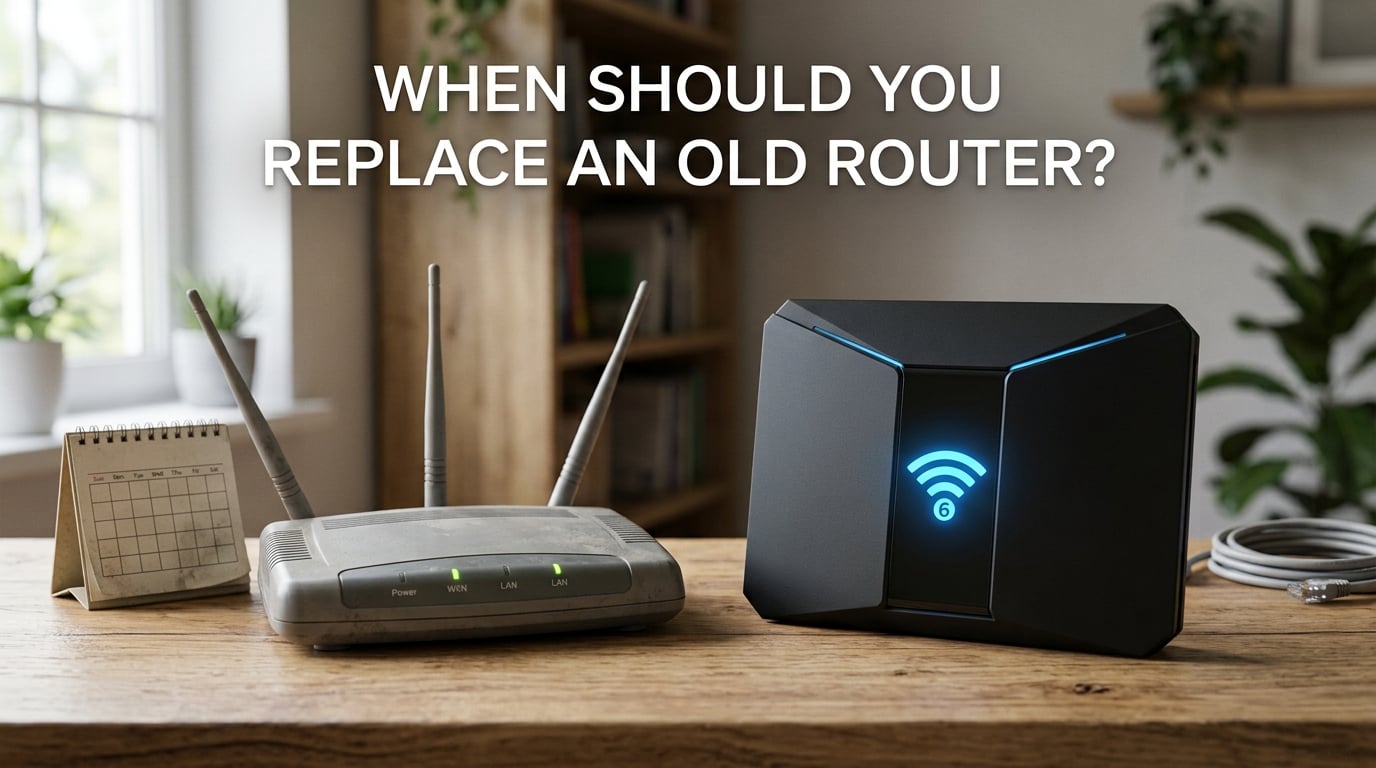
Most routers need replacing every 3 to 5 years. When should you replace an old router becomes an important question as your home network ages and your internet needs grow. Routers don’t have moving parts that wear out like hard drives, but they do become obsolete, lose manufacturer support, and struggle with modern bandwidth demands.
If your router predates 2020, uses WiFi 5 or older standards, or can’t keep up with video calls and 4K streaming, it’s probably time for an upgrade. Security updates stop after a few years, leaving your home network vulnerable to attacks. We’ve seen routers that worked fine in 2019 now struggle with the 20+ devices most families connect today.
In this guide, we’ll cover the 7 warning signs that your router needs replacing, security risks of outdated firmware, WiFi standard evolution, and a cost comparison of renting versus owning your equipment.
Signs Your Router Needs Replacing
Your router won’t suddenly die one day with a clear expiration date. Instead, it gives you subtle hints that its useful life is ending. Here are the most common warning signs that indicate you need a new router.
1. Slow Speeds Despite Good Internet Service
If you pay for 500 Mbps internet but only see 50 Mbps on speed tests, your router might be the bottleneck. Older routers with WiFi 5 or earlier standards can’t handle modern internet speeds. Run a speed test with a device connected directly to your modem via Ethernet. If the speeds are much faster than your WiFi speeds, your router is limiting your connection.
This problem gets worse with distance. A router that delivers 200 Mbps in the same room might drop to 30 Mbps two rooms away. Newer routers with WiFi 6 or WiFi 7 maintain better speeds at greater distances.
2. Frequent Disconnections and Dropouts
Random WiFi disconnections drive people crazy. Your video freezes mid-call, games lag at critical moments, and streaming buffers constantly. If you reconnect to WiFi several times per week, your router’s radio components may be degrading.
Devices that disconnect randomly, especially in certain rooms, often signal that your router can’t maintain stable connections. This happens more often with older routers trying to manage too many devices.
3. Dead Zones Throughout Your Home
Dead zones are areas where WiFi signal doesn’t reach. Every home has some, but they shouldn’t cover entire rooms or floors. If you can’t get WiFi in your bedroom, office, or backyard, your router lacks the power or range for your space.
Older single-band routers on 2.4 GHz struggle more with walls and floors. Newer dual-band and tri-band routers with beamforming technology focus signal toward your devices, reducing dead zones significantly.
4. Router Overheating Regularly
Touch the top of your router. If it feels uncomfortably hot, you have an overheating problem. Routers generate heat during normal operation, but excessive heat damages internal components over time. An overheating router causes unstable connections, random reboots, and eventual failure.
Check if your router sits in a confined space without ventilation. If it still overheats in an open area, the internal cooling has degraded. This is a strong sign you need replacement, not just repositioning.
5. Need for Frequent Reboots
Routers occasionally need a reboot, but not weekly or daily. If you unplug your router every few days to restore speed or fix connection issues, something is wrong. This pattern indicates memory leaks, failing components, or firmware bugs that won’t get fixed.
Consumer Reports found that users who reboot their routers more than once a month typically have hardware that’s reaching end of life. Modern routers run for months without needing restarts.
6. Can’t Handle Multiple Devices
Count your connected devices. Phones, tablets, laptops, smart TVs, gaming consoles, smart home devices, and streaming sticks add up quickly. A household in 2026 typically has 15-25 connected devices. Routers from 2018 often support only 32 devices total, and performance degrades with each additional connection.
If your network slows down when someone starts streaming while others browse, your router can’t manage concurrent connections efficiently. WiFi 6 routers handle multiple devices much better through MU-MIMO and OFDMA technology.
7. Outdated WiFi Standards
Check your router model number. If you see “AC” or “N” in the name, you’re using WiFi 5 (802.11ac) or WiFi 4 (802.11n). These standards are 5-10 years old. WiFi 6 (802.11ax) and WiFi 7 (802.11be) offer dramatically better performance, range, and device handling.
AC1200 routers specifically can’t handle gigabit internet speeds. If you upgraded to faster internet but didn’t notice improvement, your router might be the limitation. WiFi 6E and WiFi 7 routers support the new 6 GHz band, which is less crowded and faster.
Router Lifespan Explained
How long do routers last? Most networking experts recommend replacing your router every 3 to 5 years. Netgear representatives suggest three years as the replacement threshold. Consumer Reports found that most routers lose manufacturer support after 3-4 years. The actual lifespan depends on several factors we’ll examine below.
The 3-5 Year Rule
The three to five year recommendation comes from three factors: security updates, WiFi standard evolution, and changing household needs. Security firmware updates typically stop after 18-36 months for budget routers and 4-5 years for premium models. Once updates stop, your router becomes vulnerable to newly discovered exploits.
WiFi standards evolve every 4-5 years. WiFi 6 arrived in 2019, WiFi 6E in 2021, and WiFi 7 in 2024. Each generation brings significant improvements. A router from 2019 works fine today but may struggle by 2028.
What Shortens Router Lifespan?
Heat is the biggest enemy of router longevity. Routers in hot environments, enclosed spaces, or direct sunlight wear out faster. Dust buildup in vents reduces cooling efficiency. Power surges from storms or electrical issues damage sensitive components.
Heavy usage also affects lifespan. A router handling 30 devices with constant streaming and gaming works harder than one serving occasional browsing. That said, routers have no moving parts, so mechanical failure is rare. Obsolescence from security and performance issues usually triggers replacement before hardware fails.
Router Age Breakdown
Under 3 years: Your router should work well. Focus on keeping firmware updated and checking for dead zones. Consider upgrades only if you have many devices or subscribe to gigabit internet.
3-5 years: Start planning for replacement. Check if manufacturer still releases firmware updates. Evaluate whether your network needs exceed what the router provides. Compare WiFi standards available.
5+ years: Replace soon. Security updates have likely stopped. WiFi standards are outdated. You’re missing significant performance improvements available in newer models.
7+ years: Replace immediately. These routers have serious security vulnerabilities and can’t handle modern internet speeds or device counts.
Is a 10 Year Old Router Still Good?
A 10-year-old router is not still good. Routers from 2016 use WiFi 4 or early WiFi 5, lack WPA3 security, and haven’t received firmware updates in years. They can’t handle modern bandwidth demands, smart home devices, or multiple simultaneous streams. Security vulnerabilities in decade-old routers make them serious risks on your home network.
Security Risks of Outdated Routers
Security is the most overlooked reason to replace an old router. Manufacturers release firmware updates to patch security vulnerabilities, but these updates don’t continue forever. Once support ends, your router becomes an open door for attackers.
Why Firmware Updates Matter
Firmware is the software that runs your router. Like your phone or computer, it needs regular security patches. Researchers discover new vulnerabilities in routers regularly. In 2024 alone, security experts found critical flaws affecting millions of home routers.
When manufacturers stop releasing updates, those vulnerabilities remain unpatched forever. Attackers know which older router models have known vulnerabilities and actively scan for them. An unpatched router is an easy target.
End-of-Life Security Vulnerabilities
Manufacturers typically support routers for 3-5 years after release. Budget models sometimes get only 18 months of updates. Premium routers from brands like Netgear, ASUS, and TP-Link often receive updates for 4-5 years.
Check your manufacturer’s website for your router model’s end-of-life date. If support has ended, replace the router. No security updates means no protection against new threats discovered after that date.
Botnet Risks from Unpatched Routers
Unpatched routers often become part of botnets. Criminals compromise thousands of routers and use them to launch attacks on websites, spread malware, or send spam. Your router could participate in illegal activities without you knowing.
The Mirai botnet in 2016 infected hundreds of thousands of routers with default or weak passwords. Modern botnets target known vulnerabilities in outdated firmware. Your old router might be part of a criminal network right now.
WPA3 Encryption Requirements
WPA3 is the current WiFi security standard, offering better protection than WPA2. Routers older than 2019 typically only support WPA2, which has known vulnerabilities. WPA3 provides stronger encryption and better protection against password guessing attacks.
Many smart home devices now require WPA3 for optimal security. An old router without WPA3 limits the security of every device on your network.
How to Check for Firmware Updates
Access your router’s admin panel by typing its IP address (usually 192.168.1.1 or 192.168.0.1) into a web browser. Look for a firmware update section. Check if any updates are available. If the last update was over a year ago, support has likely ended.
Some routers have automatic update options. Enable this feature if available. If your router can’t check for updates automatically, set a calendar reminder to check quarterly.
WiFi Standard Obsolescence
WiFi standards evolve significantly every 4-5 years. Understanding these standards helps you recognize when your router can’t keep up with modern devices and internet speeds.
WiFi 5 vs WiFi 6 vs WiFi 7
WiFi 5 (802.11ac, 2014): Still common in many homes. Maximum theoretical speed of 3.5 Gbps. Uses only 2.4 GHz and 5 GHz bands. Handles multiple devices but struggles with more than 20 simultaneous connections. No WPA3 support in early models.
WiFi 6 (802.11ax, 2019): Current standard for most new routers. Maximum theoretical speed of 9.6 Gbps. Better handles multiple devices through MU-MIMO and OFDMA. Improved battery life for connected devices. WPA3 security standard.
WiFi 6E (2021): Adds 6 GHz band for less congestion and higher speeds. The 6 GHz band has more channels and less interference from neighbors and microwaves. Ideal for dense urban areas.
WiFi 7 (802.11be, 2024): Latest standard with speeds up to 46 Gbps. Doubles the bandwidth of WiFi 6. Handles 300+ devices efficiently. Perfect for future smart homes with many connected devices.
Why AC1200 Routers Struggle Today
AC1200 routers were budget-friendly options from 2017-2019. They combine 300 Mbps on 2.4 GHz with 867 Mbps on 5 GHz, totaling roughly 1200 Mbps. However, this is shared across all devices, not per device.
With gigabit internet becoming common, AC1200 routers can’t deliver those speeds even to a single device. Users on Reddit report AC1200 routers capping out at 400-500 Mbps even with strong signals. For modern households with streaming, gaming, and video calls, AC1200 is a bottleneck.
When to Upgrade for Modern Devices
Consider upgrading to WiFi 6 or newer if you have: gigabit internet service (500 Mbps or faster), more than 15 connected devices, 4K streaming on multiple TVs, someone working from home with video calls, or smart home devices throughout your house.
Gaming consoles, smart TVs from 2022 onwards, and flagship phones support WiFi 6 and WiFi 7. These devices perform better with matching router standards.
Router Rental vs Ownership: Cost Comparison
Many ISPs charge $10-15 per month for router rental. Over three years, that’s $360-540. You can buy a quality router for $100-200 and own it outright. The math strongly favors ownership for most households.
ISP Rental Fees Add Up
ISP router rental fees range from $10 to $15 monthly. At $12 per month average, you pay $432 over three years. ISP-provided routers are often basic models that may not support the latest WiFi standards or handle many devices well.
You also have less control over ISP routers. Many have limited settings, no advanced features, and may collect usage data. You can’t update firmware yourself or install custom firmware.
Ownership Break-Even Analysis
A good WiFi 6 router costs $100-200. At $12 monthly rental, you break even in 8-16 months. After that, you save money every month. A $150 router used for 4 years costs $3.13 per month in equivalent rental.
Better routers also mean better performance. You choose the features, range, and device capacity that match your needs. When it’s time to upgrade, you sell the old router or repurpose it as an access point.
How to Know If It’s Your Router or Modem
Many people confuse router problems with modem problems. Both devices can cause slow or unstable internet. Here’s how to tell which one needs attention.
Signs It’s Your Router
WiFi-specific problems point to your router. If wired Ethernet connections work fine but WiFi doesn’t, your router is the issue. Dead zones, weak signals in certain rooms, and devices that can’t connect to WiFi are router problems. If only some devices have issues, it’s usually the router’s device management.
Run a speed test on WiFi, then connect a laptop directly to your modem with an Ethernet cable and test again. If Ethernet speeds are significantly faster, your router is limiting your WiFi performance.
Signs It’s Your Modem
If both WiFi and wired connections are slow or unstable, your modem or ISP might be the problem. Check your modem’s indicator lights. Blinking lights when nothing should be downloading indicate connection problems. Modems also have lifespans of 4-7 years.
Contact your ISP if you suspect modem issues. Many ISPs provide modems as part of service or for a rental fee. They can run diagnostics remotely and replace faulty equipment.
Troubleshooting Steps
First, reboot both modem and router. Unplug both for 30 seconds, then plug in the modem first and wait for it to connect. Then power on the router. This simple fix resolves many temporary issues.
Next, check your internet speed with a direct modem connection. If speeds match your plan, the modem works fine. If speeds are slow even wired, contact your ISP. If wired speeds are good but WiFi is slow, replace your router.
Frequently Asked Questions
Is a 10 year old Wi-Fi router still good?
No, a 10-year-old router is not still good. Routers from 2016 use outdated WiFi 4 or early WiFi 5 standards, lack WPA3 security, and haven’t received firmware updates in years. They can’t handle modern internet speeds, multiple devices, or smart home requirements. Security vulnerabilities in decade-old routers pose serious risks to your home network.
How do I tell if my router needs to be replaced?
Watch for these warning signs: speeds much slower than your internet plan, frequent disconnections requiring reboots, dead zones in areas that previously had coverage, router overheating when touched, inability to handle multiple devices streaming simultaneously, lack of recent firmware updates, and WiFi standards older than WiFi 6. If your router is over 5 years old and shows any of these signs, replace it soon.
What’s the average lifespan of a router?
The average router lifespan is 3 to 5 years. Budget routers may need replacement after 3 years when firmware updates stop. Premium routers from major brands typically receive updates for 4-5 years. Security support, not hardware failure, usually determines end of life. Replace routers every 5 years maximum for optimal security and performance.
Can I replace my old router with a new one?
Yes, you can easily replace your old router with a new one. Unplug your old router, connect the new one to your modem using the same Ethernet cable, and follow the setup instructions. Most modern routers have apps that guide you through setup in 10-15 minutes. You’ll need to reconnect all your devices to the new WiFi network name and password, but the process is straightforward.
Conclusion
When should you replace an old router? The answer is clear: every 3 to 5 years for optimal security and performance. Watch for the warning signs we’ve covered—slow speeds, frequent reboots, dead zones, overheating, and outdated WiFi standards. Security updates ending is the most critical factor, as unpatched routers become vulnerable to attacks.
Check your router’s age and firmware status today. If it’s over 5 years old or no longer receives updates, start researching WiFi 6 or WiFi 7 replacements. Your home network security and performance depend on keeping this essential device current.