
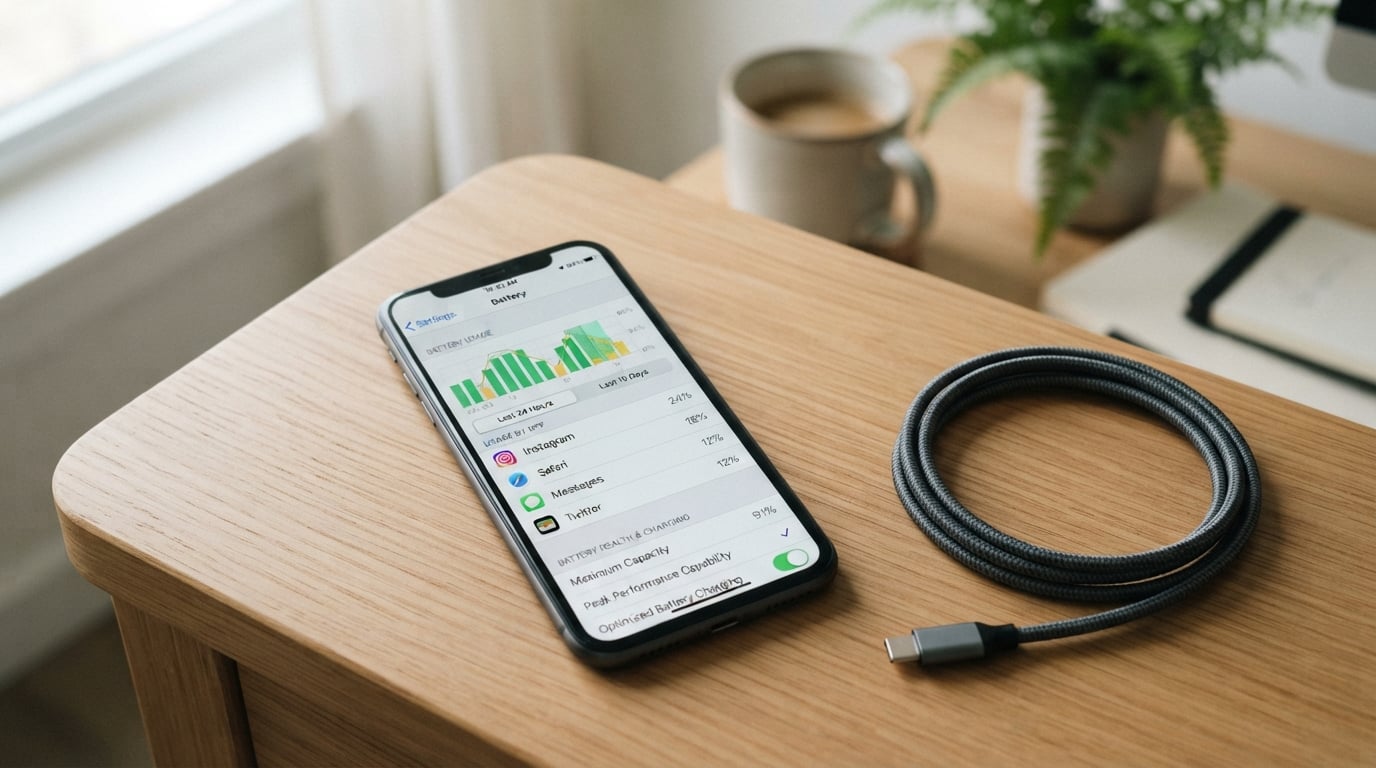
You just installed the latest iOS update, and your iPhone battery is vanishing before your eyes. I have been there, watching the percentage tick down 20, 30, even 40 percent faster than the day before. It is frustrating, and your first instinct is probably that the update broke something.
The good news is that iPhone battery drain after an iOS update is almost always temporary. In this guide, I will walk you through exactly why it happens, how long it typically lasts, and what you can do right now to reduce the impact. I will also help you tell the difference between normal post-update drain and an actual battery health problem.
Our team has tracked iOS update battery issues across multiple versions, from iOS 18 through iOS 26, and the patterns are remarkably consistent. Let us break down what is really happening inside your phone.
Why Does My iPhone Battery Drain So Fast After an iOS Update?
Your iPhone battery drains faster after an iOS update because the device runs intensive background processes behind the scenes. Apple has directly addressed this, stating that it is normal for your device to seem warm and for battery life to take a temporary hit after a software update.
According to Apple’s official support documentation, the setup process after an update involves indexing data files, downloading new assets, and updating apps. All of this happens silently while you use your phone normally, which means your battery is doing double duty.
Think of it like moving into a new house. You are trying to live your daily life while also unpacking boxes, organizing rooms, and setting up furniture all at once. That takes more energy than a normal day.
Background Indexing and System Optimization
The single biggest cause of temporary battery drain after an update is background indexing. After an iOS update, your iPhone re-indexes your entire file system so that Spotlight Search, Photos, and other features work properly. This process scans every file, photo, message, and document on your device.
If you have thousands of photos, years of messages, or large app libraries, indexing can take anywhere from a few hours to a couple of days. During this time, your processor is working overtime, and that extra work shows up as faster battery drain.
System optimization also runs in the background. iOS re-evaluates how it manages power, allocates resources, and handles thermal performance based on the new software. Until these optimizations complete, your phone simply uses more power than usual.
App Updates and Re-syncing
Many apps need to update themselves after a major iOS release to stay compatible. App developers push updates that your iPhone downloads and installs automatically if you have automatic updates enabled. Each app update can trigger its own re-syncing process, pulling fresh data from servers and rebuilding local databases.
This is why you might see battery drain concentrated in specific apps right after an update. Your social media apps, email clients, and photo editors are all catching up to the new iOS version simultaneously.
Downloading New Assets
Major iOS updates often include new system assets like updated Siri voices, refreshed maps data, new emoji fonts, and recompiled machine learning models. Your iPhone downloads and installs these assets in the background over the first day or two.
On top of that, features like Apple Intelligence (introduced in iOS 18 and expanded in later versions) may download additional language models and on-device AI resources. These downloads consume both data and battery power until they finish.
How Long Does Battery Drain Last After an iOS Update?
In most cases, temporary battery drain after an iOS update lasts between 24 and 72 hours. For major releases like iOS 26, the process can extend up to 5 days if you have a large amount of data on your device.
Apple’s official guidance is straightforward: give it a few days. The background processes I described above need time to complete, and once they finish, your battery life should return to normal or even improve compared to the previous version.
Here is a rough timeline based on what our team has observed across user reports and forum discussions:
Day 1 (first 24 hours): This is when drain is most noticeable. Your iPhone is simultaneously indexing files, downloading assets, and updating apps. Expect 15 to 30 percent faster drain than normal.
Days 2 to 3: Drain begins to taper off as the heaviest processes finish. You may still notice some warmth and reduced battery life, but it should be improving steadily.
Days 4 to 5: Most background activity should be complete. If your battery life has not returned to normal by the end of day 5, it is worth investigating further.
If you are past the one-week mark and your battery is still draining noticeably faster, you are likely dealing with something beyond normal post-update behavior. That brings us to the next section.
Apple Intelligence and Battery Drain
Starting with iOS 18, Apple Intelligence introduced a new variable into the battery equation. This AI-powered feature set includes enhanced Siri capabilities, smart writing tools, notification summaries, and on-device image generation. All of these features require significant processing power.
Multiple users on Reddit communities like r/ios26 and r/iPhone16ProMax have reported that Apple Intelligence is a major battery consumer after updates. The problem is compounded because iOS updates sometimes re-enable Apple Intelligence features that users previously turned off.
A ZDNet reporter documented this exact issue after the iOS 18.3 update. They traced significant battery drain back to Apple Intelligence running continuously in the background, and battery life improved substantially after disabling it.
If you updated recently and your battery is draining fast, check whether Apple Intelligence is active. Go to Settings, then Apple Intelligence and Siri, and review which features are turned on. Disabling the ones you do not use can make an immediate difference.
Temporary Drain vs. Battery Health Degradation
One thing that most articles do not clearly explain is the difference between temporary post-update drain and actual battery health degradation. I want to make this distinction sharp because it determines whether you need to take action or just wait.
Temporary drain is caused by background processes and goes away within a few days. Your battery health percentage does not change. The drain pattern is consistent and affects all usage equally.
Battery health degradation is permanent and progressive. If your iPhone’s maximum battery capacity (visible in Settings under Battery Health) has dropped significantly, that is a hardware issue, not a software one. Updates do not physically damage your battery.
There is also a middle ground. Sometimes a specific app has a bug that causes it to drain battery excessively after an update. This is not your battery degrading. It is an app-level problem that shows up clearly in your battery usage data.
The key takeaway: if your battery health reads above 85 percent and your phone is relatively new, the drain you are seeing is almost certainly temporary. Check your battery health first before assuming the worst.
How to Fix iPhone Battery Drain After an iOS Update
While you cannot completely eliminate post-update battery drain, you can reduce its impact and help your iPhone finish its background work faster. Here are the steps I recommend, in order of impact.
Step 1: Check Battery Usage in Settings
Open Settings, tap Battery, and scroll down to the usage chart. In iOS 26, this is called the Daily Usage chart, and it shows both App and System Activity Usage. Look for any app consuming an unusual percentage of battery.
Pay special attention to the Background Activity section. If a single app is responsible for a large chunk of background drain, force-close it or check for an app update in the App Store. The Insights section in iOS 26 will also flag ongoing device setup or iOS update activity if those processes are still running.
Step 2: Enable Low Power Mode
Low Power Mode is the fastest way to reduce battery drain while your iPhone finishes post-update processing. It reduces background activity, disables automatic downloads, and limits visual effects. You can turn it on in Settings, Battery, or add it to Control Center for quick access.
Keep Low Power Mode on for the first 48 hours after a major update. Once background indexing and app updates finish, you can turn it off and your battery life should be back to normal.
Step 3: Turn On Adaptive Power (iOS 26)
If you are running iOS 26, a new feature called Adaptive Power can help manage battery consumption more intelligently. Adaptive Power learns your usage patterns and automatically adjusts performance to extend battery life throughout the day.
Find it in Settings, then Battery. It works alongside Low Power Mode rather than replacing it, so you can enable both for maximum efficiency during the post-update window.
Step 4: Review Background App Refresh
Background App Refresh lets apps update their content even when you are not using them. After an iOS update, this feature can go into overdrive as every app tries to re-sync. Go to Settings, General, Background App Refresh, and either disable it entirely or limit it to Wi-Fi only.
You can also toggle it off for specific apps that you do not need updating in the background. This alone can save a meaningful amount of battery, especially right after a major iOS release when apps are re-syncing their data.
Step 5: Consider a Fresh Install
Multiple users across Reddit have reported that doing a fresh install of iOS through Finder or iTunes produces better battery life than an over-the-air (OTA) update. The theory is that OTA updates can leave behind cached files and fragmented data that a clean install avoids.
This should be a last resort, not your first step. A fresh install means wiping your device and restoring from a backup, which takes time and carries some risk. But if you are weeks past an update and battery drain persists, it is worth trying before contacting Apple Support.
Back up your iPhone first, then use Finder on Mac or iTunes on Windows to restore the device with a fresh copy of iOS. After setup completes, restore from your backup.
Additional Quick Fixes
Beyond the main steps above, a few smaller adjustments can add up. Turn on 5G Auto (found in Settings, Cellular, Cellular Data Options) so your iPhone switches to LTE when 5G is not needed. Enable Auto-Brightness and set Auto-Lock to 30 seconds or 1 minute.
If your iPhone has an Always-On Display, consider disabling it temporarily during the post-update period. Always-On Display continuously refreshes your screen and can add measurable drain when combined with background processing.
Also, keep your iPhone connected to Wi-Fi whenever possible during the first few days after an update. Wi-Fi uses less power than cellular data, and many of those background downloads will happen faster over a stable connection.
Why does iOS 26 drain battery?
iOS 26 drains battery because after installation, your iPhone runs background processes like re-indexing files, downloading new system assets, updating apps, and optimizing system settings. This temporary drain typically lasts 24 to 72 hours and resolves on its own once the background work completes. Apple has confirmed this behavior is normal.
Why is the new iOS 18 update draining my battery?
iOS 18 introduced Apple Intelligence, which uses significant processing power for on-device AI features like notification summaries, writing tools, and enhanced Siri. Updates can also re-enable Apple Intelligence features you previously turned off. Disabling Apple Intelligence in Settings under Apple Intelligence and Siri can reduce battery drain substantially if you do not use those features.
Is iOS 26.0.1 stable?
iOS 26.0.1 was a quick follow-up release that addressed early bugs found in the initial iOS 26 launch. Most users report improved stability after updating, though some battery drain during the first few days is still expected due to background re-indexing. If you experienced issues on iOS 26.0, updating to later point releases generally improves performance and battery behavior.
Does updating iOS drain battery faster?
Yes, updating iOS temporarily drains battery faster because your iPhone must complete background processes including indexing data, downloading assets, and updating apps. This drain is temporary and typically lasts a few days. Once the setup process finishes, battery life usually returns to normal or improves compared to the previous iOS version.
Final Thoughts on iPhone Battery Drain After an iOS Update
iPhone battery drain after an iOS update is one of the most common complaints every time a new version drops, and in nearly every case, it resolves itself within a few days. The background indexing, asset downloads, and app updates that cause the drain are signs your phone is doing exactly what it should.
Give it 48 to 72 hours, use Low Power Mode in the meantime, and check your battery usage settings if the problem persists beyond a week. If it does, consider whether Apple Intelligence or a specific app is the real culprit before assuming your battery is failing. Most of the time, patience is the best fix.