
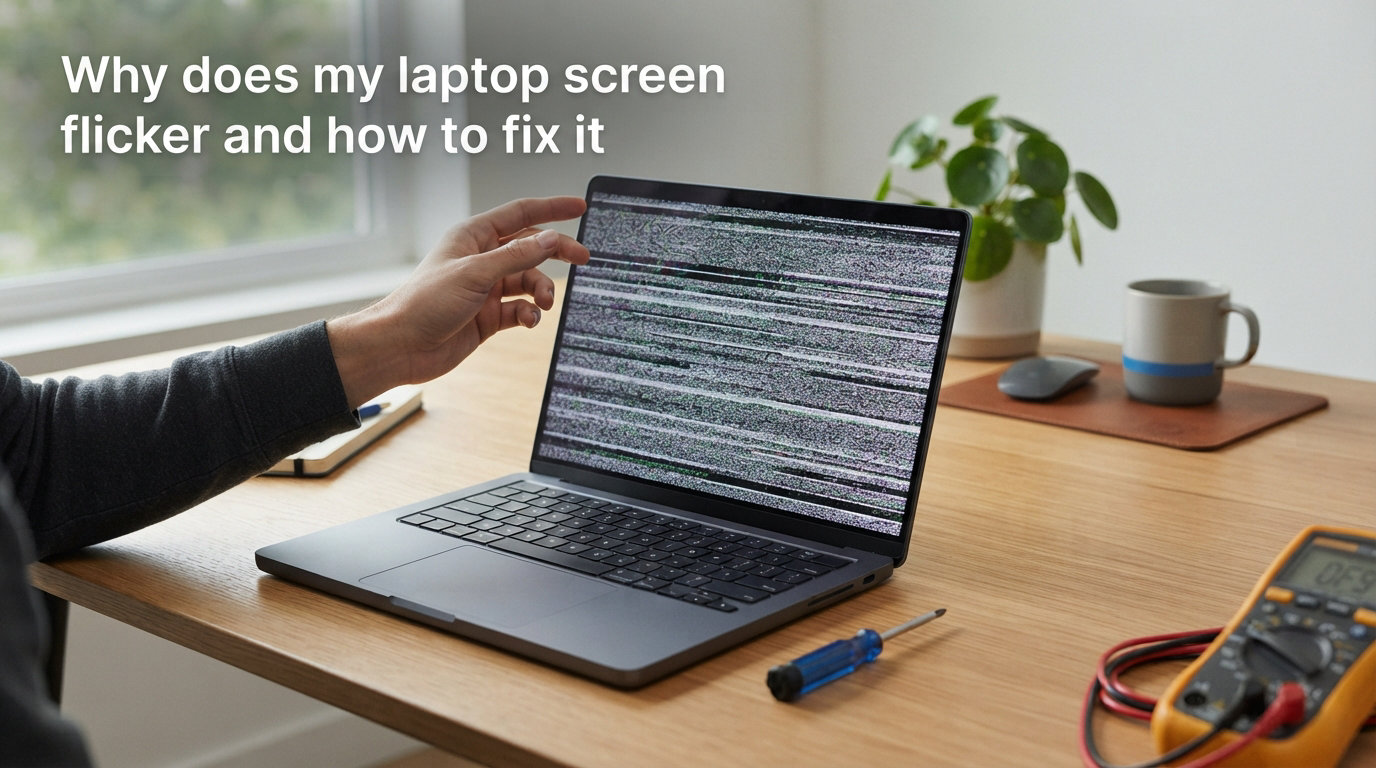
You are working on something important, and suddenly your laptop screen starts flickering. Lines jump across the display, colors distort, or the screen blinks on and off. If you are wondering why does my laptop screen flicker and how to fix it, you are far from alone. This is one of the most reported display issues across tech support forums.
Our team dug through hundreds of forum threads on Reddit, Tom’s Hardware, and manufacturer support pages to find the real fixes that actually work. We combined those community solutions with official guidance from Microsoft and Intel support docs. The result is a troubleshooting guide that covers everything from 30-second quick fixes to deep hardware diagnosis.
In this guide, you will learn what causes laptop screen flickering, how to tell whether the problem is software or hardware related, and exactly how to apply a laptop screen flickering fix step by step. Whether you are dealing with flickering on startup, after sleep mode, during gaming, or with an external monitor, the solutions below will walk you through it.
What Is Laptop Screen Flickering?
Laptop screen flickering is the rapid, repeated flashing or distortion of your laptop display. It can show up as horizontal lines, brief black screens, color shifts, or a blinking effect that makes the screen hard to read. The flickering may happen constantly or only in certain situations, like when you open a specific app or wake the laptop from sleep.
The root cause is almost always a mismatch between what your graphics driver sends to the display and what the display panel can handle. That mismatch can come from software bugs, outdated or corrupted drivers, incompatible applications, refresh rate conflicts, or physical hardware problems like a loose ribbon cable inside the laptop.
Flickering ranges from a minor annoyance that happens once a week to a constant problem that makes the laptop unusable. The severity often tells you something about the cause. Occasional flickering after updates usually points to a driver issue, while constant flickering that shows up even in the BIOS screen almost always means a hardware fault.
Common Causes of Laptop Screen Flickering
Understanding what is behind the flickering helps you pick the right fix. Here are the most common causes we found across forum reports and official support documentation.
Outdated or Corrupted Display Drivers
The single most common cause is a problem with your display driver or graphics driver. When Windows updates automatically, it sometimes installs a generic or incompatible driver that conflicts with your laptop’s GPU. This is especially common with Intel integrated graphics and NVIDIA discrete graphics combinations.
Corrupted driver files can also trigger flickering after a system crash or improper shutdown. If the flickering started right after a Windows update, a driver issue is your most likely culprit.
Incompatible Applications
Certain third-party apps can interfere with how Windows renders your display. Antivirus programs, screen recording tools, and older software that uses custom rendering methods are frequent offenders. Norton Antivirus, icloudservices, and some older IDT audio drivers have all been linked to screen flickering in Microsoft’s own troubleshooting documentation.
If the flickering started after you installed a new program, that app is a prime suspect. The Task Manager diagnostic method described later in this guide will help you confirm whether an incompatible app is to blame.
Refresh Rate Mismatch
Your laptop display refreshes its image at a specific rate, measured in Hertz. If your display settings specify a refresh rate that your panel cannot handle smoothly, you get flickering. This is especially common on gaming laptops with high refresh rate displays running at 144Hz or higher.
Multiple Reddit users on r/GamingLaptops reported that disabling AMD FreeSync or dropping from 144Hz to 60Hz resolved their flickering entirely. The GPU and panel simply could not maintain sync at the higher rate.
Loose or Damaged Ribbon Cable
Inside every laptop, a flat ribbon cable connects the LCD panel to the motherboard. This flex cable runs through the hinge area, and over time the repeated opening and closing of the lid can loosen it. A loose connection causes intermittent flickering that often gets worse when you adjust the screen angle.
Forum data from r/techsupport shows that flex cable issues are one of the most common hardware causes of laptop screen flickering. Many users reported that their repair tech simply reseated the cable connector and the flickering disappeared.
Power Fluctuations and Faulty Adapters
If your laptop screen flickers only when plugged in, the power adapter or charging circuit may be the issue. A faulty adapter can send inconsistent power to the GPU, causing display instability. Power surges and unstable electrical outlets can also contribute.
Using a surge protector and testing the laptop on battery power alone can help you isolate this cause. If the flickering stops when running on battery, your power adapter or charging port is likely the problem.
Malware and Viruses
This is a rare cause, but some forms of malware can interfere with display rendering and cause flickering. If you have ruled out all other causes and your system is behaving erratically in other ways, running a full malware scan is worth doing. Most flickering is not caused by malware, so treat this as a last resort rather than a first step.
How to Diagnose Hardware vs Software Flickering?
Before you start applying fixes, you need to know whether your flickering is a software problem or a hardware problem. This single diagnostic step can save you hours of wasted troubleshooting. The method below comes straight from Microsoft Support and has been verified by hundreds of forum users.
The Task Manager Test
Press Ctrl + Shift + Esc to open Task Manager. Watch the Task Manager window carefully while your screen flickers. If Task Manager itself flickers along with everything else, the problem is likely a hardware issue or a deep display driver problem. If Task Manager stays steady while the rest of the screen flickers, you are dealing with an incompatible application.
This test works because Task Manager runs on a different rendering layer than your normal desktop. If only the desktop layer flickers, an app is interfering with the Desktop Window Manager, which handles how Windows draws the screen.
The BIOS Test
Restart your laptop and enter the BIOS or UEFI setup screen. The key to press varies by manufacturer. It is usually F2 for Dell and Acer, F10 for HP, or F1 for Lenovo. Once you are in the BIOS screen, watch for flickering.
If the screen flickers in BIOS, you almost certainly have a hardware problem. The BIOS screen bypasses Windows and all drivers completely, so any flickering there points to the LCD panel, ribbon cable, or GPU hardware. Forum users consistently confirm that BIOS-level flickering means it is time to check hardware connections or seek professional repair.
The External Monitor Test
Connect your laptop to an external monitor using an HDMI, DisplayPort, or VGA cable. If the external monitor displays normally while the laptop screen flickers, the issue is with the laptop’s LCD panel or internal ribbon cable. If both screens flicker, the problem is with your GPU or display driver.
Quick Fixes: 5 Ways to Stop Laptop Screen Flickering
If you want the fastest laptop screen flickering fix, try these five solutions in order. Each one takes under five minutes and resolves the majority of flickering cases.
1. Reset your graphics driver. Press Windows + Ctrl + Shift + B simultaneously. Your screen will beep and flash briefly, then reset the graphics driver. This shortcut is a Microsoft-recommended quick fix that resolves temporary driver glitches. Multiple Reddit threads confirm this shortcut as the first thing to try.
2. Update your display driver. Right-click the Start button, select Device Manager, expand Display adapters, right-click your GPU, and select Update driver. Choose the option to search automatically for updated driver software.
3. Adjust your refresh rate. Go to Settings, then System, then Display, then Advanced display settings. Try changing the refresh rate to a different value. If you are at 144Hz, try 60Hz to see if the flickering stops.
4. Uninstall recently added apps. If the flickering started after installing a specific program, uninstall it. Antivirus software, screen recorders, and older utilities are common triggers. Restart after uninstalling and check if the flickering is gone.
5. Check for Windows updates. Go to Settings, then Update and Security, then Windows Update. Install any pending updates. Microsoft frequently releases patches that address display driver conflicts introduced by previous updates.
Step-by-Step Troubleshooting Guide
If the quick fixes did not solve your flickering problem, this detailed troubleshooting guide walks you through each step from simplest to most advanced. Work through these steps in order, and stop when the flickering stops.
Step 1: Reset the Graphics Driver
Press Windows + Ctrl + Shift + B. You will hear a short beep and your screen will flash once. This restarts the graphics subsystem without rebooting your computer. It clears temporary glitches in the display pipeline.
If the flickering returns after a few minutes, move on to the next step. This shortcut fixes temporary issues but will not resolve a persistent driver problem.
Step 2: Run the Task Manager Diagnostic
Open Task Manager with Ctrl + Shift + Esc. Observe whether the Task Manager window flickers along with the rest of the screen. As covered in the diagnosis section above, this tells you whether the problem is a hardware issue or an incompatible app.
If Task Manager does not flicker, proceed to uninstall recently added applications. If Task Manager does flicker, skip ahead to the driver steps.
Step 3: Update, Roll Back, or Reinstall the Display Driver
Open Device Manager and expand the Display adapters section. Right-click your graphics adapter and choose Update driver. Select Search automatically for drivers and let Windows find the latest version.
If updating does not help, try rolling back the driver. Right-click the adapter, select Properties, go to the Driver tab, and click Roll Back Driver if the option is available. This restores the previous driver version that may have been working fine before a Windows update replaced it.
If neither update nor rollback works, try uninstalling the driver completely. Right-click the adapter, select Uninstall device, and check the box that says Attempt to remove the driver for this device. Restart your laptop and Windows will reinstall a fresh driver automatically.
Step 4: Perform a Clean Driver Installation
For persistent driver issues, Intel recommends a clean installation rather than a simple update. Download the Intel Driver and Support Assistant from Intel’s website and run it to detect your graphics hardware. Then download the latest driver package directly from Intel, NVIDIA, or AMD depending on your GPU.
Use the manufacturer’s clean install option, which removes all old driver files before installing the new ones. This eliminates conflicts caused by leftover files from previous driver versions. Forum users on r/techsupport frequently confirm that a clean install resolves flickering that survived standard updates.
Step 5: Adjust Refresh Rate and Resolution
Go to Settings, then System, then Display, then Advanced display settings. Look at the current refresh rate and try different values. On gaming laptops, disable FreeSync or G-Sync if enabled, and test at 60Hz first to rule out high refresh rate instability.
Also check your screen resolution. Setting a resolution that does not match your panel’s native resolution can cause flickering. Always use the recommended resolution for your display.
Step 6: Check the Intel Graphics Command Center Settings
If you have Intel integrated graphics, open the Intel Graphics Command Center. Look for a setting called Panel Self Refresh and disable it. Intel’s own support documentation identifies this feature as a potential cause of screen flickering on some systems.
While you are in the Graphics Command Center, check for any custom display profiles that might be applying unusual settings. Reset to default if you are unsure.
Step 7: Test in Safe Mode
Boot your laptop into Safe Mode by holding Shift while clicking Restart, then navigating to Troubleshoot, Advanced options, Startup Settings, and pressing F4. Safe Mode loads Windows with minimal drivers and no third-party software.
If the flickering stops in Safe Mode, a software conflict is confirmed. You will need to systematically disable startup apps and services to identify the culprit. If the flickering continues in Safe Mode, the problem is likely hardware related.
Step 8: Check Internal Hardware Connections
If all software fixes have failed and the BIOS test showed flickering, the ribbon cable connecting your LCD to the motherboard may be loose or damaged. This requires opening the laptop case.
If you are comfortable with hardware repairs, you can remove the bezel around the screen and reseat the ribbon cable connector. Make sure the laptop is powered off and the battery is disconnected before attempting this. If you are not comfortable opening your laptop, this is the point where you should seek professional repair.
Windows 10 vs Windows 11 Flickering Differences
Screen flickering can behave differently depending on which version of Windows you are running. Understanding these differences helps you target the right fix for your specific system.
Windows 10 and Windows 11 both use the Desktop Window Manager to handle display rendering, but Windows 11 introduced changes to how DWM interacts with the graphics pipeline. Some users report that flickering appeared for the first time immediately after upgrading from Windows 10 to Windows 11, which usually points to a driver incompatibility introduced by the upgrade.
If your Windows 11 screen is suddenly flickering, the most effective approach is to check whether a recent Windows update installed a new display driver. Go to Settings, then Windows Update, then Update history, and look for driver updates. If a driver update coincides with when your flickering started, rolling back that driver through Device Manager often solves the problem.
The Windows + Ctrl + Shift + B shortcut works identically on both Windows 10 and Windows 11. The Task Manager diagnostic method also works the same way on both versions. However, the Advanced display settings menu is organized slightly differently in Windows 11, so you may need to look under Settings, then System, then Display, then Advanced display to find refresh rate options.
For users who upgraded to Windows 11 on older hardware, a clean driver installation from the GPU manufacturer’s website is often the definitive fix. Generic drivers pushed through Windows Update may not fully support the display panel on older laptops.
Flickering During Gaming and With External Monitors
Screen flickering during gaming or when using external monitors has some unique causes that general troubleshooting steps may not address. Here is what the forum community has identified as the most common culprits.
High Refresh Rate and FreeSync Issues
Gaming laptops with 144Hz or 240Hz displays frequently experience flickering related to adaptive sync technologies. AMD FreeSync and NVIDIA G-Sync are designed to eliminate screen tearing, but when the GPU and panel cannot maintain proper sync, the result can be flickering instead.
Reddit users on r/GamingLaptops repeatedly report that disabling FreeSync through the AMD Adrenalin software or dropping the refresh rate to 60Hz eliminates the flickering. The GPU may not be able to sustain the variable refresh rate range that the panel expects, causing brief signal drops that appear as flicker.
Cable and Connection Problems
When connecting external monitors, the type of cable you use matters. VGA cables are analog and prone to interference, which can cause visible flickering. HDMI and DisplayPort cables are digital and generally more stable, but a damaged or low-quality cable can still cause signal issues.
If your external monitor flickers, try a different cable first. Switch from VGA to HDMI or DisplayPort if your hardware supports it. Also test with a different port on both the laptop and the monitor.
GPU Power Management Conflicts
Running dual displays puts extra load on your GPU. On laptops with both integrated and discrete graphics, the switching between the two GPUs can cause brief flickering on both screens. This is a known issue that driver updates from NVIDIA and AMD typically address.
If you experience flickering when connecting or disconnecting an external monitor, check for GPU driver updates first. If the problem persists, try disabling the integrated GPU in Device Manager while using the external display, though this may reduce battery life significantly.
Flickering After Sleep Mode
Flickering after waking from sleep is one of the most commonly reported issues on tech support forums. When your laptop wakes from sleep, the display driver reinitializes, and this process can fail partially, resulting in flickering until you restart.
The quickest fix for sleep-related flickering is the Windows + Ctrl + Shift + B shortcut to reset the graphics driver immediately after waking. For a longer-term solution, updating to the latest graphics driver and disabling fast startup in Power Options often resolves the issue.
Prevention Tips and Eye Health
Preventing screen flickering is easier than fixing it after the fact. A few simple habits can keep your display stable and protect your eyes at the same time.
Keep Your Drivers Updated
Check for graphics driver updates monthly. You can use the Intel Driver and Support Assistant, NVIDIA GeForce Experience, or AMD Adrenalin software depending on your GPU. These tools notify you when new drivers are available and handle installation automatically.
Avoid relying solely on Windows Update for driver updates. Windows Update sometimes pushes older or generic drivers that do not fully support your specific display panel.
Use a Surge Protector
Power fluctuations can damage your GPU and display controller over time. Plug your laptop charger into a surge protector to guard against voltage spikes. This is especially important in areas with unstable power grids or during storms.
Protect Your Eyes
Screen flickering is not just annoying. It can cause real physical discomfort. Prolonged exposure to a flickering screen leads to eye strain, headaches, and fatigue. Some users are more sensitive to flickering than others and may experience symptoms even when the flickering seems minor.
If you must use a flickering screen temporarily, take frequent breaks using the 20-20-20 rule. Every 20 minutes, look at something 20 feet away for 20 seconds. Adjust your screen brightness to a comfortable level and enable blue light filtering if your operating system offers it.
Handle Your Laptop With Care
Since a loose ribbon cable is a common hardware cause, treat your laptop gently. Avoid opening and closing the lid by grabbing one corner, which puts uneven stress on the hinge and the cable inside. Always open the lid from the center.
When to Seek Professional Repair?
If you have worked through all the troubleshooting steps above and the flickering persists, it is time to consider professional repair. Specifically, seek help if the screen flickers in the BIOS screen, flickers on an external monitor, or flickers after a clean Windows installation with fresh drivers.
These symptoms all point to a hardware failure that software fixes cannot address. The most likely hardware problems are a failing LCD panel, a damaged ribbon cable, or a GPU that is physically deteriorating. A repair shop can diagnose which component is at fault and give you an accurate repair cost.
For laptops still under warranty, contact the manufacturer before attempting any internal repairs yourself. Opening the case may void your warranty, and the manufacturer may offer free repair or replacement for display defects.
FAQs
How do I get my laptop screen to stop flickering?
Press Windows + Ctrl + Shift + B to reset your graphics driver. If that does not work, update your display driver through Device Manager, adjust your refresh rate in Advanced display settings, uninstall recently added apps, and check for Windows updates. For persistent flickering, try a clean driver installation from your GPU manufacturer’s website.
Can I fix a flickering screen myself?
Yes, most flickering cases are software-related and fixable at home. Start with the Windows + Ctrl + Shift + B shortcut, then update or roll back your display driver in Device Manager. If the screen flickers in the BIOS screen, the problem is hardware-related and may require professional repair or reseating the internal ribbon cable.
What is the main cause of screen flickering?
The main cause of laptop screen flickering is an outdated, corrupted, or incompatible display driver. Windows updates frequently install generic drivers that conflict with your GPU. Other common causes include incompatible third-party apps, refresh rate mismatches, loose ribbon cables, and power fluctuations from faulty adapters.
Why is my Windows 11 suddenly flickering?
Sudden flickering in Windows 11 is usually caused by a recent Windows Update that installed an incompatible display driver. Go to Settings, then Windows Update, then Update history to check for recent driver updates. Roll back the driver in Device Manager, or perform a clean installation using drivers from Intel, NVIDIA, or AMD directly. Disabling Panel Self Refresh in the Intel Graphics Command Center may also help.
Wrapping Up
Screen flickering is frustrating, but in most cases the fix is straightforward once you identify the cause. The vast majority of flickering issues come down to driver problems, incompatible apps, or refresh rate mismatches. All of these are fully fixable at home using the steps in this guide.
Remember the diagnostic flow. Start with the Windows + Ctrl + Shift + B shortcut to reset the graphics driver. Then use the Task Manager test and BIOS test to determine whether you are dealing with a software or hardware issue. Apply the matching laptop screen flickering fix from the troubleshooting guide, and you should have a stable display again.
If the flickering persists through every software fix and shows up in the BIOS screen, the ribbon cable or LCD panel likely needs attention. At that point, professional repair is your best path forward, especially if your laptop is still under warranty.