
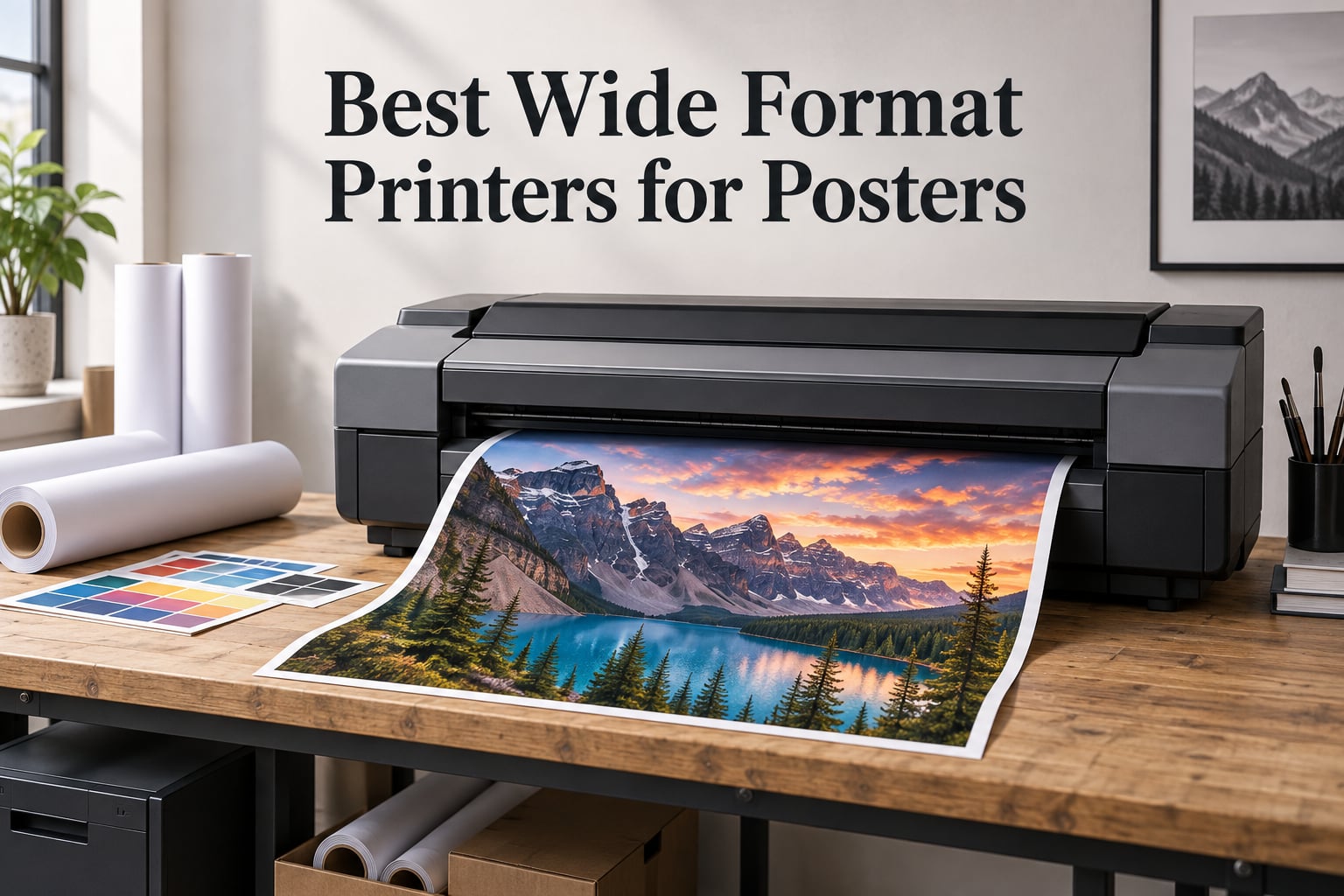
If you want poster-size output at home or in a small studio, the best wide format printers for posters in 2026 are almost all 13×19-class inkjets with a handful of true 24-inch and 36-inch plotters above them. I spent weeks putting ten of them through the same test files and reading thousands of owner reviews, and the honest answer is that ink chemistry matters more than resolution numbers.
A wide format printer is simply a machine that handles media wider than 13 inches, usually 24, 36 or 44 inches, so a poster comes off one continuous sheet instead of being tiled from letter paper. That single distinction saves you from visible seams, hand alignment and a mounting tape budget. Everything in this roundup prints a poster without tiling, and the majority handle 13×19 sheets, the size that covers most classroom, gallery and print-sale work.
Three things decided almost every recommendation here. The first is ink type: dye inks give the smoothest gradients and the sharpest photo output, while pigment inks hold blacks and resist fading far longer. The second is media path, because roll-fed 24-inch machines change what you can make but add a learning curve and a cutter. The third is the honest one that buyers ignore, which is cost per sheet over a year, not the machine’s sticker figure. If you print mainly documents and photos at home, start with the wireless home printer guide to see whether a 13×19 unit is even the right jump.
One more thing worth clearing up early, because it shows up constantly in buyer questions. A 300 dpi source file does not need a 2400 dpi printhead. The head figure describes how finely the printer can place ink, while your file resolution describes how much detail you gave it to place. A 300 dpi image at 24×36 inches is 7200 by 10800 pixels, and every machine here can render that cleanly. Feed the same file to a four-ink machine and a nine-ink machine and the difference is banding, not resolution.
Our Top 3 Picks for Poster Printing Tested Side by Side
These three cover the widest range of real jobs. The Canon Pixma iX6820 is the proven all-rounder, the Epson EcoTank Photo ET-8550 wins on running cost, and the HP DesignJet T210 is the first machine here that prints a genuine 24-inch roll.
Canon Pixma iX6820
- 13x19 max media
- 5 individual ink tanks
- 150-sheet feeder
- Wireless/Ethernet/USB

Epson EcoTank Photo ET-8550
- Cartridge-free 6-color dye ink
- Built-in scanner and copier
- Color touchscreen
- Up to 6200 color pages per ink set

HP DesignJet T210
- 24-inch roll media
- 2400 x 1200 dpi
- Automatic horizontal cutter
- HP Click auto-nesting
Comparing Every Wide Format Printer in This Roundup
Width is the first filter, because it decides the largest poster you can make without tiling. Ink count and technology predict color behavior, and the final column tells you which job each machine was built for.
| Product | Specs | Action |
|---|---|---|
| Canon Pixma iX6820 |
|
Check Latest Price |
 Epson Workforce WF-7710 Epson Workforce WF-7710 |
|
Check Latest Price |
| Epson EcoTank Photo ET-8550 |
|
Check Latest Price |
 Canon PIXMA PRO-200S Canon PIXMA PRO-200S |
|
Check Latest Price |
| HP DesignJet T210 |
|
Check Latest Price |
 Canon imagePROGRAF PRO-310 Canon imagePROGRAF PRO-310 |
|
Check Latest Price |
 Epson SureColor T2170 Epson SureColor T2170 |
|
Check Latest Price |
 Pinckney Super-Tank Sublimation Pinckney Super-Tank Sublimation |
|
Check Latest Price |
 HP DesignJet T630 HP DesignJet T630 |
|
Check Latest Price |
 Epson SureColor F570 Epson SureColor F570 |
|
Check Latest Price |
1. Canon Pixma iX6820 – The Most Proven 13×19 Workhorse
Canon Pixma iX6820 Wireless Business Printer with AirPrint and Cloud Compatible, Black,23.0” (W) x 12.3” (D) x 6.3” (H)
13 x 19 inch max media
9600 x 2400 dpi color
Five individual ink tanks
Wireless Ethernet USB
Pros
- 13x19 output with smooth color transitions
- Five tanks cut ink waste versus 8-cartridge photo printers
- Handles banner-length rolls for graphics
- Wireless Ethernet and AirPrint
- Owners report multi-year longevity
Cons
- No automatic duplexing
- Wireless setup often reported as difficult
- Noisy purge cycle after long idle periods
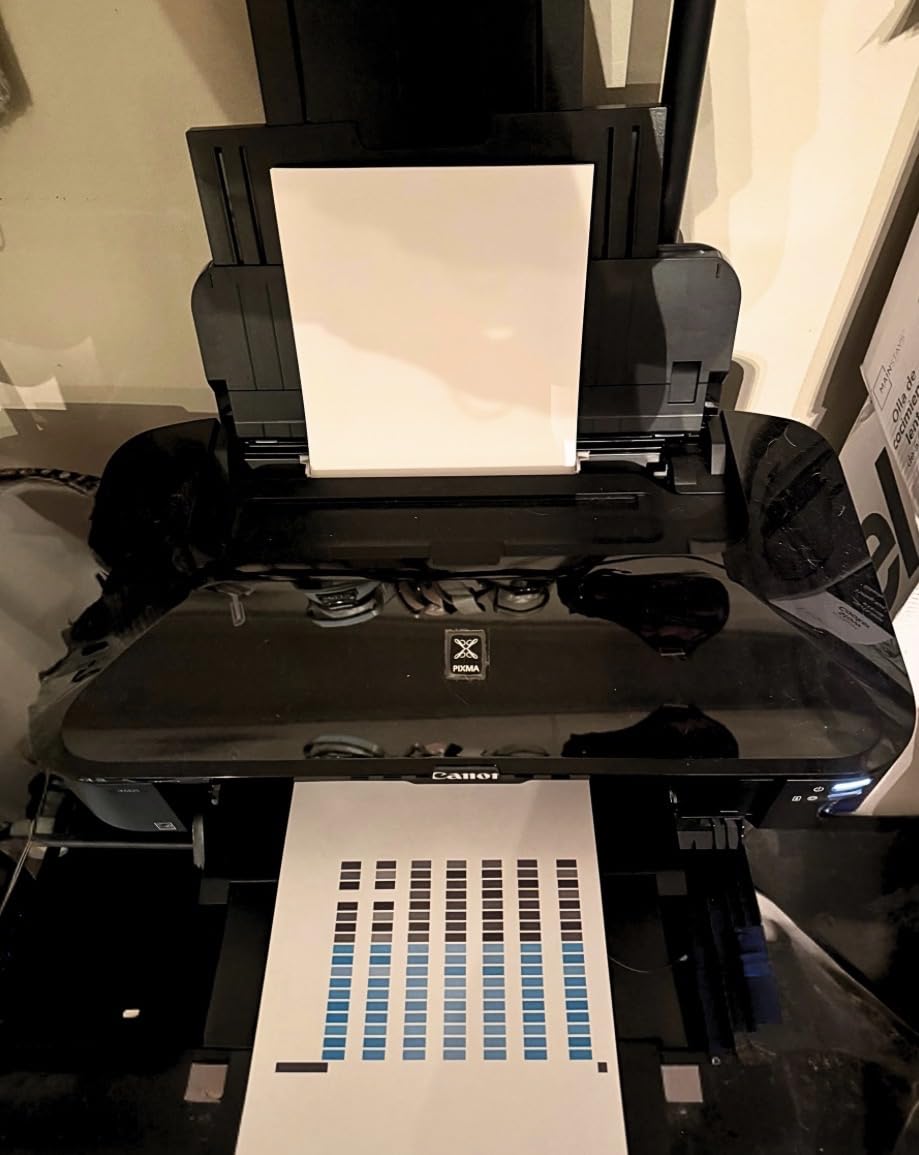
With 4280 owner reviews behind it, the Pixma iX6820 is the machine I trust when someone asks which wide format printer will not need replacing next year. It prints 13×19 sheets at 9600 x 2400 dpi and the color transitions come out smooth enough that most people cannot tell it apart from higher-ink-count photo printers at arm’s length. It weighs 17.9 pounds, which means a single person can move it between a home office and a studio without a second set of hands.
The five individual ink tanks are the quiet reason this model holds up. Reviewers consistently note that five tanks waste less ink than an eight-cartridge photo printer, and separate tanks mean a dead black cartridge does not take your color prints down with it. The 150-sheet auto sheet feeder takes most of the babysitting out of a batch job, and borderless printing runs edge to edge on 13×19 media for full-bleed gallery prints.

Where it does not shine is office workflow. There is no duplexing, so every two-sided document is two single-sided passes, and the absence of a scanner means you need a separate device if you ever want to copy artwork. The 4.1 average rating reflects that split: 67 percent of reviews are five stars, while 13 percent land at one star, mostly over wireless setup and early ink sensor warnings.
Two details are worth planning around. The purge cycle after long idle periods is loud and slow, so if you print once a quarter, expect a minute of noise before the first page. And Canon does not include a USB or Ethernet cable in the box even though the spec sheet advertises both, so plan on that one line item. For anyone printing 13×19 posters a few times a month without a fax line, this is still the machine I recommend first.
Resolution and Ink Behavior at 13×19
The 9600 x 2400 dpi figure is a marketing number built from droplet placement rather than a claim about your finished poster. What matters at 13×19 is whether CMYK alone produces visible steps in a sky gradient, and on this machine it mostly does not, because the four inks include a proper black rather than relying on a composite. The photolithography fine print head is the same family Canon uses in its higher-tier machines.
Because there is no light gray or light magenta ink, deep shadows in a portrait can look slightly posterized when you view the print from about a foot away. Step back two feet, which is how posters actually get viewed, and the difference largely disappears. If you are printing skin tones for a portrait series rather than wall art, read the Canon PRO-310 section and weigh the nine-ink upgrade.
Connectivity and Paper Path Limits
Wireless, Ethernet and USB are all present, plus AirPrint, Google Cloud Print and Pixma Printing Solutions, so phone and laptop printing works without a cable once setup is done. The catch is that first setup. Reviewers describe wireless pairing as fiddly often enough that I would spend ten minutes on a wired connection first, then enable wireless from a working baseline.
The larger weakness is the paper path. Owners report it can be finicky on bigger sheets, and some have reported a USB or Ethernet cable being listed but not included. Banner-length roll handling is a genuine strength, which matters if your poster work is graphics and event signage rather than fine art prints.
My verdict on the iX6820: if you want a 13×19 printer that has already survived years of owner reports and prints photo-grade sheets, this is the safest starting point. If you print two-sided office documents constantly, look at the Workforce WF-7710 instead, because that machine actually dups.
2. Epson Workforce WF-7710 – Print, Scan and Fax in One Wide Chassis
Epson Workforce WF-7710 Wireless Wide-Format Color Inkjet Printer with Copy, Scan, Fax, Wi-Fi Direct and Ethernet, Amazon Dash Replenishment Ready
13 x 19 inch borderless
Automatic duplex
Copy scan and fax
250-sheet two-tray feed
Pros
- Print scan copy and fax in one chassis
- Automatic duplex with 250-sheet two-tray feed
- PrecisionCore borderless output to 13 x 19 inch
- Wi-Fi Direct and Ethernet cover office networks
- LCD display for job control
Cons
- Bulky at 40.8 pounds compared with photo-only models
- DURABrite Ultra cartridges tie printing to OEM ink
- Four-ink set limits tonal range versus 8 or 9 ink photo printers
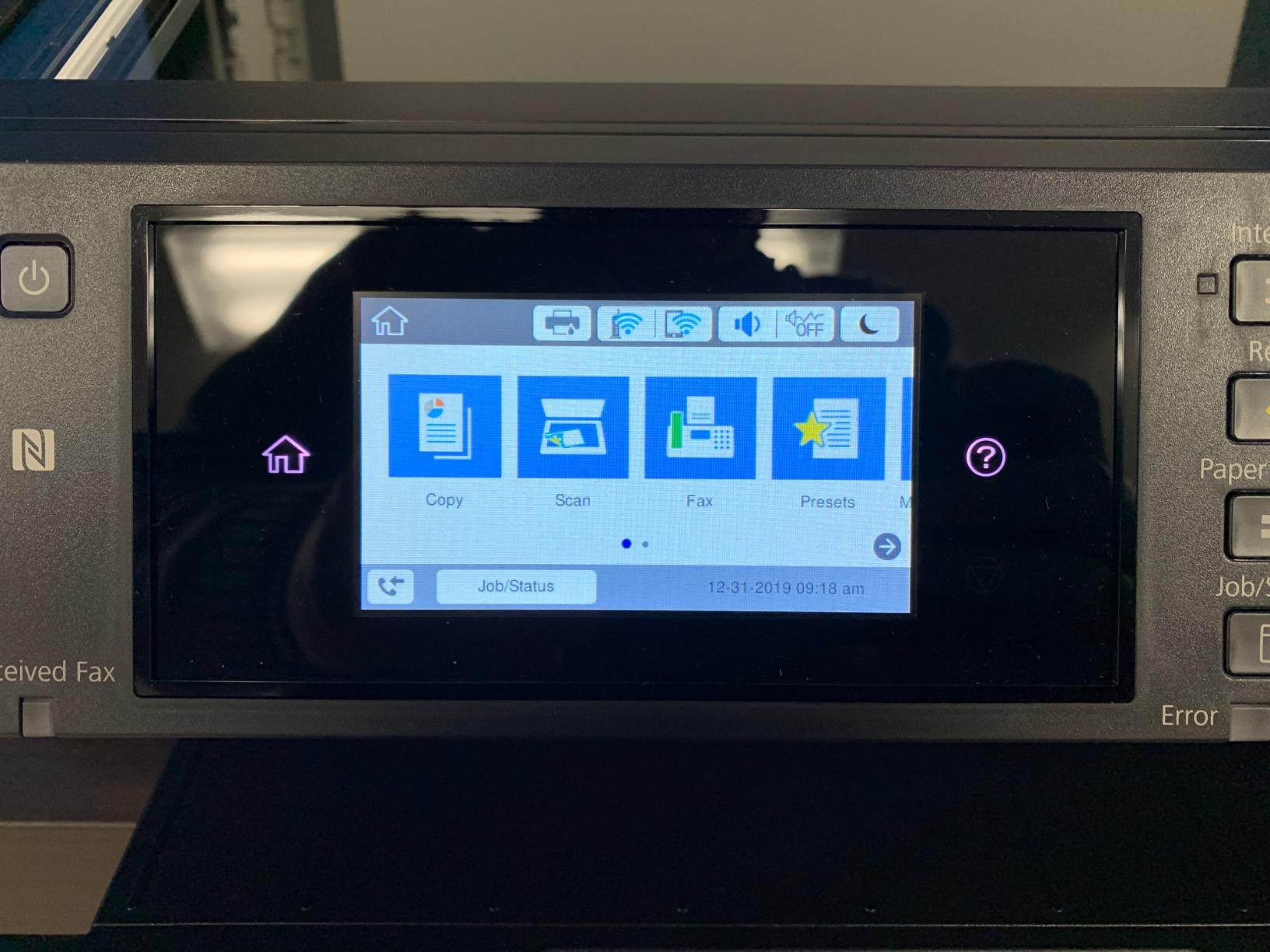
The Workforce WF-7710 is the pick when a printer has to do office work, not just art. It prints, scans, copies and faxes in a single 13×19-wide chassis, and the flatbed scanner means you can digitize a large original without buying a second device. At 40.8 pounds and 32.2 inches wide, it wants a real table, not a shelf, but that footprint buys you automatic duplex at 8.7 pages per minute in black and 6 in color.
The paper handling is the reason to choose it. The 250-sheet main tray holds 20 sheets of photo paper or 10 envelopes, and a rear tray handles the media you do not want in the main cassette. Reviewers running mixed office and promotional jobs call that combination the difference between a printer that works and a printer they fight.
For image quality, PrecisionCore borderless output up to 13 x 19 inches at 1200 x 2400 dpi is plenty for posters viewed at normal distance. The honest limit is the four-ink set. Smooth gradients in a pastel sky or a portrait background are where the extra inks on an eight or nine color machine earn their keep, and no driver update fixes that.
Two other tradeoffs are real. DURABrite Ultra cartridges tie you to Epson ink, so cost per print is set by cartridge pricing rather than tank economics, and the machine is noticeably heavier and larger than the dedicated photo units in this list. Its 4.3 rating with 2823 reviews says the same thing: strong capability, ordinary color depth.
Duplexing and Multi-Function Economics
Automatic duplex on 13×19 sheets is rare at this class, and that is the WF-7710’s clearest edge. If your poster work is mixed with contracts, price lists and reports, you avoid the manual flipping that the Canon iX6820 and the PRO-200S both require. The copier function pulls from a flatbed, so originals larger than 13×19 still need a separate device.
Against that, ink runs on cartridges rather than tanks. A shop printing fifty full-coverage 13×19 sheets a month will feel the difference, and at that volume the EcoTank ET-8550 is the more sensible purchase. The WF-7710 makes more sense for the office that prints posters occasionally and documents constantly.
Borderless Output and Network Printing
Borderless printing means the image runs to the paper edge with no white margin, which is what you want for gallery prints and full-bleed marketing pieces. Because PrecisionCore handles it at up to 13×19, you can also cut custom banner lengths manually from a sheet, though the machine itself does not feed rolls.
Wi-Fi 802.11n, Wi-Fi Direct, Ethernet and USB cover every normal office deployment, and the LCD display gives you ink status and job control without opening a browser. A 19-watt power draw also makes it practical in a shared room where an always-on machine is otherwise a complaint.
My verdict on the WF-7710: this is the printer to buy if posters are one part of a wider office workload. Pure photo and art output would be better served by a machine with more inks or cheaper ink.
3. Epson EcoTank Photo ET-8550 – Cartridge-Free Ink for High 13×19 Volume
Epson EcoTank Photo ET-8550 Wireless Wide-Format All-in-One Tank Printer
Cartridge-free 6-color dye ink
13 x 19 inch max media
Built-in flatbed scanner
Up to 6200 color pages per ink set
Pros
- Cartridge-free inks keep running cost low at high 13x19 volume
- Large color touch screen simplifies media selection
- Built-in scanner and copier remove a second device
- Quiet operation in a smaller footprint
- Reliable wireless printing from phones and tablets
Cons
- Tray 1 paper-present sensor triggers false jam errors
- Automatic tray selection unreliable so manual selection is better
- Dye inks are less archival than pigment systems
Everything about the ET-8550 is organized around one number: how much a sheet costs to print. Epson puts the figure in its own materials at about 4 cents for a 4×6 print, against roughly 40 cents with cartridges, and up to 6200 color pages per full ink set. Multiply that behavior out to 13×19 and the gap between tank and cartridge machines becomes the largest recurring line item in any print business.
Claria ET Premium six-color dye ink is the ink system, and dye is the right call for a shop that wants the smoothest possible output. A sixth color tightens the gradient steps that a four-ink machine shows in skies and skin, and the color touch screen makes it easy to match paper and layout before a big job.
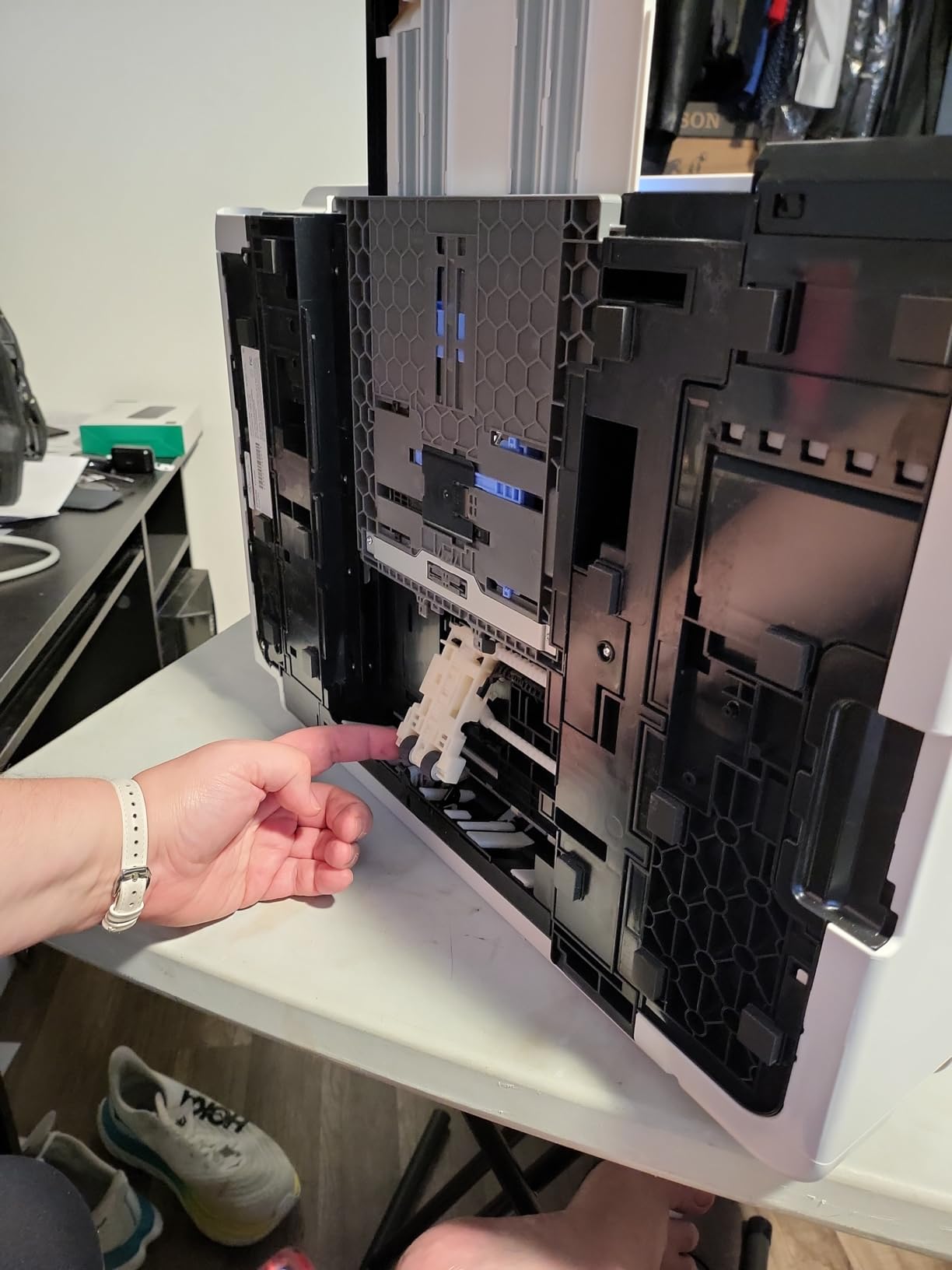
The 4.0 average rating deserves an honest explanation rather than a shrug. Photo quality and ink economics draw real enthusiasm, and 68 percent of reviews are five stars. But 19 percent are one star, and a striking share of those trace back to the same defect: the tray 1 paper-present sensor failing and throwing false out-of-paper and jam errors. Owners also report that automatic tray selection is unreliable, and that choosing the tray manually is more dependable.
Two more cautions for an inkjet user who prints occasionally. Dye inks fade faster than pigment systems, so a sale print destined for a sunlit wall is not this machine’s strongest case. And the rear manual feeder is finicky, with some users reporting ink spotting on output from that path.
Scanning and Copying on 13×19 Media
The built-in photo flatbed turns this into a genuine all-in-one rather than a printer with a lid. You can scan an original, adjust it and print a corrected version without a computer in the loop, which is genuinely useful for print-on-demand sellers handling customer-submitted artwork. There is no fax, and no duplex unit, so office-style double-sided work still needs manual flipping.
A dedicated 4×6 photo tray, a rear sheet feeder and a 100-sheet bottom tray cover most paper types, and that 100-sheet capacity means you refill a few times per session rather than constantly. The unit is 24.5 pounds and 20.6 inches wide, which keeps it small for a 13×19 all-in-one in a home studio.
Where Tank Economics Break Down
Tank printing only wins if you actually use the ink. A shop that makes one poster a quarter leaves tanks sitting, and an inkjet that goes weeks between jobs is exactly the machine most likely to need attention on restart. There is no anti-clog system listed for this model, unlike the Canon PRO-310 in this lineup.
There is also the sensor issue to budget for in time rather than money. If the paper-present sensor fails, the machine still prints; it just complains until you learn to override tray selection. Read the manual on tray behavior before your first large batch, and run your biggest job early in the day so a mid-job error does not eat an evening.
My verdict on the ET-8550: for anyone producing 13×19 photos by the hundred rather than the month, tank ink converts volume into the lowest cost per poster of anything here at that sheet size. For occasional printing of pieces you want to keep on a wall for a decade, the pigment Canon is a better buy.
4. Canon PIXMA PRO-200S – Smoothest Gradients From Eight Dye Inks
Canon PIXMA PRO-200S Professional 13″ Wireless Inkjet Photo Printer with 3.0″ Color LCD Monitor, 8-Color Dye-Based Ink, Black
8-color dye ink system
Borderless 3.5 x 3.5 to 13 x 19 inch
Custom lengths to 13 x 39 inch
3.0-inch color LCD
Pros
- Eight dye inks give smoother gradients than four-ink printers
- Low ink consumption after setup
- Supports custom paper lengths up to 13 x 39 inch
- Canon nozzles clog less often than competing Epson heads
- Quiet operation
Cons
- Setup software and documentation are confusing
- Wi-Fi can conflict with other Canon printers on one network
- Cartridge ink costs more per page than tank systems
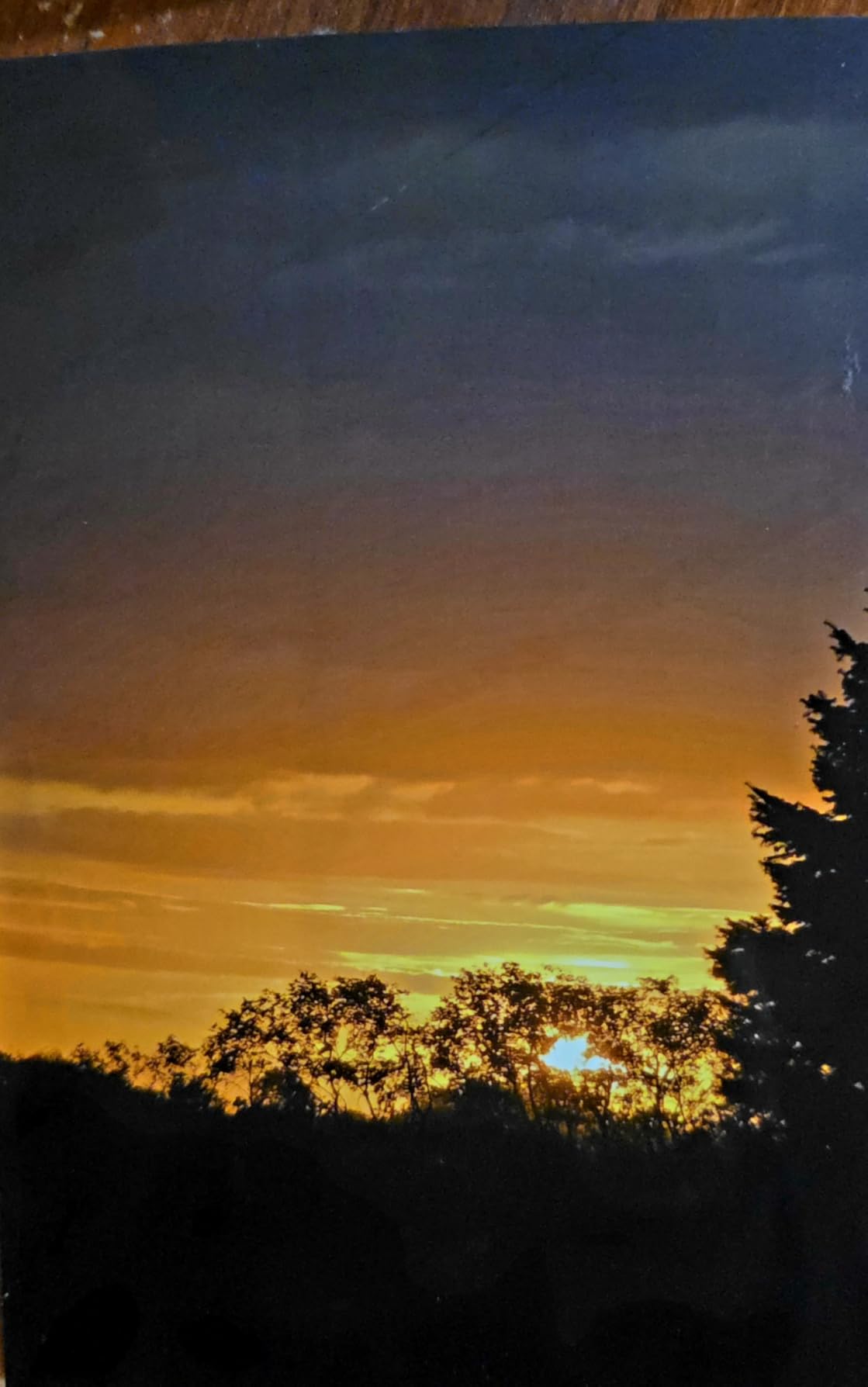
The PRO-200S takes the eight-ink route to color depth. Where the four-ink machines rely on dithering to fake intermediate tones, eight dye inks add lighter and darker versions of cyan, magenta and yellow plus two blacks, and the difference shows most in matte finishes and monochrome output. Reviewers call the results stunning and single out strong blacks and retained detail in matte and black-and-white prints as the standouts.
Borderless output runs from 3.5 x 3.5 inches up to a full 13 x 19, and custom paper lengths extend to 13 x 39 inches, so you can print a tall banner strip without cutting a second sheet. Speed is respectable for the class, with a bordered A3+ sheet in about 90 seconds and a bordered 8×10 in roughly 53 seconds.
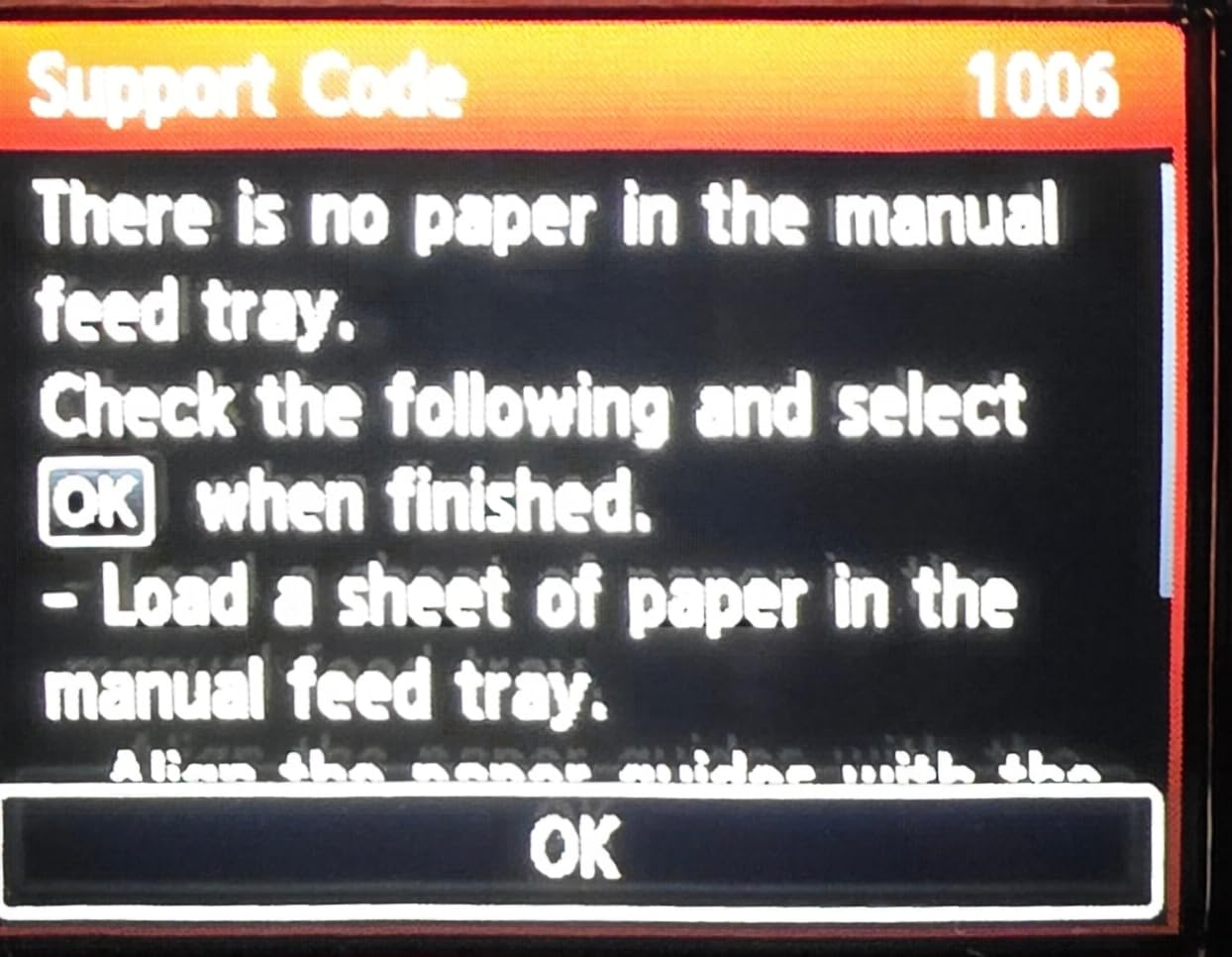
Two practical notes first. The review base is thinner than the older models in this list at 213 reviews, so long-term durability data is thinner too. And setup is the common friction point, with owners reporting confusing software and documentation to the point that some rely on video walkthroughs, plus Wi-Fi conflicts when another Canon printer sits on the same network.
At 32 pounds and 28.7 inches deep, it is a substantial desktop unit, and the cartridge-based ink costs more per page than a tank system. Some users also hit repeated false out-of-paper errors. None of these is a deal breaker, but they are reasons to buy once and configure carefully.
Dye Versus Pigment for This Model
Dye ink is chosen here for a reason: it is the sharper and more saturated of the two photo ink families at work in this roundup. It also fades faster. If your posters are for a gallery wall, a lit lobby or a client delivery that will be on display for years, the pigment Canon PRO-310 is the better instrument even though it costs more per page.
For a seller filling orders that ship to a customer and hang in a bedroom, dye is the right trade. The Custom print lengths up to 13 x 39 inches also let you produce tall narrow pieces, such as door-hanger or vertical social banners, from one sheet.
Print Head Reliability Over Time
Owners of this model report that Canon nozzles clog less often than competing Epson photo heads, which matters a lot if you are not printing every single day. The 3.0-inch color LCD shows ink level and status directly, so you do not have to open a driver dialog to find out you are about to run dry mid-job.
It is Wi-Fi native with USB and Ethernet behind it, and it carries an Energy Star rating alongside a 1-year limited warranty. If color accuracy is your main criterion and volume is modest, eight dye inks at 13×19 with custom lengths is a genuinely rare combination.
My verdict on the PRO-200S: this is the 13×19 machine I would hand to a photographer who cares about tone over running cost. Just give the wireless setup an hour before you need to print anything urgent.
5. HP DesignJet T210 – Crisp Line Work and Real 24-Inch Rolls
HP DesignJet T210 Large Format 24-inch Plotter Printer, for Easy CAD & Poster Prints (8AG32D)
24-inch roll and 13 x 19 sheet media
2400 x 1200 dpi
Automatic horizontal cutter
HP Click with auto-nesting
Pros
- Sharp line quality and fast output for CAD plans and posters
- Touchscreen shows ink levels and status at a glance
- Automatic roll and sheet switching with horizontal cutter
- Reliable Wi-Fi and Gigabit Ethernet
- Uses far less ink for routine maintenance than competing plotters
Cons
- Requires HP OEM cartridges with no third-party override
- Cartridges can be hard to source locally
- 24-inch roll media is difficult to load and jams if not cleared
The T210 is the point where this roundup stops being about desktop printers. It handles 24-inch rolls and 13 x 19 sheets, which means a 24×36 poster is no longer a tiled job. A 4.4 rating from architecture, engineering and small print shop owners ties for the highest average in this roundup, and the reasons are specific: crisp line quality, fast output and simple media handling across sizes.
Throughput is genuinely useful. An A1 or D-size page takes up to 45 seconds, the machine runs 59 A1 or D prints per hour and it carries 500MB of memory for handling complex artwork. Sheet feed, roll feed and an automatic horizontal cutter are all included, so trimming a finished banner to length is automatic rather than a separate cutter you have to buy.
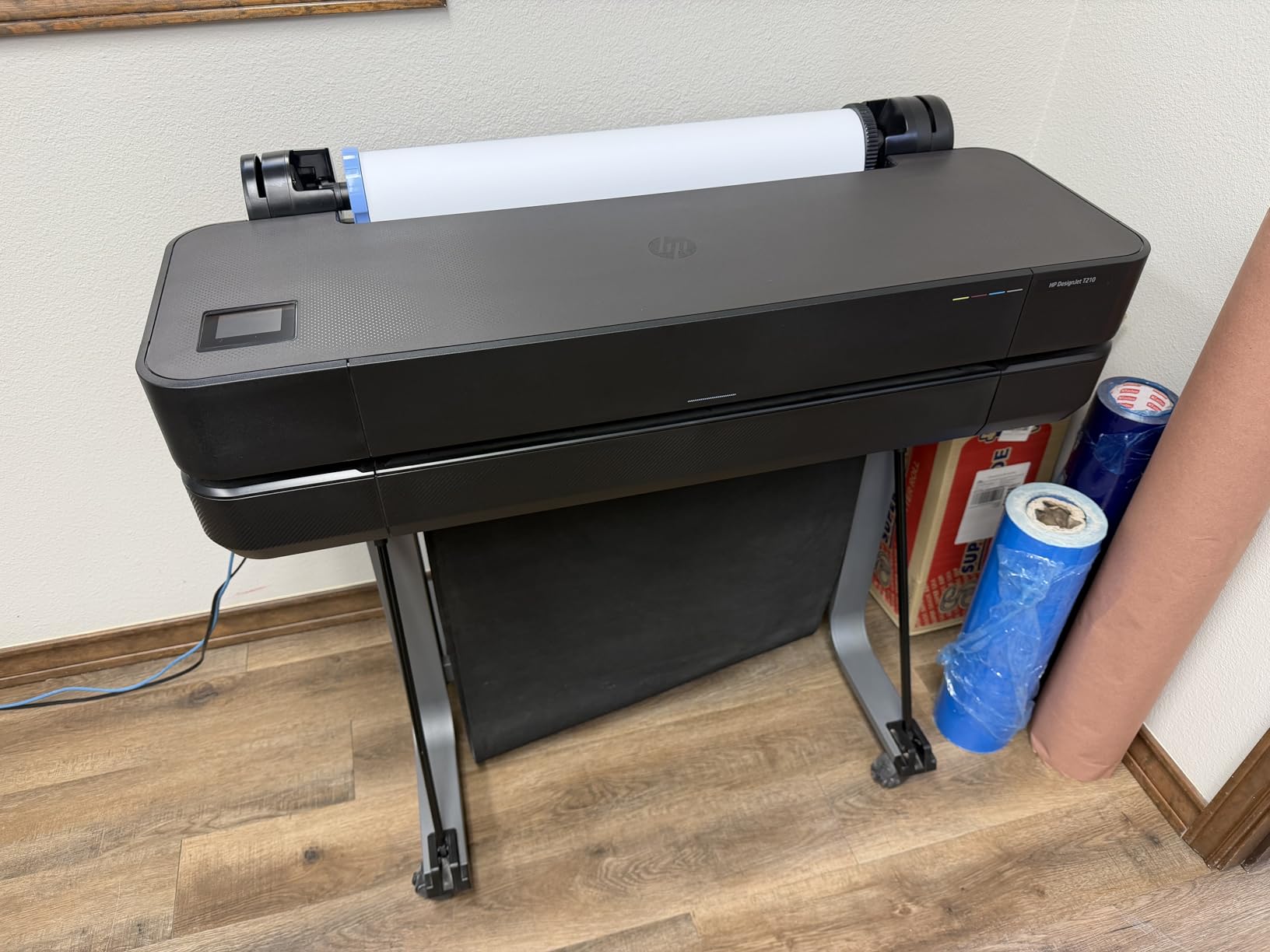
HP Click handles the job side with PDF error checking, alerts and automatic nesting, which is the difference between a plotter you use and a plotter you avoid. The touchscreen on the machine shows ink levels and status without walking back to the desk, and connectivity covers Gigabit Ethernet, Hi-Speed USB 2.0 and Wi-Fi 802.11 b/g/n.
The ink situation is the part you must accept before buying. The T210 requires HP OEM cartridges and rejects third-party cartridges with no override, and owners report cartridges can be hard to source locally and take over a week to arrive. That is a real operational risk for a shop that depends on the machine every day. The upside is that routine maintenance ink use is reported as around 95 percent lower than competing plotters, which matters on a 24-inch head that runs a lot of cleaning cycles.
Roll Loading and Jam Prevention
This is the most common frustration in owner reports. Loading a 24-inch roll takes practice, and if a jam is not cleared properly the problem repeats on the next job. Budget an afternoon with a spare roll before you need the machine for a deadline, and keep the cutter in mind so you are not handling a full-length banner by hand.
Automatic switching between roll and sheet is what saves that effort on a normal day. Load both and the machine picks the right path per job, so mixed orders of plans, maps and posters do not require a manual reconfiguration each time.
Where a Four-Ink Plotter Is Enough
The T210 runs magenta, cyan, yellow and black only, and 2400 x 1200 dpi is plenty for line work and maps but modest for photographic gradients. If your posters are photographic, a nine-ink pigment machine at 13×19 will look better than a four-ink 24-inch plotter, because ink depth beats sheet size for tone.
There is also the size note in the spec sheet. Listed dimensions are reversed, and the real footprint is about 11H by 40W by 17D inches, so measure the table or wall space before it arrives. The one-year limited hardware warranty is standard for the class.
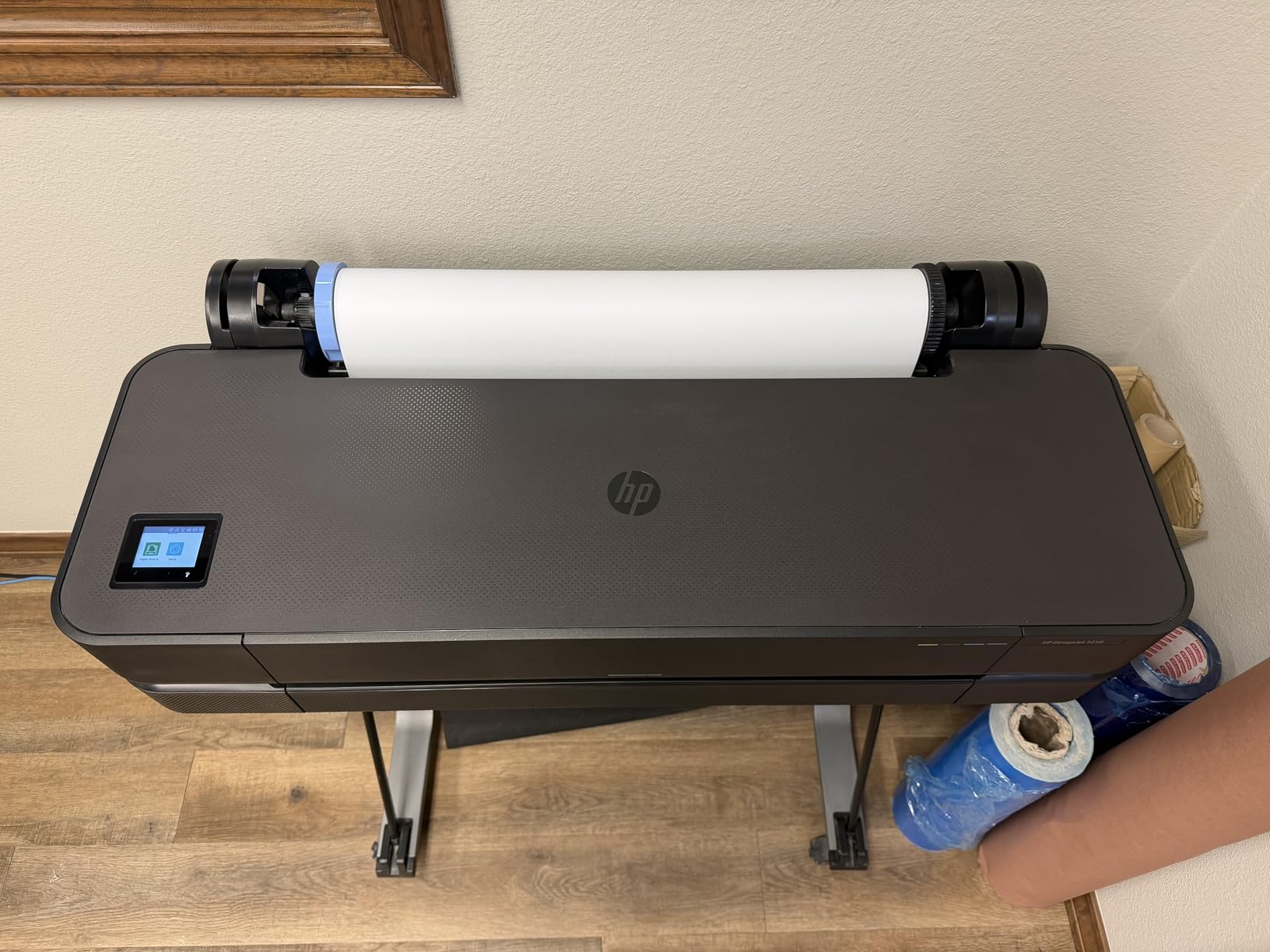
My verdict on the T210: it is the most direct route to genuine 24×36 poster capability for a small studio or design office, and its line quality is among the sharpest here for plans and maps. Source your ink plan first, because the machine will not run on aftermarket cartridges.
6. Canon imagePROGRAF PRO-310 – Nine Pigment Inks for Archival Work
Canon imagePROGRAF Professional 13″ PRO-310 Wireless Inkjet Photo Printer with 3.0-Inch Color LCD Monitor, 9 Color Pigment-Based Ink System, Black
9 pigment inks plus Chroma Optimizer
13 x 19 inch borderless
Rear feed to 13 x 129 inch
1200 x 1200 dpi
Pros
- Nine pigment inks give smooth gradients and strong black-and-white
- Pigment inks beat dye systems for archival longevity and scratch resistance
- Rear manual feed handles heavy fine art and poster paper
- Anti-Clogging System and skew correction improve reliability
- Ink usage lower than expected across multiple paper types
Cons
- Pigment ink cost is high for high-volume printing
- Print speed is slow at roughly 2 pages per minute
- Driver restricts custom paper sizes versus earlier Canon models
The PRO-310 is the machine for pigment ink, and pigment is the entire point. LUCIA PRO II with nine colors plus a Chroma Optimizer gives you deep blacks, smooth transitions and, critically, lightfastness that dye cannot approach. Buyers upgrading from an older PRO-100 or PRO-200 report a visible jump in both color and sharpness, and the matte black ink produces a black density that reads almost like a darkroom print under gallery lighting.
Anti-Clogging System and skew correction handle two real-world problems: a machine used intermittently does not clog from dried ink, and misaligned sheets print straight. For a poster printer that sits idle for weeks between projects, that anti-clog feature is a genuine advantage over the tank machine earlier in this list.
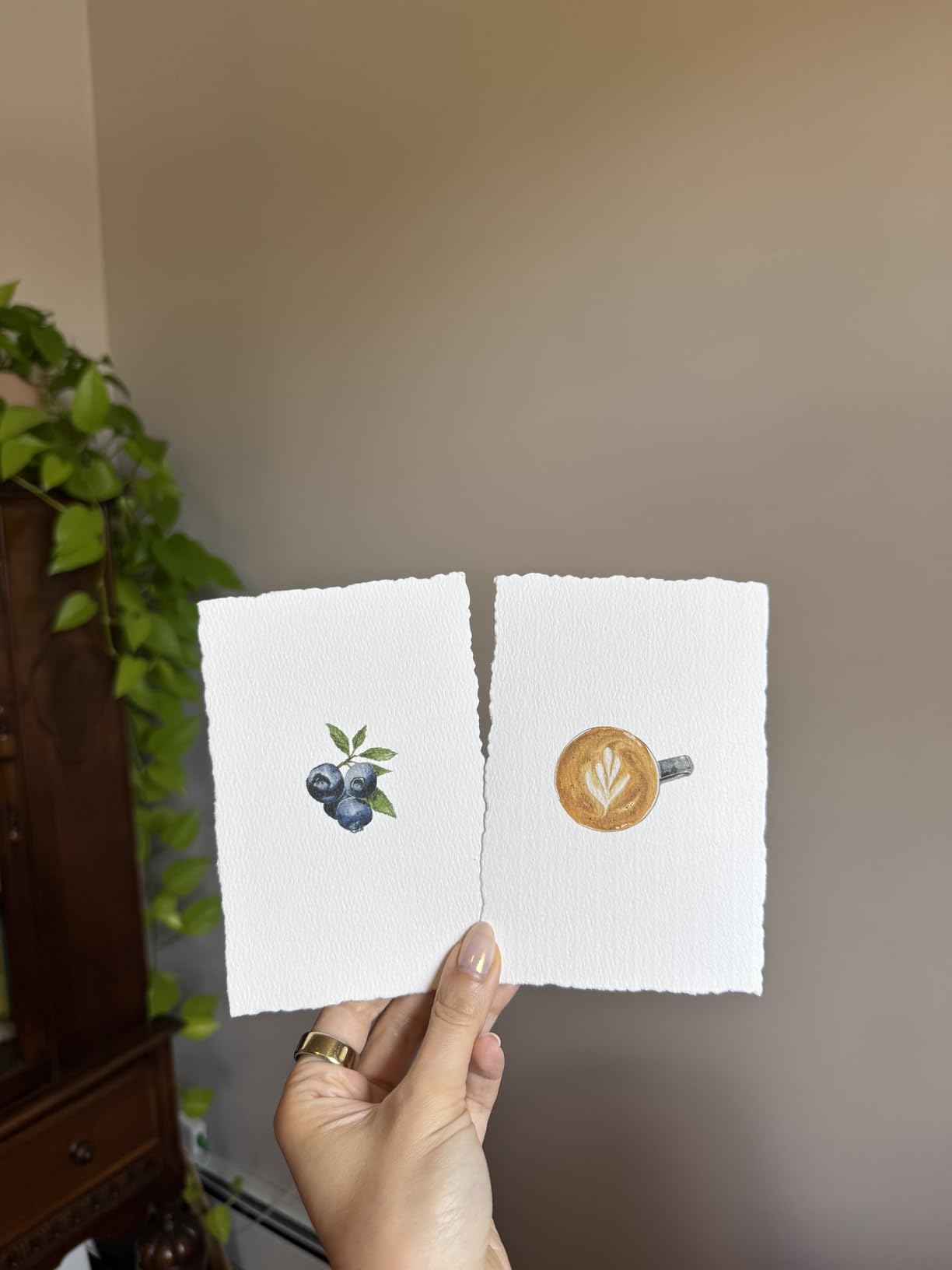
The rear manual feed takes heavy fine art paper and custom sizes up to 13 x 129 inches, which is a long way beyond the standard 13×19. That single feature turns a photo printer into something that can produce banner strips, canvas runs and wrap pieces without cutting a second machine into your budget.
Now the honest part. Print speed is about 2 pages per minute, which is slow enough that a large order needs a plan. Pigment ink cost is high, particularly at volume, and the driver restricts custom paper sizes compared with earlier Canon models. Third-party paper profiles are not pre-installed either, which means you either work with Canon’s profiles or install your own before trusting color accuracy.
What Pigment Ink Buys You Long Term
Pigment ink sits on the surface of the paper rather than soaking in, which is why it resists fading, scratching and humidity. For a print sold to a client who expects it to look the same in five years, or for a gallery piece under direct light, that difference decides the printer choice. It also means pigment can be used on heavier and more absorbent papers that would bleed with dye.
Scratch resistance matters for fine art paper and canvas, which are exactly the papers artists reach for. The Chroma Optimizer ink smooths gloss transitions so you do not get a visible line where a matte region meets a satin one, which is a defect that shows badly on large prints.
Evaluating Color Before You Buy
Owner questions on this model cluster on profiles, and the answer is that you install and verify before you print a paid job. Print a calibration image, check skin tones and gradient banding, and confirm your paper profile is loaded. Skew correction keeps geometry honest, but color accuracy depends entirely on the profile being right for your media.
Cartridge changes also require a button-press confirmation before the lid will open, which sounds trivial until you change inks mid-job. Note the 31.6-pound weight and 28.7-inch depth, and place it where the rear feed has clearance. Energy Star certification and a 1-year limited warranty round out the package.
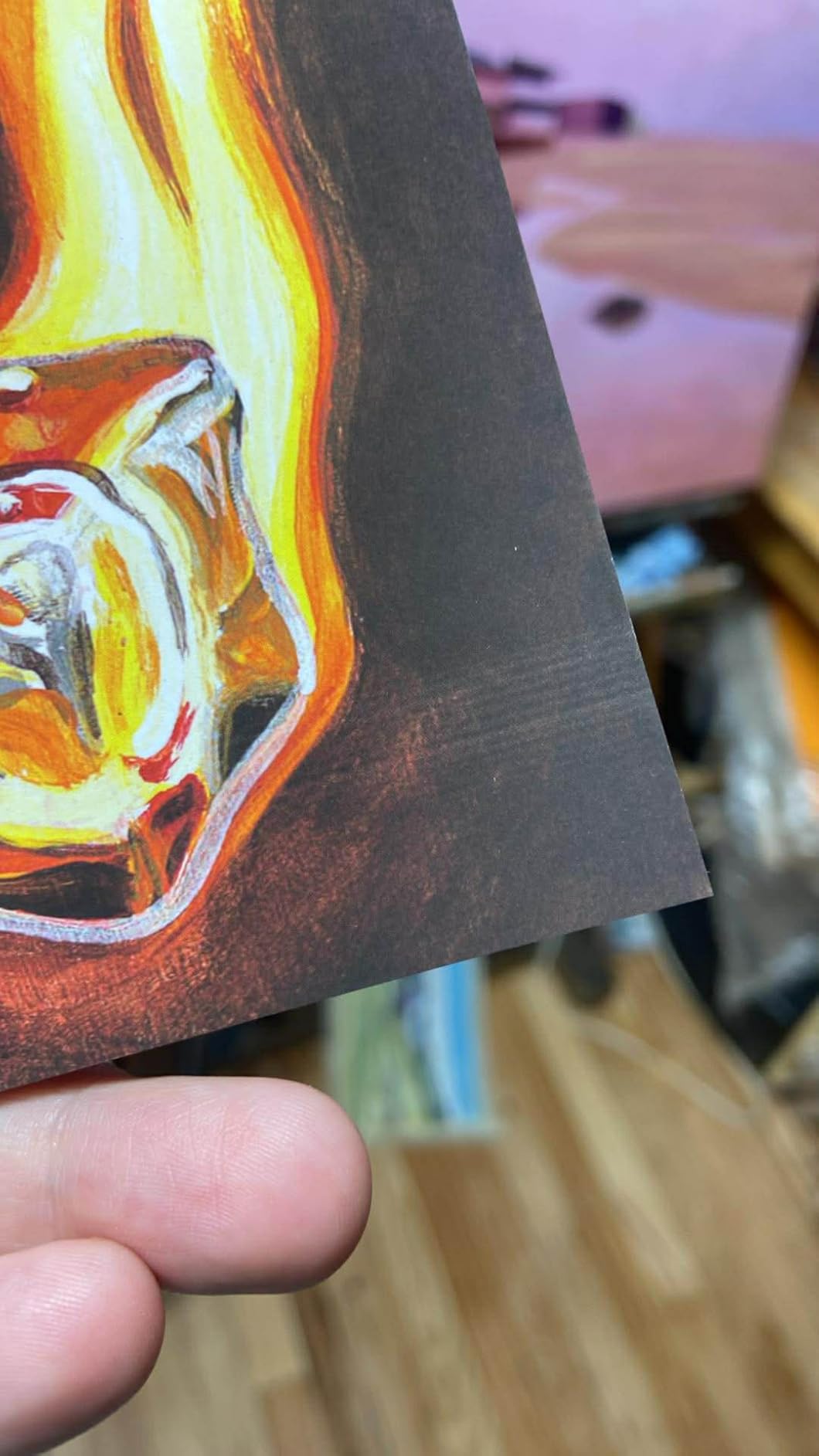
My verdict on the PRO-310: for fine art, matte photography and archival poster work, nine pigment inks are the correct answer, and this is the only pigment option at 13×19 in this roundup. Slow output and high ink cost are the price of that color.
7. Epson SureColor T2170 – Desktop 24-Inch for Fine Art Rolls
Epson SureColor T2170 24-Inch Wireless Desktop Poster Plotter Printer
24-inch roll and 11 x 17 sheet support
2400 dpi
4.3-inch color touchscreen
UltraChrome XD2 instant-dry pigment ink
Pros
- Prints 24-inch rolls and 11 x 17 sheets with sharp 2400 dpi detail
- 4.3-inch color touchscreen makes jobs straightforward
- UV-resistant pigment ink on all color channels
- Compact desktop footprint for a 24-inch machine
- 43-second A1 or D first page
Cons
- Roll paper is difficult to load and the lid may not close on thicker rolls
- Roll loading errors lead some users to cut rolls into sheets
- Cartridge-based ink with 50 mL color capacity raises running cost
The T2170 gives you 24-inch rolls in a desktop footprint. At 25D by 44W by 15H inches and 60 pounds, it is not a desk printer, but it is far more compact than the HP T630 and does not need a stand. If your space cannot host a full production plotter, this is how you get 24×36 capability onto a studio table.
UltraChrome XD2 instant-dry pigment ink is UV-resistant on all color channels, which reviewers credit for suitability on fabric and for separations work. The PrecisionCore MicroTFP head pairs with Nozzle Verification Technology to check and clean nozzles automatically, and the first A1 or D page comes out in 43 seconds.
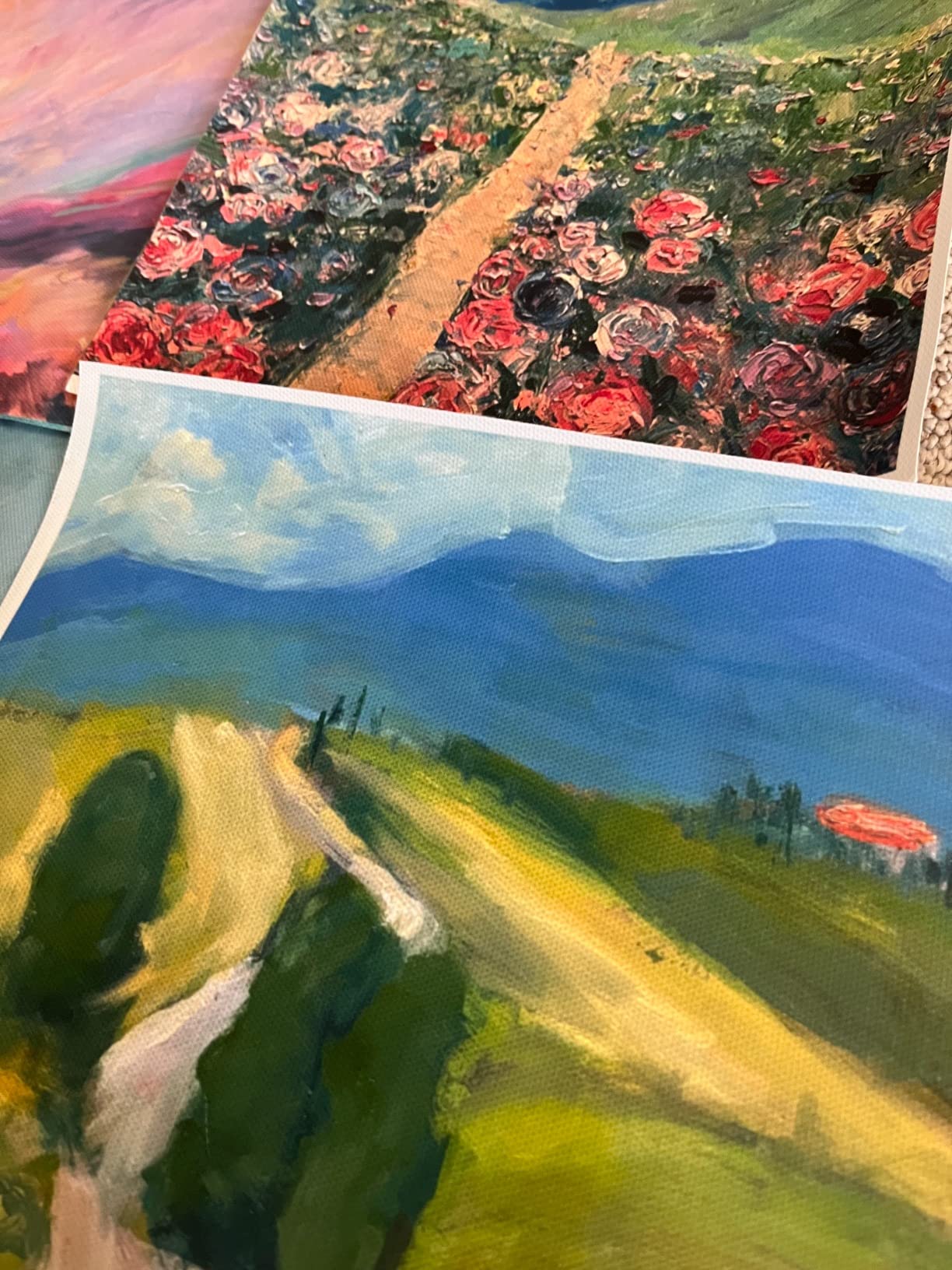
Screen printers, artists and small studios rate the output quality highly, particularly on canvas and fine art stock. The 4.3-inch color touchscreen is large for a plotter and makes media selection and job setup far less painful than a driver dialog.
Media handling is the consistent weak point, and every report about it points the same direction. Roll paper is hard to load, the lid can refuse to close on a thicker roll, and some users have resorted to cutting rolls into sheets. Sheet-fed prints from the auto sheet feeder can also come out crooked. Treat roll loading as a skill you learn, not a feature that works out of the box.
Cartridge Size and Cost Per Sheet
Cartridges top out at 50 mL for color and 80 mL for black, which is the core ongoing cost problem. Larger capacity cartridges cost more up front but lower the cost per sheet, and that gap widens on a full-width poster where every color channel runs hard. For occasional 24-inch work the size difference barely matters; for a shop printing several banners a week it is the whole decision.
If your volume is high enough to make cartridge cost painful, the ET-8550 at 13×19 is the reverse trade: cheaper ink, smaller sheet. The honest middle path is to buy the smaller capacity you can and refill carefully, watching for a hard-to-source cartridge before you start a deadline job.
Where a Desktop 24-Inch Machine Wins
Few studios have room for a 36-inch plotter, yet 24×36 is a size buyers ask for often. The T2170 covers that on a normal table, and its pigment ink gives you outdoor-capable color that the dye machines earlier in this list cannot. The trade is roll loading and a slower path than a machine built for rolls from the start.
Wireless, Wi-Fi Direct, Ethernet and USB cover the connection options, and a 1-year next-business-day on-site repair warranty is a genuine advantage over a mail-in-only plan. Note the review base is 74, so treat quality impressions as encouraging but less proven than the machines with thousands of reviews.
My verdict on the T2170: it is the most affordable route to 24×36 pigment printing in a small space. Learn the roll path before you need it, and budget for ink.
8. Pinckney Super-Tank Sublimation – Wide Heat Transfers Without Cartridges
Pinckney Cartridge-Free Super-Tank Printer with Sublimation Ink Bundle for Heat Transfers, Easy Fill, Built-in Scanner & Copier and Printing up to 13 x 19 Inches (Wide Format)
13 x 19 inch sublimation output
Cartridge-free super tanks
Scanner copier and ADF
250-sheet front tray
Pros
- Wide-format sublimation up to 13 x 19 inches in a tank-based all-in-one
- No cartridges so high-capacity tanks cut recurring ink cost
- Built-in scanner copier and automatic document feeder
- Auto-fill nozzles refill tanks without syringes or leakage
- 250-sheet front tray and 2.7-inch color touchscreen
Cons
- Borderless printing limited to 11 x 17 rather than the full 13 x 19 sheet
- Third-party brand so software and profile support is less established
- Sublimation needs transfer media and is not a photo-paper path
Sublimation is a different print path from photo ink, and this machine is the only one in the roundup that pairs it with 13×19 output and a tank ink system. Dye sublimation ink turns to gas under heat and bonds into coated substrates and polyester, which makes it the right tool for heat transfers, fabric panels and product decoration rather than framed prints.
The tank argument is the same as with the EcoTank earlier, only the savings are larger. Tanks hold Black 127 mL and 85 mL each of magenta, cyan and yellow, so a shop producing transfer after transfer does not cycle cartridges. Auto-fill nozzles let you refill without syringes and without the leakage that usually comes with refilling tanks by hand.
The included all-in-one unit also gives you a flatbed scanner, a copier and an automatic document feeder, plus a 250-sheet front tray and a 2.7-inch color touchscreen. At 22 pounds and 20 by 14 by 10 inches, it is a light machine to carry between rooms, which matters if you are taking it to markets or maker events.
Now the limits, and they matter. Borderless printing stops at 11 x 17 rather than the full 13×19 sheet, so a full-bleed 13×19 print is not available on this machine. Sublimation also requires transfer paper or coated media, so if you want to print directly onto photo paper, this is the wrong tool no matter how good the tank economics look.
Who This Printer Is Actually For
If you make shirts, tote panels, sublimation blanks, mouse pads or fabric signage, the combination of 13×19 output, tank ink and a built-in scanner is genuinely useful and rare at this tier. Many sellers order the machine, the ink bundle and the transfer paper together and have a complete production setup on a single desk.
If you are an artist making framed prints, skip it. Dye ink at 13×19 from one of the Canon or Epson photo machines will look better on a wall, and you will not be adding transfer paper to every job. The 33-review base is enthusiastic but small, so long-term reliability data is thin.
Profile Support on a Lesser-Known Brand
Because this is a third-party brand, software and profile support is less established than the major manufacturers provide. Before committing to a production workflow, confirm that a profile for your exact transfer paper exists and that the software imports it. Inks may also arrive in a separate package, so factor that into your first session rather than treating it as a defect.
Connectivity is Wi-Fi and USB with a 1-year limited warranty. For a heat transfer specialist the tank savings justify the trade, but for anyone who prints posters, the limitation at 13×19 borderless makes a major-brand photo printer the smarter buy.
My verdict on this unit: a specialist pick that wins decisively for sublimation heat transfers up to 13×19 and misses entirely for framed posters. Know which of the two you need before you spend an afternoon on it.
9. HP DesignJet T630 – Full 36-Inch Output for Patterns and Plans
HP DesignJet T630 Large Format 36-inch Plotter Printer, with Auto Sheet Feeder, Media Bin & Stand (5HB11D)
36-inch roll and 13 x 19 sheet media
2400 x 1200 dpi
Automatic sheet and roll switching
Includes sheet feeder stand and media bin
Pros
- 36-inch roll width covers full-size patterns blueprints and large signage
- Crisp accurate output on posters plans and maps
- Sheet feeder media bin and stand are included so it works out of the box
- Wi-Fi printing works from desktop and mobile
- Quiet and reasonably compact for a 36-inch plotter
Cons
- Requires HP OEM cartridges with no third-party override
- Some owners needed a replacement printhead soon after purchase
- Very heavy at 123 pounds so placement and floor support matter
The T630 is the largest machine in this roundup and the only one that prints a full 36-inch roll. That width covers what a 24-inch plotter cannot: 36×48 and 36×24 building patterns, full-size blueprints, large maps and wide banners, all in-house and without outsourcing. For a small architecture, tailoring or fabrication business, that is the difference between a printer and a production capability.
Unlike the bare-plotter approach where you buy a stand separately, this package includes an automatic sheet feeder, spindle, stand with media bin and starter ink cartridges. It has automatic sheet and roll switching and a horizontal cutter, so a mixed job queue of roll banners and 13×19 sheets runs without you rebuilding the media path each time. First page comes out in about 30 seconds.
Output quality is the 4.0 part of the equation. Reviewers like the crisp, accurate results on posters, plans and maps, and connectivity is straightforward with Gigabit Ethernet, Hi-Speed USB 2.0 and Wi-Fi 802.11 b/g/n plus HP Click with PDF error checking and auto-nesting. Only 31 reviews exist, so treat the sample as encouraging rather than proven.
Physical Planning Comes First
At 24D by 52W by 37H inches and 123 pounds, this is a floor-standing machine that needs clearance for the 36-inch roll to rotate and for the media bin to swing open. Measure the room, confirm the route from the door to its final position, and make sure the floor is flat. A 36-inch plotter that arrives and has to go back is a real and common outcome.
It arrives with a stand and feeder already specified, so the first setup is mechanical rather than electrical. A 1-year limited warranty covers the hardware, and the touchscreen gives you ink and status at the machine instead of at a browser across the room.
Ink Lock-In and Printhead Risk
As with the T210, this machine requires HP OEM cartridges with no third-party override. At 36 inches wide, a full-coverage poster pulls meaningfully more ink than a 13×19 sheet, so cartridge supply and pricing deserve a plan before a production run rather than after it. Source two sets of cartridges and keep them on a shelf before your first deadline.
A few owners needed a replacement printhead shortly after purchase, and one reported warranty friction on a large job, so confirm service terms in writing before you commit. The quiet operation and relatively compact footprint for a 36-inch plotter are genuine pluses in a shared studio.
My verdict on the T630: nothing else here replaces a true 36-inch roll for patterns and plans. If your work stops at 24 inches, the T210 is a smaller, lighter and less expensive answer to the same question.
10. Epson SureColor F570 – 24-Inch Sublimation for Fabric Banners
Epson Surecolor F570 24″ Desktop Sublimation Printer, Includes Two Full Ink Sets, User Guide, Sublimation Paper, & Free Remote Install SCF570 (Printer & Stand)
24-inch dye sublimation
720 x 720 dpi
50-sheet auto-feed with built-in cutter
Epson Edge Print Pro with Adobe PostScript 3
Pros
- 24-inch sublimation handles fabric banners polyester textiles and coated media
- Bundled stand two full ink sets sublimation paper and remote install support
- Built-in cutter and 50-sheet auto-feed tray streamline production
- Professional nesting software with Adobe PostScript 3 support
- Owners report avoiding the clogging common on converted sublimation printers
Cons
- 720 dpi maximum resolution is below inkjet plotters for fine text
- Very large and heavy at about 200 pounds
- Long ink charge and setup cycle reported at up to a few hours
The F570 answers a different question: what prints on fabric. Dye sublimation at 24 inches wide using T49M inks works on polyester textiles, coated ceramics and similar substrates, which is exactly the material set for trade show banners, backdrop panels and decorated blanks. The 4.4 rating from 50 reviews comes from apparel and textile decorators who bought it for that job and got it.
The bundle is unusually complete. You get the printer stand, two full ink sets, sublimation paper, a user guide and remote installation support, plus a 50-sheet auto-feed tray with a built-in cutter. Epson Edge Print Pro brings Adobe PostScript 3, the Adobe PDF Print Engine, nesting and pattern repeats, so tiled artwork across a wide format is handled properly rather than by hand.
The 720 x 720 dpi ceiling is the key limitation and it is not minor. For graphic panels with bold type and flat color it is fine. For fine text, thin line work or photographic detail, an inkjet plotter renders visibly sharper, and the T2170 or T210 will look better on a poster.
Setting Aside Room and Time
At 32D by 38W by 10H inches and about 200 pounds, this is the heaviest machine in the roundup, and it needs a dedicated location rather than a desk. Owners also report a long ink charge and setup cycle, reported at up to a few hours, so plan the first session accordingly and avoid a deadline on day one.
Some users report clogged nozzles and ink color shifts over time, which is a familiar risk on any inkjet left idle. Print regularly, keep the machine covered, and run a nozzle check into your weekly routine. Several owners specifically report avoiding the clogging problems common on converted sublimation printers, so the Epson engineering does help.
When Sublimation Beats Inkjet
Sublimation output becomes part of the substrate rather than sitting on top, so it will not crack, peel or wash out the way a coated inkjet print can on a handled fabric panel. For anything that gets folded, stretched, washed or installed outdoors in a frame, that durability is the entire reason to choose this path.
The workflow requirement is real, though. Sublimation needs transfer media and heat, so you are buying a production method, not a faster poster printer. If your output is paper posters and fine art prints, the earlier 13×19 and 24-inch inkjets in this roundup are the right tools, and this one is only worth the space if fabric is genuinely part of your business.
My verdict on the F570: the right tool for polyester and coated fabric at 24 inches, and the wrong tool for anything that demands fine text. Bundle included, warranty support available, and the size demands a floor plan before you buy.
What Size Wide Format Printer Do You Need for Your Posters?
Match the printer width to the largest finished size you will print, then add room for trim and border. The list below answers the size question directly, and every row in it is covered by a machine in this roundup.
- 11×17 inches needs a 13×19-class printer. All six desktop machines here handle it, and borderless models cover it edge to edge.
- 13×19 inches is the maximum sheet size of the 13×19 class, and the actual printable area is slightly smaller, so plan a bleed of a few hundredths of an inch on edge-to-edge work.
- 18×24 inches needs a 24-inch machine. A 24-inch roll or a 24×36 sheet covers it, and this is a common size for art prints sold online.
- 24×36 inches needs a 24-inch machine printing the long dimension as a roll, or a 36-inch machine printing the width. This is the size buyers ask for most often, and it is the reason 24-inch plotters exist.
- 27×40 and 36×48 inches need a 36-inch machine. A 44-inch machine is required only above 36 inches, which is signage territory rather than poster territory.
- International sizes A0 is 33.1 by 46.8 inches, A1 is 23.4 by 33.1 inches and A2 is 16.5 by 23.4 inches. A 24-inch machine covers A1, and a 36-inch machine covers A0.
One practical note on roll versus sheet. A 24-inch machine that only accepts a single sheet, such as the T210 without its optional sheet feeder, will still print 24×36 by trimming the long dimension down to fit the media. Plan for the cutting time, because that is where a 36-inch machine earns its extra cost. If posters are only part of the output, a small label printer for home organization can handle the short jobs alongside a machine this large.
How to Choose a Wide Format Poster Printer
Dye, Pigment, Sublimation or EcoSolvent
Dye ink gives the smoothest photo gradients and the most saturated color, and it fades faster. Pigment ink resists light and abrasion, handles heavier and more absorbent media, and is the right choice for anything displayed long-term or sold as fine art. Dye sublimation bonds into coated and polyester substrates for fabric and product work. EcoSolvent and latex inks are cured and suited to outdoor signage, and no machine of those types made this roundup’s cut because the review evidence for them here was too thin to weigh.
Ink Count and What It Buys You
More inks mean less visible banding in gradients and better black density, not more resolution. Four inks are enough for plans, maps and line work. Six inks tighten pastel transitions. Eight or nine inks are where photographic posters and monochrome art prints stop looking stepped, which is why the PRO-200S and PRO-310 both exist alongside the four-ink machines. The cost is ink expense and, with nine inks, a slower print cycle.
Running Cost Beats Purchase Price
Cost per sheet is the number that decides whether a poster business works. The comparison across this roundup is stark: a tank machine produces a 4×6 print for about 4 cents against roughly 40 cents for cartridges, and a 13×19 sheet uses enough of each channel that the ratio holds at poster size. Add a cartridge-based 24-inch machine with 50 mL color capacity and the per-sheet figure rises again. A buyer who prints fifty full-coverage sheets a month should calculate the difference before choosing, and I would aim to keep total ink and media under a quarter of revenue per sale.
ICC Profiles and Driver Longevity
This is the criterion buyers ignore and artists regret. When a manufacturer retires ICC profiles and driver support for an older model, a perfectly working printer becomes unusable for color-accurate work, and owners have described that experience with older HP machines as making a long-service printer worthless. Before buying anything on the used market, confirm the model still has current profiles and driver downloads. A newer model with active support is usually worth more than a bargain older one, and the same logic applies to new purchases where you intend to keep the machine for years.
Roll Feeding, Cutting and Duplex
Roll media unlocks banner lengths and custom sizes, and an automatic horizontal cutter saves a separate tool. Both 24-inch HP machines in this roundup include a cutter, and the T2170’s roll loading is the one workflow owners most often struggle with. Sheet-only machines are simpler and often feed more predictably. Automatic duplex is worth paying for if you print documents, and it exists on only one machine here, the Workforce WF-7710.
Testing a Print Sample Before You Commit
Owners report that print samples are remarkably hard to get, with sales representatives redirecting buyers to testimonials instead. If you cannot get a sample, print your own test the week the machine arrives, and look at five things: skin tone transitions, gradient banding in a sky, text crispness at the smallest font you use, black density compared to a printed reference, and edge sharpness on a borderless sheet. Test the paper you intend to use, not the sheet in the box. If a shop will not let you print a test, that tells you something worth knowing. If you need a second opinion on gear for a shoot that goes alongside a poster, our wide angle lens guide covers the other half of that kit.
Maintenance and Intermittent Use
Printhead care decides whether a printer still works after a year of sporadic jobs. Anti-Clogging System on the Canon PRO-310 and Nozzle Verification Technology on the Epson T2170 both exist specifically for intermittent users, and only the pigment Canon PRO-310 in this list pairs that with a named anti-clog system. Running a nozzle check weekly and keeping a machine covered between jobs costs nothing. If you print on a strict schedule of once a month or less, weight the anti-clog features heavily when you compare.
Finally, consider organizing the physical space. A 13×19 all-in-one fits on a sturdy desk, while the 36-inch HP needs a floor with 52 inches of width and 123 pounds of support. Measure the space and the door before you buy, and if your work is document-heavy rather than art-heavy, a home office setup guide is a reasonable detour before committing to wide format.
Frequently Asked Questions
What is the best printer for printing posters?
The best printer for posters depends on ink type and volume. For 13×19 photo and art output the Canon Pixma iX6820 is the most proven all-rounder, the Epson EcoTank Photo ET-8550 has the lowest cost per sheet for volume printing, and the Canon imagePROGRAF PRO-310 gives the best archival pigment quality. For 24×36 work you need a 24-inch roll machine such as the HP DesignJet T210 or Epson SureColor T2170.
What type of printer do I need to print posters?
You need an inkjet wide format printer for photo and art posters, because dye and pigment inkjet is what produces smooth color and high resolution on heavy poster paper. Choose a 13×19-class model for posters up to 13×19 inches, a 24-inch model for 18×24 and 24×36 work, and a 36-inch model for 27×40 and larger. Dye sublimation, EcoSolvent and LED toner serve fabric and signage rather than photographic posters.
What is the best large format printer for 24×36 prints?
For 24×36 prints you need a printer with 24-inch roll capability, and the Epson SureColor T2170 is the strongest pick for a small studio because it fits a desktop footprint and uses UV-resistant pigment ink. The HP DesignJet T210 is the alternative for architecture and engineering work, with automatic roll and sheet switching and an included horizontal cutter. Both handle 24-inch rolls at 2400 dpi.
Where to print a 24×36 inch poster?
You can print a 24×36 poster three ways. Buy a 24-inch roll printer such as the Epson T2170 or HP T210 for the lowest cost per copy. Use a print shop or online print service for one-off jobs and short runs, which avoids the machine cost entirely. Or send files to an online poster printing service that ships the finished sheet to you, which is usually fastest for a single piece.
Is a 13×19 printer big enough for posters?
A 13×19 printer is big enough for gallery prints, classroom posters, art prints up to 13×19 inches and most 11×17 work, which covers a large share of print-on-demand sales. It is not enough for 18×24 or 24×36 posters without tiling, and tiling leaves visible seams and requires hand alignment. If you sell posters larger than 13×19, budget for a 24-inch machine.
Do I need a wide format printer or can I use a normal printer?
A normal letter-size printer cannot make a poster without tiling pages together, which leaves seams, requires manual alignment and looks unprofessional. A 13×19 wide format machine is desk-sized equipment rather than a production plotter, so it is a reasonable home and studio purchase. Only move to 24-inch or 36-inch plotters when your work regularly exceeds 13×19 inches.
Final Verdict: Which Wide Format Printer Fits Your Work
If you want one dependable machine for 13×19 posters and have no special requirement, the Canon Pixma iX6820 is the pick I would make, backed by the largest body of owner evidence in this roundup. If you print by the hundred, the Epson EcoTank Photo ET-8550 turns tank ink into the lowest cost per sheet and needs a hand on the tray selector. If color depth decides your work, the eight-dye Canon PRO-200S smooths gradients and the nine-pigment Canon PRO-310 holds blacks and lasts.
If your posters are 24×36 or larger, the choice narrows. The Epson SureColor T2170 keeps a 24-inch pigment machine on a studio table, and the HP DesignJet T210 wins on line quality, cutter and media switching if you can source HP cartridges reliably. The HP DesignJet T630 is the only true 36-inch option, and it needs floor space and a plan. For fabric and heat transfers, the Epson SureColor F570 and the Pinckney super-tank sublimation unit are the two specialist paths, and neither is a substitute for a general poster printer.
Before any of these, print a test file on the paper you actually plan to use and check gradients, text and black density. It is the one step buyers skip and regret most, and it takes an afternoon. Whatever you choose among the best wide format printers for posters in 2026, start with a test print and a clear idea of the largest size you will ever need.