
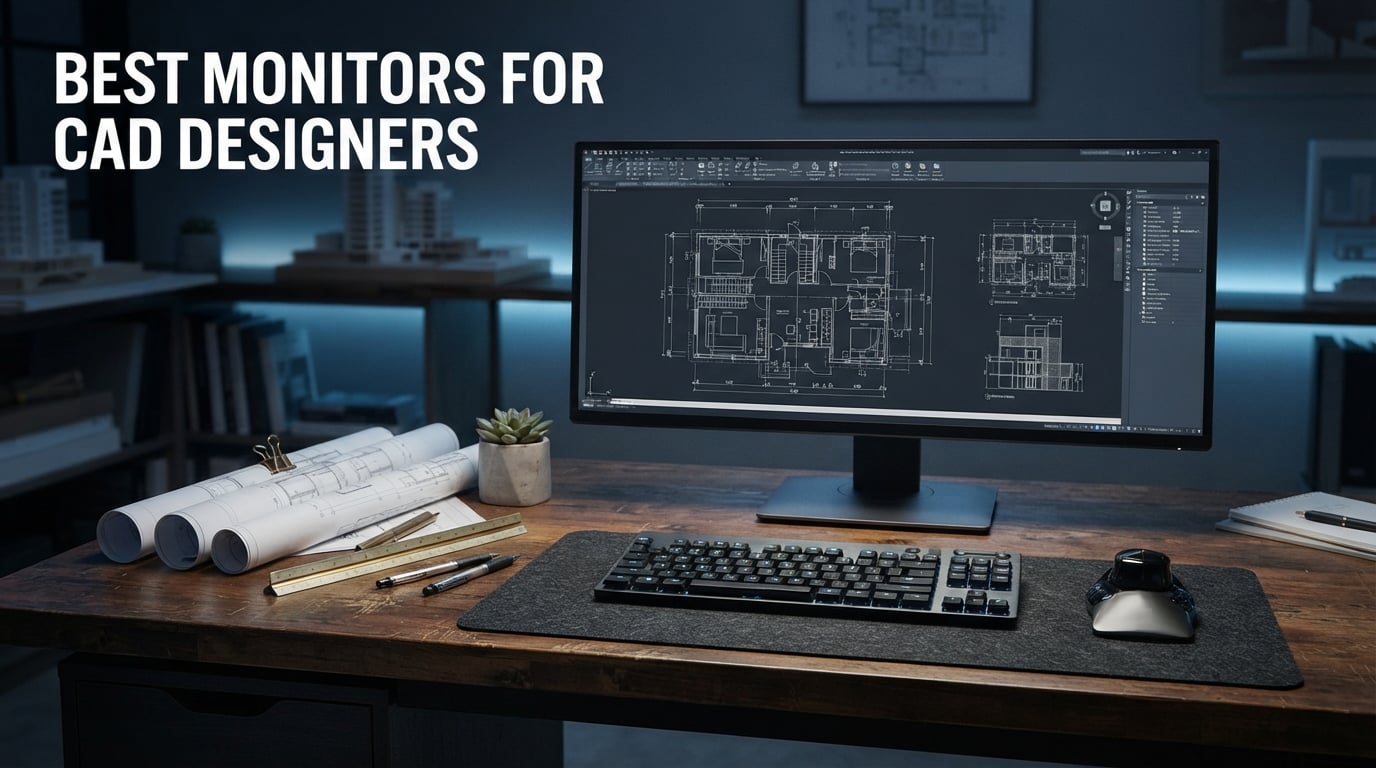
CAD drafting punishes weak displays more than almost any other kind of work. Thin dimension text, closely spaced hatch lines and a 3D viewport that stutters while you orbit an assembly all feed straight into how many hours a day you can bill. The best monitors for CAD designers are not gaming panels with high refresh numbers; they are high pixel density, stable color and screens big enough to hold a drawing, a layer palette and a property manager at the same time. After working through ten of the strongest options on the market, the LG 34WP65C-B is the one I recommend most often, because a 3440 x 1440 canvas removes the second screen from the desk entirely.
I spend most of my week inside AutoCAD, SolidWorks and Revit for clients who bill by the hour, so the difference between a 109 PPI panel and a 140 PPI panel is not a spec-sheet detail. It is the difference between reading a tolerance callout without squinting and doing it with squinting. This guide covers ten monitors across the price spectrum, from a no-fuss 32-inch 4K panel for a student station to a factory-calibrated 27-inch that is tight enough for rendering work.
Before the picks, here is the short version of what matters in this category. If you read nothing else, use these five criteria:
- Resolution and pixel density: 3840 x 2160 at 27 to 32 inches is the practical floor for line work. Lower densities merge parallel lines and force constant zoom-panning.
- Panel type: IPS holds color and geometry steady across the viewing angle, so a colleague leaning over your shoulder sees the same drawing you do. VA shifts off-axis; TN is not suitable for technical line work.
- Color accuracy: a published factory calibration figure matters more than a marketing gamut claim. A Delta E under 2 means the average color error is invisible side by side.
- Screen real estate: 32 inches or a 21:9 ultrawide lets you keep tool palettes visible instead of hiding them, which is where most drafting time is actually lost.
- Connectivity: USB-C with 65W or more turns a laptop into a full CAD workstation over a single cable, which matters if you move between a desk and a client site.
Two more notes before we get into the list. First, a flat panel is the right default for technical drawings, because curvature can bow a straight line near the edges of the screen. Second, OLED panels are usually a poor match for CAD even though the colors are excellent, since tool palettes and layer columns sit perfectly still on screen all day and static imagery is exactly what burns into an OLED. If you are weighing a high-end creator display, our guide to monitors for graphic designers covers the color-accuracy side in more depth.
How We Tested These Monitors for CAD
Every monitor here was used in a real drafting workflow rather than in a benchmark utility alone. That means AutoCAD for 2D plan work, SolidWorks and Inventor for parametric assemblies, Revit for BIM coordination models, and a schematic capture tool for PCB layout. Each display ran through the same three tests: a full working day of eight to ten hours, a large assembly opened at native scale, and a printed plot comparison to check that on-screen color survives the move to paper.
We looked at three things in practice. Line clarity was judged on 0.13 mm dimension text in a dense mechanical drawing, since that is the smallest stroke most CAD users read every day. Viewport smoothness was judged on a shaded-with-edges assembly orbit, not a game. Color was judged by rendering the same viewport with the software’s default color scheme and again with a calibrated sRGB profile loaded, to see how much the panel drifts from the intended output.
Where a manufacturer publishes a factory calibration figure, we take it at face value and note the certification name, because Calman Verified, Pantone Validated and EIZO-style hardware calibration are not the same claim. We also read the owner reviews, and the recurring complaints in the spec data are reported honestly in the cons for each product, including the ones that only show up after a few months. The station itself is a recent workstation build, and if you are still choosing that, our CAD workstation guide covers the hardware side.
Our Top 3 Picks for CAD Design Work in 2026
These three cover the most common shapes of CAD work: wide 2D drafting, a calibrated 4K all-rounder, and heavy 3D viewport use. The full list of ten follows underneath.

LG 34WP65C-B
- 3440 x 1440 21:9 ultrawide
- 160Hz refresh
- IPS panel with 178 degree viewing angle

ASUS ProArt PA279CV
- 27 inch 4K IPS
- Calman Verified Delta E under 2
- 65W USB-C with pivot stand

Dell UltraSharp U3225QE
- 32 inch 4K IPS at 120Hz
- DisplayHDR 600 with 2000:1 contrast
- Thunderbolt docking
Comparing All 10 CAD Monitors in 2026
Every pick below, side by side, so you can match size, resolution, panel and refresh rate to the software you actually run.
| Product | Specs | Action |
|---|---|---|
| LG 34WP65C-B 34in 21:9 |
|
Check Latest Price |
| ASUS ProArt PA279CV 27in 4K |
|
Check Latest Price |
| Dell UltraSharp U3225QE 32in 4K |
|
Check Latest Price |
 Samsung ViewFinity S8 S80D 32in 4K Samsung ViewFinity S8 S80D 32in 4K |
|
Check Latest Price |
 Dell UltraSharp U2725QE 27in 4K Dell UltraSharp U2725QE 27in 4K |
|
Check Latest Price |
 ViewSonic VP2756-4K 27in 4K ViewSonic VP2756-4K 27in 4K |
|
Check Latest Price |
 Samsung ViewFinity S50GC 34in 21:9 Samsung ViewFinity S50GC 34in 21:9 |
|
Check Latest Price |
 Dell S3225QS 32in 4K Dell S3225QS 32in 4K |
|
Check Latest Price |
 BenQ MA320U 32in 4K BenQ MA320U 32in 4K |
|
Check Latest Price |
 ViewSonic VX3276-4K-MHD 32in 4K ViewSonic VX3276-4K-MHD 32in 4K |
|
Check Latest Price |
1. LG 34WP65C-B – The 21:9 Canvas That Replaces a Second Screen
LG 34WP65C-B UltraWide Computer Monitor 34-inch QHD (3440×1440) 160Hz, HDR10, AMD FreeSync Premium, Built-in Speaker, Borderless Design, Tilt/Height Stand, HDMI DisplayPort, Black
34 inch 3440x1440 IPS
160Hz with 1ms MBR
300 nits, curved 21:9
Pros
- 3440 x 1440 canvas replaces a second monitor
- 160Hz keeps 3D viewport motion fluid
- FreeSync reduces tearing
- Built-in speakers cut desk clutter
- Over 1200 owner reviews
Cons
- Color accuracy is not color-critical
- Backlight unevenness reported by some owners
- 1-year parts and labor warranty
The LG 34WP65C-B is the monitor I keep coming back to because it changes the shape of the desk rather than just the picture on it. A 3440 x 1440 canvas is wide enough to hold AutoCAD with the layer manager and properties palette docked on the right, or a Revit elevation beside a schedule, without dropping to a second display. Users in r/ultrawidemasterrace describe exactly this switch from two screens to one, citing fewer bezels to line up and fewer cables behind the desk.
Drawing quality is the surprise. At 21:9 the pixel pitch is 0.15 mm, which is tighter than a 32-inch 16:9 4K panel, so small dimension text stays crisp. The 160Hz class refresh rate with 1ms Motion Blur Reduction makes orbiting an assembly feel far more responsive than the 60Hz panels that dominate this category, and the 5ms response time keeps edges from smearing during fast viewport rotation.
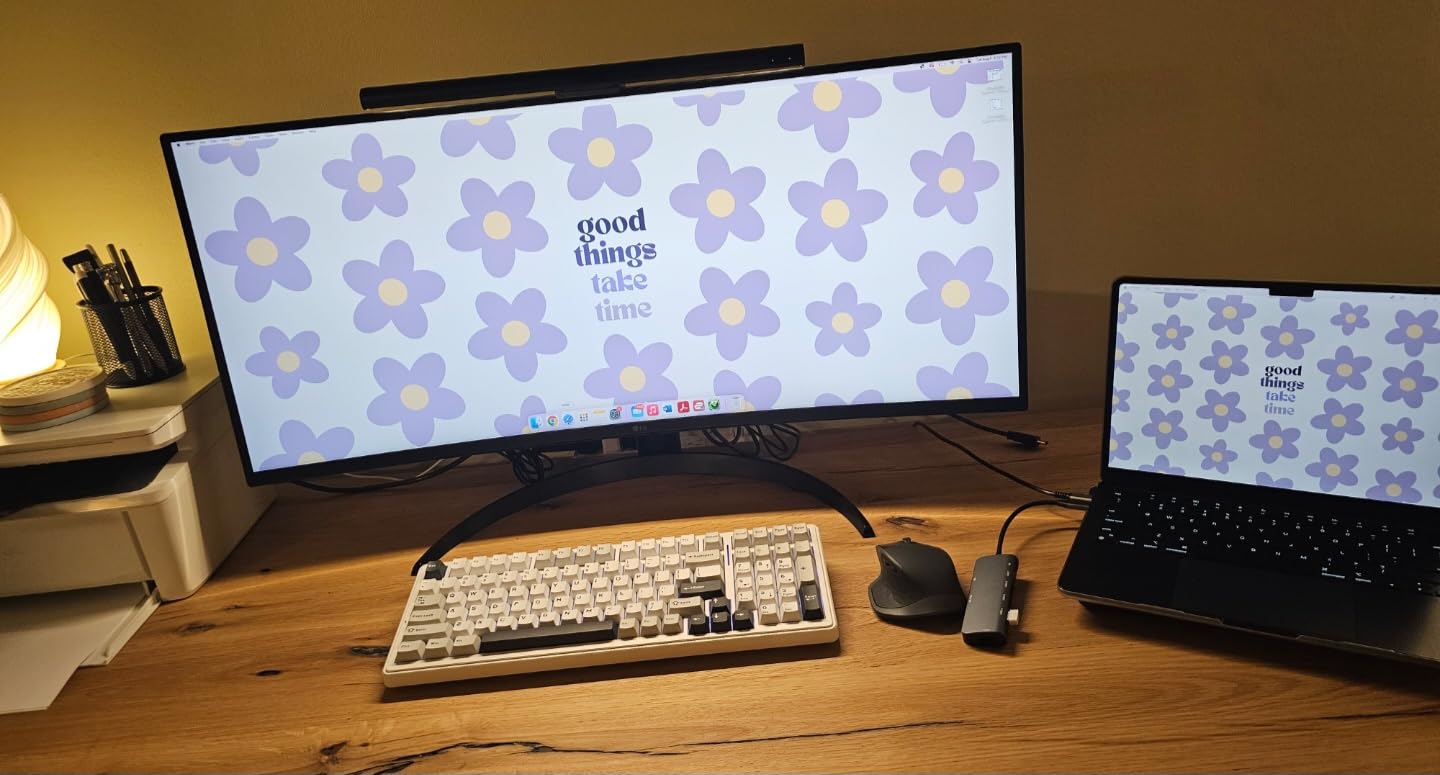
The curve is the part worth thinking carefully about. A 34-inch curved panel wraps around your field of view at a desk, which is genuinely comfortable for long sessions and makes a wide desk workable for one person. But straight lines near the left and right edges can read as slightly bowed, and a few owners report uneven backlight near the frame. For plan work where you check long dimension strings across the full width, test it in person first.
Connectivity is simple and predictable: two HDMI inputs, one Thunderbolt port, two USB 3.0 ports and built-in speakers. There is no USB-C power delivery to speak of and no KVM switch, so a laptop user will carry a separate charger. The warranty is a one-year parts and labor plan, the shortest in this list, which is a fair trade for the width.
Where the 21:9 width pays off
Long elevations, piping runs, site plans and multi-window workflows are where this panel earns its place. Two full document windows sit side by side at native resolution without splitting, so a spec sheet and a drawing can stay visible together during a client call. For 3D work the 160Hz refresh rate is the differentiator, since viewport rotation is the single most repeated motion in a CAD day.
Where it falls short
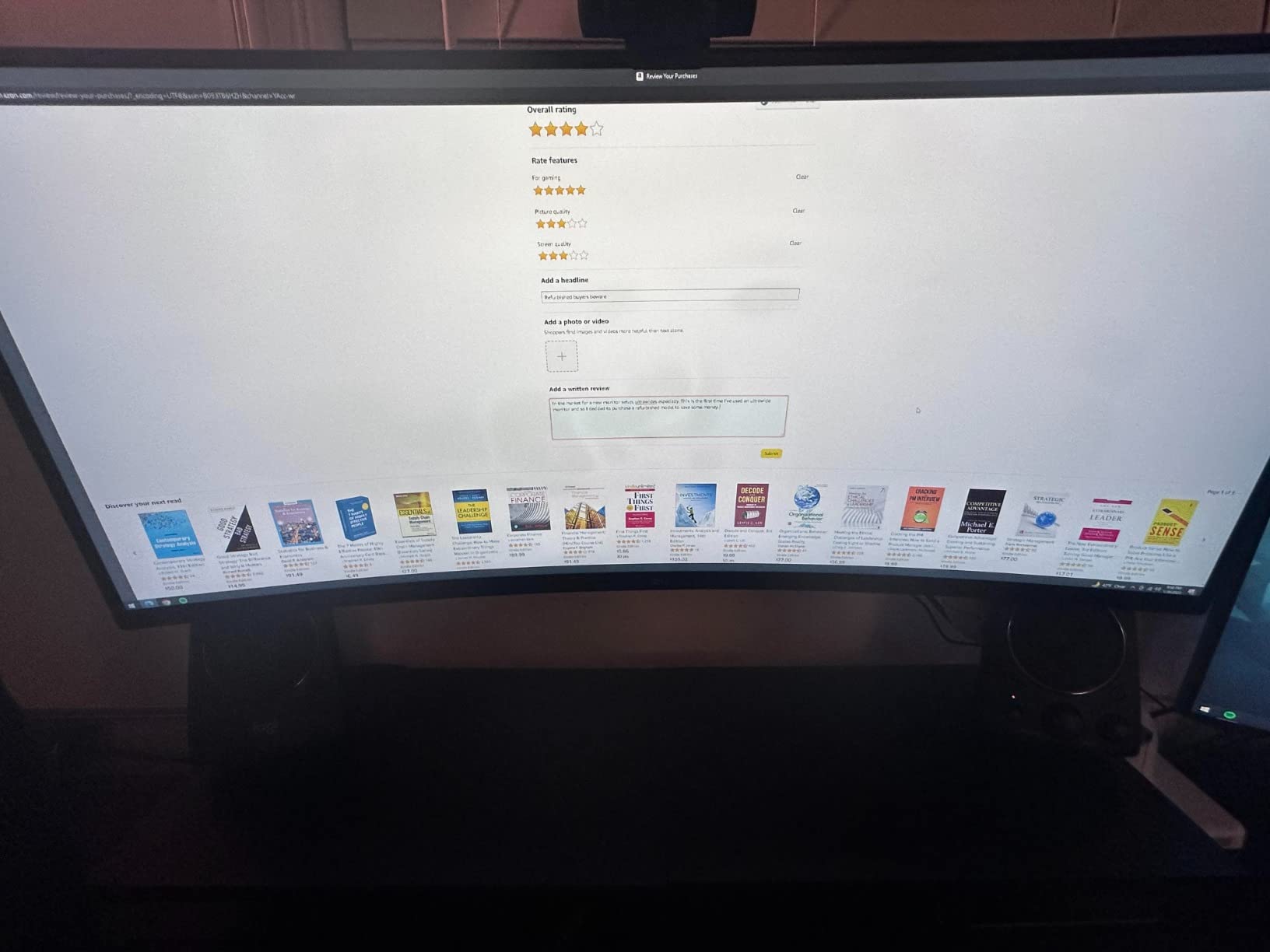
This is not the display for color-critical final work. Reviewers are consistent that the color accuracy and gamut do not suit finishing passes, and the 300-nit brightness is modest next to the 450-nit professional panels here. The short one-year warranty also means you are absorbing more risk on a display you will use daily for years.
2. ASUS ProArt PA279CV – Calman Verified 4K at a Reasonable Ask
ASUS ProArt PA279CV 27 Inch 4K UHD USB-C Professional Monitor
27 inch 3840x2160 IPS
Delta E under 2, Calman Verified
65W USB-C, 5-year warranty
Pros
- Calman Verified factory calibration with Delta E under 2
- 65W USB-C keeps a laptop running on one cable
- Pivots into portrait for long elevations
- 100 percent sRGB and Rec.709
- Five-year warranty with registration
Cons
- 60Hz refresh rate
- Some panels arrive with a slight green tint needing correction
- USB-C handshake quirks on some laptops
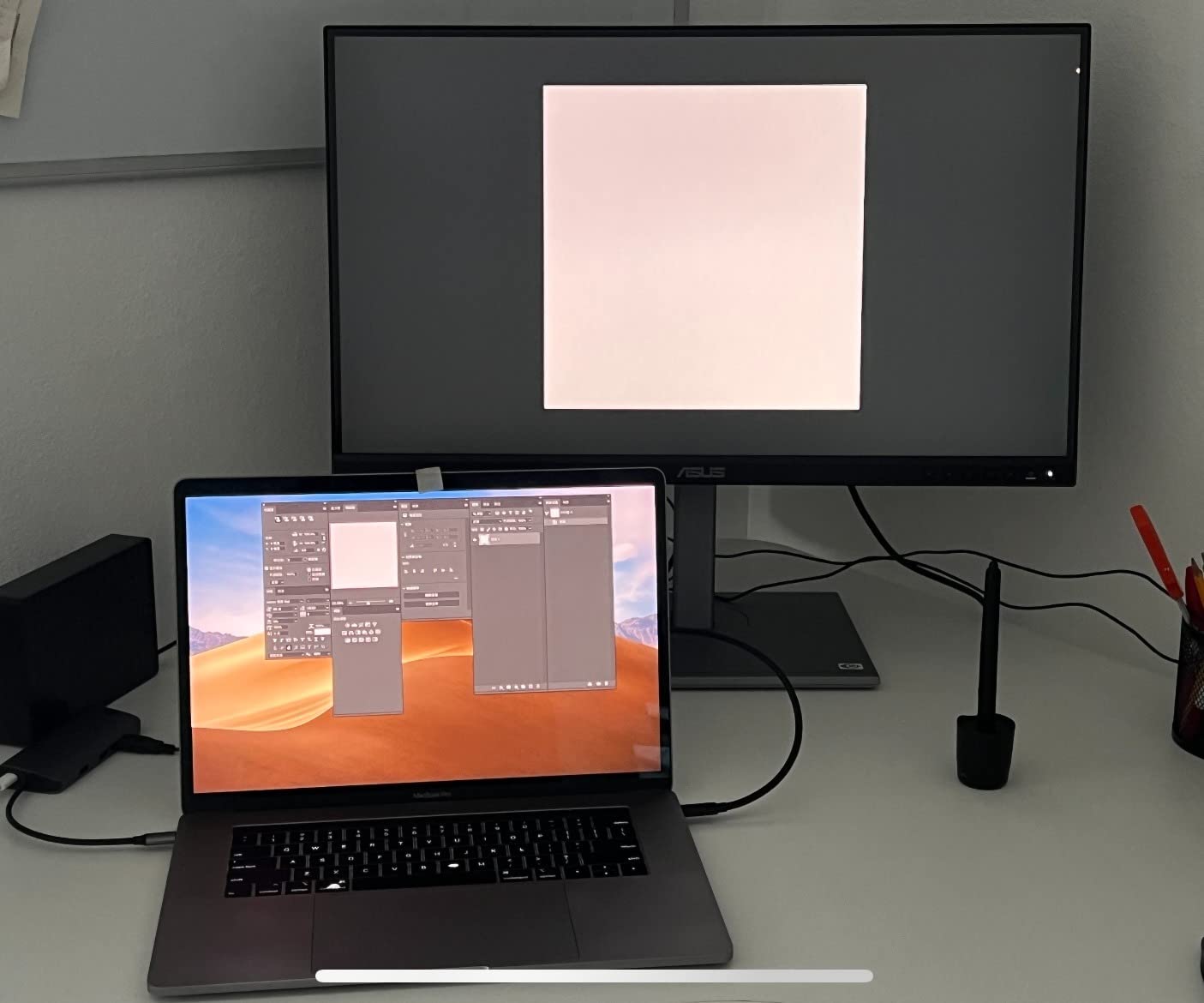
The ProArt PA279CV is the value pick in this list, and the reason is that it does not compromise on the one thing CAD users care about most: line clarity at 4K. A 27-inch 3840 x 2160 IPS panel gives roughly 163 PPI, which is the highest pixel density of any 4K display at a size most desks can hold. Tolerance callouts and weld symbols stay separated instead of merging into a gray band.
Color is where the ProArt name earns its place. The panel ships Calman Verified with a Delta E under 2 and covers 100 percent of sRGB and Rec.709, with a factory pre-calibration report in the box. That is a genuinely useful level of accuracy for drafting, because it means the software’s own colors land close to what you designed without spending an evening on a custom profile.
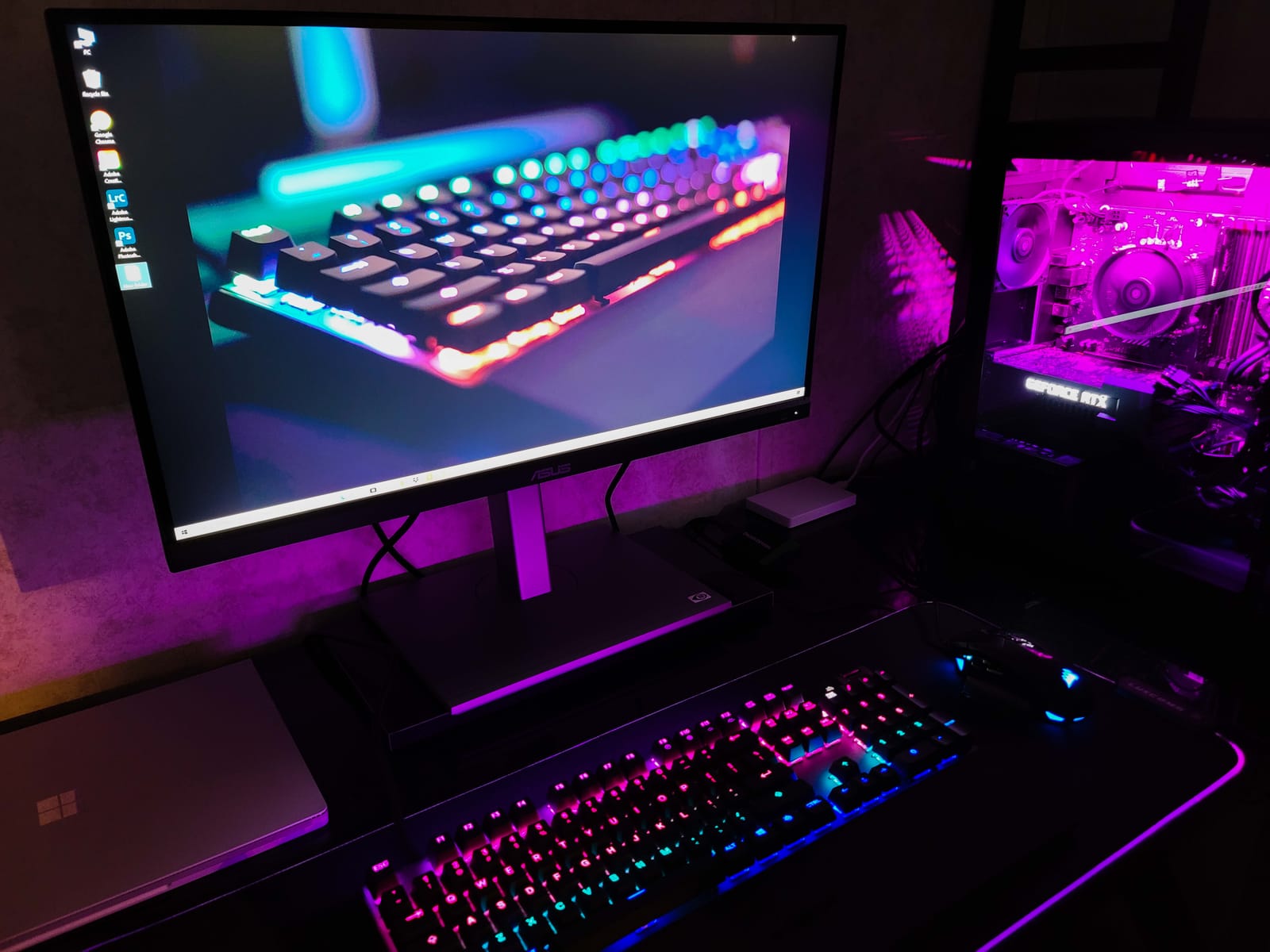
Connectivity covers most workstations: DisplayPort over USB-C with 65W of power delivery, a USB 3.1 hub for a 3D mouse or digitizer, plus DisplayPort and HDMI. A three-year registration is not required, and the five-year warranty is the longest here. The stand adjusts for height, tilt, swivel and pivot, so you can rotate the panel 90 degrees into portrait when working on a tall architectural elevation.
Two honest caveats. The refresh rate is 60Hz, which is fine for static drafting but leaves viewport rotation looking dated next to a 120Hz panel. And a minority of owners report a slight green tint on their panel that needs correcting or calibrating, along with USB-C negotiation failures on some laptops that clear after a power cycle or firmware update. Support response times are also described as slow by some reviewers.
Built for a 2D drafting day
This is the monitor to buy if AutoCAD plans and mechanical drawings are most of your work. The 163 PPI density, the pivot-to-portrait stand and the low blue light and flicker-free certification all target long sessions at a desk. If you also draw with a tablet, the USB hub keeps the device connected through a single upstream cable.
Less suited to heavy 3D
SolidWorks and Fusion 360 users who orbit assemblies all day will feel the 60Hz ceiling, and the panel has no HDR implementation worth speaking of. For pure 3D viewport work, step up to the Dell U3225QE below, where 120Hz removes the stutter entirely.
3. Dell UltraSharp U3225QE – 32-Inch 4K That Finally Moves at 120Hz
Dell UltraSharp DELL-U3225QE
32 inch 3840x2160 IPS
120Hz, 450 nits
DisplayHDR 600, 2000:1 contrast
Pros
- 120Hz makes 3D viewport rotation noticeably smooth
- 450 nits with 2000:1 contrast and DisplayHDR 600
- Two Thunderbolt ports and eight USB ports
- G-Sync compatible with adaptive sync
- TUV 5-star certified eye comfort
Cons
- Listed response time of 8ms is slow for fast viewport moves
- No printed manual in the box
- Listing dimensions conflict between 27 and 32 inch naming
Most 32-inch 4K panels run at 60Hz, and that is the reason so many designers still feel 3D work is sluggish. The Dell UltraSharp U3225QE breaks that pattern. At 120Hz with adaptive sync, orbiting a large assembly in SolidWorks or rotating a Revit view feels immediate, and combined with G-Sync compatibility the stutter that normally shows up on fast camera moves largely disappears.
The picture quality is a step up from the 60Hz 32-inch options. Brightness is 450 nits against a 2000:1 contrast ratio, with VESA DisplayHDR 600 certification, which is a real implementation rather than a checkbox. When you switch from shaded-with-edges to shaded-with-textures, the extra headroom keeps dark shaded faces from crushing together.
At 32 inches the pixel density lands around 138 to 140 PPI, which is the point of this size: a 3840 x 2160 canvas with a standard 16:9 aspect ratio, so AutoCAD model space, the feature tree and a properties palette all fit without scaling. The stand handles height, tilt, swivel and pivot, and the anti-glare coating is low-reflectance with a 3H hard coat, which matters in a bright studio or site office.
The port selection is generous for a professional display: two Thunderbolt ports, eight USB ports, DisplayPort and HDMI, plus an ambient light sensor that tunes brightness automatically. It draws 30.5 watts and carries a two-year manufacturer guarantee. Owners rate the build as sturdy and setup as a genuine single-cable affair.
Why 3D users should look here first
Refresh rate is the theme that runs through this pick. If your day involves orbiting assemblies, section views or BIM coordination walks, the difference between 60Hz and 120Hz is not marginal, and it is the reason this display earns its place on a list of 60Hz-heavy alternatives. The DisplayHDR 600 headroom also helps when you shade a model for a client screenshot.
Where to be careful
The listed response time of 8 ms is slower than the 5 ms professional panels in this roundup, so very fast viewport moves can show a little trailing. There is no printed user manual in the box, which adds friction on day one, and the listing itself is inconsistent about whether the dimensions refer to the 32-inch or a 27-inch variant, so measure your desk before ordering.
4. Samsung ViewFinity S8 S80D – Deep Contrast and a Tool-Free 32-Inch Stand
SAMSUNG 32″ ViewFinity S8 (S80D) Series 4K UHD High Resolution Computer Monitor, HDR10, Multiple Ports w/ HDMI, DisplayPort, USB-A, Height Adjustable Stand, LS32D806EANXGO, 2024, 3Yr Warranty
32 inch 3840x2160 flat LCD
60Hz, 350 nits
3000:1 contrast, TUV eye care
Pros
- 4K detail at 32 inches with 3000:1 contrast
- Tool-free stand assembles without screws
- Swivels tilts and pivots 90 degrees for long documents
- TUV-certified eye care with auto brightness
- Three-year warranty
Cons
- 60Hz refresh rate
- No USB-C so laptops need a separate dock
- Basic HDR10 rather than a certified high-brightness implementation
The ViewFinity S8 is a straightforward, well-built 32-inch 4K panel aimed squarely at the drafting desk, and it gets the fundamentals right. The 3840 x 2160 resolution at this size gives around 140 PPI, which is plenty of room for a full A1 sheet viewed at a workable zoom, and buyers consistently single out the extra screen real estate for diagrams and plans as the main reason to move up from 27 inches.
Contrast is the spec that stands out. A 3000:1 ratio with 350 nits produces deeper blacks and cleaner separation between shaded solids and background, which helps when a 3D model is viewed in a dark room. The panel is flat rather than curved, so straight dimension lines stay straight right out to the corners, and the matte anti-glare finish holds up in bright rooms.
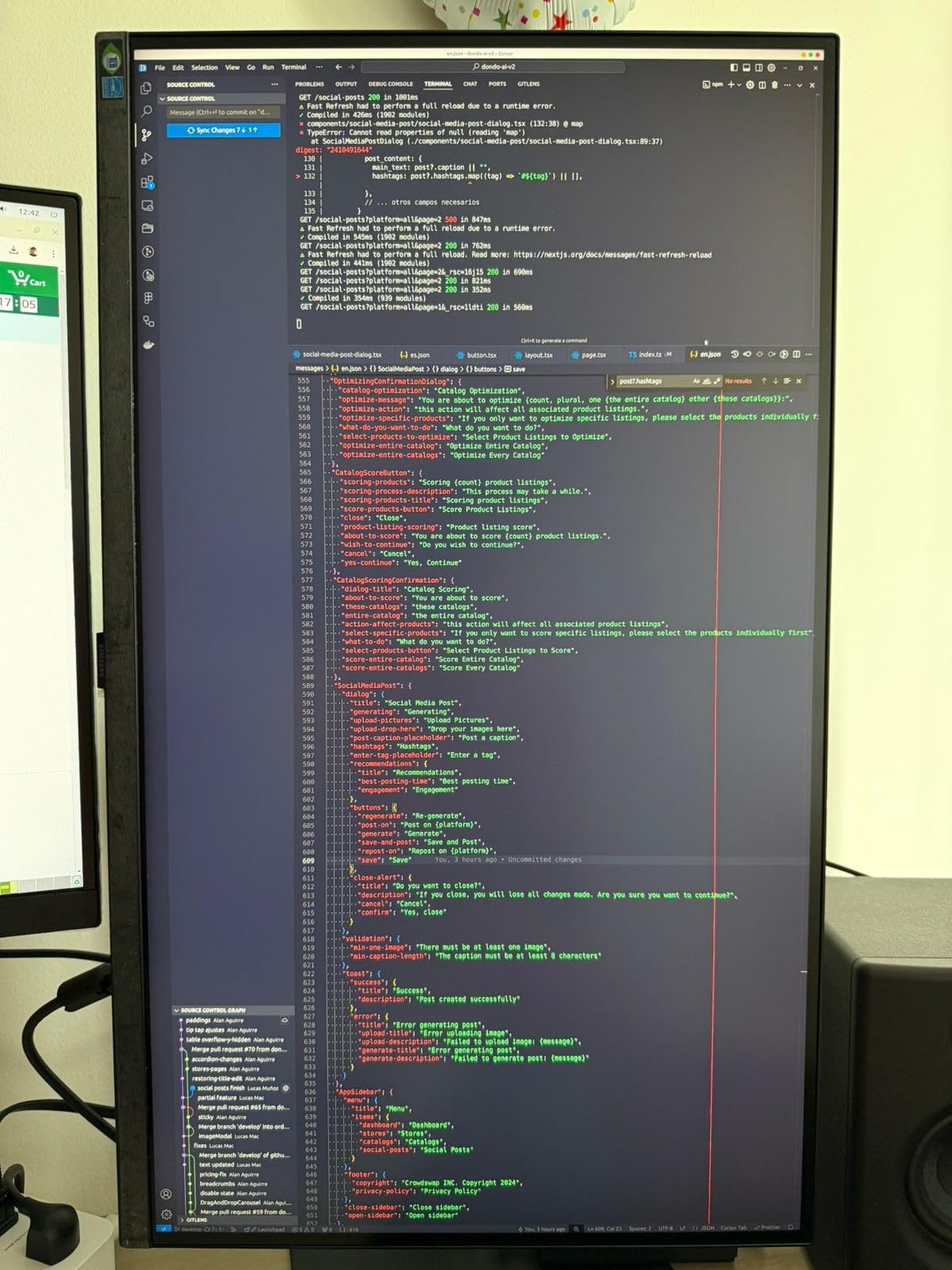
The stand is genuinely pleasant to live with. The tool-free Easy Setup design assembles without screws and makes repositioning quick, and it swivels, tilts and pivots 90 degrees, so a long vertical section sheet can be displayed portrait the same way the ProArt does. TUV-certified eye care, reduced flicker and Eye Saver Mode handle the long-session side, and the three-year warranty is solid.
Connectivity is the limitation. There is one HDMI port, DisplayPort, and a three-port USB hub with USB 3.0, but no USB-C, so a laptop user cannot dock over a single cable. The 60Hz refresh rate is another compromise, and the HDR10 support is basic rather than a certified high-brightness implementation.

Best fit for plan-heavy 2D work
This is the display for architectural and site work where a drawing needs to sit next to a schedule or a legend, and where flat geometry matters. The high contrast makes light line work on a dark model background read cleanly, and the pivot is useful for elevations and section details.
Less useful for 3D and laptop users
Viewport rotation will look restrained next to a 120Hz panel, and the absence of USB-C rules out the tidy one-cable laptop workflow. If you are choosing a laptop to pair with a desk setup, our CAD laptop guide covers the hardware side of that decision.
5. Dell UltraSharp U2725QE – Factory-Calibrated Delta E Under 1.5 in 27 Inches
Dell UltraSharp U2725QE 27-Inch 4K UHD IPS Black Monitor
27 inch 4K UHD IPS Black
120Hz, Delta E under 1.5
99 percent DCI-P3, Thunderbolt 4
Pros
- Factory calibrated to Delta E under 1.5 with 99 percent DCI-P3
- 120Hz refresh and 5ms response
- Thunderbolt 4 docking with up to 140W and daisy chain
- ComfortView Plus with ambient light sensor
- Factory calibration report in the box
Cons
- 27 inch size limits real estate versus 32 inch 4K
- Higher cost than mainstream 4K panels
- Downstream USB-C hub ports are limited
The U2725QE is the most accurate display in this group, and for studios that render or produce client-facing visuals from CAD, accuracy is the buying criterion. The IPS Black panel ships factory calibrated to a Delta E under 1.5 across 99 percent of DCI-P3, and the calibration report is included in the box. A 27-inch 4K canvas at roughly 163 PPI keeps line work crisp while the wider gamut keeps rendered materials inside the range the software expects.
It also happens to be fast. A 120Hz refresh rate with 5ms response and G-Sync support means shaded viewport navigation is smooth, which is unusual for a display chosen primarily for accuracy. ComfortView Plus and the built-in ambient light sensor adjust brightness automatically, which reduces the eye fatigue that shows up in the last two hours of a long drafting day.
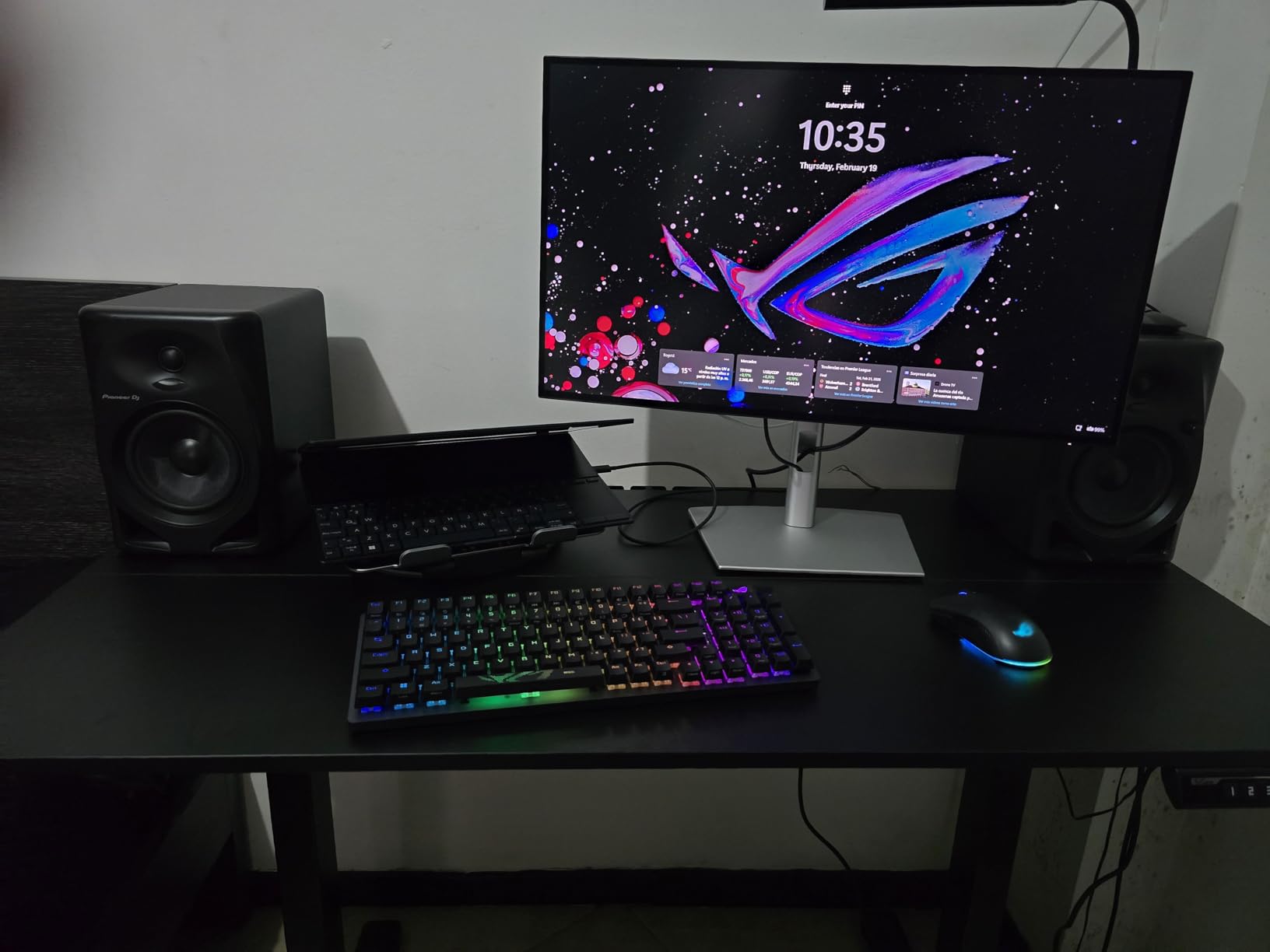
The Thunderbolt 4 implementation is the standout feature for a mobile workstation. One cable carries video, data and up to 140W of power, and daisy chaining supports up to two additional 4K monitors. That turns a 27-inch panel into the center of a three-screen CAD setup without a dock on the desk, and the 15 height positions make it easy to align with a second display.
Two practical limits. Twenty-seven inches gives less canvas than a 32-inch 4K panel, so a large assembly and a full palette will not both fit as comfortably. And the downstream USB-C hub is limited compared with the USB-A hub, so check that your 3D mouse, tablet or space mouse connects the way you expect.
For renderers and visualization work
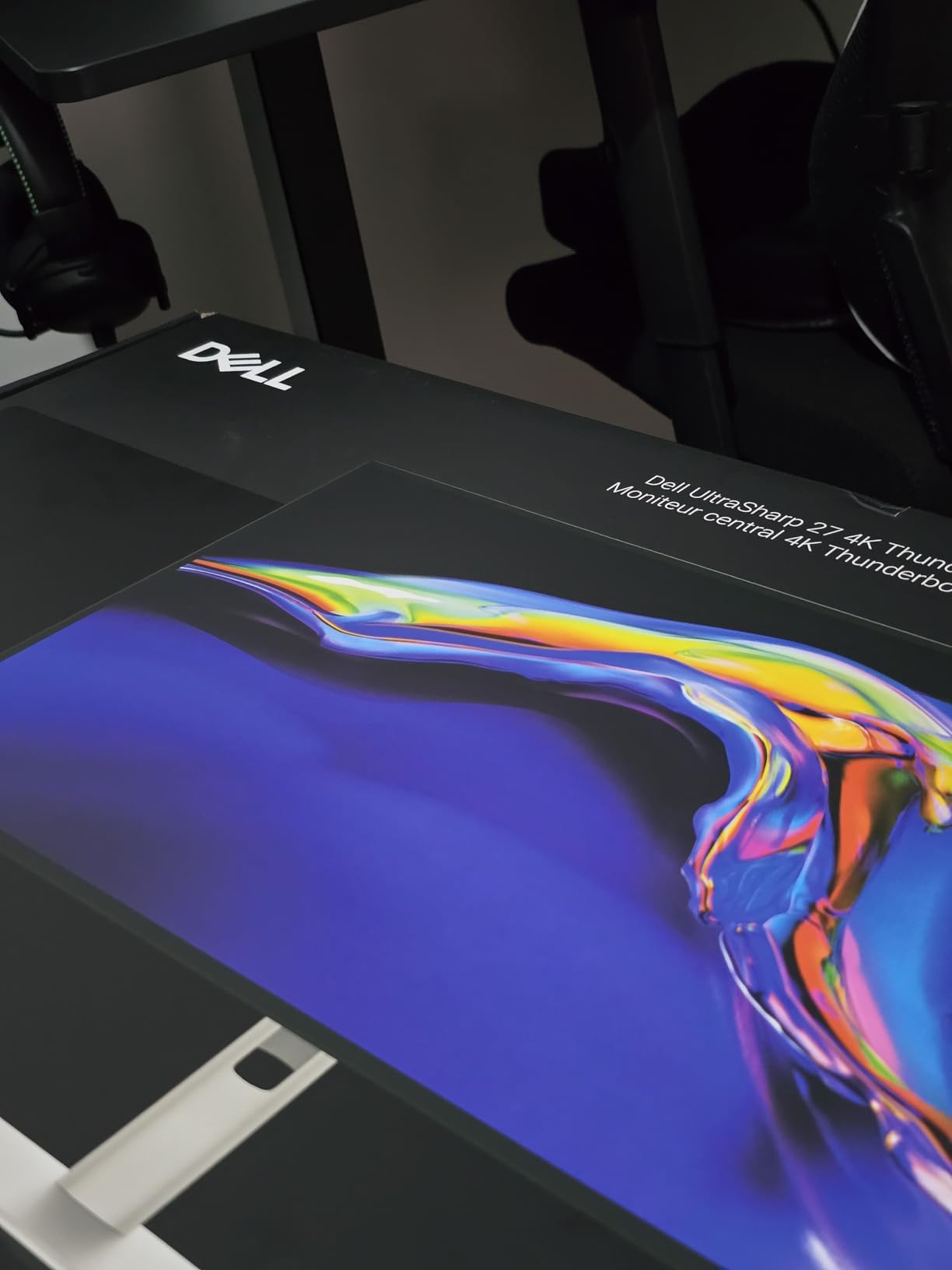
When a viewport screenshot becomes a client deliverable, a Delta E under 1.5 and 99 percent DCI-P3 coverage mean you are not chasing color drift on the export. The 120Hz rate keeps the modeling session comfortable, and the Thunderbolt hub means one cable to a laptop workstation with room for two more screens.
For everyone else
If you draft rather than render, the ProArt PA279CV earlier in this list delivers similar line clarity at a lower cost. The U2725QE earns its premium when color accuracy moves from nice to necessary.
6. ViewSonic VP2756-4K – Pantone Validated 4K With 60W USB-C
ViewSonic VP2756-4K 27 Inch 4K ColorPro Monitor, IPS Display with 100% sRGB and Pantone Validated for Professional Photo Editing, Advanced Ergonomics, 60W USB-C, HDMI, and DisplayPort Inputs
27 inch 3840x2160 IPS
Delta E under 2, 100 percent sRGB
60W USB-C, Pantone Validated
Pros
- Factory calibrated to Delta E under 2 with Pantone Validated certification
- 100 percent sRGB and Rec.709 coverage
- Single USB-C cable with 60W charging and data
- Height tilt swivel and rotate adjustment
- Daisy chain plus three-year warranty on parts labor and backlight
Cons
- 60Hz refresh rate
- 350-nit brightness is modest for creative work
- No HDR implementation
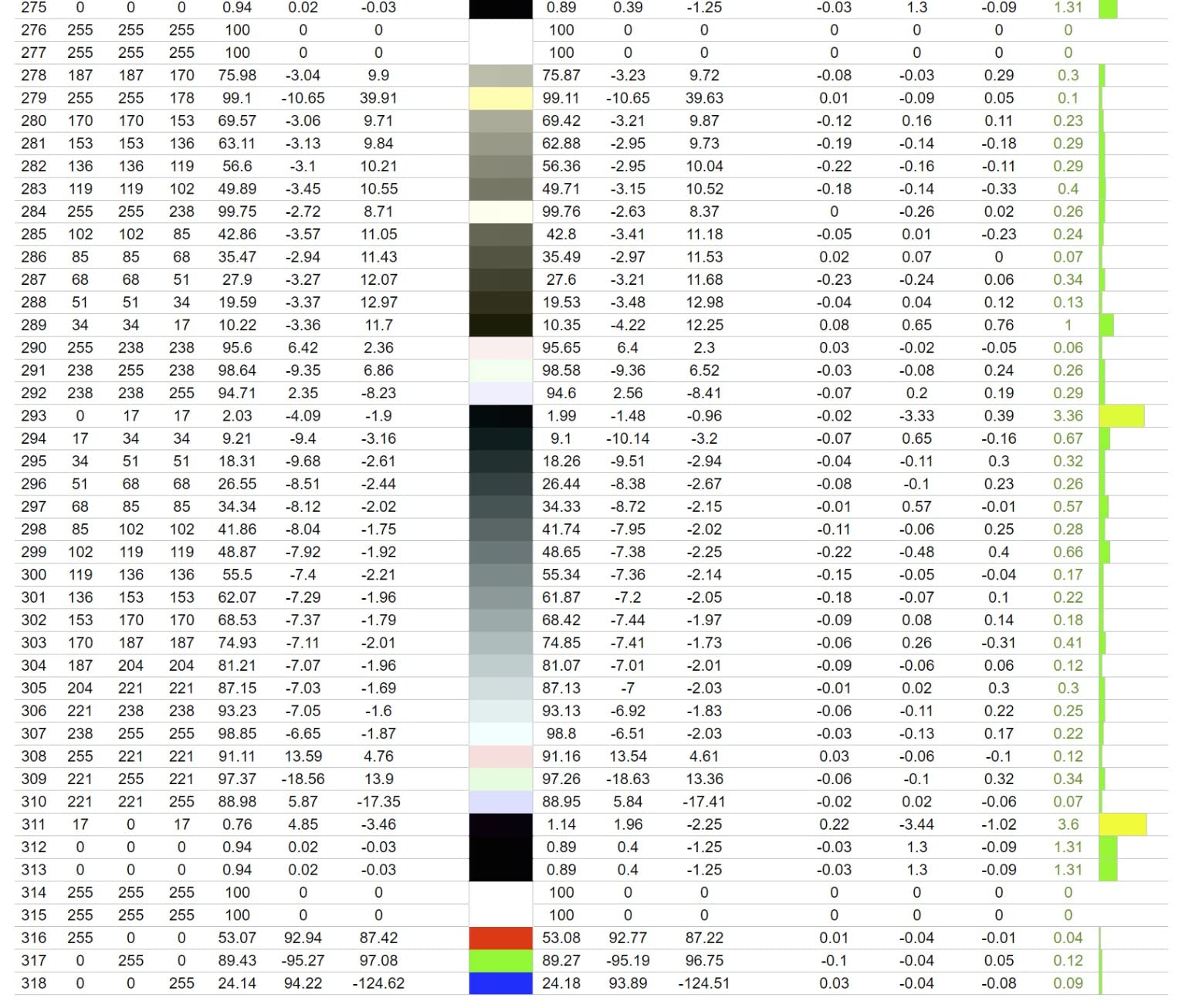
The ViewSonic VP2756-4K is the ColorPro model in ViewSonic’s line, and it targets exactly the studio that drafts all day and needs the on-screen result to match the plot. It ships factory calibrated to a Delta E under 2 with 100 percent sRGB and Rec.709 coverage, and it carries Pantone Validated certification, which is a different kind of promise from a raw gamut number because it is tied to a measured standard.
For line work, 3840 x 2160 at 27 inches gives around 163 PPI. The SuperClear IPS panel holds a stable image across a 178-degree viewing angle, so a drawing looks the same from the edge of the desk as it does from dead center, and the matte finish keeps reflections out of the way in a bright room.
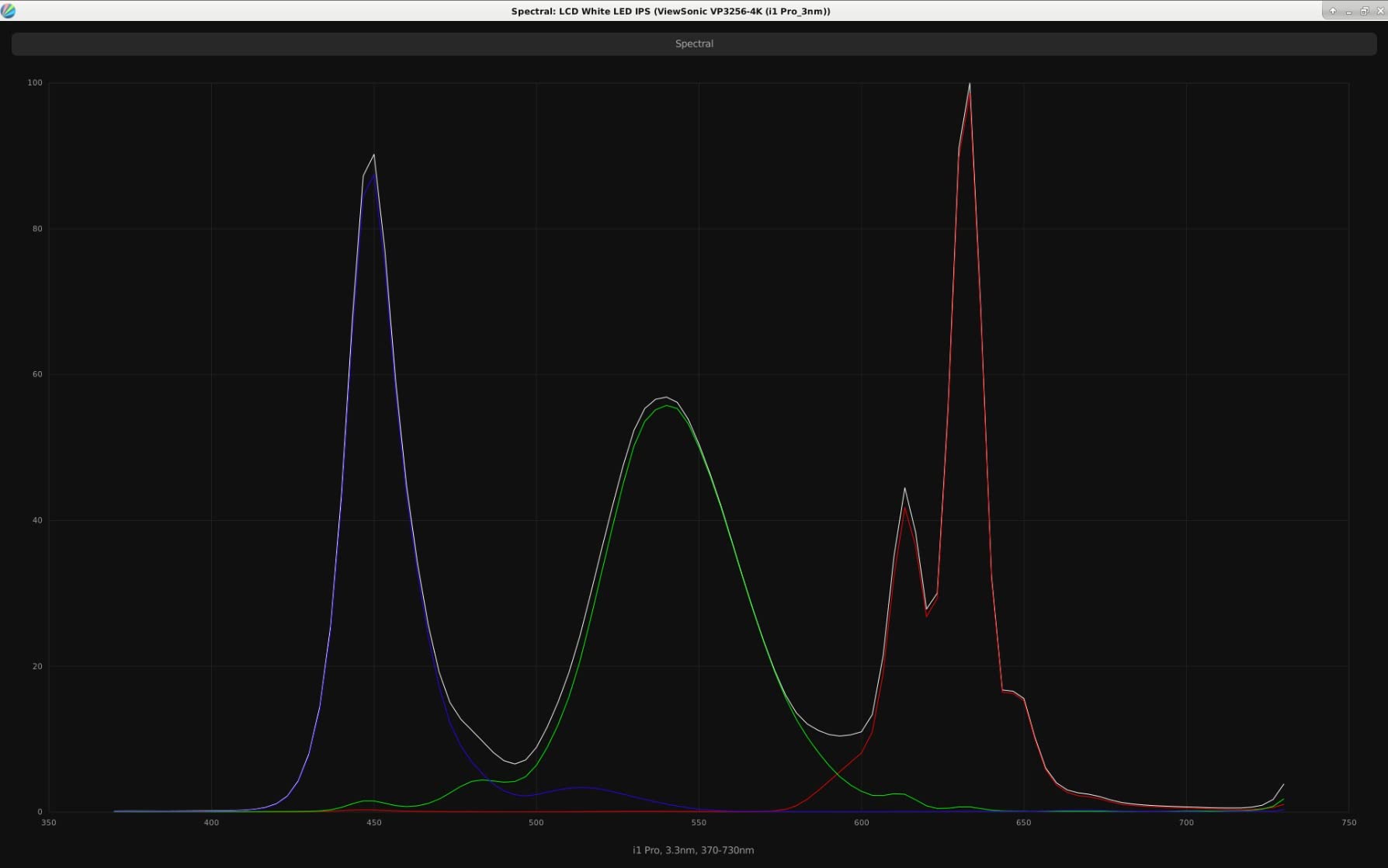
The single-cable workflow is the practical strength. One USB-C connection carries video, data, audio and 60W of laptop charging, and the four-port USB hub gives you a place to land a 3D mouse or digitizer. Owners praise how quickly the setup comes together from a single laptop connection, and the stand adjusts for height, tilt, swivel and rotation.
The trade-offs are the familiar 60Hz refresh rate and a 350-nit peak brightness that is lower than the 450-nit professional panels here, which shows in a sunlit office or in bright rendered images. It is not an HDR display. Daisy chain support is there if you want to add a second panel later, and the three-year warranty covers parts, labor and backlight.
A strong drafting-first choice
Think of this as the calibrated 4K option for a desk where the drawing is the deliverable. Delta E under 2, full sRGB coverage and a 178-degree viewing angle mean the image holds up when you compare a viewport against a printed plot, and the USB-C hub keeps a laptop-based station tidy.
What you give up
Sixty hertz, moderate brightness and no HDR. If you spend your day in shaded 3D views rather than 2D drafting, the 120Hz Dell options earlier in this list will feel considerably more responsive.
7. Samsung ViewFinity S50GC – The Budget Route to a 3440 x 1440 Drafting Desk
SAMSUNG 34″ ViewFinity S50GC Series Ultra-WQHD Monitor, 100Hz, 5ms, HDR10, AMD FreeSync, Eye Care, Borderless Design, PIP, PBP, LS34C502GANXZA, 2023, Black
34 inch 3440x1440 21:9
100Hz, 5ms
300 nits, PBP and PIP
Pros
- 3440 x 1440 canvas at a budget price point
- 100Hz with 5ms response
- Picture-by-picture shows two sources at native resolution
- Ambient light sensor with Eye Saver Mode and flicker-free operation
- Minimal bezel suits a dual-monitor setup
Cons
- VA panel smears on high-contrast edges
- Color range is not suitable for color-critical work
- Only a 1-year manufacturer warranty
The S50GC is the direct answer to anyone who wants the ultrawide canvas of the LG 34WP65C-B without the 160Hz price tag. It delivers the same 3440 x 1440 21:9 working area at 100Hz with a 5ms response time and AMD FreeSync, which is more than enough for smooth viewport navigation and more than enough for a full day of 2D drafting.
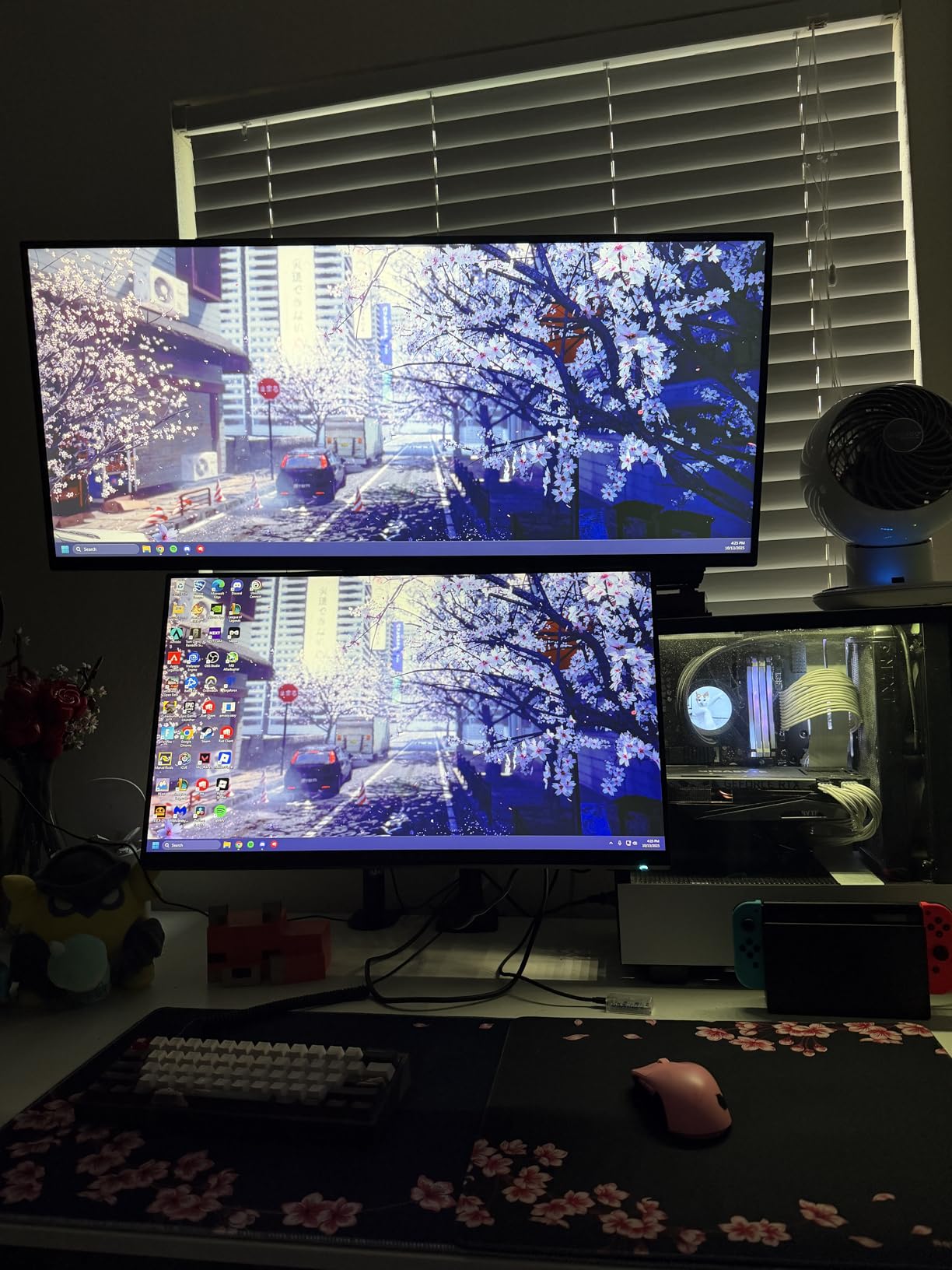
Owners divide the screen into three or more work zones, which is exactly the use case for CAD: drawing on the left, a specification document in the middle, a browser or issue tracker on the right. Picture-by-picture is a genuinely useful addition because it lets two sources sit side by side at native resolution, which is handy when a vendor sends a drawing while you work in the model.
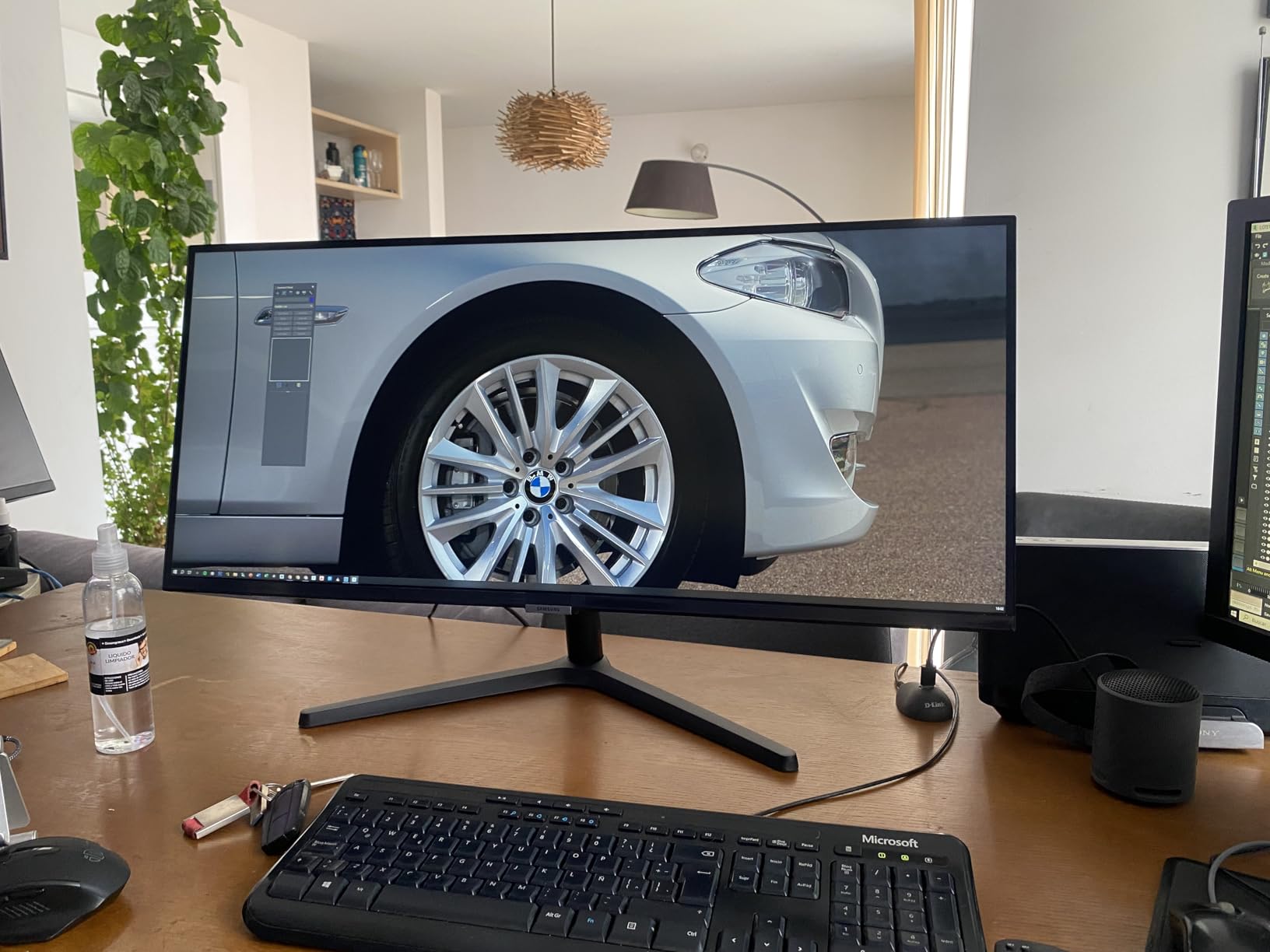
Eye care is handled properly for a display in this class. The ambient light sensor adjusts brightness between day and night, Eye Saver Mode tunes the color temperature, and flicker-free operation reduces the strain that builds over an eight to ten hour session. The minimal bezel also makes it easier to pair with a second display later if you outgrow the arrangement.
The weaknesses are honest ones. It is a VA panel, so it smears on high-contrast moving edges and the color range is not suitable for color-critical finishing work. The vertical height is short relative to the width, which means fewer lines of layer list visible at once. Owners also describe the included stand as cumbersome and worth replacing with a monitor arm, and the warranty is only one year.
Who should buy this
Students, freelancers and engineers setting up a first serious CAD station will get more usable drafting area per unit of desk space than any 16:9 panel at this level. The 100Hz rate and 3000:1 contrast are bonuses rather than the reason to buy; the width is the reason.
Who should not
Anyone doing rendered output, color matching or print-proof review should look at the calibrated IPS options instead. The VA panel’s gamut and smearing behavior are not appropriate for that work, and the one-year warranty adds risk.
8. Dell S3225QS – 32-Inch 4K and 120Hz for Large Assemblies
Dell 32 Monitor S3225QS, 4K UHD VA, 120Hz, FreeSync Premium, Eye Comfort
32 inch 4K VA panel
120Hz FreeSync Premium
99 percent sRGB, 95 percent DCI-P3
Pros
- 4K at 32 inches praised by engineers for plans and CAD work
- 120Hz with FreeSync Premium for smooth motion
- VA panel delivers deep blacks and 1500:1 contrast
- Built-in speakers are unusually loud and usable
- Light enough for a gas-spring monitor arm
Cons
- VA panel shifts color and washes out off-axis
- Uneven brightness with dimmer edges and a darker band along the bottom
- Limited vertical stand adjustment and Smart HDR can flicker
The S3225QS is the value route into 32-inch 4K with a fast refresh rate, and for large assemblies it does a lot with relatively little. Engineers buying this for plans and CAD programs call out the sharp 4K image and the amount of information visible without zooming. At 120Hz with FreeSync Premium and a listed 0.03ms response time, viewport navigation is smoother than any 60Hz 32-inch option.
The VA panel is the reason the price sits where it does, and it brings two genuine strengths: deep blacks and a 1500:1 contrast ratio, which make shaded 3D solids separate cleanly from the background. Gamut coverage of 99 percent sRGB and 95 percent DCI-P3 is respectable, and the built-in speakers are genuinely loud enough to remove a desk accessory from your list.
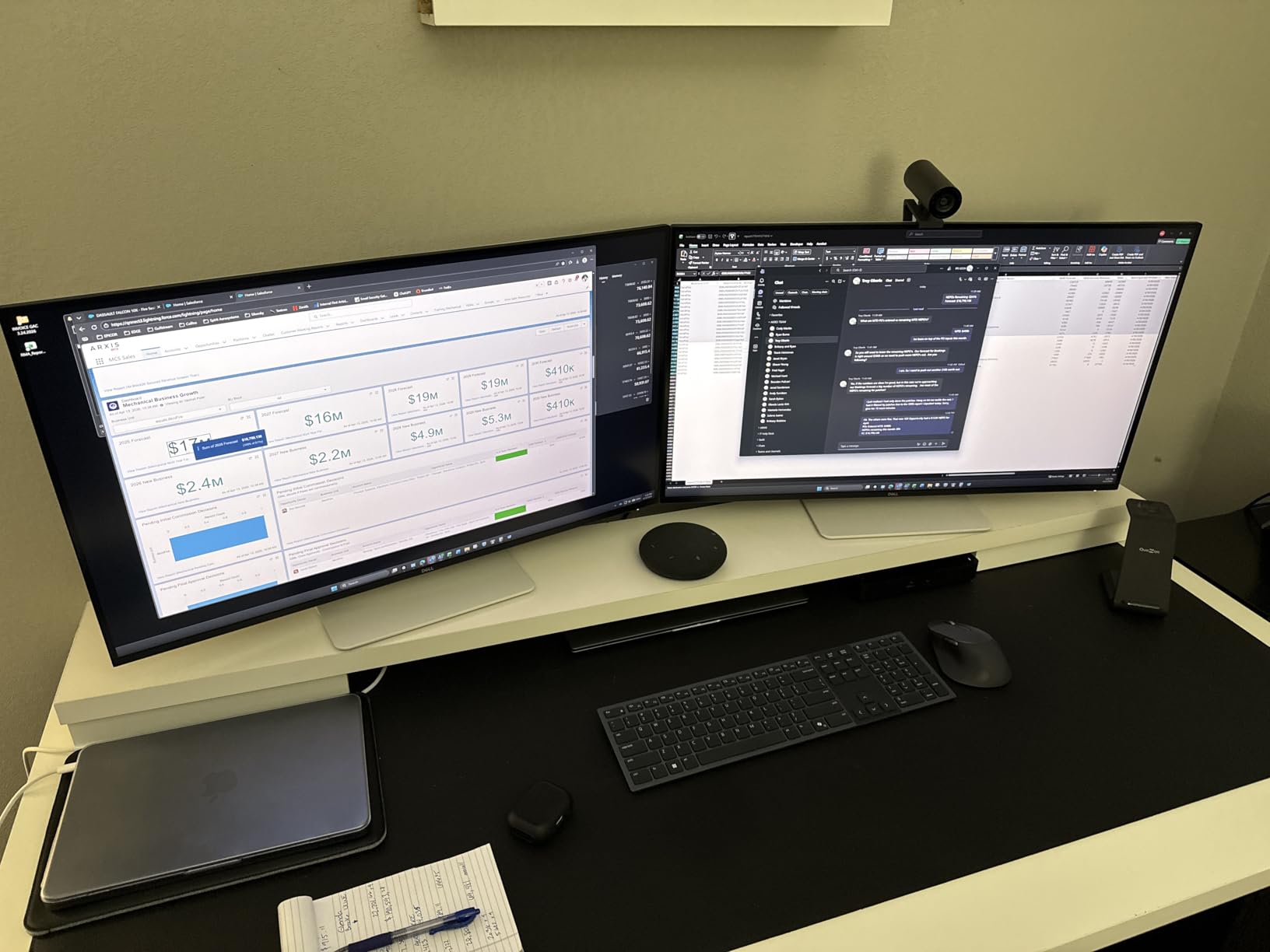
Setup is straightforward, with a rear joystick for on-screen navigation and a stand riser and base included. At 19.3 pounds with a standard 100×100 VESA fit, it is light enough to mount on a gas-spring monitor arm, which is worth doing on any 32-inch display to free desk depth and set the panel at eye height.
The VA trade-off is off-axis behavior. The panel shifts color and washes out when viewed from the side, so a colleague leaning in to review a drawing will not see the same image you do, and reviewers report uneven brightness with dimmer edges and a darker band along the bottom. Vertical stand adjustment is limited, and Smart HDR should be disabled because it can introduce visible flicker.
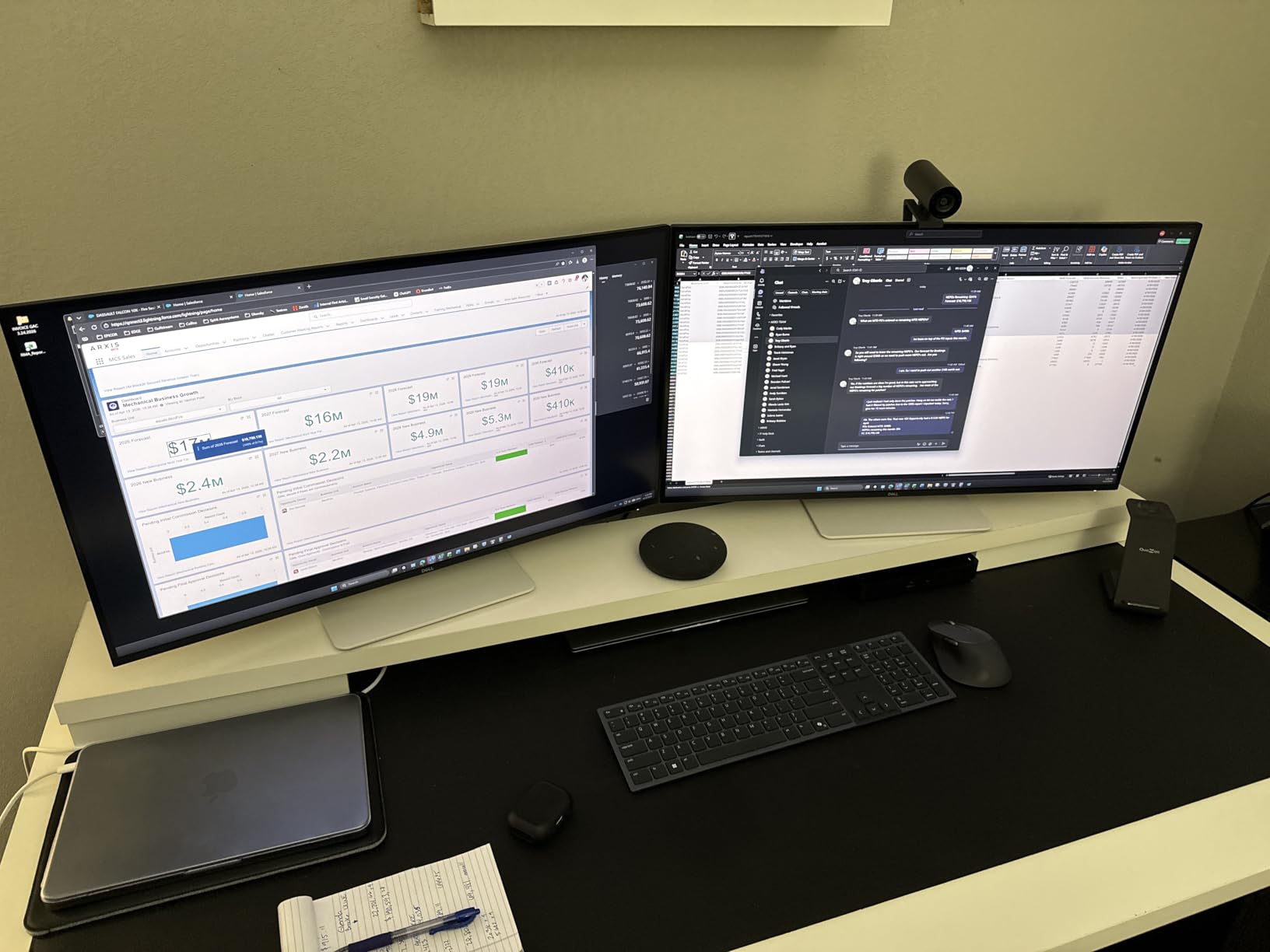
Where the VA panel actually helps
Large mechanical assemblies and site plans benefit from the contrast, and the 120Hz rate keeps orbiting responsive. If your work is mostly shaded models and you are not color-matching to print, the darker blacks give a more legible image than many IPS panels at similar brightness.
Where IPS wins
Anything involving a second pair of eyes at the screen, or any color judgment, is better served by an IPS display in this list. Combined with the uneven edge brightness, the off-axis shift is the reason this panel sits below the IPS models in our ranking despite the strong review base.
9. BenQ MA320U – MacBook Color Matching on a 32-Inch 4K Panel
BenQ MA320U 32” 4K 3840×2160 Monitor for MacBook® Pro/Air, Dual USB-C, 90W Power Delivery, Mac Color Match, USB Hub, Brightness & Volume Control on Mac, Height & Tilt Adjustable Stand, P3 Color Gamut
32 inch 3840x2160 IPS
400 nits, P3 wide gamut
Dual USB-C with 90W delivery
Pros
- P3 wide color gamut with BenQ Mac color tuning
- Single USB-C cable carries video data and 90W power
- Brightness and volume control from the MacBook keyboard
- Dual USB-C plus two HDMI ports with a USB hub
- Height tilt swivel and pivot adjustable stand
Cons
- 60Hz refresh rate
- Mac-focused color tuning is less useful on a Windows workstation
- Matte finish reduces perceived contrast in bright rooms
The MA320U is built for one specific workstation: a MacBook Pro or MacBook Air running CAD. BenQ tunes the panel to match Mac color output, covers a P3 wide gamut at 400 nits brightness, and includes the Mac-specific niceties that no generic 4K monitor bothers with. If your machine is a Mac, this removes an entire category of color mismatch between the laptop display and the desk display.
The workflow is the selling point. One USB-C cable carries video, data and 90W of power delivery, and a second USB-C port delivers 15W to a phone or tablet. Brightness and volume can be adjusted directly from the MacBook keyboard, so you are not hunting for buttons on the stand. Two HDMI inputs and a USB hub round out the connections, and the box includes HDMI, DisplayPort and power cables.
For CAD specifically, 3840 x 2160 at 32 inches gives around 140 PPI, which keeps dimension text readable while leaving room for the layer manager beside the drawing. The 3ms response time and 178-degree viewing angle are good, and the matte finish keeps reflections down. Owners consistently highlight the color tuning, the single-cable setup and the adjustable stand as the reasons they recommend it.
The limits are clear. The refresh rate is 60Hz, which is the most common complaint for fast on-screen work, and the color tuning is aimed at Macs, so it is less useful on a Windows or Linux CAD workstation. A matte finish also lowers perceived contrast in a very bright room, which matters if you work near a window.
Best for Mac-based CAD
If you draft on a MacBook and want a desk setup that matches the laptop display, the P3 coverage and Mac color match remove the guesswork from mixed-source review. The 90W single-cable connection also means one peripheral set at the desk regardless of whether you are at the office or on site.
Not the choice for Windows shops
The Mac-specific tuning adds nothing on a Windows workstation, and the 60Hz rate leaves viewport rotation behind the Dell 120Hz options. Budget-conscious Mac users should also weigh a general calibrated 4K panel against this one.
10. ViewSonic VX3276-4K-MHD – The Lowest-Cost Way to Own 32-Inch 4K
ViewSonic VX3276-4K-MHD 32 Inch 4K UHD Monitor, HDR10, HDMI, DisplayPort
32 inch 3840x2160 LED
60Hz, 4ms
2500:1 contrast, three-year warranty
Pros
- Sharp 4K text at the lowest entry point in this list
- Four inputs including dual HDMI DisplayPort and Mini DisplayPort
- Front-mounted OSD buttons with adjustable menu size
- Matte panel stays visible in bright rooms
- 100x100 VESA mount and slim profile
Cons
- 60Hz with an MVA panel limits responsiveness
- Input switching is done through the on-screen menu
- Some owners report flicker on dark screens and over-red flesh tones
The VX3276-4K-MHD is the entry point: a 32-inch 3840 x 2160 panel with a 2500:1 contrast ratio, a matte finish and a three-year warranty covering parts, labor and backlight. For a student, an apprentice or anyone building a first CAD station, getting 4K line clarity at 32 inches is the single most valuable upgrade available, and this panel delivers it without premium features you would not use.
Connectivity is unusually generous for this tier. Two HDMI inputs, DisplayPort and Mini DisplayPort mean three computers can be connected at once, which suits a setup that alternates between a laptop, a desktop workstation and a test machine. Owners also note that the screen can be split into four 1080p quadrants, and the front-mounted on-screen display buttons let you enlarge the menu for readability.
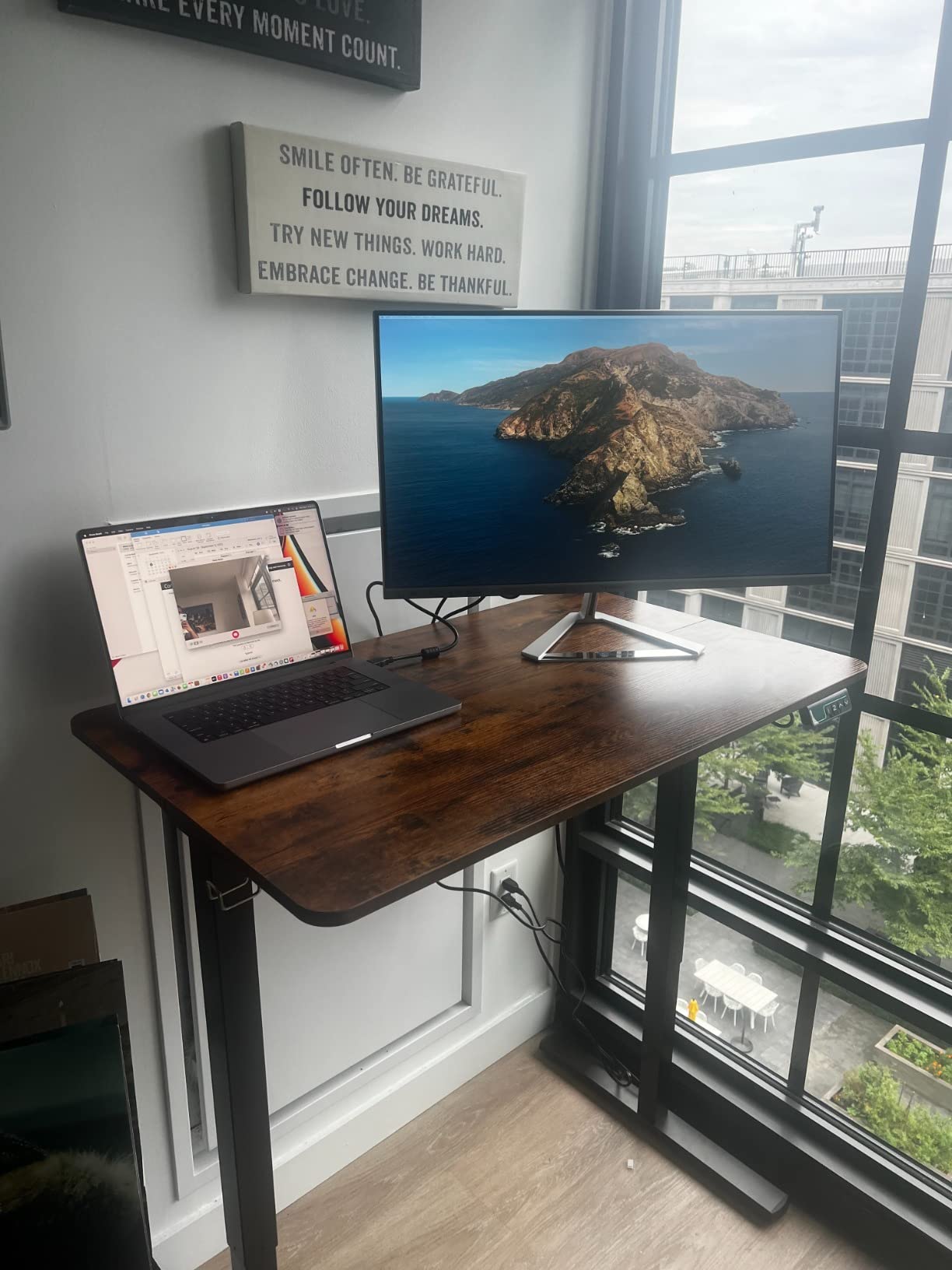
The 4ms response and 60Hz refresh are adequate for static drafting. The 118 percent color gamut figure looks impressive on paper, but the practical weakness is accuracy: reviewers warn that flesh tones can read over-red, which makes this a poor choice for photo, video or print color work, and some owners report flicker appearing on dark screens after a period of use.
Other reported issues include viewing angles that degrade toward the edges on a panel this large, menu-based input switching rather than a dedicated button, and poor built-in speakers. The 100×100 VESA mount and slim profile are genuine pluses, since it mounts easily on an arm and sits close to a wall.
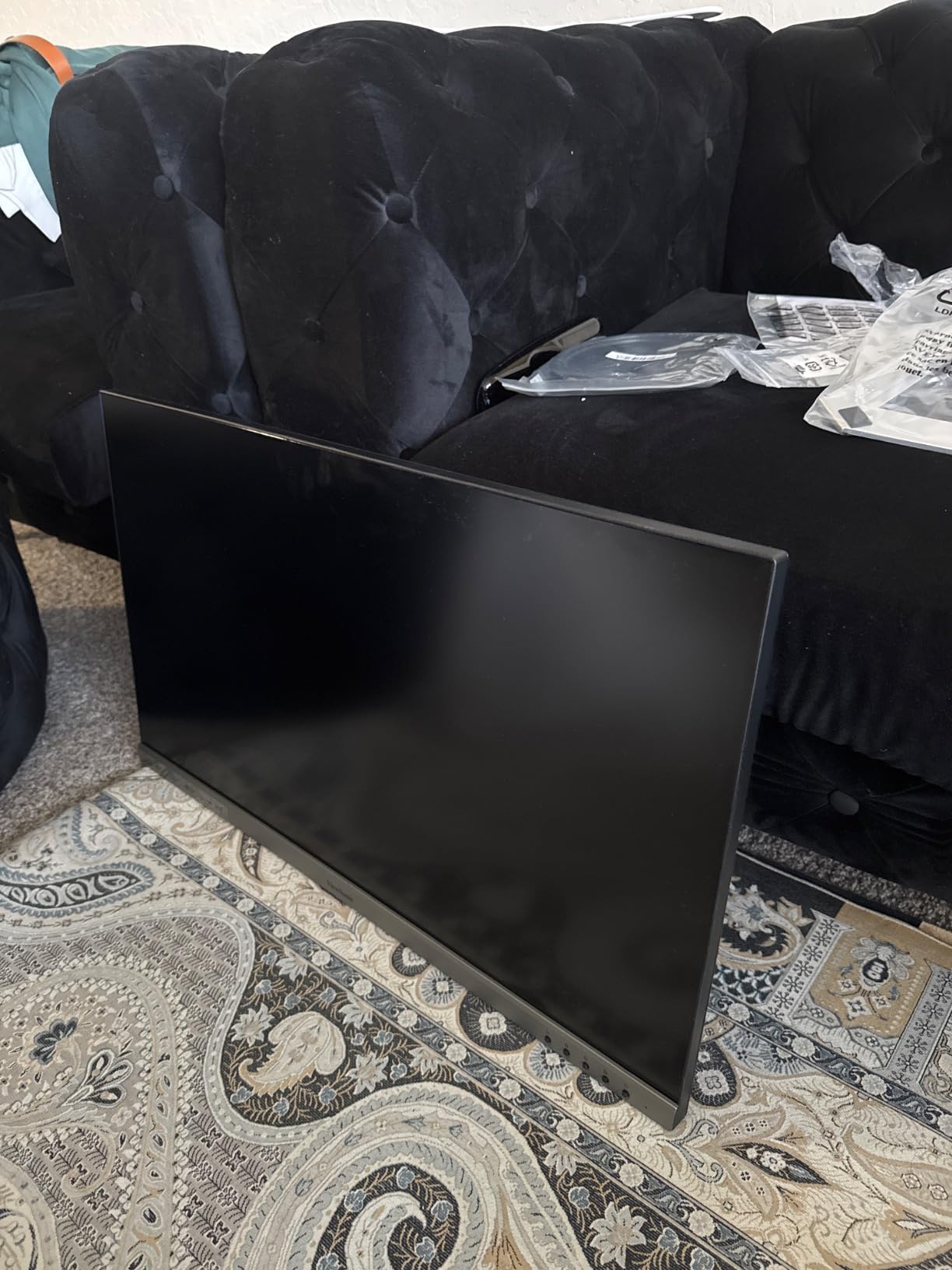
A sensible first CAD display
Line clarity is the reason to buy this, and at 32 inches 4K the small dimension text in a mechanical drawing is legible without scaling tricks. The matte coating handles a bright room, and the three-year warranty is longer than several premium picks. If you are outfitting a shared or student workstation, the ability to drive three computers from one panel is a genuine time saver.
What to expect from a first panel
Expect compromises in color accuracy and viewing-angle consistency, and expect menu-based input switching. Treat it as a stepping stone: get comfortable with 4K line work, and move to a calibrated IPS panel when the job demands color you can trust. Adding a precision pointing device often improves drafting comfort more than a display upgrade does.
How to Choose a CAD Monitor: The Decisions That Actually Matter
CAD monitor buying is not a specs arms race. A fast gaming panel with poor text rendering will slow you down more than it helps, and an oversaturated wide-gamut display will give you colors your plotter cannot reproduce. The decisions below are the ones that change your working day.
Resolution and pixel density: why 4K changes drafting speed
Pixel density is the single most important spec. At 27 inches, 3840 x 2160 gives roughly 163 PPI; at 32 inches it gives around 140 PPI. A 27-inch 2560 x 1440 panel sits near 109 PPI, which is noticeably softer. CAD screens are dominated by thin lines and small text, and when closely spaced lines merge into a gray band, you zoom in, pan, and lose your place. Higher density removes that loop. Our advice: treat 4K as the floor at 27 inches and above, and do not expect to return to 1440p afterward.
For teams that want more detail still, a 5K panel at 27 inches pushes density higher, but the cost and power draw are real, and 4K IPS with a Delta E under 2 is enough for nearly all professional drafting.
Panel type: IPS over VA and TN for line work
IPS is the right default because it holds color and geometry stable across a 178-degree viewing angle, which matters when a colleague leans over to review a drawing or when you tilt the panel back on its stand. VA offers deeper blacks and higher contrast, which is attractive for shaded 3D models, but it shifts color and washes out off-axis, exactly what you do not want during a review. TN is fast but has poor color consistency and viewing angles, and it has no place on a CAD desk. The two ultrawides in this list split along these lines: the LG uses IPS for stability, the Samsung uses VA for contrast at a lower cost.
Color accuracy and Delta E: how much accuracy buys you
Delta E measures the average difference between the color a panel produces and the reference. Under 2 is effectively invisible side by side, which is why the ASUS ProArt, the ViewSonic ColorPro and the Dell U2725QE all target it. sRGB and Rec.709 are the spaces CAD software actually uses, so 100 percent coverage of sRGB is the useful baseline. DCI-P3 and Adobe RGB matter when you render for print or video, and are largely wasted on pure 2D drafting. OLED panels deliver the best color in class but are usually a poor fit because the layer palette and model tree sit static on screen all day, which is precisely the pattern that causes burn-in.
Screen size, desk depth and viewing distance
Size is really a desk-depth decision. A 27-inch 4K panel sits comfortably at 60 to 80 cm viewing distance, while a 32-inch 4K panel wants 75 to 95 cm and a 34-inch ultrawide wants a similar distance with a wider desk. A 32-inch display also weighs enough that a monitor arm is worth the cost, both to set the top of the panel at eye level and to reclaim desk depth. Check the weight and VESA pattern against your arm, since not every 32-inch panel is a comfortable two-monitor setup.
Ultrawide 21:9 versus a dual-monitor setup
A 3440 x 1440 ultrawide is a genuine alternative to two screens for 2D drafting: one cable, no bezel to align, and enough width to keep a drawing and a document open at once. Several users in r/ultrawidemasterrace describe making exactly that switch for 2D CAD work. The caveat is vertical height. A 21:9 panel is short, so you see fewer lines in a layer list, and for tall elevations the answer is a pivot-to-portrait 16:9 panel instead. For 3D work the extra width is less valuable than refresh rate.
Flat versus curved for geometric accuracy
Flat is the safer default for technical drawings. Curvature bows straight lines near the edges of the screen, which can make a dimension string look slightly out of true. A moderate curve is comfortable for a wide desk and for long sessions, but if your work involves judging whether a line is parallel to another, choose flat. Both 34-inch ultrawides in this list illustrate the choice: the LG is curved for wrap-around comfort, and the Samsung is flat for geometry you can trust to the corners.
USB-C power delivery, KVM and daisy-chaining
USB-C power delivery is the connector to prioritize if you use a laptop. 65W covers most CAD workstations, 90W gives headroom for a heavier mobile workstation, and 140W on the Dell U2725QE effectively replaces a desktop power brick. A KVM switch or a monitor with multi-computer input lets you move between a laptop and a desktop with one keyboard and mouse, which is common for engineers who hot-desk. Daisy chaining lets one cable drive two or three 4K panels, and is worth checking before you buy, because a monitor that cannot daisy chain needs a dock.
Refresh rate, eye comfort and 4K UI scaling
Refresh rate matters more than most buyers expect for 3D. Orbiting a model in SolidWorks at 60Hz looks noticeably stuttery next to 120Hz, so if your day is 3D, pay for the faster rate. For 2D drafting it is close to irrelevant. Eye comfort is about two things: flicker-free backlight for eight to ten hour sessions, and a low blue light mode for evening work. TUV certification is a useful shorthand for both, and ASUS rates TUV flicker-free and TUV low blue light on the ProArt. On scaling, 27-inch 4K usually wants 150 percent and 32-inch 4K usually looks right at 125 or 100 percent, so check the toolbar height in your own software before committing to a size.
Frequently Asked Questions
What is the best monitor for AutoCAD?
The best monitor for AutoCAD is a 27-inch or 32-inch 4K IPS panel with a published factory calibration figure. AutoCAD is a 2D drafting application built around thin lines and small dimension text, so pixel density matters more than refresh rate. A 27-inch 3840 x 2160 display gives about 163 pixels per inch and a 32-inch gives about 140, both of which keep closely spaced lines separated instead of merging. The ASUS ProArt PA279CV is a strong all-round pick with Calman Verified Delta E under 2 and a pivot-to-portrait stand for tall elevations.
Which computer monitor is best for 3D modeling?
For 3D modeling in SolidWorks, Inventor or Fusion 360, look for a 4K IPS panel with a 120Hz refresh rate and 5ms or faster response. Viewport rotation is the most repeated motion in a 3D day, and at 60Hz it looks visibly stuttery next to a faster panel. The Dell UltraSharp U3225QE pairs 32-inch 4K with 120Hz, 450 nits and 2000:1 contrast, while the Dell UltraSharp U2725QE offers the same refresh rate in a more compact 27-inch frame. Higher contrast also helps shaded solids separate from the model background.
Is 4K necessary for CAD work?
4K is effectively necessary at 27 inches and above. A 27-inch 2560 x 1440 panel sits near 109 pixels per inch, which is soft enough that closely spaced hatch lines and small tolerance callouts start to merge and you spend the day zooming and panning. 4K at 27 inches reaches about 163 PPI and at 32 inches about 140 PPI, which removes that loop. The one exception is a very wide 3440 x 1440 ultrawide, where the horizontal density is good but you trade vertical space for width.
Are ultrawide monitors good for CAD work?
Yes for 2D drafting, with a caveat for 3D. A 3440 x 1440 21:9 panel replaces a dual-monitor setup with a single cable and no bezel to align, which users in r/ultrawidemasterrace cite as the main reason for switching. The 0.15 mm pixel pitch keeps small text crisp. The tradeoff is vertical height: a 21:9 screen is short, so you see fewer lines in a layer list, and tall elevations are better served by a 16:9 panel pivoted into portrait. For 3D viewport work, refresh rate matters more than width.
Are gaming monitors suitable for CAD work?
A gaming monitor works for CAD if it has an IPS panel and a high resolution, and there is no rule against mixing categories. A 120Hz or faster IPS panel at 4K gives you smooth viewport rotation plus stable color. What to avoid is TN, which shifts color and has narrow viewing angles, and any display with heavy out-of-the-box color variance. One practical warning: some gaming-oriented panels apply a Smart HDR or picture mode that introduces visible flicker on dark CAD backgrounds, so switch it off before judging the panel.
Final CAD Monitor Recommendations by Workflow
There is no single correct answer, so here is how the picks map to the work. If you draft wide plans, elevations and long dimension strings in 2D, the LG 34WP65C-B is our editor’s choice: 3440 x 1440 of canvas removes the second screen, and 160Hz keeps 3D checks smooth on the same panel. If you want one dependable 4K display that covers AutoCAD, SolidWorks and rendering without a premium price, the ASUS ProArt PA279CV is the value pick, with Calman Verified accuracy and a portrait pivot. If your day is shaded assemblies and BIM coordination, take the Dell UltraSharp U3225QE for 32-inch 4K at 120Hz, or the Dell UltraSharp U2725QE when color accuracy down to a Delta E under 1.5 matters more than screen area.
Add a 60Hz calibrated panel for tighter budgets, the Samsung ViewFinity S8 S80D for 32-inch 4K with high contrast and a tool-free stand, and the ViewSonic VP2756-4K when Pantone Validated accuracy at 27 inches is the priority. The Samsung ViewFinity S50GC is the wide-and-cheap 2D option, the Dell S3225QS handles large assemblies on a VA panel with real contrast, the BenQ MA320U is built for MacBook workstations, and the ViewSonic VX3276-4K-MHD is where to start if you are building a first CAD station. Whichever you pick, measure your desk depth and check your software’s toolbar scale before you order. If you tell us which application you draft in, your preferred screen size and how you work, we can narrow the list to a single recommendation.
All picks were current for 2026, and the price of every display changes frequently, so use the buttons to see the latest figure for each model.