
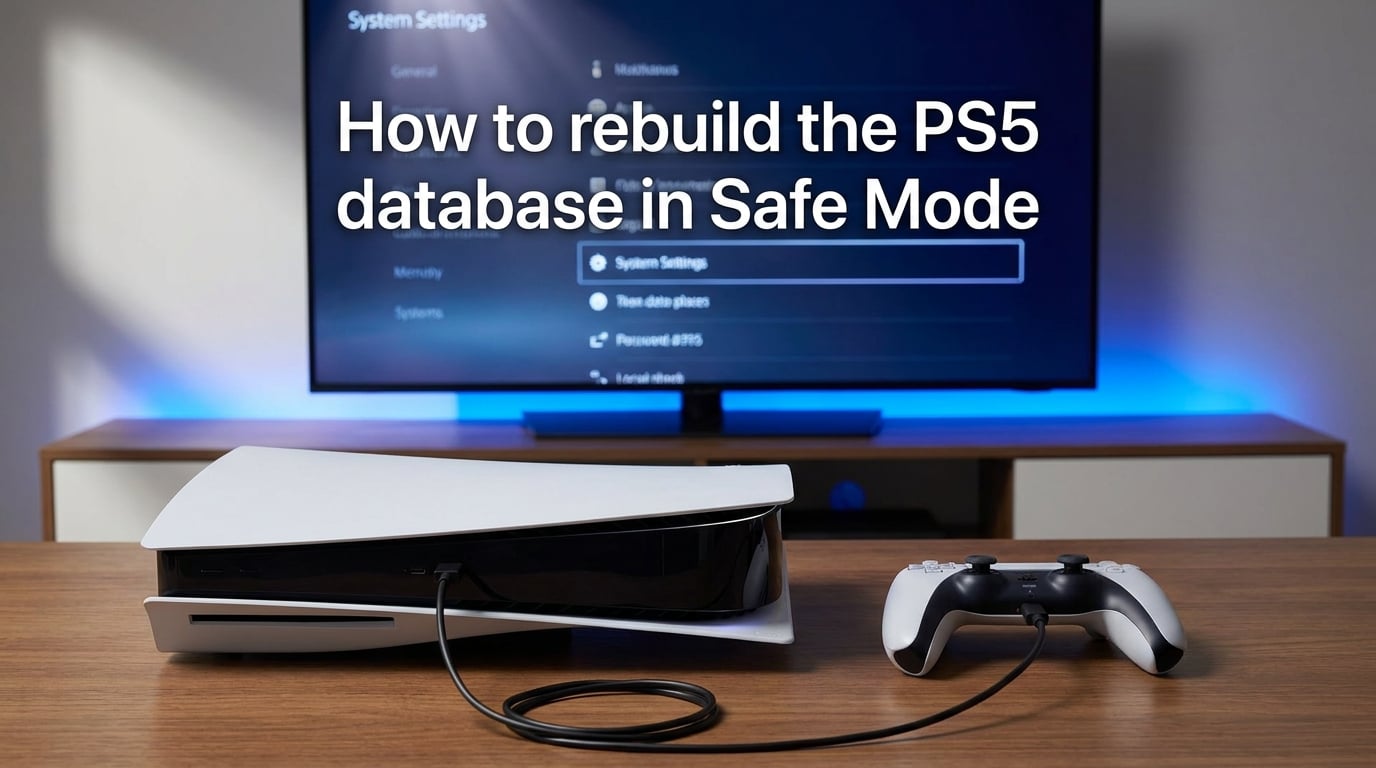
If your PS5 has been running slowly or you keep seeing game icons that will not disappear, you might need to rebuild the database. I have helped dozens of PlayStation owners resolve these frustrating issues using the Safe Mode database rebuild tool. In this guide, I will show you exactly how to rebuild the PS5 database in Safe Mode, step by step, so you can get your console running smoothly again.
What Does Rebuild Database Actually Do on PS5?
The database rebuild function scans your entire storage drive and creates a fresh, organized list of all your games, apps, and saved data. Think of it like reorganizing a messy filing cabinet where some folders have been moved or deleted but the index cards were never updated. The PS5 database keeps track of where every file is stored, and over time this index can become fragmented or contain references to deleted content.
When you initiate a rebuild database PS5 operation, the console reads through every sector of your storage and rebuilds this index from scratch. It removes corrupted entries, eliminates references to deleted games, and reorganizes how files are tracked. This process can resolve slow loading times, fix stuck game icons on your home screen, and improve overall system responsiveness.
The key difference between this and other Safe Mode options is that rebuild database does not touch your actual files. Your games, saved data, screenshots, and settings remain exactly where they are. The process only reorganizes the database that tracks these files.
Signs You Might Need a Database Rebuild
Not every PS5 performance issue requires a database rebuild, but certain symptoms point directly to database corruption or fragmentation. I recommend checking for these signs before diving into Safe Mode.
Slow loading games: If games that used to load quickly now take noticeably longer, the database may have corrupted file references that slow down the retrieval process.
Stuck game icons: When you delete a game but its icon remains on your home screen, that is a classic database issue. The file is gone, but the database still thinks it exists.
System freezes or crashes: Random freezes, especially when navigating the home screen or switching between apps, can indicate database problems.
Missing games or apps: Games you know you installed appearing as uninstalled or not showing up in your library suggests database indexing issues.
General sluggishness: If the entire interface feels slow, menus lag, and the console struggles with basic navigation, a database rebuild often helps.
Will I Lose My Games or Saved Data?
This is the number one question I get asked, and I want to give you a clear answer: No, rebuilding the database will not delete your games, saved data, screenshots, or any other content on your PS5. Your installed games remain installed, your save files stay intact, and your settings do not change.
The rebuild only affects the database index, not the actual files themselves. Think of it like reorganizing a card catalog at a library without touching any of the books on the shelves. All your content stays exactly where it is.
In extremely rare edge cases, some users have reported data loss during a database rebuild. These instances typically involve already corrupted storage drives or hardware failures, not the rebuild process itself. If your console is functioning normally otherwise, the risk is virtually zero.
That said, if you want extra peace of mind, you can always back up your most important save files to PlayStation Plus cloud storage or a USB drive before starting. This takes just a few minutes and ensures your saves are protected no matter what.
How to Put Your PS5 in Safe Mode
Before you can rebuild the database, you need to access the PS5 Safe Mode menu. This special startup mode gives you access to maintenance and troubleshooting options that are not available during normal operation. Here is the exact process I use every time.
Step 1: Make sure your PS5 is completely turned off, not in Rest Mode. Press the power button on the console and wait for it to shut down fully. The power indicator light should be off.
Step 2: Press and hold the power button on your PS5 console. Keep holding it for exactly 7 seconds. You will hear one beep when you first press it, then a second beep after about 7 seconds. Release the button immediately after you hear that second beep.
Step 3: Connect your DualSense controller to the PS5 using a USB-C cable. Safe Mode does not support Bluetooth connections, so a wired connection is required. Any standard USB-C cable works, including the one that came with your controller.
Step 4: Press the PS button on your controller. The Safe Mode menu will appear on your screen with several options numbered 1 through 7.
If your PS5 does not enter Safe Mode after following these steps, try the process again. Make sure you are holding the power button long enough to hear both beeps. Some users report needing to try 2-3 times before it works correctly.
How to Rebuild the PS5 Database in Safe Mode: Step by Step
Once you have successfully entered Safe Mode, rebuilding the database is straightforward. The option you need is near the bottom of the menu. Follow these exact steps to complete the process.
Step 1: From the Safe Mode menu, scroll down to option 6, labeled “Clear Cache and Rebuild Database.” Press X to select it.
Step 2: A submenu will appear with two options: “Clear Cache” and “Rebuild Database.” Select “Rebuild Database” by highlighting it and pressing X.
Step 3: The PS5 will display a warning message explaining what the rebuild does and asking you to confirm. Read the message, then select “OK” or “Rebuild” to proceed.
Step 4: The database rebuild will begin. A progress bar appears on screen showing the status. The screen may go dark for a few moments at the start, which is normal.
Step 5: Wait for the process to complete. Do not turn off your PS5 or unplug it during the rebuild, as this can cause serious issues. When finished, your PS5 will automatically restart and return to the normal home screen.
The rebuild process continues even if the progress bar seems to stall. Be patient and let it run its course. Interrupting the process can corrupt your data, so only start a rebuild when you have enough time to let it complete.
Clear Cache vs Rebuild Database: Which Should You Use?
The Safe Mode menu offers both “Clear Cache” and “Rebuild Database” options, and they serve different purposes. Understanding the difference helps you choose the right tool for your situation.
Clear Cache removes temporary files stored by games and apps, including add-on data and browsing data from the PS5 web browser. This is a quick process, usually taking just a few seconds. Use Clear Cache when games are crashing or when you want to free up a small amount of storage space. It does not affect your games, saves, or settings.
Rebuild Database is a deeper maintenance operation that reorganizes how your PS5 tracks all its files. This takes significantly longer but addresses more fundamental issues like slow loading, stuck icons, and system sluggishness. Use Rebuild Database when Clear Cache does not solve your problem or when you see stuck game icons.
I recommend starting with Clear Cache since it is faster. If that does not resolve your issue, proceed to Rebuild Database. Both options are safe and preserve your data.
How Long Does a Database Rebuild Take?
The database rebuild time varies significantly based on how much content you have installed on your PS5. For most users with a moderate game library, the process takes between 90 seconds and 5 minutes. I have rebuilt my own database several times, and it typically completes in under 3 minutes.
If you have a large game library with dozens of installed titles, expect the rebuild to take longer. Users with nearly full 825GB or 2TB drives report rebuild times of 30 minutes to over an hour in some cases.
The SSD in the PS5 rebuilds faster than the HDD in the PS4, so if you are coming from PlayStation 4 maintenance, you will notice a speed improvement. The process time is shown on the progress bar, though it may not always be perfectly accurate.
Plan to start the rebuild when you do not need to use your PS5 for at least 30 minutes, just to be safe. The console is unusable during the rebuild, so choose a time when you will not be interrupted.
How Often Should You Rebuild the PS5 Database?
Sony does not provide official guidance on database rebuild frequency, and the PlayStation community has varying opinions. Based on my experience and forum discussions, here is what I recommend.
For most users, rebuilding the database once every few months is sufficient as preventive maintenance. If you frequently install and uninstall games, you might benefit from doing it monthly.
There is no need to rebuild regularly if your PS5 is running smoothly. Unlike defragmenting an old hard drive, the database rebuild is not something you need to do on a schedule. Only perform it when you notice performance issues or stuck icons.
Some users in the PlayStation community recommend rebuilding every 2-3 months as routine maintenance. I personally only do it when I notice problems, which works fine for my usage pattern.
Troubleshooting: What to Do If the Rebuild Gets Stuck
Sometimes the database rebuild process appears to freeze or gets stuck at a certain percentage. This can be alarming, but there are several ways to address it before assuming the worst.
Wait longer: The progress bar sometimes stalls for several minutes before jumping ahead. If your PS5 has a large library, what looks like a freeze might just be a slow section of the scan. Give it at least 30 minutes at the stuck point before taking further action.
Check the power indicator: Make sure your PS5 has not entered Rest Mode or powered off. The light should remain on during the rebuild.
Force restart: If the rebuild has been stuck for over an hour with no progress, press and hold the power button for 7 seconds until the console beeps twice and shuts down. Wait a few seconds, then turn it back on. Your PS5 will boot normally, and you can attempt the rebuild again.
Try Clear Cache first: If the database rebuild repeatedly fails, try running Clear Cache from the same Safe Mode menu. This can sometimes resolve underlying issues that prevent the rebuild from completing.
Initialize the console: As a last resort, Safe Mode option 6 includes “Reset PS5” which will delete all user data. Only use this if nothing else works and you have exhausted other options. Backup your data first if possible.
If you experience repeated database issues or the console asks you to rebuild the database every time you turn it on, this could indicate a hardware problem with your storage drive. Contact PlayStation Support for further assistance.
FAQs
What does clear cache and rebuild database do on PS5 Safe Mode?
Clear cache removes temporary files from games and apps, while rebuild database reorganizes how your PS5 tracks all files on your storage. Clear cache is faster and addresses game crashes, while rebuild database is deeper and fixes slow loading, stuck icons, and system sluggishness. Both options preserve your games, saves, and settings.
Is rebuilding a database on PS5 safe?
Yes, rebuilding the database is completely safe and does not delete your games, saved data, or settings. It only reorganizes the file index, not the actual files themselves. In rare cases involving already corrupted storage, data loss can occur, but for functioning consoles the risk is virtually zero.
Will I lose anything if I clear the cache and rebuild the database on PS5?
No, you will not lose any games, saved data, screenshots, or settings. Both Clear Cache and Rebuild Database are maintenance operations that preserve all your content. Clear Cache removes only temporary files, and Rebuild Database only reorganizes the file tracking system without touching your actual data.
How long does it take for PS5 to rebuild a database?
A PS5 database rebuild typically takes 90 seconds to 5 minutes for most users. If you have a large game library with a nearly full drive, it can take 30 minutes to over an hour. The SSD in the PS5 rebuilds faster than the PS4’s hard drive.
Why does my PS5 keep saying rebuild database?
If your PS5 repeatedly asks you to rebuild the database, this could indicate storage corruption, a failing SSD, or interrupted previous rebuild attempts. Try completing a full rebuild, and if the message returns, run Clear Cache first. Persistent issues may require contacting PlayStation Support as it could signal hardware problems.
Conclusion
Learning how to rebuild the PS5 database in Safe Mode gives you a powerful troubleshooting tool for resolving performance issues without losing any of your data. The process takes just a few minutes to initiate and can fix slow loading, stuck game icons, and general system sluggishness. Remember that this maintenance operation is safe and preserves all your games, saves, and settings.
If you notice your PS5 running slower than usual or see icons that will not disappear after deleting games, try the database rebuild before considering more drastic measures. Start with Clear Cache if you want a quick fix, then move to Rebuild Database if problems persist. Your PS5 will thank you with smoother performance and faster load times.