
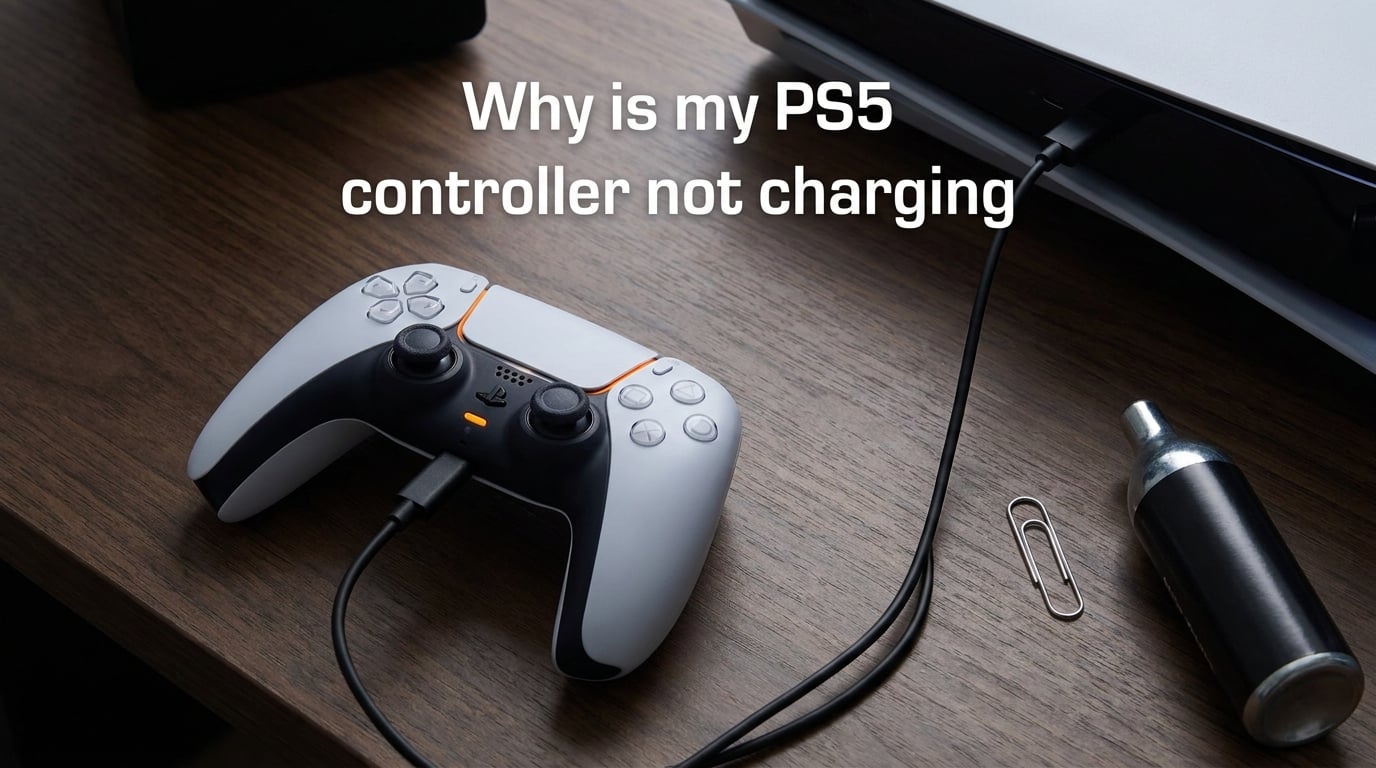
You plug in your PS5 controller after a gaming session, and nothing happens. No orange light, no response, nothing. If you are dealing with a PS5 controller not charging, you are not alone. This is one of the most common DualSense issues players face, and in most cases, the fix is simpler than you might think.
Your PS5 controller is likely not charging because of a faulty USB-C cable, a dirty charging port, incorrect rest mode settings, or a depleted battery that needs a reset. I have seen all of these issues firsthand, and the good news is that over 90 percent of charging problems can be fixed at home without any special tools.
In this guide, I will walk you through every possible cause and fix, step by step. Whether your controller shows no lights, blinks orange then dies, or works only when plugged in, we will cover the exact troubleshooting sequence that works. I have pulled solutions from PlayStation support, iFixit repair guides, and real user experiences from Reddit communities to give you the most complete resource available.
Step-by-Step Troubleshooting Guide: How to Fix a PS5 Controller Not Charging
Start with the simplest fixes first. Many PS5 controller not charging issues come from something as basic as the wrong cable or a clogged port. Work through these steps in order, and you will likely find your solution by step 3 or 4.
Step 1: Check Your USB-C Cable and Power Source
The number one cause of PS5 controller not charging problems is the cable itself. Not all USB-C cables are created equal. Some cables are power-only and cannot transmit the data signal the DualSense needs to initiate charging.
Use the official USB-C cable that came with your PS5. If you no longer have it, make sure your replacement is a data transfer cable, not just a charging cable. You can test this by plugging your controller into a PC. If the PC recognizes the controller as a connected device, the cable supports data transfer.
Try swapping cables entirely. I cannot count how many times a controller that refused to charge suddenly worked perfectly with a different cable. USB-C cables degrade over time, especially at the connector ends where bending and fraying occur internally.
Also test different power sources. Plug your controller directly into the PS5, try a wall adapter with USB-C output, and test it on a PC. If it charges on one source but not another, you have narrowed down the problem.
Step 2: Try Different USB Ports (Front vs Rear)
Here is something most guides miss: the front and rear USB ports on your PS5 deliver different power levels. The rear USB ports on the PS5 provide higher power output than the front USB-C port. If your PS5 controller is not charging when plugged into the front, move it to the back.
Multiple Reddit users in the r/PS5 and r/DualSense communities have confirmed this fix. The front USB-C port on the PS5 is a USB 2.0 port with lower power delivery, while the rear USB-A ports support higher power output. This difference matters when your battery is deeply depleted.
If your controller battery is completely dead, the front port may not provide enough current to wake it up. The rear ports can push more power, which is often enough to kickstart the charging process on a battery that has drained to zero.
I recommend keeping your controller connected to a rear port whenever possible, especially if you notice intermittent charging issues. This one change has resolved the problem for countless users who thought their controller was broken.
Step 3: Reset Your PS5 Controller
A software glitch can prevent your controller from accepting a charge even when the hardware is perfectly fine. The reset process clears these glitches and forces the controller back to a clean state.
Here is exactly how to reset your PS5 controller:
1. Turn off your PS5 console completely.
2. Look at the back of your DualSense controller. You will find a small hole next to the L2 shoulder button.
3. Insert a paperclip or SIM ejector tool into the hole. You will feel a tiny button inside.
4. Press and hold the button for 5 seconds.
5. Reconnect the controller to your PS5 using a USB cable.
6. Turn on your PS5 and press the PS button on the controller to re-pair it.
Now, here is the PS button trick that many users swear by. After resetting, keep the USB cable connected and press and hold the PS button. Several Reddit users report this triggers charging immediately, even on controllers that appeared completely dead. The PS button forces the controller to re-establish its handshake with the console, which can kickstart the charging circuit.
I have personally used this method on a controller that sat unused for three months. It showed zero signs of life until I held the PS button while connected, and the orange charging light appeared within seconds.
Step 4: Clean the Charging Port
Lint, dust, and pocket debris accumulate inside the USB-C port over time. This buildup prevents the cable pins from making proper contact with the controller’s charging terminals. A dirty port is one of the most common causes of PS5 controller not charging issues, and it is also one of the easiest to fix.
Signs your charging port needs cleaning include intermittent charging, the controller only charging at certain angles, or the orange light flickering on and off when plugged in. If you carry your controller in a bag or set it down frequently, debris will find its way in.
To clean the port safely, use compressed air to blow out loose debris. Hold the can upright and use short bursts. For stubborn debris, gently use a wooden toothpick or a plastic dental floss pick to scoop out lint from the port edges.
Never use metal tools like needles or paperclips to clean the charging port. Metal can short-circuit the pins or scratch the contacts, causing permanent damage. iFixit specifically warns against this, as it can destroy the port entirely and require a full motherboard-level repair.
After cleaning, shine a flashlight into the port and look for any remaining debris. The small contact pins should be visible and clean. Reconnect your cable and check if charging resumes.
Step 5: Check Rest Mode Settings
If your controller charges fine while you are playing but dies overnight, your rest mode settings are likely the culprit. The PS5 has a specific power saving setting that controls whether USB ports supply power when the console enters rest mode.
To fix this, go to Settings on your PS5, then select System, followed by Power Saving. Choose Features Available in Rest Mode. Look for the option called Supply Power to USB Ports and set it to either Always or 3 Hours. If this setting is set to Off, your controller will not charge in rest mode at all.
This is an official PlayStation support recommendation. Many users discover that their controller was not charging overnight simply because this setting got changed during a system update or was accidentally toggled off.
Also note that the newer PS5 model (CFI-2000) features adaptive charging. This technology adjusts power delivery based on the connected device. If you have this model, make sure your system software is fully updated, as adaptive charging requires current firmware to function correctly.
Step 6: Diagnose Battery and Hardware Issues
If none of the above steps work, you may be dealing with a hardware problem. The DualSense controller uses a lithium-ion battery that degrades over time. Under heavy use, these batteries typically last 12 to 18 months before showing significant capacity loss.
If your controller works perfectly while plugged in but dies immediately when disconnected, the battery has likely failed. The controller is drawing power directly from the USB cable rather than from the battery. This is a clear sign of a dead or degraded battery that needs replacement.
Battery replacement is possible but requires opening the controller. iFixit provides detailed guides for this process, and replacement batteries are available from third-party sellers. If your controller is still under warranty, contact PlayStation support first, as opening the controller yourself will void your warranty.
Other hardware issues that can prevent charging include a damaged USB-C port (from repeated rough insertion or drops), a faulty charging IC on the motherboard, or liquid damage. These issues require professional diagnosis and repair.
Signs Your PS5 Controller Battery Is Dead
Telling the difference between a dead battery and other charging issues can save you time and money. Here are the clearest signs that your DualSense battery has reached the end of its life.
No response at all. When you plug in the controller, there is no orange light, no blue light, nothing. Even after trying different cables and ports, the controller remains completely unresponsive. This often indicates either a dead battery or a damaged charging port.
Controller works only when plugged in. This is the most definitive sign of a failed battery. The controller functions normally while connected to USB but shuts off the instant you unplug it. The battery can no longer hold any charge, and the controller is running entirely on pass-through power.
Orange light blinks then stops. If the orange charging light appears briefly and then turns off, the battery may be unable to accept or hold a charge. This can also indicate a firmware issue, so try the reset method in Step 3 before concluding the battery is dead.
Battery percentage never increases. The controller connects and shows a battery icon, but the percentage stays at zero or does not rise despite hours of charging time. This points to a battery that can no longer accept charge from the power circuit.
If your controller is over a year old and shows any combination of these symptoms, battery replacement is the most likely solution. New replacement batteries cost a fraction of a new controller and can extend the life of your DualSense significantly.
Can You Charge a PS5 Controller While Playing?
Yes, you can charge your PS5 controller while playing, but it comes with caveats. The DualSense charges via USB when connected to the PS5, regardless of whether you are actively gaming or not.
However, charging while playing is slower than charging in rest mode. When you are gaming, the controller consumes power for the adaptive triggers, haptic feedback, light bar, and speaker. These features draw energy, which means the net charging rate is reduced compared to when the controller is idle.
If your battery is completely depleted, playing while charging may not provide enough net power to recover the battery. In this case, let the controller rest while connected to charge it fully before your next session.
For the fastest charge, connect your controller to a rear USB port and put the PS5 in rest mode. The controller charges most efficiently when it is not actively consuming power for gameplay features.
Also consider using a dedicated DualSense charging station. These stations connect to the controller’s bottom contacts and charge the battery without using the USB-C port at all. This avoids wear and tear on the USB-C connector and provides reliable charging independent of the port’s condition.
When to Seek Professional Repair
If you have tried every step in this guide and your PS5 controller still will not charge, it is time to consider professional repair. Start by checking your warranty status. PlayStation offers a one-year limited warranty on controllers, and if yours is still covered, contact PlayStation support for a repair or replacement.
Out of warranty, you have two main options. Professional repair services like iFixit offer mail-in repair for charging port and battery issues. DIY repair is possible if you are comfortable with electronics, but be aware that opening the controller risks damaging ribbon cables and internal components.
The DualSense Edge controller has user-replaceable stick modules, but the standard DualSense does not have any user-serviceable internal parts designed for easy access. If you attempt a battery or port replacement yourself, follow a detailed guide and work slowly.
FAQs
How do I reset my PS5 controller battery?
To reset your PS5 controller, turn off your PS5, then insert a paperclip into the small reset hole on the back of the controller near the L2 button. Hold the button for 5 seconds, then reconnect the controller via USB cable and press the PS button to re-pair it with your console. This clears software glitches that can prevent charging.
Why will my PlayStation 5 controller not charge?
Your PS5 controller may not charge due to a faulty USB-C cable, a dirty charging port, incorrect rest mode power settings, a depleted battery that needs a reset, or hardware damage. Start by trying a different cable and a rear USB port, then reset the controller and clean the charging port.
How do I get my PS5 controller to charge?
To get your PS5 controller charging again, use a data transfer USB-C cable, plug into a rear USB port on the PS5, press and hold the PS button while connected, and check that Supply Power to USB Ports is enabled in rest mode settings. Clean the charging port with compressed air if debris is present.
Why do PS5 controllers only charge when plugged into PS5?
PS5 controllers can charge from other sources like PCs and wall adapters, but the PS5 rear USB ports provide optimal power delivery. If your controller only charges on the PS5, the issue is likely that your other USB ports provide insufficient power output, or you are using a power-only cable that cannot initiate the data handshake required for charging.
Conclusion
A PS5 controller not charging is almost always fixable without buying a replacement. Start with the simplest solutions: swap your USB-C cable, try a rear USB port, and press the PS button while connected. These three steps alone resolve the majority of charging issues I have encountered.
If those do not work, move through the full troubleshooting sequence. Reset the controller with a paperclip, clean the charging port of debris, and verify your rest mode power settings. For older controllers showing clear signs of battery failure, a replacement battery can bring your DualSense back to life at a fraction of the cost of a new controller.
Remember, avoid using metal tools inside the charging port, always use data transfer cables, and prefer rear USB ports for the most reliable charging. If nothing in this guide solves your problem, reach out to PlayStation support or a professional repair service before purchasing a new controller.