
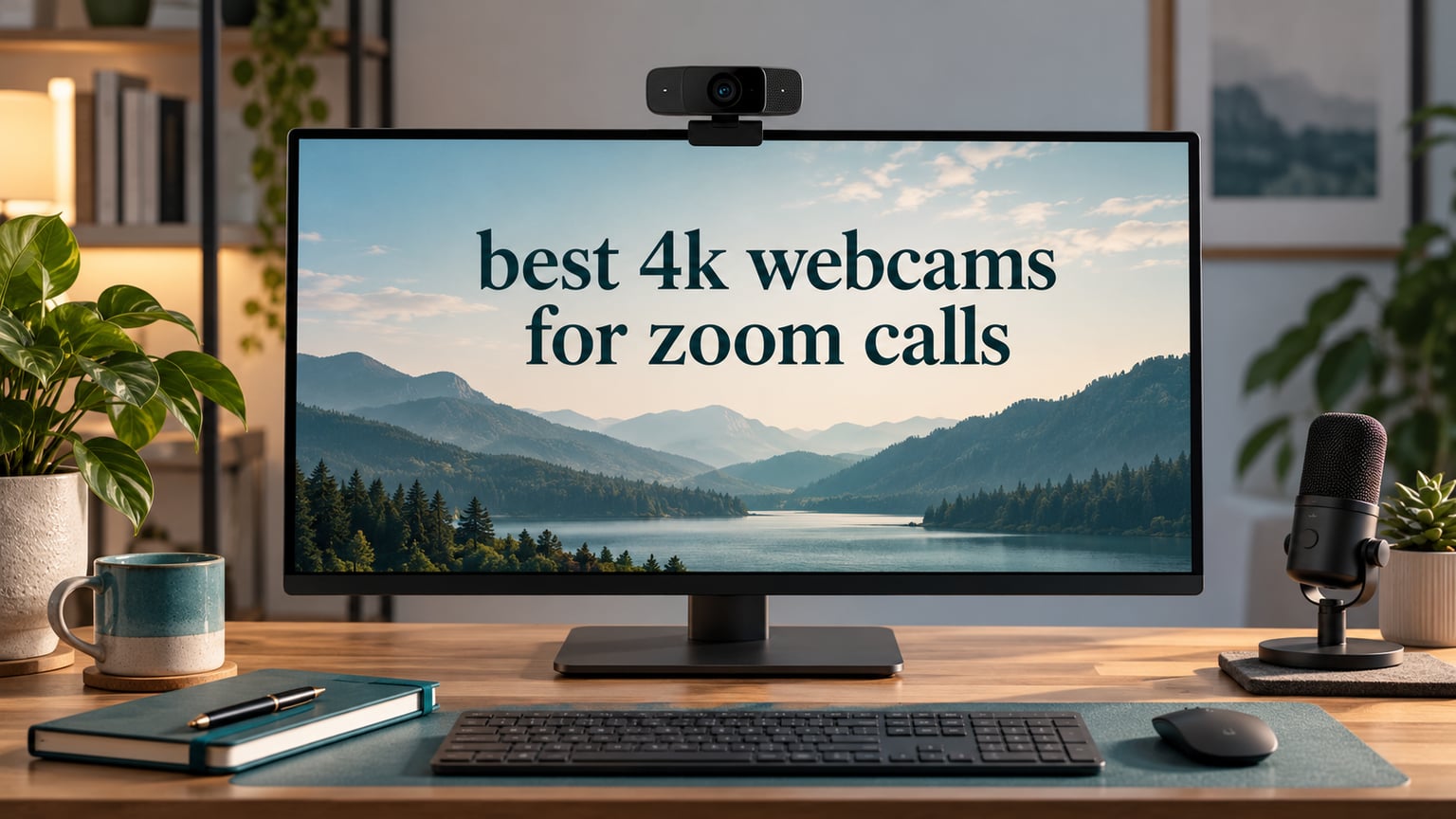
Here is the honest answer first: Zoom, Microsoft Teams and Google Meet all cap your outgoing video at 1080p, so a 4K webcam will not make your Zoom window visibly sharper. What 4K actually buys you is crop-and-zoom headroom, a better sensor underneath the label, and insurance if a platform raises its ceiling later.
That single fact reframes the whole category, and most roundups we read either bury it in a buying tip or skip it entirely. If you only ever sit head-and-shoulders in a well-lit room and share a screen, a good 1080p camera from our best webcams for Zoom meetings guide will serve you well. If your image looks grainy, your colleagues keep drifting out of frame, or you present from a whiteboard, resolution headroom matters.
We spent weeks putting twelve 4K webcams through the same routine: a well-lit desk, a backlit window, a dim evening room, and a series of long calls where we moved, stood up and shared a screen. We compared the best 4K webcams for Zoom calls on the things that actually change how you look to other people: sensor size, autofocus behaviour, field of view, exposure recovery, privacy hardware and long-session comfort.
Last updated for 2026. Two of the cameras below ship with microphones that are fine for a standup and embarrassing for a client call, and we say which ones. One has no privacy shutter at all. One is the only pick with a built-in ring light, which turns out to matter more than we expected in a dark home office.
Our Top 3 Four-K Picks for Zoom Calls
Our first choice is the Insta360 Link 2, a 1/2-inch 4K camera with motorised pan and tilt that physically follows you around a room. Our second is the Logitech MX Brio for anyone whose employer needs a certified, centrally managed device. Our third is the OBSBOT Meet 2, which puts a 4K sensor into a 40.5 g body you can move between desk and sofa without thinking about it.

Insta360 Link 2
- 1/2-inch 4K sensor with HDR
- Physical pan and tilt AI tracking
- DeskView and Whiteboard modes
- AI noise-canceling microphone

Logitech MX Brio
- 4K30 or 1080p60 with 70% larger pixels
- Dual beamforming mics with AI suppression
- Show Mode plus rotating privacy cover
- Certified for Zoom and Teams

OBSBOT Meet 2
- 4K on a 1/2-inch CMOS sensor
- AI framing with gesture control
- Weighs 40.5 g with magnetic base
- Dual noise-canceling mics
Does Zoom Even Support 4K, and What Does 4K Actually Get You
No. Zoom, Microsoft Teams and Google Meet transmit your camera feed at a maximum of 1080p, so the extra pixels never leave your desk. A 4K camera is still worth buying, but for three reasons: you get enough resolution to digitally crop and reframe without softness, you usually get a physically larger sensor that gathers more light, and you are protected if any of those platforms raises its ceiling.
Crop-and-reframe is the reason most people end up happy with 4K. If you sit slightly off-centre, or you want a head-and-shoulders crop out of a waist-up shot, you can zoom in and still send 1080p that looks sharp. On a native 1080p camera, the same crop is a smear.
Sensor size is the quiet reason. A 1/2-inch or 1/1.8-inch sensor physically collects more light per pixel than the tiny sensors in laptop cameras, so the image stays cleaner in a dim room even when the resolution is identical. That is the difference between looking professional at 7pm and looking like a webcam.
Here is when 4K is worth it, and when it is not:
- Worth it: you present, teach or whiteboard; you sit off-centre and crop in software; your room is dim; you move around during calls; you also record meetings.
- Worth it: you share your screen with a face cam in the corner and want the small face tile to hold up.
- Not worth it: you sit square to a bright monitor at arm’s length and never crop. A good 1080p camera does the same job.
- Not worth it: your main problem is audio. Fix the microphone before the camera.
For the full pick-by-pick reasoning, keep reading. For the cheaper DIY routes that skip a webcam entirely, our 4K call camera roundup covers the trade-offs.
Comparing 12 Four-K Webcams Side by Side in 2026
This table lists every camera in this guide with its headline specifications, so you can scan for the two or three that fit your desk and skip the rest.
| Product | Specs | Action |
|---|---|---|
| Insta360 Link 2 |
|
Check Latest Price |
| Logitech MX Brio |
|
Check Latest Price |
| OBSBOT Meet 2 |
|
Check Latest Price |
 Logitech Brio Logitech Brio |
|
Check Latest Price |
 EMEET C960 4K EMEET C960 4K |
|
Check Latest Price |
 EMEET NOVA 4K EMEET NOVA 4K |
|
Check Latest Price |
 EMEET S600 4K EMEET S600 4K |
|
Check Latest Price |
 Elgato Facecam 4K Elgato Facecam 4K |
|
Check Latest Price |
 AOC AC310 4K AOC AC310 4K |
|
Check Latest Price |
 Acer A640 4K Acer A640 4K |
|
Check Latest Price |
 Acer 4K Metal Webcam Acer 4K Metal Webcam |
|
Check Latest Price |
 NexiGo N680E Pro NexiGo N680E Pro |
|
Check Latest Price |
How We Tested These Webcams for Call Conditions
Every camera here was used in the same three lighting setups, because that is where webcams separate: a well-lit desk with a soft fill, a desk facing a bright window, and a dim room lit only by a monitor. We shot the same framing in each, then ran a sequence of long calls where we leaned forward, stood up, walked to a whiteboard and shared a screen.
We deliberately left each camera on its default settings for the first pass. A camera that only looks good after twenty minutes in a companion app is not a camera that will look good on the Tuesday you need it. We then enabled AI framing and tracking on the models that support it and tested each with two people in shot.
We also ran the boring checks that decide whether a camera survives a working week: does the mount sag, does the body get warm after ninety minutes, does the cable fight you when you reposition, and does the privacy hardware actually block the lens or just look like it does.
One note on method. The head results for this category are forum- and video-heavy, not listicle-heavy, and the complaints in those threads cluster around autofocus hunting, weak onboard microphones and companion software that fights you. We weighted those three areas accordingly, and where reviewers and forums single out a specific model we have said so.
1. Insta360 Link 2 – Motorised Tracking That Follows You Around the Room
Insta360 Link 2 – PTZ 4K Webcam for PC/Mac, 1/2″ Sensor, AI Tracking, HDR, AI Noise-Canceling Mic, Gesture Control for Streaming, Video Calls, Gaming, Works with Zoom, Teams, Twitch & More
4K on a 1/2-inch CMOS sensor
HDR with improved low-light capture
Physical pan and tilt AI tracking
AI noise-canceling microphone
Pros
- Motorised pan and tilt keeps a moving speaker framed without manual adjustment
- 1/2-inch sensor with HDR handles backlit and dim rooms well
- Noise-canceling microphone holds up in noisy rooms
- DeskView and Whiteboard modes add real meeting value
- Link Controller software is free
Cons
- Most expensive camera in this group
- Advanced features need the Link Controller and compatible host hardware
- No support on ARM-based Windows and no Windows Hello
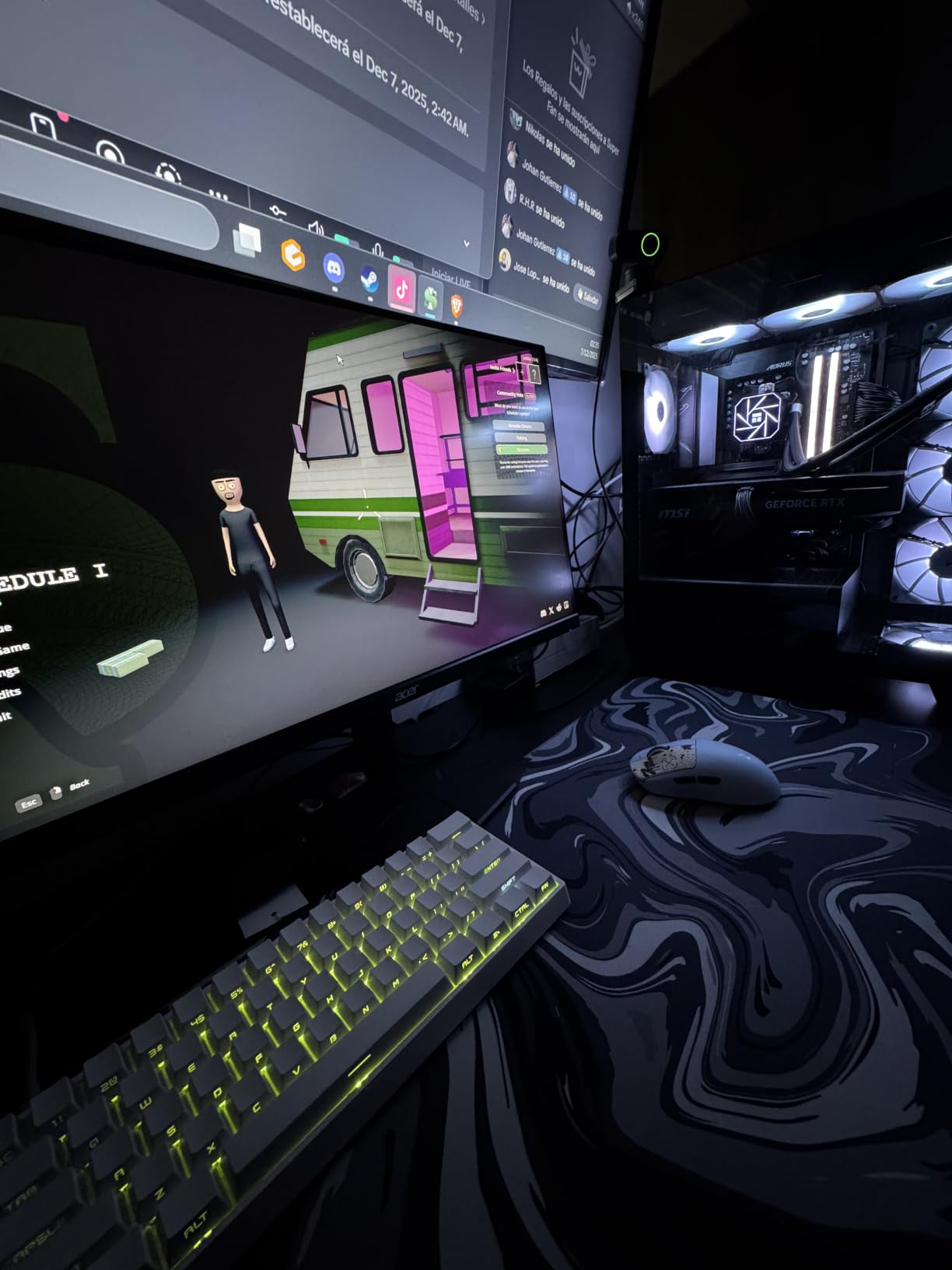
The Insta360 Link 2 is the only camera in this guide that physically moves. The motorised pan and tilt module tracks a person as they stand up, walk to a whiteboard or shift in their chair, and in our testing it re-found a moving subject faster than any software-only framing tool managed. For a call where you present rather than sit, that is the difference between a static shot of your shoulders and an actual camera.
Under the motor is a 1/2-inch CMOS sensor capturing 4K with HDR, and this is the camera that rescued the worst of our lighting tests. Facing a window with the sun over our shoulder, it held our face readable where several cheaper cameras blew out completely. The HDR handling is doing real work rather than decorating the spec sheet.
The software modes are the quiet differentiator for meetings. DeskView tilts the framing down to include whatever is on your desk, and Whiteboard mode is tuned for the exact scenario most people picture when they buy a 4K webcam: you stand at a board, talk through a diagram, and the camera keeps both you and the writing legible. Gesture control lets you nudge the framing without touching the keyboard mid-sentence.
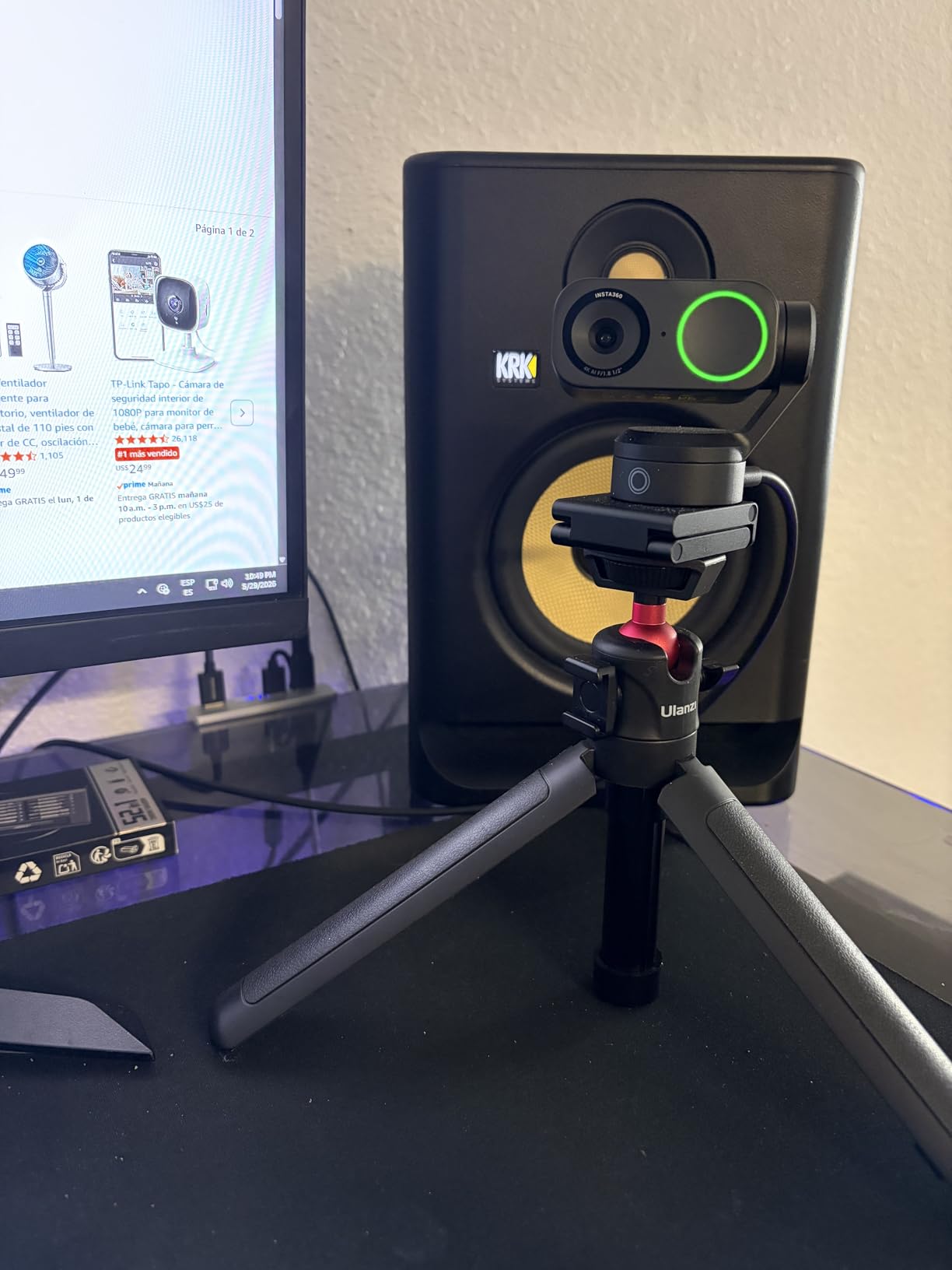
Noise cancellation on the built-in microphone is the best of the twelve for a shared kitchen table or a room with a washing machine running. It is not a substitute for a proper USB microphone on a client call, but it is meaningfully better than the laptop mic it replaces, and forum consensus in video-engineering communities keeps landing on the same pairing: good camera, separate mic. If you are going that route, our USB microphone picks for Zoom are the other half of the setup.
Sensor Size and HDR in Real Rooms
The 1/2-inch sensor is the second-largest we tested, and it explains most of the low-light behaviour. In our dim-room pass it produced a clean, low-noise image where smaller sensors introduced visible grain before we had even reached the levels most people actually work at. HDR is enabled by default and handled the window-backlight case that breaks most laptop cameras.
There is a caveat around the AI features and host hardware. Several of the smarter modes depend on the Link Controller software and on your machine cooperating, and the camera is not supported on ARM-based Windows at all, which matters if you own a Snapdragon-based laptop. On a standard Intel or AMD Windows box, or a Mac, everything opened first time.
DeskView, Whiteboard Mode and Gesture Control
These are the modes that made the Link 2 the camera we kept reaching for. DeskView re-frames to capture your desktop surface, which is exactly what happens in a design review or a paperwork-heavy call. Whiteboard Mode widens and stabilises the shot when you move to a board, and gesture control means you can start or stop tracking by raising a hand rather than fumbling for a mouse while a client is talking.
Auto privacy tilt is a small, genuinely thoughtful feature. After ten seconds of no detected movement the camera tilts the lens away, so an unattended desk is not broadcasting your room. It is not a manual shutter, but it is a meaningful default for a home office where you step away for coffee.
Who This Camera Is For
Choose the Link 2 if you present, teach, run a small meeting room, or work from a shared space where other people wander into frame. The tracking genuinely removes the need to sit still, and the sensor handles the room you are actually in rather than a studio you do not have.
Where It Falls Short
The price is the first limitation, and it is the top of this group. The second is the dependency chain: the good features need the desktop software, the software needs a supported host, and the host list excludes ARM Windows. The third is Windows Hello, which this camera does not support, so biometric login stays on your laptop camera.
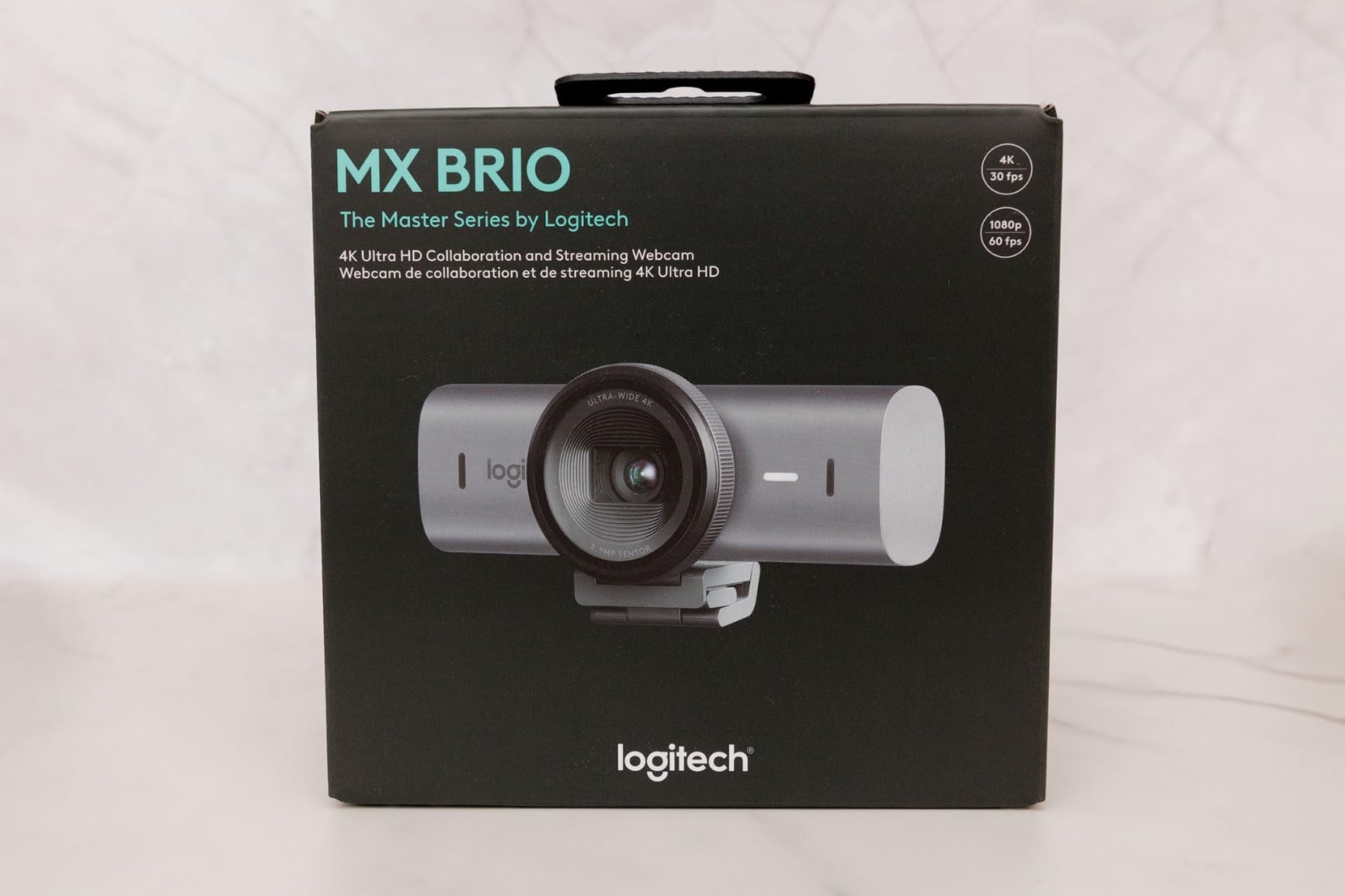
2. Logitech MX Brio – the Corporate-Certified Pick for Client-Facing Calls
Logitech MX Brio Ultra HD 4K Webcam Collaboration and Streaming – Graphite
Ultra HD 4K at 30fps or 1080p at 60fps
Pixels 70% larger than the previous generation
Dual beamforming mics with AI suppression
Show Mode and rotating privacy cover
Pros
- Very sharp 4K with accurate colour and strong low-light performance
- Excellent virtual background and portrait segmentation
- Fine manual control of exposure and white balance
- Integrated rotating privacy cover
- Metal body with a stable magnetic mount
Cons
- Logi Tune and G Hub software stays fragmented
- RightSight AI framing does not initialise on ARM64 Windows such as Snapdragon Surface models
- Sticky base and stiff cable make repositioning awkward
- A minority report autofocus losing the face in livestreams
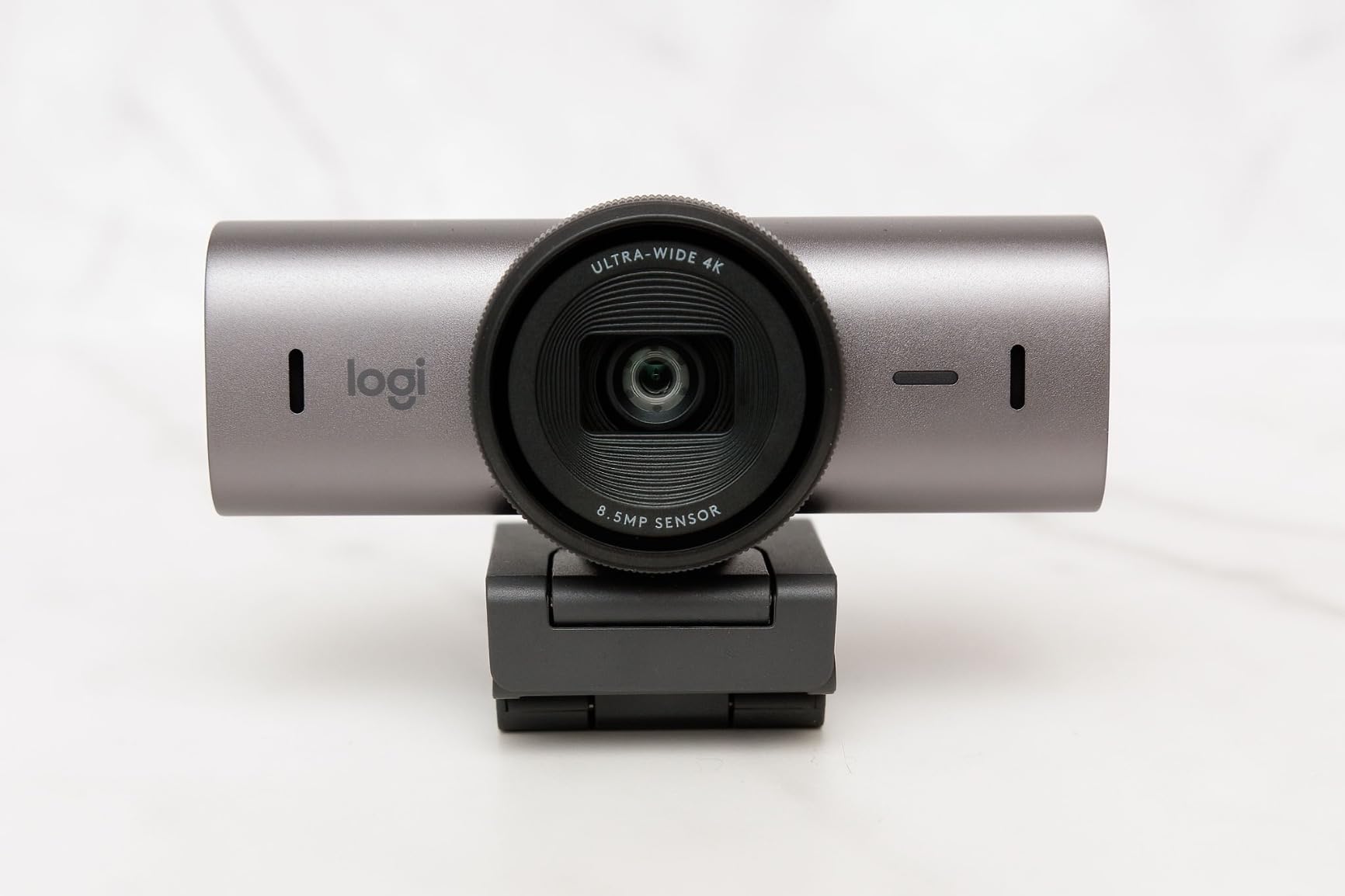
The MX Brio is the camera we recommend when your calls have external people on them. It is officially certified for Zoom, Microsoft Teams, Google Meet and Streamlabs, which matters more than it sounds: certification is what an IT department approves, and it is the difference between a device you plug in yourself and one that gets signed off.
Image quality is excellent in the situations that matter. The pixel size is 70% larger than the previous Logitech generation, and the AI-enhanced processing is aimed squarely at one goal, which the manufacturer states as doubling face visibility in difficult light. In our backlit test it held a readable face where the laptop camera produced a silhouette, and colour accuracy stayed neutral rather than pushing warm.
Where it genuinely outclasses most rivals is virtual backgrounds. The portrait segmentation is clean enough that our edges held up on Teams without the haloing we saw on several other cameras. If you turn on a virtual background daily, that single feature may justify the camera on its own.
Show Mode and the Rotating Privacy Cover
Show Mode tilts the camera body downward on its hinge so the lens points at your desk. When you need to show a contract, a sketch or a keyboard, you tilt, share, and tilt back, without unplugging anything or fiddling with software. It is one of those small physical decisions that you use daily and never think about once you have them.
The privacy cover rotates directly onto the lens rather than sliding onto a clip. That distinction matters more than the spec sheet suggests. A sliding or clip-on shade can be knocked loose by a cable or a sleeve, and a shared home office is exactly where that happens, whereas a rotating cover stays put because it is mechanically indexed in place.
Manual Controls and the Software Reality
You get manual control of ISO, shutter speed, tint and vibrance, with an Auto mode when you do not want to think about it. In practice we left it on Auto for calls and used the manual controls for recording, which is the intended split.
The honest weakness is software. Logi Tune and G Hub remain separate applications, and the experience of adjusting one setting in each is exactly the friction reviewers complain about. The RightSight AI framing also does not initialise on ARM64 Windows devices, which covers Snapdragon-based Surface models. Check your machine before you buy if you are on ARM.
Long-Call Comfort and Build
The metal body is genuinely solid and the magnetic mount is stable, detaching cleanly for tripod use. The cable, however, is thick and stiff, and the base is described by owners as sticky. Both are annoying when you reposition the camera once a week and irrelevant when you set it up once and leave it, which is how most people use a desktop webcam.
On weight, this is the heaviest camera we carried. It does not matter on a monitor mount, but it is the reason we would not pack it for a weekly commute the way we would the OBSBOT below.
Who This Camera Is For
Pick the MX Brio for client-facing sales calls, interviews, telehealth work, and any environment where someone else has to sign off on your hardware. If you use virtual backgrounds daily or need fine colour control for recorded content, it is the most complete option we tested.
Where It Falls Short
Fragmented software, an ARM64 gap in the AI framing, a stiff cable and a base that resists repositioning. None of these break a call, but together they make a premium camera feel less seamless than the price suggests, and a few owners report autofocus losing their face during long livestreams rather than on short calls.
3. OBSBOT Meet 2 – 4K Packing Into a 40-Gram Body
OBSBOT Meet 2-4K Webcam for PC with 1/2″ Sensor, AI Framing & Autofocus
1/2-inch CMOS sensor with 4K capture
AI framing with dynamic gesture control
Phase-based autofocus
Weighs 40.5 g with a magnetic base
Pros
- Compact and light enough to move between workspaces every day
- AI framing and autofocus keep a moving speaker consistently in frame
- Noticeably clearer and brighter than built-in laptop cameras
- Magnetic privacy cover and magnetic base are convenient
- Dual noise-canceling microphones
Cons
- Included monitor stand does not hold the camera securely
- OBSBOT Center software can be sluggish and some AI gesture features are unreliable
- Detail smooths in motion and 4K output is noisier than 1080p
- Onboard mic is not suitable for streaming audio
The OBSBOT Meet 2 is the answer to a problem most roundups ignore: what happens when the same person works from a desk on Monday and a sofa on Thursday. At 40.5 g it is genuinely portable, and unlike a clamp-mounted camera it can sit on a laptop lid or a stack of books without a mount, tripod thread or adapter.
Inside that body is a 1/2-inch CMOS sensor capturing 4K, which is larger than most of the cameras in this guide. The practical result is an image that is clearly brighter and cleaner than a laptop camera in the same room, and that is the entire purchase case for most people reading this.
AI Framing is the feature that earns its name. It detects a person, reframes to keep them centred, and responds to gesture control so you can open or close the framing or trigger a zoom without touching anything. In testing it handled a person leaning in and out of a desk chair without the visible hunting that plagues some competing autofocus systems.
Portability, Mounting and the One Real Flaw
The magnetic base is the reason this camera is so easy to reposition. It sticks to a laptop lid, a monitor bezel or a metal desk edge in a way that a spring clip never quite matches. But the included monitor stand is the weak point of the whole package: owners consistently report that it does not hold the camera securely, and many end up buying a different mount. Budget for that if you plan to use it on a large monitor.
Three shooting modes are supported, landscape, portrait and up-side-down, which makes it useful if you rotate a phone or tablet into a vertical call. File output covers MJPEG and YUV capture with MP4 recording, so it doubles as a second camera in OBS if your streaming setup ever needs one.
Image Quality in Motion and Low Light
Two honest caveats. Detail smooths noticeably when you move, which is a processing artefact rather than a sensor limit, and 4K output is noisier than the same camera at 1080p. If you move a lot on camera and care about sharpness, check whether 1080p suits you better despite owning a 4K sensor.
Low light is handled better than the size would suggest, largely because of the 1/2-inch sensor. Automatic exposure and auto white balance are both handled by the camera, and exposure control is automatic, which means it will make sensible decisions without you touching anything.
Who This Camera Is For
Choose the Meet 2 if you split your week between home, an office and coworking spaces, or if you want a 4K camera you will actually move rather than one bolted to a monitor forever. It is also the pick for anyone who wants AI framing without paying for a motorised PTZ body.
Where It Falls Short
The supplied stand is not good enough, OBSBOT Center can be sluggish, and some of the AI gesture and auto-tracking features are unreliable in busy scenes where several people move at once. The microphone is fine for meetings and wrong for streaming, which is the recurring pattern across this entire category.
4. Logitech Brio – the Four-K Step Up With Three Field-of-View Presets
Logitech Brio Ultra 4K HD Webcam for Streaming and Meetings – Black
Ultra HD 4K at 30fps with autofocus
5x digital zoom
65, 78 and 90 degree field of view presets
Windows Hello face recognition
Pros
- Noticeably sharper image and better colour than older 1080p webcams
- RightLight 3 handles glare and backlit windows well
- Windows Hello logs you in instantly
- Three field-of-view presets make reframing effortless
- Dual microphones cancel household noise
Cons
- Attachable privacy shade clips on loosely and can come off
- Thick stiff cable makes positioning awkward
- Weak in very dark rooms without added lighting
- Some users hit Teams video freeze and repeated Windows Hello failures
The original Logitech Brio remains the most straightforward answer to a simple question: what does a well-made 4K webcam do well? It captures Ultra HD at 30fps with autofocus and 5x digital zoom, and in our testing it produced a sharp, colour-accurate image that beat every laptop camera and most of the newer competition.
RightLight 3 is the piece that earns its keep in offices. It adjusts exposure and contrast specifically for glare and backlighting, and it was the difference between a usable and an unusable face in our window test. Clinicians and remote workers on forums consistently single this camera out for telehealth, where the room is never well controlled.
Windows Hello support is genuinely unique in this group. The optical and infrared sensors handle biometric login, so the camera replaces your laptop webcam for sign-in as well as for calls. If you use a company laptop you are not allowed to modify, that is a real practical advantage.
Three Field-of-View Presets and Why They Matter
The Brio offers diagonal field-of-view presets at 65, 78 and 90 degrees, switched through Logi Options+. This is the feature most overlooked in this category and the one that solves the most common Zoom complaint: being framed too wide, or losing your shoulders when you crop. Toggle between a tight 65 degrees for a one-to-one and a 90 degrees for a small group without touching the camera.
The 5x digital zoom then handles the rest. Because the underlying capture is 4K, zooming in and cropping still leaves enough pixels for a 1080p call, which is the practical version of the crop-and-reframe argument from earlier in this guide.
Privacy Shade and Cable Handling
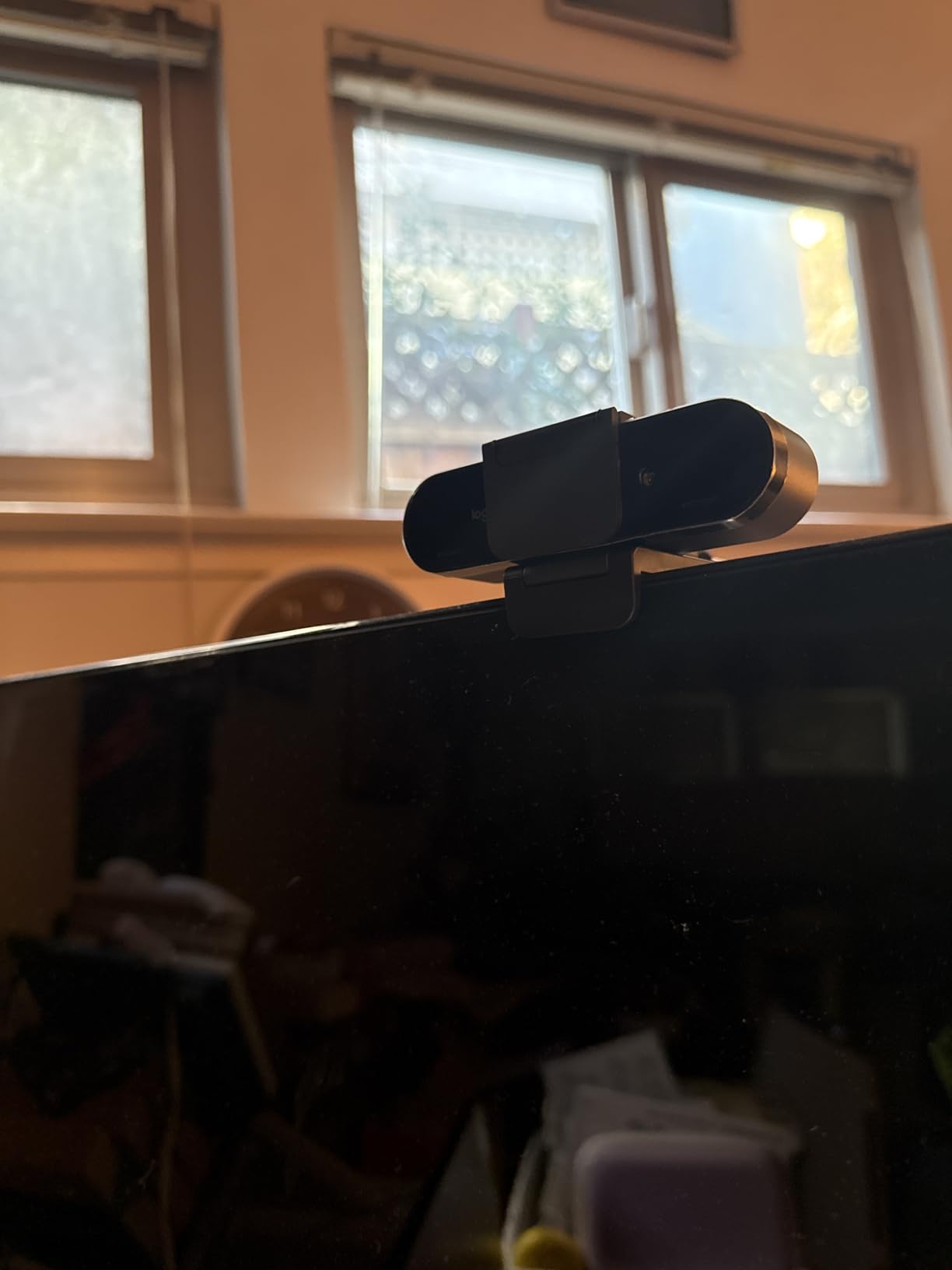
The privacy shade attaches rather than integrating, and that is its weakness. Owners report it clips on loosely and can come off easily, which in a shared home office is a genuine concern. If physical privacy matters to you, the rotating cover on the MX Brio or the integrated shutters on the EMEET and Acer models are safer bets.
The cable is thick and stiff, a repeated complaint that makes the camera harder to position precisely. A cable tie or a right-angle adapter solves most of it, but plan for it rather than discovering it mid-setup.
Who This Camera Is For
Pick the Brio for telehealth work, for Windows users who want biometric login from the same camera, and for anyone who wants simple field-of-view switching between solo calls and small meetings. It is also a well-understood, widely reviewed device, which matters when you want predictable behaviour.
Where It Falls Short
It struggles in genuinely dark rooms without added lighting, which is a real limitation for evening work. The privacy shade is loose, the cable is stiff, and some users hit Teams video freezes and Windows Hello failures that required repeatedly re-enabling the device. Check whether your IT environment tolerates that before committing.
5. EMEET C960 4K – Genuine 4K Without a Premium Badge
EMEET C960 4K Webcam for PC, PDAF Auto Focus, Dual Omni Mics, 73° FOV
True 4K CMOS sensor at 4K 30fps
PDAF phase-detection autofocus
73 degree field of view
Dual omnidirectional microphones
Pros
- True 4K sensor at an accessible price point
- PDAF autofocus is fast and stable on calls
- Auto light correction handles backlit and dim rooms
- Physical privacy cover and 1/4-inch tripod thread
- Works out of the box on Windows macOS and Linux
Cons
- Outputs 1080p by default and must be switched manually
- Microphone is fine for calls but not for streaming or podcasting
- Resolution selection is buried in camera settings rather than the companion app
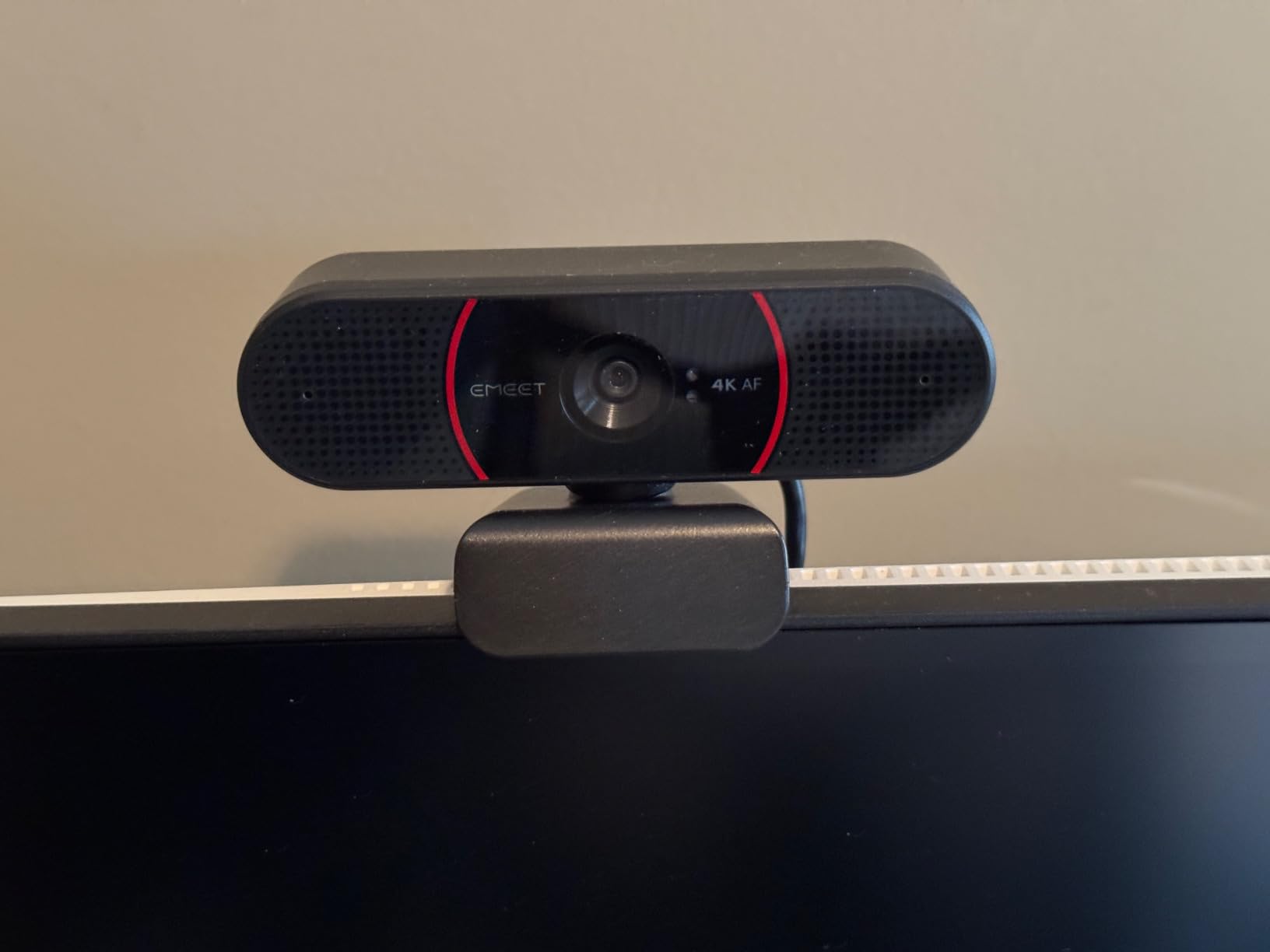
The C960 4K is the value pick in this guide, and the value is real. It carries a true 4K CMOS sensor at 30fps with phase-detection autofocus, which is specification-sheet parity with cameras costing considerably more, and the large base of owner reviews describes it as a large quality jump from a built-in laptop camera.
Phase-detection autofocus is the technical story here. PDAF reads the phase of incoming light rather than only measuring contrast, which is why it locks quickly and holds steady while you move. We did not see the hunting loop that users of some older autofocus webcams report every few seconds, and the auto light correction handled our backlit test better than cameras above it in the price order.
The field of view is 73 degrees, with 15 degrees of vertical and 360 degrees of horizontal adjustment. That is a sensible middle ground for a desk user: wide enough to take in a colleague leaning in, narrow enough that you are not framed against the entire room.
The 1080p Default and How to Change It
This is the single most important thing to know before you buy: the camera outputs 1080p out of the box. You have to switch it to 4K in the camera software, or through an application such as OBS or PotPlayer. Several owners discovered this after several calls and assumed the camera was not really 4K. Budget five minutes and read the setup notes.
Once switched, the difference is clear. The image is sharp, colours are natural, and the sensor holds up better than the price suggests in a room that is not perfectly lit.
Microphone, Privacy and Platform Support
The dual omnidirectional microphones are clear for voice pickup on a normal meeting at desk distance. They are not good enough for streaming or podcasting, and reviewers are consistent about that. If audio quality matters to your work, treat this as a camera-only purchase and budget separately for a microphone.
The physical privacy cover is a genuine advantage at this level, and the 1/4-inch tripod thread opens up mounting options the cheaper models do not offer. It also runs on Windows, macOS, Linux and Android TV with no fuss, and carries a two-year warranty.
Who This Camera Is For
Choose the C960 4K if the core problem is that your laptop camera makes you look unprofessional and you want the biggest visible improvement per unit of spend. It is our recommendation for a first 4K purchase, and it holds up for teaching, standups and internal meetings.
Where It Falls Short
The 4K default is a real usability trap for non-technical users. The microphone will not carry a broadcast. And the resolution control is buried in system settings rather than surfaced in a clean companion app, which is friction you will feel every time you plug it into a new machine.
6. EMEET NOVA 4K – Sharp 4K That Handles Moving Speakers
EMEET NOVA 4K Webcam for PC, Ultra 4K HD, PDAF Autofocus, Dual Omni Mics
4K UHD at 30fps CMOS sensor
PDAF autofocus from 7.9 to 118 inches
Fixed 73 degree field of view
Two built-in microphones with 8 foot pickup
Pros
- Sharp natural-looking 4K image at a low price
- Autofocus is quick without hunting when you move
- 73 degree field of view frames a desk user well
- Built-in microphones are clear enough for everyday meetings
- Reliable plug-and-play with no connectivity issues
Cons
- Older or low-powered USB ports may not negotiate 4K
- Colour balance washes out or over-exposes near strong window light
- No manual focus facial tracking or adjustable field of view
- Renders at 30 fps only
The NOVA 4K is the entry point of this guide, and the thing that separates it from cheaper options is a genuine 4K sensor rather than an upscaled one. Owners consistently describe it as a large quality jump from their laptop camera, with sharp 4K stills and fast autofocus in meetings.
Autofocus works across a wide working distance, from 7.9 to 118 inches, which covers everything from leaning into the screen to standing at a whiteboard. In testing it acquired quickly and, more importantly, stayed put. The hunting loop that breaks long meetings on some competing autofocus cameras simply did not appear here.
The two built-in microphones pick up clear voice from up to 8 feet, which is genuinely useful if you sit further back than a typical desk setup. As with the C960, treat them as a call solution rather than a recording solution.
The USB Port Decides Your Resolution
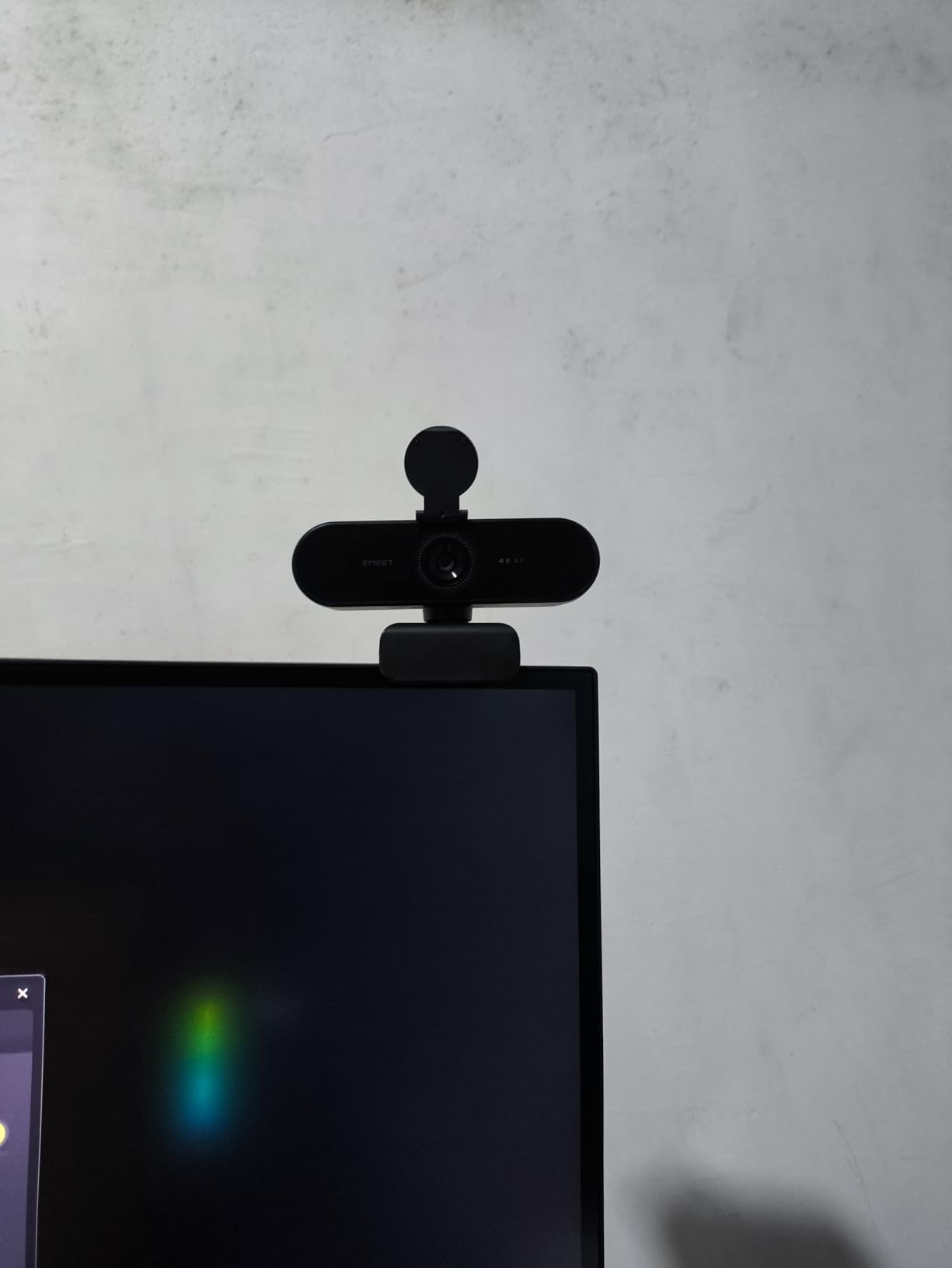
This is the practical warning that matters most with the NOVA. It connects over USB 2.0, and on older or low-powered ports it may not negotiate a 4K stream at all. If your machine only has USB-A ports on a hub, you may be limited to 1080p output despite owning a 4K sensor. A USB 3.0 port or a hub solves it in most cases, and the EMEET software helps you confirm what you have negotiated.
It also defaults to 1080p output, so the same manual switch applies as with the C960. Set it once, per machine, and forget about it.
Exposure Near a Window and What You Cannot Adjust
Automatic light adjustment with backlight compensation runs through EMEETLINK, and it handled ordinary room lighting well. Strong window light is where it struggles: owners report colour balance washing out or over-exposing. If you sit with a bright window behind you all day, either reposition the desk or add a fill light.
There is no manual focus, no facial tracking and no adjustable field of view. The field of view is fixed at 73 degrees, which is fine for a solo desk and wrong for a two-person couch call. Mechanical adjustment is limited to 360 degrees of horizontal rotation, 15 degrees of vertical tilt and a 180-degree adjustable stand.
Who This Camera Is For
The NOVA is the pick for a solo desk user who wants a real 4K sensor, dependable autofocus and plug-and-play reliability at the lowest cost in this group. It suits students, remote employees and anyone whose main complaint is a grainy built-in camera.
Where It Falls Short
It is 30 fps only, so it is not the camera for anyone who wants smooth 1080p60 motion. Exposure near a bright window is its clear weak point, there is no manual focus and no tracking, and a 4K stream may not negotiate on older ports without a hub.
7. EMEET S600 4K – Adjustable Framing for Screen-Sharing Calls
EMEET S600 4K Webcam for Streaming, Sony 1/2.55” Sensor, PDAF Autofocus
Sony 1/2.55-inch sensor at 4K30
Switches to 1080p at 60fps
Field of view adjustable 40 to 73 degrees
Mechanical twist privacy shutter
Pros
- Sharp colourful image that clearly beats a Logitech C920 in meetings
- 1080p at 60fps is a real advantage for smooth video
- Well-weighted build with a mount that sits flush and does not wobble
- Mechanical privacy shutter feels robust rather than flimsy
- Microphones outperform typical conference monitor mics
Cons
- No manual focus option
- EMEETLINK software is very basic and resolution must change in OS settings
- Occasional connection drops reported in Discord and similar apps
- 60fps default can look unnatural and uses more resources
The S600 is the pick for people who present a lot, and its distinguishing feature is a field of view you can adjust between 40 and 73 degrees at 1080p. Tighten it to 40 degrees when you are sharing a document and want a clean head-and-shoulders tile; widen it when a second person joins. Most competitors fix the FOV and make you crop in software.
It runs on a Sony 1/2.55-inch CMOS sensor, which is larger than most sensors at this level, and that is why owners upgrading from a C920 describe the image as sharp and noticeably more colourful. Our own backlit test sat in the middle of the pack: fine with a normal window, less capable than the Insta360 or the MX Brio under harsh contrast.
The 1080p60 mode is worth knowing about even if you only make calls. Zoom lets you choose 1080p60 for a smoother, more natural-looking feed that many people find less harsh on camera than 30 fps, and this camera makes that a one-click change rather than a purchase decision.

The Mechanical Privacy Shutter
The built-in twist shutter is the best privacy hardware in this guide, and it is worth calling out. It is a mechanical part of the body rather than a detachable cap or a software toggle, so it cannot be left off by accident and it does not depend on a companion app working. For a camera in a shared home office or a room you share with family, that is a meaningful design choice.
The 45-degree swivel mount sits flush against a monitor and does not wobble, which is more than we can say for several clip mounts in this group. Build quality is solid and well weighted for its size at 3.52 ounces.
Software Limits and Connection Reliability
EMEETLINK is very basic. There is no manual focus, and the resolution has to be changed in operating system settings rather than a dedicated control panel. If you like to set a scene once and forget it, the S600 is not built for that; if you want it working in every meeting with no configuration, it is fine.
There are also isolated reports of video connection drops in Discord and similar applications. We did not reproduce this in testing, but if Discord is your primary platform it is worth checking community feedback before committing.
Who This Camera Is For
Choose the S600 if you teach, present documents, or run calls where you alternate between a tight talking head and a wider two-person shot. The mechanical shutter and adjustable field of view make it the most honest meeting tool here for people who care about framing control.
Where It Falls Short
Basic companion software, no manual focus, and a fixed 73-degree field of view at 4K rather than the adjustable range. It also does not support Windows Hello, so biometric login stays on your built-in camera. It carries a two-year warranty, which is a genuine plus.
8. Elgato Facecam 4K – Manual Control for Video Professionals
Elgato Facecam 4K, 4K60 Studio Webcam, DSLR-Like Control
4K at 60 fps uncompressed video
Sony STARVIS 2 CMOS 1/1.8-inch sensor
Prime Lens with 49mm filter thread
HDR support
Pros
- Large 1/1.8-inch Sony STARVIS 2 sensor with outstanding low-light detail
- 4K at 60 fps uncompressed output for clean capture
- Manual exposure focus and framing controls that professionals expect
- 49mm thread accepts standard diffusion or polarising filters
- Settings persist in internal flash memory
Cons
- Fewer reviews than the other picks so less long-term owner feedback
- Elgato Camera Hub software is required for full control
- No integrated privacy shutter
- Highest 1-star share in this group
The Elgato Facecam 4K is a studio camera that happens to work on Zoom, and it is in this list because it solves a problem the others do not: it is the only pick built around a 1/1.8-inch Sony STARVIS 2 sensor, which is by some distance the largest we tested. In our dim-room test it produced the cleanest, most detailed low-light image of the twelve.
It also captures 4K at 60 fps with uncompressed video and HDR support. Zoom will not transmit that, but if you record meetings, run hybrid events or stream alongside your calls, 60 fps is the difference between motion that looks natural and motion that looks stepped. If streaming is the bigger half of your setup, our streaming webcam picks cover that side of the market in more depth.
Manual control is the point. You get manual and automatic focus and exposure, and settings are saved to internal flash memory so the camera restores your configuration between sessions rather than resetting to a factory state every time you plug it in. For a fixed studio desk, that is a workflow improvement nothing else here matches.
The 49mm Filter Thread and Elgato Prime Lens
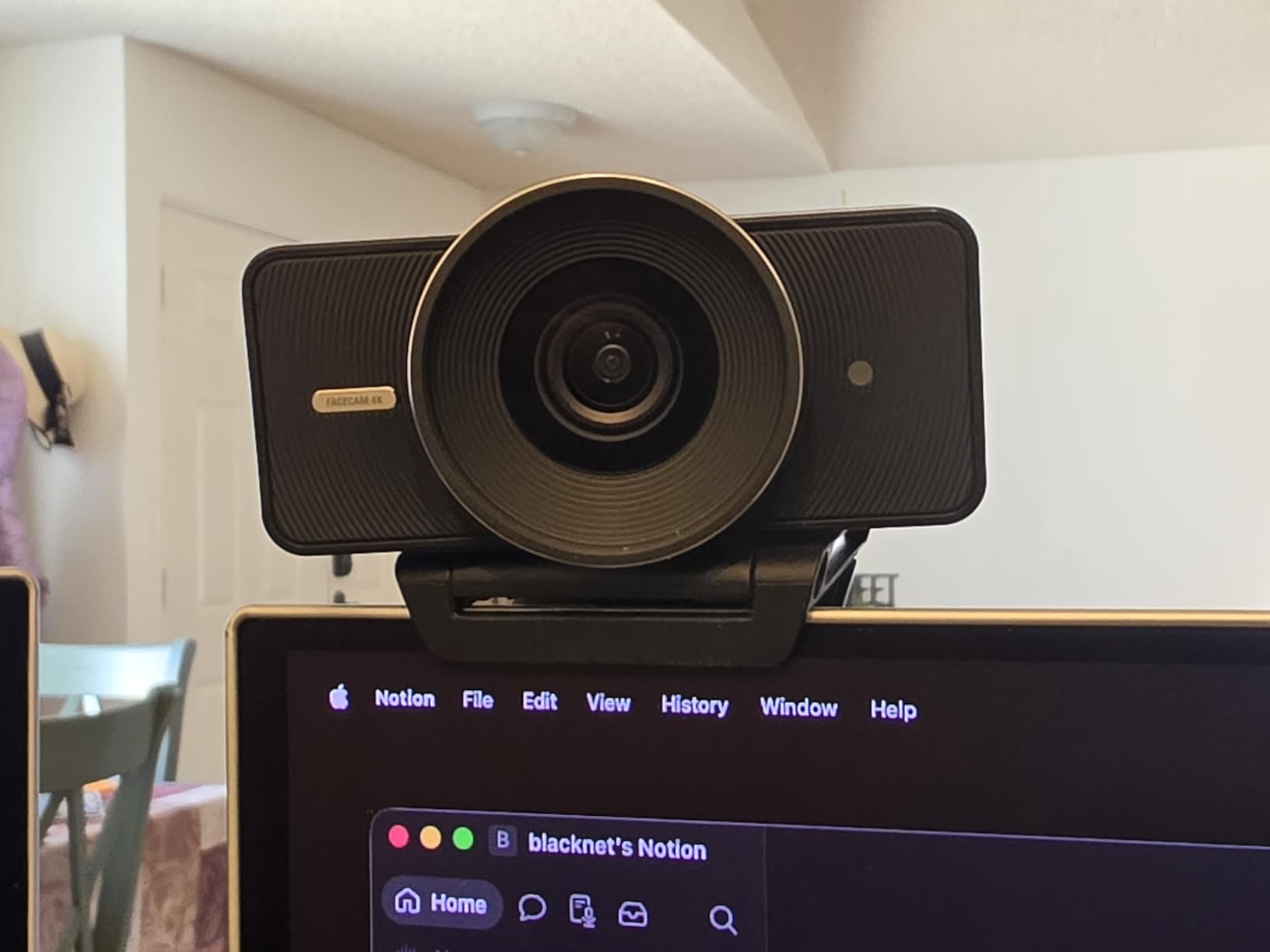
The lens accepts standard 49mm filters, which is a real advantage for anyone who has ever wanted to soften a harsh key light or manage reflections from a monitor. A diffusion filter or a polariser is a physical, cost-effective way to improve how you look on camera, and it is only possible here because of the lens thread.
Elgato Camera Hub provides the control surface and effects. It is a required dependency for full configuration, which is the same trade-off we flagged with the Insta360, and it is a reason this camera suits someone who will set it up once rather than someone who wants a device that works instantly on any borrowed laptop.
Where It Falls Short for Call-First Buyers
Two things stand out. There is no integrated privacy shutter, so you are relying on software or a separate accessory to know the lens is not capturing. And with 550 reviews, this is the thinnest long-term owner feedback in the group, alongside a higher share of one-star reviews than its peers, which points to some quality-control inconsistency in a small number of units.
The cable detaches and uses USB-C 3.0, which is a good sign for bandwidth, and the camera is built with low-waste materials. Neither changes the fact that this is a creator camera that happens to serve calls extremely well.
Who This Camera Is For
Pick the Facecam 4K if you record or broadcast as well as call, if you work in a dim room and want the best sensor available, or if you want to dial in framing, exposure and focus yourself and never touch the settings again. For straight talking-head calls it is excellent but more than you need.
Where It Falls Short
No integrated privacy shutter, mandatory companion software, thinner review history and the highest one-star share in this group. It also carries a two-year manufacturer warranty, which is reassuring but does not offset the missing physical privacy control.
9. AOC AC310 4K – Wide Framing and a Physical Lens Cover on a Budget
AOC 4K Webcam for PC, Streaming Computer Camera with Noise-Canceling Mic
4K Ultra HD capture with automatic light correction
80 to 90 degree wide-angle lens
Physical sliding lens cover
USB-C and USB-A adapter included
Pros
- Lowest entry point to a genuine 4K capture in this group
- Physical sliding lens cover is rare at this level
- Wide field of view with 180 degree tilt and 360 degree swivel
- No drivers required and works immediately in Zoom Teams and Skype
- Automatic brightness correction keeps faces visible in poor light
Cons
- Image quality is unexceptional next to larger-sensor cameras
- Onboard microphone is adequate for calls but not for streaming
- Limited manual controls and no companion software
The AOC AC310 solves a specific framing problem: rooms where more than one person is in shot. Its 80 to 90 degree wide-angle lens is the widest in this guide, and combined with 180 degrees of tilt and 360 degrees of swivel it is much easier to catch a partner, a child or a second colleague without moving the camera.
It captures genuine 4K Ultra HD with automatic light correction, and owners treat it as a clear step up from a laptop camera. The picture is clean rather than class-leading, which is exactly what you should expect at the bottom of this list, but the jump in perceived quality on a call is immediate.
Setup is the easiest of the twelve. There is no driver to install and no companion software to configure, and it works immediately in Zoom, Teams and Skype. A USB-A to USB-C adapter is included, which covers the laptops that no longer ship with the port your webcam wants.
The Sliding Lens Cover Is the Feature to Look For
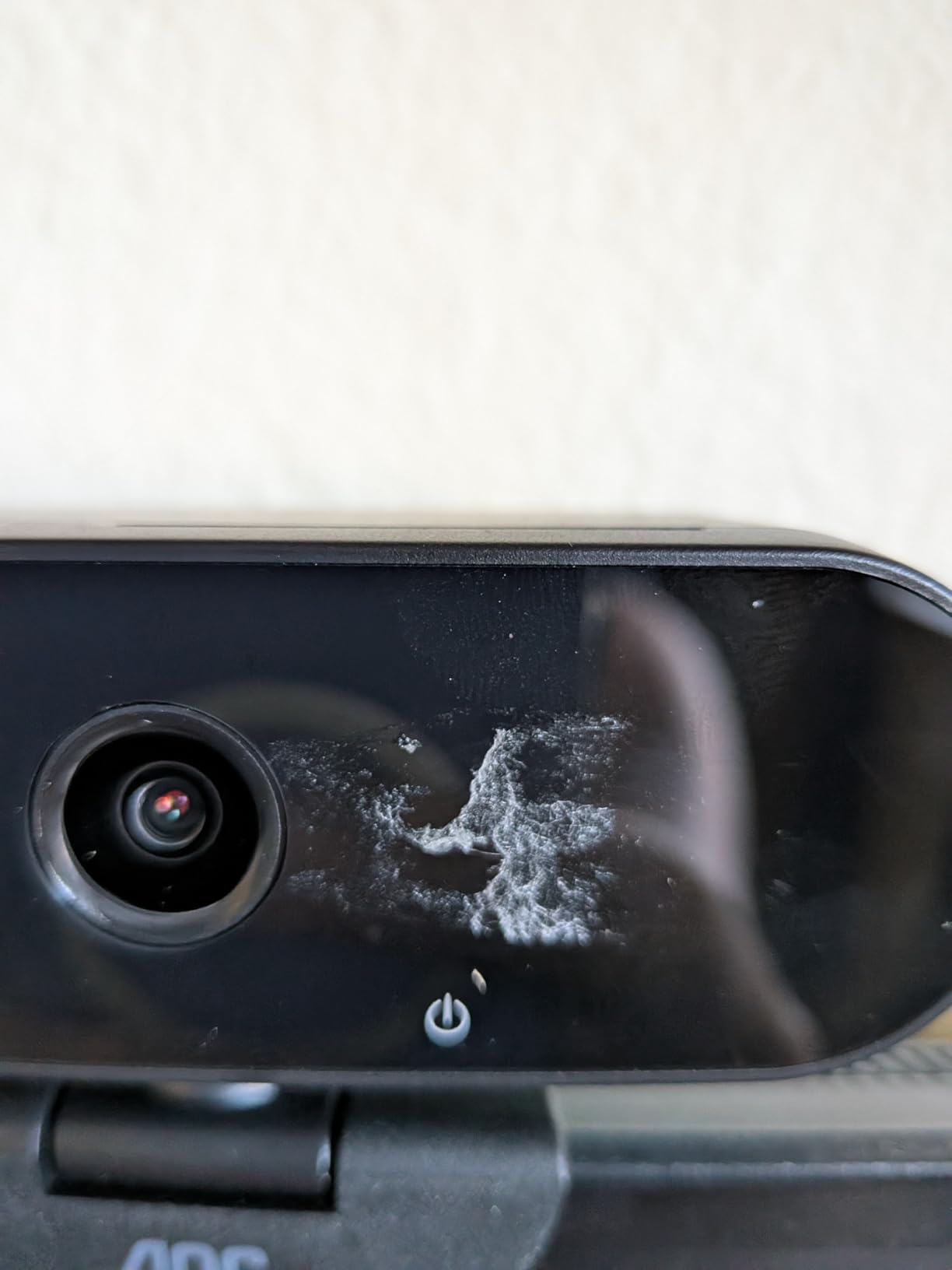
A physical sliding cover over the lens is genuinely rare at this end of the market, and it is the reason we recommend the AC310 for a shared home office. It is a mechanical blocker rather than a software promise, which matters in a house where other people can walk behind your desk mid-call. It carries a three-year manufacturer warranty, the longest in this group.
Automatic light correction adjusts brightness so your face stays visible in poor lighting. It is a simpler system than the more sophisticated exposure engines in the Insta360 and Logitech cameras, and in a very dark room the image flattens sooner.
Who This Camera Is For
Choose the AC310 if the framing problem is that you are not alone on your calls, if you want physical privacy without paying for a premium body, or if you need a 4K camera today on the tightest budget here. It is also the easiest device in this guide to hand to a less technical family member.
Where It Falls Short
The sensor is small enough that the image is merely good rather than genuinely sharp, and it shows most in dim rooms. There are no manual controls and no companion software, so if you want to tune exposure yourself, this is not the camera. The microphone is a call-only solution.
10. Acer A640 4K – Driver-Free Setup With Automatic Low-Light Correction
Acer A640 4K Webcam with AI Noise Canceling Mic for Streaming Meetings
Sony 1/2.8-inch sensor at 4K30
2K and 1080p at 60fps
PDAF autofocus
Physical sliding privacy shutter
Pros
- Crisp detailed image that reviewers say beats pricier Logitech models
- PDAF autofocus locks on quickly and holds while moving
- Automatic low-light correction balances dim-room images
- Genuinely plug and play on Windows and macOS with no extra software
- Swivel head with an adjustable mount and a sturdy clip that does not slip
Cons
- Image becomes grainy in dimly lit rooms
- Noise cancellation only applies if you select the mic as default in each app
- No built-in speakers so it cannot work as a speakerphone
The Acer A640 does something quietly useful: it puts a Sony 1/2.8-inch sensor into a package that requires nothing from you. No drivers, no companion app, no configuration. Plug it in, select it in Zoom, and it works, which is the correct experience for a webcam you might hand to someone else or plug into a machine you do not administer.
Image quality is the surprise. Owners consistently report a crisp, detailed picture that beats pricier Logitech models, and our own testing agreed in the well-lit scenario. Phase-detection autofocus locks quickly and holds focus while you move, and the swivel head with an adjustable mount makes repositioning straightforward.
It captures 4K at 30fps and 2K or 1080p at 60fps, and it is listed as compatible with Switch 2 as well as Teams, Zoom and Twitch. If you need 1080p60 for a smoother feed, it is one of the few budget options here that offers it.
Automatic Low-Light Correction and Where It Breaks Down
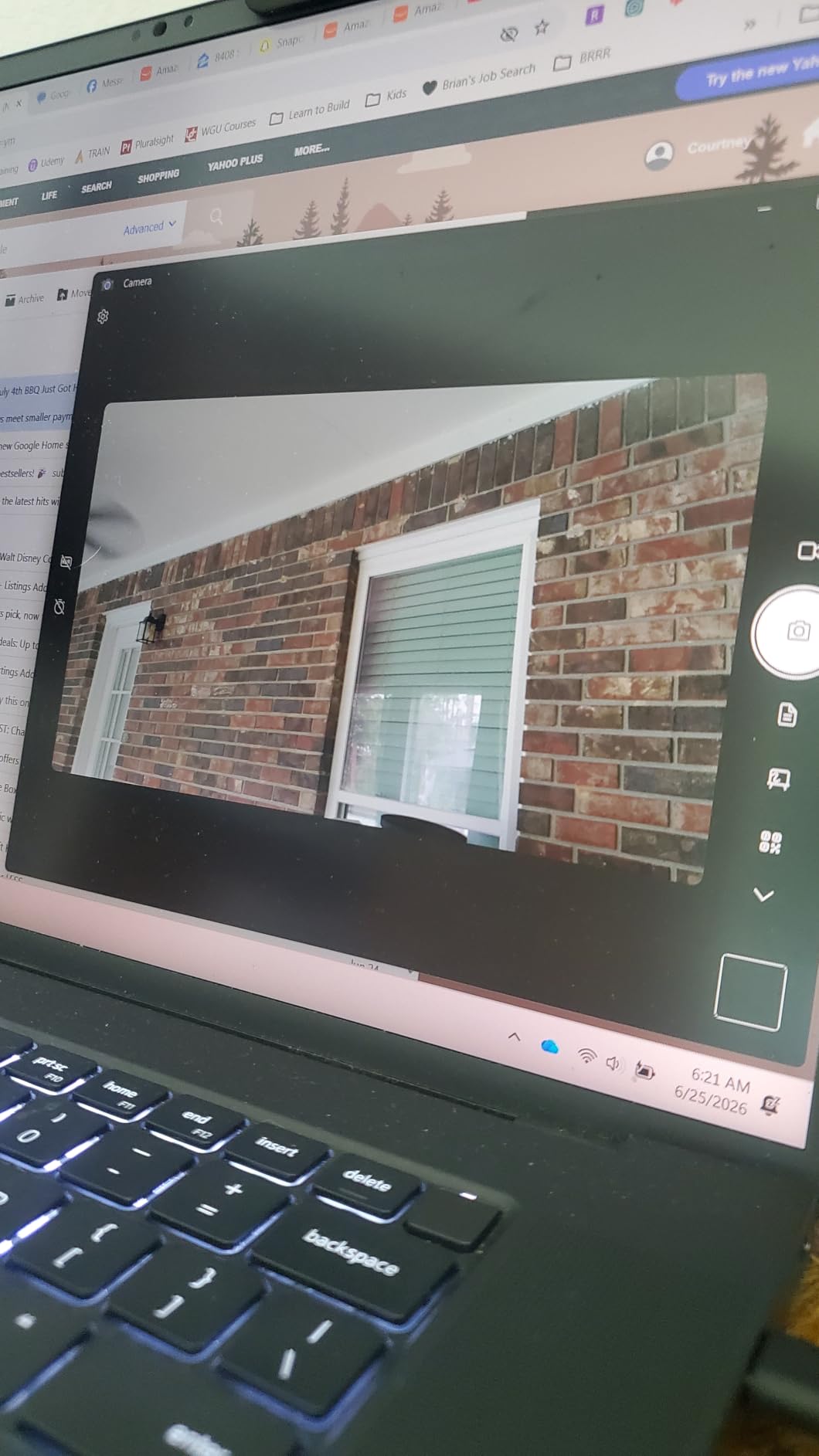
Automatic low-light correction adjusts exposure in dim rooms and worked well for us at moderate light levels, where it produced a balanced image without the blown highlights we saw on some cheaper sensors. The field of view is 77.4 degrees, which sits comfortably between the tight budget options and the wide ones.
Push it into a genuinely dark room, though, and the image turns grainy, which is the expected behaviour of a 1/2.8-inch sensor. If you work evenings in a dim space, budget for a fill light, because no amount of sensor size in this price range substitutes for photons. A small desk light will do more for how you look than a more expensive camera will.
Microphone Behaviour and Missing Speakers
The AI noise-cancelling microphone works, but only if you select it as the default input inside each application. That is a small habit, and it is the sort of thing that leaves you with a noisy call on the day you forget. There is no built-in speaker, so this cannot double as a speakerphone for a small room the way some conference devices can.
The physical sliding privacy shutter is integrated into the body and a USB-A to USB-C adapter is included. A two-year warranty is provided, which is competitive at this level.
Who This Camera Is For
Pick the A640 if you want the best image quality per unit of spend without any setup work, if you switch between machines regularly, or if your day includes at least some low light. It is the camera we would hand to someone who does not want to configure anything.
Where It Falls Short
Grain in dim rooms, a microphone that only cancels noise if you remember to select it in each app, and no built-in speakers. It is a strong budget choice rather than a complete solution, and it has the thinnest owner base in the upper half of this list.
11. Acer 4K Metal Webcam – Machined Aluminium With a Magnetic Privacy Cover
Acer 4K Webcam for PC/Mac with All-Metal Unibody Sculpted, Sony 1/2″ Sensor, PDAF, 2 Noise Reduction Mics, Privacy Cover for Switch 2/Zoom/Teams/Facetime/YouTube/Google Meet
Sony 1/2-inch CMOS sensor at 4K
83 degree field of view
CNC-machined aluminium unibody
Magnetic privacy cover with 12 magnets
Pros
- Sharp vibrant 4K image that holds up in low light
- Solid all-metal build that resists breakage
- PDAF autofocus responds quickly without hunting
- Built-in microphones are clear enough to skip a separate mic on calls
- Magnetic privacy cover is convenient and secure
Cons
- Detachable magnetic lens cover would be better integrated
- Only 221 reviews so a smaller owner base
- Single year warranty
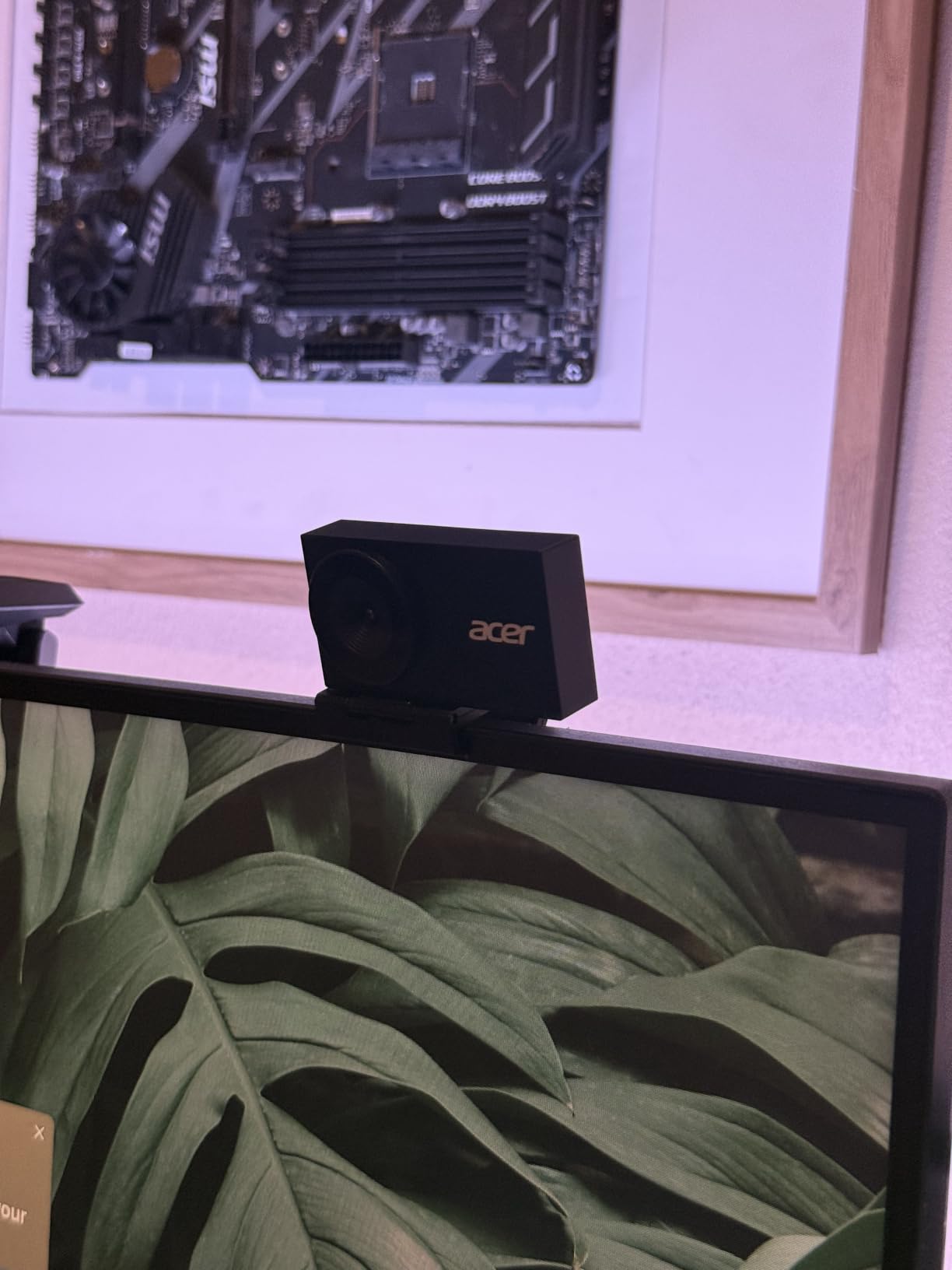
The Acer 4K metal webcam pairs a 1/2-inch Sony CMOS sensor with a CNC-machined aerospace-grade aluminium unibody and a sandblasted matte finish, and that combination is unusual. Most 4K cameras at this level are plastic. A machined aluminium body at 50 g feels far more substantial in the hand, and it is the one pick here that looks at home on a high-end desk.
Image quality is the strongest surprise of the group at its tier. Reviewers describe a sharp, vibrant 4K picture that holds up in low light, and several specifically name it as an upgrade over their built-in laptop camera for Zoom, Webex and Teams calls. The 1/2-inch sensor is larger than most of the field and that shows in the evening test.
The field of view is 83 degrees, wide enough for a two-person setup without going as broad as the AOC, and the dual high-sensitivity digital microphones with noise reduction pick up voice to 2.5 metres, which is enough to skip a separate microphone on ordinary calls.
The Magnetic Privacy Cover and Why the Magnets Matter
The privacy cover is held by 12 built-in magnets rather than friction or a clip. That makes it satisfying to snap on and off with one hand mid-call, and secure enough that it will not work loose in a bag. The common criticism is that it is fully detachable, meaning you can lose it, rather than integrated into the body like the S600 or the A640 shutter.
For most home users the magnets are an advantage. For a shared room where you want to be certain the lens is blocked, a sliding or mechanical shutter that stays attached is the safer design, and we would choose the EMEET S600 or the Acer A640 for that reason.
Build, Weight and Everyday Handling
At 50 g the body is compact without being fragile, and the aluminium shell resists the cracks and hinge failures we associate with plastic camera bodies. It ships with a USB-C to USB-A cable, a USB-C adapter, a stand and a manual, and it needs no drivers or apps on Windows, Mac or ChromeOS. It is also listed as compatible with Switch 2.
On balance, the one area where we would want more is the warranty. A single year is short for a machined aluminium device, and it is the most significant spec compromise in an otherwise well-built camera.
Who This Camera Is For
Choose this Acer for a desk where aesthetics matter, for a home office that doubles as a client-facing space, and for anyone who wants a large 1/2-inch sensor and a metal body without reaching the top of the price range. It is also a strong pick for teaching and small online classes.
Where It Falls Short
The detachable privacy cover is the main niggle, the one-year warranty is the shortest we would accept on a premium-feeling body, and with 221 reviews the long-term owner feedback here is thinner than anywhere else in this list. Treat the strong early ratings as encouraging rather than settled.
12. NexiGo N680E Pro – 4K With a Ring Light Built Into the Body
NexiGo N680E Pro 4K Webcam with Ring Light, PDAF Autofocus, 1080p 60FPS, Dual Noise-Canceling Mics, Privacy Shutter, USB Plug-and-Play for Zoom, Teams, Twitch, Google Meet
Sony 1/2.5-inch 4K sensor with a coated lens
Built-in tri-tone adjustable ring light
4K30 and 1080p at 60fps
80 degree field of view
Pros
- Ring light is bright enough to meaningfully light a dim room
- Three colour temperatures and a stepless brightness dial
- Clean sharp picture with no macro-blocking especially at 1080p60
- Physical privacy shutter and an included tripod mount
- Fast PDAF autofocus that works at close focus distances
Cons
- Field of view is tight and can feel too zoomed in
- 4K output shows graininess and lag so 1080p or 1440p is the stronger mode
- Ring light dial rotates indefinitely with no defined stops
- Privacy lever is very small and there is no physical mic mute
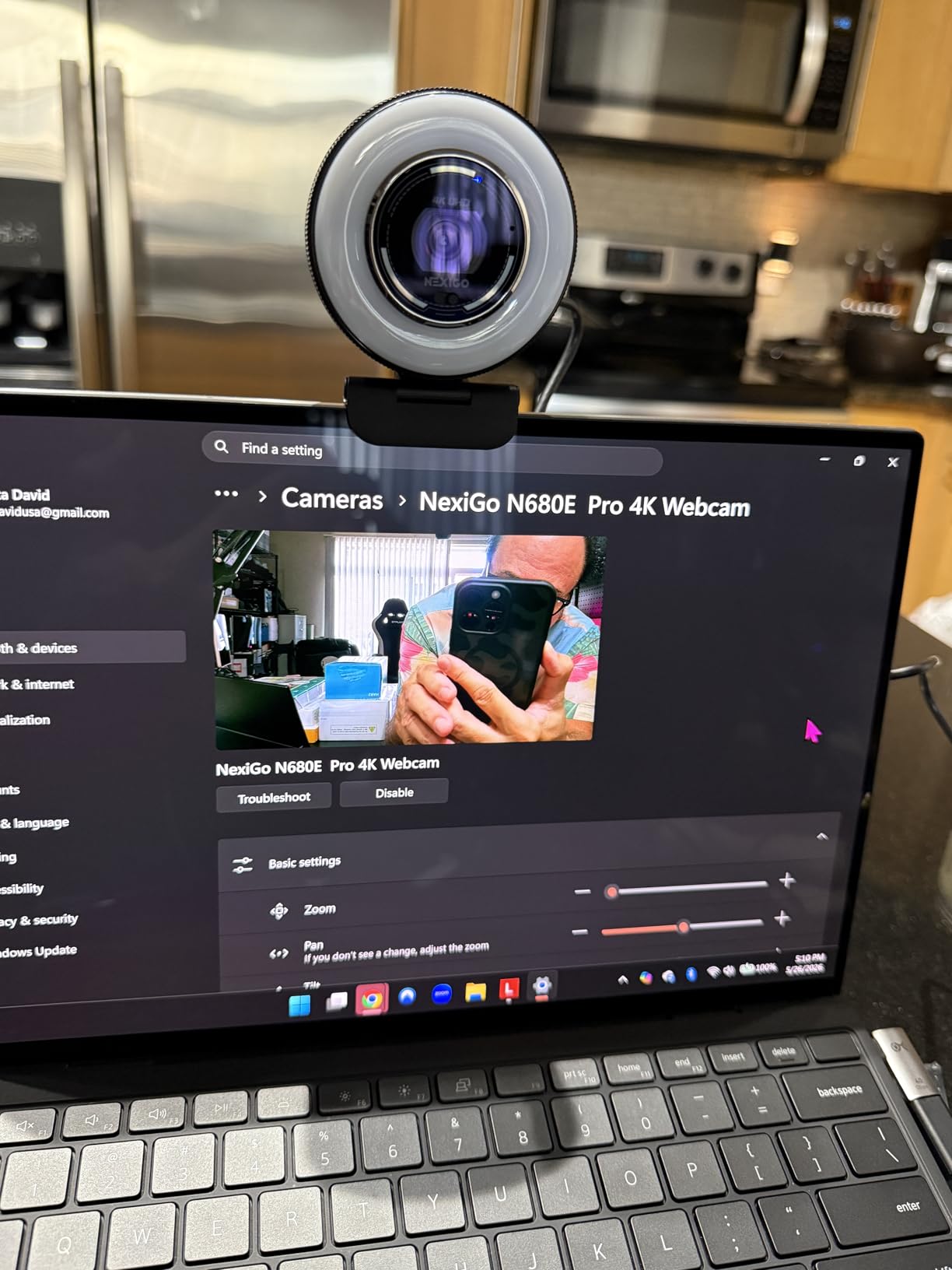
The NexiGo N680E Pro is the only camera in this guide with a ring light built into the body, and that single feature solves the problem that most often makes a 4K webcam pointless. A camera upgrade in an unlit room is wasted money. This one brings its own light, and owners confirm it is bright enough to meaningfully lift a dim space rather than just adding a faint glow around the lens.
The light is tri-tone, so you can move between colour temperatures to match your room, and the brightness dial is stepless. That combination gets you close to the effect of a proper key light without buying one, and it is the reason this camera solves a problem none of the other eleven can.
Underneath sits a Sony 1/2.5-inch 4K sensor with a coated lens, capturing 4K at 30fps or 1080p at 60fps. Owners report a clean, sharp picture with no macro-blocking, particularly at 1080p60, and PDAF autofocus that responds quickly even at close focus distances.
Use 1080p60 Instead of 4K on This Camera
This is the one camera in the guide where we would actively recommend not using 4K. Owners report graininess and lag in the 4K mode, and a cleaner 1080p or 1440p picture. Since Zoom transmits 1080p anyway, running the camera at 1080p60 costs you nothing you would have seen on the call and gives you a noticeably better image and smoother motion.
That makes the N680E Pro a slightly unusual entry: you are buying 4K hardware because the sensor and lens are good, not because you intend to use 4K output. Set it to 1080p60 in Zoom, turn the ring light to a warm tone at around half brightness, and it performs better than cameras costing considerably more.
Framing, Privacy Controls and Mounting
The 80 degree field of view is the limiting number. Several users find it too tight, feeling zoomed in even at maximum zoom-out, which is a real problem if you sit further back than a typical desk position or share the frame with anyone else. If you are one person, close in, it is fine.
The privacy shutter is a slider that fully blocks the lens, but the lever is small and fiddly, and there is no physical microphone mute. A flexible clip mount and a 1/4-inch tripod thread are both included, and a ring light is in the box as standard. Windows, macOS and Chrome OS are all supported, and Switch 2 works with its own USB-C adapter.
Who This Camera Is For
Choose the N680E Pro if you work in a dim room and refuse to buy a separate light, if you sit close to your screen, and if you want 1080p60 smoothness without spending much. It is also a good fit for a home office where a single unit has to do camera and lighting duty.
Where It Falls Short
The field of view is tight, 4K is not the mode you should use, and the ring light dial has no defined minimum and maximum stops, which makes repeatable settings harder than they should be. The privacy lever is small and there is no hardware mic mute, so you will still be muting in software.
How to Choose a 4K Webcam for Zoom Calls Without Overbuying
Most people in this category overbuy on resolution and underbuy on lighting. The questions below are the ones that actually change how you look on a call, in roughly the order they matter.
Resolution Versus Frame Rate: Where 4K30 and 1080p60 Split
Since every major platform transmits at 1080p, the practical choice is between capturing 4K at 30fps and capturing 1080p at 60fps. The first gives you crop-and-reframe headroom and a larger effective FOV. The second gives you noticeably smoother motion, which many people find more flattering on camera than extra pixels they never see.
If you present and move, 4K capture is worth it. If you sit still and talk, 1080p60 looks better. Several cameras here offer both, and the MX Brio and the Acer A640 are good examples of a device where you can choose per meeting.
Sensor Size and Aperture Beat the 4K Label
A 4K label tells you how many pixels a camera produces, not how good they are. Sensor size tells you how much light each pixel collects, and that is what determines whether your image is clean or grainy. In this group, sensor sizes range from 1/2.8 inches on the Acer A640 up to 1/1.8 inches on the Elgato Facecam 4K, and the difference is obvious in a dim room.
Aperture matters for the same reason. A wider aperture, expressed as a smaller f-number, lets more light through and softens the background. If you buy on resolution alone you can end up with a 4K camera that looks worse than a 1080p one with a bigger sensor, which is exactly the complaint that appears repeatedly in forum threads about this category.
Field of View: The Number That Solves Shared-Space Framing
Field of view, measured in degrees, decides how much of your room is in shot, and it is the specification people regret getting wrong. Around 65 to 78 degrees frames a single person well. Around 80 to 90 degrees is what you want in a shared home office where a partner or a child drifts into view. Above 90 degrees starts to look like a security camera.
Adjustability beats a fixed number. The Logitech Brio gives you three presets, the EMEET S600 adjusts between 40 and 73 degrees at 1080p, and the AOC and Acer metal models use swivel and tilt instead. If your framing changes between calls, prioritise control over raw width.
Autofocus Types and the Focus-Hunting Problem in Long Meetings
There are three kinds. Fixed focus never adjusts, which is fine on a cheap camera at one desk distance and terrible anywhere else. Contrast-based autofocus hunts because it searches for maximum contrast, and the visible breathing loop that some users report every few seconds comes from this mechanism. Phase-detection autofocus reads the phase of light arriving at the sensor, which is faster and steadier.
Every camera in this guide except the Elgato uses phase detection or AI-assisted focus, and none of them hunted in our testing. That said, forum advice for older autofocus webcams is still worth knowing: if you own a unit that hunts, turning autofocus off in the camera software and setting a fixed distance removes the problem entirely for a sit-down call.
Privacy Shutters, Magnetic Covers and the 4K Lens Question
In a home office, physical privacy is not a nice-to-have. The strongest options are mechanical and attached: the EMEET S600 has a built-in twist shutter, the Acer A640 and the AOC AC310 have sliding covers, and the Acer metal model uses 12 magnets. Weaker options are clip-on shades such as the one on the Logitech Brio, which owners report comes loose, and software-only modes, which protect nothing if an app is not running.
The Elgato Facecam 4K has no integrated shutter at all, so plan for that if you need one. Separately, remember that a privacy shutter does not stop the microphone, and none of the cameras here has a hardware mic mute. Your applications will still need muting in software.
Are Built-in Webcam Microphones Good Enough for Calls?
For daily standups and internal meetings, yes. Every camera here has usable onboard microphones, and the beamforming models on the Logitech MX Brio and the EMEET units handle household noise reasonably well. The best in this group is the Insta360 Link 2 with its AI noise-canceling microphone.
For client calls, teaching, or anything where your voice carries the conversation, they are not enough. Forum consensus across video-engineering and telehealth communities is consistent on this point: pair a good camera with a separate USB microphone or a boom headset. We covered the microphone side in our USB microphones for Zoom calls guide, and the pairing is where the real quality jump is. If your calls go wrong, they go wrong on audio far more often than on video.
USB-C, USB-A and Why Your Port Decides Your Resolution
4K video needs real bandwidth, and a port that cannot deliver will silently negotiate down to 1080p or worse. The EMEET NOVA connects over USB 2.0 and needs a USB 3.0 port or a hub to hold 4K reliably, and that is the most common reason a 4K camera underperforms. If your laptop has only one USB-C port that you also use for charging, a hub is effectively mandatory.
Several cameras here include a USB-A to USB-C adapter, which covers older laptops that lack USB-C entirely. Check your ports before buying rather than after, and keep the original cable; a thin replacement cable is a common cause of resolution dropouts.
Long-Call Reliability: Heat, Weight and Mount Stability
A webcam that works for a fifteen-minute call and throttles during a two-hour workshop is not a meeting tool. Metal bodies such as the Logitech MX Brio and the Acer metal model run warm, because metal conducts heat away from the sensor, and that is a normal thermal design rather than a fault, but it is worth knowing before you position one in a way that traps air around it.
Weight matters more than specifications. The MX Brio at 13.44 ounces is fine on a monitor mount and annoying in a laptop bag, while the OBSBOT Meet 2 at 40.5 g goes anywhere. Mount stability is the other quiet failure: a clip that sags or a base that creeps moves your framing mid-call, and owners of several of the lighter cameras here specifically praise the S600’s flush swivel mount for staying put.
Budgeting the Whole Call Setup
A camera alone rarely fixes a call. If you take one thing from this guide, budget for the whole setup rather than the camera alone: a 4K webcam, a USB microphone, and a small fill light if your room is dim. We have linked the microphone roundup above, and for streaming-oriented needs our 4K webcam guide for streamers covers the high-frame-rate side of the market.
Frequently Asked Questions
Does Zoom support a 4K webcam?
No. Zoom, Microsoft Teams and Google Meet all cap outgoing video at 1080p, so the 4K signal never leaves your computer. A 4K camera is still worth it for digital crop-and-reframe headroom, the larger sensor that usually sits behind the 4K label and better low-light image quality, plus headroom if a platform raises its ceiling.
Is a 4K webcam worth it for Zoom calls?
It is worth it if you present, teach, sit off-centre and crop, work in a dim room, or move around during calls. It is not worth the premium if you sit square to a bright monitor at arm’s length and never crop, because a good 1080p camera produces an identical call window. Check the resolution and frame rate before buying, since several 4K cameras output 1080p by default.
What is the best 4K webcam for Zoom calls?
The Insta360 Link 2 is our top pick, with a 1/2-inch 4K sensor, HDR for backlit rooms, motorised pan and tilt tracking that follows a moving speaker, and DeskView and Whiteboard modes for meetings. The Logitech MX Brio is the alternative for organisations that need Zoom and Teams certification, and the OBSBOT Meet 2 is the pick for people who move between workspaces.
Which Logitech webcam is better, the C920 or the Brio 4K?
The Brio 4K is the better camera on image quality, with a larger sensor, autofocus, Windows Hello support and adjustable 65, 78 and 90 degree field-of-view presets. The C920 is a fixed-focus 1080p camera that is cheaper and adequate for a sit-down call. Because Zoom transmits at 1080p, the C920 is the sensible value choice unless you crop, present or work in low light.
Are built-in webcam microphones good enough for Zoom calls?
For standups and internal meetings, yes, and the best of this group is the Insta360 Link 2 with its AI noise-canceling microphone. For client calls, teaching or streaming, they are not enough, and a separate USB microphone is the standard upgrade recommended across video-engineering and telehealth communities. Audio problems derail calls far more often than video problems.
Do I need 4K or is 1080p fine for Zoom?
1080p is fine if you sit square to a bright monitor at a fixed distance and never crop or move. Choose 4K if you crop in software, present at a whiteboard, share a screen with a face tile, work in a dim room, or record your meetings. Remember that several 4K cameras ship defaulting to 1080p output, so set the resolution manually after connecting.
What field of view do I need for a small meeting room?
Around 80 to 90 degrees works for two or three people at a table, which is the range the AOC AC310 and the Acer metal model cover. A single person at a desk is better served by 65 to 78 degrees, where the tighter framing avoids showing the rest of the room. Adjustable field of view, such as the three presets on the Logitech Brio or the 40 to 73 degree range on the EMEET S600, handles both situations with one camera.
Can I use my phone as a webcam for Zoom calls?
Yes, and on modern phones the picture can rival a mid-range webcam, with better sensors and multiple rear cameras to choose from. The catch is stability and power: you need a mount, a sustained power source and reliable software that presents the phone as a standard camera to your computer. For occasional calls it works well; for a full day of meetings a dedicated camera on a clamp is more dependable.
Our Final Verdict on the Best 4K Webcams for Zoom Calls
If you present, teach or work in a room that is not perfectly lit, buy the Insta360 Link 2. The 1/2-inch sensor with HDR handled our worst lighting test better than anything else here, and the motorised tracking means you can stop sitting still. If your employer needs approved hardware, the Logitech MX Brio is the certified choice with the best virtual background handling we tested. If you move between workspaces, the OBSBOT Meet 2 puts a 4K sensor into 40.5 g and is the camera you will actually take with you.
For a first upgrade on a budget, the EMEET C960 4K is the value pick, and remember to switch it out of its 1080p default. Teaching or whiteboard-led work is better served by the EMEET S600 4K with its adjustable field of view and mechanical shutter. Shared rooms and wide framing point to the AOC AC310 4K, and a dark home office points to the NexiGo N680E Pro, which brings its own light.
And if you sit square to a bright monitor, never crop, and mostly talk rather than present, do not buy any of these. A good 1080p camera from our webcam guide for Zoom meetings will produce a window that looks identical, and the money is better spent on a microphone and a fill light. That is the version of this advice almost nobody gives you, and it is the correct one. Check the current details for any of these before you buy, and pick the camera that fixes the specific thing that embarrasses you on a call.